lights AUDI E-TRON 2019 Owner's Guide
[x] Cancel search | Manufacturer: AUDI, Model Year: 2019, Model line: E-TRON, Model: AUDI E-TRON 2019Pages: 310, PDF Size: 81.91 MB
Page 125 of 310
4KE012721BB
Assist systems
Assist systems
General information
Sica eel delay
ZA WARNING
— As the driver, you are always completely re-
sponsible for all driving tasks. The assist
systems cannot replace the driver's atten-
tion. Give your full attention to driving the
vehicle, and be ready to intervene in the
traffic situation at all times.
— Activate the assist systems only if the sur-
rounding conditions permit it. Always adapt
your driving style to the current visual,
weather, road, and traffic conditions.
— Unexpected steering or braking interven-
tions may be initiated by the assist systems.
Note the information on storing luggage
items correctly > page 77.
— For the assist systems to be able to react
correctly, the function of the sensors and
cameras must not be restricted. Note the in-
formation on sensors and cameras
=>page 124 or > page 125.
G) Tips
— Pay attention to applicable local regulations
relating to driving tasks, leaving space for
emergency vehicles, vehicle distance, speed,
parking location, wheel placement, etc. The
driver is always responsible for following
the laws that are applicable in the location
where the vehicle is being operated.
— You can cancel a steering or braking inter-
vention by the system by braking or acceler-
ating noticeably, steering, or deactivating
the respective assist system.
— Always check the assist systems settings be-
fore driving. The settings could have been
changed, for example, by other drivers or if
another personal profile was used.
System limitations
ZA\ WARNING
—The use of an assist system cannot over-
come the natural laws of physics. A collision
cannot be prevented in certain circumstan-
ces.
— Warnings, messages, or indicator lights may
not be displayed or initiated on time or cor-
rectly, for example, if vehicles are approach-
ing very fast.
— Corrective interventions by the assist sys-
tems, such as steering or braking interven-
tions, may not be sufficient or they may not
occur. Always be ready to intervene.
@) Tips
— Due to the system limitations when detect-
ing the surrounding area, the systems may
warn or intervene unexpectedly or too late
in certain situations. The assist systems may
also interpret a driving maneuver incorrectly
and then warn the driver unexpectedly.
— The systems may not function as expected
in unusual driving situations, such as driving
offroad, on unpaved roads, on loose ground,
on inclines, or on grooves in the road.
— The systems may not function correctly in
unclear traffic situations, such as turning
lanes, exit ramps, construction zones, rises
or dips that obstruct visibility, intersections,
toll stations, or city traffic.
—In trailer mode, some assist systems may be
limited, may not react as usual, or may be
unavailable. Please refer to the instructions
for towing a trailer located in > page 120.
— If accessories have been mounted on the
steering wheel, the ability for the steering
systems to react may be limited.
123
Page 134 of 310
Driving information
objects, there are limits to the system.
There may be false warnings.
— For technical reasons, the image pauses in
split second intervals.
Wiser mea ile Kel ai
Applies to: vehicles with night vision assist
The system can be switched on and off in the
MMI > page 126.
> The AUTO light function must be selected for
the night vision assist to automatically activate
when it is dark.
> Switch on the low beams manually to activate
night
vision assist immediately. To do so,
press @) on the light switch module and select
Ww
When activated, the {1 tab appears in the instru-
ment cluster.
> Select in the instrument cluster: tab %
@ Tips
When the night vision assist tab is selected in
the instrument cluster and the low beams are
switched off, the thermal image display dis-
appears only after you have exited the tab.
Marking and warning
Applies to: vehicles with night vision assist
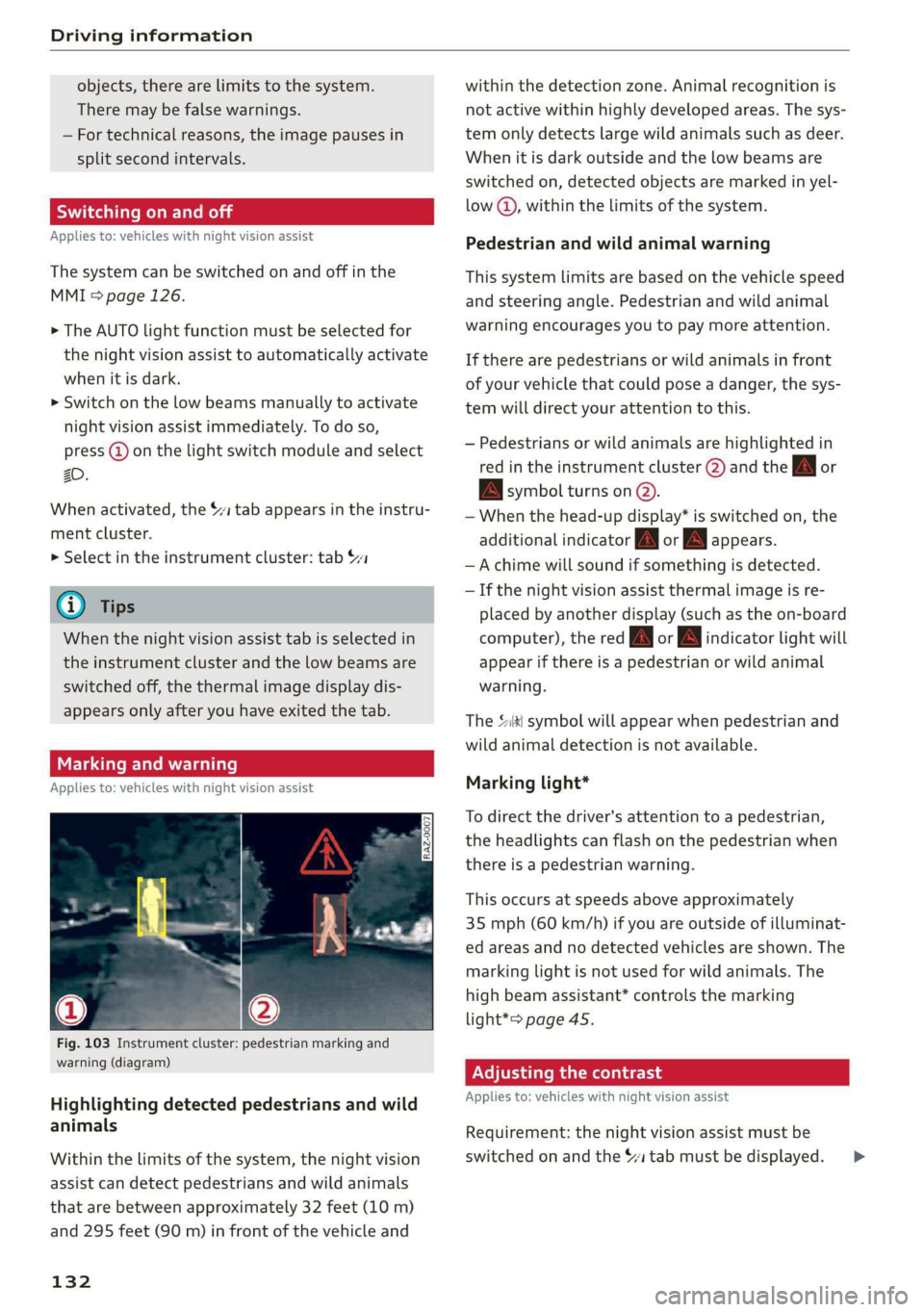
Fig. 103 Instrument cluster: pedestrian marking and
warning (diagram)
Highlighting detected pedestrians and wild
animals
Within the limits of the system, the night vision
assist can detect pedestrians and wild animals
that are between approximately 32 feet (10 m)
and 295 feet (90 m) in front of the vehicle and
132
within the detection zone. Animal recognition is
not active within highly developed areas. The sys-
tem only detects large wild animals such as deer.
When it is dark outside and the low beams are
switched on, detected objects are marked in yel-
low @), within the limits of the system.
Pedestrian and wild animal warning
This system limits are based on the vehicle speed
and steering angle. Pedestrian and wild animal
warning encourages you to pay more attention.
If there are pedestrians or wild animals in front
of your vehicle that could pose a danger, the sys-
tem will direct your attention to this.
— Pedestrians or wild animals are highlighted in
red in the instrument cluster (2) and the J or
BAN symbol turns on @.
— When the head-up display* is switched on, the
additional indicator [AM or EM appears.
—Achime will sound if something is detected.
— If the night vision assist thermal image is re-
placed by another display (such as the on-board
computer), the red A or wA indicator light will
appear if there is a pedestrian or wild animal
warning.
The Ski symbol will appear when pedestrian and
wild animal detection is not available.
Marking light*
To direct the driver's attention to a pedestrian,
the headlights can flash on the pedestrian when
there is a pedestrian warning.
This occurs at speeds above approximately
35 mph (60 km/h) if you are outside of illuminat-
ed areas and no detected vehicles are shown. The
marking light is not used for wild animals. The
high beam assistant* controls the marking
light*> page 45.
Adjusting the contrast
Applies to: vehicles with night vision assist
Requirement: the night vision assist must be
switched on and the $1 tab must be displayed. >
Page 136 of 310
Driver assistance
Driver assistance
Cruise control system
Applies to: vehicles with cruise control system
The cruise control system assists the driver in
maintaining a constant speed above approxi-
mately 15 mph (20 km/h). The system maintains
the desired speed by braking and accelerating.
ZA WARNING
— Always pay attention to the traffic around
your vehicle when the cruise control system
is in operation. As the driver, you are always
responsible for controlling your vehicle
speed and the distance between your vehicle
and
other vehicles.
— For safety reasons, cruise control should not
be used in the city, in stop-and-go traffic, on
winding roads, and when road conditions are
poor (such as ice, fog, gravel, heavy rain,
and conditions that could lead to hydroplan-
ing), because this increases the risk of an ac-
cident.
— Switch the cruise control off temporarily
when driving in turning lanes, highway exits,
or in construction zones.
—To reduce the risk of an accident, you should
only resume the stored speed if it is suitable
for the current traffic conditions.
C) Note
Before driving downhill a long distance ona
steep hill, decrease your speed and use the
braking effect of recuperation > page 90. This
reduces the load on the brakes.
@) Tips
The brake lights turn on when the brakes are
applied automatically.
134
Switching the system on
Applies to: vehicles with cruise control system
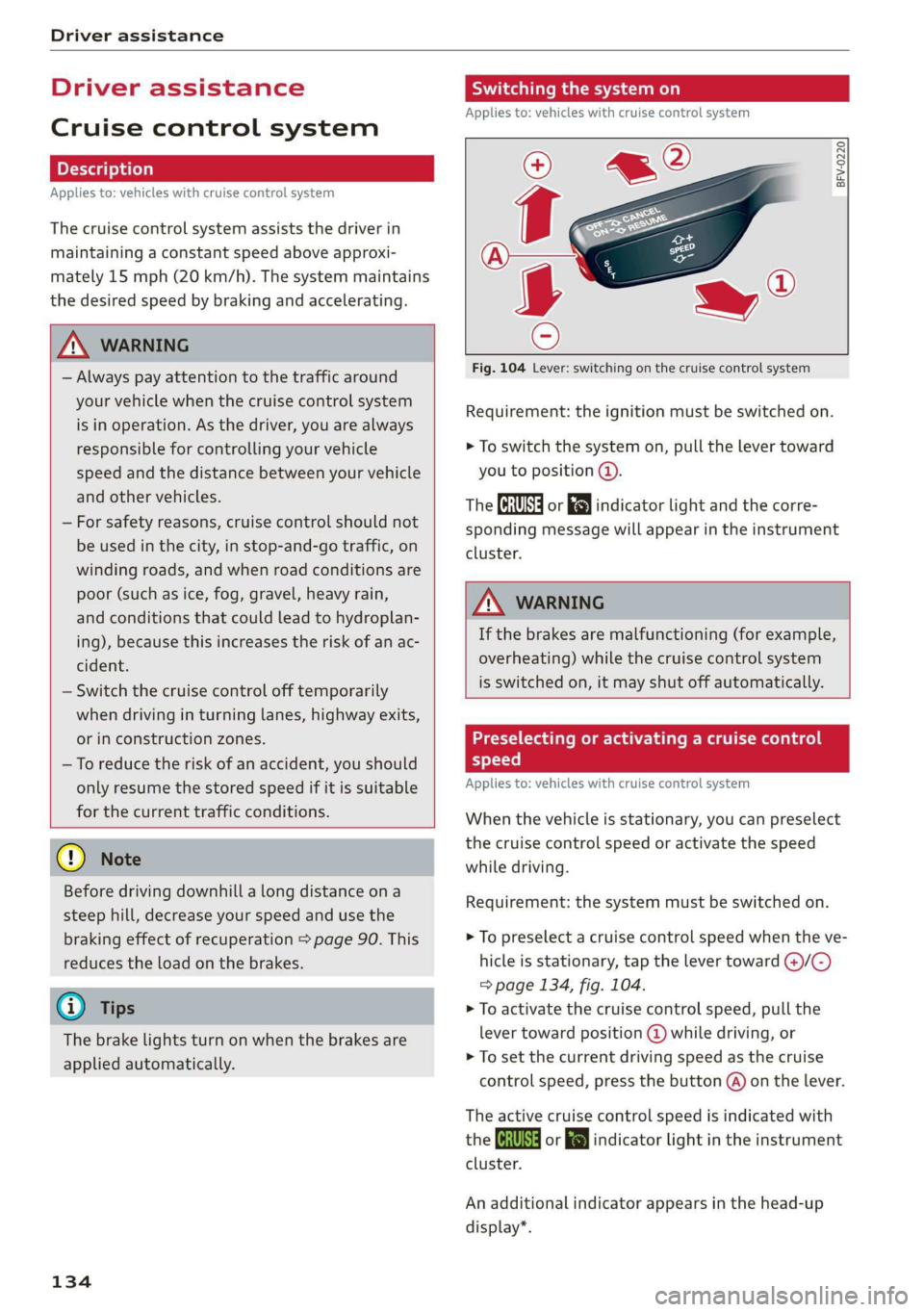
BFV-0220
Fig. 104 Lever: switching on the cruise control system
Requirement: the ignition must be switched on.
> To switch the system on, pull the lever toward
you to position @.
The Ga or 8) indicator light and the corre-
sponding message will appear in the instrument
cluster.
A WARNING
If the brakes are malfunctioning (for example,
overheating) while the cruise control system
is switched on, it may shut off automatically.
Preselecting or activating a cruise control
speed
Applies to: vehicles with cruise control system
When the vehicle is stationary, you can preselect
the cruise control speed or activate the speed
while driving.
Requirement: the system must be switched on.
> To preselect a cruise control speed when the ve-
hicle is stationary, tap the lever toward @)/C)
=> page 134, fig. 104.
> To activate the cruise control speed, pull the
lever
toward position @ while driving, or
> To set the current driving speed as the cruise
control speed, press the button @) on the lever.
The active cruise control speed is indicated with
the Gs or kl indicator light in the instrument
cluster.
An additional indicator appears in the head-up
display*.
Page 140 of 310
Driver assistance
Set speed limit - Adjusts to speed limits. You can
also set With tolerance if desired. In this scenar-
io, you may fall below or exceed the set speed in
favor of increased efficiency.
Adjustment to curves along route - Can be
switched Off or be set individually from Slow to
Fast. The setting influences vehicle handling with
predictive control, for example the speed for
driving through curves.
Messages
as and a message with Adaptive cruise assist:
Predictive control is displayed when there is a
malfunction, the efficiency assist functions are
unavailable or limited.
A message that indicates the cause and possible
solution may appear with some displays. The
weather conditions may be too poor or a sensor
may be covered. Clean the area in front of the
sensors > page 124, fig. 97 and try to turn on
the systems again later.
If the malfunction remains, drive to an author-
ized Audi dealer or authorized Audi Service Facili-
ty immediately to have the malfunction correct-
ed.
along route setting to reduce the risk of an
accident.
ZA\ WARNING
— Follow the safety precautions and note the
limits of the assist systems, sensors, and
cameras > page 123.
— Pay attention to traffic and the area around
your vehicle when predictive control is
switched on. The driver is always responsible
for assessing the traffic situation.
— The system does not consider “right of way”
rules and does not respond to traffic lights,
so lack of driver attention in these situations
can increase the risk of an accident.
— The speed when driving through curves may
be different from what you as a driver would
do or may not be suitable for the weather
and road conditions. If necessary, apply the
brakes and reduce the selected speed to be
maintained in the Adjustment to curves
YD In certain countries
138
@) Tips
— Predictive control can exceed or drop below
the maximum permitted speed. The driver
is responsible for adhering to the permitted
speed limit.
— The traffic signs on the road always take pri-
ority over the display. The driver is always
responsible for adhering to the regulations
applicable in the country where the vehicle
is being operated.
— Ifa speed limit is detected, the marking @
of the set speed limit will be adjusted even
if the adaptive cruise assist is not actively
regulating.
— You may temporarily fall below or exceed
the set speed due to recuperation.
— Control by the system depends on which
adaptive cruise assist driving program is set
or on the selected Audi drive select* mode.
— After switching on the ignition and first
driving onto a freeway or similar road with-
out a speed limit, the system will regulate
the speed to 80 mph (130 km/h), Then
the system adjusts to the last speed set by
the driver.
— There is no adaptation to speed limits when
driving through highway interchanges and
when driving on or off the expressway.
— The system can fail to provide control or the
control may be faulty if the values from the
camera-based traffic sign recognition* are
incorrect or the navigation system map data
is outdated.
— When route guidance is switched on, the
system adapts to the route provided by the
navigation system. Driving without route
guidance or leaving a route can result in
faulty control.
— Specific settings are stored automatically in
the active personal profile.
Page 142 of 310
Driver assistance
system expects that you can easily drive around
the stationary vehicle by turning the steering
wheel.
— The adaptive cruise assist may not react to sta-
tionary obstacles, such as the end of a traffic
jam, especially at high speeds.
— The adaptive cruise assist has a limited ability
to detect vehicles that are a short distance
ahead, off to the side of your vehicle, or moving
into your lane.
— Objects that are difficult to detect, such as mo-
torcycles, vehicles with high ground clearance,
or vehicles with an overhanging load, may be
detected late or not detected at all.
— The adaptive cruise assist does not respond to
people, animals, or objects that are crossing or
approaching from the opposite direction.
Z\ WARNING
Follow the safety precautions and note the
limits of the assist systems, sensors, and
cameras > page 123.
Display overview
Applies to: vehicles with adaptive cruise assist
eI S|
3 | kel Ny =|
fac
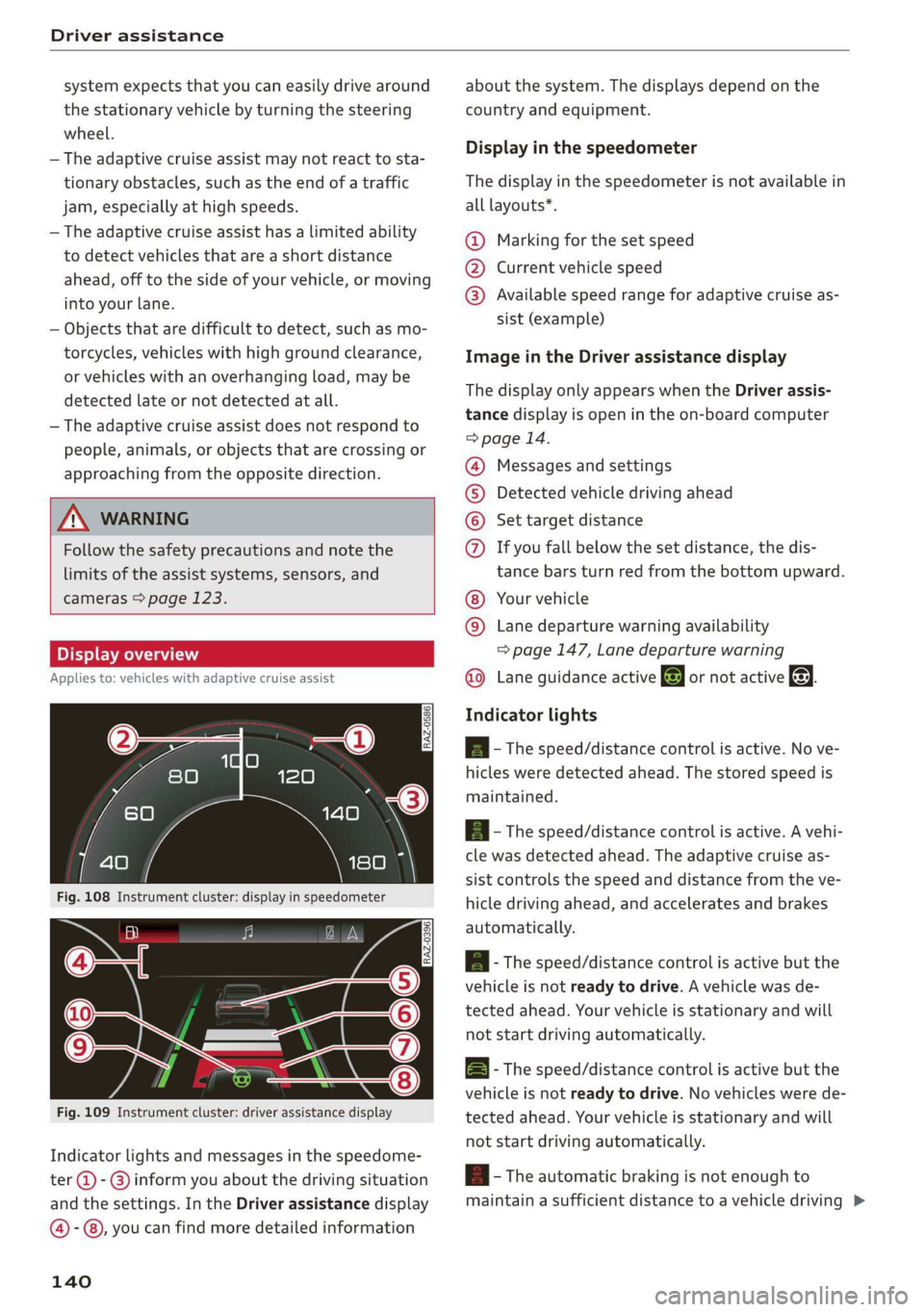
Fig. 109 Instrument cluster: driver assistance display
Indicator lights and messages in the speedome-
ter @ -@ inform you about the driving situation
and the settings. In the Driver assistance display
@-©®, you can find more detailed information
140
about the system. The displays depend on the
country and equipment.
Display in the speedometer
The display in the speedometer is not available in
all layouts*.
@ Marking for the set speed
@ Current vehicle speed
@® Available speed range for adaptive cruise as-
sist (example)
Image in the Driver assistance display
The display only appears when the Driver assis-
tance display is open in the on-board computer
> page 14.
Messages and settings
Detected vehicle driving ahead
Set target distance
COO® If you fall below the set distance, the dis-
tance bars turn red from the bottom upward.
Your vehicle
©® Lane departure warning availability
=> page 147, Lane departure warning
Lane guidance active @ or not active &. ©
Indicator lights
A - The speed/distance control is active. No ve-
hicles were detected ahead. The stored speed is
maintained.
a - The speed/distance control is active. A vehi-
cle was detected ahead. The adaptive cruise as-
sist controls the speed and distance from the ve-
hicle driving ahead, and accelerates and brakes
automatically.
ial - The speed/distance control is active but the
vehicle is not ready to drive. A vehicle was de-
tected ahead. Your vehicle is stationary and will
not start driving automatically.
B - The speed/distance control is active but the
vehicle is not ready to drive. No vehicles were de
tected ahead. Your vehicle is stationary and will
not start driving automatically.
B- The automatic braking is not enough to
maintain a sufficient distance to a vehicle driving
Page 145 of 310
4KE012721BB
Driver assistance
lane guidance is not active. This may be due to
the following reasons:
— The necessary lane marker lines have not been
detected (for example, in a construction zone
or because the lines are obstructed by snow,
dirt, water, or lighting)
— The lane is too narrow or too wide
— The curve is too narrow
— Visibility is obstructed by a rise or dip.
— The driver's hands are not on the steering
wheel
ZA WARNING
Follow the safety precautions and note the
limits of the assist systems, sensors, and
cameras > page 123.
@ Tips
— Always keep your hands on the steering
wheel. The driver is always responsible for
adhering to the regulations applicable in
the country where the vehicle is being oper-
ated.
— It is recommended to only switch on lane
guidance on well-constructed roads.
— Specific settings are stored automatically in
the active personal profile.
— The button -arrow- switches lane guidance
availability and the lane departure warning
on or off simultaneously, if lane guidance is
selected in the adaptive cruise assist set-
tings.
Setting the distance
Applies to: vehicles with adaptive cruise assist
B4M-0234
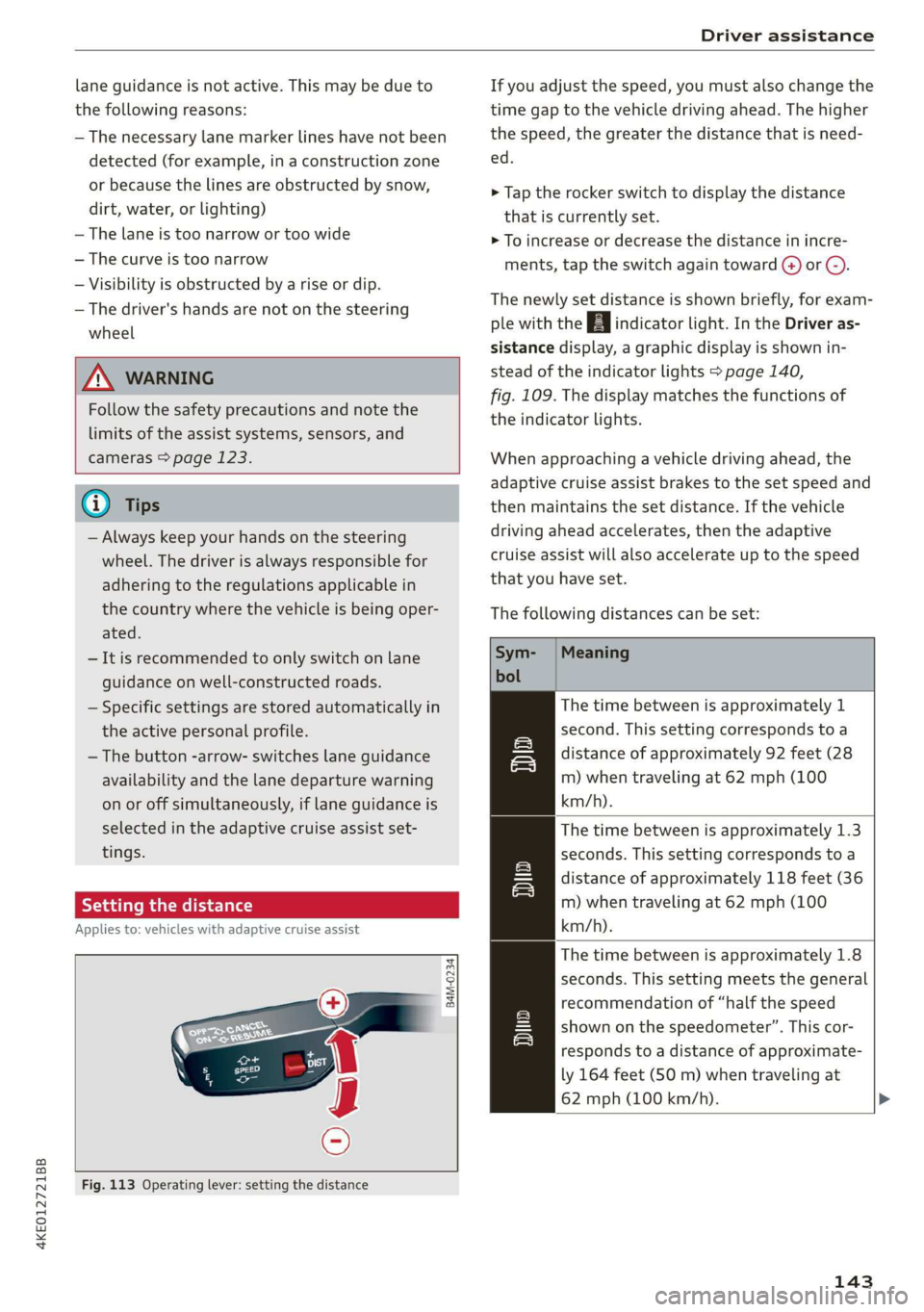
Fig. 113 Operating lever: setting the distance
If you adjust the speed, you must also change the
time gap to the vehicle driving ahead. The higher
the speed, the greater the distance that is need-
ed.
> Tap the rocker switch to display the distance
that is currently set.
> To increase or decrease the distance in incre-
ments, tap the switch again toward (4) or @).
The newly set distance is shown briefly, for exam-
ple with the indicator light. In the Driver as-
sistance display, a graphic display is shown in-
stead of the indicator lights > page 140,
fig. 109. The display matches the functions of
the indicator lights.
When approaching a vehicle driving ahead, the
adaptive cruise assist brakes to the set speed and
then maintains the set distance. If the vehicle
driving ahead accelerates, then the adaptive
cruise assist will also accelerate up to the speed
that you have set.
The following distances can be set:
Meaning
The time between is approximately 1
second. This setting corresponds to a
distance of approximately 92 feet (28
m) when traveling at 62 mph (100
km/h).
The time between is approximately 1.3
seconds. This setting corresponds toa
distance of approximately 118 feet (36
m) when traveling at 62 mph (100
km/h).
The time between is approximately 1.8
seconds. This setting meets the general
recommendation of “half the speed
shown on the speedometer”. This cor-
responds to a distance of approximate-
ly 164 feet (SO m) when traveling at
62 mph (100 km/h).
wT
143
Page 150 of 310
Driver assistance
system can warn you with corrective steering and
a steering wheel vibration, if necessary.
The system functions in the speed range of ap-
proximately 40 mph - 155 mph (65 km/h -
250 km/h).
Applies to: vehicles with lane departure warning
and without side assist: Even if the system is
ready, it will not warn you if you activate a turn
signal before crossing the lane marker line. In
this case, it assumes that you are changing lanes
intentionally.
Applies to: vehicles with lane departure warning
in combination with side assist: If the turn signal
is activated, the lane departure warning is ready,
and a lane change has been classified as critical
by the lane departure warning due to vehicles
traveling beside you or due to approaching vehi-
cles, then a noticeable corrective steering move-
ment will occur briefly before exiting the lane.
This will attempt to keep your vehicle in the lane.
Z\ WARNING
Follow the safety precautions and note the
limits of the assist systems, sensors, and
cameras > page 123.
Applies to: vehicles with lane departure warning
B8V-0692
Fig. 118 Turn signal lever: switching the lane departure
warning on and off
YD In certain countries
148
a ©| BY ie le
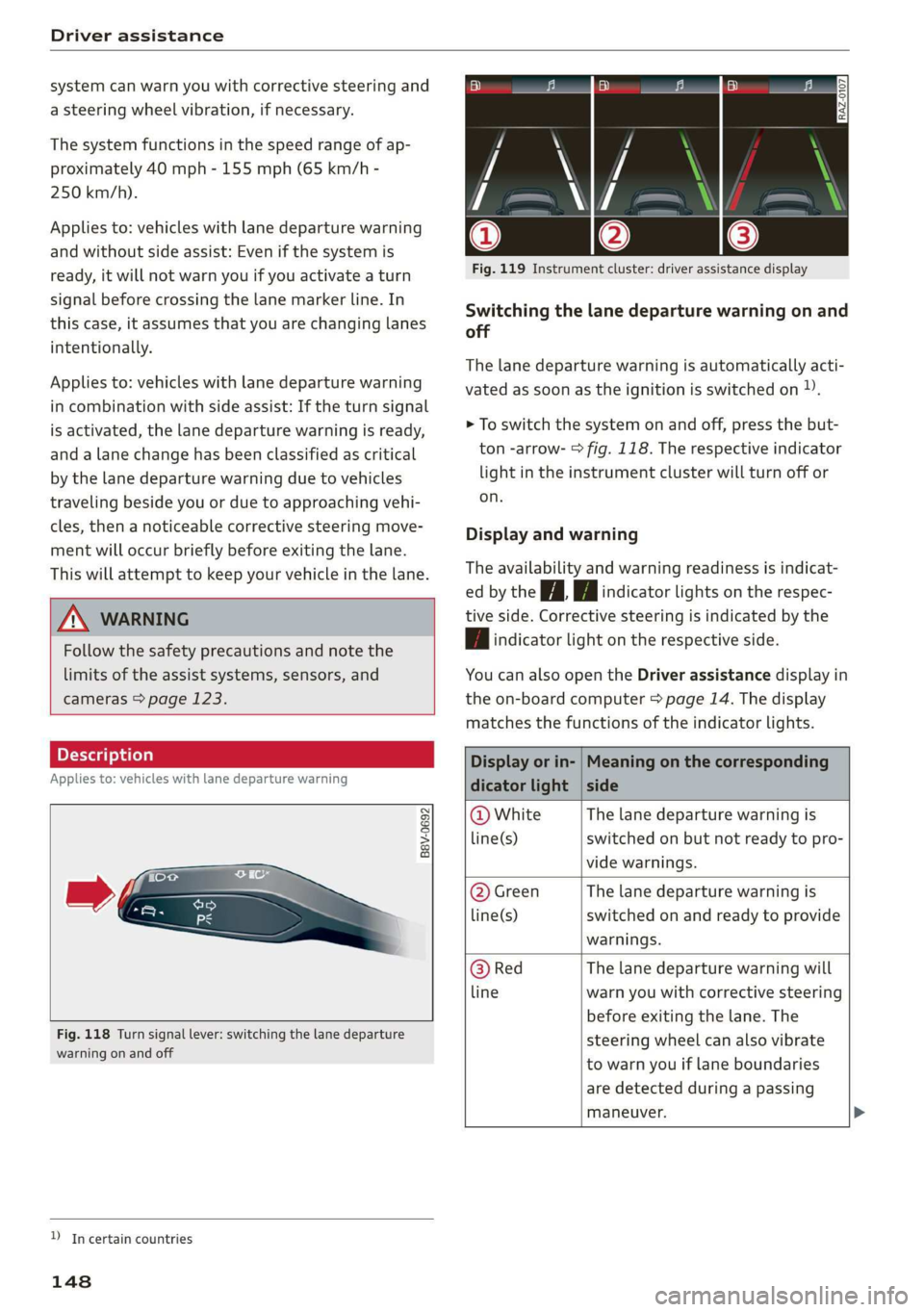
Fig. 119 Instrument cluster: driver assistance display
Switching the lane departure warning on and
off
The lane departure warning is automatically acti-
vated as soon as the ignition is switched on »).
> To switch the system on and off, press the but-
ton -arrow- > fig. 118. The respective indicator
light in the instrument cluster will turn off or
on.
Display and warning
The availability and warning readiness is indicat-
ed by the it Hi indicator lights on the respec-
tive side. Corrective steering is indicated by the
| | indicator light on the respective side.
You can also open the Driver assistance display in
the on-board computer > page 14. The display
matches the functions of the indicator lights.
Display or in- | Meaning on the corresponding
dicator light | side
@ White The lane departure warning is
line(s) switched on but not ready to pro-
vide warnings.
@ Green The lane departure warning is
line(s) switched on and ready to provide
warnings.
@ Red The lane departure warning will
line warn you with corrective steering
before exiting the lane. The
steering wheel can also vibrate
to warn you if lane boundaries
are detected during a passing
maneuver.
Page 190 of 310
Audi connect
— Start or stop climate control
— Program the timer
— Deactivate or activate the timer
For additional information, see > page 84.
Geofencing Alert
Requirement: a key user must be set in the vehi-
cle > page 28.
This service allows you to set permitted and for-
bidden zones for your vehicle as well as set time
limits for these zones. If your vehicle leaves a
permitted zone or enters a forbidden zone, you
will be notified with a push notification and/or an
e-mail.
Speed Alert
Requirement: a key user must be set in the vehi-
cle > page 28.
You can set up to two speed limits for your vehi-
cle using this service. If your vehicle exceeds a set
speed limit, you will be notified with a push noti-
fication and/or e-mail.
Valet Alert
Requirement: a key user must be set in the vehi-
cle > page 187.
If you give your vehicle to a parking service, you
can set a zone and a speed limit using the myAu-
di app. If the vehicle leaves the zone or exceeds
the speed limit, you will be notified with a push
notification and/or e-mail.
ZA WARNING
— Do not ignore messages and warning or indi-
cator lights that turn on in the vehicle be-
cause of the information in the vehicle sta-
tus report. This could lead to break downs in
on the road, accidents and serious injuries.
— Only perform charging functions on the
high-voltage battery if the vehicle is shut off
correctly, is connected to a suitable socket
and if the ignition is switched off.
188
G) Tips
For some services, you can select if you would
like to be notified with a push notification
and/or an e-mail.
Settings
(et) telat -Matian celia
> Applies to: MMI: Select on the home screen:
SETTINGS > Connection settings > Mobile
phone network.
Depending on the country, vehicle equipment,
and connection type, the following functions may
be available:
Data connection settings
Using the Data connection settings menu, you
can set when the system should connect to the
Internet. The Internet connection disconnects
automatically once the requested Audi connect
Infotainment service no longer requires any data.
— Data roaming: data roaming is switched off at
the factory. To use a data connection outside of
the country, data roaming must be switched
on. The setting is stored for the current SIM
card or the mobile device that is currently con-
nected.
— Allow MMI online services: when this function
is switched on, a data connection is automati-
cally established in order to use Audi connect
Infotainment services.
— Allow Wi-Fi devices: when this function is
switched on, you can allow or deny Internet
connections.
Access point
The connection is configured automatically based
on the SIM card being used. The following values
can be changed. You can obtain more information
from your cell phone service provider.
— Access Point Name (APN): the access point de-
pends on the cell phone service provider and is
assigned automatically.
— User name: your cell phone service provider as-
signs the user name for your online profile. >
Page 226 of 310
Media
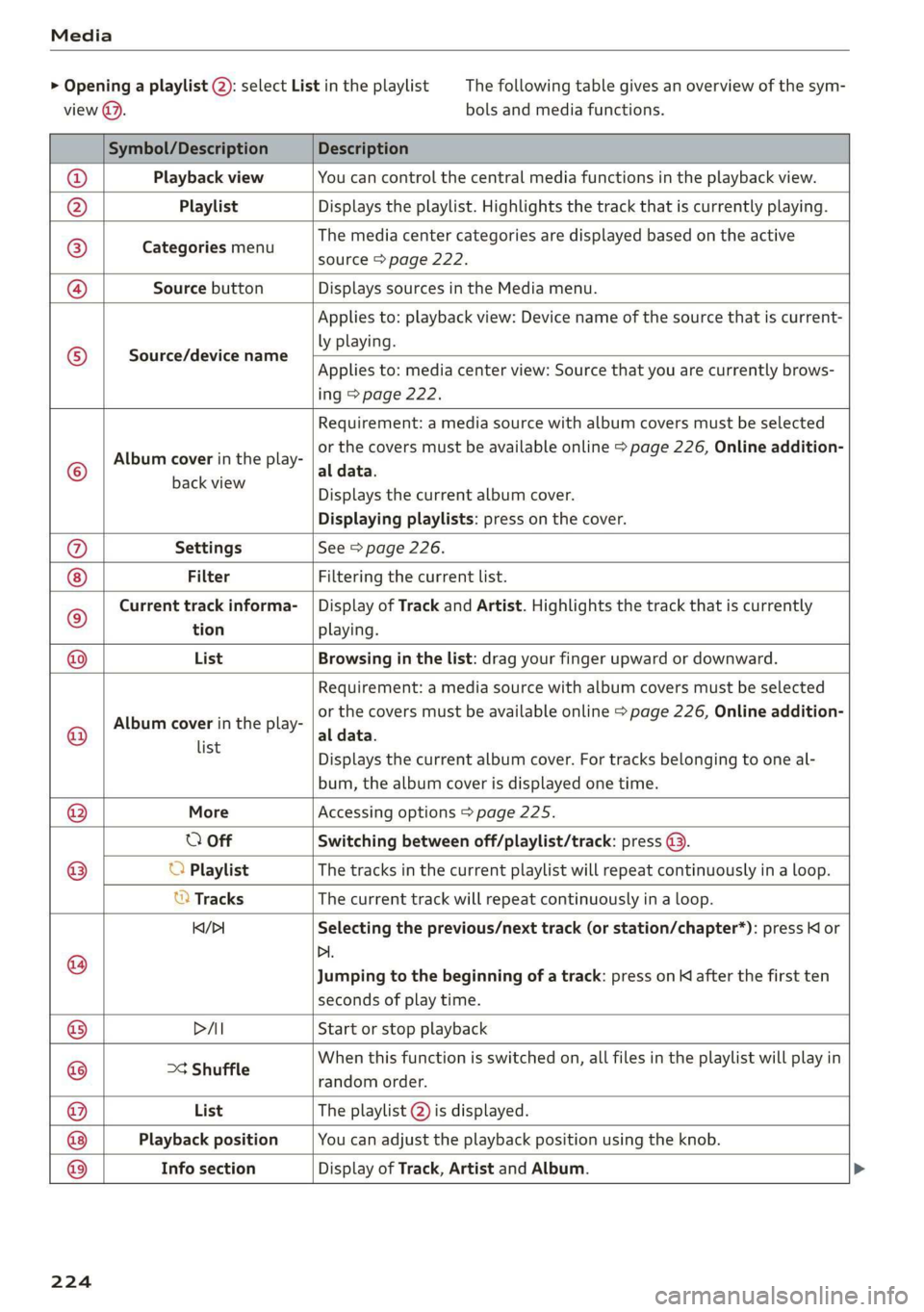
> Opening a playlist (2): select List in the playlist
view @.
The following table gives an overview of the sym-
bols and media functions.
Symbol/Description Description
Playback view You can control the central media functions in the playback view.
Playlist Displays the playlist. Highlights the track that is currently playing.
Categories menu
The media center categories are displayed based on the active
source > page 222.
Source button Displays sources in the Media menu.
Source/device name
Applies to: playback view: Device name of the source that is current-
ly playing.
Applies to: media center view: Source that you are currently brows-
ing > page 222.
©
Album cover in the play-
Requirement: a media source with album covers must be selected
or the covers must be available online > page 226, Online addition-
al data.
backwiew Displays the current album cover.
Displaying playlists: press on the cover.
@ Settings See > page 226.
Filter Filtering the current list.
© Current track informa- | Display of Track and Artist. Highlights the track that is currently
tion playing.
@ List Browsing in the list: drag your finger upward or downward.
©
Album cover in the play-
Requirement: a media source with album covers must be selected
or the covers must be available online > page 226, Online addition-
al data.
Playback position You can adjust the playback position using the knob.
Info section
list
= Displays the current album cover. For tracks belonging to one al-
bum, the album cover is displayed one time.
@ More Accessing options > page 225.
O Off Switching between off/playlist/track: press (9.
® O Playlist The tracks in the current playlist will repeat continuously in a loop.
© Tracks The current track will repeat continuously in a loop.
Kq/>1 Selecting the previous/next track (or station/chapter*): press Kl or
@ Di.
Jumping to the beginning of a track: press on K after the first ten
seconds of play time.
® PAI Start or stop playback
@ >¢ Shuffle When this function is switched on, all files in the playlist will play in
random order.
@ List The playlist @) is displayed.
® ®
Display of Track, Artist and Album.
224
Page 263 of 310
4KE012721BB
Wheels
check your tires as soon as possible, and inflate
them to the proper pressure. Driving ona signifi-
cantly under-inflated tire causes the tire to over-
heat and can lead to tire failure. Under-inflation
also reduces fuel efficiency and tire tread life,
and may affect the vehicle's handling and stop-
ping ability.
Please note that the TPMS is not a substitute for
proper tire maintenance, and it is the driver's re-
sponsibility to maintain correct tire pressure,
even if under-inflation has not reached the level
to trigger illumination of the TPMS low tire pres-
sure telltale.
Your vehicle has also been equipped with a TPMS
malfunction indicator to indicate when the sys-
tem is not operating properly. The TPMS mal-
function indicator is combined with the low tire
pressure telltale. When the system detects a
malfunction, the telltale will flash for approxi-
mately one minute and then remain continuously
illuminated. This sequence will continue upon
subsequent vehicle start-ups as long as the mal-
function exists.
When the malfunction indicator is illuminated,
the system may not be able to detect or signal
low tire pressure as intended. TPMS malfunctions
may occur for a variety of reasons, including the
installation of replacement or alternate tires or
wheels on the vehicle that prevent the TPMS
from functioning properly. Always check the
TPMS malfunction telltale after replacing one or
more tires or wheels on your vehicle to ensure
that the replacement or alternate tires and
wheels allow the TPMS to continue to function
properly.
a Meee ee Muir Melee
appears
The tire pressure indicator in the instrument
cluster informs you if the tire pressure is too low
or if there is a system malfunction.
Using the ABS sensors, the tire pressure monitor-
ing system compares the tire tread circumference
and vibration characteristics of the individual
tires. If the pressure changes in one or more
tires, this is indicated in the instrument cluster
display with an indicator light @ and a message.
If only one tire is affected, the location of that
tire will be indicated.
The tire pressures must be stored again each
time you change the pressures (switching be-
tween partial and full load pressure) or after
changing or replacing a tire on your vehicle
=> page 262. The tire pressure monitoring system
only monitors the tire pressure you have stored.
Refer to the tire pressure label for the recom-
mended tire pressure for your vehicle
=> page 253, fig. 165.
Tire tread circumference and vibration character-
istics can change and cause a tire pressure warn-
ing if:
— The tire pressure in one or more tires is too low
— The tires have structural damage
— The tire was replaced or the tire pressure was
changed and it was not stored > page 262
— Tires that are only partially used are replaced
with new tires
Indicator lights
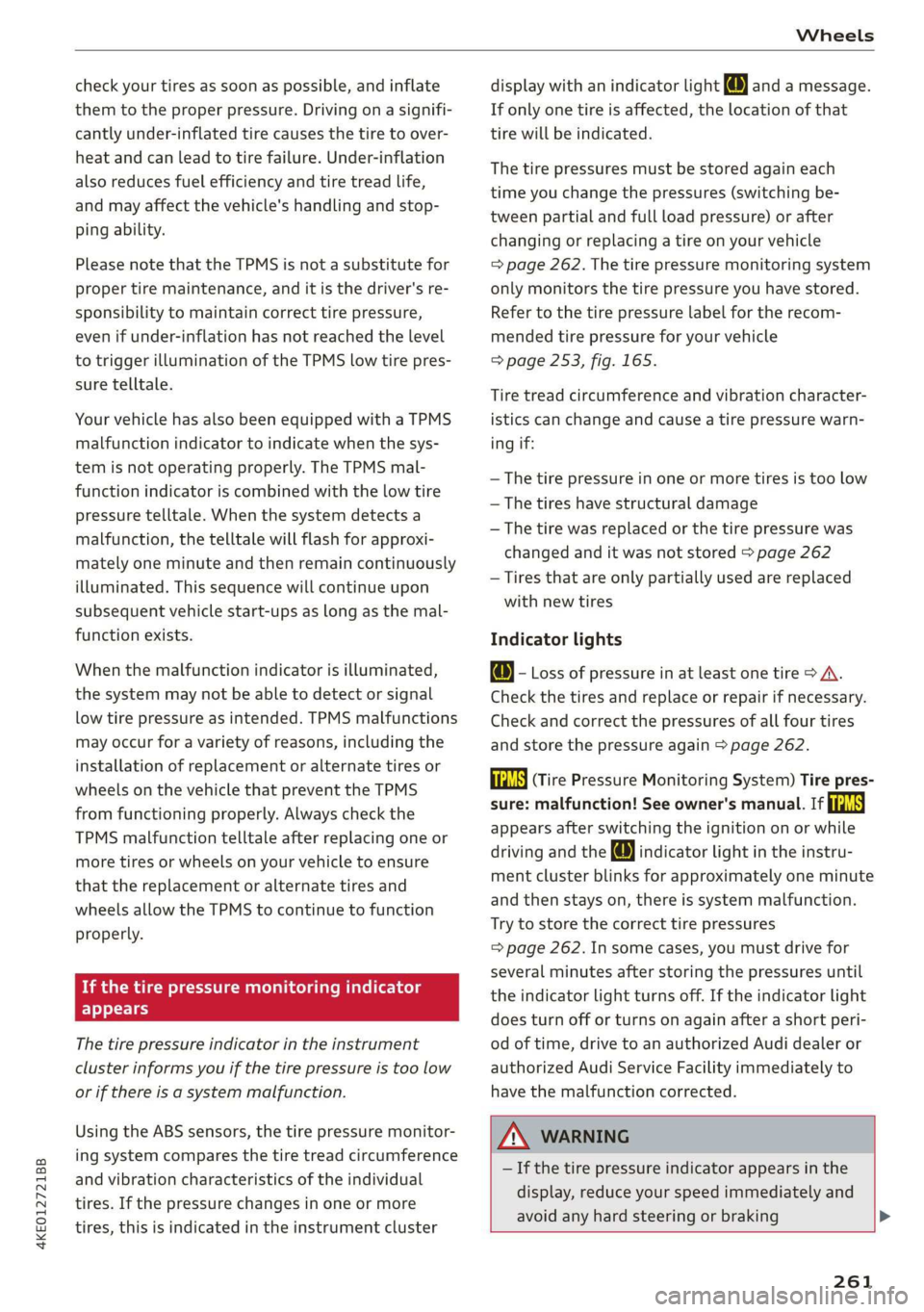
@ - Loss of pressure in at least one tire > A\.
Check the tires and replace or repair if necessary.
Check and correct the pressures of all four tires
and store the pressure again > page 262.
is (Tire Pressure Monitoring System) Tire pres-
sure: malfunction! See owner's manual. If i
appears after switching the ignition on or while
driving and the @ indicator light in the instru-
ment cluster blinks for approximately one minute
and then stays on, there is system malfunction.
Try to store the correct tire pressures
= page 262. In some cases, you must drive for
several minutes after storing the pressures until
the indicator light turns off. If the indicator light
does turn off or turns on again after a short peri-
od of time, drive to an authorized Audi dealer or
authorized Audi Service Facility immediately to
have the malfunction corrected.
ZX WARNING
— If the tire pressure indicator appears in the
display, reduce your speed immediately and
avoid any hard steering or braking
261