phone AUDI E-TRON 2019 Owners Manual
[x] Cancel search | Manufacturer: AUDI, Model Year: 2019, Model line: E-TRON, Model: AUDI E-TRON 2019Pages: 310, PDF Size: 81.91 MB
Page 5 of 310
4KE012721BB
Table of contents
High-voltage system............. 104
Generalinformation................. 104
Charging the high-voltage battery...... 105
Charging equipment................. 112
Trailer towing.................0.-. 120
Driving with atrailer................. 120
Assist systems................... 123
ASSIST SYSTEMS ic: 6 & cas 5c cae 5 ow i238
General information................. 123
Surrounding area detection............ 124
Switching the systems on and off....... 126
Driving information.............. 128
Speed warning system..............-- 128
Camera-based traffic sign recognition... 128
Traffic light information.............. 130
NightiVision aSSistix = «xem : s ases : soe 131
Integrated Toll Module............... 133
Driver assistance................. 134
Cruise control system's.o. « cees ss rows ss 134
Efficiency assist...............--005. 135
Adaptive cruise assist................ 139
Distance warning .............e0e000. 147
Lane departure warning............... 147
Audi presense........... 0. cece eee 150
SIG@iASSISE sew: » 2 cues = y ewe ae AeA Ge we 154
EXIEWAPniNng sive «6 ccerane 2 @ soeee «0 cuesime @ 6 156
Intersection assistant................ 157
Emergency assist... ....:seeceeeevees 158
Parking and maneuvering....... 160
IRCROAWECION « = eas x o sees 5 o eee ge oe 160
Parking system plus...............00. 160
Rearview camera and peripheral cameras. 162
Rear cross-traffic assist............... 166
Adjusting the parking aids............. 167
Infotainment system............ 169
Telephone... - es.s =) gees be eens ces 169
TEROMUCLION 5 scoane a vanes » 6 nani + 6 exeemn 169
Setup... eee eee eee eee 170
Disconnecting a mobile device......... 171
Using the Audi phone box............. 171
Using the telephone.................. 173
M@SSAG@S ves s x sere + & ewe ¢ o eee § eee 178
SOPGINGS sacs +o aeowens w evewens a x euswoe a» eemeoe 180
Instrument cluster...............0008 182
Troubleshooting sacs ss sews + ¢ wae 3 x ew 182
Audi connect..................... 184
Generalinformation..............05- 184
Audi connect Infotainment............ 185
Using a Wi-Fi hotspot................ 185
Audi connect Infotainment services..... 185
Audi connect vehicle control services.... 186
SQECINOS cccssin ws eseuwie x priesens wm sores w 6 syenne 188
Troubleshooting..................5-. 190
Emergency call..................- 491,
Overview... .... 0... eee eee eee 191
EM@rgency Call + wsws « zaen 3 = suze 3 2 reR 191.
Online roadside assistance............ 192
Navigation. « : ssc < : soos sp eens ss 193
Opening navigation.................. 193
myAudi navigation.................0. 193
Entering adestination................ 194
Stopping route guidance.............. 199
MAP ieccsie 9 2 wxotiose 1 ssumene of 9 enwEem 4 ot tase & Oo we 199
Personal route assistance............. 201
‘Alternative roUtes:: « + wean 2 & wane 2 & eevwe 202
Additional functions................. 202
Satellite map.......... cc cece 204
Electric:range sass s x meas 5 ¢ cues ¥ ¢ mes 204
Mapruipdates. 2 caus + x res ao nenene 2 9 one 204
Traffic information...............0005 206
Options and settings................. 207
Troubleshooting wisi. cs vere ewer sv ere 209
RaGIO:: » acs ¢ = seen ¢ » ees y ¢ eS EE eee 210
Opening theradio'. « sas a 6 ssn s & sess 210
Radio functions..............0000005 211
Options and settings................. 215
Troubleshooting sis «6 ween oo wane 6 + eae 216
Media................. 0 eee eee eee 217
General information................. 217:
SD card reader.............-00000005 217
DVD drive... 2. . eee ee eee 217
Bluetooth audio player............... 218
Online media.......... ee eee eee eee 219
Amazon Alexa....... 0.00.0 ee eee eae 220
Multimedia connections.............. 220
Page 6 of 310
Table of contents
Playing medias. « ssiie vo sence yo weve » 6 ene 221
Options and settings..............0.. 225
Supported media and file formats...... 227
Troubleshooting wwii «s wwine ev eee ae eae 228
Audi smartphone interface...... 229
SOtUP 8 wceow oo anew 3 wai oo nae @ ¥ ORI 6 229
TrOUBLESHOOEING weiner sv ermcnve » 1 eretane ww wenn 230
Additional settings.............. 231,
SyStem/Setings'. « « scare © « sosnore w 2 eee ¥ 6 231
Connected devices................--- 232
Legalinformation................... 233
Maintenance and Care........... 235
Checking and Filling............. 235
Motorcompartmentss wisi ss wessa ee concn 235
Cooling systeM....... 2... eee eee eee 237
Brake fluid: « « sacs = seems sy eees oy cee 239
Electrical-system ies <2 eswa s 6 ese es een 239
Battery. ........ 0.0... cee ee 240
Windshield washer system...........- 241
Service interval display............... 242
Wheels .......... 00... 243
Wheels and Tires « us ss ewe ss un ga 243
Tire pressure monitoring system....... 260
Care and cleaning................ 263
General information................. 263
Car washes ........ 0... e eee 263
Cleaning and care information......... 264
Taking your vehicle out of service....... 268
Do: It YOUFSELF cas « ations ¢ ean ss eee 269
Emergency assistance........... 269
General information 0... ccc ees 269
Equipment..................0.00005 269
Tire mobility Kit os ss ceca se eee + cers 269
Changingatire..................000. 271
Collapsible spare tire................. 275
JUMP Starting « sows ss vers & o cows + & sees 276
TOWING) cnasers © « sonsene % 5 anssaas 6 # sacuins & # simare 276
Fuses and bulbs.................. 279
FUSES sacs vo cscs x a eros we ena Woo cae woe 279
Bulbs... 2. eee eee ee 282
Customer information........... 283
Data privacy..................000. 283
Image recording............seeeeeees 283
Datamemoniesy. « s sscams sv sume ov ene a 0s 283
Transmitted information.............. 284
Accessories and technical
CHANGES... 1... eee eee eee 286
Warranty......... 00-000. e eee eee 286
Audi Literature Shop..............00. 286
Driving in other countries............. 286
Maintenance, repairs, and technical
MOGIFIcAatIONS vase x x mem = x saw x 2 sue 286
Accessories and parts................ 288
Reporting Safety Defects.............. 288
Declaration of compliance for
telecommunications equipment and
electronic systems............---0000- 289
Technical data..................8. 291
Identification data................00. 291
Vehicle dataiscs: = s xews 2s eens sp oes ye 291
Index... 0.2... eee 293
Page 8 of 310
Quick access
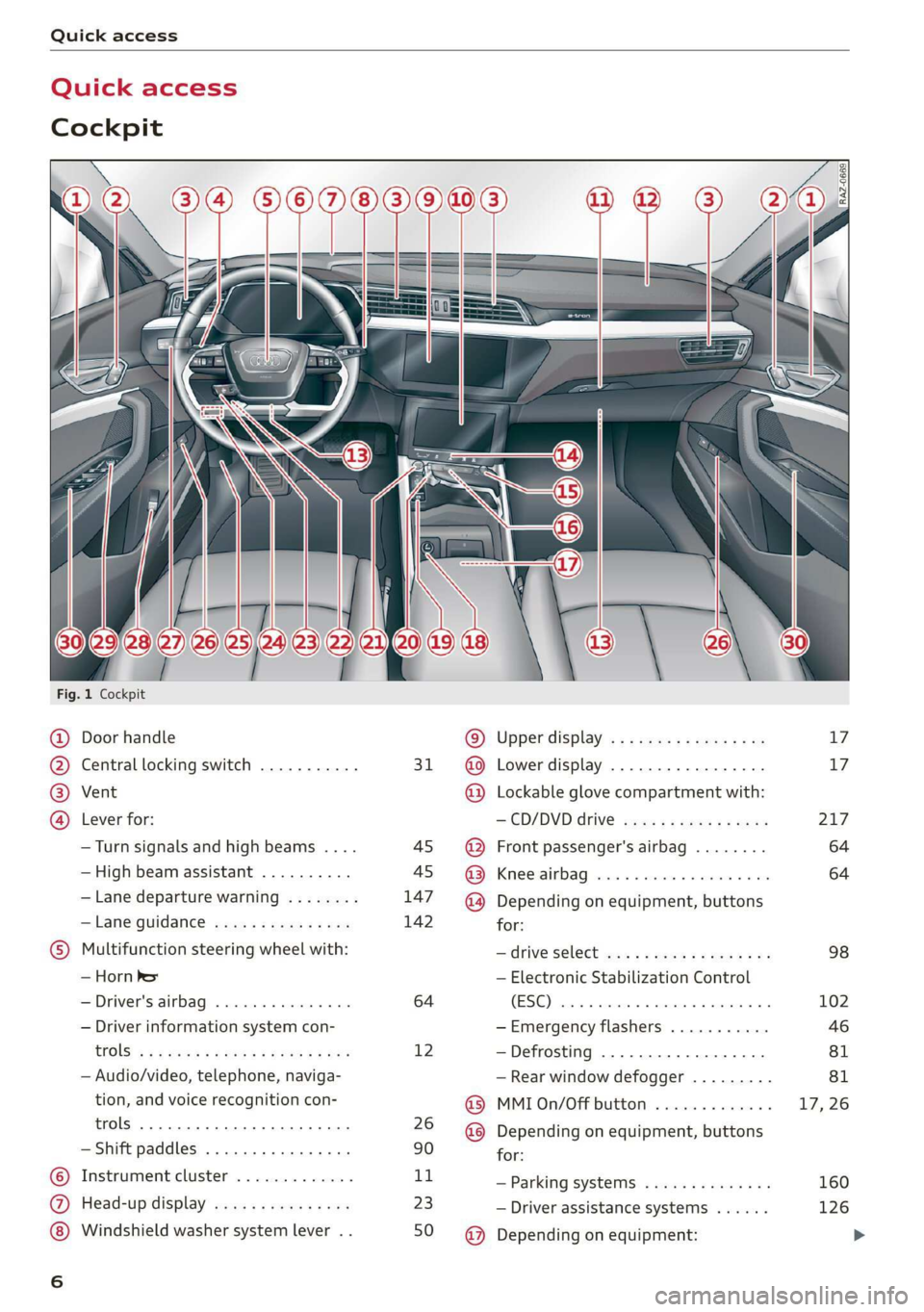
Quick access
Cockpit
Fig. 1 Cockpit
@ @ @ @
©C®
oa
Door handle
Central locking switch ...........
Vent
Lever for:
—Turn signals and high beams ....
— High beam assistant ..........
— Lane departure warning ........
—Lane guidance ...............
Multifunction steering wheel with:
— Horn Pe
— Driver's airbag .............0.
— Driver information system con-
CGS! « = 2 eeu go oes eee ez ee
— Audio/video, telephone, naviga-
tion, and voice recognition con-
trols... eee eee
— Shift paddles .............00.
Instrument cluster .............
Head-up display ...............
Windshield washer system lever . .
31
45 45
147
142
64
12
26
90
1,
23
50
© @ @ ® ® @ ® ®
@
Upper display, « « x sees x = aaa + ox
Lower display ................-
Lockable glove compartment with:
CD/DVD drive sess ¢ s saws 9 « ame
Front passenger's airbag ........
Kees AG wisn v 6 ores o soca oi ans
Depending on equipment, buttons
for:
— ‘drive SelGCt sce ss gewy so eee a oe
— Electronic Stabilization Control
(ESE) sess co ssenionn as comune «of auanane 0
—Emergency flashers ...........
—Defrosting ..................
— Rear window defogger .........
MMI On/Off button .............
Depending on equipment, buttons
for:
— Parking systems ..............
— Driver assistance systems ......
Depending on equipment:
17 17
217
64
64
98
102
Page 9 of 310
4KE012721BB
Quick access
Cup Holders: « sesccces < ence wo esenene 75
— Audi phone box ............... 171
— Starting the motor when there is
@ MMALRUNCHION: ¢ « sais 9 v nara x 2 ae 87
Socket ........00002 cece ee eee 75
@ Electromechanical parking brake
button ....... 0... 0c eee 93
@0 Selector lever ................. 88
@) [START STOP] button ............ 86
@) Steering wheel adjustment ...... 59
@3) Lever for:
— Cruise control system ......... 134
— Adaptive cruise assist .......... 139
@ Data link connector for On Board
Diagnostic System (OBD) ........ 283
@3) Hood release ................-. 236
@8 Memory function buttons ........ 63
@) Buttons for:
—Lights ...............2..000. 44
—All-weather lights ............ 44
— Rear fog lights ............... 44
Luggage compartment lid button . 35
@9) Exterior mirror adjustment ...... 48
G9 Buttons for:
— Power windows .............. 39
— Child safety lock .............. 39
@ Tips
Some the equipment listed here is only instal-
led in certain models or is available as an op-
tion.
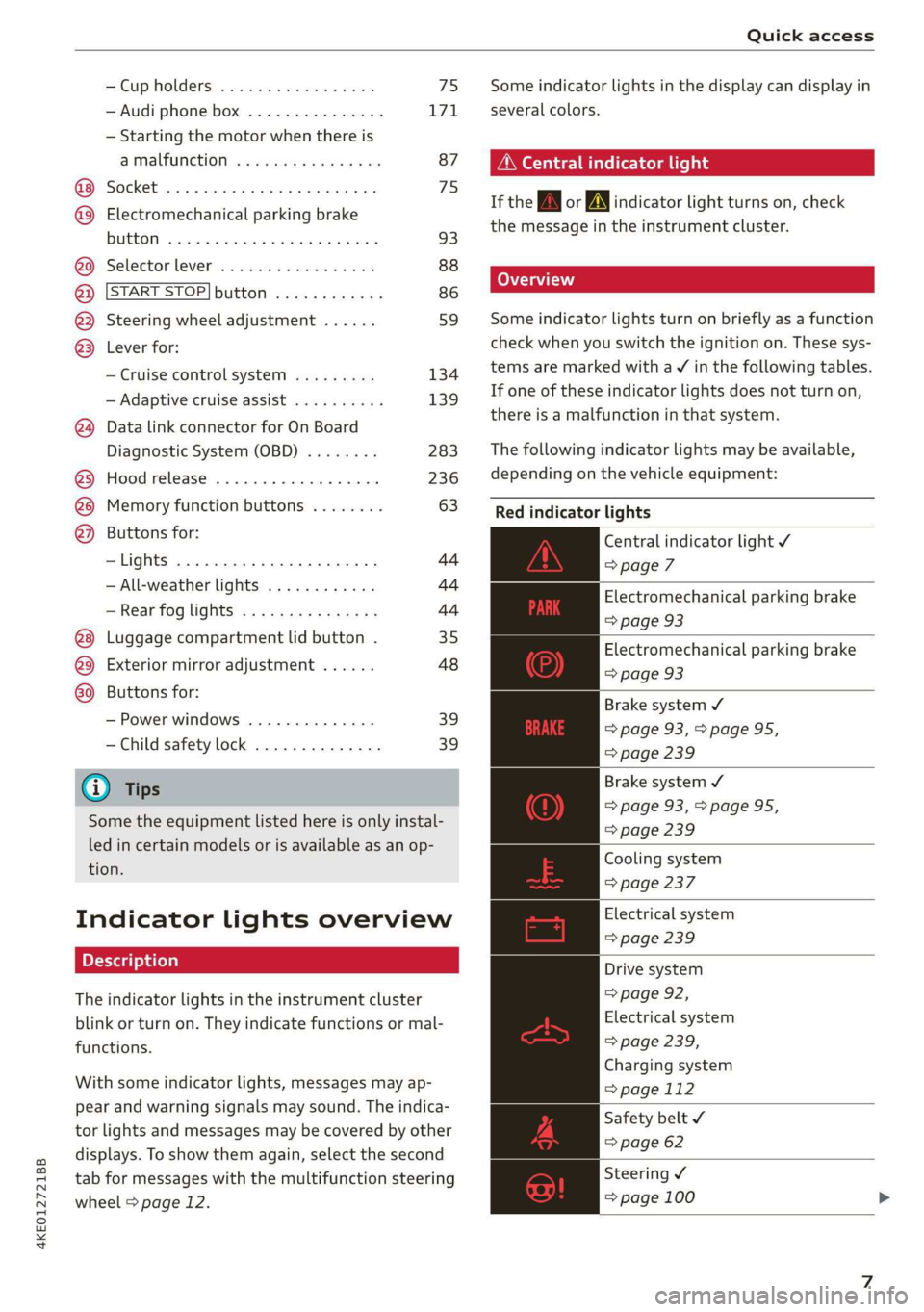
Indicator lights overview
The indicator lights in the instrument cluster
blink or turn on. They indicate functions or mal-
functions.
With some indicator lights, messages may ap-
pear and warning signals may sound. The indica-
tor lights and messages may be covered by other
displays. To show them again, select the second
tab for messages with the multifunction steering
wheel © page 12.
Some indicator lights in the display can display in
several colors.
A\ Central indicator light
If the wA or indicator light turns on, check
the message in the instrument cluster.
Some indicator lights turn on briefly as a function
check when you switch the ignition on. These sys-
tems are marked with a V in the following tables.
If one of these indicator lights does not turn on,
there is a malfunction in that system.
The following indicator lights may be available,
depending on the vehicle equipment:
Red indicator lights
Central indicator light ¥
=> page 7
Electromechanical parking brake
=> page 93
Electromechanical parking brake
=> page 93
Brake system ¥
=> page 93, > page 95,
=> page 239
Brake system 4
=> page 93,>page 95,
=> page 239
Cooling system
=> page 237
Electrical system
=> page 239
Drive system
=> page 92,
Electrical system
=> page 239,
Charging system
=>page 112
Safety belt
=> page 62
Steering ¥
=> page 100
Page 14 of 310
Instrument cluster
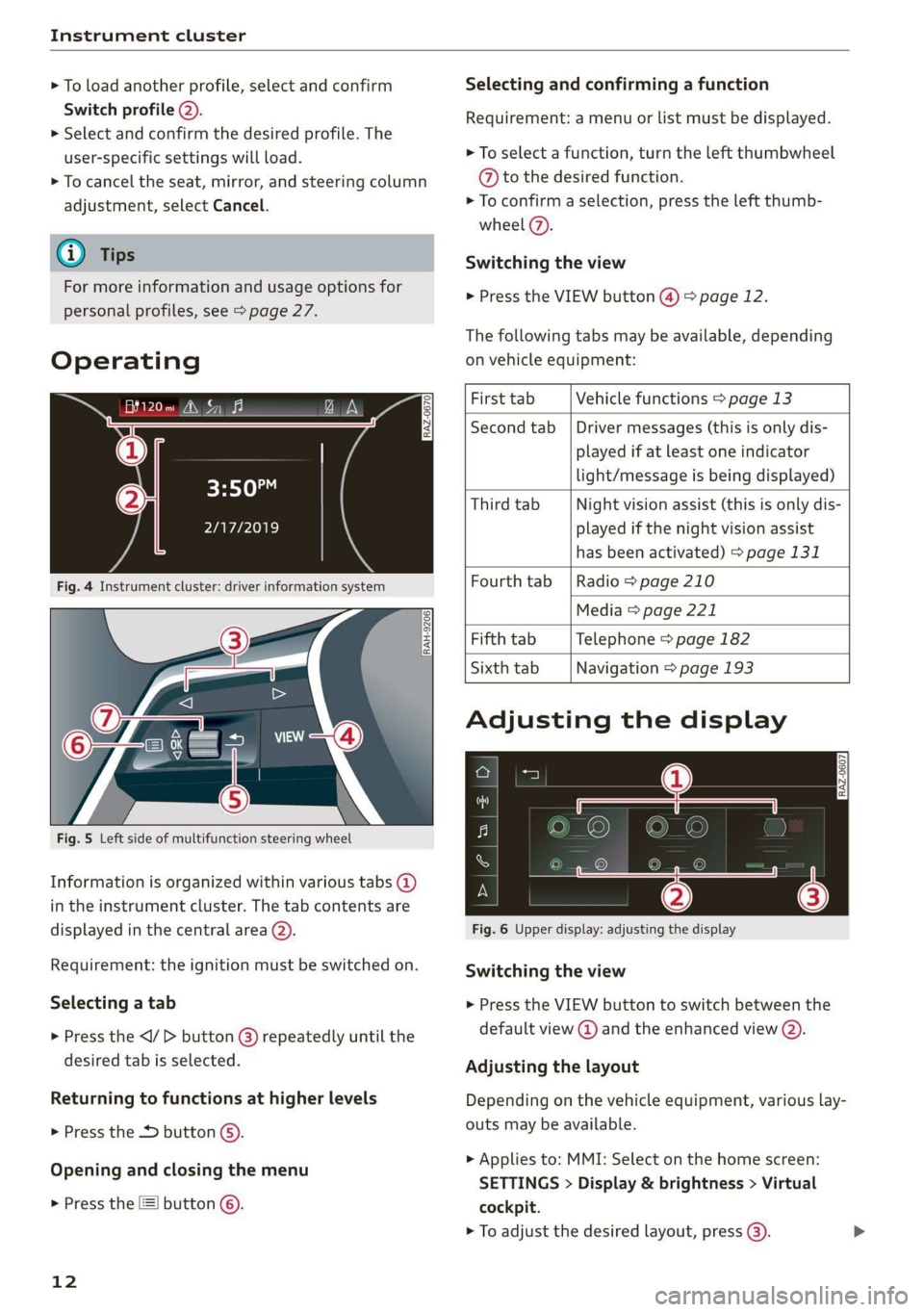
> To load another profile, select and confirm
Switch profile 2).
> Select and confirm the desired profile. The
user-specific settings will load.
> To cancel the seat, mirror, and steering column
adjustment, select Cancel.
@) Tips
For more information and usage options for
personal profiles, see > page 27.
Operating
S| S| 9] ny S| cc
3:50™
2/17/2019
Fig. 4 Instrument cluster: driver information system
RAH-9206|
Fig. 5 Left side of multifunction steering wheel
Information is organized within various tabs @)
in the instrument cluster. The tab contents are
displayed in the central area (2).
Requirement: the ignition must be switched on.
Selecting a tab
> Press the button @) repeatedly until the
desired tab is selected.
Returning to functions at higher levels
> Press the D button ©).
Opening and closing the menu
> Press the [=] button ©.
12
Selecting and confirming a function
Requirement: a menu or list must be displayed.
> To select a function, turn the left thumbwheel
@ to the desired function.
> To confirm a selection, press the left thumb-
wheel (7).
Switching the view
> Press the VIEW button @) > page 12.
The following tabs may be available, depending
on vehicle equipment:
First tab Vehicle functions > page 13
Second tab | Driver messages (this is only dis-
played if at least one indicator
light/message is being displayed)
Third tab Night vision assist (this is only dis-
played if the night vision assist
has been activated) > page 131
Fourth
tab | Radio > page 210
Media > page 221
Fifth tab Telephone > page 182
Sixth tab Navigation > page 193
Adjusting the display
S| 3| S| iS
| ec
Fig. 6 Upper display: adjusting the display
Switching the view
> Press the VIEW button to switch between the
default view @ and the enhanced view ().
Adjusting the layout
Depending on the vehicle equipment, various lay-
outs may be available.
> Applies to: MMI: Select on the home screen:
SETTINGS > Display & brightness > Virtual
cockpit.
> To adjust the desired layout, press (3).
Page 17 of 310
4KE012721BB
Touch displays
General touch display
operation
Applies to: touch displays
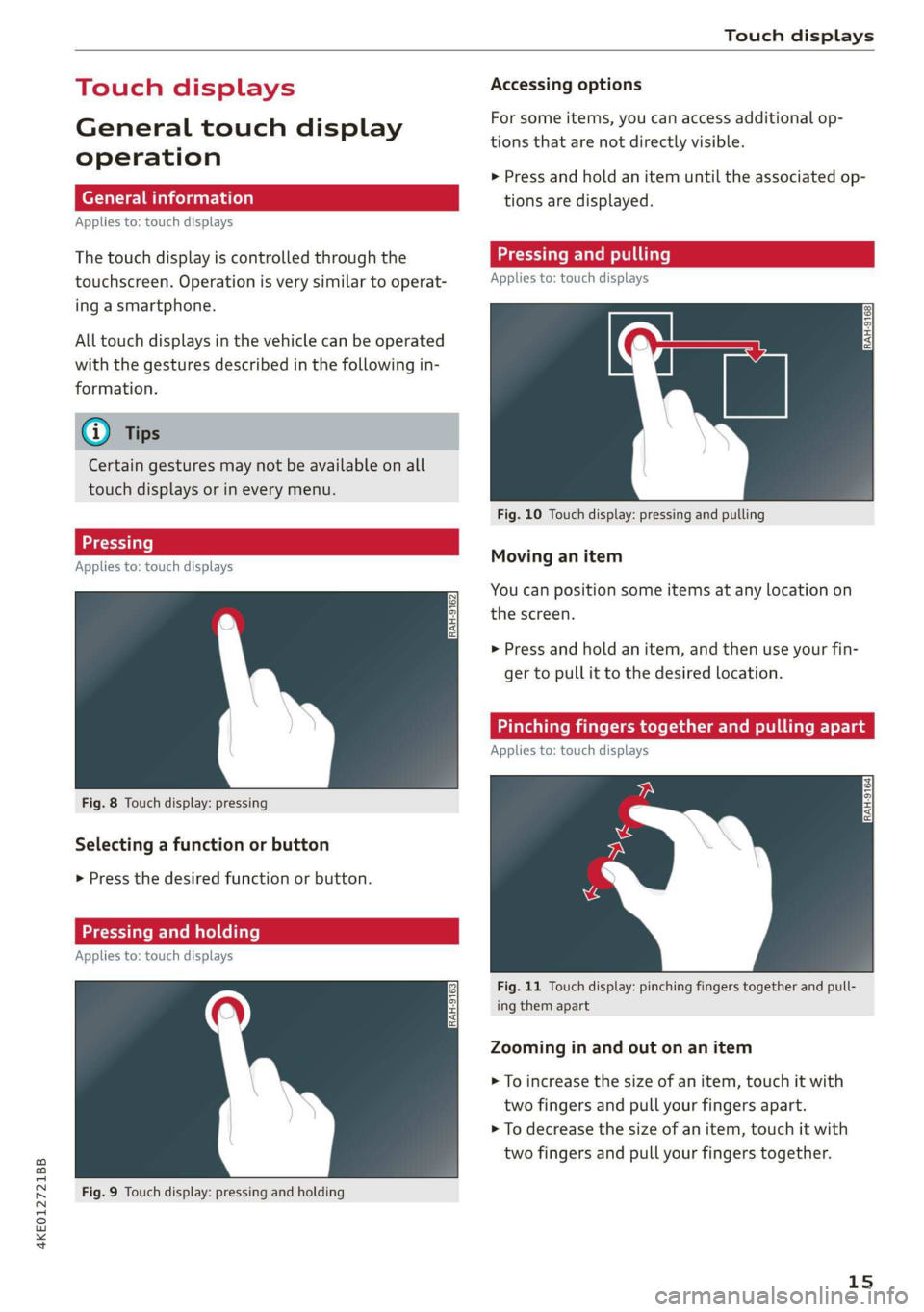
The touch display is controlled through the
touchscreen. Operation is very similar to operat-
ing a smartphone.
All touch displays in the vehicle can be operated
with the gestures described in the following in-
formation.
G@) Tips
Certain gestures may not be available on all
touch displays or in every menu.
Applies to: touch displays
Fig. 8 Touch display: pressing
Selecting a function or button
> Press the desired function or button.
Fig. 9 Touch display: pressing and holding
Accessing options
For some items, you can access additional op-
tions that are not directly visible.
>» Press and hold an item until the associated op-
tions are displayed.
Pressing and it
Applies to: touch displays
Fig. 10 Touch display: pressing and pulling
Moving an item
You can position some items at any location on
the screen.
> Press and hold an item, and then use your fin-
ger to pull it to the desired location.
Pinching fingers together and pulling apa
Applies to: touch displays
Fig. 11 Touch display: pinching fingers together and pull-
ing them apart
Zooming in and out on an item
> To increase the size of an item, touch it with
two fingers and pull your fingers apart.
> To decrease the size of an item, touch it with
two fingers and pull your fingers together.
15
Page 19 of 310
4KE012721BB
Touch displays
> Press the SETTINGS button.
> If the General button is not displayed, swipe
toward the left or right with one finger until it
appears.
> Press the General button.
> If the Date & time button is not displayed,
swipe upward or downward with one finger un-
tilit appears.
> Press the Date & time button.
@) Tips
If a menu or symbol is in parentheses in the
path, for example, (General) or (%23), then it is
an optional menu item that does not need to
be used in every system.
You can adjust or turn off the MMI touch display
feedback.
> Applies to MMI: Select on the home screen:
SETTINGS > Display & brightness > MMI.
Possible settings:
— Brightness
— Touchscreen Feedback
Multi Media Interface
Ne MCL
Audi recommends performing certain Infotain-
ment system functions, such as entering a desti-
nation, only when the vehicle is stationary. Al-
ways be prepared to stop operating the Infotain-
ment system in the interest of your safety and
the safety of other road users.
ZA WARNING
Only use the Infotainment system when road,
traffic, weather, and visibility conditions per-
mit and always in a way that allows you to
maintain complete control over your vehicle.
G) Tips
Certain functions are not available while driv-
ing.
Sy isealiae Mela Me) me) ai
Switching the MMI on or off
> To switch the MMI off, press and hold the
On/Off knob > page 26, fig. 21 until the up-
per
display and all Infotainment system func-
tions are switched off.
> To switch the MMI on, press the On/Off knob.
Restarting the MMI
>» Press and hold the On/Off knob for at least 10
seconds.
Switching displays on or off
> To switch the upper display off, press [Jon the
lower display.
> To switch the upper display on, touch the upper
display or press [Jon the lower display.
> To switch both displays on or off, press and hold
[oJ on the lower display.
Introduction
You can display and operate Infotainment system
and vehicle functions using both of the Multi Me-
dia Interface (MMI) touch displays.
Configuration wizard
After starting for the first time, the configuration
wizard helps you to set up the vehicle, for exam-
ple to set the desired system language and con-
nect
a telephone.
> Follow the instructions in the display.
> Applies to: MMI: To access the configuration
wizard at a later time, select on the home
screen: HELP > Configuration wizard.
Tool tips
Tool tips are displayed on the upper display after
starting for the first time. They introduce various
MMI functions to you.
> Follow the instructions in the display.
> Applies to: MMI: To access the tool tips at a lat-
er time, select on the home screen: SETTINGS
> Help > Show tool tips.
> Applies to: MMI: To receive additional tool tips,
select on the home screen: HELP > Tool tips >
Basic information or Expert information.
17
Page 21 of 310
4KE012721BB
Touch displays
Configuring quick access
> Press and hold a button on the home screen
display area or in the quick access bar.
> To move a button to the quick access bar, pull it
from the display area to the quick access bar.
> To adjust the placement of the buttons in the
quick access bar, pull them to the desired posi-
tion in the bar.
G) Tips
The position of © cannot be adjusted.
Display area
You can freely change the location of the buttons
on the home screen display area.
Configuring the display area
> Press and hold a button on the home screen
display area.
> To adjust the placement of the buttons, pull
them to the desired locations.
Switching between menu pages
If a menu contains multiple menu pages, febatd iS
displayed in the display area. The white bar
shows the location of the current menu page.
> To switch between menu pages, swipe your fin-
ger to the right or left.
Off Of o8
Om of am
Of of of
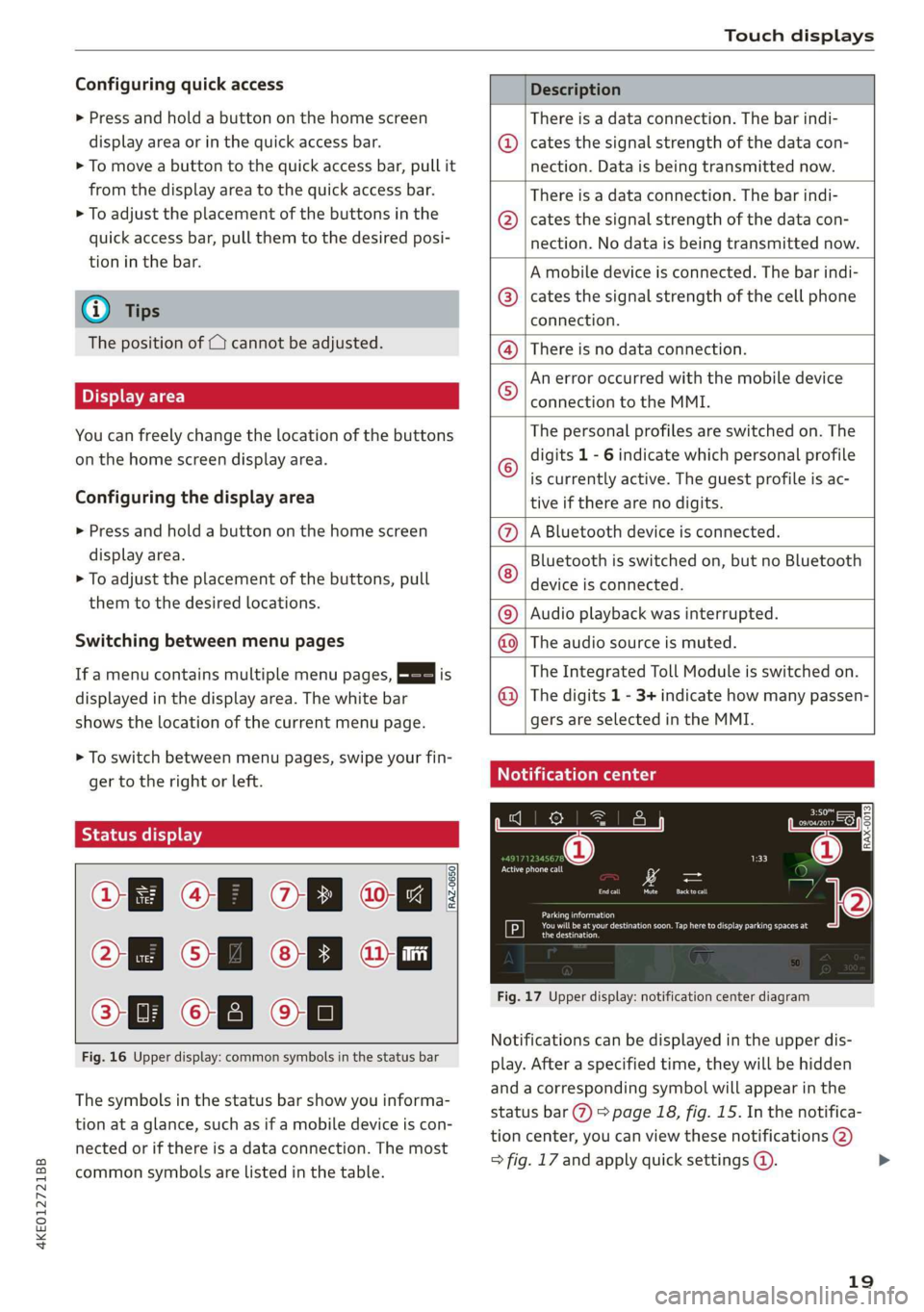
Fig. 16 Upper display: common symbols in the status bar
RAZ-0650
The symbols in the status bar show you informa-
tion at a glance, such as if a mobile device is con-
nected or if there is a data connection. The most
common symbols are listed in the table.
Description
There is a data connection. The bar indi-
@ | cates the signal strength of the data con-
nection. Data is being transmitted now.
There is a data connection. The bar indi-
@ | cates the signal strength of the data con-
nection. No data is being transmitted now.
A mobile device is connected. The bar indi-
@® | cates the signal strength of the cell phone
connection.
There is no data connection. ®
An error occurred with the mobile device
connection to the MMI. ©
The personal profiles are switched on. The
digits 1 - 6 indicate which personal profile
is currently active. The guest profile is ac-
tive if there are no digits.
A Bluetooth device is connected.
Bluetooth is switched on, but no Bluetooth
device is connected.
®©®
Ee
©
Audio playback was interrupted.
The audio source is muted.
The Integrated Toll Module is switched on.
The digits 1 - 3+ indicate how many passen-
®
|O|©
gers are selected in the MMI.
Celtic Leos
EI som
Cr
RAX-0013
Oe
Cruel
rs = =
Cee)
Tr SRS aC Looe Cece g
the destination.
Fig. 17 Upper display: notification center diagram
Notifications can be displayed in the upper dis-
play. After a specified time, they will be hidden
and a corresponding symbol will appear in the
status bar @) > page 18, fig. 15. In the notifica-
tion center, you can view these notifications @)
> fig. 17 and apply quick settings @.
19
>
Page 26 of 310
Voice recognition system
Voice recognition system
General information
Applies to: vehicles with voice recognition system
You can operate many functions in the vehicle
easily using voice commands.
Using the voice recognition system optimally
> Speak clearly and distinctly at a normal volume.
Speak louder when driving faster.
> Emphasize the words in the commands evenly
and do not leave long pauses.
> Close the doors, the windows, and the sunroof*
to reduce background noise. Make sure that
passengers are not speaking when you are giv-
ing a voice command.
> Do not direct the vents toward the hands-free
microphone, which is in the roof headliner near
the front interior lights.
> Only the driver should speak to the system, be-
cause the handsfree microphone is aimed to-
ward this seating position.
ZA\ WARNING
— Direct your full attention to driving. As the
driver, you have complete responsibility for
safety in traffic. Only use the functions in
such a way that you always maintain com-
plete control over your vehicle in all traffic
situations.
— Do not use the voice recognition system in
emergencies because your voice may change
in stressful situations. The system may take
longer to dial the number or may not be
able to dial it at all. Dial the emergency
number manually.
G) Tips
There are no voice guidance* prompts when a
dialog is active.
24
Operating
Applies to: vehicles with voice recognition system
See
Dat)
Where is a
Connect
Diala
coy
Es
ea
cog
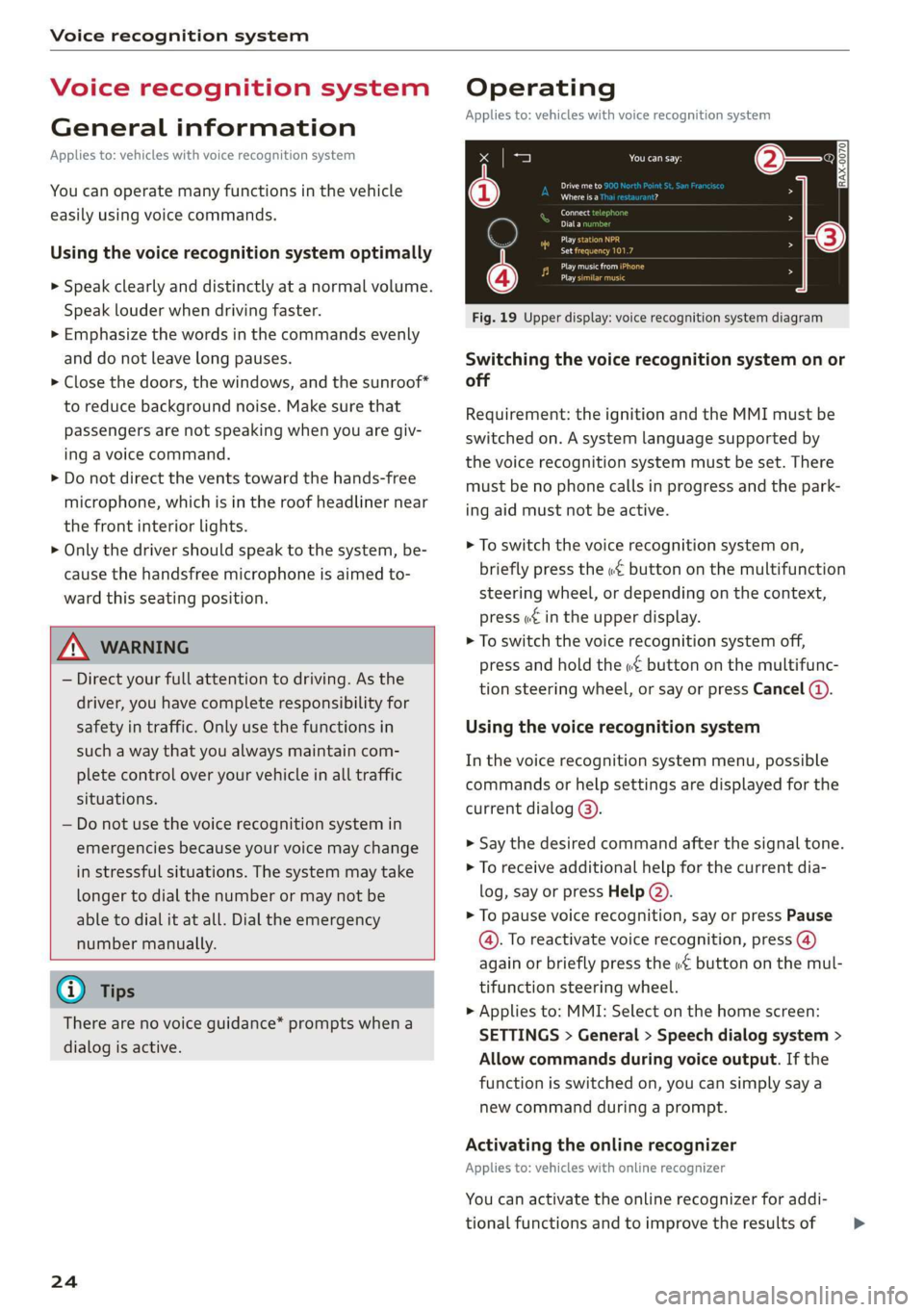
Fig. 19 Upper display: voice recognition system diagram
Switching the voice recognition system on or
off
Requirement: the ignition and the MMI must be
switched on. A system language supported by
the voice recognition system must be set. There
must be no phone calls in progress and the park-
ing aid must not be active.
> To switch the voice recognition system on,
briefly press the «€ button on the multifunction
steering wheel, or depending on the context,
press we in the upper display.
> To switch the voice recognition system off,
press and hold the « button on the multifunc-
tion steering wheel, or say or press Cancel (4).
Using the voice recognition system
In the voice recognition system menu, possible
commands or help settings are displayed for the
current dialog @).
> Say the desired command after the signal tone.
> To receive additional help for the current dia-
log, say or press Help (2).
> To pause voice recognition, say or press Pause
@. To reactivate voice recognition, press (@)
again or briefly press the «€ button on the mul-
tifunction steering wheel.
> Applies to: MMI: Select on the home screen:
SETTINGS > General > Speech dialog system >
Allow commands during voice output. If the
function is switched on, you can simply say a
new command during a prompt.
Activating the online recognizer
Applies to: vehicles with online recognizer
You can activate the online recognizer for addi-
tional functions and to improve the results of >
Page 27 of 310
4KE012721BB
Voice recognition system
voice recognition. A supported menu language
must be selected. When there is an active Inter-
net connection, the spoken command is evaluat-
ed in the vehicle and online.
> When you switch on the voice recognition sys-
tem for the first time, a menu for the online
recognizer opens. Or:
> Applies to: MMI: Select on the home screen:
SETTINGS > General > Speech dialog system >
Consent to speech dialog system online recog-
nizer.
> Read the licensing agreements and accept
them.
Activating Amazon Alexa!)2)
Applies to: vehicles with Amazon Alexa Integration
You can activate Amazon Alexa to access special
additional functions. A supported menu lan-
guage must be selected. A reduced number of
commands are available during this.
Requirement: you must be logged in to your
myAudi account in the vehicle.
> Applies to: MMI: Select on the home screen:
USER > Connect to Amazon Alexa.
> Follow the instructions in the display.
> After connecting successfully, turn on the voice
recognition system as normal > page 24,
Switching the voice recognition system on or
off, say the activation word “Alexa”, and then
say the desired command.
©) Note
Read the information about Audi connect, and
be sure to note the connectivity costs section
=@ in General information on page 184.
External voice operation
Applies to: vehicles with external speech dialog system
You can access and control the voice operation on
a connected mobile device through your vehicle.
2) AUDI AG provides access to services from third party pro-
viders. Permanent availability cannot be guaranteed, be-
cause that depends on the third party provider.
2) In preparation at the time of printing.
Switching external voice operation on or off
Requirement: the ignition and the MMI must be
switched on. A cell phone must be connected to
the MMI with the Handsfree profile > page 170.
The mobile device being connected must have
voice control that can be controlled externally.
There must be no phone calls in progress and the
parking aid must not be active.
> To switch on the external voice operation, press
and hold the «€ button longer on the multifunc-
tion steering wheel.
> To switch off the external voice operation, press
and hold the «€ button longer on the multifunc-
tion steering wheel or press Cancel.
Using external voice operation
> Say the desired command after the signal tone.
> To reactivate voice recognition when it is
paused, press the «¢ button briefly on the mul-
tifunction steering wheel or press Resume.
G@) Tips
AUDI AG simply provides access to control
your mobile device with voice operation and
does not assume any responsibility for the
content and commands within the external
voice control.
25