light AUDI E-TRON 2020 Owners Manual
[x] Cancel search | Manufacturer: AUDI, Model Year: 2020, Model line: E-TRON, Model: AUDI E-TRON 2020Pages: 316, PDF Size: 85.96 MB
Page 225 of 316
4KE012721BE
Media
@) Note
To reduce the risk of damaging the drive and
data carriers:
— Always store data carriers in a protective
sleeve and do not expose them to direct
sunlight
— Do not use damaged, dirty, or laminated da-
ta carriers
— Do not use single CDs/-DVDs with a 3.1 inch
(8 cm) diameter, non-circular CDs/DVDs
(shaped CDs), cleaning CDs, and protective
rings
— Never force CDs/DVDs into the drive. Discs
are pulled in automatically.
G) Tips
The thermal protection switch stops playback
temporarily when outside temperatures are
too high.
pe eli)
Applies to: vehicles with a DVD drive
—
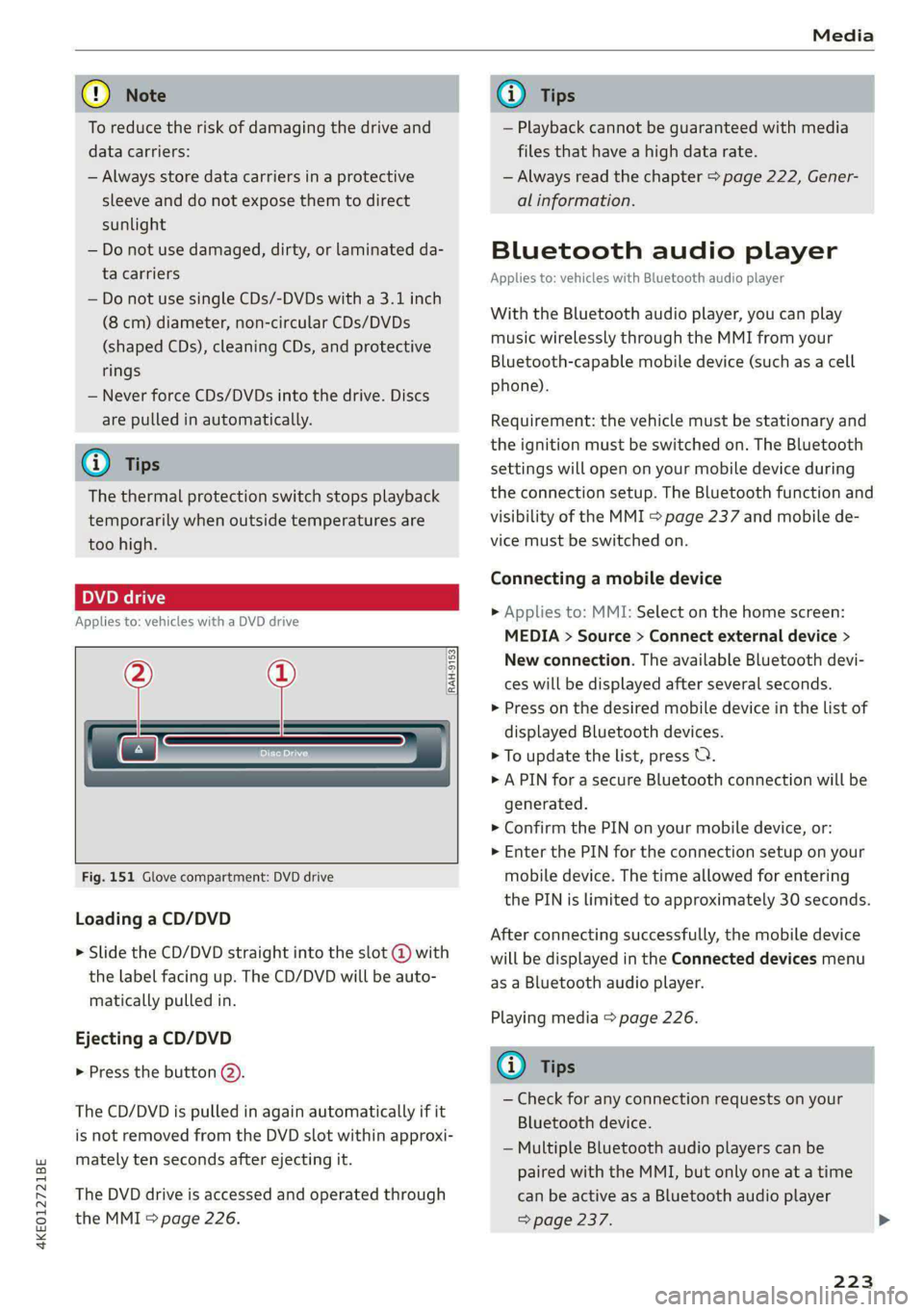
Fig. 151 Glove compartment: DVD drive
RAH-9153|
Loading a CD/DVD
> Slide the CD/DVD straight into the slot @ with
the label facing up. The CD/DVD will be auto-
matically pulled in.
Ejecting a CD/DVD
> Press the button @).
The CD/DVD is pulled in again automatically if it
is
not removed from the DVD slot within approxi-
mately ten seconds after ejecting it.
The DVD drive is accessed and operated through
the MMI > page 226.
@) Tips
— Playback cannot be guaranteed with media
files that have a high data rate.
— Always read the chapter > page 222, Gener-
al information.
Bluetooth audio player
Applies to: vehicles with Bluetooth audio player
With the Bluetooth audio player, you can play
music wirelessly through the MMI from your
Bluetooth-capable mobile device (such as a cell
phone).
Requirement: the vehicle must be stationary and
the ignition must be switched on. The Bluetooth
settings will open on your mobile device during
the connection setup. The Bluetooth function and
visibility of the MMI > page 237 and mobile de-
vice must be switched on.
Connecting a mobile device
> Applies to: MMI: Select on the home screen:
MEDIA > Source > Connect external device >
New connection. The available Bluetooth devi-
ces will be displayed after several seconds.
> Press on the desired mobile device in the list of
displayed Bluetooth devices.
> To update the list, press OQ.
> A PIN for a secure Bluetooth connection will be
generated.
> Confirm the PIN on your mobile device, or:
> Enter the PIN for the connection setup on your
mobile device. The time allowed for entering
the PIN is limited to approximately 30 seconds.
After connecting successfully, the mobile device
will be displayed in the Connected devices menu
as a Bluetooth audio player.
Playing media > page 226.
Gi) Tips
— Check for any connection requests on your
Bluetooth device.
— Multiple Bluetooth audio players can be
paired with the MMI, but only one at a time
can be active as a Bluetooth audio player
=> page 237.
223
Page 226 of 316
Media
— The supported media functions (such as
shuffle, list view, categories, search, op-
tions) depend on the Bluetooth device being
used.
— Note the volume setting on your Bluetooth
device. AUDI AG recommends setting your
mobile device to the maximum volume
when using it as a Bluetooth audio player.
—Aselection of supported Bluetooth devices
can be found in the database for tested mo-
bile devices at www.audi.com/bluetooth.
Online media
Applies to: vehicles with Audi connect Infotainment and on-
line media
You can play and operate various online media
services, such as music streaming services, using
the MMI.
Requirement: a supported online media service
must be available in the country where the vehi-
cle is being operated.
Connect online media
> Connect the MMI to the Internet > page 187.
> Switch on the Wi-Fi hotspot in the MMI
=> page 192.
> Applies to: MMI: Select on the home screen:
MEDIA > Source > Connect online media.
> Switch the Wi-Fi function on in your mobile de-
vice and connect it to the MMI Wi-Fi hotspot
=> page 188.
> Install and start the myAudi app on your mo-
bile device.
> Log in to your myAudi account in the myAudi
app and select your vehicle.
Your mobile device must be connected to the
MMI and must be highlighted. When you press
the highlighted device, it will be disconnected.
Starting online media
> Applies to: MMI: Select on the home screen:
MEDIA > Source. All online media services sup-
ported in your country will be displayed.
>» Press on the desired online media service and
follow the system instructions.
224
ZA WARNING
—To reduce the risk of an accident, only use
Audi connect services and the Wi-Fi hotspot
only if the traffic situation permits it. Read
and follow the guidelines provided in
=> page 17, Traffic safety information.
— It is only safe to use tablets, laptops, mobile
devices and other similar devices when the
vehicle is stationary because, like all loose
objects, they could be thrown around the in-
side of the vehicle in a crash and cause seri-
ous injuries. Store these types of devices se-
curely while driving. Also read the warnings
in the chapter > page 65.
@) Note
— Read the information about Audi connect,
and be sure to note the connectivity costs
section >@ in General information on
page 187.
— There generally are additional costs when
using an online media service account, espe-
cially when it is used internationally.
(i) Tips
— Depending on the Internet connection and
network traffic, the connection may discon-
nected when online media sources are play-
ing.
— Online media usage depends on the service
availability of the third party provider.
— Audi AG simply makes the access to online
media services possible through the MMI
and does not take any responsibility for the
contents of the online media services.
— Depending on the mobile device being used,
there may be interruptions during media
playback and when using the myAudi app.
To avoid interruptions, do not lock the
screen on your mobile device and keep the
myAudi app in the foreground.
Page 227 of 316
4KE012721BE
Media
Amazon Alexa
Applies to: vehicles with Amazon Alexa Integration
You can play various Amazon Alexa content using
the MMI. The voice recognition system is used to
operate it.
Requirement: Amazon Alexa must be activated
=>page 25.
> Start Amazon Alexa using the voice recognition
system.
> Applies to: MMI: Select on the home screen:
MEDIA > Source > Amazon Alexa.
@) Note
Read the information about Audi connect, and
be sure to note the connectivity costs section
=> page 187.
Multimedia connections
USB adapter cable
OL
a| =
oS
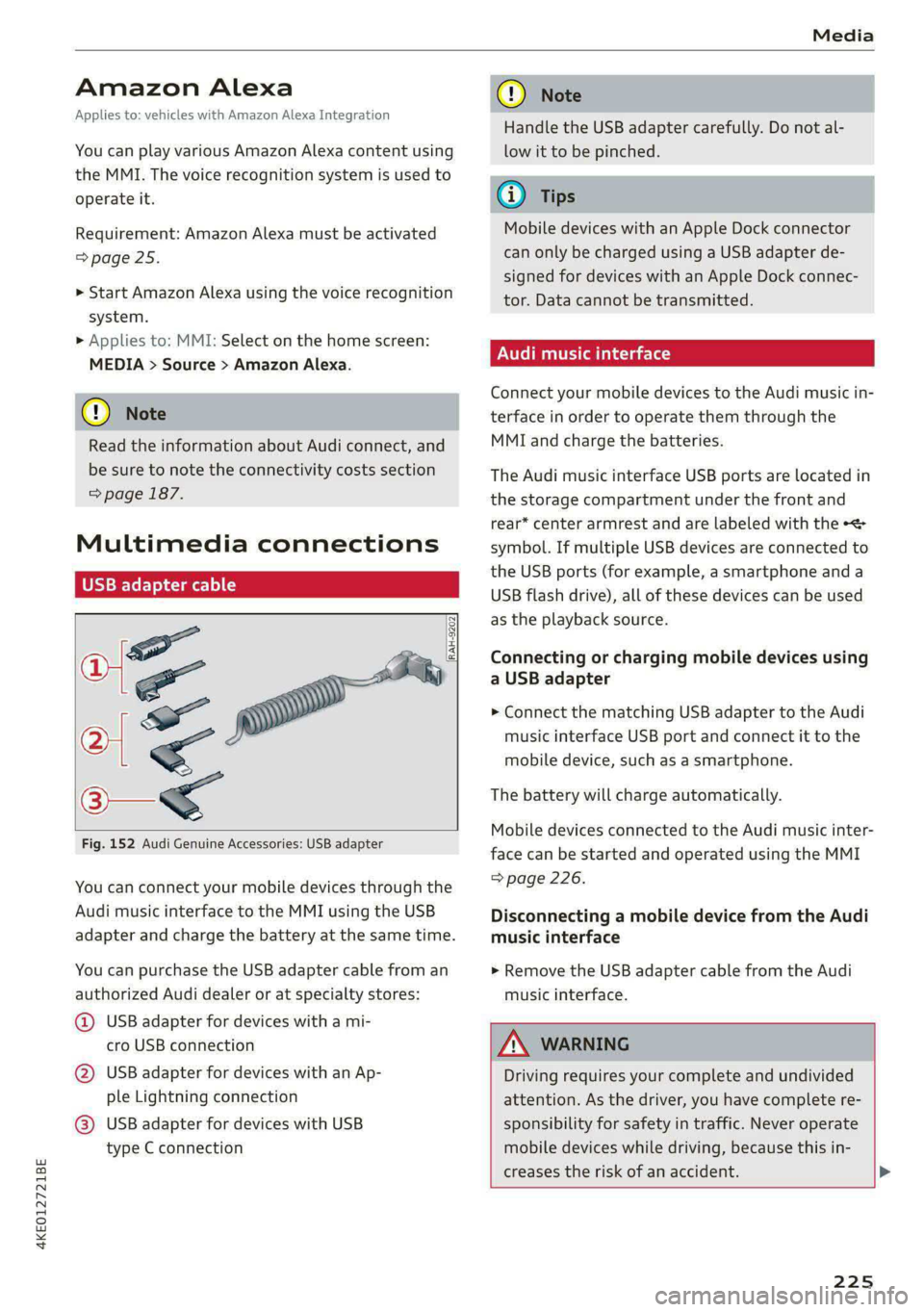
Fig. 152 Audi Genuine Accessories: USB adapter
[RAH-9202.
\
You can connect your mobile devices through the
Audi music interface to the MMI using the USB
adapter and charge the battery at the same time.
You can purchase the USB adapter cable from an
authorized Audi dealer or at specialty stores:
@ USB adapter for devices with a mi-
cro USB connection
@ USB adapter for devices with an Ap-
ple Lightning connection
@ USB adapter for devices with USB
type C connection
CG) Note
Handle the USB adapter carefully. Do not al-
low it to be pinched.
@ Tips
Mobile devices with an Apple Dock connector
can only be charged using a USB adapter de-
signed for devices with an Apple Dock connec-
tor. Data cannot be transmitted.
ONU reason Tale)
Connect your mobile devices to the Audi music in-
terface in order to operate them through the
MMI and charge the batteries.
The Audi music interface USB ports are located in
the storage compartment under the front and
rear* center armrest and are labeled with the «<>
symbol. If multiple USB devices are connected to
the USB ports (for example, a smartphone and a
USB flash drive), all of these devices can be used
as the playback source.
Connecting or charging mobile devices using
a USB adapter
> Connect the matching USB adapter to the Audi
music interface USB port and connect it to the
mobile device, such as a smartphone.
The battery will charge automatically.
Mobile devices connected to the Audi music inter:
face can be started and operated using the MMI
=> page 226.
Disconnecting a mobile device from the Audi
music interface
> Remove the USB adapter cable from the Audi
music interface.
ZA WARNING
Driving requires your complete and undivided
attention. As the driver, you have complete re-
sponsibility for safety in traffic. Never operate
mobile devices while driving, because this in-
creases the risk of an accident. >
225
Page 228 of 316
— Pull the cable out of the Audi music inter-
face carefully so that the USB ports are not
damaged.
— Use a USB extension cable to connect devi-
ces that have an integrated USB connector
(such as a USB stick) to reduce the risk of
damage to your USB device and the Audi
music interface.
— Extremely high or low temperatures that
can occur inside vehicles can damage mobile
devices and/or impair their performance.
Never leave mobile devices in the vehicle in
extremely high or low temperatures.
@ Tips
— Always follow the information found in
=> page 75.
— When you switch the ignition off, the USB
ports are still supplied with power until the
energy management intervenes.
— Do not use an additional adapter or USB ex-
tension cable to connect mobile devices to
the Audi music interface that already have a
cable or that must be connected with a USB
adapter > page 225, fig. 152. Using an ad-
ditional adapter or US extension cable may
impair functionality.
— Functionality is not guaranteed for mobile
devices that do not conform to the USB 2.0
specification.
— USB hubs are not supported.
— Video playback through the Audi music in-
terface is not supported on Apple and MTP
devices (such as smartphones).
— iPod or iPhone malfunctions also affect the
operation of the MMI. Reset your mobile de-
vice in these situations.
— Audi recommends updating the iPod or
iPhone software to the latest version. Refer
to your mobile device owner's manual for
more information.
— The USB adapter on the Audi music inter-
face will support iPod touch or iPhone devi-
ces from the 5th generation or newer with
the lightning connector.
226
—Aselection of supported devices can be
found in the database for tested mobile de-
vices at www.audi.com/mp3.
Playing media
The following sources can be selected depending
on the vehicle equipment:
— Amazon Alexa > page 225.
-—SD card > page 222.
— USB > page 225.
— DVD drive > page 223.
— Connect external device: you can connect ex-
ternal devices via Bluetooth and use the Blue-
tooth audio player > page 223, or you can con-
nect
an external device directly to the Audi mu-
sic interface > page 225.
— Connect online media > page 224.
PN matte)
Playing media files using the MMI
> Applies to: MMI: Select on the home screen:
MEDIA > Source > a source. Depending on the
connected device or online media service*, the
symbol for a source may change. The device
name may be displayed (for example: my-
Phone).
> Select a track from the categories in the media
center > page 227.
Playing media files using the multifunction
steering wheel
Requirement: a media drive must contain media
files > page 226.
> Select the Radio/Media tab using the multi-
function steering wheel.
> Turn the left thumbwheel to display the play-
list.
> To switch to a different source, press the
button.
> To select a media file or a source, turn and
press the left thumbwheel.
> To switch between radio and media, select:
button > Switch to radio/Switch to media. >
Page 231 of 316
4KE012721BE
Media
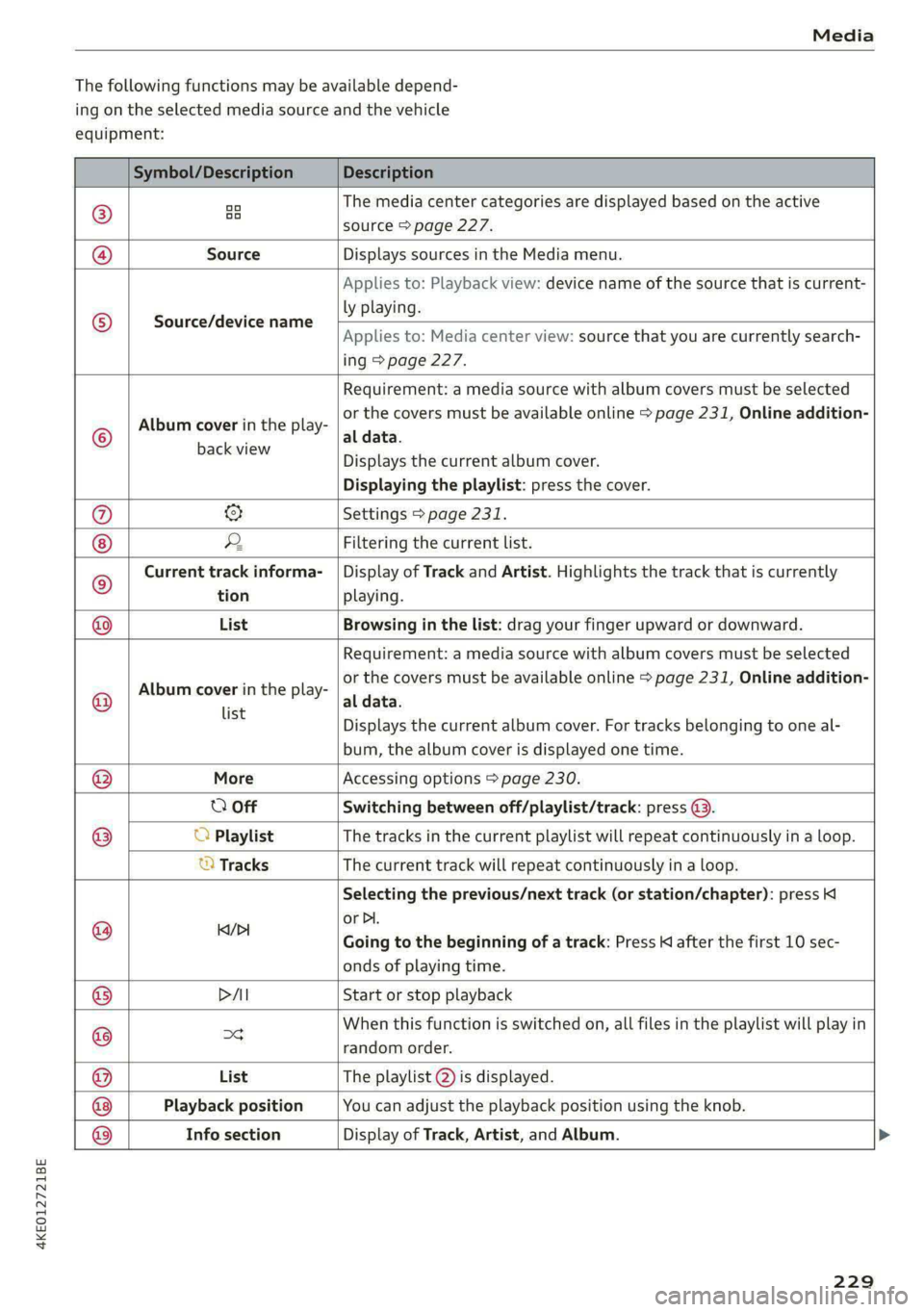
The following functions may be available depend-
ing on the selected media source and the vehicle
equipment:
Symbol/Description Description
®
oo oo The media center categories are displayed based on the active
source > page 227.
@ Source Displays sources in the Media menu.
Source/device name
Applies to: Playback view: device name of the source that is current-
ly playing.
Applies to: Media center view: source that you are currently search-
ing > page 227.
©
Album cover in the play-
Requirement: a media source with album covers must be selected
or the covers must be available online > page 231, Online addition-
al data.
eae Displays the current album cover.
Displaying the playlist: press the cover.
@ & Settings > page 231.
2 Filtering the current list.
© Current track informa- | Display of Track and Artist. Highlights the track that is currently
tion playing.
List Browsing in the list: drag your finger upward or downward.
©
Album cover in the play-
Requirement: a media source with album covers must be selected
or the covers must be available online > page 231, Online addition-
al data.
Playback position You can adjust the playback position using the knob.
Info section
list
s Displays the current album cover. For tracks belonging to one al-
bum, the album cover is displayed one time.
® More Accessing options > page 230.
O Off Switching between off/playlist/track: press @.
® O Playlist The tracks in the current playlist will repeat continuously in a loop.
© Tracks The current track will repeat continuously in a loop.
Selecting the previous/next track (or station/chapter): press Kl
or Dl.
KY/PI
@ Going to the beginning of a track: Press K after the first 10 sec-
onds of playing time.
® PAI Start or stop playback
en this function is switched on, all files in the playlist will play in @ xe When this f ioni itched \ files in the playli ill play i
random order.
® List The playlist @ is displayed.
© Display of Track, Artist, and Album.
229
Page 236 of 316
Audi smartphone interface
Audi smartphone
interface
Setup
Applies to: vehicles with Audi smartphone interface
You can connect your smartphone to the MMI
with a cable or wirelessly* using the Audi smart-
phone interface. Certain content on your smart-
phone is adapted in the MMI while driving and
can be operated through the MMI.
Requirement: the vehicle must be stationary and
the ignition must be switched on. iPhone genera-
tion 5 or higher with Lightning connector and iOS
7.1.2 operating system or higher, or smartphone
with Android Auto app and Android 5.0 Lollipop
operating system or higher.
> Applies to: MMI: Select on the home screen:
SETTINGS > Connected devices > Audi smart-
phone interface > New connection.
> Connect your smartphone to the Audi music in-
terface > page 225 using a USB adapter
=> page 225, fig. 152, or
> To connect your iPhone wireless*, switch on the
Bluetooth function and Wi-Fi on your iPhone.
Open the CarPlay settings in your iPhone. In the
MMI, press on your iPhone in the list of dis-
played devices.
> To update the list, press O.
> Follow the system instructions.
> Pay attention to any additional system prompts
on your smartphone, if applicable.
> Applies to: MMI: If you declined usage of Apple
CarPlay or Android Auto the first time you con-
nected your smartphone, select in the home
screen: SETTINGS > Connected devices > Audi
smartphone interface > a smartphone.
> Follow the system instructions.
Z\ WARNING
Driving requires your complete and undivided
attention. As the driver, you have complete re-
sponsibility for safety in traffic. Never operate
mobile devices while driving, because this in-
creases the risk of an accident.
234
@) Note
Read the information about Audi connect, and
be sure to note the connectivity costs section
=> page 187.
@) Tips
— The functions that can be used depend on
the following factors, among others:
— The brand of your smartphone
— The version of the operating system in
your smartphone
— The software version of the app used
— The USB adapter cable and correct connec-
tion
— Your cell phone service provider
— The customized settings on your smart-
phone
— One of the factors above or a combination
of any of them could cause your smart-
phone to be incompatible with the Audi
smartphone interface. Compatibility cannot
be guaranteed for all types of smartphones.
For more information and assistance, refer
to the user guide and the manufacturer of
your smartphone.
— Please note that you can only connect your
smartphone via the front Audi music inter-
face in order to use the Audi smartphone in-
terface.
— Wireless CarPlay* is not available in all
countries.
— Wireless CarPlay* is only possible in vehicles
without a navigation system if the following
requirement is met: the embedded SIM card
for the vehicle must be logged into the mo-
bile phone network > page 187. Make sure
the function > page 183, Turn on car phone
or data module is switched on.
— If the connected smartphone has voice con-
trol, you can operate your smartphone using
the external voice recognition system
=> page 25.
— The menu language shown in the MMI is
based on the settings in your smartphone.
— Some MMI functions are not available when
there is an active Audi smartphone interface
connection.
Page 238 of 316
Additional settings
Additional settings
System settings
Introduction
General settings are described in this chapter.
You can find specific settings in the chapters
about those settings. The available settings de-
pend on the vehicle equipment.
Date and time
» Applies to: MMI: Select on the home screen:
SETTINGS > General > Date & time.
Possible settings:
— Set date and time automatically
— Date format
— Use 24h time format
— Automatic time zone
— Time zone
— Automatic daylight saving time
— Manual daylight saving time
Measurement units
> Applies to: MMI: Select on the home screen:
SETTINGS > General > Measurement units.
Possible settings:
— Speed
— Distance
— Temperature
— Pressure
— Consumption (electric motor)
— Volume
Language and keyboard
> Applies to: MMI: Select on the home screen:
SETTINGS > Language & keyboard.
Language
You can change the languages for the display,
navigation announcements, and the voice recog-
nition system.
236
Keyboard
See > page 21.
Requirement: an audio source must be active.
> Applies to: MMI: Select on the home screen:
SETTINGS > Sound.
Possible settings:
— Treble
— Bass
— Balance/fader
— Speed-dependent volume control
— Subwoofer
— Surround Level
Focus
You can optimize the sound distribution for vari-
ous locations in the vehicle.
3D effect
You can adjust the intensity of the 3D effect.
With the Medium setting, you will hear an opti-
mal 3D effect for all sources.
Plea ee ely
» Applies to: MMI: Select on the home screen:
SETTINGS > Announcements & tone.
Possible settings:
— Volume of announcements
— Welcome sound
ZA WARNING
Adjust the volume of the audio system so that
signals from outside the vehicle, such as po-
lice and fire sirens, can be heard easily at all
times.
Gi) Tips
The volume is automatically adjusted to a pre-
set level when the MMI is switched on.
Page 243 of 316
4KE012721BE
Checking and Filling
chemicals known to the State of California
to cause cancer and birth defects or other
reproductive harm.
— Battery posts, terminals and related acces-
sories contain lead and lead compounds,
chemicals known to the State of California
to cause cancer and reproductive harms.
Wash hands after handling.
@) Note
When filling fluids, be sure not to add any flu-
ids to the wrong reservoirs. Otherwise, severe
malfunctions and damage will occur.
@ For the sake of the environment
You should regularly check the ground under
your vehicle in order to detect leaks quickly. If
there are visible spots from oil or other fluids,
bring your vehicle to an authorized Audi deal-
er or authorized Audi Service Facility to be
checked.
Opening and closing the hood
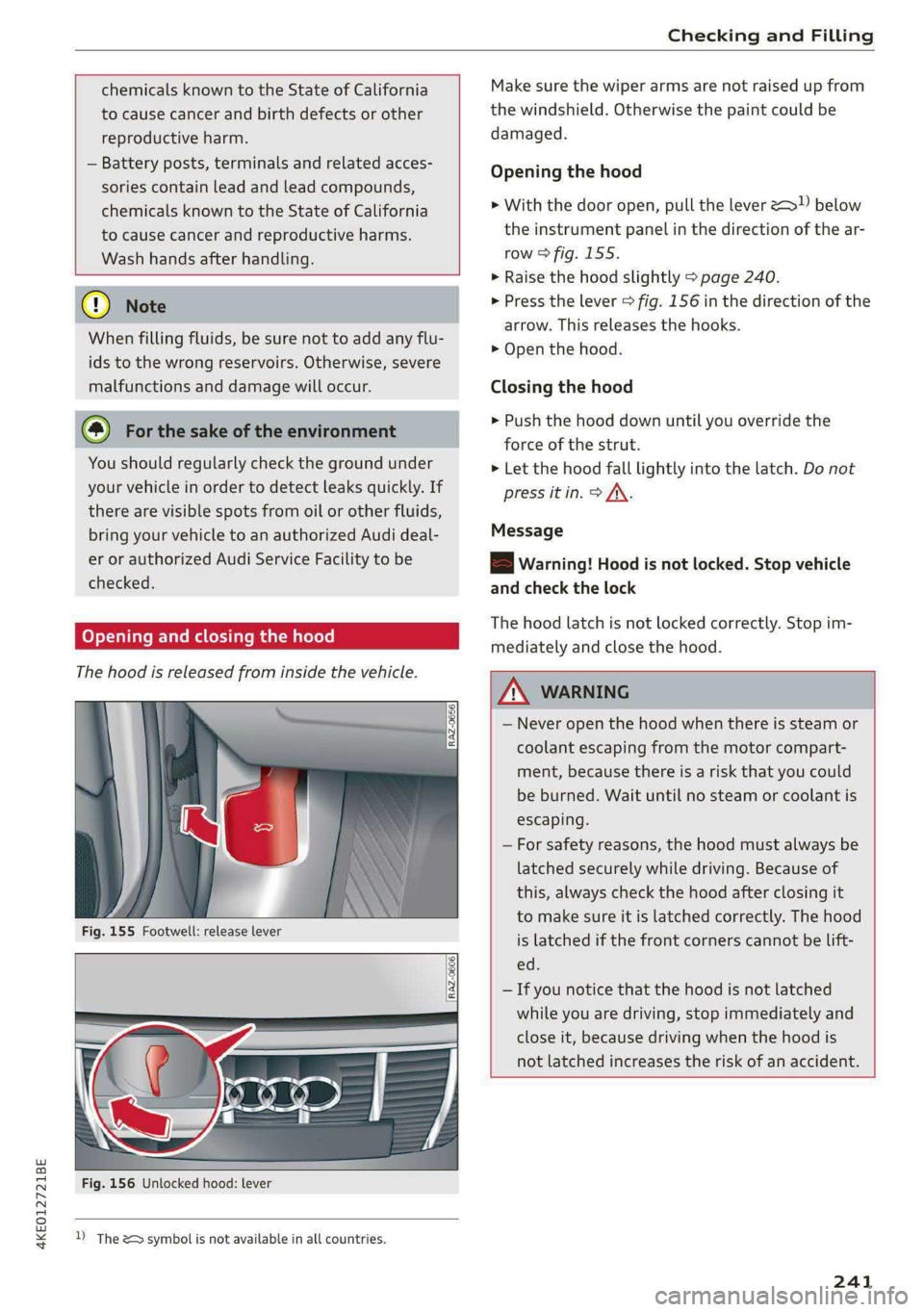
The hood is released from inside the vehicle.
RAZ-0606
Fig. 156 Unlocked hood: lever
2) The &> symbol is not available in all countries.
Make sure the wiper arms are not raised up from
the windshield. Otherwise the paint could be
damaged.
Opening the hood
> With the door open, pull the lever <>”) below
the instrument panel in the direction of the ar-
row > fig. 155.
> Raise the hood slightly > page 240.
> Press the lever > fig. 156 in the direction of the
arrow. This releases the hooks.
> Open the hood.
Closing the hood
> Push the hood down until you override the
force of the strut.
> Let the hood fall lightly into the latch. Do not
press it in. > /\.
Message
EB warning! Hood is not locked. Stop vehicle
and check the lock
The hood latch is not locked correctly. Stop im-
mediately and close the hood.
_ WARNING
— Never open the hood when there is steam or
coolant escaping from the motor compart-
ment, because there is a risk that you could
be burned. Wait until no steam or coolant is
escaping.
— For safety reasons, the hood must always be
latched securely while driving. Because of
this, always check the hood after closing it
to make sure it is latched correctly. The hood
is latched if the front corners cannot be lift-
ed.
— If you notice that the hood is not latched
while you are driving, stop immediately and
close it, because driving when the hood is
not latched increases the risk of an accident.
241
Page 246 of 316
Checking and Filling
> Read the brake fluid level on the brake fluid res-
ervoir > page 242, fig. 157. The brake fluid lev-
el must be between the MIN and MAX markings
>A.
The brake fluid level is monitored automatically.
Message
Ga I © Brakes: stop vehicle and check brake
fluid level
Stop the vehicle and check the brake fluid level.
See an authorized Audi dealer or authorized Audi
Service Facility for assistance.
Changing the brake fluid
Brake fluid should be changed at regular inter-
vals. Have the brake fluid changed by an author-
ized Audi dealer or authorized Audi Service Facili-
ty. The authorized Audi dealer or authorized Audi
Service Facility will inform you of the replace-
ment intervals.
Z\ WARNING
— If the brake fluid level is below the MIN
marking, it can impair the braking effect and
driving safety, which increase the risk of an
accident. Do not continue driving. See an au-
thorized Audi dealer or authorized Audi
Service Facility for assistance.
— If the brake fluid is old, bubbles may form in
the brake system during heavy braking. This
could impair braking performance and driv-
ing safety, which increases the risk of an ac-
cident.
— The brake fluid in your vehicle must meet
the standard VW 501 14 and is available at
an authorized Audi dealer or authorized
Audi Service Facility. If this brake fluid is not
available, another high-grade brake fluid of
equivalent quality may be used, and it must
meet the U.S. Federal Motor Vehicle Stand-
ard (FMVSS) 116 DOT 4, Class 6.
@) Note
— If the brake fluid level is above the MAX
marking, brake fluid may leak out over the
edge of the reservoir and result in damage
to the vehicle.
244
— Do not allow any brake fluid to come into
contact with the vehicle paint, because it
will corrode the paint.
Electrical system
If the c= / B or [jm] indicator light turns on,
there is a malfunction in the power supply, the
battery, or the vehicle electrical system.
= / B Electrical system: malfunction! Safely
stop vehicle
Do not continue driving and switch the ignition
off > A\. See an authorized Audi dealer or author-
ized Audi Service Facility for assistance.
= Electrical system: malfunction! Restart not
possible. Please contact Service
If you switch the ignition off, you will not be able
to restart the vehicle. Vehicle functions/driving
stability may be limited. Drive to an authorized
Audi dealer or authorized Audi Service Facility im-
mediately.
= Electrical system: malfunction! Please con-
tact Service
Switch off all electrical equipment that is not
needed. Vehicle functions/driving stability may
be limited. Drive to an authorized Audi dealer or
authorized Audi Service Facility immediately.
= Electrical system: low battery charge. Bat-
tery
will be charged while driving
If this message turns off after a little while, the
vehicle battery has been charged enough by the
high-voltage battery while driving.
If this message does not turn off, drive immedi-
ately to an authorized Audi dealer or authorized
Audi Service Facility.
Z\ WARNING
When there is an electrical system malfunc-
tion, vehicle functions may not work and driv-
ing stability may be limited, which increases
the risk of an accident. Do not continue driv-
ing and switch the ignition off. See an author-
ized Audi dealer or authorized Audi Service Fa-
cility for assistance.
Page 247 of 316
4KE012721BE
Checking and Filling
Battery
ella mele ele sce)
Because of the complex power supply, all work on
batteries such as disconnecting, replacing, etc.,
should only be performed by an authorized Audi
dealer or authorized Audi Service Facility > A\.
Batteries with different technologies are instal-
led in your vehicle:
— 12 Volt vehicle battery (for example, for basic
power supply) > page 245, 12 Volt vehicle bat-
tery
— High-voltage battery (for example, for electric
drive system, climate control) > page 107, In-
troduction
Not running the vehicle for long periods of
time
When the vehicle is not used for long periods, the
12 Volt vehicle battery will drain little by little. To
ensure that the vehicle can still be started, the
electrical equipment will be limited or switched
off. Some convenience functions, such as interior
lighting or power seat adjustment, may not be
available under certain circumstances. The con-
venience functions will be available again when
you establish drive ready mode.
Even when electrical equipment is switched off,
the equipment can still drain the 12 Volt vehicle
battery if the vehicle is not driven for long peri-
ods of time. Deep draining results in a chemical
reaction that destroys the inside of the battery.
To reduce the risk of this, the battery must be
charged monthly by an authorized Audi dealer or
authorized Audi Service Facility > page 246. Con-
tact an authorized Audi dealer or authorized Audi
Service Facility for more information.
Winter operation
Cold weather places an especially high load on
the 12 Volt vehicle battery. Have the battery
checked by an authorized Audi dealer or author-
ized Audi Service Facility before cold weather be-
gins.
ZA\ WARNING
All work on the battery or electrical system in
your vehicle can result in injuries, chemical
burns, accidents, or burns. Because of this, all
work must be performed only by an author-
ized Audi dealer or authorized Audi Service Fa-
cility.
A WARNING
California Proposition 65 Warning:
— Battery posts, terminals and related acces-
sories contain lead and lead compounds,
chemicals known to the State of California
to cause cancer and reproductive harms.
Wash hands after handling.
@) Note
If the vehicle will be parked for long periods
of time, protect the 12 Volt vehicle battery
against the cold so that it will not “freeze”
and become damaged. Have the battery
charged by an authorized Audi dealer or au-
thorized Audi Service Facility > page 246,
Charging the 12 Volt vehicle battery.
12 Volt vehicle battery
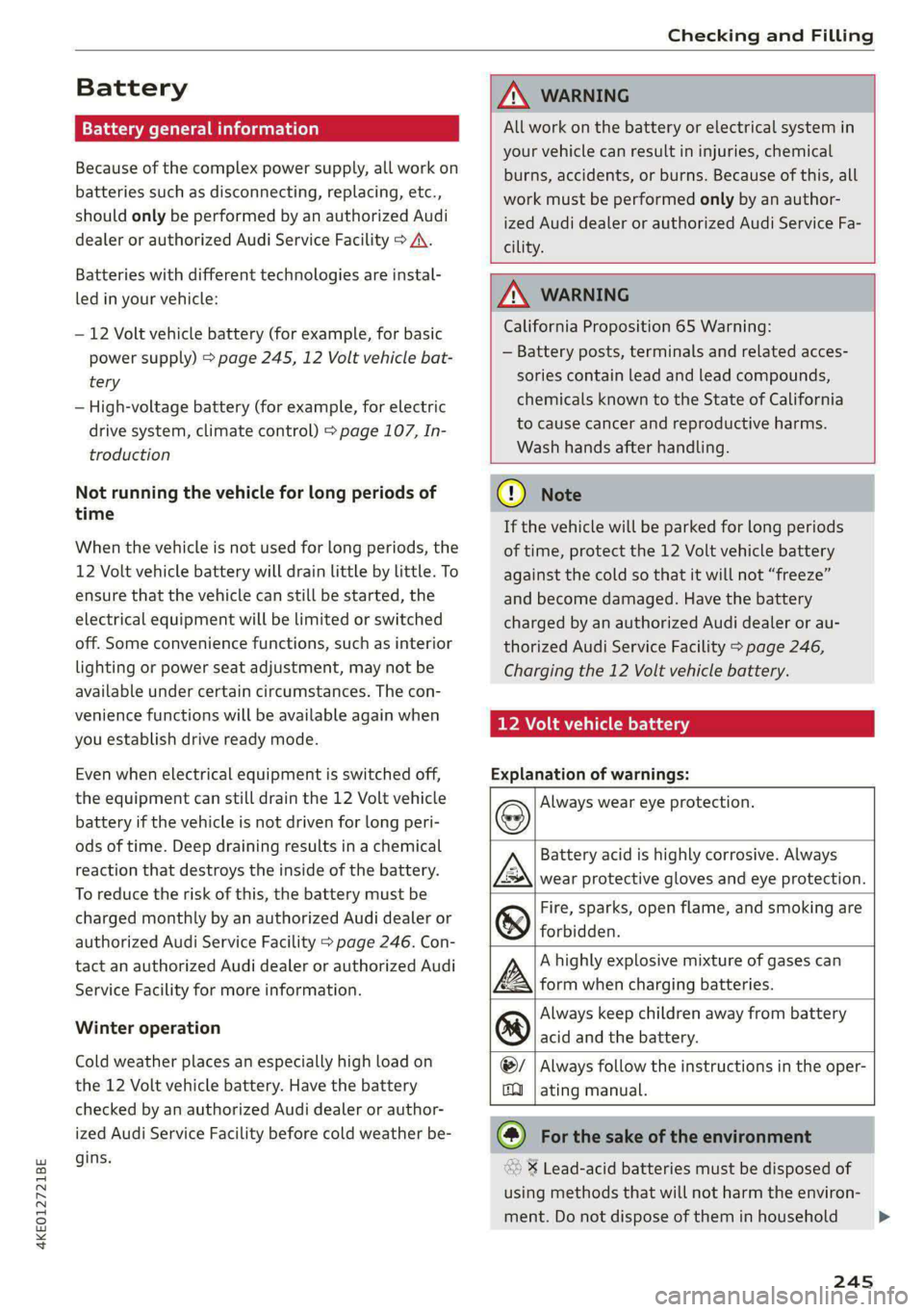
Explanation of warnings:
Battery acid is highly corrosive. Always
wear protective gloves and eye protection.
Fire, sparks, open flame, and smoking are
®& forbidden.
@/
ma
Always wear eye protection.
A highly explosive mixture of gases can
A» form when charging batteries.
Always keep children away from battery
®) acid and the battery.
Always follow the instructions in the oper-
ating manual.
@) For the sake of the environment
% Lead-acid batteries must be disposed of
using methods that will not harm the environ-
ment. Do not dispose of them in household
245
>