change time AUDI E-TRON 2020 Owner's Manual
[x] Cancel search | Manufacturer: AUDI, Model Year: 2020, Model line: E-TRON, Model: AUDI E-TRON 2020Pages: 316, PDF Size: 85.96 MB
Page 199 of 316
4KE012721BE
Navigation
Navigation
Opening navigation
Applies to: vehicles with navigation system
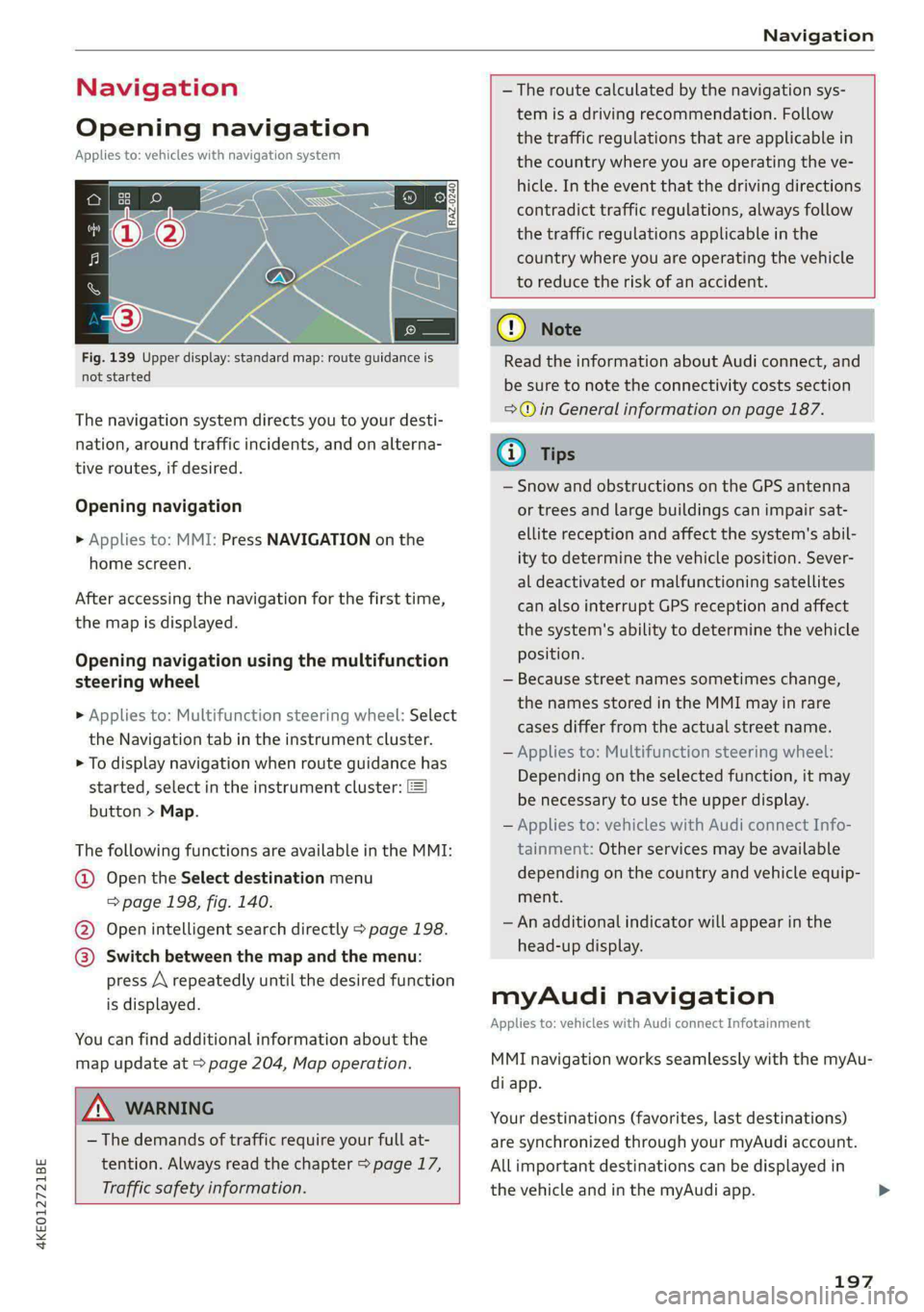
Fig. 139 Upper display: standard map: route guidance is
not started
The navigation system directs you to your desti-
nation, around traffic incidents, and on alterna-
tive routes, if desired.
Opening navigation
» Applies to: MMI: Press NAVIGATION on the
home screen.
After accessing the navigation for the first time,
the map is displayed.
Opening navigation using the multifunction
steering wheel
> Applies to: Multifunction steering wheel: Select
the Navigation tab in the instrument cluster.
> To display navigation when route guidance has
started, select in the instrument cluster:
button > Map.
The following functions are available in the MMI:
@ Open the Select destination menu
=> page 198, fig. 140.
@ Open intelligent search directly > page 198.
@ Switch between the map and the menu:
press A repeatedly until the desired function
is displayed.
You can find additional information about the
map update at > page 204, Map operation.
A WARNING
— The demands of traffic require your full at-
tention. Always read the chapter > page 17,
Traffic safety information.
—The route calculated by the navigation sys-
tem is a driving recommendation. Follow
the traffic regulations that are applicable in
the country where you are operating the ve-
hicle. In the event that the driving directions
contradict traffic regulations, always follow
the traffic regulations applicable in the
country where you are operating the vehicle
to reduce the risk of an accident.
@) Note
Read the information about Audi connect, and
be sure to note the connectivity costs section
=>©) in General information on page 187.
— Snow and obstructions on the GPS antenna
or trees and large buildings can impair sat-
ellite reception and affect the system's abil-
ity to determine the vehicle position. Sever-
al deactivated or malfunctioning satellites
can also interrupt GPS reception and affect
the system's ability to determine the vehicle
position.
— Because street names sometimes change,
the names stored in the MMI may in rare
cases differ from the actual street name.
— Applies to: Multifunction steering wheel:
Depending on the selected function, it may
be necessary to use the upper display.
— Applies to: vehicles with Audi connect Info-
tainment: Other services may be available
depending on the country and vehicle equip-
ment.
— An additional indicator will appear in the
head-up display.
myAudi navigation
Applies to: vehicles with Audi connect Infotainment
MMI navigation works seamlessly with the myAu-
di app.
Your destinations (favorites, last destinations)
are synchronized through your myAudi account.
Allimportant destinations can be displayed in
the vehicle and in the myAudi app.
197
Page 209 of 316
4KE012721BE
Navigation
Storing favorites
> Press y¥ in the Details menu > page 201,
fig. 141. Or: press Store as favorite in the op-
tions > page 211.
Storing a home address or business address
> Press Home address or Business address.
When accessed for the first time, you will be
prompted to set the address.
> Select: Create now > enter a destination > OK.
Editing a home address or business address
Requirement: the favorites list must be dis-
played. Your home address or business address
must be stored.
> Press Home address or Business address until
the Options menu is displayed.
> Select: Change address > enter a destination >
(Set as destination) or (Add to address) > OK.
Editing a favorite
Requirement: the favorites list must be dis-
played. At least one favorite must be stored.
> Setting a favorite as a destination: press ona
favorite.
> Rename favorite: press on a favorite until the
Options menu is displayed. Select: Change
name > select ad name > OK.
> Deleting a favorite: press W in the Details
menu © page 201, fig. 141. Or: select: Z > one
or more entries or Select all > Delete > (Done).
> Moving a favorite: press Z. Touch the > sym-
bol and move the entry to the desired position.
Press Done.
@) Tips
— After deleting the home address or business
address, only the address is deleted and the
entry will still be displayed in the favorites.
— Please note when moving favorites that
items 1 and 2 are reserved for the home ad-
dress and business address.
(yea mre me(id irl a(elay
Applies to: vehicles with navigation system
Two addresses (private/business) can be added as
destinations for each contact. Addresses for con-
tacts on your mobile device are displayed as a
mailing address.
Accessing contacts
» Applies to: MMI: Select on the home screen:
NAVIGATION > (8) > Contacts.
Adding a destination to a contact
Requirement: a mobile device must be connected
to the MMI & page 173. Or: you must have im-
ported contacts > page 184, Importing and ex-
porting contacts. The Hide grayed-out contacts
option must be switched off > page 207. There
must be no business address or private address
stored for the desired contact.
> Select: a contact > |---| > Add destination.
> Follow the system instructions.
Settings
> Applies to: MMI: Select on the home screen:
NAVIGATION > (88) > Contacts > ©.
Hide grayed-out contacts
When the function is switched on, contacts that
have no address or navigation destination stored
will be hidden in navigation. You can find infor-
mation for additional settings under > page 184,
Directory settings.
G) Tips
If you add a navigation destination to a con-
tact, the destination will only be stored in the
MMI. The MMI does not change any contacts
on your phone.
Coyne 1-1 rT aire]
Applies to: navigation system and on-street parking
In supported areas, you can display parking along
the route.
Requirement: the Parking notification must be
switched on > page 19, Notification center. The
MMI must be connected to the Internet
207
>
Page 213 of 316
4KE012721BE
Navigation
Requirement: the MMI must be connected to the
Internet > page 187, Audi connect. Traffic infor-
mation must be switched on in the MMI
> page 211.
Traffic information will be displayed on the
standard map > page 203, fig. 142.
Online traffic information is also displayed on the
standard map > page 208.
©) Note
Read the information about Audi connect, and
be sure to note the connectivity costs section
=@ in General information on page 187.
@ Tips
— Having the online traffic information func-
tion switched on provides the most accurate
reports of traffic situations and traffic fore-
casting. Your vehicle transmits and process-
es its anonymous, encrypted position infor-
mation at regular intervals to the traffic da-
ta provider. You can switch off data transfer
at any time > page 289.
— The online traffic information network is
not available in all countries, and the cover-
age is not nationwide.
Options and settings
Applies to: vehicles with navigation system
Context-specific functions and settings may be
available depending on the vehicle equipment.
» Press More, or
> Open a list with navigation destinations (such
as recent destinations) and press and hold an
item until the Options menu is displayed.
Storing a favorite
See > page 206.
Edit address
You can edit an address for the next destination
entry and navigate to the destination. Select: Ed-
it address > enter a street > Use address > Start.
If the address is permanently stored (for exam-
ple, in the favorites), the stored entry will not be
changed.
Change address
See > page 206, Favorites.
Entering an address
See > page 207, Contacts as navigation destina-
tions.
Change name
See > page 206, Favorites.
Weather
See > page 189, Services.
Save as a shortcut
See > page 20, Shortcuts.
Applies to: vehicles with navigation system
You can adjust the navigation system settings in
the instrument cluster and in the MMI display
separately. The settings depend on the country
and vehicle equipment.
Accessing settings
> Applies to: MMI: Select on the home screen:
NAVIGATION > ©}.
Accessing settings using the multifunction
steering wheel
> Applies to: Multifunction steering wheel: Select
in the instrument cluster: Navigation tab >
button.
Please note that a setting applied to the multi-
function steering wheel is only valid for the in-
strument cluster map.
Map settings
Satellite map: see > page 208.
Show range: see > page 208.
Traffic: you can display current traffic informa-
tion on the map. See > page 204, Traffic infor-
mation display on the map or map preview
— Free flow of traffic
211
Page 234 of 316
Media
> Select: Change PIN > enter a new PIN for pa- Motion Picture Association of America
rental control > OK. (MPAA). Note that the age levels for video
> Repeat the entry and press OK. DVDs in European countries may differ.
@) Tips
— Not all video DVDs have parental control.
— The protection levels for the parental con-
trol are based on the US standards from the
— PIN entry for parental control will be locked
for approximately one minute if you enter
the incorrect PIN three times in a row. The
PIN can only be reset by an authorized Audi
dealer.
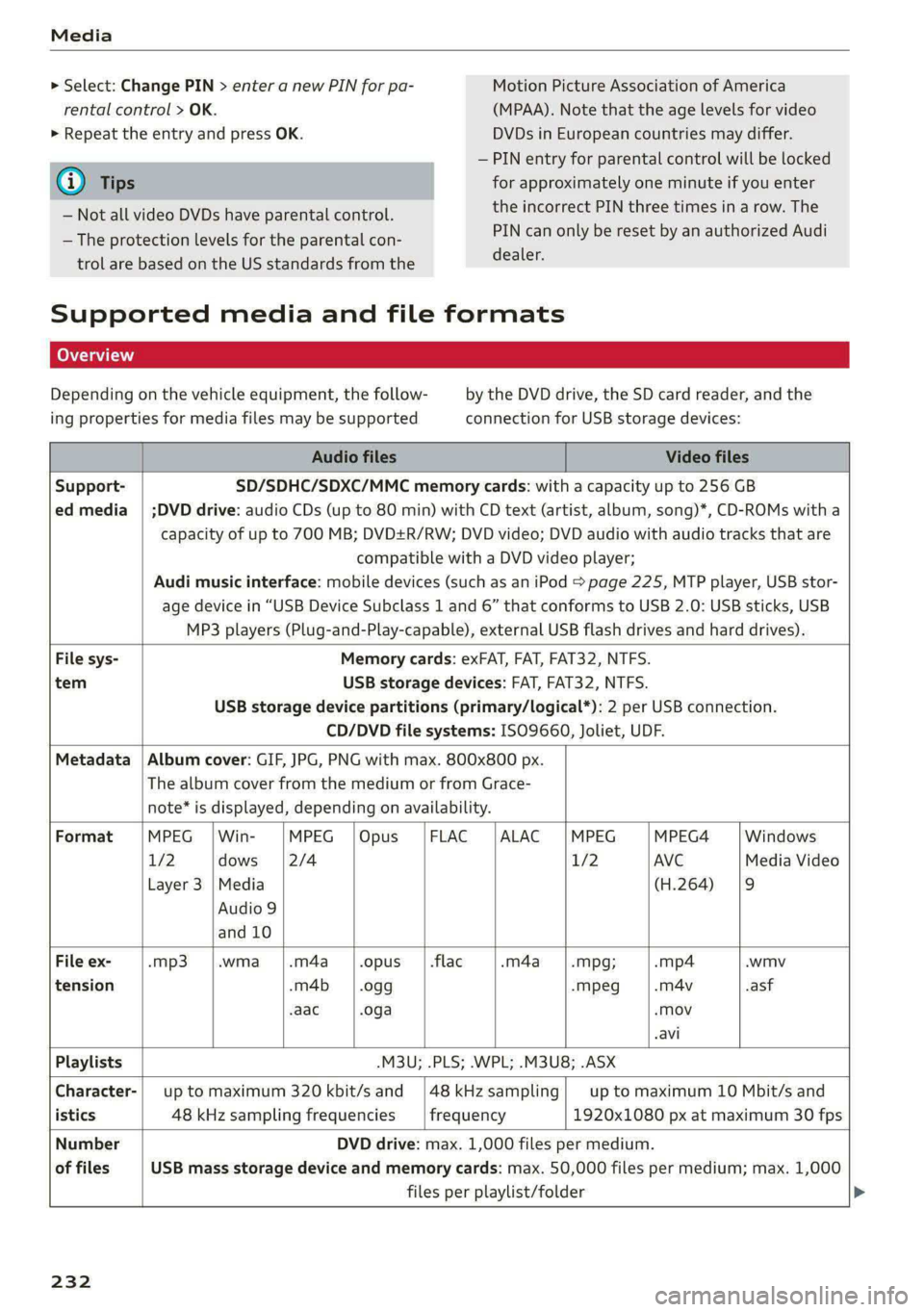
Supported media and file formats
Depending on the vehicle equipment, the follow- by the DVD drive, the SD card reader, and the
ing properties for media files may be supported connection for USB storage devices:
Audio files Video files
Support- SD/SDHC/SDXC/MMC memory cards: with a capacity up to 256 GB
ed media | ;DVD drive: audio CDs (up to 80 min) with CD text (artist, album, song)*, CD-ROMs with a
capacity of up to 700 MB; DVD+R/RW; DVD video; DVD audio with audio tracks that are
compatible with a DVD video player;
Audi music interface: mobile devices (such as an iPod > page 225, MTP player, USB stor-
age device in “USB Device Subclass 1 and 6” that conforms to USB 2.0: USB sticks, USB
MP3 players (Plug-and-Play-capable), external USB flash drives and hard drives).
File sys- Memory cards: exFAT, FAT, FAT32, NTFS.
tem USB storage devices: FAT, FAT32, NTFS.
USB storage device partitions (primary/logical*): 2 per USB connection.
CD/DVD file systems: ISO9660, Joliet, UDF.
Metadata | Album cover: GIF, JPG, PNG with max. 800x800 px.
The album cover from the medium or from Grace-
note* is displayed, depending on availability.
Format |MPEG |Win- |MPEG |Opus |FLAC |ALAC |MPEG |MPEG4 — |Windows
1/2 dows 2/4 1/2 AVC Media Video
Layer 3 |Media (H.264) |9
Audio 9
and 10
File
ex- -mp3 .wma -.m4a .opus | .flac -m4a -Mpg; -mp4 .wmv
tension -m4b_ | .ogg -Mpeg -m4v -asf
-aac .oga -Mov
avi
Playlists -M3U; .PLS; .WPL; .M3U8; .ASX
Character-| up to maximum 320 kbit/s and |48kHzsampling| up to maximum 10 Mbit/s and
istics 48 kHz sampling frequencies frequency 1920x1080 px at maximum 30 fps
Number DVD drive: max. 1,000 files per medium.
of files USB mass storage device and memory cards: max. 50,000 files per medium; max. 1,000
files per playlist/folder
232
Page 238 of 316
Additional settings
Additional settings
System settings
Introduction
General settings are described in this chapter.
You can find specific settings in the chapters
about those settings. The available settings de-
pend on the vehicle equipment.
Date and time
» Applies to: MMI: Select on the home screen:
SETTINGS > General > Date & time.
Possible settings:
— Set date and time automatically
— Date format
— Use 24h time format
— Automatic time zone
— Time zone
— Automatic daylight saving time
— Manual daylight saving time
Measurement units
> Applies to: MMI: Select on the home screen:
SETTINGS > General > Measurement units.
Possible settings:
— Speed
— Distance
— Temperature
— Pressure
— Consumption (electric motor)
— Volume
Language and keyboard
> Applies to: MMI: Select on the home screen:
SETTINGS > Language & keyboard.
Language
You can change the languages for the display,
navigation announcements, and the voice recog-
nition system.
236
Keyboard
See > page 21.
Requirement: an audio source must be active.
> Applies to: MMI: Select on the home screen:
SETTINGS > Sound.
Possible settings:
— Treble
— Bass
— Balance/fader
— Speed-dependent volume control
— Subwoofer
— Surround Level
Focus
You can optimize the sound distribution for vari-
ous locations in the vehicle.
3D effect
You can adjust the intensity of the 3D effect.
With the Medium setting, you will hear an opti-
mal 3D effect for all sources.
Plea ee ely
» Applies to: MMI: Select on the home screen:
SETTINGS > Announcements & tone.
Possible settings:
— Volume of announcements
— Welcome sound
ZA WARNING
Adjust the volume of the audio system so that
signals from outside the vehicle, such as po-
lice and fire sirens, can be heard easily at all
times.
Gi) Tips
The volume is automatically adjusted to a pre-
set level when the MMI is switched on.
Page 255 of 316

4KE012721BE
Wheels
Production options weight
means the combined weight of
those installed regular production
options weighing over 5 lbs.
(2.3 kg) in excess of those stand-
ard items which they replace, not
previously considered in curb
weight or accessory weight, in-
cluding heavy duty brakes, ride
levelers, roof rack, heavy duty
battery, and special trim.
Radial ply tire
means a pneumatic tire in which
the ply cords that extend to the
beads are laid at substantially
90 degrees to the centerline of
the tread.
Recommended inflation
pressure
see > page 251, Cold tire infla-
tion pressure.
Reinforced tire
means a tire designed to operate
at higher loads and at higher in-
flation pressures than the corre-
sponding standard tire. Rein-
forced tires may be identified as
“XL”, “xl”, “EXTRA LOAD”, or “RF”
on the sidewall.
Rim
means a metal support for a tire
or a tire and tube assembly upon
which the tire beads are seated.
Rim diameter
means nominal diameter of the
bead seat. If you change your
wheel size, you will have to pur-
chase new tires to match the new
rim diameter.
Rim size designation
means rim diameter and width.
Rim width
means nominal distance between
rim flanges.
Sidewall
means that portion of a tire be-
tween the tread and bead.
Speed rating (letter code)
means the speed at which a tire is
designed to be driven for extend-
ed periods of time. The ratings
range from 93 mph (150 km/h)
to 186 mph (298 km/h) > table
on page 249. You may not find
this information on all tires be-
cause it is not required by law.
The speed rating letter code,
where applicable, is molded on
the tire sidewall and indicates the >
253
Page 261 of 316
4KE012721BE
Wheels
Checking and correcting tire
pressure
>Check the tire pressure at least
once per month and also check it
before every long drive.
> Always check the tire pressure
when the tires are cold. Do not
reduce the pressure if it increas-
es when the tires are warm.
>Refer to the sticker > fig. 164
for the correct tire pressure.
>Correct the tire pressure if nec-
essary.
> Store the new tire pressure in
the MMI > page 267.
> Check the pressure in the spare
tire*. Always maintain the maxi-
mum temperature that is speci-
fied for the tire.
and follow the important safe-
ty precautions in > page 260.
—The tire must flex more if the
tire pressure is too low or if
the vehicle speed or load are
too high. This heats the tire up
too much. This increases the
risk of an accident because it
can cause the tire to burst and
result in loss of vehicle con-
trol.
—Incorrect tire pressure increas-
es tire wear and has a negative
effect on driving and braking
behavior, which increases the
risk of an accident.
Z\ WARNING
Always adapt the tire pressure
to your driving style and the ve-
hicle load.
—Overloading can lead to loss of
vehicle control and increase
the risk of an accident. Read
@) Note
Replace lost valve caps to re-
duce the risk of damage to the
tire valves.
© For the sake of the envi-
ronment
Tire pressure that is too low in-
creases energy use.
Ncw ecm] 1
Please note that the information
contained in the following table
was correct at the time of print-
ing, and the information is sub-
ject to change. If there are any
differences, you should always
follow the tire pressure sticker
=> page 258, fig. 163.
259
Page 268 of 316

Wheels
As an added safety feature, your vehicle has been
equipped with a tire pressure monitoring system
(TPMS) that illuminates a low tire pressure tell-
tale when one or more of your tires is significant-
ly under-inflated. Accordingly, when the low tire
pressure telltale illuminates, you should stop and
check your tires as soon as possible, and inflate
them to the proper pressure. Driving ona signifi-
cantly under-inflated tire causes the tire to over-
heat and can lead to tire failure. Under-inflation
also reduces fuel efficiency and tire tread life,
and may affect the vehicle's handling and stop-
ping
ability.
Please note that the TPMS is not a substitute for
proper tire maintenance, and it is the driver's re-
sponsibility to maintain correct tire pressure,
even if under-inflation has not reached the level
to trigger illumination of the TPMS low tire pres-
sure telltale.
Your vehicle has also been equipped with a TPMS
malfunction indicator to indicate when the sys-
tem is not operating properly. The TPMS mal-
function indicator is combined with the low tire
pressure telltale. When the system detects a
malfunction, the telltale will flash for approxi-
mately one minute and then remain continuously
illuminated. This sequence will continue upon
subsequent vehicle start-ups as long as the mal-
function exists.
When the malfunction indicator is illuminated,
the system may not be able to detect or signal
low tire pressure as intended. TPMS malfunctions
may occur for a variety of reasons, including the
installation of replacement or alternate tires or
wheels on the vehicle that prevent the TPMS
from functioning properly. Always check the
TPMS malfunction telltale after replacing one or
more tires or wheels on your vehicle to ensure
that the replacement or alternate tires and
wheels allow the TPMS to continue to function
properly.
266
If the tire pressure monitoring indicator
Eye) tLe
Applies to: vehicles with Tire Pressure Monitoring System in-
dicator
The tire pressure indicator in the instrument
cluster informs you if the tire pressure is too low
or if there is a system malfunction.
Using the ABS sensors, the tire pressure monitor-
ing system compares the tire tread circumference
and vibration characteristics of the individual
tires. If the pressure changes in one or more
tires, this is indicated in the instrument cluster
display with an indicator light @ and a message.
If only one tire is affected, the location of that
tire will be indicated.
The tire pressures must be stored again each
time you change the pressures (switching be-
tween partial and full load pressure) or after
changing or replacing a tire on your vehicle
= page 267. The tire pressure monitoring system
only monitors the tire pressure you have stored.
Refer to the tire pressure label for the recom-
mended tire pressure for your vehicle
=> page 258, fig. 164.
Tire tread circumference and vibration character-
istics can change and cause a tire pressure warn-
ing if:
— The tire pressure in one or more tires is too low
— The tires have structural damage
— The tire was replaced or the tire pressure was
changed and it was not stored > page 267
— Tires that are only partially used are replaced
with new tires
Indicator lights
If the @ indicator light turns on, there is a loss
of pressure in at least one tire > A\ Check the
tires and replace or repair if necessary. Check and
correct the pressures of all four tires and store
the pressure again > page 267.
ITPMS| Tire pressure: malfunction! See owner's
manual
Ifo appears after switching the ignition on or
while driving and the indicator light in the in-
strument cluster blinks for approximately one >
Page 269 of 316

4KE012721BE
Wheels
minute and then stays on, there is system mal-
function. Try to store the correct tire pressures
= page 267. In some cases, you must drive for
several minutes after storing the pressures until
the indicator light turns off. If the indicator light
does turn off or turns on again after a short peri-
od of time, drive to an authorized Audi dealer or
authorized Audi Service Facility immediately to
have the malfunction corrected.
ZA\ WARNING
— If the tire pressure indicator appears in the
display, reduce your speed immediately and
avoid any hard steering or braking maneu-
vers. Stop as soon as possible and check the
tires and their pressure.
— The driver is responsible for maintaining the
correct tire pressure. You must check the
tire pressure regularly.
— Under certain conditions (such as a sporty
driving style, winter conditions, or unpaved
roads), the tire pressure monitoring system
indicator may be delayed.
Gi) Tips
— The tire pressure monitoring system can al-
so stop working when there is an ESC mal-
function.
— Using snow chains may result in a system
malfunction.
—The tire pressure monitoring system in your
Audi was calibrated with “Audi Original
Tires” > page 255. Using these tires is rec-
ommended.
Storing tire pressures
Applies to: vehicles with Tire Pressure Monitoring System in-
dicator
If the tire pressure changes or a tire is replaced,
it must be confirmed in the MMI.
> Before storing the tire pressures, make sure the
tire pressures in all four tires meet the speci-
fied values and are adapted to the load
=> page 258.
> Switch the ignition on.
> Applies to: MMI: Select on the home screen:
VEHICLE > Settings & Service > Tire pressure
monitoring > Store tire pressure > Yes, store
now.
@ Tips
Do not store the tire pressures if snow chains
are installed.
267
Page 315 of 316
It has always been Audi's policy to continuously
improve its products. AUDI AG reserves the right
to make changes in design and specifications,
and to make additions or improvements in its
products without incurring any obligation to in-
stall them on products previously manufactured.
This owner's manual is based on the current data
available when it was printed. Text, illustrations,
and specifications in this owner's manual are
based on the most current information available
at the time of printing, and shall not constitute a
basis for liability claims.
These instructions may not be reproduced or
translated in whole or in part without written
consent of AUDI AG. All rights reserved by AUDI
AG.
(@) For the sake of the environment
Printed on eco-friendly paper (bleached with-
out chlorine, recyclable).