buttons AUDI E-TRON 2020 Owners Manual
[x] Cancel search | Manufacturer: AUDI, Model Year: 2020, Model line: E-TRON, Model: AUDI E-TRON 2020Pages: 316, PDF Size: 85.96 MB
Page 4 of 316
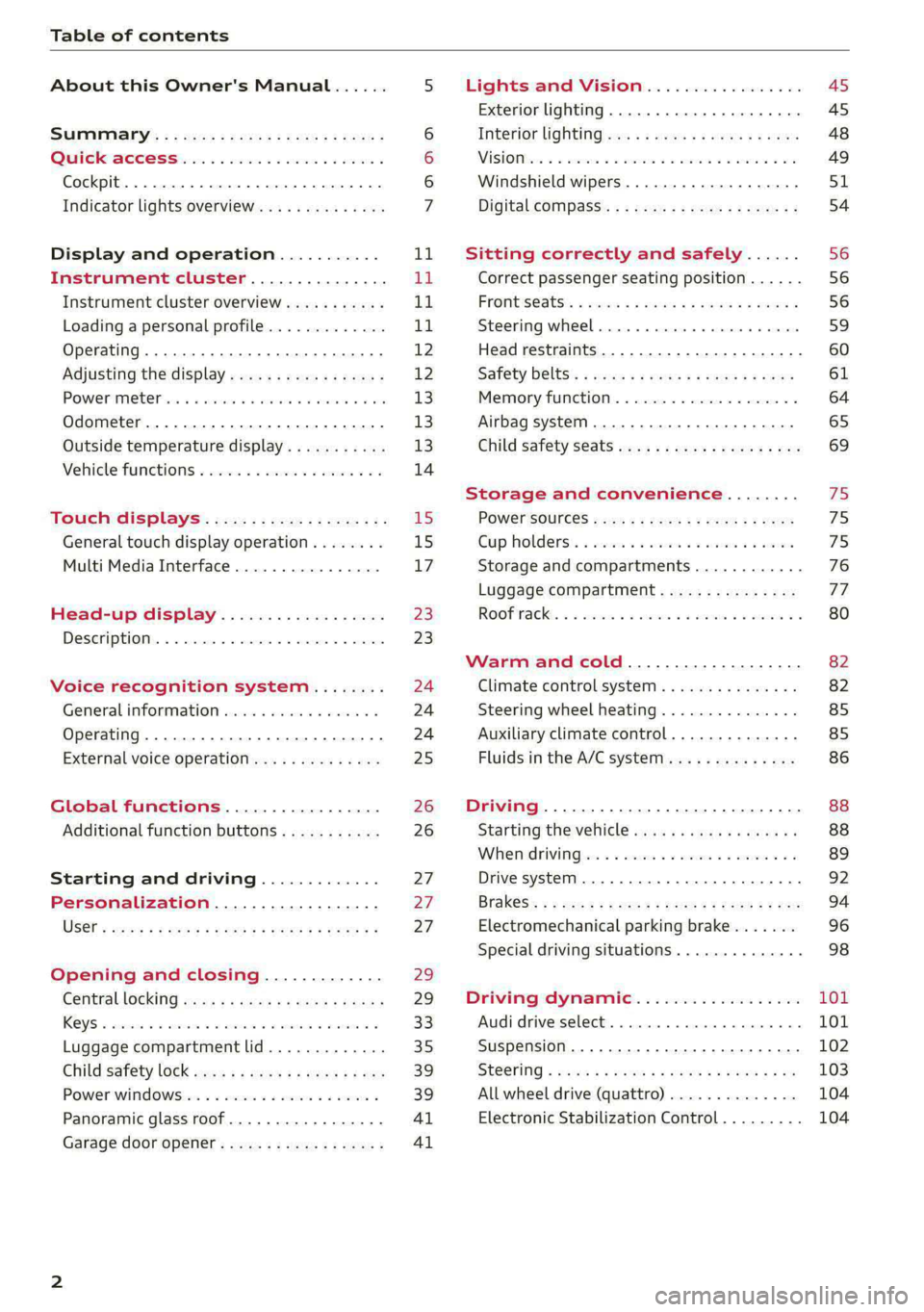
Table of contents
About this Owner's Manual......
SUMIMAry: < = exe : eens: Seen cs sens
QutckeaeCe ssh: «i esis se ois a eaves @
Cockpit. ...... 0... eee eee eee eee
Indicator lights overview...........4..
Display and operation...........
Instrument cluster...............
Instrument cluster overview...........
Loading a personal profile.............
Operating......... 2.00. cece eee eee
Adjusting the display.................
POWEP IMGT cis 6s. sxcwsue o svanens ow shaun 6 a 80a
Odometer.............. cee eee eee ee
Outside temperature display...........
Vehicle functions « ss... seen ve ome ee
TOUCH GISBIAYS): cscs « : wows st eens:
General touch display operation........
Multi Media Interface................
Head-up display..................
DeSGrIPELOIN:. « + asowies « a seen < awtine » coven
Voice recognition system........
General information 00. coe. wen es
Operating..................0..0000.
External voice operation..............
Global functions.................
Additional function buttons...........
Starting and driving.............
Personalization..................
Opening and closing.............
Centrablocking gas « x saws < # aene « naunes
KEYS « sscesus oo oases va aamies wot aeons v Be
Luggage compartment lid.............
Child’satety lOCK sms ¢ ¢ semw se cease ¢ een
Power windowsSec oo vase x a mwas ¥ a arasws ¥
Panoramic glass roof.................
Garage door opener............0.00..
NOD
OO
11
ga:
11
11,
12 12 13 13
13
14
15
15
17
Z3
23
24 24 24
25
26
26
27 27 27
29;
29
33 35
39 39
41 Al
Lights and Vision................. 45
Exterior lighting...............0000ee AS
Interior lightingissss « ¢ ews + ¢ ees es eee 48
MiSIOM iss +o seas os aroma oo ewe wo eS wars 49
Windshield wipers................05- S51
Digital compass’ « < sces ss sees sz wees ae 54
Sitting correctly and safely...... 56
Correct passenger seating position...... 56
PROMUSCStS: + wares x x nouns 6 e RawER ye eae 8 56
Steering wheel. ...........00.- ee ee ee 59
Head restraints...................00. 60
Safety belts’: ¢ esas ss mean ¢ o cere oe ee 61
Memory function..............-.0004 64
Airbag system. .... 2. ee eee eee eee 65
Child safety seats.................000- 69
Storage and convenience........ 75
PoW6r SOUICES scx ¢ x sous x sees x foes 75
Cup holdersss « seiwse + «cnn sw senses + = enue 75
Storage and compartments............ 76
Luggage compartment............... oe
ROOF PACK « + iannce 4 o amiss oo mses ao omamau ¥ 6 80
Warm and cold................... 82
Climate control system............... 82
Steering wheel heating............... 85
Auxiliary climate control.............. 85
Fluids in the A/C system.............. 86
Driving................. 0.00.00 000. 88
Starting the vehicle. ..........eee cues 88
Whenrdrivingser. sess os eeu oe emcee ves 89
Drive system... 02... ee eee eee 92
Brak@Sk: « » seg « eae e + neem © x seme ee ee 94
Electromechanical parking brake....... 96
Special driving situations.............. 98
Driving dynamic.................. 101
Audi drive:seleets, . scvceie «0 assne oo mien oo 101
Suspension..............0 2.020000 ee 102
SEGELING « weg w 5 saree a & wane 5 4 wee 2 Ee 103
All wheel drive (quattro) .............. 104
Electronic Stabilization Control......... 104
Page 8 of 316
Quick access
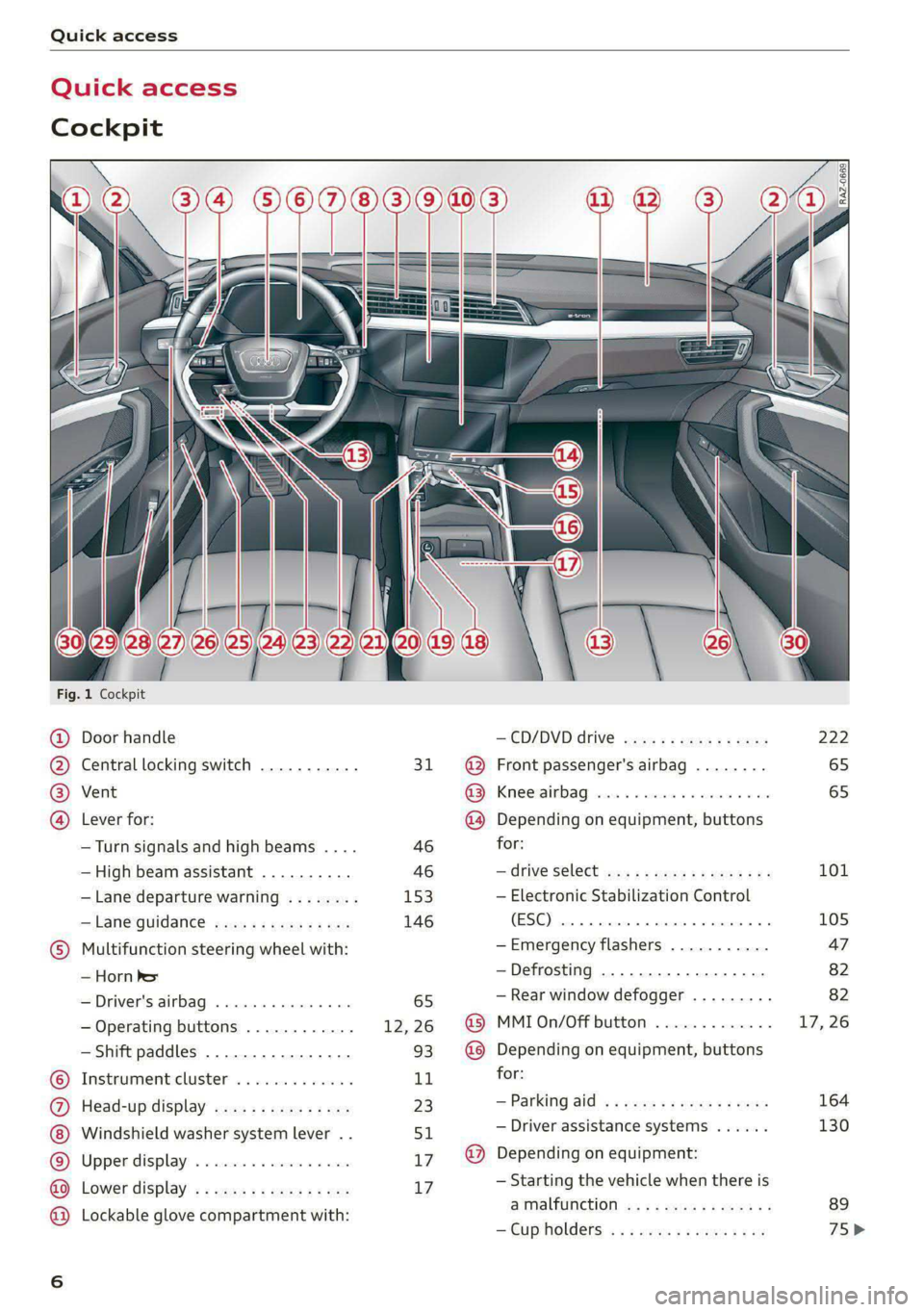
Quick access
Cockpit
Fig. 1 Cockpit
@ @ @ @
©
OO©CO®O
Door handle
Central locking switch ...........
Vent
Lever for:
—Turn signals and high beams ....
— High beam assistant ..........
— Lane departure warning ........
—Lane guidance ...............
Multifunction steering wheel with:
— Horn Pes
— Driver's airbag ...............
— Operating buttons ............
— Shift paddles ................
Instrument:cluster’ . . wc ee wees
Head-up display ...............
Windshield washer system lever ..
Upper display: « « csi «x ceva 6 # seen
Lower display .................
Lockable glove compartment with:
31
46 46
153
146
— CD/DVD drive 2s: : = news ss sees
@ Front passenger's airbag ........
@ Knee airbag ...................
@ Depending on equipment, buttons
for:
— ‘drive Select wis ss wens so ews we
— Electronic Stabilization Control
(ESE) ces us exes ao samme 0 a orenimn 0
—Emergency flashers ...........
—Defrosting ..................
— Rear window defogger .........
@ MMI On/Off button .............
@ Depending on equipment, buttons
for:
—Parking aid «eevee scenes ceca
— Driver assistance systems ......
@) Depending on equipment:
— Starting the vehicle when there is
STSLUICEION sag x 2 canes ye cme &
— Cup holders: « «2 sors se ness coe
222
65
65
101
105
164
130
Page 9 of 316
4KE012721BE
Quick access
— Audi musicinterface .......... 225
— Audi phone box ............... 175
—SDcardreader ............... 222
SOGKEE vcs sw isiness x x seein sw oem a ws 75
@ Electromechanical parking brake
BUtEON acces ox comme: « 2 sure 2 3 conte © 96
@® Selector lever ..............00. 90
@) [START STOP] button ............ 88
@) Steering wheel adjustment ...... 59
@3) Lever for:
— Cruise control system ......... 139
— Adaptive cruise assist .......... 142
@4 Connection port for the On Board
Diagnostic System (OBD) ........ 288
@3) Hood release ..........-..-0005 241
@8 Memory function buttons ........ 64
@) Buttons for:
PELIQHES ac x 2 wsvcene ao esezoss vo aenere @ s 45
—All-weather lights ............ 45
Luggage compartment lid button . 35
@9) Exterior mirror adjustment ...... 49
69 Buttons for:
— Power windows ............0. 39
—Child safety lock .............. 39
G) Tips
Some the equipment listed here is only instal-
led in certain models or is available as an op-
tion.
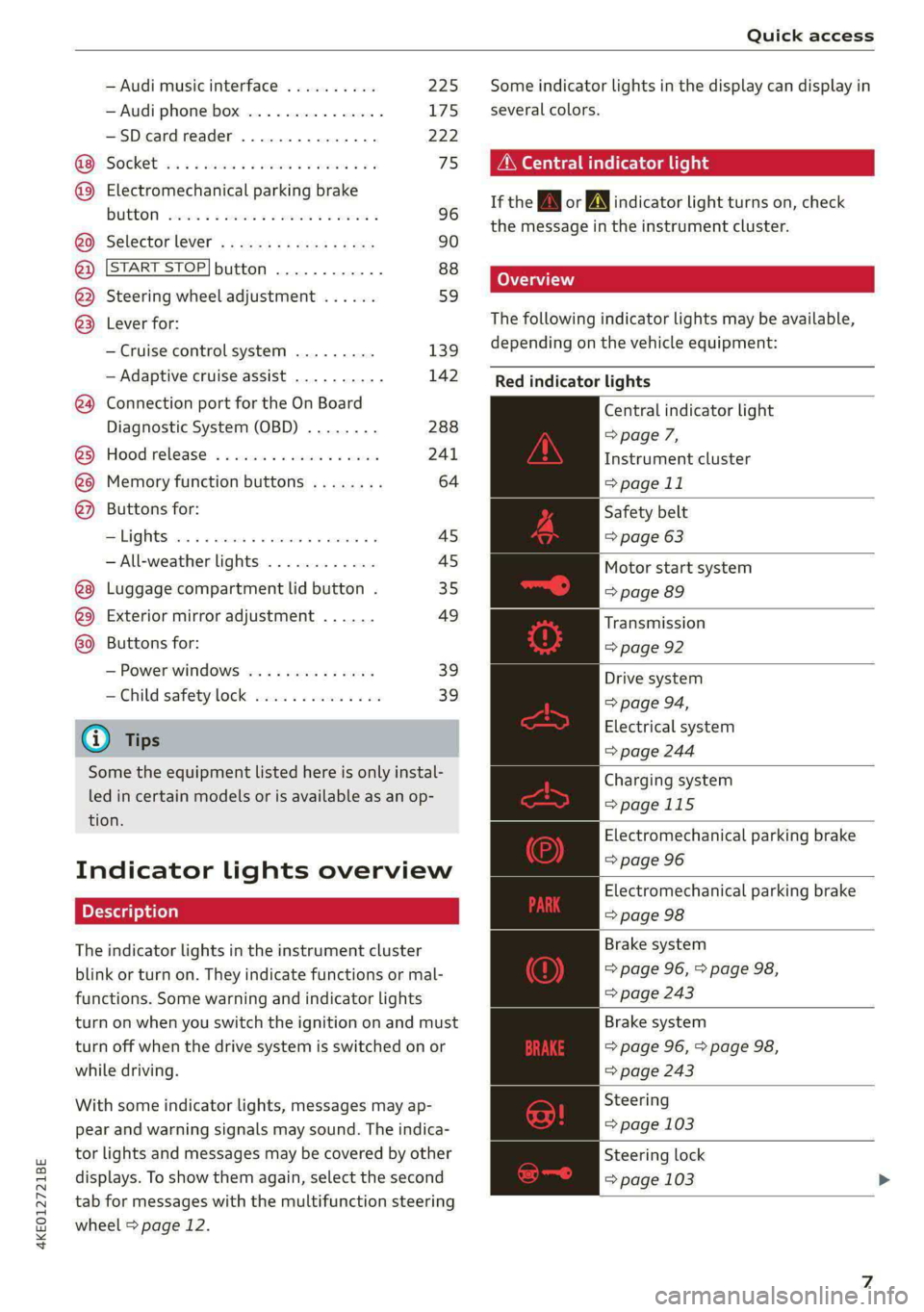
Indicator lights overview
The indicator lights in the instrument cluster
blink or turn on. They indicate functions or mal-
functions. Some warning and indicator lights
turn on when you switch the ignition on and must
turn off when the drive system is switched on or
while driving.
With some indicator lights, messages may ap-
pear and warning signals may sound. The indica-
tor lights and messages may be covered by other
displays. To show them again, select the second
tab for messages with the multifunction steering
wheel > page 12.
Some indicator lights in the display can display in
several colors.
A\ Central indicator light
If the A or indicator light turns on, check
the message in the instrument cluster.
The following indicator lights may be available,
depending on the vehicle equipment:
Red indicator lights
Central indicator light
=> page 7,
Instrument cluster
=> page 11
Safety belt
=> page 63
Motor start system
=> page 89
Transmission
=> page 92
Drive system
=> page 94,
Electrical system
=> page 244
Charging system
=>page 115
Electromechanical parking brake
=> page 96
Electromechanical parking brake
=> page 98
Brake system
=> page 96, > page 98,
=> page 243
Brake system
=> page 96, > page 98,
=> page 243
Steering
=> page 103
Steering lock
=> page 103
Page 20 of 316

Touch displays
Menus and symbols
Ls
rd
ta
4 oo A oe Sc
Ce ota UC
Fig. 15 Upper/lower display: home screen
Label
Quick access bar
Description
Return to the home screen or open a menu quickly > page 18
Displays existing notifications @) > page 19, status display
Status b
eeee oat => page 19, time
Display area Select a menu, apply settings, display content > page 19
Function bar Activate functions or access attached content > page 20
Shortcuts Using shortcuts > page 20
Q|@/@|O|
©
|O
Climate control settings Adjust the climate control system settings > page 82
Description of common symbols
You can operate the default functions using the
symbols that follow. The symbols may be found
in any menu, depending on the context.
Description
Go back one level
Close the menu
Search for content
Open explanations for a menu
Open settings for the selected
menu
Open the submenu
Adjust the settings
Set as favorite
Switch functions on or off
Switch functions on or off
Switch functions on or off
18
Symbol Description
Open additional actions
Open additional information for
the selected menu
G) Tips
The following pages primarily show ILlustra-
tions of the upper display with the largest
possible screen size. The display or location of
the items shown may vary depending on the
vehicle equipment.
With quick access, you can return to the home
screen and quickly switch between four menus
that can be individually configured.
Returning to the home screen or opening a
menu quickly
> Press ( or one of the four buttons.
Page 21 of 316

4KE012721BE
Touch displays
Configuring quick access
> Press and hold a button on the home screen
display area or in the quick access bar.
> To move a button to the quick access bar, pull it
from the display area to the quick access bar.
> To adjust the placement of the buttons in the
quick access bar, pull them to the desired posi-
tion in the bar.
> Press Done to complete the configuration.
@ Tips
The position of © cannot be adjusted.
Display area
You can freely change the location of the buttons
on the home screen display area.
Configuring the display area
> Press and hold a button on the home screen
display area.
> To adjust the placement of the buttons, pull
them to the desired locations.
> Press Done to complete the configuration.
Switching between menu pages
If a menu contains multiple menu pages, Fema |S
displayed in the display area. The white bar
shows the location of the current menu page.
> To switch between menu pages, swipe your fin-
ger to the right or left.
O8 OB OB
Off Oo of
O88 O88 o8 of
Fig. 16 Upper display: common symbols in the status bar
[RAZ-0783
The symbols in the status bar show you informa-
tion at a glance, such as if a mobile device is con-
nected or if there is a data connection. The most
common symbols are listed in the table.
Description
There is a data connection. The bar indi-
@ | cates the signal strength of the data con-
nection. Data is being transmitted now.
There is a data connection. The bar indi-
@ | cates the signal strength of the data con-
nection. No data is being transmitted now.
A mobile device is connected. The bar indi-
@® | cates the signal strength of the cell phone
connection.
There is no data connection. ®
An error occurred with the mobile device
connection to the MMI. ©
The personal profiles are switched on. The
digits 1 - 6 indicate which personal profile
is currently active. The guest profile is ac-
tive if there are no digits.
A Bluetooth device is connected.
Bluetooth is switched on, but no Bluetooth
device is connected.
©® Ee
©
Audio playback was interrupted.
The audio source is muted.
Privacy settings are enabled. The additional
symbol indicates which privacy settings are
currently activated > page 289.
®
|O|©
The Integrated Toll Module is switched on.
The digits 1 - 3+ indicate how many passen- ®
gers are selected in the MMI.
Nl titelacme nies
diOo/e18 Pea
Eyre
RAX-0013
‘Active phone call 4
Core Pere
Cec)
[P] se i mE ee og ease ces
the destination.
Fig. 17 Upper display: notification center
Notifications can be displayed in the upper dis-
play. After a specified time, they will be hidden
and a corresponding symbol will appear in the
19
>
Page 22 of 316

Touch displays
status bar () > page 18, fig. 15. In the notifica-
tion center, you can view these notifications @)
> fig. 17 and apply quick settings @.
Using the notification center
> To open the notification center, pull the status
bar downward, or
> Press the =] button on the status bar.
> To apply quick settings, press the respective
symbol (4).
> To obtain additional information about a notifi-
cation, press it.
> To delete a notification, pull it toward the right
edge of the screen.
> If there are more than four notifications in the
notification center, the older notifications will
be hidden. To display the older notifications,
drag your finger upward on the screen.
Setting which content is displayed
You can set whether some notifications should be
displayed.
> To set the displayed content, press 5G, or
> Applies to: MMI: Select on the home screen:
SETTINGS > Notifications.
> Select and confirm which notifications should
be displayed.
Possible quick settings
Symbol Description
Apply sound settings
Open menu settings
Manage connected devices
Manage personal profiles
Set date and time
= Set displayed content in the noti-
fication center
Depending on the vehicle equipment, you can op-
erate various functions in the function bar.
20
Symbol
Description
B Switch hill descent assist on or off
Opens the garage door opener
function
Press: shows settings for the
head-up display
Press and hold: switches the
head-up display on or off
Press: switches the upper display
on or off
Press and hold: switches both dis-
plays on or off
Shortcuts
By creating shortcuts, you have quick access to
various items, such as radio stations, frequently
used contacts, or vehicle settings.
Adding shortcuts
The «+» buttons in the upper display indicate, for
example, if a selected radio station can be added
to the shortcuts. Depending on the context, you
may also be able to add items from a list to the
shortcuts.
> Press +++ or press and hold an item ina list.
>» Press Save as a shortcut. The selected item will
be added to the shortcuts on the lower display
and displayed as a tile.
Using shortcuts
> Press the at (4) > page 18, fig. 15 button in the
function bar on the lower screen. The saved
shortcuts will be displayed or hidden.
> To access the stored function, press the respec-
tive tile.
Moving or deleting shortcuts
> Press and hold a shortcut on the lower display.
> To adjust the order of the shortcuts, drag a
shortcut to the desired location.
> To delete a shortcut, press ®.
Page 23 of 316

4KE012721BE
Touch displays
acuta ole)
[ee Gye esl
< >
les, CA, 90012
Pe)
les, Los Feliz, CA, 90027
Pt)
(eer Com es
Peas
NET)
[RAZ-0711
Fig. 18 Upper/lower display: text input
In the input fields of various menus, you can en-
ter letters, numbers and characters, for example
to find an address in navigation.
On the lower section of the screen, you can enter
the text with handwriting or using the on-screen
keyboard. The current text input is displayed on
the upper section of the screen @). Depending on
the context, word suggestions may be given
based on the characters that have been entered
@ and a results list may be shown @).
Opening text input
> Press in the input field @.
Switching input languages
Requirement: multiple input languages must be
defined in the MMI > page 22.
> To switch between the defined input languages,
press the button @).
Switching the input methods
> To switch between handwriting input or the on-
screen keyboard, press the button (7).
Entering text
» Applies to: handwriting input: To enter text,
simply write in the input area using one finger
©. You can write the separate characters next
to each other or one on top of the other with-
D In certain countries.
out having to move your finger over after writ-
ing a character. When you end the entry, the
writing is interpreted by the system.
> Applies to: on-screen keyboard: To enter text,
press the buttons on the keyboard. Depending
on the usage context, you may also be able to
swipe over the letters )).
> Applies to: the on-screen keyboard with an in-
put language that uses accented characters: To
enter accented characters (such as 4, ¢, fi, 6),
press and hold a character that has accented
versions available and select the desired ac-
cented character.
> Applies to: handwriting input: To enter a space,
drag a line from left to right in the input sec-
tion ©.
> To select a location in the text input, press on
the desired location in the input field. You can
control the location more accurately using the
displayed slider ©).
> To delete individual characters, press
> Applies to: handwriting input: Drag a line from
right to left in the input section ©.
> To delete multiple characters, press and hold
> To delete all characters in a specific location,
press and hold <1 @) and drag up to the desired
location)’. When released, the highlighted
characters are deleted.
21
Page 28 of 316
Global functions
Global functions
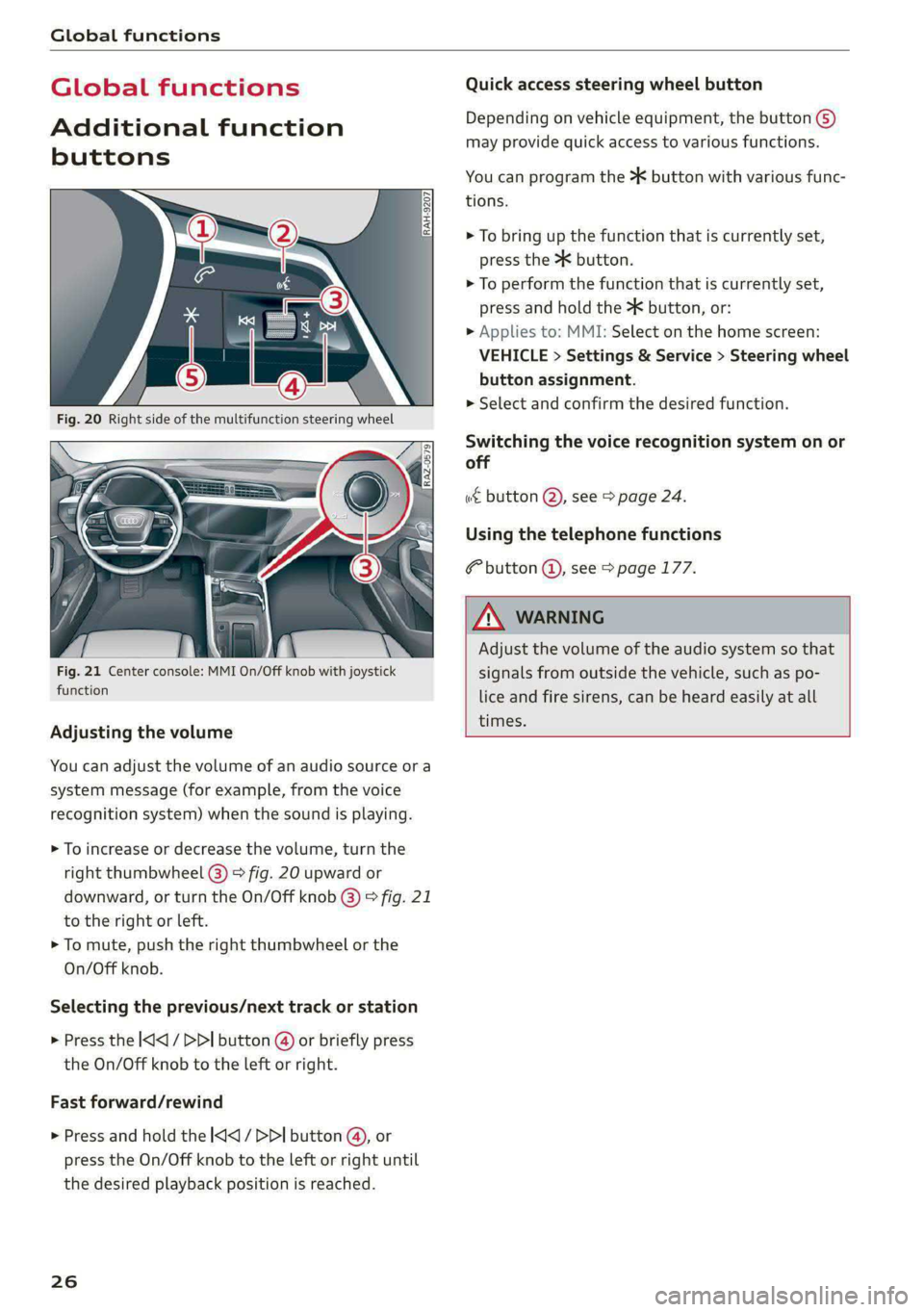
Additional function
buttons
Fig. 21 Center console: MMI On/Off knob with joystick
function
Adjusting the volume
You can adjust the volume of an audio source or a
system message (for example, from the voice
recognition system) when the sound is playing.
> To increase or decrease the volume, turn the
right
thumbwheel @) © fig. 20 upward or
downward, or turn the On/Off knob @) © fig. 21
to the right or left.
> To mute, push the right thumbwheel or the
On/Off knob.
Selecting the previous/next track or station
> Press the |< / DDI button @ or briefly press
the On/Off knob to the left or right.
Fast forward/rewind
> Press and hold the
the desired playback position is reached.
26
Quick access steering wheel button
Depending on vehicle equipment, the button ©)
may provide quick access to various functions.
You can program the >K button with various func-
tions.
> To bring up the function that is currently set,
press the >K button.
> To perform the function that is currently set,
press and hold the >K button, or:
> Applies to: MMI: Select on the home screen:
VEHICLE > Settings & Service > Steering wheel
button assignment.
> Select and confirm the desired function.
Switching the voice recognition system on or
off
w& button @), see > page 24.
Using the telephone functions
button (@), see > page 177.
ZA\ WARNING
Adjust the volume of the audio system so that
signals from outside the vehicle, such as po-
lice and fire sirens, can be heard easily at all
times.
Page 36 of 316
![AUDI E-TRON 2020 Owners Manual Opening and closing
—To turn the alarm off, press the red [PANIC] but-
ton again.
Lost key/replacing a key
If a vehicle key is lost, contact an authorized Audi
dealer or authorized](/img/6/57623/w960_57623-35.png "AUDI E-TRON 2020 Owners Manual Opening and closing
—To turn the alarm off, press the red [PANIC] but-
ton again.
Lost key/replacing a key
If a vehicle key is lost, contact an authorized Audi
dealer or authorized")
Opening and closing
—To turn the alarm off, press the red [PANIC] but-
ton again.
Lost key/replacing a key
If a vehicle key is lost, contact an authorized Audi
dealer or authorized Audi Service Facility. Have
this vehicle key deactivated. It is important to
bring all keys with you.
If a key is lost, you should report it to your insur-
ance company.
Electronic immobilizer
The immobilizer prevents unauthorized use of
the vehicle.
In some cases, it may not be possible to start the
vehicle if there is a vehicle key from a different
vehicle manufacturer on the key chain.
Data in the vehicle key
When driving, service and maintenance-relevant
data is continuously stored in your vehicle key. An
authorized Audi dealer or authorized Audi Service
Facility can read out this data and tell you about
the work your vehicle needs.
ZA WARNING
Observe the safety precautions > page 29.
@) Note
Protect the key against high temperatures
and direct sunlight.
@ For the sake of the environment
XE Do not dispose of vehicle keys in household
trash. They contain materials that can be re-
cycled. Contact an authorized Audi dealer or
authorized Audi Service Facility for more in-
formation.
@) Tips
— The vehicle key function can be temporarily
disrupted by interference from transmitters
near the vehicle working in the same fre-
quency range (such as a mobile device or ra-
dio equipment). Always check if your vehicle
is locked.
34
— Applies to: MMI: You can display the num-
ber of vehicle keys programmed to the vehi-
cle: Select on the home screen: VEHICLE >
Settings & Service > Vehicle information.
— For an explanation on conformity with the
FCC regulations in the United States and the
Industry Canada regulations, see
=> page 295.
Unlocking and locking the vehicle
[RAZ-0025]
Fig. 26 Door handle: sensor for locking
You can unlock and lock your vehicle using either
the buttons on the vehicle key or using the sen-
sors* in the door handles. The settings in the
MMI specify which doors will unlock > page 30.
Unlocking or locking using the vehicle key
buttons
> To unlock the vehicle, press the @ button
=> page 33, fig. 25.
> To lock the vehicle, press the & button once.
Unlocking or locking using the sensors
Applies to: vehicles with convenience key
> To unlock a door or the luggage compartment
lid, grasp the door handle or luggage compart-
ment lid handle.
> To lock the vehicle, close the doors and touch
the outer sensor on the door handle once
=> fig. 26. Do not grasp the door handle while
locking the vehicle, or else the vehicle will not
lock. The door cannot be opened for a brief pe-
riod directly after locking it. This way you have
the opportunity to check if the doors locked
correctly.
Page 43 of 316

4KE012721BE
Opening and closing
Panoramic glass roof
Operating the p ic glass roof and
roof sunshade
Applies to: vehicles with panoramic glass roof and roof sun-
shade
Fig. 34 Headliner: panoramic glass roof and sunshade*
buttons
The control buttons are equipped with a two-
stage function.
When tilting or opening the roof, the roof sun-
shade will open partially or completely if the sun-
shade is closed.
Operating the roof sunshade
> Opening and closing the sunshade: slide the
switch in in the headliner @) forward or toward
the rear to the second level.
> Partially opening the sunshade: press the
switch to the first level until the sunshade
reaches the desired position.
Operating the roof
> Tilting the roof: press the 2S switch in the
headliner briefly upward to the second level @).
> Closing the tilted roof: pull the 2 switch
downward briefly to the second level.
> Opening the roof: Push the 2S switch back
briefly to the second level @).
> Closing the roof: push the 2S switch forward
briefly to the second level.
> Opening or closing partially: slide the A>
switch to the first level and hold it there until
the roof reaches the desired position.
Quick opening
You can also open the roof and roof sunshade in
one movement.
> Push the > switch back briefly to the second
level @) twice in a row.
Roof emergency closing
If an object is detected when closing, the roof
will open again automatically. In this case, you
can then close it with the power emergency clos-
ing function.
> Within five seconds after the sunroof opens au-
tomatically, pull the applicable button until the
roof is closed.
ZA WARNING
To reduce the risk of injury, always pay atten-
tion when closing the roof. Always switch the
ignition off and take the key with you when
leaving the vehicle.
CG) Note
Always close the roof when you leave the vehi-
cle and when there is precipitation to reduce
the risk of damage to the interior equipment,
particularly the electronic equipment.
G) Tips
— After switching off the ignition, the roof and
sunshades can still be operated for several
minutes as long as neither of the front
doors have been opened.
— It is not possible to open the roof when
temperatures are too low.
Garage door opener
Applies to: vehicles with garage door opener
With the garage door opener, you can activate
systems such as the garage doors, security sys-
tems or house lights from inside your vehicle.
41
>