light AUDI E-TRON 2021 Owners Manual
[x] Cancel search | Manufacturer: AUDI, Model Year: 2021, Model line: E-TRON, Model: AUDI E-TRON 2021Pages: 308, PDF Size: 83.91 MB
Page 194 of 308
Emergency call
the emergency call button () will blink. The
emergency call will be made. The emergency call
cannot be canceled.
LED status
— Green - The emergency call function is availa-
ble.
— Red - There is a malfunction in the emergency
call function. Contact an authorized Audi dealer
or authorized Audi Service Facility. Note the
messages about the availability of the emer-
gency function > page 192.
— Off - The emergency call function is not availa-
ble, perhaps because no network is available.
Warnings
If there is a critical system failure in the emer-
gency call systems, the vehicle occupants will re-
ceive the following warning: see > page 192, LED
status
and > page 192, Messages.
@) Tips
If the emergency call is canceled due toa
poor connection, then the system automati-
cally tries to connect again.
Messages
Applies to: vehicles with emergency call function
508 Emergency call function: malfunction! Lim-
ited availability. Please contact Service
If this indicator light turns on and this message
appears, the emergency call function is restrict-
ed. For example, you cannot call the emergency
call center, but data may still be transmitted un-
der certain circumstances. Drive to an authorized
Audi dealer or authorized Audi Service Facility im-
mediately to have the malfunction corrected.
BS Emergency call function: malfunction! Func-
tion unavailable. Please contact Service
If this indicator light turns on and this message
appears, you cannot make an emergency call.
Drive to an authorized Audi dealer or authorized
) The availability of the services offered depends on the
country and may change in the future.
192
Audi Service Facility immediately to have the
malfunction corrected.
Online roadside
assistance
Applies to: vehicles with online roadside assistance
An online roadside assistance call )) is a combina-
tion of data transmission and a phone call. The
data transmission from your vehicle forwards im-
portant information to the Audi service center,
such as the vehicle and position data.
Calling online roadside assistance
Applies to: vehicles with online roadside assistance
RAZ-0443
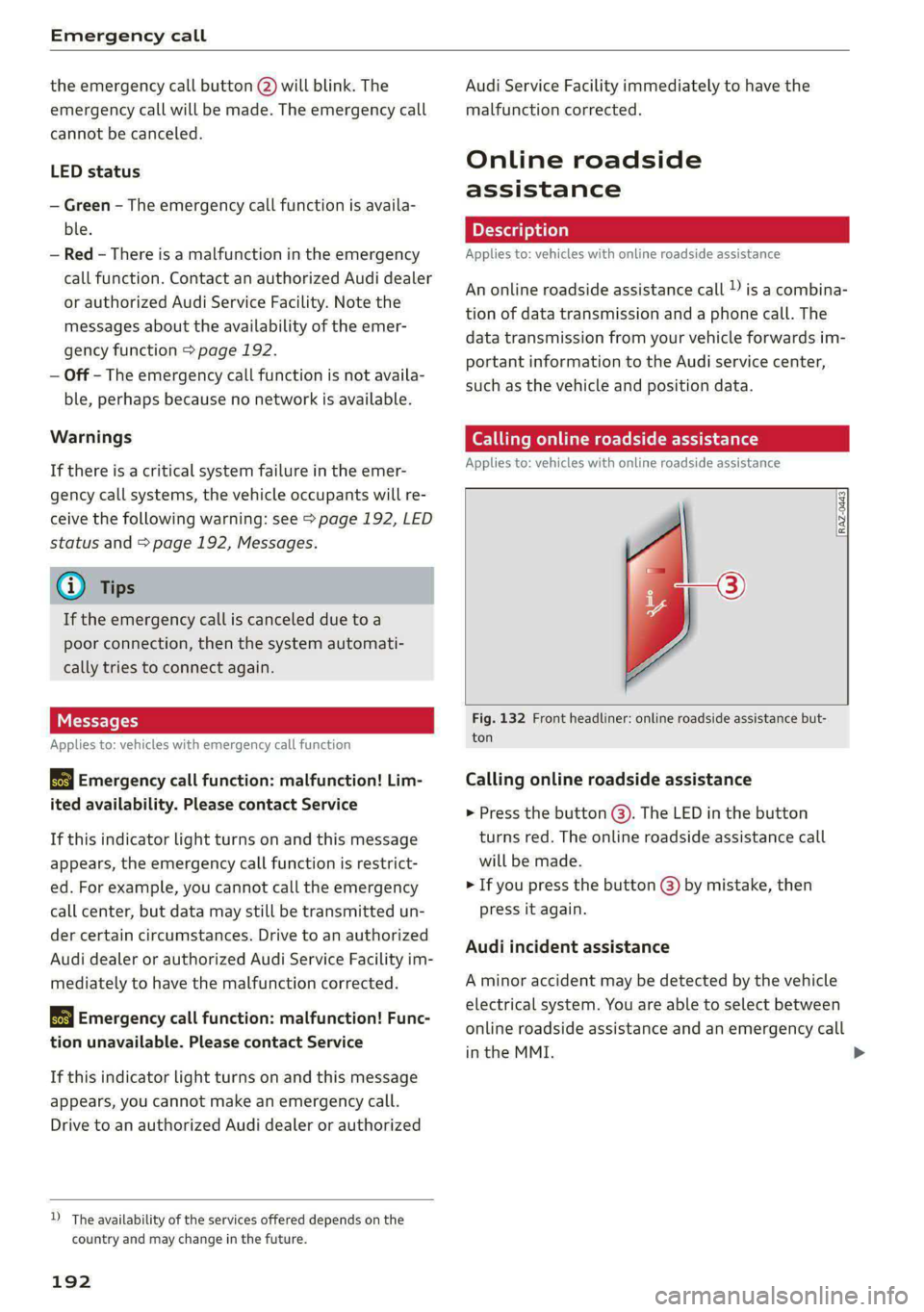
Fig. 132 Front headliner: online roadside assistance but-
ton
Calling online roadside assistance
> Press the button @). The LED in the button
turns red. The online roadside assistance call
will be made.
> If you press the button @) by mistake, then
press it again.
Audi incident assistance
A minor accident may be detected by the vehicle
electrical system. You are able to select between
online roadside assistance and an emergency call
in the MMI.
Page 207 of 308
4KE012721BF
Navigation
information at regular intervals to the traf
fic data provider. You can switch off data
transfer at any time > page 283.
— The online traffic information network is
not available in all countries, and the cover-
age is not nationwide.
Settings
Applies to: vehicles with navigation system
You can adjust the navigation system settings in
the instrument cluster and in the MMI display
separately. The settings depend on the country
and vehicle equipment.
Accessing settings
> Applies to: MMI: Select on the home screen:
NAVIGATION > ©}.
Accessing settings using the multifunction
steering wheel
> Applies to: multifunction steering wheel: Select
in the instrument cluster: Navigation tab >
button.
Please note that a setting applied to the multi-
function steering wheel is only valid for the in-
strument cluster map.
Map settings
Satellite map: see > page 202.
Traffic: you can display current traffic informa-
tion on the map.
— Free flowing traffic
— Traffic obstructions
— Traffic incidents
Map colors
— Automatic: the map display adapts to the light-
ing conditions (for example, by changing from
day to night when driving through a tunnel).
— Day or Night
Map orientation
— 2D heading-up map/2D north-up map: the
current vehicle position is displayed. The map is
oriented in the direction of travel or to the
north.
— 3D heading-up map: the current vehicle posi-
tion is shown on a three-dimensional map and
is aligned to the direction of travel.
— Overview: the entire route from the vehicle po-
sition to the destination or the next stopover is
displayed on the map. The map is oriented to
the north.
Automatic zoom
— On: the map scale is adapted automatically de-
pending on the type of road being traveled (ex-
pressway, highway, other roads) so that you al-
ways have an optimal overview of the road
ahead. When route guidance is active, the scale
is adjusted automatically for a better detailed
view when there are upcoming maneuvers.
— Intersection: when route guidance is active, the
scale is adjusted automatically for a better de-
tailed view when there are upcoming maneu-
vers.
— Off
MMI map contents/Map content: you can switch
the display of additional information (such as
POIs) on the map in the upper display on or off.
Voice guidance
Voice guidance: you can adjust the navigation
prompts. With the Traffic setting, the MMI will
only give prompts if there are traffic incidents on
your route.
Voice guidance during phone call
Entertainment fader during navigation: the au-
dio playback volume is temporarily lowered when
navigation prompts are active.
Route criteria
You can adjust which route criteria should be al-
lowed or avoided for the route calculation.
HOV/carpool lanes
Highways
Toll roads
Ferries
e-tron route planner
This function can be switched on and off.
205
Page 217 of 308
4KE012721BF
Media
Media
General information
There may be different media sources and con-
nections available depending on the vehicle
equipment. For example, you can play media files
using a connected USB drive or connect your mo-
bile devices to the Audi music interface and oper-
ate them through the MMI.
Media and format restrictions: the MMI (includ-
ing the USB storage device connection) was test-
ed with a variety of products and media on the
market. However, there may be cases where indi-
vidual devices or media and audio/video files may
not be recognized, may play only with restric-
tions, or may not play at all.
Restricted functionality: reset the MMI to the
factory default settings if functionality is restrict-
ed > page 229.
Digital Rights Management: please note that
the
audio/video files are subject to copyright pro-
tection.
Files that are protected by DRM and are identi-
fied with the symbol f@ will not play.
Data security: never store important data on
CDs/DVDs or mobile devices. Audi is not responsi-
ble for damaged or lost files and media.
Loading times: the more files/folders/playlists
there are on a storage medium, the longer it will
take to load. To reduce the amount of time it
takes the audio/video files to load, use a storage
medium that only contains audio/video files, and
create subfolders (for example, for each artist or
album).
Additional information: when playing, audio
files are automatically displayed with any addi-
tional information that is stored (such as the ar-
tist, track and album cover). If this information is
not available on the medium, the MMI will revert
to the local Gracenote metadata database or
search online if necessary. See > page 223, On-
line additional data. However, in some cases, the
additional information may not be displayed.
CG) Note
Read the information about Audi connect, and
be sure to note the connectivity costs section
=@ in General information on page 186.
DVD drive
General information
Applies to: vehicles with a DVD drive
The functionality of individual storage mediums
may be limited due to the variety of blank CDs/
DVDs available and the various capacities. Audio
CDs or video DVDs with copy protection, CDs/
DVDs that do not conform to the standard, and
multisession CDs may have limited playback or
may not play at all. Audi recommends finalizing
the recording process when creating multisession
CDs. Multisession DVDs are not supported.
() Note
To reduce the risk of damaging the drive and
data carriers:
— Always store data carriers in a protective
sleeve and do not expose them to direct
sunlight
— Do not use damaged, dirty, or laminated da-
ta carriers
— Do not use single CDs/-DVDs with a 3.1 inch
(8 cm) diameter, non-circular CDs/DVDs
(shaped CDs), cleaning CDs, and protective
rings
— Never force CDs/DVDs into the drive. Discs
are pulled in automatically.
@® Tips
The thermal protection switch stops playback
temporarily when outside temperatures are
too high.
215
Page 219 of 308

4KE012721BF
Media
» Applies to: MMI: Select on the home screen:
MEDIA > Source > Amazon Alexa.
@) Note
Read the information about Audi connect, and
be sure to note the connectivity costs section
=> page 186.
Multimedia connections
Oy ETE Tela
ae
a| =
oS
Fig. 146 Audi Genuine Accessories: USB adapter
RAH-9202
\
You can connect your mobile devices through the
Audi music interface to the MMI using the USB
adapter and charge the battery at the same time.
You can purchase the USB adapter cable from an
authorized Audi dealer or at specialty stores:
@ USB adapter for devices with a mi-
cro USB connection
@ USB adapter for Apple devices with
a Lightning connection
@ USB adapter for devices with USB
type C connection
@) Note
Handle the USB adapter carefully. Do not al-
low it to be pinched.
@) Tips
Apple devices with a dock connector can only
be charged using a USB adapter designed for
devices with a dock connector. Data cannot be
transmitted.
Audi music interface
Connect your mobile devices to the Audi music in-
terface in order to operate them through the
MMI and charge the batteries.
The Audi music interface USB ports are located in
the storage compartment under the front and
rear* center armrest and are labeled with the «<>
symbol. If multiple USB devices are connected to
the USB ports (for example, a smartphone anda
USB flash drive), all of these devices can be used
as the playback source.
Connecting or charging mobile devices using
a USB adapter
> Connect the matching USB adapter to the Audi
music interface USB port and connect it to the
mobile device, such as a smartphone.
The battery will charge automatically.
Mobile devices connected to the Audi music inter:
face can be started and operated using the MMI
> page 218.
Disconnecting a mobile device from the Audi
music interface
> Remove the USB adapter cable from the Audi
music interface.
ZA\ WARNING
Driving requires your complete and undivided
attention. As the driver, you have complete re-
sponsibility for safety in traffic. Never operate
mobile devices while driving, because this in-
creases the risk of an accident.
@) Note
— Pull the cable out of the Audi music inter-
face carefully so that the USB ports are not
damaged.
— Use a USB extension cable to connect devi-
ces that have an integrated USB connector
(such as a USB stick) to reduce the risk of
damage to your USB device and the Audi
music interface.
— Extremely high or low temperatures that
can occur inside vehicles can damage mobile
devices and/or impair their performance.
217
>
Page 220 of 308
Media
Never leave mobile devices in the vehicle in
extremely high or low temperatures.
@) Tips
— Always follow the information found in
=> page 78.
— When you switch the ignition off, the USB
ports are still supplied with power until the
energy management intervenes.
— Do not use an additional adapter cable or
USB extension cable to connect mobile devi-
ces to the Audi music interface that already
have a cable or that must be connected with
a USB adapter cable (> page 217, fig. 146).
Using an additional adapter or US extension
cable may impair functionality.
— Functionality is not guaranteed for mobile
devices that do not conform to the USB 2.0
specification.
— USB hubs are not supported.
— Video playback through the Audi music in-
terface is not supported on Apple devices
and MTP devices (such as smartphones).
— iPod touch or iPhone malfunctions also af-
fect the operation of the MMI. Reset your
mobile device in these situations.
— Audi recommends updating the iPod touch
or iPhone software to the latest version. Re-
fer to your mobile device owner's manual
for more information.
— The USB adapter on the Audi music inter-
face will support iPod touch or iPhone devi-
ces from the 5th generation or newer with
the lightning connector.
—Aselection of supported devices can be
found in the database for tested mobile de-
vices at www.audi.com/mp3.
Playing media
The following sources can be selected depending
on the vehicle equipment:
— Amazon Alexa > page 216.
— USB device > page 217.
— DVD © page 216.
218
— External device: you can connect external devi-
ces via Bluetooth and use the Bluetooth audio
player > page 216, or you can connect an exter-
nal device directly to the Audi music interface
> page 217.
Accessing media
Playing media files using the MMI
> Applies to: MMI: Select on the home screen:
MEDIA > Source > a source. Depending on the
connected device, the symbol for a source may
change. The device name may be displayed (for
example: myPhone).
> Select a track from the categories in the media
center > page 219.
Playing media files using the multifunction
steering wheel
Requirement: a media source must contain me-
dia files > page 218.
> Select the radio/media tab in the instrument
cluster.
> Turn the left thumbwheel to display the play-
list.
> To switch to a different source, press the
button.
> To select a media file or a source, turn and
press the left thumbwheel.
> To switch between radio and media, select in
the instrument cluster: the EE] button > Switch
to radio/Switch to media.
G) Tips
— For safety reasons, the video image is only
displayed when the vehicle is stationary. On-
ly the sound from the video plays while driv-
ing.
— Applies to: multifunction steering wheel:
Depending on the selected function, opera-
tion through the MMI may be required.
Page 223 of 308
4KE012721BF
Media
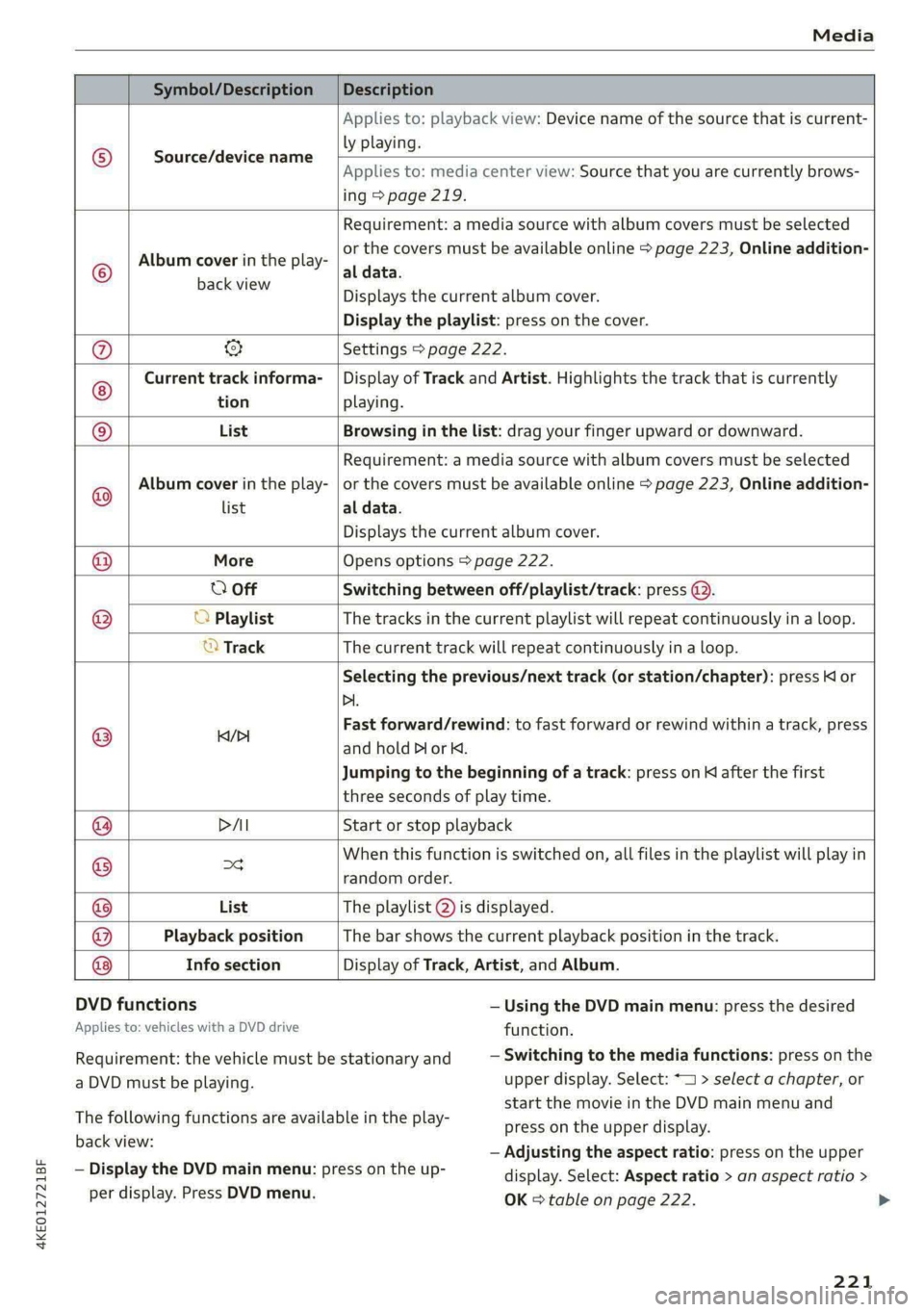
Symbol/Description Description
Source/device name
Applies to: playback view: Device name of the source that is current-
ly playing.
Applies to: media center view: Source that you are currently brows-
ing > page 219.
©
Album cover in the play-
Requirement: a media source with album covers must be selected
or the covers must be available online > page 223, Online addition-
al data.
EEGERER Displays the current album cover.
Display the playlist: press on the cover.
@ & Settings > page 222.
Current track informa- | Display of Track and Artist. Highlights the track that is currently
tion playing.
List Browsing in the list: drag your finger upward or downward.
Album cover in the play-
Requirement: a media source with album covers must be selected
or the covers must be available online > page 223, Online addition-
Playback position The bar shows the current playback position in the track.
Info section
@
@ list al data.
Displays the current album cover.
@ More Opens options > page 222.
0 Off Switching between off/playlist/track: press @).
() O Playlist The tracks in the current playlist will repeat continuously in a loop.
© Track The current track will repeat continuously in a loop.
Selecting the previous/next track (or station/chapter): press Kl or
Di.
@ iil Fast forward/rewind: to fast forward or rewind within a track, press
and hold Dor K.
Jumping to the beginning of a track: press on K after the first
three seconds of play time.
@ PAI Start or stop playback
@ og When this function is switched on, all files in the playlist will play in
random order.
@ List The playlist @ is displayed.
@
Display of Track, Artist, and Album.
DVD functions
Applies to: vehicles with a DVD drive
— Using the DVD main menu: press the desired
function.
— Switching to the media functions: press on the
upper display. Select: * > select a chapter, or
start the movie in the DVD main menu and
press on the upper display.
— Adjusting the aspect ratio: press on the upper
display. Select: Aspect ratio > an aspect ratio >
OK = table on page 222.
Requirement: the vehicle must be stationary and
a DVD must be playing.
The following functions are available in the play-
back view:
— Display the DVD main menu: press on the up-
per display. Press DVD menu.
221
>
Page 228 of 308
Audi smartphone interface
Audi smartphone
interface
Setup
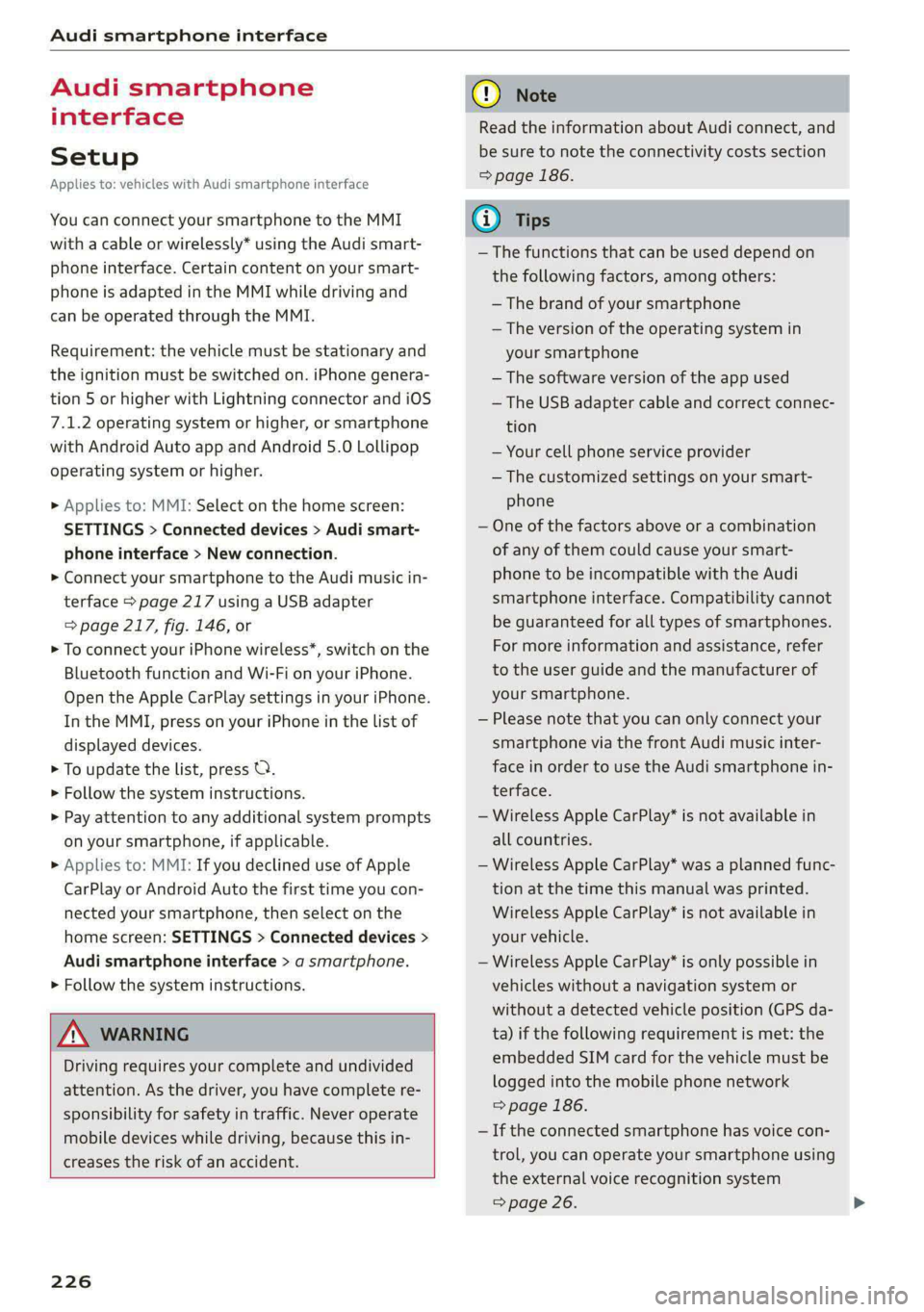
Applies to: vehicles with Audi smartphone interface
You can connect your smartphone to the MMI
with a cable or wirelessly* using the Audi smart-
phone interface. Certain content on your smart-
phone is adapted in the MMI while driving and
can be operated through the MMI.
Requirement: the vehicle must be stationary and
the ignition must be switched on. iPhone genera-
tion 5 or higher with Lightning connector and iOS
7.1.2 operating system or higher, or smartphone
with Android Auto app and Android 5.0 Lollipop
operating system or higher.
> Applies to: MMI: Select on the home screen:
SETTINGS > Connected devices > Audi smart-
phone interface > New connection.
> Connect your smartphone to the Audi music in-
terface > page 217 using a USB adapter
=> page 217, fig. 146, or
> To connect your iPhone wireless*, switch on the
Bluetooth function and Wi-Fi on your iPhone.
Open the Apple CarPlay settings in your iPhone.
In the MMI, press on your iPhone in the list of
displayed devices.
> To update the list, press O.
> Follow the system instructions.
> Pay attention to any additional system prompts
on your smartphone, if applicable.
> Applies to: MMI: If you declined use of Apple
CarPlay or Android Auto the first time you con-
nected your smartphone, then select on the
home screen: SETTINGS > Connected devices >
Audi smartphone interface > a smartphone.
> Follow the system instructions.
Z\ WARNING
Driving requires your complete and undivided
attention. As the driver, you have complete re-
sponsibility for safety in traffic. Never operate
mobile devices while driving, because this in-
creases the risk of an accident.
226
@) Note
Read the information about Audi connect, and
be sure to note the connectivity costs section
=> page 186.
@) Tips
— The functions that can be used depend on
the following factors, among others:
— The brand of your smartphone
— The version of the operating system in
your smartphone
— The software version of the app used
— The USB adapter cable and correct connec-
tion
— Your cell phone service provider
— The customized settings on your smart-
phone
— One of the factors above or a combination
of any of them could cause your smart-
phone to be incompatible with the Audi
smartphone interface. Compatibility cannot
be guaranteed for all types of smartphones.
For more information and assistance, refer
to the user guide and the manufacturer of
your smartphone.
— Please note that you can only connect your
smartphone via the front Audi music inter-
face in order to use the Audi smartphone in-
terface.
— Wireless Apple CarPlay* is not available in
all countries.
— Wireless Apple CarPlay* was a planned func-
tion at the time this manual was printed.
Wireless Apple CarPlay* is not available in
your vehicle.
— Wireless Apple CarPlay* is only possible in
vehicles without a navigation system or
without a detected vehicle position (GPS da-
ta) if the following requirement is met: the
embedded SIM card for the vehicle must be
logged into the mobile phone network
=> page 186.
— If the connected smartphone has voice con-
trol, you can operate your smartphone using
the external voice recognition system
=> page 26.
Page 234 of 308
Additional information
Additional information
Brands and licenses
This manual does not contain any symbols, such
as ® or ™, to identify trademarks or registered
trademarks. However, the absence of these sym-
bols does not constitute a waiver of any rights as-
sociated with these names.
Apple, iPhone, iPod touch, Apple CarPlay, Light-
ning, and iTunes Radio are trademarks of Apple
Inc.
10S is a trademark or, in the USA and other coun-
tries, a registered trademark of Cisco and is used
under license.
Other product and manufacturer names may be
trademarks of their respective owners.
232
Page 236 of 308
Checking and Filling
chemicals known to the State of California
to cause cancer and birth defects or other
reproductive harm.
— Battery posts, terminals and related acces-
sories contain lead and lead compounds,
chemicals known to the State of California
to cause cancer and reproductive harms.
Wash hands after handling.
® Note
When filling fluids, be sure not to add any flu-
ids to the wrong reservoirs. Otherwise, severe
malfunctions and damage will occur.
@ For the sake of the environment
You should regularly check the ground under
your vehicle in order to detect leaks quickly. If
there are visible spots from oil or other fluids,
bring your vehicle to an authorized Audi deal-
er or authorized Audi Service Facility to be
checked.
Opening and closing the hood
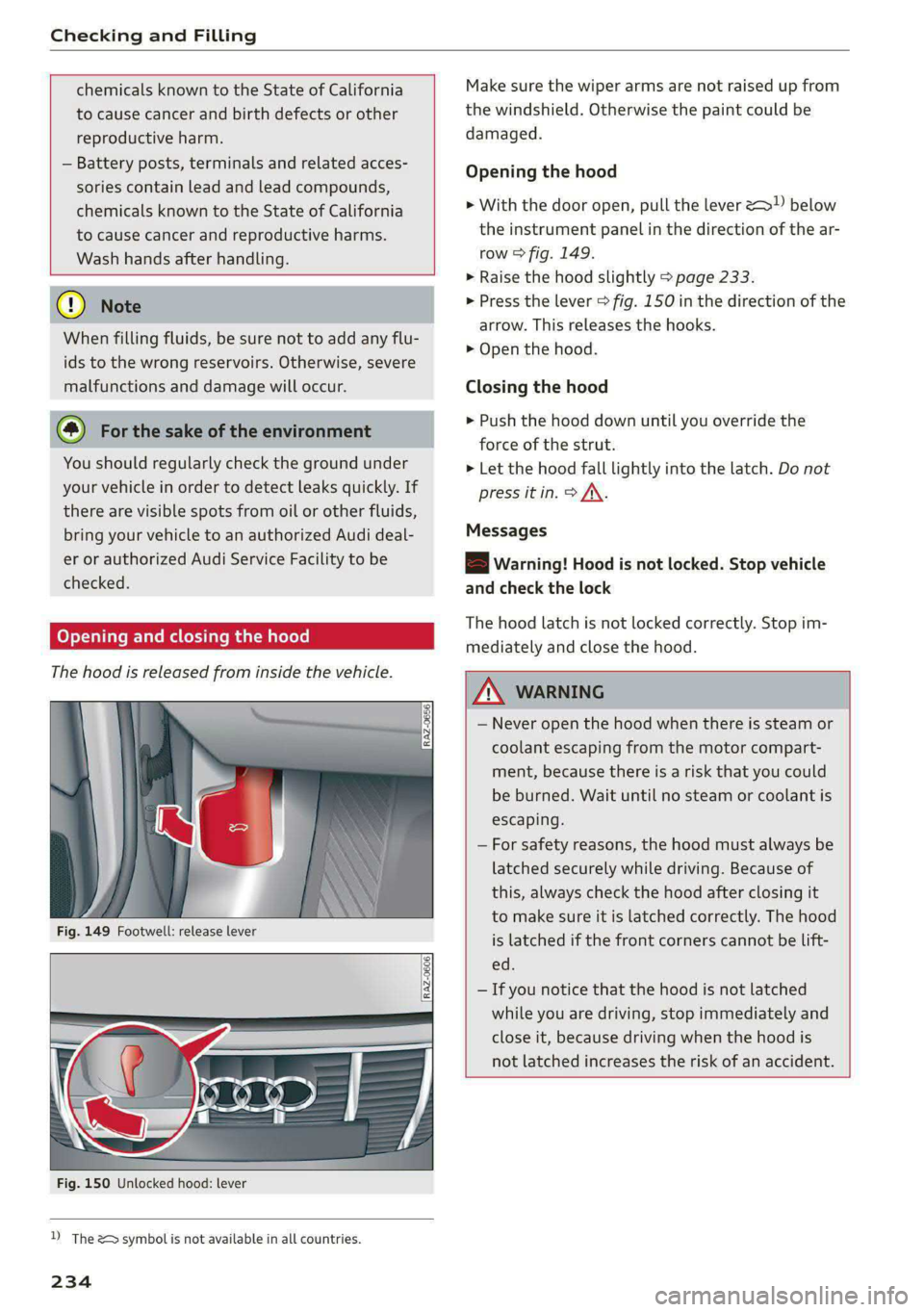
The hood is released from inside the vehicle.
RAZ-0606
Fig. 150 Unlocked hood: lever
D_ The & symbol is not available in all countries.
234
Make sure the wiper arms are not raised up from
the windshield. Otherwise the paint could be
damaged.
Opening the hood
> With the door open, pull the lever <> below
the instrument panel in the direction of the ar-
row > fig. 149.
>» Raise the hood slightly > page 233.
> Press the lever > fig. 150 in the direction of the
arrow. This releases the hooks.
> Open the hood.
Closing the hood
> Push the hood down until you override the
force of the strut.
> Let the hood fall lightly into the latch. Do not
press it in. > /\.
Messages
EB warning! Hood is not locked. Stop vehicle
and check the lock
The hood latch is not locked correctly. Stop im-
mediately and close the hood.
ZA\ WARNING
— Never open the hood when there is steam or
coolant escaping from the motor compart-
ment, because there is a risk that you could
be burned. Wait until no steam or coolant is
escaping.
— For safety reasons, the hood must always be
latched securely while driving. Because of
this, always check the hood after closing it
to make sure it is latched correctly. The hood
is latched if the front corners cannot be lift-
ed.
— If you notice that the hood is not latched
while you are driving, stop immediately and
close it, because driving when the hood is
not latched increases the risk of an accident.
Page 237 of 308
4KE012721BF
Checking and Filling
Col kel mel nator Tadnat-lal ae) lav (7
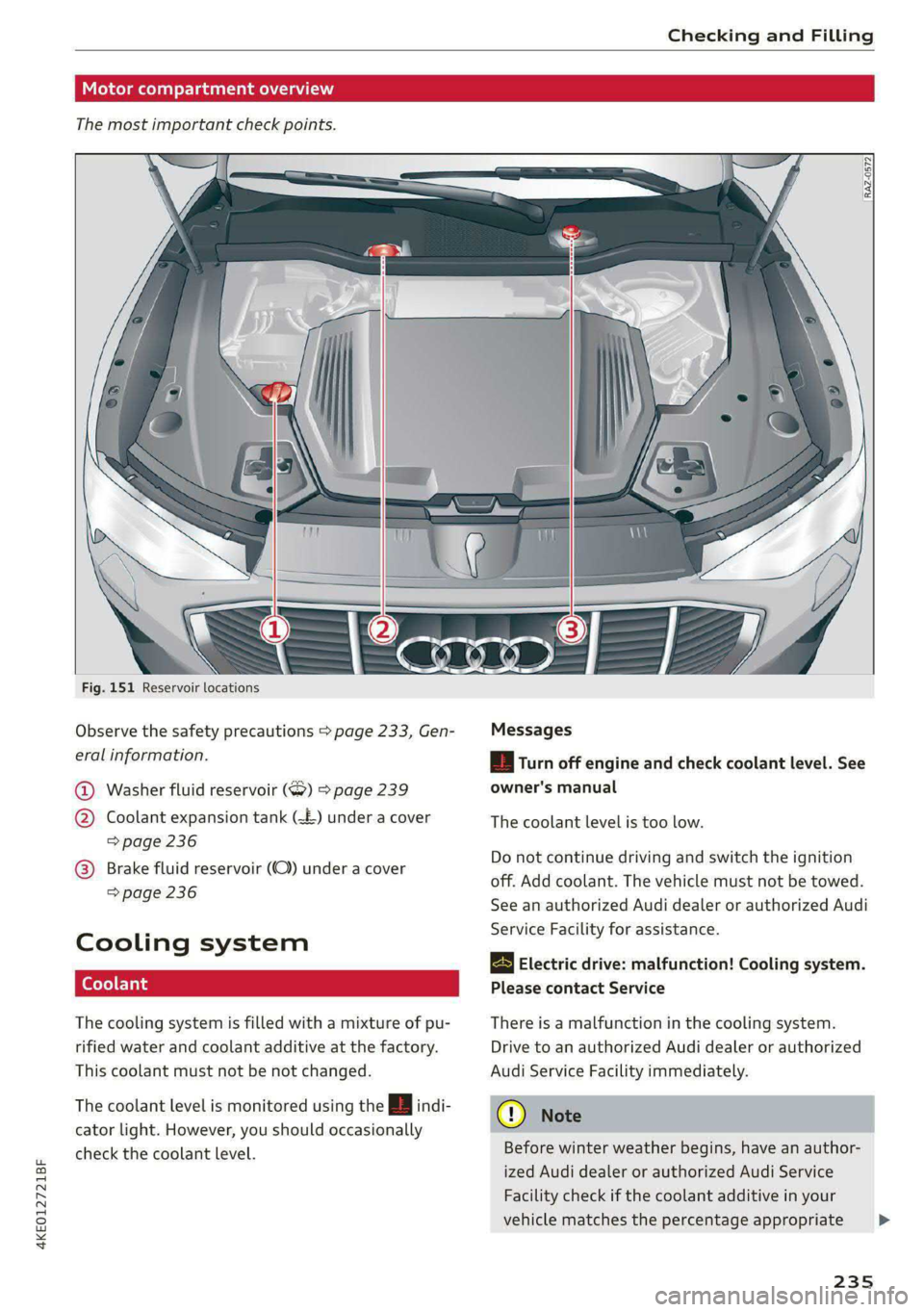
The most important check points.
Fig. 151 Reservoir locations
Observe the safety precautions > page 233, Gen-
eral information.
@ Washer fluid reservoir (>) > page 239
@ Coolant expansion tank (-£) under a cover
=> page 236
@® Brake fluid reservoir (O) under a cover
=> page 236
Cooling system
The cooling system is filled with a mixture of pu-
rified water and coolant additive at the factory.
This coolant must not be not changed.
The coolant level is monitored using the BB indi-
cator light. However, you should occasionally
check the coolant level.
[RAZ-0572
Messages
| Turn off engine and check coolant level. See
owner's manual
The coolant level is too low.
Do not continue driving and switch the ignition
off. Add coolant. The vehicle must not be towed.
See an authorized Audi dealer or authorized Audi
Service Facility for assistance.
Electric drive: malfunction! Cooling system.
Please contact Service
There is a malfunction in the cooling system.
Drive to an authorized Audi dealer or authorized
Audi Service Facility immediately.
©) Note
Before winter weather begins, have an author-
ized Audi dealer or authorized Audi Service
Facility check if the coolant additive in your
vehicle matches the percentage appropriate
235
>