charging time AUDI E-TRON 2021 User Guide
[x] Cancel search | Manufacturer: AUDI, Model Year: 2021, Model line: E-TRON, Model: AUDI E-TRON 2021Pages: 308, PDF Size: 83.91 MB
Page 116 of 308

High-voltage system
charging ports at the same time, because — Remove ice and snow in the charging unit
this could damage the charging equipment. using a hand brush and solvent-free deicing
Gy Tips
spray.
— The vehicle radio and TV systems may have
— If the parking brake is set, it could create limited reception when charging the vehicle.
noises when the charging connector is con-
nected.
Charging display
The charging display is an LED light on the charg- informs you about the various displays. The fol-
ing unit @) that indicates the charging status. A lowing table explains the displays.
label on the charging unit @) > page 112, fig. 84
LED on the charging unit Meaning
Off
Vehicle charging system is in sleep mode. A timer may be active,
but charging has not started yet.
Charging process is interrupted.
White Pulsing
Connection between the power source and the vehicle is being
established.
Pulsing The high-voltage battery is charging.
Green Flashing A timer is active, but charging has not started yet.
On High-voltage battery charging process is completed.
On
Yellow
When using the Audi charging system, make sure the power
plug is inserted in the power socket > page 119. No power sup-
ply was recognized even though the charging cable is plugged
in. Have the power supply or power supply system inspected.
When using the Audi charging system, check the status displays
on the unit > table on page 120. See an authorized Audi dealer
or authorized Audi Service Facility for assistance if necessary.
Flashing
The vehicle is not secured from rolling away. Check if “P” is se-
lected and the parking brake is set. If the LED continues to
flash, see an authorized Audi dealer or authorized Audi Service
Facility for assistance.
114
Page 117 of 308

4KE012721BF
High-voltage system
LED on the charging unit Meaning
Red On The charging connector may not be able to lock correctly in the
vehicle charging port. Check if the charging connector is insert-
ed correctly. Disconnect the charging connector, reconnect it to
the charging socket, and press it upward lightly for five seconds,
or use a different charging station. If the LED stays turned on,
there is a malfunction either in the vehicle charging system or at
the power source. See an authorized Audi dealer or authorized
Audi Service Facility for assistance if necessary.
Both charging port doors are open. Try to close one of the charg-
ing port doors by hand. If the LED stays turned on, the high-
voltage battery may not be charging. See an authorized Audi
dealer or authorized Audi Service Facility for assistance.
The outside temperature is too low or too high.
@ Tips
The charging display modes are also displayed
in the instrument cluster Bag.
Setting the charging connector to unlock
automatically
To prevent a charging station from being blocked
for long periods of time and to make it possible
for others to charge, you can set the charging
connector to unlock automatically once the
charging process has ended.
> Before charging, always check if the selected
settings are suitable for the current charging
session.
> Applies to: MMI: Select on the home screen:
VEHICLE > Charging & Efficiency > Charging >
@.
@) Note
The function should only be activated if the
charging cable is part of the charging station.
Otherwise, your charging cable could be sto-
len.
Setting the charging target
You can set the charging target, meaning you can
set the maximum charge level to which the high-
voltage battery should be charged. The charging
target can be set between 50% and 100%. For
daily usage, Audi recommends setting the charg-
ing target at 80%. This can extend the service life
of the high-voltage battery. For long trips, Audi
recommends setting the charging target to
100% to achieve the highest possible range.
> Applies to: MMI: Select on the home screen:
VEHICLE > Charging & Efficiency > Charging.
> When the timer is displayed, swipe your finger
on the display toward the right.
> Press on the right section of the battery charge
level display.
> Set the desired charging target.
The charging target that is set will be stored and
used in all locations where you have not defined
specific charging settings. If you are charging at
an address where you have defined specific
charging settings > page 116, Advanced charg-
ing settings, the charging target that is set will
be stored in the advanced charging settings and
used.
G) Tips
If you set the charging target lower than the
current battery charge level while charging,
then the charging process will be canceled. If
you set the charging target above the current
battery
charge level again, then the charging
process will resume. This does not apply if you
are charging at a charging station, where you
have authenticated yourself manually. If this
is the case, authenticate yourself again at the
charging station.
115
Page 118 of 308

High-voltage system
Setting the timer
Introduction
By setting a timer, you determine when your vehi-
cle should reach the desired charging target.
When the timer is activated, it will be run regu-
larly at the set time. In addition to the charging
target, you can also specify if your vehicle should
be heated or cooled to the temperature set in the
climate control system. You can turn on multiple
timers at the same time. The active timer is indi-
cated by the respective number in © in the upper
section of the display.
» Applies to: MMI: Select on the home screen:
VEHICLE > Charging & Efficiency > Charging.
> When the charging target is displayed, swipe
your finger on the display toward the left.
Configuring the timer
> To set a timer, select > in the line for the de-
sired timer.
> Select one ore more days of the week and select
Next.
» Set the desired departure time and select OK.
> To also activate the climate control with a tim-
er, select F.
Switching on the timer and timer charging
The charging process will only follow the timer
settings if you have switched on the timer and
timer charging.
> To turn ona timer, select CD.
> To switch on timer charging, select ©. A col-
ored bar will turn on in the button.
If the set departure time for the timer is too
soon, the desired charging target may not be
reached.
G) Tips
It is not possible to charge using the timer at
some charging stations.
Advanced charging settings
With the advanced charging settings, you can de-
fine
addresses (locations) at which certain charg-
ing settings should apply (for example, charging
116
target, minimum charge). If your vehicle is in the
vicinity of a defined address, the advanced charg-
ing settings will be automatically applied. The
charging target that is set will be used both for
immediate charging and timer charging.
Managing the advanced charging settings
> Applies to: MMI: Select on the home screen:
VEHICLE > Charging & Efficiency > Charging >
<2} > Advanced charging settings.
> To define new settings for a certain address, se-
lect +. Follow the instructions in the display.
> To edit existing settings for a certain address,
press the respective button.
> To delete existing settings for a certain ad-
dress, select Z.
Charging with a preferred charging time
A preferred charging time is only used when tim-
er charging is switched on > page 116, Switching
on the timer and timer charging.
Incase of malfunction, you can manually release
the charging port door or the charging connec-
tor.
Fig. 85 Motor compartment: emergency release
Manually releasing the charging port door
> Open the hood = page 234.
> Open the cover in the motor compartment on
the side of the applicable charging port.
> Loosen the red loop @) > fig. 85 from the re-
tainer and then pull on the loop carefully >@.
> If necessary, open the charging port door by
hand.
> After releasing manually, secure the loop on
the retainer and close the cover.
Page 122 of 308

High-voltage system
Requirement: the correct power plug must be in-
stalled > page 124.
— Insert the plug into the socket.
— Plug the vehicle charging connector into the ve-
hicle charging port.
— The charging process e will start automatically.
— Once the charging process has completed, un-
lock the vehicle and remove the vehicle charg-
ing connector from the vehicle charging port.
Adjusting the charging power level
The control unit automatically recognizes the
voltage and the available current strength. You
can set whether you would like to charge with full
or reduced charging power. The last setting that
was selected will be saved and used again the
next time the vehicle is charged. If multiple
items are connected to the power circuit, the
charging current may be reduced when charging
Control unit: status and malfunction indicators
at a power outlet. This can help to prevent the
electrical equipment from overheating.
The vehicle has a minimum battery charging ca-
pacity of 880 W. Therefore, if the network volt-
age is less than 200 V, charging using a house-
hold socket will only be possible if the charging
power level is set to 100%. Otherwise, the charg-
ing process will not start.
Before charging, always check if the charging
power setting that was selected last is still suita-
ble.
— To set the charging power level, press and hold
the ® button © ® fig. 87 for at least two sec-
onds.
After the charging power level is set, the status
LEDs Q, {and (will flash green one time. The
selected value (50% or 100%) is displayed on the
left or right side of the ® button.
Indicator lights Meaning Solution
O Green The charger is ready to charge, | Starting the charging process
O O Off but is not charging. => page 112.
O & off
O 0 off
9 Off
O Flashing green _| The vehicle is being charged
QO Off with the ground conductor
E off monitor activated.
0 Off
Off
Flashing green
®O®OVSSC|I®OO0O
ance will be reduced.
C Yellow ed. Possible cause of the mal-
a
& oft is being used in single-phase
mode. The charging perform-
Off
The power cable has overheat- | After the cable cools down, the malfunc-
tion will be automatically cleared. Until it
Off function: a multi-phase socket | cools down, charging performance will be
reduced. If the malfunction continues,
have the power supply/household con-
nection checked by a qualified electrician.
120
Page 123 of 308
4KE012721BF
High-voltage system
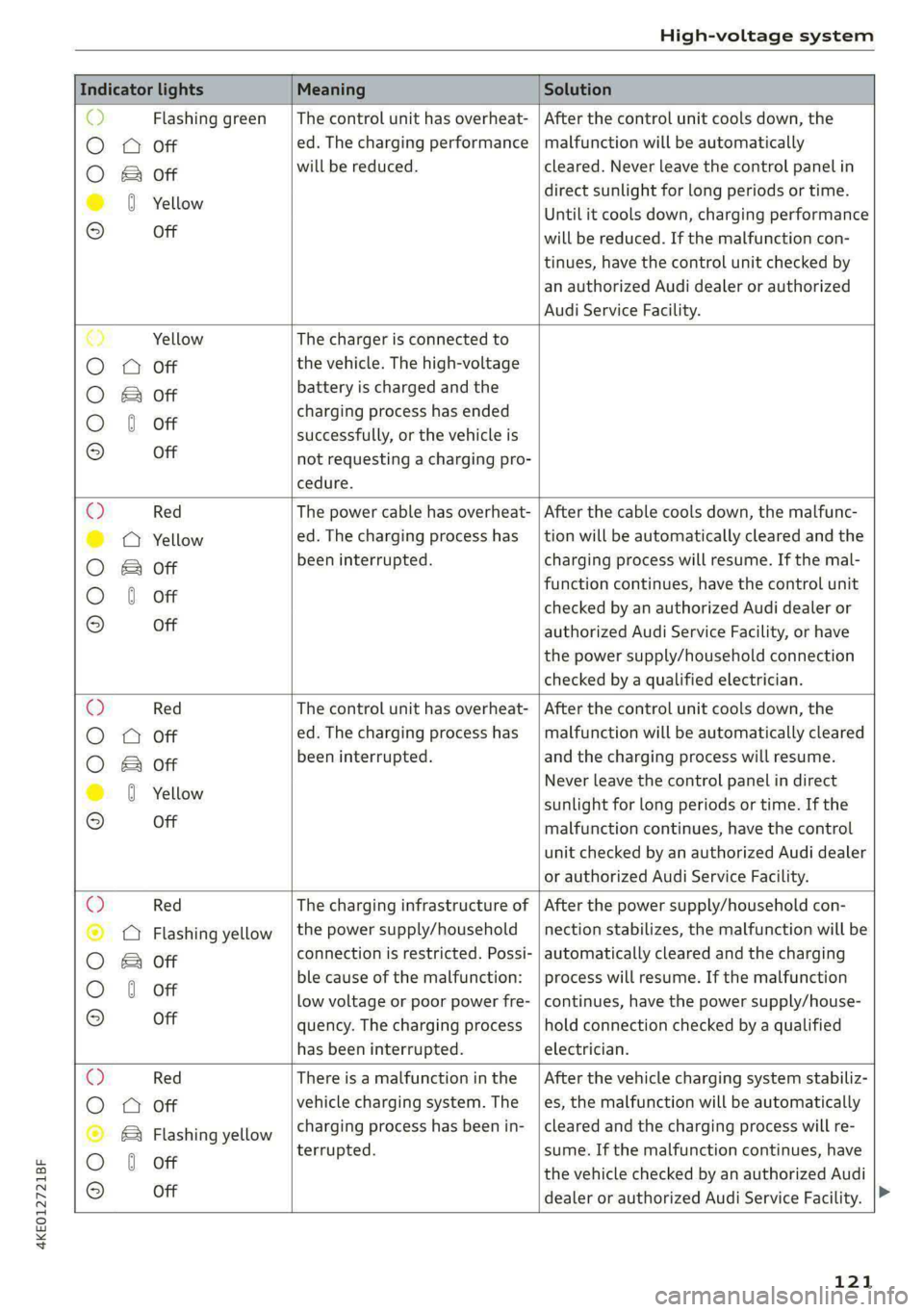
Indicator lights Meaning Solution
o> Flashing green |The control unit has overheat- | After the control unit cools down, the
O A Off ed. The charging performance | malfunction will be automatically
O B&B oft will be reduced. cleared. Never leave the control panel in
direct sunlight for long periods or time.
© 0 Yellow Until it cools down, charging performance
° Off will be reduced. If the malfunction con-
tinues, have the control unit checked by
an authorized Audi dealer or authorized
Audi Service Facility.
€) Yellow The charger is connected to
O QA Off the vehicle. The high-voltage
O B oft battery is charged and the
charging process has ended
O 0 off successfully, or the vehicle is
® Off not requesting a charging pro-
cedure.
© Red The power cable has overheat- | After the cable cools down, the malfunc-
© @ Yellow ed. The charging process has __| tion will be automatically cleared and the
O B oft been interrupted. charging process will resume. If the mal-
function continues, have the control unit
O 0 off checked by an authorized Audi dealer or
© Off authorized Audi Service Facility, or have
the power supply/household connection
checked by a qualified electrician.
Q Red The control unit has overheat- | After the control unit cools down, the
O
A Off ed. The charging process has_ | malfunction will be automatically cleared
O B oft been interrupted. and the charging process will resume.
© 8 Yeltow Never leave the control panel in direct
sunlight for long periods or time. If the
© Off malfunction continues, have the control
unit checked by an authorized Audi dealer
or authorized Audi Service Facility.
O Red The charging infrastructure of | After the power supply/household con-
© Q Flashing yellow |the power supply/household | nection stabilizes, the malfunction will be
O 2 oft connection is restricted. Possi- | automatically cleared and the charging
O 6 off ble cause of the malfunction: | process will resume. If the malfunction
low voltage or poor power fre- | continues, have the power supply/house-
© Off quency. The charging process | hold connection checked by a qualified
has been interrupted. electrician.
O Red There is a malfunction inthe | After the vehicle charging system stabiliz-
O QO Off vehicle charging system. The | es, the malfunction will be automatically
© B Flashing yellow charging process has been in- | cleared and the charging process will re-
O 6 of terrupted. sume. If the malfunction continues, have
© oH the vehicle checked by an authorized Audi
dealer or authorized Audi Service Facility.
121
Page 126 of 308
High-voltage system
Short-time current rating (EN <10 kA eff.
61439-1)
Power plug versions NEMA 6-30; NEMA 6-50; NEMA 14-30; NEMA 14-50; NEMA
5-15
Integrated residual-current device AC: 20 mA; DC: 56 mA
Vehicle charging connector Type l
Protection class I
IP Code 55 (USA: Enclosure 3)
Control unit mass 5.3 lbs - 7.7 lbs (2.4 - 3.5 kg)
Control unit dimensions (height x
width x depth)
12.2 in x 4.1 in x 2.8 in (310 mm x 105 mm x 72 mm)
@) Tips
— The device runs a self test after power has
been restored to the control unit. If a self
test is successful, all indicator lights will il-
luminate green for two seconds.
— The Audi e-tron compact charging system is
designed for charging at sockets with a volt-
age of 120 V/240 V. If your socket has a dif-
ferent voltage, contact and authorized Audi
dealer or authorized Audi Service Facility.
— If your Audi e-tron compact charging sys-
tem has a fixed connection, meaning can be
connected directly to the power supply
without a power cable, contact a qualified
electrician or an authorized Audi dealer or
authorized Audi Service Facility.
— The system complies with United States FCC
regulations and ISED regulations
=> page 289.
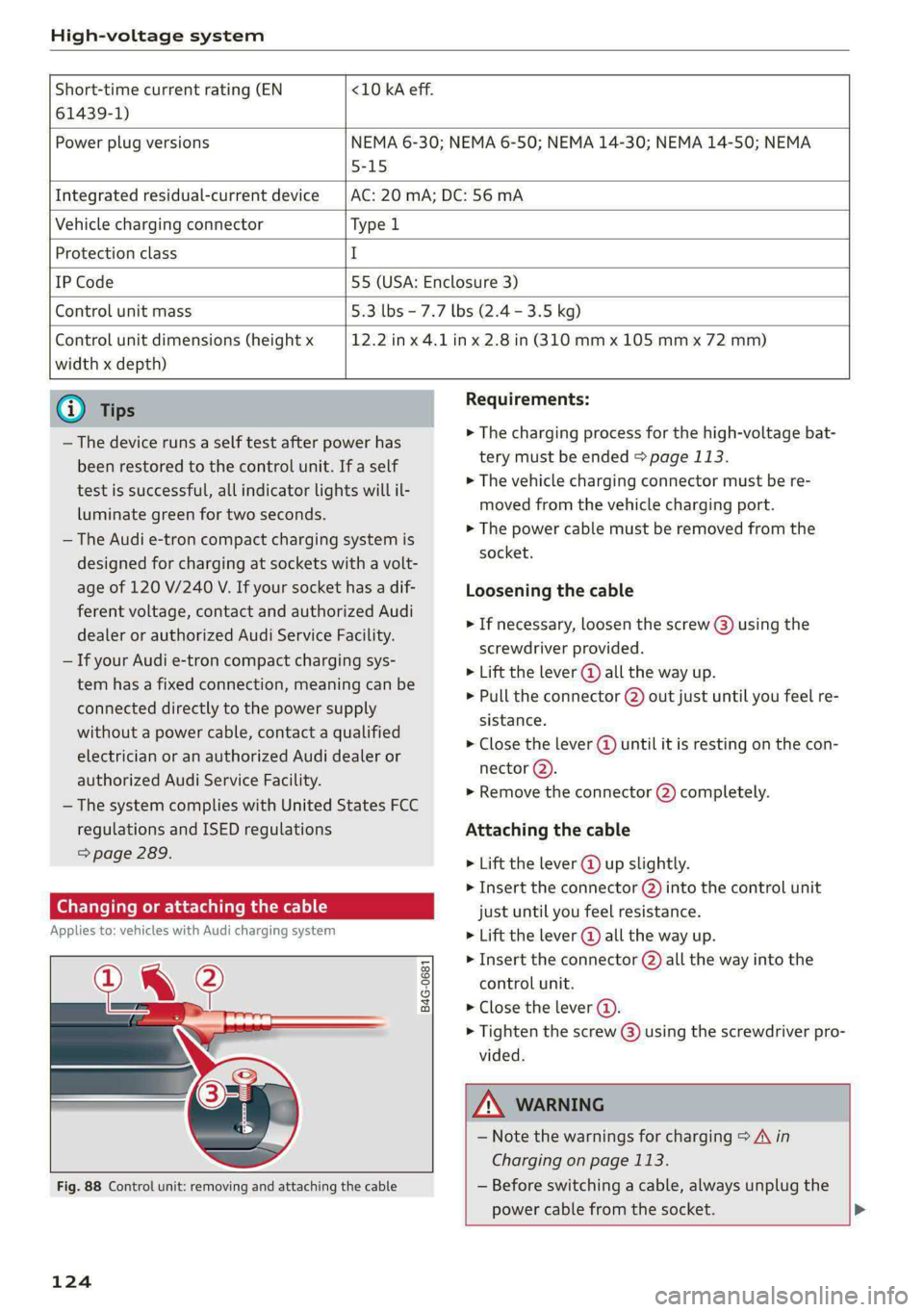
Changing or attaching the cable
Applies to: vehicles with Audi charging system
i?
B4G-0681
Fig. 88 Control unit: removing and attaching the cable
124
Requirements:
> The charging process for the high-voltage bat-
tery must be ended > page 113.
> The vehicle charging connector must be re-
moved from the vehicle charging port.
> The power cable must be removed from the
socket.
Loosening the cable
» If necessary, loosen the screw @) using the
screwdriver provided.
> Lift the lever @ all the way up.
> Pull the connector @) out just until you feel re-
sistance.
> Close the lever @ until it is resting on the con-
nector @).
> Remove the connector (2) completely.
Attaching the cable
> Lift the lever @ up slightly.
> Insert the connector (2) into the control unit
just until you feel resistance.
> Lift the lever @ all the way up.
» Insert the connector (2) all the way into the
control unit.
> Close the lever (@).
> Tighten the screw @) using the screwdriver pro-
vided.
ZA WARNING
— Note the warnings for charging > A in
Charging on page 113.
— Before switching a cable, always unplug the
power cable from the socket. >
Page 181 of 308
4KE012721BF
Telephone
— The charging time and temperature will vary
depending on the mobile device being used.
Mobile device reminder signal
Applies to: vehicles with Audi phone box
When the device reminder signal is switched on,
you will be notified that your mobile device is still
in the Audi phone box when you leave the vehicle.
Requirement: your mobile device must be located
in the Audi phone box (if Qi-capable) or connect-
ed to the Audi music interface with a USB adapt-
er, and the Audi smartphone interface must be
active or your iPhone must be connected to the
MMI via Bluetooth and charging using a USB
adapter connected to the Audi music interface.
> Applies to: MMI: Select on the home screen:
SETTINGS > General > Reminder signal and
mobile device charging.
The following settings may be available, depend-
ing on vehicle equipment:
— Signal tone
— Off
Spoken cue
this setting is switched on at the factory.
Mobile device notes: reminder, charge level
When this function is switched on, the charge
status of your mobile device is displayed. You will
also be reminded not to forget your mobile de-
vice when leaving the vehicle.
Using the telephone
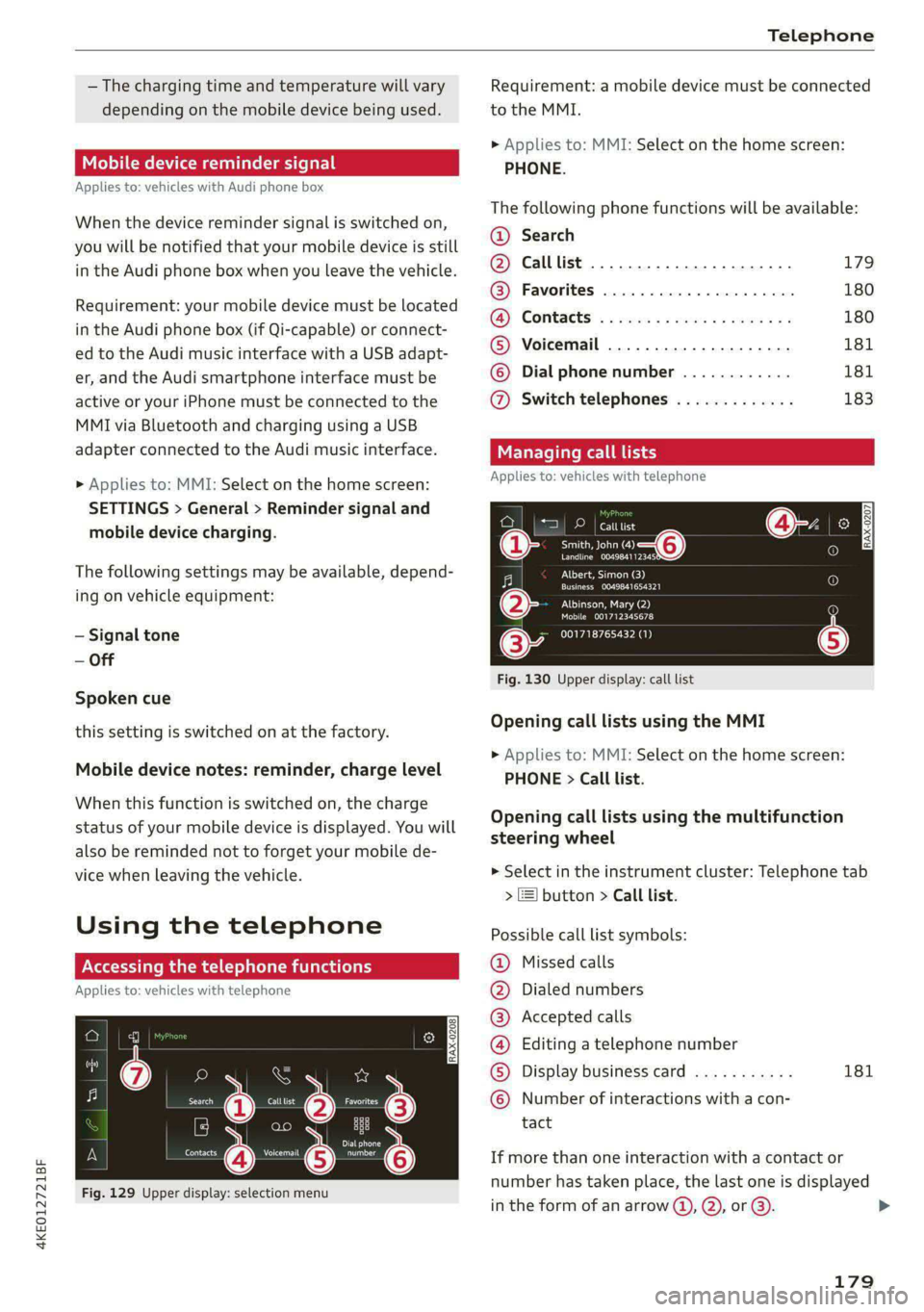
Accessing the telephone functions
Applies to: vehicles with telephone
rence?
Daa
Nerecunt Gis
Fig. 129 Upper display: selection menu
Requirement: a mobile device must be connected
to the MMI.
> Applies to: MMI: Select on the home screen:
PHONE.
The following phone functions will be available:
@® Search
@ Calllist 20.0.0... eee. 179
@ Favorites ................0.00. 180
(@) Contacts: « ¢ esos ss cores ay cows yes 180
® Voicemail ..................2. 181
© Dial phone number ............ 181
@ Switch telephones ............. 183
Managing call
Applies to: vehicles with telephone
eae
Treas oT o—@
Landline 004984112345
Albert, Simon (3)
Cree acer)
PILE lea ea
Mobile 001712345678
001718765432 (1)
Fig. 130 Upper display: call list
Opening call lists using the MMI
> Applies to: MMI: Select on the home screen:
PHONE > Call list.
Opening call lists using the multifunction
steering wheel
> Select in the instrument cluster: Telephone tab
> ] button > Call list.
Possible call list symbols:
Missed calls
Dialed numbers
Accepted calls
Editing a telephone number
Display business card 181
QOOOCOLO Number of interactions with a con-
tact
If more than one interaction with a contact or
number has taken place, the last one is displayed
in the form of an arrow (4), Q), or @).
179
>
Page 200 of 308
Navigation
Selecting map content (such as POIs) as the
destination
Requirement: map content must be displayed
=> page 205.
> Press on map content on the map (for example,
fib.
Selecting the destination
> Select: F4 > Start.
Route guidance will be activated and the map will
be displayed > page 199, fig. 136.
Stopovers and route plan
Applies to: vehicles with navigation system
You can enter additional destinations during ac-
tive route guidance.
Entering a stopover
Requirement: route guidance must be active.
> Enter a destination > page 195.
Displaying stopovers or the route plan
All destinations are listed in the route plan.
> Press on fin the side menu on the map
=> page 199, fig. 136.
Editing stopovers
> Press on Pin the side menu on the map
=> page 199, fig. 136.
> Adding a stopover: Select: Add destination >
select a destination > Add to route.
> Moving a stopover: press Z. Touch the > sym-
bol and move the entry to the desired position.
Press Done.
> Deleting a stopover: Select: Z > one or more
entries or Select all > Delete > (Done).
Ce eels
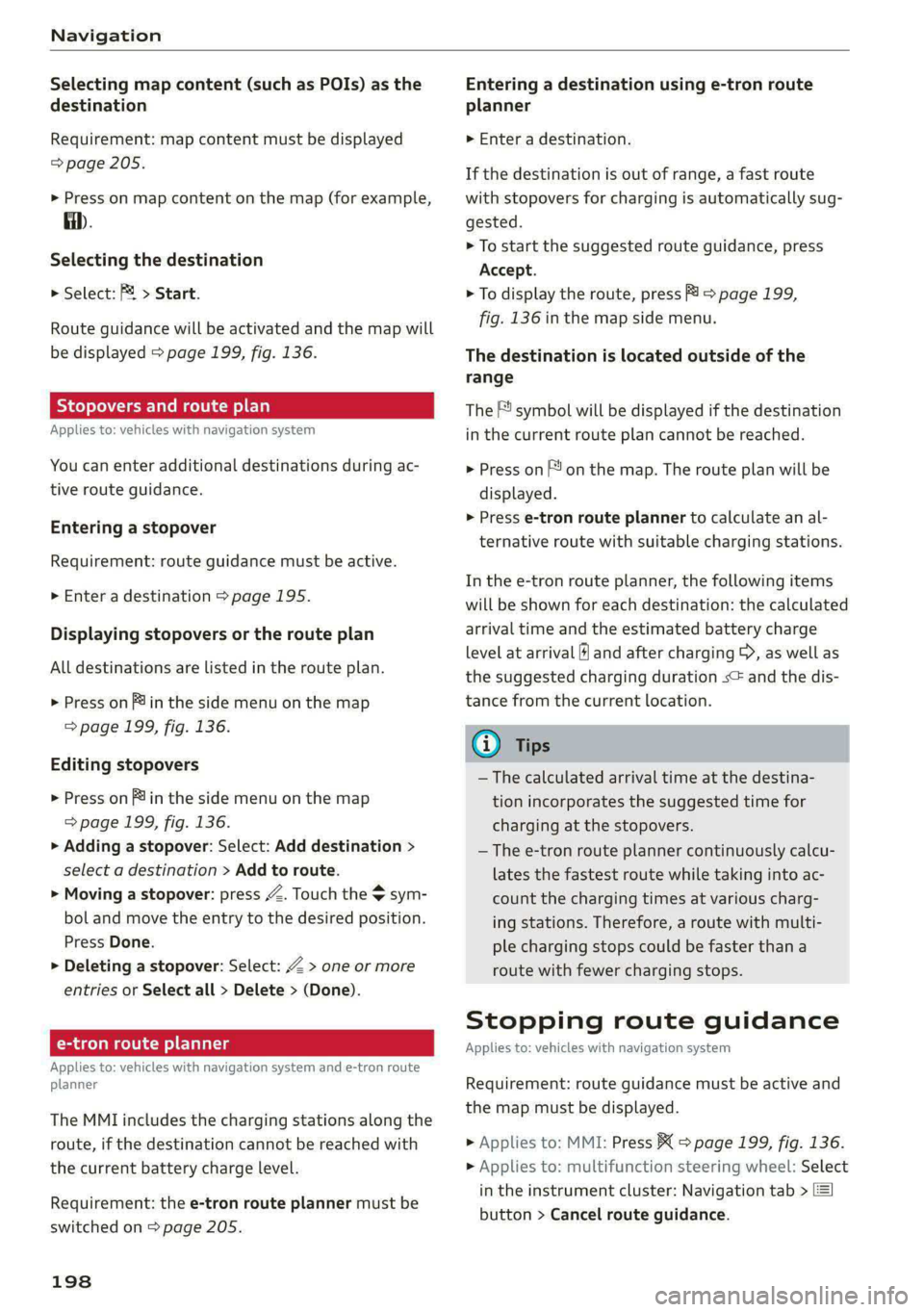
Applies to: vehicles with navigation system and e-tron route
planner
The MMI includes the charging stations along the
route, if the destination cannot be reached with
the current battery charge level.
Requirement: the e-tron route planner must be
switched on > page 205.
198
Entering a destination using e-tron route
planner
> Enter a destination.
If the destination is out of range, a fast route
with stopovers for charging is automatically sug-
gested.
> To start the suggested route guidance, press
Accept.
> To display the route, press F) > page 199,
fig. 136 in the map side menu.
The destination is located outside of the
range
The F! symbol will be displayed if the destination
in the current route plan cannot be reached.
> Press on on the map. The route plan will be
displayed.
> Press e-tron route planner to calculate an al-
ternative route with suitable charging stations.
In the e-tron route planner, the following items
will be shown for each destination: the calculated
arrival time and the estimated battery charge
level at arrival (6 and after charging >, as well as
the suggested charging duration s= and the dis-
tance from the current location.
Gi) Tips
— The calculated arrival time at the destina-
tion incorporates the suggested time for
charging at the stopovers.
— The e-tron route planner continuously calcu-
lates the fastest route while taking into ac-
count the charging times at various charg-
ing stations. Therefore, a route with multi-
ple charging stops could be faster than a
route with fewer charging stops.
Stopping route guidance
Applies to: vehicles with navigation system
Requirement: route guidance must be active and
the map must be displayed.
> Applies to: MMI: Press BX > page 199, fig. 136.
> Applies to: multifunction steering wheel: Select
in the instrument cluster: Navigation tab >
button > Cancel route guidance.
Page 219 of 308

4KE012721BF
Media
» Applies to: MMI: Select on the home screen:
MEDIA > Source > Amazon Alexa.
@) Note
Read the information about Audi connect, and
be sure to note the connectivity costs section
=> page 186.
Multimedia connections
Oy ETE Tela
ae
a| =
oS
Fig. 146 Audi Genuine Accessories: USB adapter
RAH-9202
\
You can connect your mobile devices through the
Audi music interface to the MMI using the USB
adapter and charge the battery at the same time.
You can purchase the USB adapter cable from an
authorized Audi dealer or at specialty stores:
@ USB adapter for devices with a mi-
cro USB connection
@ USB adapter for Apple devices with
a Lightning connection
@ USB adapter for devices with USB
type C connection
@) Note
Handle the USB adapter carefully. Do not al-
low it to be pinched.
@) Tips
Apple devices with a dock connector can only
be charged using a USB adapter designed for
devices with a dock connector. Data cannot be
transmitted.
Audi music interface
Connect your mobile devices to the Audi music in-
terface in order to operate them through the
MMI and charge the batteries.
The Audi music interface USB ports are located in
the storage compartment under the front and
rear* center armrest and are labeled with the «<>
symbol. If multiple USB devices are connected to
the USB ports (for example, a smartphone anda
USB flash drive), all of these devices can be used
as the playback source.
Connecting or charging mobile devices using
a USB adapter
> Connect the matching USB adapter to the Audi
music interface USB port and connect it to the
mobile device, such as a smartphone.
The battery will charge automatically.
Mobile devices connected to the Audi music inter:
face can be started and operated using the MMI
> page 218.
Disconnecting a mobile device from the Audi
music interface
> Remove the USB adapter cable from the Audi
music interface.
ZA\ WARNING
Driving requires your complete and undivided
attention. As the driver, you have complete re-
sponsibility for safety in traffic. Never operate
mobile devices while driving, because this in-
creases the risk of an accident.
@) Note
— Pull the cable out of the Audi music inter-
face carefully so that the USB ports are not
damaged.
— Use a USB extension cable to connect devi-
ces that have an integrated USB connector
(such as a USB stick) to reduce the risk of
damage to your USB device and the Audi
music interface.
— Extremely high or low temperatures that
can occur inside vehicles can damage mobile
devices and/or impair their performance.
217
>
Page 240 of 308
Checking and Filling
authorized Audi dealer or authorized Audi
Service Facility for assistance.
Battery
eae elec acl)
Because of the complex power supply, all work on
batteries such as disconnecting, replacing, etc.,
should only be performed by an authorized Audi
dealer or authorized Audi Service Facility > A\.
Batteries with different technologies are instal-
led in your vehicle:
— 12 volt vehicle battery (for example, for basic
power supply) > page 238, 12 Volt vehicle bat-
tery
— High-voltage battery (for example, for electric
drive system, climate control) > page 108, In-
troduction
Not running the vehicle for long periods of
time
When the vehicle is not used for long periods, the
12 Volt vehicle battery will drain little by little. To
ensure that the vehicle can still be started, the
electrical equipment will be limited or switched
off. Some convenience functions, such as interior
lighting or power seat adjustment, may not be
available under certain circumstances. The con-
venience functions will be available again when
you establish drive ready mode.
Even when electrical equipment is switched off,
the equipment can still drain the 12 Volt vehicle
battery if the vehicle is not driven for long peri-
ods of time. Deep draining results in a chemical
reaction that destroys the inside of the battery.
To reduce the risk of this, the battery must be
charged monthly by an authorized Audi dealer or
authorized Audi Service Facility > page 239. Con-
tact an authorized Audi dealer or authorized Audi
Service Facility for more information.
Winter operation
Cold weather places an especially high load on
the 12 Volt vehicle battery. Have the battery
checked by an authorized Audi dealer or author-
238
ized Audi Service Facility before cold weather be-
gins.
ZA WARNING
All work on the battery or electrical system in
your vehicle can result in injuries, chemical
burns, accidents, or burns. Because of this, all
work must be performed only by an author-
ized Audi dealer or authorized Audi Service Fa-
cility.
ZA WARNING
California Proposition 65 Warning:
— Battery posts, terminals and related acces-
sories contain lead and lead compounds,
chemicals known to the State of California
to cause cancer and reproductive harms.
Wash hands after handling.
@) Note
If the vehicle will be parked for long periods
of time, protect the 12 Volt vehicle battery
against the cold so that it will not “freeze”
and become damaged. Have the battery
charged by an authorized Audi dealer or au-
thorized Audi Service Facility > page 239,
Charging the 12 Volt vehicle battery.
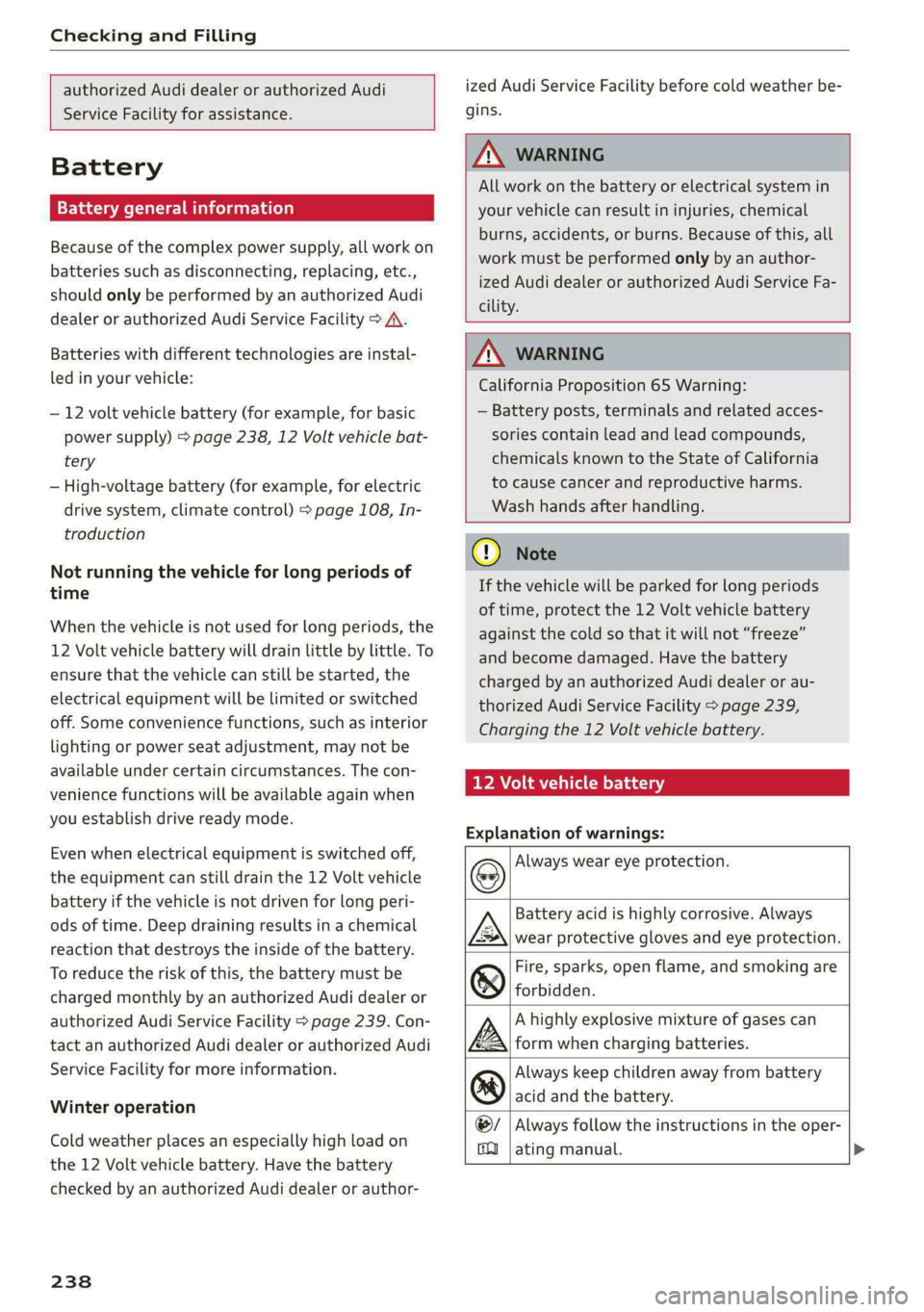
AAO) CM alate ey pan-18 7
Explanation of warnings:
Always wear eye protection.
Battery acid is highly corrosive. Always
wear protective gloves and eye protection.
Fire, sparks, open flame, and smoking are
forbidden.
A highly explosive mixture of gases can
form when charging batteries.
Always keep children away from battery
acid and the battery.
Always follow the instructions in the oper-
se
@
> @
PE
©
ating manual. >