infotainment AUDI E-TRON 2021 User Guide
[x] Cancel search | Manufacturer: AUDI, Model Year: 2021, Model line: E-TRON, Model: AUDI E-TRON 2021Pages: 308, PDF Size: 83.91 MB
Page 193 of 308
4KE012721BF
Emergency call
Emergency call
Overview
Applies to: vehicles with emergency call function
An emergency call is a combination of data trans-
mission and a phone call. The data transmission
from your vehicle forwards important informa-
tion, such as the vehicle and position data, to the
emergency call center.
Depending on the country and the vehicle equip-
ment, the following functions may be available:
With the emergency call, you can call for help in
dangerous situations as quickly as possible. Use
this function when emergency help is needed
=>page 191.
— Audi connect emergency call (TPS emergency
call). This eCall system uses emergency call
centers operated by third party providers.
With online roadside assistance, you can request
assistance if there is a breakdown or a minor acci-
dent > page 192.
ZA\ WARNING
In areas with poor GPS reception or outside
the coverage range of the respective cell
phone service provider, some functions and/or
services may not be available, it may not be
possible to send or receive data, or functional-
ity may be limited.
@) Tips
To see which data can be transmitted, visit
your Audi country or sales region website at
www.audi.com.
Emergency call
Applies to: vehicles with emergency call function
The services are provided through a SIM card in-
stalled in the vehicle. Services are provided as-
suming that the cell phone network required for
the installed SIM card is functioning and availa-
ble for use. The services made availably by Audi
are only available within the mobile phone net-
work coverage area for the mobile phone service
provider selected by Audi.
—The emergency call function cannot be deac-
tivated in the Infotainment system settings.
— The availability of the TPS emergency call is
limited to certain times.
—The costs for call and data connections for
TPS emergency calls is included in the price
of the services.
Applies to: vehicles with emergency call function
A TPS emergency call can be made manually or
automatically > page 191.
Making an emergency call
Applies to: vehicles with emergency call function
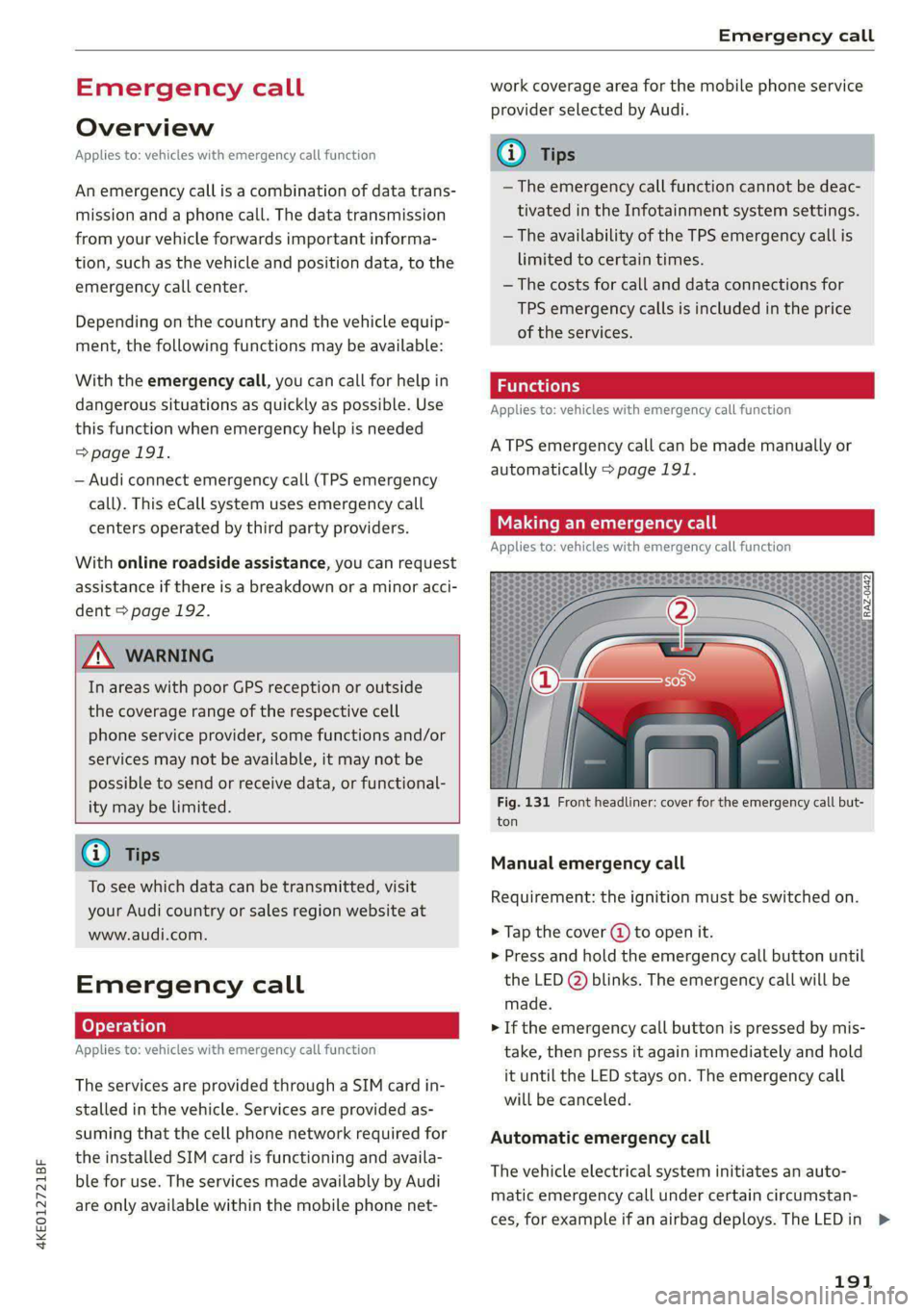
Fig. 131 Front headliner: cover for the emergency call but-
ton
Manual emergency call
Requirement: the ignition must be switched on.
> Tap the cover (@) to open it.
> Press and hold the emergency call button until
the LED () blinks. The emergency call will be
made.
> If the emergency call button is pressed by mis-
take, then press it again immediately and hold
it until the LED stays on. The emergency call
will be canceled.
Automatic emergency call
The vehicle electrical system initiates an auto-
matic emergency call under certain circumstan-
ces, for example if an airbag deploys. The LEDin >
191
Page 196 of 308
Navigation
Navigation
Opening navigation
Applies to: vehicles with navigation system
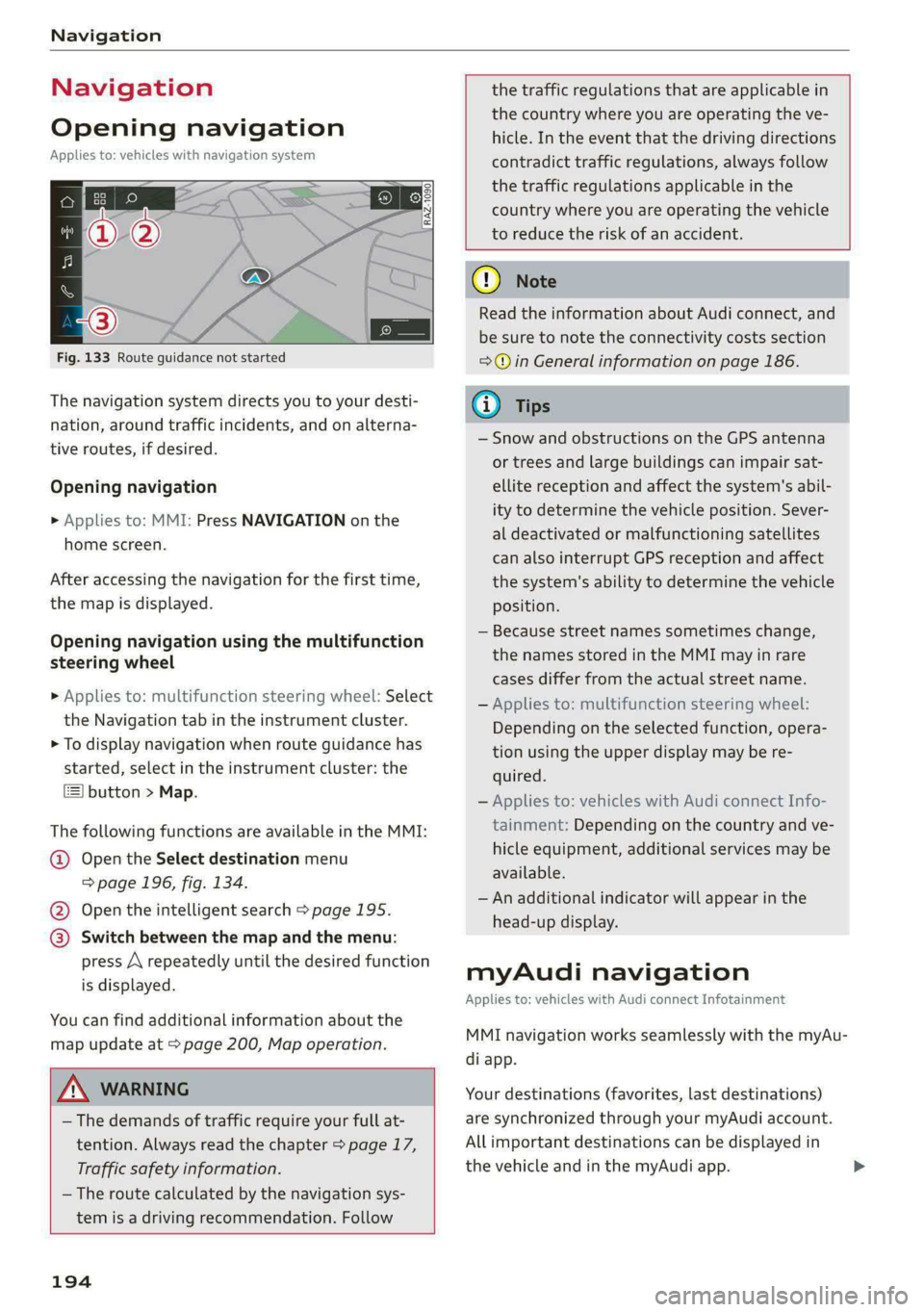
Fig. 133 Route guidance not started
The navigation system directs you to your desti-
nation, around traffic incidents, and on alterna-
tive routes, if desired.
Opening navigation
>» Applies to: MMI: Press NAVIGATION on the
home screen.
After accessing the navigation for the first time,
the map is displayed.
Opening navigation using the multifunction
steering wheel
> Applies to: multifunction steering wheel: Select
the Navigation tab in the instrument cluster.
> To display navigation when route guidance has
started, select in the instrument cluster: the
button > Map.
The following functions are available in the MMI:
@ Open the Select destination menu
=> page 196, fig. 134.
@ Open the intelligent search > page 195.
@ Switch between the map and the menu:
press A repeatedly until the desired function
is displayed.
You can find additional information about the
map update at > page 200, Map operation.
ZA\ WARNING
— The demands of traffic require your full at-
tention. Always read the chapter > page 17,
Traffic safety information.
— The route calculated by the navigation sys-
tem is a driving recommendation. Follow
194
the traffic regulations that are applicable in
the country where you are operating the ve-
hicle. In the event that the driving directions
contradict traffic regulations, always follow
the traffic regulations applicable in the
country where you are operating the vehicle
to reduce the risk of an accident.
() Note
Read the information about Audi connect, and
be sure to note the connectivity costs section
=>@ in General information on page 186.
(i) Tips
— Snow and obstructions on the GPS antenna
or trees and large buildings can impair sat-
ellite reception and affect the system's abil-
ity to determine the vehicle position. Sever-
al deactivated or malfunctioning satellites
can also interrupt GPS reception and affect
the system's ability to determine the vehicle
position.
— Because street names sometimes change,
the names stored in the MMI may in rare
cases differ from the actual street name.
— Applies to: multifunction steering wheel:
Depending on the selected function, opera-
tion using the upper display may be re-
quired.
— Applies to: vehicles with Audi connect Info-
tainment: Depending on the country and ve-
hicle equipment, additional services may be
available.
— An additional indicator will appear in the
head-up display.
myAudi navigation
Applies to: vehicles with Audi connect Infotainment
MMI navigation works seamlessly with the myAu-
di app.
Your destinations (favorites, last destinations)
are synchronized through your myAudi account.
All important destinations can be displayed in
the vehicle and in the myAudi app.
Page 199 of 308
4KE012721BF
Navigation
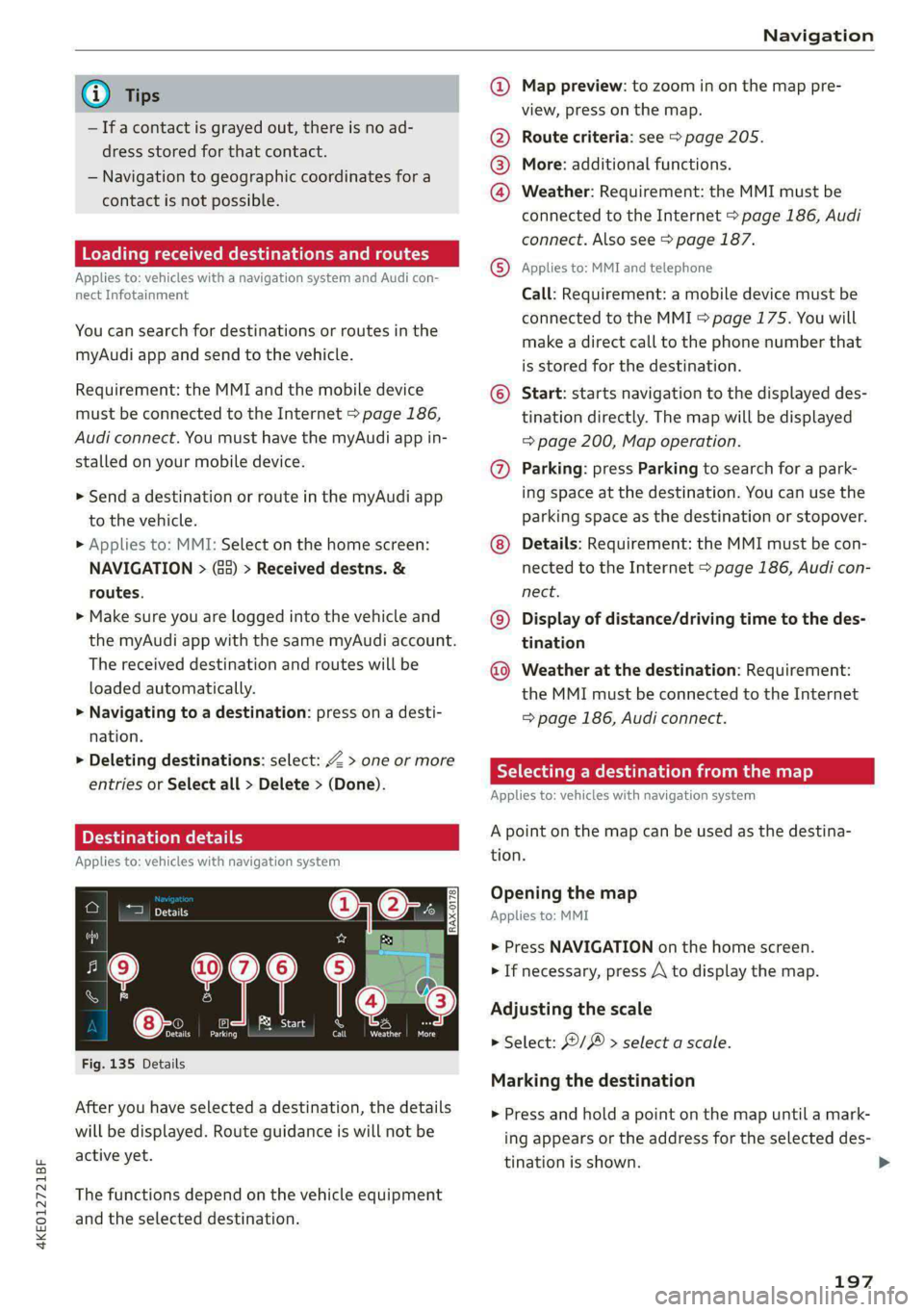
@) Tips @ Map preview: to zoom in on the map pre-
; ; view, press on the map.
— Ifa contact is grayed out, there is no ad- @ Route criteria: see © page 205.
dress stored for that contact.
— Navigation to geographic coordinates for a
contact is not possible. @
®
More: additional functions.
Weather: Requirement: the MMI must be
connected to the Internet > page 186, Audi
connect. Also see > page 187.
Loading received destinations and routes
Applies to: MMI and teleph:
Applies to: vehicles with a navigation system and Audi con- © PRES? STS EBON
nect Infotainment Call: Requirement: a mobile device must be
connected to the MMI > page 175. You will
make a direct call to the phone number that
is stored for the destination.
You can search for destinations or routes in the
myAudi app and send to the vehicle.
Requirement: the MMI and the mobile device © Start: starts navigation to the displayed des-
must be connected to the Internet > page 186, tination directly. The map will be displayed
Audi connect. You must have the myAudi app in- => page 200, Map operation.
stalled on your mobile device. @ Parking: press Parking to search for a park-
> Send a destination or route in the myAudi app ing space at the destination. You can use the
to the vehicle. parking space as the destination or stopover.
> Applies to: MMI: Select on the home screen: Details: Requirement: the MMI must be con-
NAVIGATION > (a5) > Received destns. & nected to the Internet > page 186, Audi con-
routes. nect.
» Make sure you are logged into the vehicle and © Display of distance/driving time to the des-
the myAudi app with the same myAudi account. tination
The received destination and routes will be Weather at the destination: Requirement:
loaded automatically. the MMI must be connected to the Internet
> Navigating to a destination: press on a desti- > page 186, Audi connect.
nation.
> Deleting destinations: select: Z > one or more 7 Eh
: RY a date Meld Le MLL] 2)
entries or Select all > Delete > (Done).
Applies to: vehicles with navigation system
Applies to: vehicles with navigation system tion.
0|6:. Opening the map
om Applies to: MMI
> Press NAVIGATION on the home screen
aa 7 > If necessary, press A to display the map.
Adjusting the scale
eases
er a A
> Select: ©/ > select a scale.
Fig. 135 Details
Marking the destination
After you have selected a destination, the details
will be displayed. Route guidance is will not be
active yet.
> Press and hold a point on the map until a mark-
ing appears or the address for the selected des-
tination is shown. >
The functions depend on the vehicle equipment
and the selected destination.
197
Page 213 of 308
4KE012721BF
Radio
Opening radio text
> Applies to: MMI: Select on the home screen:
RADIO > select a frequency band (such as FM)
> select a station > More > Radio text.
Depending on vehicle equipment, the following
functions
may be available:
Displaying previous radio text entries
> Swipe downward with one finger. The last radio
text entries are displayed if they are available.
Scrolling through radio text entries
> Swipe upward or downward with one finger.
Showing Radio Text Plus information
If a radio text entry is displayed with a color, a
phone number or a navigation destination for the
station is available as radio text plus information.
You have the following options:
Selecting the destination
> Select: a navigation destination marked in col-
or > Set as destination.
Call
> Select: d phone number marked in color > Call.
@ Tips
A call to a phone number stored in the radio
text will start immediately.
Online radio
General information
Applies to: vehicles with Audi connect Infotainment and on-
line radio
You can listen to various radio stations or pod-
casts on the Internet using online radio.
Requirement: the MMI must be connected to the
Internet. A data plan must be available
=> page 190.
Accessing online radio through the MMI
> Applies to: MMI: Select on the home screen:
RADIO > Source > Online.
The following functions are available:
Previous selection
The station/podcast list for the last station or
podcast that was playing will be displayed.
Top stations
The favorite online radio stations are displayed.
Filter list
> Select: 2 > (a category) > a station/podcast.
The following categories are available:
— Countries
— Genres
— Languages
— Editor's picks
— Themes
— Nearby
@) Note
Read the information about Audi connect, and
be sure to note the connectivity costs section
=@ in General information on page 186.
@) Tips
— Depending on the Internet connection and
network traffic, the connection may be lost
when online radio is playing.
— Online radio reception may not be possible
if Internet service is throttled.
— Online media usage depends on the service
availability of the third party provider.
—The range and screen display of online me-
dia services from third party providers in the
vehicle can vary.
— Please note that it may not be possible to
play some online radio stations in certain
countries.
— Audi only provides access to online radio
and does not assume any responsibility for
the content of these services.
211
Page 214 of 308

Radio
Applies to: vehicles with Audi connect Infotainment and on-
line radio
Opening podcasts using the MMI
» Applies to: MMI: Select on the home screen:
RADIO > Source > Online > Podcasts.
The following functions are available:
Listening to a podcast
> Select: a podcast > a podcast episode.
Search
> Press 2.
The following functions are available in the pod-
cast playback view:
Displaying podcast episodes
> Press List.
Starting/stopping podcast playback
> Press /II.
Previous/next podcast
> PressKi/ DI.
Changing the playback position
> You can adjust the playback position using the
knob.
Displaying the online radio menu
> Press Ba.
Switching to radio
> Press Source. The sources in the Radio menu
are displayed.
Podcast favorites
You can store podcasts in the podcast favorites.
Requirement: the playback view for a podcast
must be displayed.
> Press ¥ @ © page 208, fig. 144.
Requirement: a list with podcasts must be dis-
played.
> Press and hold an entry in the list until the Op-
tions menu appears.
> Press Save podcast.
212
Listening to podcast favorites
Requirement: the podcast favorites list must be
displayed. At least one podcast favorite must be
stored.
> Select: a podcast > a podcast episode.
Browsing through podcast favorites
Requirement: the podcast favorites list must be
displayed. At least one podcast favorite must be
stored.
> Press < or >.
Displaying all podcast favorites
Requirement: the podcast favorites list must be
displayed. At least one podcast favorite must be
stored.
> Press All.
Editing podcast favorites
> Deleting podcast favorites: press Y in the
playback view, or
> In the podcast favorites list, select: All > Z >
one or more podcasts, or Select All > Delete >
(Done).
Requirement: the podcast favorites list must be
displayed.
> Moving podcast favorites: Select: All > Z.
> Touch the $ symbol and move the entry to the
desired position.
> Press Done.
Options and settings
Requirement: the playback view @) > page 208,
fig. 144 must be displayed.
> Press More (9, or
Requirement: a list with radio stations or pod-
casts* must be displayed > page 207, fig. 142.
> Press and hold an entry in the list until the Op-
tions menu appears.
Page 222 of 308
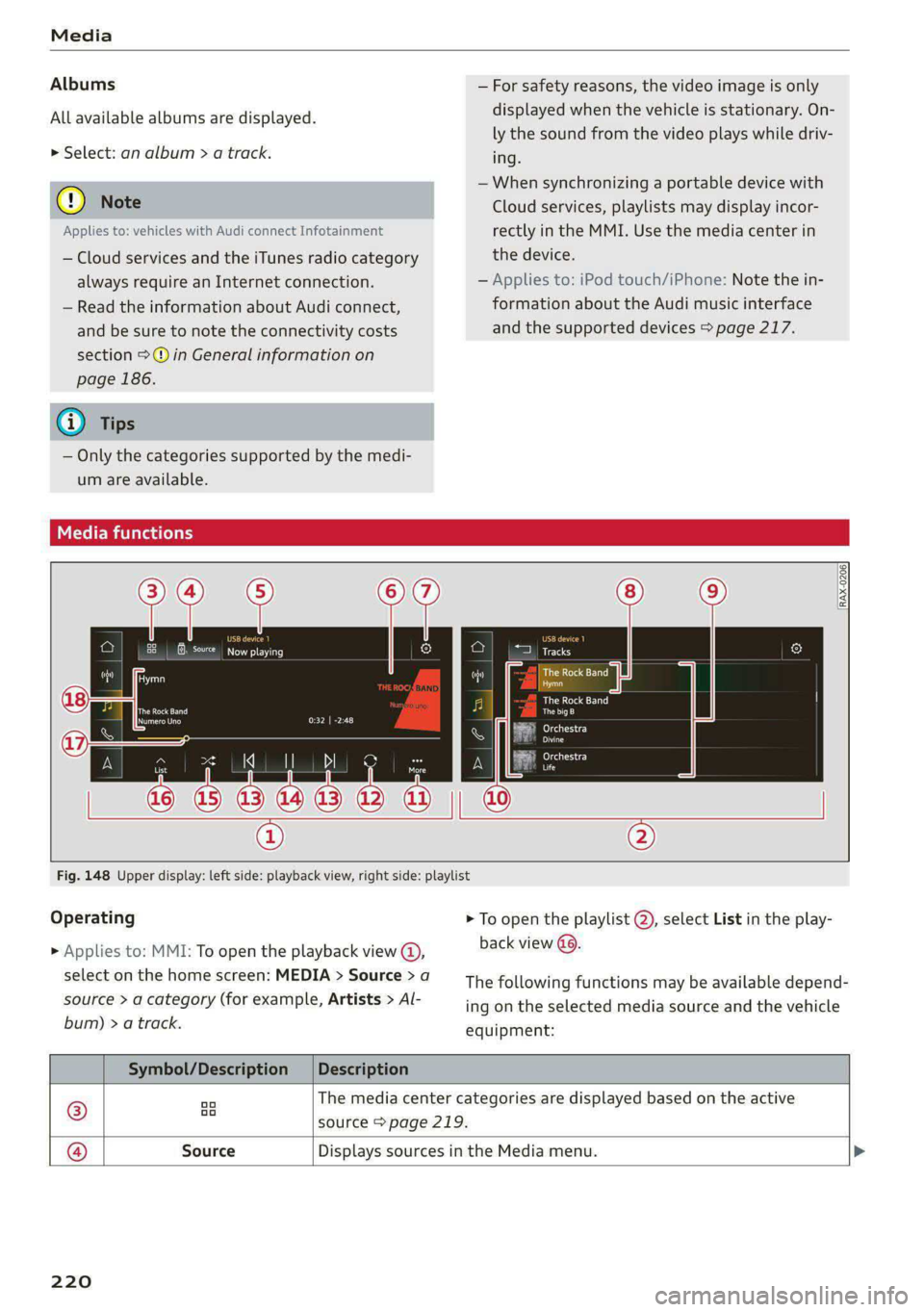
Media
Albums
All available albums are displayed.
> Select: an album > a track.
@ Note
Applies to: vehicles with Audi connect Infotainment
— Cloud services and the iTunes radio category
always require an Internet connection.
— Read the information about Audi connect,
and be sure to note the connectivity costs
section >@ in General information on
page 186.
G@) Tips
— Only the categories supported by the medi-
um are available.
ele mitaraatelary
— For safety reasons, the video image is only
displayed when the vehicle is stationary. On-
ly the sound from the video plays while driv-
ing.
—When synchronizing a portable device with
Cloud services, playlists may display incor-
rectly
in the MMI. Use the media center in
the device.
— Applies to: iPod touch/iPhone: Note the in-
formation about the Audi music interface
and the supported devices > page 217.
[RAX-0206)
Bona ascit)
Ca
BUT la aCe)
aise)
eer)
Pn
eT iac)
nc
@
Fig. 148 Upper display: left side: playback view, right side: playlist
Operating
> Applies to: MMI: To open the playback view @,
select on the home screen: MEDIA > Source > a
source > a category (for example, Artists > Al-
bum) > a track.
> To open the playlist @, select List in the play-
back view @..
The following functions may be available depend-
ing on the selected media source and the vehicle
equipment:
Symbol/Description | Description
® aa The media center categories are displayed based on the active
source > page 219.
@ Source Displays sources in the Media menu.
220
Page 281 of 308
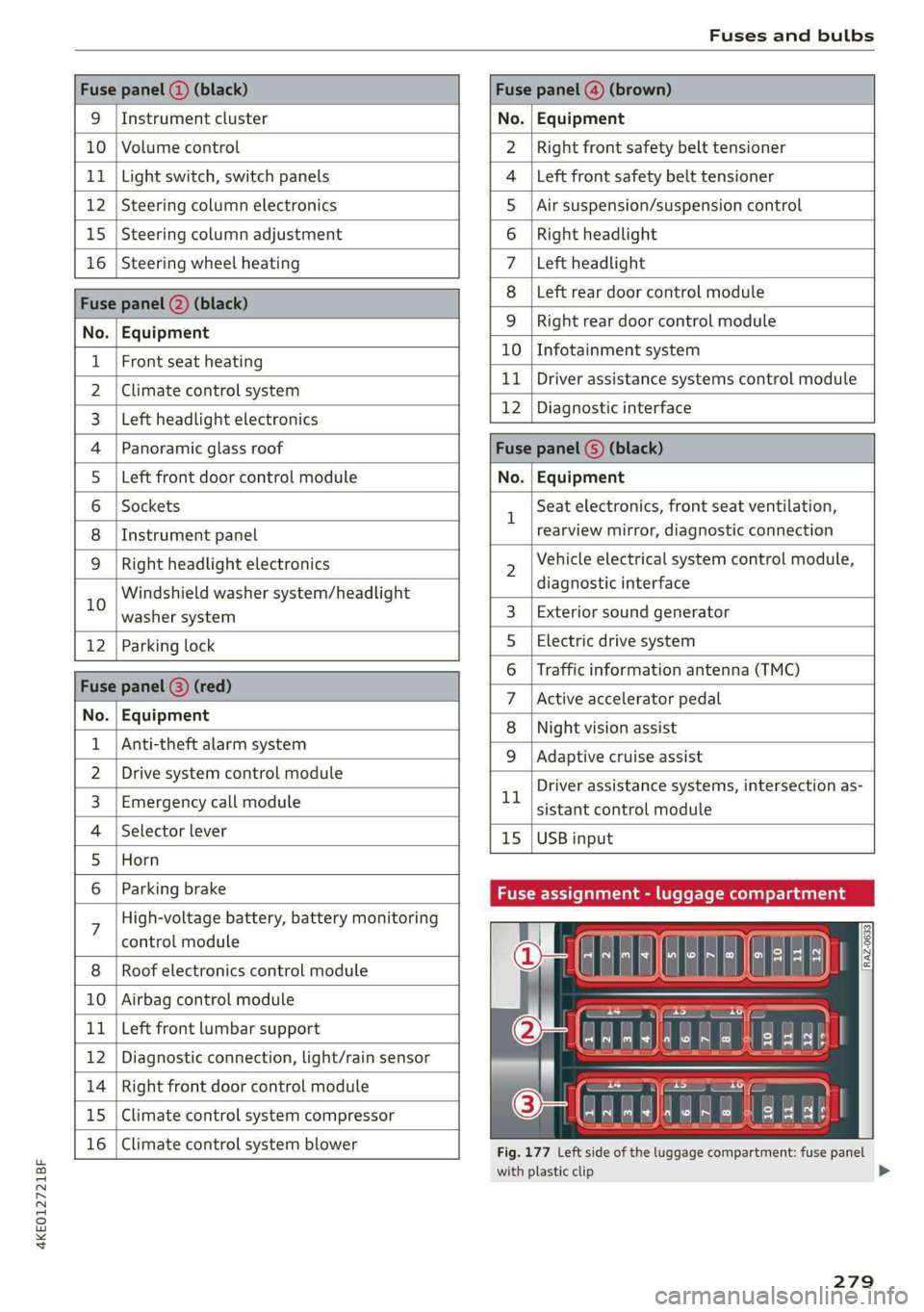
4KE012721BF
Fuses and bulbs
Fuse panel (2) (black) Fuse panel (4) (brown)
9 |Instrument cluster No. | Equipment
10 | Volume control Right front safety belt tensioner
11 | Light switch, switch panels Left front safety belt tensioner
12 | Steering column electronics Air suspension/suspension control
15 |Steering column adjustment Right headlight
16 | Steering wheel heating Left headlight
Fuse panel 2) (black)
Left rear door control module
No. | Equipment
WOl/@OIN|
A)
M|AILN
Right rear door control module
10 | Infotainment system
1 |Front seat heating - -
> |Cimateconerl system 11 Exe Sealealite systems control module
3 |Left headlight electronics 12 | Diagnostic interface
4 |Panoramic glass roof Fuse panel (5) (black)
5 |Left front door control module No. | Equipment
6 | Sockets 1 Seat electronics, front seat ventilation,
8 | Instrument panel rearview mirror, diagnostic connection
9 | Right headlight electronics 2 Vehicle electrical system control module,
Windshield washer system/headlight diagnostic interface
10 washer system 3 | Exterior sound generator
12 | Parking lock 5 | Electric drive system
raven 6 | Traffic information antenna (TMC)
Fuse panel (8) (re
ueeiP eed) 7 |Active accelerator pedal
No. | Equi it
o. atipmen 8 | Night vision assist
1 |Anti-theft alarm system - - -
9 |Adaptive cruise assist
2 |Drive system control module , - . -
ll Driver assistance systems, intersection as-
3_| Emergency call module sistant control module
4 | Selector lever 15 |USB input
5 |Horn
6 | Parking brake Fuse assignment - luggage compa
7 High-voltage battery, battery monitoring
control module
8 | Roof electronics control module
10 | Airbag control module
11 | Left front lumbar support
12 | Diagnostic connection, light/rain sensor
14 | Right front door control module
15 | Climate control system compressor
16 | Climate control system blower
5 iF
| | eo ed oO
' rR mae Y= ae
aR EE
Fig. 177 Left side of the luggage compartment: fuse panel
with plastic clip
279
>
Page 286 of 308
Data privacy
Applies to: vehicles with Audi connect Infotainment
Audi collects, uses, stores and shares your per-
sonal information, such as contact data, vehicle
data, usage data, driving data and precise geolo-
cation, in order to provide you with the products
and services you have purchased or requested,
and for a number of other purposes, for example,
to track quality issues, to performance and safe-
ty, to meet our internal compliance or legal re-
quirements and to market to customers and po-
tential customers. For a more complete list of
the data we collect, how we use it and with
whom we share it, please visit your Audi nation-
al/sales region website at www.audi.com.
The collection, use and sharing may vary depend-
ing on your model and model year, your subscrip-
tion status, or the service offering. For example,
collection, use and sharing may vary between
Audi connect services, if you have designated a
key user, or if you are driving a model equipped
with persistent data logging. Please review the
complete Privacy Statement to understand our
data handling practices with respect to a particu-
lar service.
You can find additional information about our da-
ta privacy practices in your MMI.
> Applies to: MMI: On the home screen, select:
SETTINGS > General > Legal notes > About
Audi connect.
Information about our privacy practices in con-
junction with the mobile Audi connect applica-
tion can be found in the Application’s Privacy
Statement.
For additional information about the privacy
practices relating to Audi connect, myAudi, or
other websites, applications or online services as
well as your obligations with respect to using
these services, and for additional information re-
garding Audi connect terms and conditions,
please visit your Audi national/sales region web-
site at www.audi.com.
284
Page 296 of 308
Index
Closing
Automatic luggage compartment lid...... 40
Convenience closing...........00.++00% 44
HOOP «a asaces
Luggage compartment lid............... 40
Luggage compartment lid with foot motion . 41
Panoramic glass'roOf ici «+ eaves ew wrens oo a 44
Sunshade (roof) ................0000008 44
WU6ITdOWS:s « ses ¢ 2 aes 5 2 ee Ee eR cee 43
Closing aid (power closing doors).......... 32
Cockpit dimming....................005 52
Cockpit (overview) ..........-..0 02. e eee ee 6
Collapsible spare tire...............00.. 273
Collapsible tire
refer to Collapsible spare tire........... 273
Color cOd@.. eee eee eee eee 290
Comfort auxiliary climate control.......... 88
Coming home/Leaving home
refer to Entry/exit lighting.............. 50
Compartments ..........00 2.0 eee eee eee 79
Compass inthe mirror..............00 eee 57
Compliance’. « « sis ao avn ve eae ew were os 288
Gonferencevcalll swiss x sane 2 wesw 2 wees 2 2 181
Configuration wizard..................4. 17
CONNEC: = x seme + eee Ge Reee GX HER «EOE 186
Datarplanss » sewn as cman « «sauce sv wawan 6 2 190
Data Privacy...... 0.2.00. ce eee eee 284
EMe@rgeneyCalll sane « x sane © s sau x 2 zeus 191
Infotainment « + scsi se ones 6 & ones 6 & one 186
Infotainment services..............0-- 187
Online roadside assistance............. 192
Vehicle control services..............-- 188
Connected devices
Device overview............ 20.00 e eee 230
Connections
refer to Media...............000- 215, 218
Consumer information................05 285
Consumption
Reducing.......... 0. eee eee eee eee 96
Consumption (energy)............--000 ee 14
Contacts
Importing ........... 02. e eee cece 183
Updating inthe MMI.................. 183
also refer to Directory................. 180
Convenience:key's « « ssics 2 6 scare xo nmi w + ore 32
Convenience closing................00 44
also refer to Vehicle key..............-. 36
294
Convenience opening and closing
Windows or panoramic glass roof........ 44
Cooling mode..... 2.6... cee eee eee 85
Cooling system
Coolant... .. cc cece cece eee eee 235
Coolant level occa ss ceca s = pee se ees ee 236
Cotheritig lighten <= sess se mee = eeee es See 48
Cross
traffic assist (intersection assistant) .. 164
Cruise control system............000005 141
Cup holders. ....... cece cece eee eee 78
Current consumption..............000005 14
D
Data module
Serial number (IMEI) ............000008 183
Data plans
Data Privacy
Date os ccerevs 2 x ernie © eyarens ww eyaieay w © steiteine wo sais
Setting
Daytime running lights.............00005 48
Declaration of compliance............... 288
DEF (instrument cluster) «ssc + scene oo see 1
Demo mode
refer to Presentation mode............. 205
Destination onthe map.............-.+- 197
Debailsi, x snssws » a canceme » o cantens + 0 axcouns % weses 197
Determining correct load limit........... 255
Digital COMPSSS « sew » 2 ewww 2 y wows ¥ WHEE & s 57
DIM@nsiONnS':: = 2 sees + = sews & ¢ eee & « ewes 290
Dimming the exterior mirrors............. 53
Dimming the rearview mirror............. 53
Directory........ 0.2.00. cece ee eee ee eee 180
BUSING@SS°CArd cies ss eas ve ween ve ee eee 181
Display
Cleaning sic: 2 8 wes se wane s wee «owen ooo 264
DiSpOSalvas « s caus 5 = wean 2 & pee oe REOR 2 285
DiStanGe seus + ¢ eaves x = ewe x eee xe EwR e 14
DIStance Warniiid « sews ss wean so eee ¢ aS 154
Doors
Child safety lock « sices «ogee se eae s ems 42
Dooricomtact Switch. . 5 coms 2 snerous © aaa 51
Mechanically unlocking and locking....... 35
Power closing/closing aid............... 32
Driver information system................ 12