light AUDI Q2 2021 Owner´s Manual
[x] Cancel search | Manufacturer: AUDI, Model Year: 2021, Model line: Q2, Model: AUDI Q2 2021Pages: 364, PDF Size: 87.77 MB
Page 168 of 364

Speech dialogue system
Function
Dialling a phone number when an
address card is open
Calling a contact from the favour
ites list
Displaying the call list
Calling the last number dialled
Dialling a telephone number
Correcting an entered phone num
ber
Displaying contact information
Listening to voice mail messages
Entering the SIM PIN code
Correcting an entered PIN
Correcting an entry
Closing the full List of commands
Say:
Call / Call business number / Call private number / Call land
line / Call business mobile
Telephone favourites
>
desired contact when requested
>
Dial
Call list
Redial
Enter number
>
enter phone number in blocks of individual dig
its when requested, e.g. 07441 234
567
> Dial
Correction / Delete number
Directory
>
desired contact when requested,
e.g.
John Smith
Call mailbox
Enter PIN
>
enter PIN in individual digits when requested >
Store
Correction / Delete PIN
No,
I meant (XY)
Close
© Note
- If
you
have a mobile phone that transmits
first names and surnames separately, you
can select directory contacts both by enter
ing the full name
("first
name, surname" or
"surname, first name") and by saying only
the first name or surname.
- Please note that commands can only be
spoken for the main teLephone*
^>page
173.
- For more information on which mobile
phones are supported, please go online
(e.g.
www.audi.com/bluetooth) or contact
an Audi dealer.
Audi connect (infotainment)
Applies to: vehicles with speech dialogue system and Audi connect (infotainment)
Important: The requirements for Audi connect
(infotainment) must be met
^>page
191.
Function
Calling up an Audi connect infotain
ment service
Audi connect infotainment services
Search areas for Audi connect info
tainment services
Correcting an entry
Say:
Audi connect
>
follow the directions given by the system
Weather / Online news / Fuel prices / Parking information /
Travel information / Twitter / Online traffic information / City
events / Flight information / Train information
In vicinity of destination / In immediate vicinity / In new town
No,
I meant (XY)
166
Page 201 of 364
Audi connect (infotainment)
CO
rN
IN
rN
•-H
00
Flight information
Applies to: vehicles with Audi connect (infotainment)
Information on flights and current arrival/depar
ture times in the search area selected.
•
Select and confirm Flight information.
Train information
Applies to: vehicles with Audi connect (infotainment)
Information on bus stops, train stations and cur
rent arrival/departure times in the search area
selected.
•
Select and confirm Train information.
You can use the right controL button to select the
train information you require.
City events
Applies to: vehicles with Audi connect (infotainment)
Information on events of different categories in
the search area selected.
•
Select: City events
>
left control button > a
cat
egory.
Online news
Applies to: vehicles with Audi connect (infotainment)
With this service, you can call up the latest head
lines from your preferred news providers in the
MMI.
Important: You must have subscribed to news
feeds via your myAudi account and your vehicle
must be connected to myAudi
<^>page
196.
•
Select: Online news > desired news feed
>
a
headline.
© Note
If
you
have not yet subscribed to any personal
news feeds in your myAudi account, pre-con-
figured news feeds will be shown.
Twitter
Applies to: vehicles with Audi connect (infotainment)
You
can
access
the most important functions of
your Twitter account via the MMI.
Important:
You must have linked your myAudi account to
Twitter. Further information can be found on the
Internet at my.audi.com.
You must have linked your vehicle to myAudi
opage
196.
•
Select: Twitter
>
left control button > function
desired (e.g. Trends).
You can choose the following categories in the
Twitter menu:
- My tweets: New tweets and tweets you have
composed are listed.
- Home: All the tweets from people you are
fol
lowing are displayed.
-Trends: Topics currently being favoured for dis
cussion within a particular country.
Different functions will be available depending
on the Twitter category you choose:
- New tweet: You can send a new tweet with the
help of ready-made templates or text blocks
created personally using myAudi.
- Refresh: The selected Twitter function is upda
ted.
- Favourite: You can "favourite" a tweet to show
that
you like it.
- Retweet: You can repost a tweet to share it
with other people.
- Further settings (such as your account,
lan
guage,
Tweet privacy, and location settings)
cannot be changed in the MMI. If
you
wish
to change anything in these menus, please
do so on the Twitter website itself.
- Further information on the individual
tem
plates can be found online at my.audi.com.
- You can only connect one Twitter account to
your myAudi account.
199
Page 203 of 364
Audi connect (infotainment)
CO
< o rN
IN
rN
•-H
00
new version is available at my.audi.com.
You can also have the new navigation data
installed by an Audi deaLer (carries addition
al charges).
- Further information on the myAudi special
destinations and the map update can be
found online at my.audi.com.
Audi connect (infotainment) for telephones
Applies
to: vehicles with Audi connect (infotainment)
© CAUTION
•
Select: |MENU| button
>
Audi connect
>
left
control button
>
Communication.
The following Audi connect infotainment services
are currently available:
- Creating contacts on your
PC
via your myAudi
account and loading the contacts into the di
rectory of your MMI system
^>page
187.
- Dictating text messages or e-mails and having
them read out*
^>page
182, Messages.
Audi connect (infotainment) in the media
menu
Applies
to: vehicles with Wi-Fi audio player and Audi connect
(infotainment)
*•
Select: |MENU| button
>
Audi connect
>
left
control button > Entertainment.
- Wi-Fi audio player: To access the media centre
of your player (e.g. smartphone) connected via
Wi-Fi
<=>
page 238.
- Online media and Internet radio: With assis
tance from the Audi MMI connect app, this
function allows you to access and operate
vari
ous online media services using the MMI.
A WARNING
Mobile devices, tablet and Laptop computers
and devices of
a
similar weight can only be
operated safely when the vehicle is stationary.
Like any Loose object, they can be catapulted
through the vehicle in an accident and cause
serious injuries. Always make sure that such
devices are securely stowed while you are
driving.
Please always observe the information
=>®
in
Wi-Fi hotspot on page 202.
- Also refer to
opage
204, General notes on
Audi connect (infotainment).
- Please contact an Audi dealer for more in
formation on Wi-Fi audio players and for a
list of supported devices.
Further options
Applies
to: vehicles with Audi connect (infotainment)
•
Select: |MENU| button
>
Audi connect
>
right
control button.
The following options are available in the over
view of the Audi connect infotainment services:
Login*
Refer to
^>page
196, Logging into myAudi in the
vehicle.
Connection manager
Refer to
^>page
257.
Licence periods
The validity and the time remaining on your licen
ces is displayed. If the Licence expiry warning
function is switched on
(vj,
a message will be dis
played before the licence expires.
Refresh
The content of the Audi connect infotainment
service selected or the entire Audi connect (info
tainment) list is updated.
Wi-Fi hotspot
Applies
to: vehicles with Wi-Fi hotspot
You
can
use
your MMI system as a Wi-Fi hotspot
for connecting to the Internet on up to eight Wi-
Fi
devices.
Small, light Wi-Fi
devices
that are not
permanently attached to the vehicle must only
be operated from the rear seats while the vehicle
is moving.
Important: The ignition must be switched on.
201
Page 212 of 364

Navigation
- The route calculated by the navigation sys
tem is a recommendation of how best to
reach a destination. Pay attention to traffic
lights,
no stopping signs, lane change re
strictions, one-way streets, etc.
© CAUTION
-Should the navigation directions contradict
the current traffic regulations, you must al
ways follow the traffic regulations.
- The volume should only be set at a level
which enables you to hear distant police and
emergency vehicles clearly - failure to do so
could result in an accident.
© Note
- Snow or other obstructions on the GPS aer
ial or interference caused by trees or large
buildings could affect the reception of the
satellite signals and make positioning
diffi
cult. GPS reception and vehicle positioning
can also be adversely affected by deactiva
tion or a malfunction of several satellites.
- Road names can change; therefore the
names stored on the MMI may be different
from the actual names in exceptional cases.
Entering a destination
Searching for navigation destinations
Applies to: vehicles with navigation system
With the search function, you can use the MMI
touch
pad*
or the speller for letters/numbers to
enter navigation destination information in any
order (e.g. Forest Road 20 London).
You
can
search for special destinations, contacts, recent
destinations or favourites in the same way to
help you navigate to the desired address.
Press the |NAV/MAP| button repeatedly untiL the
Enter destination menu is displayed
opage
207,
Fig. 172.
• Push the rotary pushbutton upwards. The entry
field will be displayed
@ ^>page
207, Fig. 172.
- Enter one or more search terms in the entry
field.
- If appropriate, confirm an autocomplete
sug
gestion*
or a suggested word*. Refer to
^page
159, Speller for letters/numbers.
- Turn the rotary pushbutton clockwise to switch
to the results list.
- Select a destination from the results list and
confirm it.
- Select and confirm Start route guidance.
The route will be displayed as an overview on the
map.
Route guidance is already active.
Narrowing the search area
All countries are preselected for the search func
tion at the factory.
-In the input menu
(T)<=>page207,
Fig. 172, se
lect the right controL button > Country selec
tion.
- Select the country flvj) which you would Like to
search in. This will limit the number of results
and speed up the search. The entry selected in
the country selection menu will be stored.
© Note
- The terms suggested by the MMI depend on
the destinations to which you have recently
driven.
- Up to 50 entries are stored in the list of des
tinations to which you have recently driven.
- For more information on the search func
tion,
please refer to
^>page
160.
Loading last destination
Applies to: vehicles with navigation system
The
destinations you have most recently driven
to are stored automatically and can be loaded
directly as new destinations.
Important: You must have set
a
destination in
the past.
•
Press the |NAV/MAP| button repeatedly until
the Enter destination menu is displayed
opage
207, Fig. 172.
The destinations to which you have recently driv
en are listed directly in the Enter destination
menu under your home address and marked with
the
symbol®^
page
207, Fig. 172. •
208
Page 220 of 364
Navigation
The seLected destination will
be
stored
as the
new home address.
Favourites
Applies
to:
vehicles with navigation system
•
Press
the |NAV/MAP|
button repeatedly until
the Enter destination menu
is
displayed
•=>page
207,
Fig.
172.
- To store
a
destination as a favourite: Search
for
the
desired destination using
the
entry
field.
Or:
Select and confirm
a
destination from
the List. Select: right controL button > Store
as
favourite.
- To rename a favourite: Select
the
left control
button
>
Favourites
>
a
favourite from
the
list
> right controL button
>
Rename favourite.
- To move a favourite: Select
a
favourite from
the list
>
right control button
>
Move favourite.
SeLect and confirm
the
position
of
the favourite
selected.
- To delete
a
favourite: Select
a
favourite from
the list
>
right control button
>
Delete favour
ite > Delete this favourite
or
Delete
all
favour
ites.
Directory contacts
Applies
to:
vehicles with navigation system
Two addresses (private/business)
can
be stored
as
a
destination
for
each
contact
in the
directo
ry-
• Press
the |NAV/MAP|
button repeatedly until
the Enter destination menu
is
displayed
=>page
207,
Fig.
172.
Storing
a
destination
as a
contact
in the
directory
Important:
A
mobile phone must
be
connected
to
the MMI
system
^>page
173.
- SeLect
a
destination
>
right control button
>
Add destination
to
contact.
- SeLect and confirm Add business destination
or
Add private destination.
- Enter a name.
Or:
SeLect and confirm a directo
ry contact from
the
list.
- Select and confirm Store business card.
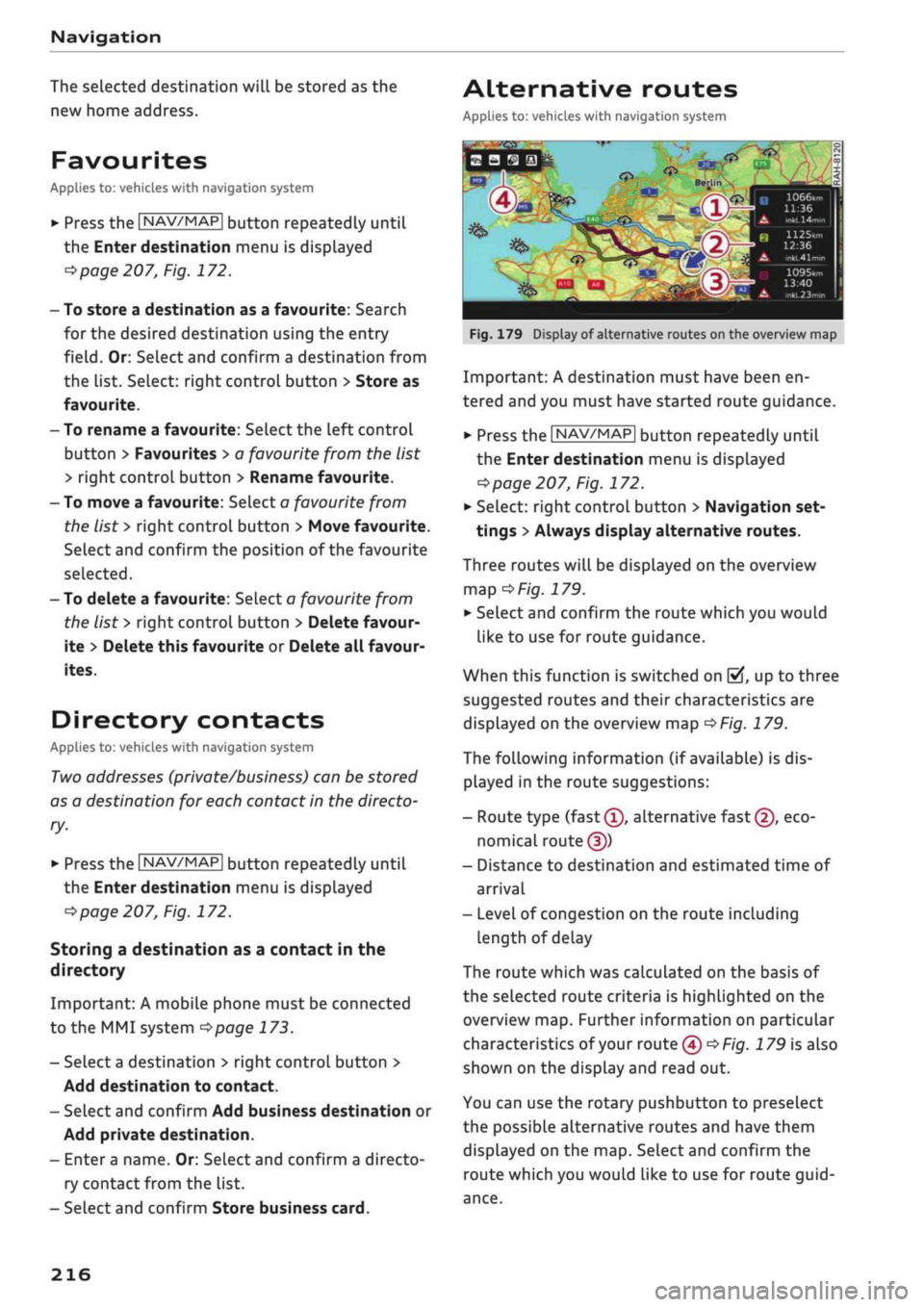
Alternative routes
Applies
to:
vehicles with navigation system
.--. -*
_
o Ï
J»
Berlin
*
&£
% I
&
-•
O
si
on a
Fig.
179
Display
of
alternative routes
on the
overview
map
Important:
A
destination must have been
en
tered and
you
must have started route guidance.
>
Press
the |NAV/MAP|
button repeatedly until
the Enter destination menu
is
displayed
<$page
207,
Fig.
172.
*•
Select: right control button
>
Navigation set
tings
>
Always display alternative routes.
Three routes will
be
displayed
on the
overview
map
G
Fig.
179.
•
SeLect and confirm
the
route which
you
would
like
to use for
route guidance.
When this function
is
switched
on
|vf,
up to
three
suggested routes
and
their characteristics
are
displayed
on the
overview
map
=>F/g.
179.
The following information
(if
available)
is
dis
played
in the
route suggestions:
- Route type
(fast(T),
alternative
fast
(2),
eco
nomical
routed))
- Distance
to
destination
and
estimated time
of
arrival
- Level
of
congestion
on the
route including
length
of
delay
The route which
was
calculated
on the
basis
of
the selected route criteria
is
highlighted
on the
overview map. Further information
on
particular
characteristics
of
your route
(4)<=*Fig.
179 is
also
shown
on the
display and read
out.
You
can use the
rotary pushbutton
to
preselect
the possible alternative routes
and
have them
displayed
on the map.
Select and confirm
the
route which
you
would Like
to use for
route
guid
ance.
216
Page 225 of 364
Navigation
Adjust route*: Move your finger
over
the MMI
touch padVrotary pushbutton to adjust the route
on the overview map.
Map settings
Applies
to: vehicles with navigation system
•
Press the
|NAV/MAP|
button repeatedly until
the map is displayed.
•
Select: right control button > Map settings.
Depending on the function seLected, you can use
the following settings:
Map colours
day/night: The map is displayed with a
Light/dark
background colour.
automatic: The colour of the map changes to
match the current light conditions (e.g. from day
to night when driving through tunnels).
Map display
Standard: Refer to
opage
219, Fig. 182.
Google Earth*: Refer to
^>page
222, Fig. 183.
Traffic*1);
Refer to
^>page
225, Fig. 187.
Map orientation
destination: The map indicates the destination
and is set to face north.
2D driving position/2D north map: The map de
picts the vehicle's current position. The map is
set to face the direction of travel or north.
3D driving position*: The current vehicle
posi
tion is displayed in a three-dimensional map, and
the map is set to face the direction of
travel.
If
the map scale is more than 100 km, the map is
set to
face north.
overview: The entire route from the vehicle
posi
tion to the final destination or next stopover is
displayed on the map. The map scale varies ac
cording to the Length of the route and is adapted
automatically. The map is set to face north.
Route information
The display of route information such as the
street you are currently on, upcoming turn-offs,
traffic information or special destinations on the
current route can be switched on/off.
Automatic zoom
on:
The map scale is adjusted automatically ac
cording to the category of the road you are on
(motorway, major
road,
other road) to ensure
that
you always have the best possible overview
of the route ahead. When there is an upcoming
turn-off, the map display will also be automati
cally adjusted so that you have a more detailed
view.
intersection: When route guidance is active and
there are upcoming turn-offs, the map dispLay
will temporarily switch to a more detailed scale
so that the road layout can be identified more
easily.
off: The map scale you have set will remain
unal
tered.
Map content
The dispLay of map content such as weather in
formation,
traffic information or favourite desti
nations can be switched on and off.
The weather* is shown on the map if the scale is
set to 5 km or more
^>page
216, Fig. 179.
CO
rN
IV
rN
t-H
o <
x)
This function is not available in the Mexican market.
221
Page 232 of 364
Radio
Radio
Calling up the radio
menu
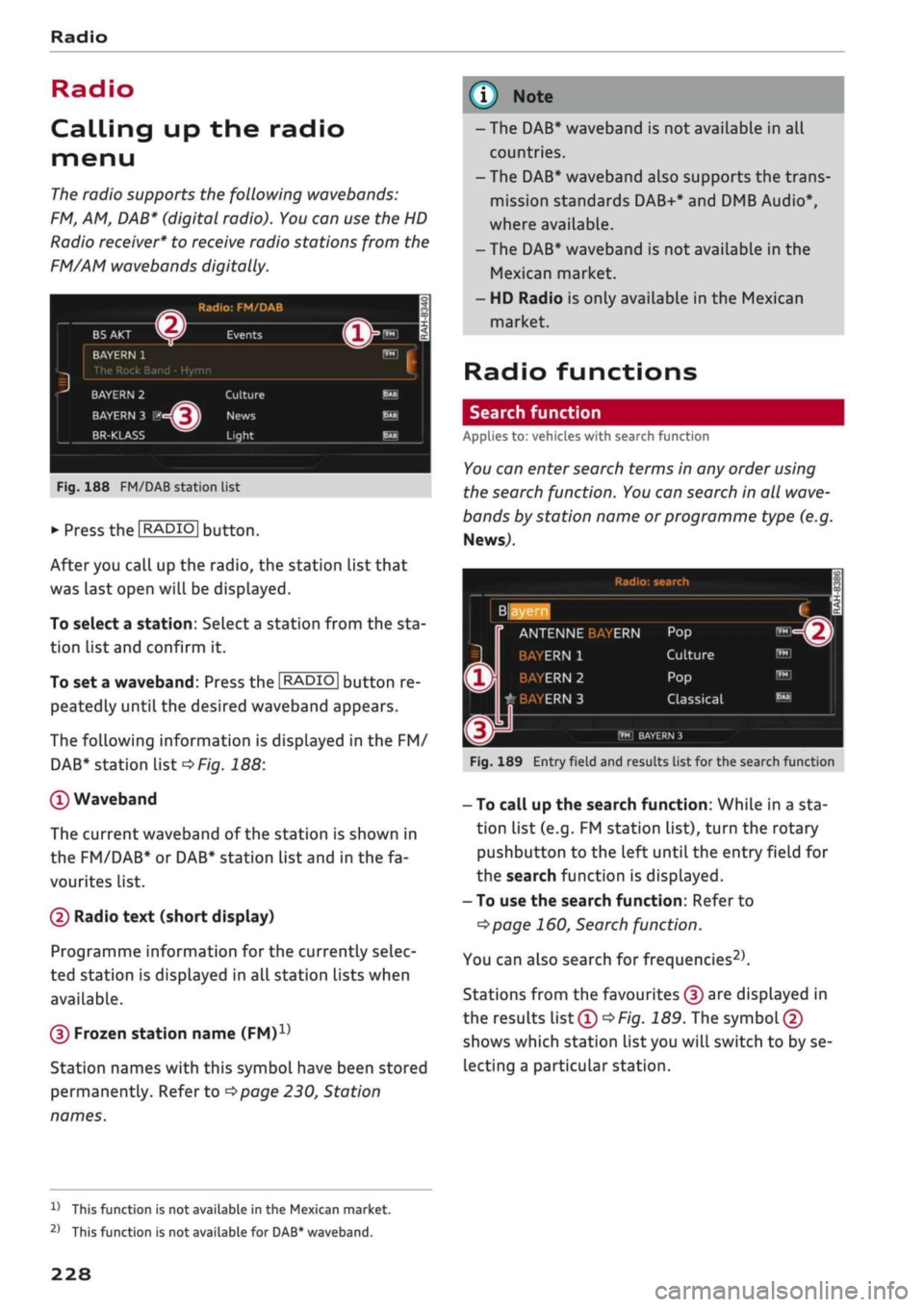
The
radio supports the following wavebands:
FM,
AM, DAB* (digital radio).
You
can use the HD
Radio
receiver*
to receive radio stations from the
FM/AM wavebands
digitally.
© Note
„
. Radio: FM/DAB
BS
AKT
^j9
BAYERN 1
-^
The Rock Band - Hymn
"
BAYERN 2
BAYERN 3
'Hf»l)
BR-KLASS
Events
Culture
News
Light
/Z^
O
•^^
•
T^M
:
m
Fig.
188 FM/DAB station list
•
Press the
I
RADIO[
button.
After you call up the radio, the station list that
was last open will be displayed.
To select a station: SeLect
a
station from the sta
tion List and confirm it.
To set a waveband: Press the
I RADIO |
button re
peatedly until the desired waveband appears.
The following information is displayed in the FM/
DAB*
station List
<*Fig.
188:
©Waveband
The current waveband of the station is shown in
the FM/DAB* or DAB* station list and in the fa
vourites list.
(D Radio text (short display)
Programme information for the currently seLec
ted station is displayed in all station lists when
available.
(D Frozen station name
(FM)1'
Station names with this symbol have been stored
permanently. Refer to
^page
230, Station
names.
- The DAB* waveband is not available in all
countries.
- The DAB* waveband also supports the trans
mission standards DAB+* and DMB Audio*,
where available.
- The DAB* waveband is not available in the
Mexican market.
- HD Radio is only available in the Mexican
market.
Radio functions
Search function
Applies to: vehicles with search function
You
can enter
search
terms in any order using
the search function.
You
can search in all
wave
bands by station name or programme type (e.g.
News,).
Radio: search
ANTENNE
ERN
Culture ERN 1
ERN 2
#BAYERN3
Classical
r'M
BAYERN 3
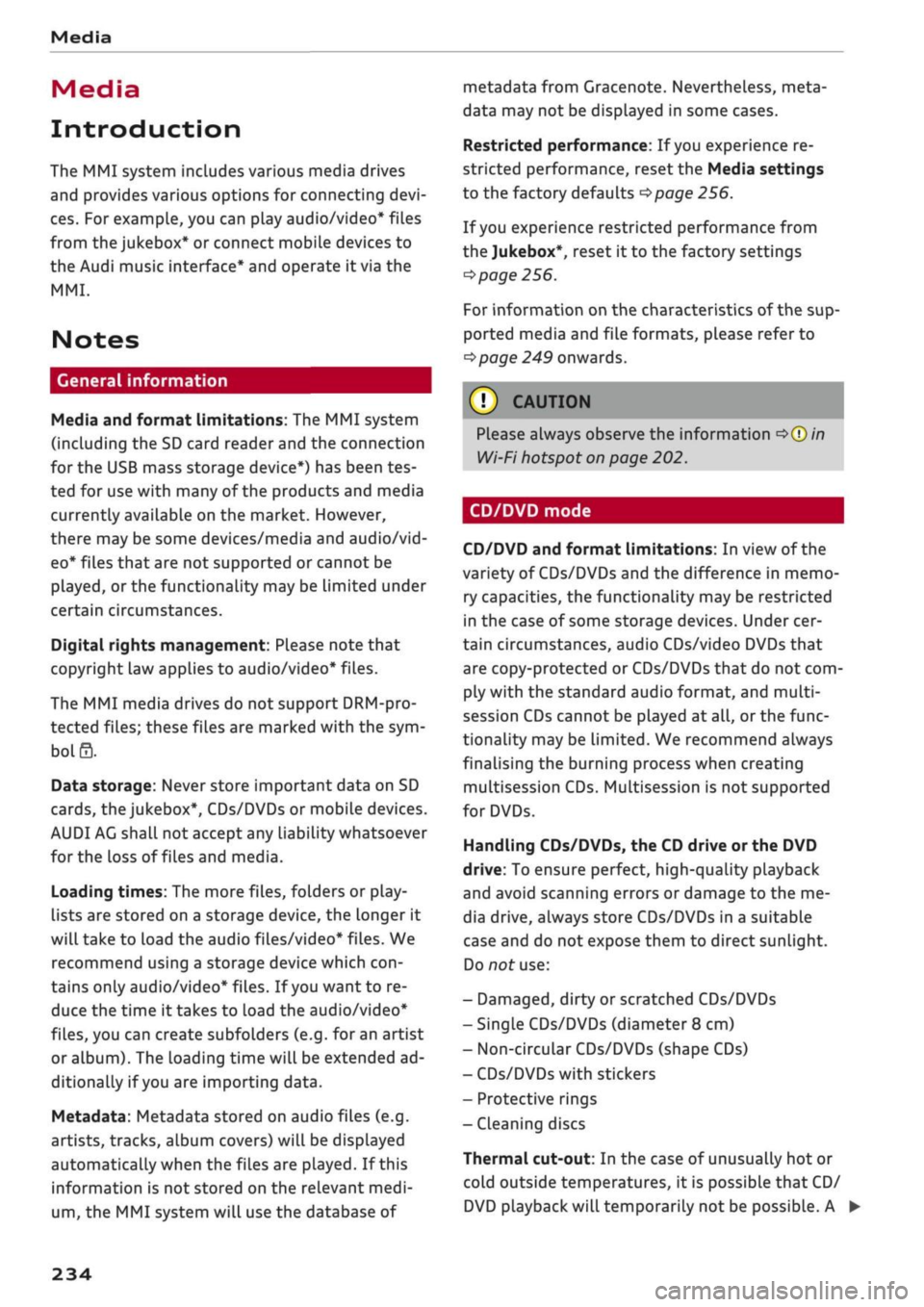
Fig.
189 Entry field and results list for the search function
- To call up the search function: While in a sta
tion list (e.g. FM station list), turn the rotary
pushbutton to the left until the entry field for
the search function is displayed.
- To use the search function: Refer to
^>page
160, Search function.
You can also search for frequencies2'.
Stations from the favourites
(f)
are displayed in
the results list®
^>Fig.
189. The symbol©
shows which station list you will switch to by se
lecting a particular station.
V
This function is not available in the Mexican market.
2)
This function is not available for DAB* waveband.
228
Page 238 of 364
Media
Media
Introduction
The MMI system includes various media drives
and provides various options for connecting
devi
ces.
For example, you can play audio/video* files
from the jukebox* or connect mobile devices to
the Audi music interface* and operate it via the
MMI.
Notes
General information
Media and format limitations: The MMI system
(including the SD card reader and the connection
for
the USB mass storage device*) has been tes
ted for use with many of the products and media
currently available on the market. However,
there may be some devices/media and audio/vid
eo*
files that are not supported or cannot be
played,
or the functionality may be limited under
certain circumstances.
Digital rights management: Please note that
copyright Law applies to audio/video* files.
The MMI media drives do not support DRM-pro-
tected files; these files are marked with the sym
bol S.
Data storage: Never store important data on SD
cards,
the jukebox*, CDs/DVDs or mobile devices.
AUDI AC shall not accept any liability whatsoever
for
the loss of files and media.
Loading times: The more files, folders or play
lists are stored on a storage device, the longer it
will take to load the audio files/video* files. We
recommend using a storage device which
con
tains only audio/video* files. If
you
want to re
duce the time it takes to load the audio/video*
files,
you can create subfolders (e.g. for an artist
or album). The loading time will be extended ad
ditionally if
you
are importing data.
Metadata: Metadata stored on audio files (e.g.
artists, tracks, album covers) will be displayed
automatically when the files are played. If this
information is not stored on the relevant medi
um,
the MMI system will use the database of
metadata from Gracenote. Nevertheless, meta
data may not be displayed in some cases.
Restricted performance: If
you
experience re
stricted performance, reset the Media settings
to the factory defaults
^page
256.
If
you
experience restricted performance from
the Jukebox*, reset it to the factory settings
<=>
page 256.
For information on the characteristics of the sup
ported media and file formats, please refer to
opage
249 onwards.
CAUTION
Please always observe the information
<=>(J)in
Wi-Fi hotspot on page 202.
CD/DVD mode
CD/DVD and format limitations: In view of the
variety of CDs/DVDs and the difference in memo
ry capacities, the functionality may be restricted
in the case of some storage devices. Under cer
tain circumstances, audio CDs/video DVDs that
are copy-protected or CDs/DVDs that do not com
ply with the standard audio format, and multi-
session CDs cannot be played at all, or the func
tionality may be limited. We recommend always
finalising the burning process when creating
multisession
CDs. Multisession is not supported
for DVDs.
Handling CDs/DVDs, the CD drive or the DVD
drive:
To ensure perfect, high-quality playback
and avoid scanning errors or damage to the me
dia drive, always store CDs/DVDs in a suitable
case and do not expose them to direct sunlight.
Do not use:
- Damaged, dirty or scratched CDs/DVDs
- Single CDs/DVDs (diameter 8 cm)
- Non-circular CDs/DVDs (shape CDs)
- CDs/DVDs with stickers
- Protective rings
- Cleaning discs
Thermal cut-out: In the case of unusually hot or
cold outside temperatures, it is possible that CD/
DVD playback will temporarily not be possible. A •
234
Page 244 of 364
Media
The following options may be available depend
ing on the information displayed (e.g. the sta
tion/track currently playing):
- Sound settings: Refer to
^>page
260.
- Wi-Fi settings: Refer to
Opage
201, Wi-Fi hot-
spot.
- Connection manager: Refer to
<>page
257.
- Additional options may be available depending
on the active online media service or Internet
radio function.
A WARNING
- Mobile devices, tablet and laptop computers
and devices of
a
similar weight can only be
operated safely when the vehicle is station
ary. Like any Loose object, they can be cata
pulted through the vehicle in an accident
and cause serious injuries. Always make sure
that such devices are securely stowed while
you are driving.
- No Wi-Fi devices may be used from the front
seats in the areas around the airbags while
the vehicle is being driven. Please also ob
serve the safety warnings on
^>page
282,
Front airbags.
© CAUTION
- Please always observe the information
•=>©
in Wi-Fi hotspot on page 202.
- In order to use online media, you generally
have
to
set up an account with an online
media service, which may lead
to
additional
costs,
especially if
you
are using the service
abroad.
© Note
- Depending on the Internet connection and
network
load,
playback of the online media
services may be interrupted.
- Whether online media and Internet radio
can be used depends on the availability
of
services provided by third parties.
- AUDI AG only enables you
to
access online
media services via the MMI system and ac
cepts no responsibility for the content of
online media services.
- Please always note the information in the
chapter
^>page
204, General notes on Audi
connect (infotainment).
- Depending on the mobile device you are us
ing,
you may experience interruptions
in
media playback when using the Audi MMI
connect app. To avoid interruptions, keep
the Audi MMI connect app running in the
foreground and do not lock the screen on
your mobile device.
- Audi dealerships will be able
to
provide you
with further information on online media.
Multimedia connections
USB adapters for Audi music interface or
USB charging socket
Depending on the vehicle equipment, you may be
able
to
connect your mobile devices (e.g. smart-
phones, MP3 players)
to
the Audi music interface
or the
USB
charging socket using the special
USB
adapters.
<
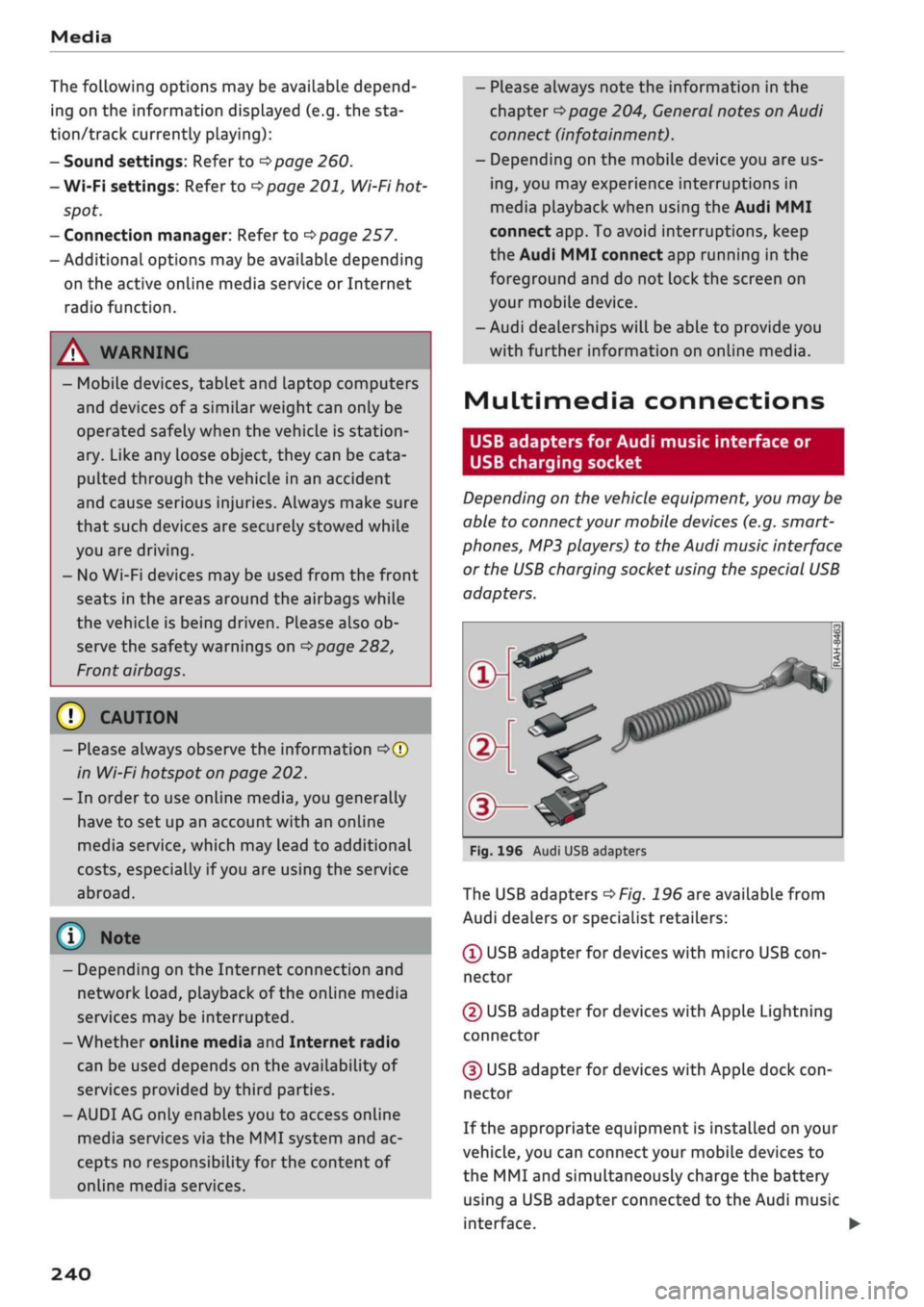
Fig.
196 Audi USB adapters
The USB adapters
^>Fig.
196 are available from
Audi dealers or specialist retailers:
® USB adapter for devices with micro USB
con
nector
© USB adapter for devices with Apple Lightning
connector
© USB adapter for devices with Apple dock
con
nector
If the appropriate equipment is installed on your
vehicle, you can connect your mobiLe devices
to
the MMI and simultaneously charge the battery
using a USB adapter connected
to
the Audi music
interface.
•
240
Page 248 of 364

Media
® Jukebox* 236
© DVD/CD drive*
235,
236
© SD card reader
235
© Audi music interface* 241
e.g.
iPod,
USB stick
© External audio player 242
e.g.
an MP3 player connected to
the
AUX input
© Bluetooth audio player* 237
© Wi-Fi audio player* 238
© Online media* and Internet radio* .. 239
- To play audio/video files: Select a source in the
Media menu > category (e.g. artist > album >
track/title).
- To access the next level up in the structure of
folders: Press the |BACK| button. Or: Select and
confirm Go up.
- To select the previous/next
item1^:
Briefly
press the ON/OFF button on the MMI controL
console to the left/right
(KM/»I).
- To rewind/fast forward audio/video* files:
Move and hold the ON/OFF button to the left/
right (KM/»)).
-To pause/resume playback: Briefly press the
ON/OFF button on the MMI control console.
(T)
Note
- You can scroll rapidly through long lists by
turning the rotary pushbutton quickly. The
scrolling speed depends on the number of
entries in the list.
- If the Traffic announcements
Opage
229
or DAB announcements* function is switch
ed on, playback is interrupted for announce
ments. You can cancel an announcement
while it is being played by briefly pressing
the ON/OFF button on the MMI controL
con
sole.
- For safety reasons, the video picture is not
available while the vehicle is moving. While
you are driving, only the sound is played.
Media centre
Several categories for selecting
audio/video1
files are available in the media centre.
Favourites
Artists
fl*
Albums
Fig.
201 Example: Categories for a USB stick
L
La
Fig.
fc V
!~
202
' /
Example
Orchestra Tracks
V\
Folders
J3
J
Playlists
/Videos
Categories for
a
USB stick
L
B
5
1
•
Press the |MEDIA| button. Press the left control
button repeatedly until the source overview is
displayed.
Select and confirm the desired
source.
©Active source
The active source is highlighted. The symbol for
the active source © may change depending on
the device connected or the online media* or In
ternet radio* service in use. The device name may
be displayed (e.g. MyPhone). A USB stick connec
ted via the Audi music interface* is shown as an
example
^>Fig.
201.
Depending on the active source, you can select
audio/video* files from the following categories
and copy them into the
playlist:
®
Favourites
The category Favourites appears if at least one
item has been stored as a favourite. Refer to
•=>page
246, Favourites.
l)
May not be possible during playback (depends on the
DVD).
244