warning AUDI Q3 2019 Owners Manual
[x] Cancel search | Manufacturer: AUDI, Model Year: 2019, Model line: Q3, Model: AUDI Q3 2019Pages: 280, PDF Size: 72.73 MB
Page 156 of 280
Audi connect
Audi connect
General information
Depending on the country and the vehicle equip-
ment, the following functions may be available:
— Audi connect Infotainment
You can also find more information on Audi con-
nect
online at www.audiusa.com.
ZA\ WARNING
— To reduce the risk of an accident, only use
Audi connect services when road and traffic
conditions permit. Always read and follow
the notes in > page 18, Traffic safety infor-
mation.
— It is only safe to use tablets, laptops, mobile
devices and other similar devices when the
vehicle is stationary because, like all loose
objects, they could be thrown around the in-
side of the vehicle in a crash and cause seri-
ous injuries. Store these types of devices se-
curely while driving.
— As the driver, do not allow usage of the Wi-
Fi hotspot to distract you from driving, as
this could increase the risk of an accident.
— Do not use any wireless devices on the front
seats within range of the airbags while driv-
ing. Also read the warnings in the chapter
=> page 61, Airbag system.
—To reduce the risk of an accident, use the Au-
di connect Infotainment services with a Wi-
Fi hotspot only in the rear seat when the ve-
hicle is in motion, or only when the vehicle is
stationary.
@) Note
— Applies to: embedded SIM card usage: The
connection costs of Audi connect Infotain-
ment services are included in the price of
Audi connect Infotainment during the sub-
scription period with some exceptions.
Please note that there may be additional
charges when using some services. For ex-
ample, this applies to Internet radio/
podcasts or for Internet connections and
services that use the Wi-Fi hotspot, such as
154
online media sources. Depending on the
country, data plans may need to be pur-
chased for these services > page 157. For
additional information, see my.audi.com.
— In certain situations, the Wi-Fi hotspot data
connection may be established as a replace-
ment for the SIM card on your Wi-Fi device.
This feature depends on the configuration
of your Wi-Fi device and operating system.
This could result in fees depending on your
cell phone service provider, especially if you
are using this feature while abroad. A flat
rate data plan is strongly recommended. For
more information, contact your cell phone
service provider or refer to the owner's man-
ual for your Wi-Fi device.
— You are responsible for all precautions taken
for data protection, anti-virus protection,
and protection against loss of data on mo-
bile devices that are used, for example, to
access the Internet through the Wi-Fi hot-
spot.
G) Tips
— The availability of services depends on the
subscription.
— AUDI AG provides access to services from
third party providers. Permanent availability
cannot be guaranteed, because that de-
pends on the third party provider.
— Use of the most up-to-date mobile network
standard is not available in every country.
Contact an authorized Audi dealer or au-
thorized Audi Service Facility or your cell
phone service provider for additional infor-
mation.
— Audi connect Infotainment services are only
available within the cell phone network cov-
erage from your cell phone service provider.
— Availability, scope, providers, screen display,
and costs of services may vary depending on
the country, model, model year, end device
and rates.
Page 157 of 280
83A012721BA
Audi connect
Audi connect
Infotainment
Applies to: vehicles with Audi connect Infotainment
With Audi connect Infotainment services, online
information is transmitted directly to the vehicle.
An Internet connection is required to use Audi
connect Infotainment. Depending on the country
and the vehicle equipment, the following options
may be available:
— Embedded SIM card
Z\ WARNING
Always follow the information found in > A\
in General information on page 154.
@) Note
Always follow the information found in >@ in
General information on page 154.
Embedded SIM card
Applies to: vehicles with Audi connect Infotainment and an
embedded SIM card
The data connection for Audi connect Infotain-
ment services is made through an embedded SIM
card (eSIM card) that is installed in the vehicle.
You can use the Audi connect Infotainment serv-
ices immediately.
@) Note
Always follow the information found in >@ in
General information on page 154.
Using a Wi-Fi hotspot
Applies to: vehicles with Wi-Fi hotspot
You can connect up to eight Wi-Fi devices (such
as smartphones) with the MMI Wi-Fi hotspot. If
the MMI is connected to the Internet
= page 155, the connected Wi-Fi devices can also
use the MMI’s Internet connection.
Requirement: The ignition must be switched on.
> Applies to: MMI: Select on the home screen:
SETTINGS > Connection settings > Wi-Fi
Switch on the Wi-Fi hotspot.
> Applies to: MMI: Select on the home screen:
SETTINGS > Connection settings > Wi-Fi > Wi-
Fi hotspot settings. The access data for the Wi-
Fi hotspot is displayed. Switch on the visibility
of the Wi-Fi hotspot if necessary.
> Switch the Wi-Fi function on in your mobile de-
vice and connect it to the MMI Wi-Fi hotspot
using the authentication data that is shown.
> Follow any additional system prompts on your
Wi-Fi device if necessary.
Your device is successfully connected with the
MMI's Wi-Fi hotspot.
Z\ WARNING
Always follow the information found in > AV
in General information on page 154.
CG) Note
Always follow the information found in >@ in
General information on page 154.
@) Tips
For an explanation on conformity with the
FCC regulations in the United States and the
Industry Canada regulations, see > page 261.
Audi connect
Infotainment services
Applies to: vehicles with Audi connect Infotainment
Some Audi connect Infotainment services must
be configured through your personal myAudi ac-
count before using them for the first time
=> page 27.
G) Tips
— For some Audi connect Infotainment serv-
ices, you may also have to enter your myAu-
di access information when accessing serv-
ices in the MMI.
— Some Audi connect Infotainment services
must be activated at my.audi.com.
155
Page 158 of 280
Audi connect
— You can only connect one myAudi account to
your vehicle.
— For detailed information on configuration,
visit my.audi.com.
Yate)
Applies to: vehicles with Audi connect Infotainment
Depending on the country and the vehicle equip-
ment, the following services may be available:
Weather
Applies to: MMI
> Press WEATHER on the home screen.
Editing settings: Select: WEATHER > GE.
Adding a location: select: In a new city > enter
the desired location.
> To permanently set weather for a location,
press on a location.
> To always show the weather based on the vehi-
cle position, press on the crosshairs.
Requirement: Route guidance must be active.
> To show the weather at the destination, press
on.
Removing a location: select: Z > one or more lo-
cations or Select all > Delete.
News
> Applies to: MMI: Select on the home screen:
NEWS.
If you logged in to myAudi in your vehicle
=> page 27, personalized newsfeeds can be dis-
played.
Twitter
Requirement: You must have connected your ve-
hicle with myAudi > page 27. You must have con-
nected your myAudi account with Twitter.
You can only connect one Twitter account with
your myAudi account. Not all settings can be ad-
justed in the MMI. Some can only be adjusted
through the Twitter website.
> Applies to: MMI: Select on the home screen:
NEWS > Ga. Press on a Twitter entry in the list.
156
Calendar
Requirement: the myAudi app must be installed
and open on your mobile device. Access to your
calendar must be enabled on your mobile device.
You must be logged into the myAudi app with
your myAudi login data and you must have select-
ed your vehicle. The Wi-Fi function on your mo-
bile device and the MMI must be enabled and
your mobile device must be paired to the MMI
Wi-Fi hotspot > page 157, Wi-Fi settings.
You can display the your mobile device calendar
on the MMI.
> Applies to: MMI: Press CALENDAR on the home
screen.
ZA WARNING
Always follow the information found in > A\
in General information on page 154.
@) Note
Always follow the information found in >@ in
General information on page 154.
Settings
Ce) telat -mar-iau cola 4
> Applies to: MMI: Select on the home screen:
SETTINGS > Connection settings > Mobile
phone network.
Depending on the country, vehicle equipment,
and connection type, the following functions may
be available:
Data connection settings
Using the Data connection settings menu, you
can set when the system should connect to the
Internet. The Internet connection disconnects
automatically once the requested Audi connect
Infotainment service no longer requires any data.
— Data roaming: data roaming is switched off at
the factory. To use a data connection outside of
the country, data roaming must be switched
on. The setting is stored for the current SIM
card or the mobile device that is currently con-
nected.
Page 159 of 280
83A012721BA
Audi connect
— Allow MMI online services: when this function
is switched on, a data connection is automati-
cally established in order to use Audi connect
Infotainment services.
— Allow Wi-Fi devices: when this function is
switched on, you can allow or deny Internet
connections.
Access point
The connection is configured automatically based
on the SIM card being used. The following values
can be changed. You can obtain more information
from your cell phone service provider.
— Access Point Name (APN): The access point de-
pends on the cell phone service provider and is
assigned automatically.
— User name: your cell phone service provider as-
signs the user name for your online profile.
— Password: your cell phone service provider as-
signs the password for your online profile.
— Apply settings: saves the changed settings.
— Reset configuration: resets the connection set-
tings.
Data usage counter
Your current data usage is displayed.
— Reset counter: you can reset your usage statis-
tics to zero.
— Warning limit: you can set a warning limit for
your data usage (GB/MB).
Wi-Fi settings
Applies to: vehicles with Wi-Fi hotspot
Requirement: The ignition must be switched on.
> Applies to: MMI: Select on the home screen:
SETTINGS > Connection settings > Wi-Fi
Depending on the country and the vehicle equip-
ment, the following functions may be available:
Wi-Fi
When the function is switched on, the MMI's Wi-
Fi hotspot is active and Wi-Fi devices can be con-
nected to the hotspot.
Wi-Fi hotspot settings
The Wi-Fi connection between the MMI and your
Wi-Fi device is encrypted. You can change the fol-
lowing information if needed.
— Access point (SSID): Wi-Fi hotspot name.
— Password: a random password was set in the
MMI at the factory. The password can be
changed. The encryption method requires a
password to be at least eight characters long.
Choose a secure password.
— Visible to others: you can switch the visibility
of the Wi-Fi hotspot on or off.
Z\ WARNING
Always follow the information found in > A,
in General information on page 154.
ZA WARNING
Always follow the information found in > A\
in General information on page 154.
@) Note
Always follow the information found in >@ in
General information on page 154.
G) Tips
For more information on roaming charges,
contact your cell phone service provider.
))_ Not available in every market.
@) Note
Always follow the information found in >@ in
General information on page 154.
Applies to: vehicles with data plans
Requirement: You must have a registered myAudi
account at my.audi.com. Your vehicle must be
registered in your myAudi account.
You can purchase data plans at my.audi.com.
157
Page 161 of 280
83A012721BA
Navigation
Navigation
Opening navigation
Applies to: vehicles with navigation system
The navigation system directs you to your desti-
nation, around traffic incidents, and on alterna-
tive routes, if desired.
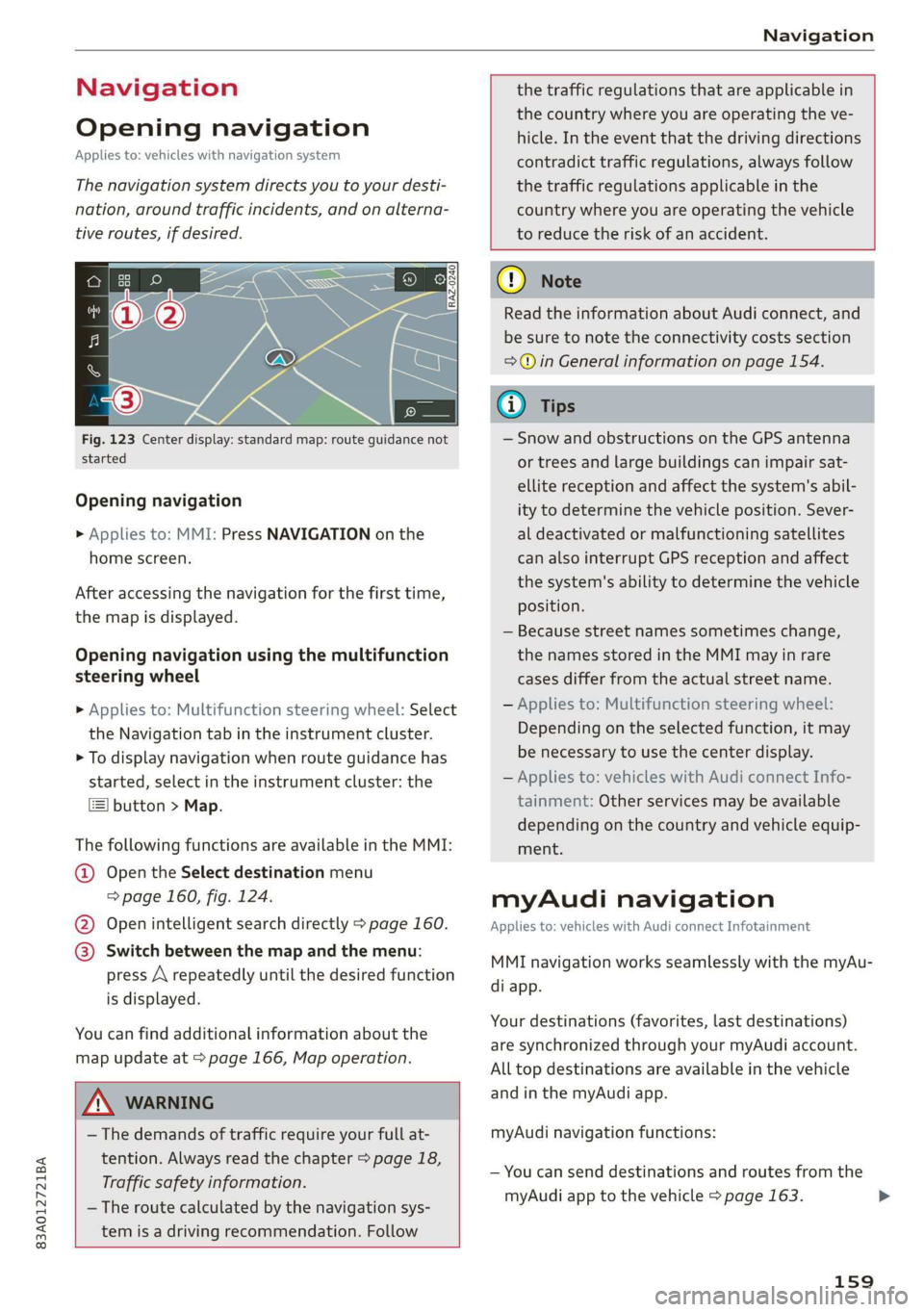
Fig. 123 Center display: standard map: route guidance not
started
Opening navigation
> Applies to: MMI: Press NAVIGATION on the
home screen.
After accessing the navigation for the first time,
the map is displayed.
Opening navigation using the multifunction
steering wheel
> Applies to: Multifunction steering wheel: Select
the Navigation tab in the instrument cluster.
> To display navigation when route guidance has
started, select in the instrument cluster: the
button > Map.
The following functions are available in the MMI:
@ Open the Select destination menu
=> page 160, fig. 124.
@ Open intelligent search directly > page 160.
@ Switch between the map and the menu:
press A repeatedly until the desired function
is displayed.
You can find additional information about the
map update at > page 166, Map operation.
the traffic regulations that are applicable in
the country where you are operating the ve-
hicle. In the event that the driving directions
contradict traffic regulations, always follow
the traffic regulations applicable in the
country where you are operating the vehicle
to reduce the risk of an accident.
ZX WARNING
— The demands of traffic require your full at-
tention. Always read the chapter > page 18,
Traffic safety information.
— The route calculated by the navigation sys-
tem is a driving recommendation. Follow
@) Note
Read the information about Audi connect, and
be sure to note the connectivity costs section
=>© in General information on page 154.
@ Tips
— Snow and obstructions on the GPS antenna
or trees and large buildings can impair sat-
ellite reception and affect the system's abil-
ity to determine the vehicle position. Sever-
al deactivated or malfunctioning satellites
can also interrupt GPS reception and affect
the system's ability to determine the vehicle
position.
— Because street names sometimes change,
the names stored in the MMI may in rare
cases differ from the actual street name.
— Applies to: Multifunction steering wheel:
Depending on the selected function, it may
be necessary to use the center display.
— Applies to: vehicles with Audi connect Info-
tainment: Other services may be available
depending on the country and vehicle equip-
ment.
myAudi navigation
Applies to: vehicles with Audi connect Infotainment
MMI navigation works seamlessly with the myAu-
di app.
Your destinations (favorites, last destinations)
are synchronized through your myAudi account.
All top destinations are available in the vehicle
and
in the myAudi app.
myAudi navigation functions:
— You can send destinations and routes from the
myAudi app to the vehicle > page 163.
159
>
Page 168 of 280
Navigation
Symbol
*
By Previous destinations display
Meaning
Favorites > page 168
Traffic information display on the map or
map preview
Color-coded markings along the route indicate
the traffic flow:
Green: traffic is flowing freely.
Yellow: stop-and-go traffic.
Red: traffic jam or traffic obstructions.
Shaded markings indicate the length of the area
with congestion.
Traffic information
— Colored warning symbols: There is an upcom-
ing traffic incident on your route.
— Grayed out warning symbols: Traffic incidents
that are not on your route
— All traffic incidents will display in color when
route guidance is inactive.
— Warning symbols with arrow: traffic incident
that you have been routed around, for example
3.
You can adjust the display of colored markings
for traffic information on the maps > page 173.
Applies to: vehicles with navigation system
You can operate the map > page 165, fig. 126
with the movements described in the following
information.
Moving the map
> Drag your finger across the map in the desired
direction.
Moving the map quickly
> Drag your finger across the map in the desired
direction and lift your finger off the screen.
166
Zooming in on the map
> Place two fingers on the map and pull your fin-
gers apart. Or: double tap on the map with one
finger.
Zooming out on the map
> Place two fingers on the map and pull your fin-
gers together. Or: double tap on the map with
two fingers.
Rotating the map
> Rotate the map using two fingers.
Tilting the map
> Drag upward or downward with two fingers.
(Gi) Tips
Certain gestures may not be available on all
touch displays or in every menu.
Navigation view with route guidance
Berar
Applies to: vehicles with navigation system and Audi virtual
cockpit
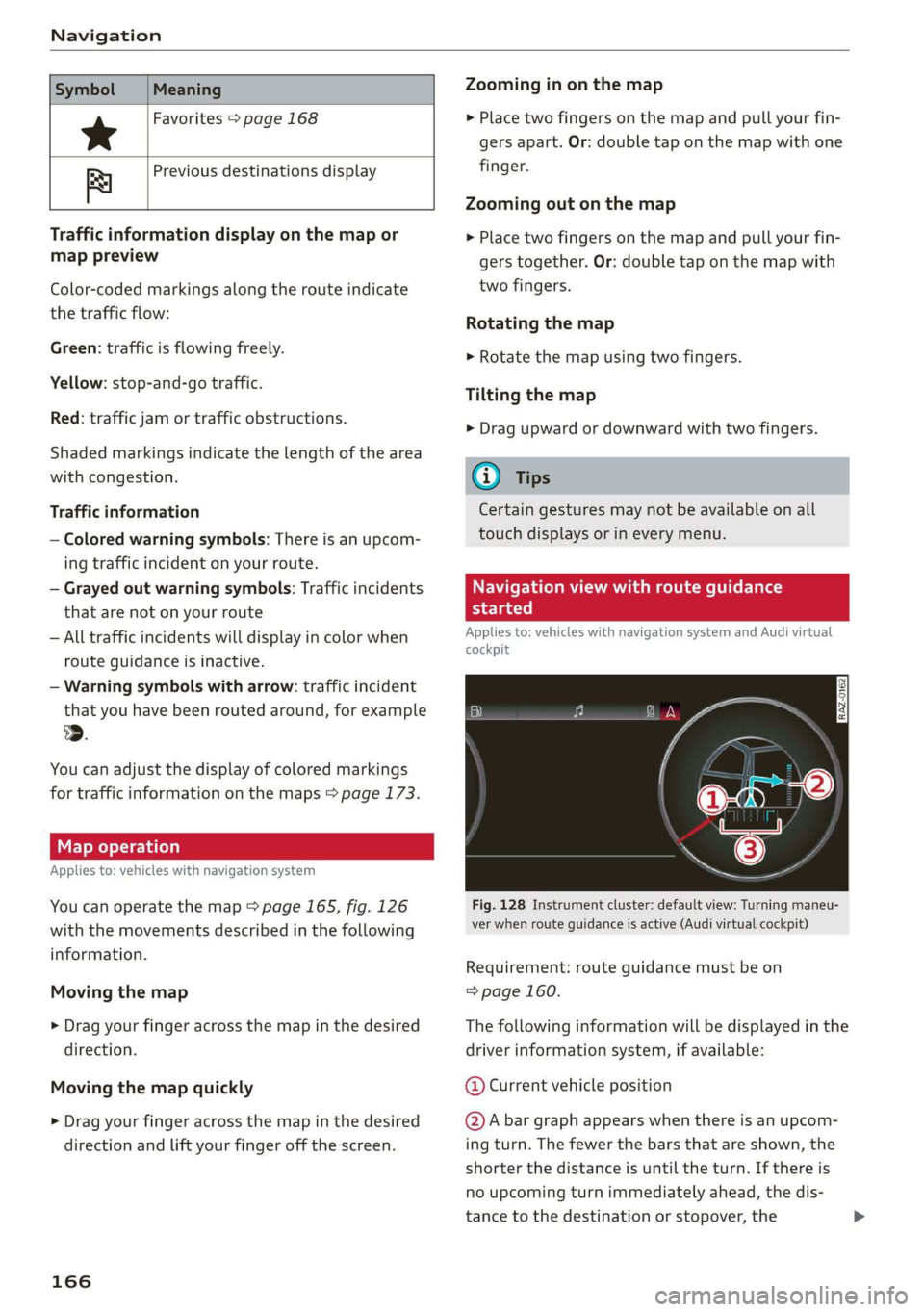
Fig. 128 Instrument cluster: default view: Turning maneu-
ver when route guidance is active (Audi virtual cockpit)
Requirement: route guidance must be on
=> page 160.
The following information will be displayed in the
driver information system, if available:
@ Current vehicle position
@A bar graph appears when there is an upcom-
ing turn. The fewer the bars that are shown, the
shorter the distance is until the turn. If there is
no upcoming turn immediately ahead, the dis-
tance to the destination or stopover, the
Page 173 of 280
83A012721BA
Navigation
Start map update
Requirement: a map update for your vehicle must
be onan SD card or a USB flash drive.
> Insert the SD card in your vehicle's SD card
reader > page 182. Or: connect the USB flash
drive to the Audi music interface > page 184.A
notification for a map update will appear in the
center display.
> Press on the notification. Or: access the notifi-
cation in the notification center on > page 20
and press on the notification. The update pack-
age is shown.
> Press Next. The status of the installation is
shown in the center display.
> When the update has ended, a notification will
be displayed.
Map updates settings
Applies to: vehicles with navigation system and Audi connect
Infotainment
> Applies to: MMI: Select on the home screen:
SETTINGS > System maintenance.
Automatic online map update: map updates are
automatically downloaded and installed when
this function is switched on.
@) Note
Read the information about Audi connect, and
be sure to note the connectivity costs section
=>@ in General information on page 154.
Traffic information
Introduction
Applies to: vehicles with navigation system
50}
RAX-0020] MA PR eae niches ni
eee en
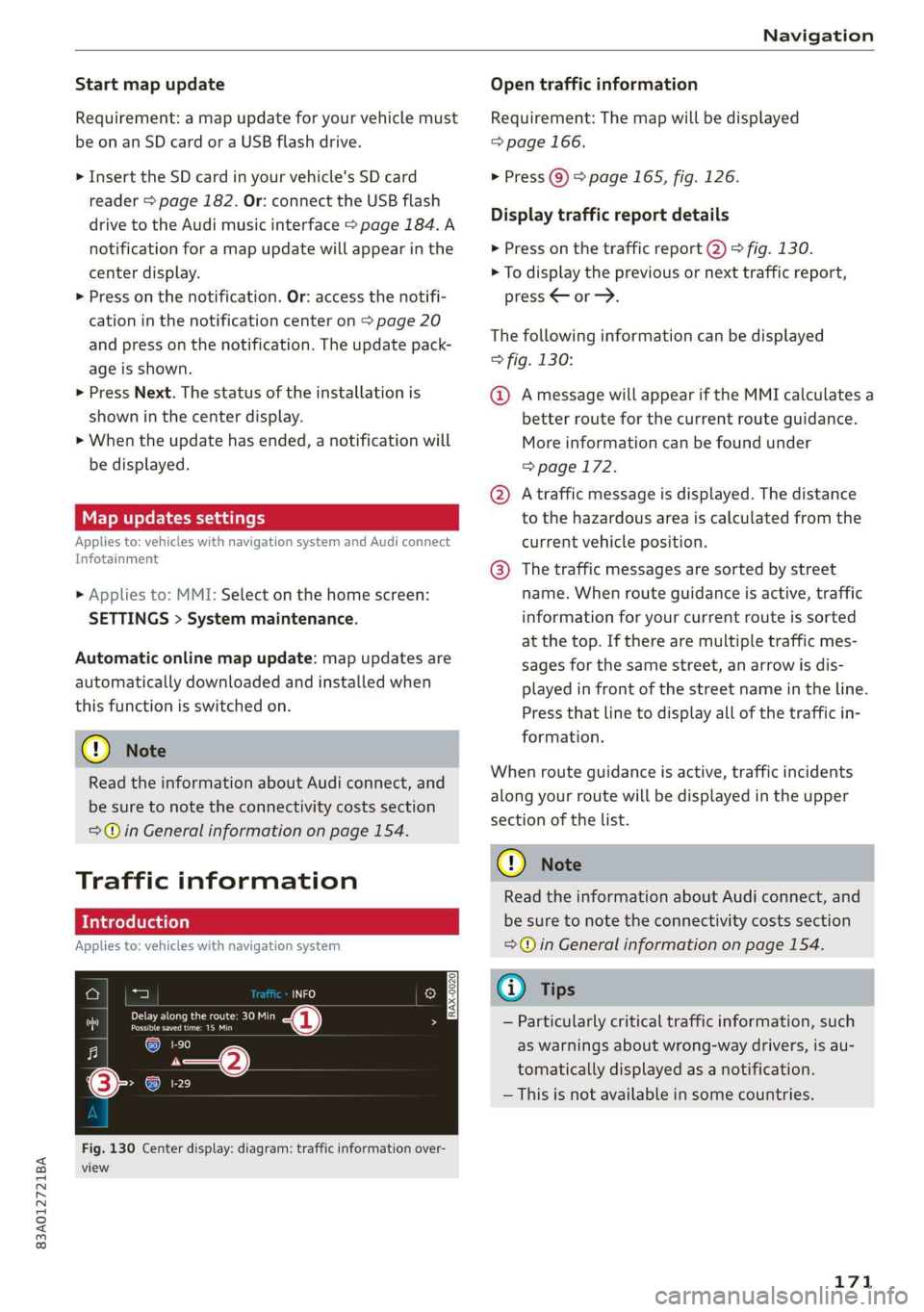
Fig. 130 Center display: diagram: traffic information over-
view
Open traffic information
Requirement: The map will be displayed
=> page 166.
> Press Q) > page 165, fig. 126.
Display traffic report details
> Press on the traffic report @) > fig. 130.
> To display the previous or next traffic report,
press < or.
The following information can be displayed
> fig. 130:
@ Amessage will appear if the MMI calculates a
better route for the current route guidance.
More information can be found under
=> page 172.
@ Atraffic message is displayed. The distance
to the hazardous area is calculated from the
current vehicle position.
@® The traffic messages are sorted by street
name. When route guidance is active, traffic
information for your current route is sorted
at the top. If there are multiple traffic mes-
sages for the same street, an arrow is dis-
played in front of the street name in the line.
Press that line to display all of the traffic in-
formation.
When route guidance is active, traffic incidents
along your route will be displayed in the upper
section of the list.
@) Note
Read the information about Audi connect, and
be sure to note the connectivity costs section
=@ in General information on page 154.
(i) Tips
— Particularly critical traffic information, such
as warnings about wrong-way drivers, is au-
tomatically displayed as a notification.
— This is not available in some countries.
171
Page 185 of 280

83A012721BA
Media
Connecting a mobile device using the center
display
> Applies to: MMI: Select on the home screen:
MEDIA > Source > Connect external device >
New connection. The available Bluetooth devi-
ces will be displayed after several seconds.
> Press on the desired mobile device in the list of
displayed Bluetooth devices.
> To update the list, press O.
> A PIN for a secure Bluetooth connection will be
generated.
> Confirm the PIN on your mobile device, or enter
the PIN for the connection setup on your mo-
bile device. The time allowed for entering the
PIN is limited to approximately 30 seconds.
After connecting successfully, the mobile device
will be displayed in the Connected devices menu
as a Bluetooth audio player.
Playing media > page 185.
G) Tips
— Check for any connection requests on your
Bluetooth device.
— Multiple Bluetooth audio players can be
connected to the MMI, but only one ata
time can be active as a Bluetooth audio
player > page 196.
— The supported media functions (such as
shuffle, list view, categories, search, op-
tions) depend on the Bluetooth device being
used.
— Note the volume setting on your Bluetooth
device. AUDI AG recommends setting your
mobile device to the maximum volume
when using it as a Bluetooth audio player.
— For more information on supported devices,
visit www.audiusa.com/bluetooth or con-
tact an authorized Audi dealer or authorized
Audi Service Facility.
Online media
Applies to: vehicles with Audi connect Infotainment and on-
line media
You can play and operate various online media
services, such as music streaming services, using
the MMI.
Requirement: A supported online media service
must be available in the country where the vehi-
cle is being operated.
Connect online media
> Connect the MMI to the Internet > page 154.
> Switch on the Wi-Fi hotspot in the MMI
=> page 157.
> Applies to: MMI: Select on the home screen:
MEDIA > Source > Connect online media.
> Switch the Wi-Fi function on in your mobile de-
vice and connect it to the MMI Wi-Fi hotspot
=> page 155.
> Install and start the myAudi app on your mo-
bile device.
> Log in to your myAudi account in the myAudi
app and select your vehicle.
Your mobile device must be connected to the
MMI and must be highlighted. When you press
the highlighted device, it will be disconnected.
Starting online media
> Applies to: MMI: Select on the home screen:
MEDIA > Source. All online media services sup-
ported in your country will be displayed.
> Press on the desired online media service and
follow the system instructions.
ZA\ WARNING
— It is only safe to use tablets, laptops, mobile
devices and other similar devices when the
vehicle is stationary because, like all loose
objects, they could be thrown around the in-
side of the vehicle in a crash and cause seri-
ous injuries. Store these types of devices se-
curely while driving.
— Do not use any wireless devices on the front
seats within range of the airbags while driv-
ing. Also read and follow the warnings in
=>
page 61, Airbag system.
() Note
— Read the information about Audi connect,
and be sure to note the connectivity costs
section >@ in General information on
page 154.
183
Page 186 of 280
Media
— There generally are additional costs when
using an online media service account,
especially when it is used internationally.
G) Tips
— Depending on the Internet connection and
network traffic, the connection may discon-
nected when online media sources are play-
ing.
— Online media usage depends on the service
availability of the third party provider.
— Audi AG simply makes the access to online
media services possible through the MMI
and does not take any responsibility for the
contents of the online media services.
— Always read the chapter > page 154.
— Depending on the mobile device being used,
there may be interruptions during media
playback and when using the myAudi app.
To avoid interruptions when using a mobile
device, do not lock the screen on your mo-
bile device and keep the myAudi app in the
foreground.
Multimedia connections
USB adapter cable
[RAH-9202
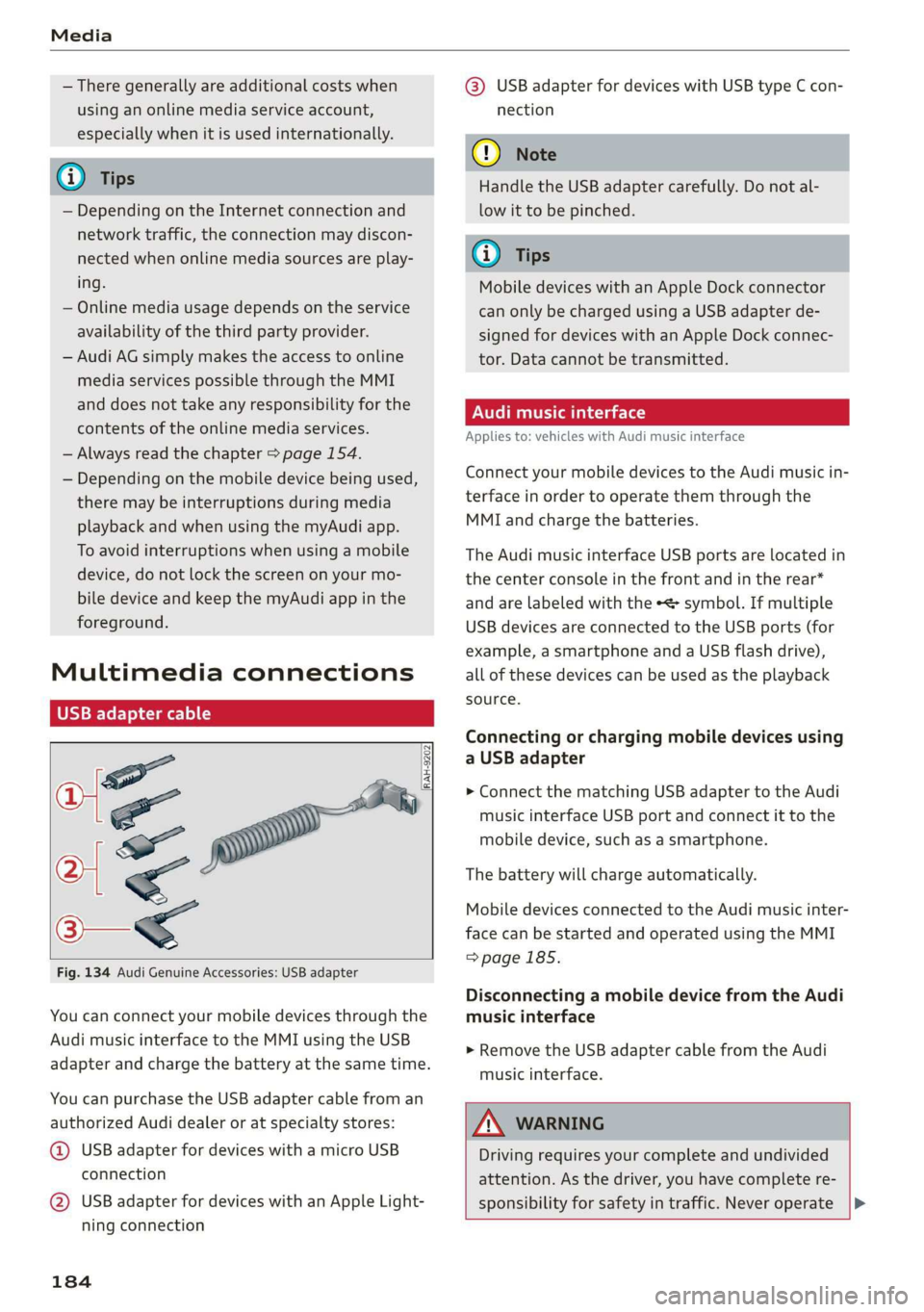
Fig. 134 Audi Genuine Accessories: USB adapter
You can connect your mobile devices through the
Audi music interface to the MMI using the USB
adapter and charge the battery at the same time.
You can purchase the USB adapter cable from an
authorized Audi dealer or at specialty stores:
@ USB adapter for devices with a micro USB
connection
@ USB adapter for devices with an Apple Light-
ning connection
184
@® USB adapter for devices with USB type C con-
nection
() Note
Handle the USB adapter carefully. Do not al-
low it to be pinched.
G) Tips
Mobile devices with an Apple Dock connector
can only be charged using a USB adapter de-
signed for devices with an Apple Dock connec-
tor. Data cannot be transmitted.
ONT Tae 1a 1e)
Applies to: vehicles with Audi music interface
Connect your mobile devices to the Audi music in-
terface in order to operate them through the
MMI and charge the batteries.
The Audi music interface USB ports are located in
the center console in the front and in the rear*
and are labeled with the «> symbol. If multiple
USB devices are connected to the USB ports (for
example, a smartphone and a USB flash drive),
all of these devices can be used as the playback
source.
Connecting or charging mobile devices using
a USB adapter
> Connect the matching USB adapter to the Audi
music interface USB port and connect it to the
mobile device, such as a smartphone.
The battery will charge automatically.
Mobile devices connected to the Audi music inter-
face can be started and operated using the MMI
=>page 185.
Disconnecting a mobile device from the Audi
music interface
> Remove the USB adapter cable from the Audi
music interface.
ZA WARNING
Driving requires your complete and undivided
attention. As the driver, you have complete re-
sponsibility for safety in traffic. Never operate |>
Page 195 of 280
83A012721BA
Audi smartphone interface
Audi smartphone
interface
Setup
Applies to: vehicles with Audi smartphone interface
You can connect your smartphone to the MMI
with a cable or wirelessly* using the Audi smart-
phone interface. Certain content on your smart-
phone is adapted in the MMI while driving and
can be operated through the MMI.
Requirement
The vehicle must be stationary and the ignition
must be switched on.
iPhone generation 5 or higher with Lightning
connector and iOS 7.1.2 operating system or
higher, or
A smartphone with the Android Auto app and An-
droid 5.0 Lollipop operating system or higher is
required.
> Applies to: MMI: Select on the home screen:
SETTINGS > Connected devices > Audi smart-
phone interface > New connection.
> Connect your smartphone to the Audi music in-
terface > page 184 using a USB adapter
=> page 184, fig. 134, or
> To connect your iPhone wireless*, switch on the
Bluetooth function and Wi-Fi on your iPhone.
Open the CarPlay settings in your iPhone. In the
MMI, press on your smartphone in the list of
displayed devices.
> To update the list, press O.
> Follow the system instructions.
>» Pay attention to any additional system prompts
on your smartphone, if applicable.
Applies to: MMI: If you declined use of Apple Car-
Play or Android Auto the first time you connected
your smartphone, then select on the home
screen: SETTINGS > Connected devices > Audi
smartphone interface > a smartphone.
> Follow the system instructions.
mobile devices while driving, because this in-
creases the risk of an accident.
ZA\ WARNING
Driving requires your complete and undivided
attention. As the driver, you have complete re-
sponsibility for safety in traffic. Never operate
() Note
Read the information about Audi connect, and
be sure to note the connectivity costs section
=> page 154.
G) Tips
— The functions that can be used depend on
the following factors, among others:
—The brand of your smartphone
—The version of the operating system in
your smartphone
— The software version of the app used
— The USB adapter cable and correct connec-
tion
— Your cell phone service provider
— The customized settings on your smart-
phone
— One of the factors above or a combination
of any of them could cause your smart-
phone to be incompatible with the Audi
smartphone interface. Compatibility cannot
be guaranteed for all types of smartphones.
For more information and assistance, refer
to the user guide and the manufacturer of
your smartphone.
— Please note that you can only connect your
smartphone via the front Audi music inter-
face in order to use the Audi smartphone in-
terface.
— Wireless CarPlay* is not available in all
countries.
— Wireless CarPlay* is only available if your ve-
hicle is registered through a certain option
in the mobile phone network > page 155,
Embedded SIM card. Make sure the function
= page 150, Turn on car phone or data
module is switched on. Make sure an eSIM
is installed and active or a personal SIM card
is in the SIM card reader.
— If the connected smartphone has voice con-
trol, you can operate your smartphone using
the external voice recognition system
=> page 25.
193