radio AUDI Q3 2019 User Guide
[x] Cancel search | Manufacturer: AUDI, Model Year: 2019, Model line: Q3, Model: AUDI Q3 2019Pages: 280, PDF Size: 72.73 MB
Page 180 of 280
Radio
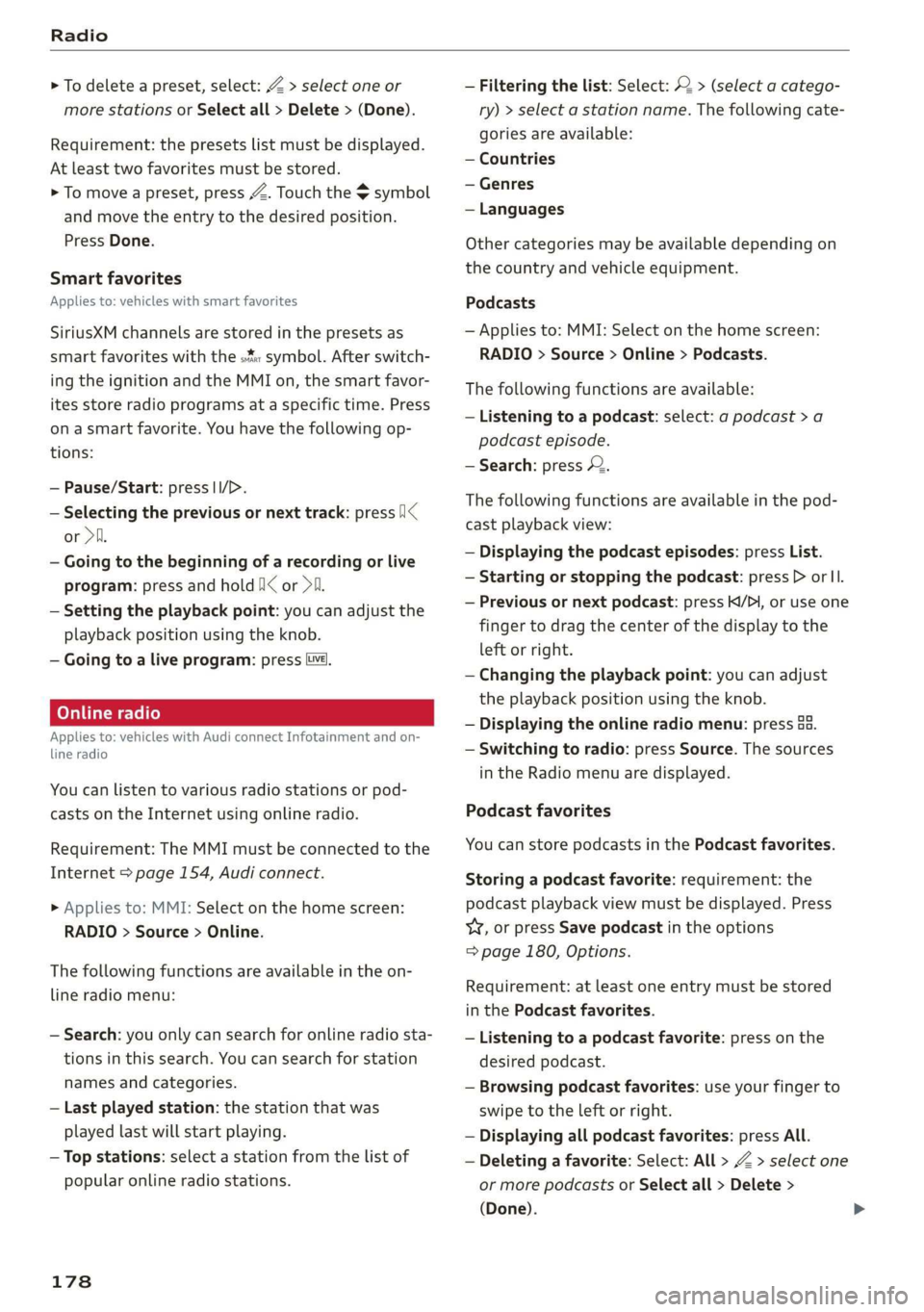
> To delete a preset, select: Z > select one or
more stations or Select all > Delete > (Done).
Requirement: the presets list must be displayed.
At least two favorites must be stored.
> To move a preset, press Z. Touch the symbol
and move the entry to the desired position.
Press Done.
Smart favorites
Applies to: vehicles with smart favorites
SiriusXM channels are stored in the presets as
smart favorites with the »% symbol. After switch-
ing the ignition and the MMI on, the smart favor-
ites store radio programs at a specific time. Press
ona smart favorite. You have the following op-
tions:
— Pause/Start: press |I/D.
— Selecting the previous or next track: press !I<
or >i.
— Going to the beginning of a recording or live
program: press and hold !I< or >i.
— Setting the playback point: you can adjust the
playback position using the knob.
— Going to a live program: press Lvé).
Applies to: vehicles with Audi connect Infotainment and on-
line radio
You can listen to various radio stations or pod-
casts on the Internet using online radio.
Requirement: The MMI must be connected to the
Internet > page 154, Audi connect.
> Applies to: MMI: Select on the home screen:
RADIO > Source > Online.
The following functions are available in the on-
line radio menu:
— Search: you only can search for online radio sta-
tions in this search. You can search for station
names and categories.
— Last played station: the station that was
played last will start playing.
— Top stations: select a station from the list of
popular online radio stations.
178
— Filtering the list: Select: © > (select a catego-
ry) > select a station name. The following cate-
gories are available:
— Countries
— Genres
— Languages
Other categories may be available depending on
the country and vehicle equipment.
Podcasts
— Applies to: MMI: Select on the home screen:
RADIO > Source > Online > Podcasts.
The following functions are available:
— Listening to a podcast: select: ag podcast >a
podcast episode.
— Search: press 2.
The following functions are available in the pod-
cast playback view:
— Displaying the podcast episodes: press List.
— Starting or stopping the podcast: press P orl.
— Previous or next podcast: press K/D\, or use one
finger to drag the center of the display to the
left or right.
— Changing the playback point: you can adjust
the playback position using the knob.
— Displaying the online radio menu: press 58.
— Switching to radio: press Source. The sources
in the Radio menu are displayed.
Podcast favorites
You can store podcasts in the Podcast favorites.
Storing a podcast favorite: requirement: the
podcast playback view must be displayed. Press
yy, or press Save podcast in the options
=> page 180, Options.
Requirement: at least one entry must be stored
in the Podcast favorites.
— Listening to a podcast favorite: press on the
desired podcast.
— Browsing podcast favorites: use your finger to
swipe to the Left or right.
— Displaying all podcast favorites: press All.
— Deleting a favorite: Select: All > Z > select one
or more podcasts or Select all > Delete >
(Done).
Page 181 of 280
83A012721BA
Radio
Requirement: At least two favorites must be stor-
ed.
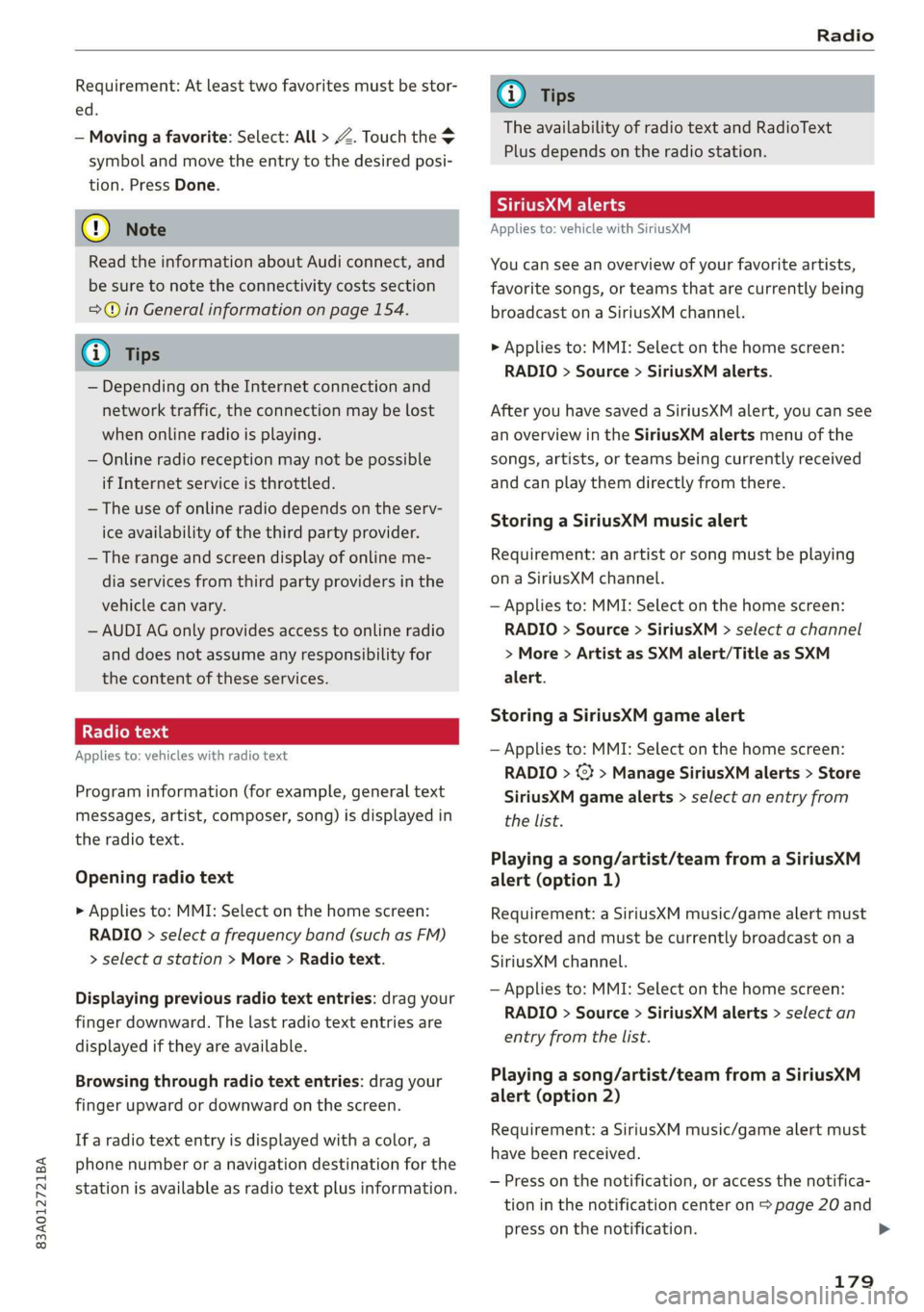
— Moving a favorite: Select: All > Z. Touch the
symbol and move the entry to the desired posi-
tion. Press Done.
@) Note
Read the information about Audi connect, and
be sure to note the connectivity costs section
=@ in General information on page 154.
G) Tips
— Depending on the Internet connection and
network traffic, the connection may be lost
when online radio is playing.
— Online radio reception may not be possible
if Internet service is throttled.
— The use of online radio depends on the serv-
ice availability of the third party provider.
— The range and screen display of online me-
dia services from third party providers in the
vehicle can vary.
— AUDI AG only provides access to online radio
and does not assume any responsibility for
the content of these services.
Radio text
Applies to: vehicles with radio text
Program information (for example, general text
messages, artist, composer, song) is displayed in
the radio text.
Opening radio text
> Applies to: MMI: Select on the home screen:
RADIO > select a frequency band (such as FM)
> select a station > More > Radio text.
Displaying previous radio text entries: drag your
finger downward. The last radio text entries are
displayed if they are available.
Browsing through radio text entries: drag your
finger upward or downward on the screen.
If a radio text entry is displayed with a color, a
phone number or a navigation destination for the
station is available as radio text plus information.
@) Tips
The availability of radio text and RadioText
Plus depends on the radio station.
TMi a cy
Applies to: vehicle with SiriusXM
You can see an overview of your favorite artists,
favorite songs, or teams that are currently being
broadcast on a SiriusXM channel.
> Applies to: MMI: Select on the home screen:
RADIO > Source > SiriusXM alerts.
After you have saved a SiriusXM alert, you can see
an overview in the SiriusXM alerts menu of the
songs, artists, or teams being currently received
and can play them directly from there.
Storing a SiriusXM music alert
Requirement: an artist or song must be playing
ona SiriusXM channel.
— Applies to: MMI: Select on the home screen:
RADIO > Source > SiriusXM > select a channel
> More > Artist as SXM alert/Title as SXM
alert.
Storing a SiriusXM game alert
— Applies to: MMI: Select on the home screen:
RADIO > © > Manage SiriusXM alerts > Store
SiriusXM game alerts > select an entry from
the list.
Playing a song/artist/team from a SiriusXM
alert (option 1)
Requirement: a SiriusXM music/game alert must
be stored and must be currently broadcast on a
SiriusXM channel.
— Applies to: MMI: Select on the home screen:
RADIO > Source > SiriusXM alerts > select an
entry from the list.
Playing a song/artist/team from a SiriusXM
alert (option 2)
Requirement: a SiriusXM music/game alert must
have been received.
— Press on the notification, or access the notifica-
tion in the notification center on > page 20 and
press on the notification.
179
>
Page 182 of 280
Radio
Managing SiriusXM alerts
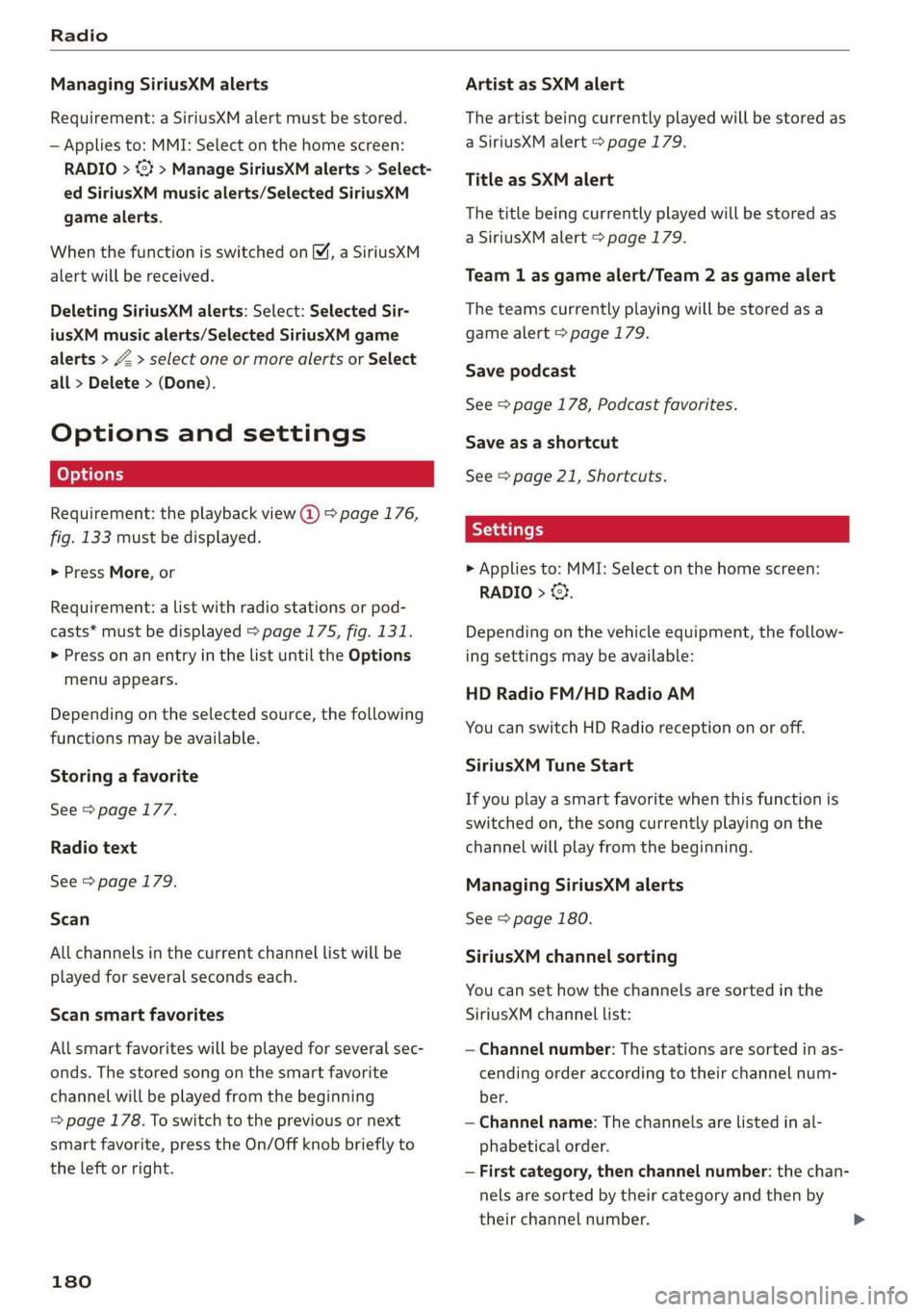
Requirement: a SiriusXM alert must be stored.
— Applies to: MMI: Select on the home screen:
RADIO > <3 > Manage SiriusXM alerts > Select-
ed SiriusXM music alerts/Selected SiriusKM
game alerts.
When the function is switched on, a SiriusXM
alert will be received.
Deleting SiriusXM alerts: Select: Selected Sir-
iusXM music alerts/Selected SiriusXM game
alerts > Z > select one or more alerts or Select
all > Delete > (Done).
Options and settings
Requirement: the playback view (2) > page 176,
fig. 133 must be displayed.
> Press More, or
Requirement: a list with radio stations or pod-
casts* must be displayed > page 175, fig. 131.
> Press on an entry in the list until the Options
menu appears.
Depending on the selected source, the following
functions
may be available.
Storing a favorite
See > page 177.
Radio text
See > page 179.
Scan
All channels in the current channel list will be
played for several seconds each.
Scan smart favorites
All smart favorites will be played for several sec-
onds. The stored song on the smart favorite
channel will be played from the beginning
= page 178. To switch to the previous or next
smart favorite, press the On/Off knob briefly to
the left or right.
180
Artist as SXM alert
The artist being currently played will be stored as
a SiriusXM alert > page 179.
Title as SXM alert
The title being currently played will be stored as
a SiriusXM alert > page 179.
Team 1 as game alert/Team 2 as game alert
The teams currently playing will be stored as a
game alert > page 179.
Save podcast
See > page 178, Podcast favorites.
Save as a shortcut
See > page 21, Shortcuts.
> Applies to: MMI: Select on the home screen:
RADIO > ©}.
Depending on the vehicle equipment, the follow-
ing settings may be available:
HD Radio FM/HD Radio AM
You can switch HD Radio reception on or off.
SiriusXM Tune Start
If you play a smart favorite when this function is
switched on, the song currently playing on the
channel will play from the beginning.
Managing SiriusXM alerts
See > page 180.
SiriusXM channel sorting
You can set how the channels are sorted in the
SiriusXM channel list:
— Channel number: The stations are sorted in as-
cending order according to their channel num-
ber.
— Channel name: The channels are listed in al-
phabetical order.
— First category, then channel number: the chan-
nels are sorted by their category and then by
their channel number.
Page 183 of 280
83A012721BA
Radio
— First category, then channel name: the chan-
nels are sorted by their category and then by
their channel names.
SiriusXM category filter
The stations shown in the station list can be fil-
tered by your personal preferences and by pro-
gram type. The program categories that you can
select depend on what is offered by your provid-
er. When the Unsubscribed channels function is
switched off, unsubscribed channels will be hid-
den.
SiriusXM subscription status
This option is available when your subscription is
about to expire or has already expired. The expi-
ration date for your license is displayed.
Call SiriusXM: the telephone number and radio
ID of your satellite radio provider are displayed.
To call your satellite radio provider using the
MMI, press Call SiriusXM.
Online additional data
Applies to: vehicles with Audi connect Infotainment
Requirement: The MMI must be connected to the
Internet > page 155.
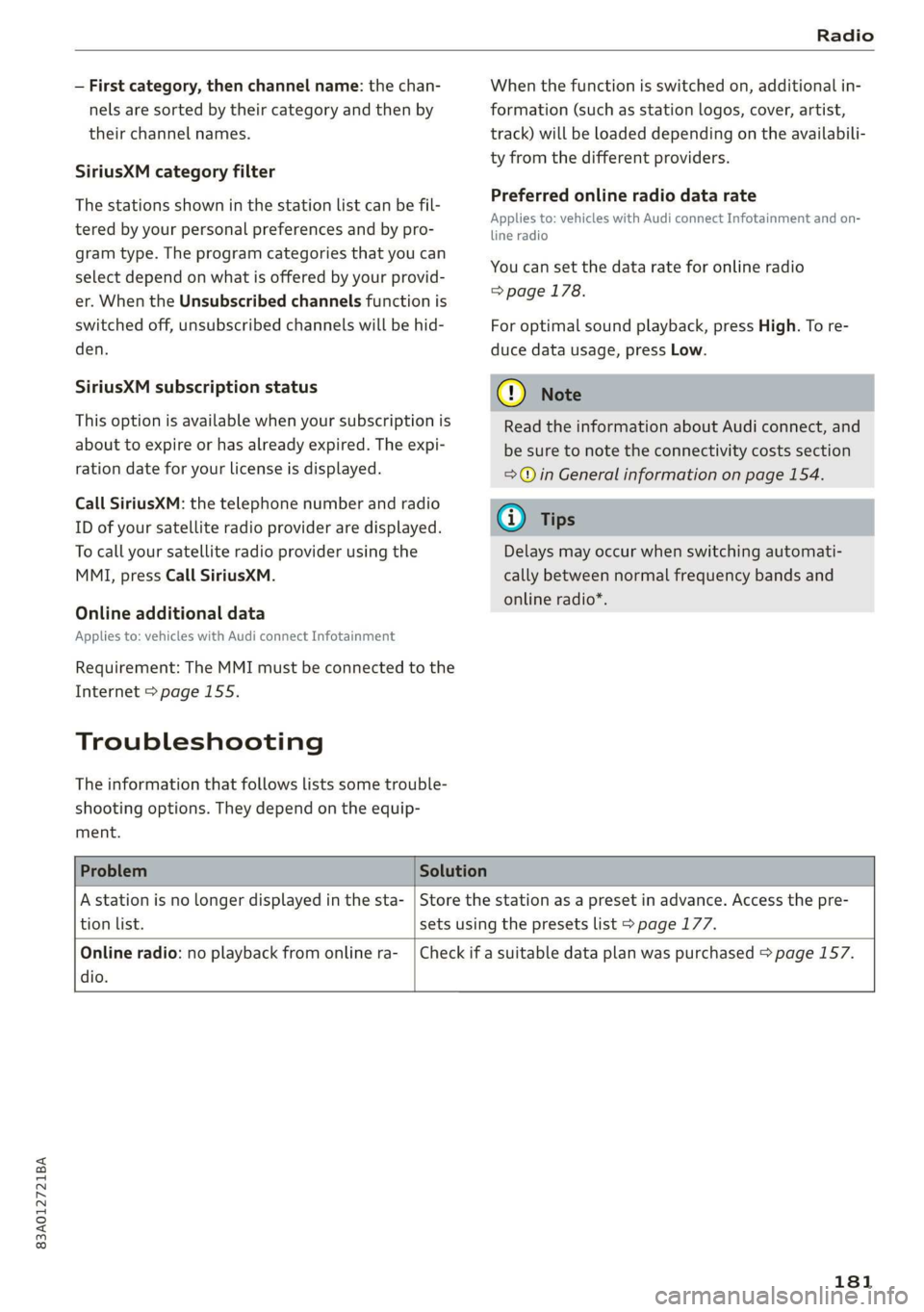
Troubleshooting
The information that follows lists some trouble-
shooting options. They depend on the equip-
ment.
When the function is switched on, additional in-
formation (such as station logos, cover, artist,
track) will be loaded depending on the availabili-
ty from the different providers.
Preferred online radio data rate
Applies to: vehicles with Audi connect Infotainment and on-
line radio
You can set the data rate for online radio
=> page 178.
For optimal sound playback, press High. To re-
duce data usage, press Low.
() Note
Read the information about Audi connect, and
be sure to note the connectivity costs section
=>@) in General information on page 154.
Gi) Tips
Delays may occur when switching automati-
cally between normal frequency bands and
online radio*.
Problem Solution
A station is no longer displayed in the sta-
tion list.
Store the station as a preset in advance. Access the pre-
sets using the presets list > page 177.
Online radio: no playback from online ra-
dio.
Check if a suitable data plan was purchased > page 157.
181
Page 187 of 280
83A012721BA
Media
mobile devices while driving, because this in-
creases the risk of an accident.
@) Note
— Pull the cable out of the Audi music inter-
face carefully so that the USB ports are not
damaged.
— Use a USB extension cable to connect devi-
ces that have an integrated USB connector
(such as a USB stick) to reduce the risk of
damage to your USB device and the Audi
music interface.
— Extremely high or low temperatures that
can occur inside vehicles can damage mobile
devices and/or impair their performance.
Never leave mobile devices in the vehicle in
extremely high or low temperatures.
@ Tips
— Always follow the information found in
=> page 72.
— When you switch the ignition off, the USB
ports are still supplied with power until the
energy management intervenes.
— Do not use an additional adapter cable or
USB extension cable to connect mobile devi-
ces to the Audi music interface that already
have a cable or that must be connected with
a USB adapter cable (> page 184, fig. 134).
Using an additional adapter or US extension
cable may impair functionality.
— Functionality is not guaranteed for mobile
devices that do not conform to the USB 2.0
specification.
— USB hubs are not supported.
— Video playback through the Audi music in-
terface is not supported on Apple and MTP
devices (such as smartphones).
— iPod or iPhone malfunctions also affect the
operation of the MMI. Reset your mobile de-
vice in these situations.
— Audi recommends updating the iPod or
iPhone software to the latest version. Refer
to your mobile device owner's manual for
more information.
— The USB adapter on the Audi music inter-
face will support iPod touch or iPhone devi-
ces from the 5th generation or newer with
the lightning connector.
— For more information about the Audi music
interface and supported devices, check the
Audi database for mobile devices at www.
audiusa.com/mp3 or contact an authorized
Audi dealer or authorized Audi Service Fa-
cility.
Playing media
The following sources can be selected depending
on the vehicle equipment:
—SD card > page 182.
— USB © page 184.
— Connect external device: you can connect ex-
ternal devices via Bluetooth and use the Blue-
tooth audio player > page 182, or you can con-
nect an external device directly to the Audi mu-
sic interface > page 184.
— Connect online media > page 183.
Accessing media
Playing media files using the center display
> Applies to: MMI: Select on the home screen:
MEDIA > Source > a source. Depending on the
connected device or online media service”, the
symbol for a source may change. The device
name may be displayed (for example: my-
Phone).
>» Select a track from the categories in the media
center > page 186.
Playing media files using the multifunction
steering wheel
Requirement: a media drive must contain media
files > page 185.
> Select the Radio/Media tab using the multi-
function steering wheel.
> Turn the left thumbwheel to display the play-
list.
> To switch to a different source, press the
button.
> To select a media file or a source, turn and
press the left thumbwheel.
185
Page 188 of 280
Media
> To switch between radio and media, select the
button > Switch to radio/Switch to media.
@ Tips
— For safety reasons, the video image is only
displayed when the vehicle is stationary. On-
ly the sound from the video plays while driv-
ing.
— Applies to: Multifunction steering wheel:
Depending on the selected function, it may
be necessary to use the center display.
3 g 5
Ig BS
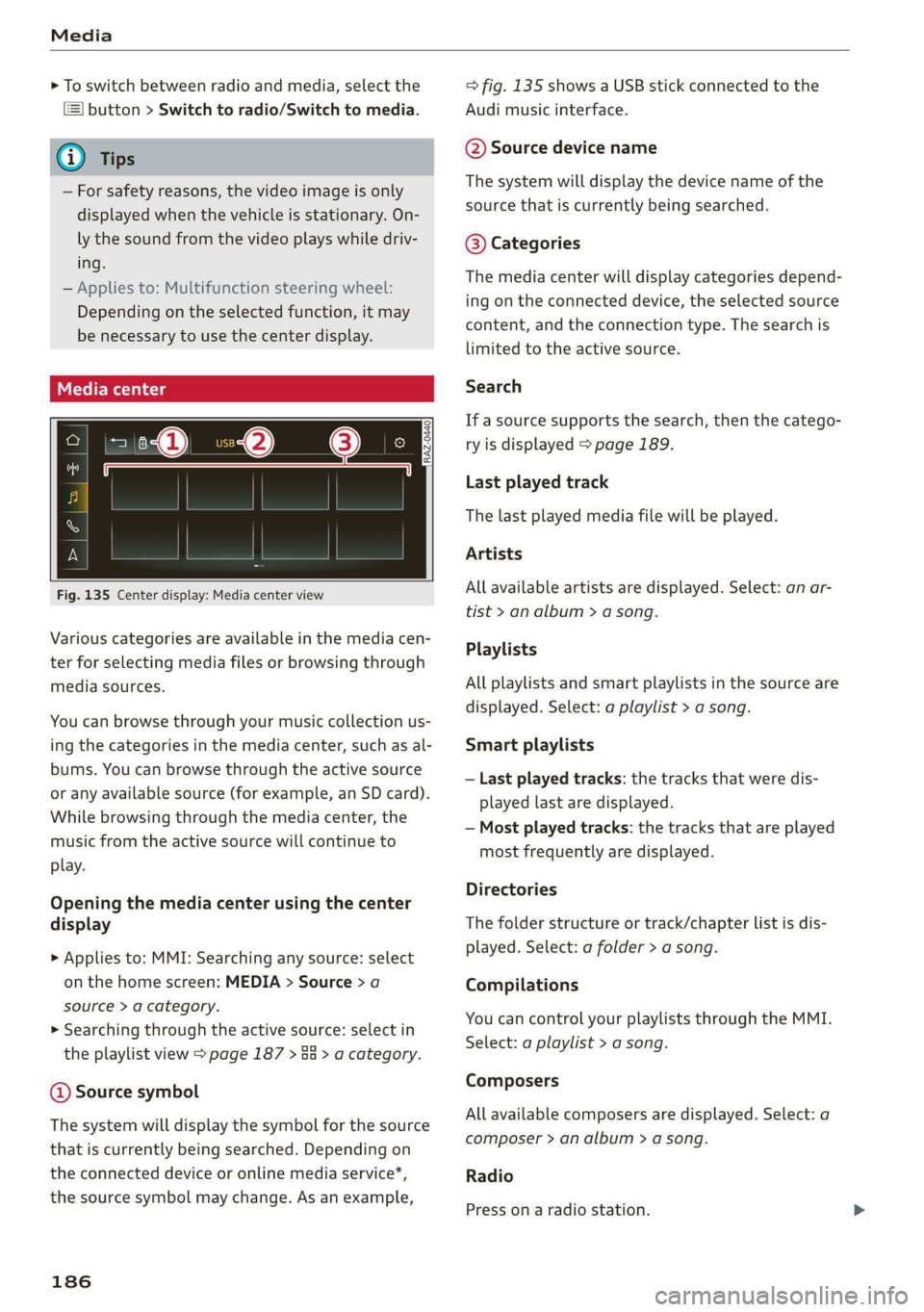
Fig. 135 Center display: Media center view
Various categories are available in the media cen-
ter for selecting media files or browsing through
media sources.
You can browse through your music collection us-
ing
the categories in the media center, such as al-
bums. You can browse through the active source
or any available source (for example, an SD card).
While browsing through the media center, the
music from the active source will continue to
play.
Opening the media center using the center
display
> Applies to: MMI: Searching any source: select
on the home screen: MEDIA > Source > a
source > a category.
> Searching through the active source: select in
the playlist view > page 187 > an > a category.
@ Source symbol
The system will display the symbol for the source
that is currently being searched. Depending on
the connected device or online media service”*,
the source symbol may change. As an example,
186
=> fig. 135 shows a USB stick connected to the
Audi music interface.
@ Source device name
The system will display the device name of the
source that is currently being searched.
@ Categories
The media center will display categories depend-
ing on the connected device, the selected source
content, and the connection type. The search is
limited to the active source.
Search
If a source supports the search, then the catego-
ry is displayed > page 189.
Last played track
The last played media file will be played.
Artists
All available artists are displayed. Select: an ar-
tist
> an album > a song.
Playlists
All playlists and smart playlists in the source are
displayed. Select: a playlist > a song.
Smart playlists
— Last played tracks: the tracks that were dis-
played last are displayed.
— Most played tracks: the tracks that are played
most frequently are displayed.
Directories
The folder structure or track/chapter list is dis-
played. Select: a folder > a song.
Compilations
You can control your playlists through the MMI.
Select: a playlist > a song.
Composers
All available composers are displayed. Select: a
composer > an album > a song.
Radio
Press ona radio station.
Page 189 of 280
83A012721BA
Media
Audio books
You can control your audio books on the MMI.
Press on an audio book.
Podcasts
You can control your podcasts through the MMI.
Select: a podcast > a podcast episode.
Genres
All available genres are displayed. Select: a genre
> an artist > an album > a song.
Videos
All available video files are displayed. Press ona
video.
Tracks
All available tracks are displayed. Press ona
track.
Albums
All available albums are displayed. Select: an al-
bum > a track.
@) Note
Applies to: vehicles with Audi connect Infotainment
— Cloud services and category radio always re-
quire an Internet connection.
elem irad (lary
— Read the information about Audi connect,
and be sure to note the connectivity costs
section >@ in General information on
page 154.
G@) Tips
— Only the categories supported by the medi-
um are available.
— For safety reasons, the video image is only
displayed when the vehicle is stationary. On-
ly the sound from the video plays while driv-
ing.
—When synchronizing a portable device with
Cloud services, playlists may display incor-
rectly
in the MMI. Use the media center in
the device.
(i) Tips
Applies to: iPod/iPhone
Also read the information on the Audi music
interface and the supported devices
=> page 184.
tae)
Hymn
Brad:
ait)
Orchestra
Divine
rae
rs
RAX-0098
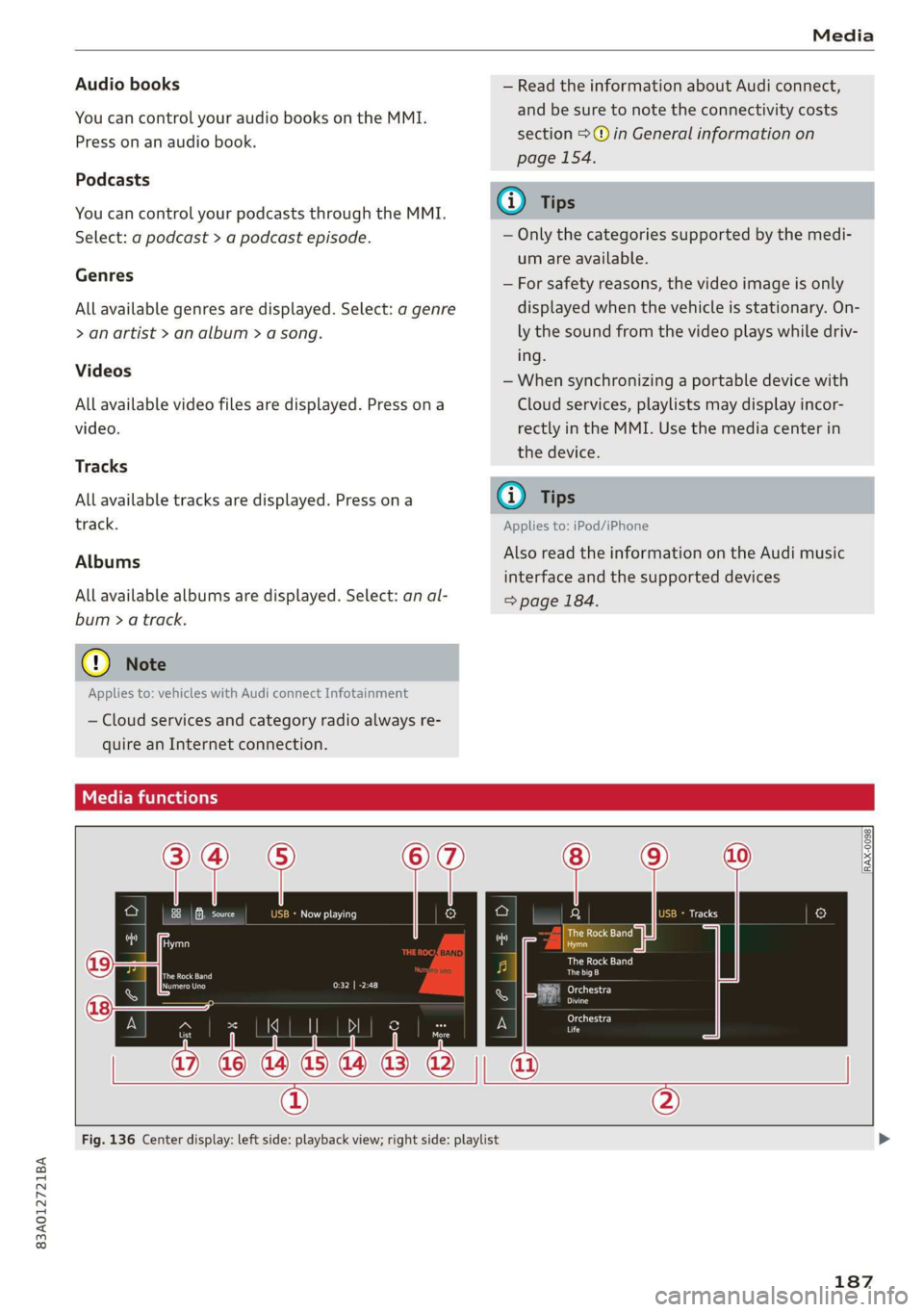
Fig. 136 Center display: left side: playback view; right side: playlist
187
Page 203 of 280
83A012721BA
Checking and Filling
The correct fuel type for your vehicle can be
found ona label located on the inside of the fuel
filler door. For additional information on fuel, see
=> page 199.
For the tank capacity in your vehicle, refer to the
Technical Data > page 264.
To reduce the risk of fuel leaking out or vapors
escaping, make sure that the fuel tank is closed
correctly. Otherwise the Ey indicator light will
turn on.
If the central locking system malfunctions, the
fuel filler door may emergency release
=> page 202.
Messages
li Please refuel
If the indicator light turns on for the first time
and the message appears, there are about 2.1
gallons (8 liters) of fuel left in the tank.
ly Please refuel immediately
If the indicator light turns on and this message
appears, the fuel tank is almost empty. Refuel
the vehicle immediately.
fi Tank system: malfunction! Please contact
Service
There is a malfunction in the fuel tank system.
Drive to an authorized Audi dealer or authorized
Audi Service Facility immediately to have the
malfunction corrected.
— If you do not insert the fuel pump nozzle all
the way into the filler tube, then fuel can
leak out. Spilled fuel can ignite and start a
fire.
— Never get into the vehicle when refueling. If
there is an exceptional situation where the
vehicle must be entered, close the door and
touch a metal surface before touching the
fuel pump nozzle again. This will reduce the
risk of electrostatic discharge that can cause
flying sparks. Sparks can start a fire when
refueling.
ZA WARNING
An improper fueling procedure and improper
handling of fuel can lead to explosions, fires,
severe burns and other injuries.
— Do not smoke and keep away from open
flames.
— The ignition must be switched off when re-
fueling.
— Mobile devices, radio devices, and other ra-
dio equipment should always be switched
off when refueling. Electromagnetic rays
could cause sparks and start a fire.
ZA\ WARNING
We recommend that you do not transport any
fuel containers in the vehicle. Fuel could leak
out of the container and ignite, especially dur-
ing an accident. This can cause explosions,
fires and injuries.
—If you must transport fuel in a fuel contain-
er, please note the following:
— Always place a fuel container on the
ground before filling. Never fill the fuel
container with fuel while it is in or on the
vehicle. Electrostatic charge can occur
while refueling and
the fuel vapors could
ignite.
— For fuel containers made of metal, the
fuel pump nozzle must always maintain
contact with the container to reduce the
risk of static charge.
— Insert the fuel pump nozzle as far as pos-
sible into the filler opening while refuel-
ing.
— Follow the applicable legal regulations in
the country where you are driving when
using, storing and transporting fuel con-
tainers.
— Make sure that the fuel container meets
the industry standards, for example ANSI
or ASTM F852-86.
) Depending on the engine and country
201
Page 221 of 280
83A012721BA
Wheels
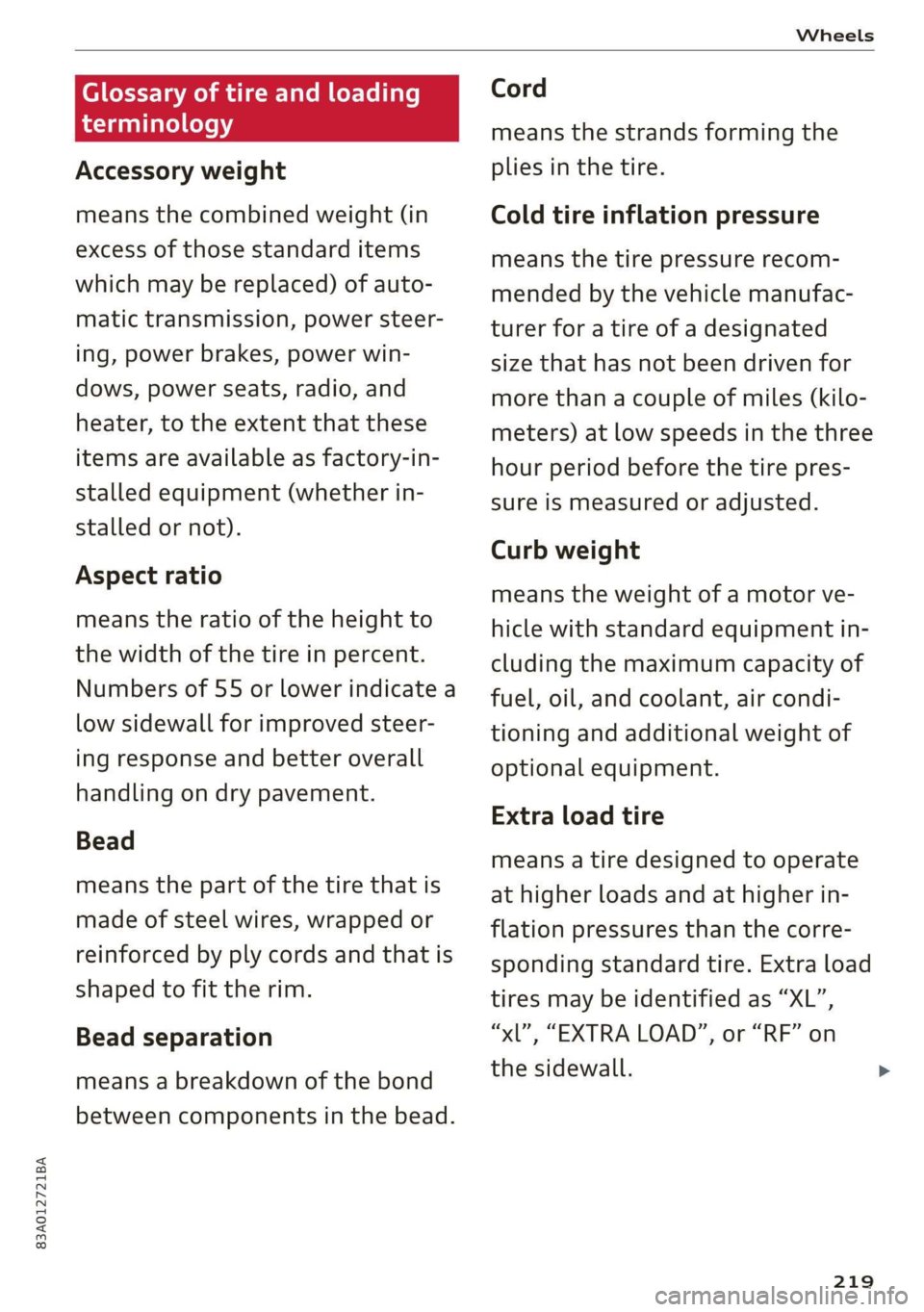
Glossary of tire and loading
terminology
Accessory weight
means the combined weight (in
excess of those standard items
which may be replaced) of auto-
matic transmission, power steer-
ing, power brakes, power win-
dows, power seats, radio, and
heater, to the extent that these
items are available as factory-in-
stalled equipment (whether in-
stalled or not).
Aspect ratio
means the ratio of the height to
the width of the tire in percent.
Numbers of 55 or lower indicate a
low sidewall for improved steer-
ing response and better overall
handling on dry pavement.
Bead
means the part of the tire that is
made of steel wires, wrapped or
reinforced by ply cords and that is
shaped to fit the rim.
Bead separation
means a breakdown of the bond
between components in the bead.
Cord
means the strands forming the
plies in the tire.
Cold tire inflation pressure
means the tire pressure recom-
mended by the vehicle manufac-
turer for a tire of a designated
size that has not been driven for
more than a couple of miles (kilo-
meters) at low speeds in the three
hour period before the tire pres-
sure is measured or adjusted.
Curb weight
means the weight of a motor ve-
hicle with standard equipment in-
cluding the maximum capacity of
fuel, oil, and coolant, air condi-
tioning and additional weight of
optional equipment.
Extra load tire
means a tire designed to operate
at higher loads and at higher in-
flation pressures than the corre-
sponding standard tire. Extra load
tires may be identified as “XL”,
“xL’, “EXTRA LOAD”, or “RF” on
the sidewall.
219
Page 255 of 280
83A012721BA
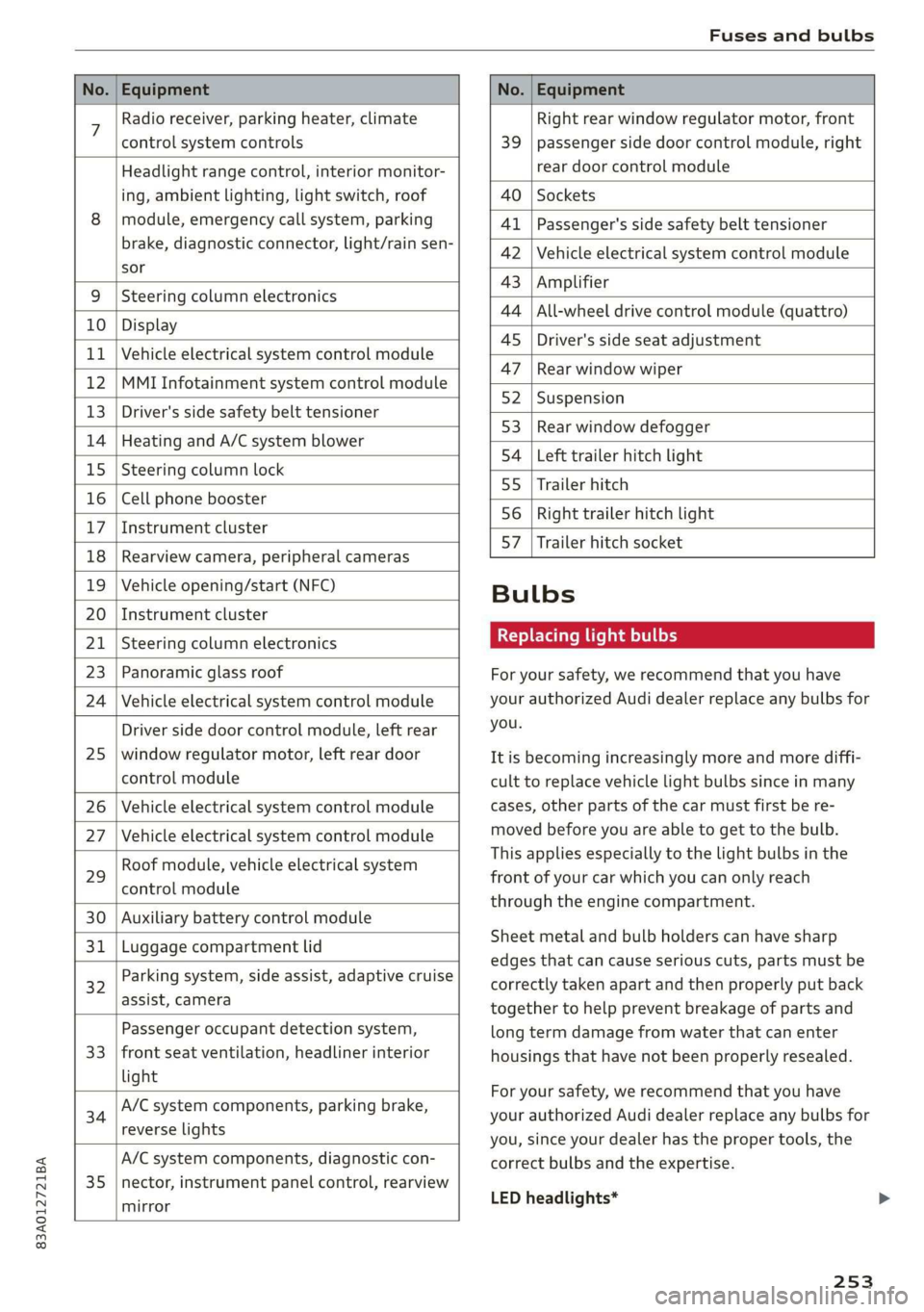
Fuses and bulbs
No. | Equipment No. | Equipment
7 Radio receiver, parking heater, climate Right rear window regulator motor, front
control system controls 39 | passenger side door control module, right
Headlight range control, interior monitor- rear door control module
ing, ambient lighting, light switch, roof 40 | Sockets
8 | module, emergency call system, parking 41 |Passenger's side safety belt tensioner
brake, diagnostic connector, light/raih'sen- 42 |Vehicle electrical system control module
sor
= - 43 |Amplifier
9 |Steering column electronics
- 44 | All-wheel drive control module (quattro)
10 | Display
- - 4S | Driver's side seat adjustment
11 | Vehicle electrical system control module
: 47 | Rear window wiper
12 |MMI Infotainment system control module
- ; - 52 | Suspension
13 | Driver's side safety belt tensioner
- 53 | Rear window defogger
14 | Heating and A/C system blower
: 54 | Left trailer hitch light
15 | Steering column lock
55 | Trailer hitch
16 | Cell phone booster
56 | Right trailer hitch light
17
|Instrument cluster
- - 57 | Trailer hitch socket
18 | Rearview camera, peripheral cameras
19 | Vehicle opening/start (NFC) Bulbs
20 | Instrument cluster
21 | Steering column electronics BETS Ae ha tele
23 | Panoramic glass roof For your safety, we recommend that you have
24 | Vehicle electrical system control module your authorized Audi dealer replace any bulbs for
Driver side door control module, left rear YOU
25 | window regulator motor, left rear door It is becoming increasingly more and more diffi-
control module cult to replace vehicle light bulbs since in many
26 | Vehicle electrical system control module cases, other parts of the car must first be re-
27 | Vehicle electrical system control module meved before youre able to get to the bulb:
HooFmodule,vehieleeleckrical system This applies especially to the light bulbs in the
29 front of your car which you can only reach
control module :
through the engine compartment.
30 | Auxiliary battery control module
: Sheet metal and bulb holders can have sharp
31 | Luggage compartment lid .
: - - - - edges that can cause serious cuts, parts must be
ey) Rarking system, side assist, adaptive cruise correctly taken apart and then properly put back
assist, Cameta together to help prevent breakage of parts and
Passenger occupant detection system, long term damage from water that can enter
33 | front seat ventilation, headliner interior housings that have not been properly resealed.
light
; ingbrak For your safety, we recommend that you have
34 aa io tll Deeg renee your authorized Audi dealer replace any bulbs for
reverseilights you, since your dealer has the proper tools, the
A/C system components, diagnostic con- correct bulbs and the expertise.
35 |nector, instrument panel control, rearview
mirror
LED headlights*
253