ignition AUDI Q3 2019 Workshop Manual
[x] Cancel search | Manufacturer: AUDI, Model Year: 2019, Model line: Q3, Model: AUDI Q3 2019Pages: 280, PDF Size: 72.73 MB
Page 120 of 280
Driver assistance
ZA WARNING
Follow the safety precautions and note the
limits of the assist systems, sensors, and
cameras > page 104.
Adjusting the adaptive cruise assist
Applies to: vehicles with adaptive cruise assist
You can adjust the adaptive cruise assist to your
own preferences. The settings depend on the ve-
hicle equipment.
> Applies to: MMI: Select on the home screen:
VEHICLE > Driver assistance > Adaptive cruise
assist.
Possible settings:
Applies to: vehicles without Audi drive select
Driving program - Depending on the selected
driving program and distance, the vehicle han-
dling will be adjusted from Sport to Moderate.
Applies to: vehicles with Audi drive select
Vehicle handling will be adjusted based on the
set distance and the selected Audi drive select
mode > page 96.
Store last distance - The last distance that was
set will be stored after the ignition is switched
off. If the distance is not stored, distance [fz
(time distance of approximately 1.8 seconds) is
automatically preset every time the ignition is
switched on.
Messages
Applies to: vehicles with adaptive cruise assist
If or fal is displayed when there is a malfunc-
tion, the adaptive cruise assist functions may be
unavailable or limited.
A message that indicates the cause and possible
solution may appear with some displays. The
weather conditions may be too poor or a sensor
may be covered. Clean the area in front of the
sensors > page 105, fig. 87 and try to turn on
the systems again later.
118
If the malfunction remains, drive to an author-
ized Audi dealer or authorized Audi Service Facili-
ty immediately to have the malfunction correct-
ed.
Please take over!
This message appears if the vehicle rolls back
when starting on a slight incline, even though the
systems are active. Press the brake pedal to pre-
vent the vehicle from rolling or starting to move.
G) Tips
Always keep your hands on the steering
wheel. The driver is always responsible for ad-
hering to the regulations applicable in the
country where the vehicle is being operated.
Distance warning
Applies to: vehicles with distance warning
S| 3 1?) IN| Iz jac
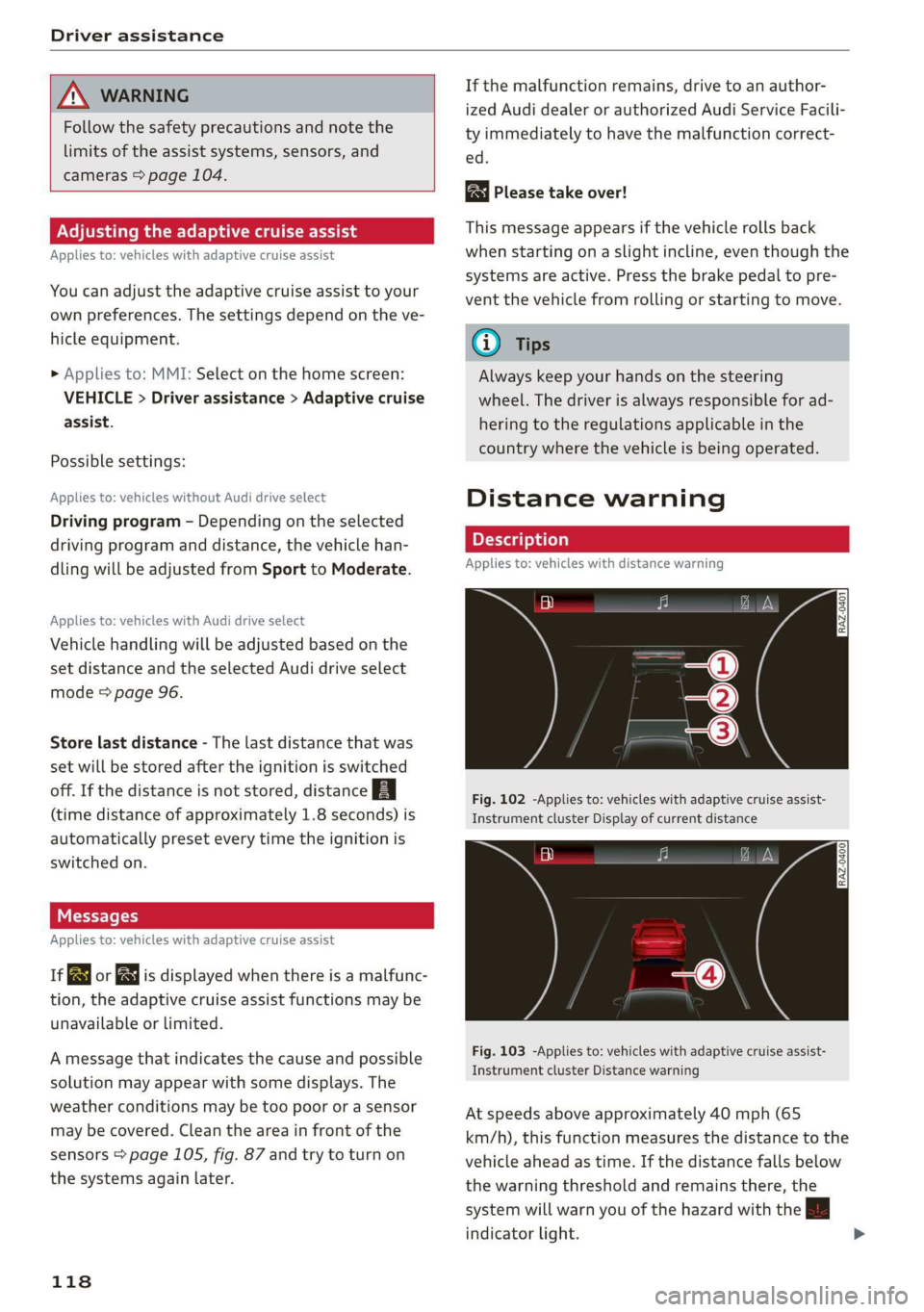
Fig. 102 -Applies to: vehicles with adaptive cruise assist-
Instrument cluster Display of current distance
RAZ-0400
Fig. 103 -Applies to: vehicles with adaptive cruise assist-
Instrument cluster Distance warning
At speeds above approximately 40 mph (65
km/h), this function measures the distance to the
vehicle ahead as time. If the distance falls below
the warning threshold and remains there, the
system will warn you of the hazard with the BB
indicator light.
Page 122 of 280
Driver assistance
Applies to: vehicles with lane departure warning
B4M-0064
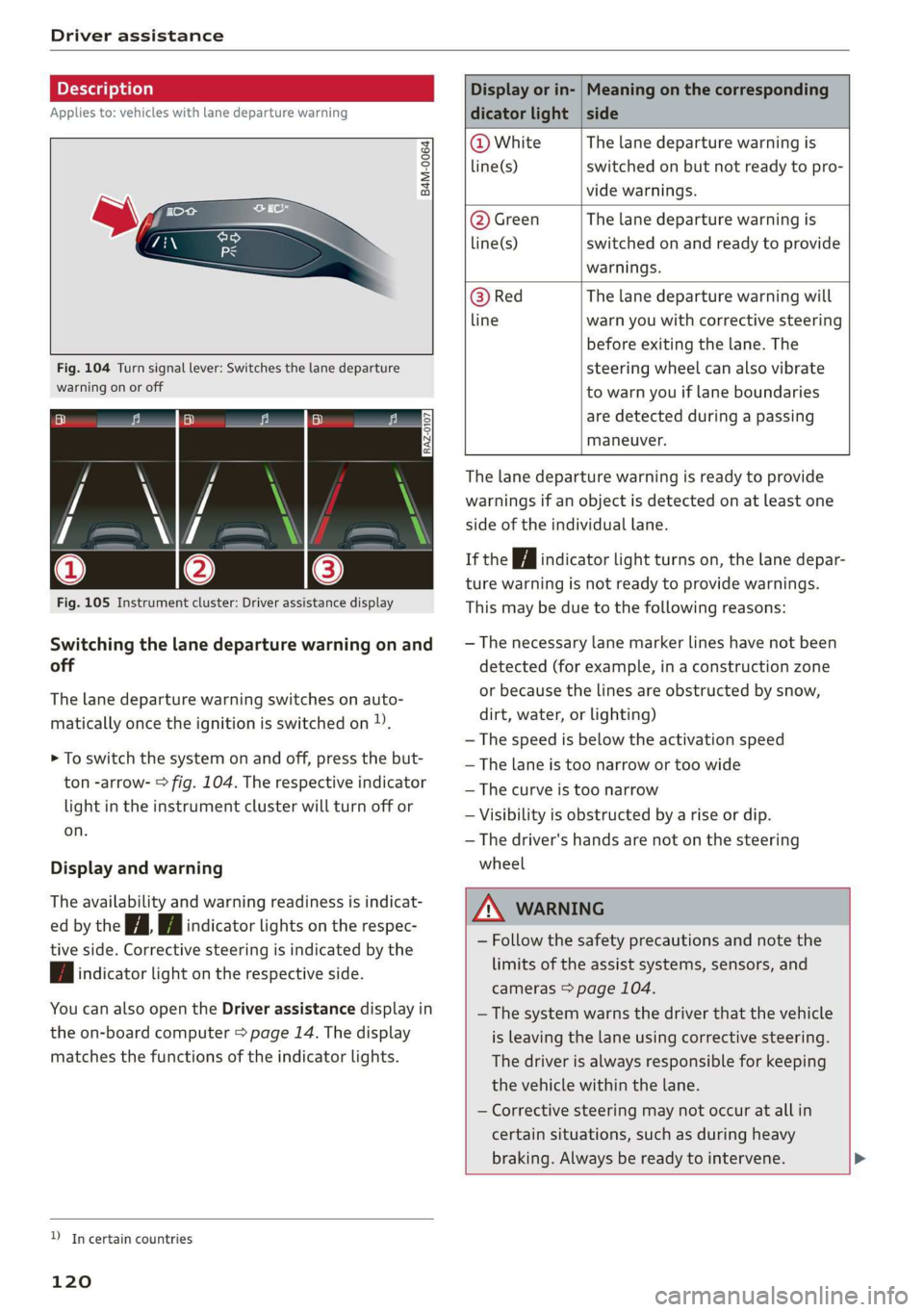
Fig. 104 Turn signal lever: Switches the lane departure
warning on or off
RAZ-0107
Fig. 105 Instrument cluster: Driver assistance display
Switching the lane departure warning on and
off
The lane departure warning switches on auto-
matically once the ignition is switched on )).
> To switch the system on and off, press the but-
ton -arrow- > fig. 104. The respective indicator
light in the instrument cluster will turn off or
on.
Display and warning
The availability and warning readiness is indicat-
ed by the iA Hi indicator lights on the respec-
tive side. Corrective steering is indicated by the
fA indicator light on the respective side.
You can also open the Driver assistance display in
the on-board computer > page 14. The display
matches the functions of the indicator lights.
YD In certain countries
120
Display or in- | Meaning on the corresponding
dicator light | side
@ White The lane departure warning is
line(s) switched on but not ready to pro-
vide warnings.
@ Green The lane departure warning is
line(s) switched on and ready to provide
warnings.
@ Red The lane departure warning will
line warn you with corrective steering
before exiting the lane. The
steering wheel can also vibrate
to warn you if lane boundaries
are detected during a passing
maneuver.
The lane departure warning is ready to provide
warnings if an object is detected on at least one
side of the individual lane.
If the Hi indicator light turns on, the lane depar-
ture warning is not ready to provide warnings.
This may be due to the following reasons:
— The necessary lane marker lines have not been
detected (for example, in a construction zone
or because the lines are obstructed by snow,
dirt, water, or lighting)
— The speed is below the activation speed
— The lane is too narrow or too wide
—The curve is too narrow
— Visibility is obstructed by a rise or dip.
— The driver's hands are not on the steering
wheel
ZA WARNING
— Follow the safety precautions and note the
limits of the assist systems, sensors, and
cameras > page 104.
— The system warns the driver that the vehicle
is leaving the lane using corrective steering.
The
driver is always responsible for keeping
the vehicle within the lane.
— Corrective steering may not occur at all in
certain situations, such as during heavy
braking. Always be ready to intervene. >
Page 124 of 280
Driver assistance
@ Tips
— Depending on the dangerous situation that
is detected and the selected Audi drive se-
lect* mode, all preemptive safety measures
may not be initiated under certain circum-
stances. Certain functions can be adjusted
or skipped if necessary.
— Audi pre sense may also be limited or un-
available under certain circumstances, for
example if:
— There are passengers with unfastened
safety belts
— It has only been several seconds since the
ignition was switched on The
light turns on)2),
— When driving in reverse
— The front passenger's airbag is switched
off
— There is an airbag control module mal-
function
— The ESC is limited, switched off, or mal-
functioning > page 99
Oe eee
Applies to: vehicles with Audi pre sense basic
Audi pre sense basic is automatically active at
speeds of approximately 20 mph (30 km/h) and
higher. Audi pre sense basic can trigger the Audi
pre sense preemptive safety measures during
emergency braking and dangerous braking ma-
neuvers as well as in unstable driving situations,
such as oversteering or understeering.
Z\ WARNING
Follow the safety precautions and note the
limits of the assist systems, sensors, and
cameras > page 104.
D System availability may be limited depending on the mar-
ket.
2) In preparation at the time of printing.
3) This is not available in some countries.
122
Audi pre sense front
Applies to: vehicles with Audi pre sense front
The Audi pre sense front system uses the data
from the radar sensors and calculates the proba-
bility of a rear-end collision. Within the limits of
the system, an impending collision with the front
of the vehicle can be detected in both urban and
rural speed ranges.
Audi pre sense front is active at speeds of approx-
imately 3 mph (5 km/h) and higher. The system
can respond to pedestrians crossing the street or
going in the same direction of travel 3) at speeds
up to 40 mph (65 km/h). It can also respond to
stationary vehicles at speeds up to 52 mph (85
km/h) as well as to vehicles driving ahead or
stopped vehicles at speeds up to 155 mph (250
km/h).
Early warning/acute warning
The system can recognize various dangerous sit-
uations. The early warning occurs if:
—Avehicle driving ahead brakes suddenly
— Your vehicle is traveling at speeds between ap-
proximately 20 to 50 mph (30 to 85 km/h) and
it approaches a stationary vehicle.
— Your vehicle is traveling at speeds between ap-
proximately 20 to 155 mph (30 to 250 km/h)
and it approaches a vehicle that is clearly trav-
eling more slowly or a vehicle in your direction
of travel that is stopped.
— Ifa crossing pedestrian?) moves into the lane
and you are driving at speeds between approxi-
mately 18 to 40 mph (30 to 65 km/h).
— If a pedestrian is moving in your direction of
travel and in your lane 2) and you are driving at
speeds between approximately 18 to 40 mph
(30 to 65 km/h).
The message Audi pre sense o and a warning
tone will warn you about the danger.
If there is an impending collision with vehicles,
there may also be an acute warning inthe form >
Page 125 of 280
83A012721BA
Driver assistance
of sharp braking. You will also be warned by an
indicator in the instrument cluster display. When
this warning occurs, it may only be possible to
avoid a collision by swerving or braking strongly.
Automatic deceleration
If you do not react to the acute warning, Audi pre
sense front can brake the vehicle to a full stop
within the limits of the system. This reduces the
vehicle speed in the event of a collision.
Automatic braking force increase
If Audi pre sense determines that you are not
braking strongly enough when a collision is immi-
nent, it can increase the braking force based on
the situation.
Take-over
If the message oa Please take over! appears, the
vehicle has been braked to a stop by Audi pre
sense and you must resume control of the vehi-
cle.
Z\ WARNING
— Follow the safety precautions and note the
limits of the assist systems, sensors, and
cameras > page 104.
— Audi pre sense front cannot overcome natu-
ral physical laws. It is a system designed to
assist and it cannot prevent a collision in ev-
ery circumstance. The driver must always in-
tervene. The driver is always responsible for
braking at the correct time. Do not let the
increased safety provided tempt you into
taking risks. This could increase your risk of
a collision.
— Among other things, Audi pre sense front
does not react to pedestrians who are sta-
tionary, stopped, oncoming, and crossing at
an angle. It also does not react to cyclists,
groups of people, animals, crossing vehicles,
or oncoming vehicles and objects, such as
posts, guardrails, and railway vehicles.
— Audi pre sense front may be limited or un-
available when driving in curves.
D_ In certain countries
— Loose objects can be thrown around the ve-
hicle interior during sudden driving or brak-
ing maneuvers, which increases the risk of
an accident. Store objects securely while
driving.
—In trailer mode, the braking behavior of the
trailer can be different than usual during au-
tomatic braking.
G) Tips
— If you switch off the ESC, Audi pre sense al-
so switches off automatically > page 99.
— Certain Audi pre sense front functions are
unavailable or have limited availability for
approximately 20 seconds after starting the
vehicle (may be longer depending on the
driving situation).
Adjusting Audi pre sense
Applies to: vehicles with Audi pre sense
You can adjust the Audi pre sense functions to
your preferences. The settings depend on the ve-
hicle equipment.
> Applies to: MMI: Select on the home screen:
VEHICLE > Driver assistance > Audi pre sense.
Possible settings:
The system can be switched off and on.
Prewarning!) - The prewarning can be switched
off or the Audi pre sense warning time can be set
(Early/Medium/Late).
Set the warning time for the early warning to
Early at first. If you feel that the prewarnings ap-
pear too early, then set the warning time to Me-
dium. The Late warning time should only be set
in special circumstances.
@) Tips
— If Audi pre sense is switched off, it switches
on again automatically once the ignition is
switched on again.)
— Switch Audi pre sense off when you are not
using public streets, when loading the
123
>
Page 127 of 280
83A012721BA
Driver assistance
Warning stage
If the display in a mirror blinks brightly when you
activate a turn signal, side assist is warning you
about detected objects classified as critical.
Depending on the vehicle equipment and other
driver assistance systems, the display on the re-
spective mirror may also flash if you have not
turned on the turn signal: If you are approaching
a detected lane marker line and it appears you
will be leaving the lane, the display on the mirror
will warn you about detected vehicles that it has
classified as critical. You can also be warned with
corrective steering > page 119, Lane departure
warning.
Detection range
The radar sensors are designed to detect the left
and right adjacent lanes when the road lanes are
the normal width. In some situations, the display
in the exterior mirror may turn on even though
there is no vehicle located in the area that is criti-
cal for a lane change. For example:
— If the lanes are narrow or if you are driving on
the edge of your lane. If this is the case, the
system may have detected a vehicle in another
lane that is not adjacent to your current lane.
— If you are driving through a curve. Side assist
may react to a vehicle that is in the same lane
or one lane over from the adjacent lane.
—If side assist reacts to other objects (such as
roadside structures like guard rails).
ZA\ WARNING
— Follow the safety precautions and note the
limits of the assist systems, sensors, and
cameras > page 104.
— The display may not appear on time when
vehicles are approaching or being passed
very quickly.
@ Tips
— The system is not available when towing a
trailer. There is no guarantee the system
will switch off when using a retrofitted trail-
er hitch. Do not use these functions when
towing a trailer.
— For an explanation on conformity with the
FCC regulations in the United States and the
Industry Canada regulations, see
=> page 261.
Oe ees
Applies to: vehicles with side assist
You can adjust the side assist to your preferences.
The settings depend on the vehicle equipment.
> Applies to: MMI: Select on the home screen:
VEHICLE > Driver assistance > Side assist.
Possible settings:
The system can be switched on and off. If the sys-
tem is switched on, the displays in the exterior
mirrors will turn on briefly each time the ignition
is switched on.
Brightness - Change the brightness only when
side assist is switched on, so that the selected
setting can be checked in the exterior mirror dis-
plays. Adjust the brightness to a level where the
display will not interfere with your view ahead.
The display brightness is automatically adapted
to the ambient light. If the surrounding area is
very dark or bright, the display may have already
adjusted automatically to the lower or upper lev-
el
@® Tips
If the window glass in the driver's door or
front passenger's door has been tinted, the
display in the exterior mirror may be incor-
rect.
Messages
Applies to: vehicles with side assist
fg or Eg is displayed in the instrument cluster
when there is a malfunction, the side assist func-
tions may be unavailable or may be limited.
A message that indicates the cause and possible
solution may appear with some displays. The
weather conditions may be too poor or a sensor
may be covered. Clean the sensor area in the ve-
hicle rear and try to turn the systems on again
later.
125
Page 130 of 280
Parking and maneuvering
ZA WARNING
Follow the safety precautions and note the
limits of the assist systems, sensors, and
cameras > page 104.
@) Note
Keep enough distance from the curb to avoid
damage to the rims.
G) Tips
If the parking aid is switched off, it can only
be reactivated automatically when one of the
following conditions is met:
— The vehicle speed exceeds 6 mph (10 km/h)
— The ignition is switched off and back on
again
— The parking brake is set and then released
— The "P" gear is engaged and released again
Applies to: vehicles with parking system plus
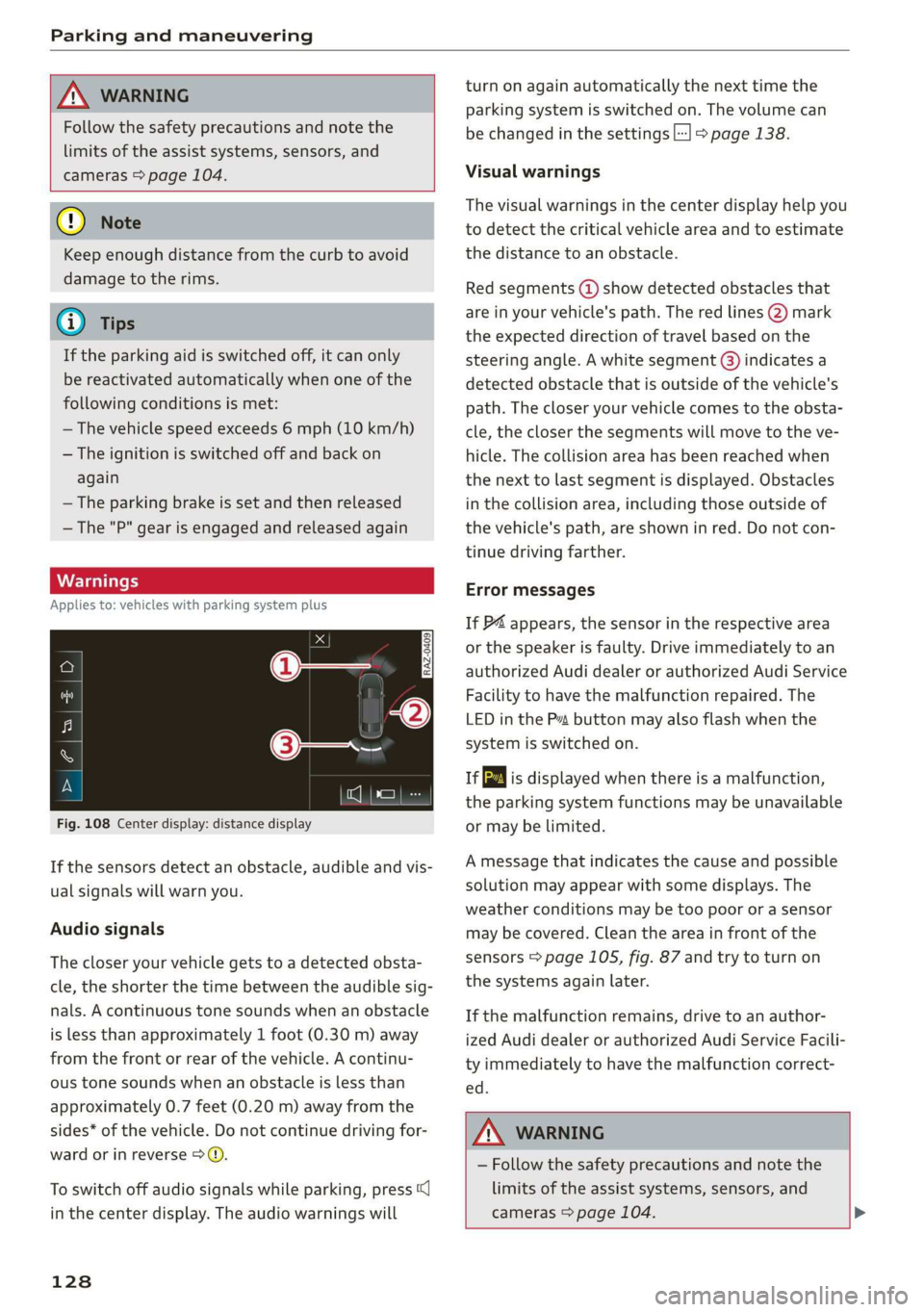
Fig. 108 Center display: distance display
If the sensors detect an obstacle, audible and vis-
ual signals will warn you.
Audio signals
The closer your vehicle gets to a detected obsta-
cle, the shorter the time between the audible sig-
nals. A continuous tone sounds when an obstacle
is less than approximately 1 foot (0.30 m) away
from the front or rear of the vehicle. A continu-
ous tone sounds when an obstacle is less than
approximately 0.7 feet (0.20 m) away from the
sides* of the vehicle. Do not continue driving for-
ward or in reverse >.
To switch off audio signals while parking, press
in the center display. The audio warnings will
128
turn on again automatically the next time the
parking system is switched on. The volume can
be changed in the settings |] > page 138.
Visual warnings
The visual warnings in the center display help you
to detect the critical vehicle area and to estimate
the distance to an obstacle.
Red segments (2) show detected obstacles that
are in your vehicle's path. The red lines (2) mark
the expected direction of travel based on the
steering angle. A white segment @) indicates a
detected obstacle that is outside of the vehicle's
path. The closer your vehicle comes to the obsta-
cle, the closer the segments will move to the ve-
hicle. The collision area has been reached when
the next to last segment is displayed. Obstacles
in the collision area, including those outside of
the vehicle's path, are shown in red. Do not con-
tinue driving farther.
Error messages
If P4 appears, the sensor in the respective area
or the speaker is faulty. Drive immediately to an
authorized Audi dealer or authorized Audi Service
Facility to have the malfunction repaired. The
LED
in the Ps button may also flash when the
system is switched on.
ff is displayed when there is a malfunction,
the parking system functions may be unavailable
or may be limited.
A message that indicates the cause and possible
solution may appear with some displays. The
weather conditions may be too poor or a sensor
may be covered. Clean the area in front of the
sensors > page 105, fig. 87 and try to turn on
the systems again later.
If the malfunction remains, drive to an author-
ized Audi dealer or authorized Audi Service Facili-
ty immediately to have the malfunction correct-
ed.
Z\ WARNING
— Follow the safety precautions and note the
limits of the assist systems, sensors, and
cameras > page 104. >
Page 131 of 280
83A012721BA
Parking and maneuvering
— Sensors and cameras have spots in which
the surrounding area cannot be detected.
Objects, animals, and people may only be
detected with limitations may not be detect-
ed at all. Always monitor the traffic and the
vehicle's surroundings directly and do not
become distracted.
@) Note
— Keep enough distance from the curb to
avoid damage to the rims.
— Applies to: vehicles with park assist: If you
park in short parking spaces using park as-
sist, a continuous tone sounds from the
parking system when the distance to an ob-
ject is less than approximately 0.7 ft
(0.20 m). Do not continue driving farther.
G) Tips
— The segments in the side area* are detected
and analyzed when passing. There may have
been changes to the surrounding area after
switching the ignition off and on again, af-
ter opening the doors, or if the vehicle is left
stationary for a long period of time. In this
scenario, the side area* will appear black
until the area has been detected and evalu-
ated.
— If the distance to an obstacle remains con-
stant, the volume of the distance warning
gradually lowers after a few seconds until it
is muted (this does not apply to the continu-
ous tone). If the obstacle comes closer than
it was before the sound was muted, the
tone will sound again. If the obstacle be-
comes farther away than it was before the
sound was muted, no tone will sound. Pay
attention to the vehicle's surroundings
when you start to drive.
— There is no distance warning for the rear
and the sides* when trailer towing mode is
detected. The front sensors remain activat-
ed. The visual display switches to trailer
mode. There is no guarantee the functions
will switch off when using a retrofitted trail-
er hitch.
Rearview camera and
peripheral cameras
Introduction
Applies to: vehicles with rearview camera/peripheral cameras
B8V-0629
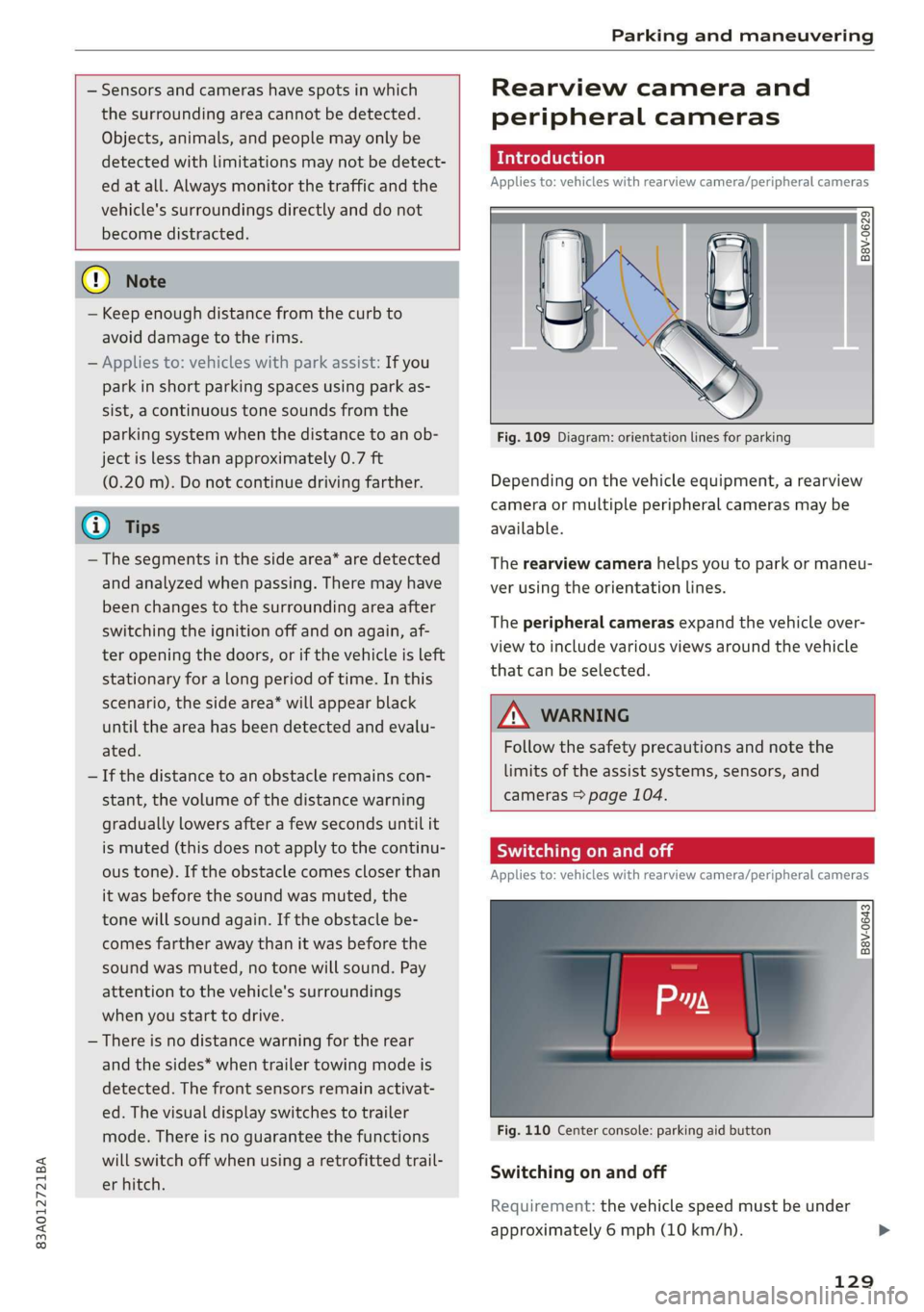
Fig. 109 Diagram: orientation lines for parking
Depending on the vehicle equipment, a rearview
camera or multiple peripheral cameras may be
available.
The rearview camera helps you to park or maneu-
ver using the orientation lines.
The peripheral cameras expand the vehicle over-
view to include various views around the vehicle
that can be selected.
Z\ WARNING
Follow the safety precautions and note the
limits of the assist systems, sensors, and
cameras > page 104.
Switching on and off
Applies to: vehicles with rearview camera/peripheral cameras
B8V-0643
Fig. 110 Center console: parking aid button
Switching on and off
Requirement: the vehicle speed must be under
approximately 6 mph (10 km/h).
129
Page 142 of 280
Telephone
Setup
Connecting a mobile device to the MMI
Applies to: vehicles with telephone
Requirement
The vehicle must be stationary and the ignition
must be switched on.
The Bluetooth settings must be open on your
mobile device during the connection setup.
The Bluetooth function and visibility of the MMI
= page 197 and mobile device must be switched
on.
The mobile device that will be connected must
not be connected to any other Bluetooth device.
The MMI must only be connected to one mobile
device.
Connecting a cell phone using Bluetooth
» Applies to: MMI: Select on the home screen:
PHONE
> Follow the system instructions. The available
Bluetooth devices will be displayed after sever-
al seconds.
>» Press on the desired mobile device in the list of
displayed Bluetooth devices.
> To update the list, press O.
> A PIN for a secure Bluetooth connection will be
generated.
> Confirm the PIN on your mobile device, or
> Enter the PIN for connecting on your cell
phone. The time allowed for entering the PIN is
limited to approximately 30 seconds.
> If necessary, enter your SIM card PIN in the
MMI.
Connecting a mobile device via USB
> Applies to: MMI: Select on the home screen:
PHONE
> Follow the system instructions.
After connecting successfully
After connecting successfully, information about
the connected profiles will appear. You can also
change the profiles later > page 197.
In addition, the mobile device contacts will be
automatically loaded into the MMI. This process
140
can take several minutes, depending on the num-
ber of contacts.
@) Note
Always follow the information found in
=> page 154.
G) Tips
— You can apply additional settings to con-
nected mobile devices under Connected de-
vices > page 196.
— You can also search for the MMI on your mo-
bile device using the Bluetooth device
search.
— You only have to pair your device one time.
Bluetooth devices that are already paired
automatically connect to the MMI when the
Bluetooth function is switched on, when
they are within range, and when the ignition
is switched on. The last connected mobile
device is given first priority.
— Authorizing the MMI connection on your
mobile device will make it possible to con-
nect automatically.
— Pay attention to any system prompts dis-
played on your mobile device or the MMI,
for example if the system should connect
automatically in the future. Depending on
the mobile device, you may also need to
download contacts and confirm access to
your messages separately.
— You will receive the PIN (SIM) and the PUK
(Personal Unlocking Key) along with the SIM
card from your cell phone service provider.
If you enter a PIN (SIM) incorrectly multiple
times in a row, the SIM card will be locked
and must be unlocked by entering the PUK.
— When leaving the vehicle, the Bluetooth
connection to the mobile device will auto-
matically disconnect. Depending on your
mobile device, phone calls in progress may
be automatically redirected from the MMI
to your mobile device so that you can con-
tinue the call on your phone.
— You can obtain more information from your
mobile device service provider or from your
mobile device user guide. For information
on using the telephone, visit www.audiusa. >
Page 143 of 280
83A012721BA
Telephone
com/bluetooth or contact an authorized Au-
di dealer or authorized Audi Service Facility.
Operating two mobile devices throu Lat)
aE
Applies to: vehicles with telephone and Audi phone box
You can connect two mobile devices to the MMI,
for example your business and your personal mo-
bile device. You can use both mobile devices to
make calls in the vehicle.
Connecting another mobile device
Requirement: A cell phone must be connected to
the MMI.
> Applies to: MMI: Select on the home screen:
PHONE > [®. Follow the system instructions, or
> Applies to: MMI: Select on the home screen:
SETTINGS > Connected devices > Telephone 1
or Telephone 2 > New connection.
See > page 140, Connecting a mobile device to
the MMI.
Switching between two mobile devices
Requirement: telephone 1 and telephone 2 must
be connected.
> Applies to: MMI: Select on the home screen:
PHONE > ¢] > Switch telephones: The device
name of your active mobile device will be dis-
played.
@® Tips
— The device name of the active mobile device
(such as myPhone) will be displayed in the
PHONE menu.
— If telephone 1 does not connect automati-
cally to the MMI when the ignition is switch-
ed on, you can use a previously-connected
telephone 2 in the PHONE menu via J.
— You can send and receive messages on tele-
phone 1 as well as on telephone 2
=> page 147.
D_ Not available in all countries. These are additional car
phone functions only in conjunction with Audi connect In-
fotainment*.
— On mobile devices with multi-SIM function-
ality, the MMI only accesses one SIM card.
You can switch between SIM cards using the
mobile device.
Disconnecting a mobile
device
The mobile device will be disconnected from the
MMI and removed from the list of paired devices.
> To disconnect a connected device, use the con-
nection manager > page 197.
Using the Audi phone
box
Applies to: vehicles with Audi phone box
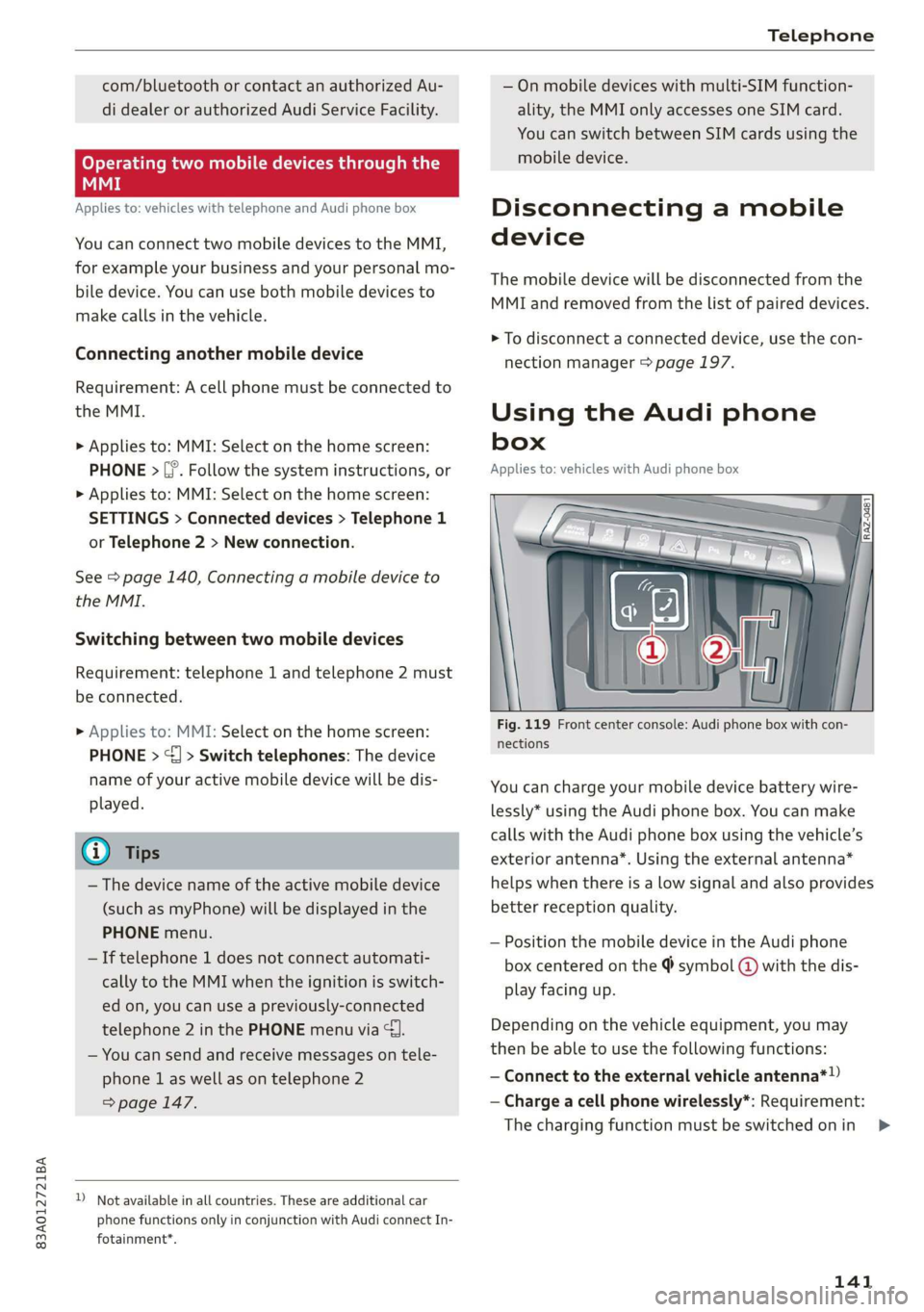
Fig. 119 Front center console: Audi phone box with con-
nections
You can charge your mobile device battery wire-
lessly* using the Audi phone box. You can make
calls with the Audi phone box using the vehicle’s
exterior antenna*. Using the external antenna*
helps when there is a low signal and also provides
better reception quality.
— Position the mobile device in the Audi phone
box centered on the @ symbol @ with the dis-
play facing up.
Depending on the vehicle equipment, you may
then be able to use the following functions:
— Connect to the external vehicle antenna*!)
— Charge a cell phone wirelessly*: Requirement:
The charging function must be switched on in
141
>
Page 147 of 280
83A012721BA
Telephone
Accessing contacts
Requirement: A mobile device must be connected
to the MMI > page 140. You must have at least
one contact stored in your mobile device.
> Applies to: MMI: Select on the home screen:
PHONE > Contacts.
Contacts are displayed in alphabetical order and
can be sorted by first or last name > page 151,
Sort
order.
Displaying a business card
To open a business card, press on a contact in the
directory. The business card shows you details
about a contact.
If you press on a contact in the business card,
there are multiple options available:
@ Storing a favorite > page 144, Managing fa-
vorites
Options
Call
Send text message > page 147
Start navigation
©QOOOCO Send e-mail > page 149
Business card options
Press 2).
— Send contact*: you can select Text message or
E-mail > page 147.
— Add destination: you can add a business or pri-
vate address > page 168, Contacts as naviga-
tion destinations.
— Read out name”: The MMI automatically cre-
ates a name tag for each contact, which can be
read out by the MMI = page 24.
— Save as a shortcut > page 21, Shortcuts.
Contact options
Press on a contact in the list until the Options
menu appears.
— Send contact: you can select Text message or
E-mail > page 147.
— Send text message > page 147.
— Send e-mail > page 149.
) Not available in all languages.
— Store as favorite > page 144.
— Save as a shortcut > page 21, Shortcuts.
Deleting contacts
— Delete all contacts: Select: Contacts > Z > De-
lete all. All contacts are deleted only in the
MMI.
— Deleting imported contacts: Requirement: you
must have imported at least one contact. Se-
lect: Contacts > Z > one or more contacts, or
Select all > Delete import. > Done. The import-
ed contacts are deleted.
G) Tips
— Pay attention to any synchronization
prompts on your mobile device when down-
loading contacts. Requests to synchronize
the contacts must be confirmed so that your
mobile device contacts can be loaded into
the MMI.
— The contact display in the MMI depends on
the mobile device being used. For more in-
formation on compatible mobile devices,
visit www.audiusa.com/bluetooth or con-
tact an authorized Audi dealer or authorized
Audi Service Facility.
— Only the contacts of the mobile device being
actively used are displayed.
— The contacts from the mobile device may
not be transferred in alphabetical order. If
there are too many entries, contacts with
different first letters may be missing in the
MMI.
— If contacts are loaded from the mobile de-
vice into the MMI, the contacts on the SIM
card will no longer be displayed in the MMI.
— The contacts in the local MMI memory are
always visible and can be accessed by other
users.
— After switching off the ignition and exiting
the vehicle, the mobile device directory will
be loaded when the MMI is started again if
the mobile device is within range and the
Bluetooth function is switched on in the mo-
bile device and the MMI.
145