infotainment AUDI Q3 2020 User Guide
[x] Cancel search | Manufacturer: AUDI, Model Year: 2020, Model line: Q3, Model: AUDI Q3 2020Pages: 278, PDF Size: 72.66 MB
Page 170 of 278
Navigation
— When the satellite map display is switched
on )) with the 3D position map type, the dis-
play automatically switches to the 2D map
type when driving through tunnels.
— Depending on the Internet connection, the
standard map may also be displayed when
the satellite map is switched on ).
Map update
Applies to: vehicles with navigation system
You can update the map data in the MMI witha
map update. The functions depend on the coun-
try and vehicle equipment:
— Map updates through online map update
> page 168.
— Import map updates from the SD card or USB
connection to your MMI & page 168.
— Map update at an authorized Audi dealer or au-
thorized Audi Service Facility. This can result in
additional costs.
Online map update
Applies to: vehicles with MMI, navigation system, and Audi
connect Infotainment
Using map update online, you can update the
map material in your navigation system directly
from your vehicle.
Using your vehicle position, the MMI identifies
regions which you are frequently in. Based on
this, update data for these regions are available
for your MMI.
Start map update
Applies to: MMI
Requirement: the MMI must be connected to the
Internet > page 152, Audi connect.
> A notification for a map update will appear in
the center display.
)) Audi provides access to services from third party provid-
ers. Permanent availability cannot be guaranteed, because
that depends on the third party provider.
168
> If the option Automatic online map update
=> page 169 is switched on, the MMI will start
the
map update. Or:
> Press on the notification. Or: access the notifi-
cation in the notification center on > page 20
and press on the notification.
> If the Automatic online map update option
=> page 169 is switched off, press on Allow
once or Always allow.
The MMI will start the map update. The progress
of the download and installation will be shown in
the center display.
When the update has ended, a notification will
be displayed.
C) Note
Read the information about Audi connect, and
be sure to note the connectivity costs section
=@ in General information on page 152.
G) Tips
Because of the high volume of data, down-
loading large country packages or the whole
package to your PC from your myAudi ac-
count, storing it on an SD card or a USB stick,
and then importing it to your MMI is recom-
mended > page 168.
Map update using an SD card or USB
(lola lat-vastela)
Applies to: vehicles with MMI, navigation system, and Audi
connect Infotainment
With the map update, you can update the map
material in your navigation system.
Requirement: you must have created a myAudi
account at my.audi.com. Your vehicle must be
registered in your myAudi account.
Prepare map update
> Download the map update at my.audi.com and
store it on an SD card or on a USB flash drive.
For additional information, visit my.audi.com. >
Page 171 of 278
83A012721BB
Navigation
Start map update
Requirement: a map update for your vehicle must
be onan SD card or a USB flash drive.
> Insert the SD card in your vehicle's SD card
reader > page 180. Or: connect the USB flash
drive to the Audi music interface > page 182.A
notification for a map update will appear in the
center display.
> Press on the notification. Or: access the notifi-
cation in the notification center on > page 20
and press on the notification. The update pack-
age is shown.
> Press Next. The status of the installation is
shown in the center display.
> When the update has ended, a notification will
be displayed.
Map updates settings
Applies
to: vehicles with a navigation system and Audi con-
nect Infotainment
> Applies to: MMI: Select on the home screen:
SETTINGS > System maintenance.
Automatic online map update: when the func-
tion is switched on, map updates will be auto-
matically downloaded and installed.
@) Note
Read the information about Audi connect, and
be sure to note the connectivity costs section
=>@ in General information on page 152.
Traffic information
Introduction
Applies to: vehicles with navigation system
sO}
RAX-0136 MA PR eae niches ni
eee en
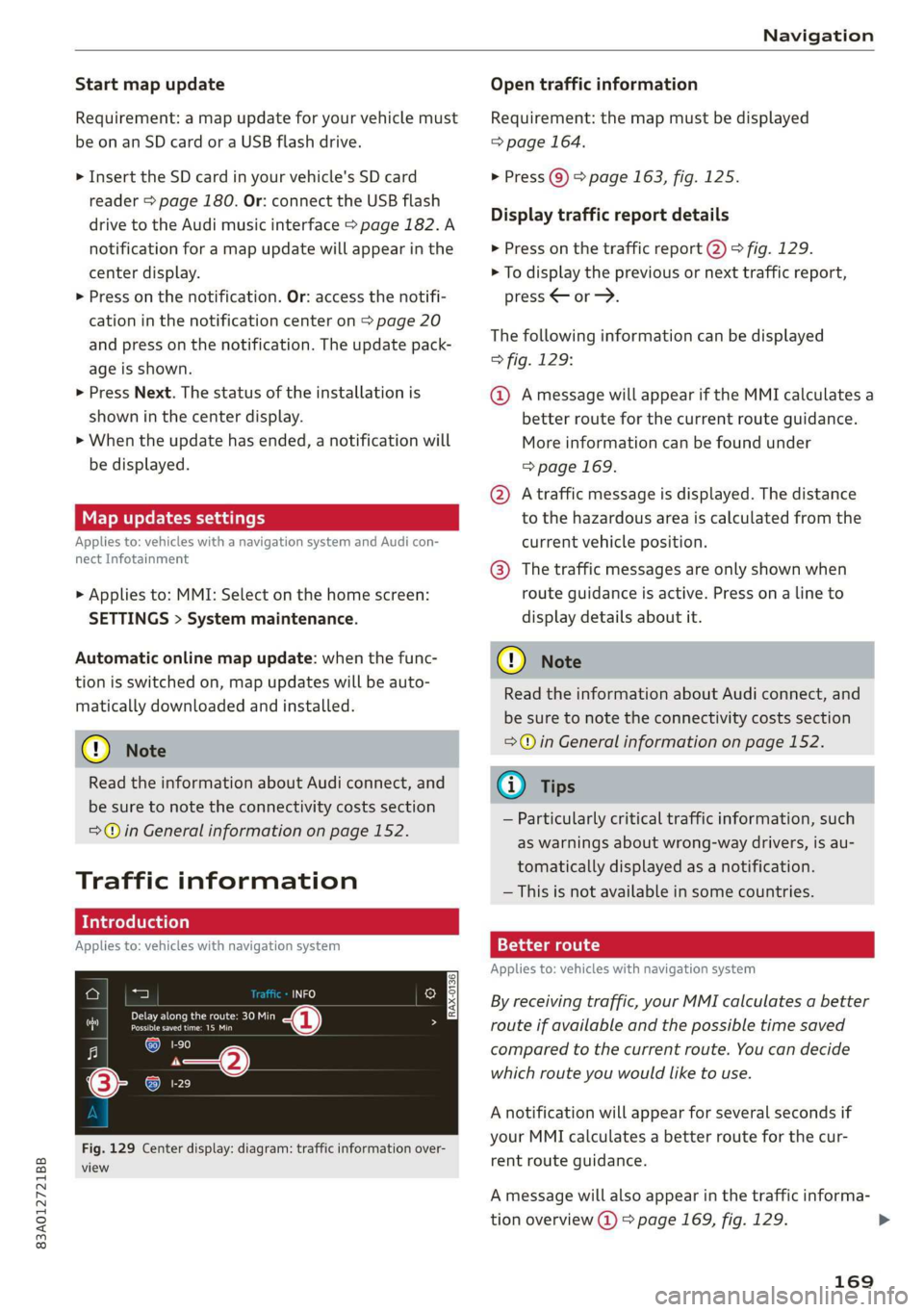
Fig. 129 Center display: diagram: traffic information over-
view
Open traffic information
Requirement: the map must be displayed
=> page 164.
> Press Q) > page 163, fig. 125.
Display traffic report details
> Press on the traffic report 2) > fig. 129.
> To display the previous or next traffic report,
press < or.
The following information can be displayed
> fig. 129:
@ Amessage will appear if the MMI calculates a
better route for the current route guidance.
More information can be found under
=> page 169.
@ Atraffic message is displayed. The distance
to the hazardous area is calculated from the
current vehicle position.
@® The traffic messages are only shown when
route guidance is active. Press on a line to
display details about it.
@) Note
Read the information about Audi connect, and
be sure to note the connectivity costs section
=@ in General information on page 152.
@) Tips
— Particularly critical traffic information, such
as warnings about wrong-way drivers, is au-
tomatically displayed as a notification.
— This is not available in some countries.
Better route
Applies to: vehicles with navigation system
By receiving traffic, your MMI calculates a better
route if available and the possible time saved
compared to the current route. You can decide
which route you would like to use.
A notification will appear for several seconds if
your MMI calculates a better route for the cur-
rent route guidance.
A message will also appear in the traffic informa-
tion overview @) > page 169, fig. 129.
169
>
Page 178 of 278
Radio
Setting presets using the MMI
> Applies to: MMI: To play a preset, select on the
home screen: RADIO > Source > Presets > a
preset.
> To store a favorite, press YY © © page 174,
fig. 132, or:
> Press Store as favorite in the options
> page 178.
Requirement: the presets list must be displayed.
At least one favorite must be stored.
> To delete a preset, select: Z > select one or
more stations or Select all > Delete > (Done).
Requirement: the presets list must be displayed.
At least two favorites must be stored.
> To move a preset, press Z.
> Touch the $ symbol and move the entry to the
desired position.
> Press Done.
Smart favorites
Applies to: vehicles with SiriusXM
SiriusXM channels are stored in the presets as
smart favorites with the »% symbol. After switch-
ing the ignition and the MMI on, the smart favor-
ites store radio programs at a specific time.
>» Press on a smart favorite. You have the follow-
ing options:
> Pause/Start: press I/D.
> Selecting the previous or next track: press I<
or >i.
> Going to the beginning of a recording or live
program: press and hold NK or >i.
> Setting the playback point: you can adjust the
playback position using the knob.
> Going to a live program: press Lvl.
Applies to: vehicles with Audi connect Infotainment and on-
line radio
You can listen to various radio stations or pod-
casts on the Internet using online radio.
Requirement: the MMI must be connected to the
Internet > page 152, Audi connect.
> Applies to: MMI: Select on the home screen:
RADIO > Source > Online.
176
The following functions are available in the on-
line radio menu:
— Search: you only can search for online radio sta-
tions in this search. You can search for station
names and categories.
— Last stations: the station that was played last
will start playing.
— Top stations: select a station from the list of
popular online radio stations.
— Filtering the list: Select: 2 > (select a catego-
ry) > select a station name. The following cate-
gories are available:
— Countries
— Genres
— Languages
Other categories may be available depending on
the country and vehicle equipment.
Podcasts
— Applies to: MMI: Select on the home screen:
RADIO > Source > Online > Podcasts.
The following functions are available:
— Listening to a podcast: select: a podcast > a
podcast episode.
— Search: press 2.
The following functions are available in the pod-
cast playback view:
— Displaying the podcast episodes: press List.
— Starting or stopping the podcast: press D> orl.
— Previous or next podcast: press K//Dl, or use one
finger to drag the center of the display to the
left or right.
— Changing the playback point: you can adjust
the playback position using the knob.
— Displaying the online radio menu: press aa.
— Switching to radio: press Source. The sources
in the Radio menu are displayed.
Podcast favorites
You can store podcasts in the Podcast favorites.
Storing a podcast favorite: requirement: the
podcast playback view must be displayed. Press
YY, or press Save podcast in the options
= page 178, Options.
Page 183 of 278
83A012721BB
Media
Connecting a mobile device using the center
display
> Applies to: MMI: Select on the home screen:
MEDIA > Source > Connect external device >
New connection. The available Bluetooth devi-
ces will be displayed after several seconds.
> Press on the desired mobile device in the list of
displayed Bluetooth devices.
> To update the list, press O.
> A PIN for a secure Bluetooth connection will be
generated.
> Confirm the PIN on your mobile device, or:
> Enter the PIN for the connection setup on your
mobile device. The time allowed for entering
the PIN is limited to approximately 30 seconds.
After connecting successfully, the mobile device
will be displayed in the Connected devices menu
as a Bluetooth audio player.
Playing media > page 183.
G) Tips
— Check for any connection requests on your
Bluetooth device.
— Multiple Bluetooth audio players can be
paired with the MMI, but only one at a time
can be active as a Bluetooth audio player
=> page 194.
— The supported media functions (such as
shuffle, list view, categories, search, op-
tions) depend on the Bluetooth device being
used.
— Note the volume setting on your Bluetooth
device. AUDI AG recommends setting your
mobile device to the maximum volume
when using it as a Bluetooth audio player.
—Aselection of supported Bluetooth devices
can be found in the database for tested mo-
bile devices at www.audi.com/bluetooth.
Online media
Applies to: vehicles with Audi connect Infotainment and on-
line media
You can play and operate various online media
services, such as music streaming services, using
the MMI.
Requirement: a supported online media service
must be available in the country where the vehi-
cle is being operated.
Connect online media
> Connect the MMI to the Internet > page 152.
> Switch on the Wi-Fi hotspot in the MMI
=> page 155.
> Applies to: MMI: Select on the home screen:
MEDIA > Source > Connect online media.
> Switch the Wi-Fi function on in your mobile de-
vice and connect it to the MMI Wi-Fi hotspot
=> page 153.
> Install and start the myAudi app on your mo-
bile device.
> Log in to your myAudi account in the myAudi
app and select your vehicle.
Your mobile device must be connected to the
MMI and must be highlighted. When you press
the highlighted device, it will be disconnected.
Starting online media
> Applies to: MMI: Select on the home screen:
MEDIA > Source. All online media services sup-
ported in your country will be displayed.
> Press on the desired online media service and
follow the system instructions.
Z\ WARNING
—To reduce the risk of an accident, only use
Audi connect services and the Wi-Fi hotspot
only if the traffic situation permits it. Read
and follow the guidelines provided in
=> page 18, Traffic safety information.
— It is only safe to use tablets, laptops, mobile
devices and other similar devices when the
vehicle is stationary because, like all loose
objects, they could be thrown around the in-
side of the vehicle in a crash and cause seri-
ous injuries. Store these types of devices se-
curely while driving. Also read the warnings
in the chapter > page 62.
CG) Note
— Read the information about Audi connect,
and be sure to note the connectivity costs
181
>
Page 187 of 278
83A012721BB
Media
content, and the connection type. The search is
limited to the active source.
Search
If a source supports the search, then the catego-
ry is displayed > page 187.
Last played track
The last played media file will be played.
Artists
All available artists are displayed.
> Select: an artist > an album > a song.
Playlists
All playlists and smart playlists in the source are
displayed.
> Select: a playlist > a song.
Smart playlists
Last played tracks: the tracks that were dis-
played last are displayed.
Most played tracks: the tracks that are played
most frequently are displayed.
Directories
The folder structure or track/chapter list is dis-
played.
> Select: a folder > a song.
Compilations
You can control your playlists through the MMI.
> Select: a playlist > a song.
Composers
All available composers are displayed.
> Select: a composer > an album > a song.
Radio
> Press ona radio station.
Audio books
You can control your audio books on the MMI.
> Press on an audio book.
Podcasts
You can control your podcasts through the MMI.
> Select: a podcast > a podcast episode.
Genres
All available genres are displayed.
>» Select: a genre > an artist > an album > a song.
Videos
All available video files are displayed.
> Press on a video.
Tracks
All available tracks are displayed.
> Press ona track.
Albums
All available albums are displayed.
> Select: an album > a track.
@) Note
Applies to: vehicles with Audi connect Infotainment
— Cloud services and category radio always re-
quire an Internet connection.
— Read the information about Audi connect,
and be sure to note the connectivity costs
section >© in General information on
page 152.
@) Tips
— Only the categories supported by the medi-
um are available.
— For safety reasons, the video image is only
displayed when the vehicle is stationary. On-
ly the sound from the video plays while driv-
ing.
— When synchronizing a portable device with
Cloud services, playlists may display incor-
rectly in the MMI. Use the media center in
the device.
185
Page 215 of 278
83A012721BB
Checking and Filling
@) Note
— The concentration of anti-freezing agent
must be adjusted to the vehicle operating
conditions and the climate. A concentration
that is too high can lead to vehicle damage.
— Never add radiator anti-freeze or other addi-
tives to the washer fluid.
— Do not use a glass cleaner that contains
paint solvents, because this could damage
the paint.
Service interval display
The service interval display detects when your ve-
hicle is due for service.
The service interval display works in two stages:
— Inspection or oil change reminder: after driv-
ing a certain distance, a message appears in the
instrument cluster display each time the igni-
tion is switched on or off. The remaining dis-
tance or time is displayed briefly.
— Inspection or oil change due: if your vehicle
has reached an inspection or oil change interval
or both intervals at the same time, the mes-
sage Inspection due! or Oil change due! or Oil
change and inspection due! appears briefly af-
ter switching the ignition on or off.
Checking service intervals
You can check the remaining distance or time un-
til the next oil change or next inspection in the
Infotainment system.
Select on the home screen: VEHICLE > Settings
& Service > Service intervals.
Resetting the indicator
An authorized Audi dealer or authorized Audi
Service Facility will reset the service interval dis-
play after performing service.
If you have changed the oil yourself, you must re-
set the oil change interval.
Select on the home screen: VEHICLE > Settings
& Service > Service intervals > Reset oil change
interval.
CG) Note
— Only reset the oil change indicator if the oil
was changed.
— Following the service intervals is critical to
maintaining the service life and value of
your vehicle, especially the engine. Even if
the mileage on the vehicle is low, do not ex-
ceed the time for the next service.
213
Page 252 of 278
Fuses and bulbs
— Some of the equipment listed in the follow-
ing tables applies only to certain model ver-
sions or certain optional equipment.
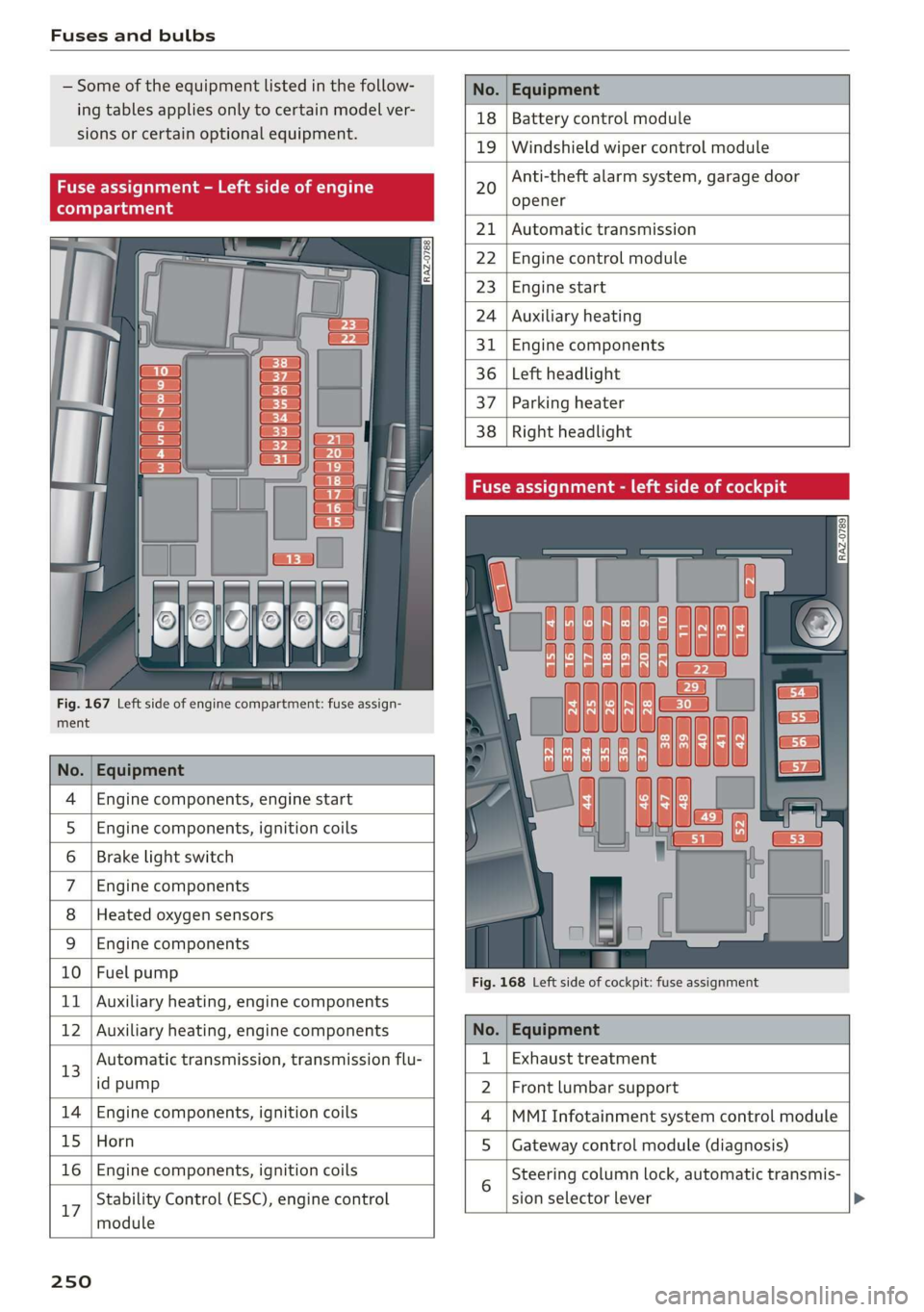
Fig. 167 Left side of engine compartment: fuse assign-
ment
No. | Equipment
Engine components, engine start
Engine components, ignition coils
Brake light switch
Engine components
Heated oxygen sensors
OlOAIN
I
DA/Mm|A
Engine components
10 | Fuel pump
11 | Auxiliary heating, engine components
No. Equipment
18 Battery control module
19 Windshield wiper control module
20
Anti-theft alarm system, garage door
opener
21 Automatic transmission
22 Engine control module
23 Engine start
24 Auxiliary heating
31 Engine components
36 Left headlight
37 Parking heater
38
Right headlight
Fig. 168 Left side of cockpit: fuse assignment
Stability Control (ESC), engine control
17
module
250
12 | Auxiliary heating, engine components No. | Equipment
13 Automatic transmission, transmission flu- 1 | Exhaust treatment
id pump 2 | Front lumbar support
14 | Engine components, ignition coils 4 |MMI Infotainment system control module
15 | Horn 5 | Gateway control module (diagnosis)
16 | Engine components, ignition coils 5 Steering column lock, automatic transmis-
sion selector lever
Page 253 of 278
83A012721BB
Fuses and bulbs
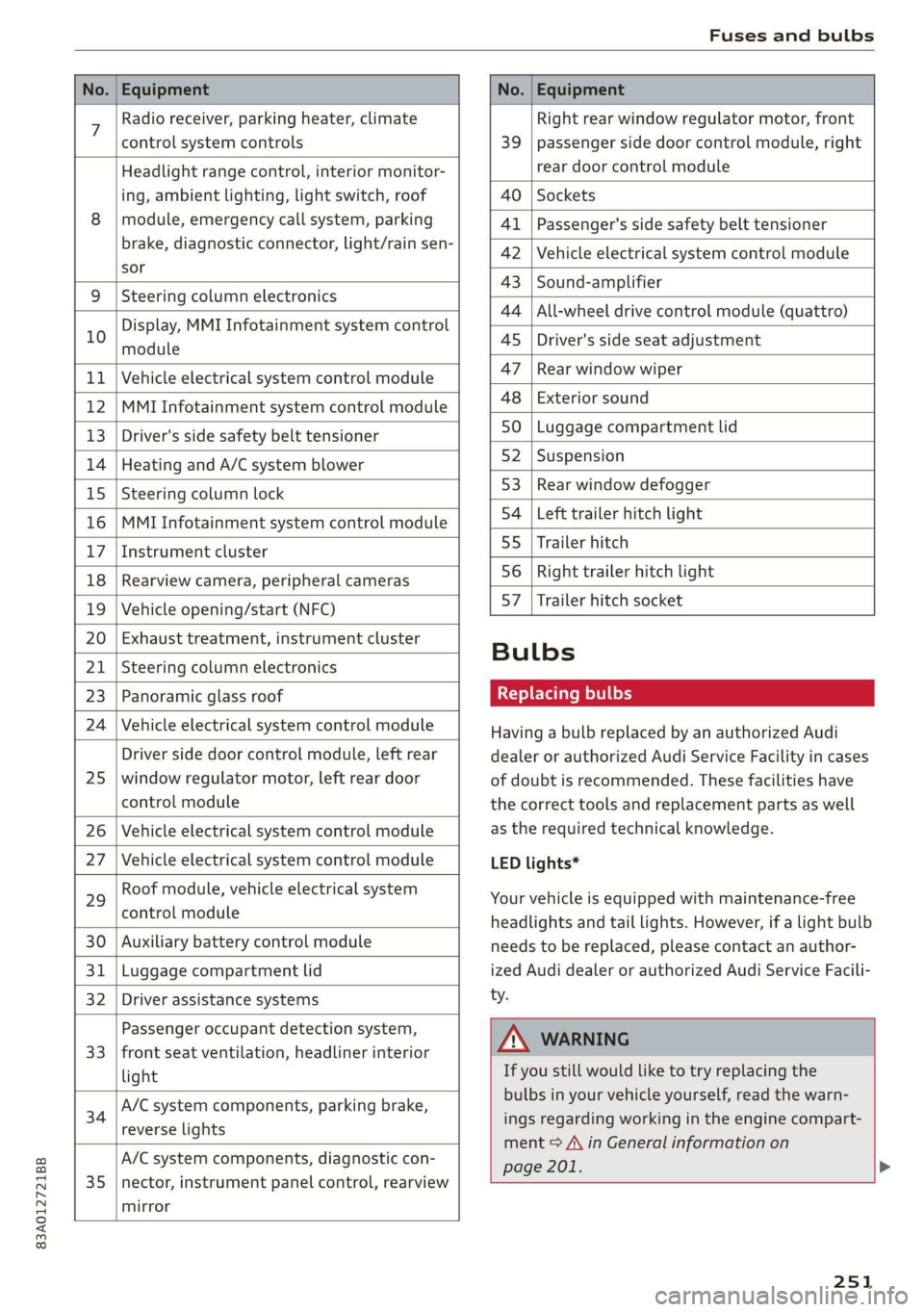
No. | Equipment No. | Equipment
7 Radio receiver, parking heater, climate Right rear window regulator motor, front
control system controls 39 | passenger side door control module, right
Headlight range control, interior monitor- rear door control module
ing, ambient lighting, light switch, roof 40 | Sockets
8 | module, emergency call system, parking 41 |Passenger's side safety belt tensioner
brake, diagnostic connector, light/raih'sen- 42 |Vehicle electrical system control module
sor
= - 43 |Sound-amplifier
9 |Steering column electronics
- - 44 | All-wheel drive control module (quattro)
Display, MMI Infotainment system control
10 anadtile 4S Driver's side seat adjustment
11 | Vehicle electrical system control module 47 | Rearwindow wiper
12 |MMI Infotainment system control module a6 || Exteriorsound
13 | Driver's side safety belt tensioner 50 | tuggage: compartment lid
14 | Heating and A/C system blower 52. || Suspension
15 | Steering column lock 53 | Rear;window defogger
16 |MMI Infotainment system control module 54 | Left trailer hitch light
17 |Instrument cluster 29 | Ualler hitch
18 | Rearview camera, peripheral cameras 56. | Right trailer hitch light
19 | Vehicle opening/start (NFC) 87 [Trailer'hitch'socket
20 | Exhaust treatment, instrument cluster
; Bulbs
21 | Steering column electronics
23 | Panoramic glass roof Replacing bulbs
24 | Vehicle electrical system control module
25
Driver side door control module, left rear
window regulator motor, left rear door
control module
26 Vehicle electrical system control module
27 Vehicle electrical system control module
29
Roof module, vehicle electrical system
control module
30 Auxiliary battery control module
31 Luggage compartment lid
32 Driver assistance systems
33
Passenger occupant detection system,
front seat ventilation, headliner interior
light
34
A/C system components, parking brake,
reverse lights
35
A/C system components, diagnostic con-
nector, instrument panel control, rearview
mirror
Having a bulb replaced by an authorized Audi
dealer or authorized Audi Service Facility in cases
of doubt is recommended. These facilities have
the correct tools and replacement parts as well
as the required technical knowledge.
LED lights*
Your vehicle is equipped with maintenance-free
headlights and tail lights. However, if a light bulb
needs to be replaced, please contact an author-
ized Audi dealer or authorized Audi Service Facili-
ty.
ZA\ WARNING
If you still would like to try replacing the
bulbs in your vehicle yourself, read the warn-
ings regarding working in the engine compart-
ment > A\ in General information on
page 201. >
251
Page 257 of 278
83A012721BB
Data privacy
@) Note
You are responsible for all precautions taken
for data protection, anti-virus protection, and
protection against loss of data on mobile de-
vices that are used to access the Internet
through the Wi-Fi hotspot.
@ Tips
— The following interfaces are not affected by
changes to the privacy settings: Bluetooth,
Bluetooth Low Energy (BLE), Wi-Fi, Audi
smartphone interface (ASI), Near Field
Communication (NFC), charging communi-
cation (high-voltage system), Electronic Toll
Collect (ETC), On-Board Diagnostic System
(OBD) if equipped.
— If the maximum privacy settings are switch-
ed on, your vehicle may not receive security
updates and certificates for establishing an
encrypted connection, depending on vehicle
equipment. In order to receive security up-
dates and certificates, switch the maximum
privacy settings off for at least ten minutes
every six months. Make sure that your vehi-
cle is connected to the Internet. A symbol in
the MMI status bar indicates if the required
data connection is available > page 20.
— If the transmission of data is limited, it will
have the following effects on the exchange
of data for Audi connect services, if equip-
ped:
— Stored destinations (favorites, last desti-
nations) are only stored in the vehicle. If
you allow transmission of data again,
these destinations will be synchronized via
the myAudi account. To prevent synchroni-
zation of destinations, delete the destina-
tions before you allow data to be trans-
mitted again.
Applies to: vehicles with Audi connect Infotainment
AUDI AG collects, uses, stores and shares your
personal information, such as contact data, vehi-
cle data, usage data, driving data and precise ge-
olocation, in order to provide you with the prod-
ucts and services you have purchased or request-
ed, and for a number of other purposes, for ex-
ample, to track quality issues, to performance
and safety, to meet our internal compliance or le-
gal requirements and to market to customers
and potential customers. For a more complete
list of the data we collect, how we use it and with
whom we share it, please visit your Audi nation-
al/sales region website at www.audi.com.
The collection, use and sharing may vary depend-
ing on your model and model year, your subscrip-
tion status, or the service offering. For example,
collection, use and sharing may vary between
Audi connect services, if you have designated a
key user, or if you are driving a model equipped
with persistent data logging. Please review the
complete Privacy Statement to understand our
data handling practices with respect to a particu-
lar service.
You can find additional information about our da-
ta privacy practices in your MMI.
> Applies to: MMI: On the home screen, select:
SETTINGS > General > Legal notes > About
Audi connect.
Information about our privacy practices in con-
junction with the mobile Audi connect applica-
tion can be found in the Application’s Privacy
Statement.
For additional information about the privacy
practices relating to Audi connect, myAudi, or
other websites, applications or online services as
well as your obligations with respect to using
these services, and for additional information re-
garding Audi connect terms and conditions,
please visit your Audi national/sales region web-
site at www.audi.com.
255
Page 267 of 278
83A012721BB
Infotainment... «ccc eo esc waver ov ome 152
Infotainment services............0000- 153
Connected devices
Device overview ....... cee e eens 194
Connections
referto Media.............-.+++- 180, 184
Consumer information.................- 256
Consumption
REGUGING & oes oo xem o soem ao oa oe oe 89
GONSUMPtiON (TUE) = sec 2 x ewe 2 game 2 2 rem 14
Contacts
Add destinations ssw: « + cima © 2 aesen @ 2 sone 166
Importing and exporting.............. 150
MGIIGrY{Capacitycs « i seas ss mene sy eae 5 150
Opening (business card)............... 144
Updatinginthe MMI.................. 150
Convenience key............00 020 eee eee 28
Convenience closing................00 39
also refer to Vehicle key..............-- 32
Convenience opening and closing
Windows O60 « wiisss & wees so eames 6 & ere 39
Coolant temperature display.............. 13
Cooling MOE: s sexx s wean o + qome ee eg 79
Cooling system
Adding
coolant wos < « siesa ss ewe se ween 208
Checking the coolant level............. 208
COOlSTit sev: 5 = eaene =e meme & E eeG se ee 207
Cornering light.............. 00sec eee eee 44
Cruise control system.................. 111
Cup
holders. ....... 0.0... eee eee ee eee 73
Current CONSUMPLIOMN ese. . « cceses 6 0 cass © econ 14
D
DatarplanSierie a x cnvew + 2 ceva wo eevee a 9 cownae 155
Data: Privacy’. ssa + 2 owen ov omnes ve tee soe 255
Dat@sios s x saws xs ees 4 e Ree & 2 RSW se EEG 14
SOCEING « cnense: ao cuezoae wo aoneres sv oremine © @ ovens 193
Daytime running lights...............0.. 44
Declaration of compliance............... 259
Defrosting the windows.................. 79
DEF (instrument cluster)................- 11
Deluxe automatic climate control with 2
ZONCS/3:- ZONES. = 2 ess vx we es eee ee EMT 79
Demo mode
refer to Presentation mode............. 170
Destination onthe map................. 162
Dettailst. 2 1 swoveise « scams oo wciawe a axtsiwe os coawae 161
Determining correct load limit........... 228
Digital'cOmpass saccs se sews ve ees yo pees vs 52
DIMENSIONS's « avy & 2 wos « 4 aotEe 4s eEUE ae 261
Dimming the exterior mirrors............. 49
Dimming the rearview mirror............. 49
Directory
S@ttingS ces s x eee + wien gv Re a x OE 150
also refer to Contacts...............4. 144
Display
CLE ATTIG se « «. eserves 1 « souneite 4 o eveuene ol sneer aw 6 236
Displaying tooltips cose « x secnss +o onmnane a o voces 18
Disposable co nei a 2 svar a a amass wn anaes a wo 256
DistanG@rend 2 2 cows ot awere oo omen vo oem 2 os 14
Distance Warning sms: » « sews ¢ » saws 2 x eee 119
Doors
Childisafety lock sessies « ¢ sors oo ewe ao races @ 38
Door contact switch................00-. 47
Mechanically unlocking and locking....... 30
Driver information system................ 12
Drives
fefer te Medidies 5 & wees «x eww sv exw 180, 184
Drive select
refer to Audi drive select................ 97
DriveSystem « caus « x yor o © ome o x Rom Fe Be 89
Audi driverselect.. sors. «2 somos © x snus x 2 syn ‘G7
Drive system (message)...............0048. 91
Driving down Rill sia s & sass 2 x cose 2 wees o 94
Driving:program: « ¢ sos + ¢ somes 2 s eews eo ee 119
Driving through water..............0000- 95
DFIVINGUENTIG 5 « neue 4 < mews a Bee oF ee se 14
Driving tips
Driving through water...............0-. 95
EER cher FV cocies 2 x conan x x camasine we wsaenen 89
Offroad driving................ eee eee 95
Uphill and downhill...
E
E-mail
MessageroptionSie: « & sexs « » sewer x = caw 148
SOUS: ccawen a: ps asoxvin «. priexene ws: samen w 4 stiewens 148
eco mode (climate control system)......... 79
EDL
refer to Electronic Differential Lock....... 99
265