ignition AUDI Q3 2020 Repair Manual
[x] Cancel search | Manufacturer: AUDI, Model Year: 2020, Model line: Q3, Model: AUDI Q3 2020Pages: 278, PDF Size: 72.66 MB
Page 155 of 278
83A012721BB
Audi connect
and the vehicle equipment, the following options
may be available:
— Embedded SIM card
ZA WARNING
Always follow the information found in > AV
in General information on page 152.
@) Note
Always follow the information found in >@ in
General information on page 152.
Embedded SIM card
Applies to: vehicles with Audi connect Infotainment and an
embedded SIM card
The data connection for Audi connect Infotain-
ment services is made through an embedded SIM
card (eSIM card) that is installed in the vehicle.
You can use the Audi connect Infotainment serv-
ices immediately.
@) Note
Always follow the information found in >@ in
General information on page 152.
Using a Wi-Fi hotspot
Applies to: vehicles with Wi-Fi hotspot
You can connect up to eight Wi-Fi devices (such
as smartphones) with the MMI Wi-Fi hotspot. If
the MMI is connected to the Internet
= page 152, the connected Wi-Fi devices can also
use the MMI’s Internet connection.
Requirement: the ignition must be switched on.
> Applies to: MMI: Select on the home screen:
SETTINGS > Connection settings > Wi-Fi
Switch on the Wi-Fi hotspot.
> Applies to: MMI: Select on the home screen:
SETTINGS > Connection settings > Wi-Fi > Wi-
Fi hotspot settings. The access data for the Wi-
Fi hotspot is displayed. Switch on the visibility
of the Wi-Fi hotspot if necessary.
> Switch the Wi-Fi function on in your mobile de-
vice and connect it to the MMI Wi-Fi hotspot
using the authentication data that is shown.
> Follow any additional system prompts on your
Wi-Fi device if necessary.
Your device is successfully connected with the
MMI's Wi-Fi hotspot.
ZA WARNING
Always follow the information found in > A\
in General information on page 152.
C) Note
Always follow the information found in >@ in
General information on page 152.
@) Tips
For an explanation on conformity with the
FCC regulations in the United States and the
Industry Canada regulations, see > page 259.
Audi connect
Infotainment services
Applies to: vehicles with Audi connect Infotainment
Some Audi connect Infotainment services must
be configured through your personal myAudi ac-
count at my.audi.com before using them for the
first time.
Gi) Tips
— For some Audi connect Infotainment serv-
ices, you may also have to enter your myAu-
di access information when accessing serv-
ices in the MMI.
— Some Audi connect Infotainment services
must be activated at my.audi.com.
— You can only connect one myAudi account to
your vehicle.
— Depending on the country, you may be able
to use the myAudi app or my.audi.com.
— For detailed information on configuration,
visit my.audi.com.
Applies to: vehicles with Audi connect Infotainment
Depending on the country and the vehicle equip-
ment, the following services may be available: >
153
Page 157 of 278
83A012721BB
Audi connect
Access point
The connection is configured automatically based
on the SIM card being used. The following values
can be changed. You can obtain more information
from your cell phone service provider.
— Access Point Name (APN): the access point de-
pends on the cell phone service provider and is
assigned automatically.
— User name: your cell phone service provider as-
signs the user name for your online profile.
— Password: your cell phone service provider as-
signs the password for your online profile.
— Apply settings: saves the changed settings.
— Reset configuration: resets the connection set-
tings.
Data usage counter
Your current data usage is displayed.
— Reset counter: you can reset your usage statis-
tics to zero.
— Warning limit: you can set a warning limit for
your data usage (GB/MB).
Z\ WARNING
Always follow the information found in > A\
in General information on page 152.
@) Note
Always follow the information found in >@ in
General information on page 152.
G) Tips
For more information on roaming charges,
contact your cell phone service provider.
Wi-Fi settings
Applies to: vehicles with Wi-Fi hotspot
Requirement: the ignition must be switched on.
> Applies to: MMI: Select on the home screen:
SETTINGS > Connection settings > Wi-Fi
Depending on the country and the vehicle equip-
ment, the following functions may be available:
))_ Not available in every market.
Wi-Fi
When the function is switched on, the MMI's Wi-
Fi hotspot is active and Wi-Fi devices can be con-
nected to the hotspot.
Wi-Fi hotspot settings
The Wi-Fi connection between the MMI and your
Wi-Fi device is encrypted. You can change the fol-
lowing information if needed.
— Access point (SSID): name of the Wi-Fi hot-
spot.
— Password: a random password was set at the
factory in the MMI. The password can be
changed. The encryption method requires a
password to be at least eight characters long.
Choose a secure password.
— Visible to others: you can switch the visibility
of the Wi-Fi hotspot on or off.
Z\ WARNING
Always follow the information found in > AV
in General information on page 152.
@) Note
Always follow the information found in >@ in
General information on page 152.
Applies to: vehicles with data plans
Requirement: you must have created a myAudi
account at my.audi.com. Your vehicle must be
registered in your myAudi account.
You can purchase data plans at my.audi.com.
ZA\ WARNING
Always follow the information found in > AV
in General information on page 152.
C) Note
Always follow the information found in >@ in
General information on page 152.
155
>
Page 178 of 278
Radio
Setting presets using the MMI
> Applies to: MMI: To play a preset, select on the
home screen: RADIO > Source > Presets > a
preset.
> To store a favorite, press YY © © page 174,
fig. 132, or:
> Press Store as favorite in the options
> page 178.
Requirement: the presets list must be displayed.
At least one favorite must be stored.
> To delete a preset, select: Z > select one or
more stations or Select all > Delete > (Done).
Requirement: the presets list must be displayed.
At least two favorites must be stored.
> To move a preset, press Z.
> Touch the $ symbol and move the entry to the
desired position.
> Press Done.
Smart favorites
Applies to: vehicles with SiriusXM
SiriusXM channels are stored in the presets as
smart favorites with the »% symbol. After switch-
ing the ignition and the MMI on, the smart favor-
ites store radio programs at a specific time.
>» Press on a smart favorite. You have the follow-
ing options:
> Pause/Start: press I/D.
> Selecting the previous or next track: press I<
or >i.
> Going to the beginning of a recording or live
program: press and hold NK or >i.
> Setting the playback point: you can adjust the
playback position using the knob.
> Going to a live program: press Lvl.
Applies to: vehicles with Audi connect Infotainment and on-
line radio
You can listen to various radio stations or pod-
casts on the Internet using online radio.
Requirement: the MMI must be connected to the
Internet > page 152, Audi connect.
> Applies to: MMI: Select on the home screen:
RADIO > Source > Online.
176
The following functions are available in the on-
line radio menu:
— Search: you only can search for online radio sta-
tions in this search. You can search for station
names and categories.
— Last stations: the station that was played last
will start playing.
— Top stations: select a station from the list of
popular online radio stations.
— Filtering the list: Select: 2 > (select a catego-
ry) > select a station name. The following cate-
gories are available:
— Countries
— Genres
— Languages
Other categories may be available depending on
the country and vehicle equipment.
Podcasts
— Applies to: MMI: Select on the home screen:
RADIO > Source > Online > Podcasts.
The following functions are available:
— Listening to a podcast: select: a podcast > a
podcast episode.
— Search: press 2.
The following functions are available in the pod-
cast playback view:
— Displaying the podcast episodes: press List.
— Starting or stopping the podcast: press D> orl.
— Previous or next podcast: press K//Dl, or use one
finger to drag the center of the display to the
left or right.
— Changing the playback point: you can adjust
the playback position using the knob.
— Displaying the online radio menu: press aa.
— Switching to radio: press Source. The sources
in the Radio menu are displayed.
Podcast favorites
You can store podcasts in the Podcast favorites.
Storing a podcast favorite: requirement: the
podcast playback view must be displayed. Press
YY, or press Save podcast in the options
= page 178, Options.
Page 182 of 278
Media
Media
General information
There may be different media drives and connec-
tions available depending on the vehicle equip-
ment. For example, you can play media files us-
ing the SD card reader or connect your mobile de-
vices to the Audi music interface and operate
them through the MMI.
Media and format restrictions: the MMI (includ-
ing the SD card reader and the USB storage de-
vice connection) was tested with a variety of
products and media on the market. However,
there may be cases where individual devices or
media and audio/video files may not be recog-
nized, may play only with restrictions, or may not
play at all.
Restricted functionality: reset the Media to the
factory default settings if functionality is restrict-
ed.
Digital Rights Management: please note that
the audio/video files are subject to copyright pro-
tection.
The media drives do not play files that are pro-
tected by DRM and are identified with the symbol
&.
Data security: never store important data on SD
cards, CDs/DVDs, or mobile devices. Audi AG is
not responsible for damaged or lost files and me-
dia.
Loading times: the more files/folders/playlists
there are on a storage medium, the longer it will
take to load. To reduce the amount of time it
takes the audio/video files to load, use a storage
medium that only contains audio/video files, and
create subfolders (for example, for each artist or
album).
Additional information: when playing, audio
files are automatically displayed with any addi-
tional information that is stored (such as the ar-
tist, track and album cover). If this information is
not available on the storage medium, the MMI
will check the Gracenote metadata database.
However, in some cases, the additional informa-
tion may not be displayed.
180
C@) Note
Read the information about Audi connect, and
be sure to note the connectivity costs section
=@ in General information on page 152.
SD card reader
The SD card reader is located in the glove com-
partment.
Inserting the SD card
>» The angled corner of the SD card must face to-
ward the right front side when being inserted.
> Slide the SD card into the card reader slot until
the SD card clicks into place.
The SD card reader is accessed and operated
through the MMI = page 184.
@) Note
— Only use one-piece SD cards. If adapter
cards (SD cards with more than one piece)
are used, the card could fall out of the
adapter when driving because of vibrations.
Individual pieces could then become stuck
in the drive and impair the functionality.
—To reduce the risk of damaging drives and
data carriers, always keep data carriers ina
sleeve and never expose them to direct sun-
light.
Bluetooth audio player
Applies to: vehicles with Bluetooth audio player
With the Bluetooth audio player, you can play
music wirelessly through the MMI from your
Bluetooth-capable mobile device (such as a cell
phone).
Requirement: the vehicle must be stationary and
the ignition must be switched on. The Bluetooth
settings will open on your mobile device during
the connection setup. The Bluetooth function and
visibility of the MMI > page 194 and mobile de-
vice must be switched on.
Page 185 of 278
83A012721BB
Media
all of these devices can be used as the playback
source.
Connecting or charging mobile devices using
a USB adapter
> Connect the matching USB adapter to the Audi
music interface USB port and connect it to the
mobile device, such as a smartphone.
The battery will charge automatically.
Mobile devices connected to the Audi music inter-
face can be started and operated using the MMI
=> page 184.
Disconnecting a mobile device from the Audi
music interface
> Remove the USB adapter cable from the Audi
music interface.
ZA WARNING
Driving requires your complete and undivided
attention. As the driver, you have complete re-
sponsibility for safety in traffic. Never operate
mobile devices while driving, because this in-
creases the risk of an accident.
@) Note
— Pull the cable out of the Audi music inter-
face carefully so that the USB ports are not
damaged.
— Use a USB extension cable to connect devi-
ces that have an integrated USB connector
(such as a USB stick) to reduce the risk of
damage to your USB device and the Audi
music interface.
— Extremely high or low temperatures that
can occur inside vehicles can damage mobile
devices and/or impair their performance.
Never leave mobile devices in the vehicle in
extremely high or low temperatures.
@) Tips
— Always follow the information found in
=> page 73.
— When you switch the ignition off, the USB
ports are still supplied with power until the
energy management intervenes.
— Do not use an additional adapter cable or
USB extension cable to connect mobile devi-
ces to the Audi music interface that already
have a cable or that must be connected with
a USB adapter cable (= page 182, fig. 133).
Using an additional adapter or US extension
cable may impair functionality.
— Functionality is not guaranteed for mobile
devices that do not conform to the USB 2.0
specification.
— USB hubs are not supported.
— Video playback through the Audi music in-
terface is not supported on Apple and MTP
devices (such as smartphones).
— iPod or iPhone malfunctions also affect the
operation of the MMI. Reset your mobile de-
vice in these situations.
— Audi recommends updating the iPod or
iPhone software to the latest version. Refer
to your mobile device owner's manual for
more information.
— The USB adapter on the Audi music inter-
face will support iPod touch or iPhone devi-
ces from the 5th generation or newer with
the lightning connector.
— For more information about the Audi music
interface and supported devices, check the
Audi database for mobile devices at www.
audi.com/mp3 or contact an authorized
Audi dealer or authorized Audi Service Fa-
cility.
Playing media
The following sources can be selected depending
on the vehicle equipment:
— Amazon Alexa > page 182.
—SD card > page 180.
— USB > page 182.
— Connect external device: you can connect ex-
ternal devices via Bluetooth and use the Blue-
tooth audio player > page 180, or you can con-
nect an external device directly to the Audi mu-
sic interface > page 182.
— Connect online media > page 181.
183
Page 193 of 278
83A012721BB
Audi smartphone interface
Audi smartphone
interface
Setup
Applies to: vehicles with Audi smartphone interface
You can connect your smartphone to the MMI
with a cable or wirelessly* using the Audi smart-
phone interface. Certain content on your smart-
phone is adapted in the MMI while driving and
can be operated through the MMI.
Requirement: the vehicle must be stationary and
the ignition must be switched on. iPhone genera-
tion 5 or higher with Lightning connector and iOS
7.1.2 operating system or higher, or smartphone
with Android Auto app and Android 5.0 Lollipop
operating system or higher.
> Applies to: MMI: Select on the home screen:
SETTINGS > Connected devices > Audi smart-
phone interface > New connection.
> Connect your smartphone to the Audi music in-
terface > page 182 using a USB adapter
=> page 182, fig. 133, or
> To connect your iPhone wireless*, switch on the
Bluetooth function and Wi-Fi on your iPhone.
Open the CarPlay settings in your iPhone. In the
MMI, press on your iPhone in the list of dis-
played devices.
> To update the list, press OQ.
> Follow the system instructions.
> Pay attention to any additional system prompts
on your smartphone, if applicable.
> Applies to: MMI: If you declined use of Apple
CarPlay or Android Auto the first time you con-
nected your smartphone, then select on the
home screen: SETTINGS > Connected devices >
Audi smartphone interface > a smartphone.
> Follow the system instructions.
Z\ WARNING
Driving requires your complete and undivided
attention. As the driver, you have complete re-
sponsibility for safety in traffic. Never operate
mobile devices while driving, because this in-
creases the risk of an accident.
CG) Note
Read the information about Audi connect, and
be sure to note the connectivity costs section
=> page 152.
G@) Tips
— The functions that can be used depend on
the following factors, among others:
— The brand of your smartphone
— The version of the operating system in
your smartphone
— The software version of the app used
— The USB adapter cable and correct connec-
tion
— Your cell phone service provider
— The customized settings on your smart-
phone
— One of the factors above or a combination
of any of them could cause your smart-
phone to be incompatible with the Audi
smartphone interface. Compatibility cannot
be guaranteed for all types of smartphones.
For more information and assistance, refer
to the user guide and the manufacturer of
your smartphone.
— Please note that you can only connect your
smartphone via the front Audi music inter-
face in order to use the Audi smartphone in-
terface.
— Wireless CarPlay* is not available in all
countries.
— Wireless CarPlay* is only possible in vehicles
without a navigation system if the following
requirement is met: the embedded SIM card
for the vehicle must be logged into the mo-
bile phone network > page 152. Make sure
the function > page 149, Turn on car phone
or data module is switched on.
— If the connected smartphone has voice con-
trol, you can operate your smartphone using
the external voice recognition system
=> page 25.
— The menu language shown in the MMI is
based on the settings in your smartphone.
— Some MMI functions are not available when
there is an active Audi smartphone interface
connection.
191
Page 196 of 278
Additional settings
Bluetooth
Applies to: vehicles with Bluetooth
> Applies to: MMI: Select on the home screen:
SETTINGS > Connection settings > Bluetooth.
Bluetooth
You can select a setting for visibility of the MMI
to other Bluetooth devices. To connect a new
Bluetooth device, the Visible setting must be se-
lected. If Invisible is selected, a Bluetooth con-
nection will only be possible with paired devices.
If Off is selected, no Bluetooth device can be con-
nected.
Bluetooth audio player
When this function is switched on, the profile
will load automatically when your Bluetooth au-
dio player is within range.
Bluetooth name
The MMI’s Bluetooth name is displayed and can
be changed.
Toya MU olor ha)
> Applies to: MMI: Select on the home screen:
SETTINGS > System maintenance > Software
update.
> If necessary, insert a storage medium with the
update data into the corresponding drive
=> page 188.
> Press Search for updates.
> Select the corresponding update.
> Press Next.
> Follow the system instructions.
A WARNING
— Perform the installation only when the vehi-
cle is stationary. Otherwise, this increases
the risk of an accident
— If the installation fails, contact an author-
ized Audi dealer or authorized Audi Service
Facility immediately to have the malfunction
corrected.
194
@) Note
The connection costs for the software update
are included in the Audi connect pricing.
G) Tips
The length of the process depends on the size
of the update.
Factory default settings
Restore factory settings
> Applies to: MMI: Select on the home screen:
SETTINGS > System maintenance > Restore
factory settings.
> Select the desired functions individually, or
> Select the option Select all.
> Press Apply. The settings will be reset.
> To completely delete a smartphone that is
paired with the Audi smartphone interface, re-
set Audi smartphone interface and Bluetooth.
G) Tips
— Make sure that not only the settings were
deleted but also the stored data, if necessa-
ry.
— The system may restart when the settings
are reset. This may take a few minutes.
Connected devices
(atau ele (1s
Requirement: the vehicle must be stationary and
the ignition must be switched on.
> Applies to: MMI: Select on the home screen:
SETTINGS > Connected devices.
Possible menu items:
— Telephone 1
— Telephone 2
— Audio player
— WLAN hotspot
— Headset
myAudi app
This function is available if the myAudi app is in-
stalled on your mobile device and started, andif >
Page 201 of 278
83A012721BB
Checking and Filling
The correct fuel type for your vehicle can be
found ona label located on the inside of the fuel
filler door. For additional information on fuel, see
=> page 197.
For the tank capacity in your vehicle, refer to the
Technical Data > page 262.
To reduce the risk of fuel leaking out or vapors
escaping, make sure that the fuel tank is closed
correctly. Otherwise the Ey indicator light will
turn on.
If the central locking system malfunctions, there
is a fuel filler door emergency release
=> page 200.
Messages
[il Tank system: malfunction! Please contact
Service
There is a malfunction in the fuel tank system.
Drive to an authorized Audi dealer or authorized
Audi Service Facility immediately to have the
malfunction corrected.
flying sparks. Sparks can start a fire when
refueling.
Z\ WARNING
Improper fueling procedures and improper
handling of fuel can lead to explosions, fires,
severe burns, and other injuries.
— Do not smoke. Keep away from open flames.
— The ignition must be switched off when re-
fueling.
— Mobile devices, radio devices, and other ra-
dio equipment should always be switched
off when refueling. Electromagnetic rays
could cause sparks and start a fire.
— If you do not insert the fuel pump nozzle all
the way into the filler tube, then fuel can
leak out. Spilled fuel can ignite and start a
fire.
— Never get into the vehicle when refueling. If
there is an exceptional situation where you
must enter the vehicle, close the door and
touch a metal surface before touching the
fuel pump nozzle again. This will reduce the
risk of electrostatic discharge that can cause
A WARNING
Transporting fuel containers inside the vehicle
is not recommended. Fuel could leak out of
the container and ignite, especially during an
accident. This can cause explosions, fires, and
injuries.
— Ifyou must transport fuel in a fuel contain-
er, note the following:
— Always place the fuel container on the
ground before filling. Never fill the fuel
container with fuel while it is inside or on
the vehicle. Electrostatic discharge can oc-
cur while refueling and the fuel vapors
could ignite.
— When using fuel containers made of met-
al, the fuel pump nozzle must always re-
main in contact with the container to re-
duce the risk of static charge.
— Insert the fuel pump nozzle as far as pos-
sible into the filler opening while refuel-
ing.
— Follow the applicable legal regulations in
the country where you are driving when
using, storing and transporting fuel con-
tainers.
— Make sure that the fuel container meets
the industry standards, for example ANSI
or ASTM F852-86.
) Depending on the engine and country
@) Note
— Remove fuel that has overflowed onto any
vehicle
components immediately to reduce
the risk of damage to the vehicle.
— Never drive until the fuel tank is completely
empty. The irregular supply of fuel that re-
sults from that can cause engine misfires.
Uncombusted fuel may enter the exhaust
system and increase the risk of damage to
the catalytic converter.
199
Page 203 of 278
83A012721BB
Checking and Filling
Engine compartment
General information
Special care is required if you are working in the
engine compartment
For work in the engine compartment, such as
checking and filling fluids, there is a risk of in-
jury, scalding, accidents, and burns. For this
reason, follow all the warnings and general
safety precautions provided in the following in-
formation. The engine compartment is a dan-
gerous area in the vehicle. > A.
Z\ WARNING
— Turn the engine off.
— Switch the ignition off.
— Set the parking brake.
— Select the “P” (Park) selector lever position.
— Allow the engine to cool.
— Keep children away from the engine com-
partment.
— Never spill fluids on a hot engine. These flu-
ids (such as the freeze protection contained
in the coolant) can catch fire.
— Avoid short circuits in the electrical system.
— Never reach into the radiator fan. The fan is
temperature-controlled and can turn on
suddenly, even when the ignition is switched
off.
— Never open the hood when there is steam or
coolant escaping from the engine compart-
ment, because there is a risk that you could
be burned. Wait until no steam or coolant is
escaping.
— The cap on the coolant expansion tank must
never be opened when the coolant is hot.
The cooling system is under pressure. There
is a risk of burns
— To protect your face, hands, and arms from
hot steam or coolant, cover the cap with a
thick cloth when opening.
— Do not remove the engine cover under any
circumstances. This increases the risk of
burns.
— Due to the risk of electric shock, never touch
the ignition cable or other components in
the electronic high-voltage ignition system
when the engine is running or is starting.
— Ifa gear is engaged while the vehicle is sta-
tionary and the engine is running, do not
press the accelerator pedal inadvertently.
Pressing the accelerator pedal will cause the
vehicle to move, and this could result in an
accident.
— If inspections or repairs must be performed
while the engine is running, moving compo-
nents (such as the ribbed belt, generator,
and radiator fan) pose an additional risk.
— Set the parking brake first and select the
“P” (Park) selector lever position.
— Always make sure that no parts of the
body, jewelry, ties, loose clothing, and
long hair can be caught in moving engine
components. Before any work, always re-
move any jewelry and/or ties, tie back long
hair, and make sure all clothing fits close
to the body to reduce the risk of anything
becoming caught in engine components.
— Pay attention to the following warnings list-
ed when work on the fuel system or on the
electrical equipment is required.
— Do not smoke.
— Never work near open flames.
— Always have a working fire extinguisher
nearby.
— All work on the battery or electrical system
in your vehicle can result in injuries, chemi-
cal burns, accidents, or burns. Because of
this, all work must be performed only by an
authorized Audi dealer or authorized Audi
Service Facility.
— Limit your exposure to exhaust and chemi-
cals to as short a time as possible.
ZA\ WARNING
California Proposition 65 Warning:
— Engine exhaust, some of its constituents,
and certain vehicle components contain or
emit chemicals known to the State of Cali-
fornia to cause cancer and birth defects and
reproductive harm. In addition, certain flu-
ids contained in vehicles and certain prod-
ucts of component wear contain or emit
201
Page 209 of 278
83A012721BB
Checking and Filling
— Maintain enough distance when you are re-
moving the oil drain plug. While doing this,
keep your forearm parallel to the ground to
reduce the risk of hot oil dripping down your
arm.
— Drain the oil into a container designed for
this purpose that is large enough to hold the
full amount of oil in your engine.
— Engine oil is poisonous. Always store out of
reach of children.
— Prolonged contact of used engine oil with
the skin may cause skin damage. Always
wash oil off immediately with soap and wa-
ter to protect your skin.
@) Note
Do not mix any additives with the engine oil.
Additives may cause engine damage that is
not covered by your New Vehicle Limited War-
ranty.
() For the sake of the environment
— Before changing the engine oil, make sure
you can dispose of the used engine oil cor-
rectly.
— Engine oil must always be disposed of cor-
rectly. Do not dump it in the yard, in the for-
est, or in open water, river channels, or sew-
ers.
— Have your used engine oil recycled by bring-
ing it to a used oil collection site or contact
a gas station.
Cooling system
The engine cooling system is filled with a mixture
of purified water and coolant additive at the fac-
tory. This coolant must not be not changed.
The coolant level is monitored using the B indi-
cator light. However, occasionally checking the
coolant level manually is recommended.
Messages
Ea Turn off engine and check coolant level. See
owner's manual
The coolant level is too low.
Stop driving and switch the engine off. Check the
coolant level > page 208.
— If the coolant level is too low, add coolant
=> page 208. Only continue driving once the in-
dicator light turns off.
/_E| Coolant temperature: too high. Please let
engine run while vehicle is stationary
Let the engine run at idle for a few minutes to
cool off, until the indicator light turns off.
— If the indicator light does not turn off, do not
continue driving the vehicle. See an authorized
Audi dealer or authorized Audi Service Facility
for assistance.
|| Coolant system: malfunction! Please turn
off engine
Do not continue driving, shut the engine off, and
switch the ignition off.
— See an authorized Audi dealer or authorized
Audi Service Facility for assistance.
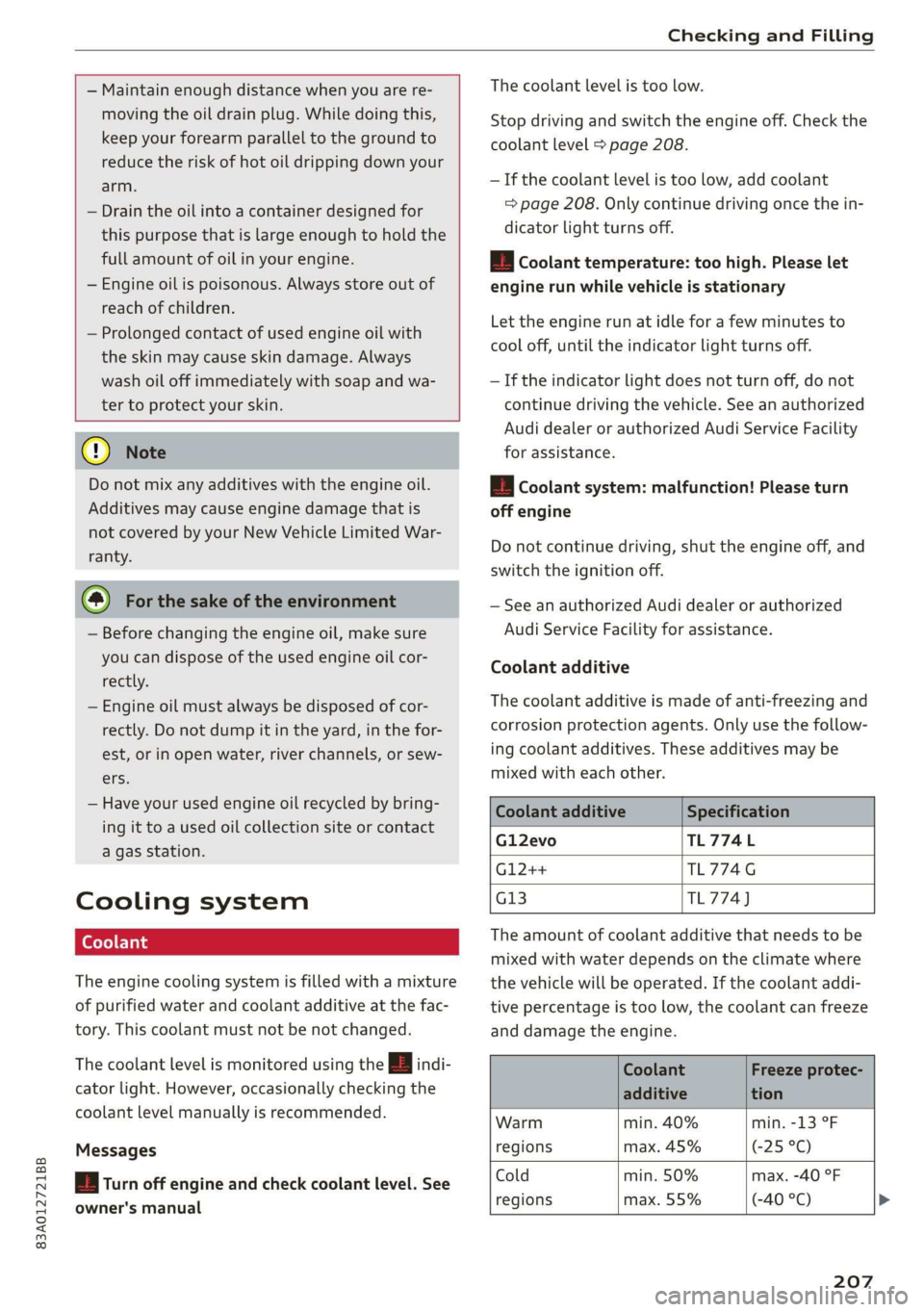
Coolant additive
The coolant additive is made of anti-freezing and
corrosion protection agents. Only use the follow-
ing coolant additives. These additives may be
mixed with each other.
Coolant additive Specification
Gl2evo TL774L
G12++ TL774G
G13 TL774)
The amount of coolant additive that needs to be
mixed with water depends on the climate where
the vehicle will be operated. If the coolant addi-
tive percentage is too low, the coolant can freeze
and damage the engine.
Coolant Freeze protec-
additive tion
Warm min. 40% min. -13 °F
regions max. 45% (-25 °C)
Cold min. 50% max. -40 °F
regions max. 55% (-40 °C) >
207