trailer AUDI Q5 2018 User Guide
[x] Cancel search | Manufacturer: AUDI, Model Year: 2018, Model line: Q5, Model: AUDI Q5 2018Pages: 392, PDF Size: 60.56 MB
Page 125 of 392
u co ..... N r-N .....
~ 0 co
Exit warning
Applies to: ve hicles with exit warning system
Fig. 122 Example dis play
Fig. 123 Door: warning lig h t
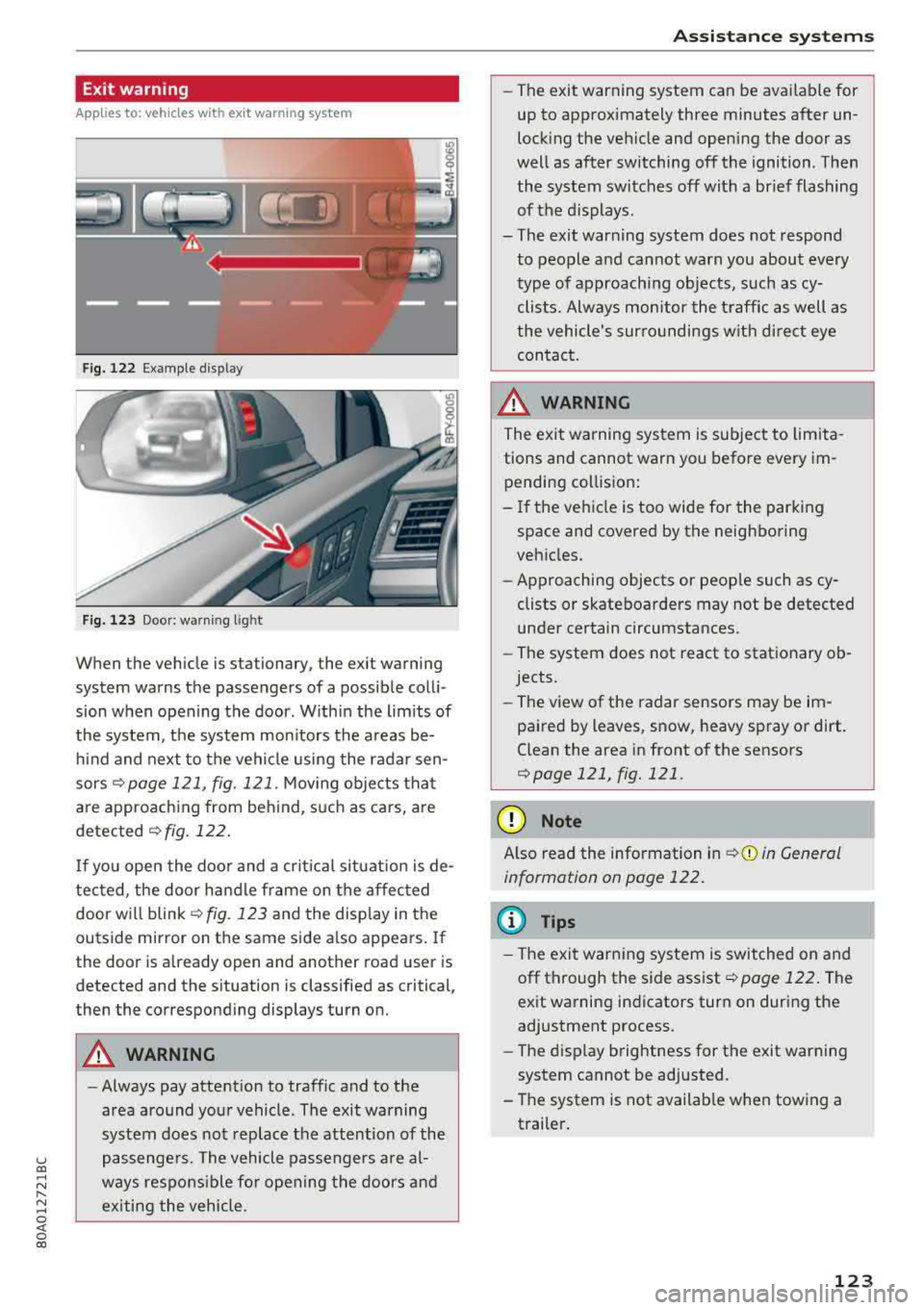
When the vehicle is stationary, the exit warning
system warns the passengers of a possible colli
sion when opening the door . Within the limits of
the system, the system monitors the areas be
hind and next to the vehicle using the radar sen
sors
¢ page 121, fig. 121 . Moving objects that
are approaching from behind, such as cars, are
detected ¢ fig. 122.
If you open the door and a critical situation is de
tected, the door handle frame on the affected door will
blink ¢ fig. 123 and the display in the
outside mirror on the same side also appears. If
the door is already open and another road user is
detected and the situation is classified as critical
J
then the corresponding displays turn on.
A WARNING
-
- Always pay attention to traffic and to the
area around your vehicle . The exit warning
system does not replace the attention of the
passengers. The vehicle passengers are al
ways responsible for opening the doors and
exiting the vehicle .
Assistance systems
-The exit warning system can be available for
up to approximately three minutes after un
locking the vehicle and opening the door as
well as after switching off the ignition . Then
the system switches off with a brief flashing
of the displays.
- The exit warning system does not respond to people and cannot warn you about every
type of approaching objects, such as cy clists. Always monitor the traffic as well as
the vehicle's surroundings with direct eye contact.
A WARNING
= -
The exit warning system is subject to limita-
tions and cannot warn you before every im
pending collision:
- If the vehicle is too wide for the parking
space and covered by the neighboring
vehicles.
- Approaching objects or people such as cy
clists or skateboarders may not be detected
under certain circumstances.
- The system does not react to stationary ob
jects.
- The view of the radar sensors may be im
paired by leaves, snow, heavy spray or dirt.
Clean the area in front of the sensors
¢page 121, fig. 121 .
(D Note
Also read the information in ¢(i) in General
information on page 122.
(D Tips
- The exit warning system is switched on and
off through the side
assist¢ page 122. The
exit warning indicators turn on during the
adjustment process.
- The display brightness for the exit warning
system cannot be adjusted.
- The system is not available when towing a
trailer.
123
Page 127 of 392
u co ..... N r--N ..... 0 <( 0 00
(D Tips
-You can cancel the automatic brake activa
tion w ith increasing braking fo rce if you ap
ply the brakes yourse lf or accelerate cons id
erab ly.
- In some situations, rea r cross-traffic assist
may warn you even if there is no cross traffic
i n a cr itical area , for examp le when back ing
i nto a parking space or maneuver ing .
- The rea r cross-traffic ass ist also switches off
when you switch off the ESC.
- The system is not available when towing a
trailer.
Messages
Applies to: vehicles with Audi side assist
A message appears in the inst rumen t cluste r dis
p lay if the s ide ass ist swi tches off automatically .
@t Audi side assist: malfunction! Please contact
Service
@j Audi side assist and exit warning: malfunc
tion! Please contact Service
The system cannot guarantee that it w ill detec t
ve hicles co rrectly a nd it has sw itched off. The
sensors have been mov ed o r are faulty. Have t he
system checked by an a uthori zed Audi dea ler or
author ized Audi Se rvice Facility soon.
@j Audi side assi st: cur rently unavailable. Sen
sor vision restricted due to surroundings . See
owner 's manual
e, Audi side as sis t and e xit warning: currently
unavailable. Sensor vision restricted due to sur
roundings
The rad ar senso r vis io n i s impa ire d. The area in
fron t of the senso rs must no t be covered by b ike
rac ks, st ic kers, leaves, snow or any othe r ob jects.
C lea n the area i n front of th e sensors, if necessa
ry¢ page 121, fig. 121.
e, Audi side as sis t: currentl y unavailable. See
owner 's manual
et Audi side a ssist and exit warning : currently
unavailable. See owner 's manual
A ss istance systems
S id e ass ist cannot be switched on at this time be
ca use there is a ma lfunction (for example, the
batte ry c harge leve l may be too low).
et Audi side assist : unavailable in towing mode
e, Audi side assist and exit warning: currently
unavailable . Towing mode
S ide ass ist switches off automatically when the
electrica l connec to r i n t he factory-installed t rail
er hitch is connec ted . There is no guarantee the
syste m will sw itch o ff when us ing a ret rofitted
t railer h itch . Do no t use side a ssist an d the ex it
war nin g when tow ing a tra ile r.
Ill Rear parking aid: obstacle detect ion restrict
ed
The rear cross-traffic ass ist is not available . E i
ther the ESC is sw itched off, or the rada r senso rs
may be cove red by a b ike rac k, st ic ke rs , leaves,
snow o r othe r objects . Swit ch the ESC on, o r
cl ea n the area in fron t of the senso rs if necess ary
¢page 12 1, fig . 12 1. If thi s message con tinues
to be displayed, dr ive imme dia tely to an author
ized Audi dea ler or author ized Audi Service Facili
ty to have the ma lf u nction repaired.
Audi drive select
Introduction
Applies to: vehicles with Audi drive select
Dr ive sele ct m akes i t possible to exper ien ce d if
f erent types of vehi cle se ttings in one veh icle.
Yo u can select the driv in g modes
Offroad* or
Lift / Offroad *, Allroad* , Comfort , Auto and Dy
namic
i n the Infota inme nt system, fo r example
to switch from a spo rty to a comfo rtable d riving
mode. In the
Individual mode, the settings can
be adjusted to you r persona l preferences. This
makes it possible to combine sett ings such as a
spo rty engine setting wi th light steer ing .
Description
Applies to: vehicles with Audi drive select
The following systems, among ot her th ings, a re
in fluenced by dr ive se lect:
.,.
125
Page 132 of 392
Parking aid
Parking aid
General information
A pplies to: ve hicles w ith a rea r parking sys te m /parking sys
tem p lus/rearv iew camera/peripheral cameras
Depending on your vehicle's equipment , various
parking aids will help you when parking and ma
neuvering.
The
rear parking system is an audible parking aid
that warns you of obstacles
behind the vehicle
¢ page 131.
The parking system plus assists you when park
ing by audibly and visually indicating objects de
tected
in front of and behind the vehicle
¢ page 131.
The rearview camera shows the area behind the
vehicle in the Infotainment system display. The lines in the rearview camera image help you to
park or maneuver
¢ page 133.
The peripheral cameras give various views to
help you when parking or maneuvering
¢ page 135 . The parking system plus functions
are also available ¢
page 131.
_& WARNING
-Always look for traffic and check the area
around your vehicle by looking at it directly
as well. The parking system cannot replace
the driver's attention. The driver is always
responsible when entering or leaving a park
ing space and during similar maneuvers.
- Please note that some surfaces, such as
clothing, are not detected by the system.
-
- Sensors and cameras have blind spots in
which people and objects cannot be detect
ed . Be especially cautious of small children
and animals.
- Always keep your eyes on the vehicle's sur roundings, using the rearview mirror as
well.
- The sensors can be displaced by impacts or
damage to the radiator grille, bumper,
wheel housing and the underbody . The park
ing system may be impaired as a result.
Have an authorized Audi dealer or author-
130
ized Audi Service Facility check their func
tion .
@ Note
-Some objects are not detected or displayed
by the system under certain circumstances:
- objects such as barrier chains, trailer draw
bars, vertical poles or fences
- objects above the sensors such as wall ex
tensions
- objects with certain surfaces or structures
such as chain link fences or powder snow
- If you continue driving closer to a low ob
ject, it may disappear from the sensor range . Note that you will no longer be
warned about this obstacle.
- Keep enough distance from the curb to re
duce the risk of damage to the rims .
(D Tips
-The system may provide a warning even
though there are no obstacles in the cover
age area in some situations, such as:
- certain road surfaces or when there is tall
grass
- external ultrasonic sources such as from
cleaning vehicles
- in heavy rain, snow, or thick vehicle ex
haust
- We recommend that you practice parking in
a traffic-free location or parking lot to be
come familiar with the system. When doing
this, there should be good light and weath
er conditions.
- You can change the volume of the signals
and the display ¢
page 138.
-Please refer to the instructions for towing a
trailer located in
¢page 139.
-What appears in the infotainment display is
somewhat time-delayed.
- The sensors must be kept clean and free of
snow and ice for the parking aid to operate.
- The rearview camera is cleaned when clean
ing the rear window
¢page 51.
Page 135 of 392
u co ..... N r-N .....
~ 0 co
Rearview camera
Introduction
Applies to: vehicles with rearv iew camera
Fig. 131 Diagram: lines to aid in parking
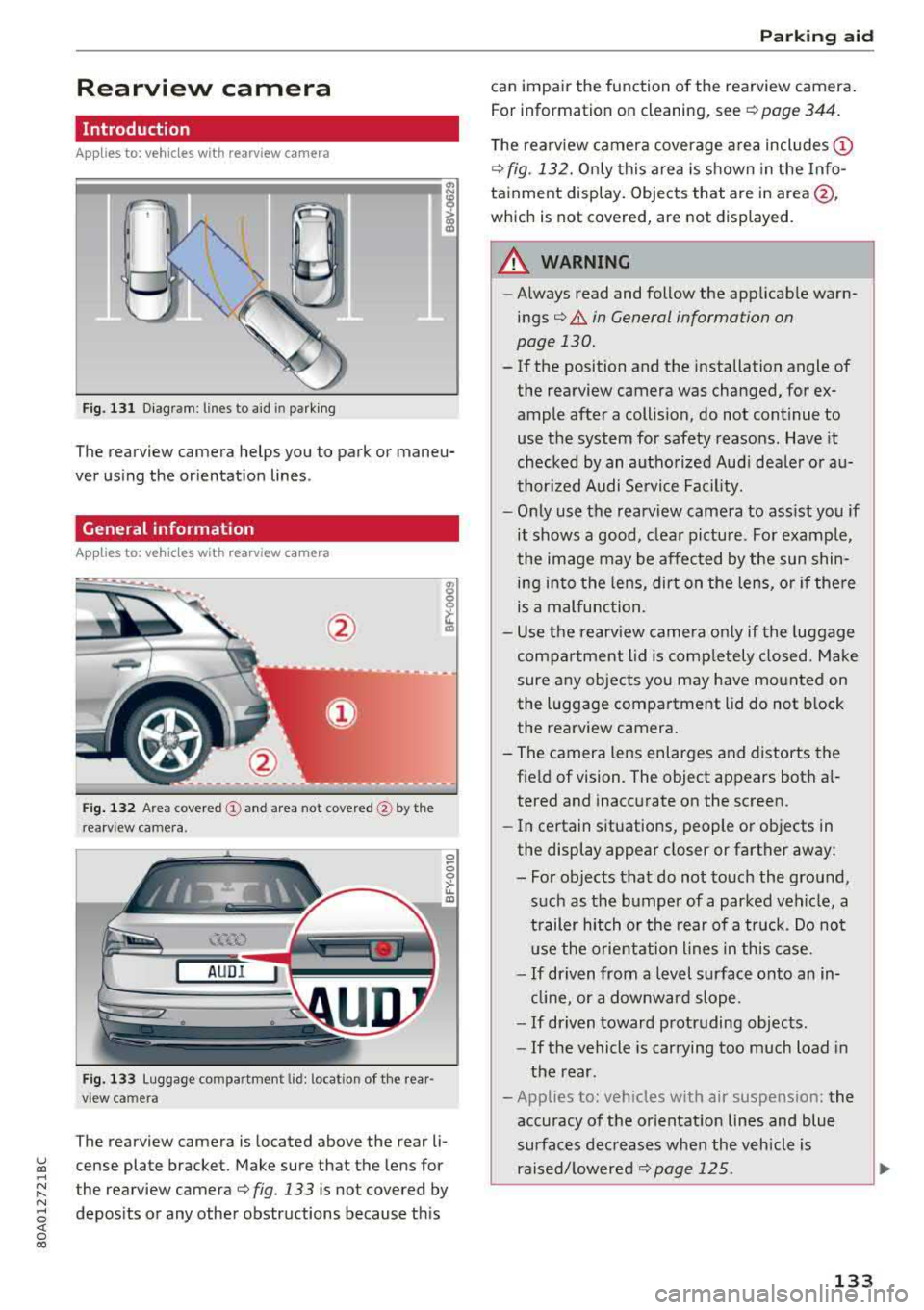
The rearview camera helps you to park or maneu
ver us ing the orientation lines .
General information
Applies to: veh icles wit h rearv iew camera
Fig . 13 2 Area covered (y and area not covered @by th e
rearv iew camera .
AUDI
Fig. 1 33 Luggage compartment lid: locat io n of the rear
view camera
The rearview camera is located above the rear li
cense plate bracket. Make sure that the lens for
the rearview
camera¢ fig. 133 is not covered by
depos its or any other obstructions because th is
P ark ing aid
can impair the function of the rearview camera .
For information on cleaning, see
¢ page 344.
T he rearview camera coverage area includes (D
¢fig. 132. On ly this area is s hown in the Info
tainment display. Objects that are in
area@,
which is not covered, are not displayed.
A WARNING
-
-Always read and follow the applicab le warn-
ings¢ &. in General information on
page 130.
-If the position and the installation angle of
the rearview camera was changed, for ex
ample after a collision, do not continue to
use the system for safety reasons. Have it
checked by an autho rize d Aud i dea le r or a u
thor ized A udi Se rvice Fac ility.
-O nly use the rearv iew camera to ass ist you if
it shows a good, clea r pictu re . For example,
the image may be affected by the sun shin i n g into the lens, dirt on the lens, o r if the re
is a malfunction.
-U se the rearv iew came ra o nly if the luggage
compa rtment lid is comp letely closed. Make
sure any objects you may have mo unted on
the l uggage compartment lid do not block
the rea rview camera .
- The camera lens enlarges and distorts the field of vision. The object appears both a l
tered and inaccurate on the screen.
- In ce rtain situations, people o r objects in
the display appear closer or farther away :
- Fo r o bjects tha t do not touch the ground,
such as the bumper of a parked veh icle, a
trailer hitch o r the rear of a truck . Do no t
u se the orie nta tion l ines in th is case.
- If driven from a level surface onto an in
cl in e, or a downwar d slope.
- If driven toward protruding objec ts.
- If the vehicle is car rying too much load in
the rear .
- Applies to: veh icles w ith air suspens ion: the
accuracy of the or ientat ion lines and blue
surfaces dec reases whe n the vehicle is
raised/ lowere d¢
page 125.
133
Page 136 of 392
Parking aid
(D Note
-Always read and follow the applicable warn
ings
¢ 0in General information on
page
130.
- The orange-colored orientation lines in the
Infotainment display show the vehicle path based on the steering wheel angle. The
front of the vehicle swings out more than
the rear of the vehicle. Maintain plenty of
distance so that an exterior mirror or a cor
ner of the vehicle does not collide with any
obstacles.
Switching on/off
A pp lies to: ve hicles w ith rearview ca mera
Switching on/off
Requirement: the vehicle speed must be under
approx imately
6 mph (10 km/h).
• Press the P,11A button in the center console
¢ page 132, fig . 129. A short confirmat ion
tone sounds and the LED in the button turns
on.
Switching on automatically
The system switches on automat ically when re
verse gear is engaged while the engine is run
n ing. A brief confirmation tone will sound.
Switching off automatically
The system switches off automatically when driv
ing forward faster than 6 mph
(10 km/h) .
Perpendicular parking
App lies to: ve hicles w ith rearview ca mera
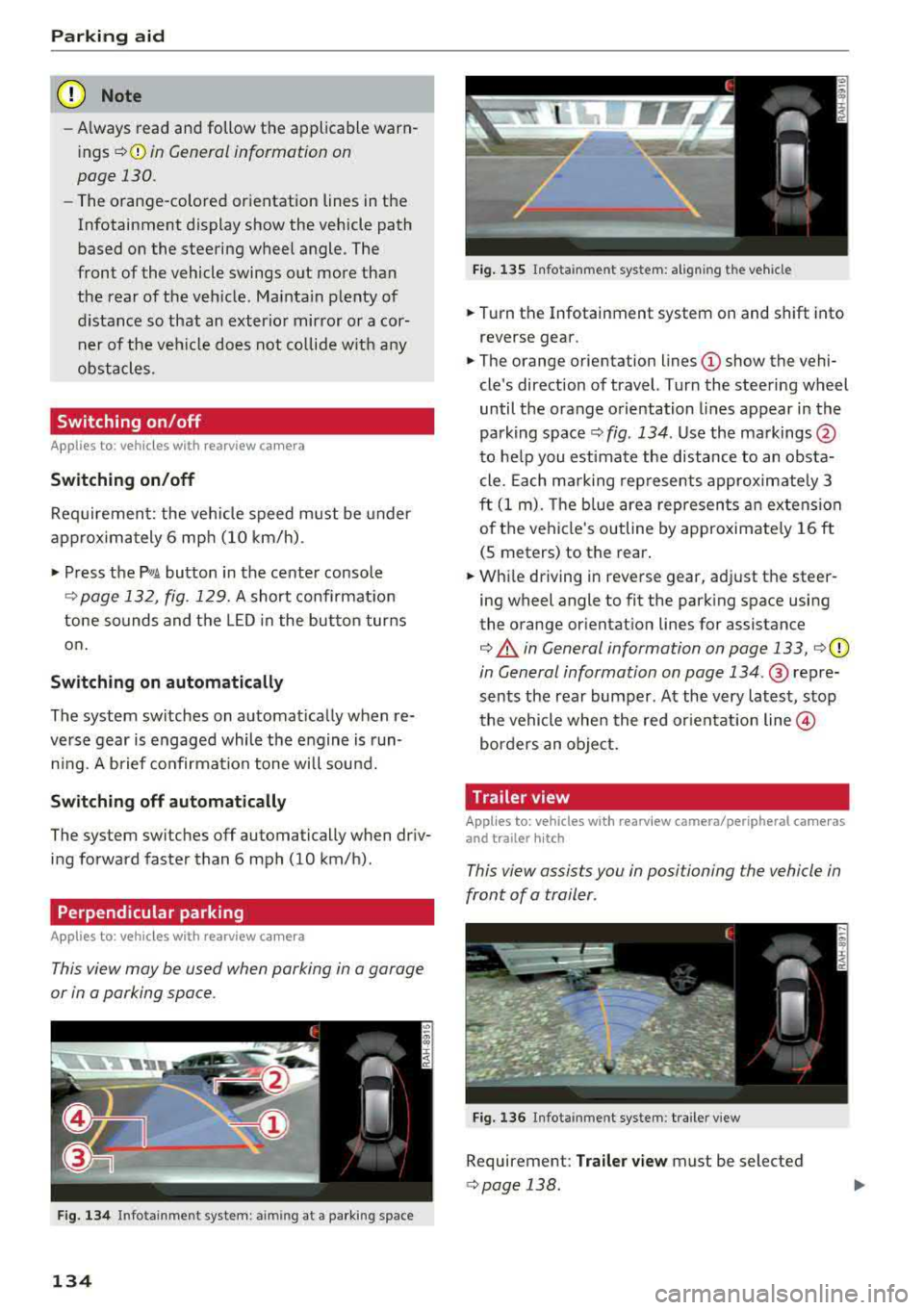
This view may be used when parking in a garage
or in a parking space .
Fig. 134 In fotainme nt system: a iming at a parking space
134
Fig. 135 Infota inment system: al ign ing the vehicle
• Turn the Infotainment system on and shift into
reverse gear.
• The orange orientation lines (D show the vehi
cle's direction of travel. Turn the steering wheel
until the orange orientation lines appear in the
parking
space ¢ fig. 134 . Use the markings @
to help you estimate the distance to an obsta
cle. Each mark ing represents approximately 3
ft
(1 m). The b lue area represents an extension
of the vehicle's outline by approximate ly
16 ft
(5 meters) to the rear.
• While driving in reverse gear, adjust the steer
ing wheel angle to fit the parking space using
the orange orientat ion lines for assistance
¢ .&. in General information on page 133, i=>(D
in General information on page 134 .@ repre
sents the rear bumper. At the very latest, stop
the vehicle when the red orientation
line @
borders an object.
Trailer view
Applies to: vehicl es with rearv iew camera/peripheral ca meras
and trailer hitch
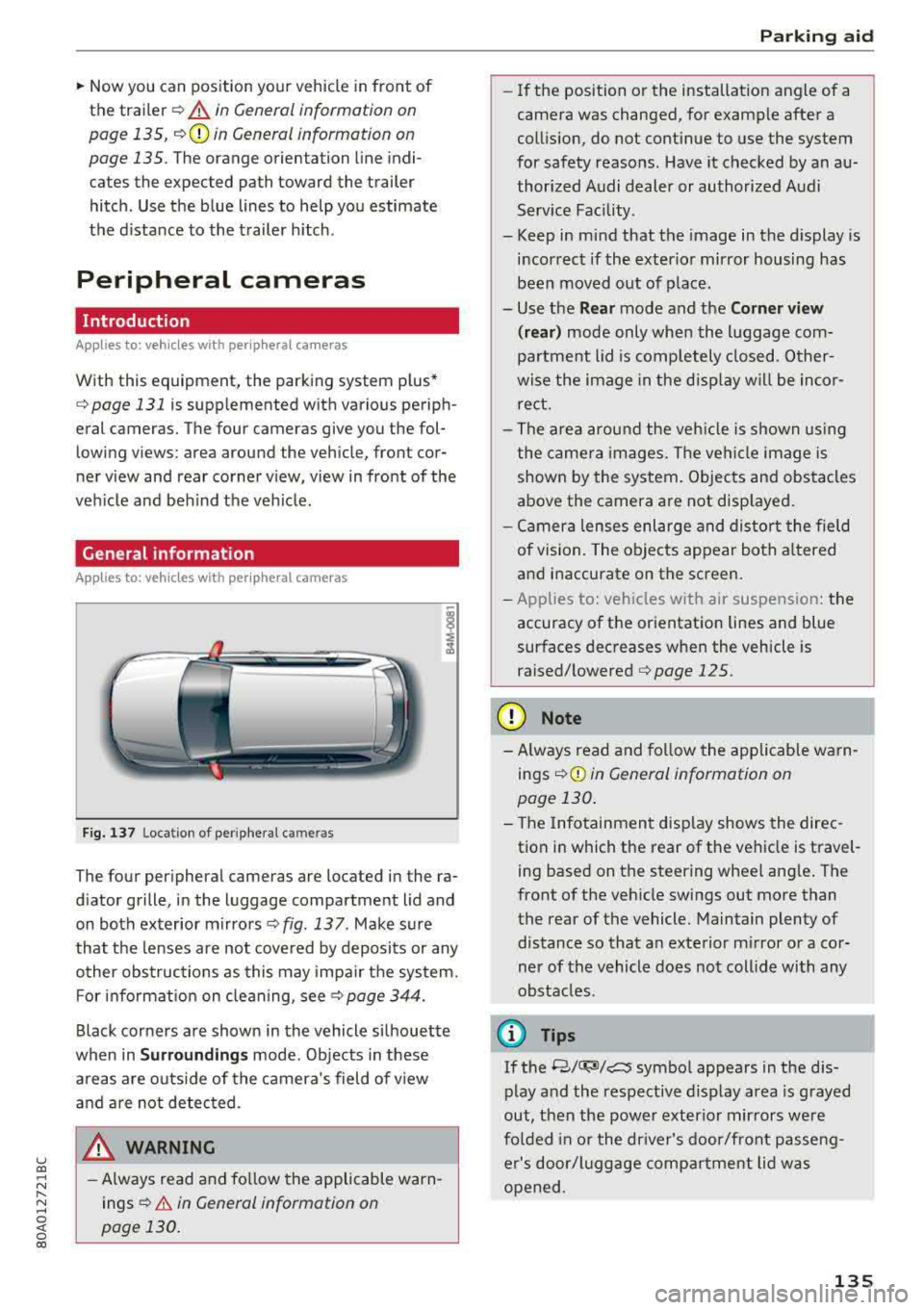
This view assists you in positioning the vehicle in
front of a trailer .
Fig. 136 Infotainment system : trailer view
Requirement: Trailer view must be selected
¢page 138 .
Page 137 of 392
u co ..... N r-N .....
~ 0 co
~ Now you can position your vehicle in front of
the trailer ¢
A in General information on
page 135,
¢ (Din General information on
page 135.
The orange orientation line indi
cates the expected path toward the trailer
hitch . Use the blue lines to help you estimate
the d ista nce to the trailer h itch.
Peripheral cameras
Introduction
Applies to: vehicles with peripheral cameras
With this equipment, the parking system plus*
¢
page 131 is supplemented w ith various periph
eral cameras. The four cameras give you the fol
lowing views : area around the vehicle, front cor
ner v iew and rear corner v iew, view in front of the
veh icle and beh ind the veh icle .
General information
App lies to: veh icles with peripheral cameras
i
Fig. 137 Locat ion of periphera l ca mera s
The four per ipheral cameras are located in the ra
d iator grille, in the luggage compartment lid and
on both exterior mirrors ¢
fig. 13 7 . Make sure
that the lenses are not covered by deposits or any
other obstructions as this may impa ir the system.
F or info rmat io n on cleaning, see
c::> page 344.
Black corners are shown in the vehicle si lhouette
when in
Surroundings mode. Objects in these
a reas a re outside of the camera 's field of v iew
and a re not detec ted .
_& WARNING
-Always read and follow the applicable warn
ings ¢
A in General information on
page 130.
P ark ing aid
- If the position or the installation angle of a
camera was changed, for example after a
coll is ion, do not cont inue to use the system
for safety reasons. Have it checked by a n au
thorized A udi dealer or authorized Audi
Serv ice Facility.
- Keep in mind that the image in the display is
i n correct if the exterior mirror housing has
been
moved out of p la ce.
- Use the
Rear mode and the Corner view
( rear )
mode only when the luggage com
pa rtment lid is comp letely closed. Other
wise the image in the disp lay w ill be inco r
re ct.
- The area around the veh icle is shown using
the camera images. The vehi cle image is
shown by the system. Objects and obs tacles
above the camera are not disp layed .
- Ca mera lenses enl arge and distort the field
of vision. The o bjects appear both a ltered
a nd inaccurate on the screen.
- Applies to: vehicle s with air suspension: the
accuracy of the orientation lines and blue
surfaces dec reases whe n the vehicle is
raised/lowered <=>
page 125.
(D Note
-Always read and fo llow the applicable wa rn
ings
c::> (D in General information on
page 130 .
- The Info tainmen t display shows the direc
tion i n which the rear of the vehicle is travel
ing based on t he steering wheel ang le . The
front of the veh icle swings out mo re than
the rear of the vehicle. Maintain plenty of
distance so that a n exterior m irror or a cor
ner of the vehicle does not coll ide with any
obstacles.
(0 Tips
If the 8/0";JJ/c:5 symbo l appears in the d is
play a nd the res pect ive d isplay area is grayed
out, then the power exter ior mir rors we re
fo lded in or the dr iver's door/front passeng
e r's door/luggage comp artme nt lid w as
opened .
135
Page 138 of 392
Parking aid
Switching on/off
Applies to: ve hicles w ith per ip heral cameras
Fig. 1 38 Infotainment system: se lect the mode
Switch ing on /off
Req uirement: the veh icle speed must be under
approx imately 6 mp h (10 km/h).
• Press the P'I/ A button in the center console
¢ page 132, fig . 129 . A short confi rmat ion
tone so unds and the
LED in the but to n turns
on.
Switching on automatically
The system switches on automat ica lly when re
verse gear is engaged while the engine is run n ing . A brief confirma tion tone wi ll soun d.
Sw it c hing off automat ically
The system switches off automatically when dr iv
ing forward faster than 6 mph (10 km/h).
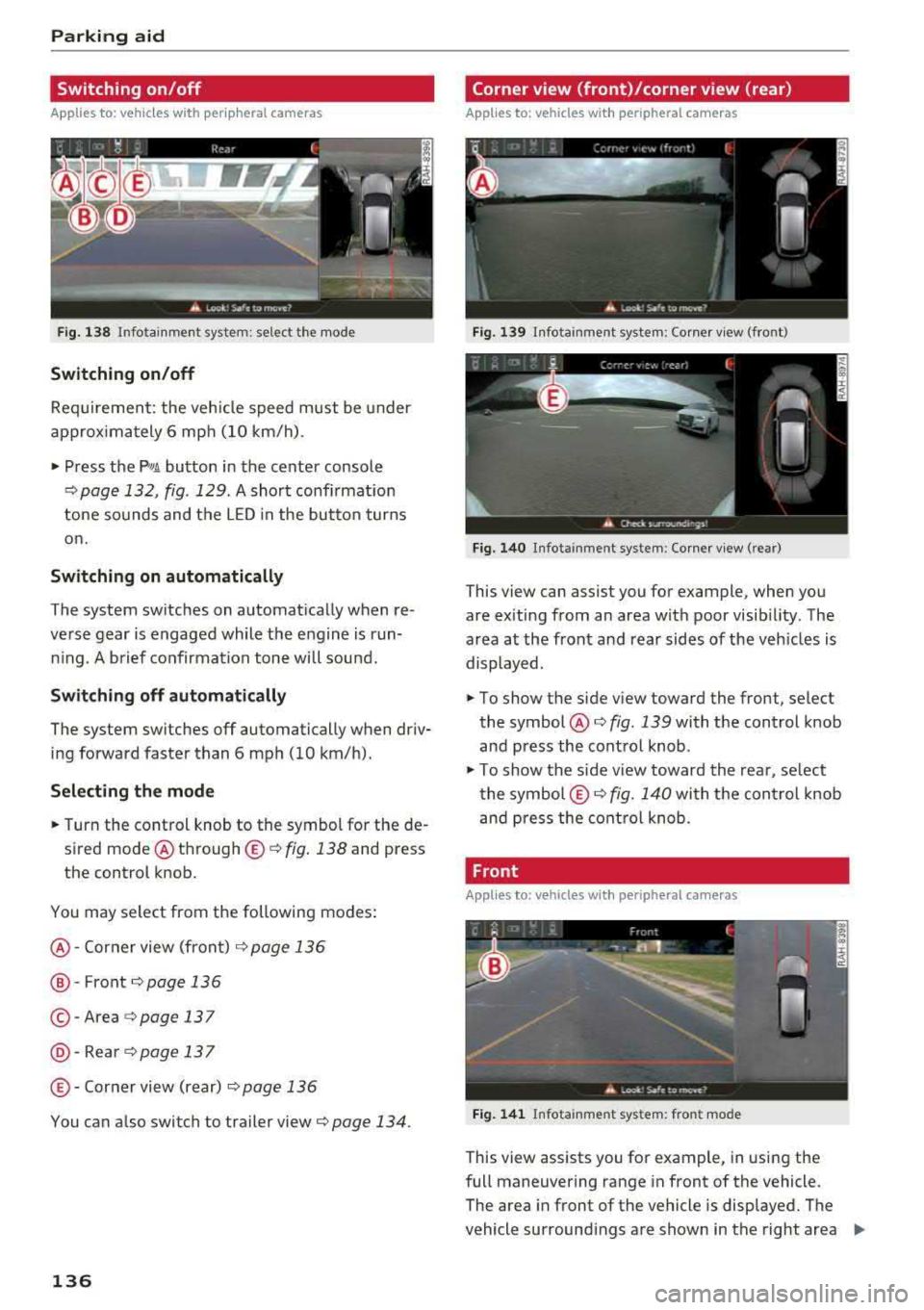
Selecting the mode
• Turn the control knob to the symbol for the de
sired mode @
th rough ©¢ fig. 138 and press
the control knob.
You may select from the following modes:
@ -Corner view (front) c;> page 136
@-Front¢ page 136
© -Area c;> page 137
@ -Rea rc;> page137
© - Corner view (rear) ¢ page 136
You can a lso switch to trailer view c;> page 134 .
136
Corner view (front)/corner view (rear)
Applies to : vehicles with peripheral cameras
Fi g. 139 In fota inment system: Corner v iew (front)
Fig. 14 0 Infota inment sy stem : Corner v iew (re ar)
This view can assist you for example, when you
are ex iting from an area with poor visib ility. The
area at the front and rear sides of the veh icles is
displayed.
• To show the side v iew toward the front, select
the symbol @
c;> fig. 139 with the control knob
and press the contro l knob .
• To show the s ide v iew toward the rea r, se lect
the symbol ©
c;> fig. 140 with the con trol knob
and p ress the control knob .
Front
Applies to: vehicles wi th peripheral ca meras
Fi g. 141 Info ta in ment sys tem: fron t mode
This view assists you for example, in using the
full maneuvering range in front of the vehicle.
The area in front of the vehicle is displayed. The
vehicle surround ings are shown in the right area
..,
Page 140 of 392
Parking aid
Adjusting the parking aid
Applies to: vehicles with a rear parking system/parking sys
tem plus/rearview camera/peripheral cameras
The functions are adjusted in the Infotainment
system .
.,. Select in the Infota in m ent system: IMENU I but
t on
> Vehicle > left co ntro l bu tton > Driver a s
sistance > Parking aid .
Or
.,. When the par kin g aid is active, se lect in the In -
fotainment system : rig ht contro l butto n*.
End sy stem * -stop t he pa rking aid
Activate automatically * -switch automatic acti
vation on/off
Front volume * -volume for the front area
Rear volume -vo lume for t he rear area
Entertainment fader -the vol ume o f th e aud io/
video so urce is lowered when t he parking system
is turned on.
T he new value is g iven b riefly du ring the a djus t
men t.
View * -sw itch betwee n an optical d isplay
( Graphic ) and camera image ( Camera ) in the
r ight section of the disp lay.
Trail er view * -show trailer view
*Auto. front /rear came ra change* -the view be
h ind the veh icle
( Rear mode) is displayed auto
mat ica lly w hen you shift into reverse gear. The
v iew in front of the vehicle
( Front mode) is d is
p layed automat ically whe n you sh ift into the for
ward gea rs. When first activat ing in a forward
gea r with t he
P,,1~ bu tto n, the front s ide v iew is
d isp layed
(Corner view (front) mode).
If you do not set
the./, t h e view behind the vehi
cle
( Rear mode) is a lways d isp layed and it does
no t swi tch to the
Front mode whe n a forwar d
ge ar is se lec ted .
(0 Tips
-Seve ral menus can be accessed w ith the
r ight contr ol butt on o nly w hen the p ark ing
a id is active.
138
- The set tings for vo lume and automa tic ac ti
vation * are stored automatically and as
signe d to the remote control key in use.
Error messages
Applies to: vehicles with a rear parking system/parking sys
tem plus/rearview camera/peripheral cameras
Ill Rear parking aid: malfunction! Ob stacl es
cannot be detected
Ill Front parking aid: malfunction! Obstacles
cannot be detect ed
Ill Parking aid : malfunct ion! Obstacles cannot
be detected
When one of these messages appears, there is a
system malfunction. The LED in t he
Pw, button al
so blinks whe n sw itchi ng it on. The releva nt mes
sage o nly appears again w hen you manually acti
vate the par king a id wi th t he b utton .
[ii Rear parking aid : obstacle detection restrict
ed
The rea r cross-traffic ass ist* c:!;> page 124, Rear
cross-traffic assist is no t ava ilable. Either the ESC
is sw itched off, or the radar sensors may be cov
ered by a bike rack, stickers, leaves, snow or oth
er objects . Switch t he ESC on , or clean the area in
front of the sensors if necessary
c:!;> page 121,
fig. 121 .
If this message cont inues to be d is
played, drive immed iate ly to an author ized A udi
de aler or au thor ized A udi Servi ce Facili ty to h ave
t h e mal funct ion repai red .
Parking system plus*
If a senso r or speaker is faulty, the.!¼ symbo l
will appear i n fro nt of/behind the vehicle in the
I nfotai nment syste m disp lay. If a rear sensor is
f aulty, only obs tacles th at are in areas @ and @
a re show n
<:!;>page 131, fig . 128 . If a front senso r
i s fa ulty, o nly obstacles that a re in a reas © and
@ are s hown.
Peripheral cameras*
There is a system malfunction if t he % symbo l
appe ars and the co rresponding area of the dis
play is shown in black . The camera is not wo rking
i n th is area.
...
Page 141 of 392
u co ..... N ,..._
N ..... 0 <( 0 00
Drive to an authorized Audi dealer or authorized
Audi Service Facility immediately to have the
malfunct ion corrected.
Trailer hitch
Applies to: vehicles with a rear parking system/parking sys
tem plus/ rearv iew camera/peripheral cameras and trailer
hitc h
When the tra iler socket is in use, the parking sys
tem rear sensors are not activated when you shift into reverse gear or when you press the
Pw~ but
ton. This results i n the following restrictions.
Rear parking system*
There is no distance warning.
Parking system plus*
There is no distance warning for the rear. The
front sensors remain activated . The visual display
switches to trai ler mode.
Rearview camera* /peripheral cameras*
There is no distance warning for the rear. The
front sensors remain activated. The visual display
switches to trai ler mode. The rearview camera
image will not show the orientation lines and the
b lue surfaces.
@ Tips
Trailer hitches that are not installed at the
factory may cause the parking system to ma l
function or they may restrict its function.
Parking aid
139
Page 215 of 392
u co ..... N r-N .....
~ 0 co
Map
Map operation
Applies to: veh icles with navigation system
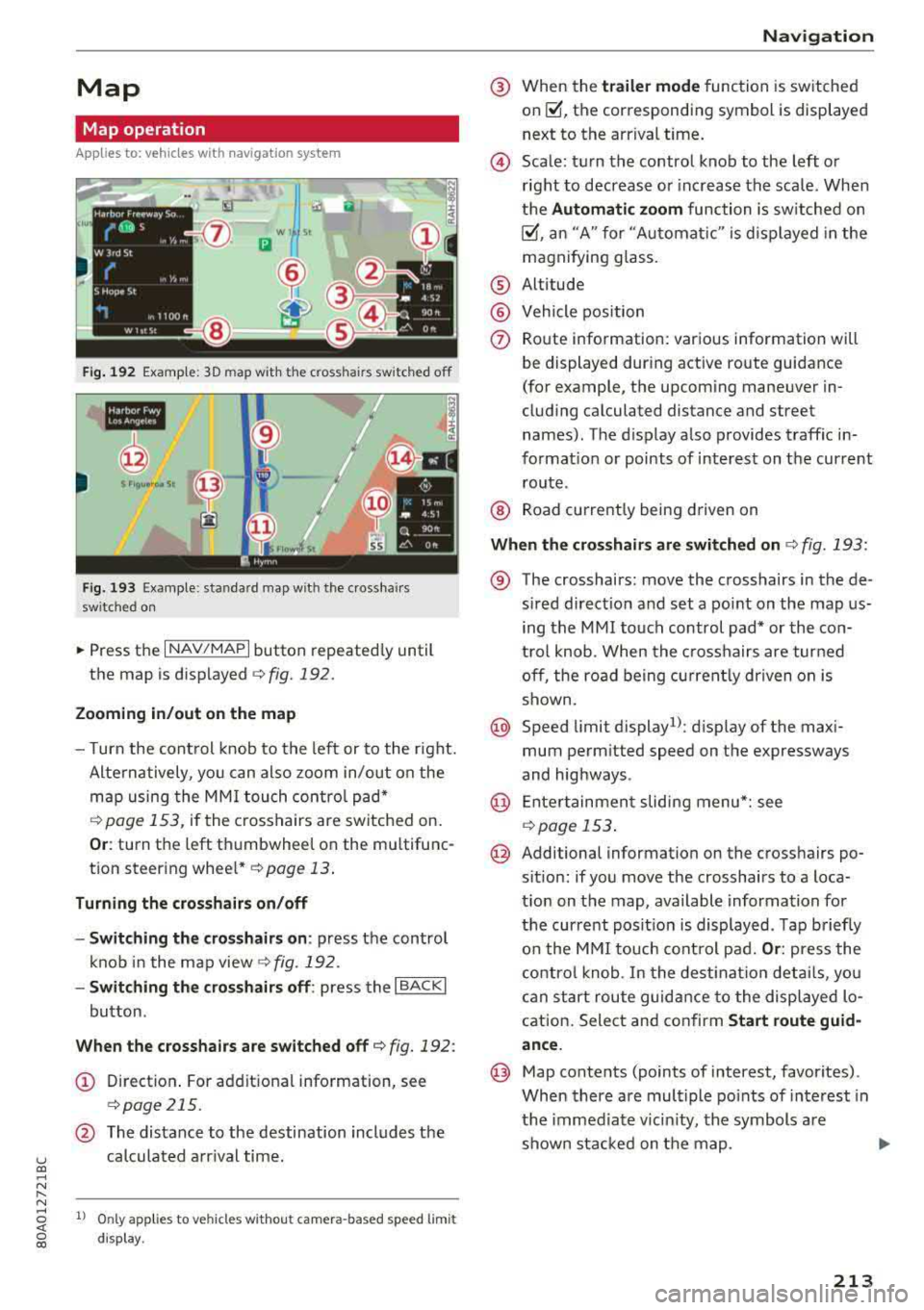
Fig. 192 Example: 30 map with the c ross hair s switched off
--,-
@
Fig. 193 Examp le: st an da rd map wi th t he crosshai rs
sw itc hed on
~ Press the I NAV /MAPI button repeatedly until
the map is displayed
c;,fig. 192.
Zooming in/out on the map
- Turn the control knob to the left or to the right.
Alternatively, you can also zoom in/out on the
map using the MMI touch control pad*
¢ page 153, if the crosshairs are switched on.
Or: turn the left thumbwheel on the mu ltifunc
tion steering
wheel* ¢ page 13.
Turning the crosshairs on/off
- Switching the crosshairs on :
press the control
knob in the map view
¢fig. 192.
- Switching the crosshairs off: press the I BACKI
button .
When the crosshairs are switched off¢ fig. 192 :
(D Direction. For additional information, see
¢page 215.
@ The distance to the destination includes the
calculated arrival time.
1l Only appl ies to vehicl es w ithou t camer a-b as ed speed lim it
d ispla y.
Navigation
@ When the trailer mode function is switched
on~, the corresponding symbol is displayed
next to the arrival time.
@ Scale: turn the control knob to the left or
right to decrease or increase the scale. When
the
Automatic zoom function is sw itched on
~, an "A" for "Automat ic " is displayed in the
magnifying gla ss.
® Altitude
@ Vehicle position
0 Route information: various information will
be displayed during active route guidance
(for example, the upcoming maneuver in
cluding calculated distance and street
names) . The display also provides traffic in
formation or points of interest on the current route .
® Road currently being driven on
When the crosshairs are switched on¢ fig. 193 :
® The crosshairs: move the crosshairs in the de-
s ired direction and set a po int on the map us
ing the MMI touch control pad* or the con
t rol knob . When the crosshairs are turned
off, the road being currently driven on is
shown.
@ Speed limit display1>: display of the maxi
mum perm itted speed on the expressways
and highways .
@ Entertainment sliding menu*: see
¢page 153 .
@ Additional information on the crosshairs po
sit ion: if you move the crosshairs to a loca
t ion on the map, available information for
the current posit ion is displayed . Tap briefly
on the MMI touch control pad.
Or: press the
control knob. In the destination details, you
can start route guidance to the displayed lo
cation. Select and confirm
Start route guid
ance.
@ Map contents (points of interest, favorites) .
When there are multiple points of interest in
the immediate vicin ity, the symbols are
shown stacked on the map.
213