park assist AUDI Q5 2018 Owner's Manual
[x] Cancel search | Manufacturer: AUDI, Model Year: 2018, Model line: Q5, Model: AUDI Q5 2018Pages: 392, PDF Size: 60.56 MB
Page 132 of 392
Parking aid
Parking aid
General information
A pplies to: ve hicles w ith a rea r parking sys te m /parking sys
tem p lus/rearv iew camera/peripheral cameras
Depending on your vehicle's equipment , various
parking aids will help you when parking and ma
neuvering.
The
rear parking system is an audible parking aid
that warns you of obstacles
behind the vehicle
¢ page 131.
The parking system plus assists you when park
ing by audibly and visually indicating objects de
tected
in front of and behind the vehicle
¢ page 131.
The rearview camera shows the area behind the
vehicle in the Infotainment system display. The lines in the rearview camera image help you to
park or maneuver
¢ page 133.
The peripheral cameras give various views to
help you when parking or maneuvering
¢ page 135 . The parking system plus functions
are also available ¢
page 131.
_& WARNING
-Always look for traffic and check the area
around your vehicle by looking at it directly
as well. The parking system cannot replace
the driver's attention. The driver is always
responsible when entering or leaving a park
ing space and during similar maneuvers.
- Please note that some surfaces, such as
clothing, are not detected by the system.
-
- Sensors and cameras have blind spots in
which people and objects cannot be detect
ed . Be especially cautious of small children
and animals.
- Always keep your eyes on the vehicle's sur roundings, using the rearview mirror as
well.
- The sensors can be displaced by impacts or
damage to the radiator grille, bumper,
wheel housing and the underbody . The park
ing system may be impaired as a result.
Have an authorized Audi dealer or author-
130
ized Audi Service Facility check their func
tion .
@ Note
-Some objects are not detected or displayed
by the system under certain circumstances:
- objects such as barrier chains, trailer draw
bars, vertical poles or fences
- objects above the sensors such as wall ex
tensions
- objects with certain surfaces or structures
such as chain link fences or powder snow
- If you continue driving closer to a low ob
ject, it may disappear from the sensor range . Note that you will no longer be
warned about this obstacle.
- Keep enough distance from the curb to re
duce the risk of damage to the rims .
(D Tips
-The system may provide a warning even
though there are no obstacles in the cover
age area in some situations, such as:
- certain road surfaces or when there is tall
grass
- external ultrasonic sources such as from
cleaning vehicles
- in heavy rain, snow, or thick vehicle ex
haust
- We recommend that you practice parking in
a traffic-free location or parking lot to be
come familiar with the system. When doing
this, there should be good light and weath
er conditions.
- You can change the volume of the signals
and the display ¢
page 138.
-Please refer to the instructions for towing a
trailer located in
¢page 139.
-What appears in the infotainment display is
somewhat time-delayed.
- The sensors must be kept clean and free of
snow and ice for the parking aid to operate.
- The rearview camera is cleaned when clean
ing the rear window
¢page 51.
Page 136 of 392
Parking aid
(D Note
-Always read and follow the applicable warn
ings
¢ 0in General information on
page
130.
- The orange-colored orientation lines in the
Infotainment display show the vehicle path based on the steering wheel angle. The
front of the vehicle swings out more than
the rear of the vehicle. Maintain plenty of
distance so that an exterior mirror or a cor
ner of the vehicle does not collide with any
obstacles.
Switching on/off
A pp lies to: ve hicles w ith rearview ca mera
Switching on/off
Requirement: the vehicle speed must be under
approx imately
6 mph (10 km/h).
• Press the P,11A button in the center console
¢ page 132, fig . 129. A short confirmat ion
tone sounds and the LED in the button turns
on.
Switching on automatically
The system switches on automat ically when re
verse gear is engaged while the engine is run
n ing. A brief confirmation tone will sound.
Switching off automatically
The system switches off automatically when driv
ing forward faster than 6 mph
(10 km/h) .
Perpendicular parking
App lies to: ve hicles w ith rearview ca mera
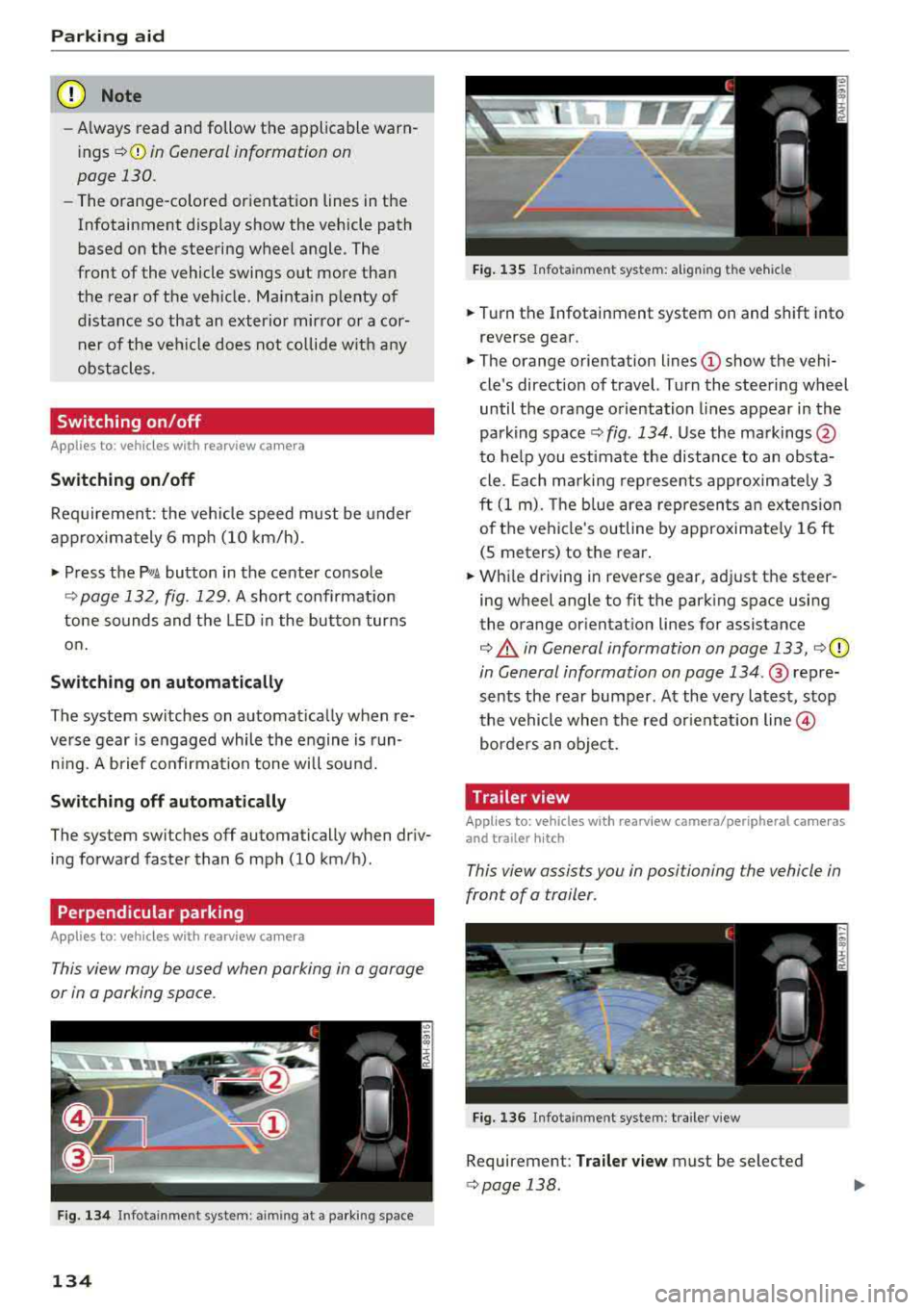
This view may be used when parking in a garage
or in a parking space .
Fig. 134 In fotainme nt system: a iming at a parking space
134
Fig. 135 Infota inment system: al ign ing the vehicle
• Turn the Infotainment system on and shift into
reverse gear.
• The orange orientation lines (D show the vehi
cle's direction of travel. Turn the steering wheel
until the orange orientation lines appear in the
parking
space ¢ fig. 134 . Use the markings @
to help you estimate the distance to an obsta
cle. Each mark ing represents approximately 3
ft
(1 m). The b lue area represents an extension
of the vehicle's outline by approximate ly
16 ft
(5 meters) to the rear.
• While driving in reverse gear, adjust the steer
ing wheel angle to fit the parking space using
the orange orientat ion lines for assistance
¢ .&. in General information on page 133, i=>(D
in General information on page 134 .@ repre
sents the rear bumper. At the very latest, stop
the vehicle when the red orientation
line @
borders an object.
Trailer view
Applies to: vehicl es with rearv iew camera/peripheral ca meras
and trailer hitch
This view assists you in positioning the vehicle in
front of a trailer .
Fig. 136 Infotainment system : trailer view
Requirement: Trailer view must be selected
¢page 138 .
Page 138 of 392
Parking aid
Switching on/off
Applies to: ve hicles w ith per ip heral cameras
Fig. 1 38 Infotainment system: se lect the mode
Switch ing on /off
Req uirement: the veh icle speed must be under
approx imately 6 mp h (10 km/h).
• Press the P'I/ A button in the center console
¢ page 132, fig . 129 . A short confi rmat ion
tone so unds and the
LED in the but to n turns
on.
Switching on automatically
The system switches on automat ica lly when re
verse gear is engaged while the engine is run n ing . A brief confirma tion tone wi ll soun d.
Sw it c hing off automat ically
The system switches off automatically when dr iv
ing forward faster than 6 mph (10 km/h).
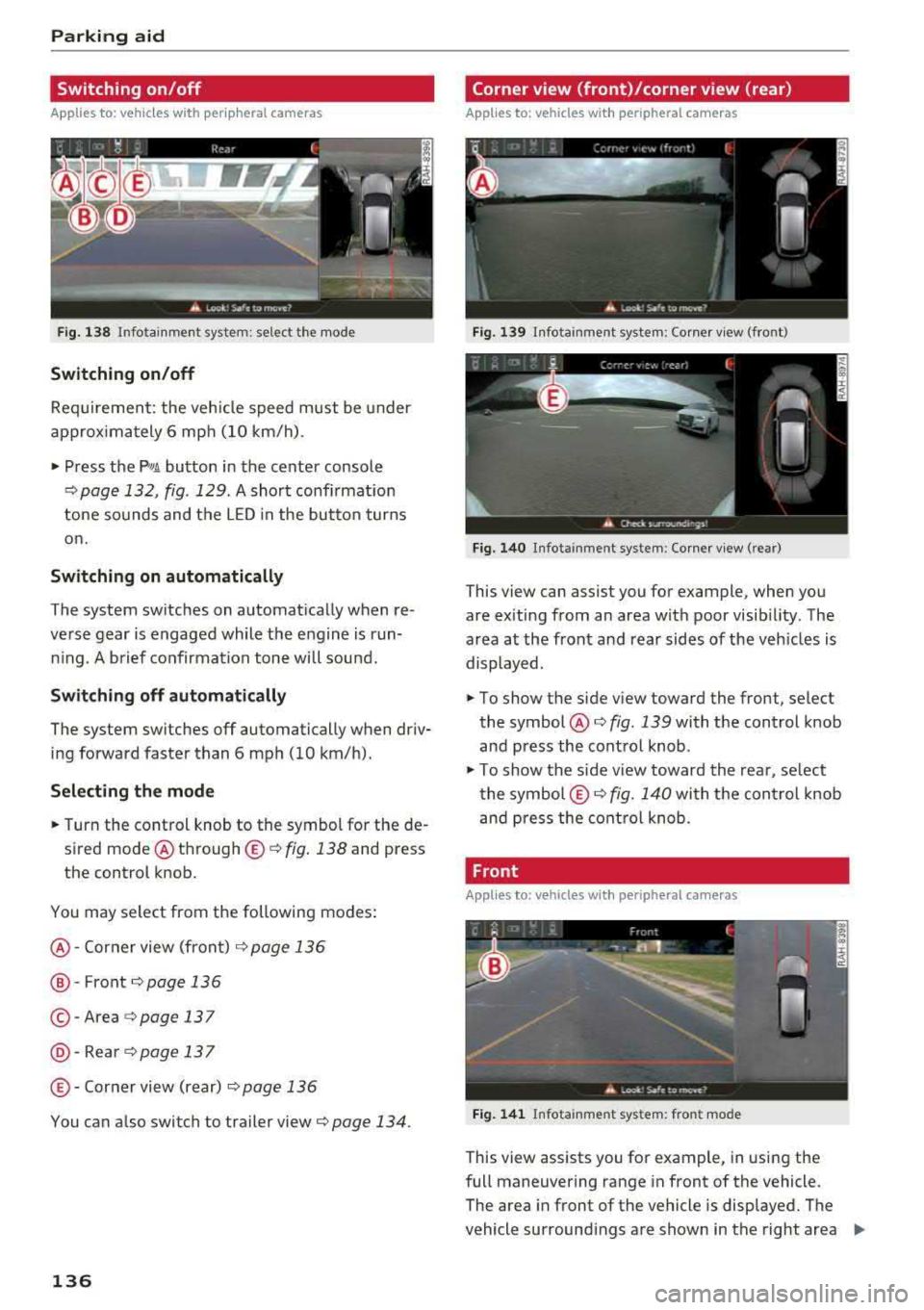
Selecting the mode
• Turn the control knob to the symbol for the de
sired mode @
th rough ©¢ fig. 138 and press
the control knob.
You may select from the following modes:
@ -Corner view (front) c;> page 136
@-Front¢ page 136
© -Area c;> page 137
@ -Rea rc;> page137
© - Corner view (rear) ¢ page 136
You can a lso switch to trailer view c;> page 134 .
136
Corner view (front)/corner view (rear)
Applies to : vehicles with peripheral cameras
Fi g. 139 In fota inment system: Corner v iew (front)
Fig. 14 0 Infota inment sy stem : Corner v iew (re ar)
This view can assist you for example, when you
are ex iting from an area with poor visib ility. The
area at the front and rear sides of the veh icles is
displayed.
• To show the side v iew toward the front, select
the symbol @
c;> fig. 139 with the control knob
and press the contro l knob .
• To show the s ide v iew toward the rea r, se lect
the symbol ©
c;> fig. 140 with the con trol knob
and p ress the control knob .
Front
Applies to: vehicles wi th peripheral ca meras
Fi g. 141 Info ta in ment sys tem: fron t mode
This view assists you for example, in using the
full maneuvering range in front of the vehicle.
The area in front of the vehicle is displayed. The
vehicle surround ings are shown in the right area
..,
Page 139 of 392
u co ..... N r-N .....
~ 0 co
of the display. You can switch between the opti
cal display and camera image
¢page 138.
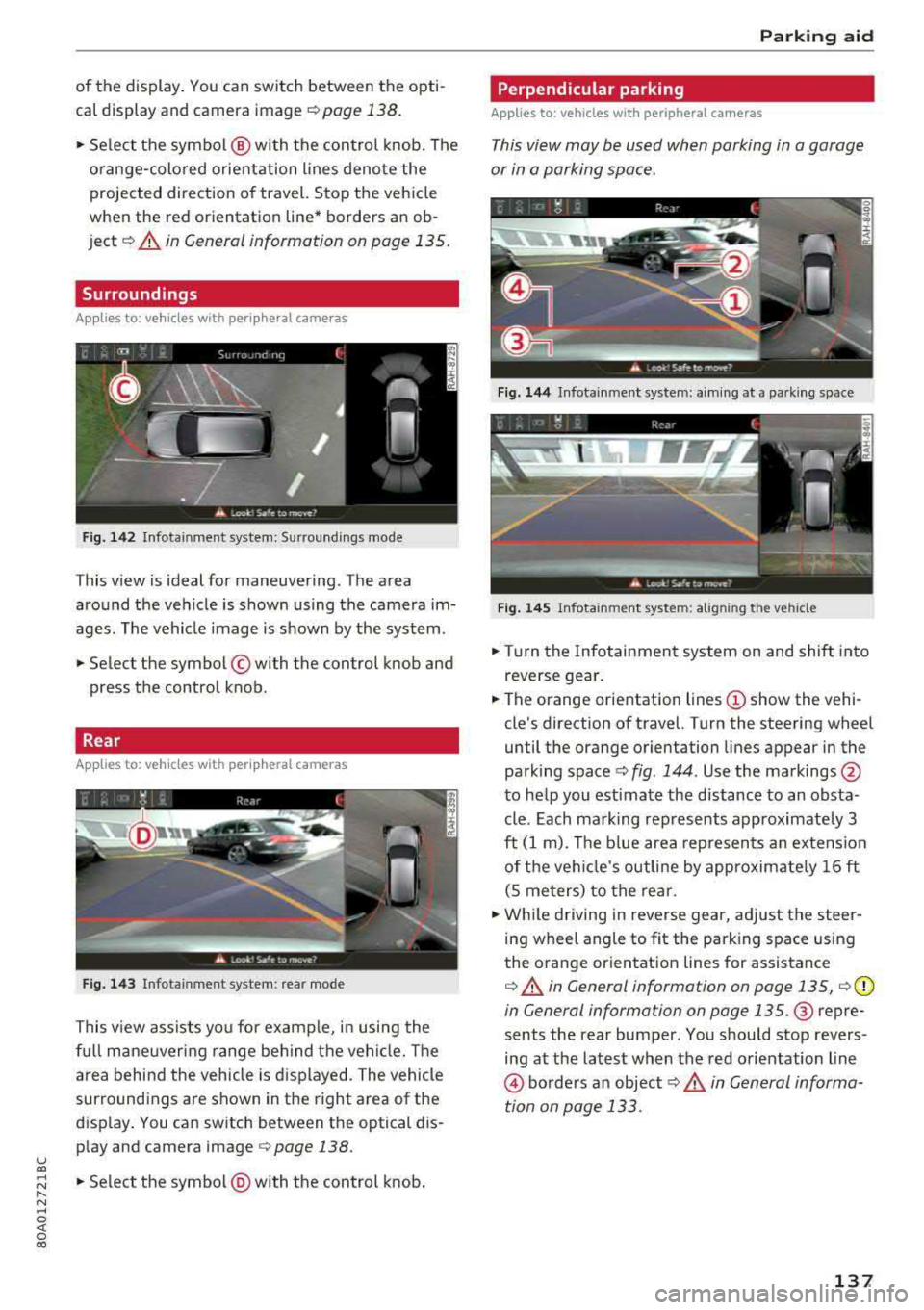
"'Select the symbol @ with the control knob. The
orange-colored orientation lines denote the
projected direction of travel. Stop the vehicle
when the red orientation line* borders an ob
ject¢ &. in General information on page 135.
Surroundings
Applies to: vehicles with peripheral cameras
Fig. 142 Infotainment system: Surroundings mode
This view is ideal for maneuvering. The area
around the vehicle is shown using the camera im
ages. The vehicle image is shown by the system.
"'Select the symbol © with the control knob and
press the control knob.
Rear
Applies to: vehicles with peripheral cameras
Fig. 143 Infotainment system: rear mode
This view assists you for example, in using the
full maneuvering range behind the vehicle. The
area behind the vehicle is displayed. The vehicle
surroundings are shown in the right area of the
display. You can switch between the optical dis
play and camera image <=>
page 138.
"'Select the symbol@) with the control knob .
Parking aid
Perpendicular parking
Applies to: vehicles with peripheral cameras
This view may be used when parking in a garage
or in a parking space.
Fig. 144 Infotainment system: aiming at a parking space
Fig. 145 Infotainment system: al igning the vehicle
"'Turn the Infotainment system on and shift into
reverse gear.
"'The orange orientation lines (!) show the vehi
cle's direction of travel. Turn the steering wheel
until the orange orientation lines appear in the
parking space
c:> fig . 144. Use the markings @
to help you estimate the distance to an obsta
cle. Each marking represents approximately 3
ft
(1 m). The blue area represents an extension
of the vehicle's outline by approximately
16 ft
(S meters) to the rear.
"'While driving in reverse gear, adjust the steer
ing wheel angle to fit the parking space using
the orange orientation lines for assistance
c:> &. in General information on page 135, ¢ (D
in General information on page 135. @ repre
sents the rear bumper. You should stop revers
ing at the latest when the red orientation line
@ borders an object c:> .& in General informa
tion on page 133.
137
Page 140 of 392
Parking aid
Adjusting the parking aid
Applies to: vehicles with a rear parking system/parking sys
tem plus/rearview camera/peripheral cameras
The functions are adjusted in the Infotainment
system .
.,. Select in the Infota in m ent system: IMENU I but
t on
> Vehicle > left co ntro l bu tton > Driver a s
sistance > Parking aid .
Or
.,. When the par kin g aid is active, se lect in the In -
fotainment system : rig ht contro l butto n*.
End sy stem * -stop t he pa rking aid
Activate automatically * -switch automatic acti
vation on/off
Front volume * -volume for the front area
Rear volume -vo lume for t he rear area
Entertainment fader -the vol ume o f th e aud io/
video so urce is lowered when t he parking system
is turned on.
T he new value is g iven b riefly du ring the a djus t
men t.
View * -sw itch betwee n an optical d isplay
( Graphic ) and camera image ( Camera ) in the
r ight section of the disp lay.
Trail er view * -show trailer view
*Auto. front /rear came ra change* -the view be
h ind the veh icle
( Rear mode) is displayed auto
mat ica lly w hen you shift into reverse gear. The
v iew in front of the vehicle
( Front mode) is d is
p layed automat ically whe n you sh ift into the for
ward gea rs. When first activat ing in a forward
gea r with t he
P,,1~ bu tto n, the front s ide v iew is
d isp layed
(Corner view (front) mode).
If you do not set
the./, t h e view behind the vehi
cle
( Rear mode) is a lways d isp layed and it does
no t swi tch to the
Front mode whe n a forwar d
ge ar is se lec ted .
(0 Tips
-Seve ral menus can be accessed w ith the
r ight contr ol butt on o nly w hen the p ark ing
a id is active.
138
- The set tings for vo lume and automa tic ac ti
vation * are stored automatically and as
signe d to the remote control key in use.
Error messages
Applies to: vehicles with a rear parking system/parking sys
tem plus/rearview camera/peripheral cameras
Ill Rear parking aid: malfunction! Ob stacl es
cannot be detected
Ill Front parking aid: malfunction! Obstacles
cannot be detect ed
Ill Parking aid : malfunct ion! Obstacles cannot
be detected
When one of these messages appears, there is a
system malfunction. The LED in t he
Pw, button al
so blinks whe n sw itchi ng it on. The releva nt mes
sage o nly appears again w hen you manually acti
vate the par king a id wi th t he b utton .
[ii Rear parking aid : obstacle detection restrict
ed
The rea r cross-traffic ass ist* c:!;> page 124, Rear
cross-traffic assist is no t ava ilable. Either the ESC
is sw itched off, or the radar sensors may be cov
ered by a bike rack, stickers, leaves, snow or oth
er objects . Switch t he ESC on , or clean the area in
front of the sensors if necessary
c:!;> page 121,
fig. 121 .
If this message cont inues to be d is
played, drive immed iate ly to an author ized A udi
de aler or au thor ized A udi Servi ce Facili ty to h ave
t h e mal funct ion repai red .
Parking system plus*
If a senso r or speaker is faulty, the.!¼ symbo l
will appear i n fro nt of/behind the vehicle in the
I nfotai nment syste m disp lay. If a rear sensor is
f aulty, only obs tacles th at are in areas @ and @
a re show n
<:!;>page 131, fig . 128 . If a front senso r
i s fa ulty, o nly obstacles that a re in a reas © and
@ are s hown.
Peripheral cameras*
There is a system malfunction if t he % symbo l
appe ars and the co rresponding area of the dis
play is shown in black . The camera is not wo rking
i n th is area.
...
Page 169 of 392
u co ..... N r--N ..... 0 <( 0 00
Voice recognition system Operating
Applies to: vehicles with voice recognitio n system
You con operate many Infotainment functions
conveniently by speaking.
Requirement: the ignition and the MM I must be
switched on ¢
page 148, there must not be any
phone call in progress and the park ing system
must not be active .
~ Switching on: press the~ button @
¢page 14, fig . 11 o r ¢ page 15, fig. 13 br iefly
on the mu ltifunction stee ring wheel and say
the des ired command after the
Beep .
~ Switching off : press and hold the [2;J b utton.
Or : press the [2] but to n.
~ Pausing : say the command Pause . To resume,
press the
[2;J b utton .
~ Correcting : say the com mand Correction . Or :
simp ly say a new comm and d uring an an
no uncement
¢ page 245.
Input assistance
The system gu ides you throug h the input with
v isua l and audio feedbac k.
- Visual input assistance : after switching on
vo ice recogn it ion, a display w ith a selection of
poss ible commands appea rs . This command
display can be sw itched on o r off. Se lec t:
IMEN UI butt on> Settings > left cont ro l button
> MMI settings > Speech dialog system .
- Audio input assistance :
to have the poss ible
comm ands read, tu rn th e voice rec ogn ition sys
tem o n and say
Help.
For the system to understand you:
Speak clearly and dis tinct ly a t a normal vo lume .
Speak lo uder when d riving faste r.
Emphasize the words in the commands even ly
a n d do no t leave long pauses .
C lose the doors, the windows and the sunroof* to
reduce background noise . Make s ure that passen
gers a re not speaking when you a re giving a voice
command .
Voice recognition system
D o not d irect the vents towa rd the hands -free mi
c ro p hone, wh ich is in the roof head liner nea r the
front interior lig hts.
O nly use the system from the dr ive r's sea t be
ca use the hands -free microphone is di rected to
ward that seat .
Additional settings
See¢ page 245, Speech dialog system .
_&. WARNING
- Dir e ct y ou r full a tte ntio n to dr iv in g. A s the
d river, you have com ple te re sponsibili ty fo r
safety in t raff ic . O nly use the functions in
such a way t hat you a lways maintai n com
p lete contro l over your vehicle in all traffic
situations.
- Do not use t he voice recognition system in
emergencies beca use your voice may change
in st ressfu l situations. It may take longe r to
d ia l the number o r th e system may not be
ab le to d ia l it at all. Dia l the emergency
number manually.
(D Tips
-The d ialog pauses w hen the re is a n incom
ing phone call a nd will con tinue if yo u ig
nore the ca ll. The dia log ends if yo u answer
t he ca ll.
- Yo u can select an item in the list using ei
t her the vo ice recogn it io n sys tem o r the
cont ro l knob .
Command overview
information
Applies to: vehicles with voice recognition system
T he following overv iews des cribe the comm ands
t h at can be used to ope rate the MMI using the
vo ice recognit ion system.
Alte rnative co m mand s ar e separate d using
a"/ ",
fo r ex ample say: Telephone / (or) Navigation /
(or) Radio.
Sequences of com mands used to perfo rm an a c
t io n a re iden tified w it h
a ">", fo r ex am ple s ay:
Enter address > ( then) Enter country/state . ..,
167
Page 352 of 392
Emergency assistance
Emergency assistance
General information
.,. Park the vehicle as far as possible from moving
traffic in the event of a breakdown. In the event
of a flat tire, park the vehicle on a level surface .
It you are on a steep hill, be especially careful.
.,. Set the parking brake .
.,. Switch the emergency flashers on .
.,. Have the passengers exit the vehicle . They
should move to a safe place, for example
be
hind a guard rail.
.&, WARNING
Follow the steps given above . This is for your
protection and the for the safety of other driv
ers.
Equipment
Vehicle tool kit/tire mobility kit/vehicle
jack
Applies to: vehicles with the vehicle tool kit, tire mobility kit
and veh icle jack
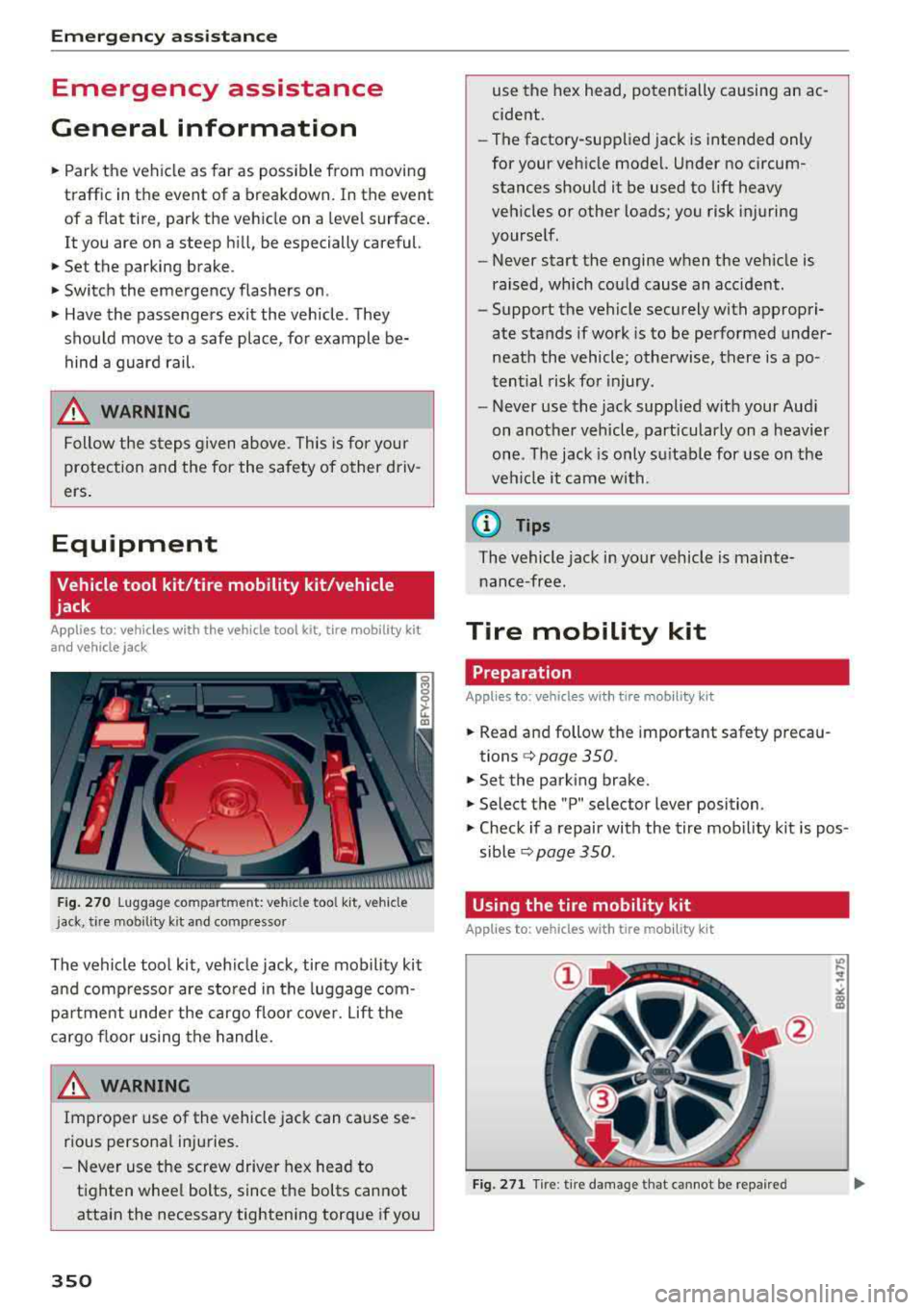
Fig. 270 Luggage co mpartment: ve hicle too l kit, veh icle
j ack, tir e m ob ility k it and comp ressor
The vehicle tool kit, vehicle jack, tire mobility kit
and compressor are stored in the luggage com·
pa rtm ent under the cargo floor cover. Lift the
cargo floor using the handle .
.&, WARNING
Improper use of the vehicle jack can cause se
rious persona l injuries.
-Never use the screw driver hex head to
tighten wheel bolts, since the bolts cannot
attain the necessary tightening torque if you
350
use the hex head, potentially causing an ac
cident.
-The factory-supplied jack is intended only
for your vehicle model. Under no circum stances should it be used to lift heavy
vehicles or other loads; you risk injuring
yourself.
-Never start the engine when the vehicle is
raised, which could cause an accident .
-Support the vehicle securely with appropri·
ate stands if work is to be performed under·
neath the vehicle; otherwise, there is a
po ·
tential risk for injury .
-Never use the jack supplied with your Audi
on another vehicle, particularly on a heavier
one . The jack is only su itable for use on the
vehicle it came with.
(i) Tips
The vehicle jack in your vehicle is mainte· nance-free .
Tire mobility kit
Preparation
Applies to: vehicles with tire mob ility kit
.,. Read and follow the important safety precau-
tions
c::> page 350 .
.,. Set the parking brake .
.,. Select the "P" selector lever position .
.,. Check if a repair with the tire mob ility kit is pos ·
sible
c::> page 350 .
Using the tire mobility kit
Applies to: vehicles with tire mob ility kit
Fig. 271 Tir e : tire damage that cannot be repaired
Page 354 of 392
Emerg enc y assis tance
~ Inflate the tire to between 29 psi (200 kPA)
and 36 psi (250 kPA) and read the pressure on
the gauge.
~ If this tire pressure is not reached, remove the
filler hose. Drive s lowly approximately 33 feet
(10 m) forward or in reverse so that the sealant
can be d istr ibuted in the tire . Pump up the t ire
again ~,&. .
_& WARNING
-Read and follow the manufacture r's safety
precautions on the compresso r and in the
instructions on the bottle of sealant.
- If a t ire pressu re of 29 ps i (200 kPA) cannot
reached after inflating for 6 minutes, then
the tire is too severely damaged . Do not
continue driving .
- If the tire cannot be repaired with the tire sealant, see an authorized Audi dealer or au
thorized Audi Service Facility for assistance .
(D Tips
Do not operate the compressor for mo re than
six minutes continuously, or it can overheat .
Once the compressor has cooled, you can con
tinue to use it .
Completing
App lies to: ve hicles w ith t ire mobility kit
~ Adhere the sticker that says "max . 50 mph
(max. 80 km/h)" that is provided w ith the t ire
mobility kit within the driver 's field of vision .
~ Stop the vehicle after driving for about 10 m i
nutes and check the tire pressure.
~ If the t ire pressure is lower tha n 19 ps i (1 30
kPA), then the t ire is too severely damaged. Do
not continue driving .
_& WARNING
Pay attention to the following after repairing
the tire:
- Do not drive faster than 50 mph (80 km/h) .
- Avoid hard acceleration, bra king sharply,
and fast cornering .
- The veh icle m ay become mo re diff icul t to
contro l.
352 -
If the tire is too severe ly damaged, see an
author ized Audi dealer or authorized Audi
Serv ice Facility for ass istance.
@) For the sake of the environment
You can give the used tire sealant bottle to an
a uthorized Audi dea ler or authorized Audi
Service Fac ility for disposal.
(D Tips
Remember to obtain a new bott le of sealant
from an authorized Audi dealer or authorized
Audi Service Fac ility after repairing a tire.
Replacing a wheel
Preparation
You must complete the preparation before
changing a tire .
~ Read and follow the important safety precau-
tions ~ page 350 .
~ Set the park ing brake .
~ Select the "P" se lector lever position.
~ When tow ing a tra ile r: d isconnect the trailer
from yo ur vehicle.
~ Switch on wheel c hange mode* in the In fotain
ment system:
! MENUI button> Vehicle > left
control button >
Ser vic e & check s > Air suspen ·
sion : wheel change .
~ Switch the ignit ion off.
The vehicle jack mode* switches off automatica l
l y at speeds above 6 mph (10 km/h).
_& WARNING
When us ing the veh icle jack* on a road with a
steep hill or offroad, you must take extra pre
cautions to prevent the vehicle from rolling .
Use suitable objects to block the front and
bac k of the wheel that is d iagonal from the
wheel with the flat t ire.
_& WARNING
You o r you r passengers could be injured while
ch anging a whee l if you do not follow these
safety pre caut ions:
Page 355 of 392
u co ..... N r-N .....
~ 0 co
-If you have a flat tire, move a safe distance off the road. Turn off the engine, turn the
emergency flashers on and use other warn
ing devices to alert other motorists.
-Make sure that passengers wait in a safe
place away from the vehicle and well away
from the road and traffic.
-To help prevent the vehicle from moving
suddenly and possibly slipping off the jack*,
always fully set the parking brake and block
the front and back of the wheel diagonally opposite the wheel being changed. When
one front wheel is lifted off the ground,
placing the Automatic Transmission in P
(Park) will
not prevent the vehicle from
moving .
-Before you change a wheel, be sure the
ground is level and firm. If necessary, use a
sturdy board under the jack*.
-Always store the vehicle tool kit, the jack*
and the replaced tire in the luggage com
partment ¢ page 2 5 7.
(D Tips
-Obey all laws.
-Before changing the wheel, you must acti-
vate the jacking mode*, so that the auto
matic controls for the air suspension* do
not make it more difficult to lift the vehicle
with the jack*
c::> page 354.
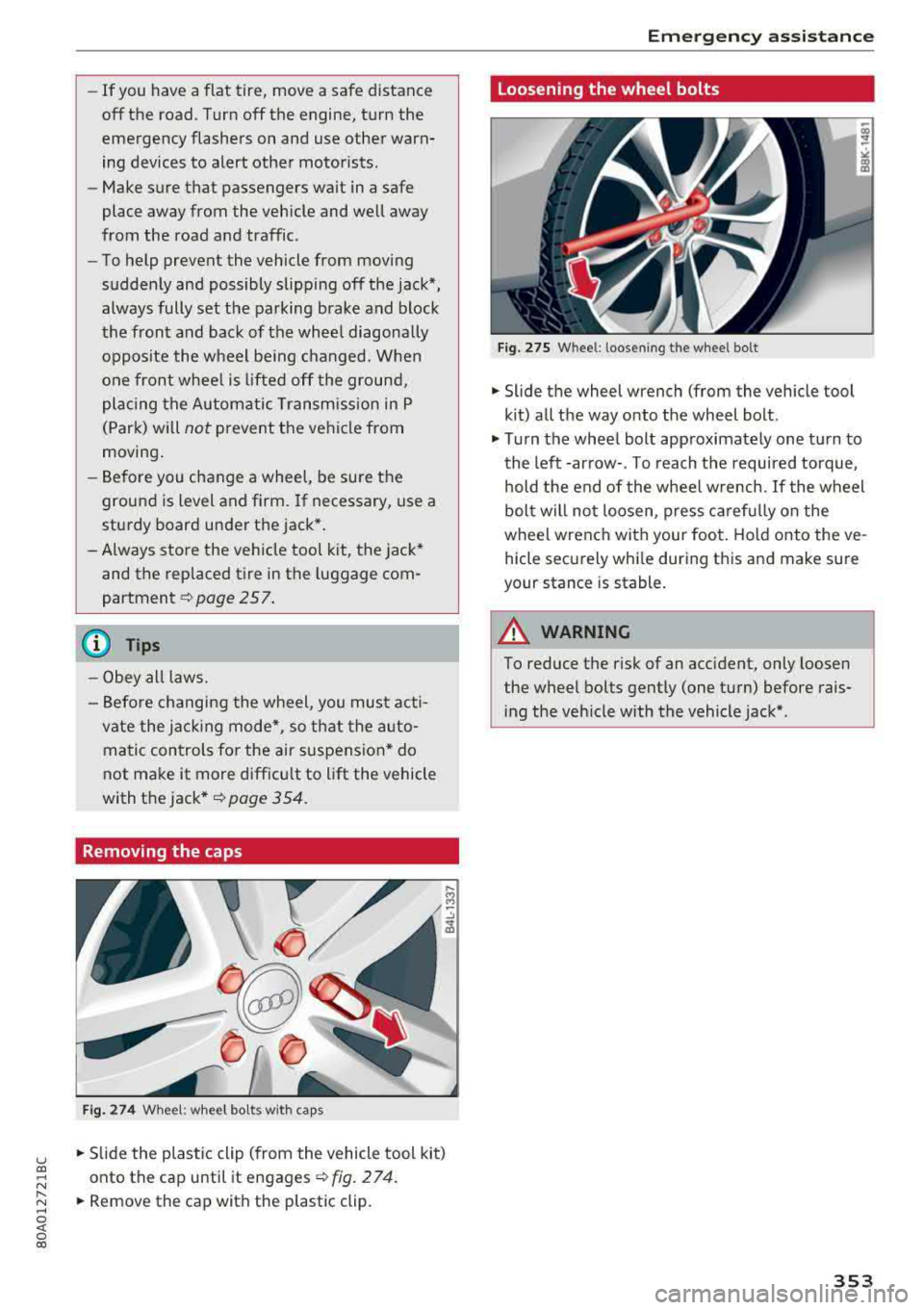
Removing the caps
Fig . 274 Wheel: wheel bolts with caps
.. Slide the plastic clip (from the vehicle tool kit)
onto the cap until it engages
¢ fig. 274.
.. Remove the cap with the plastic clip.
Emergency assistance
Loosening the wheel bolts
Fig. 275 W hee l: l oosen ing t he wheel bolt
.. Slide the wheel wrench (from the vehicle tool
kit) all the way onto the wheel bolt .
.. Turn the wheel bolt approximately one turn to
the left -arrow-. To reach the required torque,
hold the end of the wheel wrench. If the wheel
bolt will not loosen, press carefully on the
wheel wrench with your foot. Hold onto the ve
hicle securely while during this and make sure
your stance is stable.
A WARNING
--To reduce the risk of an accident, only loosen
the wheel bolts gently (one turn) before rais
ing the vehicle with the vehicle jack* .
353
Page 377 of 392
u co ..... N ,..._
N ..... 0 <( 0 00
A
A/C MAX (button) . . . . . . . . . . . . . . . . . . . . . . 71
A/C (button) . . . . . . . . . . . . . . . . . . . . . . . . .
. 70
ABS .. .. .. .. .. ..
· · · · · · · · · · · · · · · · · · · · 140
Accessories . . . . . . . . . . . . . . . . . . . . . . . 60 , 373
Active lane assist
Cleaning the camera area .......... ..
.
also refer to Audi active lane assist .. .. .
Adaptive air suspension
refer to Air suspension ........ .. .. .. .
Adaptive cruise control ................ .
C leaning the sensors ................ .
Messages .... ................ ..... .
Predictive control ............. .. .. .. .
Adapt ive dampers ............ .. .. .. .. .
Additional accessories .............. ..
.
Adjusting air distribution (automatic climate 345
117
125
102
345
110
100
125
373
control) ..... .. ................ ..... . · 71
Adjusting the additional display . . . . . . . . . . 14
Adjusting the sound . . . . . . . . . . . . . . . . . . . 249
Adjusting the temperature (automatic climate
control) ..... .. ................ ..... . · 71
Adjusting the volume . . . . . . . . . . . . . . . . . . . 14
Advanced key
refer to Convenience key . . . . . . . . . . . . . . . 76
Airbag . . . . . . . . . . . . . . . . . . . . . . . . . . . . . . 269
Airbag system . . . . . . . . . . . . . . . . . . . . 269 , 287
Advanced Airbag System components . . . 276
Care .. .. .. .. ..... · · · · · · · · · · · · · · · · ·
Children ..... ................ .....
.
Child restraints .................... .
Components (front airbags) .......... .
Danger of fitting a child safety seat on the
front passenger seat .......... .. .. .. .
Disposal ... .. ................ ... ..
.
Front airbags ................. ... .. .
How do the front airbags work? ..... .. .
How many airbags does my vehicle have?
H ow the Advanced Airbag System compo-
nents work together .......... .. .. .. .
Indicator light ................ .....
.
284
293 293
276
270 284
274
279
276
278
281
Monitoring . . . . . . . . . . . . . . . . . . . . . . . . . 281
PASSENGER AIR BAG light . . . . . . . . . . . . 281
Repairs .. .. .. ............... .. .. ..
.
Safety instructions ............ .. .. .. .
When must the system be inspected? .. . 284
283 281
Index
Air suspension . . . . . . . . . . . . . . . . . . . . . . . 125
Alarm system
refer to Anti-theft alarm system . . . . . . . . . 36
Alignment pin (changing the wheel) . . . . . . 350
All-weather lights . . . . . . . . . . . . . . . . . . . .
. . 45
All season tires . . . . . . . . . . . . . . . . . . . . . .
. 340
All wheel drive
Indicator light
. .. .. ............... .. . 28
also refer to quattro . . . . . . . . . . . . . . . . . 144
AM I
refer to Audi music interface . . . . . . . 231, 232
Andro id Auto
refer to Aud i smartphone interface ... .. 243
Anti-freeze Windshield washer system ...........
. 323
Anti-Lock Braking System
refer to ABS ... .. .. ............... . . 140
Anti-Slip Regulation
refer to ASR . . . . . . . . . . . . . . . . . . . . . . . . 140
Anti-theft alarm system . . . . . . . . . . . . . . .
. . 36
Apple CarPlay
refer to Audi smartphone interface . . . . . 243
Arrow view . .. .. .. .. ............... .
.
ASR ........ ... .. .. ................ ·
Audi active lane assist ................ .
Messages . .. .. .. .. .............. · · ·
Audi adaptive cruise control
Distance display, distance warning ..... .
T raffic jam assist ... ................
.
Audi connect emergency call and service ..
Online roadside assistance .......... . .
Audi connect vehicle control .......... . .
Parking location .. .. ................
.
Remote locking and unlocking ........ .
164
140
117
118
110
109
201
202
197
198
198
Vehicle status report . . . . . . . . . . . . . . . .
. 198
Audi connect (Infotainment) ........ 187, 194 Data protection . . . . . . . . . . . . . . . . . . . . . 19S
Services overview . . . . . . . . . . . . . . . . . . .
. 188
Starting ...... .. .. ................ . 188
Audi drive select . . . . . . . . . . . . . . . . . . . . .
. 12S
Audi Entertainment mobile . . . . . . . . . . . . . 234
Audi music interface . . . . . . . . . . . . . . . . . . . 231
Audi music stream
refer to Wi-Fi . ..... ................ .
229
Audio files . . . . . . . . . . . . . . . . . . . . . . . . . . . 234
375