xm radio AUDI Q5 2018 Owner's Manual
[x] Cancel search | Manufacturer: AUDI, Model Year: 2018, Model line: Q5, Model: AUDI Q5 2018Pages: 392, PDF Size: 60.56 MB
Page 224 of 392
Radio
SiriusXM alerts
Applies to: ve hicles w ith S iriusXM
You can display an overview of your favorite ar
tists or tracks that are currently being played on
a SiriusXM channel.
Y.@Miiiil&
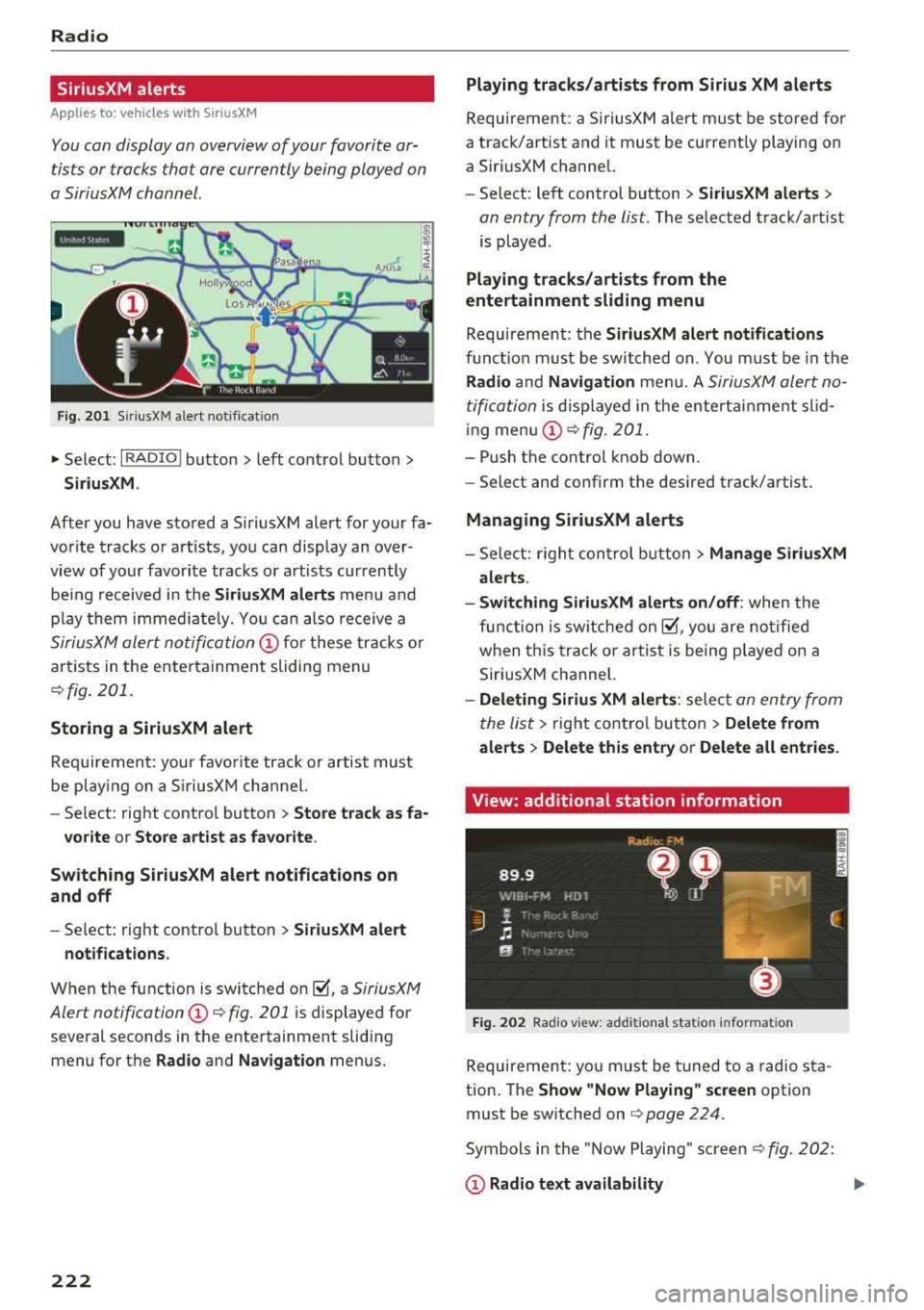
Fig . 201 SiriusXM ale rt notificat ion
~ Se lect: I RADIO I button > le ft control button >
SiriusXM .
After you have stored a SiriusXM alert for your fa
vor ite tracks or artists, you can display an over
view of your favorite tracks or artists currently
be ing re ceived i n the
SiriusXM alerts menu and
p la y them immed iately. You can also receive a
SiriusXM alert notifi cation @ for these tracks or
artists in the entertainment sliding menu
¢fig . 201.
Storing a SiriusXM alert
Requirement: your favorite track or artist must
be play ing on a SiriusXM channel.
- Se lect : right contro l button
> Store track as fa-
vorite
or Store artist as favorite .
Switching SiriusXM alert notifications on
and off
- Se lect: right contro l button > SiriusXM alert
notifications .
When the function is switched on~. a SiriusXM
Alert notification @¢ fig. 201
is displayed for
several seconds in the entertainment sliding menu for the
Radio and Navigation menus.
222
Playing tracks/artists from Sirius XM alerts
Requireme nt: a SiriusXM alert must be stored for
a track/artis t and it must be currently playing on
a SiriusXM channe l.
- Select: left control button
> SiriusXM alerts >
an entry from the list . The selected track/artist
is played .
Playing tracks/artists from the
entertainment sliding menu
Requirement: the SiriusXM alert notifications
functio n must be switched on. You must be in the
Radio and Navigation menu. A SiriusXM alert no
tification
is displayed in the enterta inment slid
i ng menu
(D ¢fig. 201.
- Push the control knob down.
- Select and confirm the desired track/artist .
Managing SiriusXM alerts
-Select: r ight control button> Manage SiriusXM
alerts .
- Switching SiriusXM alerts on/off :
when the
function is sw itched
on~. you are notified
when this track or artist is being p layed on a
SiriusXM channel.
- Deleting Sirius XM alerts : select an entry from
the list>
right control button > Delete from
alerts
> Delete this entry or Delete all entries.
View: additional station information
Fig. 202 Radio view: additional stat ion informat ion
Requirement: you must be tuned to a radio sta
tion . The
Show "Now Playing " screen option
must be switched on
q page 224.
Symbols in the "Now Playing" screen¢ fig. 202:
(D Radio text availability
Page 225 of 392
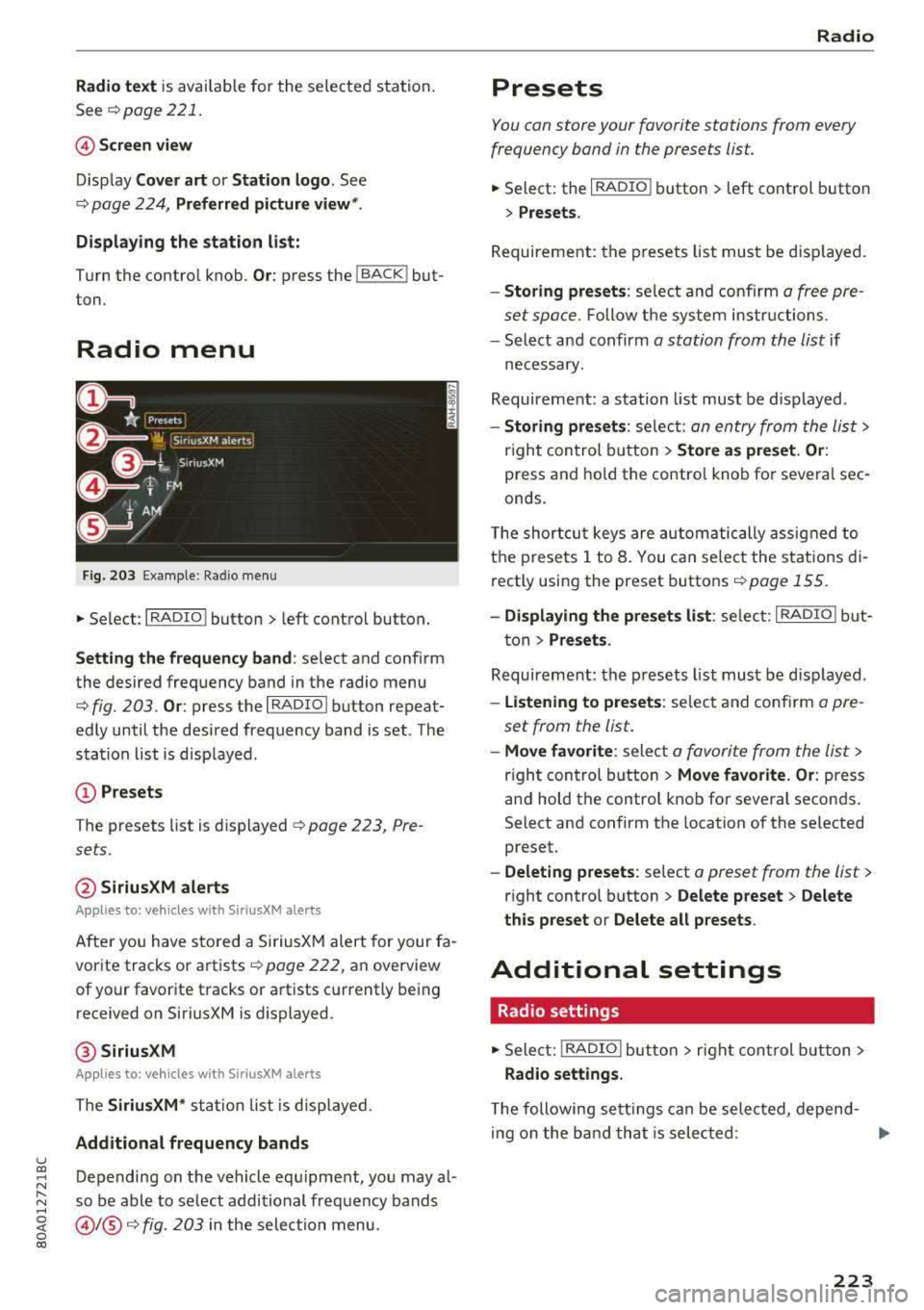
Radio text is availab le for the selected station .
See
¢ page 221.
@ Screen view
Display Cover art or Station logo. See
¢ page 224, Preferred picture view *.
Displaying the station list:
Turn the control knob. Or : press the I BACK ! but
ton .
Radio menu
Fig. 203 Example: Ra dio menu
~ Se lect : I RADIO ! button > left control button.
Setting the frequency band : select and confirm
the desired frequency band in the radio menu
¢ fig. 203 . Or: press the I RADIO I button repeat
edly until the desired frequency band is set . The
station list is displayed.
@ Presets
The presets list is displayed q page 223, Pre
sets .
@SiriusXM alerts
App lies to: ve hicles with SiriusXM alerts
After you have sto red a SiriusXM alert for your fa
vorite tracks or artists
page 222, an overview
of your favorite tracks or artists currently being
received on SiriusXM is displayed .
@SiriusXM
App lies to: ve hicles with SiriusXM alerts
The SiriusXM* station list is disp layed.
Additional frequency bands
u co ~ Depending on the vehicle equ ipme nt, you may al-
:::. so be able to se lect additional frequency bands ......
~ @ /@ ¢ fig. 203 in the selection menu. 0 co
Radio
Presets
You can store your favorite stations from every
frequency band in the presets list.
~ Select: the I RADIO I button > l eft control button
> Presets.
Requirement: the presets list must be displayed.
-Storing presets : select and confirm a free pre
set space.
Follow the system instr uctions.
- Select and confirm
a station from the list if
necessary.
Requirement: a station list must be d isplayed .
-Storing presets : select: an entry from the list>
right control button > Store as preset. Or:
press and hold the contro l knob for several sec
onds .
T he shortcut keys are automatically assigned to
the presets 1 to 8. You can select the stations di
rectly using the preset buttons
page 155.
-Displaying the presets list : select: I RADIO I but
ton
> Presets .
Requirement: the presets list must be displayed .
-Listening to presets: select and confirm a pre
set from the list.
- Move favorite : select a favorite from the list >
right control button > Move favorite. Or : press
and hold the control knob for several seconds.
Select and confirm the location of the selected
preset.
- Deleting presets: select a preset from the list >
right control button > Delete preset > Delete
this preset or Delete all p resets .
Additional settings
Radio settings
~ Select: I RADIO I button > rig ht control button >
Radio settings.
The following se ttings can be selected , depend-
in g on the band that is selected :
..,.
223
Page 226 of 392
Radio
Station names (FM)
Variable :
scrolling text transmitted by the FM
stations is shown in the Infotainment system
display.
Fixed : scrolling text transmitted by the FM sta
tions is not shown in the Infotainment system
disp lay. Only the current section of the scro lling
text is displayed.
FM/AM HD Radio*
You can sw itch HD Rad io recept io n on o r off.
Channel sorting (SiriusXM*)
You can set the station sorting for SiriusXM sta
tion lists* by:
-Channel number: the channels are sorted in as
cending order according to their channel num
ber.
- Channel name : the channels are listed in alpha
betical order.
- First category, then channel number: th e
channels are sorted by the ir category and then
by the ir channel numbers.
- First category, then channel name: the chan
nels are sorted by their category and then by
their channel names.
Category filter (SiriusXM*)
The stations shown in the station list can be fi l
tered by your personal preferences and by pro
gram type. The program categories that you can
select depend on what is offered by your provid
er. Select the
All categories option to deactivate
all filter options and display all ava ilable stations
in the satellite station list.
Troubleshooting
Problem Solution Show "Now Playing"
screen
When the function is switched on~ and the sta
tions or presets list is open, the disp lay wi ll
switch to the
Show "Now Playing" screen view
after approximate ly five seconds ¢
page 222. De
pending on availability, information about the
set stat ion (such as stat ion name, artist and sta
tion logo) may be displayed in this view.
Preferred picture view*
You can set your preferred screen view for the
Show "Now Playing" screen¢ page 222.
-Station logo: the station logo is displayed, de
pending on availability .
-Cover art: the album cover is displayed if availa
ble.
Gracenote online database*
Requirement: the MMI must be connected to the
Internet. The
Cover art option must be selected
¢ page 224, Preferred picture view *.
When the funct ion is switched on~. the album
cover or genre cover for the song that is play ing
i s loaded from t he Gracenote online database,
depend ing on availability.
Subscription status (SiriusXM)*
This optio n is available when your subscr ipt ion is
about to expire or has already expired . The expi
ration date for your license is displayed.
Call to SiriusXM *: the contact information for
your satellite radio provider is displayed . To call
your satellite radio provider using the MMI, press
Call to SiriusXM *.
A station with poo r reception is no longer Store the stat io n as a preset in advance. Access the pre-
displayed in the station list once you sets using the presets list¢
page 223.
switch to a different station.
224
Page 231 of 392
u co ..... N r--N ..... 0 <( 0 00
The media is started and operated through the
mobile device or the
MMI, depending on the de
vice being used.
(D Tips
-Check for any connection requests on your
Bluetooth device.
-Multiple Bluetooth audio players can be
connected to the
MMI, but only one mobile
device can be active.
-Bluetooth protocols AVRCP (1.0/1.3/1.4)
and A2DP are supported.
-Note the volume setting on your Bluetooth
device. Audi recommends setting your mo
bile device to the maximum volume when
using it as a Bluetooth audio player.
-The supported media functions (such as
shuffle) depend on the Bluetooth device be
ing used.
-For more information on the supported de
vices, visit www.audiusa.com/bluetooth or
contact an authorized Audi dealer or author ized Audi Service Facility.
Wi-Fi audio player
Appl ies to: ve hicles with Wi-F i audio playe r
Using the Wi -Fi audio player media source on the
MMI, you can connect and operate your Wi-Fi-ca
pable media player (such as a smartphone) to
wirelessly play music from your media player
li
brary. The media player is connected through the
vehicle's Wi-Fi hotspot. A UPnP Server opp or an
integrated UPnPIDLNA server on your media
player is required to access your media player
li
brary.
Requirement: the Wi-Fi function on your media
player must be switched on. The
Audi MMI con
nect
app or a UPnP server app must be installed
on your media player .
Or: you must be using a
media player with an integrated UPnP/DLNA
server.
-Connecting a media player: press the I MEDIA !
button. Press the left control button until the
sources overview
c::;, page 234 is displayed. Se
lect and confirm
Wi-Fi audio player 0
c::;, page 234, fig . 211 .
Media
-If necessary, select and confirm Wi-Fi turned
off> Turn on Wi-Fi
to activate Wi-Fi in the
MMI. Select
Wi-Fi settings, if necessary. Select
the same settings on the wireless media player
that are used for the Wi-Fi hotspot.
-Starting the Wi-Fi audio player: start the Audi
MMI connect
app or a UPnP server app, or set
media permissions on your media player.
Operating the media player: the media player is
operated through the MMI.
-Press the left control button repeatedly until
the
Folders menu item appears. Select and con
firm
Folders.
-Playing music from the media player: select
and confirm
Media center .
Web radio:
see c::;, page 230 .
A WARNING
-
-As the driver, do not allow usage of the Wi
Fi hotspot to distract you from driving, as
this could increase the risk of an accident.
-It is only safe to use tablets, laptops, mo
bile devices and other similar devices when
the vehicle is stationary because, like all
loose objects, they could be thrown around
the inside of the vehicle in a crash and cause
serious injuries. Store these types of devices
securely while driving.
-Do not use any wireless devices on the front
seats within range of the airbags while driv
ing. Also read and follow the warnings in
c::;, page 2 73, Front airbags.
@ Note
Always follow the information found in ¢@ in
Wi-Fi hotspot on page 194.
(D Tips
-Always read the chapter c::;, page 194, Audi
connect (Infotainment) general informa
tion.
-Please note that a Wi-Fi connection does
not automatically make it possible to use
the Internet. For additional information,
see
c::;, page 187.
229
Page 232 of 392
Media
- To avoid interruptions during playback, de
activate the power saving function on the
media player or connect it to a charger.
- The loading times for the audio data depend
on the media player used and the number of
files that it contains.
- A maximum of 2,000 entries per directory
are displayed in the MMI.
- Songs downloaded for offline use using mu
sic streaming services are stored on your mobile device (such as a smartphone) and
may be DRM protected. The Wi-Fi audio
player will not play ORM protected files.
- Contact an authorized Audi dealer or au thorized Audi Service Facility for additional
information on the Wi-Fi audio player .
Online media and
Internet radio
Applies to: veh icles with Audi connect
You con playback and operate various online me
dia services and Internet radio using the MMI.
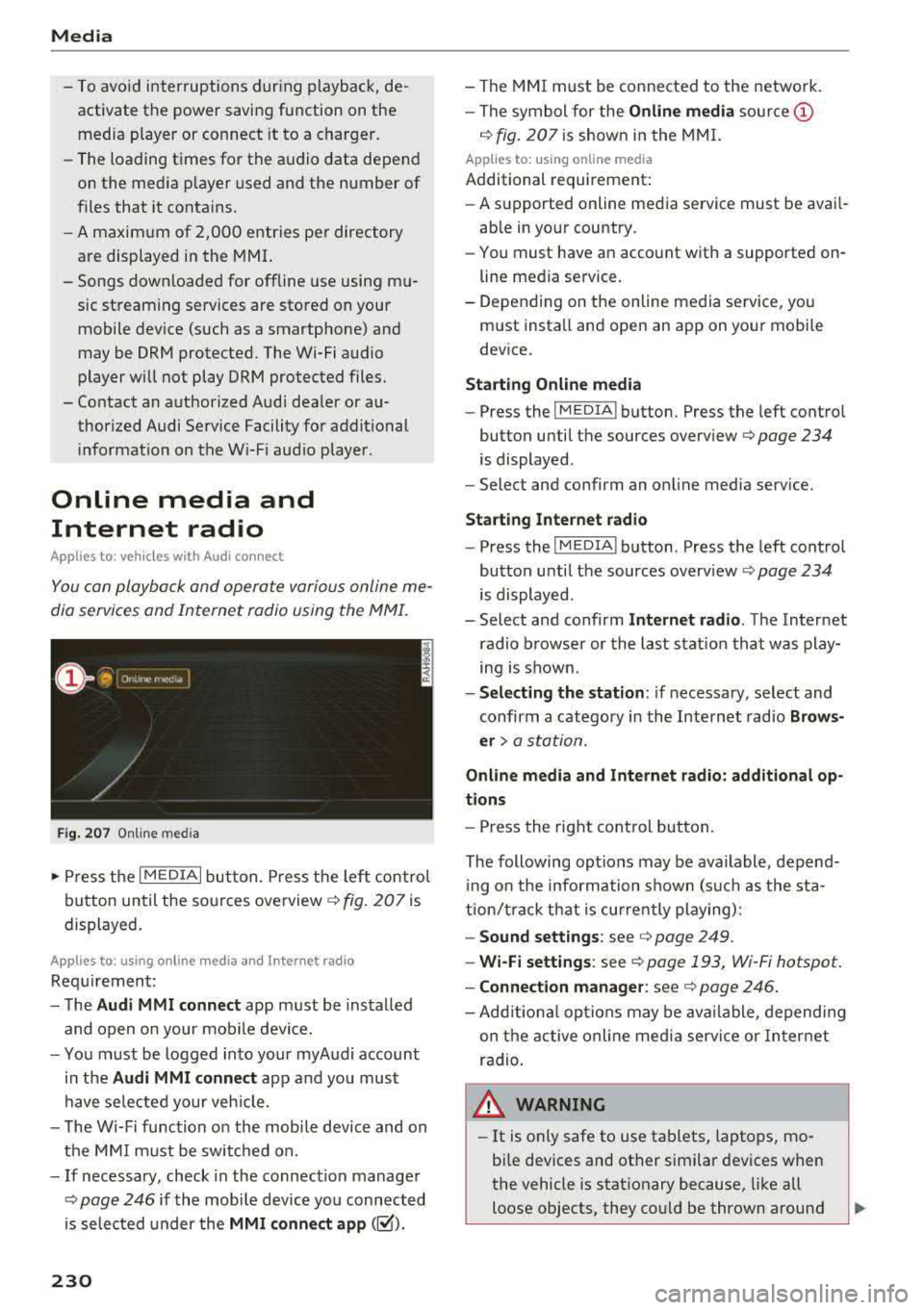
Fig. 207 Online med ia
.,. Press the I MEDIAi button. Press the left control
button until the sources overview
c> fig. 207 is
displayed.
Applies to: using online media and Internet radio
Requirement:
- The
Audi MMI connect app must be installed
and open on your mobile device.
- You must be logged into your myAudi account
in the
Audi MMI connect app and you must
have selected your veh icle.
- The Wi-Fi function on the mobile device and on
the MMI must be switched on.
- If necessary, check in the connection manager
<=> page 246 if the mobile device you connected
is selected under the
MMI connect app (~).
230
-The MMI must be connected to the network.
- The symbol for the
Online media source @
c> fig. 207 is shown in the MMI.
Applies to: using online media
Additional requirement:
- A supported online media service must be avail
able in your country.
- You must have an account with a supported on
line media service.
- Depending on the online media service, you
must install and open an app on your mobile
device.
Starting Online media
-Press the IM EDIA I button . Press the left control
button until the sources
overview <=> page 234
is displayed .
- Select and confirm an online media service.
Start ing Internet radio
-Press the IM EDIA I button . Press the left control
button until the sources
overv iew <=> page 234
is displayed .
- Select and confirm
Internet radio. The Internet
radio browser or the last station that was play
ing is shown .
-Selecting the station : if necessary, select and
confirm a category in the Internet radio
Brows
er>
a station.
Online media and Internet radio: additional op
tions
- Press the right control button.
The following options may be available , depend
i ng on the information shown (such as the sta
tion/t rack that is currently playing):
- Sound settings: see c> page 249 .
-Wi-Fi settings: see c> page 193, Wi -Fi hotspot.
- Connection manager: see <=> page 246.
-Add itional options may be available, depending
on the active online media service or Internet
radio .
,&. WARNING
- It is on ly safe to use tablets, laptops, mo
bile devices and other similar devices when
the vehicle is stationary because, like all
loose objects, they could be thrown around
-
Page 233 of 392
u co ..... N r-N .....
~ 0 co
the inside of the vehicle in a crash and cause
serious injuries. Store these types of devices
securely while driving.
- Do not use any wireless devices on the front
seats within range of the airbags while driv
ing. Also read and follow the warnings in
c::> page 2 73 , Front airbags .
CD Note
-Always follow the information found in c:>@
in Wi-Fi hotspot on page 194 .
-Please note that there generally are addi
tional costs when using an online media
service account, especially when it is used internationally .
(D Tips
-Depending on the Internet connection and
network traffic, a connection loss can occur
during playback of on line media services .
-Online media and Internet radio usage de
pends on the service availability of the third
party provider .
- Audi AG simply makes the access to online
media services possible through the MMI
and does not take any respons ibility for the
contents of the online media services .
- Always read the chapter
c::> page 194, Audi
connect (Infotainment) general informa tion .
- Depending on the mobile device used, there
may be interruptions during media playback
and when using the
Audi MMI connect app.
To avoid interruptions when using a mobile
device , do not lock the screen on your mo
bile device and keep the
Audi MMI connect
app in the foreground .
- Contact an authorized Audi dealer or au
thorized Audi Service Facility for additional
information about online media .
Media
Multimedia connections
USB adapter for Audi music interface o r
USB charging port
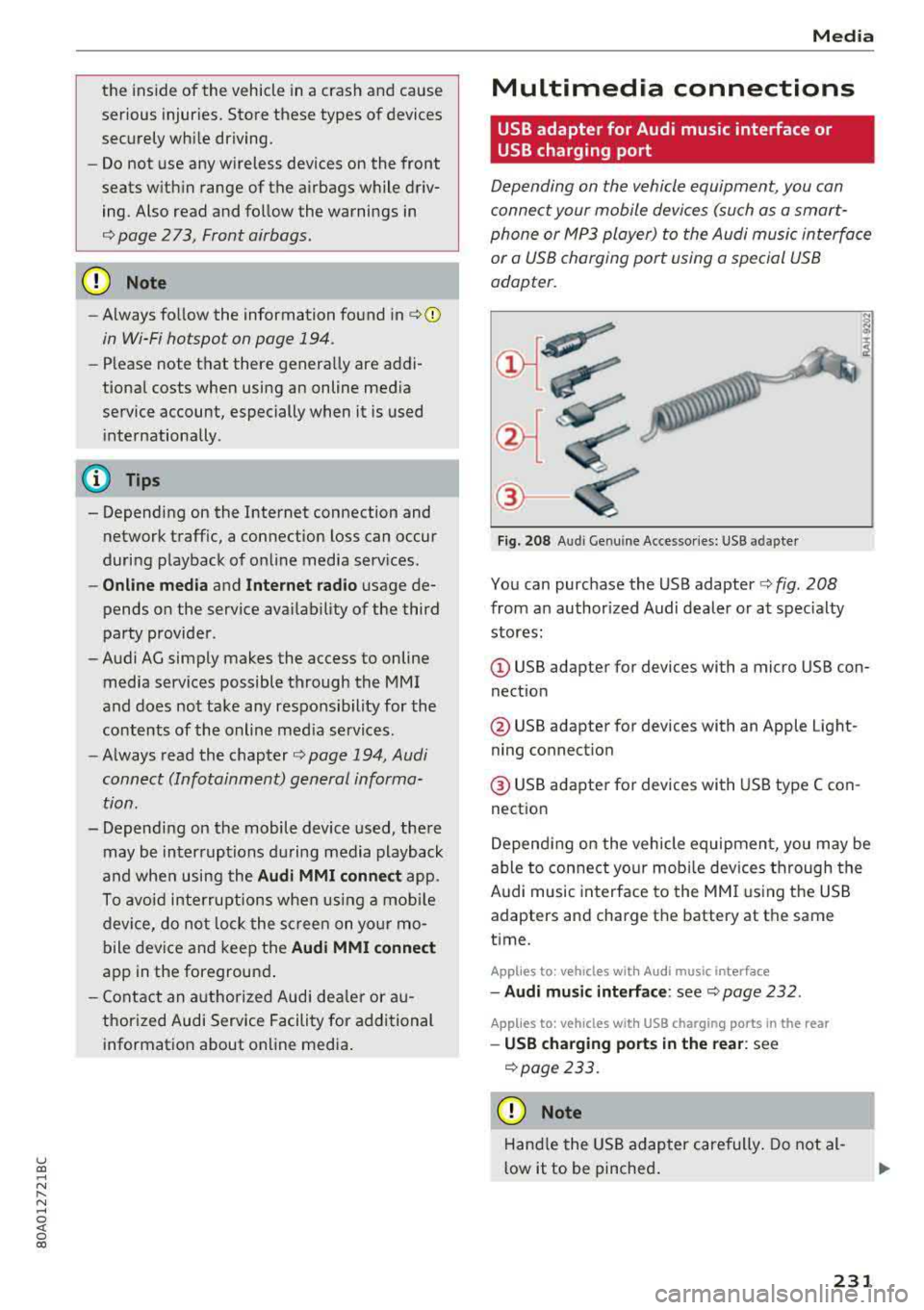
Depending on the vehicle equipment, you can
connect your mobile devices (such as a smart
phone or MP3 player) to the Audi music interface
or a USB charging port using a special USB
adapter.
@-
Fig. 208 A udi Genuin e Acce ssories: USB a dapter
You can purchase the USB adapter c::> fig. 208
from an authorized Audi dealer or at specialty
stores:
I
(D USB adapter for devices with a micro USB con
nection
@ USB adapter for devices with an Apple Light
ning connection
@ USB adapter for devices with USB type C con
nection
Depending on the vehicle equipment, you may be
able to connect your mobile devices through the
Audi music interface to the MMI using the USB
adapters and charge the battery at th e same
time .
Applies to : vehicles wit h Aud i music interface
-Audi music interface : see c::> page 232.
Applies to: vehicles with USB charging ports in the rear
-USB charging ports in the rear : see
c::>page233.
CD Note
Hand le the USB adapter carefully . Do not al
low it to be pinched.
231
Page 236 of 392
Media
-Do not use any additional USB extension ca
bles or adapters to connect mobile devices
to the USB charging port that have already
been connected by a USB adapter. They may
impair the functionality.
- USB hubs are not supported.
- Refer to the manufacturer's operating man-
ual for important information regarding the
operation of your mobile device.
- Correct funct ion of all mobile devices can
not be guaranteed .
- The vehicle batte ry drains when mobile de
vices are turned on but the engine is off .
Rear Seat Entertainment preparation
Applies to: ve hicles with Rea r Seat E nte rtainment preparation
The Rear Seat Entertainment preparation in
cludes cables and a mount for Audi Entertain
ment mobile in the driver's and front passenger's
seat backrests.
The suitab le Audi Entertainment mobile Rear
Seat Entertainment package is available through
Audi Genuine Accessories.
Using Audi Genuine Accessories is recommended.
Audi has established their rel iability, safety and
suitability.
We cannot eval uate or endo rse other products in
this way, even if the product is approved by a cer
tified testing agency or government agency .
(D Note
Only use devices that are approved for the
Rear Seat Entertainment preparation. Unap
proved devices may cause damage to the vehi
cle e lectronics.
@ Tips
- Contact an authorized Audi dealer or au
thorized Audi Service Facility for additional
information about
Audi Entertainment mo
bile.
- Always read the chapter ~ page 371.
-The Rear Seat Entertainment preparation is
not intended to charge external electron ic
devices.
234
Playing media
Accessing media
You can start and operate various media
through the
MMI control panel .
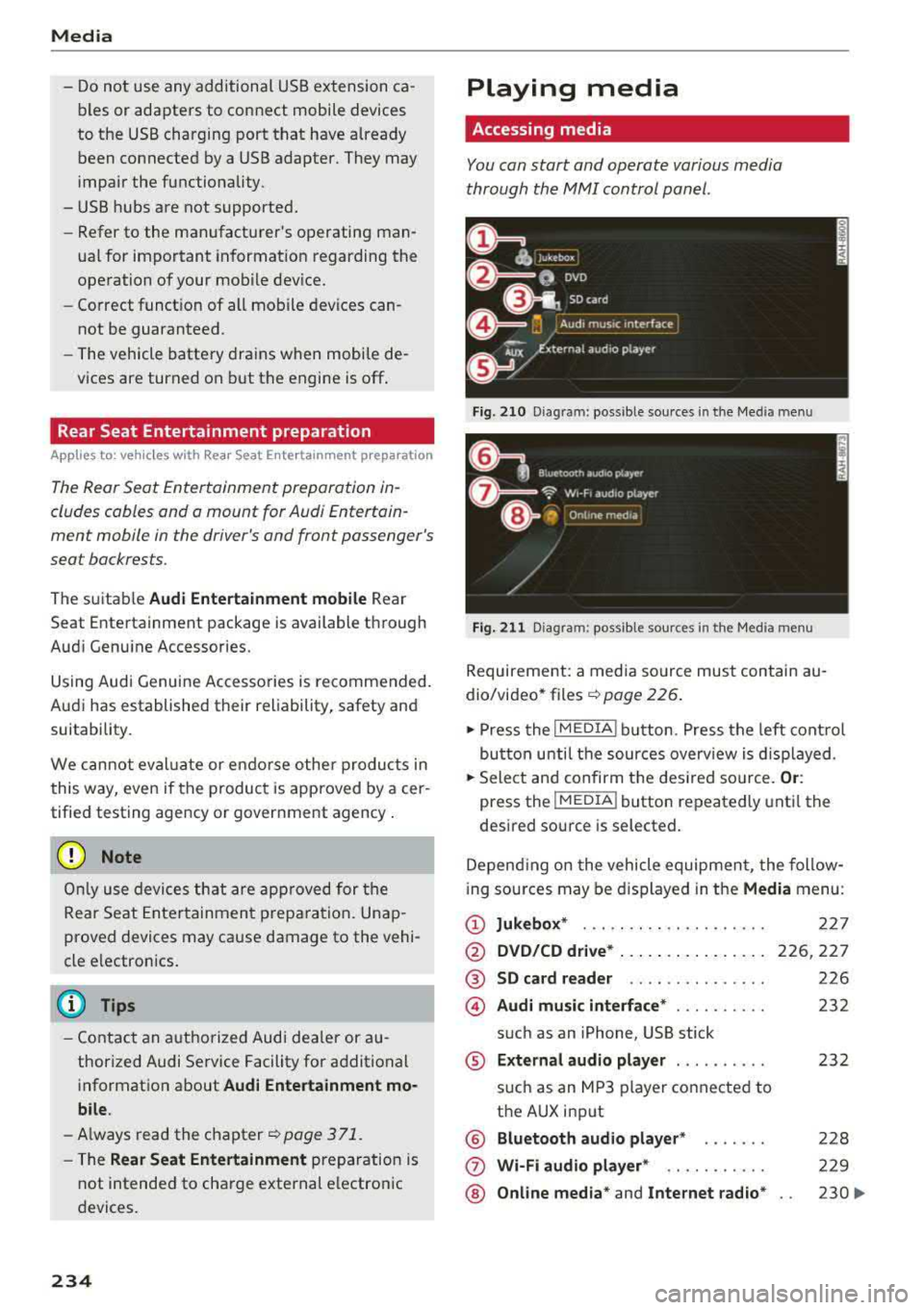
Fig. 210 Diag ram: possible sources in t he Me dia menu
Fig. 211 Diagra m: possible sources in t he Med ia me nu
Requireme nt: a media source must contain au
dio/video*
files ¢ page 226.
.,. Press the I MEDIA i button . Press the left control
button unti l the sources overview is displayed .
.,. Select and confirm the desired source. Or:
press the !MEDIA ! button repeatedly until the
desired source is selected.
Depending on the vehicle equipment, the follow
i ng sources may be displayed in the
Media menu:
(D Jukebox* ... .. .. .. .. ........ .
@ DVD/CD drive* ... .. ... ..... .. .
@ SD card reader .. .. ..... ..... .
@ Audi music interface* ......... .
such as an iPhone, USB stick
® External audio player ......... .
®
(j)
®
such as an MP3 player connected to
the AUX input
Bluetooth audio player*
Wi-Fi audio player* .. ........ .
Online media*
and Internet radio*
227
226,227
226
232
232
228
229
230
..,_
Page 237 of 392
-Playing audio/video files : select a source in the
Media menu > Category (such as artists > al
bum> track) .
-Moving one leve l up in the folder structure :
press the I BACKI button. Or: select and confirm
Folder up .
- Selecting the previous or ne xt track/chapter*
1>: press the On/Off knob on the M MI cont rol
panel br iefly to the left
l«1 or right l»t.
-Fast-forwarding and rewinding audio/video*
file s:
press and hold the On/Off knob on the
MMI control panel to the left
l«1 or right l»t for
a longer time.
-Pausing or resum ing playb ack : press the On/
Off knob on the MMI contro l pane l br iefly.
@ Tips
- You can scro ll th rough long lists quickly by
turning the contro l knob q uick ly. The scroll
i ng speed depends on the number of list e n
tries.
- Fo r safety reasons, the video image is only
displayed when the vehicle is stationary . On
l y the sound from t he v ideo plays while driv
i ng .
Media center
Various categories for selecting audio/video*
files are available in the media center .
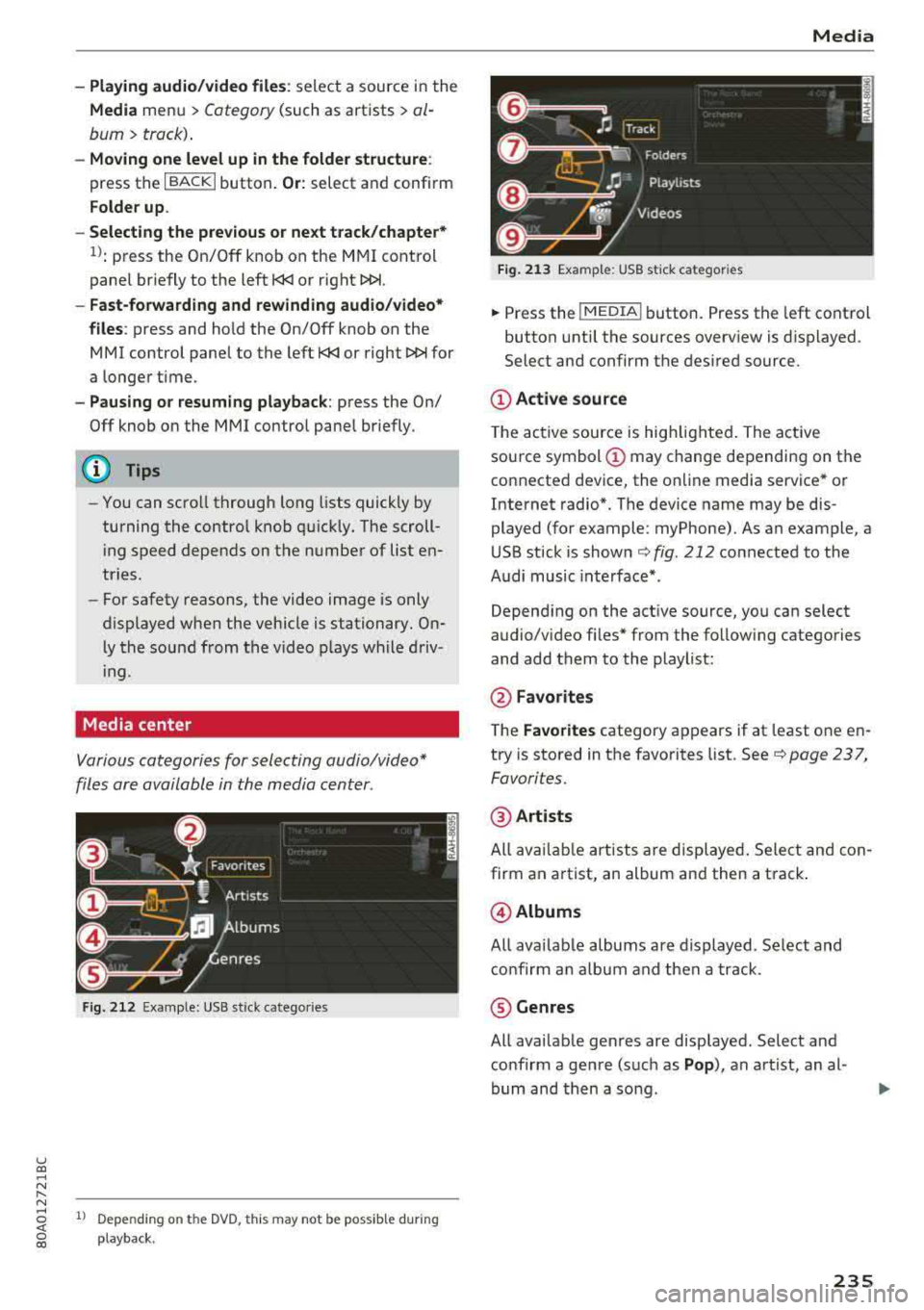
Fig. 212 Exa mple: USB stick cate gories
u co ..... N r-N ..... ~ 1l Depe ndi ng on the DVD, this m ay not be poss ib le d urin g
~ playba ck .
Media
Fi g. 21 3 Examp le: USB stick cat egories
.,. Press the I MEDIA i button. Press the left cont rol
button unti l the sources overv iew is d isplayed .
Select and confirm the desired source.
(D Active source
The active source is hig hlighted . The ac tive
sou rce symbol
(D may change depending on the
connected dev ice, the on line media service * or
Internet radio*. The device name may be dis
played (for example: myPhone). As an example, a
U SB stick is shown
c:::;, fig. 212 connected to the
Audi music inte rface *.
Depend ing on the act ive source, yo u can select
audio/v ideo fi les* from the follow ing categories
and add them to the playlist:
@ Favo rites
T he Favorites category ap pears if at least one e n
try is stored in the favo rites list . See
c:::;, page 237,
Favorites.
@ Artists
All av ailable art ists a re displayed . Sele ct and con
firm an a rtist, an album and then a t rack .
@ Albums
All ava ilab le albums are d isplayed. Se lect and
c o nfirm an alb um and then a track .
® Genres
All ava ilab le ge nres are disp layed. Select and
confirm a gen re (s uc h as
Pop ), an artist, an al
bum and then a so ng .
235
Page 238 of 392
Media
@Tra cks
All available tracks are displayed. Se lect and con
f irm a track.
(J) Folders
The fo lder structu re or track/chapter list is dis
p layed. Select a folder, if necessary. Select and
confirm a track.
@ Playli sts
All available playlists from the source and the
smart playlists are displayed. Select and confirm
a playlist and then a track .
Sm art play list s:
- La st pl ayed track s:
the last tracks played in the
selected source are disp layed.
- Mos t pl ayed: the most p layed songs in the se
lected source are disp layed.
- S sta rs to 1 st ar: tracks from the se lected
source are displayed according to their rating.
- Unr ated : all files from the selected source
without rat ing informa tion (for example, i n the
103 tag) are displayed .
@Vid eos *
All available video files are displayed . Select and
confirm a v ideo file .
@ Note
Applies to: vehicles with Audi connect (Infotainment) and
use of the radio category with iPod/iPhone
Always follow the information found in q(i) in
Wi-Fi hotspot on page 194.
@ Tips
- Only the categories supported by the medi
um are available. For example, CD/DVD
ROM tracks cannot be selected with catego
ries such as
A rti sts, Alb um s or Genre s.
With an iPod/iPhone (source: Audi music in
terface
q page 231), the P odca st s, Audi o
book s
and Compo ser s catego ries are also
available.
- Fo r safety reasons, the video image is only
displayed when the vehicle is stationary. On l y the sound from the v ideo p lays while driv
ing.
2 36
- When synchronizing a portable device with
"Cloud" services, playlists may display incor
rectly in the MMI. Use the med ia center in
the device.
- With an iPod/iPhone (media source: Audi
music interface
q page 231), the P od casts ,
Aud io boo ks
and C ompos ers categories are
also available.
(D Tips
Applies to: iPod/iPhone on Audi music interface
- An Internet connection is required to use
the additional
Radio category, an onl ine
media se rvice . Also see the chapter
q page 193, Wi -Fi hotspot . Also read the in
formation on the Audi music inte rface and
the supported devices
q page 231 .
-Depend ing on the In ternet connection and
network traffic, a connection loss can occur
during playback of online media services.
- T he use of on line media serv ices depends on
the service availability of the third party
provider.
- Audi AG simply makes the access to on line
media services possib le through the MMI
and does not take any responsibility for the
contents of the online media services.
Free text search
Applies to : vehicles with free text search
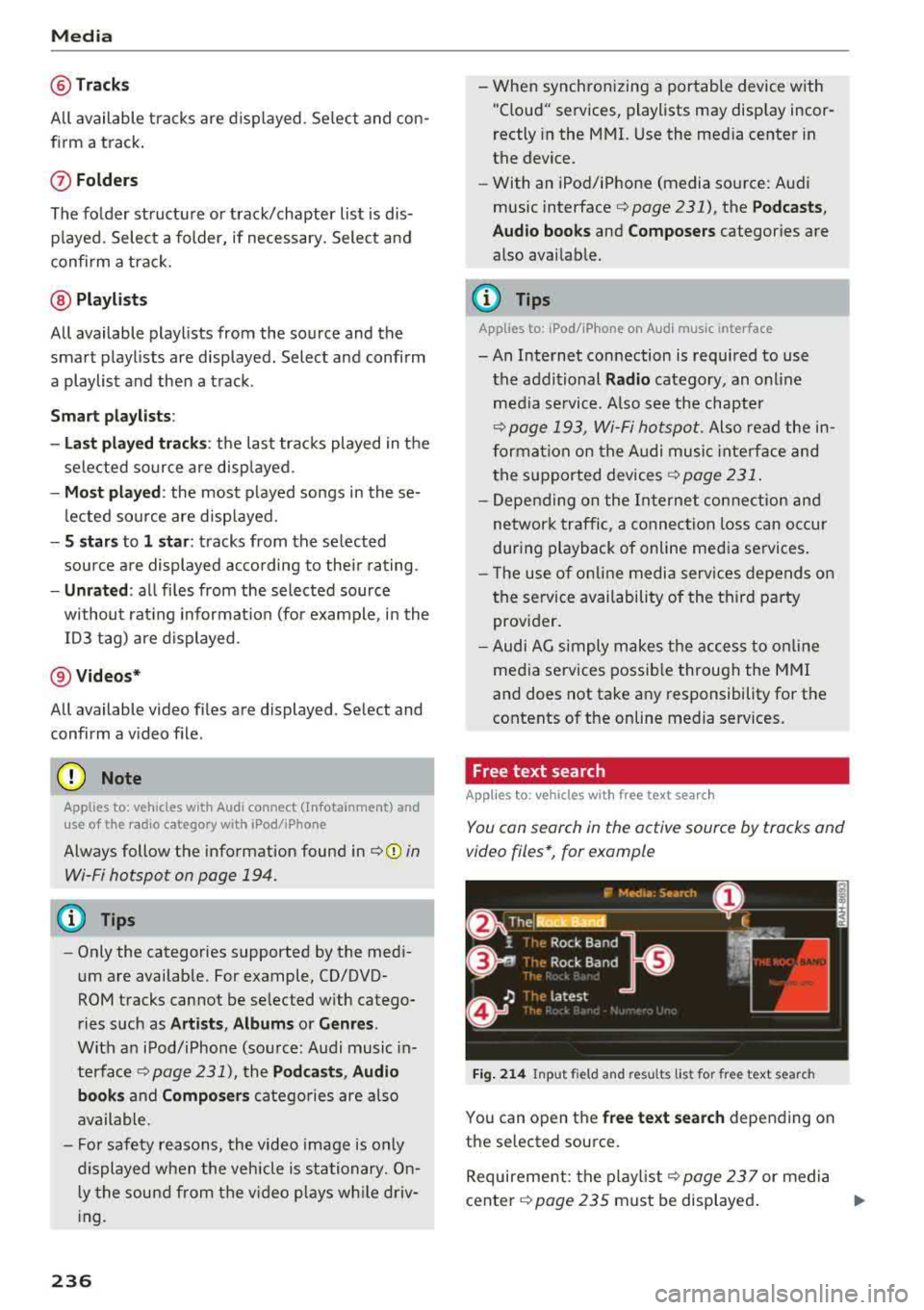
You con search in the active source by tracks and
video files*, for example
Fig . 214 Input field and resu lts list for free text search
You can open the free te xt se a rch depending on
the selected source.
Requirement: the p layl ist
q page 23 7 or media
center
q page 235 must be displayed . ..,.
Page 244 of 392
Media
Problem Solution
Audi music interface :
the porta-For many ce ll phones or mobile devices, playback is not possible
ble device is not recogni zed as a when the battery level is too low (less than 5% of its capacity).
source. The mobile device will only be recogn ized as a source in the MMI
after connecting if the battery charge is sufficient .
Audi music interface: malfunc-
The Bluetooth audio player function is switched on. Switch this
tions during audio playback function off¢
page 248 when you are not using the Bluetooth
through an iPod/ iPhone. audio player.
Audi music interface:
contents Reset the Media settings to the factory default settings
that are changed on a mobile de -
¢page 246.
vice connected to the Audi music
interface
a l are not disp layed in
the media center .
AUX input: there is stat ic when When connecting a nd disconnecting, the External audio player
connecting and disconnect ing the source is already selected. Before connecting or disconnecting the
AUX connection cable. mobile device, either mute the device (see ¢
page 249) or sw itch
to a different audio source (for example ¢
page 220, Opening the
radio).
Bluetooth audio player* /Wi-Fi
Only one interface should be act ively used at a time to ensure
audio player*: audio playback in- problem-free playback.
terference.
Jukebox* : tracks on the imported When importing playlists, a ll of the files themselves must be im-
playlist are grayed out. ported.
Jukebox*: imported tracks cannot If you cannot find imported tracks in the media center, they may
be played or found. not be supported. Only copy supported files"*
page 240 to the
Jukebox.
Online media *: connection fa iled To establish a connection to the MMI, the MMI connection switch
between the MMI and the
Audi must be switched on in the Audi MMI connect app status sc ree n.
MMI connect app.
Bluetooth audio player *: interfer- Playback interference can occur when using the Bluetooth audio
ence with track d isp lay and aud io player if a music player app from a third party provider is open.
playback . Audi recommends using the integrated media player on your Blue-
tooth device (such as a smartphone) .
Wi-Fi hotspot*: your Wi-Fi device
Make sure the network optimization functions are switched off in
is disconnected from the Wi -Fi the Wi-Fi settings or in the network settings for your Wi -Fi device .
hotspot . For additional information refer to the user guide for your Wi-Fi
dev ice.
Audi music interface: audio play-Make sure the USB mode MTP is selected in the settings on your
back through the connected mo- mobile device.
bile device is not possible.
al Applie s onl y to MTP dev ice s. Does not apply to App le dev ices and USB mass s torage dev ice s.
242