ad blue AUDI Q5 2018 Owners Manual
[x] Cancel search | Manufacturer: AUDI, Model Year: 2018, Model line: Q5, Model: AUDI Q5 2018Pages: 392, PDF Size: 60.56 MB
Page 63 of 392
u co ..... N r-N .....
~ 0 co
-Do not use any breakable beverage contain
ers (for example, made out of glass or por
celain). You could be injured by them in the
event of an accident .
(D Note
Beverage containers in the cup holders should
always have a lid. If not, beverages could sp ill
and cause damage to vehicle equipment, such
electronics or seat covers .
Climatized cup holder
Applies to: veh icles wit h clim atized cup holders
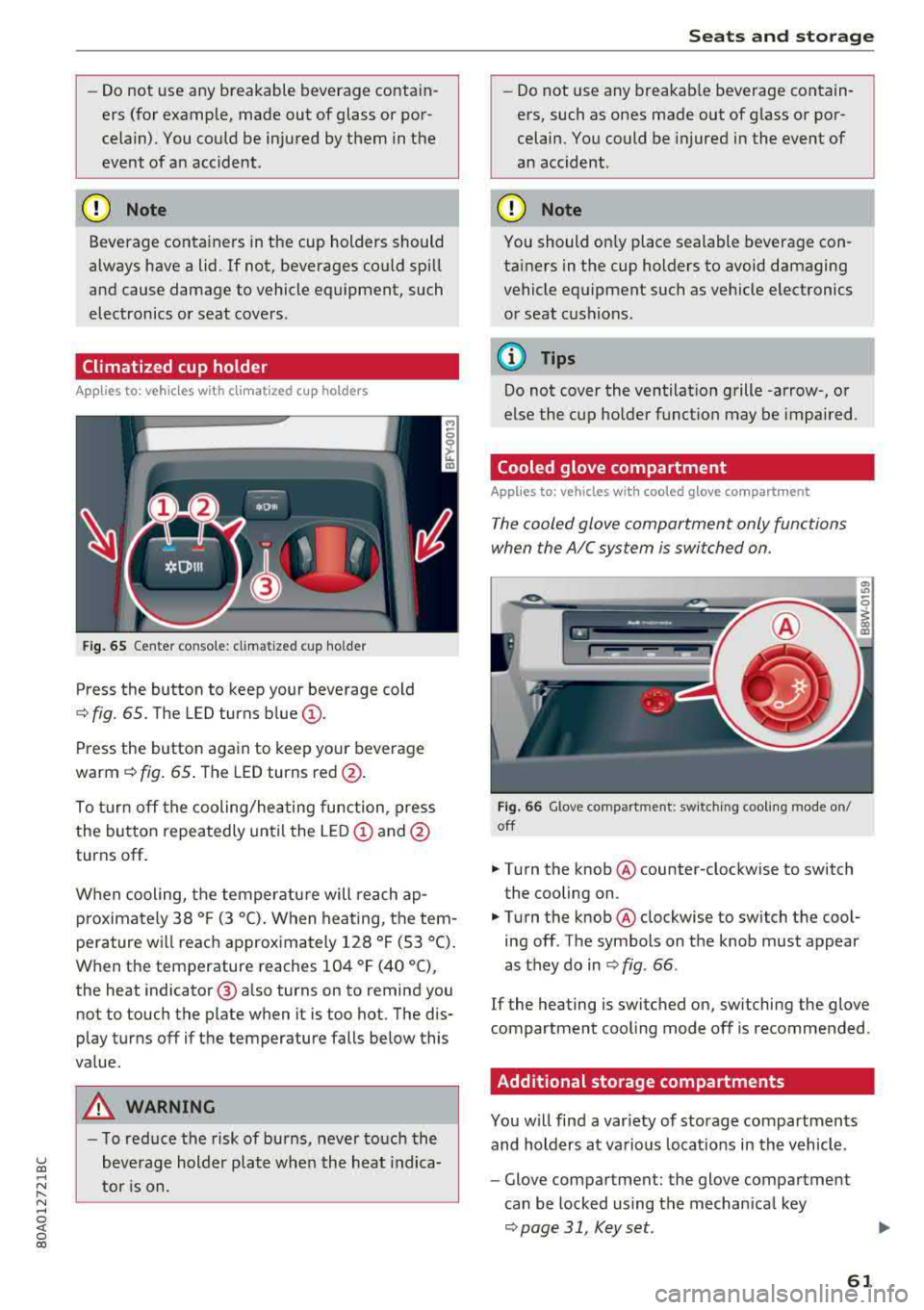
Fig. 65 Center co nsole: cl imatized cup holder
Press the button to keep your beverage cold
¢ fig. 65. The LED turns blue@.
Press the button again to keep your beverage
warm ¢ fig. 65 . The LED turns red @.
To turn off the cooling/heating function, press
the button repeatedly until the LED
(D and@
turns off .
When cooling, the temperature will reach
ap
p roximately 38 ° F (3 °C) . When heating, the tem
perature will reach approximately 128 ° F (53 °C).
When the temperature reaches 104 °F (40 °C),
the heat indicator @ also turns on to remind you
not to touch the plate when it is too hot. The dis
p lay turns off if the temperature falls below this
value.
_&, WARNING
- T o reduce the risk of burns, never touch the
beverage holder plate when the heat indica
tor is on.
Seats and storage
-Do not use any breakable beverage contain
ers, such as ones made out of glass or por
celain. You could be injured in the event of
an accident .
({I) Note
You should on ly place sealable beverage con
tainers in the cup holders to avoid damaging
vehicle equipment such as vehicle electronics
or seat cushions .
@ Tips
Do not cover the ventilation grille -arrow-, or
else the cup holder function may be impaired.
Cooled glove compartment
Applies to: vehicles with coo led glove compartment
The cooled glove compartment only functions
when the AIC system is switched on.
Fig . 66 G love compartment: switching cooling mode on/
off
.,. T ur n the knob @ counter-clockwise to switch
the cooling on .
.,. Turn the knob@ clockwise to switch the cool
ing off . The symbols on the knob must appear
as they do in
¢ fig. 66 .
If the heating is switched on, sw itching the glove
compartment cool ing mode off is recommended .
Additional storage compartments
You will find a var iety of storage compartments
and holders at various locat ions in the vehicle .
- Glove compartment: the glove compartment
can be locked using the mechan ical key
¢ page 31, Key set.
61
Page 135 of 392
u co ..... N r-N .....
~ 0 co
Rearview camera
Introduction
Applies to: vehicles with rearv iew camera
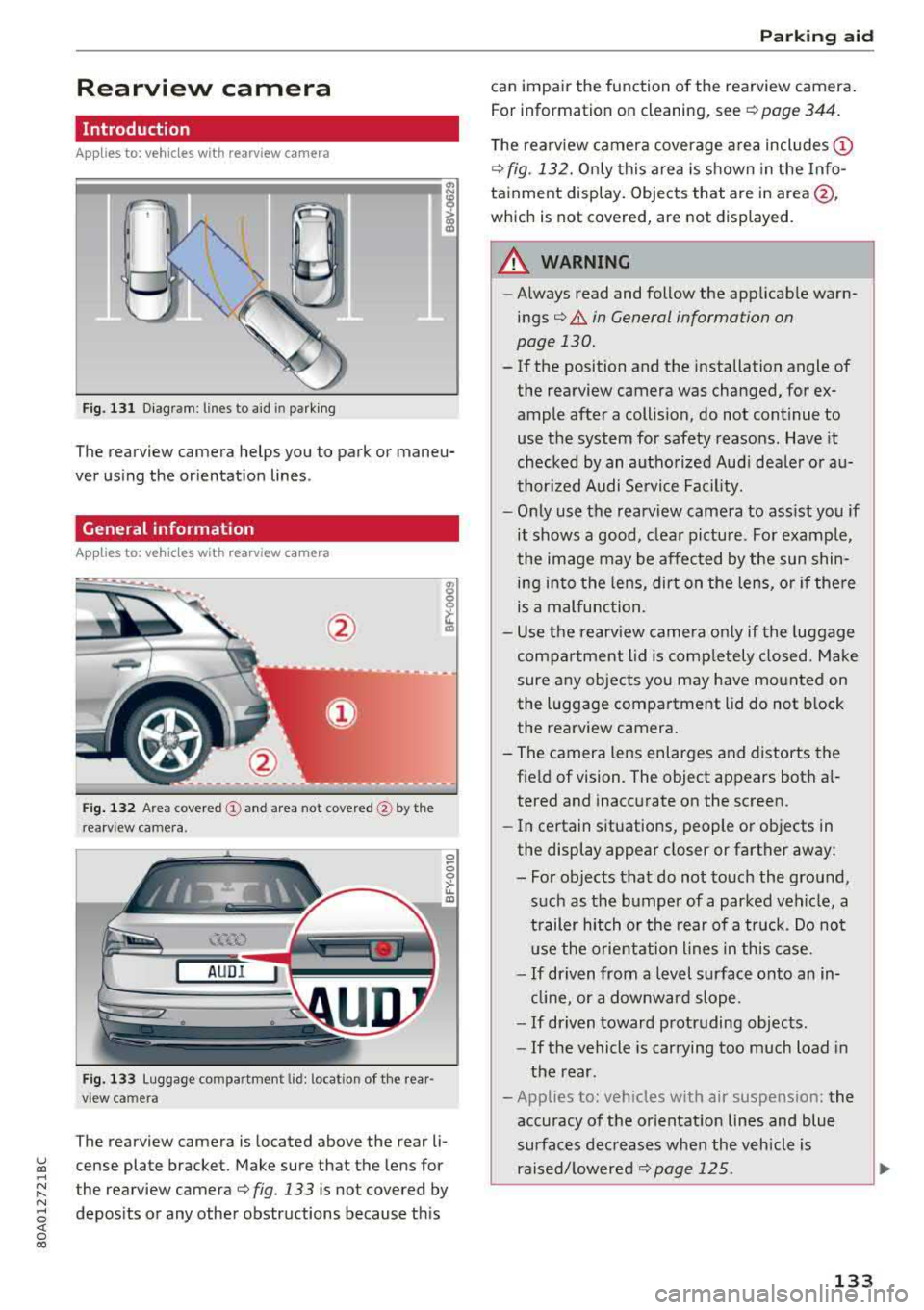
Fig. 131 Diagram: lines to aid in parking
The rearview camera helps you to park or maneu
ver us ing the orientation lines .
General information
Applies to: veh icles wit h rearv iew camera
Fig . 13 2 Area covered (y and area not covered @by th e
rearv iew camera .
AUDI
Fig. 1 33 Luggage compartment lid: locat io n of the rear
view camera
The rearview camera is located above the rear li
cense plate bracket. Make sure that the lens for
the rearview
camera¢ fig. 133 is not covered by
depos its or any other obstructions because th is
P ark ing aid
can impair the function of the rearview camera .
For information on cleaning, see
¢ page 344.
T he rearview camera coverage area includes (D
¢fig. 132. On ly this area is s hown in the Info
tainment display. Objects that are in
area@,
which is not covered, are not displayed.
A WARNING
-
-Always read and follow the applicab le warn-
ings¢ &. in General information on
page 130.
-If the position and the installation angle of
the rearview camera was changed, for ex
ample after a collision, do not continue to
use the system for safety reasons. Have it
checked by an autho rize d Aud i dea le r or a u
thor ized A udi Se rvice Fac ility.
-O nly use the rearv iew camera to ass ist you if
it shows a good, clea r pictu re . For example,
the image may be affected by the sun shin i n g into the lens, dirt on the lens, o r if the re
is a malfunction.
-U se the rearv iew came ra o nly if the luggage
compa rtment lid is comp letely closed. Make
sure any objects you may have mo unted on
the l uggage compartment lid do not block
the rea rview camera .
- The camera lens enlarges and distorts the field of vision. The object appears both a l
tered and inaccurate on the screen.
- In ce rtain situations, people o r objects in
the display appear closer or farther away :
- Fo r o bjects tha t do not touch the ground,
such as the bumper of a parked veh icle, a
trailer hitch o r the rear of a truck . Do no t
u se the orie nta tion l ines in th is case.
- If driven from a level surface onto an in
cl in e, or a downwar d slope.
- If driven toward protruding objec ts.
- If the vehicle is car rying too much load in
the rear .
- Applies to: veh icles w ith air suspens ion: the
accuracy of the or ientat ion lines and blue
surfaces dec reases whe n the vehicle is
raised/ lowere d¢
page 125.
133
Page 137 of 392
u co ..... N r-N .....
~ 0 co
~ Now you can position your vehicle in front of
the trailer ¢
A in General information on
page 135,
¢ (Din General information on
page 135.
The orange orientation line indi
cates the expected path toward the trailer
hitch . Use the blue lines to help you estimate
the d ista nce to the trailer h itch.
Peripheral cameras
Introduction
Applies to: vehicles with peripheral cameras
With this equipment, the parking system plus*
¢
page 131 is supplemented w ith various periph
eral cameras. The four cameras give you the fol
lowing views : area around the vehicle, front cor
ner v iew and rear corner v iew, view in front of the
veh icle and beh ind the veh icle .
General information
App lies to: veh icles with peripheral cameras
i
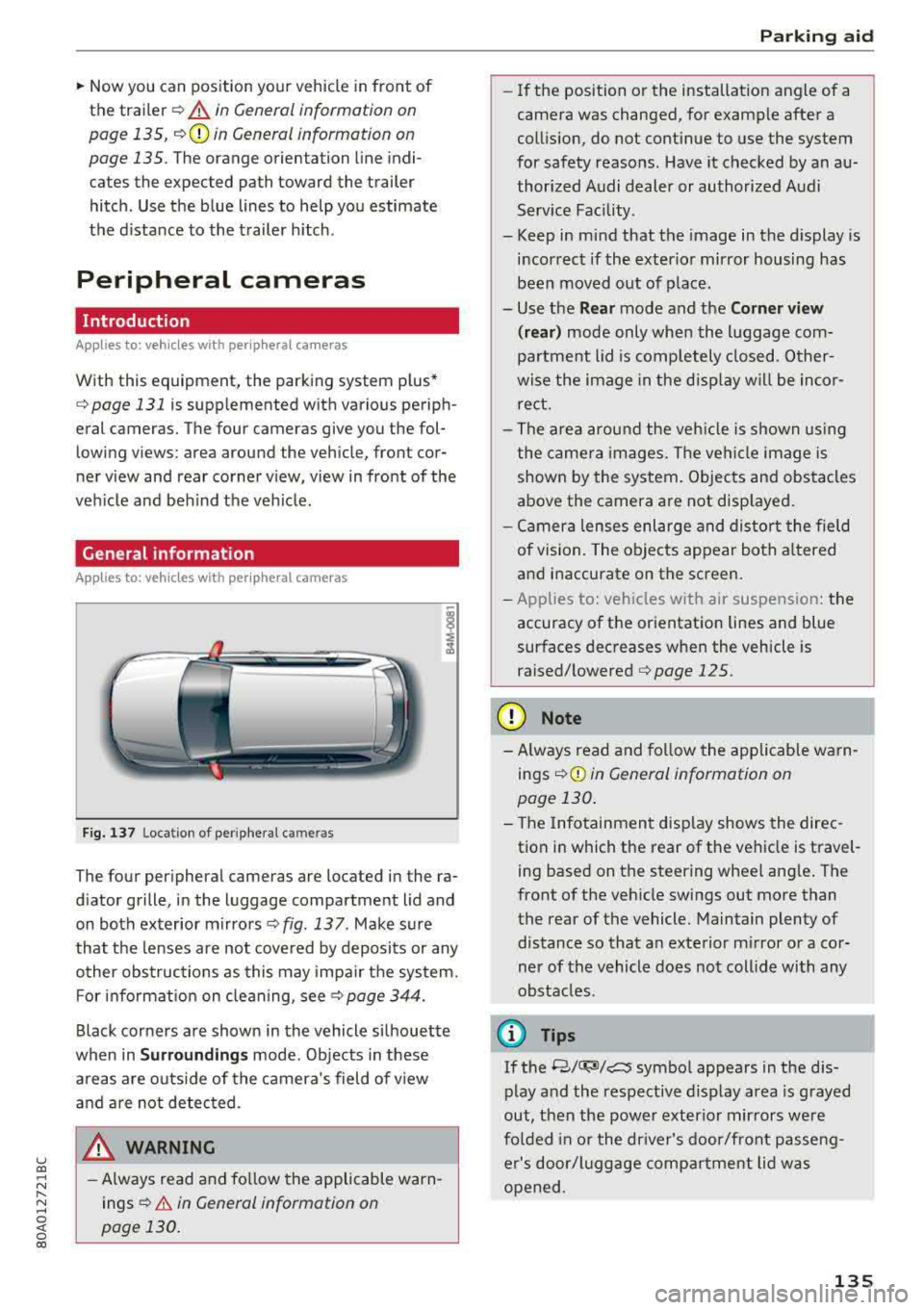
Fig. 137 Locat ion of periphera l ca mera s
The four per ipheral cameras are located in the ra
d iator grille, in the luggage compartment lid and
on both exterior mirrors ¢
fig. 13 7 . Make sure
that the lenses are not covered by deposits or any
other obstructions as this may impa ir the system.
F or info rmat io n on cleaning, see
c::> page 344.
Black corners are shown in the vehicle si lhouette
when in
Surroundings mode. Objects in these
a reas a re outside of the camera 's field of v iew
and a re not detec ted .
_& WARNING
-Always read and follow the applicable warn
ings ¢
A in General information on
page 130.
P ark ing aid
- If the position or the installation angle of a
camera was changed, for example after a
coll is ion, do not cont inue to use the system
for safety reasons. Have it checked by a n au
thorized A udi dealer or authorized Audi
Serv ice Facility.
- Keep in mind that the image in the display is
i n correct if the exterior mirror housing has
been
moved out of p la ce.
- Use the
Rear mode and the Corner view
( rear )
mode only when the luggage com
pa rtment lid is comp letely closed. Other
wise the image in the disp lay w ill be inco r
re ct.
- The area around the veh icle is shown using
the camera images. The vehi cle image is
shown by the system. Objects and obs tacles
above the camera are not disp layed .
- Ca mera lenses enl arge and distort the field
of vision. The o bjects appear both a ltered
a nd inaccurate on the screen.
- Applies to: vehicle s with air suspension: the
accuracy of the orientation lines and blue
surfaces dec reases whe n the vehicle is
raised/lowered <=>
page 125.
(D Note
-Always read and fo llow the applicable wa rn
ings
c::> (D in General information on
page 130 .
- The Info tainmen t display shows the direc
tion i n which the rear of the vehicle is travel
ing based on t he steering wheel ang le . The
front of the veh icle swings out mo re than
the rear of the vehicle. Maintain plenty of
distance so that a n exterior m irror or a cor
ner of the vehicle does not coll ide with any
obstacles.
(0 Tips
If the 8/0";JJ/c:5 symbo l appears in the d is
play a nd the res pect ive d isplay area is grayed
out, then the power exter ior mir rors we re
fo lded in or the dr iver's door/front passeng
e r's door/luggage comp artme nt lid w as
opened .
135
Page 139 of 392
u co ..... N r-N .....
~ 0 co
of the display. You can switch between the opti
cal display and camera image
¢page 138.
"'Select the symbol @ with the control knob. The
orange-colored orientation lines denote the
projected direction of travel. Stop the vehicle
when the red orientation line* borders an ob
ject¢ &. in General information on page 135.
Surroundings
Applies to: vehicles with peripheral cameras
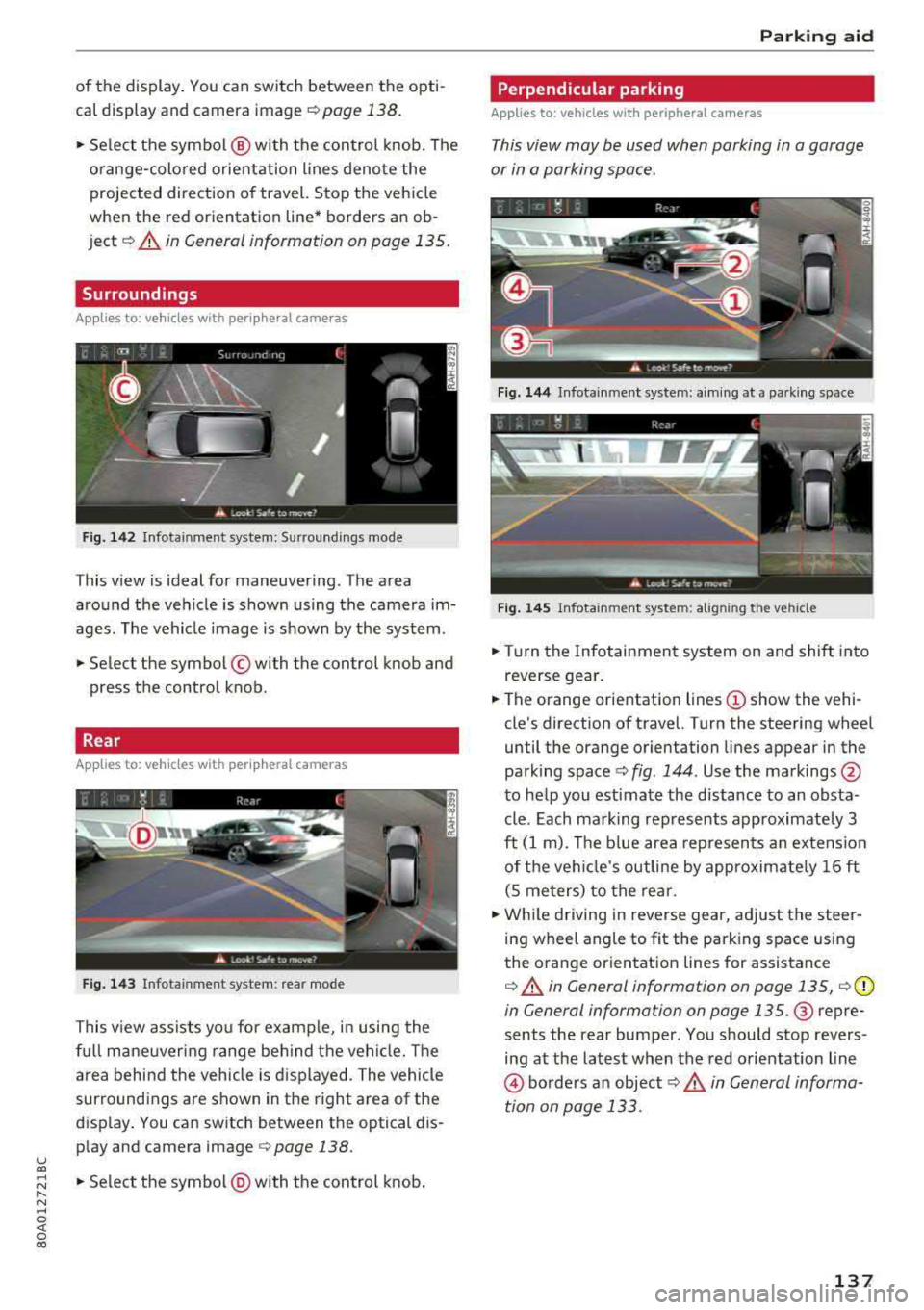
Fig. 142 Infotainment system: Surroundings mode
This view is ideal for maneuvering. The area
around the vehicle is shown using the camera im
ages. The vehicle image is shown by the system.
"'Select the symbol © with the control knob and
press the control knob.
Rear
Applies to: vehicles with peripheral cameras
Fig. 143 Infotainment system: rear mode
This view assists you for example, in using the
full maneuvering range behind the vehicle. The
area behind the vehicle is displayed. The vehicle
surroundings are shown in the right area of the
display. You can switch between the optical dis
play and camera image <=>
page 138.
"'Select the symbol@) with the control knob .
Parking aid
Perpendicular parking
Applies to: vehicles with peripheral cameras
This view may be used when parking in a garage
or in a parking space.
Fig. 144 Infotainment system: aiming at a parking space
Fig. 145 Infotainment system: al igning the vehicle
"'Turn the Infotainment system on and shift into
reverse gear.
"'The orange orientation lines (!) show the vehi
cle's direction of travel. Turn the steering wheel
until the orange orientation lines appear in the
parking space
c:> fig . 144. Use the markings @
to help you estimate the distance to an obsta
cle. Each marking represents approximately 3
ft
(1 m). The blue area represents an extension
of the vehicle's outline by approximately
16 ft
(S meters) to the rear.
"'While driving in reverse gear, adjust the steer
ing wheel angle to fit the parking space using
the orange orientation lines for assistance
c:> &. in General information on page 135, ¢ (D
in General information on page 135. @ repre
sents the rear bumper. You should stop revers
ing at the latest when the red orientation line
@ borders an object c:> .& in General informa
tion on page 133.
137
Page 161 of 392
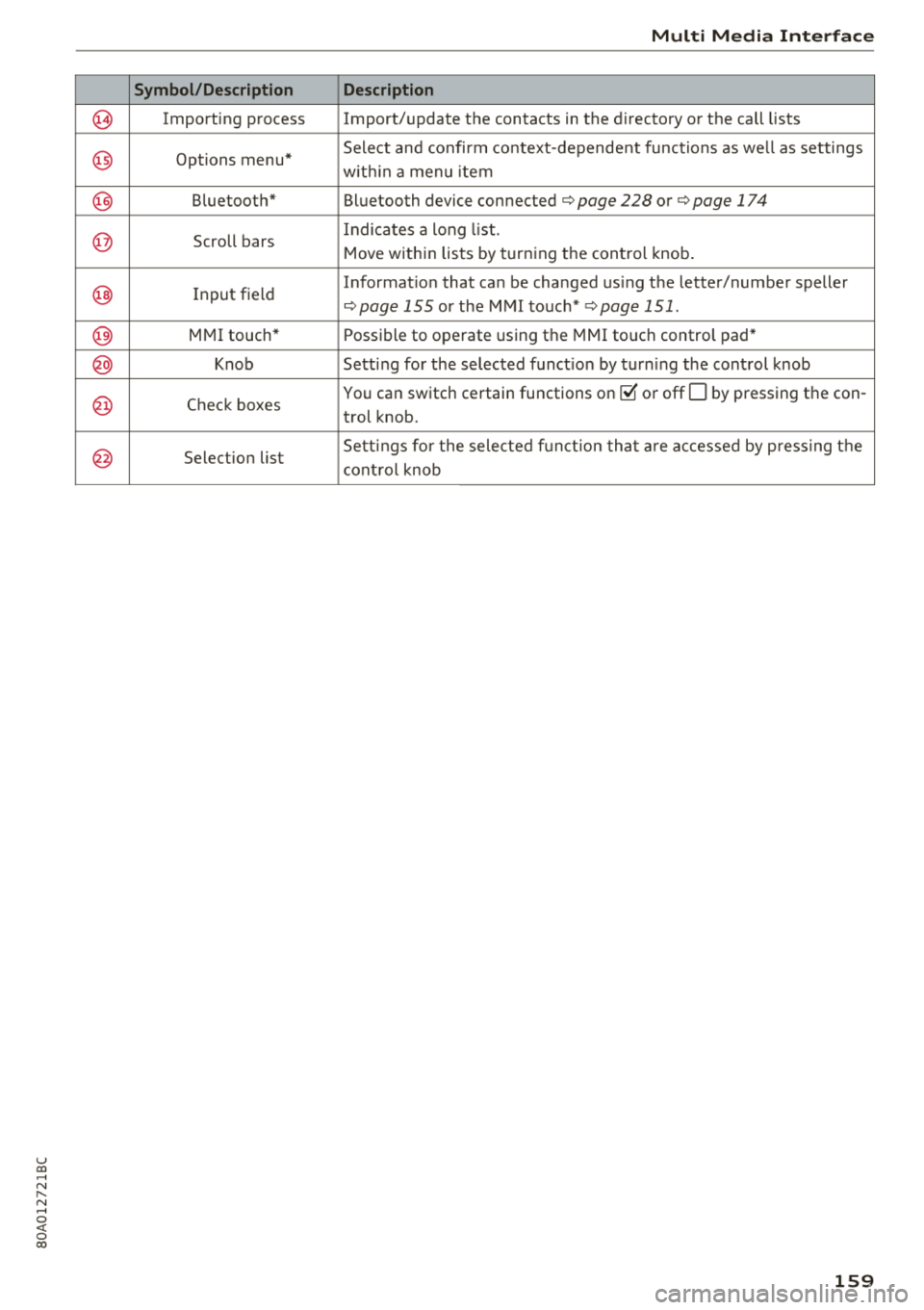
u co ..... N r--N ..... 0 <( 0 00
(0)
@
@
@
@
@
@
@
@
Symbol/Description
Importing process
Options menu* Bluetooth*
Scroll bars
Input field
MMI touch*
Knob
Check boxes
Selection list
Multi Media Interface
Description
Import/update the contacts in the directory or the call lists
Select and confirm context-dependent functions as we ll as settings
w ithin a menu item
Bluetooth device connected
¢ page 228 or ¢ page 174
Indicates a long list.
Move within lists by turning the control knob.
Informat ion that can be changed using the letter/number speller
¢page 155 or the MMI touch* ¢page 151.
Possible to operate using the MMI touch control pad*
Setting for the selected function by turning the control knob
You can switch certain functions
on ~ or offO by pressing the con -
trol knob.
Sett ings for the selected function that are accessed by pressing the
control knob
159
Page 168 of 392
Voice recognition system
• Telephone
• Audi connect •
Favorites
• Call (XV)
• Navigation
• Directory
• Radio
• Media
• Enter number
• Redial
• Read new text message
• Nav igate to
(XY)
• Sound • Enter address/destination
• Help • Online destinations
• Help Speech dialog system
• Help Telephone •
Cancel route guidance
• Map
• Help Aud i connect •
Line
(XY)
• Help Navigation
• Help
Map
• Help Radio •
Next page/ previous page
• Cancel
• No. I meant (XV)
• Help Media • Correction
TE ~EPflON ~
• Enter number • Call list
• Delete number/ correction
• Redial
• Directory
• Call
(XV)
• Call mailbox
• Telephone favorites
• business
I private/ land tine I mobile
N~~It ~JION
• Nav igate to (XY)
• Start/ cancel route guidance
• Directory
• Last destinations • Block
route for
(XV) miles I Block
the next section
• Route list
• Calculate alternative routes
• Nav igation favorites
• Drive home
• Enter address •
Online destinations
• Special destination
• Enter country
I town I street I state
• Exclude route/ Exclude route for
(XV) km/ m
• Map
• Day map/ Night map
• 2D driving position map/ 2D north position map/ 3D map/ Destination map
I Overview map
~l!IDI CONNECT
• Audi connect
• Travel Information/ Parking Information
• Fuel prices
• Weather
RADIO
• Radio presets
• FM
• FM /AM/ SIRIUS XM
• Station (XV) / Frequency (XV)
• Traffic announcement on/ off
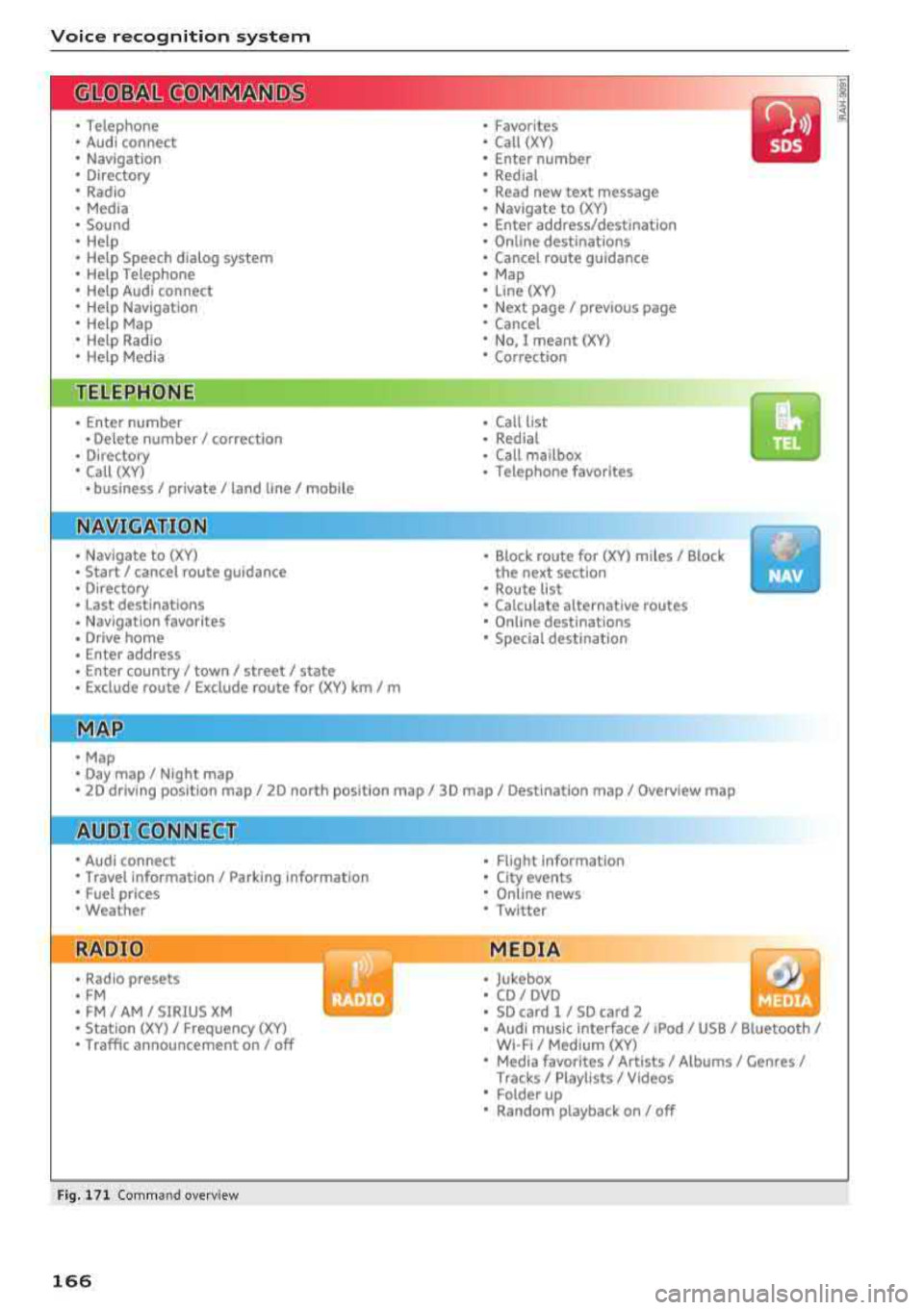
Fig. 171 Comm and overv iew
166
• Flight Informa tion
•
City events
• Online news
• Twitter
MEDIA
• Jukebox
• CD
I DVD
• SD card
l / SD card 2
• Audi music Interface/ I Pod/ USB / Bluetooth
I
WI -Fl I Med ium (XV)
• Media favorites
I Artists/ Albums/ Genres I
Tracks I Playll sts / Videos
• Folder up
• Random playback on / off
Page 172 of 392
Voice recognition s ystem
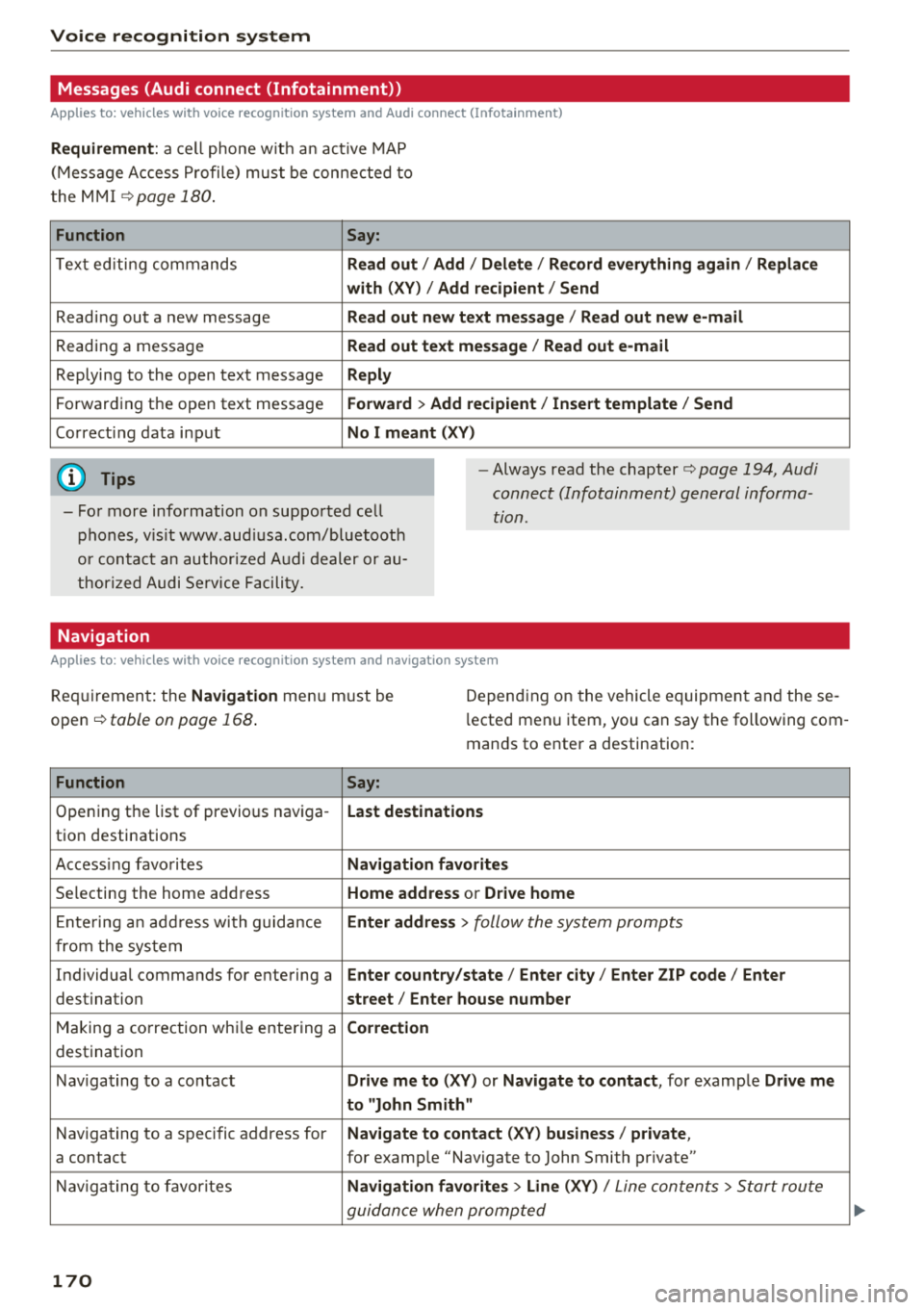
Messages (Audi connect (Infotainment))
Applies to: vehicles with voice recognition system and Audi connect (Infotainment)
Requirement : a ce ll phone w it h an ac tive MAP
(Mess age Access P rofi le) must be connected to
t he MMI
¢page 180 .
Function Say:
T ex t ed iti ng commands Read out
I Addi/ Delete / Re cord everything ag ain / Replac e
w ith (XV ) / Add recipient / Send
Reading out a new message Read out new text me ssage
I Read out ne w e-mail
Reading a message Read out text me ssage / Read out e-m ail
Replying to the open text message Reply
Forwarding the open text message Forward > Add recipient / In sert template / Send
Correcti ng data input No I meant (XV)
(D Tips
-Fo r more information on supported cell
phones, v is it www .aud iusa .com/bluetooth
or contact an author ized A udi dealer or au
thor ized Audi Se rvice Facility.
-Always read the chapter¢ page 194 , Audi
connect (Infotainment) general informa
tion.
Navigation
Applies to: vehicles with voice recognition system and navigation system
Requiremen t: the Navigation menu m ust be
open
¢ table on page 168 .
Depending on the vehicle equipmen t an d these
l ected menu item, you can say the following com
mands to enter a destination:
Function Say:
Opening the list of previous naviga -Last destinati ons
tion destinations
Access ing favo rites Navigation fa vori tes
Selecting the home add ress Home address or Driv e home
E nte ring a n add ress wi th guidance Enter address
> follow the system prompts
from the system
Individual commands for entering a Enter countr y/state / Ente r cit y/ Enter ZIP code / Enter
destination street/ Ent er hou se numb er
Making a correction wh ile entering a Correction
destination
Nav igating to a co ntact Drive me to
(XY) or Na vigate to contac t, for example Drive me
to "John Sm ith"
Navigating to a specific address for Na
vigate to co nta ct (X V) bu sine ss/ private ,
a contact for example "Navigate to John Smith pr ivate"
Nav igating to favorites Navigation favorite s> Line (XV) /
Line contents> Start route
guidance when prompted
170
Page 174 of 392
Voice recognition s ystem
-Always read the chapter ¢ page 194, Audi
connect (Infotainment) general informa tion .
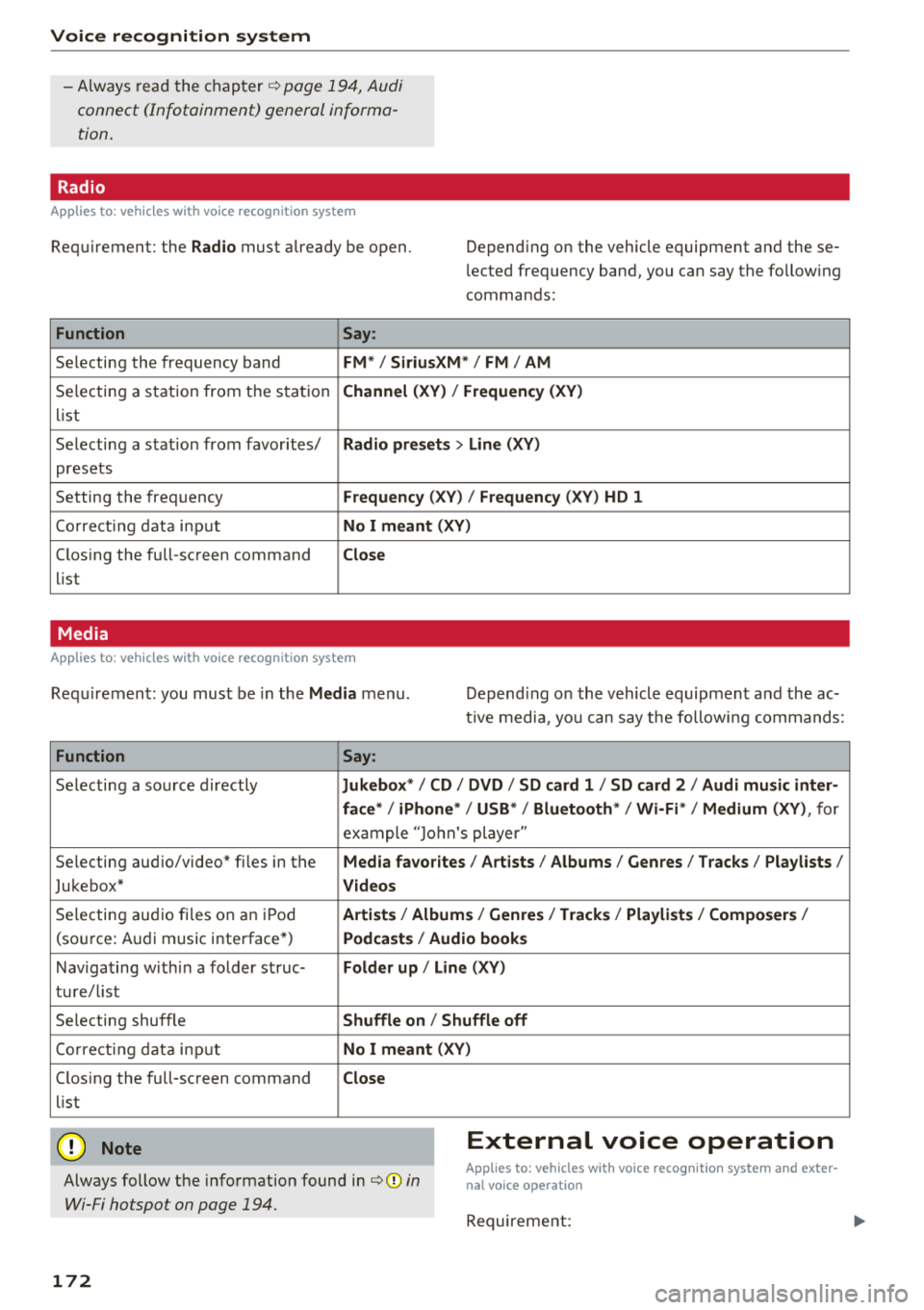
Radio
Applies to: vehicles with voice recognition system
Requirement: the Radio must already be open. Depend ing on the vehicle equipment and these
lected frequency band, you ca n say the fo llow ing
commands :
Function Say:
Selecting the frequency band FM*/ Siriu sXM* / FM / AM
Selecting a station from t he s ta tion Channel (XV ) / !Frequenc y (XV)
list
Selecting a stat ion from favorites/
Radio presets > Line (XV)
presets
Setting the frequency
F requency (X V ) / Frequency ( XV) HO 1
Correct ing data inp ut No I meant (XV )
Closing the full-screen command Close
list
Media
Applies to: vehicles with voice recognition system
Requirement: you mus t be in the Media menu . Depending on the vehicle equipment and the ac
t ive media, yo u can say the following commands :
Function Say:
Selecting a sou rce directly Ju kebox* / CO / DVD / SO card 1 / SO card 2 / Audi music inter-
face */ iPhone * / USB * / Bluetooth * / Wi -Fi * / Medium (XV) ,
for
exa mple "J o hn's player "
Selecting aud io/video" fi les in the
Media fa vorites I Artists / Albums / Genres I Tracks / Playlists /
Jukebox* Videos
Selecting aud io fi les on a n iP od Artists / Albu m is/ Genres I Track s/ Playlists / Compo sers I
(so urce: A udi music i nterface*) Podca st s / Aud io books
Nav iga ting with in a folder s truc-Folder up / Line (XV )
tu re/l ist
Selecting shuffle
Shuffle on / Shuffle off
Co rre ct in g data inp ut No I meant (XV )
Closing the full-screen command Close
list
@ Note External voice operation
Always follow the info rmation found in ¢@) in
Wi-Fi hotspot on page 194.
Applies to: vehicles with voice recognition system and exter·
nal voice operation
Requireme nt:
172
Page 176 of 392
Tele phone
Telephone
Introduction
Applies to: vehicles with telephone
To make phone coils in your vehicle using the
/11/111, connect your cell phone to the /11/111 via
Bluetooth.
Hand sfree
After you have connected your ce ll phone to the
MMI via B luetooth, you can use the handsfree
system and operate telephone functions through
your
MMI. You can make calls using the antenna
on your cell phone.
A WARNING
-Medical experts warn that cell phones can
interfere w ith the funct ion of pacemakers .
Always mainta in a m inimum d istance of
about 8 inches (20 cm) between the ce ll
phone antenna and the pacemaker.
-Do not carry the cell phone in a pocket di
rectly over the pacemaker when the phone
is switched on.
-Sw itch the cell phone off immediately if
you suspect it may be interfering w ith the
pacemaker.
-Do not use the vo ice recognit ion system*
<=) page 167 in emergencies because your
vo ice may change in stressful situations. It
may take longer to dial the number or the
system may not be able to dia l it at all. Dial
the emergency n umbe r manua lly.
-Switch your cell phone off in areas where
there is a ris k of an exp losion . These loca
tions are not always clearly mar ked. This
may include gas stations, fuel and chemical
storage facilities or transport vehicles, o r lo
cations where fue l vapors (such as propane
or gaso line vapor in vehicles or bui ldings),
chemicals or large quantities of dust parti
cles (such as flour, sawdust or metal) may
be present in the air . This also applies to all
other locations where you would normally
turn your vehicle engine off .
-The demands of traffic requ ire your full at
tent io n. Always read the chapter
Q page 147, Traffic safety information.
174
-
@ Note
Always fo llow the information found in Q @ in
Wi -Fi hotspot on page 194.
(D Tips
-Th e Bluetooth connect ion range is limited
to inside the vehicle. It can also be affected by local conditions and interference with
other devices .
-To learn which Bluetooth connections and
wh ich of the funct ions in your ce ll phone are
supported, check with your cell phone serv
ice provider or the database for mob ile devi
ces at www .aud iusa .com/bluetooth.
Setup
Connecting a cell phone using Bluetooth
Applies to: vehicles with telephone
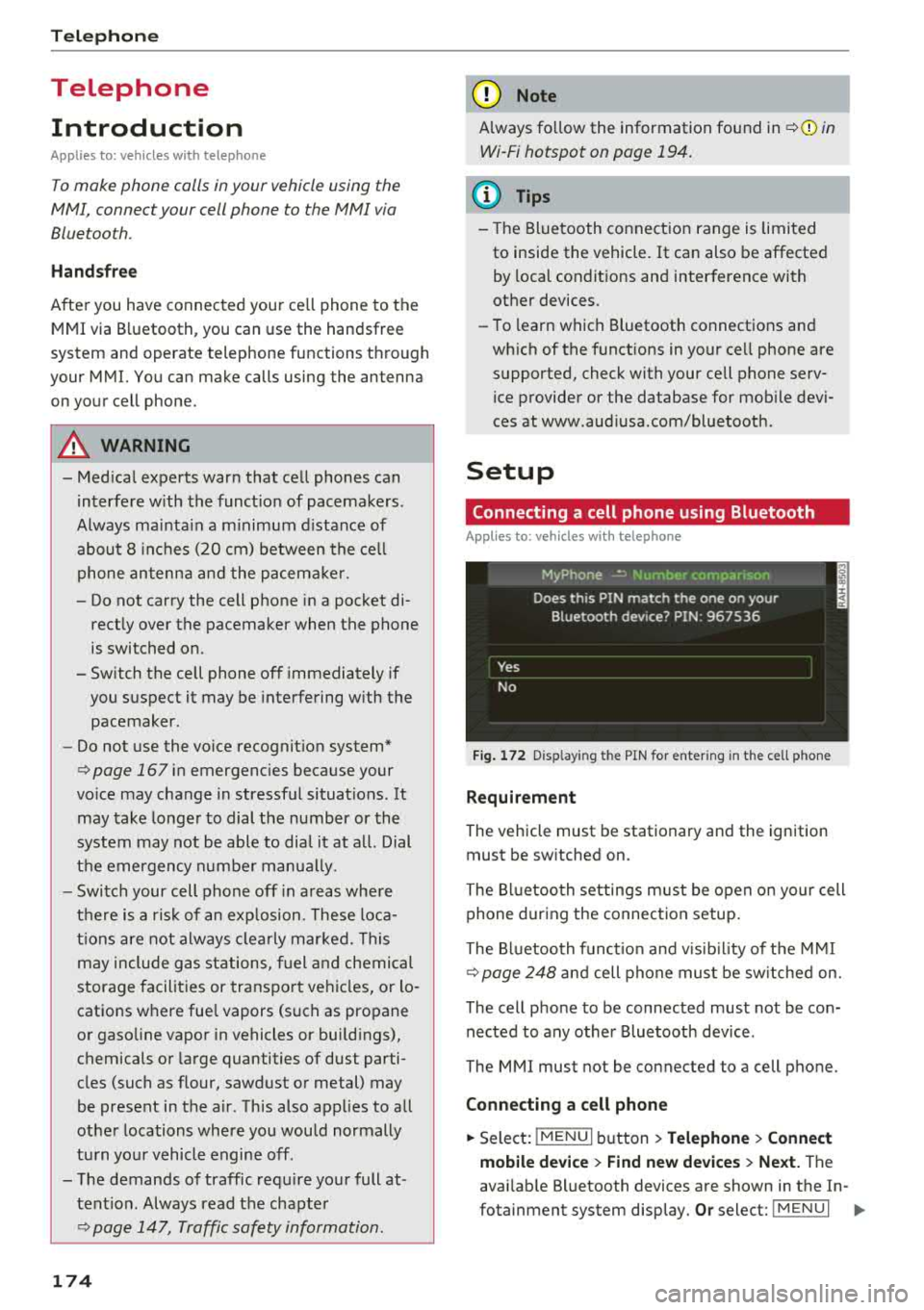
Fig . 172 D isp layin g the PIN for enter ing in t he cell phone
R equi rem ent
The vehicle must be stationary and the ignition
must be switched on.
The Bl uetooth settings m ust be open on your cell
phone during the connection setup.
The Bluetooth funct io n and v is ib il ity of the
MMI
Q page 248 and cell phone must be sw itched on.
The cell phone to be connected must not be con nected to any other Bluetooth device .
The
MMI mus t not be connected to a cell phone.
Conn ecting a c ell phon e
.. Select: IMENU I button> Telephone > Connect
mobile de vice > Find new de vic es > Next.
The
avai lab le Bluetooth devices are shown in the In-
fotainment system display.
Or select: ! MENUI 1111-
Page 177 of 392
u co ..... N r--N ..... 0 <( 0 00
button > Settings > left control button > MMI
settings
> Connection manager ¢ page 246.
~ Select and confirm the desired cell phone from
the list of displayed Bluetooth devices.
~ The MMI generates a PIN for the connection
setup
¢fig . 172.
~ Select and confirm Yes.
~ Enter the PIN for connecting on your cell
phone.
Or : when the PIN is displayed on your
cell phone, confirm the PIN on your cell phone
and in the MMI. The time allowed for entering
the PIN is limited to approximately 30 seconds.
~ Pay attention to any additional system prompts
displayed on your cell phone, for example if the
system should connect automatically in the fu
ture. Depending on the cell phone, you may
have to confirm downloading the directory sep
arately .
After connecting successfully
After connecting successfully, information about
the connected profiles will appear. You can also
change the profiles later. Select:
!MENUI button>
Settings > left control button > MMI settings >
Connection manager ¢ page 246 .
In addition, the cell phone contacts are automat
ically loaded in the MMI directory. This process
can take several minutes, depending on the num
ber of contacts .
You can also make your connected cell phone the
default phone by selecting
Set as default tele
phone
in the Connection manager ¢ page 248 .
@ Note
Always follow the information found in¢@) in
Wi-Fi hotspot on page 194.
(D Tips
-Making phone calls through the MMI is only
possible using the
Handsfree Bluetooth pro
file.
- You can apply additional settings to con
nected mobile devices using the
Connection
manager¢ page 246.
-You can also search for the MMI in your cell
phone using the Bluetooth device search.
Telephone
-You only have to pair your device one time.
Bluetooth devices that are already paired
automatically connect to the MMI when the
Bluetooth function is switched on, they are
within range and the ignition is switched on.
The last connected cell phone is given first
priority.
- Authorizing the MMI connection in your cell
phone will make automatic connection pos
sible .
- Pay attention to any system prompts dis
played on your cell phone, for example if
the system should connect automatically in
the future. Depending on the cell phone,
you may also need to download the directo
ry and confirm access to your text messages
separately.
- When leaving the vehicle, the Bluetooth
connection to the cell phone will automati
cally disconnect. Depending on your cell
phone, phone calls in progress may be auto
matically redirected from the MMI to your
cell phone and you can continue the call on
your phone.
- You can obtain more information from your
cell phone service provider or from your cell
phone user guide. For information on using
the telephone, visit www.audiusa.com/
bluetooth or contact an authorized Audi
dealer or authorized Audi Service Facility.
- Applies to: veh icles without secondary
phone: Several cell phones can be paired to
the MMI, but only one cell phone can be ac
tively connected to the MMI.
- App lies to: veh icles without seconda ry
phone: If a Bluetooth device is already con
nected to the MMI, it will be disconnected
when another device connects to the MMI.
175