warning symbols AUDI Q5 2018 Owners Manual
[x] Cancel search | Manufacturer: AUDI, Model Year: 2018, Model line: Q5, Model: AUDI Q5 2018Pages: 392, PDF Size: 60.56 MB
Page 63 of 392
u co ..... N r-N .....
~ 0 co
-Do not use any breakable beverage contain
ers (for example, made out of glass or por
celain). You could be injured by them in the
event of an accident .
(D Note
Beverage containers in the cup holders should
always have a lid. If not, beverages could sp ill
and cause damage to vehicle equipment, such
electronics or seat covers .
Climatized cup holder
Applies to: veh icles wit h clim atized cup holders
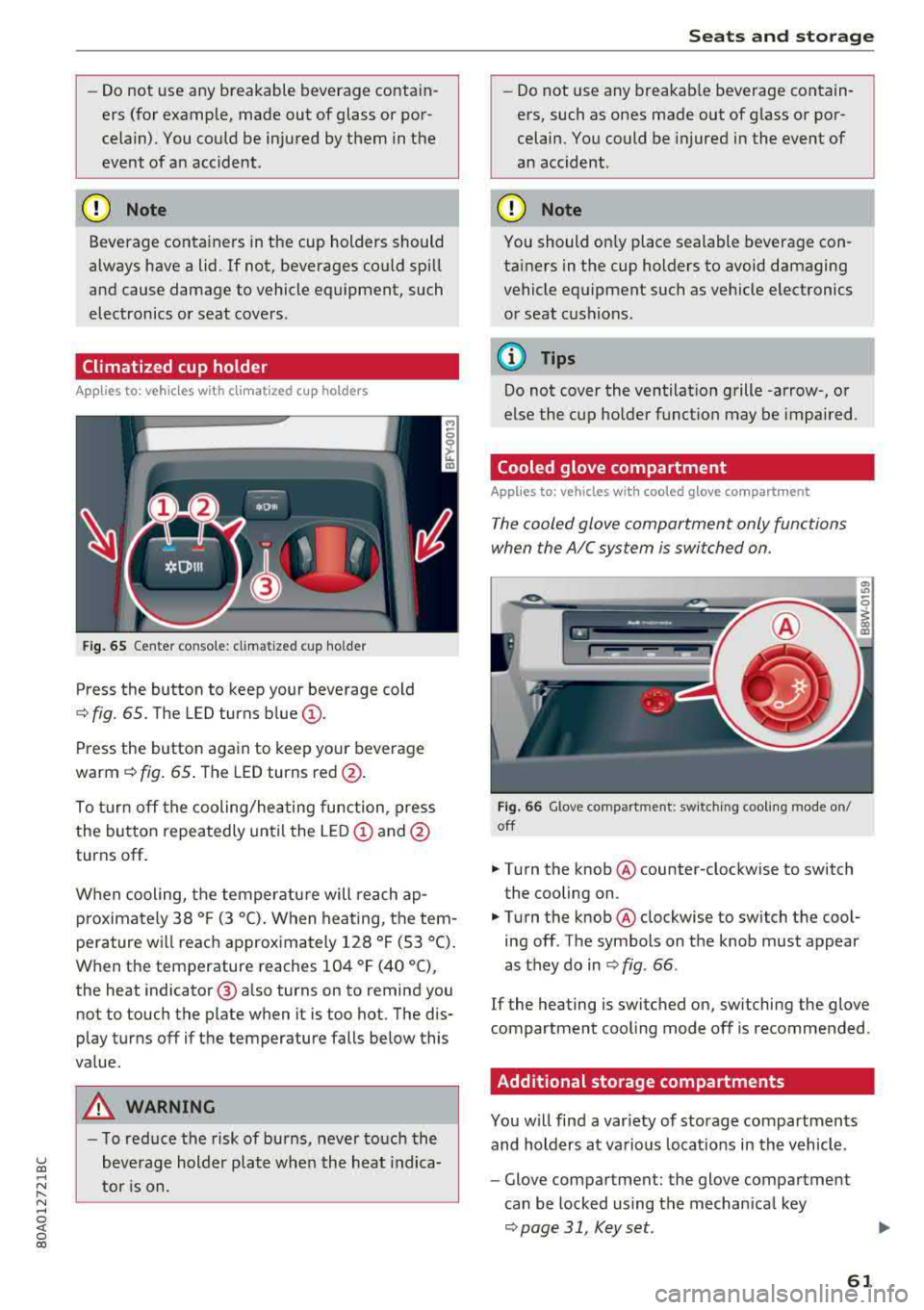
Fig. 65 Center co nsole: cl imatized cup holder
Press the button to keep your beverage cold
¢ fig. 65. The LED turns blue@.
Press the button again to keep your beverage
warm ¢ fig. 65 . The LED turns red @.
To turn off the cooling/heating function, press
the button repeatedly until the LED
(D and@
turns off .
When cooling, the temperature will reach
ap
p roximately 38 ° F (3 °C) . When heating, the tem
perature will reach approximately 128 ° F (53 °C).
When the temperature reaches 104 °F (40 °C),
the heat indicator @ also turns on to remind you
not to touch the plate when it is too hot. The dis
p lay turns off if the temperature falls below this
value.
_&, WARNING
- T o reduce the risk of burns, never touch the
beverage holder plate when the heat indica
tor is on.
Seats and storage
-Do not use any breakable beverage contain
ers, such as ones made out of glass or por
celain. You could be injured in the event of
an accident .
({I) Note
You should on ly place sealable beverage con
tainers in the cup holders to avoid damaging
vehicle equipment such as vehicle electronics
or seat cushions .
@ Tips
Do not cover the ventilation grille -arrow-, or
else the cup holder function may be impaired.
Cooled glove compartment
Applies to: vehicles with coo led glove compartment
The cooled glove compartment only functions
when the AIC system is switched on.
Fig . 66 G love compartment: switching cooling mode on/
off
.,. T ur n the knob @ counter-clockwise to switch
the cooling on .
.,. Turn the knob@ clockwise to switch the cool
ing off . The symbols on the knob must appear
as they do in
¢ fig. 66 .
If the heating is switched on, sw itching the glove
compartment cool ing mode off is recommended .
Additional storage compartments
You will find a var iety of storage compartments
and holders at various locat ions in the vehicle .
- Glove compartment: the glove compartment
can be locked using the mechan ical key
¢ page 31, Key set.
61
Page 102 of 392
Ass is tance sy stem s
of curves) from the navigation system* . Informa
tion from the camera-based traffic sign recogni
tion * is also applied to recognize traffic signs
¢ page 97.
The messages displayed depend on the naviga
tion data* being up -to-date and the correct iden
tification by the traffic sign recognition *.
When adaptive c ruise contro l* is sw itched off,
the predictive efficiency assist only p rovides noti
fications without controlled interventions. See
¢ page 100, Predictive messages (efficiency as
sist).
When adaptive cruise contro l* is switched on, the
system responds to upcoming situations auto mat ica lly. See
¢ page 100, Predictive control
( efficiency assist).
Predictive messages (efficiency assist)
Applies to: vehicl es w ith predictive effic iency assist
Ind icat or in the instrument clu ster display
Predictive messages appear in the instrument
cluster display to show the driver the appropriate
time to coast when a s ituation ahead requires
you to dr ive at a lower speed .
The messages are only shown if the cruise control
system* or adaptive cruise control* is switched
off.
An additiona l ind icator appears in the head-up
d isp lay* .
Symbol Meaning
Remove your foot from the acceler -
~
ator pedal to slow down, because
there is a situation ahead that re- quires a lower speed.
If you see
Dr ive r assistance in the instrument
cluster display, the following symbols will indi
cate which situat ion the system is currently re
acting to.
Symbol Meaning
MPH
U SA mod els :
Speed lim it
km/h
Ca nada models :
Speed limit
100 Symbol Mean
ing
_J!L Intersection ------
1!1
~ T raffic c ircle ··Of 'i,
If there are mult iple situations, then these situa
tions will appear in order in the display .
A WARNING
Pay attention to traffic and the area around
your vehicle when the efficiency ass ist is
switched on. The driver is always respons ible
for assessing the traffic situation.
(D Tips
- T he wo rding of the message may vary de
pend ing o n the dr iving mode set in d rive se
lect*¢ page 125 and the c urrent selec to r
lever position. No messages are disp layed
when in the "S" se lector lever position or in
D ynamic mode .
- When a route is p lanned using the nav iga
tion system*, then the message feed is
based on this route. Without route guid
ance, the system uses an assumed route for
the message feed.
- There will not be a message for every situa tion ahead, for example if there is not enough distance remaining to react to the
situat ion .
- No messages are displayed when at speeds
under 20 mph (30 km/h) .
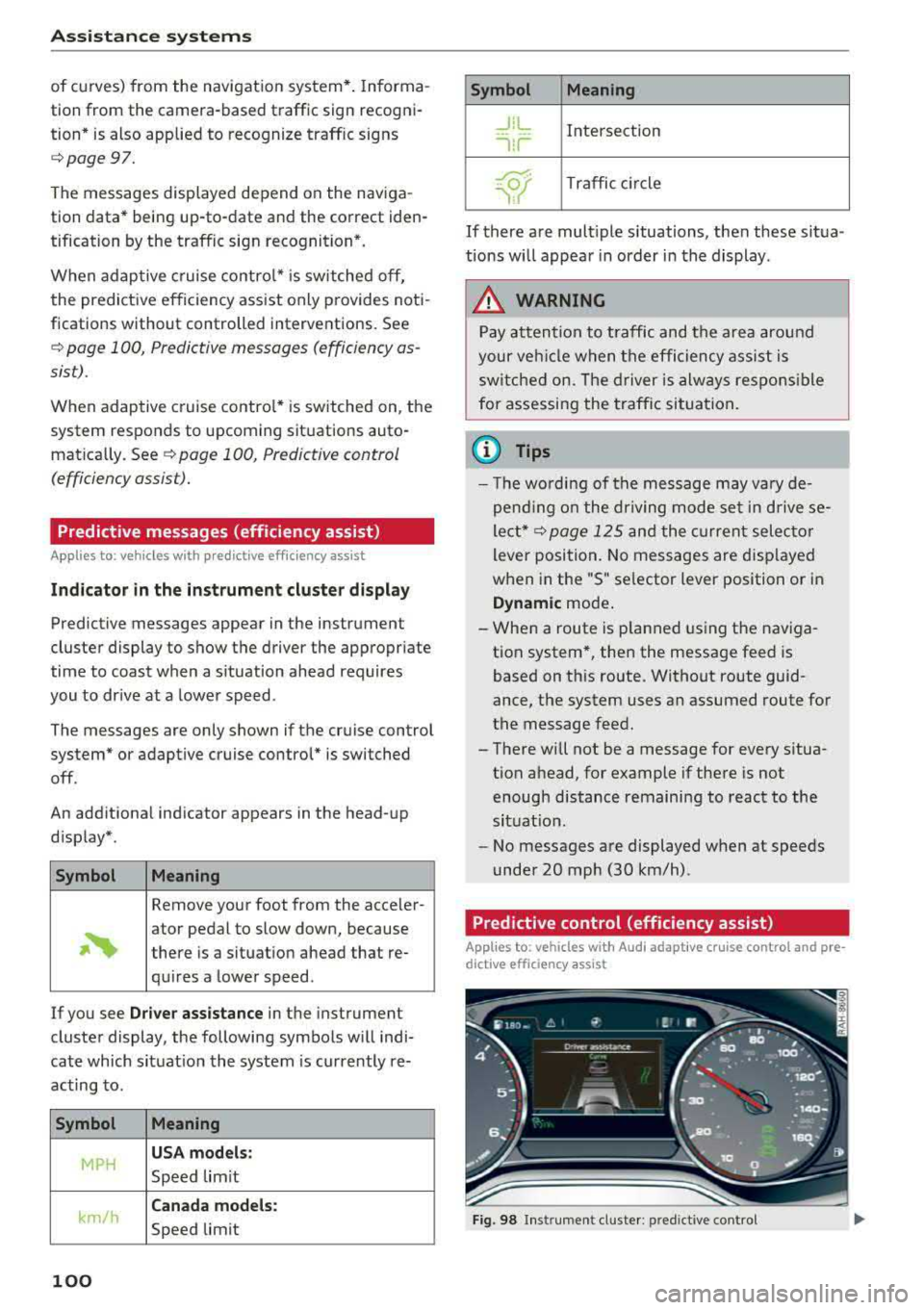
Predictive control (efficiency assist)
-
Applies to: vehicles with Aud i adapt ive cru ise control and pre
dict ive efficie ncy ass ist
Fig. 98 Inst rument cluster : predictive control
Page 103 of 392

u co ..... N I' N ..... 0 <( 0 00
Description
The predictive cont rol 1 l uses the map info rma
tion from the navigation system in order to react proactive ly when driving. Information from the
cam era-based traffic sign recognition * is a lso ap
plied to recognize traffic
signs ¢ page 97. When
coming up to areas wi th speed limits or changes
in the course of the road (such as curves, inter
sections or traffic c ircles), the system brakes au
tomatically and then accelerates back up to the
set speed .
Overriding control
The driver can override the predict ive control at
a ny time by press ing the accelerator or brake
pedal. If the system changes the vehicle speed to
adapt to speed limits, you ca n cha nge the speed
usi ng the lever
¢ page 106, fig. 105 .
Always switch off the predictive control in
the following situations:
- When increased atte ntion is needed from the
drive r.
- In poor weat her cond it ions such as snow or
heavy ra in.
- When driving on roads in poor condition .
Indicator in the instrument cluster display
When switching on the adaptive cru ise cont rol
for the first time, the message
ACC: R + B ac
ti ve
in the instrument cluste r indicates the ava il
ab ility of the predictive control.
T he
'?·;SOmh symbo l appears when the system
is reg ulating the speed to match a speed lim it. If
this is the case, the system is regulating a speed
of SO mph (80 km/h) . The speed is then taken
over by the adaptive cru ise control. The speed in
the speedomete r LE D ring ad justs to the speed to
be maintained
¢ page 104, fig. 104 . The ..
¢fig. 98 sym bo l appe ars whe n there is an adap
ta tion to t he ro ute ahea d.
I f you are in the
Driver assistance d isp lay in the
in str ument cluster, then the fo llow ing symbols
w ill in dica te w hic h oc currence t he sys tem is cu r
r en tly responding to:
ll Thi s is not availa ble in so m e co untri es.
A ss istance systems
Symbol Meaning
MPH
USA models:
Speed limit
km/h
Canada model s:
Speed limi t
ll
Curve
_J!L Intersection
,:r
w
T raffic ci rcle
A WARNING
-
- Read the wa rnin gs on ¢ .&. in General infor
mation on page 103
and on¢ & in De
scription on page
97.
- Pay attent ion to traffic and the a rea around
your veh icle when pred ictive cont rol is
sw itched on. The driver is always responsi
ble for assessing the traffic situation.
- There is an increase in the risk of an acci
dent, because the system does not consider
"right of way" rules and also does not re
spond to traffic lights .
- The system only cons iders t raff ic signs that
g ive a speed lim it .
- The permitted speed can be exceeded if the
adaptation to a speed lim it is incorrect . The
d river is responsible for adher ing to the pe r
mitte d speed .
- The s peed at w hich a curve is dr iven th rough
does not necessarily match your own driving
s tyle. Brake the vehicle yo urself whe n need
e d t o redu ce the risk of an a ccid en t.
0) Tips
- If a speed lim it is detected, the stored
speed is also adjusted in the speedometer
LE D line when the ada ptive cru ise control is
n ot a ctive .
- The adaptat ion by the system depends on
t he driving mode se t in dr ive se lec t*.
- Switching off predict ive con trol, fo r exam
ple whe n driving in low t raff ic zones, does
101
Page 213 of 392
u co ..... N ,..._
N ..... 0 <( 0 00
-Se lect and confirm a destination > right control
button
> Sto re as home addre ss.
Editing the home address
- Se lect the Home a ddre ss@ ~ page 203,
fig. 185.
- Se lect: rig ht contro l button > Edit hom e ad
dre ss.
-Select and confirm a new dest inat io n as the
home address.
The selected destination is stored as the new home address .
Favorites
Applies to: vehicles with navigation system
"'Press the I NAV/MAPI button repeated ly until
the
Ent er de stinati on menu is displayed
¢page 203, fig . 185.
- Storing a destin ation a s a f avo rite : searc h for
the des ired destination us ing the input fie ld.
Or : select a dest inat ion from the list. Se lect:
r ig ht control button
> St ore as favorite.
- Renaming a favorite :
select the left cont rol
bu tton
> Favorite s > a favorite from the list >
right cont rol button > R enam e fa vorite .
- Mov e favorite :
select a favorite from the list>
r ig ht cont rol but ton > Move favorite . Select
and confirm the location o f th e se lected favor
ite .
-Deleting a fa vorite : select a favorite from the
list>
right contro l button > Delete fa vo rite >
Delete this fa vo ri te or Delete all favorites.
Directory contacts
Applies to: vehicles with navigation system
Two addresses (private/business) can be as
signed as destinations for each contact in the di
rectory.
"' Press the I NAV/MAPI button repeated ly until
the
Enter destinati on menu is displayed
¢ page 203, fig. 185 .
Navigation
Storing a destination as a contact in the
dir ector y
Requirement: a ce ll phone must be connected to
the MMI
¢ page 174 .
-Select: a destination > right contro l button >
Add de stination to contact .
-Enter the first letters of t he des ired contact in
the free text search inp ut fie ld ¢
page 203,
fig. 185
and then select a contact from the list .
- Select and confirm
Add bu sine ss destination or
Add pri vate de stina tion.
Navigation settings
Applies to: vehicles with navigation system
"'Press the !NAV/MAP I button repeatedly unti l
the
Enter dest ination menu is displayed
¢page 203, fig.185 .
"' Select: r ight control button > Nav ig ation set-
ting s.
Depending on the selected function, the follow
ing settings can be selected:
Show alternati ve route s
Up to three suggested routes are shown on the
map when this function is switched
on ~
¢page 210 .
Low fuel warning
A message is d isplayed if the fue l gauge goes be
l ow the reserve marking w hen this function is
switched
on~-Confirming this message disp lays
a list of gas stations in the area. When a gas sta
tion is selected, route guidance from the current
vehicle position is calculated.
Trail er mode*
T railer mode is switched off at the factory .
When the funct io n is switched
on~, the max i
mum pe rm itted speed for ve hicles w ith t railers is
i nco rporated i nto t he ro ute guidance and the cal
c ul ated arriva l time is adjusted accord ingly. Trai l
er mode is displayed using
symbols- ':! in the side
menu on the map .
..,.
211
Page 220 of 392
Navigation
Traffic information display on the map /Map
pre view*
Color -co ded mark ings a long the route indicate
the t raff ic flow:
Green : traffic is flow ing free ly .
Yellow: stop-and-go traffic.
Red : congest io n.
Shaded mar kin gs in dicate the le ngth of the area
with congestion .
Colored warning symbols: an impendi ng tr affic
i n cident d irect ly ahead on your route .
All t raff ic incide nts will display in colo r whe n
ro ute guid ance is in active .
Grayed out warning symbols: traffic inc iden ts
t ha t are not on yo ur route .
Warning symbols with~ : avoided traffic inc i
dents .
The display of colored markings, warning sym
bols, etc . can be set in the
Map content menu
,=;,page 215.
(D Tips
Part icu larly cr it ica l traff ic information, s uc h
as warnings about wrong-way drivers , is auto
mat ically displayed. To hide the traffic infor
mat ion , press the
I BACK I button o r the con
t rol k nob .
Traffic information (TMC)
App lies to: ve hicles w ith navigat ion system
Rece iv ing t raff ic informa tion th rough TMC is
sw itche d on a t the fac to ry .
.,. Press t he I N AV/MAP I button repeated ly un til
t h e map is d is pl ayed .
.,. Select : left con trol button > Traffic messages .
An overv iew of a ll the traffic messages is dis
p layed in the I nfota inme nt system .
-Opening a detailed view of traffic information :
select and confirm the traffic info rmat ion from
the list .
218
(D Tips
-TMC traffic reports are not available in Can
ada . For more informat io n, please contact
S ir ius Cana da.
- Cr itica l t raff ic information, s uch as wa rn
ings about wrong-way drivers, is au tomati
cally d isp layed. To h ide the t raffic info rma
t io n, p ress th e
I BACK I button o r th e control
knob.
Better route
App lies to: vehicles wit h navigat ion syste m and better ro ute
By receiving traffic information through TMC,
your
MMI calculates a better route -if available -
and the possible tim e saved for the curr ent rout e
guidance . You can decide yourself which route
you would like to use.
.. Press the I NAV/M API bu tton re peatedly unti l
t he map is displayed .
Requirement: route g uidance must be active.
If your MMI has ca lculated a better ro ute than
t h e cur rent route g uidance, t he message
A better
route is available.
appears for severa l seconds
alo ng with the time that may be saved. A better
r ou te is ind icated in the map view by the symbol
tS ,=;, page 213, fig . 193 .
A message also appea rs in the traffic in fo rmat ion
ove rview (i)c;,page217, fig.197.
Apply better route
-Press the right con trol but ton .
- S elect a nd c onfir m th e bett er ro ute.
Or : sele ct
an d con firm
Details to d is pla y det ails about the
optimized ro ute . You can zoom in or out on t he
ma p usin g the M MI touch cont rol pa d. Requ ir e
ment : there must be more than one opt imized
route calcu lated. Press the contro l knob to
sw itch to the next rou te in the detailed view .
Closing the detailed view : press the I BACK I
button .
- After you have selected a better route, t he
route w ill be recalc ulated .