Switches AUDI Q5 2021 Owner´s Manual
[x] Cancel search | Manufacturer: AUDI, Model Year: 2021, Model line: Q5, Model: AUDI Q5 2021Pages: 332, PDF Size: 118.86 MB
Page 121 of 332
80B012721BA
Driving dynamic
The transmission temperature has increased sig-
nificantly due to the sporty driving manner. Drive
in a less sporty manner until the temperature re-
turns to the normal range and the indicator light
switches of.
it} Sport differential: temperature too high.
Please adapt driving style
The transmission temperature has increased sig-
nificantly due to the sporty driving manner. Drive
in a less sporty manner until the temperature re-
turns to the normal range and the indicator light
switches of.
Z\ WARNING
Contact an authorized Audi dealer or author-
ized Audi Service Facility if the sport differen-
tial is faulty or malfunctioning. The repair
must be performed by trained personnel us-
ing
the correct oil in order to ensure safety.
Electronic Stabilization
Control
Electronic Stabilization Control (ESC) supports
driver safety. It reduces the risk of slipping and
improves driving stability. ESC detects critical sit-
uations, such oversteering and understeering of
the vehicle, the drive wheels spinning, or the risk
of the vehicle tipping.
The brakes are applied or the motor torque is re-
duced in order to stabilize the vehicle.
The following stabilization functions are integrat-
ed into the ESC, among others:
Anti-lock Braking System (ABS)
ABS prevents the wheels from locking when brak-
ing. The vehicle can still be steered even during
hard braking. Apply steady pressure to the brake
pedal. Do not pump the pedal.
A pulsing in the brake pedal indicates that the
system is acting to stabilize the vehicle.
Anti-Slip Regulation (ASR)
ASR reduces drive power when the wheels begin
spinning and adapts the power to the road condi-
tions. This will increase the driving stability.
Electronic Differential Lock (EDL)
The EDL applies the brakes to wheels that are
slipping and transfers the drive power to the oth-
er wheels. This function is not available at higher
speeds.
In extreme cases, EDL automatically switches off
to keep the brake on the braked wheel from over-
heating. The vehicle is still functioning correctly.
EDL will switch on again automatically when con-
ditions have returned to normal.
Selective wheel torque control
Selective wheel torque control is used when driv-
ing on curves. Braking is targeted toward the
wheels on the inside of the curve as needed. This
allows more precise driving in curves.
Power steering
The ESC can also support vehicle stability
through steering.
ZA\ WARNING
—The ESC and its integrated systems cannot
overcome the limits imposed by natural
physical laws. This is especially important on
slippery or wet roads. If the systems begin
acting to stabilize your vehicle, you should
immediately alter your speed to match the
road and traffic conditions. Do not let the in-
creased safety provided tempt you into tak-
ing risks. This could increase your risk of a
collision.
— Please note the risk of a collision increases
when driving fast, especially through curves
and on slippery or wet roads, and when driv-
ing too close to objects ahead. There is still
a risk of accidents because the ESC and its
integrated systems cannot always prevent
collisions.
— Accelerate carefully when driving on
smooth, slippery surfaces such as ice and
snow. The drive wheels can spin even when
119
Page 165 of 332
80B012721BA
Driver assistance
B - Traffic jam assist switches off if the driver
does not take over steering after multiple driver
intervention requests. The system brakes the ve-
hicle until it is stationary.
Steering intervention request
If no steering activity is detected or the steering
power from the system is not sufficient, the driv-
er steering intervention request will alert the
driver using audio and visual signals, such as
or E. Take over the steering and keep your
hands on the steering wheel so that you will be
ready to steer at any time.
If the driver does not take over steering, adaptive
cruise control (with traffic jam assist) will be
switched off. The system brakes the vehicle until
it is stationary.*
ZA WARNING
— Observe the safety precautions and note the
limits of the assist systems, sensors, and
cameras © page 141.
— The activated traffic jam assist is only an as-
sist system, and the driver is still responsi-
ble for controlling the vehicle. The driver is
especially responsible for braking, steering,
starting to drive, and controlling the speed
and the distance from other vehicles.
— Turn on the traffic jam assist only if the sur-
rounding conditions permit it. Always adapt
your driving style to the current visual,
weather, road, and traffic conditions.
— Switch the traffic jam assist off temporarily
when driving in turning lanes or highway ex-
its. This prevents the vehicle from accelerat-
ing to the stored speed when in these situa-
tions.
@) Tips
— Always keep your hands on the steering
wheel. The driver is always responsible for
adhering to the regulations applicable in
the country where the vehicle is being oper-
ated.
— Pay attention to applicable local regulations
relating to driving tasks, leaving space for
emergency vehicles, etc. The driver is always
responsible for following the laws that are
applicable in the location where the vehicle
is being operated.
— If traffic jam assist was deactivated through
the MMI, you can continue operating the
Audi active lane assist using the > fig. 126
button > page 165. The traffic jam assist
functions are no longer available.
— You are not necessarily guided to the center
of your lane.
Messages
Applies to: vehicles with traffic jam assist
if &. or |i is displayed when there is a mal-
function, the traffic jam assist functions may be
unavailable or may be limited.
A message that indicates the cause and possible
solution may appear with some displays. The
weather conditions may be too poor or a sensor
may be covered. Clean the area in front of the
sensors > page 143 and try to turn on the sys-
tems again later.
If the malfunction remains, drive to an author-
ized Audi dealer or authorized Audi Service Facili-
ty immediately to have the malfunction correct-
ed.
163
Page 167 of 332
80B012721BA
Driver assistance
Audi active lane assist/ The system functions in the speed range of ap-
lane departure warning OMe mph 155 imph (65 kmzh -
m. #
General information . ; -
Applies to: vehicles with Audi adaptive cruise control and traf-
Applies to: vehicles with Audi active lane assist fic jam assist
If the conditions are met, traffic jam assist
switches on at speeds under approximately
40 mph (65 km/h) > page 162.
The active lane assist/lane departure warning
(called only active lane assist in the vehicle dis-
plays and in the information that follows in this
Owner's Manual) can detect lane marker lines AK WARNING
within the limits of the system. If you are ap-
proaching a detected lane marker and it appears Observe the safety precautions and note the
likely that you will leave the lane, the system can limits of the assist systems, sensors, and
warn you with corrective steering and a steering cameras > page 141.
wheel vibration, if necessary.
Applies to: vehicles with Audi active lane assist
Display and warning
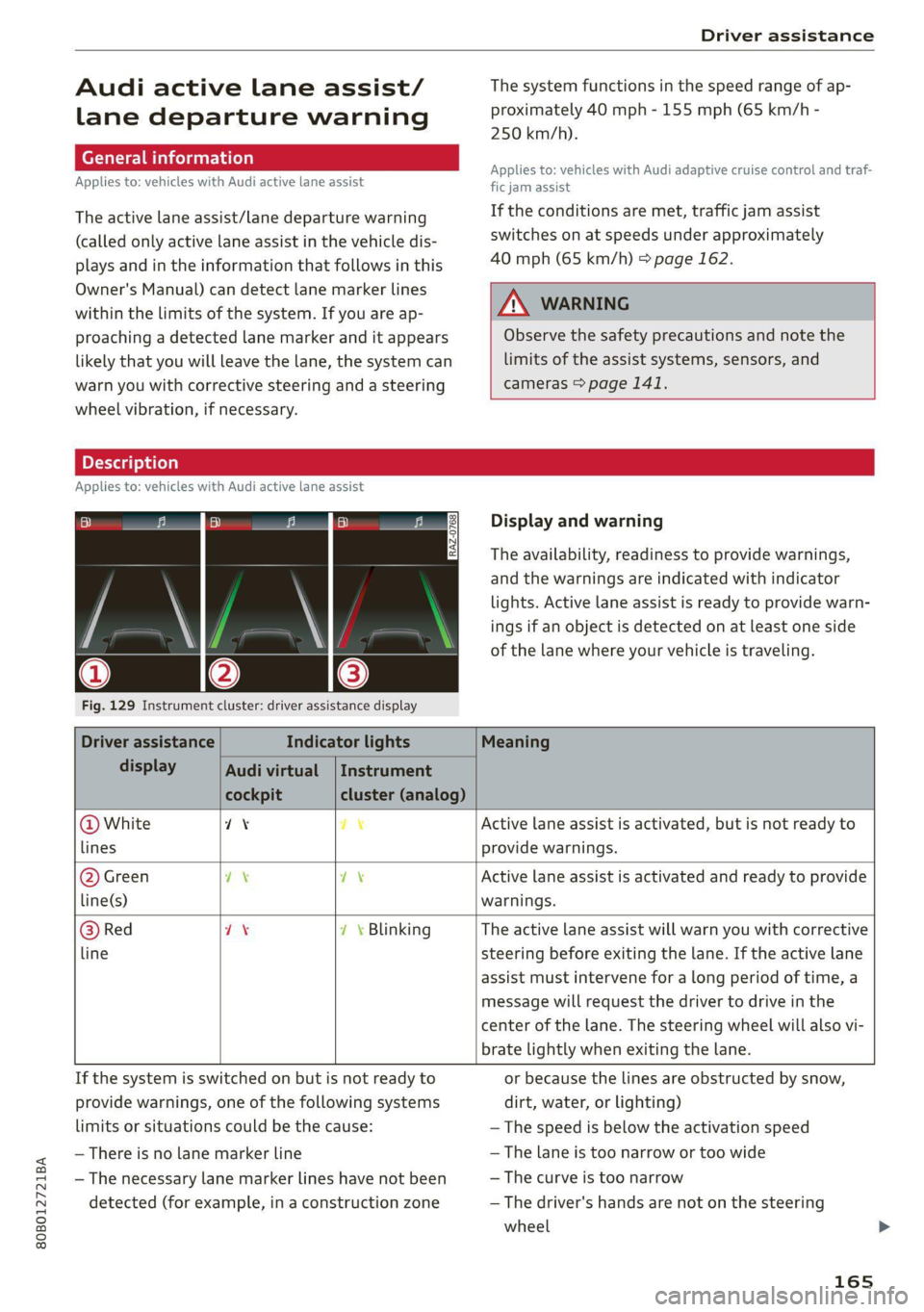
The availability, readiness to provide warnings,
and the warnings are indicated with indicator
lights. Active lane assist is ready to provide warn-
ings if an object is detected on at least one side
of the lane where your vehicle is traveling.
Fig. 129 Instrument cluster: driver assistance display
Driver assistance Indicator lights Meaning
display Audi virtual | Instrument
cockpit cluster (analog)
@ White 71% 7% Active lane assist is activated, but is not ready to
lines provide warnings.
@ Green ex 7\ Active lane assist is activated and ready to provide
line(s) warnings.
@ Red 7X 7 \ Blinking The active lane assist will warn you with corrective
line steering before exiting the lane. If the active lane
assist must intervene for a long period of time, a
message will request the driver to drive in the
center of the lane. The steering wheel will also vi-
brate lightly when exiting the lane.
If the system is switched on but is not ready to or because the lines are obstructed by snow,
provide warnings, one of the following systems dirt, water, or lighting)
limits or situations could be the cause: — The speed is below the activation speed
— There is no lane marker line — The lane is too narrow or too wide
— The necessary lane marker lines have not been — The curve is too narrow
detected (for example, in a construction zone — The driver's hands are not on the steering
wheel
165
Page 172 of 332
Driver assistance
ZA\ WARNING
— Observe the safety precautions and note the
limits of the assist systems, sensors, and
cameras > page 141.
— Swerve assist does not react to pedestrians,
animals, crossing objects, and objects not
detected as vehicles.
@) Tips
— System functions may not be available if the
ESC is limited or switched off, or if there is a
malfunction.
— An indicator in the instrument cluster will
inform you when there is an intervention.
seg
Applies to: vehicles with turn assist
When turning left), turn assist can help to re-
duce the risk of a collision with an oncoming ve-
hicle by using braking action to keep your vehicle
in its lane. The function is only available when
the turn signal is turned on and at speeds up to
approximately 6 mph (10 km/h).
ZA\ WARNING
— Observe the safety precautions and note the
limits of the assist systems, sensors, and
cameras > page 141.
— The turn assist does not react to pedes-
trians, animals, crossing objects, and ob-
jects
not detected as vehicles.
@ Tips
— System functions may not be available if the
ESC is limited or switched off, or if there is a
malfunction.
— An indicator in the instrument cluster will
inform you when there is an intervention.
2) When making a right turn in countries with left-hand drive
vehicles.
2) Incertain countries
170
Adjusting Audi pre sense
Applies to: vehicles with Audi pre sense
You can switch Audi pre sense and the associated
systems on or off, or adjust them individually.
The adjustment options depend on the vehicle
equipment.
> Applies to MMI: Select on the home screen: VE-
HICLE > Driver assistance > Audi pre sense.
Setting the prewarning
You can adjust the warning time for the prewarn-
ing2) individually (Early/Medium/Late) or switch
the prewarning off.
Set the warning time for the early warning to
Early at first. If you feel that the prewarnings ap-
pear too early, then set the warning time to Me-
dium. The Late warning time should only be set
in special circumstances.
G) Tips
— If Audi pre sense is switched off, it switches
on again automatically once the ignition is
switched on again2).
— Switch Audi pre sense off when you are not
using public streets, when loading the vehi-
cle onto a vehicle carrier, train, ship, or oth-
er type of transportation, or when towing
the vehicle. This can help to prevent an un-
desired intervention from the Audi pre
sense system.
— Certain settings are automatically stored
and assigned to the remote control key be-
ing used.
Messages
Applies to: vehicles with Audi pre sense
rs or is displayed when there is a malfunc-
tion, the Audi pre sense functions may be un-
available or may be limited.
A message that indicates the cause and possible
solution
may appear with some displays. The
weather conditions may be too poor orasensor >
Page 175 of 332
80B012721BA
Driver assistance
Exit warning
Applies to: vehicles with exit warning system
Fig. 133 Front door: exit warning
General information
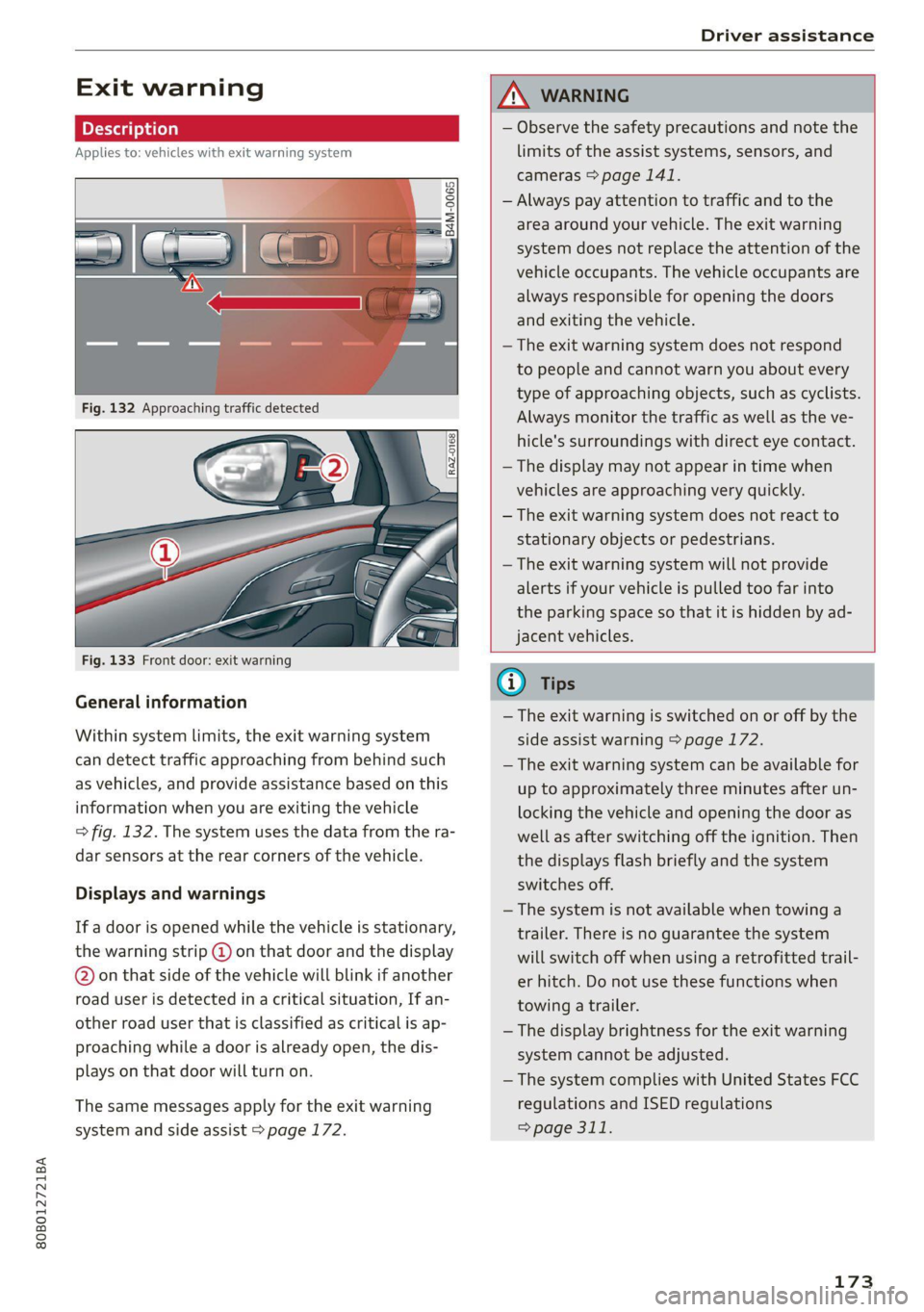
Within system limits, the exit warning system
can detect traffic approaching from behind such
as vehicles, and provide assistance based on this
information when you are exiting the vehicle
=> fig. 132. The system uses the data from the ra-
dar sensors at the rear corners of the vehicle.
Displays and warnings
If a door is opened while the vehicle is stationary,
the warning strip @ on that door and the display
@ on that side of the vehicle will blink if another
road user is detected in a critical situation, If an-
other road user that is classified as critical is ap-
proaching while a door is already open, the dis-
plays on that door will turn on.
The same messages apply for the exit warning
system and side assist > page 172.
ZX WARNING
— Observe the safety precautions and note the
limits of the assist systems, sensors, and
cameras > page 141.
— Always pay attention to traffic and to the
area around your vehicle. The exit warning
system does not replace the attention of the
vehicle occupants. The vehicle occupants are
always responsible for opening the doors
and exiting the vehicle.
— The exit warning system does not respond
to people and cannot warn you about every
type of approaching objects, such as cyclists.
Always monitor the traffic as well as the ve-
hicle's surroundings with direct eye contact.
— The display may not appear in time when
vehicles are approaching very quickly.
— The exit warning system does not react to
stationary objects or pedestrians.
— The exit warning system will not provide
alerts if your vehicle is pulled too far into
the parking space so that it is hidden by ad-
jacent vehicles.
iG) Tips
— The exit warning is switched on or off by the
side assist warning > page 172.
— The exit warning system can be available for
up to approximately three minutes after un-
locking the vehicle and opening the door as
well as after switching off the ignition. Then
the displays flash briefly and the system
switches off.
— The system is not available when towing a
trailer. There is no guarantee the system
will switch off when using a retrofitted trail-
er hitch. Do not use these functions when
towing a trailer.
— The display brightness for the exit warning
system cannot be adjusted.
— The system complies with United States FCC
regulations and ISED regulations
=> page 311.
173
Page 180 of 332

Parking and maneuvering
steering wheel until the orange orientation
lines align with the parking space.
@ You can use the horizontal blue markings to
help you estimate the distance to an obsta-
cle. Each marking represents approximately 3
feet (1 meter). The blue area represents an
extension of the vehicle's outline by approxi-
mately 16 feet (5 meters) to the rear.
@® You can recognize the rear bumper in the
lower display.
@ You should stop driving in reverse when the
red orientation line touches the edge of an
object, at the latest.
Trailer view
Applies to: vehicles with trailer view
The trailer view > fig. 139 assists you in position-
ing the vehicle in front of a trailer.
— Applies to: vehicles with peripheral cameras:
Switch to the Rear view > page 179, fig. 140.
— Select -| > Trailer view in the center display
when the parking system is active.
Now you can position your vehicle in front of the
trailer. The orange orientation line ©) > fig. 139
indicates the expected path toward the trailer
hitch. Use the blue markings ©) to help you esti-
mate the distance to the trailer hitch. Each mark-
ing represents approximately 1 foot (0.30 me-
ters). The width of the blue surface represents
the maximum steering wheel angle.
Symbols
Applies to: vehicles with peripheral cameras
If $2/&®/< is displayed and the display area
represented by that symbol is not available, then
the camera on the that side is not available. The
power exterior mirrors may have been folded in
or a door or the luggage compartment lid may
have been opened.
If # is displayed, there is a system malfunction
and the display area represented by that symbol
is not available. The camera is not working in this
area.
If one of the symbols continues to be displayed,
drive immediately to an authorized Audi dealer or
178
authorized Audi Service Facility to have the mal-
function repaired.
ZA\ WARNING
— Observe the safety precautions and note the
limits of the assist systems, sensors, and
cameras > page 141.
— Sensors and cameras have spots in which
the surrounding area cannot be detected.
Objects, animals, and people may only be
detected with limitations may not be detect-
ed at all. Always monitor the traffic and the
vehicle's surroundings directly and do not
become distracted.
@) Note
— The orange orientation lines @ show the di-
rection the rear of the vehicle will be travel-
ing, based on the steering wheel angle. The
front of the vehicle swings out more than
the rear of the vehicle. Maintain plenty of
distance so that an exterior mirror or a cor-
ner of the vehicle does not collide with any
obstacles.
— Keep enough distance from the curb to
avoid damage to the rims.
— Only use the images provided by the camera
on the rear of the vehicle when the luggage
compartment lid is completely closed. Make
sure any objects you may have mounted on
the luggage compartment lid do not block
the rearview camera.
G) Tips
— Applies to vehicles with air suspension: The
accuracy of the orientation lines and blue
surfaces on the camera display decreases
when the vehicle is raised or lowered with
the air suspension.
— There is no distance warning for the rear
and the sides* when trailer towing mode is
detected. The front sensors remain activat-
ed. The visual display switches to trailer
mode. There is no guarantee the functions
will be deactivated when using a retrofitted
trailer hitch.
Page 215 of 332
80B012721BA
Navigation
display automatically switches to the 2D
map type when driving through tunnels.
— Depending on the Internet connection, the
standard map may also be displayed when
the satellite map is switched on )).
Map update
Applies to: vehicles with navigation system
You can update the map data in the MMI witha
map update. The functions depend on the coun-
try and vehicle equipment.
— Map update through online map update
> page 213.
— Map update through the myAudi app.
— Import a map update from the USB connection
to your MMI > page 214.
— Map update at an authorized Audi dealer or au-
thorized Audi Service Facility. This can result in
additional costs.
Online map update
Applies to: vehicles with online map update
Using map update online, you can update the
map material in your navigation system directly
from your vehicle.
The MMI determines regions based on the vehicle
position. Based on this, update data for these re-
gions are available for your MMI.
Start map update
Applies to: MMI
Requirement: the MMI must be connected to the
Internet > page 197, Audi connect.
> To always allow automatic map updates, select
on the home screen: SETTINGS > System main-
tenance > Automatic online map update. The
MMI starts the map update automatically in
the background when new map material is
available.
)) Audi provides access to services from third party provid-
ers. Permanent availability cannot be guaranteed, because
that depends on the third party provider.
You can check the status of the download process
and the installation in the notification center
> page 23.
@) Note
Read the information about Audi connect, and
be sure to note the connectivity costs section
=> in General information on page 197.
@ Tips
Because of the high volume of data, Audi rec-
ommends performing the map update using
the USB connection > page 214.
Map update through the myAudi App
Applies to: vehicles with map update through the myAudi app
With the map update through the myAudi app,
you can update the map material in your naviga-
tion system.
Downloading updates
Requirement: you must have a registered myAudi
account. Your vehicle must be registered in your
myAudi account.
> Install the myAudi app on your mobile device
and log in with your login information. Use the
same myAudi account that you use in the vehi-
cle for your myAudi user.
> Download the map material in the myAudi app.
Installing updates
> Log in as a myAudi user in the vehicle
=> page 31.
> Connect your smartphone to the vehicle’s Wi-Fi
hotspot > page 198. The MMI detects the map
material on your smartphone. The map update
will start automatically.
You can check the status of the installation in the
notification center > page 23.
213
Page 219 of 332
80B012721BA
Radio
Radio
General information
Selecting the radio
ey
ney) os 2 )
\) ea
102.9 1) 2 FM-HDB
(3) OME 4)
aa
e my 106.7 ama
mee
eo £0010 0—=@)
Saray fa
RAX-0190)
ca
Fig. 160 Center display: SiriusXM station list
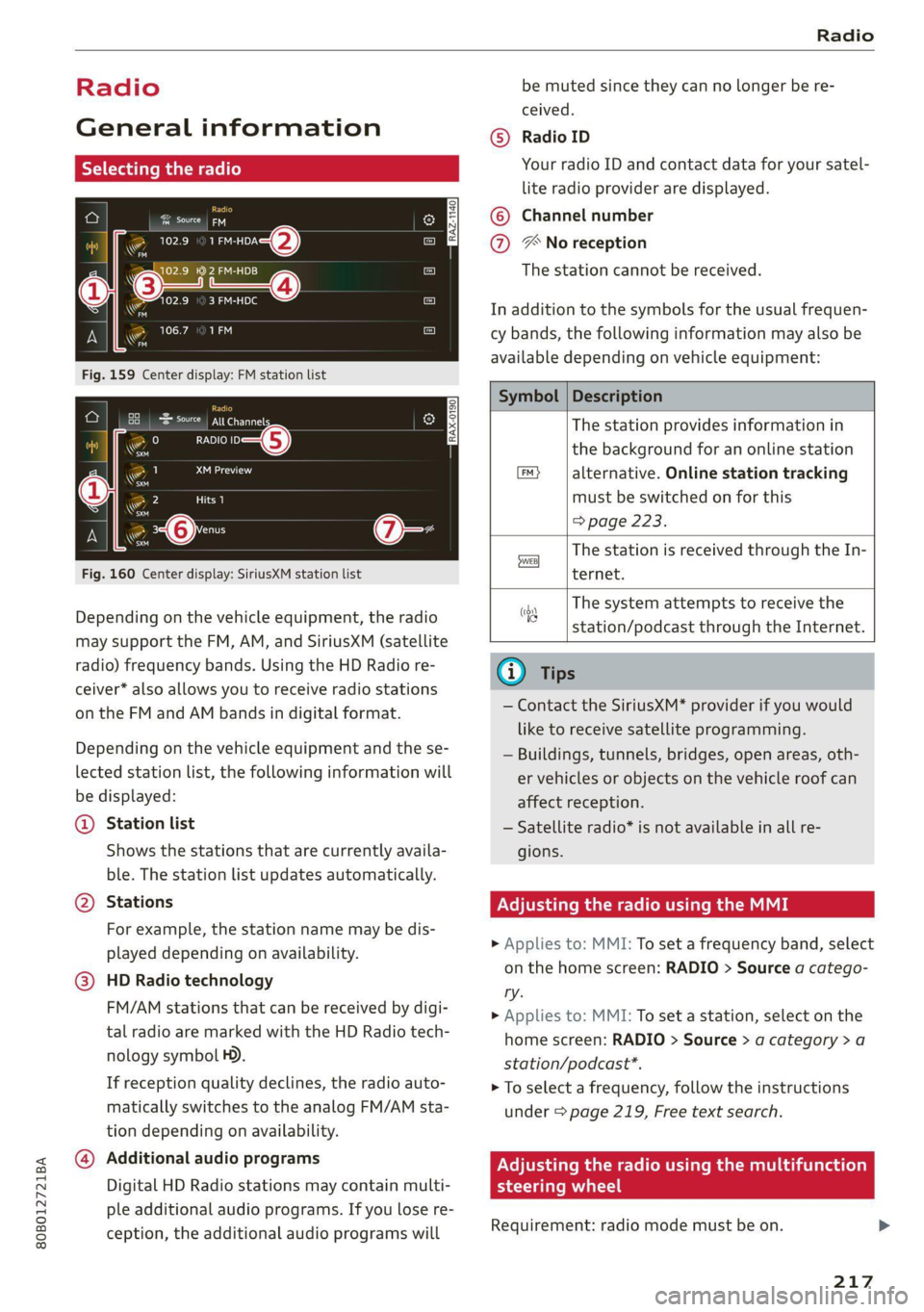
Depending on the vehicle equipment, the radio
may support the FM, AM, and SiriusXM (satellite
radio) frequency bands. Using the HD Radio re-
ceiver* also allows you to receive radio stations
on the FM and AM bands in digital format.
Depending on the vehicle equipment and the se-
lected station list, the following information will
be displayed:
@ Station list
Shows the stations that are currently availa-
ble. The station list updates automatically.
@ Stations
For example, the station name may be dis-
played depending on availability.
@ HD Radio technology
FM/AM stations that can be received by digi-
tal radio are marked with the HD Radio tech-
nology symbol H).
If reception quality declines, the radio auto-
matically switches to the analog FM/AM sta-
tion depending on availability.
@ Additional audio programs
Digital HD Radio stations may contain multi-
ple additional audio programs. If you lose re-
ception, the additional audio programs will
be muted since they can no longer be re-
ceived.
© Radio ID
Your radio ID and contact data for your satel-
lite radio provider are displayed.
Channel number
% No reception e®
The station cannot be received.
In addition to the symbols for the usual frequen-
cy bands, the following information may also be
available depending on vehicle equipment:
Symbol | Description
The station provides information in
the background for an online station
alternative. Online station tracking
must be switched on for this
=> page 223.
The station is received through the In-
ternet.
The system attempts to receive the
station/podcast through the Internet.
G@) Tips
— Contact the SiriusXM* provider if you would
like to receive satellite programming.
— Buildings, tunnels, bridges, open areas, oth-
er vehicles or objects on the vehicle roof can
affect reception.
— Satellite radio* is not available in all re-
gions.
Adjusting the radio using the MMI
> Applies to: MMI: To set a frequency band, select
on the home screen: RADIO > Source a catego-
ry.
> Applies to: MMI: To set a station, select on the
home screen: RADIO > Source > a category >a
station/podcast*.
> To select a frequency, follow the instructions
under > page 219, Free text search.
Adjusting the radio using the multifunction
Tare maa 118
Requirement: radio mode must be on.
217
>