mirror AUDI Q5 2021 Owner´s Manual
[x] Cancel search | Manufacturer: AUDI, Model Year: 2021, Model line: Q5, Model: AUDI Q5 2021Pages: 332, PDF Size: 118.86 MB
Page 73 of 332
80B012721BA
Sitting correctly and safely
belt tensioners deploy, the pretensioning sys-
tem must be replaced by an authorized Audi
dealer or authorized Audi Service Facility.
— In an emergency, the recall process can be
canceled by pressing the seat adjustment
button on that seat.
G) Tips
Smoke may be released when pyrotechnic belt
tensioners deploy. This is not a sign of a vehi-
cle fire.
Memory function
General information
Applies to: vehicles with memory function
With the memory function, you can save and call
up seat profiles using the memory buttons in the
door trim panel.
Depending on vehicle equipment, some settings
such as the driver’s seat and exterior mirror posi-
tion can be stored.
Storing and recalling a seat profile
Applies to: vehicles with memory function
The memory function buttons are located in the
door trim panel.
Storing a seat profile
> Press the |SET] button. If the LED in the button
turns on, a seat profile can be stored.
> Push one of the numbered memory buttons. A
tone confirms that the settings were stored.
Recalling a seat profile
> When the a door is open and the ignition is
switched off, press the memory button once
briefly. The seat will be fully adjusted to the
settings in the seat profile.
> If the door is closed or the ignition is switched
on, press and hold the memory button until the
seat is fully adjusted to the settings in the seat
profile.
Z\ WARNING
—To reduce the risk of an accident, the seat
setting can only be recalled when the vehicle
is stationary.
Airbag system
Z\ WARNING
— If you have not fastened your safety belt,
you are in an incorrect seating position, or
you are too close to the airbag system, the
airbag system will not be able to protect
you. This increases the risk of serious or fa-
tal
injuries. Make sure that every vehicle
passenger has their safety belt correctly fas-
tened and is sitting in a correct seating posi-
tion > page 62. This is necessary regardless
of whether the seat is equipped with an air-
bag or not.
— Never place your feet on the instrument
panel, out of the window, or on the seat sur-
faces. To help ensure that the airbag system
can deploy correctly, never bend forward or
lean on the door or the side window. Other-
wise, serious and possibly fatal injuries can
occur if the airbags deploy.
— People, animals, or objects between the
passengers and the airbag system can inter-
fere with the correct deployment of the air-
bag or can be thrown through the vehicle in-
terior, increasing the risk of serious or fatal
injuries. Make sure that nothing is located
between the vehicle occupants and the air-
bag system. Do not secure or transport any
objects within the deployment zone of the
airbag systems, especially on the steering
wheel, on the instrument panel, on the
doors, on the windows, or in the footwell.
— Never put stickers on the airbag system cov-
ers or cover them with any objects.
— Only lightweight clothing should be hung
from the garment hooks in the vehicle. Do
not use clothes hangers to hang clothing.
The pockets of the clothing must not con-
tain any heavy, breakable, or sharp-edged
objects. This could impair the effectiveness
of the side curtain airbags.
71
Page 97 of 332
80B012721BA
Warm and cold
@) Tips
— Using the auxiliary climate control while
charging can also reduce the charge level of
the high-voltage battery.
— Starting or stopping the vehicle will not
switch off the auxiliary climate control auto-
matically.
— The auxiliary climate control system will not
turn on automatically or will turn off earlier
if the high-voltage battery charge level is
too low, even if the vehicle is being charged
at the time.
Applies to: vehicles with auxiliary climate control
Applies to: MMI: Select on the home screen: VE-
HICLE > Air conditioning > Auxiliary air condi-
tioning.
Immediate start
You can immediately switch the auxiliary climate
control on and off using the f button. When this
function is switched on, a colored bar lights up
over the button and the remaining time is dis-
played.
The auxiliary climate control will run for a maxi-
mum of 30 minutes after the immediate start.
Timer programming
You can set up and activate up to two timers for
the departure time.
> Select a timer using >.
> Set the date and press Next.
> Set the time (departure time) and press OK.
The timer will be activated automatically once
itis set.
>» Set the second timer, if necessary.
By setting the departure time, you determine
when your vehicle should reach the desired tem-
perature. The departure time can be a maximum
of six days in the future. The auxiliary climate
control will continue to run approximately ten
minutes after the departure time is reached.
After switching off the ignition
Information about the active timer will appear in
the display after switching off the ignition. You
can start the set climate control settings imme-
diately with the f button, or go to the auxiliary
climate control menu with the > button.
(i) Tips
— Make sure the time and date match in the
system settings so that the timer can func-
tion correctly > page 236.
— The auxiliary climate control can also be
switched on and off immediately when a
timer is set.
— You can operate the climate control in the
vehicle interior when the high-voltage bat-
tery is charging using the charging timer
=> page 123. The climate control output de-
pends on the power supply capacity.
Additional settings
Applies to: vehicles with auxiliary climate control
>» Applies to: MMI: Select on the home screen:
VEHICLE > Air conditioning > Auxiliary air con-
ditioning > ©.
Start A/C after unlocking
If this function is activated, the climate control
will continue to run for five minutes after the ve-
hicle has been unlocked.
Comfort aux. A/C
Applies to: vehicles with comfort auxiliary climate control
You can set if the steering wheel heating* and
seat heating* or seat ventilation* should also be
automatically activated with auxiliary climate
control. You can select the respective zones.
Window and mirror heating*
Applies to: vehicles with comfort auxiliary climate control
You can set if the rear window and mirrors should
also be heated during auxiliary climate control.
Messages
Applies to: vehicles with auxiliary climate control
2— There is a malfunction in the auxiliary air
conditioning.
95
Page 141 of 332
80B012721BA
Trailer towing
in the trailer correctly will help to achieve this
weight. Having the tongue weight too low affects
the vehicle's handling.
You can determine the tongue weight using a
tongue weight scale, a bathroom scale, or a pub-
lic weigh station, for example.
The permitted tongue weight of your vehicle can
be found in the vehicle documentation or in
=> page 314.
Load distribution
Poor cargo load and distribution can negatively
impact vehicle handling. Load the trailer based
on the following criteria as much as possible:
— Store objects in the vehicle luggage compart-
ment, if possible. The vehicle should always
carry the heaviest possible load and the trailer
should have the lightest possible load.
— Distribute the load in the trailer so that the
heavy objects are as close to the axle as possi-
ble.
— Secure objects so that they do not slide.
— Utilize the maximum permitted tongue weight
if possible.
Tires
Set the tire pressure on your vehicle for a “full
load”; see the tire pressure sticker > page 271. If
necessary, also adjust the tire pressure on the
trailer according to the manufacturer's specifica-
tions.
The trailer and the vehicle should be equipped
with winter tires when driving in winter tempera-
tures.
Outside mirrors
If you cannot see the traffic behind the trailer
with the standard exterior mirrors, then you
must attach additional exterior mirrors. Adjust
them so you have a sufficient visibility behind
you.
Exterior lighting
Follow the legal regulations for lighting on your
trailer that are applicable in the country where
you are operating the vehicle. Contact an author-
ized Audi dealer or authorized Audi Service Facili-
ty for more information.
Before you start driving, check all lighting equip-
ment on the trailer while it is hitched to the vehi-
cle.
The headlight range control automatically ad-
justs the light range of the headlights.
When the B indicator light blinks, then the turn
signals are activated in trailer mode. If a turn sig-
nal on the trailer or on the vehicle fails while in
trailer mode, the indicator light will not blink
twice as fast to indicate this.
Safety chains
Make sure the safety chains are correctly applied
when pulling a trailer. The chains should hang
enough so that the trailer can drive around
curves. However, they must not touch the
ground.
Air suspension
Applies to: vehicles with air suspension
The Audi drive select* Comfort mode > page 115
must be selected before you adjust the tongue
weight on the trailer and hitch the trailer >@,
=> page 116.
The air suspension trailer mode must be switched
on.
Applies to MMI: select on the home screen: VE-
HICLE > Settings & Service > Air suspension:
trailer.
Switch trailer mode off again when you are no
longer towing a trailer.
For vehicles with a factory-installed trailer hitch,
the air suspension trailer mode will automatically
switch on if you connect the trailer cable to the
socket.
When using carrier systems that are mounted di-
rectly on the trailer hitch ball head, you can also
switch trailer mode off manually.
If you must drive on roads that are in poor condi-
tion, you can raise the vehicle again after hitching
the trailer or after adjusting the tongue weight
> page 116.
139
Page 145 of 332
80B012721BA
Assist systems
surroundings directly and do not become dis-
tracted.
() Note
— Obstacles may disappear from the measure-
ment range when approaching them, even if
they were already detected.
—Insome situations, the ability of the sen-
sors and cameras to detect and display cer-
tain objects may be limited.
— Objects located above the coverage area,
such as bumpers on parked cars, garage
doors that are partially open, or objects
that are hanging
— Low obstacles
— Narrow objects, such as barrier chains, fo-
liage, poles, or fences
— Projecting objects, such as trailer draw
bars
— Objects with certain surfaces and struc-
tures,
such as fabric
@) Tips
— The sensors and cameras and the areas
around them must not be obstructed be-
cause this can impair the function of the
systems that depend on them. Make sure
that the sensors and cameras are free of
snow, ice, and other deposits. Do not use
any accessories, stickers, or other objects
that extend into the range of the sensors
and cameras.
— On vehicles that have factory-installed li-
cense plate brackets on the front of the ve-
hicle, the brackets may only be replaced
with ones that are the same size and made
of the same material. Do not install any li-
cense plate brackets on the front of vehicles
that do not have factory-installed brackets.
Otherwise, the function of the system could
be impaired.
— The function of the sensors and cameras
may be limited when light and visibility con-
ditions are poor, for example when driving
into
a tunnel, when there is glare, or when
there are reflective objects.
— External ultrasonic sensors, such as those in
other vehicles, can interfere with the sen-
sors.
— The coverage areas of the sensors > fig. 110
and cameras > fig. 111 are diagrams and do
not represent a true-to-scale image of the
sensor ranges.
— The system complies with United States FCC
regulations and ISED regulations
=> page 311.
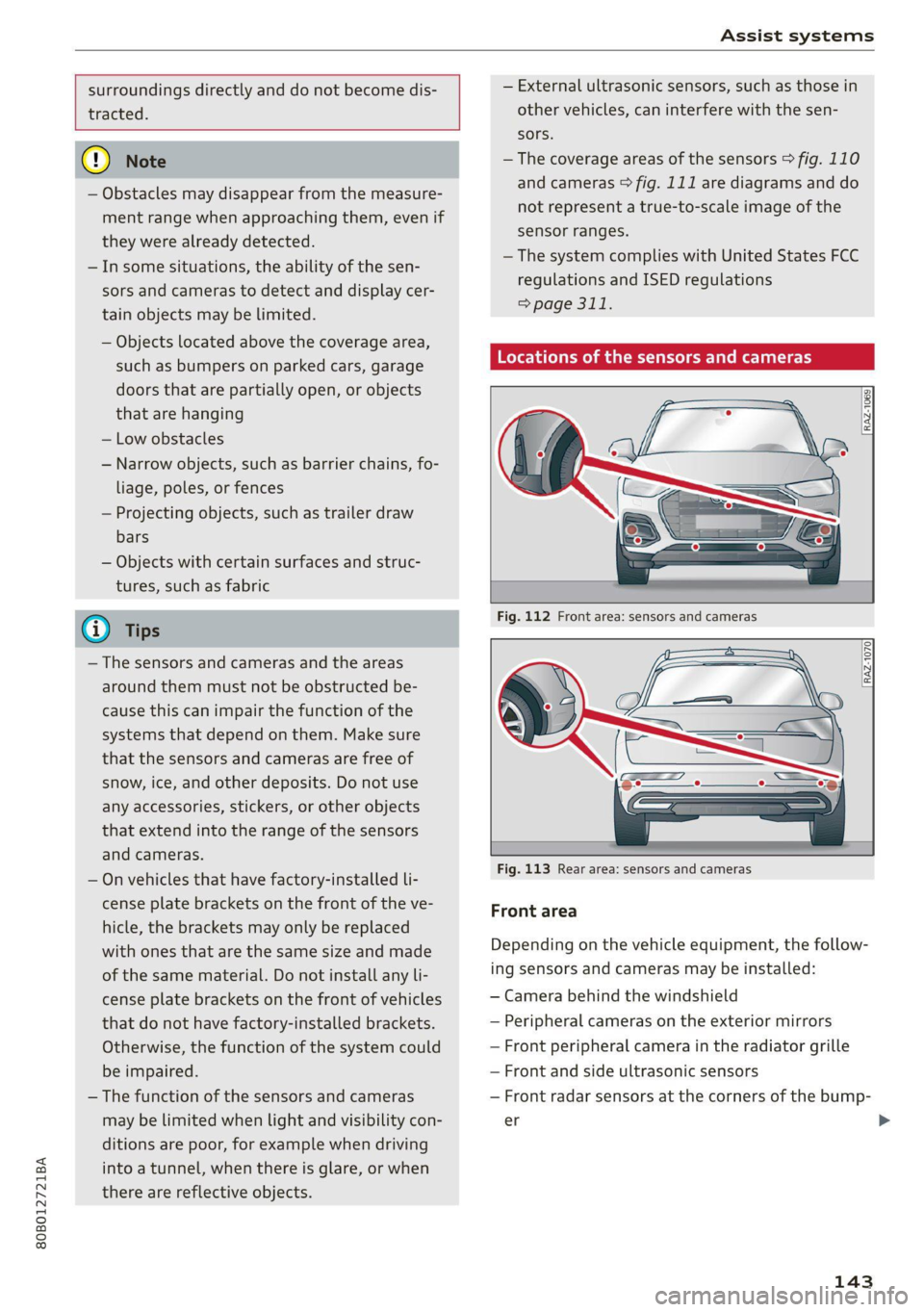
Locations of the sensors and cameras
[RAZ-1069
Fig. 113 Rear area: sensors and cameras
Front area
Depending on the vehicle equipment, the follow-
ing sensors and cameras may be installed:
— Camera behind the windshield
— Peripheral cameras on the exterior mirrors
— Front peripheral camera in the radiator grille
— Front and side ultrasonic sensors
— Front radar sensors at the corners of the bump-
er
143
>
Page 151 of 332

80B012721BA
Driving information
> To start timing a new lap after driving a lap, se-
lect New lap in the menu. This starts timing
the next lap at the same time.
After completing a lap, the difference between
the last lap and the previous best lap time will be
won an indicated with a “~” or “+”.
Pausing timing and displaying a split time
> To insert a pause @ select Pause in the menu.
> To resume timing, select Resume in the menu.
> To display a split time, select Split time in the
menu. The split time appears for approxi-
mately ten seconds in the instrument cluster.
The current lap timing will continue running.
Canceling lap timing
The timing of the current lap will stop. The lap
time will be erased and will not be included in the
statistics.
> Select Cancel lap in the menu.
Resetting the time
> Select Reset lap times in the menu.
G) Tips
— A maximum of 99 lap times can be meas-
ured.
— If timing is paused, you can continue it later
even if you switch the ignition off.
— Saved lap times cannot be individually de-
leted from the total results.
— The saved lap timer values will remain after
switching the ignition off.
yo e-) a(t)
Applies to: vehicles with lap timer
Displaying lap statistics
You can display the number of laps driven
the fastest lap “+”, the slowest lap “-”, and the
average time “®” in the instrument cluster.
> Select in the instrument cluster: Vehicle func-
tions tab > E] button > Lap statistics.
> Turn the thumbwheel down or up to display the
individual lap times.
> To return to the lap timing that was started, se-
lect the [I button > Lap times.
Resetting lap statistics
Requirement: the lap statistics menu must be
displayed.
> To reset the lap statistics, press and hold the
left thumbwheel until the message No lap
times have been recorded yet. appears.
@) Tips
The lap statistics list the lap times for the last
30 laps. The fastest and slowest lap times out
of up to 99 measured laps are also displayed.
Integrated Toll Module
Applies to: vehicles with Integrated Toll Module
Depending on the region, you can pay toll fees in
certain countries using the Integrated Toll Mod-
ule (ITM). It replaces a separate transponder for
detecting toll fees. The system electronics are in-
tegrated in the rearview mirror housing.
Gi) Tips
The system complies with United States FCC
regulations and ISED regulations > page 311.
Applies to: vehicles with Integrated Toll Module
To use the ITM in toll zones, you must register
and activate it.
Registration
> Applies to MMI: Select on the home screen: VE-
HICLE > Settings & Service > Vehicle informa-
tion Toll module.
> Note the Integrated Toll Module ID.
> To register the ITM, go to the displayed web ad-
dress and follow the instructions.
Activation
> To activate the ITM, press CD in the MMI.
Entering the number of passengers
Depending on the number of passengers and the
region, a lower toll fee may be charged. You must
either enter the number of passengers or
149
>
Page 152 of 332

Driving information
deactivate the ITM based on the laws applicable
in the area where you are driving.
> To enter the number of passengers, select the
appropriate button in the MMI.
> To deactivate the ITM, press © in the MMI.
@) Tips
— The driver is responsible for specifying the
correct number of passengers and activat-
ing or deactivating the ITM.
— Malfunctions can occur when detecting tolls
if both the ITM and transponder are activat-
ed. Deactivate the system not being used or
remove it as necessary.
—If a rearview mirror is replaced, you must
register the new ITM and remove the old
ITM from the account.
Display
Applies to: vehicles with Integrated Toll Module
The selected number of passengers is displayed
in the MMI status bar > page 23.
The i symbol in the status bar and a notifica-
tion in the MMI will indicate if there is a faulty
connection between the ITM and the MMI or if
the ITM is faulty. If the connection interference
continues or the ITM is faulty, drive immediately
to an authorized Audi dealer or authorized Audi
Service Facility.
150
Page 173 of 332

80B012721BA
Driver assistance
may be covered. Bring the vehicle to a full stop,
switch the ignition off, and clean the area in front
of the sensors > page 143.
If the message still appears after switching the
ignition on again, have an authorized repair facili-
ty correct the malfunction as soon as possible.
Side assist
Description
Applies to: vehicles with side assist
a 3 S N q @
Fig. 131 Driving situations and exterior mirror display
General information
Side assist monitors the blind spot and traffic be-
hind your vehicle and provides assistance when
you are changing lanes. If the system detects an
object approaching and classifies it as critical, the
display @ in the exterior mirror on that side of
the vehicle will turn on,
Driving situations
The side assist warning is active at speeds above
approximately 9 mph (15 km/h) and can help in
situations such as the following:
@ Your vehicle is being passed. The faster an-
other vehicle approaches from behind, the
sooner the display in the outside mirror will
turn on.
@® There are vehicles traveling in the same direc-
tion as you in a lane adjacent to yours. The
display in the exterior mirror will turn on
when the detected object is in the “blind
spot”, at the latest.
@ You are slowly passing another vehicle. If the
difference in speed between the two vehicles
is less than 9 mph (15 km/h), the display in
the exterior mirror will turn on.
Information stage
If you do not activate a turn signal, the system
will inform you about objects classified as critical
by turning on the display in the respective exteri-
or mirror. The display remains dim in the infor-
mation stage so that you are not distracted while
looking forward.
Warning stage
Once you activate a turn signal, the system will
inform you about objects classified as critical by
turning on the display in the respective exterior
mirror.
Depending on vehicle equipment, the display
may also provide a warning when the turn signal
is not activated: if driver assist systems detect
that your vehicle is about to leave a lane, the dis-
play will blink to warn you about objects classi-
fied as critical. You can also be warned with cor-
rective steering > page 165, Audi active lane as-
sist/lane departure warning.
System limitations
The system uses the data from the radar sensors
at the rear corners of the vehicle > page 143,
fig. 113. They are designed to detect the left and
right adjacent lanes when the road lanes are the
normal width. In some situations, the system
may react to vehicles in your own lane or lanes
that are not directly adjacent to yours, or to ob-
jects on the side of the road. In this case, the dis-
play will turn on even though there is no vehicle
in the critical area. These situations may include:
— Driving on the edge of your own lane
— Narrow lanes
171
Page 174 of 332

Driver assistance
— Curves
— High barriers on the side of the road
ZA\ WARNING
— Observe the safety precautions and note the
limits of the assist systems, sensors, and
cameras © page 141.
— The display may not appear on time when
vehicles are approaching or being passed
very quickly.
@) Tips
— If the window glass in the driver's door or
front passenger's door has been tinted, the
display in the exterior mirror may be incor-
rect.
— The system is not available when towing a
trailer. There is no guarantee the system
will switch off when using a retrofitted trail-
er hitch. Do not use these functions when
towing a trailer.
— The system complies with United States FCC
regulations and ISED regulations
=> page 311.
Adjusting side assist
Applies to: vehicles with side assist
You can adjust the side assist to your preferences.
The settings depend on the vehicle equipment.
> Applies to: MMI: Select on the home screen:
VEHICLE > Driver assistance > Side assist.
Possible settings:
The system can be switched on and off. If the sys-
tem is switched on, the displays in the exterior
mirrors will turn on briefly each time the ignition
is switched on.
Brightness - Change the brightness only when
side assist is switched on, so that the selected
setting can be checked in the exterior mirror dis-
plays. Adjust the brightness to a level where the
display will not interfere with your view ahead.
Because the display brightness automatically
adapts to the ambient light, it may have already
been adjusted to the highest or lowest setting
during the automatic adaptation.
172
G) Tips
— If you switch side assist on or off, the exit
warning will also switch on or off.
— Certain settings are automatically stored
and assigned to the remote control key be-
ing used.
Messages
Applies to: vehicles with side assist
fg ° is displayed when there is a malfunc-
tion, the side assist and exit warning system
functions may be unavailable or may be limited.
A message that indicates the cause and possible
solution
may appear with some displays. The
weather conditions may be too poor or a sensor
may be covered. Clean the sensor area at the rear
corners of the vehicle > page 143, fig. 113 and
try to turn the systems on again later.
If the malfunction remains, drive to an author-
ized Audi dealer or authorized Audi Service Facili-
ty immediately to have the malfunction correct-
ed.
Page 180 of 332

Parking and maneuvering
steering wheel until the orange orientation
lines align with the parking space.
@ You can use the horizontal blue markings to
help you estimate the distance to an obsta-
cle. Each marking represents approximately 3
feet (1 meter). The blue area represents an
extension of the vehicle's outline by approxi-
mately 16 feet (5 meters) to the rear.
@® You can recognize the rear bumper in the
lower display.
@ You should stop driving in reverse when the
red orientation line touches the edge of an
object, at the latest.
Trailer view
Applies to: vehicles with trailer view
The trailer view > fig. 139 assists you in position-
ing the vehicle in front of a trailer.
— Applies to: vehicles with peripheral cameras:
Switch to the Rear view > page 179, fig. 140.
— Select -| > Trailer view in the center display
when the parking system is active.
Now you can position your vehicle in front of the
trailer. The orange orientation line ©) > fig. 139
indicates the expected path toward the trailer
hitch. Use the blue markings ©) to help you esti-
mate the distance to the trailer hitch. Each mark-
ing represents approximately 1 foot (0.30 me-
ters). The width of the blue surface represents
the maximum steering wheel angle.
Symbols
Applies to: vehicles with peripheral cameras
If $2/&®/< is displayed and the display area
represented by that symbol is not available, then
the camera on the that side is not available. The
power exterior mirrors may have been folded in
or a door or the luggage compartment lid may
have been opened.
If # is displayed, there is a system malfunction
and the display area represented by that symbol
is not available. The camera is not working in this
area.
If one of the symbols continues to be displayed,
drive immediately to an authorized Audi dealer or
178
authorized Audi Service Facility to have the mal-
function repaired.
ZA\ WARNING
— Observe the safety precautions and note the
limits of the assist systems, sensors, and
cameras > page 141.
— Sensors and cameras have spots in which
the surrounding area cannot be detected.
Objects, animals, and people may only be
detected with limitations may not be detect-
ed at all. Always monitor the traffic and the
vehicle's surroundings directly and do not
become distracted.
@) Note
— The orange orientation lines @ show the di-
rection the rear of the vehicle will be travel-
ing, based on the steering wheel angle. The
front of the vehicle swings out more than
the rear of the vehicle. Maintain plenty of
distance so that an exterior mirror or a cor-
ner of the vehicle does not collide with any
obstacles.
— Keep enough distance from the curb to
avoid damage to the rims.
— Only use the images provided by the camera
on the rear of the vehicle when the luggage
compartment lid is completely closed. Make
sure any objects you may have mounted on
the luggage compartment lid do not block
the rearview camera.
G) Tips
— Applies to vehicles with air suspension: The
accuracy of the orientation lines and blue
surfaces on the camera display decreases
when the vehicle is raised or lowered with
the air suspension.
— There is no distance warning for the rear
and the sides* when trailer towing mode is
detected. The front sensors remain activat-
ed. The visual display switches to trailer
mode. There is no guarantee the functions
will be deactivated when using a retrofitted
trailer hitch.
Page 182 of 332
Parking and maneuvering
A WARNING
— Observe the safety precautions and note the
limits of the assist systems, sensors, and
cameras > page 141.
— The Surroundings view is created from the
individual camera images. The vehicle image
is shown by the system. Objects and obsta-
cles above the camera are not displayed.
@® _ Note
— Only use the images provided by the camera
on the rear of the vehicle when the luggage
compartment lid is completely closed. Make
sure any objects you may have mounted on
the luggage compartment lid do not block
the rearview camera.
— The front of the vehicle swings out more
than the rear of the vehicle. Maintain plenty
of distance so that an exterior mirror or a
corner of the vehicle does not collide with
any obstacles.
Gy Tips
— Depending on the selected gear, it will auto-
matically switch between the Front and
Rear views. If you switch the view manually,
the automatic front/rear camera change will
be temporarily deactivated.
— When first activated while a forward gear is
engaged, the Front corner is displayed.
Rear cross-traffic assist
Applies to: vehicles with rear cross-traffic assist
Fig. 141 Sensor detection range for rear cross-traffic assist
180
Fig. 142 Center display: rear cross-traffic assist display
General information
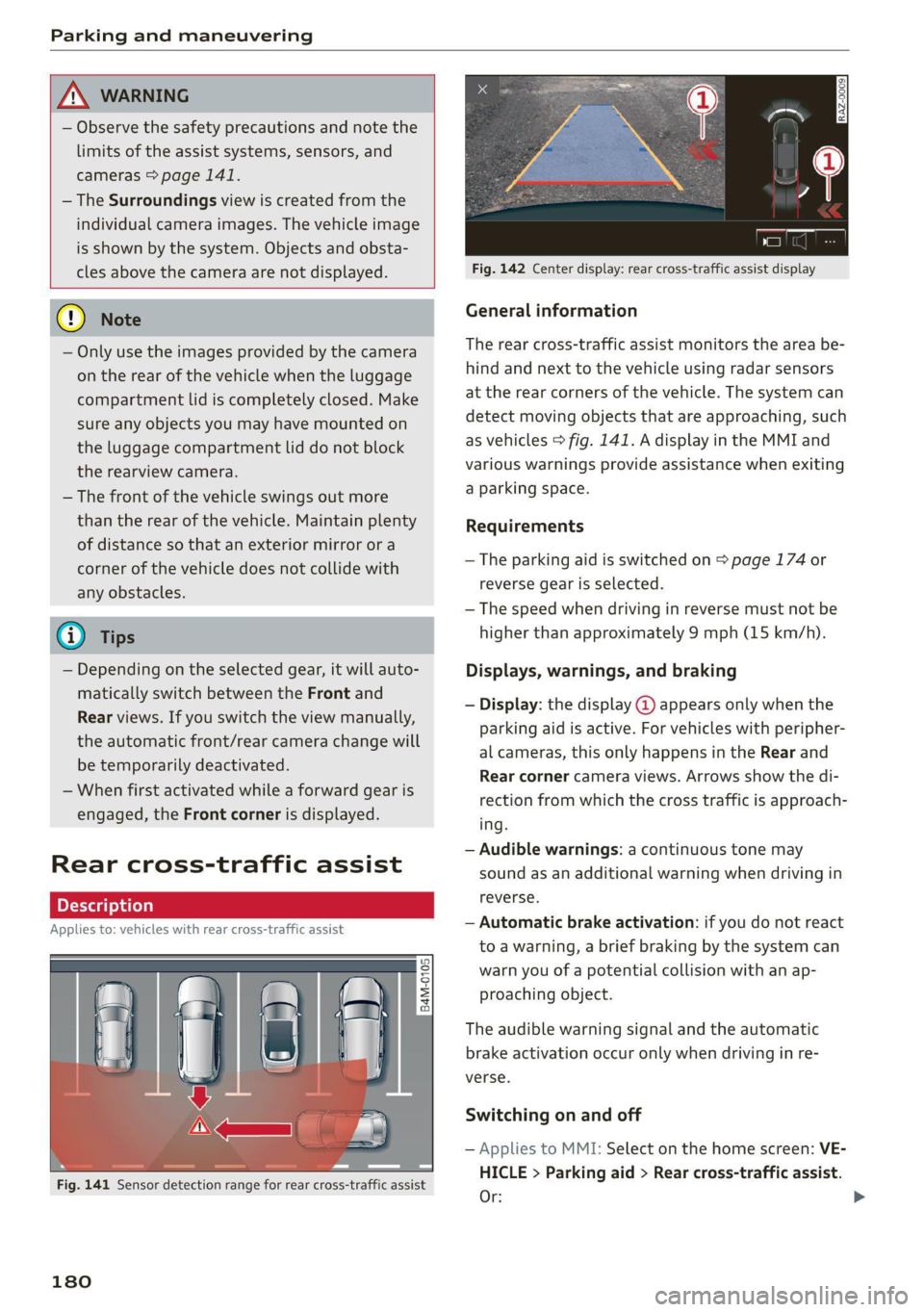
The rear cross-traffic assist monitors the area be-
hind and next to the vehicle using radar sensors
at the rear corners of the vehicle. The system can
detect moving objects that are approaching, such
as vehicles > fig. 141. A display in the MMI and
various warnings provide assistance when exiting
a parking space.
Requirements
— The parking aid is switched on > page 174 or
reverse gear is selected.
— The speed when driving in reverse must not be
higher than approximately 9 mph (15 km/h).
Displays, warnings, and braking
— Display: the display @ appears only when the
parking aid is active. For vehicles with peripher-
al cameras, this only happens in the Rear and
Rear corner camera views. Arrows show the di-
rection from which the cross traffic is approach-
ing.
— Audible warnings: a continuous tone may
sound as an additional warning when driving in
reverse.
— Automatic brake activation: if you do not react
to a warning, a brief braking by the system can
warn you of a potential collision with an ap-
proaching object.
The audible warning signal and the automatic
brake activation occur only when driving in re-
verse.
Switching on and off
— Applies to MMI: Select on the home screen: VE-
HICLE > Parking aid > Rear cross-traffic assist.
Or: