reset AUDI Q5 2021 Owner´s Manual
[x] Cancel search | Manufacturer: AUDI, Model Year: 2021, Model line: Q5, Model: AUDI Q5 2021Pages: 332, PDF Size: 118.86 MB
Page 115 of 332
80B012721BA
Driving
— When driving down hills, you can activate the
hill descent control if you press the brake pedal
while driving in “D” gear. The automatic trans-
mission will select a gear suitable for driving
down the hill and will attempt to maintain the
speed at which the vehicle was traveling at the
time the brake pedal was pressed. Press the
brake pedal if necessary. The hill descent con-
trol will switch off once the hill levels out or
you press the accelerator pedal.
— Utilize the engine braking effect when driving
downhill by selecting the “S” driving program
=> page 100. This especially applies when tow-
ing a trailer. This reduces the load on the
brakes.
— Applies to: plug-in hybrid drive: In high temper-
atures, make sure the high-voltage battery is
charged to at least 1/4 if towing a trailer while
driving on long stretches of roads with hills.
This relieves some of the load on the cooling
system.
— Apply the brakes in intervals and do not press
the brake pedal continuously.
— Use the hill hold assist > page 114.
Inclinometer
Applies to: vehicles with a tilt angle display
You can display the vehicle's sideways angle and
lengthwise angle in relation to the horizon.
— Applies to: MMI: Select on the home screen:
VEHICLE > Vehicle data.
— You may need to scroll down to the Inclinome-
ter display.
The sideways angle of your vehicle should not ex-
ceed the yellow range in the gauge. If it reaches
the red range, there is a risk that the vehicle
might tip.
The steering wheel angle, the elevation, the com-
pass direction, and the geo-coordinates of the
current vehicle position are displayed in addition
to the current vehicle angle. You will also receive
information about the maximum sideways and
lengthwise angle that was reached in the current
driving cycle. These values are reset when the ig-
nition is switched off.
Note that the accuracy of the display depends on
the driving situation.
ZX WARNING
— Only drive on inclines that your vehicle is de-
signed to handle. Do not exceed the hill
climbing ability of your vehicle. Your vehicle
could tip or slide.
— Do not drive at an angle on steep inclines
and hills. If your vehicle is about to tip, you
must immediately start steering in the di-
rection of the downward slope to reduce the
risk of an accident.
— Always be ready to brake when using the hill
descent control function.
— Applies to: vehicles with an inclinometer: Do
not rely only on the inclinometer when as-
sessing the driving situation.
Offroad driving
Your vehicle is not an offroad vehicle. Note the
following points when driving offroad:
— Drive slowly and carefully.
—To reduce the risk of underbody damage, pay
attention to the vehicle's ground clearance and
drive across raised areas of the ground with the
wheels on one side of the vehicle, instead of al-
lowing the center of the vehicle to pass over the
raised areas.
—To reduce the risk of becoming stuck, drive
through sandy or swampy areas at a steady
speed and without stopping, if possible.
If necessary, use the following functions:
— Audi drive select* Offroad mode > page 115
— Hill hold assist* > page 114
— Limit ESC > page 120
ZA\ WARNING
Only drive in terrain that is suitable for the ve-
hicle and your driving ability.
(@) For the sake of the environment
Avoid actions that are damaging to the envi-
ronment. Show respect for the natural envi-
ronment and remain on marked routes.
113
Page 117 of 332
80B012721BA
Driving dynamic
Driving dynamic
Audi drive select
Introduction
Applies to: vehicles with Audi drive select
Drive select makes it possible to experience dif-
ferent types of vehicle characteristics in one vehi-
cle. With different driving modes, the driver can
switch the setting, for example from sporty to
comfortable. This allows you to adjust the set-
tings to your personal preferences. This makes it
possible to combine settings such as a sporty
drivetrain setting with comfortable steering.
Selecting an Audi drive select mode
Applies to: vehicles with Audi drive select
The size button is located above the selector lever
in the center console.
> Press the left or right arrow key until the de-
sired mode appears in the MMI. Or:
> Applies to MMI: Select on the home screen: VE-
HICLE > Audi drive select.
You can change the driving mode when the vehi-
cle is stationary or while driving. If traffic per-
mits, briefly remove your foot from the accelera-
tor pedal after changing modes so that the mode
you have selected will be activated for the drive
system.
The following modes may be available depending
on the equipment:
Offroad - Provides assistance when driving off-
road. The vehicle will be raised to the second-
highest level using the air suspension*. The ESC
will be restricted and the hill descent assist* will
be activated. The vehicle will exit this mode after
the ignition is switched off.
allroad - Provides balanced vehicle handling. The
vehicle will be raised to the second-highest level
using the air suspension*.
Comfort - Provides a comfort-oriented vehicle
setup and is suited for long drives on highways.
Auto - Provides an overall comfortable yet dy-
namic driving feel and is suited for everyday use.
Dynamic - Gives the driver a sporty driving feel
and is suited to a sporty driving style. The “S”
driving program is selected.
Individual - Provides the option for personalized
vehicle settings. Press ¥ to configure the mode
=> page 115, Individual settings.
G) Tips
When the ignition is being switched on, indi-
vidual systems, such as the drive system, will
be reset to a balanced setting. Select the cur-
rent mode again to attain its full configura-
tion.
Individual settings
Applies to: vehicles with Audi drive select
The equipment in your vehicle will determine
which settings you can adjust.
Drive
The drive system will react to accelerator pedal
moves more quickly or in a more balanced man-
ner. The shift points are located in higher or low-
er engine speed ranges on vehicles with automat-
ic transmissions.
Depending on the setting, the drive power at the
rear axle will be distributed with the sport differ-
ential* to be more sporty or moderate
=> page 118.
Steering
The power steering will adapt. Light steering is
suitable for long trips on highways or smooth
driving around curves, for example.
Suspension
The suspension adjusts to be tighter or more
comfort-oriented when it comes to compensat-
ing for uneven spots on the road.
The vehicle ground clearance is adjusted by the
air suspension* based on the setting.
Engine sound
The engine sound adapts and can be subtle to
sporty. In the automatic setting, the engine
sound depends on the selected driving program.
115
Page 133 of 332
80B012721BA
High-voltage system
Audi e-tron compact charging system
Applies to: vehicles with Audi e-tron compact charging system
a |
m=)
[RAZ-0726|
72
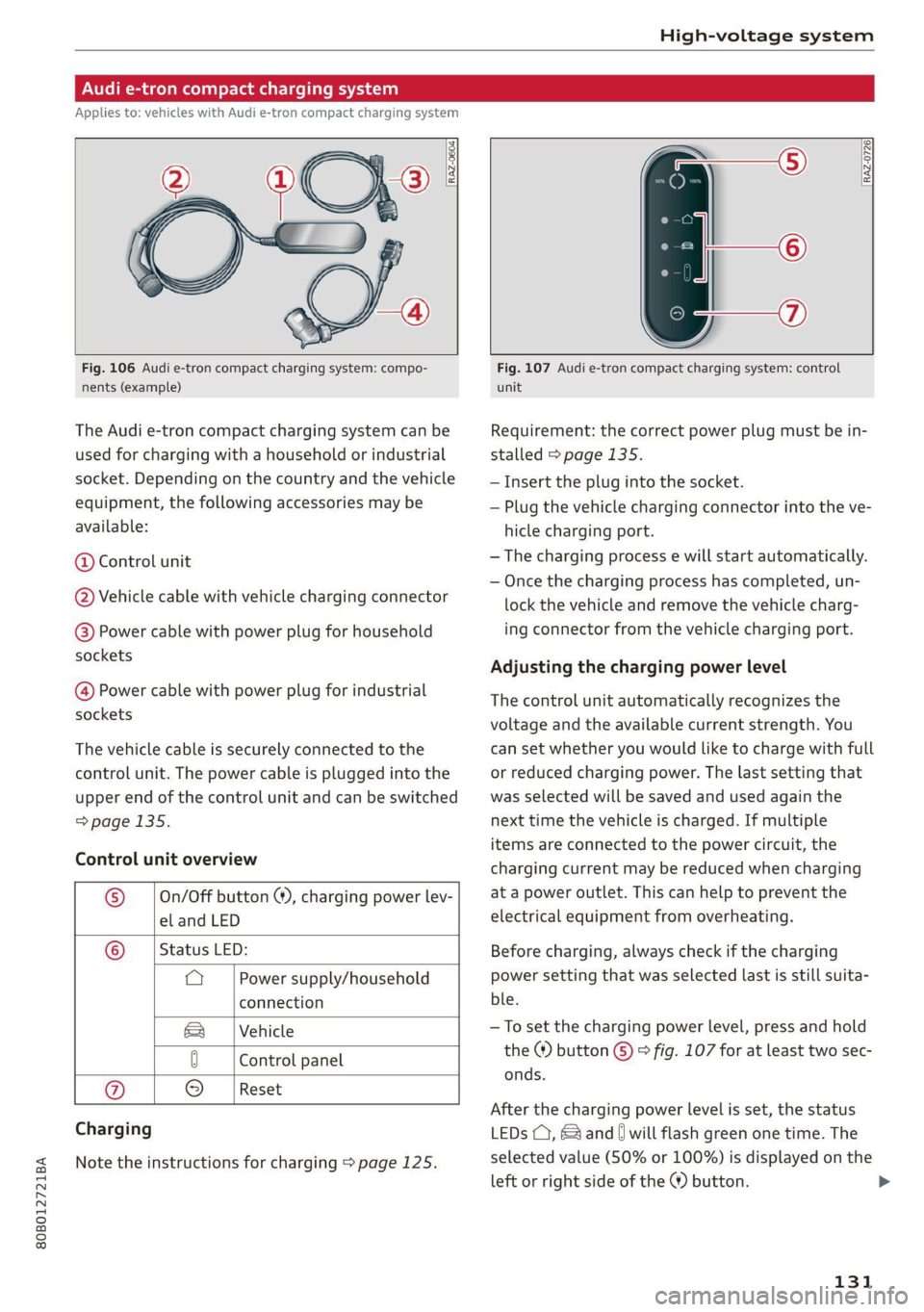
Fig. 106 Audi e-tron compact charging system: compo-
nents (example)
The Audi e-tron compact charging system can be
used for charging with a household or industrial
socket. Depending on the country and the vehicle
equipment, the following accessories may be
available:
@ Control unit
@ Vehicle cable with vehicle charging connector
@®) Power cable with power plug for household
sockets
@ Power cable with power plug for industrial
sockets
The vehicle cable is securely connected to the
control unit. The power cable is plugged into the
upper end of the control unit and can be switched
=> page 135.
Control unit overview
© | On/Off button @, charging power lev-
el and LED
© _ |Status LED:
a Power supply/household
connection
& | Vehicle
0 Control panel
Reset
® 9
Charging
Note the instructions for charging > page 125.
Fig. 107 Audi e-tron compact charging system: control
unit
Requirement: the correct power plug must be in-
stalled > page 135.
— Insert the plug into the socket.
— Plug the vehicle charging connector into the ve-
hicle charging port.
— The charging process e will start automatically.
— Once the charging process has completed, un-
lock the vehicle and remove the vehicle charg-
ing connector from the vehicle charging port.
Adjusting the charging power level
The control unit automatically recognizes the
voltage and the available current strength. You
can set whether you would like to charge with full
or reduced charging power. The last setting that
was selected will be saved and used again the
next time the vehicle is charged. If multiple
items are connected to the power circuit, the
charging current may be reduced when charging
at a power outlet. This can help to prevent the
electrical equipment from overheating.
Before charging, always check if the charging
power setting that was selected last is still suita-
ble.
—To set the charging power level, press and hold
the ® button © © fig. 107 for at least two sec-
onds.
After the charging power level is set, the status
LEDs (, {and [| will flash green one time. The
selected value (50% or 100%) is displayed on the
left or right side of the ® button.
131
>
Page 136 of 332
High-voltage system
Indicator lights Meaning Solution
e e control unit has a techni- isconnect the charger from the power O Red Th Lunit h hni- | Di he ch from th
O 0 off cal malfunction (self-test supply and reconnect it after 60 seconds.
O Bor failed). The charging process _ | If the malfunction continues, have the
© 6 Flashi d has been interrupted. control unit checked by an authorized
ashing re Audi dealer or authorized Audi Service Fa-
9° Off cility.
e e charging infrastructure o ave the control unit checked by an au- O Red The charging inf f | Have th Lunit checked b'
@ CX Red the power supply/household | thorized Audi dealer or authorized Audi
connection is insufficient: the ervice Facility, and have the power sup- @ EB Red ion is insuffici he | Service Facili dh h
O 6 of ground conductor is interrupt- | ply/household connection checked by a
ed or not present. The ground | qualified electrician. Do not use the pow-
© Off conductor monitor has inter- | er supply/household connector until the
rupted the charging process. | malfunction is corrected.
e e indicator light in the reset | Have the control unit replaced by an au- O Red The indi light in th Have th Lunit replaced b
@ CX Red button on the control unit is | thorized Audi dealer or authorized Audi
@ & Red faulty. The charging process _| Service Facility.
@ 0 Red has been interrupted.
e
9 Off
e e control unit has detecte ress and hold the utton for at least O Red Th Lunit has d d |P d hold the © b for at l
@ X Red residual current. The charging | two seconds. If the malfunction contin-
rocess has been interrupted. | ues, have the control unit checke an @ Bred p has been i pted h h lLunit checked by
@ 8 Red authorized Audi dealer or authorized Audi
. ; Service Facility, and have the power sup-
9 Flashing red ply/household connection checked by a
qualified electrician.
O Red The charging infrastructure is | Disconnect the charger from the power
© © Flashing red wired incorrectly. The charging | supply. Have the power supply/household
© & Flashing red process has been interrupted. | connection checked by a qualified electri-
cian.
© 46 Flashing red 7
9 Off
©O Red The control unit has atechni- | Disconnect the charger from the power
@ CX Red cal malfunction. Possible supply and reconnect it after 60 seconds.
@ E& Re cause of the malfunction: If the malfunction continues, have the
@ 0 Red software error or the load re- | control unit checked by an authorized
C lay has been switched incor- _| Audi dealer or authorized Audi Service Fa-
9 Red rectly. The charging process cility, and have the power supply/house-
has been interrupted. hold connection checked by a qualified
electrician.
O Flashing red The control unit has a serious | Have the control unit replaced by an au-
O 0 off malfunction. The charging thorized Audi dealer or authorized Audi
O B or process has been interrupted. | Service Facility.
@ &§ Red
9 Off
134
Page 151 of 332

80B012721BA
Driving information
> To start timing a new lap after driving a lap, se-
lect New lap in the menu. This starts timing
the next lap at the same time.
After completing a lap, the difference between
the last lap and the previous best lap time will be
won an indicated with a “~” or “+”.
Pausing timing and displaying a split time
> To insert a pause @ select Pause in the menu.
> To resume timing, select Resume in the menu.
> To display a split time, select Split time in the
menu. The split time appears for approxi-
mately ten seconds in the instrument cluster.
The current lap timing will continue running.
Canceling lap timing
The timing of the current lap will stop. The lap
time will be erased and will not be included in the
statistics.
> Select Cancel lap in the menu.
Resetting the time
> Select Reset lap times in the menu.
G) Tips
— A maximum of 99 lap times can be meas-
ured.
— If timing is paused, you can continue it later
even if you switch the ignition off.
— Saved lap times cannot be individually de-
leted from the total results.
— The saved lap timer values will remain after
switching the ignition off.
yo e-) a(t)
Applies to: vehicles with lap timer
Displaying lap statistics
You can display the number of laps driven
the fastest lap “+”, the slowest lap “-”, and the
average time “®” in the instrument cluster.
> Select in the instrument cluster: Vehicle func-
tions tab > E] button > Lap statistics.
> Turn the thumbwheel down or up to display the
individual lap times.
> To return to the lap timing that was started, se-
lect the [I button > Lap times.
Resetting lap statistics
Requirement: the lap statistics menu must be
displayed.
> To reset the lap statistics, press and hold the
left thumbwheel until the message No lap
times have been recorded yet. appears.
@) Tips
The lap statistics list the lap times for the last
30 laps. The fastest and slowest lap times out
of up to 99 measured laps are also displayed.
Integrated Toll Module
Applies to: vehicles with Integrated Toll Module
Depending on the region, you can pay toll fees in
certain countries using the Integrated Toll Mod-
ule (ITM). It replaces a separate transponder for
detecting toll fees. The system electronics are in-
tegrated in the rearview mirror housing.
Gi) Tips
The system complies with United States FCC
regulations and ISED regulations > page 311.
Applies to: vehicles with Integrated Toll Module
To use the ITM in toll zones, you must register
and activate it.
Registration
> Applies to MMI: Select on the home screen: VE-
HICLE > Settings & Service > Vehicle informa-
tion Toll module.
> Note the Integrated Toll Module ID.
> To register the ITM, go to the displayed web ad-
dress and follow the instructions.
Activation
> To activate the ITM, press CD in the MMI.
Entering the number of passengers
Depending on the number of passengers and the
region, a lower toll fee may be charged. You must
either enter the number of passengers or
149
>
Page 163 of 332
80B012721BA
Driver assistance
This may also occur in some situations when
there is no apparent obstacle.
> Press the brake pedal to slow your vehicle
down.
ZA WARNING
— Observe the safety precautions and note the
limits of the assist systems, sensors, and
cameras > page 141.
— If the message B& ready to drive!) appears,
your vehicle will start driving even if there is
an obstacle between your vehicle and the ve-
hicle ahead. To reduce the risk of an acci-
dent, always make sure there are no obsta-
cles between your vehicle and the vehicle
driving ahead.
@ Tips
For safety reasons, the adaptive cruise control
will only be active if
—The driver's safety belt is fastened
— All doors and the hood are closed
— Your vehicle is not stopped for a long period
of time
Driver intervention request
Applies to: vehicles with Audi adaptive cruise control
al 3 3
S| | S| ee|
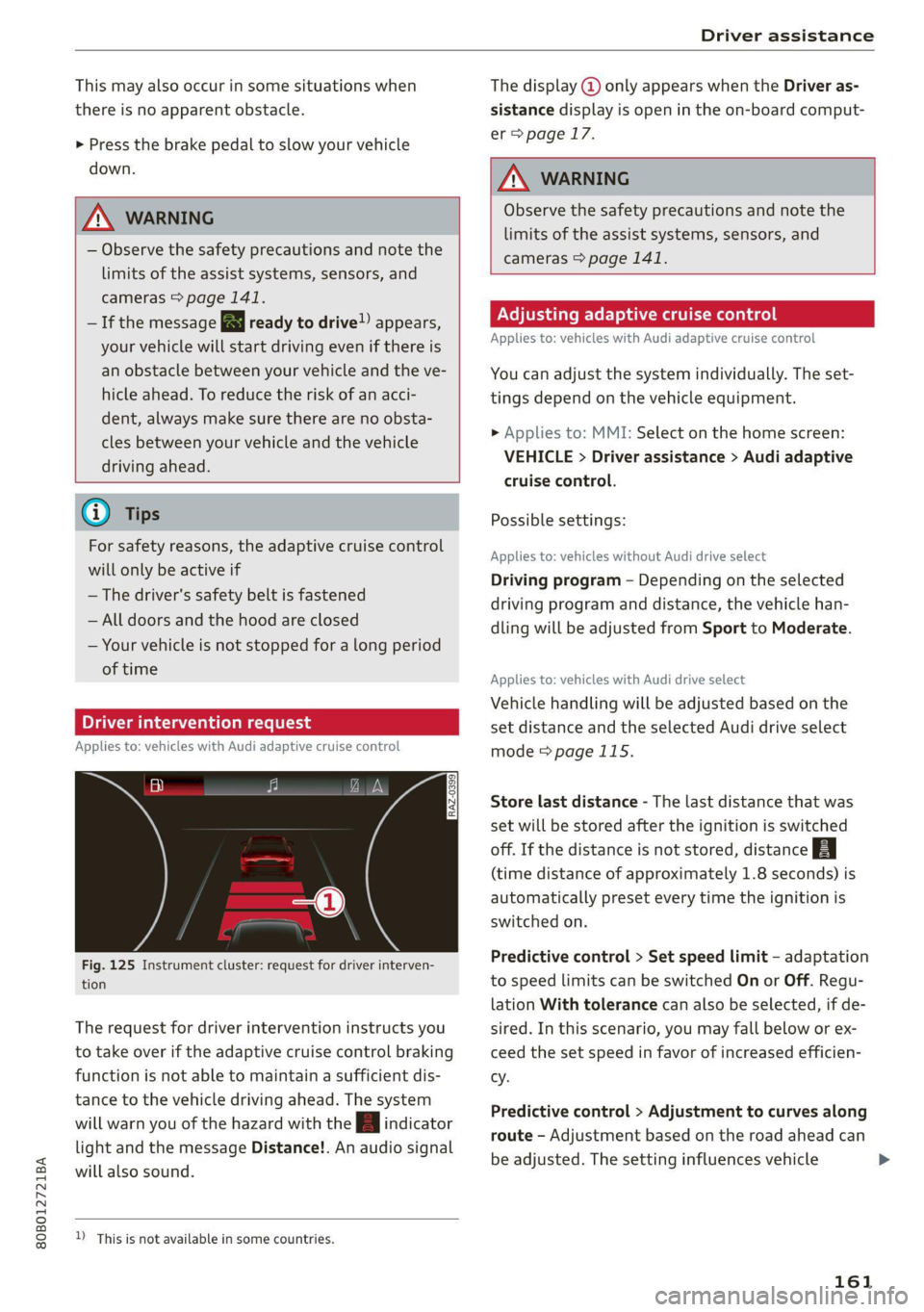
Fig. 125 Instrument cluster: request for driver interven-
tion
The request for driver intervention instructs you
to take over if the adaptive cruise control braking
function is not able to maintain a sufficient dis-
tance to the vehicle driving ahead. The system
will warn you of the hazard with the A indicator
light and the message Distance!. An audio signal
will also sound.
D_ This is not available in some countries.
The display @ only appears when the Driver as-
sistance display is open in the on-board comput-
er > page 17.
ZA WARNING
Observe the safety precautions and note the
limits of the assist systems, sensors, and
cameras > page 141.
Adjusting adaptive cruise control
Applies to: vehicles with Audi adaptive cruise control
You can adjust the system individually. The set-
tings depend on the vehicle equipment.
> Applies to: MMI: Select on the home screen:
VEHICLE > Driver assistance > Audi adaptive
cruise control.
Possible settings:
Applies to: vehicles without Audi drive select
Driving program - Depending on the selected
driving program and distance, the vehicle han-
dling will be adjusted from Sport to Moderate.
Applies to: vehicles with Audi drive select
Vehicle handling will be adjusted based on the
set distance and the selected Audi drive select
mode > page 115.
Store last distance - The last distance that was
set will be stored after the ignition is switched
off. If the distance is not stored, distance B
(time distance of approximately 1.8 seconds) is
automatically preset every time the ignition is
switched on.
Predictive control > Set speed limit - adaptation
to speed limits can be switched On or Off. Regu-
lation With tolerance can also be selected, if de-
sired. In this scenario, you may fall below or ex-
ceed the set speed in favor of increased efficien-
cy.
Predictive control > Adjustment to curves along
route - Adjustment based on the road ahead can
be adjusted. The setting influences vehicle
161
Page 221 of 332
80B012721BA
Radio
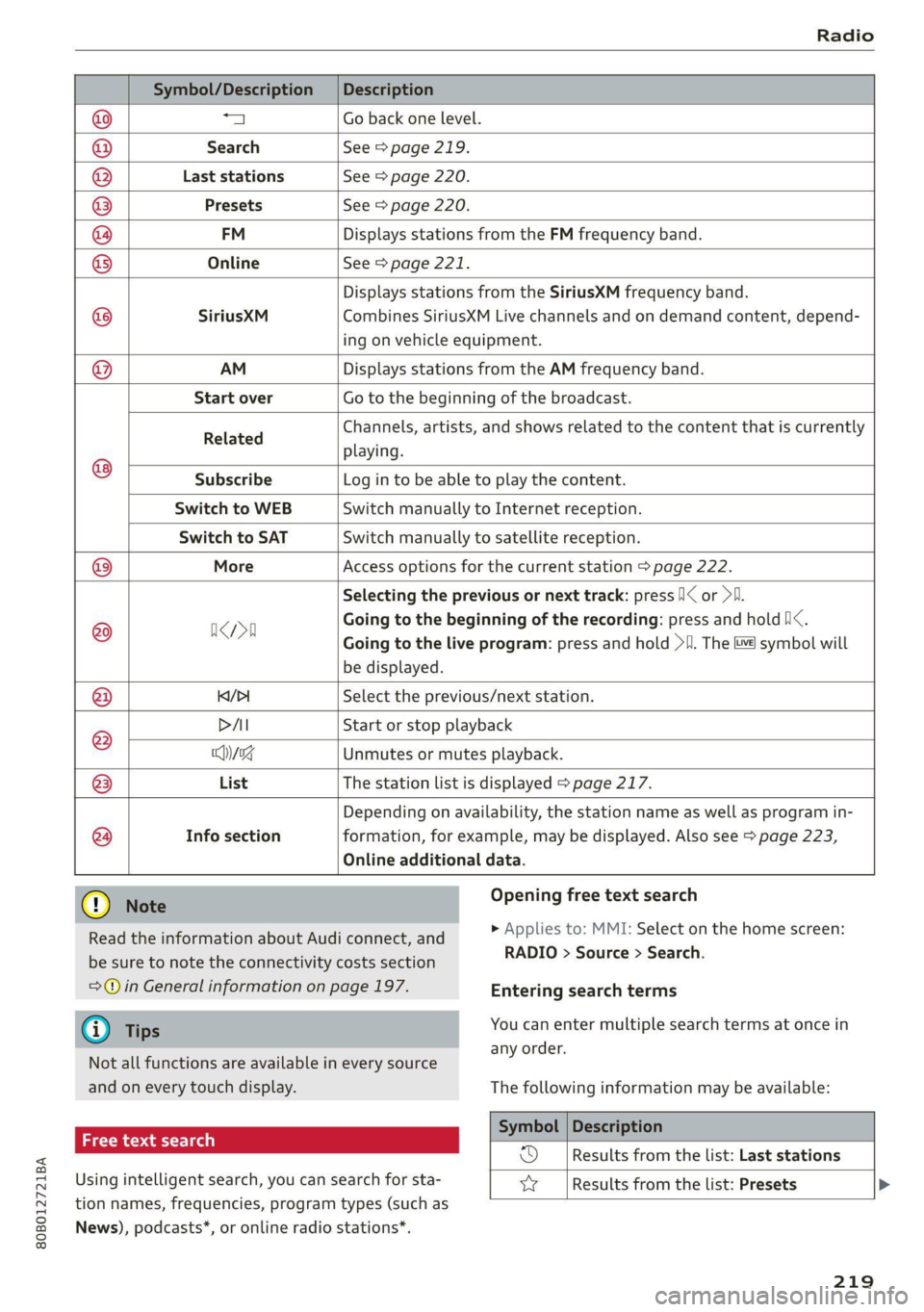
Symbol/Description |Description
a Go back one level.
Search See > page 219.
Last stations See > page 220.
Presets See > page 220.
FM Displays stations from the FM frequency band.
Online See > page 221.
Displays stations from the SiriusXM frequency band.
SiriusXM Combines SiriusXM Live channels and on demand content, depend-
ing on vehicle equipment.
Q|
©
|@/@O|O|O\O|©
AM Displays stations from the AM frequency band.
Start over Go to the beginning of the broadcast.
Related Channels, artists, and shows related to the content that is currently
playing.
® Subscribe Log in to be able to play the content.
Switch to WEB Switch manually to Internet reception.
Switch to SAT Switch manually to satellite reception.
(©) More Access options for the current station > page 222.
Selecting the previous or next track: press /I< or >I.
@ aca Going to the beginning of the recording: press and hold Nix.
Going to the live program: press and hold >!I. The i symbol will
be displayed.
@ K/>| Select the previous/next station.
DAI Start or stop playback
® Wg Unmutes or mutes playback.
@ List The station list is displayed > page 217.
Depending on availability, the station name as well as program in-
@ Info section formation, for example, may be displayed. Also see > page 223,
Online additional data.
® Note Opening free text search
> Applies to: MMI: Select on the home screen:
Read the information about Audi connect, and
RADIO > Source > Search.
be sure to note the connectivity costs section
=@ in General information on page 197. Entering search terms
@) Tips You can enter multiple search terms at once in
=
any order.
Not all functions are available in every source
and on every touch display. The following information may be available:
Symbol | Description
eet Results from the list: Last stations
Using intelligent search, you can search for sta- yy | Results from the list: Presets >
tion names, frequencies, program types (such as
News), podcasts*, or online radio stations*.
219
Page 222 of 332
Radio
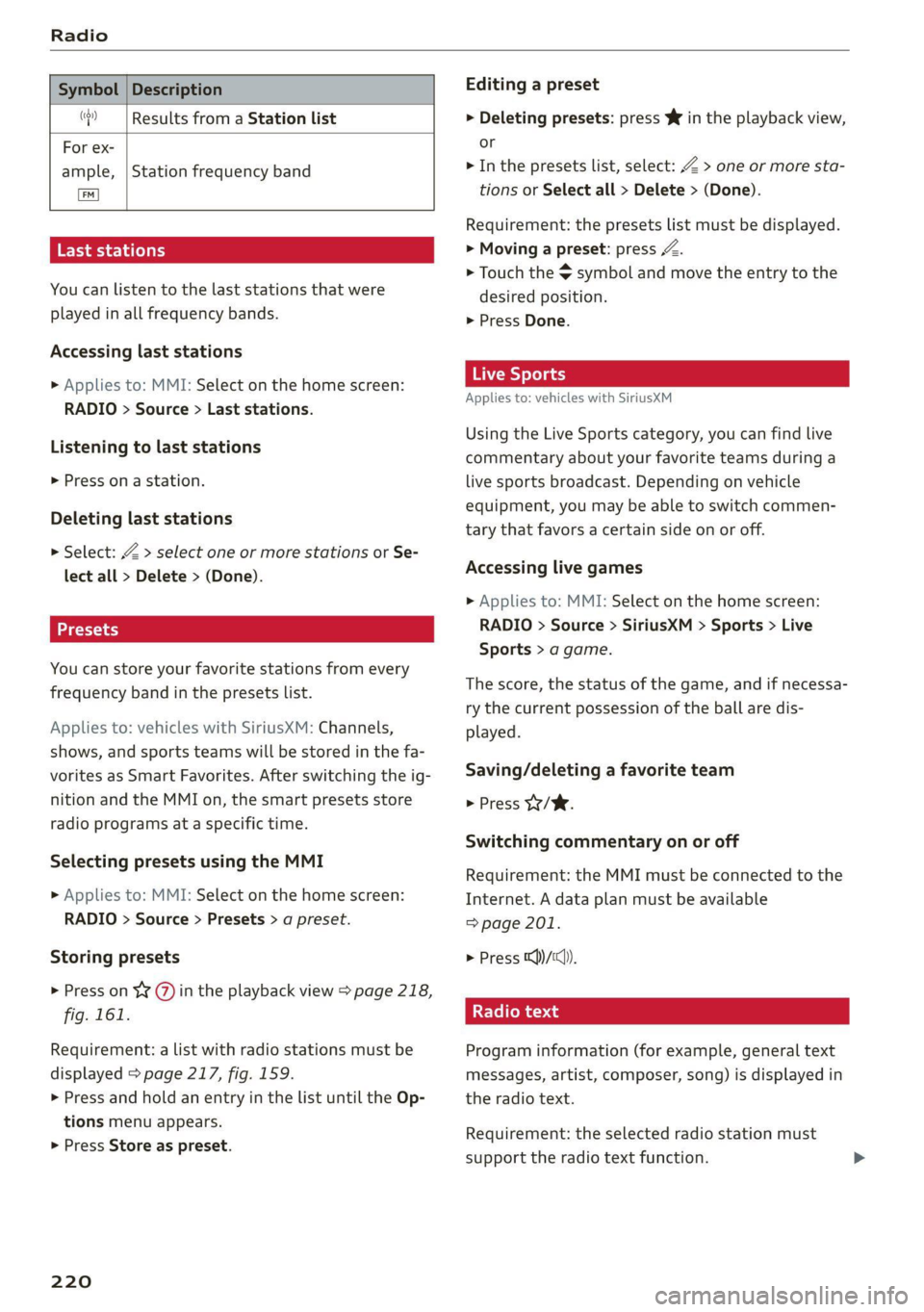
Symbol | Description
(| Results from a Station list
For ex-
ample,
TS ae La (ela)
You can listen to the last stations that were
played in all frequency bands.
Station frequency band
Accessing last stations
> Applies to: MMI: Select on the home screen:
RADIO > Source > Last stations.
Listening to last stations
> Press ona station.
Deleting last stations
> Select: Z > select one or more stations or Se-
lect all > Delete > (Done).
You can store your favorite stations from every
frequency band in the presets list.
Applies to: vehicles with SiriusXM: Channels,
shows, and sports teams will be stored in the fa-
vorites as Smart Favorites. After switching the ig-
nition and the MMI on, the smart presets store
radio programs at a specific time.
Selecting presets using the MMI
» Applies to: MMI: Select on the home screen:
RADIO > Source > Presets > a preset.
Storing presets
> Press on ¥ @) in the playback view > page 218,
fig. 161.
Requirement: a list with radio stations must be
displayed > page 217, fig. 159.
> Press and hold an entry in the list until the Op-
tions menu appears.
> Press Store as preset.
220
Editing a preset
> Deleting presets: press Ww in the playback view,
or
> In the presets list, select: Z > one or more sta-
tions or Select all > Delete > (Done).
Requirement: the presets list must be displayed.
> Moving a preset: press a.
> Touch the $ symbol and move the entry to the
desired position.
> Press Done.
Live Sports
Applies to: vehicles with SiriusXM
Using the Live Sports category, you can find live
commentary about your favorite teams during a
live sports broadcast. Depending on vehicle
equipment, you may be able to switch commen-
tary that favors a certain side on or off.
Accessing live games
> Applies to: MMI: Select on the home screen:
RADIO > Source > SiriusXM > Sports > Live
Sports > a game.
The score, the status of the game, and if necessa-
ry the current possession of the ball are dis-
played.
Saving/deleting a favorite team
> Press W/W.
Switching commentary on or off
Requirement: the MMI must be connected to the
Internet. A data plan must be available
=> page 201.
> Press ))/1cl)).
Radio text
Program information (for example, general text
messages, artist, composer, song) is displayed in
the radio text.
Requirement: the selected radio station must
support the radio text function.
Page 225 of 332
80B012721BA
Radio
Depending on the selected source and vehicle
equipment, the following functions may be avail-
able.
— Store as favorite > page 220.
— Radio text > page 220.
— Save podcast > page 222, Podcast favorites.
Related content
Channels, artists, and shows related to the con-
tent that is currently playing.
> Applies to: MMI: Select on the home screen:
RADIO > ©}.
Depending on the vehicle equipment, the follow-
ing settings may be available:
HD Radio FM/HD Radio AM
You can switch HD Radio reception on or off.
SiriusXM Tune Start
If you play a smart preset when this function is
switched on, the song currently playing on the
channel will play from the beginning.
SiriusXM subscription status
This option is available when your subscription is
about to expire or has already expired. The expi-
ration date for your license is displayed.
Call SiriusXM: the telephone number and radio
ID of your satellite radio provider are displayed.
To call your satellite radio provider using the
MMI, press Call SiriusXM.
Online additional data
Requirement: the MMI must be connected to the
Internet. A data plan must be available
=> page 201.
When the function is switched on, additional in-
formation (such as album cover, artist, track) will
Do It Yourself
The information that follows lists some trouble-
shooting options. They depend on the equip-
ment.
be loaded depending on the availability from the
different providers.
Online station tracking
Requirement: the MMI must be connected to the
Internet. A data plan must be available
=> page 201. Astation provides information in
the background for its online station alternative
and is identified with the ™} symbol.
During reception loss in the FM frequency band,
the radio tuner can establish a data connection
and switch to an online station alternative, if it is
available. If available, you can receive your local
radio stations in every region of your country on-
line. This may result in additional costs >@®. The
symbol indicates a station that is currently be-
ing received online.
— Automatic/Off: activates or deactivates auto-
matic switching to online station alternatives.
— With request: switching to online station alter-
natives must be confirmed manually.
Preferred online radio data rate
Depending on the selected radio station, you may
be able to adjust the data rate for Internet radio
=> page 221 and for the Online station tracking.
For optimal sound playback, press High. To re-
duce data usage, press Low.
() Note
Read the information about Audi connect, and
be sure to note the connectivity costs section
=@ in General information on page 197.
@) Tips
Delays may occur when switching automati-
cally between normal frequency bands and
online radio.
223
Page 226 of 332
Radio
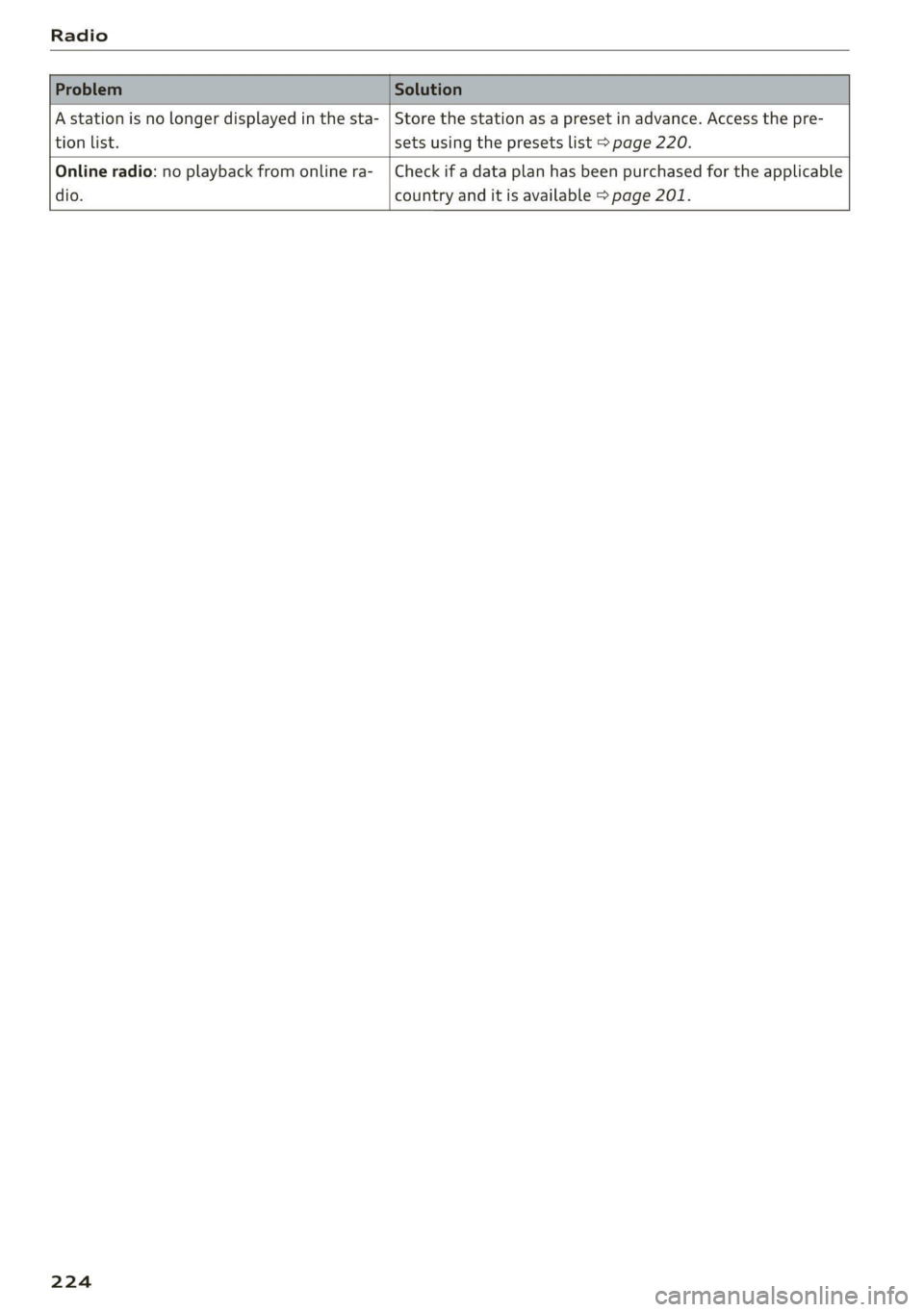
A station is no longer displayed in the sta- | Store the station as a preset in advance. Access the pre-
tion list. sets using the presets list > page 220.
Online radio: no playback from online ra-_ | Check if a data plan has been purchased for the applicable
dio. country and it is available > page 201.
224