center AUDI Q5 2021 Owner´s Manual
[x] Cancel search | Manufacturer: AUDI, Model Year: 2021, Model line: Q5, Model: AUDI Q5 2021Pages: 332, PDF Size: 118.86 MB
Page 8 of 332
Quick access
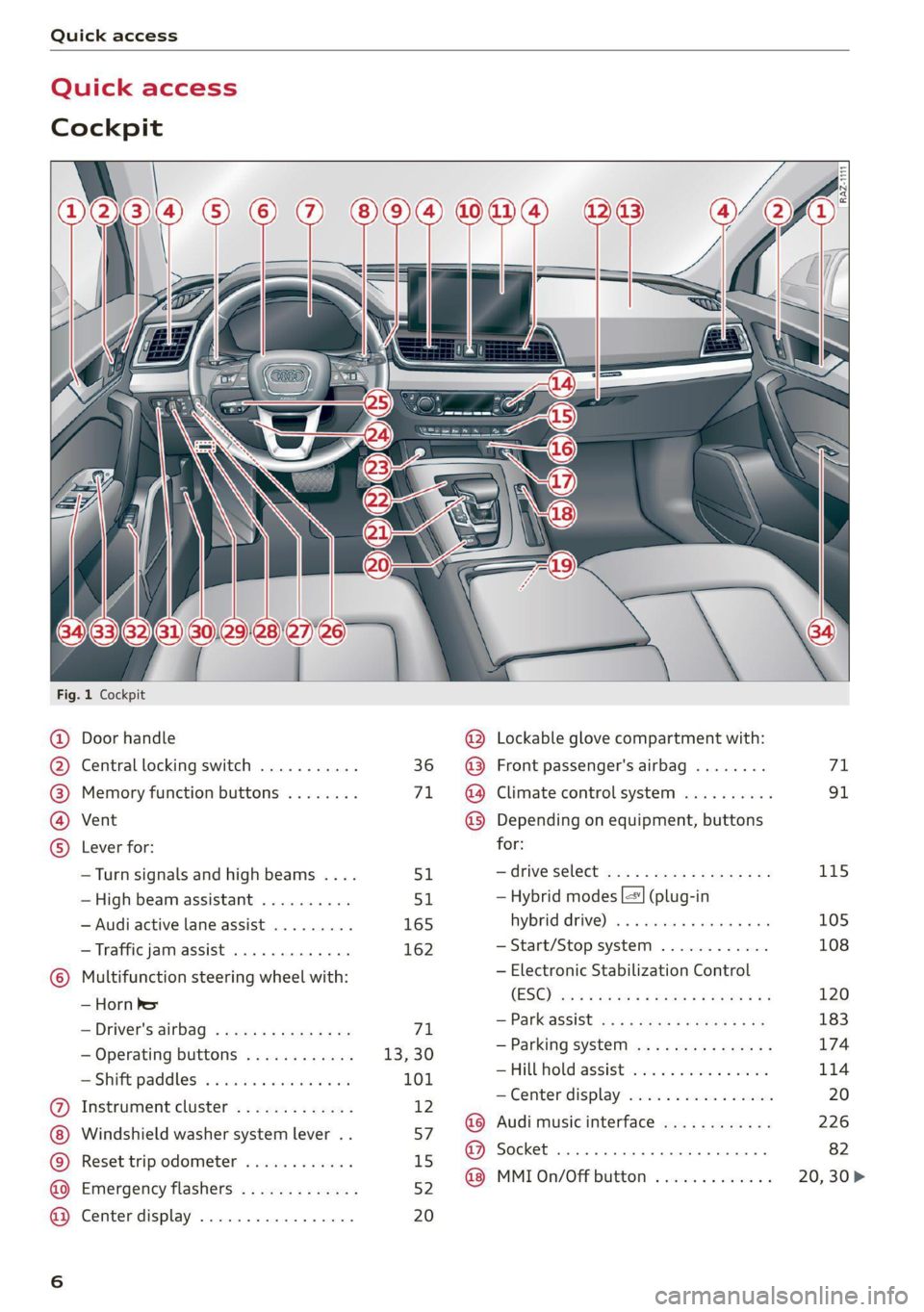
Quick access
Cockpit
Fig. 1 Cockpit
@ @ @ @ ©
©
OOOO
Door handle
Central locking switch ...........
Memory function buttons ........
Vent
Lever for:
—Turn signals and high beams ....
—High beam assistant ..........
— Audi active lane assist .........
— Traffic jam assist .............
Multifunction steering wheel with:
— Horn be
— Driver's airbag ...............
— Operating buttons ............
= Shift paddles: « « coi e ewes sv ove
Instrument cluster .............
Windshield washer system lever ..
Reset trip odometer ............
Emergency flashers .............
Center display .................
51
165 162
71
13,30
101
12
57
15
52
20
@ Lockable glove compartment with:
@ Front passenger's airbag ........
@ Climate control system ..........
@ Depending on equipment, buttons
for:
—drive select ...............0..
— Hybrid modes |=] (plug-in
hybrid drive) ss i scsi ov sven 6 oa
— Start/Stop system ............
— Electronic Stabilization Control
(ESO) ca ss wuss 5 4 Hema a i eos a ee
— Parkeassist ws 3 ¢ avo » x eeay a y me
— Parking system ...............
Hill Hold assist ves: es sseose. 2 animes
—Center display .............00.
@ Audi music interface ............
@ Socket ......... 0... c eee eee
@ MMI On/Off button .............
115 105 108 120
183
174
114
Page 9 of 332
80B012721BA
Quick access
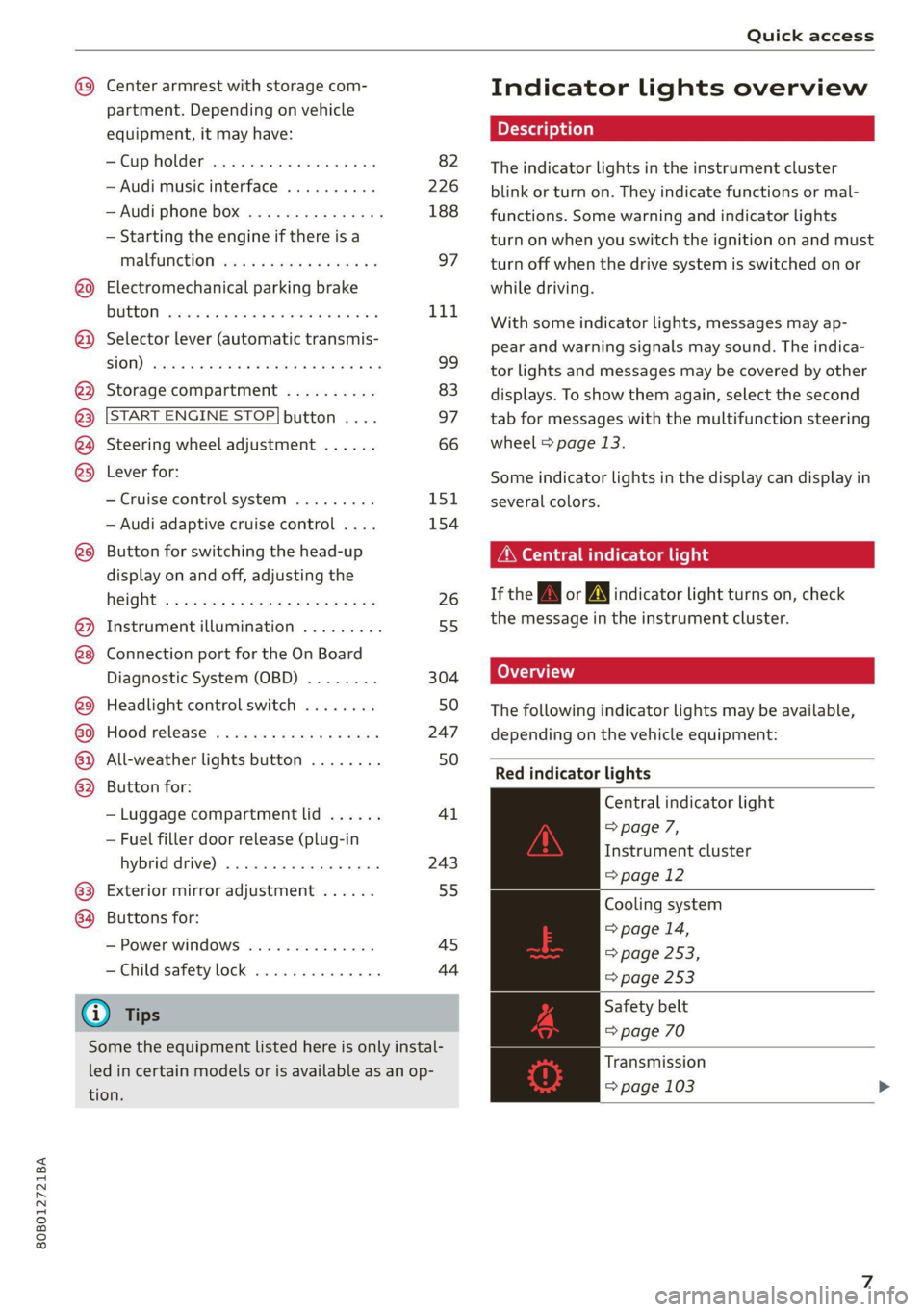
Center armrest with storage com-
partment. Depending on vehicle
equipment, it may have:
—Cup holder ...............0-. 82
—Audi music interface .......... 226
—Audi phone box ............... 188
— Starting the engine if there is a
MALFUNCTION vise x 2 sever @ & smaeae os 97
@0) Electromechanical parking brake
BUGEON seesess so sranes os soneene & 6 seamen « L1d.
@) Selector lever (automatic transmis-
SHOW) csweves « 2 cxasims a % euesess @ % cmTeeNe @ 9 99
@3 Storage compartment .......... 83
@ START ENGINE STOP| button .... 97
@) Steering wheel adjustment ...... 66
@3) Lever for:
— Cruise control system ......... 151
— Audi adaptive cruise control .... 154
@8 Button for switching the head-up
display on and off, adjusting the
R@IGKE ¢ + s wes s « peewee wen & e wow 26
@) Instrument illumination ......... 55
@8 Connection port for the On Board
Diagnostic System (OBD) ........ 304
@3) Headlight control switch ........ 50
or Hood release’ « =: eas» ¢ awe ys wees 247
@2 All-weather lights button ........ 50
@3 Button for:
— Luggage compartment lid ...... 41
— Fuel filler door release (plug-in
hybrid AFIVE); «sesso siemwse © atieesus 243
63) Exterior mirror adjustment ...... 55
64 Buttons for:
— Power windows .............. 45
—Child safety lock .............. 44
G) Tips
Some the equipment listed here is only instal-
led in certain models or is available as an op-
tion.
Indicator lights overview
The indicator lights in the instrument cluster
blink or turn on. They indicate functions or mal-
functions. Some warning and indicator lights
turn on when you switch the ignition on and must
turn off when the drive system is switched on or
while driving.
With some indicator lights, messages may ap-
pear and warning signals may sound. The indica-
tor lights and messages may be covered by other
displays. To show them again, select the second
tab for messages with the multifunction steering
wheel © page 13.
Some indicator lights in the display can display in
several colors.
OMe reel eis
If the A or N indicator light turns on, check
the message in the instrument cluster.
The following indicator lights may be available,
depending on the vehicle equipment:
Red indicator lights
Central indicator light
=> page 7,
Instrument cluster
=> page 12
Cooling system
> page 14,
=> page 253,
=> page 253
Safety belt
=> page 70
Transmission
=> page 103
Page 15 of 332
80B012721BA
Instrument cluster
ZA WARNING
Applies to: vehicles with Audi virtual cockpit
If there is a severe malfunction in the instru-
ment cluster, the display may turn off. The /\|
indicator light may also turn on. Stop the ve-
hicle safely. See an authorized Audi dealer or
authorized Audi Service Facility for assistance.
@) Tips
— The following pages primarily show illustra-
tions of the Audi virtual cockpit*. The dis-
play or location of the items that are shown
may vary on the different versions of the in-
strument cluster.
— You can select the units used for tempera-
ture, speed, and other measurements
> page 236.
— Speeds are displayed in mph (miles per
hour) or km/h (kilometers per hour).
— Certain instrument cluster content can also
be displayed in the head-up display*
=> page 26.
Operating
3:50™
12/5/2018
Fig. 4 Driver information system display
Fig. 5 Left side of multifunction steering wheel
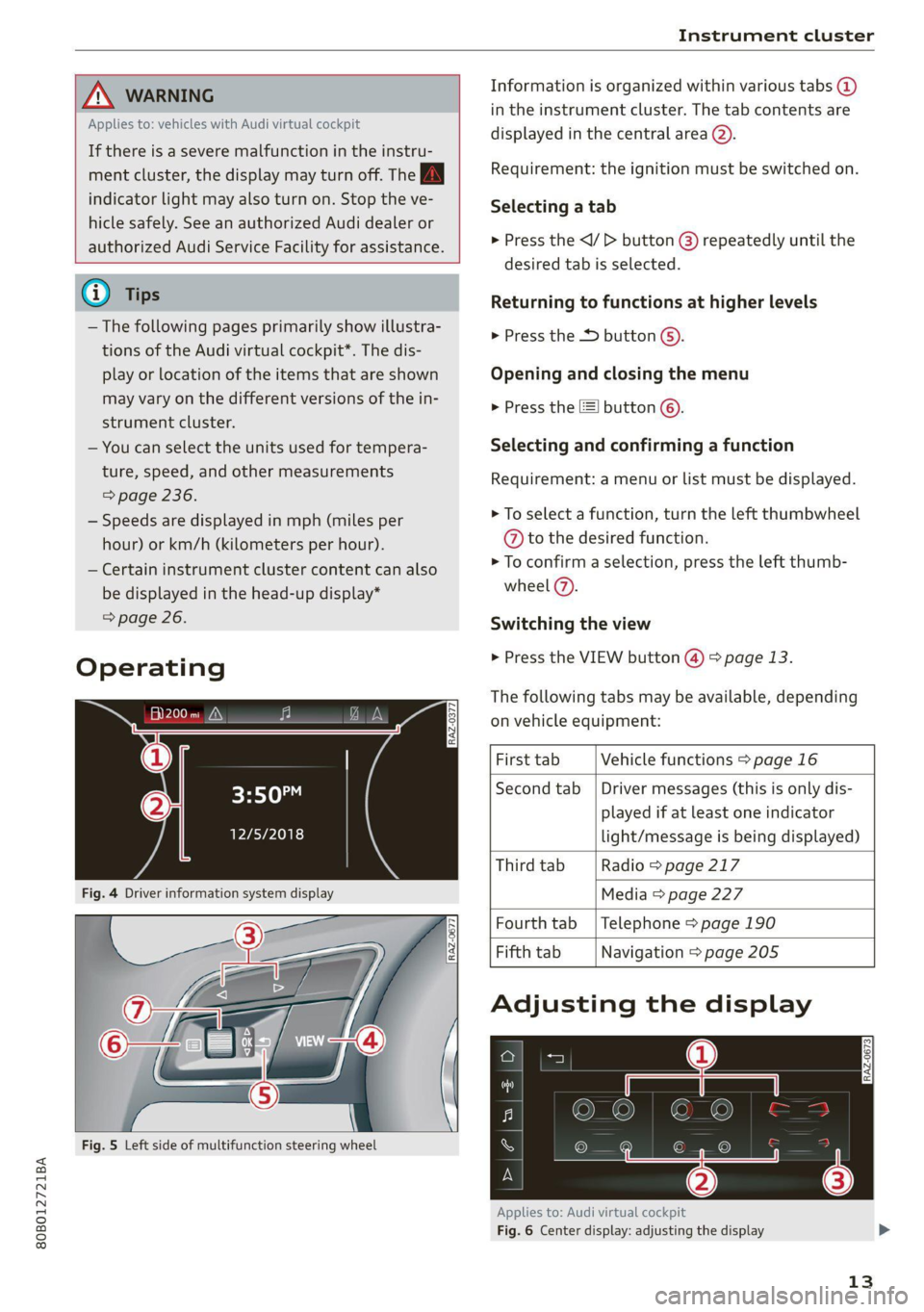
Information is organized within various tabs @
in the instrument cluster. The tab contents are
displayed in the central area (2).
Requirement: the ignition must be switched on.
Selecting a tab
> Press the
desired tab is selected.
Returning to functions at higher levels
> Press the D button ©).
Opening and closing the menu
> Press the =] button ©.
Selecting and confirming a function
Requirement: a menu or list must be displayed.
> To select a function, turn the left thumbwheel
@ to the desired function.
> To confirm a selection, press the left thumb-
wheel (7).
Switching the view
> Press the VIEW button @) > page 13.
The following tabs may be available, depending
on vehicle equipment:
First tab Vehicle functions > page 16
Second tab | Driver messages (this is only dis-
played if at least one indicator
light/message is being displayed)
Third tab Radio > page 217
Media > page 227
Fourth tab | Telephone > page 190
Fifth tab Navigation > page 205
Adjusting the display
Applies to: Audi virtual cockpit
Fig. 6 Center display: adjusting the display
13
Page 16 of 332
Instrument cluster
Switching the view
Applies to: Audi virtual cockpit
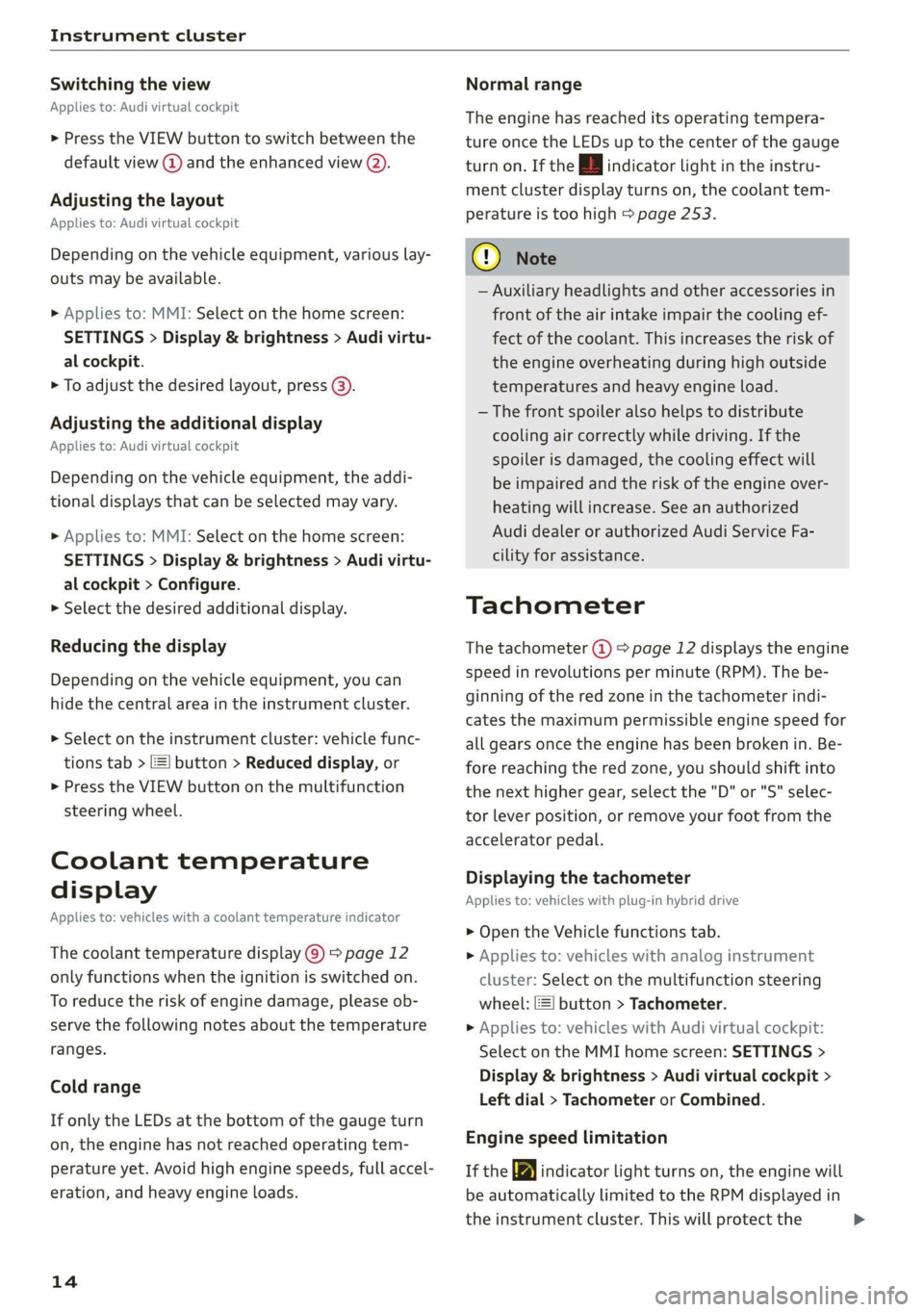
> Press the VIEW button to switch between the
default view @) and the enhanced view (2).
Adjusting the layout
Applies to: Audi virtual cockpit
Depending on the vehicle equipment, various lay-
outs may be available.
» Applies to: MMI: Select on the home screen:
SETTINGS > Display & brightness > Audi virtu-
al cockpit.
> To adjust the desired layout, press @).
Adjusting the additional display
Applies to: Audi virtual cockpit
Depending on the vehicle equipment, the addi-
tional displays that can be selected may vary.
> Applies to: MMI: Select on the home screen:
SETTINGS > Display & brightness > Audi virtu-
al cockpit > Configure.
> Select the desired additional display.
Reducing the display
Depending on the vehicle equipment, you can
hide the central area in the instrument cluster.
> Select on the instrument cluster: vehicle func-
tions tab > E=] button > Reduced display, or
> Press the VIEW button on the multifunction
steering wheel.
Coolant temperature
display
Applies to: vehicles with a coolant temperature indicator
The coolant temperature display @) > page 12
only functions when the ignition is switched on.
To reduce the risk of engine damage, please ob-
serve the following notes about the temperature
ranges.
Cold range
If only the LEDs at the bottom of the gauge turn
on, the engine has not reached operating tem-
perature yet. Avoid high engine speeds, full accel-
eration, and heavy engine loads.
14
Normal range
The engine has reached its operating tempera-
ture once the LEDs up to the center of the gauge
turn on. If the | indicator light in the instru-
ment cluster display turns on, the coolant tem-
perature is too high > page 253.
@) Note
— Auxiliary headlights and other accessories in
front of the air intake impair the cooling ef-
fect of the coolant. This increases the risk of
the engine overheating during high outside
temperatures and heavy engine load.
—The front spoiler also helps to distribute
cooling air correctly while driving. If the
spoiler is damaged, the cooling effect will
be impaired and the risk of the engine over-
heating will increase. See an authorized
Audi dealer or authorized Audi Service Fa-
cility for assistance.
Tachometer
The tachometer (@) 9 page 12 displays the engine
speed in revolutions per minute (RPM). The be-
ginning of the red zone in the tachometer indi-
cates the maximum permissible engine speed for
all gears once the engine has been broken in. Be-
fore reaching the red zone, you should shift into
the next higher gear, select the "D" or "S" selec-
tor lever position, or remove your foot from the
accelerator pedal.
Displaying the tachometer
Applies to: vehicles with plug-in hybrid drive
> Open the Vehicle functions tab.
> Applies to: vehicles with analog instrument
cluster: Select on the multifunction steering
wheel: [=] button > Tachometer.
> Applies to: vehicles with Audi virtual cockpit:
Select on the MMI home screen: SETTINGS >
Display & brightness > Audi virtual cockpit >
Left dial > Tachometer or Combined.
Engine speed limitation
If the BB indicator light turns on, the engine will
be automatically limited to the RPM displayed in
the instrument cluster. This will protect the >
Page 20 of 332
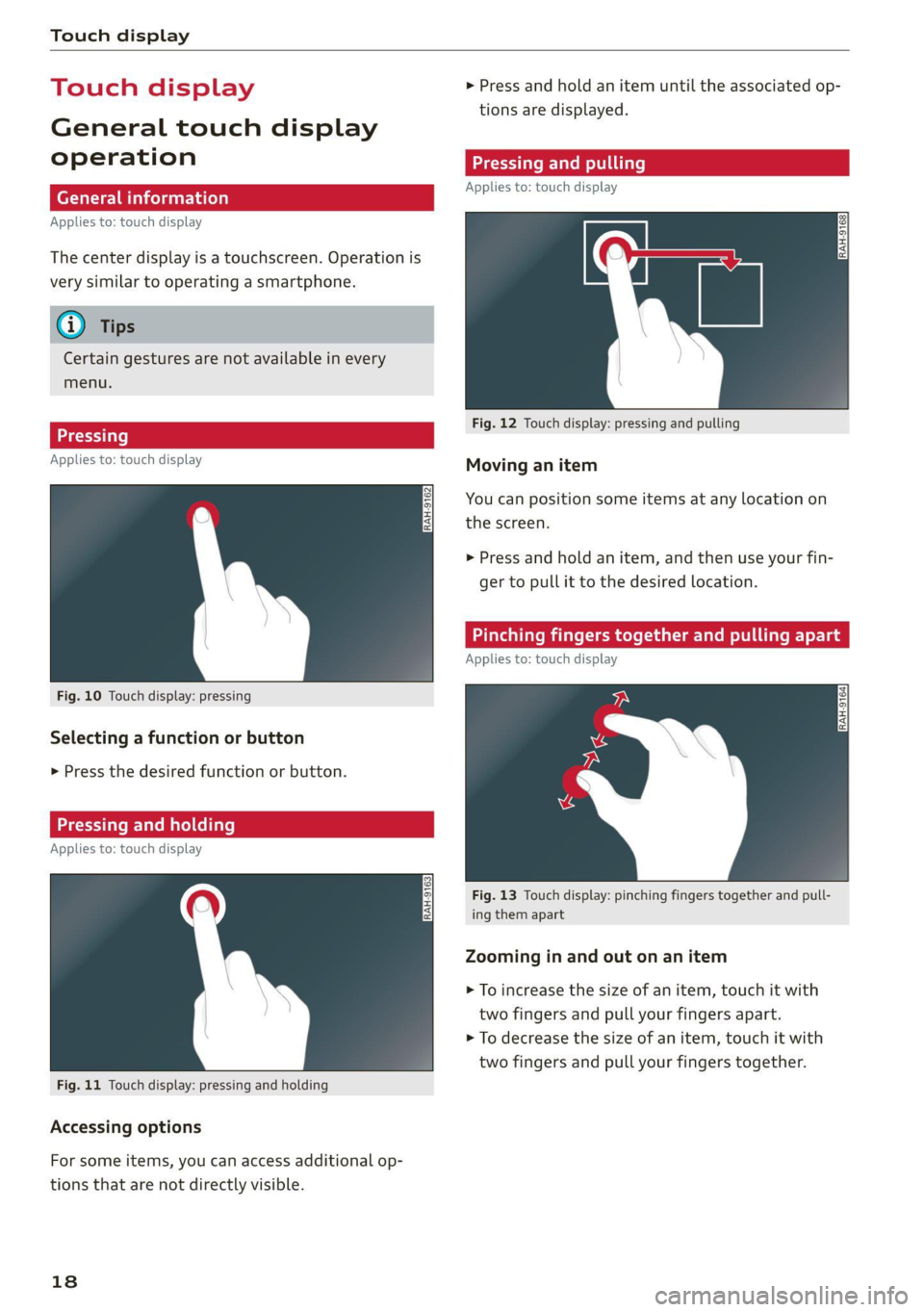
Touch display
Touch displa > Press and hold an item until the associated op-
tions are displayed.
General touch display
operation Teen LCR ite
Applies to: touch display
Applies to: touch display
The center display is a touchscreen. Operation is
very similar to operating a smartphone.
@) Tips
Certain gestures are not available in every
menu.
Fig. 12 Touch display: pressing and pulling
>)
Applies to: touch display : Moving an item
You can position some items at any location on
the screen.
>» Press and hold an item, and then use your fin-
ger to pull it to the desired location.
inching fingers together and ling a
Applies to: touch display
Fig. 10 Touch display: pressing
Selecting a function or button
> Press the desired function or button.
Applies to: touch dis play
Fig. 13 Touch display: pinching fingers together and pull-
ing them apart
Zooming in and out on an item
> To increase the size of an item, touch it with
two fingers and pull your fingers apart.
> To decrease the size of an item, touch it with
two fingers and pull your fingers together.
Fig. 11 Touch display: pressing and holding
Accessing options
For some items, you can access additional op-
tions that are not directly visible.
18
Page 22 of 332
Touch display
> Press the General button.
> If the Date & time button is not displayed,
swipe upward or downward with one finger un-
tilit appears.
> Press the Date & time button.
G) Tips
If a menu or symbol is in parentheses in the
path, for example, (General) or ({23), then it is
an optional menu item that does not need to
be used in every system.
> Applies to MMI: Select on the home screen:
SETTINGS > Display & Brightness > MMI.
Possible settings:
— Brightness
— Touchscreen Feedback
Multi Media Interface
Cem lucien)
Audi recommends performing certain Infotain-
ment system functions, such as entering a desti-
nation, only when the vehicle is stationary. Al-
ways be prepared to stop operating the Infotain-
ment system in the interest of your safety and
the safety of other road users.
Z\ WARNING
Only use the Infotainment system when road,
traffic, weather, and visibility conditions per-
mit and always in a way that allows you to
maintain complete control over your vehicle.
@) Tips
Certain functions are not available while driv-
ing.
Sica memes
Switching the MMI on or off
> To switch the MMI off, press and hold the
On/Off knob > page 30, fig. 24 until all Info-
tainment functions are switched off.
20
> To switch the MMI on, press the On/Off knob.
Restarting the MMI
> Press and hold the On/Off knob for at least 10
seconds.
Switching the center display on or off
> To switch the center display on or off, press the
fo] button in the center console above the se-
lector lever, or
> To switch the center display off, press LJin the
notification center > page 23.
> To switch the center display on, touch the dis-
play or press lwJagain.
Introduction
You can display and operate Infotainment system
and vehicle functions using the touch display in
the Multi Media Interface, abbreviated MMI.
Configuration wizard
After starting for the first time, the configuration
wizard helps you to set up the vehicle, for exam-
ple to set the desired system language and con-
nect a telephone.
> Follow the instructions in the center display.
>» Applies to: MMI: To access the configuration
wizard at a later time, select on the home
screen: HELP > Configuration wizard.
Tool tips
You can have tool tips displayed if necessary.
They introduce various MMI functions to you.
> Applies to: MMI: To open the tool tips, select on
the home screen: HELP > Tool tips > Basic in-
formation or Expert information.
> Follow the instructions in the display.
Page 23 of 332
80B012721BA
Touch display
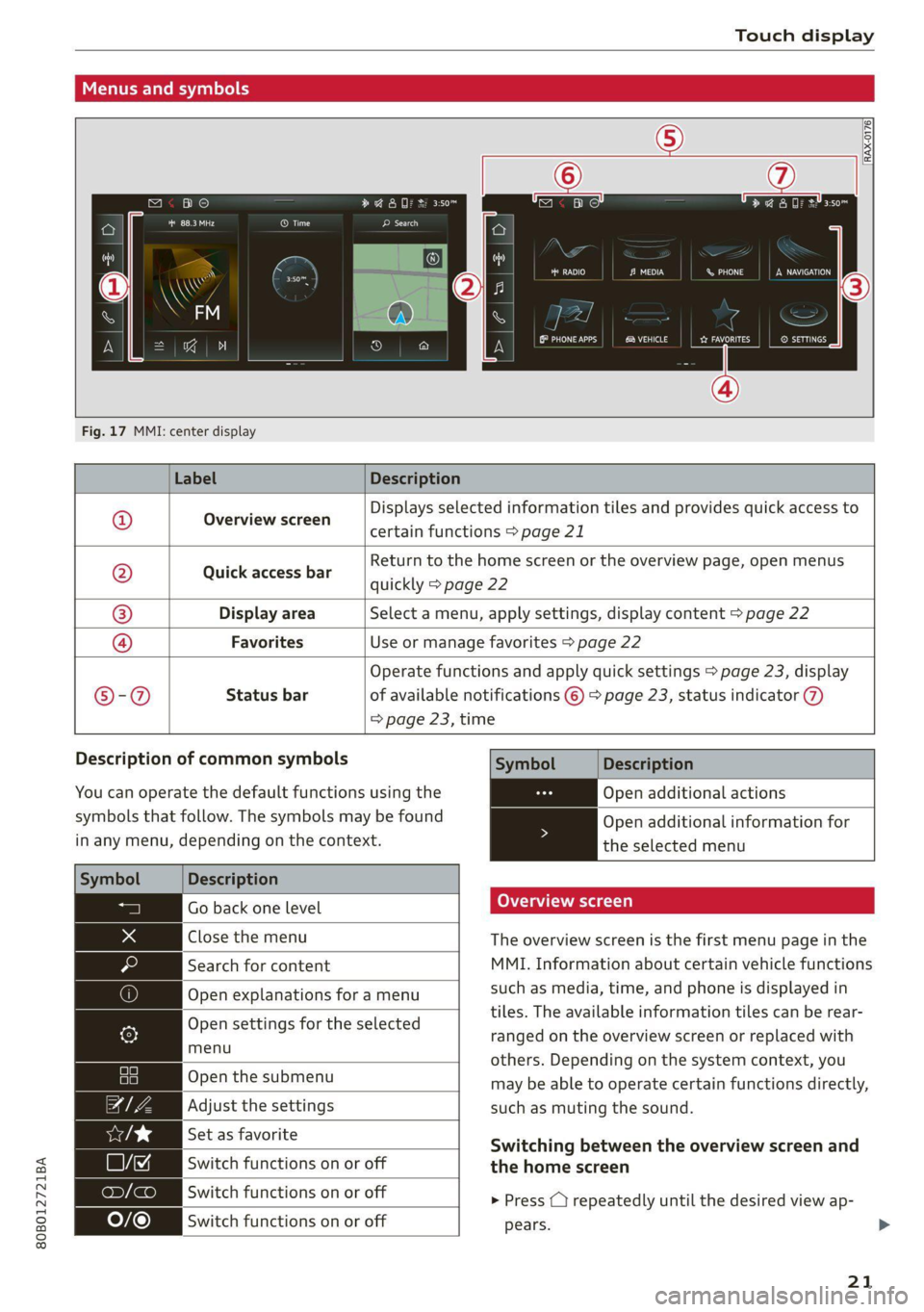
Menus and symbols
[cae O) ea Ec ae
Cer ce
RAX-0176
oO ane
Co coy aren PL)
eh aed CW Pa ss) eau)
Fig. 17 MMI: center display
Label Description
Overview screen
Displays selected information tiles and provides quick access to
certain functions > page 21
Quick access bar
Return to the home screen or the overview page, open menus
quickly > page 22
Display area Select a menu, apply settings, display content > page 22
©|@|
©
|
©
Favorites Use or manage favorites > page 22
Operate functions and apply quick settings > page 23, display
®©®-@ Status bar of available notifications © > page 23, status indicator @)
=> page 23, time
Description of common symbols
You can operate the default functions using the
symbols that follow. The symbols may be found
in any menu, depending on the context.
Description
Go back one level
Close the menu
Search for content
Open explanations for a menu
Open settings for the selected
menu
Open the submenu
Adjust the settings
Set as favorite
Switch functions on or off
Switch functions on or off
Switch functions on or off
Symbol Description
Open additional actions
Open additional information for
the selected menu
Overview screen
The overview screen is the first menu page in the
MMI. Information about certain vehicle functions
such as media, time, and phone is displayed in
tiles. The available information tiles can be rear-
ranged on the overview screen or replaced with
others. Depending on the system context, you
may be able to operate certain functions directly,
such as muting the sound.
Switching between the overview screen and
the home screen
> Press ( repeatedly until the desired view ap-
pears.
21
Page 25 of 332
80B012721BA
Touch display
Of OB OB
Oo OB OB om
OM OB OB 2a
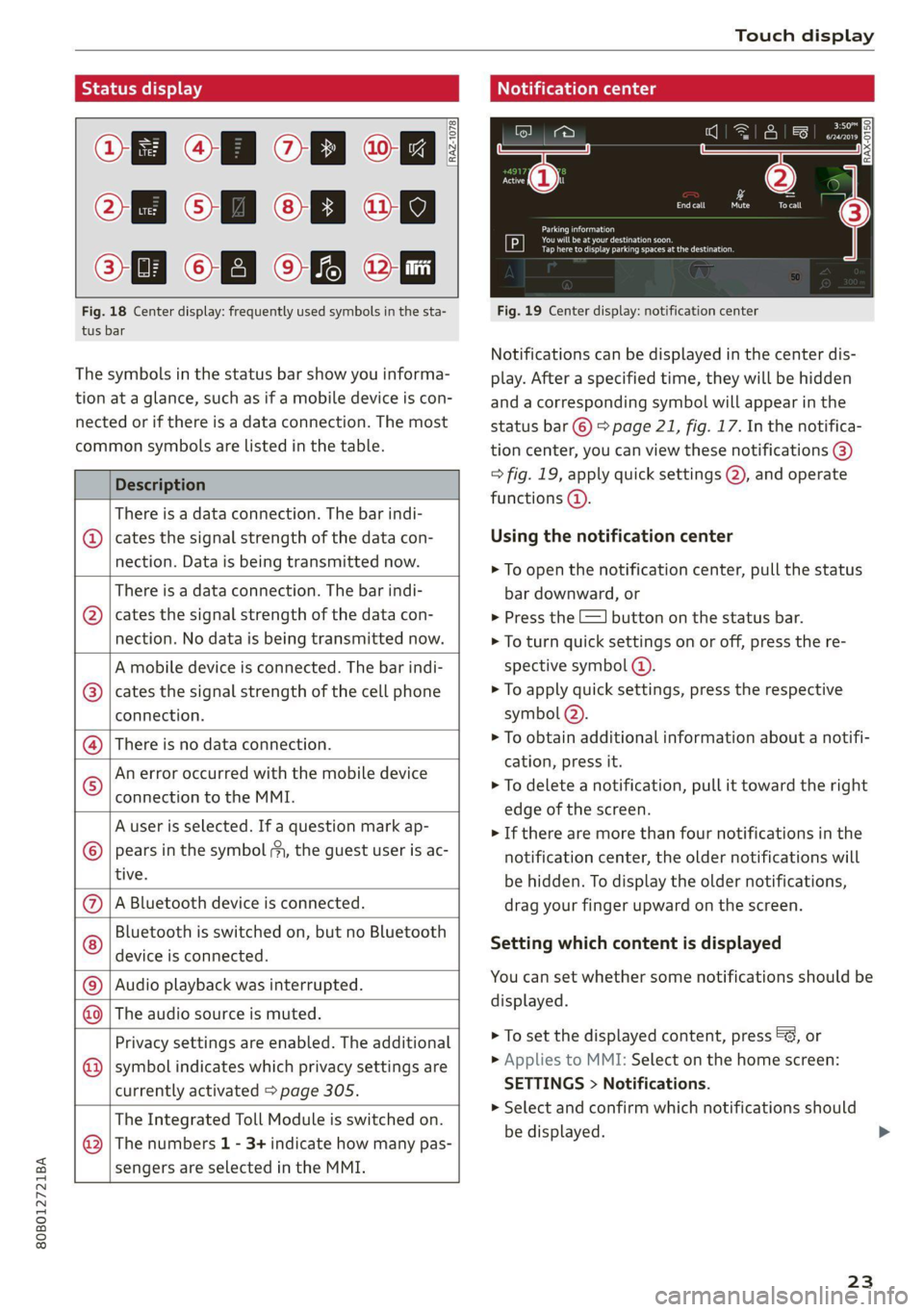
Fig. 18 Center display: frequently used symbols in the sta- Fig. 19 Center display: notification center
tus bar
[RAZ-1078
Ce ay
eA eee pe tceri or
PCr cog esa Cuneo
Notifications can be displayed in the center dis-
The symbols in the status bar show you informa- play. After a specified time, they will be hidden
tion at a glance, such as if a mobile device is con- and a corresponding symbol will appear in the
nected or if there is a data connection. The most status bar ©) > page 21, fig. 17. In the notifica-
common symbols are listed in the table. tion center, you can view these notifications @)
Description > fig. 19, apply quick settings @), and operate
functions @).
There is a data connection. The bar indi-
@ | cates the signal strength of the data con- Using the notification center
nection. Data:is being transmitted now: > To open the notification center, pull the status
There is a data connection. The bar indi- bar downward, or
@ | cates the signal strength of the data con- > Press the E=] button on the status bar.
nection. No data is being transmitted now. > To turn quick settings on or off, press the re-
A mobile device is connected. The bar indi- spective symbol @).
cates the signal strength of the cell phone > To apply quick settings, press the respective
connection. symbol (2).
> To obtain additional information about a notifi-
cation, press it.
> To delete a notification, pull it toward the right
edge of the screen.
> If there are more than four notifications in the
notification center, the older notifications will
be hidden. To display the older notifications,
A Bluetooth device is connected. drag your finger upward on the screen.
Bluetooth is switched on, but no Bluetooth
device is connected.
There is no data connection.
An error occurred with the mobile device
connection to the MMI.
A user is selected. If a question mark ap-
pears in the symbol ;y, the guest user is ac-
tive.
®©®e;)
©
|@|®|
©
Setting which content is displayed
You can set whether some notifications should be Audio playback was interrupted.
displayed.
©|© The audio source is muted.
> To set the displayed content, press ©&, or
> Applies to MMI: Select on the home screen:
SETTINGS > Notifications.
> Select and confirm which notifications should
be displayed.
Privacy settings are enabled. The additional
symbol indicates which privacy settings are
currently activated > page 305.
©
The Integrated Toll Module is switched on.
The numbers 1 - 3+ indicate how many pas-
sengers are selected in the MMI.
®
23
Page 26 of 332
Touch display
Possible functions
Description
Press: switches the center display
on or off (this can also be done us-
ing
the button in the center con-
sole)
Press and hold: switches the
screen clearing mode on or off
(can also be done using the but-
ton in the center console)
Opens the garage door opener
function
Possible quick settings
Symbol Description
Apply sound settings
Manage connected devices
Manage users
= Set displayed content in the noti-
fication center
OWES Set date and time YP
a catillt ia
RAZ-0955,
ce
Prac
cH
Prac
Los Angeles,
Dandy
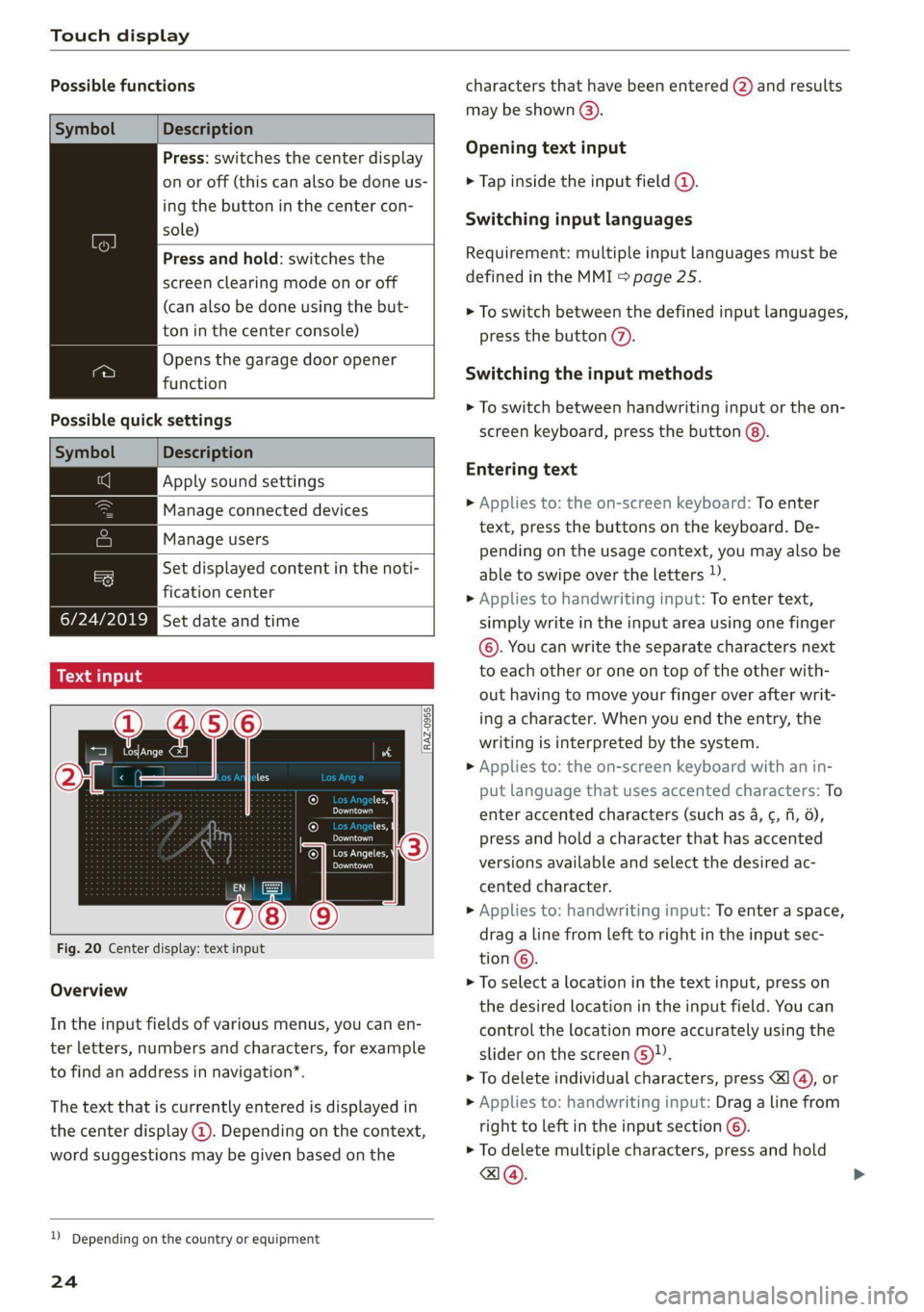
Fig. 20 Center display: text input
Overview
In the input fields of various menus, you can en-
ter letters, numbers and characters, for example
to find an address in navigation”.
The text that is currently entered is displayed in
the center display @). Depending on the context,
word suggestions may be given based on the
2) Depending on the country or equipment
24
characters that have been entered @) and results
may be shown @).
Opening text input
> Tap inside the input field @.
Switching input languages
Requirement: multiple input languages must be
defined in the MMI > page 25.
> To switch between the defined input languages,
press the button (2).
Switching the input methods
> To switch between handwriting input or the on-
screen keyboard, press the button @).
Entering text
> Applies to: the on-screen keyboard: To enter
text, press the buttons on the keyboard. De-
pending on the usage context, you may also be
able to swipe over the letters )).
> Applies to handwriting input: To enter text,
simply write in the input area using one finger
©. You can write the separate characters next
to each other or one on top of the other with-
out having to move your finger over after writ-
ing a character. When you end the entry, the
writing is interpreted by the system.
> Applies to: the on-screen keyboard with an in-
put language that uses accented characters: To
enter accented characters (such as 4, ¢, fi, 6),
press and hold a character that has accented
versions available and select the desired ac-
cented character.
> Applies to: handwriting input: To enter a space,
drag a line from left to right in the input sec-
tion©.
> To select a location in the text input, press on
the desired location in the input field. You can
control the location more accurately using the
slider on the screen 6)”.
> To delete individual characters, press
> Applies to: handwriting input: Drag a line from
right to left in the input section ©.
> To delete multiple characters, press and hold
a@.
Page 29 of 332
80B012721BA
Voice recognition system
Voice recognition system
General information
Applies to: vehicles with voice recognition system
You can operate many functions in the vehicle
easily using voice commands.
Using the voice recognition system optimally
> Speak clearly and distinctly at a normal volume.
Speak louder when driving faster.
» Emphasize the words in the commands evenly
and do not leave long pauses.
> Close the doors, the windows, and the sunroof*
to reduce background noise. Make sure that
passengers are not speaking when you are giv-
ing a voice command.
> Do not direct the vents toward the hands-free
microphone, which is in the roof headliner near
the front interior lights.
> Only the driver should speak to the system, be-
cause the handsfree microphone is aimed to-
ward this seating position.
ZA\ WARNING
— Direct your full attention to driving. As the
driver, you have complete responsibility for
safety in traffic. Only use the functions in
such a way that you always maintain com-
plete control over your vehicle in all traffic
situations.
— Do not use the voice recognition system in
emergencies because your voice may change
in stressful situations. The system may take
longer to dial the number or may not be
able to dial it at all. Dial the emergency
number manually.
G) Tips
There are no voice guidance* prompts when a
dialog is active.
Description
eye aU mame ees eR
Applies to: vehicles with voice recognition system
Se
Drive me to
Where is a a
Connect
Pre)
Play
Eg
Maes
coy
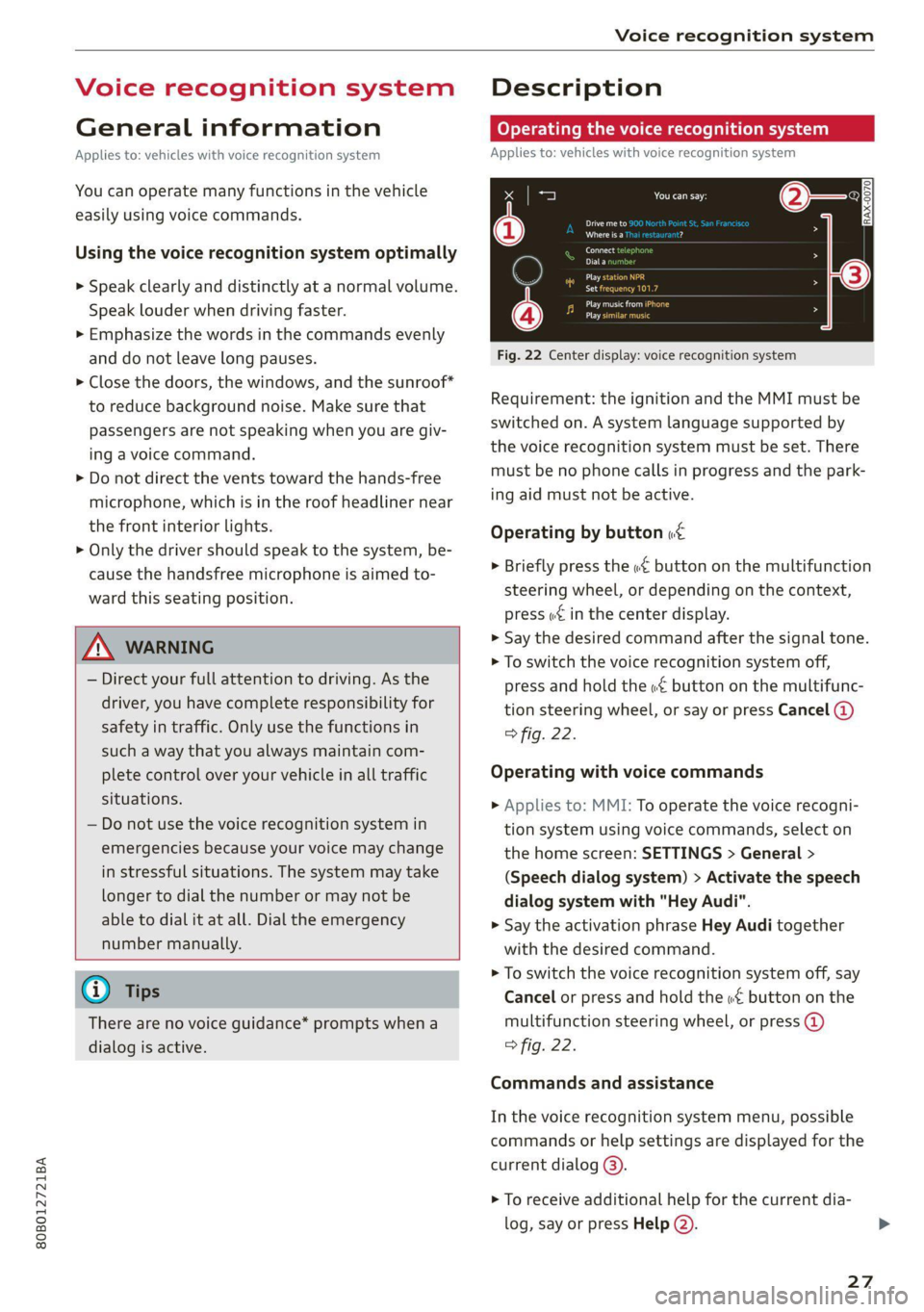
Fig. 22 Center display: voice recognition system
Requirement: the ignition and the MMI must be
switched on. A system language supported by
the voice recognition system must be set. There
must be no phone calls in progress and the park-
ing aid must not be active.
Operating by button «£
> Briefly press the «€ button on the multifunction
steering wheel, or depending on the context,
press we in the center display.
> Say the desired command after the signal tone.
> To switch the voice recognition system off,
press and hold the «€ button on the multifunc-
tion steering wheel, or say or press Cancel (@)
> fig. 22.
Operating with voice commands
> Applies to: MMI: To operate the voice recogni-
tion system using voice commands, select on
the home screen: SETTINGS > General >
(Speech dialog system) > Activate the speech
dialog system with "Hey Audi".
> Say the activation phrase Hey Audi together
with the desired command.
> To switch the voice recognition system off, say
Cancel or press and hold the «£ button on the
multifunction steering wheel, or press @)
> fig. 22.
Commands and assistance
In the voice recognition system menu, possible
commands or help settings are displayed for the
current dialog @).
> To receive additional help for the current dia-
log, say or press Help (2).
27