warning AUDI Q7 2017 Owner´s Manual
[x] Cancel search | Manufacturer: AUDI, Model Year: 2017, Model line: Q7, Model: AUDI Q7 2017Pages: 402, PDF Size: 100.39 MB
Page 159 of 402
u (0 ...... N r--. N ...... 0
0
:E
On/Off knob
CD ¢ fig. 158 until the MMI
switches off. If the MMI has been sw itched off
manually, it does
not switch on again automati
ca lly the next time the ignition is switched on .
Addition al functions :
- Ad ju sting th e volum e:
turn the On/Off knob CD
<=>fig . 158 .
-Muting : press the On/Off knob CD c> fig. 158
briefly .
-Select ing the pre viou s/nex t fun ct ion ( for ex
amp le , a radi o stat ion /tra ck ):
press the On/Off
knob
CD <=> fig . 158 brief ly toward the left l
t>r>I .
-Fast forwardi ng/rew inding (for example
so ng s):
press and hold the On/Off knob CD
¢ fig. 158 toward the left l
.,& WARNING
Adjust the volume of the audio system so that
signa ls from outside the vehicle, such as po
lice and fire sirens, can be heard eas ily at all
times.
@ Tips
The MM I switches off au tomatically if the en
gi ne is not r unning and the vehicle battery is
low.
Infotainment system
display
E xtending /retrac ting
The Infotainment system d isplay automatically
extends and retracts when you switch the MMI
on and off.
- Manuall y extending /retracting : press the C:I
button @ c> page 8, fig. 2.
When the MMI is switched on and the display is retracted, you can use certa in functio ns with the
On/Off knob and the MMI joystick funct ion
¢ page 156.
Multi M edia I nterfac e
(D Tips
-If the vehicle has a cell phone prep*, the In
fotainment system display will automat ica l
ly extend whenever there is an incoming
phone call.
- There may be delays when extending or re
tracting the display.
Information on display images
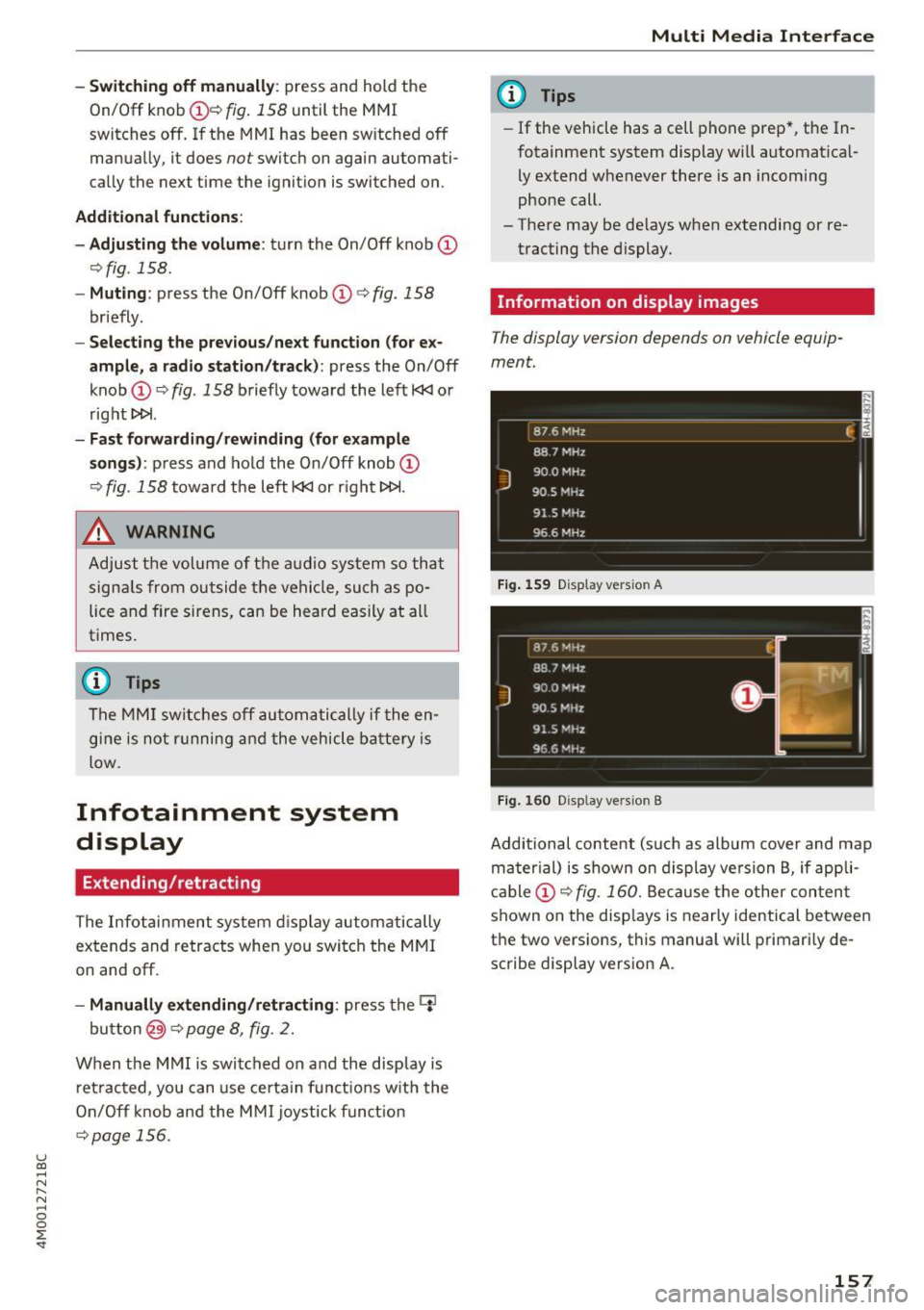
T he display version depends on v ehicle equip
ment.
87 6 MHz
88.7 MHz
J
900 MHz
90.5 MHz
91 5 MHz
96 6 MHz
·--------·----
F ig . 1 59 Display ve rs io n A
Fi g. 160 Disp la y ve rs ion B
f
Additional content (such as album cover and map
ma ter ial) is shown on display ve rsion B, if appli
cable
CD <=> fig . 160. Because the other conten t
shown on the disp lays is nearly identical between
the two versions, this manua l will primari ly de
scribe display version A .
157
Page 171 of 402
u co ...... N r-... N ...... 0
0
:E: '
Appl ies to: veh icles wit h vo ice recog nitio n system
You con operate many Infotainment functions
conveniently by speaking .
Requirements: the ign ition and the MM I must be
switched on
~ page 156, there must not be any
phone call in progress and the park ing system
must not be active .
~ Switching on: briefly press the~ button @
~page 14, fig. 11 on the m ultifunction steer
ing whee l and say the desired command after
the
Beep .
~ Switching off : press and hold the~ button.
Or: press the [2] butto n.
~ Pau se : say the command Pause . To resume,
press the~ button.
~ Correcting : say the command Corre ction . Or :
simply say a new command during an an
nouncement
c::> page 249.
Input assistance
The system gu ides you throug h the input with
v isua l and audio feedbac k.
- Vi sua l input as sistan ce: after switching on
vo ice recogn it io n, a display w ith a selection of
poss ible commands appears. This command
display can be sw itched on o r off . Se lect:
IMENU I button> Setting s> left cont rol button
> MMI setting s > Speech dialog system .
- Audio input a ssis tance :
to have the poss ible
commands read, tu rn the voice recognition sys
tem on and say
Help.
For the s yst em to understand you:
Speak clearly and dist inctly at a normal vo lume .
Speak louder when d riving faste r.
Emphasize the words in the commands evenly
and do not leave long pauses .
C lose the doors, the windows and the sunroof* to
reduce background noise . Make sure that passen
gers are not speaking when you are giving a voice
command .
Voice recognition system
Do not direct the air vents toward the hands-free
microphone, which is on the roof headliner near
t h e front inte rior lights .
Only use the system from the dr iver's seat be
ca use the hands -free microphone is directed to
ward that seat .
Additional settings
See c::> page 249, Speech dialog system .
A WARNING
-Dire ct your full attention to dr iv ing. As the
driver, you have complete responsibility for
safety in traffic . Only use the functions in
such a way that you a lways maintain com
p lete contro l over your vehicle in all traffic
situations.
- Do not use the voice recognition system in
emergencies beca use your voice may change
in stressful situations. It may take longer to
d ial the number or the system may not be
able to dial it at all. Dial the emergency number manually.
@ Tips
- The d ialog pauses when there is an incom
ing phone call and will continue if you ig
nore the call. The d ialog ends if you answer
the ca ll.
- You can select an item in the list using ei
ther the vo ice recognit ion system or the
cont rol knob.
Command overview
information
Appl ies to: ve hicles w ith vo ice recognit ion system
T he following overv iews des cribe the comma nds
t h at can be used to operate the MMI using the
voice recognition system.
Alte rnative commands a re separate d using a"/ ",
for example say:
Telephone / (or) Navigation /
(or) Radio.
Sequences of commands used to perfo rm an ac
t ion are iden tified w it h a"> ", fo r ex ample say:
Ente r addre ss > (t hen) Enter country /state . ..,.
169
Page 178 of 402
Telephone
Telephone Introduction
Applies to: vehicles with telephone
To make phone coils in your vehicle using the
/11/111, connect your cell phone to the /11/111 via
Bluetooth.
Hand sfree
Afte r you have connected you r ce ll phone to the
MMI via Bluetooth , you can use the handsfree
system and operate telephone functions through
your MMI. You can make calls using the antenna on your cell phone.
A WARNING
- Med ical experts warn that cell phones can
interfere w ith the funct ion of pacemakers .
Always mainta in a m inimum d istance of 20
cent imeters between the cell phone anten
na and the pacemaker.
- Do not carry the cell phone in a pocket di
rectly over the pacemaker when the phone
is switched on.
- Sw itch the cell phone off immediately if
you suspect it may be interfering w ith the
pacemaker.
- Do not use the vo ice recognit ion system*
Q page 169 in emergencies because your
vo ice may change in stressful situations . It
may take longer to dial the number or the
system may not be able to dial it at all. Dial
the emergency numbe r manua lly.
- Switch your cell phone off in areas where
there is a risk of an exp losion . These loca
tions are not always clearly mar ked. This
may include gas stations, fuel and chemical
storage facilities or transport vehicles, or lo cations where fue l vapors (such as propane
or gaso line vapor in vehicles or bui ldings),
chemicals or large quantities of dust parti
cles (such as flour, sawdust or metal) may
be present in the air. This also applies to all
other locations where you would normally
turn yo ur vehicle engine off .
- The demands of traffic requ ire yo ur full at
tent ion . Always read the chapter
Q page 156, Traffic safety information.
176
-
(D Note
A lways fo llow the information found in Q @ in
Wi-Fi hotspot on page 195.
@ Tips
- The Bluetooth connect ion range is limited
to inside the vehicle. It can also be affected by local condit ions and interference with
other devices.
- To learn which Bluetooth connections and
wh ich of the funct ions in your cell phone are
supported, check with your cell phone serv ice provider or the database for mob ile devi
ces at
www .audiu sa.com /bluetooth .
Setup
Connecting a cell phone using Bluetooth
Applies to: vehicles with telephone
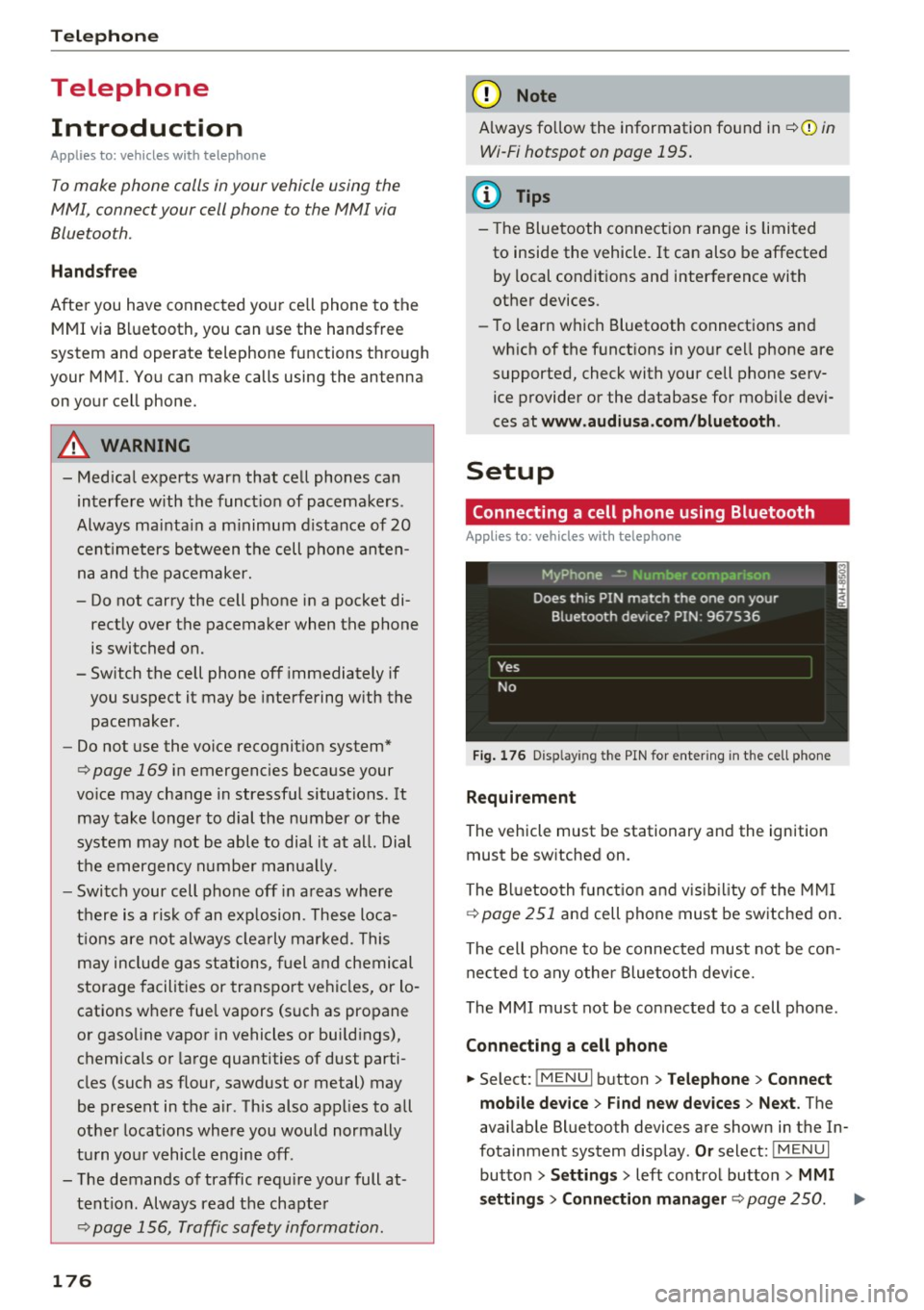
Fig. 1 76 D is pl ay ing t he PIN for enter ing in t he cell p hone
Requirem ent
The vehicle must be stationary and the ignition
must be switched on.
The Bl uetooth funct ion and visib il ity of the MMI
Q page 251 and cell phone must be switched on.
The cell phone to be connected must not be con nected to any other Bluetooth device.
The MMI must not be connected to a cell phone .
Connecting a cell phone
... Select: !MENU I button> T el ephon e> Connect
mob ile de vice > Find ne w de vices > Next .
The
available Bluetooth devices are shown in the In
fotainment system display .
Or select: !M ENUI
button >Setting s> left control butto n> MMI
setting s> Connection manag er
Q page 250 . ..,_
Page 183 of 402
u co ...... N r-... N ...... 0
0
:E: '
ce ll phone service prov ider or from your cell
phone user guide .
- When leaving the vehicle, the Bl uetooth
connection to the ce ll phone w ill automati
ca lly disconnect . Depending on you r cell
phone, phone ca lls in progress may be auto
matically redirected from the MMI to your
ce ll phone and you ca n cont inue the call o n
you r phone.
- The display of an i ncoming phone call in the
Infotainment system d is p lay may still be
v is ible fo r a few s econds after a call is an
swered/ig nored depending on the cell
p ho ne in us e.
Making an emergency call
Appl ies to: vehicles with telephone
.,. Select: I MENU I but ton > Telephone > left con
t ro l button >
Enter number > Enter emergency
ca ll number (for example, 911) >
OK.
_&. WARNING
- Beca use your p hone wo rks with radio s ig
nals, a connection cannot be guara nteed un
der all ci rcumstances. Do not rely on only
yo ur phone w hen it comes to essent ial com
mu nication (suc h as a med ica l emer gency).
-Always follow the instructions g iven by t he
e me rge ncy perso nnel d uring an emergency
ca ll a nd only end t he call whe n they inst ruct
yo u t o do so.
(j) Tips
Eme rge ncy nu mbers are not the same every
where. Fi nd ou t which eme rge ncy nu mber is
used in yo ur current lo ca ti on .
Favorites
Applies to: vehicl es with telep hone
Up to 50 co n ta cts, in addition to the voicemail
num ber, can be s tored in any order in the fav or
ites lis t.
.,. Se lect: I M ENU I butto n >Telephone > left con
t ro l bu tton .
Telephone
Storing an existing phone number as a
favorite:
-Select an d confirm Call list /Directory.
- Select a contact or phone n umbe r from the list.
- Sele ct: r igh t co ntro l but to n >
Store as favorite .
-En ter a name for the favor ite or s elect a sug-
gestion .
- Select and confirm
Store .
Renaming stored favorites
- Select: Favorites > a favorite from the list.
-Select the right cont ro l button> Rename fa-
vorite .
Moving stored favorites
- Select: Favorites > a favori te from the list .
-Sele ct the rig ht c ontro l bu tton> Move favorite .
-Select an d confirm the loca tion of the selected
favorite .
Deleting a stored favorite
- Select: Favorites > a favorite from the list.
-Select the rig ht cont ro l button > Delete favor-
ite
> Delete this favorite or Delete all favor
ites .
Messages
' Text messages
Applies to: cell phones with Bluetooth Message Access Profile
(MAP)
Depending an the cell phone being used and the
cell phone network contract, you can receive and
send text messages using the
MMI .
Requirement
A cell phone must be connected to the MM I via
B luetoot h MAP ( Message Access Profi le)
c> page 176.
.,. Sele ct: ! ME NUI bu tton> Telephone > left con
trol button >
Text message (MyPhone )/Text
message (secondary phone) *.
Write new text message
Se lect a nd con firm Write new text me ssage .
- Using a template :
select and confirm the de
sired templa te from the list .
181
Page 191 of 402
u co ...... N r-... N ...... 0
0
:E: '
Introduction
A ppl ies to veh icles wi th A ud i co nn ect (I nfotainment)
With Audi connect Infotainment services, on line
information is transmitted directly to the vehicle
and then integrated .
A WARNING
To reduce the risk of an accident, only use
Audi connect Infotainment services when
road and traffic conditions permit. Always
read and follow the notes in~
page 156,
Traffic safety information.
Setup
Requirements for Audi connect
(Infotainment)
Appl ies to v ehicles with A ud i con nect (Infotainmen t)
-
The data connection for Audi connect Infota in
ment se rvices is made through an embedded SIM
card (eSIM card) that is equipped in the vehicle.
The fol low ing requirements must be met to use
the embedded SIM card:
- You have already reg istered at
www.audiusa.com /myaudi and ass igned ave
hicle.
- You have also already logged in to your myAudi account under
Audi connect plan for the em
bedded SIM card and accepted the terms of use
given there. For additiona l information, contact
an authorized Aud i dea ler or authorized Audi
Service Facility.
Then your Audi connect Infota inment serv ices are
activated and can be used in your veh icle.
(D Tips
-After the free subscription has ended or the
data volume has been used up, data packets
can be purchased for the use of Audi con
nect Infotainment services. You can find ad
ditional information about fees and pur
chasing at
www.audiusa.com/myaudi.
Audi connect (Infotainment)
-Read this chapter before operating
~ page 196, Audi connect (Infotainment)
general information.
Configuration through myAudi
Audi connect (Infotainment) configuration
Appl ies to v ehicles w it h Au di connec t (Info ta inm ent)
Some Audi connect Infotainment services must
be configured through your personal myAud i ac
count before using them for the first time.
- If you do not have a personal myAudi account
yet, you can register on line at
www.audiusa.com/myaudi.
- Add your vehicle to your myAudi account.
- Activate/config ure the A udi connect (Infotain-
ment) services you would like for your veh icle in
your myAudi account.
- For some Audi connect Infotainment services,
you may also have to enter your myAudi user
data or your myAudi PIN when accessing serv
ices in the MMI to connect your veh icle to
myAudi .
For detailed information on configuration, visit
www.audiusa.com/myaudi.
Logging into myAudi in the vehicle
App lies to vehicles w it h Au di connect (I nfota inment)
To use some Audi connect Infotainment services
(such as Twitter*), you must first connect your
vehicle to myAudi to transfer your personal set
tings from your myAudi account.
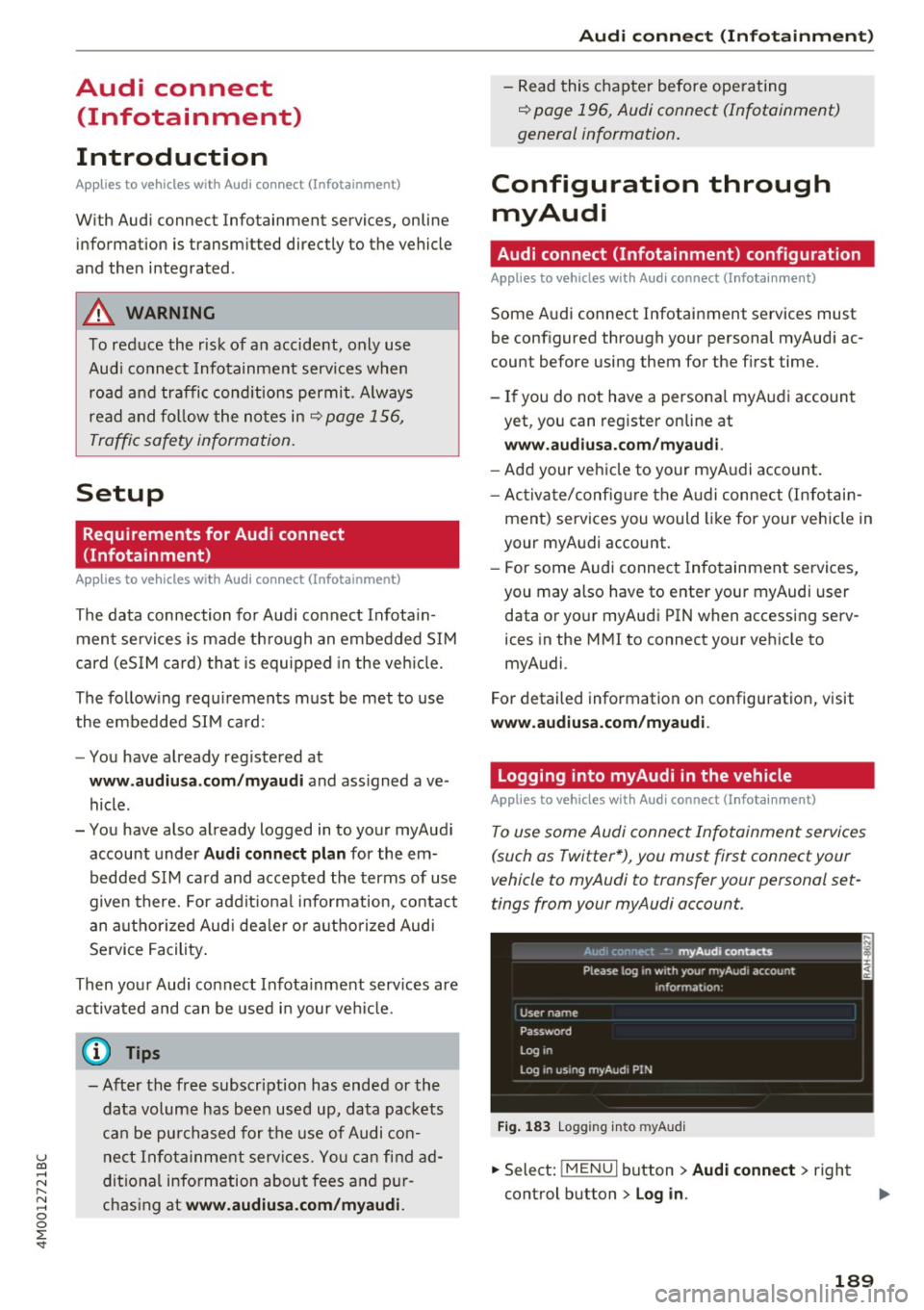
Fig. 183 L ogg ing into myAudi
.,. Select: !MENUI button> Audi connect> right
control button >
Log in .
189
Page 194 of 402
Audi connect (Infotainm ent )
-when the camera-based traffic sign recogn i
tion* is malfunctioning
¢ page 104
-when there a re warnings from the camera-
based traffic sign recognition*
Sw itch ing traffic light information on and
off
- Se lect: I MENU I button > Au di conne ct > Traffi c
ligh t info rm ati on >
On (~) or Off (0 ).
A WARNING
-When traffic light information is shown, a l
so always pay attention to the traffic situa
t ion, the distance to other vehicles and the
area around the vehicle. The driver is always
responsible for assessing the traff ic situa
t ion .
- Always adapt your speed to the current
weather, road and traff ic conditions. The
displayed information must never cause you
to ignore lega l traffic regulations and pose a
safety risk.
- Regardless of the traffic light informat ion,
you should always monitor your speed using
the speedometer and make sure you are ad hering to the legal speed limit .
- The traffic light information does not adjust
yo ur vehicle's speed to the speed recom
mendation shown in the display.
{D) Tips
- Traffic light information is not yet ava ilable
i n a ll cities and is not nationwide .
- Un its of measurement and language set
tings are displayed based on how they were
set in the MMI system settings
¢page 249 .
-Always read the chap ter¢ page 196, Audi
connect (Infotainment) general informa
tion .
Weather
Applies to vehicles with Audi connect (Infotainment)
Information on current weather conditions as
well as weather forecasts for the selected search area .
192
-
.. Select and confirm Weath er.
You can also display the current weather condi
tions on the map , fo r example.
.. Select: lef t control button >
on entry .
Flight information
Applies to vehicles with Audi connect (Infotainment)
Information on flights and current arrival/depar
ture times in the selected search area .
.. Select and confirm
Flight inf orm ation .
City events
Applies to vehicles with Audi connect (Infotainment)
Information on events in various categories in
the desired search area.
.. Sele ct
Ci ty Ev ent s > left co ntro l button > cate
gory.
Online news
Applies to vehicles with Audi connect (Infotainment)
You can check the current headlines of your fa
vorite publications in the MMI.
Requirement: yo ur myAud i acco unt must be sub
scribed to newsfeeds and your vehicle must be
connected to myAudi
~ page 189.
.. Sele ct: !ME NUI button> Aud i conn ect> Online
new s>
desired new sfeed > a headline .
(D Tips
If you have not s ubs cribed to any pe rsonal
newsfeeds in your myAudi account, pre-con
figured newsfeeds will be displayed.
'Twitter
Applies to vehicles with Audi connect (Infotainment)
You can access the most important functions in
your Twitter accoun t through your MMI.
Requirement:
You must have connected your myAudi account
with Tw itter. You can f ind additional information
fo r this on line at
www .audiu sa .c om /m yaudi.
Page 195 of 402
u co ...... N r-... N ...... 0
0
:E: '
r=> page 189.
.,. Se lect: I MENU I button> Audi connect > Twitter
> left contro l button > desired function (for ex
amp le,
Trends ).
The follow ing categories can be selected in the
Twitter menu:
- My tweets : News Feed and the Tweets you have
posted are listed.
- Home: the Tweets for everyone you follow are
displayed.
- Trends : topics on Twitter that are currently
popular w ith in a country .
Different functions are available depending on
the Twitter category you have selected:
- New tweet : you can post a new tweet using
pre-made templates or using myAudi tem
plates that you have created yourself.
- Refresh : the selected Twitter function is re
freshed.
- Favorite: mark a Tweet as favorite to show you
liked it.
- Retweet: you can quote a Tweet to share it with
others.
@ Tips
- Other settings such as account, language,
Tweet security and location settings
cannot
be changed in the MMI. These changes must
be made on the Twitter website.
- You can only connect
one Twitter account
with your myAudi account.
- Audi connect (Infotainment) makes it possi
ble to access Twitter . Permanent avai lability
cannot be guaranteed, because that de pends on Twitter.
Travel (travel guide)
A pplies to vehicles with Aud i connect (Infotainment)
You can use the Audi MMI connect opp to store
points of interest on your mobile device (such as
a smartphone) and then use them for route
guidance in the MMI.
Requirement:
Audi connect (Infotainment)
The Audi MMI connect app must be installed and
open on your mobile device .
You must be logged into your myAudi account in
the
Audi MMI connect app and you must have se
lected your vehicle.
T he Wi-Fi function on your mob ile device and on
the MMI must be switched on.
The MMI must be connected to the network.
... Press:
!MENU ! button> Audi connect > left con-
trol button >
Information category> Travel.
After opening the trave l guide, trave l tips in your
area wi ll be displayed including current ratings as
well as the corresponding category. ... Press the left control button to change the cat
egory (such as bars nearby).
_& WARNING '---
-It is only safe to use tablets, laptops, mo
bi le dev ices and other similar devices when
the vehicle is stationary because, lik e all
loose objects, they could be thrown around
the inside of the vehicle in a crash and cause
serious inj uries. Store these types of devices
securely while driving.
- Do not use any wireless devices on the front
seats within range of the airbags while driv
ing. Also read the warnings in the chapter
r::> page 277, Front airbags.
(D Note
Always follow the information found in r=>(i) in
Wi-Fi hotspot on page 195.
(D Tips
Units of measurement, language setting s and
time are shown in the Infotainment system
display based on how they were set in the
MMI system settings
r=> page 249.
Audi connect (Infotainment) in navigation
Applies to : vehicles wit h a navigat ion syste m and Audi co n·
nec t (I nfota inment)
... Select: !MENUI button> Audi connect > left
control button >
Navigation .
-
193
Page 196 of 402

Audi connect (Infotainment)
The fo llow ing A udi connect In fota inment serv ices
are curre ntly availab le:
- Naviga tio n wi th
online map view a nd Street
View ¢
page 217.
-Point of Interest (POI) online search with
voice recognition
( such as res taur ant s): plan
r ou te g uida nce using t he M MI con trol panel
¢
page 209 and the voice recognition system
¢ page 169.
- Set up dest ina tions in you r M MI using yo ur
myAudi account or onl ine map view
¢ page 217.
-Online traffic information : receive up-to-the
minute t raffic info rmation about accidents,
r oad construction and other incidents
¢ page 221.
-Map update : import navigat ion map updates
directly to yo ur vehicle using a n SD ca rd o r as
an on line update¢
page 219.
@ Tips
-Fo r the map update Au di c onnect Infotain
ment se rvice via SD car d, check the current
software vers ion in your vehicle and then
check
www.audiusa.com/myaudi to see if a
newe r ve rsion is ava ilable. You can a lso have
th e ne w naviga tion da ta insta lled by an A ud i
d eale r, w hich can be done for an addition al
c har ge.
- Y ou can a lso fin d ad dit io na l informat ion
a bout th e
map update onlin e at
www.audiusa.com /myaudi .
Audi connect (Infotainment) on the phone
Applies to vehicles with Audi connect (Infotainment)
~ Se lect: I M ENU I but ton > Audi connect > left
contro l button >
Communication .
The fo llow ing A udi con nect Info tainment services
a re curre ntly availab le:
- Stor ing contacts on yo ur compute r us ing yo ur
myAudi A ccount and loadi ng the contacts into
t he MM I direct ory
¢ page 186.
194
Audi connect (Infotainment) in Media
menu
Applies to vehicles with Audi connect (Infotainment)
~ Sele ct: !ME NUI button> Audi connect > righ t
control button >
Entertainment.
- Online media and Internet radio :
offers access
t o di fferen t on line me dia services as well as In
ternet radio and ope ration th ro u gh t he M MI us
ing the
Audi MMI connect app ¢ page 233 .
Applies to: vehicles with Wi·Fi audio player
-Wi-F i audio player : you can access the med ia
center throug h a Wi-Fi connecte d media player
(su ch as a s martphone)
¢ page 232.
.8, WARNING
It is only s afe to u se ta ble ts, l ap to p s, mo bile
d evi ces and other simi la r devices whe n the ve
hicl e is sta tionary beca use , like a ll loose ob
jects, they co uld be thrown a roun d the inside
of the vehicle in a cras h and cause serious in
ju ries. Store these types of devices sec urely
while driv ing.
(D Note
A lways fo llow the information fo und in ¢ 0 in
Wi -Fi hotspot on page 195.
@ Tips
- Also see t he cha pter¢ page 196, Audi con
nect (Infotainment) general information .
- For more in fo rmat ion on t he Wi-Fi a udi o
player and su pported devices, contact an
authorized A udi dealer or aut ho rize d Au di
Service Facility.
Additional options
Applies to vehicles with Audi connect (Infotainment)
~ Select: ! ME NUI button> Aud i connect > right
cont rol button.
The following options are available in the Aud i
connect In fota inment serv ices overview :
Log in*
See c:::> page 189, Logging into myAudi in the vehi -
de. ~
Page 197 of 402

u co ...... N r-... N ...... 0
0
:E: '
See ¢ page 250.
Licen se sub scr ipt ion
The val idity and expirat ion date of your licenses
are displayed . When the function is switched on
~, the message
Warning befor e subscription
e xpire s
will display to warn you that your license
is about to expire.
Refre sh
The content of the selected Audi connect Info
tainment service o r the entire Audi connect (Info
tainment) list is updated.
Wi-Fi hotspot
A ppl ies to: ve hicles with Wi -F i h otspot
You can use the MMI as a Wi-Fi hotspot to con
nect up to eight Wi-Fi devices to the Internet.
While driving, restricted use of unsecured, light,
small wireless devices is only possible from the
rear of the vehicle.
Requirement: the ignition must be switched on.
.,. Se lect :
I MENU I button >Telep ho ne> right con-
trol button
> Wi -Fi settin gs.
The follow ing settings can be selected:
Wi-F i
The MMI Wi-Fi hotspot is deactivated at the fac
tory. Switch the Wi-Fi hotspot to
Hot spo t before
establishing a connection between your vehicle
and your Wi -F i dev ice.
- On: the MMI Wi-Fi hotspot is active and visib le
to other devices . You can connect your Wi-Fi
device to the MMI and use the Internet connec
tion if necessary .
-Off: the MMI Wi-Fi hotspot is deactivated. An
Internet connection for Wi-Fi devices is not
poss ible.
A WARNING
- To reduce the risk of an accident, use the
Audi connect Infotainment serv ices w ith a
Wi -Fi hotspot on ly in the rea r seat when the
-
Audi c onn ect ( Inf ota inm ent )
vehicle is in motion, or only when the vehi
cle is stat ionary.
- It is only safe to use tablets, laptops, mo
bile devices and other similar devices when
the vehicle is stationary because, like all
loose objects, they could be thrown around
the inside of the vehicle in a crash and cause
serio us injuries . Store these types of devices
securely while driving.
- Do not use any wireless dev ices on the front
seats within range of the airbags while dr iv
ing. Also read the warnings in the chapte r
¢ page 2 77, Front airbags.
-As the driver, do not allow usage of the W i
F i hotspot to distract you from driv ing, as
this cou ld increase the r isk of an accident.
(D Note
- Under some conditions, certain mobile devi
ces and ope rating systems may automati
cally sw itch from your vehicle's Wi-Fi hot
spot to the device's mobi le da ta connection.
In that event, standard text and data usage
rates would apply whi le the device's mobile
data connection is in use . Please refer to
documentation provided by your mobile de
vice's manufacture and your data carrier for
details , related terms and privacy state
ment.
- You are responsib le for all precautions tak
en for data protect ion, anti-virus protection
and protection against loss of data on mo
bile devices that are used to access the In
ternet through the Wi-Fi hotspot.
(D Tips
- In vehicles w ithout Audi connect (Infota in
ment)*, the use of the Wi-Fi hotspot is only
possible fo r the W i- Fi aud io player*. A data
c onnect io n to the Inte rnet cannot be es tab
lished.
- For add itiona l information about the Audi
connect Info tainment services, visit
www .audiusa.com /myaudi .
195
Page 198 of 402
Audi connect (Infotainment)
Configuring the data
connection
Applies to veh icles with Audi co nnect (Infotainment)
The data connection for Audi connect Infotain
ment services is pre-configured at the factory .
However, if a configuration should be necessary,
you can adjust the following settings.
.,. Select : I MENU I button> right control button>
Connection manager.
.,. Select : right control button > Online settings>
Data connection settings.
Using the Data connection settings menu, you
can set when an Internet connection should be
made . T he Internet connection disconnects auto
matica lly once the requested Audi connect Info
tainment service no longer requires any data.
The follow ing settings can be selected:
Audi connect (MMI)
With the Audi connect (MMI) func tion, you can
Allow or Deny the use of Audi connect Infotain
ment services if the connection is set to No re
quest or With request.
Wi-Fi devices*
Using the Wi-Fi devices function, you can Allow
or Deny a connection to the Internet.
A WARNING
-As the driver, do not allow usage of the Wi
Fi hotspot to distract you from driving, as
this could increase the risk of an accident .
-It is only safe to use tablets, laptops, mo
bile devices and other similar devices when
the vehicle is stationary because, like all
loose objects, they could be thrown around
the ins ide of the vehicle in a crash and cause
serious injuries . Store these types of devices
securely whi le driving.
- Do not use any wireless devices on the front
seats within range of the airbags while driv
ing. Also read the warnings in the chapter
<=> page 2 77, Front airbags.
196
(D Note
A lways follow the information found in¢(!) in
Wi-Fi hotspot on page 195.
Audi connect (Infotainment) general
information
Audi connect Infotainment services
Applies to vehicles w it h Aud i connect (I nfotainment)
(D Tips
- You can only use services supported by Aud i
connect (Infotainment) if you have the op
tional MMI Navigation plus equipment with
MMI touch* and Audi connect (Infotain
ment).
- Use of the L TE* mobile network standard is
not available in every country. Contact an
authorized Audi dealer or authorized Audi
Service Facility or your cell phone service
provider for additiona l information.
- Usage of Audi connect Infotainment serv
ices depends on the avai lability of services
through third party providers.
- Audi connect Infotainment services are only
available within the cell phone network cov
erage from your cell phone service provider.
- Audi connect Infotainment services are
available in the USA . Audi connect Infotain
ment services are currently not availab le in
Canada or in Mexico.
- Also read the information in the chapter
q page 176, Telephone.
-Availability, scope, providers, screen display
and costs of services may vary depending on
the country, model, model year, end device
and rates . For additional information, v is it
www.audiusa.com .
-An initial registration/activation on the
myAudi platform at
www.audiusa.com/
myaudi
is required to use individual serv
ices. You can contact an authorized Audi
dealer or Aud i connect (Infotainment) cus
tomer service at (877) SOS-AUDI (2834) to