radio AUDI Q7 2018 Owner´s Manual
[x] Cancel search | Manufacturer: AUDI, Model Year: 2018, Model line: Q7, Model: AUDI Q7 2018Pages: 398, PDF Size: 185.58 MB
Page 163 of 398
Cl a:, ...... N
" N ...... 0
0
::r '
wheel
Introduction
Applies to: vehicles with multifunction steering wheel
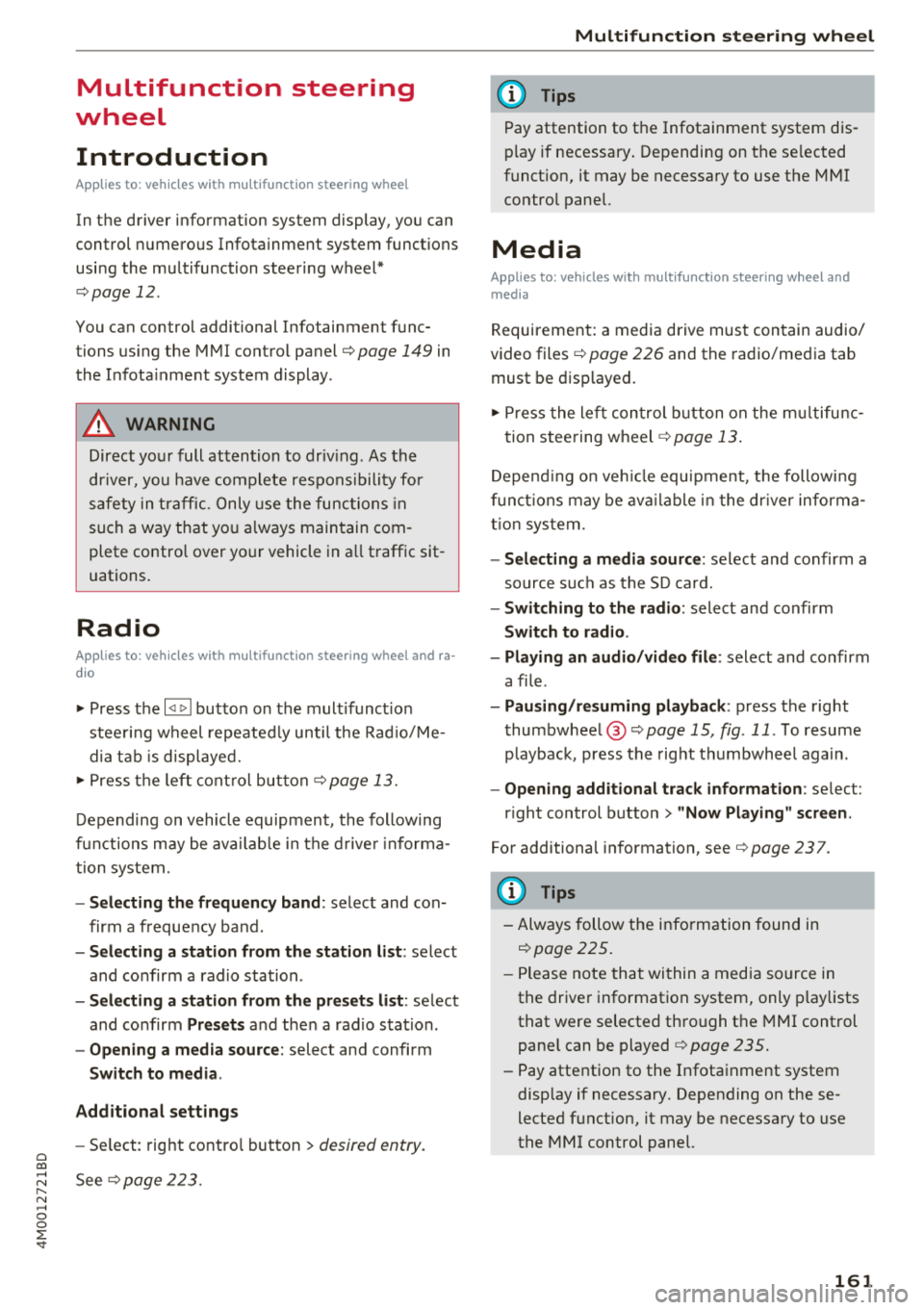
In the driver information system display, you can
control numerous Infotainment system functions
using the multifunction steering wheel*
<=:> page 12 .
You can control additional Infotainment func
tions using the MMI control panel<=:>
page 149 in
the Infota inment system display .
A WARNING
Direct your full attention to driv ing . As the
driver, you have complete responsibility for
safety in traffic. Only use the func tions in
-
such a way that yo u always main tain com
plete control over yo ur vehicle in a ll traffic sit -
uations .
Radio
Applies to: vehicles with multifunction steering wheel and ra
dio
.,. Press the l<1 1>I butto n on the mult if u nct io n
stee ring wheel repeated ly until the Rad io/Me
dia t ab is displaye d .
.,. Press t he left cont ro l button
¢ page 13.
D epending on vehicle equipment, the following
f u nctions may be avai lab le in the d rive r informa
tion system.
- Selecting th e frequency band : select and con
firm a frequency band.
- Selecting a station from th e station list : select
and co nfirm a radio station .
-Selecting a station from the pr esets li st : se lect
and co nfirm
Presets and then a rad io sta tion .
-Opening a med ia source : select and confirm
Switch to media .
Additional settings
- Se lect : right contro l button > desired entry.
See <=:>page 223.
Multifunction ste ering wheel
(D Tips
Pay attention to the Infotainment system dis
play if necessary. Depending on the se lected
funct ion, it may be necessary to use the MMI
control panel.
Media
Applies to: vehicles with multifunction steering wheel and media
Requirement: a media drive must contain audio/
video files¢
page 226 and the radio/media tab
must be disp layed .
.,. Press the left con trol button on the m ultifu nc-
tion steering w heel
¢ page 13.
Depend ing on veh icle equ ipment, t he followi ng
funct ions may be ava ilable in the dr iver informa
t ion sys tem.
- Select ing a media source : select and confirm a
so urce such as the S D card.
-Switching to the radio : select and confirm
Switch to radio.
- Play ing an aud io /v id eo file :
select and confirm
a file .
-Pausing /resuming playback : press the right
t humbwheel @<=:>
page 15, fig . 11 . To resume
p layback, press the rig ht thumbwhee l again.
- Opening additional track information : selec t:
r ight control button
> " Now Playing" s creen.
For additional information, see <=:> page 23 7.
(D Tips
- Always follow the info rmation found in
<=:>page 225.
- Please note that wi thin a media source in
the driver information system, only play lists
that were selected th rough the MMI control
pane l can be played
<=:> page 235.
- Pay attention to the Infota inment system
display if necessary. Depending on the se
lected f unction, it may be necessa ry to use
the MMI control panel.
161
Page 168 of 398
Voice recognition system
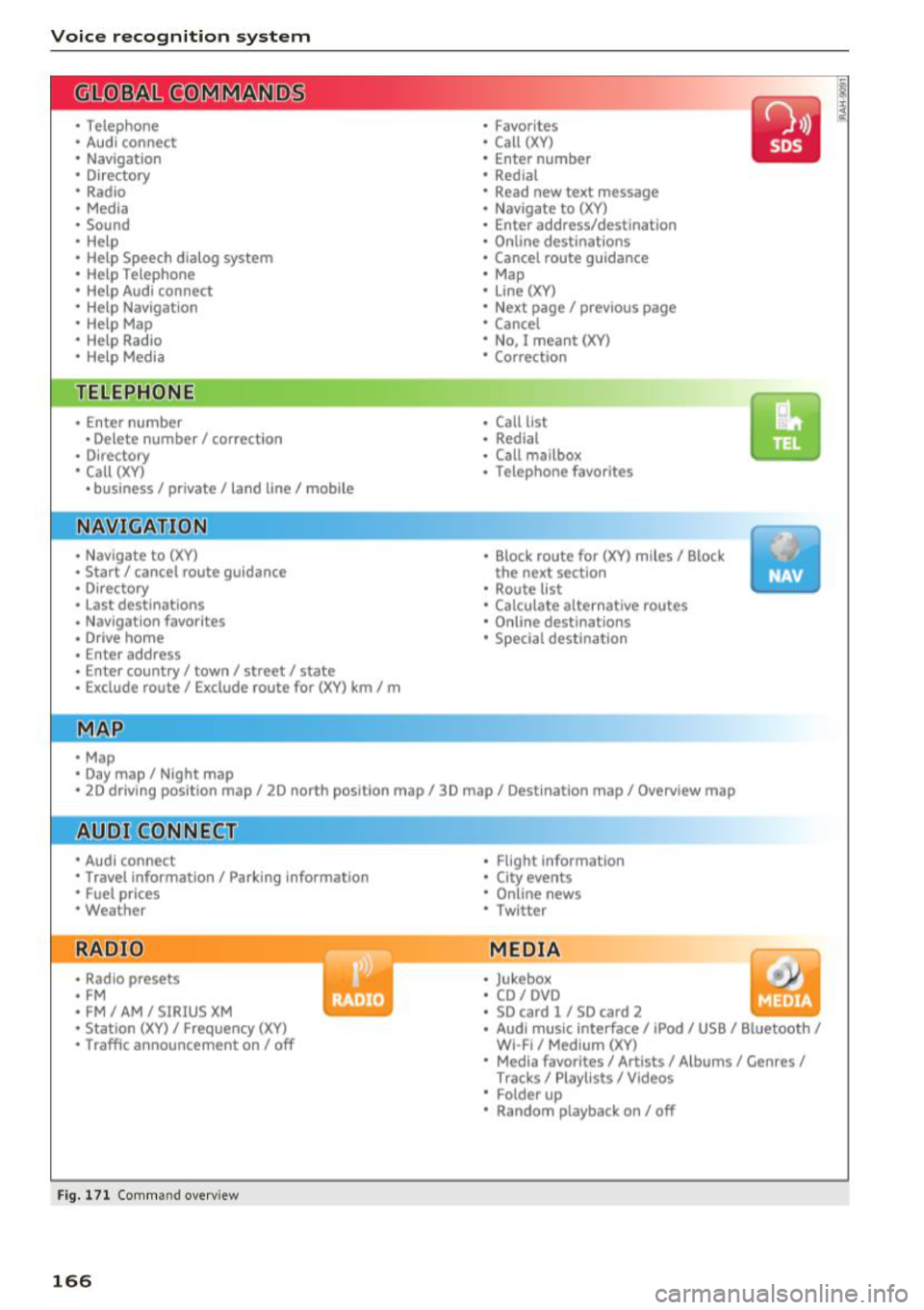
• Telephone
• Audi connect •
Favorites
• Call (XV)
• Navigation
• Directory
• Radio
• Media
• Enter number
• Redial
• Read new text message
• Nav igate to
(XY)
• Sound • Enter address/destination
• Help • Online destinations
• Help Speech dialog system
• Help Telephone •
Cancel route guidance
• Map
• Help Aud i connect •
Line
(XY)
• Help Navigation
• Help
Map
• Help Radio •
Next page/ previous page
• Cancel
• No. I meant (XV)
• Help Media • Correction
TE ~EPflON ~
• Enter number • Call list
• Delete number/ correction
• Redial
• Directory
• Call
(XV)
• Call mailbox
• Telephone favorites
• business
I private/ land tine I mobile
N~~It ~JION
• Nav igate to (XY)
• Start/ cancel route guidance
• Directory
• Last destinations • Block
route for
(XV) miles I Block
the next section
• Route list
• Calculate alternative routes
• Nav igation favorites
• Drive home
• Enter address •
Online destinations
• Special destination
• Enter country
I town I street I state
• Exclude route/ Exclude route for
(XV) km/ m
• Map
• Day map/ Night map
• 2D driving position map/ 2D north position map/ 3D map/ Destination map
I Overview map
~l!IDI CONNECT
• Audi connect
• Travel Information/ Parking Information
• Fuel prices
• Weather
RADIO
• Radio presets
• FM
• FM /AM/ SIRIUS XM
• Station (XV) / Frequency (XV)
• Traffic announcement on/ off
Fig. 171 Comm and overv iew
166
• Flight Informa tion
• City events
• Online news
• Twitter
MEDIA
• Jukebox
• CD
I DVD
• SD card
l / SD card 2
• Audi music Interface/ I Pod/ USB / Bluetooth
I
WI -Fl I Med ium (XV)
• Media favorites
I Artists/ Albums/ Genres I
Tracks I Playll sts / Videos
• Folder up
• Random playback on / off
Page 169 of 398
Cl a:, ...... N
" N ...... 0
0
::r '
Applies to: vehicles with voice recognitio n system
You con operate many Infotainment functions
conveniently by speaking.
Requirement: the ignition and the MM I must be
switched on ¢
page 149, there must not be any
phone call in progress and the park ing system
must not be active .
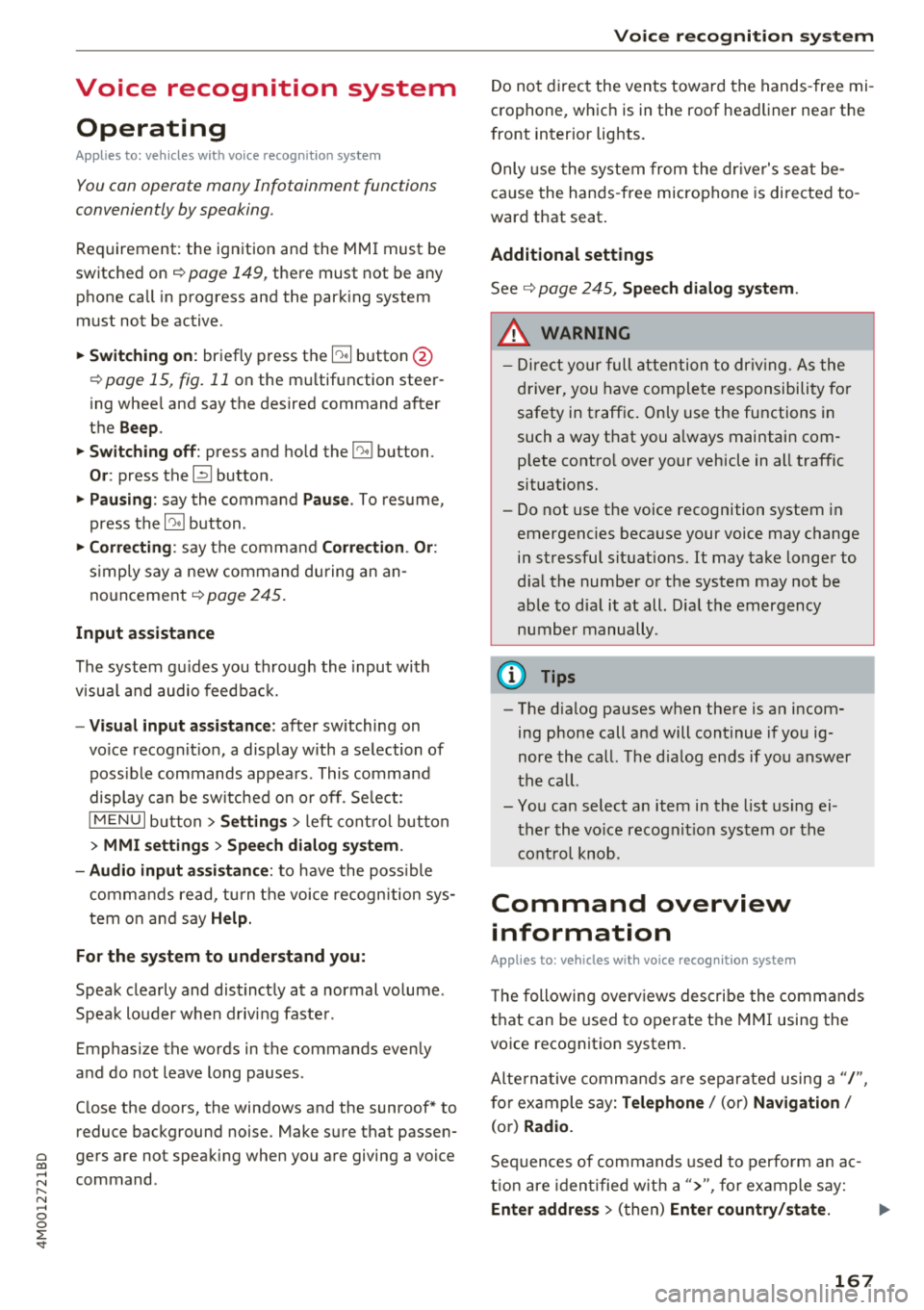
~ Switching on: briefly press th e ~ button @
¢page 15, fig. 11 on the m ultifunction steer
ing whee l and say the desired command after
the
Beep .
~ Switching off : press and hold the~ button.
Or: press the [2] butto n.
~ Pausing : say the command Pause . To resume,
press the~ button .
~ Correcting : say the com mand Correction . Or :
simp ly say a new command du ring an an
no uncement
¢ page 245.
Input assistance
The system gu ides you throug h the input with
v isua l and audio feedbac k.
- Visual input assistance : after switching on
vo ice recogn it ion, a display w ith a selection of
poss ible commands appea rs . This command
display can be sw itched on o r off . Se lect:
IMENU I button> Se ttings > left cont rol button
> MMI settings > Speech dialog system .
- Audio input a ssis tance :
to have the poss ible
comma nds read, tu rn t he voice recogn ition sys
tem o n an d say
Help.
For the system to understand you:
Speak clearly and dis tinct ly at a normal vo lume .
Speak lo uder when d riving faste r.
Emphasize the words in the commands even ly
a n d do not leave long pauses .
C lose the doors, the windows and the sunroof* to
reduce background noise . Make su re that passen
gers are not speaking when you are giving a voice
command .
Voice recognition system
Do not d irect the vents towa rd the hands -free mi
c ro p hone, which is in the roof head liner nea r the
front interior lig hts.
Only use the system from the dr ive r's seat be
ca use the hands -free microphone is di rected to
ward that seat .
Additional settings
See¢ page 245, Spee ch dialog system .
_&. WARNING
- Dir e ct y our full atte nti on to dr iv ing. As the
d river, you have com plete re sponsibility fo r
safety in traff ic . O nly use the functions in
such a way t hat you a lways maintai n com
p lete contro l over your vehicle in all traffic
situations.
- Do not use t he voice recognition system in
emergencies beca use your voice may change
in stressfu l situations. It may take longe r to
d ia l the number o r th e system may not be
ab le to d ia l it at all. Dia l the emergency
number manually.
(D Tips
-The d ialog pauses w hen the re is a n incom
ing phone call a nd will cont inue if yo u ig
nore the call. The d ia log ends if yo u answer
t he ca ll.
- Yo u can select an item in the list us ing ei
t her the vo ice recogn it io n sys tem o r the
cont ro l knob .
Command overview
information
Applies to: vehicles with voice recognition system
T he following overv iews des cribe the comm ands
t h at can be used to ope rate the MMI using the
vo ice recognit ion system.
Alte rnative comm ands ar e separate d using a"/",
f o r ex ample say:
Telephone / (or) Navigation /
(or) Radio.
Sequences of commands used to perfo rm an ac
t io n a re iden tified w it h a "> ", fo r ex am ple s ay:
Enter address > ( then) Enter country/state . ..,
167
Page 170 of 398
Voice recognition system
The major ity shown are main commands. This
system also recognizes synonyms in certain cas -es
. F or a Business address , you can also say busi
ness , work , office or at the office .
Commands
Global commands
App lies to: ve hicles w it h vo ice recogn ition system
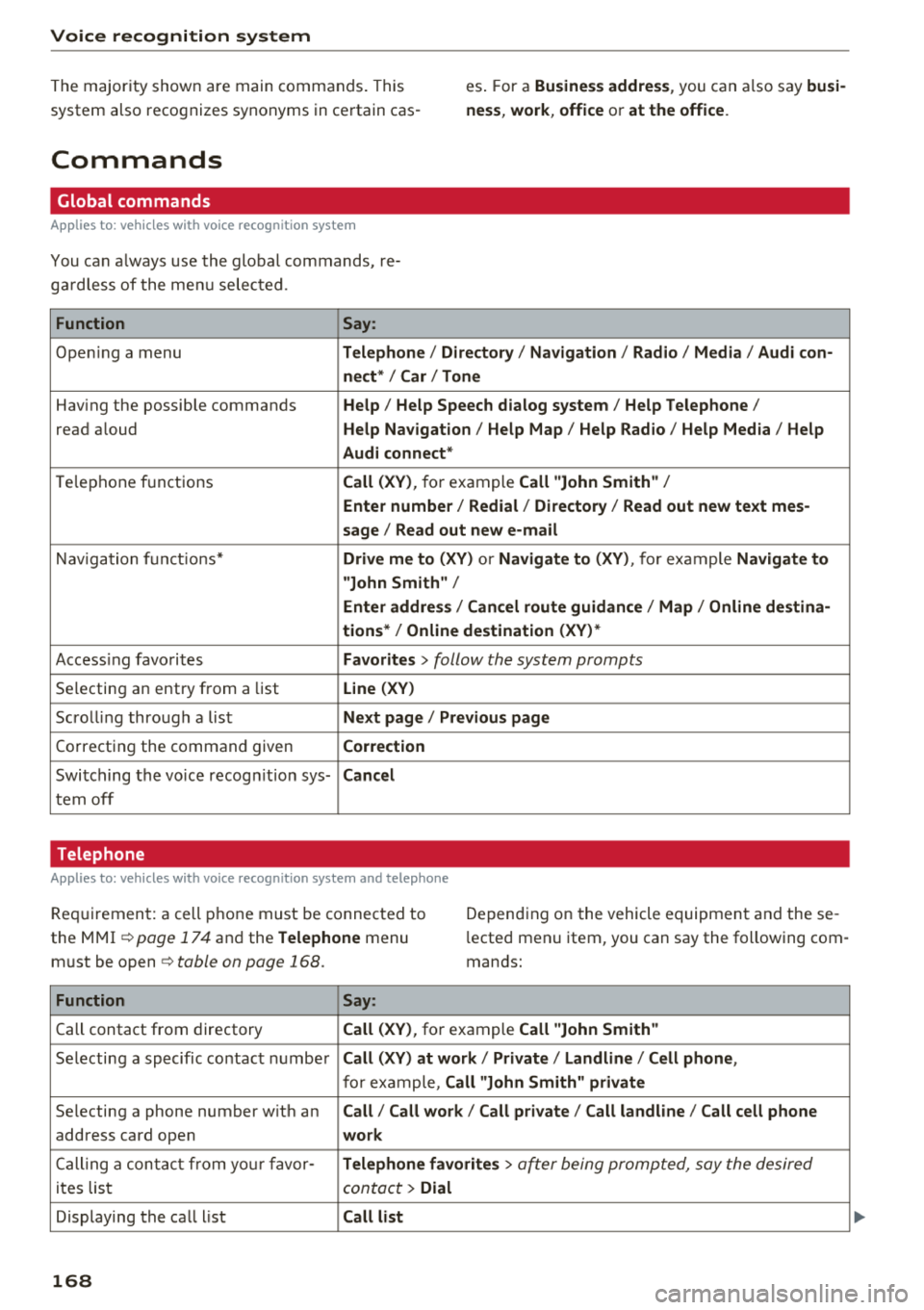
You can a lways use the global commands, re
ga rdless of the menu selected.
Function Say:
Opening a menu Telephone / Directory / Navigation / Radio / Media / Audi con-
nect * /Car / Tone
Hav ing the possible commands Help / Help Speech dialog system/ Help Telephone /
read aloud Help Navigation / Help Map / Help Radio / Help Media / Help
Audi connect *
Telephone f unctions Call (XV), for example Call "John Smith" /
Enter number / Redial / Directory / Read out new text mes-
sage
I Read out new e-mail
Navigation functio ns* Drive me to (XV) or Navigate to (XV) , for example Navigate to
"John Smith" /
Enter address / Cancel route guidance / Map / Online destina-
tions* / Online destination (XV) *
Accessing favorites Favorites > follow the system prompts
Selecting an entry from a list Line (XV)
Scrolling through a list Next page / Previous page
Correcting the command given Correction
Switching the voice recogn ition sys-Cancel
tern off
Telephone
A pp lies to: ve hicles w ith vo ice recog nition sys te m and telep hone
Req uir ement: a cell phone must be connected to
the MMI
~page 174 and the Telephone menu
must be open~
table on page 168.
Depending on the vehicle equipment and these
l ected menu item, you can say the following com
mands:
Function Say:
Call contact from directory Call (XV), for example Call "John Smith"
Selecting a specific contact number Call (XV) at work / Private / Land line / Cell phone ,
for example, Call "John Smith" private
Selecting a phone number w ith an Call/ Call work/ Call private/ Call land line / Call cell phone
address card open work
Calling a contact from your favor-Telephone favorites > a~er being prompted, say the desired
ites list contact > Dial
Displaying the call list Call list
168
Page 174 of 398
Voice recognition s ystem
- Always read the chapter ¢ page 194, Audi
connect (Infotainment) general informa tion .
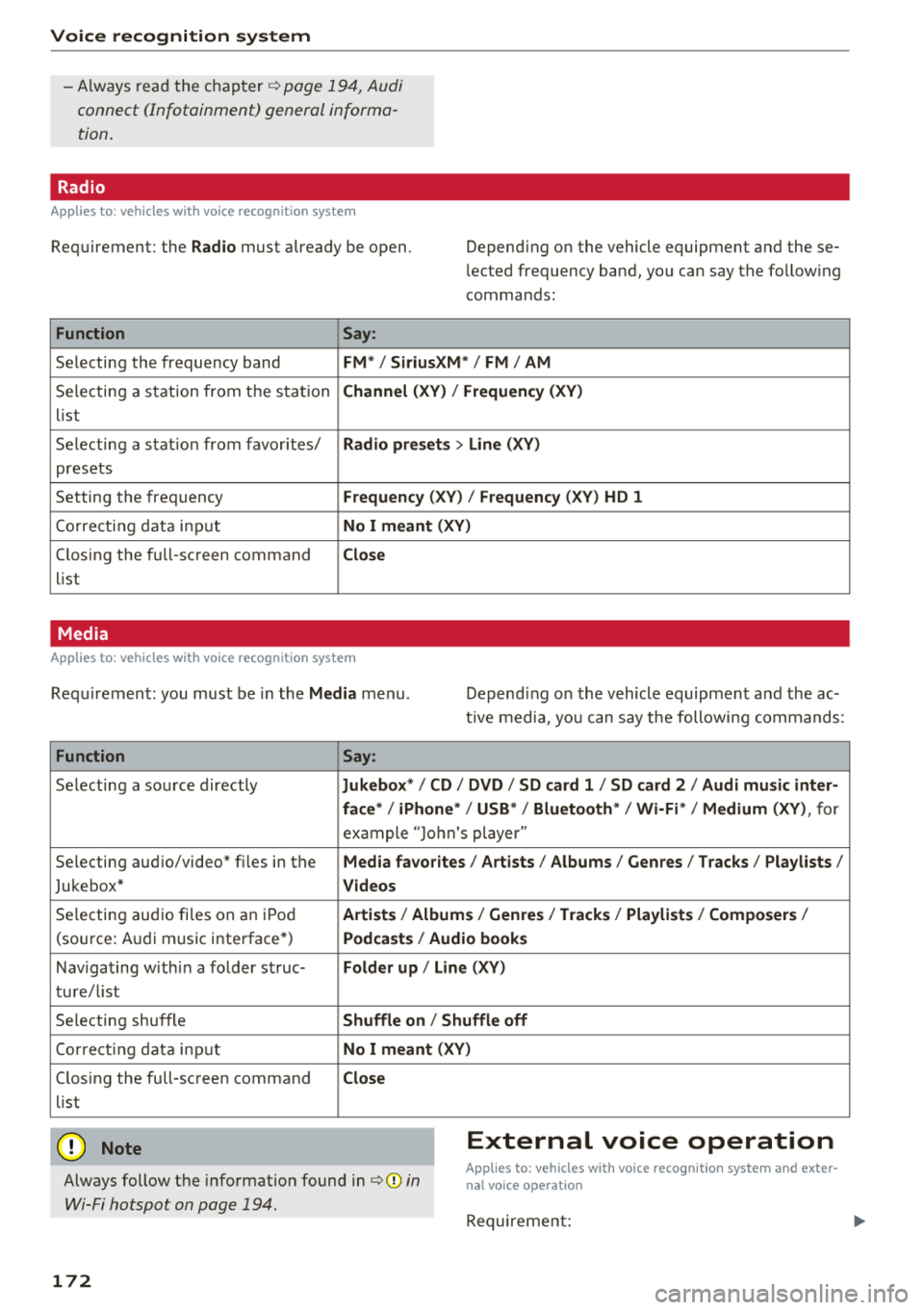
Radio
Applies to: vehicles with voice recognition system
Requirement: the Radio must already be open. Depend ing on the vehicle equipment and these
lected frequency band, you ca n say the fo llow ing
commands :
Function Say:
Selecting the frequency band FM*/ Siriu sXM* / FM / AM
Selecting a station from t he s ta tion Channel (XV ) / !Frequenc y (XV)
list
Selecting a stat ion from favorites/
Radio presets > Line (XV)
presets
Setting the frequency
F requency (X V ) / Frequency ( XV) HO 1
Correct ing data inp ut No I meant (XV )
Closing the full-screen command Close
list
Media
Applies to: vehicles with voice recognition system
Requirement: you mus t be in the Media menu . Depending on the vehicle equipment and the ac
t ive media, yo u can say the following commands :
Function Say:
Selecting a sou rce directly Ju kebox* / CO / DVD / SO card 1 / SO card 2 / Audi music inter-
face */ iPhone * / USB * / Bluetooth * / Wi -Fi * / Medium (XV) ,
for
exa mple "J o hn's player "
Selecting aud io/video" fi les in the
Media fa vorites I Artists / Albums / Genres I Tracks / Playlists /
Jukebox* Videos
Selecting aud io fi les on a n iP od Artists / Albu mis/ Genres I Track s/ Playlists / Compo sers I
(so urce: A udi music i nterface*) Podca st s / Aud io books
Nav iga ting with in a folder s truc-Folder up / Line (XV )
tu re/l ist
Selecting shuffle
Shuffle on / Shuffle off
Co rre ct in g data inp ut No I meant (XV )
Closing the full-screen command Close
list
@ Note External voice operation
Always follow the info rmation found in¢@) in
Wi-Fi hotspot on page 194.
Applies to: vehicles with voice recognition system and exter·
nal voice operation
Requireme nt:
172
Page 180 of 398
Telephone
- Delete call list :
select and con firm if you would
lik e to
Delete this entry or Delete all entries.
- Store as favorite :
store the selec ted cont act a s
a favo rite.
- Show contact details : see ¢ page 1 83.
-Connection manager: see ¢ page 246.
-Bluetooth settings : see ¢ page 248 .
-Online settings : see¢ page 248.
-Wi-Fi settings : see¢ page 193, Wi-Fi hotspot.
-Telephone settings : see¢ page 1 84.
Favorites
Requir em en t: a phon e numb er or c onta ct mu st
be s to re d a s a f avo rit e ¢
page 1 79.
Selec t and conf irm a favor ite in t he favo rit es list.
Directory
Req uirement: you must have at least one contact
sto red in yo ur cell phone .
Select an d confirm a phone num ber from the di
rectory ¢
page 183.
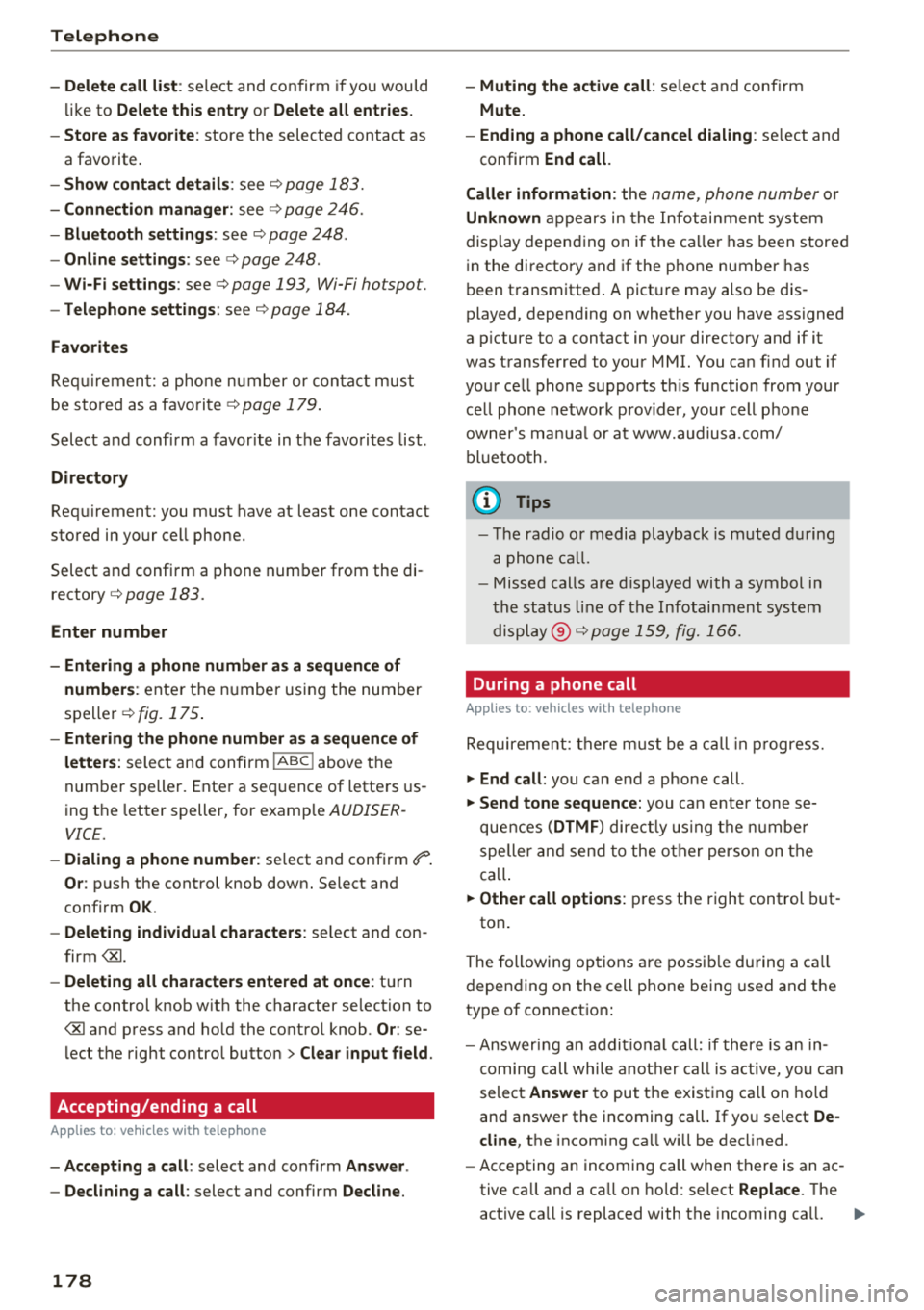
Enter number
- Entering a phone number as a sequence of
numbers :
enter th e n umber usi ng the number
s p ell er
¢fig. 175.
- Entering the phone number as a sequence of
letters :
select an d con firm !ABC ! above the
num ber sp elle r. Ente r a se quence of lette rs us
ing t he letter speller, for examp le
AUDISER
VICE.
- Dialing a phone number : select and confi rm ef1" .
Or : push the cont rol knob down . Select an d
confi rm
OK.
- Deleting individual characters : select and con
f irm
t h e control knob w it h the character se lection to
> Clear input field .
Accepting/ending a call
A pp lies to: ve hicles w ith tele phone
-Accepting a call : select and confirm Answer .
- Declining a call :
select and confirm Decline.
178
-Muting the active call : select and conf irm
Mute.
- Ending a phone call/cancel dialing :
select and
confirm
End call.
Caller information :
the name, ph one number o r
Unknown app ea rs in th e Info ta inm en t syst em
d isplay depen ding o n if the ca ll er has been store d
i n the di rectory and if the p hone number has
b een t ransmitted . A pict ure may also be dis
played, depen ding on whether you have assigned
a p ictu re to a contact in yo ur directory and if it
was transfe rred to your MMI. You ca n find out if
you r ce ll phone s upports t his fu nction from your
c ell phone ne twor k prov ider, your cell p ho ne
owner 's ma nual or at www.a udiusa .co m/
bl uet ooth .
(D Tips
- The radio or media playback is m uted dur ing
a phone call.
- Missed calls ar e displ ayed wi th a symbol i n
the status line o f th e Info tai nme nt syst em
di spl ay @ ¢pa ge
159 , fig. 16 6.
During a phone call
App lies to: vehicl es wi th telepho ne
Re quire ment : th ere must b e a call in pr ogress.
~ End call: you ca n end a phone call.
~ Send tone sequence: you can e nter tone s e
que nces
(DTMF ) direct ly usin g t he nu mbe r
speller and s end t o the o ther pers on on t he
call.
~ Other call options : press the r ight control but-
ton .
T he followi ng op tions are poss ible du ring a call
d epen din g on the ce ll phone be ing used and t he
type of connect io n:
- Answer ing an add iti on al c all: if there is an in
c omin g ca ll while a not her ca ll is a ctive, you can
sele ct
Answer to put t he exist ing c all on ho ld
an d answer t he in comin g call. If you select
De
cline ,
the incom ing ca ll w ill b e de clined .
- Accepting an incomin g call when t here is an ac
tive ca ll and a ca ll on ho ld: sel ect
Replace. T he
ac tive ca ll is replaced with the incoming ca ll. .,.
Page 194 of 398
Audi conn ect (Infotainment)
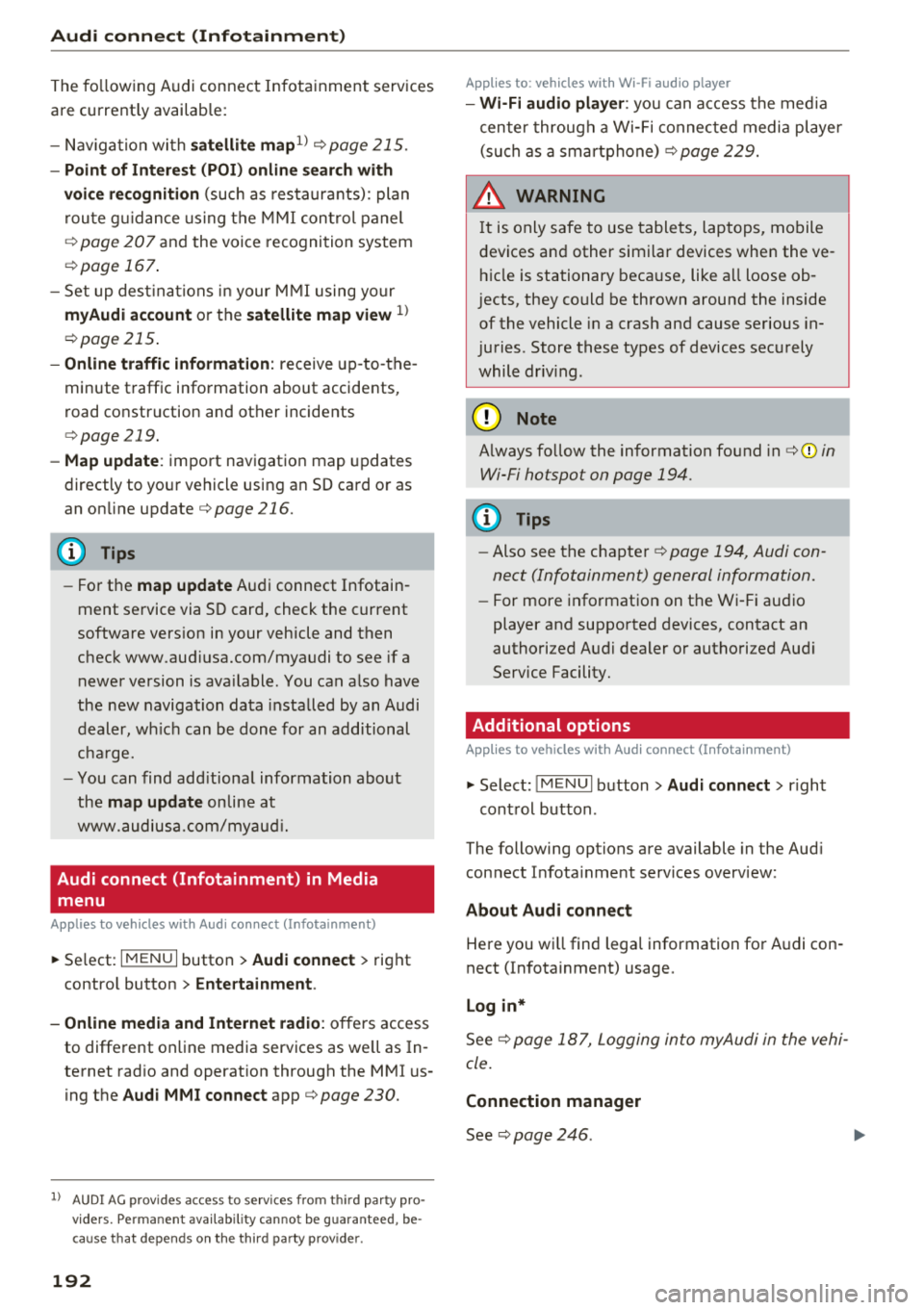
The fo llowing A udi connect Infotainment services
are current ly availab le:
- Nav igat ion with
s atellit e map1> ¢ page 215.
-Po int of Int eres t (POI) online search with
v o ic e re cogni tion
(such as restaurants) : plan
r oute g uidance using t he M MI con trol panel
¢ pag e 207 and the voice recognition system
¢ page 167.
- Set up dest ina tions in your MMI using yo ur
myAudi account or the satellite map vie w l)
¢ page 215.
-Onlin e traffic inform ation : receive up-to -the
minute traffic information about accidents,
road construction and other incidents
¢ page 219.
-Map updat e: import navigation map updates
directly to your v ehicl e using an SD card or as
an on line update¢ page 216.
(D Tips
-For the map update Audi connect Infotain
ment service via SD card, check the current
software vers ion in your vehicle and then
check www.aud iusa.com/myaudi to see if a
newer version is ava ilable. You can a lso have
the new navigation data installed by an Audi
dealer, wh ich can be done for an additional
ch arge.
- You can find add itiona l information abo ut
the
map updat e on line at
www.audiusa.com/myaud i.
Audi connect (Infotainment) in Media
menu
Applies to vehicles with Audi connect (Infotainment)
~ Select : IMENUI button> Audi conne ct > right
cont rol button >
Ente rt a inment .
- Online m edia and Internet radio :
offers access
to different online media servic es as we ll as In
ternet radio and operation through the MM I us
ing the
Audi MMI connect app ¢page 230.
ll AUDI AG pr ovide s access to services fro m third party pro
v ider s. Pe rma ne nt ava ilabil ity c anno t be guara nteed, be
c a use that depen ds on th e th ird party provider.
192
Applies to: vehicles with Wi-Fi audio player
-Wi -F i audio pla yer: you can access the med ia
center through a Wi-Fi connected media player (such as a smartphone)
¢ page 229.
& WARNING
It is only safe to use tablets, laptops, mobile
devices and other simi lar devices when the ve
hicle is stationary beca use, like a ll loose ob
jects, they could be thrown around the inside
of the vehicle in a crash and cause serious in
juries . Store these types of devices securely
while driv ing .
@ Note
Always fo llow the information fo und in ¢ \@ in
Wi-Fi hotspot on page 194.
(D Tips
- Also see the chapter¢ page 194, Audi con
nect (Infotainment) general information.
- For more information on t he Wi -Fi audio
player and supported devices, contact an
authori zed Aud i dealer or autho riz ed Aud i
Service Facility.
Additional options
Applies to vehicles with Audi connect (Infotainment)
~ Select: ! M ENUI button> Audi conn ect > right
cont rol button .
The following options are available in the Aud i
connect In fota inment services overview :
About Audi connect
Here you wi ll find lega l information for Audi con
nect (Infotainment) usage.
L o g in *
See ¢page 187, Logging into myAudi in the vehi
cle.
Connection manager
See ¢ page 246 .
Page 222 of 398
Radio
Radio
Opening the radio
The radio supports the FM, AM and SiriusXM*
(satellite radio) bonds. Using the HO Radio re
ceiver also allows you to receive radio stations
on the FM and AM bonds in digital format.
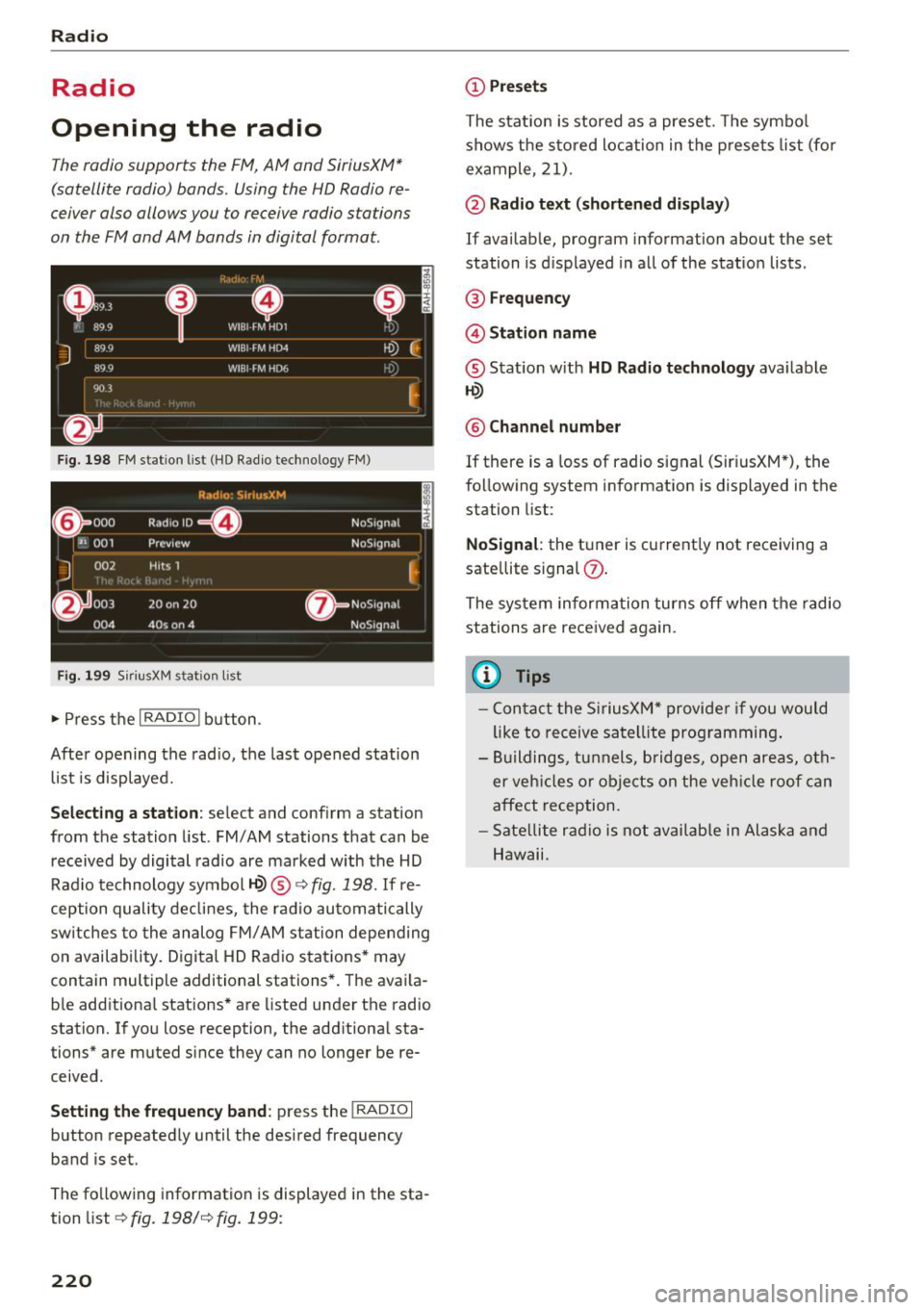
F ig. 19 8 FM stat ion list (HD Radio technology FM)
R,1d10 : 5ir ius.XM
~ 000 Rad,olD e NoS19n,1l
''JI 001 Preview NoS,gnal
J 002 H its 1
~
6 003 20 on 20 ·
NoS19nal
004 40s on 4 NoS19nal
Fig. 1 99 Sir iu sXM stat ion list
..., Press t he I RADIO I bu tton .
After opening the radio, t he last opened station
list is displayed.
.
I
Selecting a station : select and conf irm a stat ion
from the station list . FM/AM stations that can be
received by digital radio are ma rked with the HD
Rad io technology symbol~® ¢
fig. 198. If re
ception quality de clin es, the r ad io automatically
sw itches to the analog FM/ AM station depending
on availab ility. D igital HD Rad io sta tions * may
contain multiple additional stations *. The ava ila
b le add itiona l stations* are listed under the radio
station. If yo u lose reception, the add itiona l sta
tions* are muted since they can no longer be re ceived .
Setting the frequency band : press the I RADIO I
button repeated ly until the desired frequency
band is set.
The fo llow ing information is displayed in the sta
tion list
¢ fig. 198/ ¢fig . 199:
220
(D Presets
The stat ion is stored as a preset. The symbo l
shows the s to red loc ation in the p rese ts list (fo r
example, 21).
@ Radio te xt (shortened di spla y)
If availab le, program information about the set
station is d isplayed in al l of the stat io n lists .
® Frequency
@ Stati on name
® Stat ion w ith HD Radio technolog y available
1-W
@ Channel number
If there is a loss of radio signal (Sir iusXM*), the
fo llow ing system information is displayed in the
station list:
NoSignal : the tuner is cu rrent ly not receiving a
sate llite s ignal
(J) .
The system informa tion turns off when the radio
stations are received again.
(I} Tips
- Con tact the SiriusXM" provide r if you would
like to receive satel lite prog ramming .
- Bui ldings, tu nnels, bridges, open areas, oth
er veh icles o r obje cts on the veh icle roof can
affect reception.
- Sate llite r ad io is not av aila ble in Alaska and
Hawaii.
Page 223 of 398
Radio functions
Free text search
App lies to: ve hicles with free text search
Using the free text search, you can select the or
der that the search terms are entered in the in
put field . Search in all frequency bands for a sta
tion name or program type, such as
News .
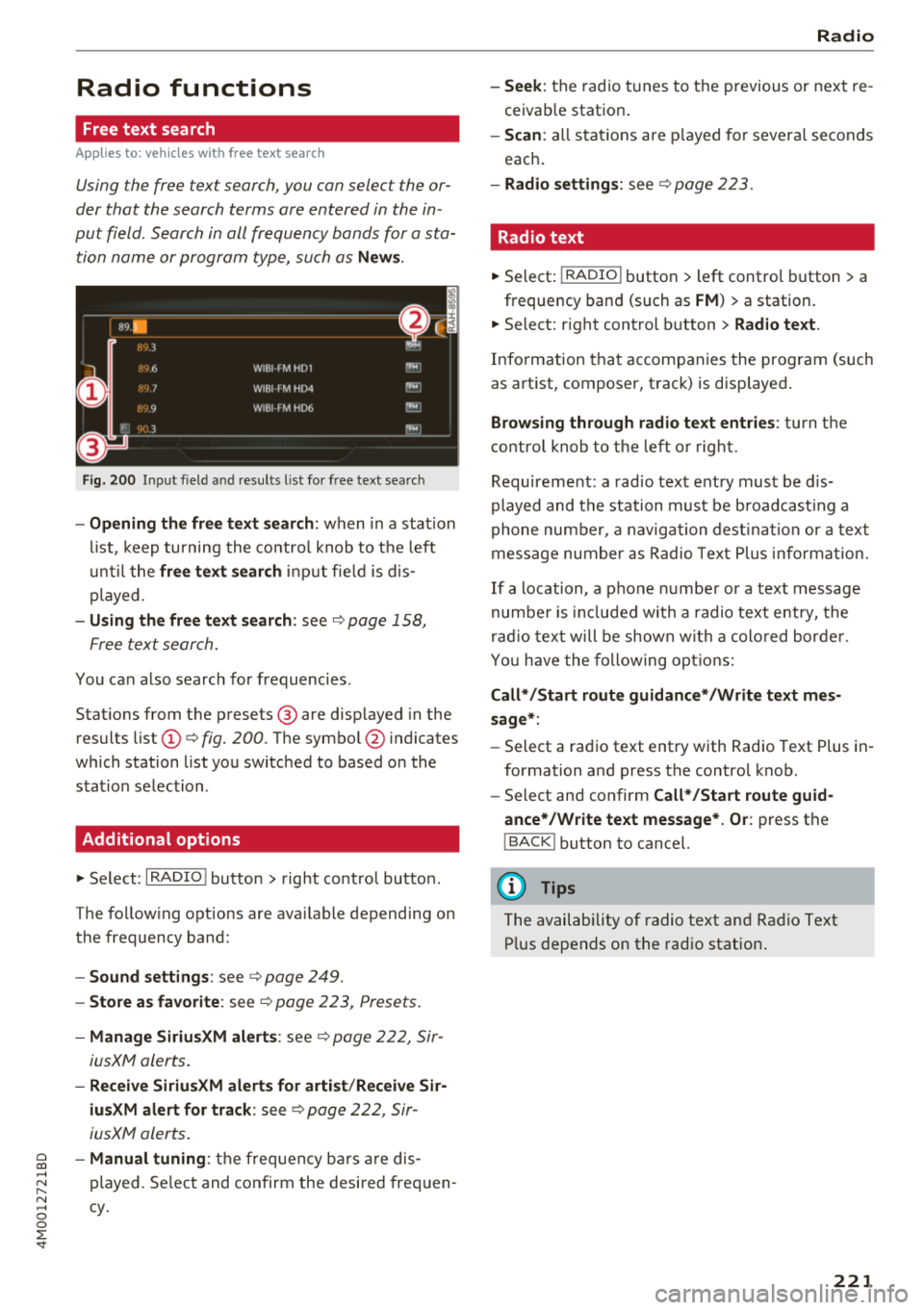
Fig. 200 Input field and results l ist for free text search
- Opening the free text search: when in a stat ion
list, keep turning the control knob to the left
until the
free text search input fie ld is dis
played.
- Using the free text search: see¢ page 158,
Free text search.
You can also search for frequencies .
Stations from the presets ® are disp layed in the
results list
(D ¢ fig. 200. The symbol @ indicates
which station list you switched to based on the
stat ion selection .
Additional options
"'Se lect: I RADIO ! button > right control button.
The following options are ava ilable depending on
the frequency band:
- Sound settings: see ¢page 249.
-Store as favorite : see ¢ page 223, Presets .
-Manage SiriusXM alerts: see¢ page 222, Sir-
iusXM alerts.
- Receive SiriusXM alerts for artist /Receive Sir
iusXM alert for track :
see¢ page 222, Sir
iusXM alerts.
~ - Manual tuning: the frequency bars are dis-
~ played. Select and confirm the desired frequen-
"' ,...., cy. 0
0
::r '
-Seek : the radio tunes to the previous or next re
ceivab le station .
-Scan : all stations are played for severa l seconds
each.
- Radio settings: see ¢page 223.
Radio text
"' Select: I RADIO I button > left control button > a
frequency band (such as
FM ) > a station.
"' Select: right control button
> Radio text .
Information that accompanies the program (such
as artist, composer, track) is disp layed .
Browsing through radio text entries: turn the
control knob to the left o r right.
Requirement: a radio text entry must be dis
played and the station must be broadcast ing a
phone number, a navigation destination or a text
message number as Radio Text Plus informat ion.
If a location, a phone number or a text message
numbe r is incl uded with a radio text entry, the
radio text will be shown with a colo red border .
You have the following options:
Call* /Start route guidance* /Write text mes
sage*:
- Select a radio text entry with Radio Text Plus in
formation and press the control knob.
- Select and confirm
Call*/Start route guid
ance*/Write text message* . Or :
press the
I BACK ! button to cancel.
(D Tips
The availability of radio text and Radio Text
P lu s depends on the radio station.
221
Page 224 of 398
Radio
SiriusXM alerts
Applies to: ve hicles w ith S iriusXM
You can display an overview of your favorite ar
tists or tracks that are currently being played on
a SiriusXM channel.
Y.MMMiiiA
Fig . 201 SiriusXM ale rt not ificat io n
~ Se lect : I RADIO I button > left control button >
SiriusXM.
After you have stored a SiriusXM alert for your fa
vor ite tracks or artists, you can display an over
view of your favorite tracks or artists currently
be ing re ceived i n the
SiriusXM alerts menu and
p la y them immed iately. You can also receive a
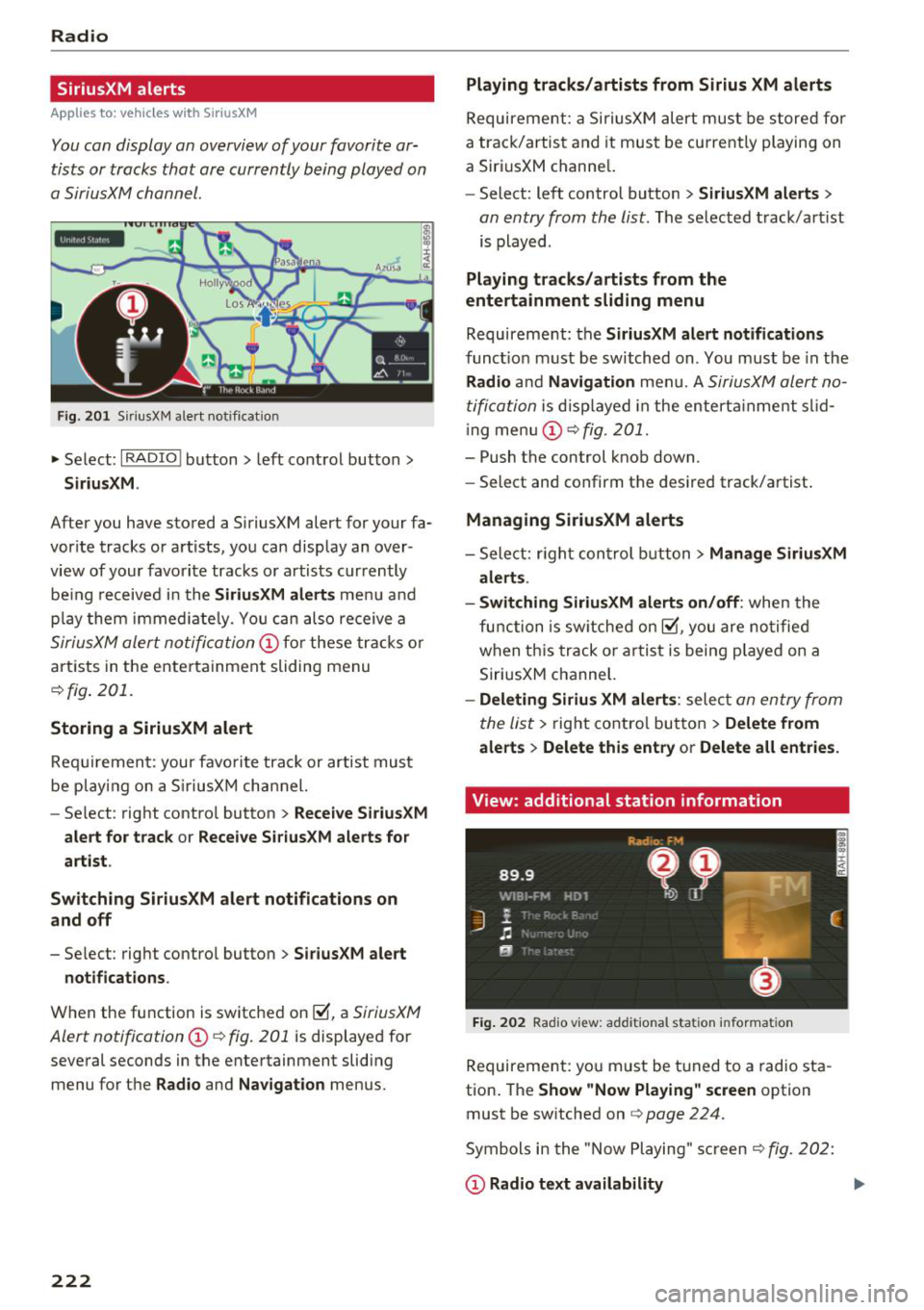
SiriusXM alert notifi cation @ for these tracks or
artists in the entertainment sliding menu
¢fig . 201.
Storing a SiriusXM alert
Requirement: your favorite track or artist must
be play ing on a SiriusXM channel.
- Se lect : right contro l button >
Receive SiriusXM
alert for track
or Receive SiriusXM alerts for
artist .
Switching SiriusXM alert notifications on
and off
- Select : right contro l button > SiriusXM alert
notifications .
When the function is switched on~, a SiriusXM
Alert notification @¢ fig . 201
is displayed for
several seconds in the entertainment sliding
menu for the
Radio and Navigation menus.
222
Playing tracks/artists from Sirius XM alerts
Requireme nt: a SiriusXM alert must be stored for
a track/artis t and it must be currently playing on
a SiriusXM channe l.
- Select: left control button
> SiriusXM alerts >
an entry from the list . The selected track/artist
is played .
Playing tracks/artists from the
entertainment sliding menu
Requirement: the SiriusXM alert notifications
functio n must be switched on. You must be in the
Radio and Navigation men u. A SiriusXM alert no
tification
is displayed in the enterta inment slid
i ng menu
(D ¢fig. 201.
- Push the control knob down.
- Select and confirm the desired track/artist .
Managing SiriusXM alerts
-Select: r ight control button> Manage SiriusXM
alerts .
- Switching SiriusXM alerts on/off :
when the
function is sw itched on~, you are notified
when this track or artist is being p layed on a
SiriusXM channel.
- Deleting Sirius XM alerts : select an entry from
the list>
right control button > Delete from
alerts
> Delete this entry or Delete all entries.
View: additional station information
Fig. 202 Rad io v iew: add it io nal stati on informa tion
Requirement: you must be tuned to a radio sta
tion . The
Show "Now Playing " screen option
must be switched on
q page 224.
Symbols in the "Now Playing" screen¢ fig. 202:
(D Radio text availability