ECU AUDI Q7 2018 Owner´s Manual
[x] Cancel search | Manufacturer: AUDI, Model Year: 2018, Model line: Q7, Model: AUDI Q7 2018Pages: 398, PDF Size: 185.58 MB
Page 194 of 398
Audi conn ect (Infotainment)
The fo llowing A udi connect Infotainment services
are current ly availab le:
- Nav igat ion with
s atellit e map1> ¢ page 215.
-Po int of Int eres t (POI) online search with
v o ic e re cogni tion
(such as restaurants) : plan
r oute g uidance using t he M MI con trol panel
¢ pag e 207 and the voice recognition system
¢ page 167.
- Set up dest ina tions in your MMI using yo ur
myAudi account or the satellite map vie w l)
¢ page 215.
-Onlin e traffic inform ation : receive up-to -the
minute traffic information about accidents,
road construction and other incidents
¢ page 219.
-Map updat e: import navigation map updates
directly to your v ehicl e using an SD card or as
an on line update¢ page 216.
(D Tips
-For the map update Audi connect Infotain
ment service via SD card, check the current
software vers ion in your vehicle and then
check www.aud iusa.com/myaudi to see if a
newer version is ava ilable. You can a lso have
the new navigation data installed by an Audi
dealer, wh ich can be done for an additional
ch arge.
- You can find add itiona l information abo ut
the
map updat e on line at
www.audiusa.com/myaud i.
Audi connect (Infotainment) in Media
menu
Applies to vehicles with Audi connect (Infotainment)
~ Select : IMENUI button> Audi conne ct > right
cont rol button >
Ente rt a inment .
- Online m edia and Internet radio :
offers access
to different online media servic es as we ll as In
ternet radio and operation through the MM I us
ing the
Audi MMI connect app ¢page 230.
ll AUDI AG pr ovide s access to services fro m third party pro
v ider s. Pe rma ne nt ava ilabil ity c anno t be guara nteed, be
c a use that depen ds on th e th ird party provider.
192
Applies to: vehicles with Wi-Fi audio player
-Wi -F i audio pla yer: you can access the med ia
center through a Wi-Fi connected media player (such as a smartphone)
¢ page 229.
& WARNING
It is only safe to use tablets, laptops, mobile
devices and other simi lar devices when the ve
hicle is stationary beca use, like a ll loose ob
jects, they could be thrown around the inside
of the vehicle in a crash and cause serious in
juries . Store these types of devices securely
while driv ing .
@ Note
Always fo llow the information fo und in ¢ \@ in
Wi-Fi hotspot on page 194.
(D Tips
- Also see the chapter¢ page 194, Audi con
nect (Infotainment) general information.
- For more information on t he Wi -Fi audio
player and supported devices, contact an
authori zed Aud i dealer or autho riz ed Aud i
Service Facility.
Additional options
Applies to vehicles with Audi connect (Infotainment)
~ Select: ! M ENUI button> Audi conn ect > right
cont rol button .
The following options are available in the Aud i
connect In fota inment services overview :
About Audi connect
Here you wi ll find lega l information for Audi con
nect (Infotainment) usage.
L o g in *
See ¢page 187, Logging into myAudi in the vehi
cle.
Connection manager
See ¢ page 246 .
Page 195 of 398
Cl a:, ...... N
" N ...... 0
0
::r '
The validity and expirat io n date of yo ur licenses
are displayed. When the function is switched on
10, the message Warning befo re sub scription
e x pire s
will display to warn you that your license
is about to expire.
R efr es h
The content of the selected A udi connect Info
tainment service o r the entire A udi connect (Info
tainment) list is updated .
Data privacy
Requirement: the ign it ion must be switched on.
Location and personal data are transmitted when
using Aud i connect services . If you do not want
this information to be transm itted, act ivate data
privacy .
-Acti vate pri vacy: the data conn ection is limit ed
or deactivated. Some Audi connect services will
not be available. In veh icles w ith Audi connect
emergency call and service¢
page 201, loca
t ion and veh icle data will be transmitted via the
emergency call in cases of eme rgency . For on
line roadside assistance*, only the voice call is
made a nd no data is transmitted.
- Deacti vate data priv acy : if the data connect ion
is limited or deactivated, you ca n sw itch on the
data connection for the use of all Aud i connect
services . Se lect and confirm
A ctiv ate dat a con
nection .
(D Tips
Applies to: vehicles with emergency call function
In vehicles with Audi connect emergency ca ll
and service, a data connection is requi red. It
cannot be deact ivated. Location data is only
transmitted together with vehicle data when
emergency calls are made .
Audi connect (Inf otainment )
Wi-Fi hotspot
Applies to: veh icles w ith Wi-Fi hotspot
You can us e the fvlfv/I as a W i-Fi hotspot to con
nec t up to eigh t Wi-Fi devices to the Interne t.
While driving, res tricted use of unsecured , ligh t,
small wireless devices is only possible from the
rear of the vehicle .
Requirement: the ignition must be sw itched on .
.. Select:
IMENU I button> Telephone > right con-
trol button >
Wi-Fi setting s.
The following sett ings can be selected:
Wi -Fi
The MMI Wi-Fi hotspot is deactivated at the fac
tory. Sw itch the W i- Fi hotspot to
Hots pot before
establ ish ing a con nection between your ve hicle
and yo ur Wi-Fi device.
-On: the MMI Wi-Fi hotspot is act ive and v is ible
to other dev ices. You can connect your W i- Fi
dev ice to the MMI and use the Inte rnet co nnec
t ion if necess ary.
- Off : the M MI Wi-Fi hotspot is deactivated. An
I nte rnet co nnect ion for W i-Fi devices is not
possible .
A WARNING
= -
- To reduce the risk o f an accident, use t he
Audi connect Infotainment services with a
W i-Fi hotspot only in the rear seat when the
veh icle is in mot ion, or only when the vehi
cle is stat ionary.
- It is only safe to use tablets, laptops, mo bile dev ices and other simi lar devices when
the vehicle is stationary because, like all loose objects, they could be thrown around
the inside of the vehicle in a c rash and cause
ser io us inj uries . Store these types of dev ices
secure ly while drivi ng.
- D o not use any wireless dev ices on the front
seats within ra nge of the airbags whi le dr iv
i n g. A lso read the warnings in t he chapte r
¢ page 2 73, Front airbags .
-As the d river, do not allow usage of the W i
F i ho tspot to d is tra ct yo u from dr iv ing, as
this cou ld increase the r isk o f an accident .
193
Page 196 of 398
Audi conn ect (Infotainment)
@ Note
- Under some conditions, certain mobile devi
ces and operat ing systems may a utomati
cally switch from your vehicle's Wi-Fi hot
spot to the device's mobile data connection.
In that event, standard text and data usage
rates would apply while t he dev ice's mob ile
data connection is in use . P lease refer to
documentat ion p rovided by yo ur mobi le de
v ice 's man ufac tur e and yo ur d ata ca rr ie r for
d eta ils, re lated terms and privacy state
ment.
- You are responsible fo r all p re caut io ns tak
en fo r data p rotection, an ti- v irus pro tec tion
and protection against loss of data on mo
bile devices that are used to access the In
ternet thro ugh the W i-F i hotspot.
(D Tips
- In vehicles without Audi connect ( Infotain
ment)*, the use of the Wi -Fi hotspot is only
possib le for the Wi-Fi audio p layer*. A data
connection to the Internet cannot be estab
li shed.
- For additional informat ion about the Aud i
connect Infotai nment services, visit
www .audiusa .com/myaud i.
Configuring the data
connection
Applies to vehicles with Audi connect (Infotainment)
The data connection for Audi connect Infotain
ment servic es is pr e-configured at the factory.
However, if o configuration should be n ecessary,
you con adjust the following settings .
"Se lect: I M ENUI button> right control b utton>
Connection manager.
" Se lect : rig ht contro l button > Online settings >
Data connection settings .
Using the Data connection settings menu, you
can set when an Internet connection shou ld be
made. The Int ernet conn ection disconnects auto
mat ica lly once the requested Audi connect Info
tainment service no longer requires any d ata.
The fo llowing settings can be selected:
194
Audi connect (MMI)
With the Audi conne ct (MMI) func tion, you can
Allow or Den y the use of Audi connect Info tain
ment services if the connection is set to
No re
que st or With request.
Wi-Fi devices*
U sing the Wi -Fi d evice s function, yo u can Allow
or Deny a co n ne cti on t o the Inte rnet .
& WARNING
- As t he driver, do not a llow usage o f the Wi
F i hotspot to distract yo u from driving, as
this could increase the r is k of an accide nt.
- It is on ly safe to use tablets, laptops, mo
bi le devices and other simi lar devices when
the vehicle is stat ionary because, like a ll
loose objects, they co uld be thrown around
the inside of the ve hicle in a crash and cause
serious injuries . Store these types of devices
securely wh ile d riving .
- Do not use any wireless devices on the front
seats within range of the airbags while dr iv
ing . Also read the warnings in t he chapter
r:!) page 2 73, Front airbags .
@ Note
Always fo llow the information found in ¢ (!) in
Wi-Fi hotspot on page 194 .
Audi connect
(Infotainment) general
information
Audi connect Infotainment services
Applies to vehicles with Audi connect (Infotainment)
(D Tips
-Yo u ca n only use serv ices suppo rte d b y Aud i
connect (In fotainment) if yo u have the op
tional MMI Navigation plus eq uipment with
M MI touch* and A udi connect (Infotain
ment).
- Use of the L TE* mobile network standard is
not ava ilab le in every country. Contact an
authorized Audi dealer o r autho rized Aud i
Page 199 of 398
Cl a:, ...... N
" N ...... 0
0
::r '
Introduction
Applies to vehicles with Audi connect vehicle control
With the Audi connect vehicle control services l) ,
you can access various information or use individ
ual functions in the
Audi MMI connect app or in
myAudi .
Audi connect vehicle control includes the follow
ing services:
- Remote locking and unlocking ¢
page 198.
-Vehicle status report¢ page 198.
-Parking location ¢ page 198 .
-Geofencing Alert ¢ page 199.
-Speed Alert ¢ page 199.
-Valet Alert ¢ page 199.
- Stolen Vehicle Locator ¢ page 199.
-Online Audi service request ¢page 199.
(D Tips
-Accessing specific data or controlling func
tions remote ly depends on the charge leve l
of the vehicle battery. Therefore, these
functions only have limited availability after
switching off the ignit ion.
- The services are provided through a SIM
card installed in the vehicle. The cost of the
call and data connections is included in the
price for the services. Services are provided
assuming that the cell phone network re
quired for the installed S IM card is function
in g and ready to operate. The available serv
ic es set by Audi AG are only available within
the cell phone network coverage area for
the cell phone service provider selected by
Audi AG .
- You can also find more information on Audi
connect on line at www.audiusa.com.
l) In pre parat io n at t he time of p rinting. T he a vailab ilit y o f
the services o ffered depends o n the co untry and may
c hang e over tim e.
Audi connect vehicle control
Setup
Applies to vehicles with Audi connect vehicle control
To use Audi connect vehicle control services 1>,
please note the fo llowing :
Creating and verifying a user account
"'Create an account at www.aud iusa.com/myaudi
and verify it.
Setting a key user in the vehicle
Requirements: the ignition must be switched on .
Another key user must not be set in the veh icle .
If necessary, reset the key user ¢
page 198.
.. Select in the Infotainment system: I M ENU ! but
ton
> Audi connect > if necessary, Display
available functions >
right control button >
Audi connect user management > Key user >
Set key user .
"' Enter the user name for your ve rified account
and enter the IO-digit vehicle code. You can rub
the key tag for your remote control key to re
veal the vehicle code ¢
page 30.
.. Select and confirm Log in.
You can now use the vehicle control services
through the
Audi MMI connect app or through
www .audiusa.com/myaudi.
Using vehicle control services in the Audi
MMI connect app
Requirement: your mobile devices must be com
patible.
.. Install and start the
Audi MMI connect app on
your mobi le device .
.. Log in to the
Audi MMI connect app using your
user name and password and se lect your vehi
cle.
(D Tips
- Store the vehicle code in a secure place . It
may be necessary to re-enter the vehicle
code.
197
Page 219 of 398
a co ...... N r--. N ...... 0
0
:E '
appears in the Infota inment system disp lay
¢ fig . 196.
Selecting th e onlin e map upda te
- Se lect an update package from the list(~)@
<=>fig. 196.
-Confirm you r se lection with the I BACK I button
and go back to the selection.
- The number and amount of data fo r th e select
ed update package are now disp layed in the I n
fotainment system .
Starting the download
-Se lect and confirm Start downlo ad .
- Confirm the secur ity prompt by selecting S tart
download
again .
T he update pack ages begin to down load and the
status of the download progres s is shown in the
Infotainment system display .
Install ation of onlin e map update s
The downloaded map mater ia l installs after you
stop your vehicl e. T he new update packages in
stall only after you switch off the ignition . After
restarting the MMI , the Infota inment system dis
play ind icates if the updates installed successful
ly .
- Confirm the successful update with
OK .
The new map materia l can now be used for navi
gation.
(D Tips
- Always read the chap ter ~ page 18 7 .
- The amou nt of available on line map up-
dates in the vehicle is lim ited. To update
more regions, use the map update via SD
card at www .audiusa.com/myaudi.
- Always read the chap ter ¢
page 194, Audi
connect (Infotainment) general informa
tion . Na
viga tion
Traffic information
Introduction
Applies to: veh icles w ith navigation system
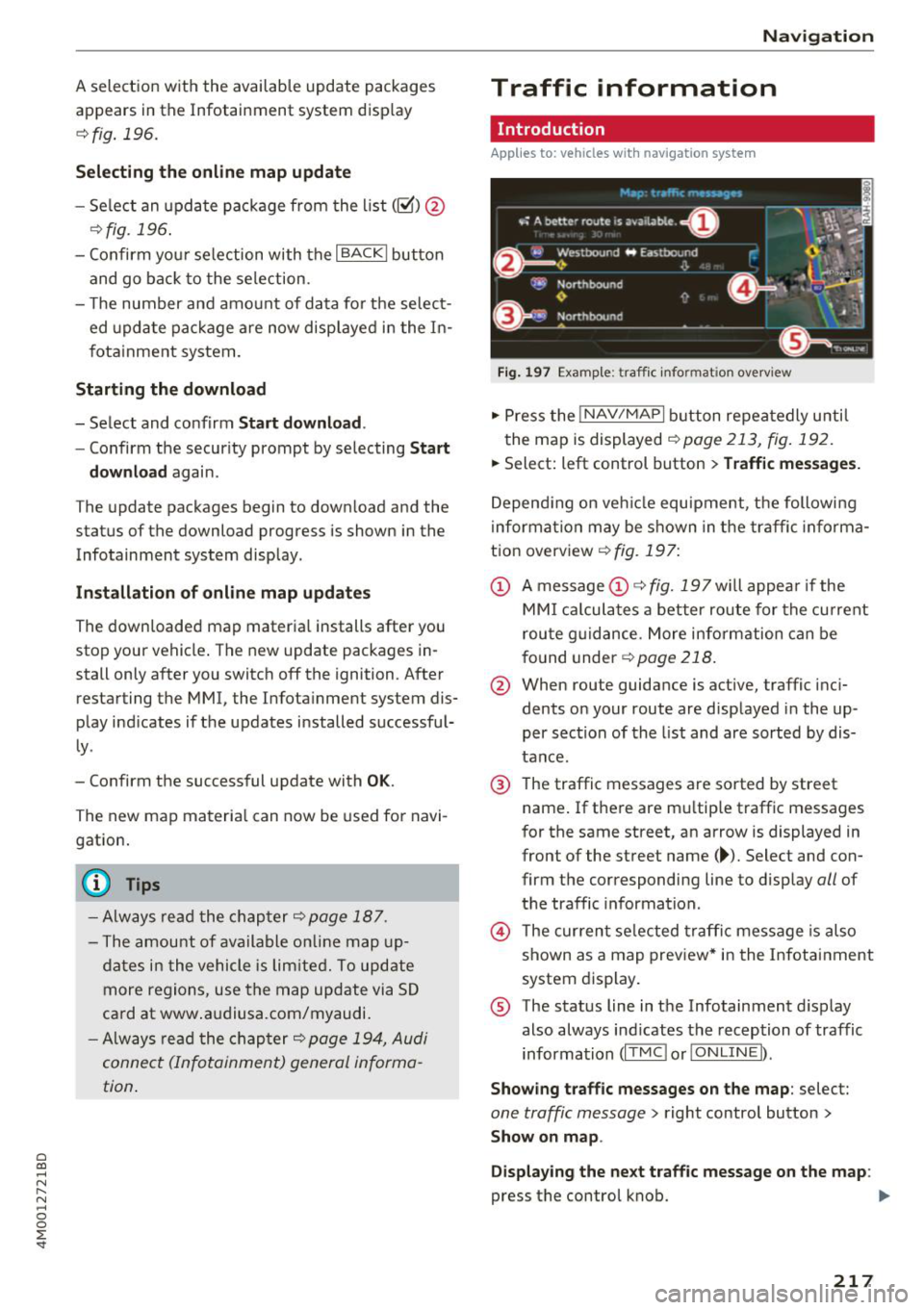
Fig . 1 97 Example: traffic info rm ation overv iew
.,. Press the INAV /MAPI button repea tedly u nti l
the map is displayed
~ page 213, fig. 192.
.,. Select: left control button > Traffic mes sage s.
Depending on veh icle equipment, the following
i nforma tion may be shown in the traffic informa
tion overview ¢
fig. 197:
CD A message CD ¢ fig. 197wi ll appea r if the
MM I ca lculates a better route for the cu rrent
rou te g uidance. More information can be
f o und under
¢ page 218.
@ When route guidance is active, traffic inci
dents on your route are displayed in the up
per section of the list and are sorted by dis
tance.
@ T he traffic messages are sorted by street
name . If there are mu ltip le traffic messages
for the same street, an arrow is displayed in
front of the st reet name (~ ). Select and con
firm the corresponding line to disp lay
all of
t h e traffic information .
@ The cur rent se lected traffi c message is also
shown as a map preview* i n the Infotainment
system display .
® The status line in t he Infotainment d isplay
also always ind icates the reception of traffic
information (IT MC !orlO NLIN EI).
Show ing tra ffic messages on the map : select:
one traffic message > right control button >
Show on map .
Di splaying the ne xt t raffi c message o n the map :
press the control knob. ..,.
217
Page 227 of 398
Cl a:, ...... N
" N ...... 0
0
::r '
Introduction
There are various media drives and connections
avai lab le in the MMI. For example, you can play
audio/video* fi les from t he Jukebox* or connect
your mobi le device to the Audi mus ic interface*
and operate it through the MMI.
Notes
General
Media and format re strictions :
the MM I (includ
ing the SD card reader and the USB storage de
vice connection *) was tested wit h a variety of
products and media on the market. However,
there may be cases where ind ividual devices or
media and audio/video files* may not be recog
n ized, may play on ly w ith restrictions, or may not
play at all.
Digital Rights Management : please note that
the audio/video* files are subjec t to copyright
protection .
The med ia drives do not play f iles that are pro
tected by ORM and that are ident ified with the
symbol
rfl.
Data secu rity : never store important data on SD
cards, the Jukebox*, CDs/DVDs or mobile devices .
Aud i AG is not responsib le for damaged or lost
f il es and media .
Loading times : th e more files/fo lders/p lay lists
that are on a storage medium, the longer it will
take to load the audio/v ideo* files . Audi recom
mends using storage med ia tha t on ly conta in au
d io/video files* . To decrease the t ime it takes to
l oad audio/v ideo f iles*, create subfolders (fo r ex
ample, fo r th e a rt ist o r album). The loading time
will also increase when importing fi les.
Additional information : when playing, audio
f iles are automatically displayed with any add i
tional informat ion that is sto red (such as the ar
tis t, trac k and albu m cover). If this informa tion is
n o t availa ble o n the sto rage med ium, t he M MI
will check the Grace note metadata database .
Media
However, in some cases, the additional in fo rma
tion may not be displayed.
Re stri cted functionality : reset the Media set
tings
t o the fac to ry defau lt settings if func tional
ity is restr icted ¢
page 246.
If functionali ty is rest ricted, reset the Jukebox *
to the fa ctory default sett ings ¢ page 246.
For information about the propert ies of s upport
ed med ia and fi le formats , see ¢
page 240 .
@ Note
Always fo llow the information fo und in ¢ @ in
Wi-Fi hotspot on page 194 .
CD/DVD operation
CD /DVD and format restrictions :
the funct iona li
ty of individ ua l st orage media may be limited due
to the v ariety of b lank CDs/DVDs avai lab le and
t h e various capacities. Audio C Ds or video DV Ds
with copy p rotection, CDs/DVDs that do not con
fo rm to the standard and multi session CDs may
have limit ed playback or may not play at a ll. Audi
recommends finaliz ing the recording process
whe n creat ing mult isess io n CDs . Mult isess ion is
not supported for DVDs .
Using CDs/DVDs , the CD dr ive or the DVD drive :
to ensure correct, hig h-quality playback and to
prevent damage to the dr ive or d isc read ing er
rors, always store CDs/DVDs in a protective
sleeve and do not expose t hem to direct sunlight .
Do
not u se:
- Damaged, dirty or scratched CDs/DVDs
- Sing le CDs/DVDs with 3 in (8 cm) d iameter
- CD/DVDs that a re not round
- CDs/DVDs w it h labe ls
- Protec tive rings
- Clea ning CDs
Thermal protection switch : CD/DVD playback
may be temporarily unavailab le if outs ide tem
peratures a re extremely hot or co ld . A thermal
pro tect io n sw itch is insta lled to p rotect the C D/
D VD and the laser.
La ser devi ce s: lase r devices a re divided i nto safe -
ty classes 1 to 4 in acco rdance w ith DIN I EC 76 .,.
225
Page 231 of 398
Cl a:, ...... N
" N ...... 0
0
::r '
mobile device or the MMI, depending on the de
vice being used.
(D Tips
- Check for any connection requests on your
Bluetooth device.
- Multiple Bluetooth audio players can be
connected to the
MMI, but only one mobile
device can be active.
- Bluetooth protocols AVRCP (1.0/1.3/1.4)
and A2DP are supported.
- Note the volume setting on your Bluetooth
device. Audi recommends setting your mo
bile device to the maximum volume when
using it as a Bluetooth audio player.
- The supported media functions (such as
shuffle) depend on the Bluetooth device be
ing used.
- For more information on the supported de
vices, visit www.audiusa.com/bluetooth or
contact an authorized Audi dealer or author
ized Audi Service Facility.
Wi-Fi audio player
Appl ies to: ve hicles with Wi-F i audio playe r
Using the Wi -Fi audio player media source on the
MMI, you can connect and operate your Wi-Fi-ca
pable media player (such as a smartphone) to
wirelessly play music from your media player
li
brary. The media player is connected through the
vehicle's Wi-Fi hotspot. A UPnP Server opp or an
integrated UPnPIDLNA server on your media
player is required to access your media player
li
brary.
Requirement: the Wi-Fi function on your media
player must be switched on. The
Audi MMI con
nect
app or a UPnP server app must be installed
on your media player .
Or: you must be using a
media player with an integrated UPnP/DLNA
server.
- Connecting a media player: press the I MEDIA !
button. Press the left control button until the
sources overview
c::;, page 234 is displayed. Se
lect and confirm
Wi-Fi audio player 0
c::;, page 234, fig . 211 .
Media
- If necessary, select and confirm Wi-Fi off>
Turn on Wi-Fi
to activate Wi-Fi in the MMI. Se
lect
Wi-Fi settings, if necessary. Select the
same settings on the wireless media player
that are used for the Wi-Fi hotspot.
- Starting the Wi-Fi audio player: start the Audi
MMI connect
app or a UPnP server app, or set
media permissions on your media player.
Operating the media player: the media player is
operated through the MMI.
- Press the left control button repeatedly until
the
Folders menu item appears. Select and con
firm
Folders.
- Playing music from the media player:
select
and confirm
Media center .
Web radio:
see c::;, page 230.
A WARNING
-
-As the driver, do not allow usage of the Wi
Fi hotspot to distract you from driving, as
this could increase the risk of an accident.
- It is only safe to use tablets, laptops, mo
bile devices and other similar devices when
the vehicle is stationary because, like all
loose objects, they could be thrown around
the inside of the vehicle in a crash and cause
serious injuries. Store these types of devices
securely while driving.
- Do not use any wireless devices on the front
seats within range of the airbags while driv
ing. Also read and follow the warnings in
c::;, page 2 73, Front airbags.
@ Note
Always follow the information found in ¢@ in
Wi-Fi hotspot on page 194.
(D Tips
- Always read the chapter c::;, page 194, Audi
connect (Infotainment) general informa
tion.
- Please note that a Wi-Fi connection does
not automatically make it possible to use
the Internet. For additional information,
see
c::;, page 187.
229
Page 233 of 398
a co ...... N r--. N ...... 0
0
:E '
serious injuries. Store these types of devices
securely while driving.
- Do not use any wireless devices on the front
seats within range of the airbags while driv
ing. Also read and follow the warnings in
c::> page 2 73 , Front airbags .
CD Note
-Always follow the information found inc:>@
in Wi-Fi hotspot on page 194 .
-Please note that there generally are addi
tional costs when using an online media
service account, especially when it is used internationally .
(D Tips
-Depending on the Internet connection and
network traffic, a connection loss can occur
during playback of on line media services .
-Online media and Internet radio usage de
pends on the service availability of the third
party provider .
- Audi AG simply makes the access to online
media services possible through the MMI
and does not take any respons ibility for the
contents of the online media services .
- Always read the chapter
c::> page 194, Audi
connect (Infotainment) general informa
tion .
- Depending on the mobile device used, there
may be interruptions during media playback
and when using the
Audi MMI connect app.
To avoid interruptions when using a mobile
device , do not lock the screen on your mo
bile device and keep the
Audi MMI connect
app in the foreground .
- Contact an authorized Audi dealer or au
thorized Audi Service Facility for additional
information about online media .
Media
Multimedia connections
USB adapter for Audi music interface o r
USB charging port
Depending on the vehicle equipment, you can
connect your mobile devices (such as a smart
phone or MP3 player) to the Audi music interface
or a
USB charging port using a special USB
adapter.
@-
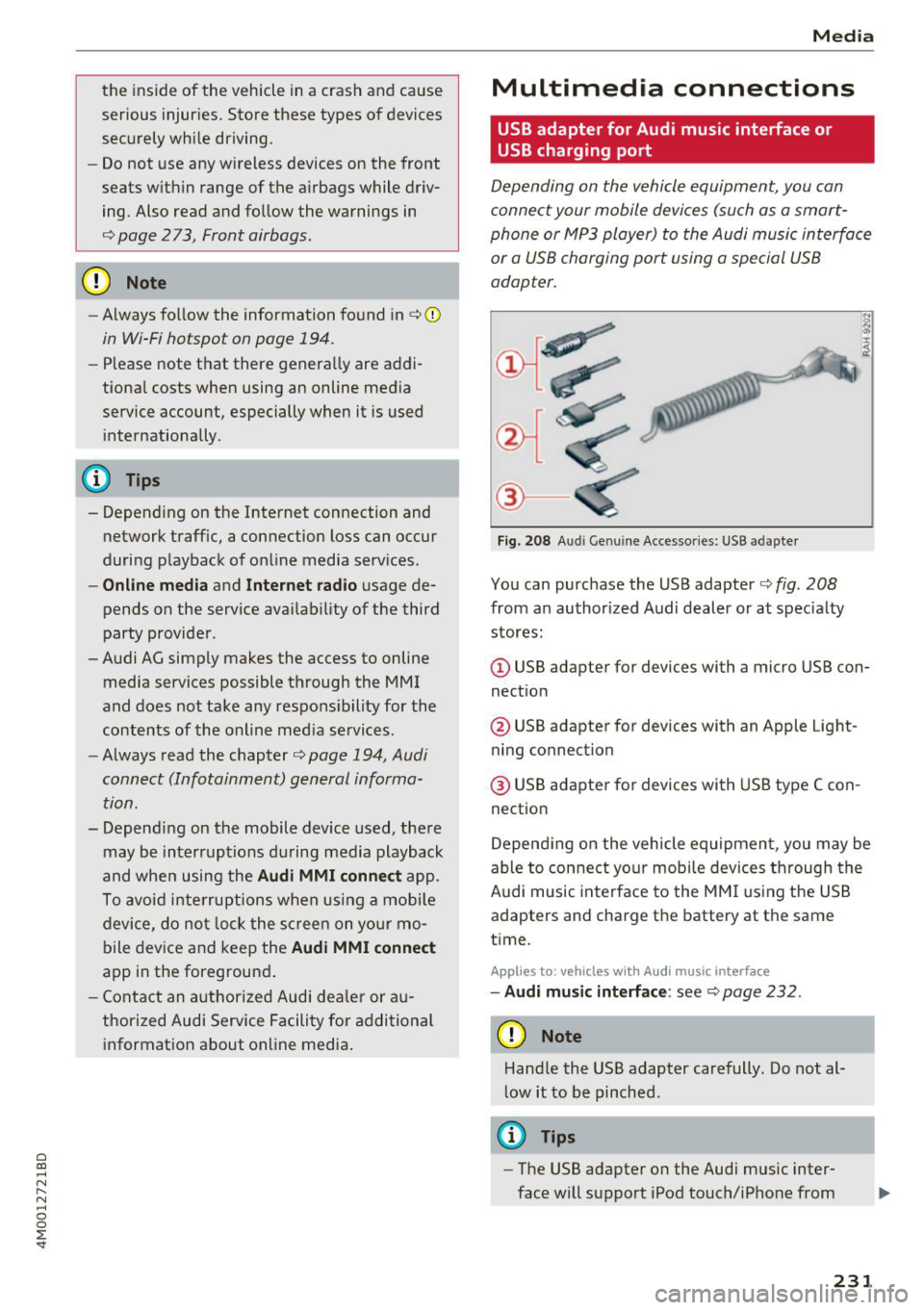
Fig. 208 A udi Genuin e Acce ssories: USB a dapter
You can purchase the USB adapter c::> fig. 208
from an authorized Audi dealer or at specialty
stores:
I
(D USB adapter for devices with a micro USB con
nection
@ USB adapter for devices with an Apple Light
ning connection
@ USB adapter for devices with USB type C con
nection
Depending on the vehicle equipment, you may be
able to connect your mobile devices through the
Audi music interface to the MMI using the USB
adapters and charge the battery at th e same
time .
Applies to : vehicles wit h Aud i music interface
-Audi music interface : see c::> page 232.
CD Note
Handle the USB adapter carefully. Do not al
low it to be pinched.
@ Tips
-The USB adapter on the Audi music inter
face will support iPod touch/iPhone from
231
Page 257 of 398
a co ...... N r--. N ...... 0
0
:E '
that is not possible, try to adjust the head re
straint so that it is as close to this position as
possible. If there is a passenger in the center
rear seat, slide the head restraint upward
c:>page 58.
• Make sure that the seatback is securely latched
in the upright pos ition
r:::;, page 63 .
• Keep both feet flat in the footwell in front of
the rear seat .
• Fasten and wear safety be lts properly
,:;;;,page 264.
• Make sure that children are always properly re
strained in a child restraint that is appropriate
for their size and ager:::;,
page 291.
A WARNING
Passengers who are improperly seated on the
rear seat can be seriously injured in a crash.
- Each passenger must always sit on a seat of
their own and properly fasten and wear the
safety belt belonging to that seat .
- Safety belts only offer max imum p rotection
when the seatback is securely latched in the
upr ight position and the safety be lts are
prope rly pos itioned on the body. By not sit
t ing upright, a rea r seat passenger increases
the risk of personal in jury from improperly
posit ioned safety belts !
- Always adjust the head rest raint properly so
that it can g ive maximum protection.
Dri ving safety
Proper adjustment of head restraints
Correctly adjusted head restraints are an impor
tant part of your vehicle's occupant restraint sys
tem and can help to reduce the risk of injuries in
accident situations.
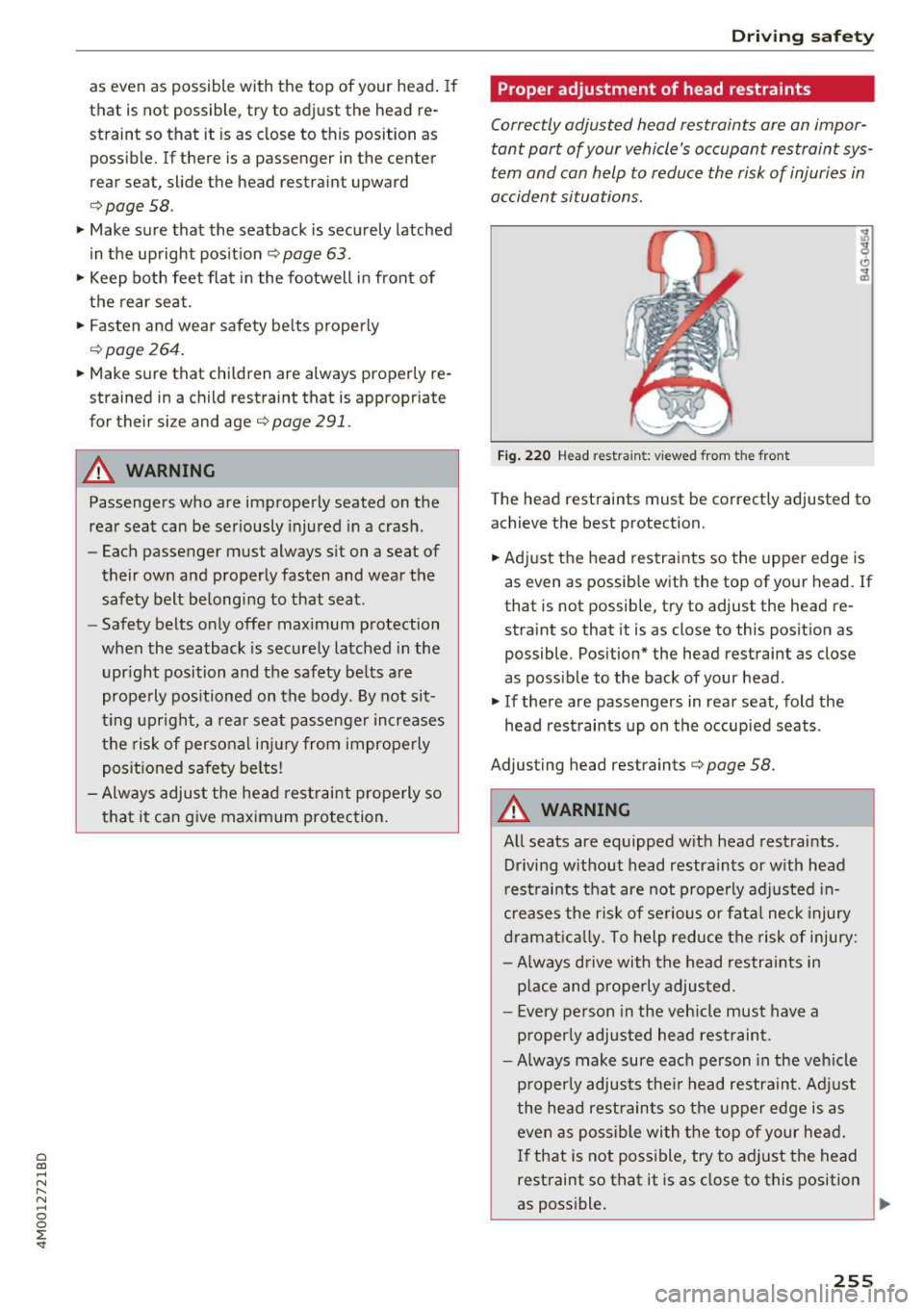
F ig . 2 2 0 Head restraint: v iewed from t he front
The head restraints must be correctly adjusted to
achieve the best protection.
• Adjust the head restraints so the upper edge is
as even as possib le with the top of your head. If
that is not possible, try to adjust the head re
straint so that it is as close to this position as
possible . Position* the head restraint as close
as possible to the back of your head.
• If there are passengers in rear seat, fold the
head restraints up on the occupied seats .
Adjusting head restraints
r:::;, page 58.
A WARNING
All seats are equipped with head restraints .
Driving w ithout head restraints or w ith head
r est raints that are not properly adjusted in
creases the r is k of se rious or fata l neck injury
dramat ic al ly. To help reduce the risk of inju ry:
- Always d rive with the head restra ints in
p lace and properly adjusted.
- Every pe rson in the veh icle must have a
p roperly adjusted head restraint.
- Always make sure each person in the veh icle
p roperly adjusts the ir head restraint. Adj ust
the head restraints so the upper edge is as
even as possible wi th the top of your head.
I f that is not poss ible, try to ad just the head
rest raint so that it is as close to this position
as poss ible.
Ill>
255
Page 258 of 398
Drivin g saf ety
- Never attempt to adjust head restraint
wh ile driving. If you have dr iven off and
must adjust the driver headrest for any rea
son, first stop the vehicle safely before at
tempting to ad just the head restra int.
- Children must always be properly restrained
in a child restraint that is appropriate for
their age and size
c> page 291 .
Examples of improper seating positions
The occupant restraint system can only reduce
the risk of injury if vehicle occupants are properly
seated .
Improper seating positions can cause serious in
jury or deat h. Safety belts can only work when
they are properly positioned on the body . Im
proper seating positions reduce the effect iveness
of safety belts and w ill even increase the r isk of
i n ju ry and death by moving the safety be lt to crit
ical a reas of t he body. Improper seat ing posit ions
a lso increase the risk of serious injury and dea th
when an airbag deploys and strikes an occupant
who is not in the proper seating position. A driver is responsib le for the safety of all vehicle occu
pants and especially for children. Therefore :
~ Never allow anyone to assume an incorrect
seating position when the vehicle is being used
c> & .
The fo llowing bulletins list only some sample po
sitions that wi ll increase the risk of serio us inj ury
and death. Our hope is that these examples will
make you more aware of seating posit ions that
are dangerous.
The refore, when ever th e vehicle i s mo ving :
-never stand up in the vehicle
- never s tand on the seats
- never knee l on the seats
- never r ide with the seatback reclined
- never lie down on the seats
- never lean up against the instrument pane l
- never sit on the edge of the seat
- never sit sideways
- never lea n ou t t he w indow
- never put yo ur feet out the window
256
-never put your feet on the instrument panel
- neve r rest your feet on the seat c ushion or bac k
o f the seat
- neve r ride in the footwell
- never ride in the cargo area
.8, WARNING
Imp roper seating positions in cr ease the risk
of ser ious personal inju ry and dea th whenever
a veh icle is being used.
- Always make sure that all veh icle o ccupants
s tay in a proper sea ting posit ion and a re
proper ly restrained whenever the vehicle is
being used .
Pedal area
Pedals
The pedals must always be free to move and
must never be interfered with by a floor mat or
any other object.
Make sure that all pedals move free ly without in
terference and that nothing prevents them from retur ning to their or ig inal pos itions .
Only use floor mats that leave the pedal area free
and can be secured with floor mat fasteners.
If a bra ke circuit fails, increased brake pedal trav
e l is req uired to bring the vehicle to a fu ll stop.
.8, WARNING
Pedals that cannot move freely can cause loss
of vehicle contro l and increase the r isk of seri
ous injury.
- Never p lace any objects in the driver's foot
wel l. An object could get into the pedal area
and interfere with pedal funct ion. In case of
sudden braking or an acc ident, you would
no t be able to brake o r acce le rate!
- Always make sure that nothing can fall or
move into the driver's footwell.