audio AUDI Q7 2018 Owner´s Manual
[x] Cancel search | Manufacturer: AUDI, Model Year: 2018, Model line: Q7, Model: AUDI Q7 2018Pages: 398, PDF Size: 185.58 MB
Page 237 of 398
a
Media center
Various categories for selecting audio/video*
files are available in the media center .
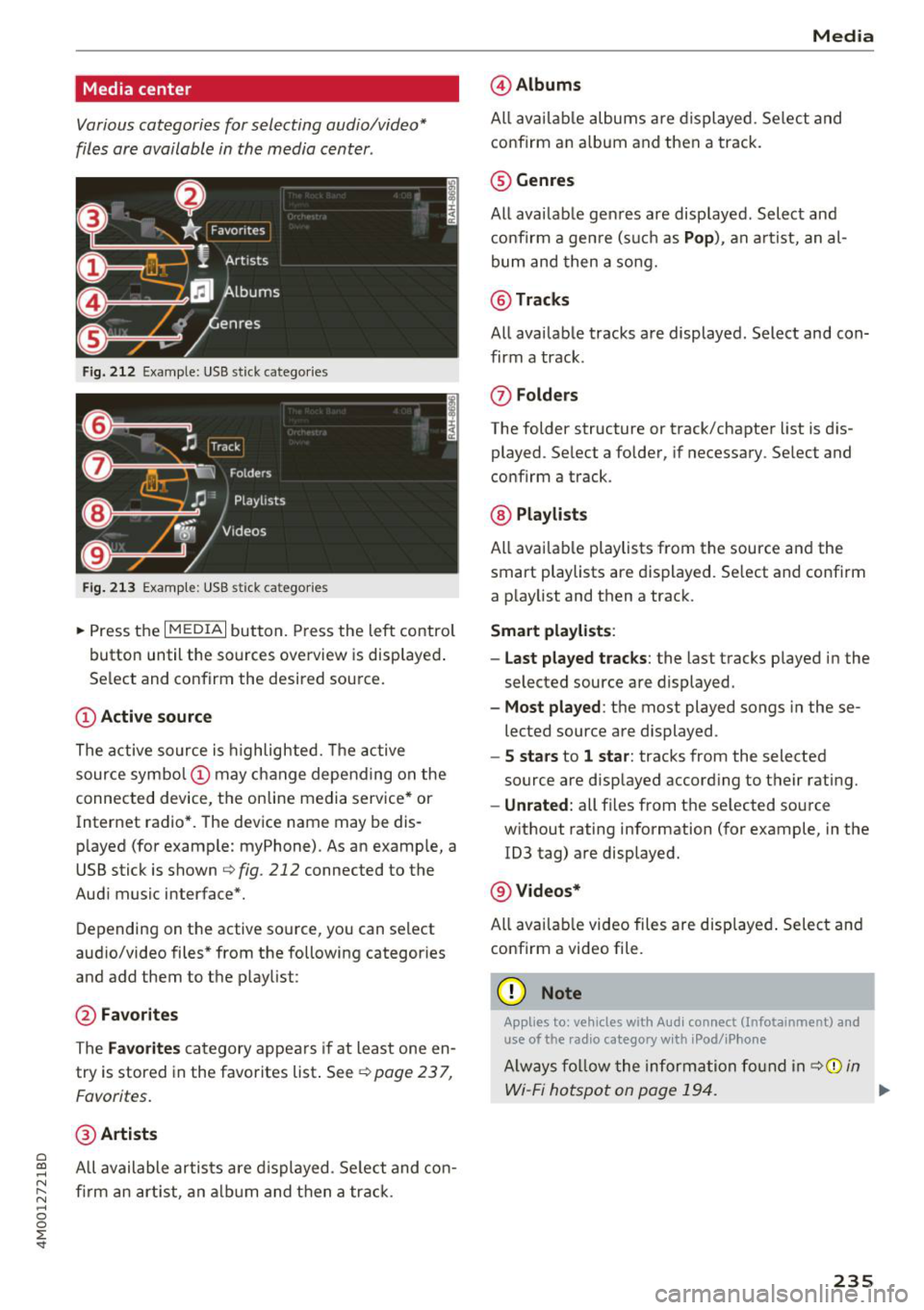
Fig. 212 Example: USB stick catego ries
Fig . 213 Examp le: USB stick categories
~ Press the I MEDIAi button. Press the left control
button until the sources overview is displayed .
Se lect and confirm the desired source.
(!) Active source
The active source is highlighted. The active
source symbol @ may change depending on the
connected device, the online media service* or
Internet radio*. The device name may be dis
p layed (for example: myPhone). As an examp le, a
USB stick is shown
c:> fig . 212 connected to the
Audi music interface*.
Depending on the active source , you can select
audio/video files* from the following categor ies
and add them to the p laylist :
@Favorites
The Favorites category appears if at least one en
try is stored in the favorites list . See
¢ page 23 7,
Favorites.
@ Artists
~ All available artists a re displayed . Se lect and con-
N ~ firm an artist, an album and then a track.
~ 0
0
:E -
@ Albums
All available albums are displayed . Select and
confirm an album and then a track .
® Genres
All available genres are displayed . Select and
confirm a genre (s uch as
Pop), an artist, an al
bum and then a song.
@ Tracks
All available tracks are displayed . Select and con
firm a track .
(J) Folders
The folder structure or track/chapter list is dis
played . Select a folder, if necessary . Select and
confirm a track .
@ Playlists
All available playlists from the source and the
smart playlists are displayed. Se lect and confirm
a playlist and then a track.
Smart playlists :
- Last played tracks :
the last tracks played in the
selec ted source are displayed .
-Most played : the most played songs in these
lected source are displayed .
-5 stars to 1 star: tracks from the selected
source are displayed accord ing to their r ating.
- Unrated: all files from t he se lected source
w ithout rating information (for example, in the
1D3 tag) are displayed.
@ Videos*
All avai lable video files are displayed. Select and
confirm a video file.
(D Note
Applies to: vehicles with Aud i connect (Infotainment) and
use of the radio category w ith iPocl/iPhone
Always follow the information found in ¢(j) in
Wi-Fi hotspot on page 194. ..,_
235
Page 238 of 398
Media
@ Tips
-Only the categories supported by the medi
um are available. For example, CD/DVD
ROM tracks cannot be selected with catego
ries such as
Ar tists, A lbum s or Ge nre s.
With an iPod/iPhone (source : Audi music in
terface
c:> page 231), the Pod ca st s, A udio
book s
and Comp osers categories are also
available.
- For safety reasons, the video image is only
displayed when the vehicle is stationary. On
l y the sound from the v ideo p lays while driv
ing .
-When synchronizing a portable device wi th
"Cloud " services, p lay lists may display in co r
rect ly in the MM I. Use the media center in
the device .
- With an iPod/iPhone (med ia source: Audi
music interface
c:> page 231), the P odca sts,
Audi o book s
and Compo ser s categories are
a lso available .
@ Tips
Applies to: iPod/iPhone on Audl music interface
- An Internet connection is required to use
the add it ional
Radio category , an online
media serv ice. Also see the chapter
c:> page 193, Wi -Fi hotspot. Also read the in
formation on the Aud i mus ic interface and
the supported devices
c:> page 231.
- Depending on the Internet connection and
network traffic, a connection loss can occur
during p layback o f on line media serv ices.
- The use of online media services depends on
the service ava ilability of the third party
provide r.
- Audi AG simply makes the access to online
media serv ices possible through the MM I
and does not take any respons ibility for the
contents of the on line med ia services .
236
Free text search
Applies to: vehicles with free text search
You can search in the active source by tracks and
video files*, for example
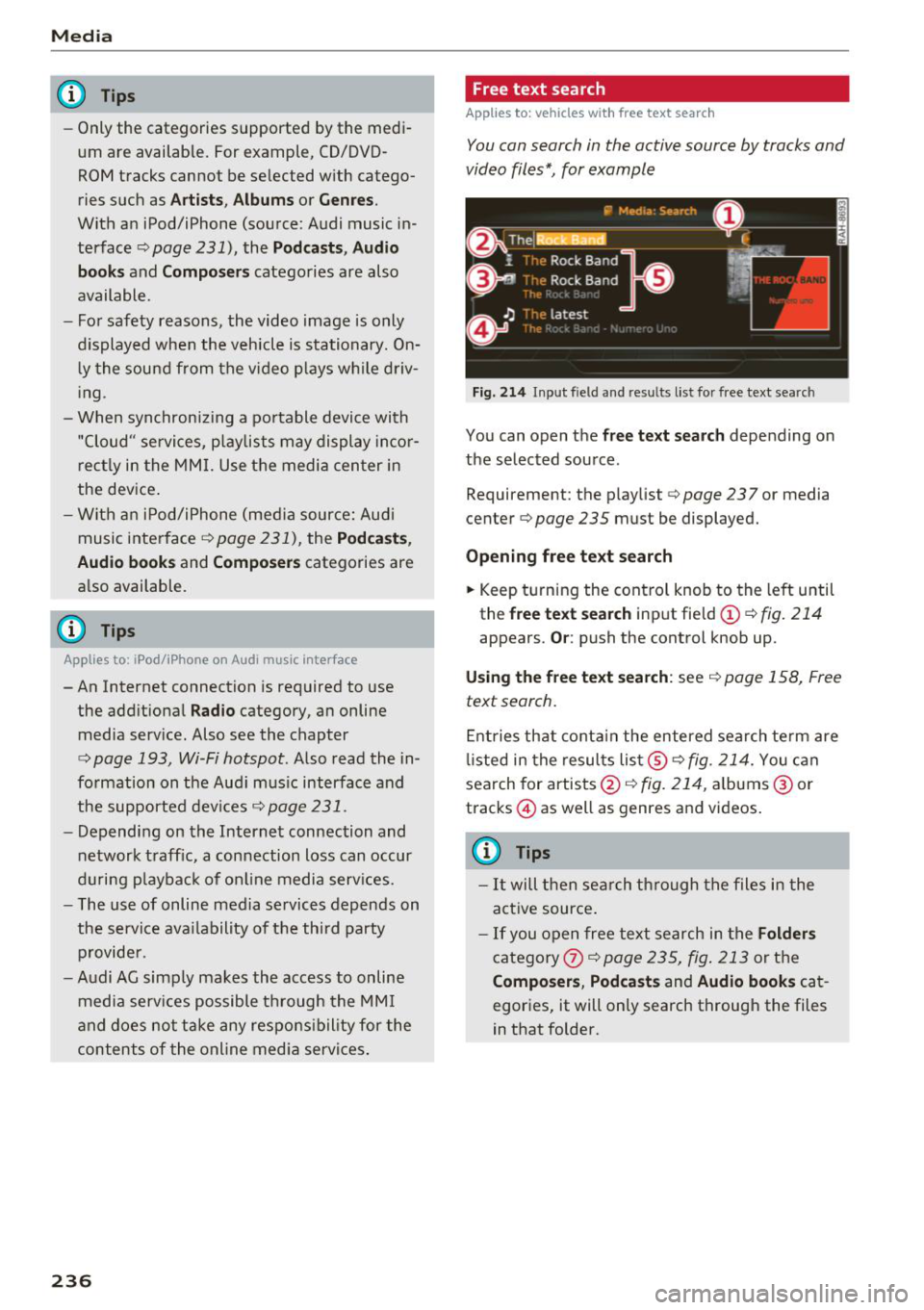
Fig. 214 Inp ut fie ld a nd res ults list fo r fr ee text se arch
You can open the free t ext sea rch depending on
the selected source .
Requirement: the playlist
c:> page 23 7 or med ia
c en ter
c:> page 235 must be d isplayed.
Opening f ree te xt se arch
.,. Keep turn ing the cont rol knob to the left until
th e
free tex t searc h inp ut field (D c:> fig. 214
appears . Or: push the control knob up .
Usin g the free text sea rch : see c:> page 158, Free
text search.
Entries that conta in the entered search te rm are
li sted in the results list@
c:> fig. 214. You can
search for artists@<=:>
fig. 214, albums @or
t racks @) as w ell as genres and vid eos.
(D Tips
- It will then search through the files in the
active source .
-If you open free text search in the Folder s
category
C omp osers , Podcast s and Audio books cat
egories, it will only search through the files
in that folder.
Page 241 of 398
Cl a:, ...... N
" N ...... 0
0
::r '
The DVD ma in menu opens in the Infotainment
system disp lay.
- Sele ctin g a m enu it em : select and confirm a
men u item.
Or: move your finger on the M MI
touch co ntro l pad* and press the control knob.
Audio track1
)
You can manually set the audio track (language
and audio format). The language and aud io for
mat options depend on the v ideo DVD.
Subtitle s I>
You can set subt it les for playback manually. The
languages available depend on the DVD.
A sp ect
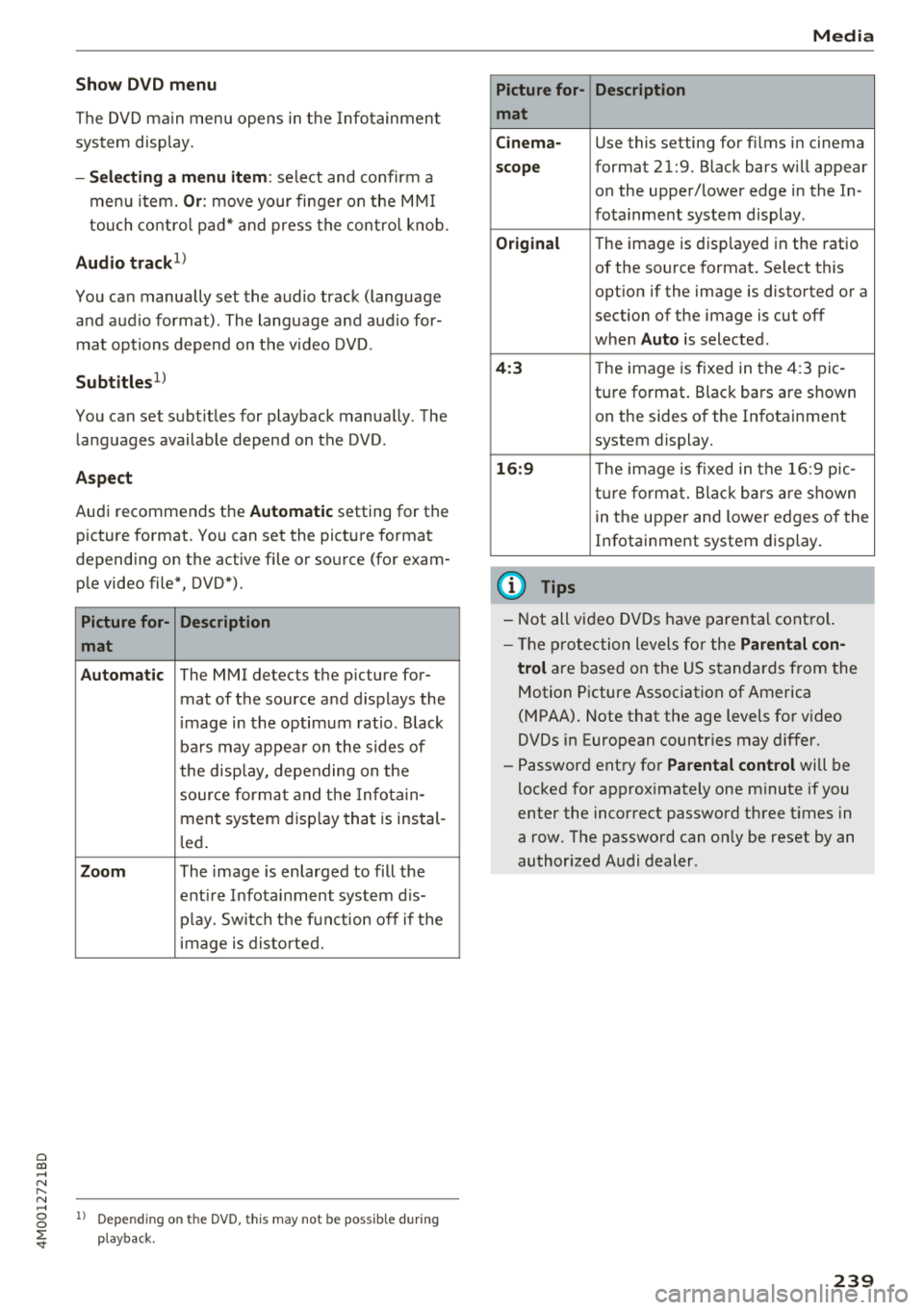
Audi recommends the Automatic setting for the
picture format. You can set the pict ure format
depending on the active file or source (for exam
ple video file*, DVD*).
Picture for- Description
mat
A utom atic
The MMI detects the picture for-
mat of the source and d isplays the
i mage in the optimum ratio . Black
ba rs may appea r on the sides of
the disp lay, depending on the
source forma t and t he Infotain -
ment system disp lay that is instal -
l ed .
Zoom The image is enlarged to fill the
ent ire Infota inment system d is-
p lay. Sw itch t he function off if t he
i mage is distorted.
l ) Depe ndi ng o n th e DVD, th is may not be poss ib le dur ing
playback.
Media
Picture for- Description
mat
Cinem a-
Use this setting for f ilms in cinema
scope format 21:9. Black bars w ill appear
on the upper/lower edge in the In-
fota inment system display .
Original T he image is disp layed in the ratio
of the source format . Select this
opt ion if the image is distorted or a
section of the image is cut off
when
Auto is selected .
4:3 The image is fixed in the 4:3 pie -
ture format . Black bars are shown
on the sides of the Infotainment
system display.
1 6: 9 The image is fixed in the 16:9 p ie-
tu re forma t. Blac k bars are shown
in t he upper and lower edges of the
Infotainment system display.
(D Tips
- Not all video DVDs have parenta l contro l.
- Th e protection levels fo r the
Parental con-
trol
are based on the US s tandards from the
Motion Picture Association of Ame rica
(MPAA) . Note that the age levels for video
DVDs in European countr ies may differ.
- Password entry for
Parental control will be
locked for approx imately one m inute if you
enter the incorrect password three t imes in
a row. The password can o nly be reset by an
authorized Audi dealer.
239
Page 242 of 398
Media
Supported media and file formats
Overview
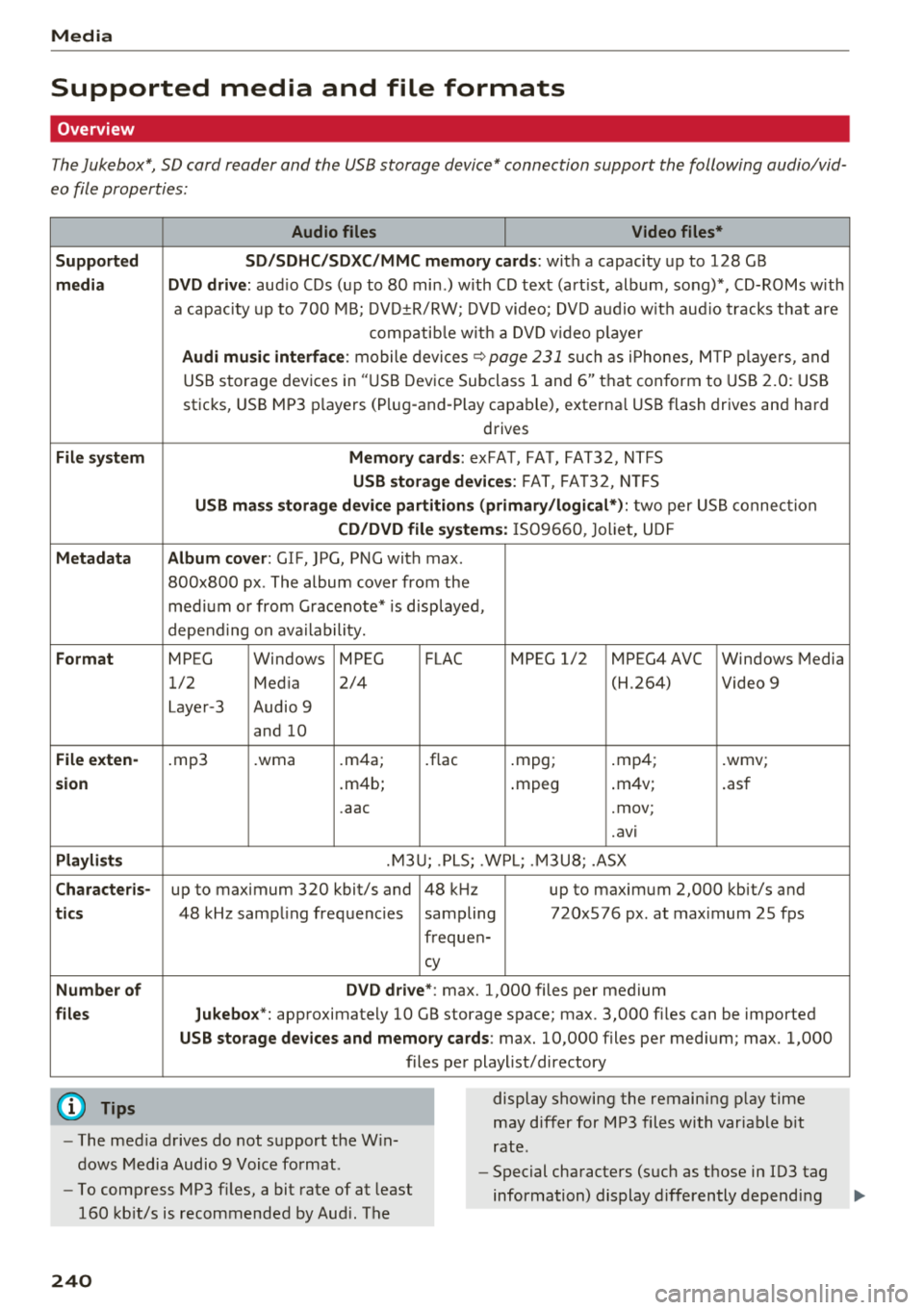
The Jukebox*, SD card reader and the USB storage device* connection support the following audio/vid
eo file properties:
Audio files Video files*
Supp orted SD/SDHC/SDXC/ MMC memo ry ca rds:
with a capacity up to 128 GB
medi a DVD d rive: aud io CDs (up to 80 min.) with CD text (art ist, album, song)*, CD-ROMs with
a capacity up to 700 MB; DVD±R/RW; DVD video; DVD audio w ith aud io tracks that are
compatib le w ith a DVD v ideo p laye r
Audi m usic interface: mobile devices~ page 231 such as i Phones, MTP p layers, and
USB storage devices in "USB Device Subclass 1 and 6" that conform to USB 2 .0: USB
sticks, USB MP3 p layers (Plug-and-P lay capable), external USB flash drives and hard
drives
Fil e syst em Mem ory c ards : exFAT, FAT, FAT32, NTFS
USB sto rage devices: FAT, FA T32, N TFS
U SB m ass sto rage device partiti ons ( prim ary/ lo gic al*): two per USB connection
CD /D V D file systems: IS09660, Joliet, UDF
M etada ta Album cover: GIF, ]PG, PNG with max.
800x800 px . The album cover from the
med ium or from Gracenote* is disp layed,
depend ing on ava ilability.
F orm at MPEG Windows MPEG FLAC MPEG 1/2 MPEG4 AVC Windows Media
1/2 Med ia 2/4 (H.264) Video 9
Layer-3 Audio 9 and 10
File e xten-.mp3 .wma .m4a; .flac .mpg; .mp4; .wmv;
s ion .m4b; .mpeg .
m4v;
.asf
.aac .mov;
.avi
Playlist s .M3U; .PLS; .WPL; .M3U8; .ASX
Cha rac teris-up to maximum 320 kbit/s and 48 kHz up to maximum 2,000 kbit/s and
tics 48 kHz sampling frequencies sampling 720x576 px. at max imum 25 fps
frequen-
cy
Numb er of DVD d riv e *: max. 1,000 files per medium
files Jukebox*: approximately 10 GB storage space; max. 3,000 fil es can be imported
USB st orage d evices a nd mem ory cards : max. 10,000 files per medium; max. 1,000
files pe r playlist/directory
@ Tips
- The med ia drives do not support the W in
dows Media Audio 9 Voice format. display showing
the remaining p lay time
may differ for MP3 files with variable b it
rate.
- Special characters (such as those in ID3 tag
information) display differently depending
-
To compress MP3 files, a bit rate of at least
160 kbit/s is recommended by Aud i. The
240
Page 243 of 398
Cl a:, ...... N
" N ...... 0
0
::r '
on the system lan guage and canno t always
b e g uaranteed . -
Some M TP p laye r fu nct ions are not s upport
ed , su ch as rating music tracks and video
playback.
- The m anufactur er of the stor age device c an
p rovide info rmation about its "USB Device
Subclass" .
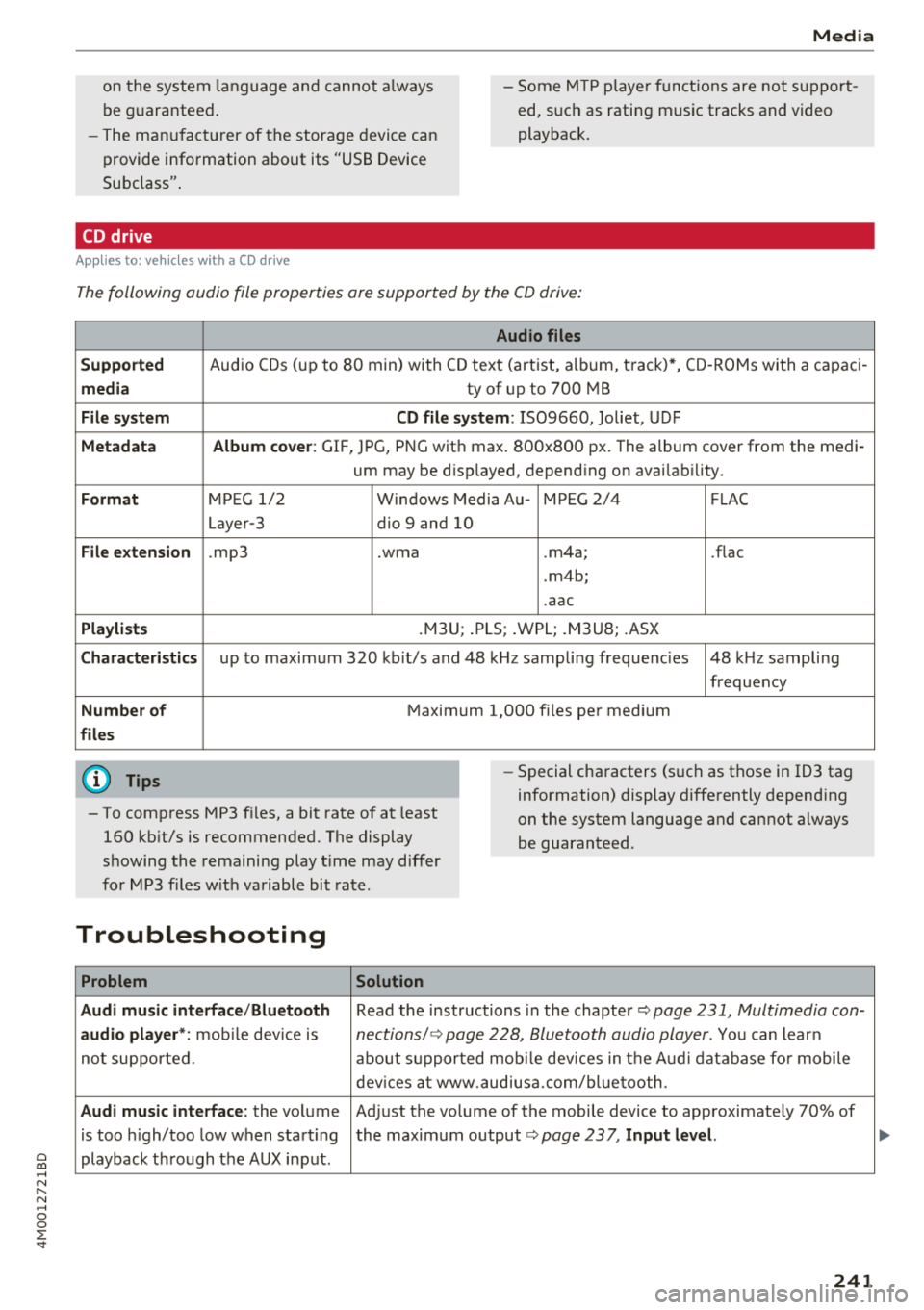
CD drive
Applies to: veh icles wit h a CD drive
The following audio file properties are supported by the CD drive:
Audio files
Supported
Audio CDs (up to 8 0 min) with CD text (artist, a lb um, t rack)*, CD -ROMs with a c apac i-
media ty of up to 700 MB
File system CD file system : IS09660, Joliet, UDF
Metadata Album cover : GIF, JPG, PNG wit h max. 800x800 px. The album cover from the medi -
um may be d isp layed, depend ing on avai lab ility.
Format M PE G 1/ 2 Windows Media A u- M PEG 2/4 FLAC
Layer -3 dio 9 and 10
File e xtension .mp3 .wma .m4a; .flac
. m4b ;
. aac
Playlists .M3U; .PLS; .WPL; . M3U8; .ASX
Characteri stics up to maximum 320 kb it/s and 48 k Hz sampli ng freque ncies 48 k Hz sampling
frequency
Number of M aximum 1,000 files pe r medi um
files
(D Tips
- To comp ress MP3 f iles, a bit rate of at least
160 kb it/s is recommended. The display
s howing the remaining p lay t ime may d iffer
fo r MP3 f iles w it h variable bit rate. -
Special cha racters (s uch as t hose in ID3 tag
information) display diffe rently depend ing
on the system language and cannot always
be guaranteed .
Troubleshooting
Problem Solution
Audi music interface /Bluetooth
Read the instructions in the chapter~ page 231, Multimedia con-
audio player *: mobile dev ice is nectionsl ~ page 228, Bluetooth audio player . You can lear n
not supported. about s upported mob ile dev ices in the A udi database fo r mobile
dev ices at www.au diusa.com/blue toot h.
Audi music interface : the volume Adjust the vo lume of the mobile device to approximate ly 70% of
is too high/too low when star ting the maximum output
¢ page 237, Input level.
playback t hrough the AUX in put.
241
...
Page 244 of 398
Media
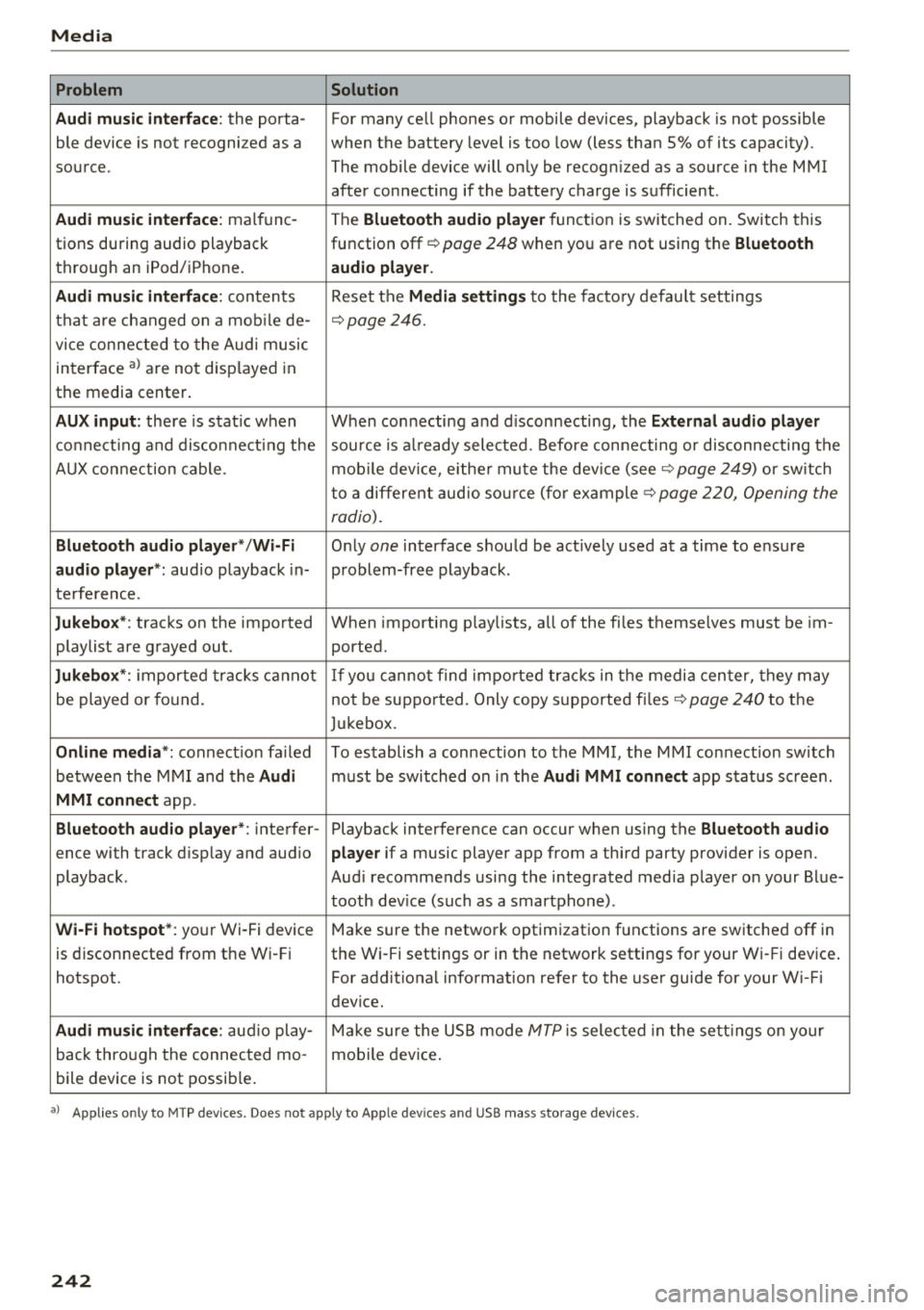
Problem Solution
Audi music interface :
the porta-For many ce ll phones or mobile devices, playback is not possible
ble device is not recogni zed as a when the battery level is too low (less than 5% of its capacity).
source. The mobile device will only be recogn ized as a source in the MMI
after connecting if the battery charge is sufficient .
Audi music interface: malfunc-
The Bluetooth audio player function is switched on. Switch this
tions during audio playback function off¢
page 248 when you are not using the Bluetooth
through an iPod/ iPhone. audio player.
Audi music interface:
contents Reset the Media settings to the factory default settings
that are changed on a mobile de -
¢page 246.
vice connected to the Audi music
interface al are not disp layed in
the media center .
AUX input: there is stat ic when When connecting a nd disconnecting, the External audio player
connecting and disconnect ing the source is already selected. Before connecting or disconnecting the
AUX connection cable. mobile device, either mute the device (see ¢
page 249) or sw itch
to a different audio source (for example ¢
page 220, Opening the
radio).
Bluetooth audio player* /Wi-Fi
Only one interface should be act ively used at a time to ensure
audio player*: audio playback in- problem-free playback.
terference.
Jukebox* : tracks on the imported When importing playlists, a ll of the files themselves must be im-
playlist are grayed out. ported.
Jukebox*: imported tracks cannot If you cannot find imported tracks in the media center, they may
be played or found. not be supported. Only copy supported files"*
page 240 to the
Jukebox.
Online media *: connection fa iled To establish a connection to the MMI, the MMI connection switch
between the MMI and the
Audi must be switched on in the Audi MMI connect app status sc ree n.
MMI connect app.
Bluetooth audio player *: interfer- Playback interference can occur when using the Bluetooth audio
ence with track d isp lay and aud io player if a music player app from a third party provider is open.
playback . Audi recommends using the integrated media player on your Blue-
tooth device (such as a smartphone) .
Wi-Fi hotspot*: your Wi-Fi device
Make sure the network optimization functions are switched off in
is disconnected from the Wi -Fi the Wi-Fi settings or in the network settings for your Wi -Fi device .
hotspot . For additional information refer to the user guide for your Wi-Fi
dev ice.
Audi music interface: audio play-Make sure the USB mode MTP is selected in the settings on your
back through the connected mo- mobile device.
bile device is not possible.
al Applie s onl y to MTP dev ice s. Does not apply to App le dev ices and USB mass s torage dev ice s.
242
Page 249 of 398
Cl a:, .... N
" N .... 0
0
::r '
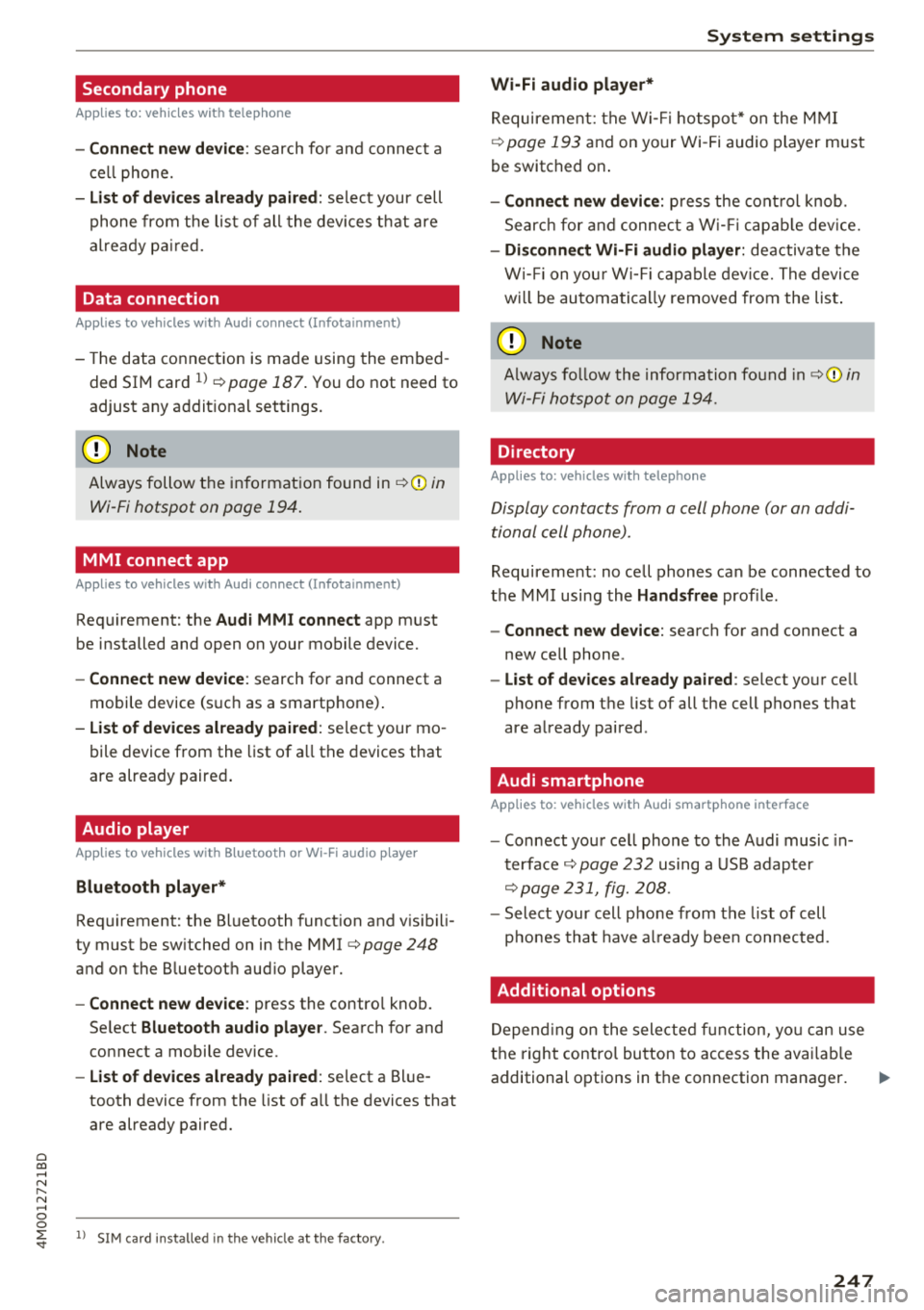
Applies to: vehicles with telephone
-Connect new device : search for and connec t a
c e ll phone.
- List of devices already paired : selec t your cell
p hone fro m the lis t of all the devices t hat are
al re ad y p aired.
Data connection
Applies to vehicles with Audi connect (Infotainment)
- T he data conne ct ion is made using the em bed
ded SIM car d
ll i=>page 187. You do not need to
adjust a ny a ddit io n al sett ings.
{Ll) Note
Always follow t he inf ormat ion foun d in i=> @ in
W i-Fi hotspot on page 19 4.
MMI connect app
Applies to vehicles with Audi connect (Infotainment)
Requirement: the Audi MMI connect app m ust
be installed and open on your mobile device.
- Connect new device : search for and connect a
mobile device (s uch as a smartp hone) .
-List of devices already paired : selec t your mo
bile device from the list of a ll the devices that
are already paire d.
Audio player
Applies to vehicles with Bluetooth or Wi-Fi audio player
Bluetooth player*
Requirement: the Bluetooth funct ion and v is ibili
ty must be sw itched on in the MMI
i=> page 248
and on the B luetoot h aud io player.
- Connect new device : press the control knob.
Se lect
Bluetooth audio player . Search fo r and
connect a mobile device .
-List of devices already paired : select a Bl ue
tooth device from the list of a ll the devices that
are already paire d.
ll SIM card inst alle d in t he v eh icle at the fa ctory.
System settings
Wi-Fi audio player*
R eq uiremen t: th e W i-Fi h otspo t* on the M MI
i=> page 193 an d on yo ur Wi -Fi audio playe r must
be switched o n.
-Connect new device: press the co ntrol knob.
Se arch for and conne ct a W i-Fi ca pabl e dev ice.
- Disconnect Wi-Fi audio player: de activate t he
W i-Fi on you r W i-Fi capa ble dev ice. The devi ce
w ill be au tom atic a lly removed from the lis t.
@ Note
Alway s follo w the inf ormat ion foun d in i=> @ in
W i-F i h ots pot on p age 194.
Directory
Applies to: vehicles with telephone
Display contacts from a cell phone (or an addi
tiona l cell phone).
Requirement: no ce ll phones can be connec ted to
the MMI using the
Handsfree pro file.
- Connect new device: search for and connect a
new ce ll phone .
-List of devices already paired : select yo ur cell
phone from t he list of all the cell phones that
are a lready paired .
Audi smartphone
Applies to: vehicles with Audi smartphone interface
-Connect yo ur cell phone to the A udi music in
t erface
i=> page 232 using a USB adap ter
i=> page 231, fig. 2 08 .
- Sel ect your cell p ho ne from t he list of cell
p ho nes th at h ave already bee n con nec ted.
Additional options
D epen ding on the sele cted fun ct ion, yo u ca n use
t h e righ t contro l bu tton to access the ava ila bl e
additional options in t he connection mana ger . .,.
247
Page 250 of 398
System settings
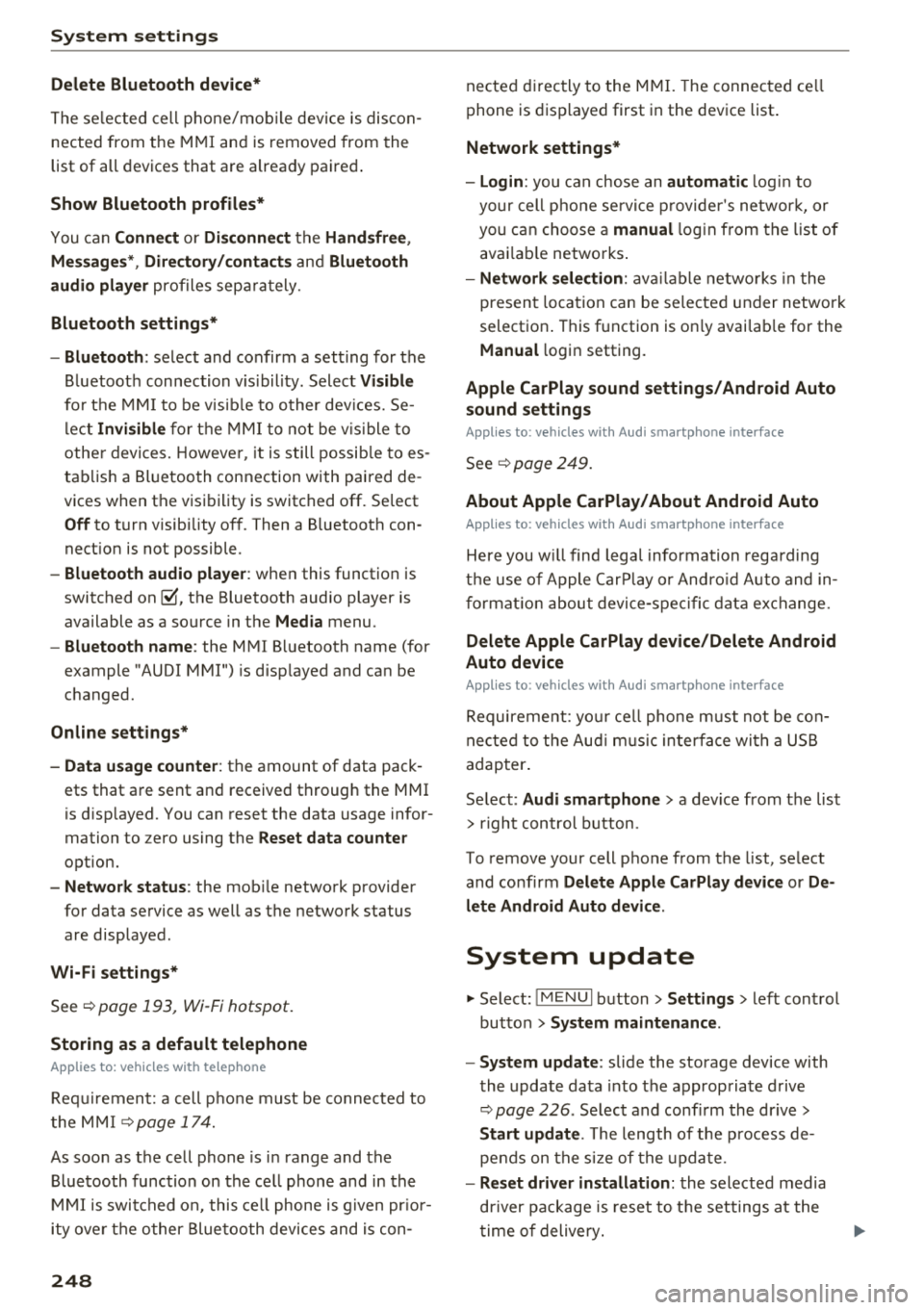
Delete Bluetooth device*
The se lecte d cell p ho ne/mo bile dev ice is dis con
nected from t he M MI and is removed from the
list of all devices that are alrea dy paire d.
Show Bluetooth profiles*
You can Connect or Disconnect the Handsfree ,
Me ssages *, Dire ctory /contacts
an d Bluetooth
audio player
pro files sep arately.
Bluetooth settings*
- Bluetooth :
select and confirm a set ting for the
B luetoot h connec tion v is ibility . Select
Visible
fo r th e MM I to be vis ib le to o ther dev ices. Se
l ec t
Invisible fo r th e M MI to not be v is ible t o
othe r devi ce s. H oweve r, it is still possib le to es
tab lish a Bl uetoo th con nection with pai red de
vices when the v is ibi lity is switched off. Se lect
Off to t urn visibi lity off . Then a B luetooth con
nect ion is not possible .
-Bluetooth audio player : when this function is
switc hed on~' the Bluetooth audio player is
available as a so urce in t he
Media menu .
-Bluetooth name : the MMI B luetooth name (for
example "AUDI MMI") is d isp layed and ca n be
c h anged.
Online settings*
- Data usage counter :
the amount of data pack
ets that a re sent a nd received throug h the MMI
is d isp layed. You can reset the data usage infor
mation to zero using the
Reset data counter
option.
- Network status : the mobile netwo rk p rovider
fo r data se rvice as well as the netwo rk status
are disp layed .
Wi-Fi settings*
See ¢ page 193, Wi -Fi hotspot.
Storing as a default telephone
Applies to: vehicles with telephone
Requir emen t: a cell phone must be connected to
t he MM I
¢page 174.
As soon as t he cell phone is i n range and the
B lue tooth func tion on the ce ll phone and in the
MM I is swi tched o n, this ce ll phone is g iven pr io r
ity ove r th e ot her Blue tooth devices and is c on-
248
necte d dir ectly to the M MI. The connec ted ce ll
p hone is d is pl ayed first in t he dev ice li st .
Network settings*
- Login :
you can chose an automatic log in to
your cell p ho ne servi ce pro vider 's ne twor k, or
you can ch oose a
manual log in from t he list of
avai la bl e netwo rks .
-Network selection : availabl e netwo rks in t he
presen t loca tion can be sele cte d unde r network
select io n. This f unction is on ly avai la bl e for the
Manual log in setting.
Apple CarPlay sound settings/ Android Auto
sound settings
Applies to: vehicles with Audi smartphone interface
See q page 249.
About Apple CarPlay/ About Android Auto
Applies to: vehicles with Audi smartphone interface
Here you w ill find l ega l informa tion regarding
t h e use o f A pple Car Play o r And ro id Aut o and in
fo rmat ion a bout device -s p eci fic d ata exch ange.
Delete Apple CarPlay device/Delete Android
Auto device
Applies to: vehicles with Audi smartphone interface
Require ment: yo ur cell phone must not be con
n ect ed to the Au di music interf ace wi th a USB
adap ter.
Se lec t:
Audi smartphone > a dev ice from t he lis t
> r igh t con trol b utto n.
To remove your cell p ho ne from the list, se lect
and co nfirm
Delete Apple CarPlay device or De
lete Android Auto device .
System update
"'Select : !ME NUI bu tton> Settings > left control
bu tton >
System maintenance.
- System update :
slide the storage device with
t he update da ta into the a pprop ria te drive
¢ page 2 26 . Se lec t and conf irm the dr ive>
Start update . The length of the p rocess de
pe nds on the s ize of the upd ate.
- Reset driver installation: the selected media
dr iver p ackage is rese t to t he se ttings a t the
t im e of delivery .
Page 251 of 398
Cl a:, .--, N
" N .--, 0
0
::r '
software version and the nav igat io n database *
software vers ion is disp laye d. The
Software in·
formation function a lso provides information
on the software con tained i n the MMI and t he
li cens ing agreeme nt.
Sound settings
The sound distribution and volume of the MMI
c an b e adjust ed individually . The settings d epend
on vehicle equipme nt.
----- 1
J -~+ ~-
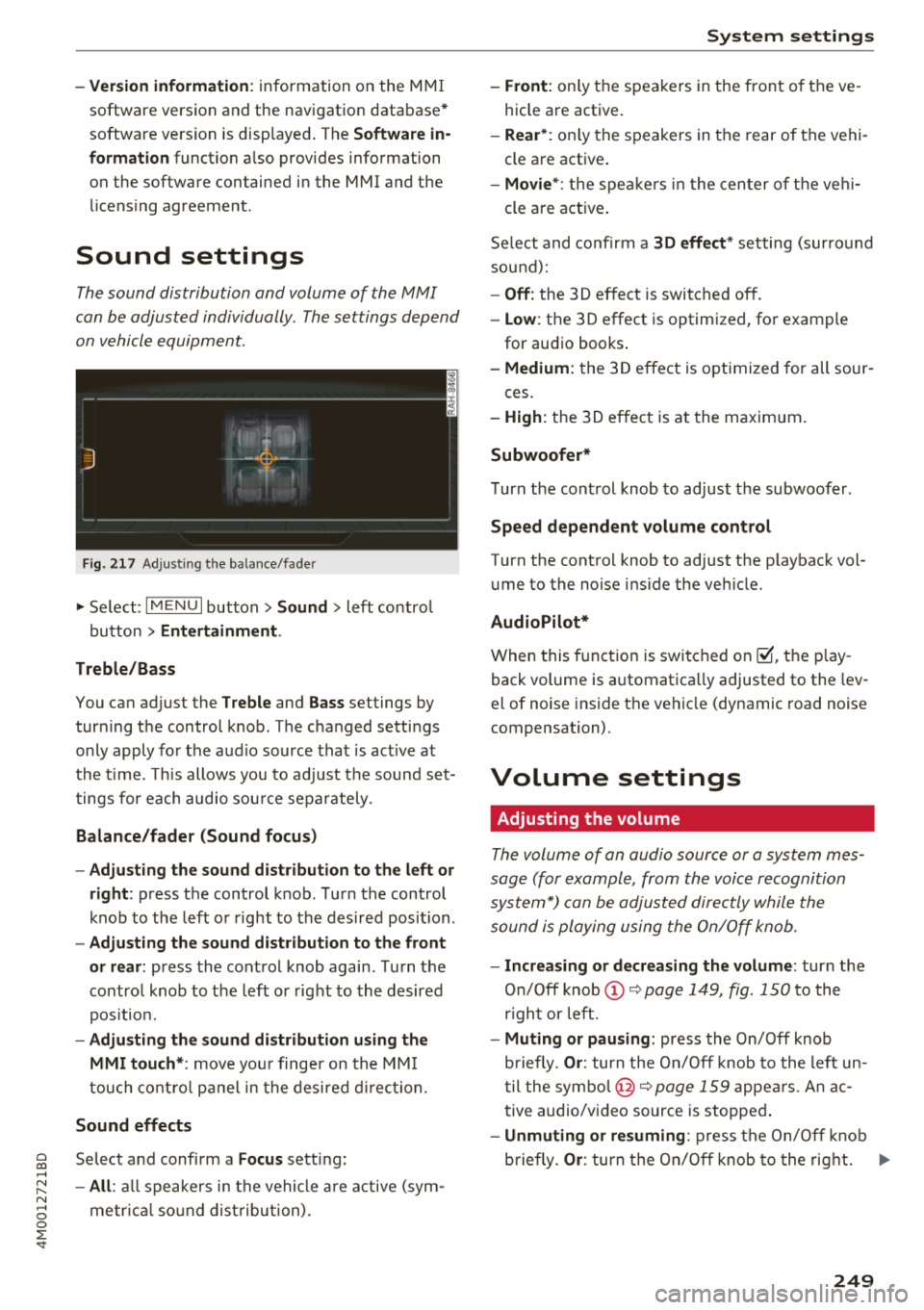
F ig. 217 A dj ustin g the ba la nce /fade r
"'Se lect : I MENU I bu tton >Sound > le ft contro l
b utt on
> Entertainment .
Treble/Bass
You can ad just the Treble and Bass settings by
turn ing t he control knob. The changed se ttings
only apply fo r the a ud io source tha t is ac tive at
t he time . T his allows you to ad just t he soun d set
t ings for each audio sou rce se para tely .
Balance/fader (Sound focus)
- Adjusting the sound d istribution to the left or
right :
press the control knob. Tur n the control
k nob to the left or right to the des ire d posi tion .
-Adjusting the sound distribution to the front
or rear:
press the cont rol knob again . T urn the
contro l knob to the left o r right to the desired
p os it io n.
- Adjusting the sound distribution using the
MMI touch* :
move your finger on the MM I
touch co ntro l pan el in th e desire d directio n.
Sound effects
Selec t and confi rm a Focus se tt in g:
- All : all sp eakers in t he vehi cle ar e active (sym
me trical sound dist ribu tion) .
System settings
-Front : only t he spea ke rs in the fron t of the ve
hicle are active.
- Rear *: on ly the s peakers in the rear of the vehi
cle a re act ive .
-Movie* : the spe akers in t he cen ter o f the ve hi-
cle a re a ct ive .
S e lect and co nfir m a
30 effect* setting (su rround
so und ):
-Off : the 3D ef fect is switched off.
- Low : the 3D effect is optimized, fo r exam ple
for au dio books .
-Medium: the 3D effect is optimize d for all sour -
ces .
-High : the 3 D effe ct is a t the m aximum .
Subwoofer*
Turn the con trol knob to ad just t he subwoofer .
Speed dependent volume control
Turn the cont rol knob to adjust the p layb ack vol
u me to the noise ins ide the ve hicle.
AudioPilot*
W hen thi5 fu nct ion i5 5w it ched on~. th e play
back volume is a utomat ica lly adjusted to the lev
e l of nois e inside t he ve hicl e (dy namic road nois e
compensation) .
Volume settings
Adjusting the volume
The volum e of an audio source or a system mes
sage (for e xampl e, from the voic e recognition
sys tem*) can be adjusted direc tly while the
sound i s pl aying u sing the On/Off knob.
- Increasing or decreasing the volume : turn the
On /O ff knob @~
page 1 49, fig. 150 to the
r igh t or left .
-Muting or pausing: press the On/Off knob
b riefly .
Or: tur n t he On/O ff knob to the left u n
t il the symb ol@ ~
page 159 appe ars. An ac
t ive a udio/v ideo source is s toppe d.
-Unmuting or resuming : pres s th e On/O ff kn ob
b riefly .
Or: turn the On/Off knob to the rig ht. ..,
249
Page 252 of 398
System settin gs
& WARNING
To reduce the risk of an accident, adjust the
volume of the aud io system so that aud ible
signals from outside the vehicle, such as po
lice and fire sirens, can be heard easily at all
times .
(D Tips
Volumes that are too h igh or too low are a u
tomatically adjusted to a set leve l w hen the
MMI is switched on .
Adjusting the system volume
.,. Se lect : I MENU I button> Sound > left contro l
button.
Telephone
App lies to: veh icles with telephone
.
Mute telephone : messages and ringtones are set
to mute .
Ringtone : see c:> page 185, Ringtone and volum e
s etting s.
Rington e volume :
you can adjust the volume of
the selected ringtone by turning the cont ro l
knob .
Messag e v olume: you ca n ad just the volume of
the notification for an incoming text m essage by
turning the control knob.
Microphone input level : you can adjust the call
volume during a phone ca ll by turning the contro l
knob.
Navigation
Applies to: vehicles with navigation system
Voice guidance : see c:>page 212.
Voice guidance dur ing phon e call : see
c:> page 212 .
Voice guidance volume : you can ad just the vo ice
gu idance volume by tur ning the control knob.
O r:
you can adjust the vo ice guidance volume during
active route guidance by turning the On/Off knob.
250
Entert ainme nt fader : the volume o f audio p lay
back can be temporarily lowered when the park
i ng system or voice guidance is active .
Voice recognition sy stem
Applies to: vehicles with voice recognition system
Command di splay : see c:> page 245.
Short dia log : see c:> page 245.
Volume : see c:>page 245.
Indi vidual speech t ra inin g: see ¢ page 245.
Parking aid*
You can adjust the vol ume of the signal tone by
turning the contro l knob .
-Adjusting the Front volum e: select and con
firm
High , Medium or Low .
- Adjus ting
the Rear volume : select and confirm
H igh , Medium or Low .
MMI touch*
Turn the control knob to adjust the volume of the
spoken prompts from the MM I touch*.
Restarting the MMI
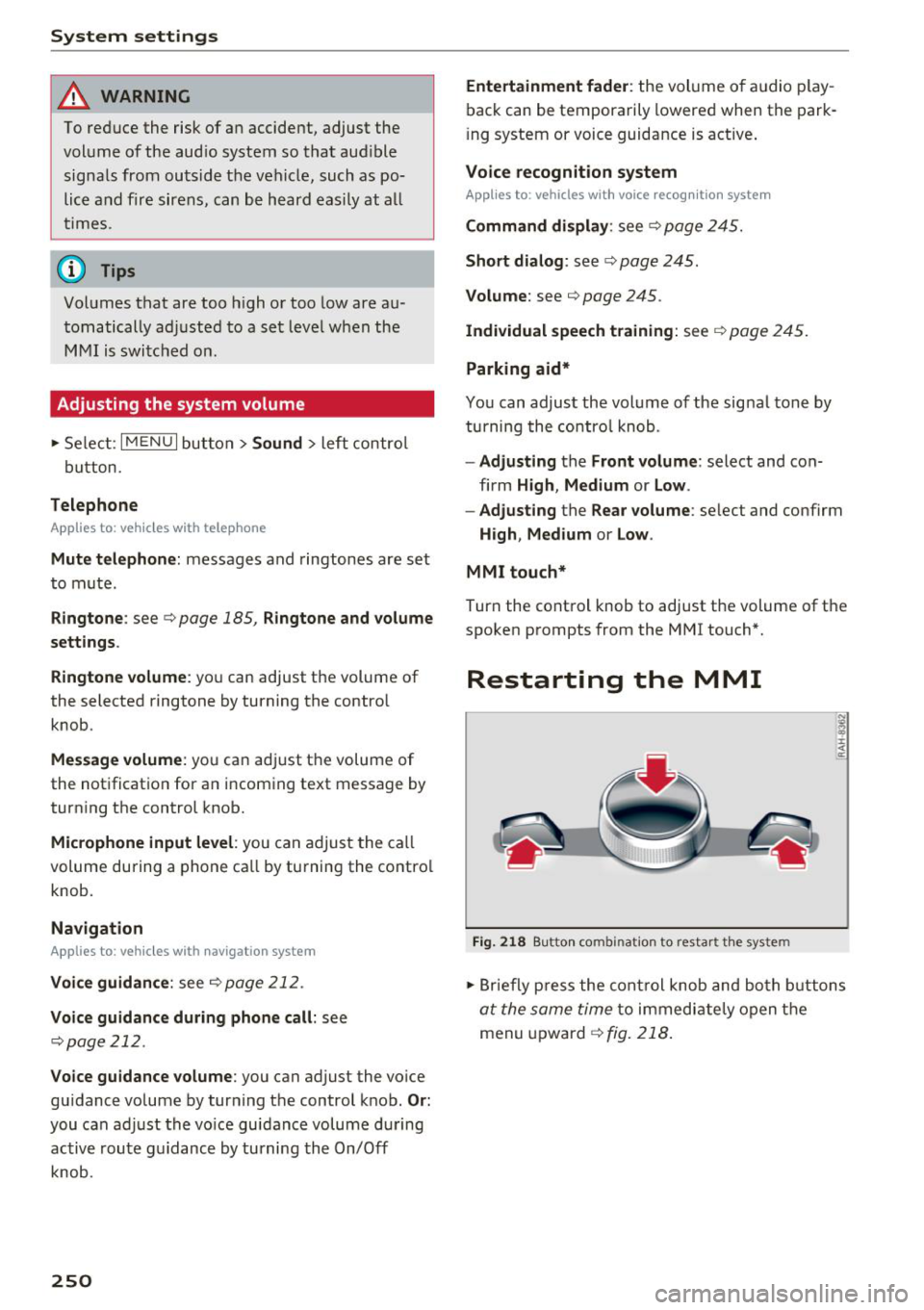
Fig. 218 Bu tton co m bin at ion to re sta rt t he s yst em
.,. Briefly p ress the cont rol knob and both b uttons
at the same time to immediate ly open the
menu upward
¢ fig. 218 .