stop start AUDI Q8 2021 Owner´s Manual
[x] Cancel search | Manufacturer: AUDI, Model Year: 2021, Model line: Q8, Model: AUDI Q8 2021Pages: 332, PDF Size: 118.76 MB
Page 131 of 332
4M8012721BF
Driving information
— The traffic signs on the road always take pri-
ority over the display. The driver is always
responsible for adhering to the regulations
applicable in the country where the vehicle
is being operated.
— Units of measurement and language set-
tings are displayed based on how they were
set in the MMI system settings > page 233.
Applies to: vehicles with traffic light information
Switching traffic light information on and
off
The system can be switched on and off in the
MMI page 124.
Accessing traffic light information
> Select in the instrument cluster: vehicle func-
tions tab > Traffic signs.
G@) Tips
If another tab or another function is selected
in the instrument cluster, the traffic light in-
formation will appear in the status bar on the
instrument cluster.
Messages
Applies to: vehicles with traffic light information
Malfunction! See owner's manual
The system could not be configured, for example
due to a network malfunction. Switch the igni-
tion off and shut down the vehicle to restart the
system. Wait several minutes until the vehicle
has shut down completely and then switch the
ignition back on.
Function currently unavailable. See owner's
manual
There is a temporary system malfunction. Check
if one or more of the following situations applies
and correct the issue if necessary:
— Traffic light information is switched off
— Data transmission is deactivated
— The vehicle is not equipped with traffic sign rec-
ognition.
— There is no valid license
— Traffic light information is not available in that
area
Lap timer
Introduction
Applies to: vehicles with lap timer
You can record and evaluate lap times with the
lap timer. You can operate the lap timer using the
multifunction steering wheel > page 13.
Opening the lap timer
> Select in the instrument cluster: Vehicle func-
tions tab > [=] button > Lap times.
An additional indicator will appear in the head-up
display”.
Z\ WARNING
Your focus should always be on driving your
vehicle safely. As the driver, you have com-
plete responsibility for safety in traffic. To re-
duce the risk of an accident, only use the lap
timer functions in such a way that you always
maintain complete control over your vehicle in
all traffic situations.
@ Tips
You can retrieve information from the trip
computer while the lap timer stopwatch is
running.
Fy R teem ale)
Applies to: vehicles with lap timer
Requirement: the lap timer must be open
=> page 129.
Timing laps
> To start timing manually, select Start lap 1 in
the menu.
> To start timing automatically as soon as you be-
gin
to drive, select Start lap 1 by driving off or
Start by driving off in the menu.
> To start timing a new lap after driving a lap, se-
lect New lap in the menu. This starts timing
the next lap at the same time.
129
Page 132 of 332
Driving information
After completing a lap, the difference between
the last lap and the previous best lap time will be
indicated with a “—” or “+”.
Pausing timing and displaying a split time
> To insert a pause @ select Pause in the menu.
> To resume timing, select Resume in the menu.
> To display a split time, select Split time in the
menu. The split time appears for approxi-
mately ten seconds in the instrument cluster.
The current lap timing will continue running.
Canceling lap timing
The timing of the current lap will stop. The lap
time will be erased and will not be included in the
statistics.
> Select Cancel lap in the menu.
Resetting the time
> Select Reset lap times in the menu.
@ Tips
—A maximum of 99 lap times can be meas-
ured.
- If timing is paused, you can continue it later
even if you switch the ignition off.
— Saved lap times cannot be individually de-
leted from the total results.
— The saved lap timer values will remain after
switching the ignition off.
p statistics
Applies to: vehicles with lap timer
Displaying lap statistics
You can display the number of laps driven ij
the fastest lap “+”, the slowest lap “~”, and the
average time “®” in the instrument cluster.
> Select in the instrument cluster: Vehicle func-
tions tab > I button > Lap statistics.
> Turn the thumbwheel down or up to display the
individual lap times.
> To return to the lap timing that was started, se-
lect the =] button > Lap times.
D_ Not available in all countries
130
Resetting lap statistics
Requirement: the lap statistics menu must be
displayed.
> To reset the lap statistics, press and hold the
left thumbwheel until the message No lap
times have been recorded yet. appears.
G) Tips
The lap statistics list the lap times for the last
30 laps. The fastest and slowest lap times out
of up to 99 measured laps are also displayed.
Acceleration
measurement”)
Introduction
Applies to: vehicles with acceleration measurement
With the acceleration measurement, you can
measure the time that you need to reach a specif-
ic speed/distance. Keep in mind that the environ-
mental conditions and tire properties can affect
the results of the measurement.
Opening the acceleration measurement
> Select in the instrument cluster: vehicle func-
tions tab > EE] button > Acceleration measure.
Z\ WARNING
Your focus should always be on driving your
vehicle safely. As the driver, you have com-
plete responsibility for safety in traffic. Only
use the acceleration measurement function
on closed courses to reduce the risk of acci-
dents.
Using the acceleration measurement
Applies to: vehicles with acceleration measurement
Requirement: the acceleration measurement
must be opened.
> Bring the vehicle to a full stop.
> Select and confirm the desired speed or dis-
tance.
Page 139 of 332
4M8012721BF
Driver assistance
route guidance, the system displays mes-
sages based on an assumed route.
— The wording of the message may vary de-
pending on the selected Audi drive select*
mode and the selected gear. No messages
are displayed when in the "S" driving pro-
gram.
Adaptive cruise assist
General information
Applies to: vehicles with adaptive cruise assist
Depending on the vehicle equipment, the adap-
tive cruise assist may consist of the following
functions:
Within the limits of the system, the adaptive
speed
assist assists the driver in controlling the
speed and the set distance to the vehicle driving
ahead. If the system detects a vehicle driving
ahead, the adaptive speed assist can brake and
accelerate your vehicle within the limits of the
system. On open roads with no traffic, it func-
tions like a cruise control system. The stored
speed is maintained. When approaching a vehicle
driving ahead, the adaptive speed assist auto-
matically brakes to match that vehicle's speed
and then maintains the set distance as much as
possible. Once the system does not detect a vehi-
cle driving ahead, adaptive speed assist will ac-
celerate up to the set speed.
The additional lane guidance assists the driver
with corrective steering in order to stay in the
lane. You can adjust if the adaptive cruise assist
will provide support with lane guidance
=> page 140, Switching lane guidance on and off.
In stop-and-go traffic and in traffic jams, the ve-
hicle may brake to a full stop and then may also
start driving again automatically under certain
conditions.
Applies to: vehicles with efficiency assist: Predic-
tive control can adjust the speed based on traffic
and road conditions > page 141, Predictive con-
trol.
ZX WARNING
Observe the safety precautions and note the
limits of the assist systems, sensors, and
cameras > page 121.
@ Tips
The system complies with United States FCC
regulations and ISED regulations > page 311.
Pie ace)
Applies to: vehicles with adaptive cruise assist
B4m-0093
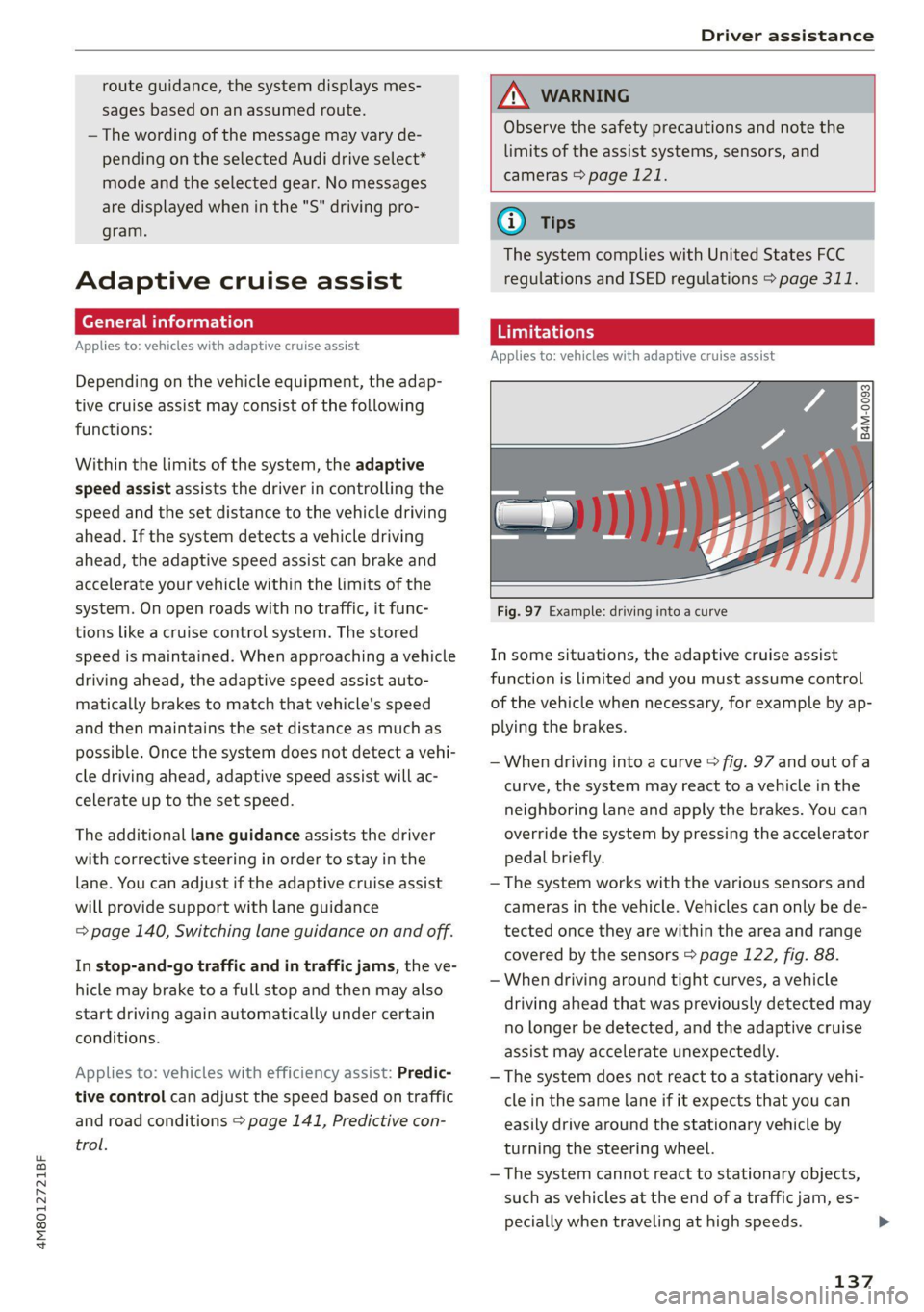
Fig. 97 Example: driving into a curve
In some situations, the adaptive cruise assist
function is limited and you must assume control
of the vehicle when necessary, for example by ap-
plying the brakes.
— When driving into a curve > fig. 97 and out of a
curve, the system may react to a vehicle in the
neighboring lane and apply the brakes. You can
override the system by pressing the accelerator
pedal briefly.
— The system works with the various sensors and
cameras in the vehicle. Vehicles can only be de-
tected once they are within the area and range
covered by the sensors > page 122, fig. 88.
— When driving around tight curves, a vehicle
driving ahead that was previously detected may
no longer be detected, and the adaptive cruise
assist may accelerate unexpectedly.
— The system does not react to a stationary vehi-
cle in the same lane if it expects that you can
easily drive around the stationary vehicle by
turning the steering wheel.
— The system cannot react to stationary objects,
such as vehicles at the end of a traffic jam, es-
pecially when traveling at high speeds. >
137
Page 146 of 332
Driver assistance
the vehicle ahead is driving, the actual dis-
tance may be more or less than these target
distances.
Overriding control
Applies to: vehicles with adaptive cruise assist
RAZ-0096
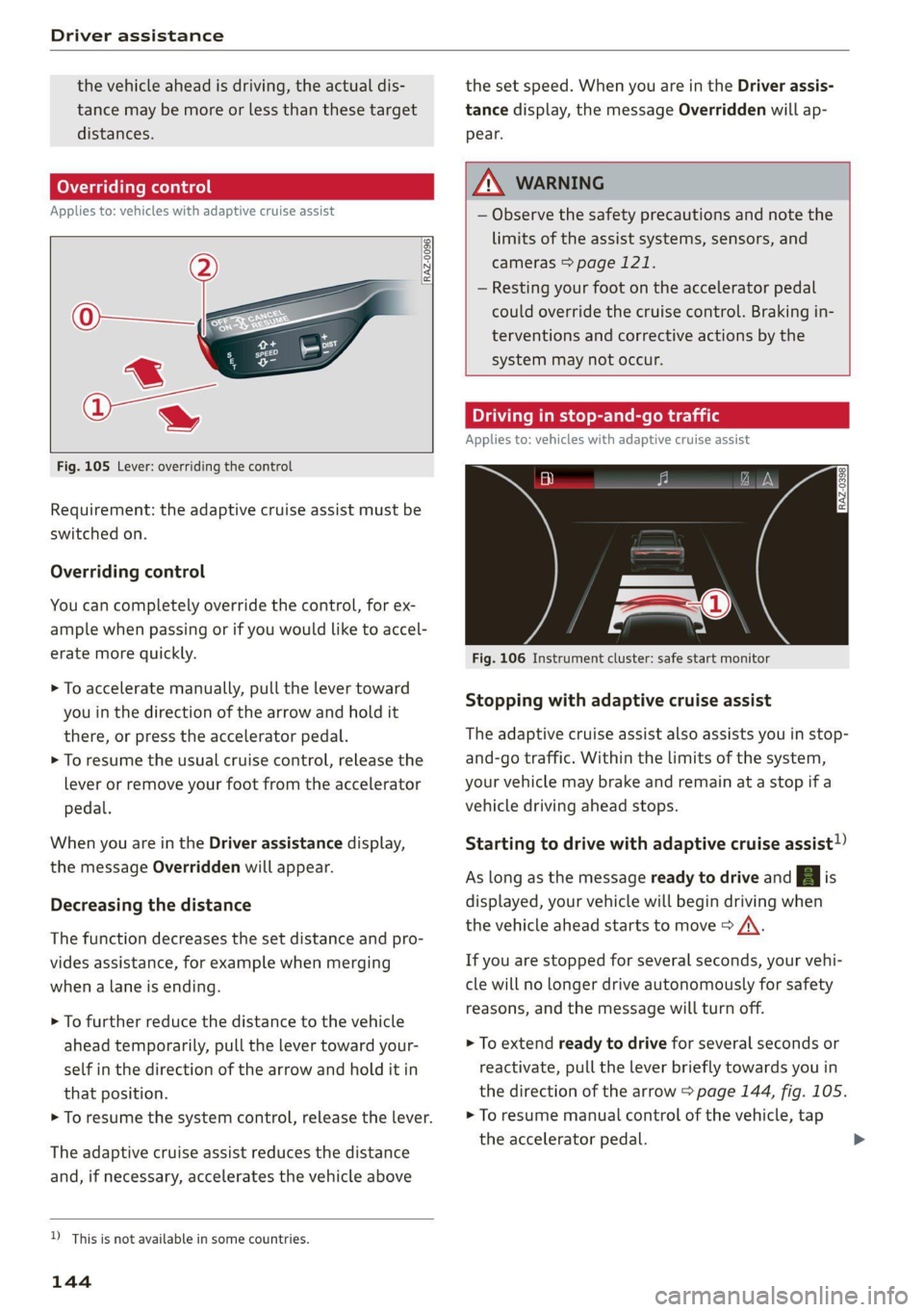
Fig. 105 Lever: overriding the control
Requirement: the adaptive cruise assist must be
switched on.
Overriding control
You can completely override the control, for ex-
ample when passing or if you would like to accel-
erate more quickly.
> To accelerate manually, pull the lever toward
you in the direction of the arrow and hold it
there, or press the accelerator pedal.
> To resume the usual cruise control, release the
lever or remove your foot from the accelerator
pedal.
When you are in the Driver assistance display,
the message Overridden will appear.
Decreasing the distance
The function decreases the set distance and pro-
vides assistance, for example when merging
when a lane is ending.
> To further reduce the distance to the vehicle
ahead temporarily, pull the lever toward your-
self in the direction of the arrow and hold it in
that position.
> To resume the system control, release the lever.
The adaptive cruise assist reduces the distance
and, if necessary, accelerates the vehicle above
D_ This is not available in some countries.
144
the set speed. When you are in the Driver assis-
tance display, the message Overridden will ap-
pear.
ZA\ WARNING
— Observe the safety precautions and note the
limits of the assist systems, sensors, and
cameras > page 121.
— Resting your foot on the accelerator pedal
could override the cruise control. Braking in-
terventions and corrective actions by the
system may not occur.
Driving in stop-and-go traffic
Applies to: vehicles with adaptive cruise assist
SI 8 3
I? ny x fa
Fig. 106 Instrument cluster: safe start monitor
Stopping with adaptive cruise assist
The adaptive cruise assist also assists you in stop-
and-go traffic. Within the limits of the system,
your vehicle may brake and remain at a stop if a
vehicle driving ahead stops.
Starting to drive with adaptive cruise assist!)
As long as the message ready to drive and | is
displayed, your vehicle will begin driving when
the vehicle ahead starts to move > /\.
If you are stopped for several seconds, your vehi-
cle will no longer drive autonomously for safety
reasons, and the message will turn off.
> To extend ready to drive for several seconds or
reactivate, pull the lever briefly towards you in
the direction of the arrow > page 144, fig. 105.
> To resume manual control of the vehicle, tap
the
accelerator pedal.
Page 147 of 332
4M8012721BF
Driver assistance
Safe start monitor
The vehicle can still start to drive even if certain
obstacles are detected when starting to drive
> /\. If the surrounding area detection detects
an obstacle, you will be alerted to the danger by
the A indicator light.
If you are in the Driver assistance display, the
display @) © fig. 106 and the message Warning!
will also appear. An audio signal will also sound.
Your vehicle will drive more slowly when starting.
This may also occur in some situations when
there is no apparent obstacle.
> Press the brake pedal to slow your vehicle
down.
ZA\ WARNING
— Observe the safety precautions and note the
limits of the assist systems, sensors, and
cameras > page 121.
— If the message ready to drive!) appears,
your vehicle will start driving even if there is
an obstacle between your vehicle and the ve-
hicle ahead. To reduce the risk of an acci-
dent, always make sure there are no obsta-
cles between your vehicle and the vehicle
driving ahead.
@) Tips
For safety reasons, adaptive cruise assist is
only active if:
— The driver's safety belt is fastened
— All doors and the hood are closed
— Your vehicle is not stopped for a long period
of time
D_ This is not available in some countries.
Tama n request
Applies to: vehicles with adaptive cruise assist
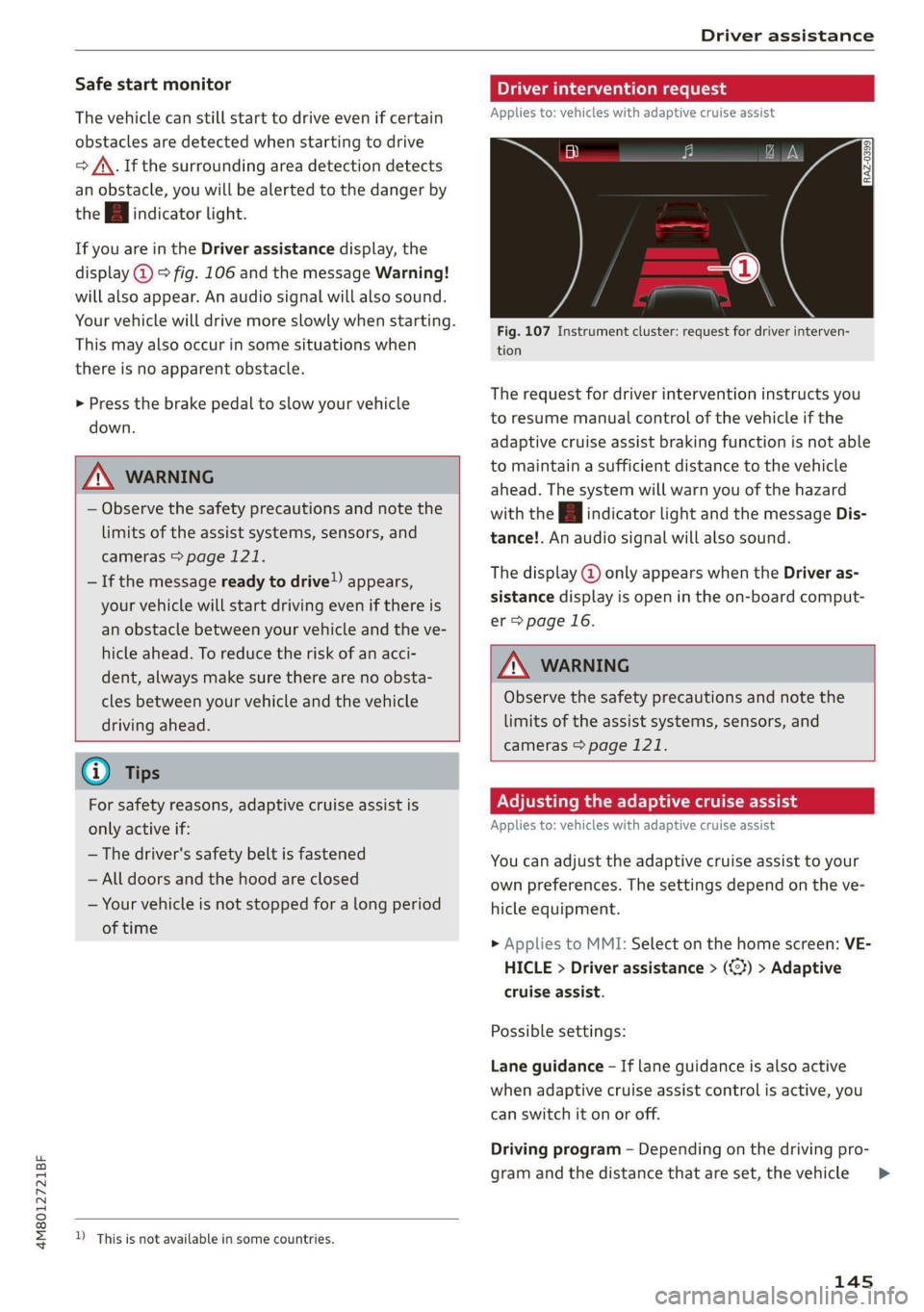
Fig. 107 Instrument cluster: request for driver interven-
tion
The request for driver intervention instructs you
to resume manual control of the vehicle if the
adaptive cruise assist braking function is not able
to maintain a sufficient distance to the vehicle
ahead. The system will warn you of the hazard
with the A indicator light and the message Dis-
tance!. An audio signal will also sound.
The display @ only appears when the Driver as-
sistance display is open in the on-board comput-
er > page 16.
ZA\ WARNING
Observe the safety precautions and note the
limits of the assist systems, sensors, and
cameras > page 121.
Adjusting the adaptive cruise assist
Applies to: vehicles with adaptive cruise assist
You can adjust the adaptive cruise assist to your
own preferences. The settings depend on the ve-
hicle equipment.
> Applies to MMI: Select on the home screen: VE-
HICLE > Driver assistance > (3) > Adaptive
cruise assist.
Possible settings:
Lane guidance - If lane guidance is also active
when adaptive cruise assist control is active, you
can switch it on or off.
Driving program - Depending on the driving pro-
gram and the distance that are set, the vehicle
145
>
Page 160 of 332
Driver assistance
As soon as the vehicle comes to a full stop, the
vehicle prepares for the vehicle passengers to be
rescued. The parking brake is set, “P” gear is en-
gaged, the doors are unlocked, and the interior
lighting is activated. The emergency call» will be
started if necessary once the vehicle has been
stationary
for several seconds.
Display
If /S\ is displayed for example, the emergency
assist is active.
Overriding the emergency assist
You can override emergency assist as follows
>A:
— Move the steering wheel. Or
— Press the brake pedal. Or
— Press the accelerator pedal distinctly.
When stationary, you can end the emergency as-
sist by leaving the "P" position or releasing the
parking brake > page 106.
Switching the emergency assist on and off
The system can be switched on and off in the
MMI & page 124.
Messages
a | or & is displayed when there is a malfunc-
tion, the emergency assist functions may be un-
available or may be limited.
A message that indicates the cause and possible
solution may appear with some displays. The
weather conditions may be too poor or a sensor
may be covered. Clean the area in front of the
sensors > page 123 and try to turn the system on
again later.
If the malfunction remains, drive to an author-
ized Audi dealer or authorized Audi Service Facili-
ty immediately to have the malfunction correct-
ed.
AN WARNING
— Observe the safety precautions and note the
limits of the assist systems, sensors, and
cameras > page 121.
— The emergency assist is an assist system
that should only be used in cases of emer-
gency to take over control of the vehicle and
bring it to a stop.
) This function is not available in every market and on all ve-
hicle equipment levels.
158
(i) Tips
— Depending on the severity of the detected
situation, not all safety measures will be ini-
tiated. Certain functions can be adjusted or
skipped if necessary.
— If the emergency assist was triggered, it will
only be available again after a brief period.
Page 174 of 332
Parking and maneuvering
— Park assist plus is an assist system. The driv-
er is still responsible for monitoring the ve-
hicle's surroundings and preventing colli-
sions when using the system.
— When using park assist plus to drive into or
out of a parking space, the steering wheel
turns quickly on its own. Reaching into the
steering wheel spokes while this is happen-
ing can result in injury.
— Sensors and cameras have spots in which
the surrounding area cannot be detected.
Objects, animals, and people may only be
detected with limitations may not be detect-
ed at all. Always monitor the traffic and the
vehicle's surroundings directly and do not
become distracted.
@) Tips
— You can reduce the speed specified by the
system at any time by pressing the brake
pedal.
— The system can incorrectly interpret parking
space barriers (such as parking curbs). Take
over the parking process = page 173 if the
vehicle is not completely inside the parking
space or if the vehicle tries to drive over the
parking space barrier.
— The image in the display is an enlarged and
distorted image. Under certain circumstan-
ces, objects may appear different and un-
clear on the display. This is especially true if
there are objects that do not touch the
ground, such as the bumper of a parked ve-
hicle or the rear of a truck. Drive with spe-
cial care and do not use the image if neces-
sary.
— Applies to vehicles with air suspension: The
accuracy of the orientation lines and green
surfaces in the display decreases when the
vehicle is raised or lowered with the air sus-
pension.
)_ system availability may be limited depending on the mar-
ket.
2) In preparation at the time of printing.
172
Exiting a parking space with park assist
Pye oa)
Applies to: vehicles with park assist plus
If you parked the vehicle in a parallel parking
space, park assist plus can help you drive out of
it.
> Start the engine.
> Press P@ in the lower display.
> Wait until a message appears on the upper dis-
play that requests you to select the direction to
travel in when exiting the parking space.
> Activate the turn signal on the desired side or
press that side next to the vehicle in the upper
display.
> Remove your hands from the steering wheel.
> Pay attention to the path of the vehicle. If the
traffic situation permits it, press and hold the
>>P] button @ > page 171, fig. 130 and re-
lease the brakes > A\.
> Pay attention to the path of the vehicle. If an
obstacle appears, interrupt the parking process
by releasing the [>>P] button. The vehicle re-
mains stopped.
> To resume the parking process, press and hold
the [>>P| button again.
> The process of exiting the parking space has
ended if additional corrective movements are
no longer necessary and the specified steering
wheel angle is sufficient to drive out of the
parking space. Resume control of the steering
wheel >@).
Pause park assist plus > page 173.
Z\ WARNING
— Observe the safety precautions and note the
limits of the assist systems, sensors, and
cameras > page 121.
— Press and hold the [>>P] button only if you
are sure that there are no obstacles in the
vehicle's path or under the vehicle, and that
no obstacles will move into the vehicle's
path. >
Page 178 of 332
Parking and maneuvering
@) Tips
— When parking in garages, you can be
straight in front of the garage or at a slight
angle in front of the garage. You will have
the best results when you align and stop
your vehicle as straight as possible in front
of the garage.
— If there is enough space in a two-car garage,
the system automatically selects the park-
ing position in front of the vehicle that the
driver has selected.
Parking with the myAud re
Applies to: vehicles with remote park assist plus
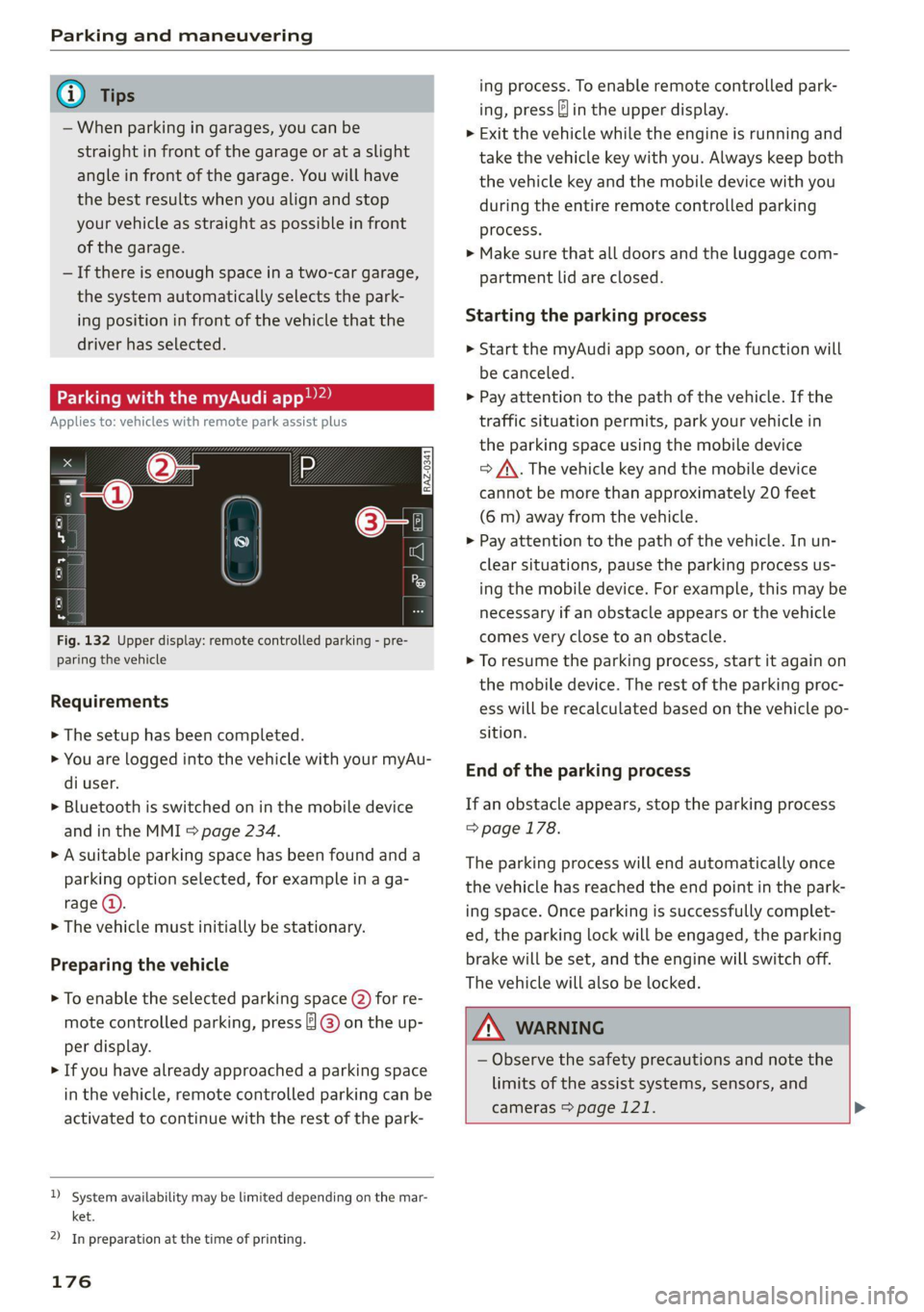
Fig. 132 Upper display: remote controlled parking - pre-
paring the vehicle
Requirements
> The setup has been completed.
> You are logged into the vehicle with your myAu-
di user.
> Bluetooth is switched on in the mobile device
and in the MMI > page 234.
> A suitable parking space has been found anda
parking option selected, for example in a ga-
rage (@).
> The vehicle must initially be stationary.
Preparing the vehicle
> To enable the selected parking space (2) for re-
mote controlled parking, press ] @) on the up-
per display.
> If you have already approached a parking space
in the vehicle, remote controlled parking can be
activated to continue with the rest of the park-
)_ system availability may be limited depending on the mar-
ket.
2) In preparation at the time of printing.
176
ing process. To enable remote controlled park-
ing, press J in the upper display.
> Exit the vehicle while the engine is running and
take the vehicle key with you. Always keep both
the vehicle key and the mobile device with you
during the entire remote controlled parking
process.
> Make sure that all doors and the luggage com-
partment lid are closed.
Starting the parking process
> Start the myAudi app soon, or the function will
be canceled.
> Pay attention to the path of the vehicle. If the
traffic situation permits, park your vehicle in
the parking space using the mobile device
> J\. The vehicle key and the mobile device
cannot be more than approximately 20 feet
(6 m) away from the vehicle.
> Pay attention to the path of the vehicle. In un-
clear situations, pause the parking process us-
ing the mobile device. For example, this may be
necessary if an obstacle appears or the vehicle
comes very close to an obstacle.
> To resume the parking process, start it again on
the mobile device. The rest of the parking proc-
ess will be recalculated based on the vehicle po-
sition.
End of the parking process
If an obstacle appears, stop the parking process
> page 178.
The parking process will end automatically once
the vehicle has reached the end point in the park-
ing space. Once parking is successfully complet-
ed, the parking lock will be engaged, the parking
brake will be set, and the engine will switch off.
The vehicle will also be locked.
ZA WARNING
— Observe the safety precautions and note the
limits of the assist systems, sensors, and
cameras > page 121. >
Page 179 of 332
4M8012721BF
Parking and maneuvering
— Failing to pay careful attention to the vehi-
cle's surroundings increases the risk of an
accident. Park your vehicle with the mobile
device only if you are sure that no obstacle is
in the vehicle's path or under the vehicle,
and that no obstacles will move into the ve-
hicle's path.
G) Tips
— If the parking space is located in a garage, it
must be detected correctly by the vehicle.
When the parking space is detected com-
pletely, the edges of the space will be high-
lighted @).
— The parking process can only be started if
the vehicle key is located outside the vehicle
after the vehicle is prepared. Always keep
both the vehicle key and the mobile device
with you during the entire remote control-
led parking process.
— Remote controlled parking may be restrict-
ed or unavailable in situations such as the
following:
— If the ESC is restricted or switched off, or
if there is a malfunction.
— If there is another vehicle key inside the
vehicle or nearby.
— The system can incorrectly interpret parking
space barriers (such as parking curbs). Take
over the parking process > page 178 if the
vehicle is not completely inside the parking
space or if the vehicle tries to drive over the
parking space barrier.
Exiting parking spaces wit
app)
Applies to: vehicles with remote park assist plus
the myAudi
> Start the myAudi app.
> Start the engine in the myAudi app soon. When
starting, the vehicle key and mobile device
must not be more than approximately 10 feet
(3 m) away from the vehicle.
> Start the parking process with the mobile de-
vice soon. Otherwise, the function will be can-
celed.
> Pay attention to the path of the vehicle. If the
traffic situation permits, drive the vehicle out of
the parking space using the mobile device
> /\. The vehicle key and the mobile device
cannot be more than approximately 20 feet
(6 m) away from the vehicle during remote con-
trolled parking.
> The process for exiting a parking space ends
when the maximum distance is reached or if ad-
ditional corrective movements are no longer
necessary. Unlock and resume manual control
of the vehicle.
If an obstacle appears, stop the parking process
=> page 178.
ZA\ WARNING
— Observe the safety precautions and note the
limits of the assist systems, sensors, and
cameras > page 121.
— Failing to pay careful attention to the vehi-
cle's surroundings increases the risk of an
accident. Park your vehicle with the mobile
device only if you are sure that no obstacle is
in the vehicle's path or under the vehicle,
and that no obstacles will move into the ve-
hicle's path.
)_ System availability may be limited depending on the mar-
ket.
2) In preparation at the time of printing.
(i) Tips
You can interrupt the path set by the vehicle,
for example if it will drive very close to an ob-
stacle, by pausing the parking process using
the mobile device. Based on the position of
the vehicle, the system then calculates the
additional steering and driving directions for
maneuvering.
1L7Z
Page 180 of 332
Parking and maneuvering
eae atm eatle Mel tecel (eM eee atte pace
Applies to: vehicles with remote park assist plus
To stop the vehicle, you can temporarily pause re-
mote controlled parking at any time using your
mobile device.
You can also completely stop the parking process
and come to full stop immediately using the ve-
hicle key by pressing any button on the vehicle
key. Therefore, always keep the vehicle key with
you during the remote controlled parking proc-
ess.
Canceling automatically
The remote controlled parking will be canceled
automatically in the following situations, among
other things:
— If the myAudi app is not started soon after exit-
ing
the vehicle,
— If you switch off the system
— If the time limit is exceeded
— The ESC intervenes
Taking over the parking process
After canceling the parking process, the vehicle
will come to a stop and the "P" position will be
engaged. Take over control of the vehicle, end the
parking process manually, and stop the vehicle.
You can also restart the entire parking process
from inside the vehicle.
Z\ WARNING
— Observe the safety precautions and note the
limits of the assist systems, sensors, and
cameras > page 121.
— Failing to pay careful attention to the vehi-
cle's surroundings increases the risk of an
accident. Park your vehicle with the mobile
device only if you are sure that no obstacle is
in the vehicle's path or under the vehicle,
and that no obstacles will move into the ve-
hicle's path.
D_ System availability may be limited depending on the mar-
ket.
2) In preparation at the time of printing.
178
G) Tips
The parking process will be interrupted tem-
porarily if an obstacle is detected.
Maneuver assist2)”)
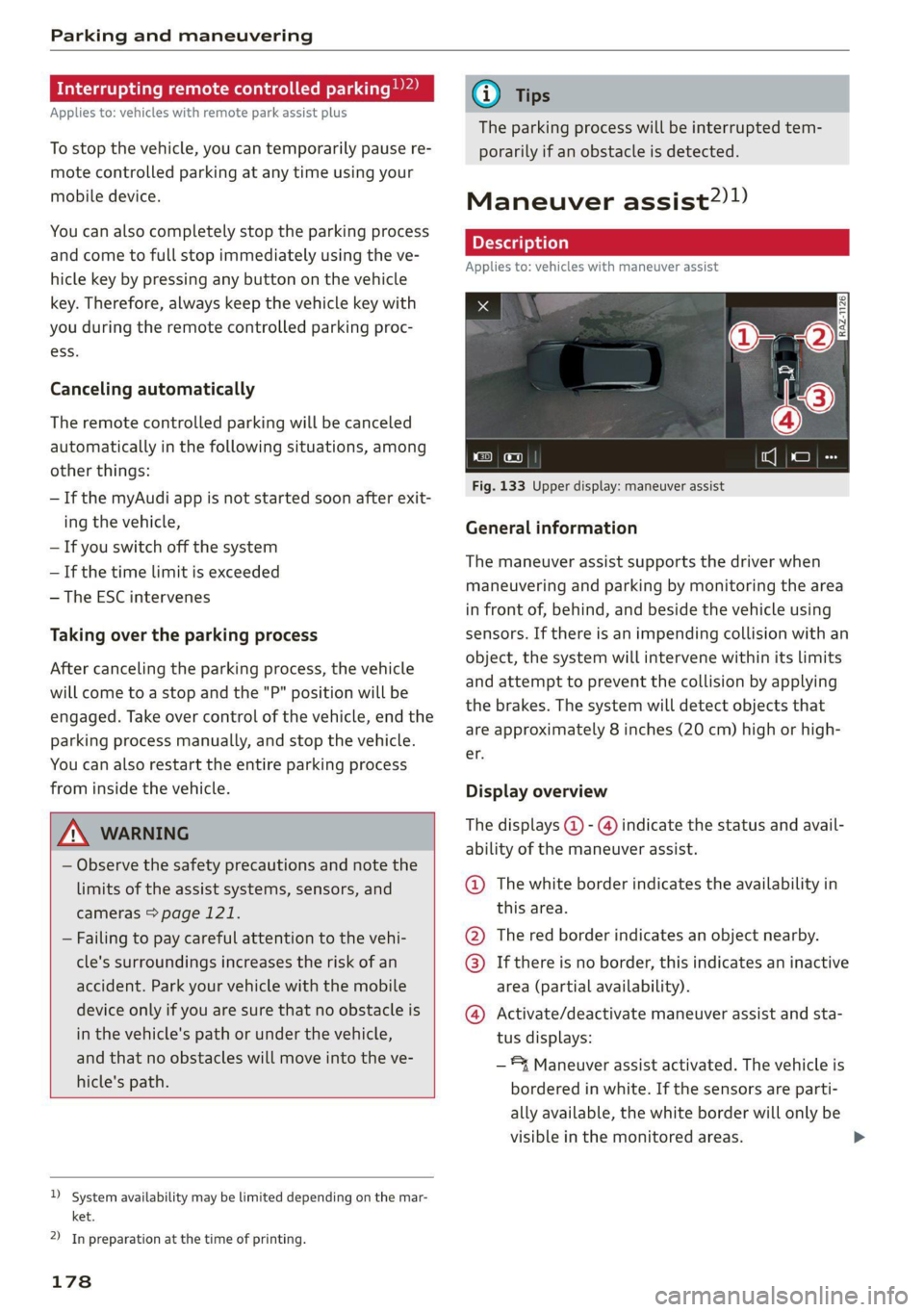
Fig. 133 Upper display: maneuver assist
General information
The maneuver assist supports the driver when
maneuvering and parking by monitoring the area
in front of, behind, and beside the vehicle using
sensors. If there is an impending collision with an
object, the system will intervene within its limits
and attempt to prevent the collision by applying
the brakes. The system will detect objects that
are approximately 8 inches (20 cm) high or high-
er.
Display overview
The displays @ - @ indicate the status and avail-
ability of the maneuver assist.
@ The white border indicates the availability in
this area.
The red border indicates an object nearby.
If there is no border, this indicates an inactive
area (partial availability).
Activate/deactivate maneuver assist and sta-
tus displays:
®
©®&
—*4 Maneuver assist activated. The vehicle is
bordered in white. If the sensors are parti-
ally available, the white border will only be
visible in the monitored areas.