lights AUDI Q8 2021 Owner´s Manual
[x] Cancel search | Manufacturer: AUDI, Model Year: 2021, Model line: Q8, Model: AUDI Q8 2021Pages: 332, PDF Size: 118.76 MB
Page 136 of 332
Driver assistance
Driver assistance
Cruise control system
Applies to: vehicles with cruise control system
The cruise control system assists the driver in
maintaining a constant speed above approxi-
mately 15 mph (20 km/h). The system maintains
the desired speed by braking and accelerating.
ZA\ WARNING
— Always pay attention to the traffic around
your vehicle when the cruise control system
is in operation. As the driver, you are always
responsible for controlling your vehicle
speed and the distance between your vehicle
and
other vehicles.
— For safety reasons, cruise control should not
be used in the city, in stop-and-go traffic, on
winding roads, and when road conditions are
poor (such as ice, fog, gravel, heavy rain,
and conditions that could lead to hydroplan-
ing), because this increases the risk of an ac-
cident.
— Switch the cruise control off temporarily
when driving in turning lanes, highway exits,
or in construction zones.
—To reduce the risk of an accident, you should
only resume the stored speed if it is suitable
for the current traffic conditions.
C) Note
Before driving downhill a long distance ona
steep hill, decrease your speed and select a
lower gear. This makes use of the engine brak-
ing effect and reduces the load placed on the
brakes.
@) Tips
The brake lights turn on when the brakes are
applied automatically.
134
Switching the system on
Applies to: vehicles with cruise control system
BFV-0220
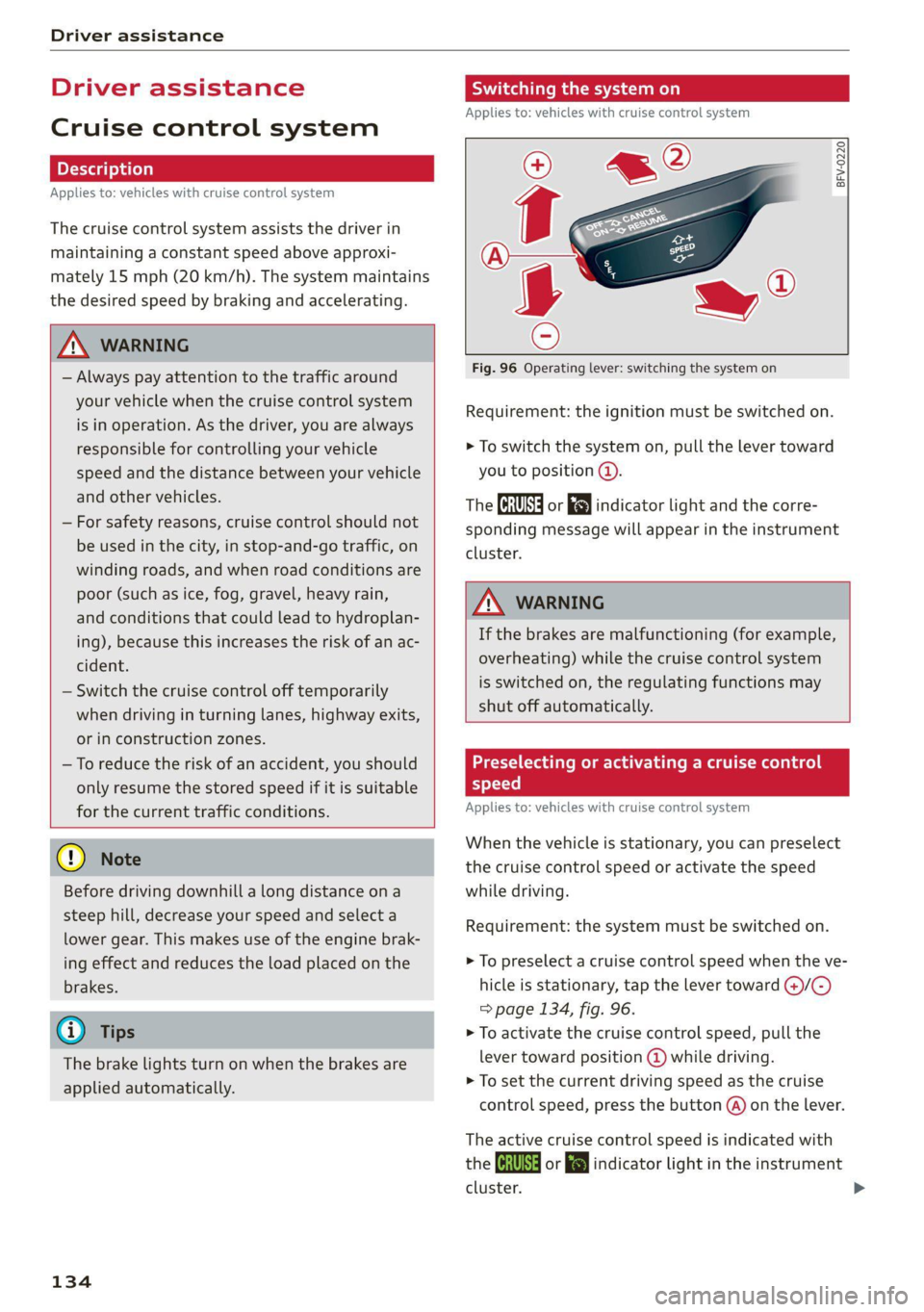
Fig. 96 Operating lever: switching the system on
Requirement: the ignition must be switched on.
> To switch the system on, pull the lever toward
you to position @).
The Ga or i$) indicator light and the corre-
sponding message will appear in the instrument
cluster.
A WARNING
If the brakes are malfunctioning (for example,
overheating) while the cruise control system
is switched on, the regulating functions may
shut off automatically.
etal Rom lad lalate Ragas)
speed
Applies to: vehicles with cruise control system
When the vehicle is stationary, you can preselect
the cruise control speed or activate the speed
while driving.
Requirement: the system must be switched on.
> To preselect a cruise control speed when the ve-
hicle is stationary, tap the lever toward @)/G)
=> page 134, fig. 96.
> To activate the cruise control speed, pull the
lever toward position (@ while driving.
> To set the current driving speed as the cruise
control speed, press the button @) on the lever.
The active cruise control speed is indicated with
the ICRUISE| or indicator light in the instrument
cluster.
Page 140 of 332
Driver assistance
— The system has a limited ability to detect
vehicles that are a short distance ahead, off to
the side of your vehicle, or moving into your
lane.
— Objects that are difficult to detect, such as mo-
torcycles, vehicles with high ground clearance,
or vehicles with an overhanging load, may be
detected late or not detected at all.
— The system does not respond to people, ani-
mals, or objects that are crossing or approach-
ing from the opposite direction.
Z\ WARNING
Observe the safety precautions and note the
limits of the assist systems, sensors, and
cameras > page 121.
Display overview
Applies to: vehicles with adaptive cruise assist
3| | | IN| | G3
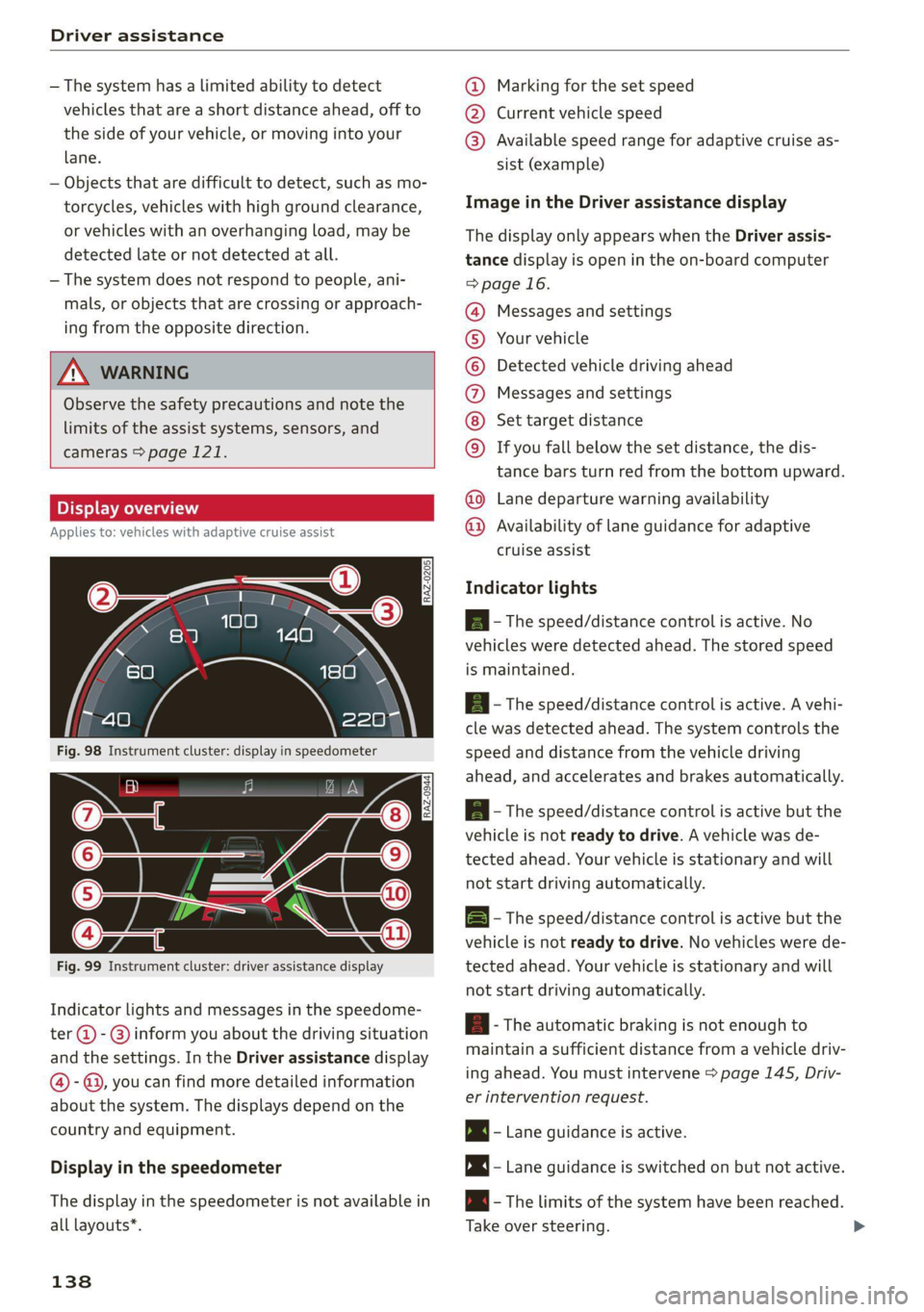
Fig. 99 Instrument cluster: driver assistance display
Indicator lights and messages in the speedome-
ter @ - @ inform you about the driving situation
and the settings. In the Driver assistance display
@- @, you can find more detailed information
about the system. The displays depend on the
country and equipment.
Display in the speedometer
The display in the speedometer is not available in
all layouts*.
138
@ Marking for the set speed
@ Current vehicle speed
@® Available speed range for adaptive cruise as-
sist (example)
Image in the Driver assistance display
The display only appears when the Driver assis-
tance display is open in the on-board computer
=> page 16.
Messages and settings
Your vehicle
Detected vehicle driving ahead
Messages and settings
Set target distance
If you fall below the set distance, the dis-
tance bars turn red from the bottom upward.
Lane departure warning availability
O©©
©©0OO®
Availability of lane guidance for adaptive
cruise assist
Indicator lights
BA - The speed/distance control is active. No
vehicles were detected ahead. The stored speed
is maintained.
A - The speed/distance control is active. A vehi-
cle was detected ahead. The system controls the
speed and distance from the vehicle driving
ahead, and accelerates and brakes automatically.
A - The speed/distance control is active but the
vehicle is not ready to drive. A vehicle was de-
tected ahead. Your vehicle is stationary and will
not start driving automatically.
SB - The speed/distance control is active but the
vehicle is not ready to drive. No vehicles were de-
tected ahead. Your vehicle is stationary and will
not start driving automatically.
B.- The automatic braking is not enough to
maintain a sufficient distance from a vehicle driv-
ing ahead. You must intervene > page 145, Driv-
er intervention request.
- Lane guidance is active.
- Lane guidance is switched on but not active.
> 4 - The limits of the system have been reached.
Take over steering.
Page 142 of 332
Driver assistance
> Push the lever away from you into position ©)
until it clicks into place.
The indicator light and the set speed will turn off.
Z\ WARNING
— Observe the safety precautions and note the
limits of the assist systems, sensors, and
cameras > page 121.
— The adaptive cruise assist is only an assist
system, and the driver is still responsible for
controlling the vehicle. The driver is espe-
cially responsible for braking, steering,
starting to drive, and controlling the speed
and the distance from other vehicles.
— Turn on the adaptive cruise assist only if the
surrounding conditions permit it. Always
adapt your driving style to the current visu-
al, weather, road, and traffic conditions.
— Switch the adaptive cruise assist off tempo-
rarily when driving in turning lanes or high-
way exits. This prevents the vehicle from ac-
celerating to the stored speed when in these
situations.
— If you press the [SET] button @) when driv-
ing at speeds below 15 mph (20 km/h), the
minimum possible speed that the system
can maintain will be set. If no vehicle is de-
tected ahead of you, the vehicle will acceler-
ate up to that speed.
@ Tips
— Always keep your hands on the steering
wheel so you can be ready to steer at any
time. The driver is always responsible for
adhering to the regulations applicable in
the country where the vehicle is being oper-
ated.
— If you switch the ignition or the adaptive
cruise assist off, the stored speed is erased
for safety reasons.
— When the adaptive cruise assist is switched
on, the ESC and the ASR are switched on au-
tomatically.
D_Incertain countries.
140
— The system cannot be switched off or it may
be interrupted if the road exceeds the maxi-
mum possible grade for safe operation.
Switching lane guidance on and off
Applies to: vehicles with adaptive cruise assist and lane guid-
ance
B8V-0692
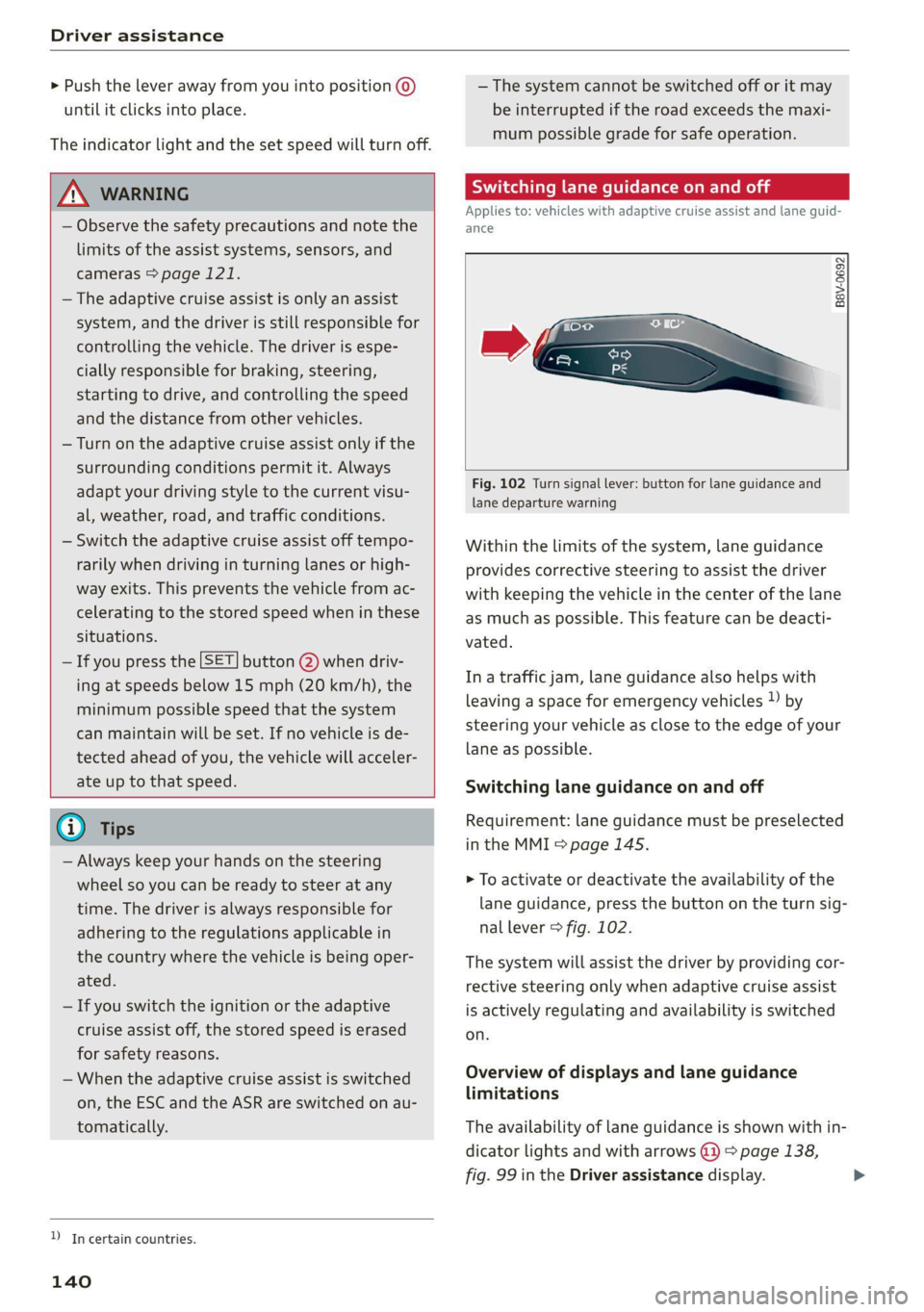
Fig. 102 Turn signal lever: button for lane guidance and
lane departure warning
Within the limits of the system, lane guidance
provides corrective steering to assist the driver
with keeping the vehicle in the center of the lane
as much as possible. This feature can be deacti-
vated.
Ina traffic jam, lane guidance also helps with
leaving a space for emergency vehicles ») by
steering your vehicle as close to the edge of your
lane as possible.
Switching lane guidance on and off
Requirement: lane guidance must be preselected
in the MMI > page 145.
> To activate or deactivate the availability of the
lane guidance, press the button on the turn sig-
nal lever > fig. 102.
The system will assist the driver by providing cor-
rective steering only when adaptive cruise assist
is actively regulating and availability is switched
on.
Overview of displays and lane guidance
limitations
The availability of lane guidance is shown with in-
dicator lights and with arrows @i) > page 138,
fig. 99 in the Driver assistance display.
Page 144 of 332
Driver assistance
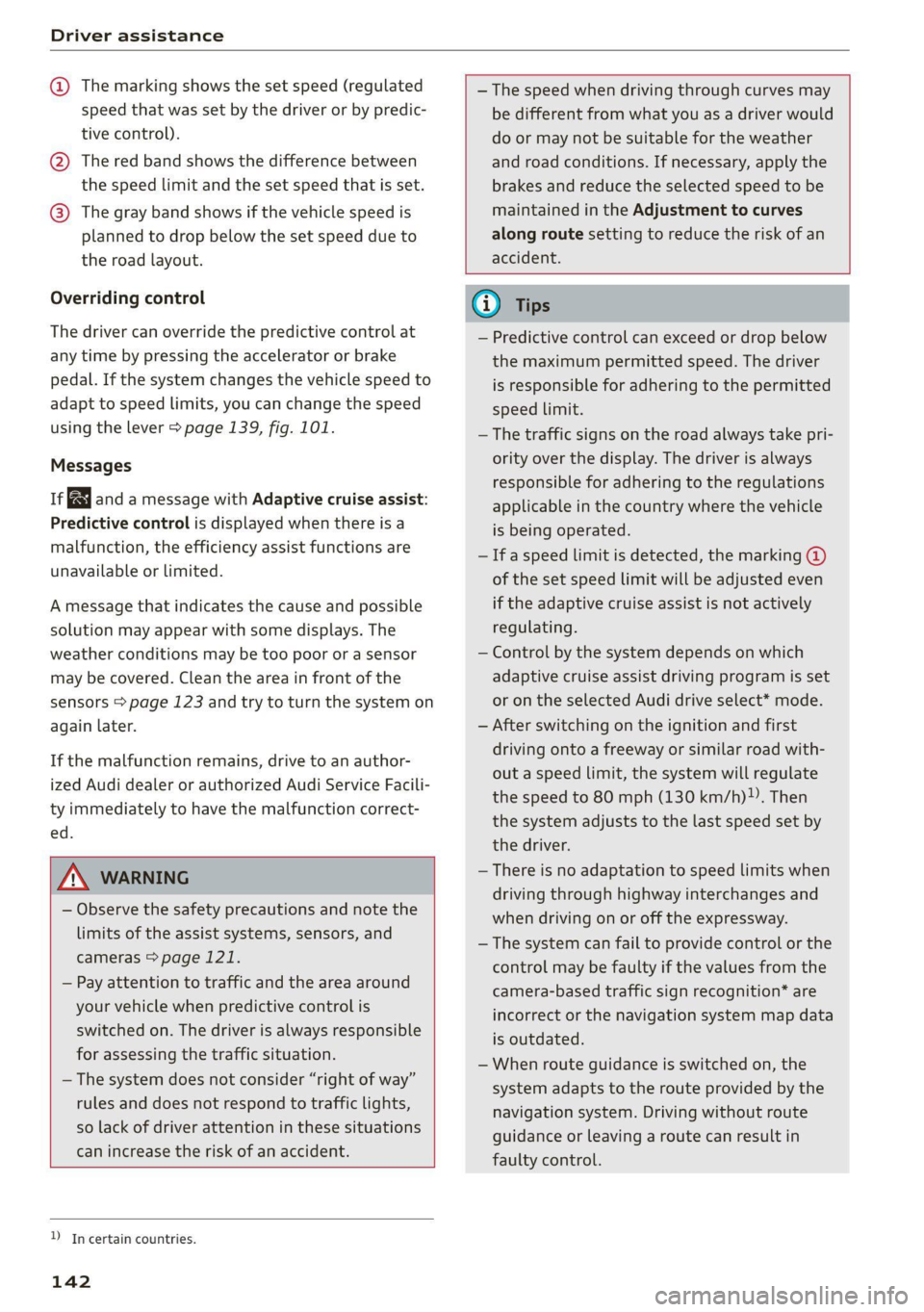
@ The marking shows the set speed (regulated
speed that was set by the driver or by predic-
tive control).
@ The red band shows the difference between
the speed limit and the set speed that is set.
@ The gray band shows if the vehicle speed is
planned to drop below the set speed due to
the road layout.
Overriding control
The driver can override the predictive control at
any time by pressing the accelerator or brake
pedal. If the system changes the vehicle speed to
adapt to speed limits, you can change the speed
using the lever > page 139, fig. 101.
Messages
If and a message with Adaptive cruise assist:
Predictive control is displayed when there is a
malfunction, the efficiency assist functions are
unavailable or limited.
A message that indicates the cause and possible
solution may appear with some displays. The
weather conditions may be too poor or a sensor
may be covered. Clean the area in front of the
sensors > page 123 and try to turn the system on
again later.
If the malfunction remains, drive to an author-
ized Audi dealer or authorized Audi Service Facili-
ty immediately to have the malfunction correct-
ed.
— The speed when driving through curves may
be different from what you as a driver would
do or may not be suitable for the weather
and road conditions. If necessary, apply the
brakes and reduce the selected speed to be
maintained in the Adjustment to curves
along route setting to reduce the risk of an
accident.
ZA\ WARNING
— Observe the safety precautions and note the
limits of the assist systems, sensors, and
cameras > page 121.
— Pay attention to traffic and the area around
your vehicle when predictive control is
switched on. The driver is always responsible
for assessing the traffic situation.
— The system does not consider “right of way”
rules and does not respond to traffic lights,
so lack of driver attention in these situations
can increase the risk of an accident.
D_Incertain countries.
142
@) Tips
— Predictive control can exceed or drop below
the maximum permitted speed. The driver
is responsible for adhering to the permitted
speed limit.
— The traffic signs on the road always take pri-
ority over the display. The driver is always
responsible for adhering to the regulations
applicable in the country where the vehicle
is being operated.
— Ifa speed limit is detected, the marking @
of the set speed limit will be adjusted even
if the adaptive cruise assist is not actively
regulating.
— Control by the system depends on which
adaptive cruise assist driving program is set
or on the selected Audi drive select* mode.
— After switching on the ignition and first
driving onto a freeway or similar road with-
out a speed limit, the system will regulate
the speed to 80 mph (130 km/h). Then
the system adjusts to the last speed set by
the driver.
— There is no adaptation to speed limits when
driving through highway interchanges and
when driving on or off the expressway.
— The system can fail to provide control or the
control may be faulty if the values from the
camera-based traffic sign recognition* are
incorrect or the navigation system map data
is outdated.
— When route guidance is switched on, the
system adapts to the route provided by the
navigation system. Driving without route
guidance or leaving a route can result in
faulty control.
Page 145 of 332
4M8012721BF
Driver assistance
Setting the distance
Applies to: vehicles with adaptive cruise assist
B4M-0234
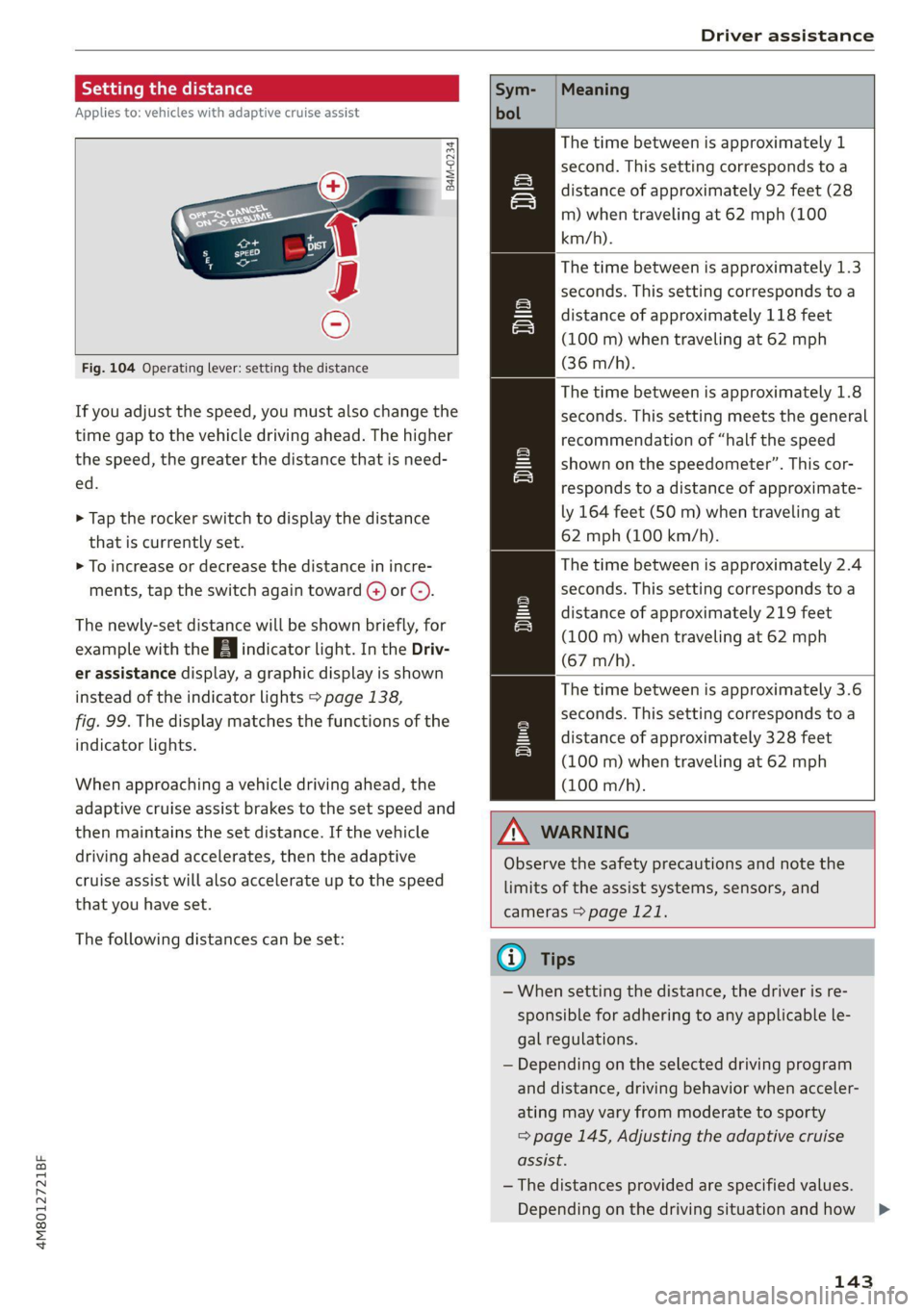
Fig. 104 Operating lever: setting the distance
If you adjust the speed, you must also change the
time gap to the vehicle driving ahead. The higher
the speed, the greater the distance that is need-
ed.
> Tap the rocker switch to display the distance
that is currently set.
> To increase or decrease the distance in incre-
ments, tap the switch again toward @) or ().
The newly-set distance will be shown briefly, for
example with the indicator light. In the Driv-
er assistance display, a graphic display is shown
instead of the indicator lights > page 138,
fig. 99. The display matches the functions of the
indicator lights.
When approaching a vehicle driving ahead, the
adaptive cruise assist brakes to the set speed and
then maintains the set distance. If the vehicle
driving ahead accelerates, then the adaptive
cruise assist will also accelerate up to the speed
that you have set.
The following distances can be set:
Meaning
The time between is approximately 1
second. This setting corresponds to a
distance of approximately 92 feet (28
m) when traveling at 62 mph (100
km/h).
The time between is approximately 1.3
seconds. This setting corresponds toa
distance of approximately 118 feet
(100 m) when traveling at 62 mph
(36 m/h).
The time between is approximately 1.8
seconds. This setting meets the general
recommendation of “half the speed
shown on the speedometer”. This cor-
responds to a distance of approximate-
ly 164 feet (SO m) when traveling at
62 mph (100 km/h).
The time between is approximately 2.4
seconds. This setting corresponds toa
distance of approximately 219 feet
(100 m) when traveling at 62 mph
(67 m/h).
The time between is approximately 3.6
seconds. This setting corresponds toa
distance of approximately 328 feet
(100 m) when traveling at 62 mph
(100 m/h).
i)
1D
ZA\ WARNING
Observe the safety precautions and note the
limits of the assist systems, sensors, and
cameras > page 121.
G@) Tips
— When setting the distance, the driver is re-
sponsible for adhering to any applicable le-
gal regulations.
— Depending on the selected driving program
and distance, driving behavior when acceler-
ating may vary from moderate to sporty
=> page 145, Adjusting the adaptive cruise
assist.
— The distances provided are specified values.
Depending on the driving situation and how >
143
Page 150 of 332
Driver assistance
Applies to: vehicles with lane departure warning
B8V-0692
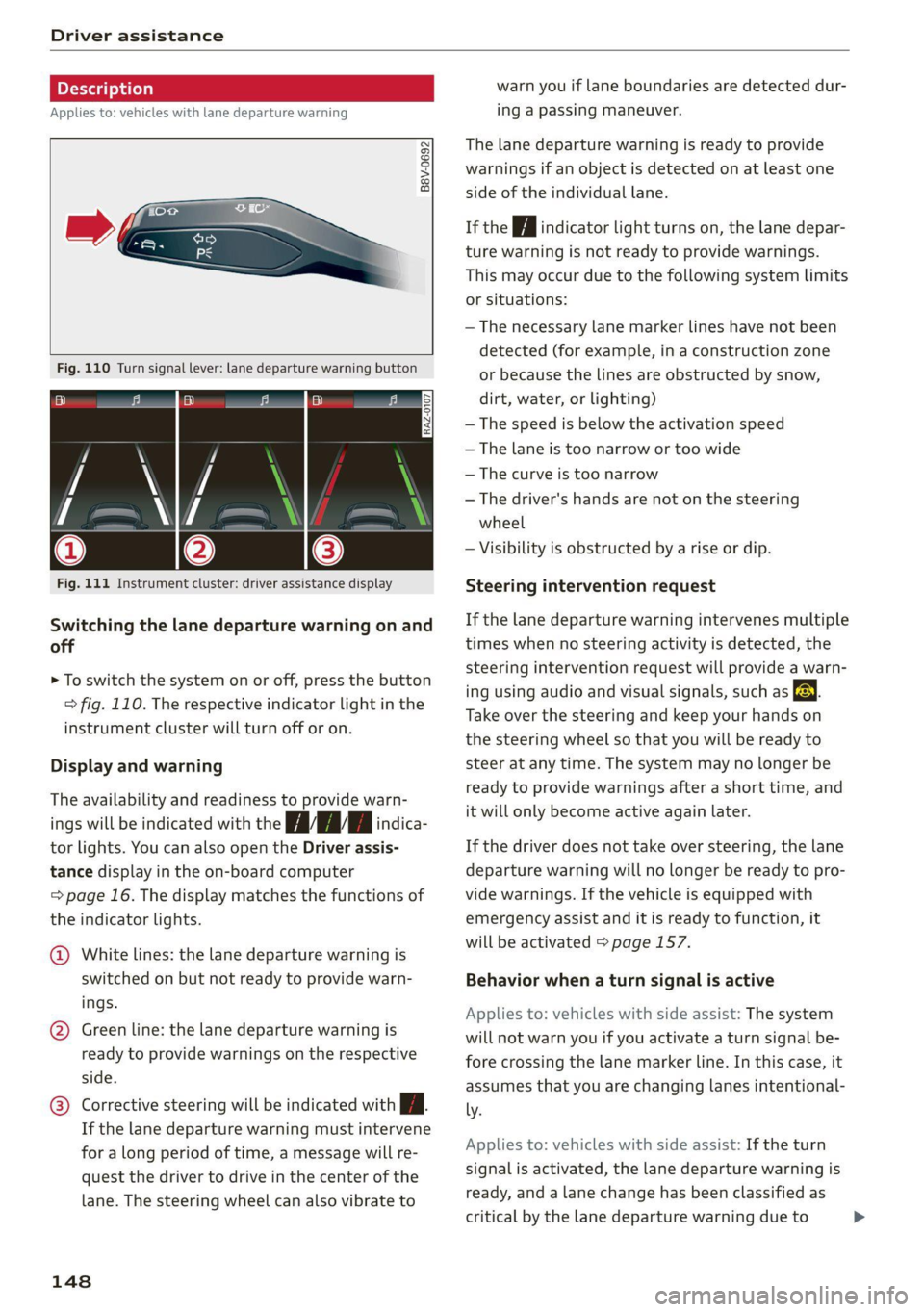
Fig. 110 Turn signal lever: lane departure warning button
RAZ-0107
Fig. 111 Instrument cluster: driver assistance display
Switching the lane departure warning on and
off
> To switch the system on or off, press the button
=> fig. 110. The respective indicator light in the
instrument cluster will turn off or on.
Display and warning
The availability and readiness to provide warn-
ings will be indicated with the nan indica-
tor lights. You can also open the Driver assis-
tance display in the on-board computer
= page 16. The display matches the functions of
the indicator lights.
@ White lines: the lane departure warning is
switched on but not ready to provide warn-
ings.
@ Green line: the lane departure warning is
ready to provide warnings on the respective
side.
Corrective steering will be indicated with Jf.
If the lane departure warning must intervene
for a long period of time, a message will re-
quest the driver to drive in the center of the
lane. The steering wheel can also vibrate to
148
warn you if lane boundaries are detected dur-
ing a passing maneuver.
The lane departure warning is ready to provide
warnings if an object is detected on at least one
side of the individual lane.
If the Hi indicator light turns on, the lane depar-
ture warning is not ready to provide warnings.
This may occur due to the following system limits
or situations:
— The necessary lane marker lines have not been
detected (for example, in a construction zone
or because the lines are obstructed by snow,
dirt, water, or lighting)
— The speed is below the activation speed
— The lane is too narrow or too wide
— The curve is too narrow
— The driver's hands are not on the steering
wheel
— Visibility is obstructed by a rise or dip.
Steering intervention request
If the lane departure warning intervenes multiple
times when no steering activity is detected, the
steering intervention request will provide a warn-
ing using audio and visual signals, such as El.
Take over the steering and keep your hands on
the steering wheel so that you will be ready to
steer at any time. The system may no longer be
ready to provide warnings after a short time, and
it will only become active again later.
If the driver does not take over steering, the lane
departure warning will no longer be ready to pro-
vide warnings. If the vehicle is equipped with
emergency assist and it is ready to function, it
will be activated > page 157.
Behavior when a turn signal is active
Applies to: vehicles with side assist: The system
will not warn you if you activate a turn signal be-
fore crossing the lane marker line. In this case, it
assumes that you are changing lanes intentional-
ly.
Applies to: vehicles with side assist: If the turn
signal is activated, the lane departure warning is
ready, and a lane change has been classified as
critical by the lane departure warning due to >
Page 197 of 332
4M8012721BF
Audi connect
ZA WARNING
— Always follow the information found in > AA
in General information on page 192.
— Driver messages, text messages, and illumi-
nated warning and indicator lights in the ve-
hicle always take priority over information
from the Audi connect services. The infor-
mation displayed by the Audi connect serv-
ices should not cause you to take safety
risks. This can result in the vehicle breaking
down in traffic and to serious injuries or ac-
cidents.
@) Tips
— Accessing specific data or controlling func-
tions remotely depends on the charge level
of the vehicle battery. Therefore, these
functions only have limited availability after
switching off the ignition.
— An eSIM card establishes the Internet con-
nection for Audi connect vehicle control
services. The costs for this are included in
the price of Audi connect vehicle control
services. The cell phone network, for exam-
ple, must be available to use these services.
Applies to: vehicles with Audi connect vehicle control
Create a myAudi account by registering in the
myAudi app or at my.audi.com, depending on
your country.
>» Set the key user > page 32.
> Install the myAudi app on your mobile device
and log in with your access information.
@) Tips
Some services require you to enter a 4-digit
PIN that you set up during registration.
Settings
Applies to: vehicles with Wi-Fi hotspot
Requirement: the ignition must be switched on.
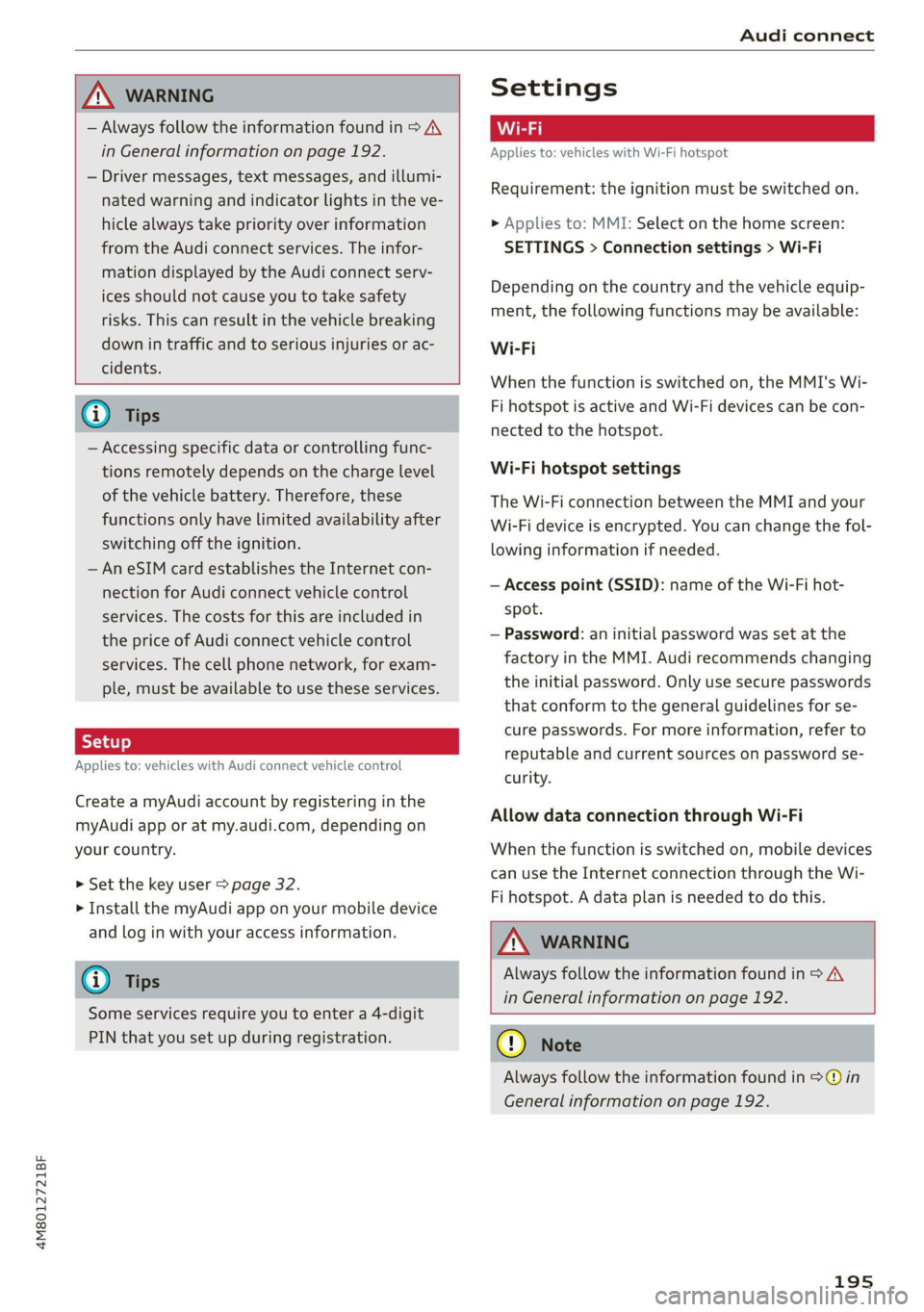
> Applies to: MMI: Select on the home screen:
SETTINGS > Connection settings > Wi-Fi
Depending on the country and the vehicle equip-
ment, the following functions may be available:
Wi-Fi
When the function is switched on, the MMI's Wi-
Fi hotspot is active and Wi-Fi devices can be con-
nected to the hotspot.
Wi-Fi hotspot settings
The Wi-Fi connection between the MMI and your
Wi-Fi device is encrypted. You can change the fol-
lowing information if needed.
— Access point (SSID): name of the Wi-Fi hot-
spot.
— Password: an initial password was set at the
factory in the MMI. Audi recommends changing
the initial password. Only use secure passwords
that conform to the general guidelines for se-
cure passwords. For more information, refer to
reputable and current sources on password se-
curity.
Allow data connection through Wi-Fi
When the function is switched on, mobile devices
can use the Internet connection through the Wi-
Fi hotspot. A data plan is needed to do this.
Z\ WARNING
Always follow the information found in > AV
in General information on page 192.
@) Note
Always follow the information found in >@ in
General information on page 192.
195
Page 228 of 332
Media
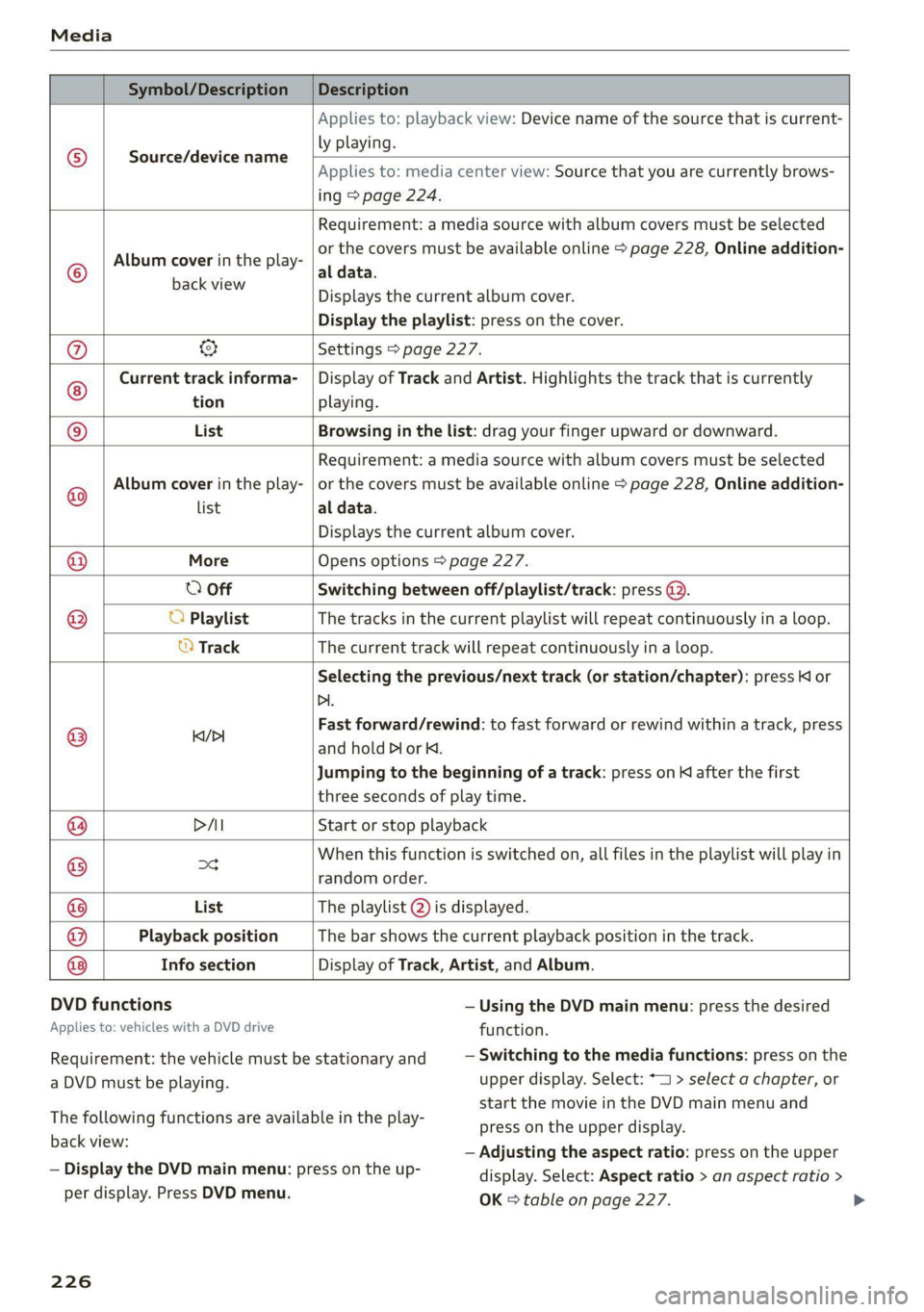
Symbol/Description Description
Source/device name
Applies to: playback view: Device name of the source that is current-
ly playing.
Applies to: media center view: Source that you are currently brows-
ing > page 224.
©
Album cover in the play-
Requirement: a media source with album covers must be selected
or the covers must be available online > page 228, Online addition-
al data.
same Displays the current album cover.
Display the playlist: press on the cover.
@ & Settings > page 227.
Current track informa- | Display of Track and Artist. Highlights the track that is currently
tion playing.
List Browsing in the list: drag your finger upward or downward.
Album cover in the play-
Requirement: a media source with album covers must be selected
or the covers must be available online > page 228, Online addition-
Playback position The bar shows the current playback position in the track.
Info section
©
© list al data.
Displays the current album cover.
@ More Opens options > page 227.
O Off Switching between off/playlist/track: press @..
() O Playlist The tracks in the current playlist will repeat continuously in a loop.
© Track The current track will repeat continuously in a loop.
Selecting the previous/next track (or station/chapter): press Ki or
Di.
@ ‘aii Fast forward/rewind: to fast forward or rewind within a track, press
and hold Dior K.
Jumping to the beginning of a track: press on K after the first
three seconds of play time.
@ PAI Start or stop playback
@ og When this function is switched on, all files in the playlist will play in
random order.
@ List The playlist @ is displayed.
@
® Display of Track, Artist, and Album.
DVD functions
Applies to: vehicles with a DVD drive
— Using the DVD main menu: press the desired
function.
— Switching to the media functions: press on the
Requirement: the vehicle must be stationary and
a DVD must be playing.
The following functions are available in the play-
back view:
— Display the DVD main menu: press on the up-
per display. Press DVD menu.
226
upper display. Select: *1 > select a chapter, or
start the movie in the DVD main menu and
press on the upper display.
— Adjusting the aspect ratio: press on the upper
display. Select: Aspect ratio > an aspect ratio >
OK > table on page 227.
Page 277 of 332
4M8012721BF
Wheels
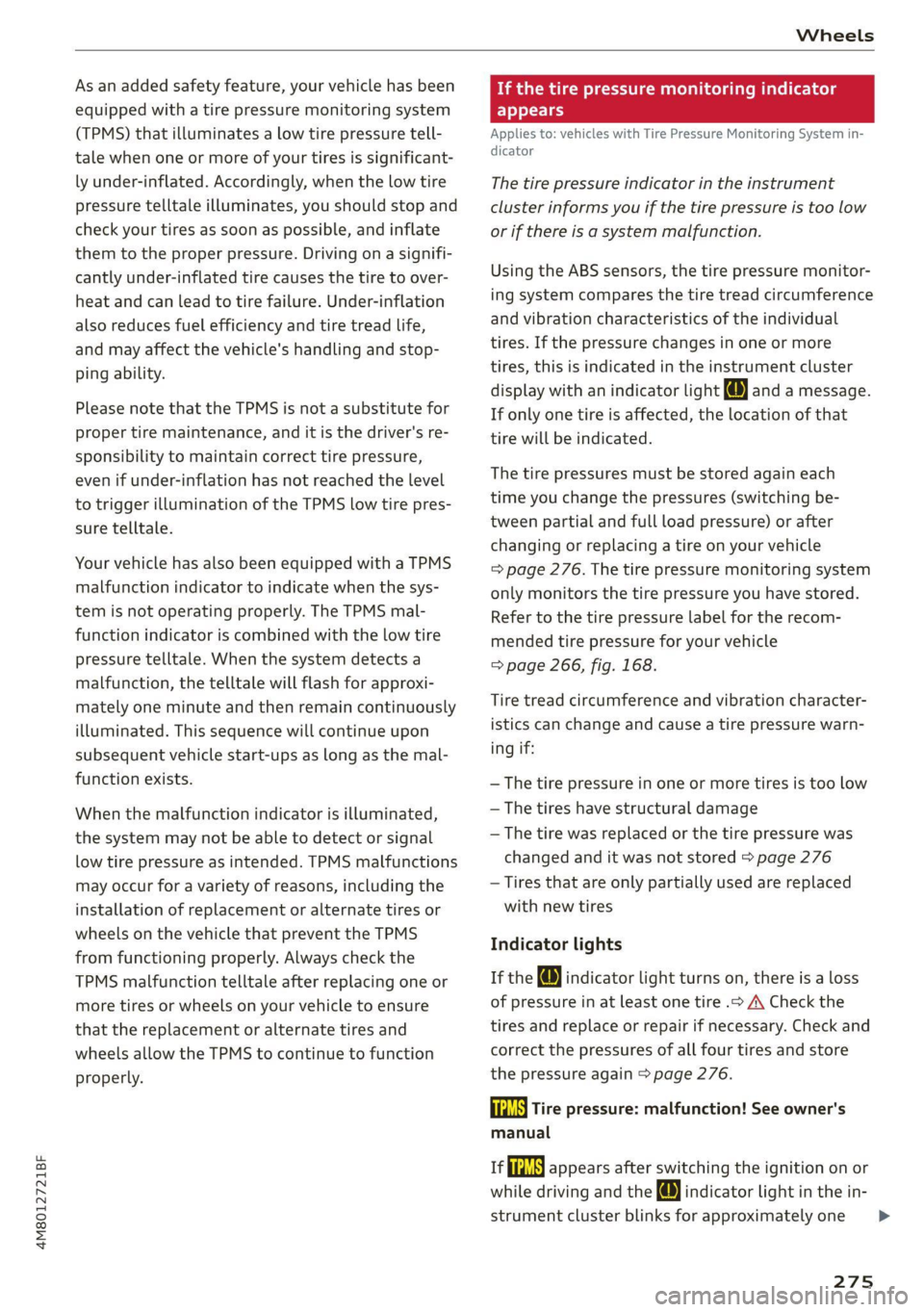
As an added safety feature, your vehicle has been
equipped with a tire pressure monitoring system
(TPMS) that illuminates a low tire pressure tell-
tale when one or more of your tires is significant-
ly under-inflated. Accordingly, when the low tire
pressure telltale illuminates, you should stop and
check your tires as soon as possible, and inflate
them to the proper pressure. Driving ona signifi-
cantly under-inflated tire causes the tire to over-
heat and can lead to tire failure. Under-inflation
also reduces fuel efficiency and tire tread life,
and may affect the vehicle's handling and stop-
ping ability.
Please note that the TPMS is not a substitute for
proper tire maintenance, and it is the driver's re-
sponsibility to maintain correct tire pressure,
even if under-inflation has not reached the level
to trigger illumination of the TPMS low tire pres-
sure telltale.
Your vehicle has also been equipped with a TPMS
malfunction indicator to indicate when the sys-
tem is not operating properly. The TPMS mal-
function indicator is combined with the low tire
pressure telltale. When the system detects a
malfunction, the telltale will flash for approxi-
mately one minute and then remain continuously
illuminated. This sequence will continue upon
subsequent vehicle start-ups as long as the mal-
function exists.
When the malfunction indicator is illuminated,
the system may not be able to detect or signal
low tire pressure as intended. TPMS malfunctions
may occur for a variety of reasons, including the
installation of replacement or alternate tires or
wheels on the vehicle that prevent the TPMS
from functioning properly. Always check the
TPMS malfunction telltale after replacing one or
more tires or wheels on your vehicle to ensure
that the replacement or alternate tires and
wheels allow the TPMS to continue to function
properly.
If the tire pressure monitoring indicator
appears
Applies to: vehicles with Tire Pressure Monitoring System in-
dicator
The tire pressure indicator in the instrument
cluster informs you if the tire pressure is too low
or if there is a system malfunction.
Using the ABS sensors, the tire pressure monitor-
ing system compares the tire tread circumference
and vibration characteristics of the individual
tires. If the pressure changes in one or more
tires, this is indicated in the instrument cluster
display with an indicator light @ and a message.
If only one tire is affected, the location of that
tire will be indicated.
The tire pressures must be stored again each
time you change the pressures (switching be-
tween partial and full load pressure) or after
changing or replacing a tire on your vehicle
= page 276. The tire pressure monitoring system
only monitors the tire pressure you have stored.
Refer to the tire pressure label for the recom-
mended tire pressure for your vehicle
> page 266, fig. 168.
Tire tread circumference and vibration character-
istics can change and cause a tire pressure warn-
ing if:
— The tire pressure in one or more tires is too low
— The tires have structural damage
— The tire was replaced or the tire pressure was
changed and it was not stored > page 276
— Tires that are only partially used are replaced
with new tires
Indicator lights
If the @ indicator light turns on, there is a loss
of pressure in at least one tire .> A\ Check the
tires and replace or repair if necessary. Check and
correct the pressures of all four tires and store
the pressure again > page 276.
ia Tire pressure: malfunction! See owner's
manual
fe appears after switching the ignition on or
while driving and the @ indicator light in the in-
strument cluster blinks for approximately one
275
>
Page 283 of 332
4M8012721BF
Care and cleaning
height and width of the inside of the car
wash.
ZA WARNING
—To reduce the risk of accidents, only wash
the vehicle when the ignition is off and fol-
low the instructions from the car wash oper-
ator.
—To reduce the risk of paint damage, do not
wash the vehicle in direct sunlight.
—To reduce the risk of damage, do not wash
decorative decals* with a pressure washer.
—To reduce the risk of damage to the surface,
do not use insect removing sponges, kitchen
sponges, or similar items.
— When washing matte finish painted vehicle
components:
—To reduce the risk of cuts, protect yourself
from sharp metal components when wash-
ing the underbody or the inside of the wheel
housings.
— After washing the vehicle, the braking effect
may be delayed due to moisture on the
brake rotors or ice in the winter. This in-
creases the risk of an accident. The brakes
must be dried with a few careful brake appli-
cations.
— To reduce the risk of damage to the sur-
face, do not use polishing agents or hard
wax.
— Never use protective wax. It can destroy
the matte finish effect.
@) Note — Do not place any stickers or magnetic
signs on vehicle components painted with
matte finish paint. The paint could be
damaged when the stickers or magnets
are removed.
— If you wash the vehicle in an automatic car
wash, you must fold the exterior mirrors in
to reduce the risk of damage to the mirrors.
Power folding exterior mirrors* must only
be folded in and out using the power folding (@) For the sake of the environment
function.
—To reduce the risk of damage to the rims
and tires, compare the width between the
wheels on your vehicle with the distance be-
tween the guide rails in the car wash.
—To reduce the risk of damage, compare the
height and width of your vehicle with the
Only wash the vehicle in facilities specially de-
signed for that purpose. This will reduce the
risk of dirty water contaminated with oil from
entering the sewer system.
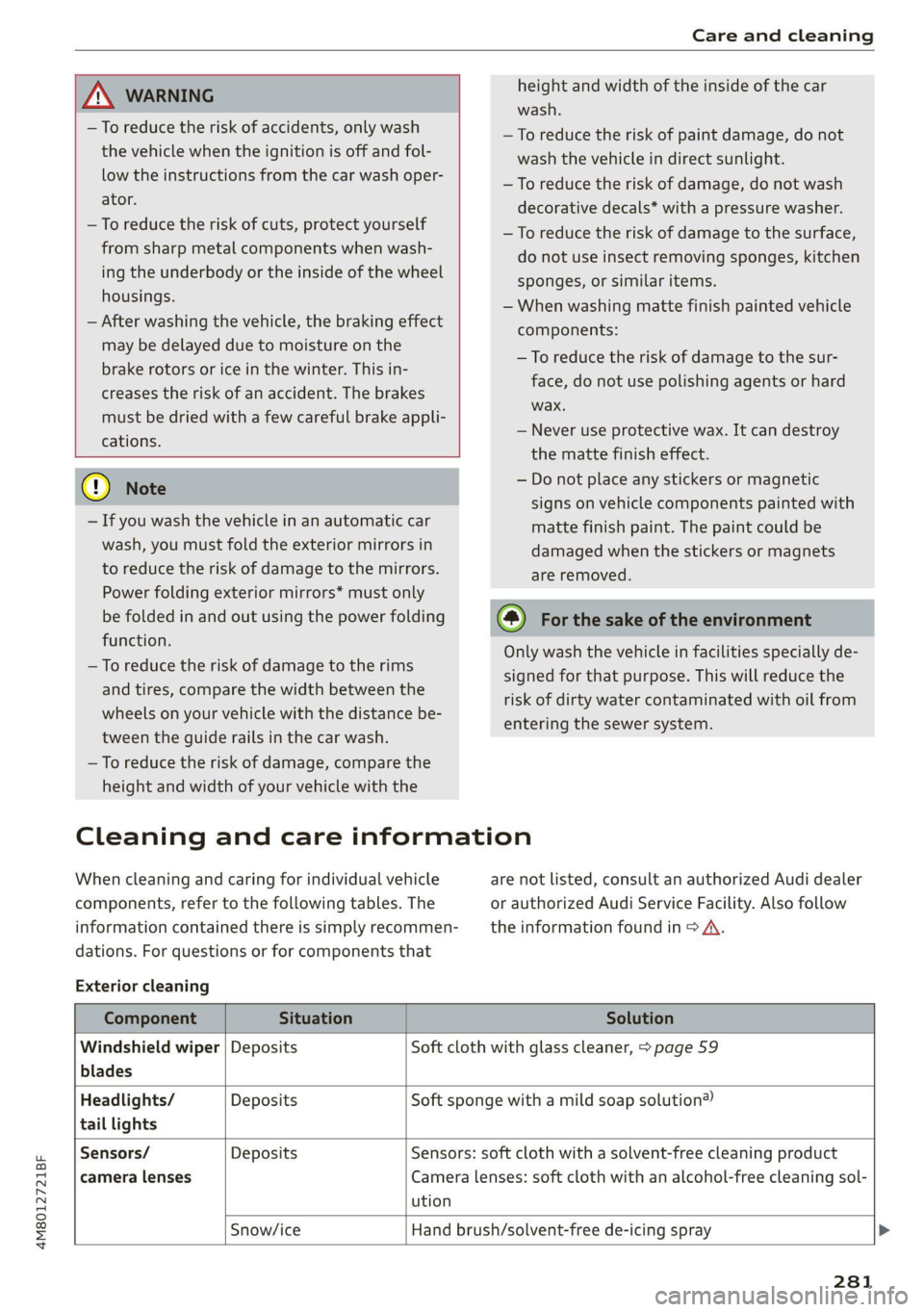
Cleaning and care information
When cleaning and caring for individual vehicle are not listed, consult an authorized Audi dealer
components, refer to the following tables. The or authorized Audi Service Facility. Also follow
information contained there is simply recommen- __ the information found in > A.
dations. For questions or for components that
Exterior cleaning
Component Situation Solution
Windshield wiper | Deposits Soft cloth with glass cleaner, > page 59
blades
Headlights/ Deposits Soft sponge with a mild soap solution®
tail lights
Sensors/ Deposits Sensors: soft cloth with a solvent-free cleaning product
camera lenses Camera lenses: soft cloth with an alcohol-free cleaning sol-
ution
Snow/ice Hand brush/solvent-free de-icing spray >
281