navigation system AUDI Q8 2021 Owner´s Manual
[x] Cancel search | Manufacturer: AUDI, Model Year: 2021, Model line: Q8, Model: AUDI Q8 2021Pages: 332, PDF Size: 118.76 MB
Page 5 of 332
4M8012721BF
Table of contents
All wheel drive (quattro).............. 115
Electronic Stabilization Control......... 116
TrailersQow tigi cece a 6 eens 4 o eaees 118
Driving with atrailer................. 118
Assist systems................... 1241
Assist systems................... 121
General information. . 121
Surrounding area detection............ 122
Switching the systems on and off....... 124
Driving information.............. 126
Speed warning system................ 126
Camera-based traffic sign recognition... 126
Traffic light information.............. 128
Lapetime rion + 3 scans oo sess a ¥ soweene 6 stain 129
Acceleration measurement............ 130
Nightivision aSSisti=x = «wm : > ase e s eon 131
Integrated Toll Module............... 132
Driver assistance................. 134
Cruise control system............00-5 134
Efficiency assist.............02.-000. 135
Adaptive cruise assist................ 137
Distance warning ..............00005. 146
Lane departure warning............... 147
Audi presense...........0 cece eee 149
Sid@vassist sews: = s sexs = 2 sews & e Ae & ne 153
EXE Warning sowsea so ccvena vo aseoa wo eons ao 155
Intersection assistant................ 156
EMiergency assists: « eswy wave a ¥ ware a Fi 157
Parking and maneuvering....... 159
ThitrOdUCtiON « s sees ¢ = sees 5 ¢ sere ge ees 159
Parking‘aid plus « sissies avis oe aretes so aoe 159
Rearview camera and peripheral cameras. 162
Rear cross-traffic assist............... 166
Assisted
parking..............---00 ee 167
Park assist plus..............000000- 170
Remote controlled parking............ 173
ManetVEraSSistt: « + aswu sx nowy ¢ wasn a ¢ g 178
Infotainment system............ 181
Telephone.............. cece eee 181
TMEROGUCTION « & cess wo wcinase we a oraeni ow awenaie 181
Setup... 2.2... cee eee eee eee 181
Using the Audi phone box............. 183
Using the telephone.................. 185
SettingS 00... . cece cee eee eee eee 188
MOSSAGES cours « s eauu § 2 eueeS Fo EGE FE BS 189
Troubleshooting sic ss wes oe ween es owe 191
Audi CONNECE : «6: = i e665 st ees so 192
General information................. 192
Audi connect Infotainment............ 192
Using a Wi-Fi hotspot 193
Audi connect Infotainment services..... 193
Functions on demand................ 194
Audi connect vehicle control services.... 194
SOttingS sews + 9 cae ¥ eee ¥ perms we pee 195
Troubleshooting..............--.0005 196
Emergency call................... 197
OVERVIEW. secs. 6 x sxcvers 6 emutes @ a eavaens vw ame
Emergency call
Online roadside assistance............ 198
Navigation.....................05. 200
Opening navigation.................. 200
myAudi navigation................00. 200
Entering adestination..............0- 201
Stopping route guidance.............. 204
Mapes & 5 saves © 2 saws yo sme @ & Hew 2 2 Be 204
Alternative routes................04. 206
Additional functions...............0-- 206
Satellite Map’s + 6 gare = cama a e weep os oe 207
Mapreipdates » cmos + x sre: «2 anes aw onnens 208
Traffic incidents.............. 000 eee 209
SOtuiNGS wows ¢ « eeen ¢ nae 2 Bees doe 210
Radio........ 0... eee eee ee 212
Generalinformation................. 212
Radio functions sss < eins 2 + wen 3 6 eacern 213
Online radio... .... eee eee eee 216
Options and settings................. 217
Troubleshooting wisi « s wen» 6 eae o + wae 218
Media................. 0c cece eee 220
General information................. 220
DVD drive...... 0... eee eee eee 220
Bluetooth audio player............... 221
Amazon Alexa..........-.:se eee ee eee 221
Multimedia connections.............. 222
Playing media..............00. 0.0 ee 223
Options and settings................. 227
Page 15 of 332
4M8012721BF
Instrument cluster
Operating The following tabs may be available, depending
on vehicle equipment:
First tab Vehicle functions > page 16
Second tab | Driver messages (this is only dis-
played if at least one indicator -5QPM
ce light/message is being displayed)
12/05/2017 Third tab Night vision assist (this is only dis-
played if the night vision assist
has been activated) > page 131
Fourth
tab |Radio > page 212
Media > page 223
Fifth tab Telephone > page 185
Sixth tab Navigation > page 200
Fig. 3 Instrument cluster: driver information system
Adjusting the display
=I eR S| >| nN x ec
Fig. 4 Left side of multifunction steering wheel
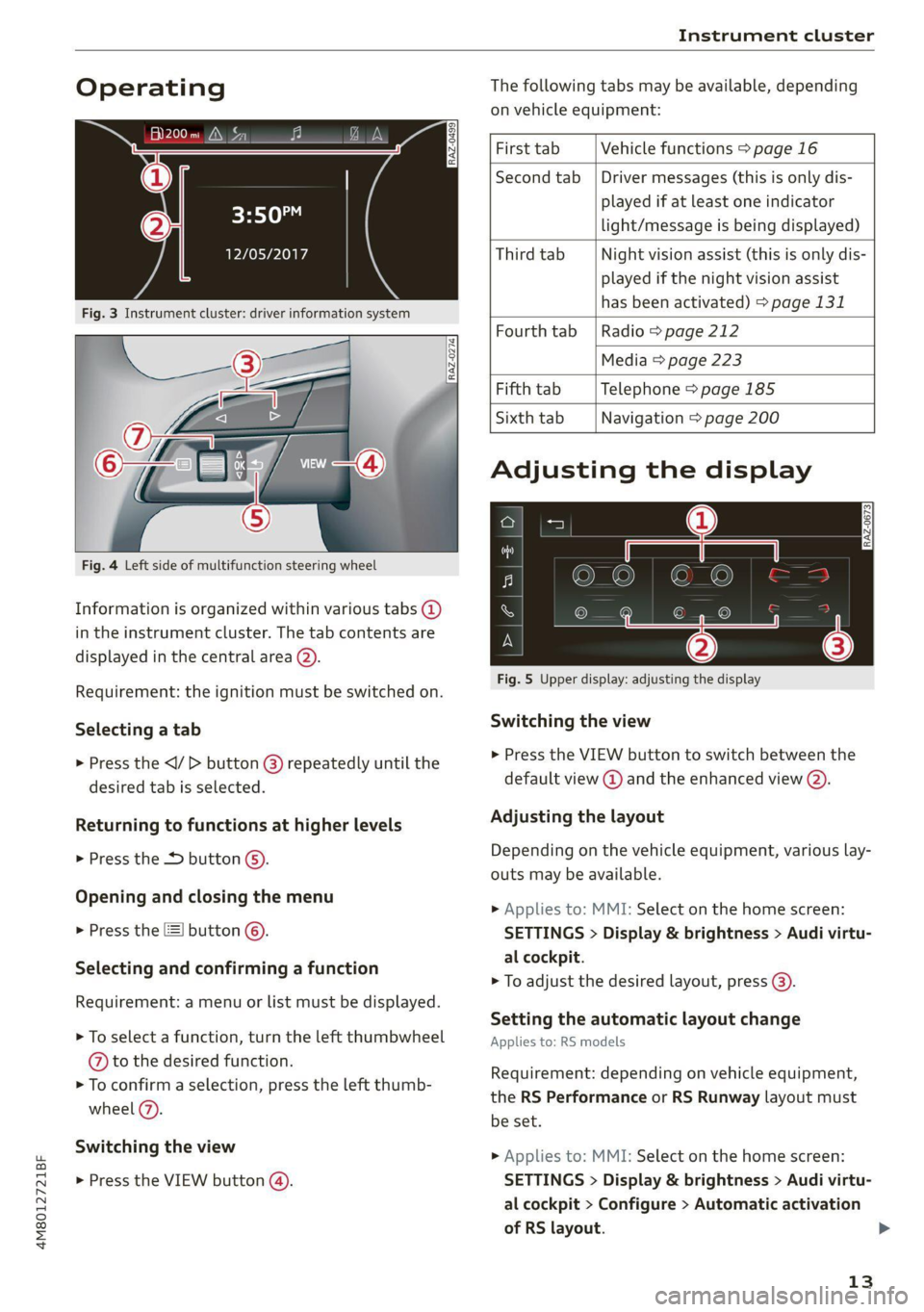
Information is organized within various tabs @)
in the instrument cluster. The tab contents are
displayed in the central area (2).
i Bad P Fig. 5 Upper display: adjusting the display
Requirement: the ignition must be switched on.
Selecting a tab Switching the view
> Press the VIEW button to switch between the > Press the
® default view @ and the enhanced view (2). desired tab is selected.
Returning to functions at higher levels Adjusting the layout
> Press the + button 6). Depending on the vehicle equipment, various lay-
outs may be available.
Opening and closing the menu
P 9 9 > Applies to: MMI: Select on the home screen:
> Press the [=] button ©). SETTINGS > Display & brightness > Audi virtu-
al cockpit.
Selecti d firmi functi
erecting ane’ confirming a function > To adjust the desired layout, press @).
Requirement: a menu or list must be displayed.
Setting the automatic layout change
> To select a function, turn the left thumbwheel Applies to: RS models
@ to the desired function.
> To confirm a selection, press the left thumb-
wheel (7).
Switching the view
Requirement: depending on vehicle equipment,
the RS Performance or RS Runway layout must
be set.
>» Applies to: MMI: Select on the home screen:
> Press the VIEW button @). SETTINGS > Display & brightness > Audi virtu-
al cockpit > Configure > Automatic activation
of RS layout. >
13
Page 27 of 332
4M8012721BF
Touch displays
acuta ole)
[ee Gye esl
< >
les, CA, 90012
Pe)
les, Los Feliz, CA, 90027
Pt)
(eer Com es
Peas
NET)
[RAZ-0711
Fig. 16 Upper/lower display: text input
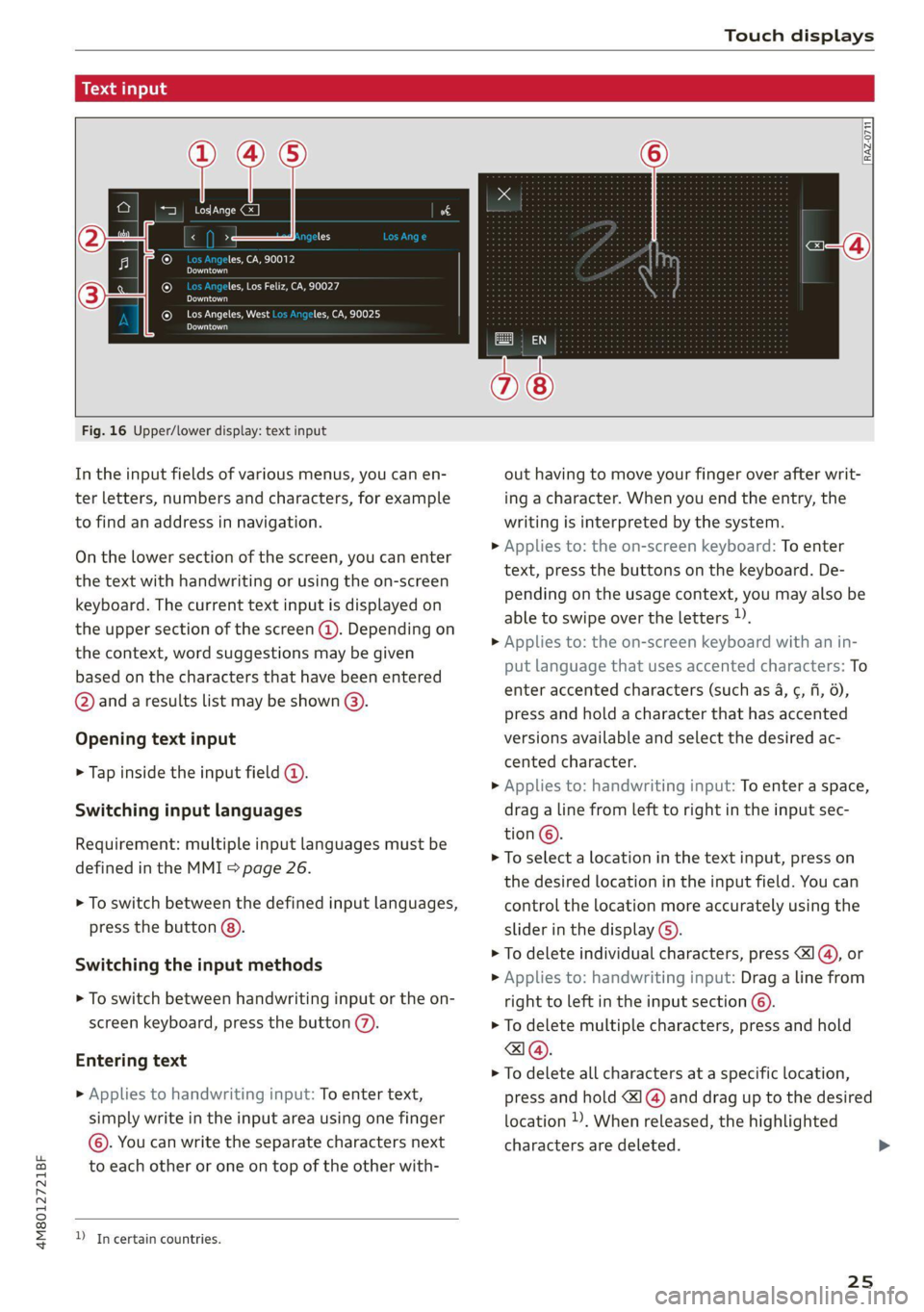
In the input fields of various menus, you can en-
ter letters, numbers and characters, for example
to find an address in navigation.
On the lower section of the screen, you can enter
the text with handwriting or using the on-screen
keyboard. The current text input is displayed on
the upper section of the screen @). Depending on
the context, word suggestions may be given
based on the characters that have been entered
@ and a results list may be shown @).
Opening text input
> Tap inside the input field @.
Switching input languages
Requirement: multiple input languages must be
defined in the MMI > page 26.
> To switch between the defined input languages,
press the button @).
Switching the input methods
> To switch between handwriting input or the on-
screen keyboard, press the button (7).
Entering text
> Applies to handwriting input: To enter text,
simply write in the input area using one finger
©. You can write the separate characters next
to each other or one on top of the other with-
D In certain countries.
out having to move your finger over after writ-
ing a character. When you end the entry, the
writing is interpreted by the system.
> Applies to: the on-screen keyboard: To enter
text, press the buttons on the keyboard. De-
pending on the usage context, you may also be
able to swipe over the letters )).
> Applies to: the on-screen keyboard with an in-
put language that uses accented characters: To
enter accented characters (such as 4, ¢, fi, 6),
press and hold a character that has accented
versions available and select the desired ac-
cented character.
> Applies to: handwriting input: To enter a space,
drag a line from left to right in the input sec-
tion ©.
> To select a location in the text input, press on
the desired location in the input field. You can
control the location more accurately using the
slider in the display ©).
> To delete individual characters, press
> Applies to: handwriting input: Drag a line from
right to left in the input section ©.
> To delete multiple characters, press and hold
> To delete all characters at a specific location,
press and hold <] @) and drag up to the desired
location ). When released, the highlighted
characters are deleted.
25
Page 128 of 332
Driving information
Driving information
Speed warning system
Applies to: vehicles with speed warning system
The speed warning system helps the driver to
stay below a specified maximum speed. A warn-
ing threshold can be set in the MMI for this pur-
pose.
Once the speed slightly exceeds the stored
threshold, the speed warning system will alert
the driver with an indicator in the instrument
cluster and a warning tone. Once the speed drops
below the stored maximum speed, the indicator
will turn off.
Setting a threshold is recommended if you would
like to be reminded when you reach a certain
maximum speed. Situations where you may want
to do so include driving in a country with a gener-
al speed limit or if there is a specified maximum
speed for winter tires.
@ Tips
Regardless of the speed warning system, you
should always monitor your speed using the
speedometer and make sure you are following
the legal speed limit.
Setting the warning threshold
Applies to: vehicles with speed warning system
> Applies to MMI: Select on the home screen: VE-
HICLE > Driver assistance > (<3) > Speed warn-
ing.
Messages
Applies to: vehicles with speed warning system
ol Manually set speed limit XX mph
(km/h) exceeded
The stored speed was exceeded.
126
Camera-based traffic
sign recognition
Applies to: vehicles with camera-based traffic sign recognition
ia) meee et
Fig. 93 Instrument cluster: traffic sign recognition
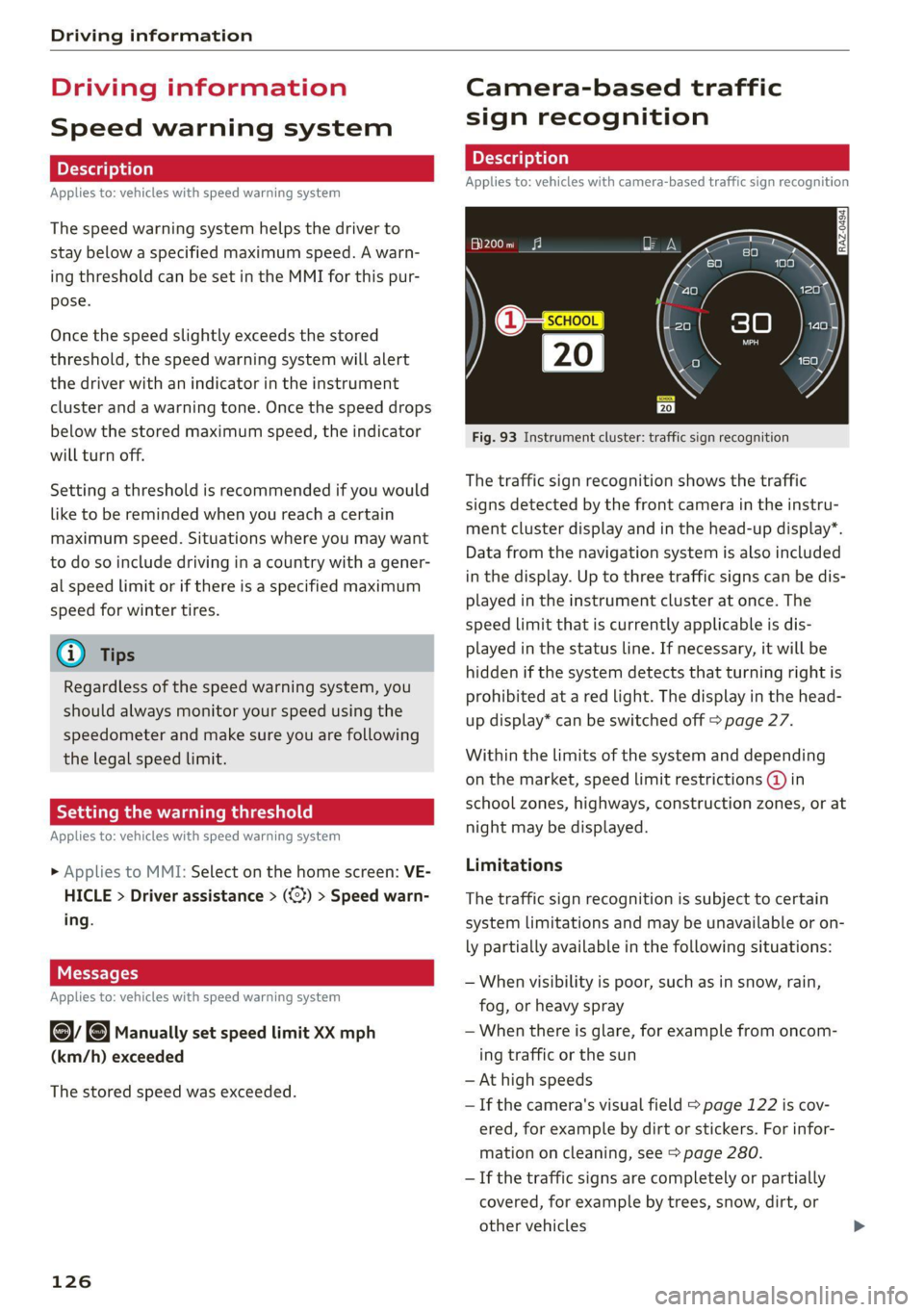
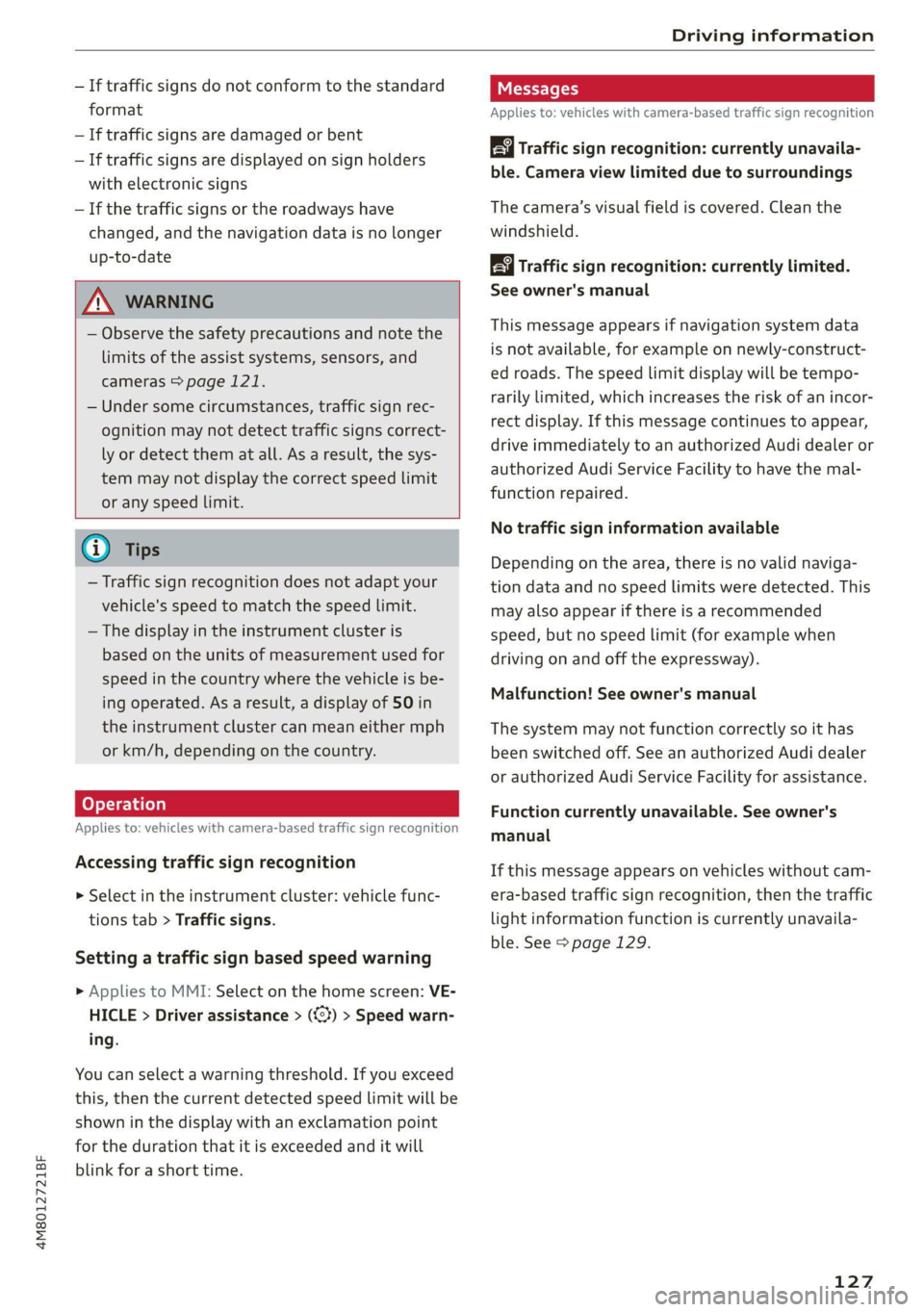
The traffic sign recognition shows the traffic
signs detected by the front camera in the instru-
ment cluster display and in the head-up display”.
Data from the navigation system is also included
in the display. Up to three traffic signs can be dis-
played in the instrument cluster at once. The
speed limit that is currently applicable is dis-
played in the status line. If necessary, it will be
hidden if the system detects that turning right is
prohibited at a red light. The display in the head-
up display* can be switched off > page 27.
Within the limits of the system and depending
on the market, speed limit restrictions @ in
school zones, highways, construction zones, or at
night may be displayed.
Limitations
The traffic sign recognition is subject to certain
system limitations and may be unavailable or on-
ly partially available in the following situations:
— When visibility is poor, such as in snow, rain,
fog, or heavy spray
— When there is glare, for example from oncom-
ing traffic or the sun
— At high speeds
— If the camera's visual field > page 122 is cov-
ered, for example by dirt or stickers. For infor-
mation on cleaning, see > page 280.
— If the traffic signs are completely or partially
covered, for example by trees, snow, dirt, or
other vehicles
Page 129 of 332
4M8012721BF
Driving information
— If traffic signs do not conform to the standard
format
— If traffic signs are damaged or bent
— If traffic signs are displayed on sign holders
with electronic signs
— If the traffic signs or the roadways have
changed, and the navigation data is no longer
up-to-date
ZA WARNING
— Observe the safety precautions and note the
limits of the assist systems, sensors, and
cameras > page 121.
— Under some circumstances, traffic sign rec-
ognition may not detect traffic signs correct-
ly or detect them at all. As a result, the sys-
tem may not display the correct speed limit
or any speed limit.
@ Tips
— Traffic sign recognition does not adapt your
vehicle's speed to match the speed Limit.
— The display in the instrument cluster is
based on the units of measurement used for
speed in the country where the vehicle is be-
ing operated. As a result, a display of 50 in
the instrument cluster can mean either mph
or km/h, depending on the country.
Applies to: vehicles with camera-based traffic sign recognition
Accessing traffic sign recognition
> Select in the instrument cluster: vehicle func-
tions tab > Traffic signs.
Setting a traffic sign based speed warning
> Applies to MMI: Select on the home screen: VE-
HICLE > Driver assistance > (<3) > Speed warn-
ing.
You can select a warning threshold. If you exceed
this, then the current detected speed limit will be
shown in the display with an exclamation point
for the duration that it is exceeded and it will
blink for a short time.
Messages
Applies to: vehicles with camera-based traffic sign recognition
Traffic sign recognition: currently unavaila-
ble. Camera view limited due to surroundings
The camera’s visual field is covered. Clean the
windshield.
Traffic sign recognition: currently limited.
See owner's manual
This message appears if navigation system data
is not available, for example on newly-construct-
ed roads. The speed limit display will be tempo-
rarily limited, which increases the risk of an incor-
rect display. If this message continues to appear,
drive immediately to an authorized Audi dealer or
authorized Audi Service Facility to have the mal-
function repaired.
No traffic sign information available
Depending on the area, there is no valid naviga-
tion data and no speed limits were detected. This
may also appear if there is a recommended
speed, but no speed limit (for example when
driving on and off the expressway).
Malfunction! See owner's manual
The system may not function correctly so it has
been switched off. See an authorized Audi dealer
or authorized Audi Service Facility for assistance.
Function currently unavailable. See owner's
manual
If this message appears on vehicles without cam-
era-based traffic sign recognition, then the traffic
light
information function is currently unavaila-
ble. See > page 129.
127
Page 130 of 332
Driving information
Traffic light information
Applies to: vehicles with traffic light information
Fig. 94 Instrument cluster: traffic light information dis-
play
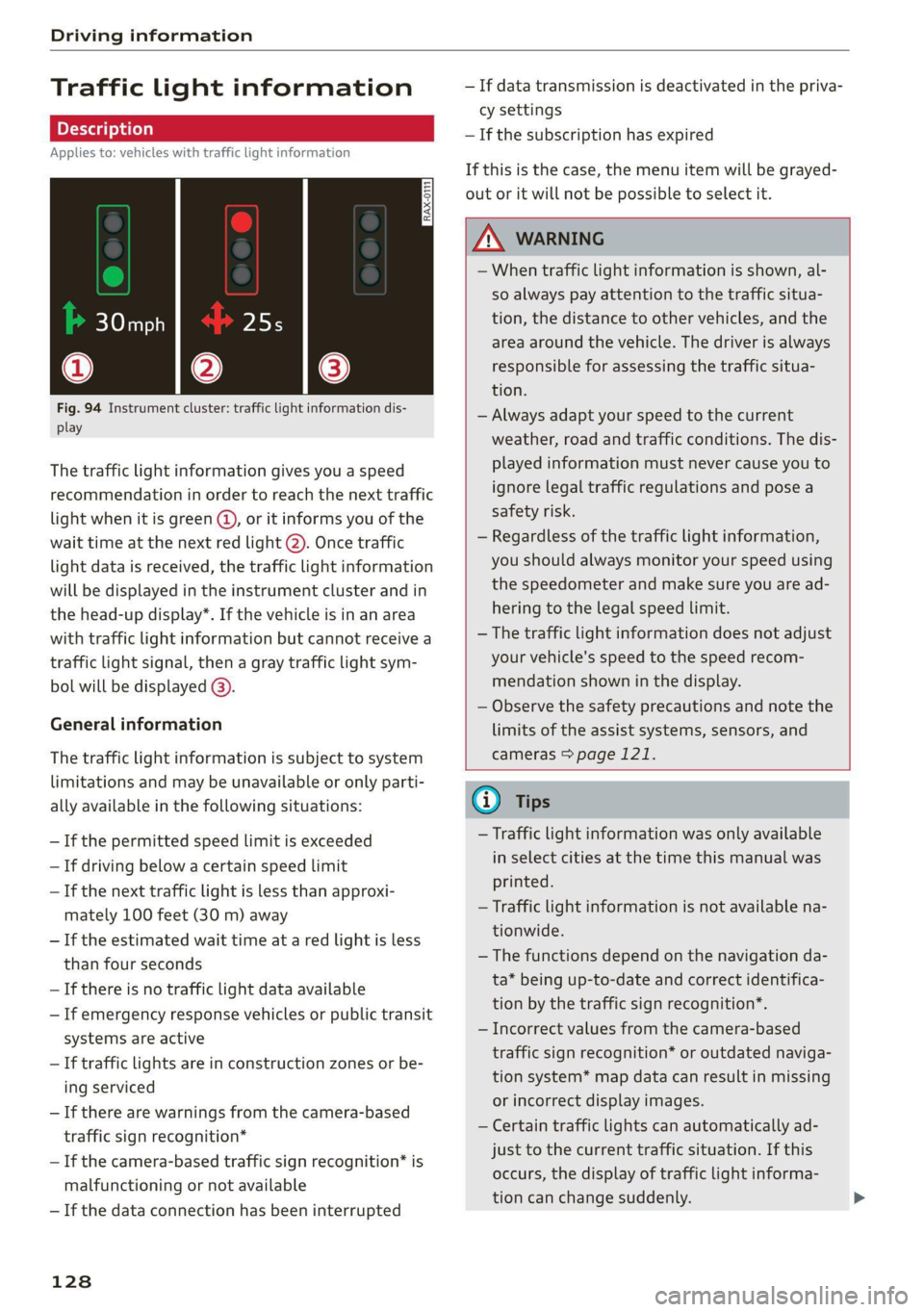
The traffic light information gives you a speed
recommendation in order to reach the next traffic
light when it is green @, or it informs you of the
wait time at the next red light (2). Once traffic
light data is received, the traffic light information
will be displayed in the instrument cluster and in
the head-up display*. If the vehicle is in an area
with traffic light information but cannot receive a
traffic light signal, then a gray traffic light sym-
bol will be displayed @).
General information
The traffic light information is subject to system
limitations and may be unavailable or only parti-
ally available in the following situations:
— Ifthe permitted speed limit is exceeded
— If driving below a certain speed limit
— If the next traffic light is less than approxi-
mately 100 feet (30 m) away
— Ifthe estimated wait time at a red light is less
than four seconds
—If there is no traffic light data available
— If emergency response vehicles or public transit
systems are active
— If traffic lights are in construction zones or be-
ing serviced
— If there are warnings from the camera-based
traffic sign recognition*
— If the camera-based traffic sign recognition* is
malfunctioning or not available
— If the data connection has been interrupted
128
— If data transmission is deactivated in the priva-
cy settings
— If the subscription has expired
If this is the case, the menu item will be grayed-
out or it will not be possible to select it.
ZA\ WARNING
— When traffic light information is shown, al-
so always pay attention to the traffic situa-
tion, the distance to other vehicles, and the
area around the vehicle. The driver is always
responsible for assessing the traffic situa-
tion.
— Always adapt your speed to the current
weather, road and traffic conditions. The dis
played information must never cause you to
ignore legal traffic regulations and pose a
safety risk.
— Regardless of the traffic light information,
you should always monitor your speed using
the speedometer and make sure you are ad-
hering to the legal speed limit.
— The traffic light information does not adjust
your vehicle's speed to the speed recom-
mendation shown in the display.
— Observe the safety precautions and note the
limits of the assist systems, sensors, and
cameras > page 121.
(i) Tips
— Traffic light information was only available
in select cities at the time this manual was
printed.
— Traffic light information is not available na-
tionwide.
— The functions depend on the navigation da-
ta* being up-to-date and correct identifica-
tion by the traffic sign recognition*.
— Incorrect values from the camera-based
traffic sign recognition* or outdated naviga-
tion system* map data can result in missing
or incorrect display images.
— Certain traffic lights can automatically ad-
just to the current traffic situation. If this
occurs, the display of traffic light informa-
tion can change suddenly.
Page 137 of 332
4M8012721BF
Driver assistance
An additional indicator will appear in the head-up
display*.
Changing the cruise control speed
Applies to: vehicles with cruise control system
Requirement: the system must be switched on.
> To increase or decrease the cruise control speed
in small increments, tap the lever up to the
first level toward @)/G) & page 134, fig. 96.
> To increase or decrease the cruise control speed
in larger increments, tap the lever up to the
second level toward (4)/).
> To increase or decrease the cruise control speed
continuously, tap and hold the lever at the first
or second level toward @)/G).
Overriding or deactivating the cruise
control speed
Applies to: vehicles with cruise control system
You can override or deactivate the cruise control
system. When you deactivate the system, your
cruise control speed will be stored and you can
resume that speed.
Requirement: the system must be switched on
and the regulated speed must be activated.
Overriding
> To temporarily override the cruise control
speed, press the accelerator pedal.
> To resume the stored regulated speed, remove
your foot from the accelerator pedal.
If you override the cruise control system for a
long period of time, the cruise control system
will be deactivated. The (Usd or [RM indicator
light will be displayed and the cruise control
speed will be saved.
Deactivating
> To deactivate the cruise control speed, press
the lever toward (2) (not locked into place)
=> page 134, fig. 96, or
> Press the brake pedal.
ZX WARNING
Resting your foot on the accelerator pedal
could override the cruise control. This will pre-
vent braking interventions by the system.
Seem NLU ai
Applies to: vehicles with cruise control system
When you switch the system off, the cruise con-
trol speed will be erased.
Requirement: the system must be switched on.
> To switch the system off, press the lever toward
@ (locked into place) > page 134, fig. 96, or
>» Switch the ignition off.
Applies to: vehicles with cruise control system
Gs / 3) Speed control system: currently un-
available. See owner's manual
If the indicator light turns on and this message
appears, the cruise control system has been deac-
tivated. There is a temporary malfunction, for ex-
ample the brakes are overheating. Switch the
cruise control system on again later.
Efficiency assist
Applies to: vehicles with efficiency assist
Efficiency assist can assist the driver with predic-
tive information in order to reduce fuel consump-
tion. Depending on vehicle equipment, the sys-
tem may access data from the navigation system,
the camera behind the windshield, and the radar
sensors.
Adjusting the efficiency assist
You can adjust efficiency assist functions individ-
ually. The settings depend on the vehicle equip-
ment.
— Accelerator pedal feedback > page 99.
— Predictive messages > page 136.
— Predictive control > page 145, Adjusting the
adaptive cruise assist.
135
Page 138 of 332
Driver assistance
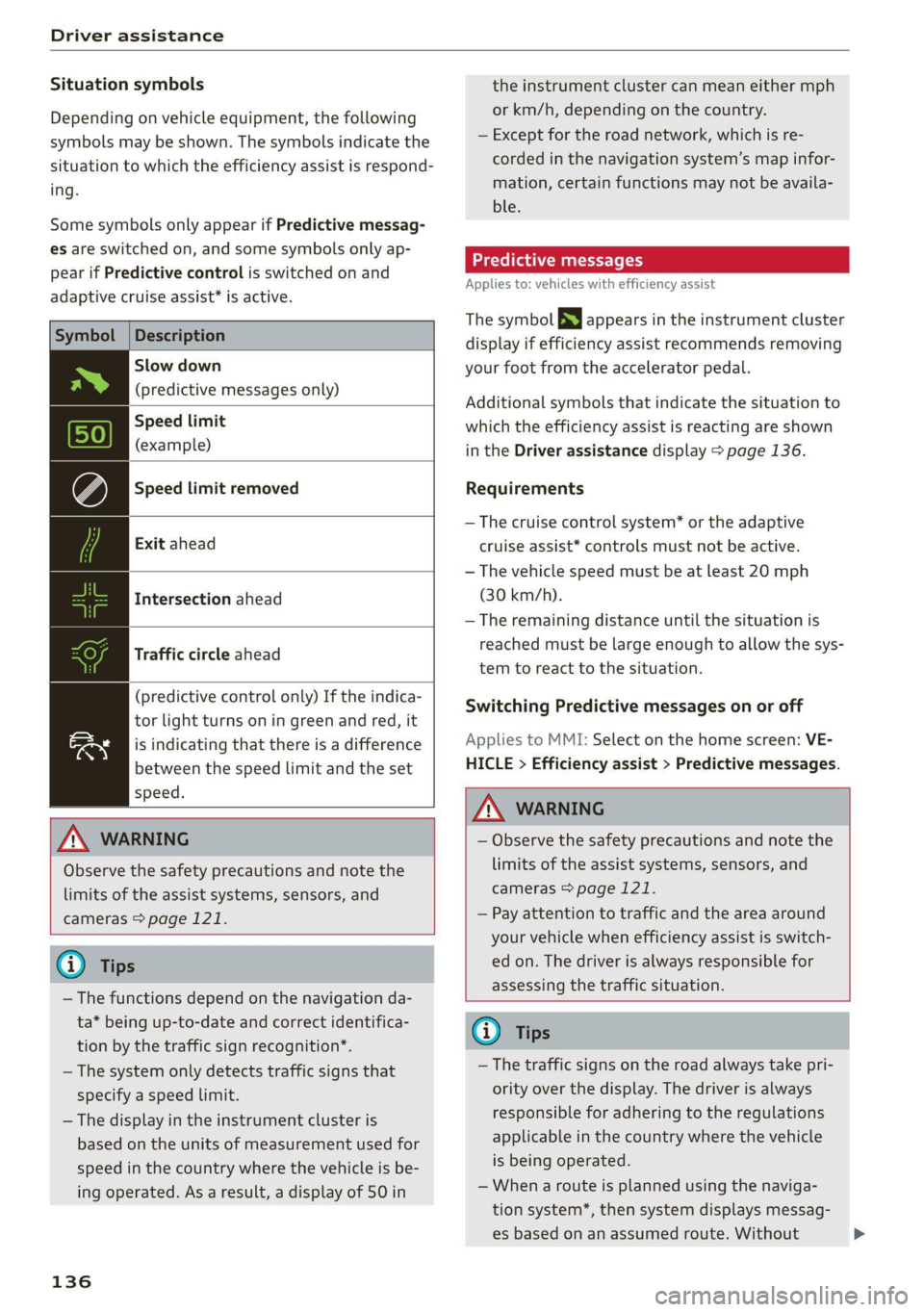
Situation symbols
Depending on vehicle equipment, the following
symbols may be shown. The symbols indicate the
situation to which the efficiency assist is respond-
ing.
Some symbols only appear if Predictive messag-
es are switched on, and some symbols only ap-
pear if Predictive control is switched on and
adaptive cruise assist* is active.
Description
Slow down
(predictive messages only)
Speed limit
(example)
Speed limit removed
Exit ahead
Intersection ahead
Traffic circle ahead
(predictive control only) If the indica-
tor light turns on in green and red, it
is indicating that there is a difference
between the speed limit and the set
speed.
ZA WARNING
Observe the safety precautions and note the
limits of the assist systems, sensors, and
cameras > page 121.
G) Tips
— The functions depend on the navigation da-
ta* being up-to-date and correct identifica-
tion by the traffic sign recognition*.
— The system only detects traffic signs that
specify a speed limit.
— The display in the instrument cluster is
based on the units of measurement used for
speed in the country where the vehicle is be-
ing operated. As a result, a display of 50 in
136
the instrument cluster can mean either mph
or km/h, depending on the country.
— Except for the road network, which is re-
corded in the navigation system’s map infor-
mation, certain functions may not be availa-
ble.
Predictive messages
Applies to: vehicles with efficiency assist
The symbol BS appears in the instrument cluster
display if efficiency assist recommends removing
your foot from the accelerator pedal.
Additional symbols that indicate the situation to
which the efficiency assist is reacting are shown
in the Driver assistance display > page 136.
Requirements
— The cruise control system* or the adaptive
cruise assist* controls must not be active.
— The vehicle speed must be at least 20 mph
(30 km/h).
— The remaining distance until the situation is
reached must be large enough to allow the sys-
tem to react to the situation.
Switching Predictive messages on or off
Applies to MMI: Select on the home screen: VE-
HICLE > Efficiency assist > Predictive messages.
ZA WARNING
— Observe the safety precautions and note the
limits of the assist systems, sensors, and
cameras > page 121.
— Pay attention to traffic and the area around
your vehicle when efficiency assist is switch-
ed on. The driver is always responsible for
assessing the traffic situation.
(i) Tips
— The traffic signs on the road always take pri-
ority over the display. The driver is always
responsible for adhering to the regulations
applicable in the country where the vehicle
is being operated.
— When a route is planned using the naviga-
tion system*, then system displays messag-
es based on an assumed route. Without
>
Page 144 of 332
Driver assistance
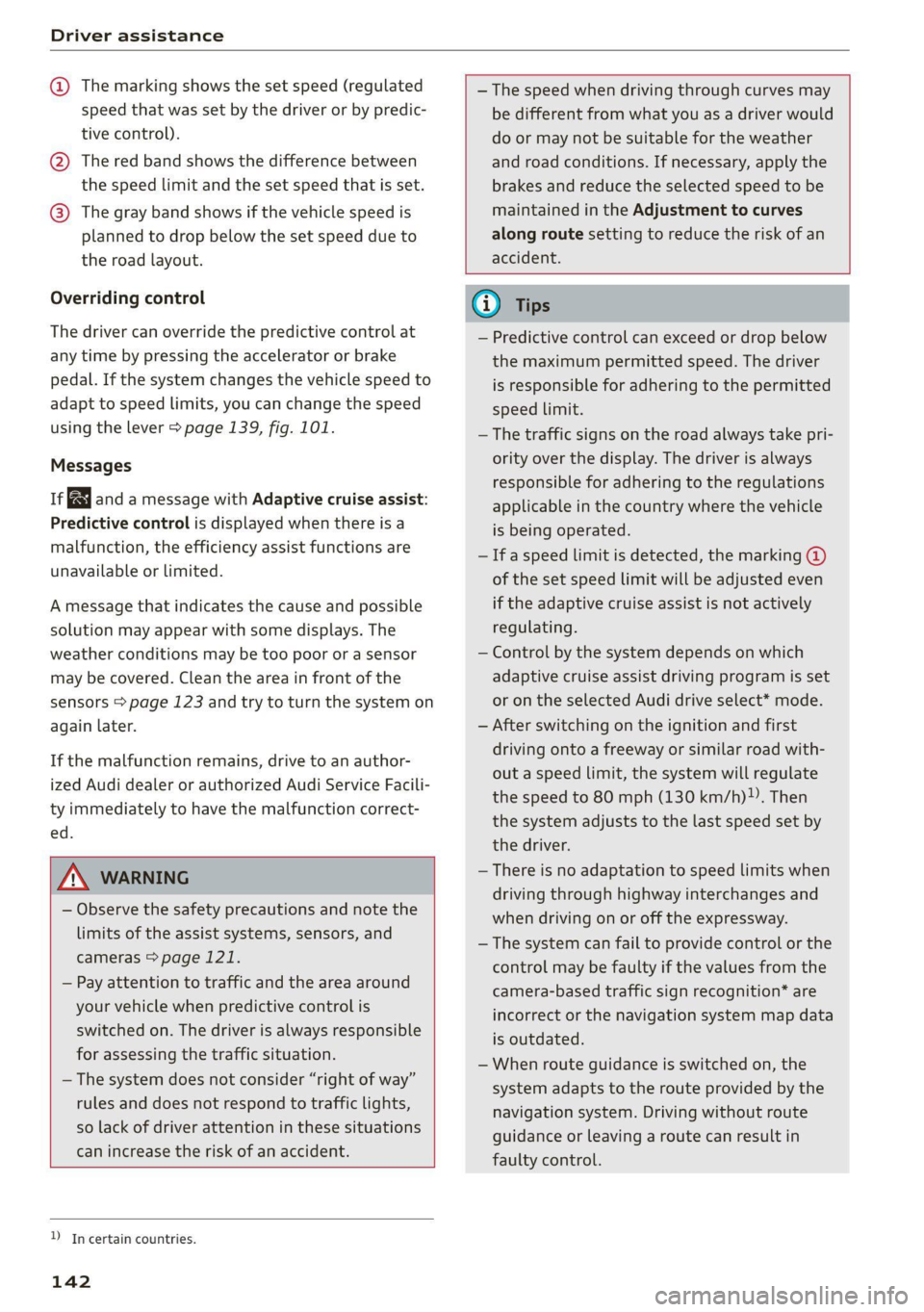
@ The marking shows the set speed (regulated
speed that was set by the driver or by predic-
tive control).
@ The red band shows the difference between
the speed limit and the set speed that is set.
@ The gray band shows if the vehicle speed is
planned to drop below the set speed due to
the road layout.
Overriding control
The driver can override the predictive control at
any time by pressing the accelerator or brake
pedal. If the system changes the vehicle speed to
adapt to speed limits, you can change the speed
using the lever > page 139, fig. 101.
Messages
If and a message with Adaptive cruise assist:
Predictive control is displayed when there is a
malfunction, the efficiency assist functions are
unavailable or limited.
A message that indicates the cause and possible
solution may appear with some displays. The
weather conditions may be too poor or a sensor
may be covered. Clean the area in front of the
sensors > page 123 and try to turn the system on
again later.
If the malfunction remains, drive to an author-
ized Audi dealer or authorized Audi Service Facili-
ty immediately to have the malfunction correct-
ed.
— The speed when driving through curves may
be different from what you as a driver would
do or may not be suitable for the weather
and road conditions. If necessary, apply the
brakes and reduce the selected speed to be
maintained in the Adjustment to curves
along route setting to reduce the risk of an
accident.
ZA\ WARNING
— Observe the safety precautions and note the
limits of the assist systems, sensors, and
cameras > page 121.
— Pay attention to traffic and the area around
your vehicle when predictive control is
switched on. The driver is always responsible
for assessing the traffic situation.
— The system does not consider “right of way”
rules and does not respond to traffic lights,
so lack of driver attention in these situations
can increase the risk of an accident.
D_Incertain countries.
142
@) Tips
— Predictive control can exceed or drop below
the maximum permitted speed. The driver
is responsible for adhering to the permitted
speed limit.
— The traffic signs on the road always take pri-
ority over the display. The driver is always
responsible for adhering to the regulations
applicable in the country where the vehicle
is being operated.
— Ifa speed limit is detected, the marking @
of the set speed limit will be adjusted even
if the adaptive cruise assist is not actively
regulating.
— Control by the system depends on which
adaptive cruise assist driving program is set
or on the selected Audi drive select* mode.
— After switching on the ignition and first
driving onto a freeway or similar road with-
out a speed limit, the system will regulate
the speed to 80 mph (130 km/h). Then
the system adjusts to the last speed set by
the driver.
— There is no adaptation to speed limits when
driving through highway interchanges and
when driving on or off the expressway.
— The system can fail to provide control or the
control may be faulty if the values from the
camera-based traffic sign recognition* are
incorrect or the navigation system map data
is outdated.
— When route guidance is switched on, the
system adapts to the route provided by the
navigation system. Driving without route
guidance or leaving a route can result in
faulty control.
Page 202 of 332
Navigation
Navigation
Opening navigation
Applies to: vehicles with navigation system
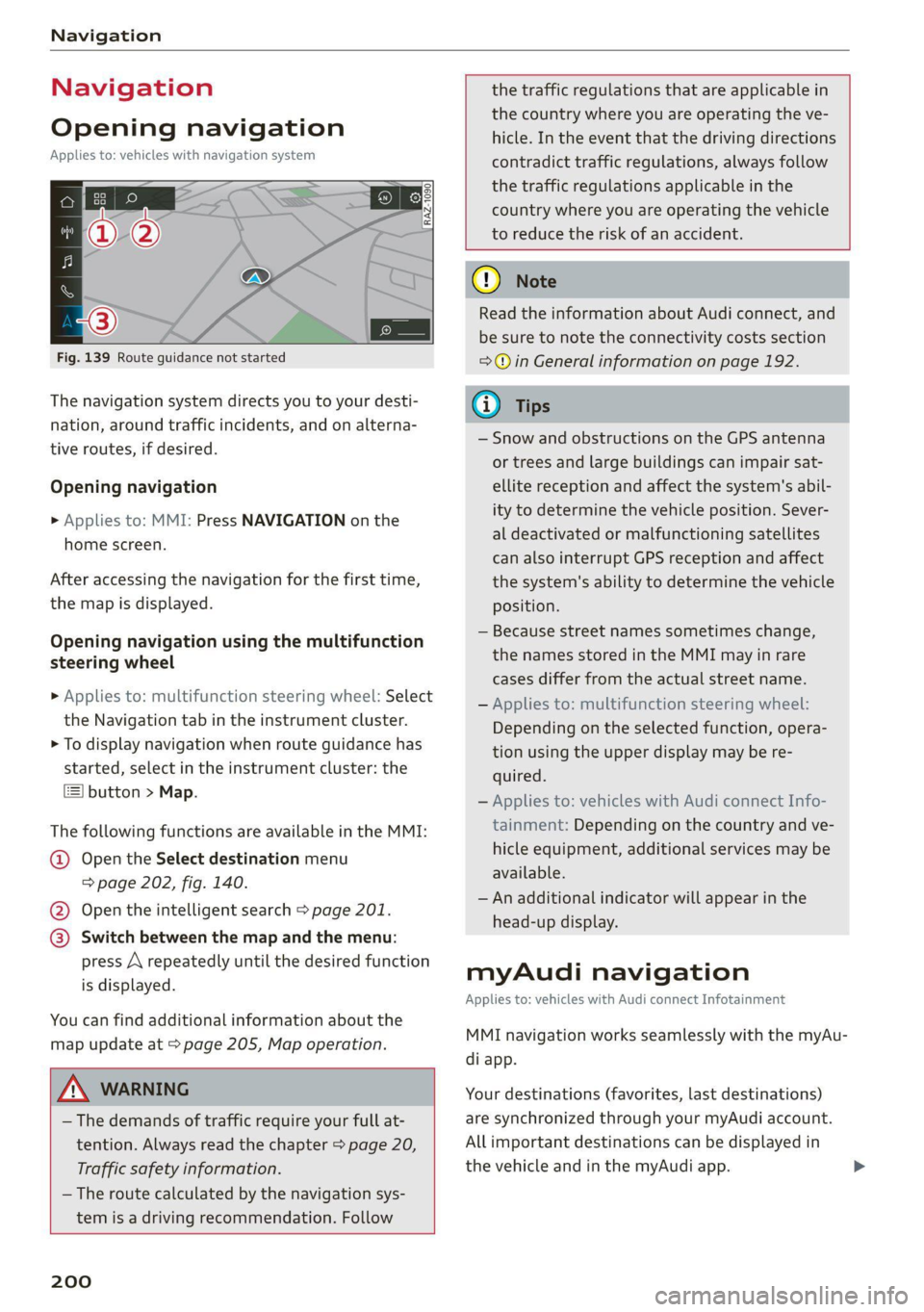
Fig. 139 Route guidance not started
The navigation system directs you to your desti-
nation, around traffic incidents, and on alterna-
tive routes, if desired.
Opening navigation
>» Applies to: MMI: Press NAVIGATION on the
home screen.
After accessing the navigation for the first time,
the map is displayed.
Opening navigation using the multifunction
steering wheel
> Applies to: multifunction steering wheel: Select
the Navigation tab in the instrument cluster.
> To display navigation when route guidance has
started, select in the instrument cluster: the
button > Map.
The following functions are available in the MMI:
@ Open the Select destination menu
= page 202, fig. 140.
@ Open the intelligent search > page 201.
@ Switch between the map and the menu:
press A repeatedly until the desired function
is displayed.
You can find additional information about the
map update at > page 205, Map operation.
ZA\ WARNING
— The demands of traffic require your full at-
tention. Always read the chapter > page 20,
Traffic safety information.
— The route calculated by the navigation sys-
tem is a driving recommendation. Follow
200
the traffic regulations that are applicable in
the country where you are operating the ve-
hicle. In the event that the driving directions
contradict traffic regulations, always follow
the traffic regulations applicable in the
country where you are operating the vehicle
to reduce the risk of an accident.
() Note
Read the information about Audi connect, and
be sure to note the connectivity costs section
=@ in General information on page 192.
(i) Tips
— Snow and obstructions on the GPS antenna
or trees and large buildings can impair sat-
ellite reception and affect the system's abil-
ity to determine the vehicle position. Sever-
al deactivated or malfunctioning satellites
can also interrupt GPS reception and affect
the system's ability to determine the vehicle
position.
— Because street names sometimes change,
the names stored in the MMI may in rare
cases differ from the actual street name.
— Applies to: multifunction steering wheel:
Depending on the selected function, opera-
tion using the upper display may be re-
quired.
— Applies to: vehicles with Audi connect Info-
tainment: Depending on the country and ve-
hicle equipment, additional services may be
available.
— An additional indicator will appear in the
head-up display.
myAudi navigation
Applies to: vehicles with Audi connect Infotainment
MMI navigation works seamlessly with the myAu-
di app.
Your destinations (favorites, last destinations)
are synchronized through your myAudi account.
All important destinations can be displayed in
the vehicle and in the myAudi app.