reset AUDI R8 COUPE 2020 User Guide
[x] Cancel search | Manufacturer: AUDI, Model Year: 2020, Model line: R8 COUPE, Model: AUDI R8 COUPE 2020Pages: 308, PDF Size: 82.41 MB
Page 149 of 308
4S1012721BA
Radio
Using the free text search, you can select the or-
der that the search terms are entered in the input
field. Search in all frequency bands for a station
name or program type, such as News.
— Opening the free text search: when in a station
list, keep turning the control knob to the left
until the free text search input field is dis-
played.
— Using the free text search: See > page 100.
You can also search for frequencies.
Stations from the presets list @) are displayed in
the results list @. The symbol @) indicates which
station list you switched to based on the station
selection.
Additional options
> Select: [RADIO] button > right control button.
The following options are available depending on
the frequency band:
— Sound settings: see > page 171.
— Store as favorite: See > page 148.
— Delete all entries: all entries are deleted in the
Last stations view.
— Tag this song for iTunes*”): connect your Apple
device to the Audi music interface* on your
MMI. Select and confirm Tag this song for
iTunes. The track that is currently playing is
stored on your Apple device. Synchronize your
Apple device with iTunes. The tagged track will
display the next time you open your iTunes me-
dia center. If there is no Apple device connect-
ed, the tagged tracks are stored temporarily in
the MMI (maximum of 50 tracks). Once you
connect your Apple device to the Audi music in-
terface, the tags are stored on the device.
— Manual tuning: the frequency bars are dis-
played. Select and confirm the desired frequen-
vy.
— Seek: the radio tunes to the previous or next re-
ceivable station.
— Scan: all stations are played for several seconds
each.
) In preparation at the time of printing.
— Radio settings: see > page 149.
Radio text
>» Select: [RADIO] button > left control button >a
frequency band (such as FM) > a station.
> Select: right control button > Radio text.
Browsing through radio text entries: turn the
control knob to the left or right.
Requirement: a radio text entry must be dis-
played and the station must be broadcasting a
phone number, a navigation destination, or a text
message number as RadioText Plus information.
If a location, a phone number or a text message
number is included with a radio text entry, the ra-
dio text will be shown with a colored border. You
have the following options:
Call*/Start route guidance*/Write text mes-
sage”:
— Select a radio text entry with RadioText Plus in-
formation and press the control knob.
— Select and confirm Call*/Start route guid-
ance*/Write text message*. press the [BACK
button to cancel.
G) Tips
The availability of radio text and RadioText
Plus depends on the radio station.
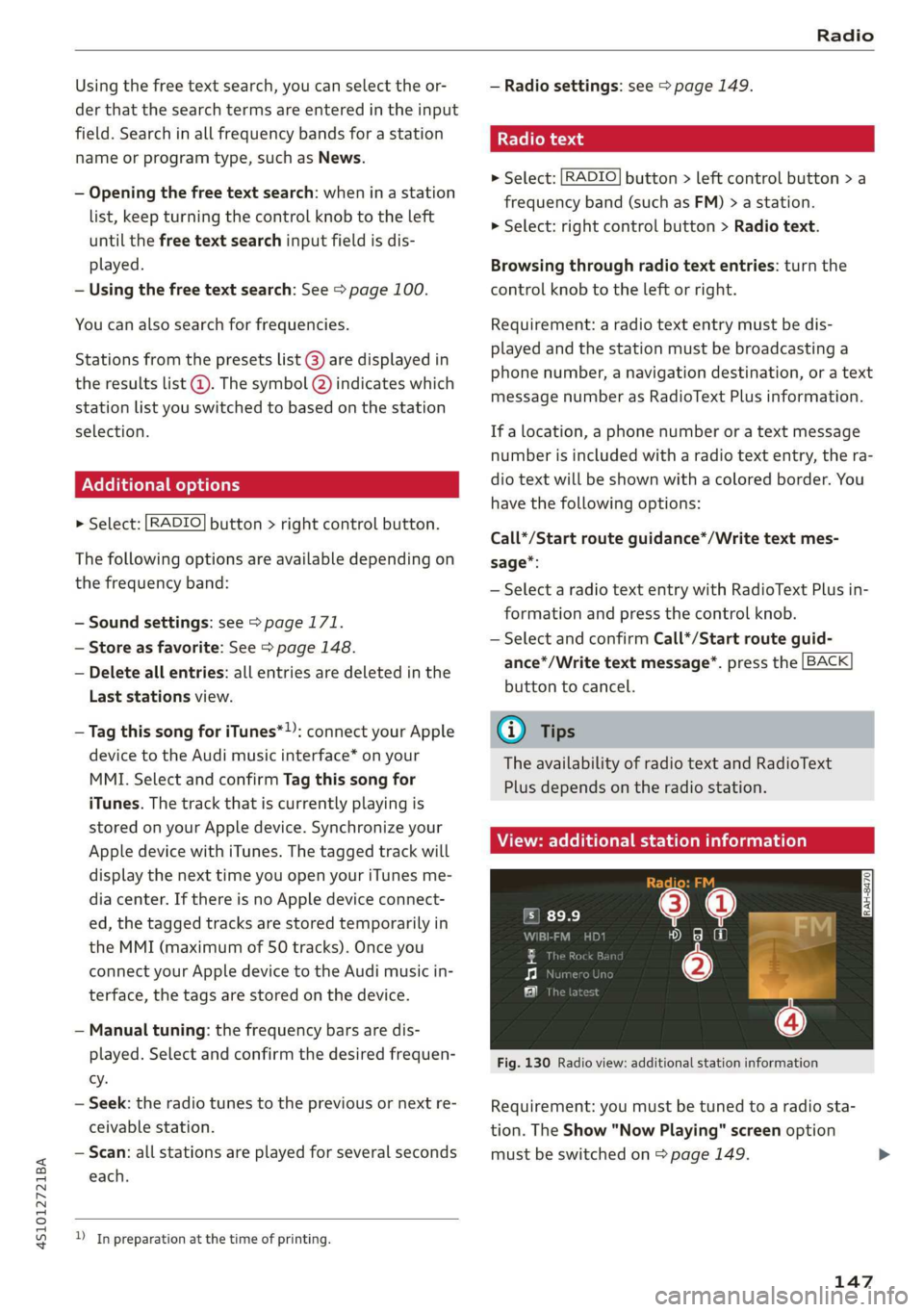
View: additional station information
Fig. 130 Radio view: additional station information
Requirement: you must be tuned to a radio sta-
tion. The Show "Now Playing" screen option
must be switched on > page 149.
147
Page 150 of 308
Radio
Symbols in the Show "Now Playing" screen
> fig. 130:
@ Radio text availability
Radio text is available for the selected station
=> page 147.
@ iTunes tagging
The Tag this song for iTunes option is available
for the set station > page 147, Additional op-
tions.
@ FM HD Radio technology
The station is received through FM HD Radio
technology.
@ Screen view
Display Cover art or Station logo > page 149.
Displaying the station list: turn the control
knob, or press the [BACK] button.
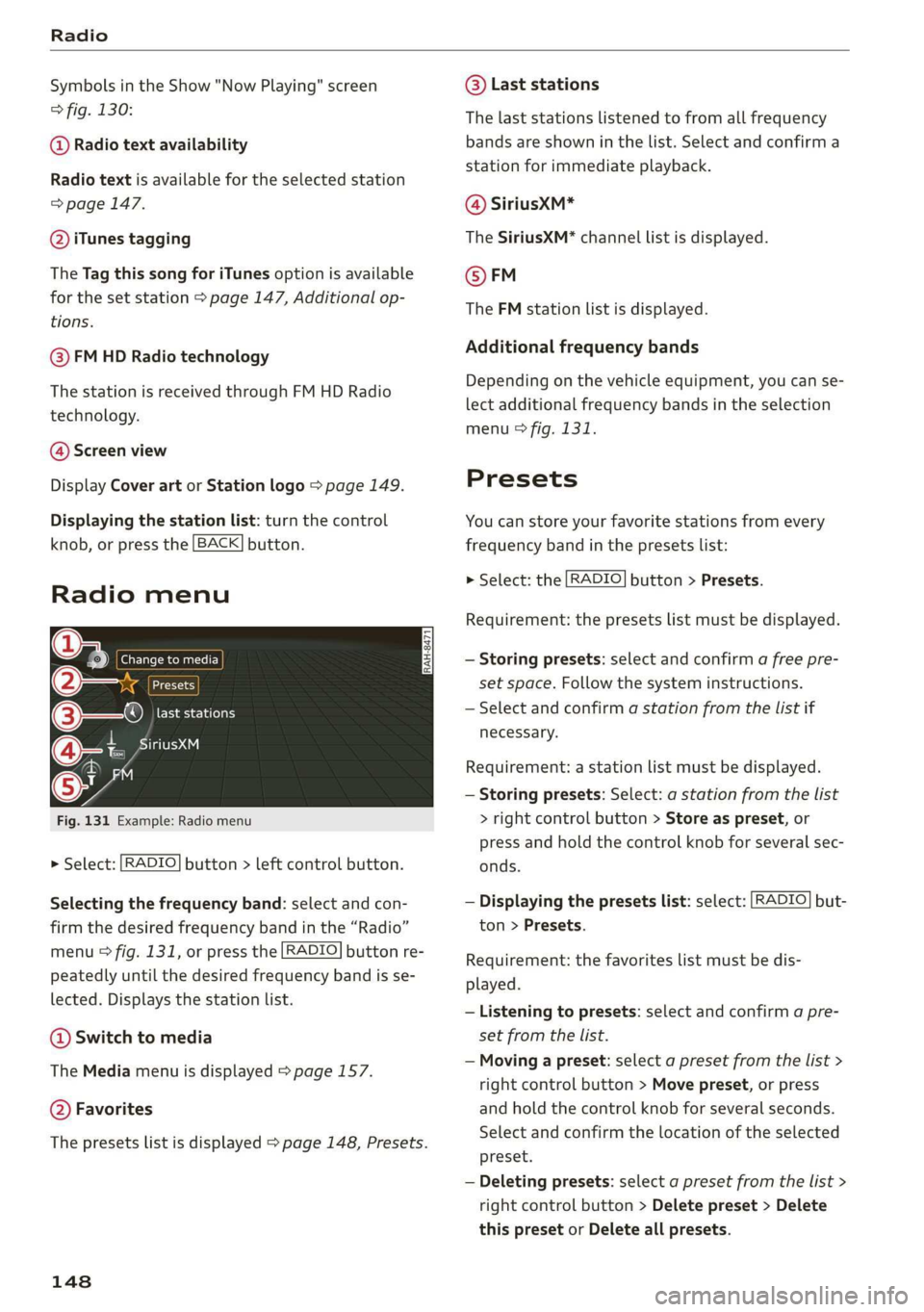
Radio menu
Le ) | Change to media
key
©—o LER Ta tebe (olay
pia Tvy A @-
Fig. 131 Example: Radio menu
> Select: [RADIO] button > left control button.
Selecting the frequency band: select and con-
firm
the desired frequency band in the “Radio”
menu & fig. 131, or press the [RADIO] button re-
peatedly until the desired frequency band is se-
lected. Displays the station list.
@ Switch to media
The Media menu is displayed > page 157.
@ Favorites
The presets list is displayed > page 148, Presets.
148
© Last stations
The last stations listened to from all frequency
bands are shown in the list. Select and confirm a
station for immediate playback.
@ SiriusxM*
The SiriusXM* channel list is displayed.
© FM
The FM station list is displayed.
Additional frequency bands
Depending on the vehicle equipment, you can se-
lect additional frequency bands in the selection
menu > fig. 131.
Presets
You can store your favorite stations from every
frequency band in the presets list:
> Select: the [RADIO] button > Presets.
Requirement: the presets list must be displayed.
— Storing presets: select and confirm a free pre-
set space. Follow the system instructions.
— Select and confirm a station from the list if
necessary.
Requirement: a station list must be displayed.
— Storing presets: Select: a station from the list
> right control button > Store as preset, or
press and hold the control knob for several sec-
onds.
— Displaying the presets list: select: [RADIO] but-
ton > Presets.
Requirement: the favorites list must be dis-
played.
— Listening to presets: select and confirm a pre-
set from the list.
— Moving a preset: select a preset from the list >
right control button > Move preset, or press
and hold the control knob for several seconds.
Select and confirm the location of the selected
preset.
— Deleting presets: select a preset from the list >
right control button > Delete preset > Delete
this preset or Delete all presets.
Page 151 of 308
![AUDI R8 COUPE 2020 User Guide 4S1012721BA
Radio
Additional settings
Radio settings
> Select: [RADIO] button > right control button >
Radio settings.
The following settings can be selected, depend-
ing on the ba](/img/6/57639/w960_57639-150.png "AUDI R8 COUPE 2020 User Guide 4S1012721BA
Radio
Additional settings
Radio settings
> Select: [RADIO] button > right control button >
Radio settings.
The following settings can be selected, depend-
ing on the ba")
4S1012721BA
Radio
Additional settings
Radio settings
> Select: [RADIO] button > right control button >
Radio settings.
The following settings can be selected, depend-
ing on the band that is selected:
Station names (FM)
Variable: scrolling text transmitted by the FM
stations is shown in the Infotainment system dis-
play.
Fixed: scrolling text transmitted by the FM sta-
tions is not shown in the Infotainment system
display. Only the current section of the scrolling
text is displayed.
FM/AM HD Radio*
You can switch HD Radio reception on or off.
Channel sorting (SiriusXM*)
You can set the channel sorting for SiriusXM sta-
tion lists* by:
— Channel number: the channels are sorted in as-
cending order according to their channel num-
ber.
— Channel name: the channels are listed in alpha-
betical order.
— First category, then channel number: the chan-
nels are sorted by their category and then by
their channel numbers.
— First category, then channel name: the sta-
tions are sorted by their category and then by
their channel names.
Category filter (SiriusXM*)
The stations shown in the station list can be fil-
tered by your personal preferences and by pro-
gram type. The program categories that you can
Troubleshooting
select depend on what is offered by your provid-
er. Select the All categories option to deactivate
all filter options and display all available stations
in the satellite station list.
Show "Now Playing" screen
When the function is switched on ¥ and the sta-
tions or presets list is open, the display will
switch to the Show "Now Playing" screen view
after approximately five seconds > page 147. De-
pending on availability, information about the set
station (such as station name, artist and station
logo) may be displayed in this view.
Preferred picture view
You can set your preferred screen view for the
Show "Now Playing" screen > page 147.
— Station logo: the station logo is displayed, de-
pending on availability.
— Cover art: the album cover or genre cover is dis-
played, depending on availability.
Gracenote online database*
Requirement: the MMI must be connected to the
Internet. The Cover art option must be selected
=> page 149, Preferred picture view.
When the function is switched on M, the album
cover or genre cover for the song that is playing is
loaded from the Gracenote online database, de-
pending on availability.
Subscription status (SiriusXM)*
This option is available when your subscription is
about to expire or has already expired. The expi-
ration date for your license is displayed.
Call to SiriusXM”*: the contact information for
your satellite radio provider is displayed. To call
your satellite radio provider using the MMI, press
Call to SiriusXM*.
Problem Solution
A station with poor reception is no longer
displayed in the station list once you
switch to a different station.
Store the station as a preset in advance. Access the pre-
sets using the presets list > page 148.
149
Page 152 of 308
Media
Media
Introduction
There are various media drives and connections
available in the MMI. For example, you can play
audio/video files from the Jukebox or connect
your mobile device to the Audi music interface
and operate it through the MMI.
Notes
Media and format restrictions: the MMI (includ-
ing the SD card reader and the USB storage de-
vice connection) was tested with a variety of
products and media on the market. However,
there may be cases where individual devices or
media and audio/video files may not be recog-
nized, may play only with restrictions, or may not
play at all.
Digital Rights Management: please note that
the audio/video files are subject to copyright pro-
tection.
The media drives do not play files that are pro-
tected by DRM and that are identified with the
symbol fi.
Data security: never store important data on SD
cards, the Jukebox, CDs/DVDs or mobile devices.
Audi AG is not responsible for damaged or lost
files and media.
Loading times: the more files, folders, or play-
lists that are on a storage medium, the longer it
will take to load the audio/video files. Audi rec-
ommends using storage media that only contain
audio/video files. To decrease the time it takes to
load audio/video files, create subfolders (for ex-
ample, for the artist or album). The loading time
will also increase when importing files.
Additional information: when playing, audio
files are automatically displayed with any addi-
tional information that is stored (such as the ar-
tist, track and album cover). If this information is
not available on the storage medium, the MMI
will check the Gracenote metadata database.
150
However, in some cases, the additional informa-
tion may not be displayed.
Restricted functionality: reset the Media set-
tings to the factory default settings if functional-
ity is restricted > page 168.
Reset the Jukebox to the factory default settings
if functionality is restricted > page 168.
For information about the properties of support-
ed media and file formats, see > page 162.
@) Note
Always follow the information found in >@ in
General information on page 124.
CD/DVD operation
CD/DVD and format restrictions: the functionali-
ty of individual storage media may be limited due
to the variety of blank CDs/DVDs available and
the various capacities. Audio CDs or video DVDs
with copy protection, CDs/DVDs that do not con-
form to the standard, and multisession CDs may
have limited playback or may not play at all. Audi
recommends finalizing the recording process
when creating multisession CDs. Multisession
DVDs are not supported.
Using CDs/DVDs, the CD drive or the DVD drive:
to ensure correct, high-quality playback and to
prevent damage to the drive or disc reading er-
rors, always store CDs/DVDs in a protective
sleeve and do not expose them to direct sunlight.
Do not use:
— Damaged, dirty or scratched CDs/DVDs
— Single CDs/DVDs with 3 in (8 cm) diameter
— CD/DVDs that are not round
— CDs/DVDs with labels
— Protective rings
— Cleaning CDs
Thermal protection switch: CD/DVD playback
may be temporarily unavailable if outside tem-
peratures
are extremely hot or cold. A thermal
protection switch is installed to protect the
CD/DVD and the laser.
Laser devices: laser devices are divided into safe-
ty classes 1 to 4 in accordance with DIN IEC 76 >
Page 154 of 308
![AUDI R8 COUPE 2020 User Guide Media
Adding files to the Jukebox
— Press the [MEDIA] button. Press the left control
button until the sources overview > page 157 is
displayed. Select one of the following sources
to copy to](/img/6/57639/w960_57639-153.png "AUDI R8 COUPE 2020 User Guide Media
Adding files to the Jukebox
— Press the [MEDIA] button. Press the left control
button until the sources overview > page 157 is
displayed. Select one of the following sources
to copy to")
Media
Adding files to the Jukebox
— Press the [MEDIA] button. Press the left control
button until the sources overview > page 157 is
displayed. Select one of the following sources
to copy to the Jukebox: SD card, CD-ROM, DVD-
ROM, USB storage device.
Requirement: the media center (for example,
tracks, albums) must be open.
— Selecting an entry: select an entry from the
media center. Select: right control button >
Copy to jukebox > This entry or Entire list.
Requirement: the playlist must be open. See
=> page 159.
— Selecting a track: select the track that is cur-
rently playing. Select: right control button >
Copy to jukebox > This track or Entire album or
This artist.
Requirement: a video file must be playing.
— Select: right control button > Copy to jukebox.
The copying process begins. The status of the
copying process is shown in the MMI.
— Hiding the importing process: select and con-
firm Continue copying in background. The im-
porting process is hidden.
— Canceling the importing process: select and
confirm Cancel copying, or remove the source
that is being imported. Files already copied re-
main.
Requirement: the copying process must be active
in the background.
— Showing the copying process: select: right
control button > Copying in progress.
When importing, the audio files are automatical-
ly sorted into the media center categories based
on the stored additional information > page 158.
The copied video files are stored in the media
center under the Videos category.
Playing the Jukebox
Requirement: the Jukebox must contain audio/
video files > page 152, Adding files to the Juke-
box.
) Not in the Playback view.
152
The Jukebox is accessed and operated through
the MMI @) & page 157, fig. 136.
Displaying Jukebox memory capacity
Select: right control button > Jukebox memory
capacity. Information about the Jukebox memory
capacity and the number of stored tracks is dis-
played.
Deleting tracks from the Jukebox!)
Requirement: the Jukebox must contain audio/
video files.
— Deleting an entry: select an entry from the
Jukebox media center. Select: right control but-
ton > Delete from jukebox > This entry or En-
tire list.
— The status of the deleting process is shown in
the MMI. Jukebox playback stops during the de-
leting process and starts again automatically
once the deletion is complete.
() Note
Do not import audio/video files when the en-
gine is turned off because this will drain the
vehicle battery.
@) Tips
— Tracks from audio CDs cannot be imported
to the Jukebox for legal reasons.
— Files that have already been imported are
automatically recognized and cannot be
copied to the Jukebox again.
— It is not possible to play audio/video files in
the DVD drive while importing them.
— The Jukebox does not provide an export
function due to legal reasons.
— Files or tracks without additional stored in-
formation are listed as Unknown. Audi rec-
ommends adding additional information
(such as ID3 tags) to audio files.
— Reset the Jukebox to the factory default set-
tings when selling your vehicle > page 168.
Page 159 of 308
4S1012721BA
Media
approximately 70% of the maximum vol-
ume.
— Functionality is not guaranteed for mobile
devices that do not conform to the USB 2.0
specification.
— USB hubs are not supported.
— Some versions of the iPod such as the iPod
shuffle cannot be connected to the USB
adapter
for devices with Apple Dock connec-
tor. Connect these devices using a AUX con-
nector cable.
— Video playback through the Audi music in-
terface is only supported if the connected
device is recognized as a USB storage device
(for example a USB stick). Apple devices and
MTP devices (such as smartphones) are not
recognized as USB storage devices.
— iPod or iPhone malfunctions also affect the
operation of the MMI. Reset your iPod or
iPhone if this happens.
— For important information on operating
your iPod or iPhone, refer to the user guide
for the device. Audi recommends updating
the iPod or iPhone software to the latest
version.
— For more information about the Audi music
interface and supported devices, check the
Audi database for mobile devices at www.
audiusa.com/mp3 or contact an authorized
Audi dealer or authorized Audi Service Fa-
cility.
Playing media
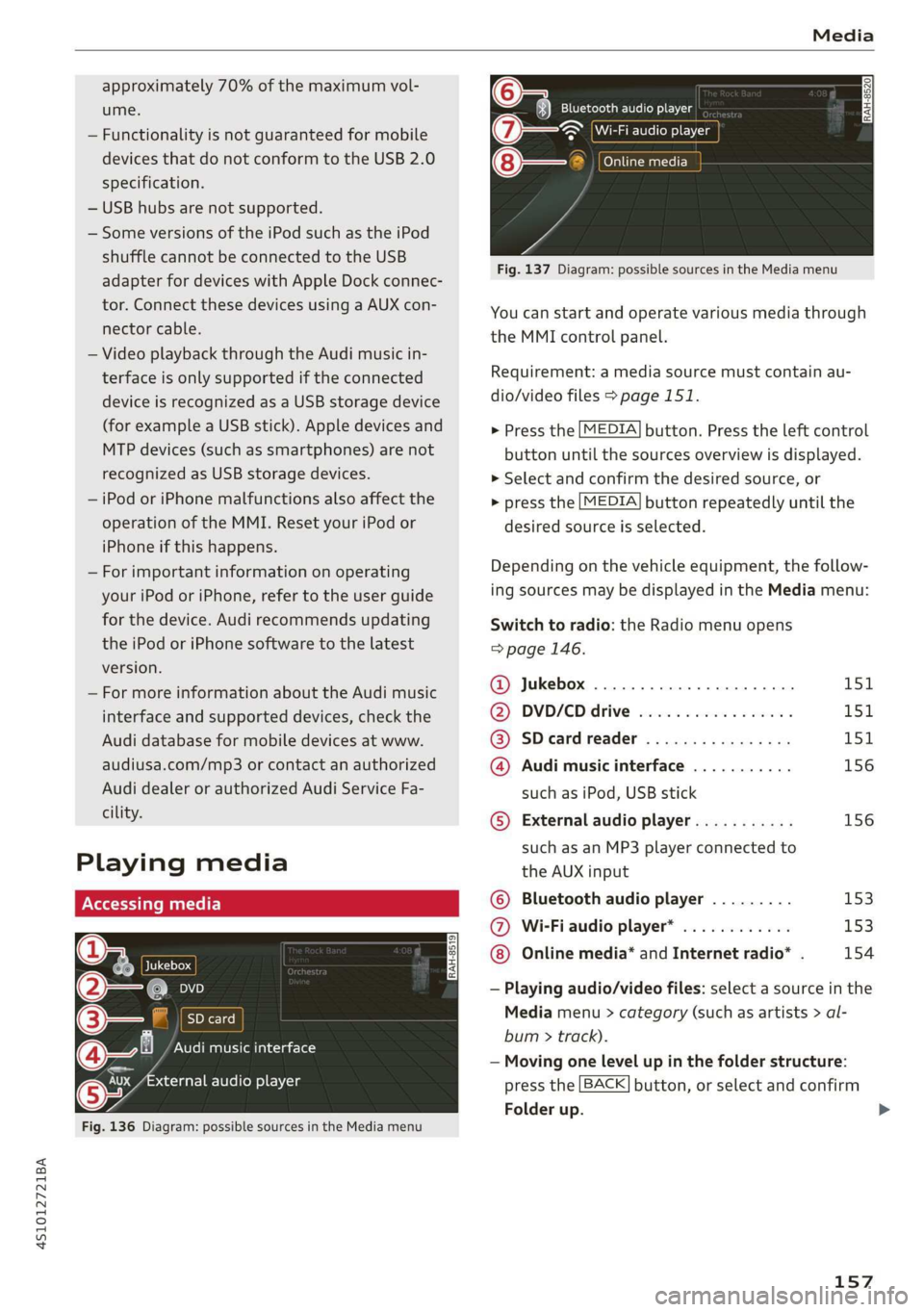
@ Jukebox
@—e an
©— SD card
@Q— Audi music interface
aa audio player
Fig. 136 Diagram: possible sources in the Media menu
Bluetooth audio player
~ Wi-Fi audio player
@— Online media
a
Fig. 137 Diagram: possible sources in the Media menu
You can start and operate various media through
the MMI control panel.
Requirement: a media source must contain au-
dio/video files > page 151.
> Press the [MEDIA] button. Press the left control
button until the sources overview is displayed.
> Select and confirm the desired source, or
> press the [MEDIA] button repeatedly until the
desired source is selected.
Depending on the vehicle equipment, the follow-
ing sources may be displayed in the Media menu:
Switch to radio: the Radio menu opens
=> page 146.
@ Jukebox ..................000. 151
@ DVD/€D drive esse 2 2 cscs es wees L5SiL
@ SDeardreader ................ 151
@ Audi music interface ........... 156
such as iPod, USB stick
© External audio player........... 156
such as an MP3 player connected to
the AUX input
© Bluetooth audio player ......... 153
@ Wi-Fiaudio player* ............ 153
Online media* and Internet radio* . 154
— Playing audio/video files: select a source in the
Media menu > category (such as artists > al-
bum > track).
— Moving one level up in the folder structure:
press the [BACK] button, or select and confirm
Folder up.
157
Page 164 of 308
Media
depending on the active file or source (for exam-
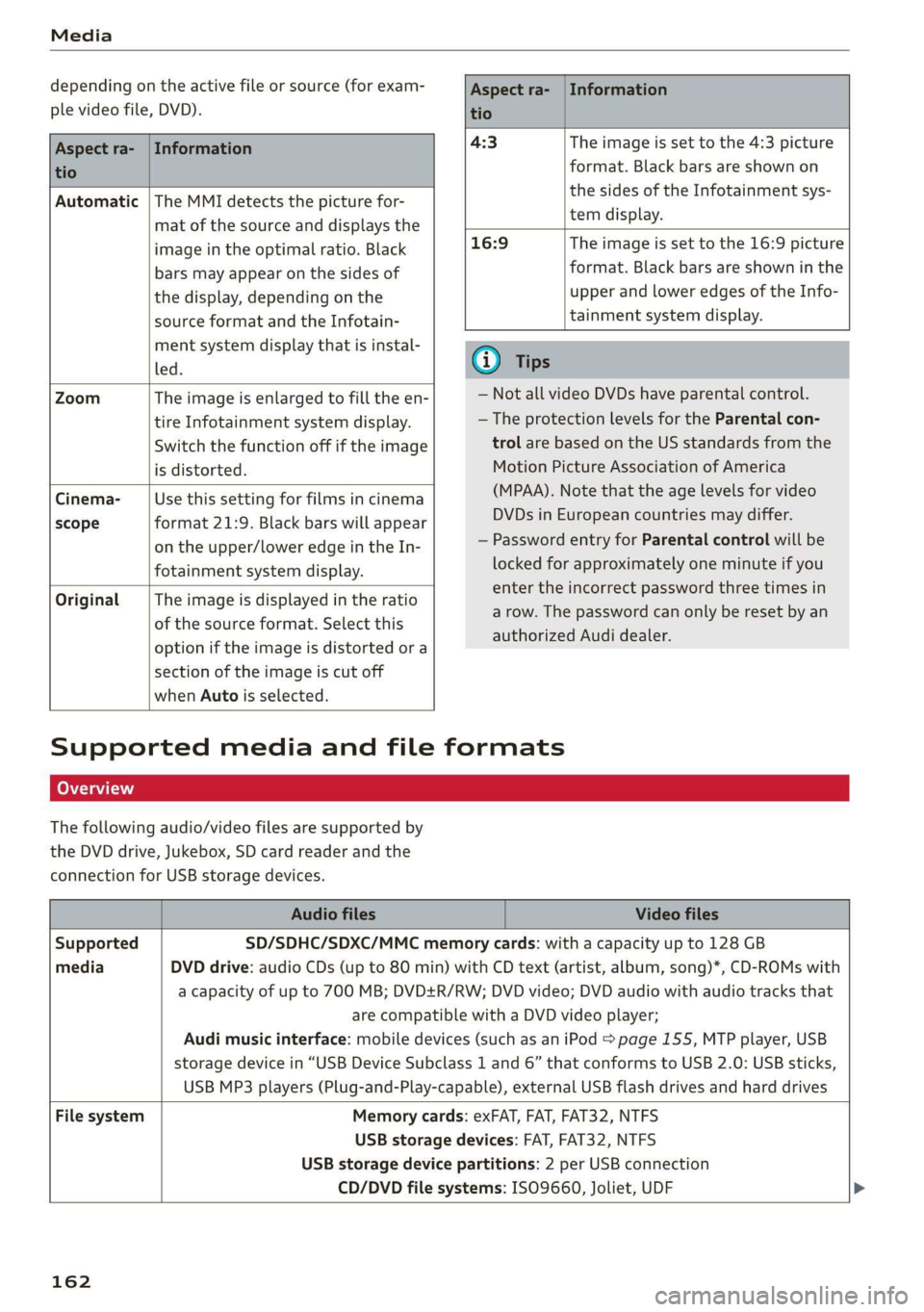
ple video file, DVD).
Aspect ra- | Information
tio
Aspect ra- | Information
tio
Automatic |The MMI detects the picture for-
mat of the source and displays the
image in the optimal ratio. Black
bars may appear on the sides of
the display, depending on the
source format and the Infotain-
ment system display that is instal-
led.
4:3 The image is set to the 4:3 picture
format. Black bars are shown on
the sides of the Infotainment sys-
tem display.
16:9 The image is set to the 16:9 picture
format. Black bars are shown in the
upper and lower edges of the Info-
tainment system display.
Zoom The image is enlarged to fill the en-
tire Infotainment system display.
Switch the function off if the image
is distorted.
Cinema-
scope
Use this setting for films in cinema
format 21:9. Black bars will appear
on the upper/lower edge in the In-
fotainment system display.
Original The image is displayed in the ratio
of the source format. Select this
option if the image is distorted or a
section of the image is cut off
when Auto is selected.
@ Tips
— Not all video DVDs have parental control.
— The protection levels for the Parental con-
trol are based on the US standards from the
Motion Picture Association of America
(MPAA). Note that the age levels for video
DVDs in European countries may differ.
— Password entry for Parental control will be
locked for approximately one minute if you
enter the incorrect password three times in
a row. The password can only be reset by an
authorized Audi dealer.
Supported media and file formats
Leta TN]
The following audio/video files are supported by
the DVD drive, Jukebox, SD card reader and the
connection for USB storage devices.
Audio files Video files
Supported SD/SDHC/SDXC/MMC memory cards: with a capacity up to 128 GB
media DVD drive: audio CDs (up to 80 min) with CD text (artist, album, song)*, CD-ROMs with
a capacity of up to 700 MB; DVD+R/RW; DVD video; DVD audio with audio tracks that
are compatible with a DVD video player;
Audi music interface: mobile devices (such as an iPod page 155, MTP player, USB
storage device in “USB Device Subclass 1 and 6” that conforms to USB 2.0: USB sticks,
USB MP3 players (Plug-and-Play-capable), external USB flash drives and hard drives
File system Memory cards: exFAT, FAT, FAT32, NTFS
USB storage devices: FAT, FAT32, NTFS
USB storage device partitions: 2 per USB connection
CD/DVD file systems: ISO9660, Joliet, UDF
162
Page 170 of 308
System settings
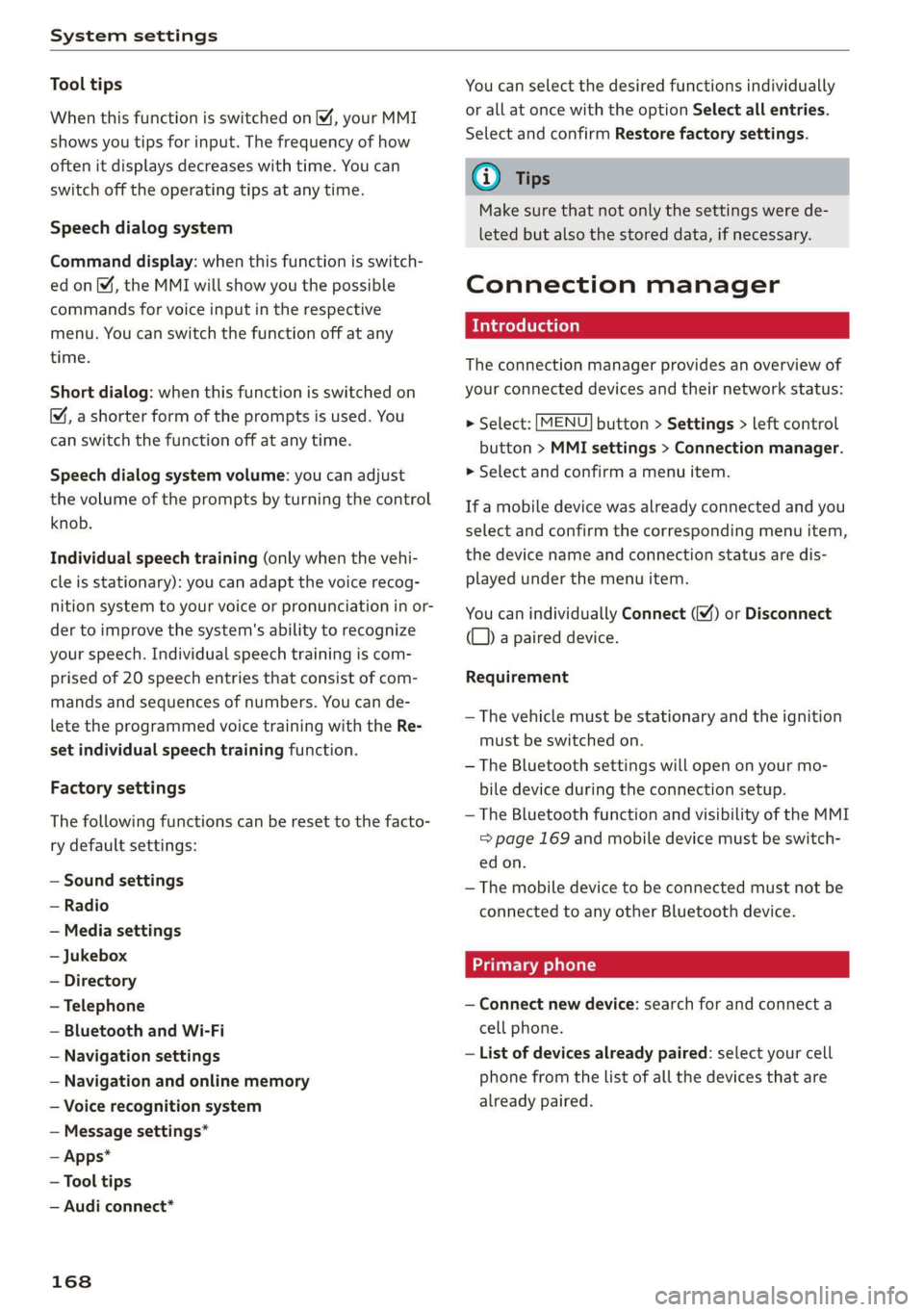
Tool tips
When this function is switched on M, your MMI
shows you tips for input. The frequency of how
often it displays decreases with time. You can
switch off the operating tips at any time.
Speech dialog system
Command display: when this function is switch-
ed on, the MMI will show you the possible
commands for voice input in the respective
menu. You can switch the function off at any
time.
Short dialog: when this function is switched on
, a shorter form of the prompts is used. You
can switch the function off at any time.
Speech dialog system volume: you can adjust
the volume of the prompts by turning the control
knob.
Individual speech training (only when the vehi-
cle is stationary): you can adapt the voice recog-
nition system to your voice or pronunciation in or-
der to improve the system's ability to recognize
your speech. Individual speech training is com-
prised of 20 speech entries that consist of com-
mands and sequences of numbers. You can de-
lete the programmed voice training with the Re-
set individual speech training function.
Factory settings
The following functions can be reset to the facto-
ry default settings:
— Sound settings
— Radio
— Media settings
— Jukebox
— Directory
— Telephone
— Bluetooth and Wi-Fi
— Navigation settings
— Navigation and online memory
— Voice recognition system
— Message settings*
— Apps*
— Tool tips
— Audi connect*
168
You can select the desired functions individually
or all at once with the option Select all entries.
Select and confirm Restore factory settings.
G) Tips
Make sure that not only the settings were de-
leted but also the stored data, if necessary.
Connection manager
Introduction
The connection manager provides an overview of
your connected devices and their network status:
> Select: [MENU] button > Settings > left control
button > MMI settings > Connection manager.
» Select and confirm a menu item.
If a mobile device was already connected and you
select and confirm the corresponding menu item,
the device name and connection status are dis-
played under the menu item.
You can individually Connect () or Disconnect
(L) a paired device.
Requirement
— The vehicle must be stationary and the ignition
must be switched on.
— The Bluetooth settings will open on your mo-
bile device during the connection setup.
— The Bluetooth function and visibility of the MMI
=> page 169 and mobile device must be switch-
ed on.
— The mobile device to be connected must not be
connected to any other Bluetooth device.
Primary phone
— Connect new device: search for and connect a
cell phone.
— List of devices already paired: select your cell
phone from the list of all the devices that are
already paired.
Page 172 of 308
System settings
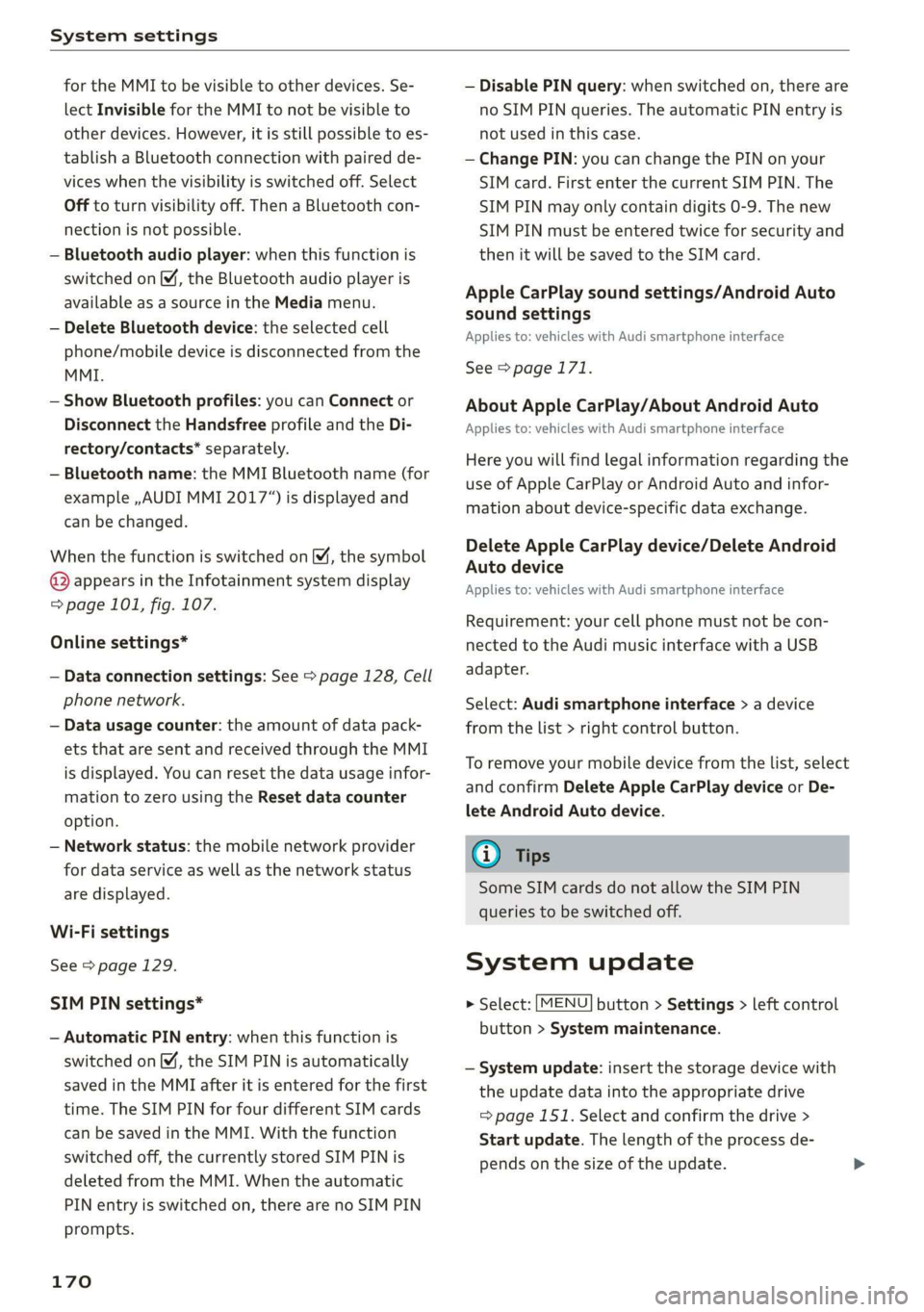
for the MMI to be visible to other devices. Se-
lect Invisible for the MMI to not be visible to
other devices. However, it is still possible to es-
tablish a Bluetooth connection with paired de-
vices when the visibility is switched off. Select
Off to turn visibility off. Then a Bluetooth con-
nection is not possible.
— Bluetooth audio player: when this function is
switched on , the Bluetooth audio player is
available as a source in the Media menu.
— Delete Bluetooth device: the selected cell
phone/mobile device is disconnected from the
MMI.
— Show Bluetooth profiles: you can Connect or
Disconnect the Handsfree profile and the Di-
rectory/contacts* separately.
— Bluetooth name: the MMI Bluetooth name (for
example ,AUDI MMI 2017“) is displayed and
can be changed.
When the function is switched on [M, the symbol
© appears in the Infotainment system display
=> page 101, fig. 107.
Online settings*
— Data connection settings: See > page 128, Cell
phone network.
— Data usage counter: the amount of data pack-
ets that are sent and received through the MMI
is displayed. You can reset the data usage infor-
mation to zero using the Reset data counter
option.
— Network status: the mobile network provider
for data service as well as the network status
are displayed.
Wi-Fi settings
See > page 129.
SIM PIN settings*
— Automatic PIN entry: when this function is
switched on , the SIM PIN is automatically
saved in the MMI after it is entered for the first
time. The SIM PIN for four different SIM cards
can be saved in the MMI. With the function
switched off, the currently stored SIM PIN is
deleted from the MMI. When the automatic
PIN entry is switched on, there are no SIM PIN
prompts.
170
— Disable PIN query: when switched on, there are
no SIM PIN queries. The automatic PIN entry is
not used in this case.
— Change PIN: you can change the PIN on your
SIM card. First enter the current SIM PIN. The
SIM PIN may only contain digits 0-9. The new
SIM PIN must be entered twice for security and
then it will be saved to the SIM card.
Apple CarPlay sound settings/Android Auto
sound settings
Applies to: vehicles with Audi smartphone interface
See > page 171.
About Apple CarPlay/About Android Auto
Applies to: vehicles with Audi smartphone interface
Here you will find legal information regarding the
use of Apple CarPlay or Android Auto and infor-
mation about device-specific data exchange.
Delete Apple CarPlay device/Delete Android
Auto device
Applies to: vehicles with Audi smartphone interface
Requirement: your cell phone must not be con-
nected to the Audi music interface with a USB
adapter.
Select: Audi smartphone interface > a device
from the list > right control button.
To remove your mobile device from the list, select
and confirm Delete Apple CarPlay device or De-
lete Android Auto device.
G) Tips
Some SIM cards do not allow the SIM PIN
queries to be switched off.
System update
> Select: [MENU] button > Settings > left control
button > System maintenance.
— System update: insert the storage device with
the update data into the appropriate drive
= page 151. Select and confirm the drive >
Start update. The length of the process de-
pends on the size of the update.
Page 173 of 308
4S1012721BA
System settings
— Reset driver installation: the selected media
driver package is reset to the settings at the
time of delivery.
— Version information: information on the MMI
software version and the navigation database*
software version is displayed. The Software in-
formation function also provides information
on the software contained in the MMI and the
licensing agreement.
Sound settings
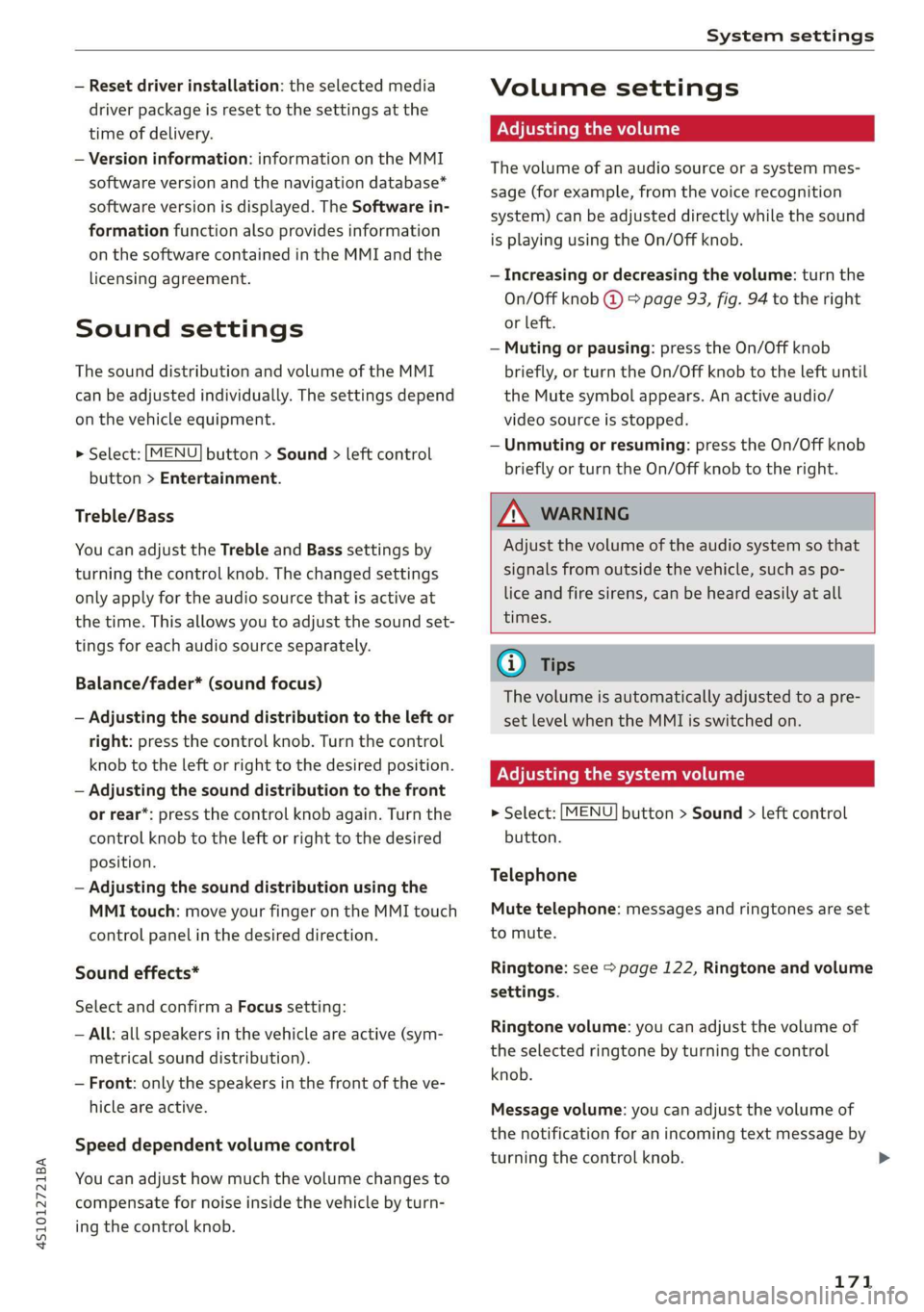
The sound distribution and volume of the MMI
can be adjusted individually. The settings depend
on the vehicle equipment.
> Select: [MENU] button > Sound > left control
button > Entertainment.
Treble/Bass
You can adjust the Treble and Bass settings by
turning the control knob. The changed settings
only apply for the audio source that is active at
the time. This allows you to adjust the sound set-
tings for each audio source separately.
Balance/fader* (sound focus)
— Adjusting the sound distribution to the left or
right: press the control knob. Turn the control
knob to the left or right to the desired position.
— Adjusting the sound distribution to the front
or rear*: press the control knob again. Turn the
control knob to the left or right to the desired
position.
— Adjusting the sound distribution using the
MMI touch: move your finger on the MMI touch
control panel in the desired direction.
Sound effects*
Select and confirm a Focus setting:
— All: all speakers in the vehicle are active (sym-
metrical sound distribution).
— Front: only the speakers in the front of the ve-
hicle are active.
Speed dependent volume control
You can adjust how much the volume changes to
compensate for noise inside the vehicle by turn-
ing the control knob.
Volume settings
Adjusting the volume
The volume of an audio source or a system mes-
sage (for example, from the voice recognition
system) can be adjusted directly while the sound
is playing using the On/Off knob.
— Increasing or decreasing the volume: turn the
On/Off knob @) > page 93, fig. 94 to the right
or left.
—
Muting or pausing: press the On/Off knob
briefly, or turn the On/Off knob to the left until
the Mute symbol appears. An active audio/
video source is stopped.
—Unmuting or resuming: press the On/Off knob
briefly or turn the On/Off knob to the right.
ZA\ WARNING
Adjust the volume of the audio system so that
signals from outside the vehicle, such as po-
lice and fire sirens, can be heard easily at all
times.
G) Tips
The volume is automatically adjusted to a pre-
set level when the MMI is switched on.
Adjusting the system volume
> Select: [MENU] button > Sound > left control
button.
Telephone
Mute telephone: messages and ringtones are set
to mute.
Ringtone: see = page 122, Ringtone and volume
settings.
Ringtone volume: you can adjust the volume of
the selected ringtone by turning the control
knob.
Message volume: you can adjust the volume of
the notification for an incoming text message by
turning the control knob.
171