steering wheel AUDI RS7 SPORTBACK 2014 User Guide
[x] Cancel search | Manufacturer: AUDI, Model Year: 2014, Model line: RS7 SPORTBACK, Model: AUDI RS7 SPORTBACK 2014Pages: 292, PDF Size: 73.56 MB
Page 76 of 292
7 4 On the road
column will continue moving as long as you
are pressing the switch.
There must be at least 10 inc hes (25 cm) be
tween you r chest and the center of the steer
ing whee l.
If you cannot sit more than 10 in
ches (25 cm) from the steering whee l, see if
adaptive equipment is available to help you reach the pedals and increase the distance
from the steer ing wheel.
F or detai led information on how to adjust the
driver's seat, see
<::> page 54 .
In vehicles with the memory f unction* , the
steering column settings are stored together
with the seat position.
A WARNING
Improper use of steering wheel adjust
ment and improper seating position can
cause se rious personal injury.
- Adjust the steer ing whee l column on ly
when the vehicle is not moving to pre
vent loss of veh icle control.
-
- Adjust the driver's seat or steering wheel
so that the re is a min imum of 10 inches
(25 cm) between your chest and the
steering wheel ¢
page 124, fig. 146. If
you can not maintain this min imum dis
tan ce, the airbag system cannot protect
yo u properly.
- If phys ica l limi tations prevent you from
sitting 10 in ches (25 cm) o r more from
the steering wheel, check with yo ur au
tho rized Aud i dealer to see if adaptive
equipment is availab le .
- If the steering wheel is aligned with you r
face, the supp lemental drive r's airbag
cannot provide as much protect ion in an
acc ident. A lways make sure that the
steering wheel is aligned with your
chest.
- Always hold the steering wheel with your
hands at the 9 o'clock and 3 o'clock posi
t ions to reduce the risk of pe rsonal injury
if the d river 's airbag deploys.
- Never hold the steering whee l at the 12
o'clock posit ion or w ith your hands i nside the steering wheel rim or on the steering
wheel hub. Hold
ing the steer ing wheel
the wrong way can cause serious injuries
to the hands, arms and head if the driv
er 's airbag deploys.
Easy entry feature
Applies to vehicles: with electrically adjustable steering
wheel
The easy entry feature makes it easier to en
ter and exit the vehicle by automatically ad
justing the steering wheel.
.. Select in the MM I: ICARI function button>
(Car )* sys tem s control b utton > V ehicle set
ting s
> Seats > D rive r's seat > Easy entry >
On .
When the easy ent ry feature is turned on, the
steering wheel moves up to the park position
when you switch
off the ignition. After you en
ter the veh icle, the steering wheel moves to
the stored position as soon as you sw itch on
the ignit ion.
Starting and stopping
the engine
Starting the engine
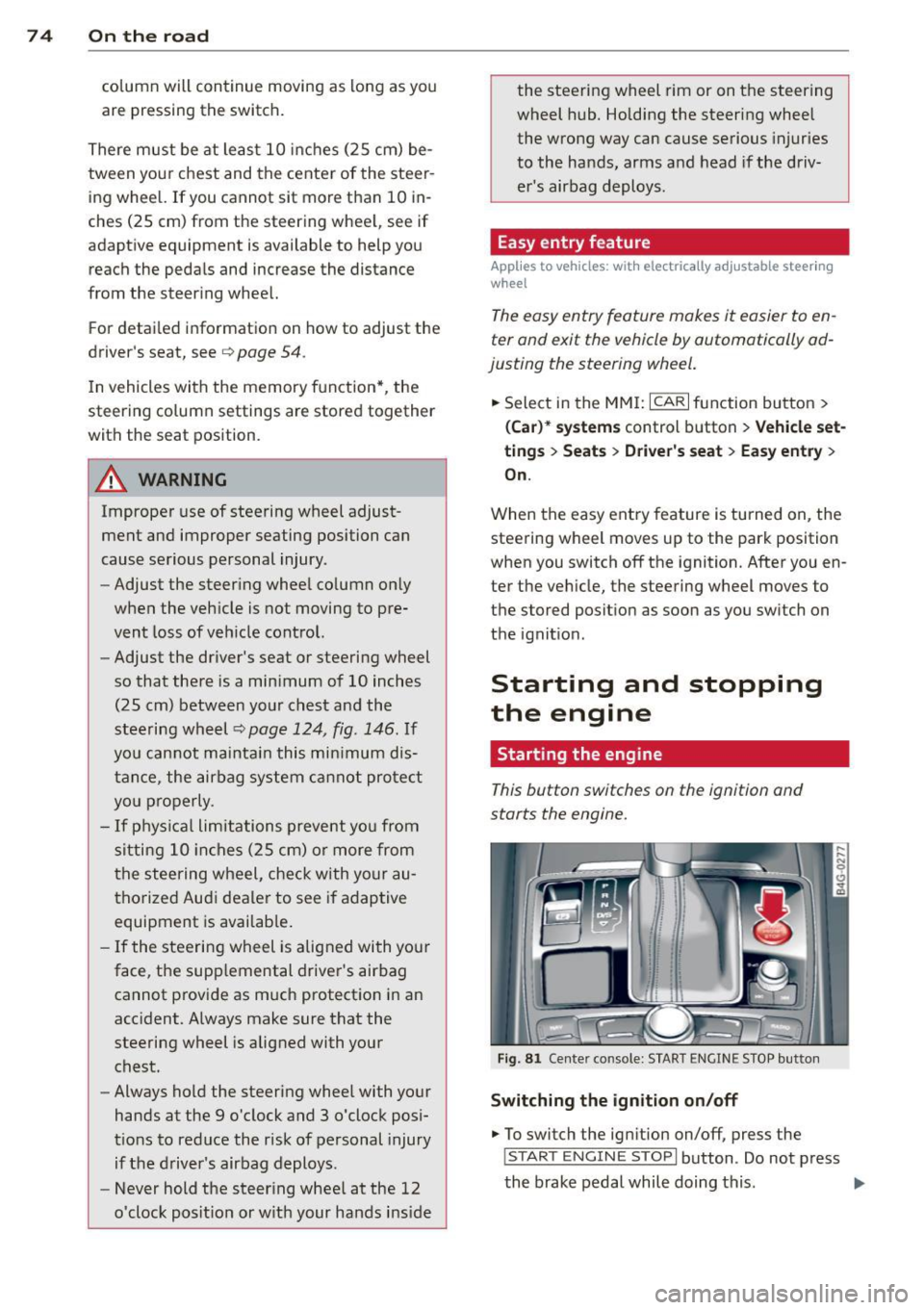
This button switches on the ignition and
starts the engine.
Fig . 81 Center console: S TART ENGINE S TOP butto n
Switching the ign ition on /off
.. To switch the ign ition on/off, press the
I STAR T ENGINE ST OPI button . Do not press
the brake pedal while doing this . .,.
Page 86 of 292
84 Audi adaptive cruise control and braking guard
tachometer ® and is also shown briefly in
the display @¢fig.
91.
• You must also press the brake pedal when
the vehicle is stopped.
Switching adaptive cruise control off
• Push the lever away from you into position
@ until it clicks into place. The message
ACC off appears.
@ Indicator lights
f. j. Adap tive cruise control is switched on . No
vehicles are detected up ahead. The stored
speed is ma intained.
I -A moving vehicle is detected up ahead.
The adaptive cruise control system regulates
the speed and distance to the moving veh icle
ahead and acce lerates/brakes automat ica lly.
Si-Adaptive cruise control is switched on. A
moving vehicle up ahead was detected. You r
vehi cle remains stopped.
I-When automatic braking is not able to
keep enough distance to a previously detected
moving vehicle up ahead, you must take con
trol and brake ¢
page 86, Prompt for driver
intervention.
© Display
If adaptive cruise control is not shown in the
display, you can call it up with the multifunc
tion steering wheel buttons¢
page 23.
Based on the symbols in the display, you can
determ ine if the system is maintaining a dis
tance to the vehicle ahead and what that dis
tance is.
No vehicle -No vehicle ahead was detected .
White vehicle -A vehicle ahead was detected.
Red vehicle -Prompt for the driver to take ac
tion
c:::> page 86.
Both arrows on the scale © indicate the dis
tance to the vehicle ahead. No arrow appears
when the vehicle is on an open road and there
is no object ahead . If an object is detected
ahead, the arrow moves on the scale . T
he green zone on the scale shows the stored
distance. For information on changing the
stored distance, refer to ¢
page 85. If the
distance se lected is too close or may soon be
come too close, the arrows move into the red
zone on the sca le .
_&. WARNING
Improper use of the adaptive cruise con
trol can cause collisions, other accidents
and serious personal injur ies.
- Pressing the
ISET ! button when driv ing at
speeds be low 20 mph (30 km/h), will au
tomatically accelerate the vehicle to 20
mph (30 km/h), which is the minimum
speed that can be set.
© Tips
-If you switch the ignit ion or the adaptive
cruise control off, the set speed is erased
from the system memory.
- Th e electronic stabilizat ion contro l (ESC)
and the anti-s lip-regulat ion (ASR) are au
tomatically turned on when the adaptive
cruise control is turned on. Both systems
cannot be turned off if the adaptive
cruise contro l is turned on.
Changing the speed
Applies to veh icles: w ith Aud i adaptive cruise control
0
f
jJ
0
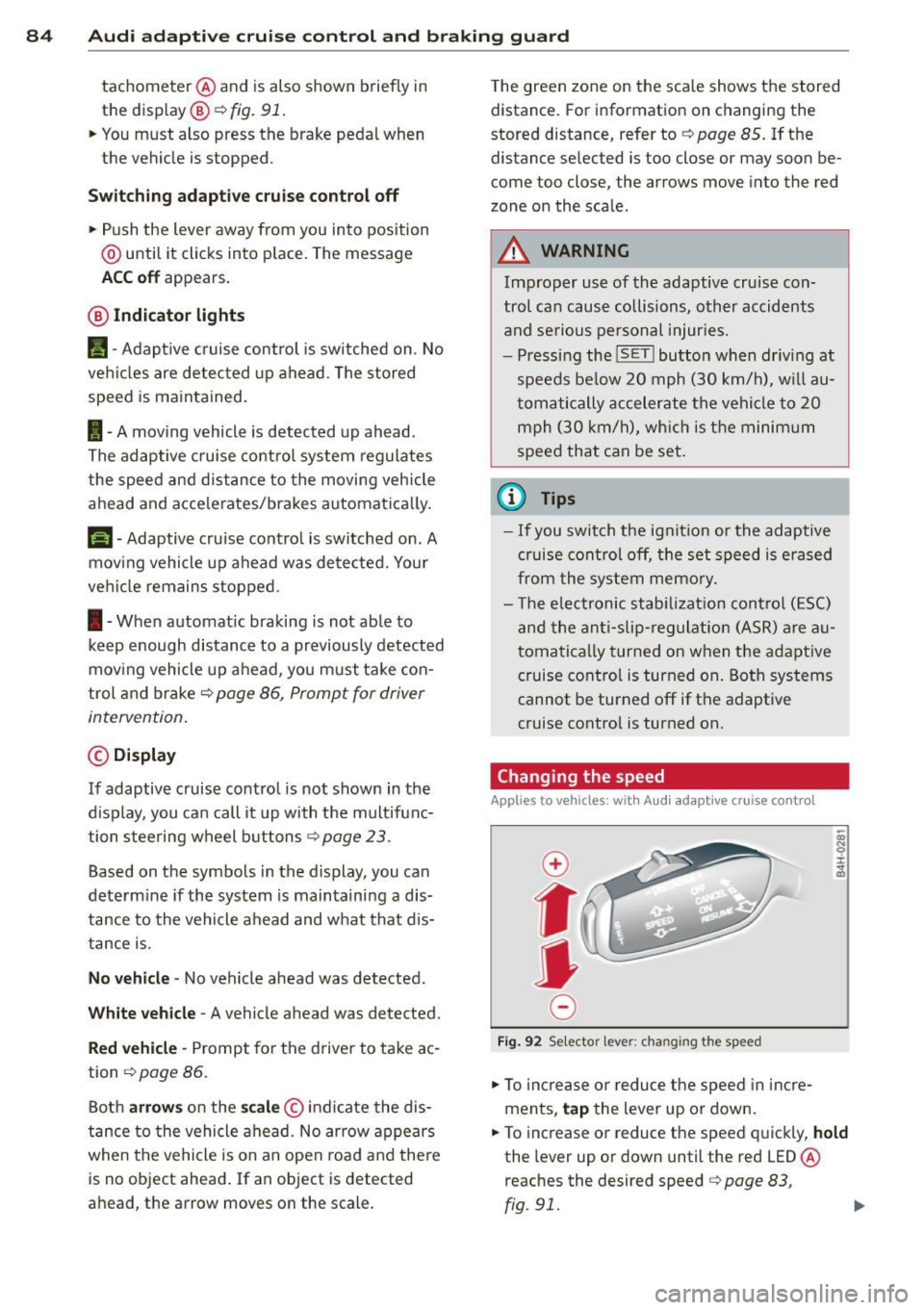
Fi g. 92 Selecto r lever: chang ing t he speed
• To increase or reduce the speed in incre
ments,
tap the lever up or down.
• To increase or reduce the speed quickly,
hold
the lever up or down until the red LED ®
reaches the desired speed
c:::> page 83,
rg . 91. ~
Page 92 of 292
90 Audi acti ve lane a ssi st
Audi active lane assist
Active lane assist
Description
App lies to vehicles: with active lane assist
Active lane assist helps you keep your vehicle
in your lane .
Active lane assist detects lane marker lines
within the limits of the system using a camera
in the windshield . If you are approaching a de
tected lane marker line and it appears likely
that you w ill leave the lane, the system will
warn you by means of corrective steer ing . T he
d river can over ride the correct ive steer ing at
any time. If the veh icle crosses a line, the d riv
er is also warned by a light
vibration in the
steering wheel. The vibration warning must be switched on in the MMI for this to happen.
Active lane ass ist is operable when the line
marking the lane is detected on at least one
side of the vehicle .
If the system is in active standby mode and
the turn signa l is activated before driving over
the lane marker line, the warning does not oc
cur since the system allows for intentional lane changes.
The system is designed for driv ing on free
ways and expanded highways and thus works
only at speeds of 40 mph (65 km/h) or more .
If the vehicle is also equ ipped with Audi adap
tive cruise control*, the corrective steering
will be more specific in regard to the driving
situation . In addition to the lane marker lines,
the system can also take into account other
objects such as guard rails . If they are detect
ed i n close prox imity to the veh icle, Audi ac
tive lane ass ist helps prevent the vehicle from
driving too close to them . There is also pass
ing assistance. The system does not provide
any corrective steering if it detects that you
are passing another vehicle.
A WARNING , ~
- The system warns the driver that the ve
hicle is leaving the lane us ing corrective steer
ing. The driver is always responsible
for keeping the vehicle within the lane .
- The system can assist the driver in keep
ing the vehicle in the lane, but it does
not steer by itself. Always keep your
hands on the steering wheel.
- Corrective steer ing may not occur in cer
tain situat ions, such as dur ing heavy
brak ing .
- The camera does not recognize all lane
marker lines. Corrective steer ing can only
take p lace on the side of the vehicle
where lane marker lines are detected .
- Other road structures or objects cou ld
possibly be identified un intent ional ly as
lane marker lines . As a res ult, correct ive
steer ing may be unexpected or may not
occ ur.
- The camera view can be restricted, for
examp le by vehicles driving ahead o r by
r ai n, snow, heavy spray or light shining
into the camera. T his can result in act ive
lane assist not detecting the lane marker
lines or detect ing them incorrectly .
- Unde r ce rtain condi tions such as ruts in
the road, a banked roadway or cross
winds, the co rrective steering alone may
not be eno ugh to keep the vehicle in the
lane.
- For safety reasons, active lane ass ist
must not be used when there are poor
road and/or weather conditions such as
slippery roads, fog, grave l, heavy rain,
snow and the potential for hydroplaning.
Using act ive lane assist under these con
d itions may increase the risk of a crash.
Page 94 of 292
92 Audi active lane assist
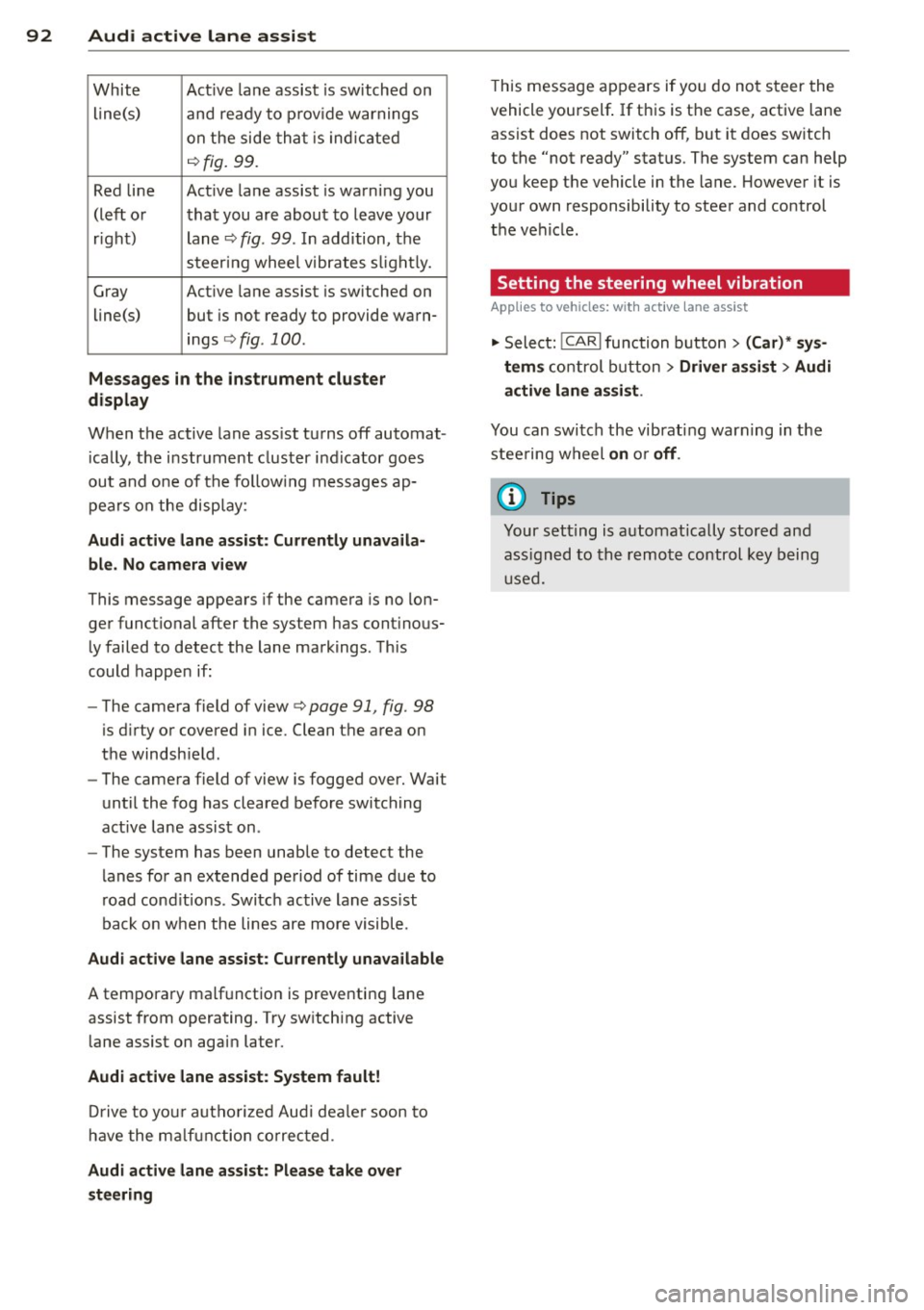
White Act ive l an e assist is switched on
line(s) and ready to p rov ide warnings
on the side tha t is ind ic a ted
¢ fig. 99.
Red line Act ive l ane assist is warning you
(left o r t hat you are about to leave your
r ight) lan e
c'.> fig. 99. In addition, t he
s teer ing whee l v ibrates s lig htly.
G ray Act ive l ane assist is switched on
line(s) but is not ready to provide wa rn-
ings
c-.> fig . 100 .
Messages in the instrument cluster
display
When t he active lane ass ist tu rns off automat
i cally, t he i nstrument cluster i ndicator goes
out and one of t he fo llow ing me ssages ap
pea rs on the disp lay :
Audi active lane ass ist: Currently unavaila
ble. No camera view
This message appears if the camera is no lon
ge r functional after the system has cont inous
ly failed to detect the lane markings . T his
could happe n if:
- The camera field of view
c-.> page 91 , fig . 98
is d irty or covered i n ice. Clean t he area on
t h e windsh ie ld .
- The camera field of view is fogged over. Wait
until the fog has cleared before switching
active lane assis t on .
- The system has been unable to detect the
lanes fo r an extended pe riod of time due to
road cond itions . Switch ac tive lane ass ist
back on w hen the lines are more visible.
Audi active lane ass ist: Currently unava ilable
A tempora ry malf unct ion is preventing lane
assist from operating. Try sw itch ing active
lane assist on again later.
Audi active lane a ssist: System fault!
Dr ive to yo ur authoriz ed Au di dealer soon to
h ave the m alfunc tion co rrec ted .
Audi active lane a ssist : Please take over
steering
T his message ap pears if yo u do no t steer the
vehicle yourself . If th is is the case, active lane
ass ist does not switch off, but it does sw itch
to the "not ready" stat us. T he system can help
you keep t he vehicle in the lane. However it is
yo ur own responsibility to stee r and control
the ve hicle .
Setting the steering wheel vibration
Applies to vehicles: with active lane assist
"' Sele ct: !CARI function button> (Car) * sys
tem s
con trol button > Driver assi st > Audi
active lane assi st.
You can swi tc h the vibrating warn ing in the
stee ring w heel
on or off .
(D Tips
Your s etting is a utom atically store d and
ass igned to the rem ote control key b eing
u sed.
Page 102 of 292
100 Night vision assistant
Night vision assistant
Night vision assistant
with detected pedestrian marking
Description
App lies to vehicles: with night v isio n ass istant
Fig. 107 Display: n ight vis ion assistant
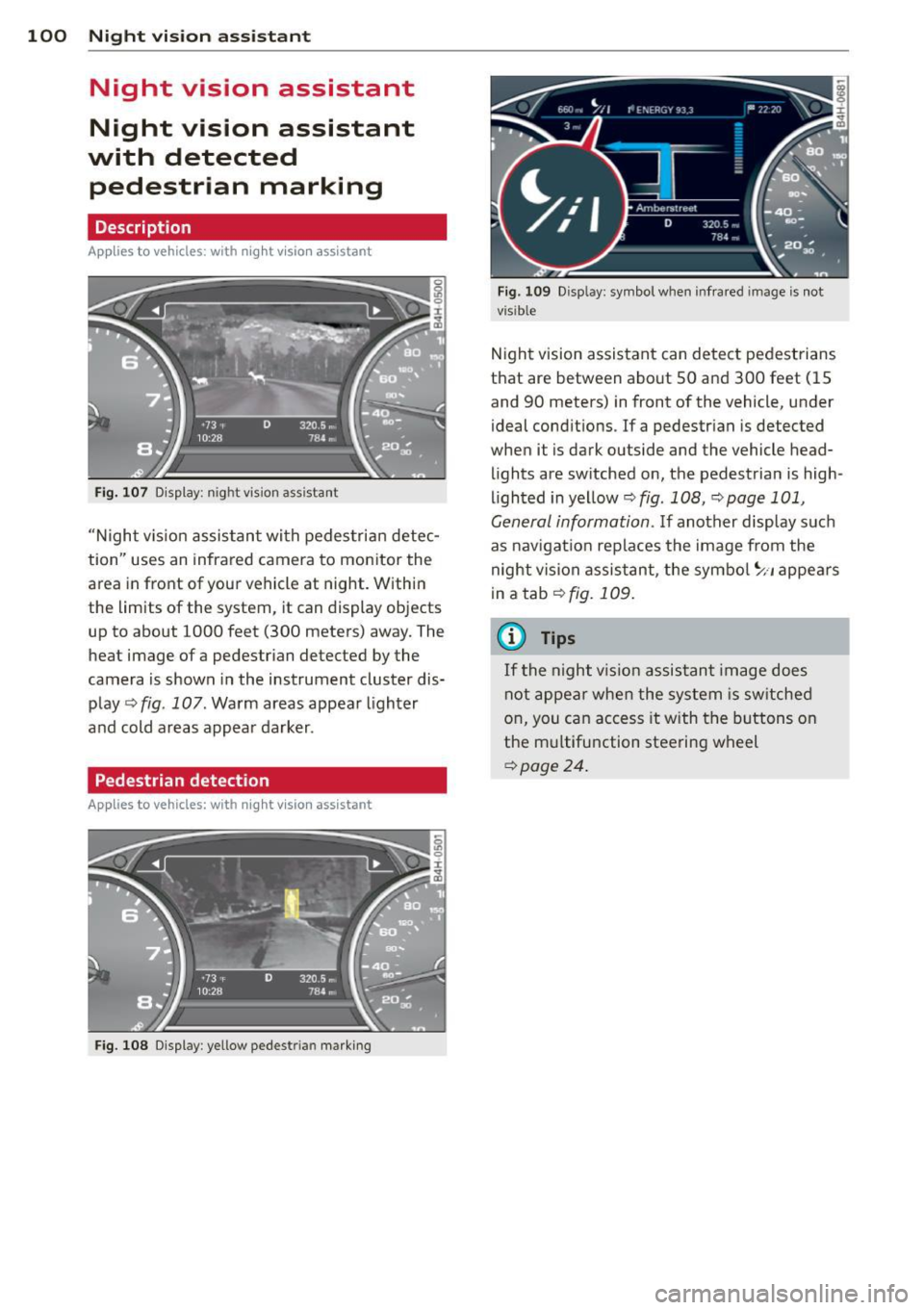
"N ight v is ion assistant with pedestrian detec
tion" uses an infrared camera to monitor the
area in front of your vehicle at night. Within
the limits of the system, it can display objects
up to about 1000 feet (300 meters) away. The
heat image of a pedestrian detected by the
camera is shown in the instrument cluster dis
play
q fig. 107. Warm areas appear lighter
and cold areas appear darker .
Pedestrian detection
Applies to vehicles: with n ig ht v ision ass istant
Fig. 108 Display: yellow pedestrian marking Fig.
109 Disp lay: symbo l w hen infrare d im age is not
visible
N ight vision assistant can detect pedestrians
that are between about SO and 300 feet (15
and 90 meters) in front of the vehicle, under
ideal conditions . If a pedestrian is detected
when it is dark outside and the vehicle head
lights are switched on, the pedestrian is high
lighted in yellow
qfig. 108, qpage 101,
General information.
I f another display suc h
as nav igat ion rep laces the image from the
night vision assistant, the symbol
~11 appears
in a tab
qfig. 109.
(0 Tips
If
th e night vi.sion assistant image does
not appear when the system is switched
on, you can access it with the buttons on
the multifunction steering wheel
qpage 24.
Page 116 of 292
114 Parking systems
Cross parking
Applies to vehicles: with park ing system p lus w it h rear
view ca mera
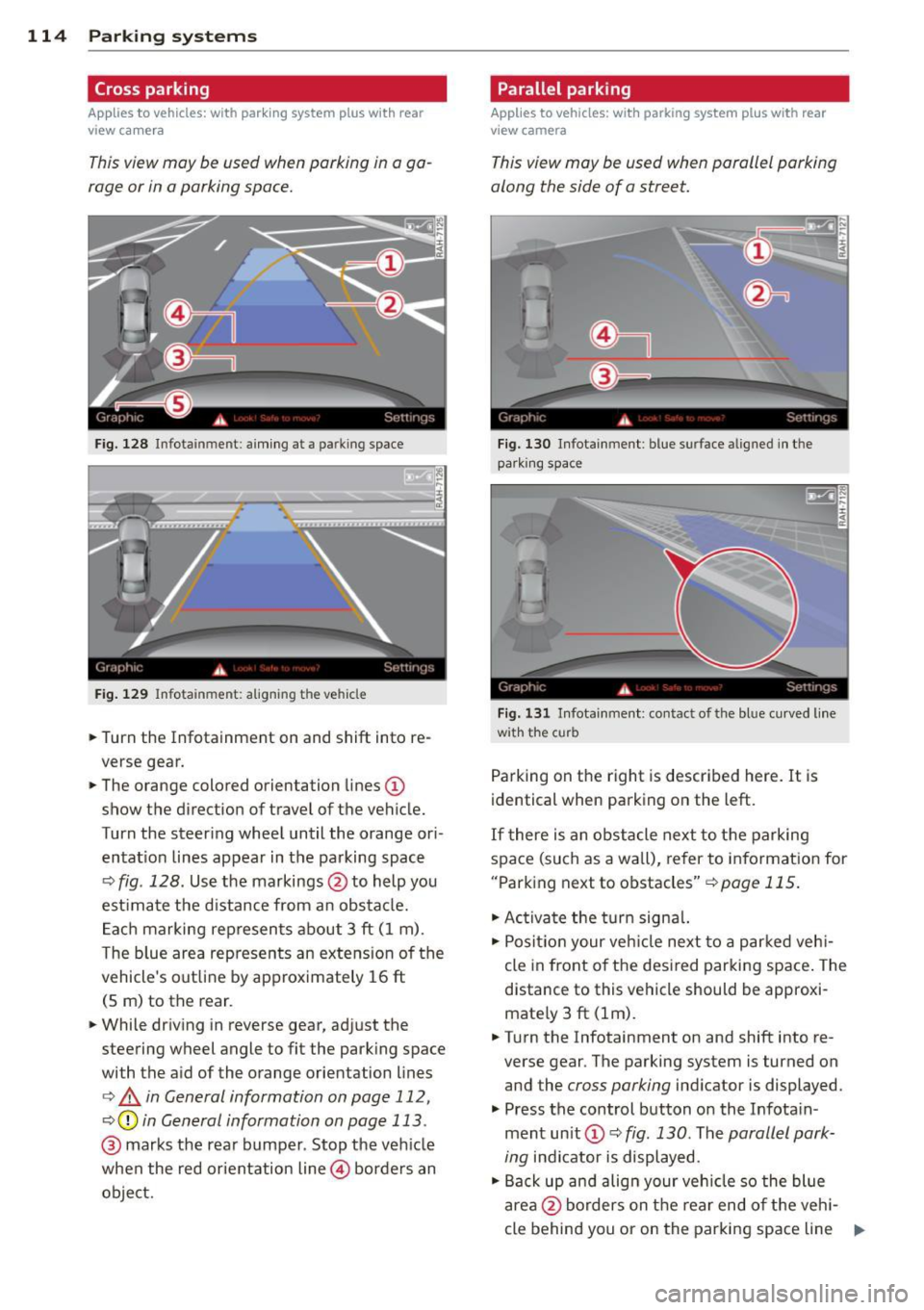
This view may be used when parking in a ga
rage or in a parking space.
F ig. 128 Infotainment: aim ing at a parking space
Fig. 129 Infotainment : aligning the ve hicle
... Turn the Infotainment on and shift into re
verse gear.
... The orange colored orientation lines
(D
show the direction of travel of the vehicle.
Turn the steering wheel until the orange ori
entat ion lines appear in the parking space
c:::> fig. 128. Use the markings @to help you
est imate the distance from an obstacle.
Each marking represents about 3 ft (1 m).
The blue area represents an extens ion of the
vehicle's out line by approximately 16 ft
(5 m) to the rear.
... While driving in reverse gear, adjust the
steering wheel angle to fit the parking space
with the aid of the orange orientation lines
c:> & in General information on page 112,
c:::> @ in General information on page 113 .
@ marks the rear bumper . Stop the veh icle
when the red orientation line@ borders an
object.
Parallel parking
Applies to vehicles : wit h parking system pl us with rear
v iew camera
This view may be used when parallel parking
along the side of a street.
Fig . 130 Infotainment : blue surface aligned in the
park ing space
Fig. 131 Infotainme nt: contact of the blue curved lin e
w ith the curb
Parking on the right is described here. It is
identical when parking on the left.
If there is an obstacle next to the parking
space (such as a wall), refer to information for
"Parking next to obstacles"
c:::> page 115.
"' Activate the turn signal.
"'P osit ion your veh icle next to a parked vehi
cle in front of the desired parking space. The
distance to this vehicle should be approxi
mate ly 3 ft (lm) .
... Turn the Infotainment on and shift into re
verse gear . The parking system is turned on
and the
cross parking indicator is displayed.
"' Press the control button on the Infota in
ment un it
(D c:::> fig. 130 . The parallel park
ing
indicator is displayed.
"' Back up and align your vehicle so the blue
area @borders on the rear end of the veh i-
cle behind you or on the parking space line ..,.
Page 117 of 292
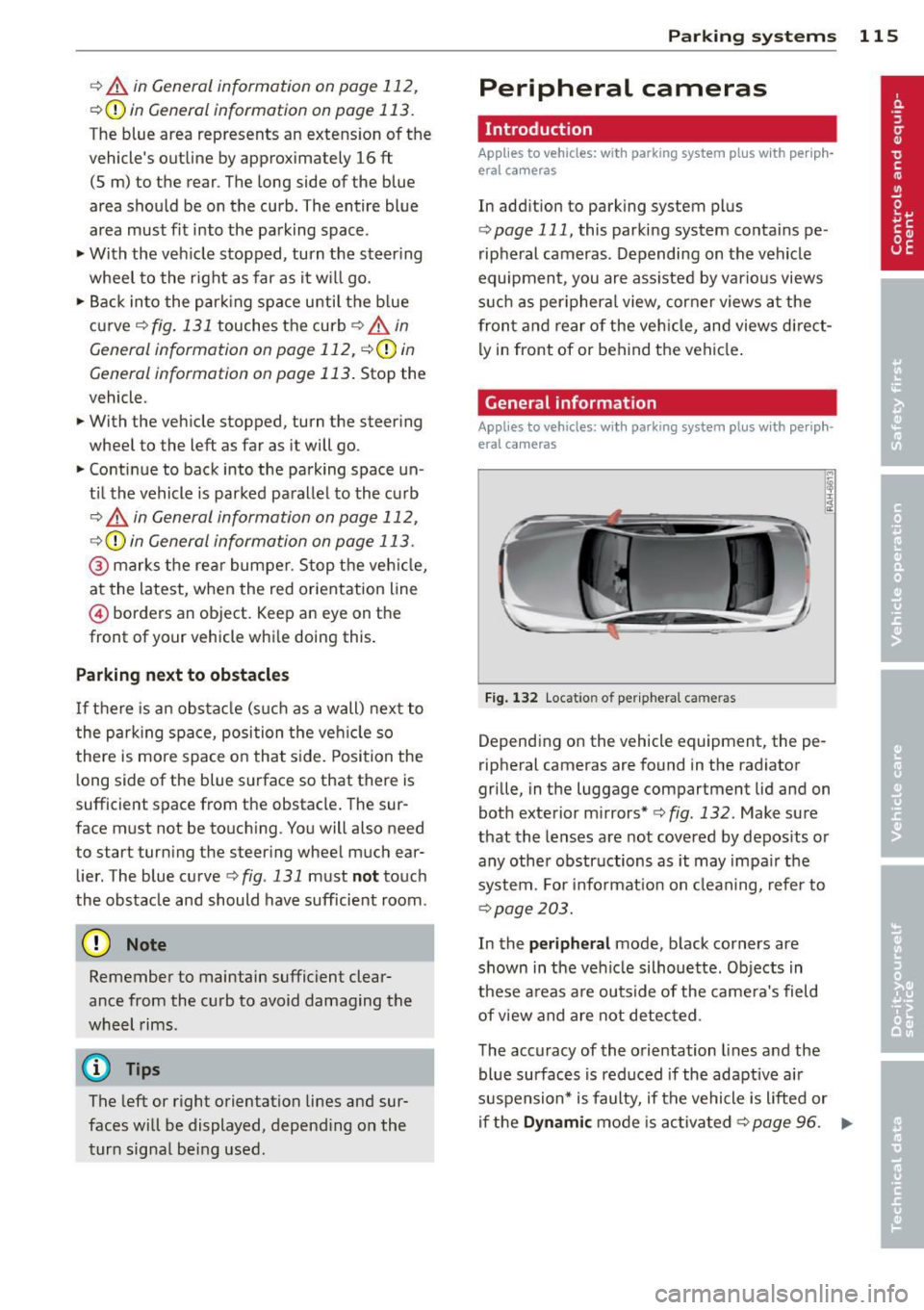
r::> & in General information on page 112,
r::>(D in General information on page 113 .
The blue area represents an extens ion of the
vehicle's outline by approximately 16 ft
(5 m) to the rear . The long side of the blue
area should be on the curb . The entire blue
area must fit into the parking space.
• With the veh icle stopped, turn the steering
wheel to the right as far as it w ill go.
• Back in to the park ing space u ntil the b lue
curve
r::> fig . 131 touches the curb r::> & in
General information on page 112,
r::> (D in
General information on page 113 .
Stop the
vehicle.
• With the veh icle stopped , turn the steer ing
whee l to the left as far as it will go .
• Continue to back into the parking space un
t il the vehicle is parked pa rallel to the cu rb
r::> & in General information on page 112,
r::> (D in General information on page 113 .
@ marks the rear bumper. Stop the veh icle,
at the latest, when the red orientation line
@ borders an object. Keep an eye on the
front of your vehicle whi le do ing th is .
Pa rking next to obstacles
If there is an obstacle (s uc h a s a wall) next to
the par king space, position the veh icle so
there is more space o n that s ide. Position the
l ong side of the blue s urface so that there is
sufficient space from the obstacle . The sur
face must not be to uch ing . You will also need
to star t turning the steer ing wheel much ear
lier . The blue curve
r::>fig .131 must not touch
the obstacle and should have sufficient room.
(D Note
Remember to maintain sufficient clear
ance from the curb to avoid damag ing the
wheel rims .
(D Tips
The left or right orientation lines and sur
faces will be displayed, depend ing on the
turn sig na l being used.
P arking systems 115
Peripheral cameras
Introduction
Applies to vehicles: with parking system plus with periph
eral cameras
In add ition to parking system plus
¢
page 111, this parking system conta ins pe
ripheral cameras . Depending on the vehicle
equipment , you are ass isted by vario us views
su ch a s p eriphera l view, corne r views a t the
fron t and rear of the veh icle, and views di rect
ly in front of or behind t he vehicle .
General information
Applies to vehicles: with parking system plus with periph
eral cameras
F ig . 1 32 Locat io n of per ip hera l ca meras
Depending on the vehicle equipment, the pe
ripheral cameras are found in the radiator
grille, in the luggage compartment lid and on
both exterior mirrors* ¢
fig. 132. Make su re
that the lenses a re not covered by depos its o r
any other obstr uctions as it may impa ir t he
system. For info rmat io n on clean ing, refe r to
¢ page 203.
In the peripheral mode , b lack corners are
shown in the ve hicle silhouette . Objects in
these a reas a re outside of the came ra's field
of view and are not detec ted .
The accuracy of the orientation lines and the
bl ue surfaces is reduced if the adaptive a ir
suspension* is faulty, if the vehicle is l ifted or
if t he
D ynamic mode is activa ted ¢ page 96. ..,.
Page 118 of 292
116 Parking systems
& WARNING
- Always read and follow the applicable
warnings
Q .&. in General information on
page
110.
- If the posit ion or the installation angle
of a camera was changed, afte r a colli
sion for example, do not continue to use
the system for safety reasons. Have it
checked by your au thori zed Audi dealer
s hip.
- K eep in m ind that the image i n the dis
play is distorted if the ex ter ior mir ro r
housing has been man ual ly adjusted .
- Use the
re ar mode and the corner view
(re ar)
mode on ly when the luggage com
partment lid is fully closed . Otherwise
the image in the display will be distort
ed.
- The veh icle surroundings are shown us
ing the camera images . The vehicle im
age is shown by the system. Objects and
obstacles above the camera are not dis
played .
- Camera lenses en large and distort the
field of v is ion. The objects appear both
altered and inaccu rate on the screen.
(D Note
- Always read and follow the applicab le
warnings
c:> (i) in General information on
page
110.
- The In fota inment display shows the d i
rection in wh ich the rear of the vehicle is
traveling based on the steering wheel
angle . The front of the ve hicle front
swings out more than the rear of t he ve
hicle. Ma intain plenty of distance so that
you r outside m irror or a corner of you r
vehicle does no t coll ide wi th any obsta
cles.
@ Tips
I f t he 8/cr;iJ/r:;::::s symbol appea rs i n the
d isp lay and the respec tive display area is
g rayed out, then the power exter io r mir
rors were fo lded in or the driver 's door/ front passenger's door/
luggage compart
ment lid was opened.
Switching on or off
Applies to vehicles: with parking system plus with periph
eral cameras
Fig . 1 33 Ce nte r co n sole: f> •JI butto n
Fig. 1 34 Infot ainment: se lect ing t he m od e
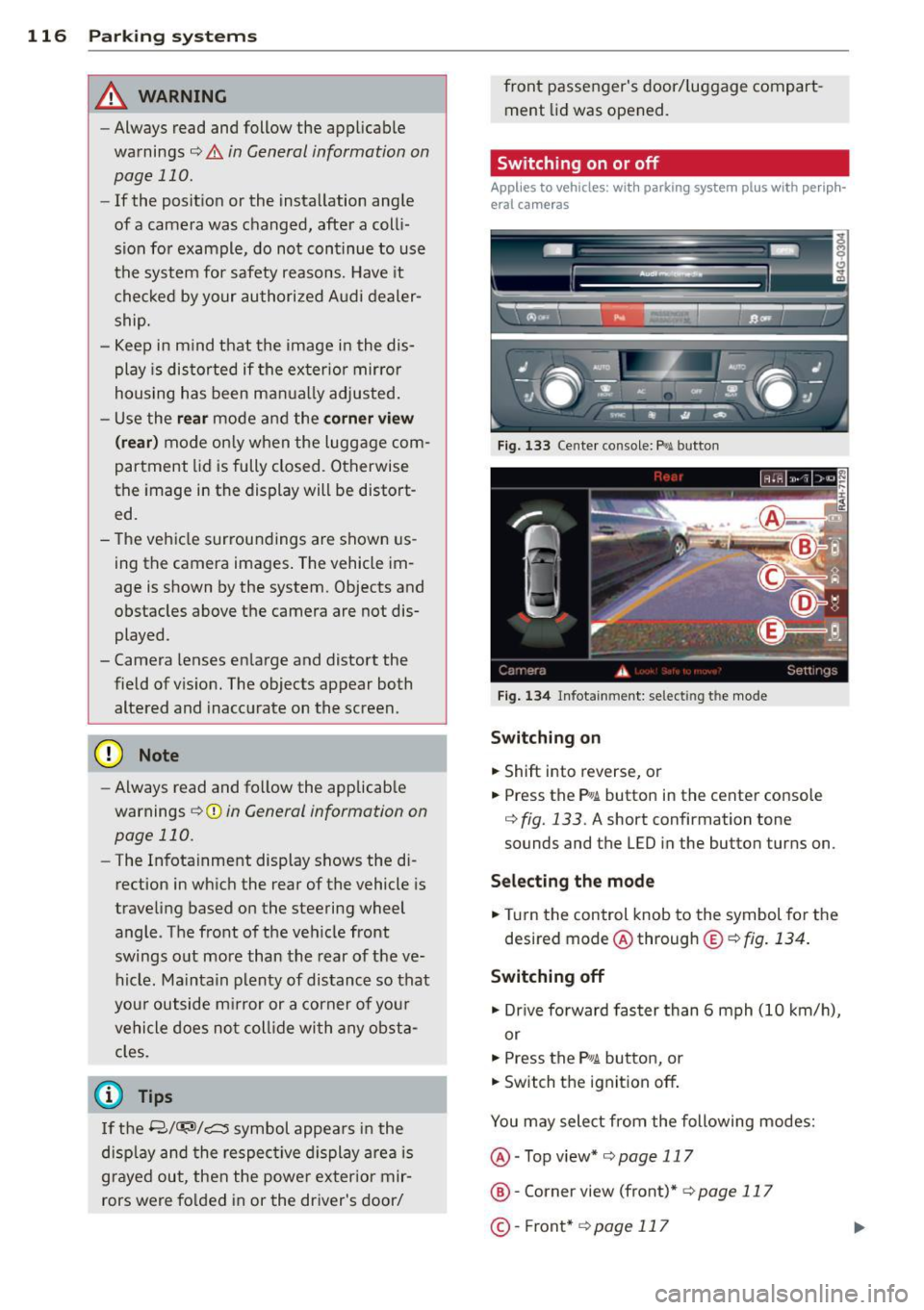
Switching on
.. Shift into reverse , or
.. Press the P•QJ\. button in the cente r console
c:> fig. 133 . A short confirmation tone
sounds and the L ED in the button turns on .
Selecting the mode
.. Turn the control knob to the symbol fo r the
desired mode @ through @¢
fig. 134 .
Switching off
.. Dr ive fo rward faster than 6 mph (10 k m/ h),
or
.. Press the
P"li bu tton, or
.. Switch the ignit ion off .
You may sele ct from the following modes:
@ -Top view*
c:>page 117
@ -Corne r view (front)* c:> page 11 7
©-Front * c:>page 117
Page 120 of 292
118 Parking systems
orientation line * borders an object¢.&. in
Gen eral information on page 116 .
Rear
Appl ies to vehicles: with parking system plus and rear
mode
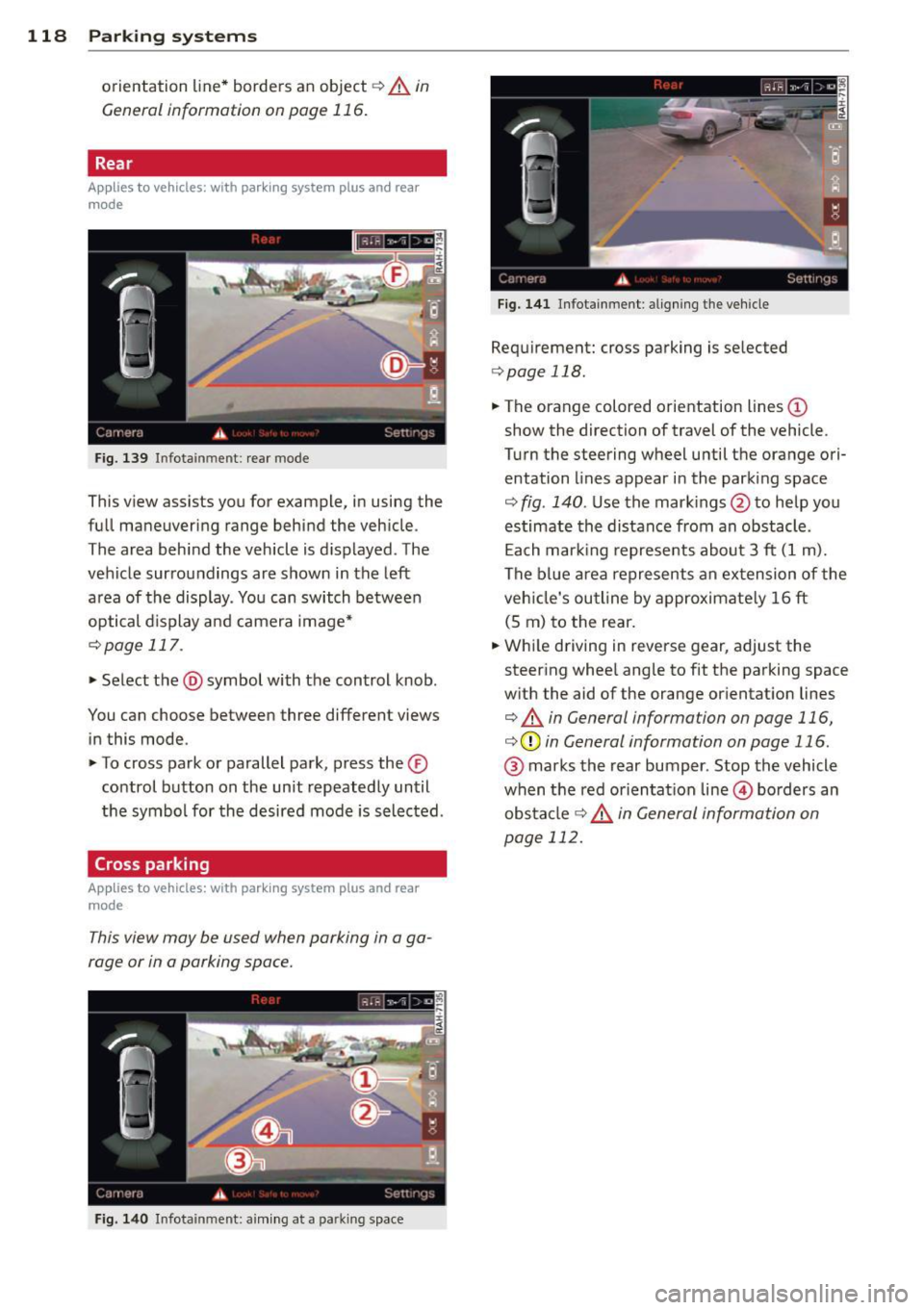
F ig. 139 In fot ainm ent: rear mode
Th is view as sists you for example, in using the
f ull maneuvering range behind the veh icle .
The area beh ind the veh icle is d isplayed . The
vehicle surroundings are shown in the left
area of the display . You can switch between
optical d isplay and camera image*
¢ page 117.
.,. Select the @symbol with the control knob .
You can choo se between three different views
in this mode .
.,. To cross park or parallel park, press the ®
control button on the unit repeated ly until
the symbol for the desired mode is selected .
Cross parking
Applies to vehicles: with parking system p lus and rear
mode
T his view may be used when parking in a ga
rage or in a parking space.
Fi g. 140 Infot ainment: a im ing at a parkin g space
Fig . 14 1 Info ta inme nt: al ign ing t he ve hicle
Requ irement: cros s parking is selected
¢ page 118 .
.,. The orange colored orientation lines(!)
show the direction of travel of the vehicle .
Turn the steering wheel until the orange ori
entation lines appear in the parking space
¢ fig . 140 . Use the mark ings @to help you
estimate the distance from an obstacle .
Ea ch mar king represe nts about 3
ft (1 m).
The blue area represents an ex tension of the
veh icle's ou tline by approximate ly 16 ft
(S m) to the rear.
.,. Whi le driving in reverse gear, adjust the
steer ing whee l angle to fit the parking space
w ith the aid of the orange orientat ion lines
¢ .&. in General information on page 116,
¢ (Din General information on page 116 .
@ marks the rear bumper. Stop the vehicle
when the red orienta tion line @ borders an
obs ta cl e
¢ .&. in General information on
page 112.
Page 121 of 292
Parallel parking
Applies to vehicles: with parking system plus and rear
mode
This view may be used when parallel parking
along the side of a street.
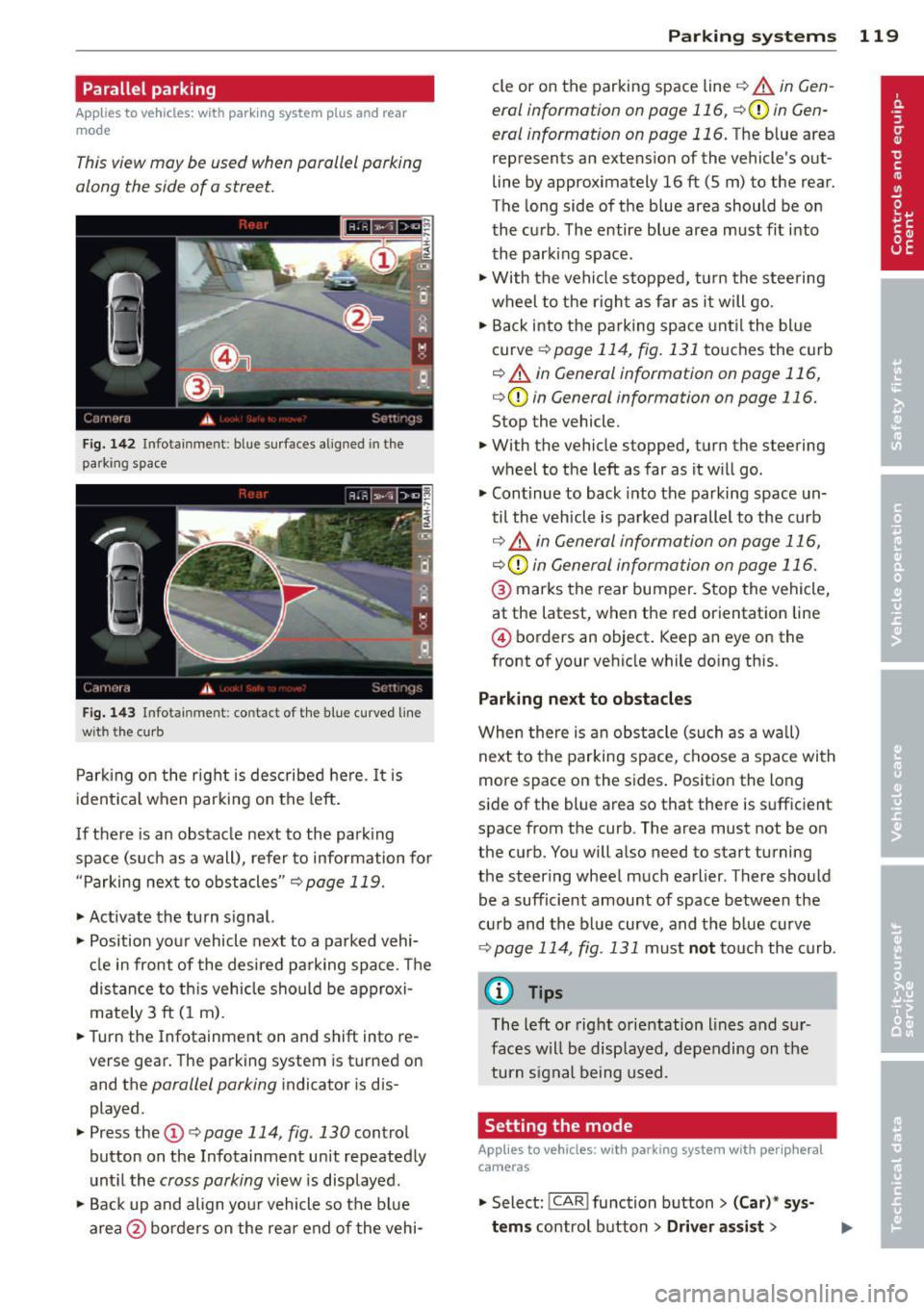
Fig. 1 42 Infotainment: blue su rfaces aligned in the
parking space
F ig. 1 43 Infota inmen t: contact of the blue curved line
wi th th e curb
Park ing on the right is described he re. It is
ident ical when parking on the left .
I f there is an obstacle next to the park ing
space (such as a wall), refer to information for
"Parking next to obstacles"
c::> page 119.
~ Activate the turn s ignal.
~ Position your vehicle next to a parked vehi
cle in front of the desired parking space . T he
distance to th is vehicle should be approxi
mately 3 ft (1 m).
~ Turn the Infotainment on and shift into re
verse gear. The parking system is turned on
and the
parallel parking indicator is dis
played .
~ Press the@¢ page 114 , fig. 130 control
button on the Infotainment un it repeatedly
unt il the
cross parking view is displayed.
~ Backup and align yo ur vehicle so the blue
area @ borders on the rear end of the vehi-
Parking systems 119
cle or on the parking space line c::> A in Gen
eral information on page 116, c::>(I)in Gen
eral information on page 116.
The blue area
represents an extension of the vehicle 's out
line by approximately 16 ft (5 m) to the rear.
The long side of the blue area should be on
the curb . The entire blue area must fit into
th e parking space .
~ With the vehicle stopped, turn the stee ring
wheel to t he righ t as fa r as it will go.
~ Back into the parking space unt il the blue
curve
c::> page 114, fig. 131 to uches the curb
c::> A in General information on page 116,
c::>(D in General information on page 116.
Stop the vehicle.
~ With the vehicle stopped, turn the steering
wheel to the left as far as it w ill go.
~ Continue to back into the parking space un
til the vehicle is parked parallel to the curb
c::> ..&. in General information on page 116,
c::> (Din General information on page 116.
@ marks the rear bumper. Stop the vehicle,
at the latest, when the red orientation line
@ borders an object . Keep an eye on the
front of your vehicle while do ing this .
Parking next to obstacles
When there is an obstacle (such as a w all)
next to the parking space, choose a space with
more space on the sides . Positio n the long
side of the blue area so that there is sufficient
space from the curb. The area must not be on
the curb. You will also need to start turning
the steering wheel much earlier . T here should
be a sufficient amount of space between the
c ur b and the bl ue curve, and the b lue curve
c::> page 114, fig . 131 m ust no t touch the curb.
@ Tips
The left o r right orientation lines and sur
faces w ill be disp layed, depending on the
turn s ignal being used .
Setting the mode
Applies to vehicles: with parking system with peripheral
cameras
~ Select: ! CAR ! function button> (Car) * sy s
tems
control button > Driver assist >