steering AUDI RS7 SPORTBACK 2015 Owner's Manual
[x] Cancel search | Manufacturer: AUDI, Model Year: 2015, Model line: RS7 SPORTBACK, Model: AUDI RS7 SPORTBACK 2015Pages: 302, PDF Size: 74.76 MB
Page 93 of 302
"' N
a:: I.J "". rl I.O
"' rl
"' rl
Activating and deactivating
A pp lies to vehicles: with active lane assist
•
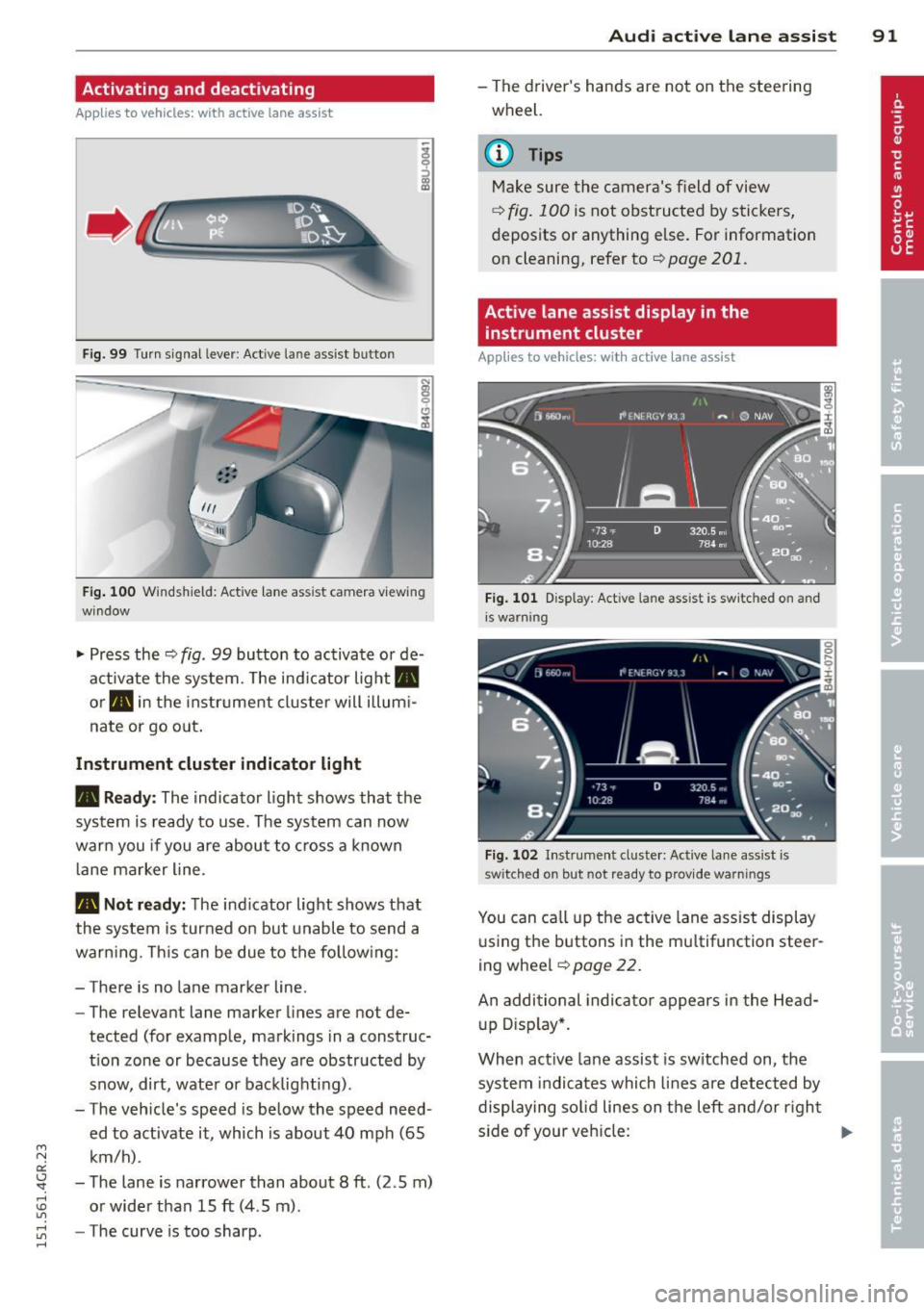
Fig. 99 Turn signal lever: Act ive lan e ass ist butto n
Fig. 100 Windshield: Active lane assist camera v iew ing
window
.. Press the ¢ fig. 99 button to activate or de
activate the system. The ind icator light .
or. in the ins trument cluster will illum i
nate or go out.
Instrument cluster indicator light
• Ready:
The indicator light shows that the
system is ready to use . The system can now
warn you if you are about to cross a known
lan e marker line.
• Not ready: The indicator light shows that
the system is turned on but unable to send a
warning. This can be due to the following:
- There is no lane marker line.
- The relevant lane marker lines are not de-
tected (for example, markings in a construc
t ion zone or because they are obstructed by
snow, dirt, water or backlighting).
- The veh icle 's speed is below the speed need
ed to activate it , which is about 40 mph (65
km/h) .
- The lane is narrower than about 8
ft. (2 .5 m)
or wider than 15
ft (4 .5 m).
- The curve is too sharp .
Audi active lane assist 91
-The driver's hands are not on the steering
wheel.
a) Tips
Make sure the camera's field of view
¢ fig. 100 is not obstructed by stickers,
deposits or anything e lse. For information
on cleaning, refer to¢
page 201.
Active lane assist display in the
instrument cluster
App lies to vehicles: wit h act ive lane assist
Fig. 101 D isp lay: Activ e lane ass ist is sw it c h ed on a nd
i s wa rnin g
Fig. 102 Instrumen t cluste r: Act ive la ne a ssist is
switch ed on but not re ady to prov id e wa rnin gs
You can call up the active lane ass ist display
u sing the buttons in the mu ltifunction steer
ing wheel ¢
page 22.
An additional indicator appears in the Head
up Display*.
When active lane assist is sw itched on, the
system i ndi cates which lines are detected by
displaying solid lines on the left and/or right
s id e of your veh icle:
Ill>
Page 94 of 302
92 Audi active lane assist
White Act ive l an e assist is switched on
line(s) and ready to p rov ide warnings
on the side tha t is ind ic a ted
¢ fig. 101.
Red line Act ive l ane assist is warning you
(left o r t hat you are about to leave your
r ight) lan e
¢fig . 101. In addition, the
s teer ing whee l v ibrates s lig htly.
G ray Act ive l ane assist is switched on
line(s) but is not ready to provide wa rn-
ings
Q fig . 102 .
Messages in the instrument cluster
display
When t he active lane ass ist tu rns off automat
i cally, t he i nstrument cluster i ndicator goes
out and one of the fo llow ing me ssages ap
pea rs on the disp lay :
Audi active lane ass ist: Currently unavaila
ble. No camera view
This message appears if the camera is no lon
ge r functional after the system has cont inous
ly failed to detect the lane markings . T his
could happe n if:
- The camera field of view
Q page 91 , fig . 100
is d irty or covered i n ice. Clean t he area on
t h e windsh ie ld .
- The camera field of view is fogged over. Wait
until the fog has cleared before switching
active lane assis t on .
- The system has been unable to detect the
lanes fo r an extended pe riod of time due to
road cond itions . Switch ac tive lane ass ist
back on w hen the lines are more visible.
Audi active lane ass ist: Currently unava ilable
A tempora ry malf unct ion is preventing lane
assist from operating. Try sw itch ing active
lane assist on again later.
Audi active lane a ssist: System fault!
Dr ive to yo ur aut horiz ed Aud i de aler soon to
h ave the m alfunc tion co rrec ted .
Audi active lane a ssist : Please take over
steering
T his message ap pears if yo u do no t steer the
vehicle yourself . If th is is the case, active lane
ass ist does not switch off, but it does sw itch
to the "not ready" stat us. T he system can help
you keep t he vehicle in the lane. However it is
yo ur own responsibility to stee r and control
the ve hicle .
Setting the steering wheel vibration
Applies to vehicles: with active lane assist
"' Sele ct: !CARI function button> (Car) * sys
tem s
con trol button > Driver assi st > Audi
active lane assi st.
You can swi tc h the vibrating warn ing in the
stee ring w heel
on or off .
(D Tips
Your s etting is a utom atically store d and
ass igned to the rem ote control key b eing
u sed.
Page 98 of 302
96 Audi drive select
Audi drive select Driving settings
Introduction
Audi drive select makes it possible to experi
ence different types of vehicle settings in one
vehicle. The driver can select three
Comfort ,
Auto and Dynamic modes in the MMI to
switch between a sporty and a comfortable
driving mode.
You can also adjust the setting according to
your preferences in the
Individual mode . For
example, you can combine settings such as a
sporty engine tuning with comfortable steer
ing.
A WARNING
Improper use of the Audi drive select can
cause collisions, other accidents and seri
ous personal injury.
Description
The following systems are affected by drive
select:
Engine and transmission
Depending on the mode, the engine and the
transmission respond quicker or in a more bal
anced manner to accelerator pedal move
ments. In the sporty dynamic mode, the
transmission shifts at higher RPMs.
Air suspension*
The adaptive air suspension/adaptive air sus pension sport*
(Air suspension in the MMI) is
an electronically controlled air suspension and
damping system. They are adjusted depend
ing on the selected driving mode, the driver's
steering, braking and acceleration input and
the road surface, vehicle speed and load. A
sporty setting is generally used in vehicles
with adaptive air suspension sport*.
The vehicle clearance varies depending on the
selected mode and the speed . The
highway setting is activated automatically
when you drive above 75 mph (120 km/h) for
more than
30 seconds in the Auto or Dynamic
mode. The ground clearance is increased auto
matically if the speed drops below
44 mph
(70 km/h) for more than 120 seconds .
Steering
The steering adapts in terms of steering effort
and steering ratios. Indirect steering that
moves easily, like the steering in comfort
mode, is best suited to long drives on a high
way. In contrast, dynamic mode provides sporty, direct steering .
The following applies to vehicles with dynamic
steering* : the steering ratio changes based on
vehicle speed in order to maintain optimum
steering effort for the driver at all times . This
sets the steering to be less sensitive at higher
speeds in order to provide improved vehicle
control. At reduced speeds, however, steering
is more direct in order to keep the steering ef
fort as minimal as possible when the driver is
maneuvering the vehicle. At low and average
speeds, dynamic steering additionally pro
vides more responsive steering performance.
Adaptive dampers*
The adaptive dampers* use sensors to record
information regarding steering movements,
braking and acceleration operations by the
driver, road surface, driving speed, and load.
This makes it possible to adapt damping to
the driving situation virtually in real time.
Drive select also makes it possible to satisfy
the desire for sporty suspension (Dynamic)
and comfortable suspension (Comfort) with
out giving up balanced tuning (Auto) .
Sport differential*
As a component of the all wheel drive system
(quattro)
c::;; page 193, the Sport differential*
distributes the driving power to the rear axle
depending on the situation. The distribution
of power varies depending on the selected
mode, from balanced (comfort) to agile (dy
namic). The goal is a high level of agility and
Ill-
Page 99 of 302
"' N
a:: I.J "". rl I.O
"' rl
"' rl
ability to accelerate on curves. The vehicle is
very responsive to steering.
Curve light*
The curve light adapts to driv ing on curves.
The pivot ing action and the light ing are also
adapted to the mode.
Ad apti ve crui se contr ol*
The behavior when accelerat ing can be ad just
ed from comfortable to sporty, depending on
the dr ive se lect mode . Adaptive cruise control
also responds to the driving behav ior of the
veh icle ahead in a more conservative or sporty
manner .
Engine sound
The sound of the engine is adapted to these
l ected mode and ranges from subtle to sporty.
(D Note
-Make sure there is enough clearance
above and below the vehicle when park
i ng. The height of the vehicle can change
once it is parked d ue to temperature
fluctuations, changes to the load condi
tions and changes to the driving modes,
which can affect clearance.
- When transporting the vehicle on a car
carrier, train, ship or by other means, on
l y tie the veh icle down at the running
surface of the tires, which is the outer
circumference. Securing the vehicle at
the axle components, suspension struts
or tow ing eyes is not perm itted because
the p ressure in the air suspension struts
can change d uring transport. The vehicle
may not be se cured s uff ic ient ly if this
happens.
(D Tips
- In some models, the maxim um vehicle
speed can only be reached in the
Auto
and D ynamic modes.
- Se lecting the
Dynami c mode results in
spor ty sh ifting character istics. The S
gear position engages automatically .
Audi drive sele ct 97
- In ve hicles that have dynamic steering*,
operating noise is heard when starting or
stopping the engine. This does not indi
cate a problem.
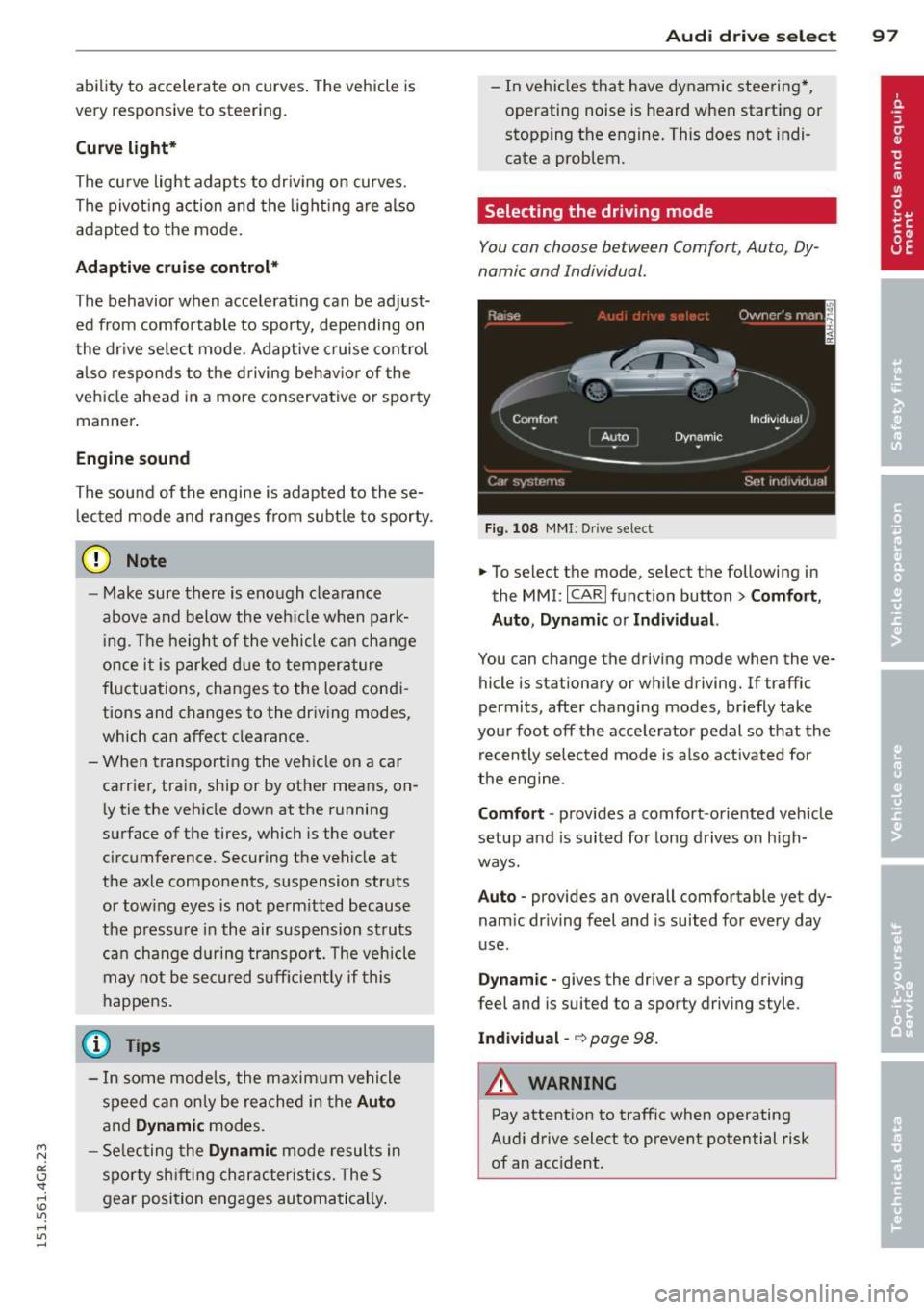
Selecting the driving mode
You can choose between Comfort, Auto, Dy
namic and Individual.
Fig. 108 M MI: Dr ive select
.,. To select the mode, select the following in
the
MMI: I CARI function button> Comfort ,
Auto , Dynamic or Individu al.
You can change the driving mode when the ve
hicle is stationary or while driving. If traffic
permits, after changing modes, br iefly take
your foot off the accele rator pedal so that the
recently selected mode is a lso activated for
the engine.
Comfo rt -prov ides a comfort-oriented veh icle
setup and is suited for long drives on h igh
ways.
Auto -provides an overall comfortable yet dy
nam ic dr iving feel and is suited for every day
use .
Dynam ic -gives the driver a sporty driving
feel and is suited to a sporty driving style.
Indi vidual -~page 98.
&_ WARNING
Pay attention to traffic when operating
Audi drive select to prevent potential risk
of an accident.
-
Page 100 of 302
98 Audi drive select
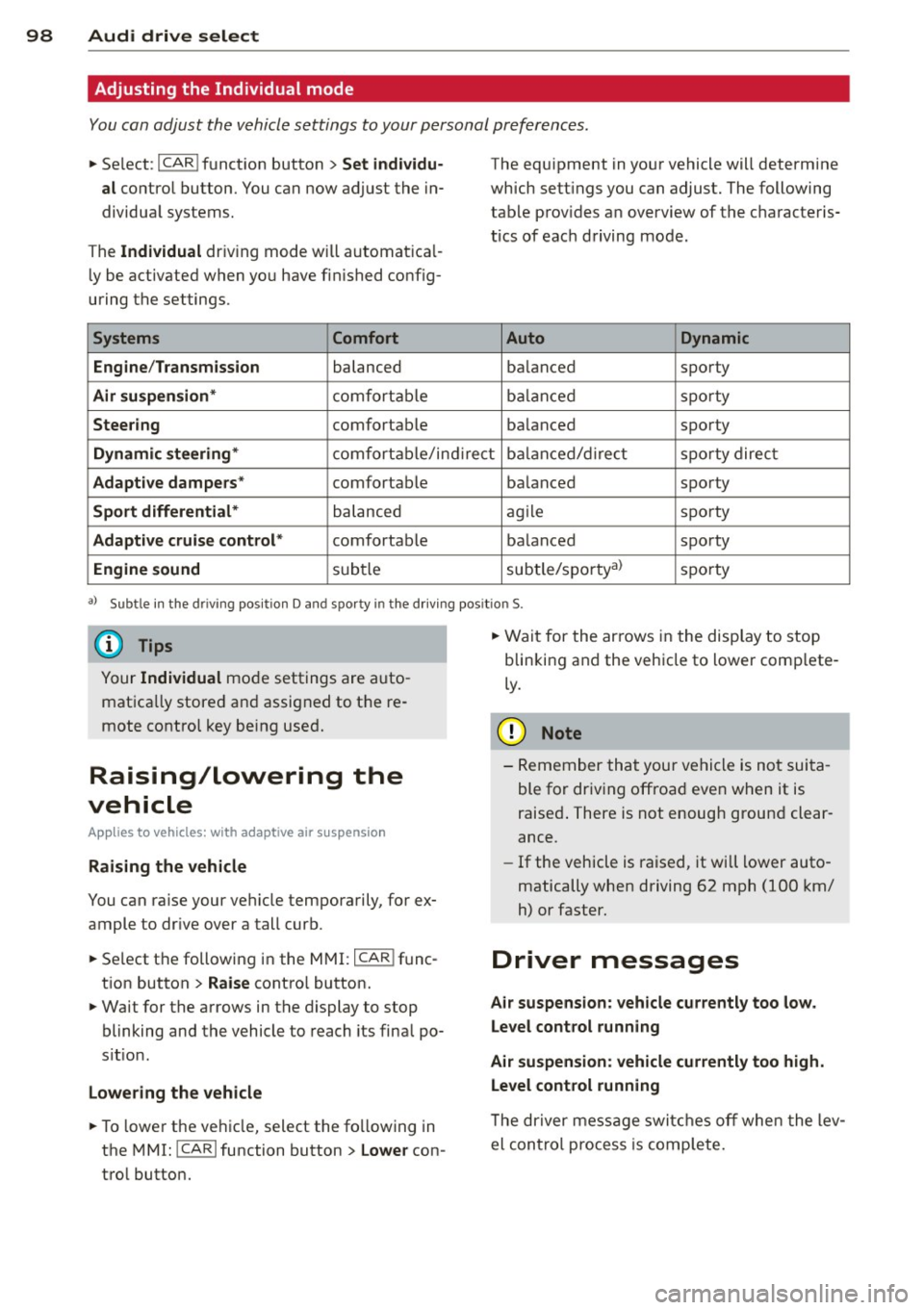
Adjusting the Individual mode
You can adjust the vehicle settings to your personal preferences .
• Se lect : I CAR ! function button > Set individu
al
control button. You can now adjust the in
dividual systems.
The
Individual dr iving mode will automatica l
ly be activated when you have finished config
uring the settings .
Systems Comfort
Engine /Transmission
balanced
Air suspension* comfortable
Steering comfortable The equipment
in your vehicle will determine
which settings you can adjust. The following
table provides an overview of the characteris
tics of each driving mode.
Auto Dynamic
balanced sporty
balanced sporty
balanced sporty
Dynamic steering* comfortable/indirect balanced/direct sporty direct
Adaptive dampers* comfortable balanced sporty
Sport differential* balanced agile sporty
Adaptive
cruise control* comfortable balanced sporty
Engine sound subtle subtle/sportyal sporty
a)
Subt le in the dri ving posit ion D an d sporty in the driving positio n S.
@ Tips
Your
Individual mode settings are auto
matica lly stored and assigned to the re
mote control key being used.
Raising/lowering the
vehicle
App lies to vehicles: with adaptive air suspension
Raising the vehicle
You can raise your vehicle temporarily, for ex
ample to drive over a tall curb .
• Se lect the following in the MMI : ICAR !func
tion button
> Raise contro l button.
• Wait for the arrows in the display to stop
blinking and the vehicle to reach its final po
s it ion.
Lowering the vehicle
• To lower the vehicle, select the following in
the MMI: ICARI function button
> Lower con
trol button. •
Wait for the arrows in the display to stop
blinking and the vehicle to lower comp lete
ly.
(D Note
- Remember that your vehicle is not suita
ble for driv ing offroad even when it is
raised . There is not enough ground clear
ance.
- If the vehicle is raised, it wi ll lower auto
matically when driving 62 mph (100 km/
h) or faster.
Driver messages
Air suspension : vehicle currently too low.
Level control running
Air suspension: vehicle currently too high.
Level control running
T he dr iver message switches off when the lev
el control process is complete.
Page 101 of 302
"' N
a:: I.J "". rl I.O
"' rl
"' rl
Night vision assistant
Night vision assistant
with detected pedestrian marking
Description
App lies to vehicles: with night v isio n assistant
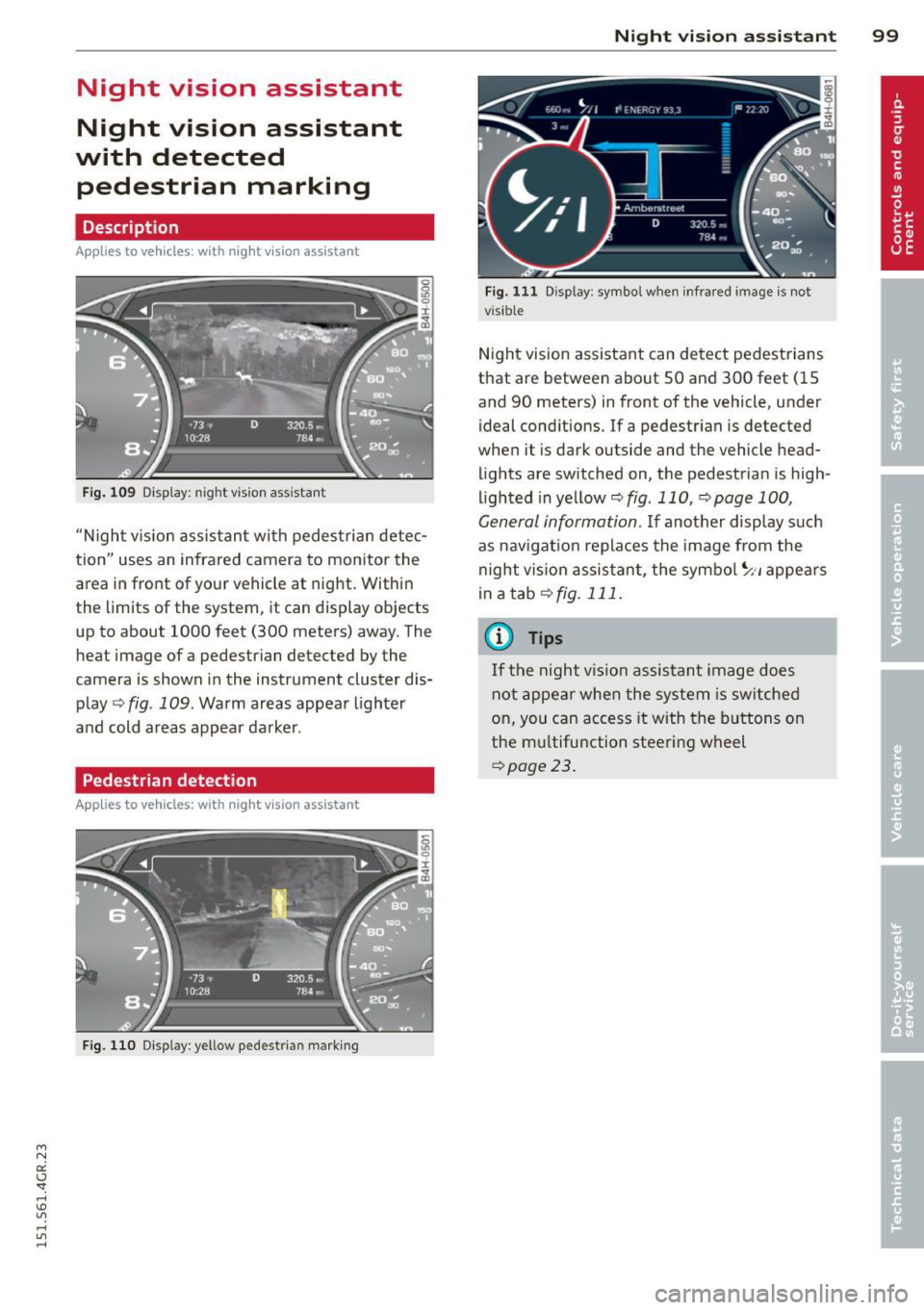
Fig . 109 Display: nig ht v is ion assistant
"N ight v is ion assistant with pedestrian detec
tion" uses an infrared camera to monitor the
area in front of your vehicle at night. Within
the limits of the system , it can display objects
up to about 1000 feet (300 meters) away. The
heat image of a pedestrian detected by the
camera is shown in the instrument cluster dis
play
Q fig . 109 . Warm areas appear lighter
and cold areas appear darker .
Pedestrian detection
Applies to vehicles: with n ig ht v ision ass istant
Fig. 110 Display : yellow pedestrian marking
Night vision assistant 99
Fig. 1 11 Disp lay: symbo l w hen infrare d image is not
visi ble
Night vision assistant can detect pedestrians
that are between about 50 and 300 feet (15
and 90 meters) in front of the vehicle, under
ideal conditions .
If a pedestrian is detected
when it is dark outside and the vehicle head
lights are switched on, the pedestrian is high
lighted in yellow
Q fig . 110, Q page 100,
General information.
If another display such
as navigation replaces the image from the
night vision assistant, the symbo l~,, appears
in a tab
Q fig. 111.
(D Tips
If the night vision assistant image does
not appear when the system is sw itched
on, you can access it with the buttons on
the multifunction steering wheel
Q page23 .
Page 112 of 302
110 Parking systems
Parking system plus
Description
Applies to vehicles: wit h park ing system p lus
Audi parking system plus provides audio and
visual signals when parking.
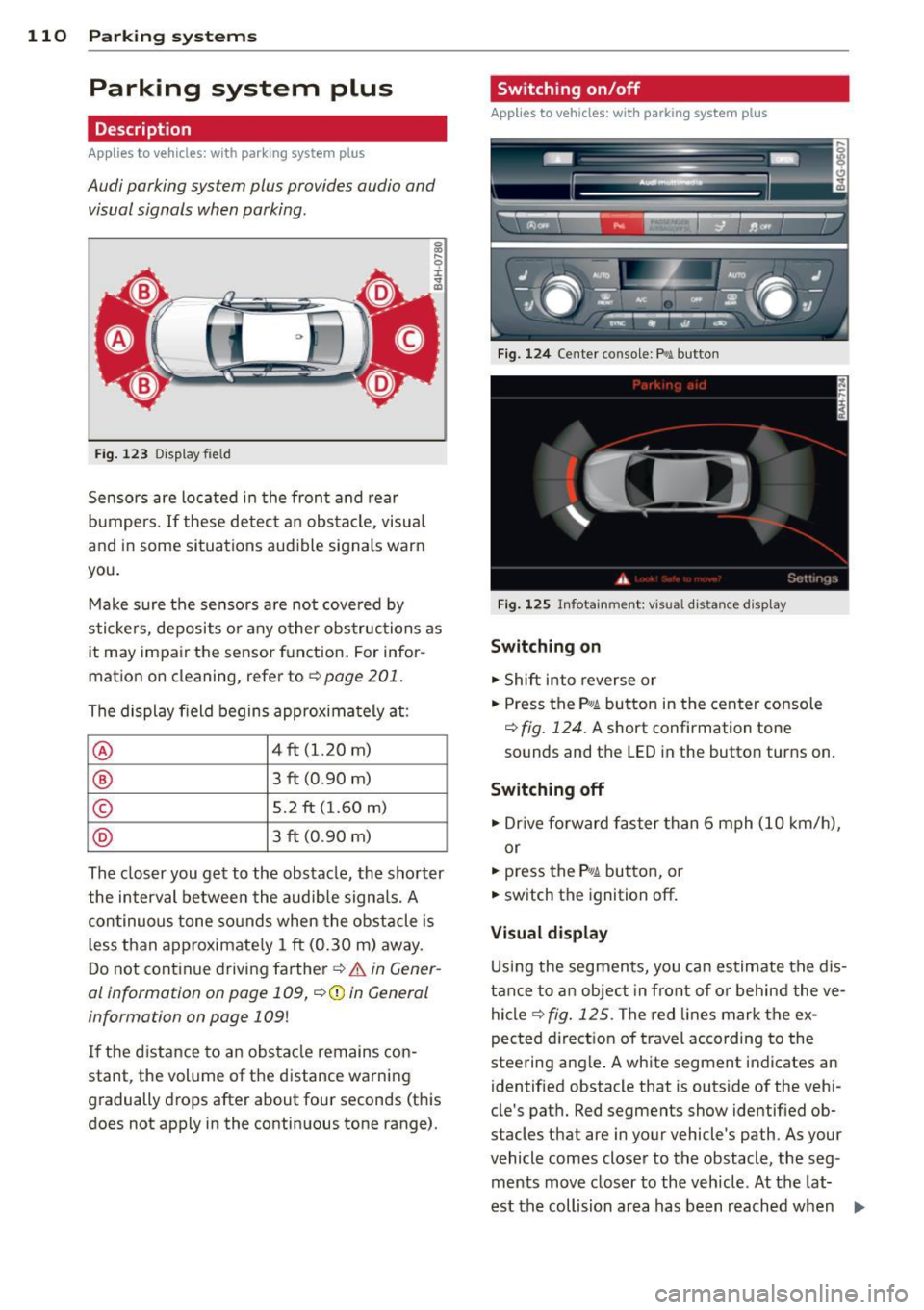
Fig. 123 Display field
Sensors are located in the front and rear
bumpers.
If these detect an obstacle, visual
and in some situations audible signals warn
you.
Make sure the sensors are not covered by
stickers, deposits or any other obstructions as
it may impair the sensor function. For infor
mation on cleaning, refer to
~ page 201.
The display field begins approximately at :
@ 4 ft (1.20 m)
® 3 ft (0.90 m)
© 5.2 ft (1.60 m)
@ 3 ft (0 .90 m)
The closer you get to the obstacle, the shorter
the interval between the audible signals. A
continuous tone sounds when the obstacle is
less than approximately 1 ft (0.30 m) away.
Do not continue driving farther~&.
in Gener
al information on page 109,
~CD in General
information on page 109!
If the distance to an obstacle remains con
stant, the volume of the distance warning
gradually drops after about four seconds (this
does not apply in the continuous tone range).
Switching on/off
Applies to vehicles : w it h park ing system pl us
Fig. 124 Center console :
P.! button
Fig. 125 Infotainment: visual distance d isplay
Switching on
.,. Shift into reverse or
.,. Press the
P"1A button in the center console
~ fig. 124. A short confirmation tone
sounds and the
LED in the button turns on.
Switching off
.. Dr ive forward faster than 6 mph (10 km/h),
or
.,. press the
Pif.lA button, or
.,. switch the ignition off.
Visual display
Using the segments, you can estimate the dis
tance to an object in front of or behind the ve
hicle~
fig . 125 . The red lines mark the ex
pected direction of travel according to the
steering ang le . A wh ite segment indicates an
identified obstacle that is outside of the vehi
cle's path. Red segments show identified ob
stacles that are in your vehicle's path. As your
vehicle comes closer to the obstacle, the seg ments move closer to the vehicle. At the lat-
est the collision area has been reached when ..,.
Page 114 of 302
112 Parking systems
example, after a collision, do not contin
ue to use the system for safety reasons.
Have it checked by your authorized Audi
dealership or authorized repair facility .
- Only use the rear view camera to assist
you if it shows a good, clear picture. For
example, the image may be affected by
the sun shining into the lens, dirt on the
lens or if there is a system fault .
- Use the rear view camera only if the lug
gage compartment lid is completely
closed. Make sure any objects you may
have mounted on the luggage compart
ment lid do not block the rear view cam
era.
- The camera lens enlarges and distorts
the field of vision. The object appears
both altered and inaccurate on the
screen.
- In certain situations, people or objects in the display appear closer or further
away:
- For objects that do not touch the
ground, such as the bumper of a
parked vehicle, a trailer hitch or the
rear of a truck. Do not use the help
lines in this case.
- If driven from a level surface onto an
incline, or a downward slope.
- If driven toward protruding objects.
- If the vehicle is carrying too much load
in the rear.
@ Note
- Always read and follow the applicable
warnings
r:> (D in General information on
page 109.
- The orange colored orientation lines in
the Infotainment display show the vehi
cle path depending on the steering
wheel angle. The front of the vehicle
front swings out more than the rear of
the vehicle. Maintain plenty of distance
so that your outside mirror or a corner of
your vehicle does not collide with any ob stacles.
Switching on/off
Applies to vehicles: with parking system plus with rear
v iew camera
Switching on
.,. Shift into reverse or
.,. press the
P'QA button in the center console
r:>page 110, fig. 124. A short confirmation
tone sounds and the LED in the button turns
on .
Switching between the rear view camera
and optical display
... Press the Graphic control button ®
¢ page 113, fig. 130 to see the optical dis
play .
.,. Press the
Rearview control button to see the
rear view camera image.
Switching off
... Drive forward faster than 6 mph (10 km/h),
or
.,. Press the
P,,1~ button, or
.,. Switch the ignition off.
{D Tips
The visual display in the left part of the
display should help you detect the critical
vehicle areas.
Page 115 of 302
"' N
a:: I.J "". rl I.O
"' rl
"' rl
Cross parking
Applies to vehicles: with parking system p lus wit h rear
view ca mera
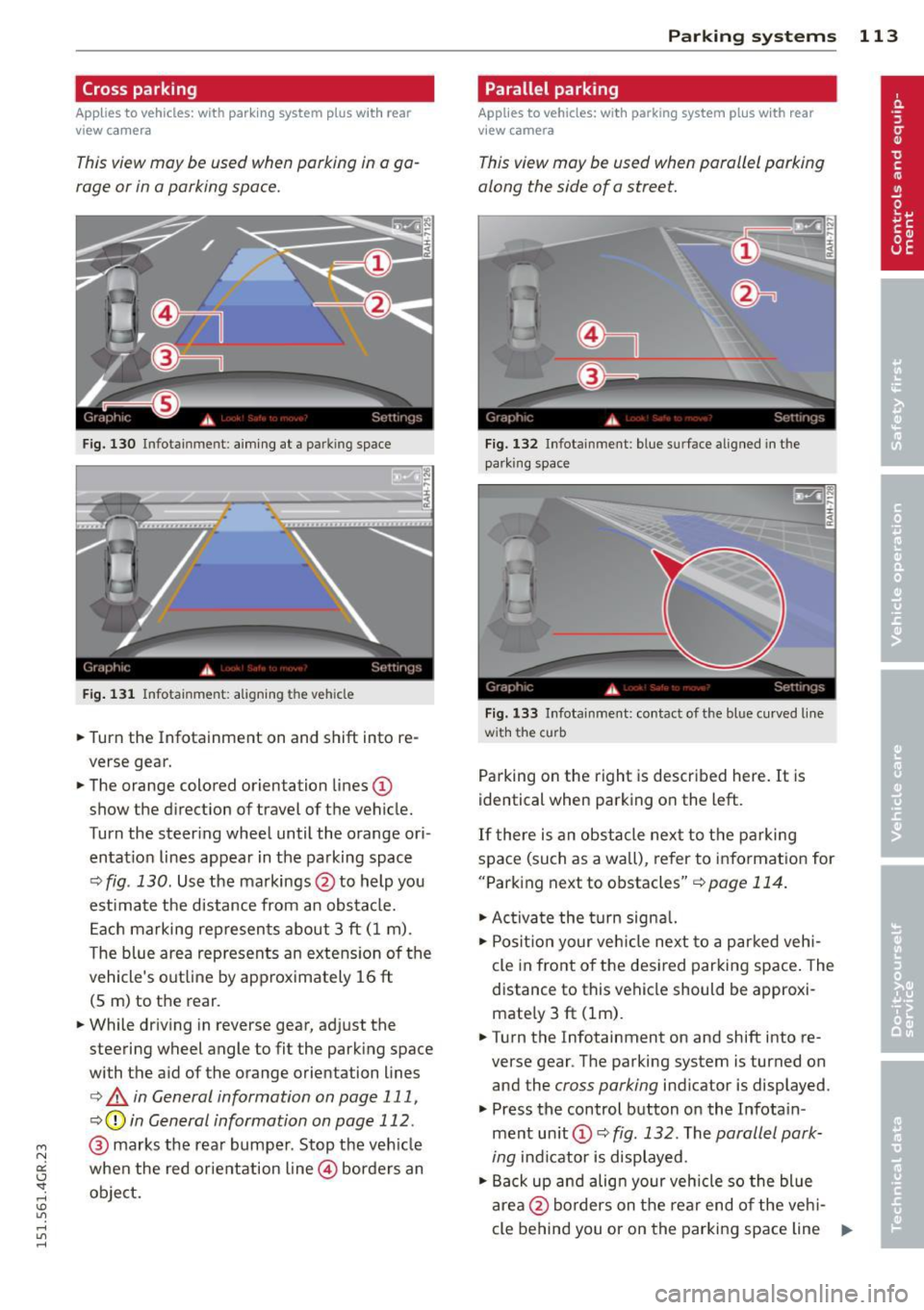
This view may be used when parking in a ga
rage or in a parking space.
Fig. 130 Infotainment: aiming at a parking space
Fig. 131 Infotainment: aligning the vehicle
• Turn the Infotainment on and shift into re
verse gear.
• The orange colored orientation lines@
show the direction of travel of the vehicle.
Turn the steering wheel until the orange ori
entation lines appear in the parking space
¢
fig . 130. Use the markings @to help you
estimate the distance from an obstacle.
Each marking represents about 3 ft (1 m).
The blue area represents an extension of the
vehicle's outline by approximately 16 ft
(5 m) to the rear .
• While driving in reverse gear, adjust the
steering wheel angle to fit the parking space
with the aid of the orange orientation lines
¢.&, in General information on page 111,
¢(]) in General information on page 112 .
@ marks the rear bumper. Stop the vehicle
when the red orientation line@ borders an
object.
Parking systems 113
Parallel parking
Applies to vehicles: wit h parking system plus with rear
vi ew camera
This view may be used when parallel parking
along the side of a street.
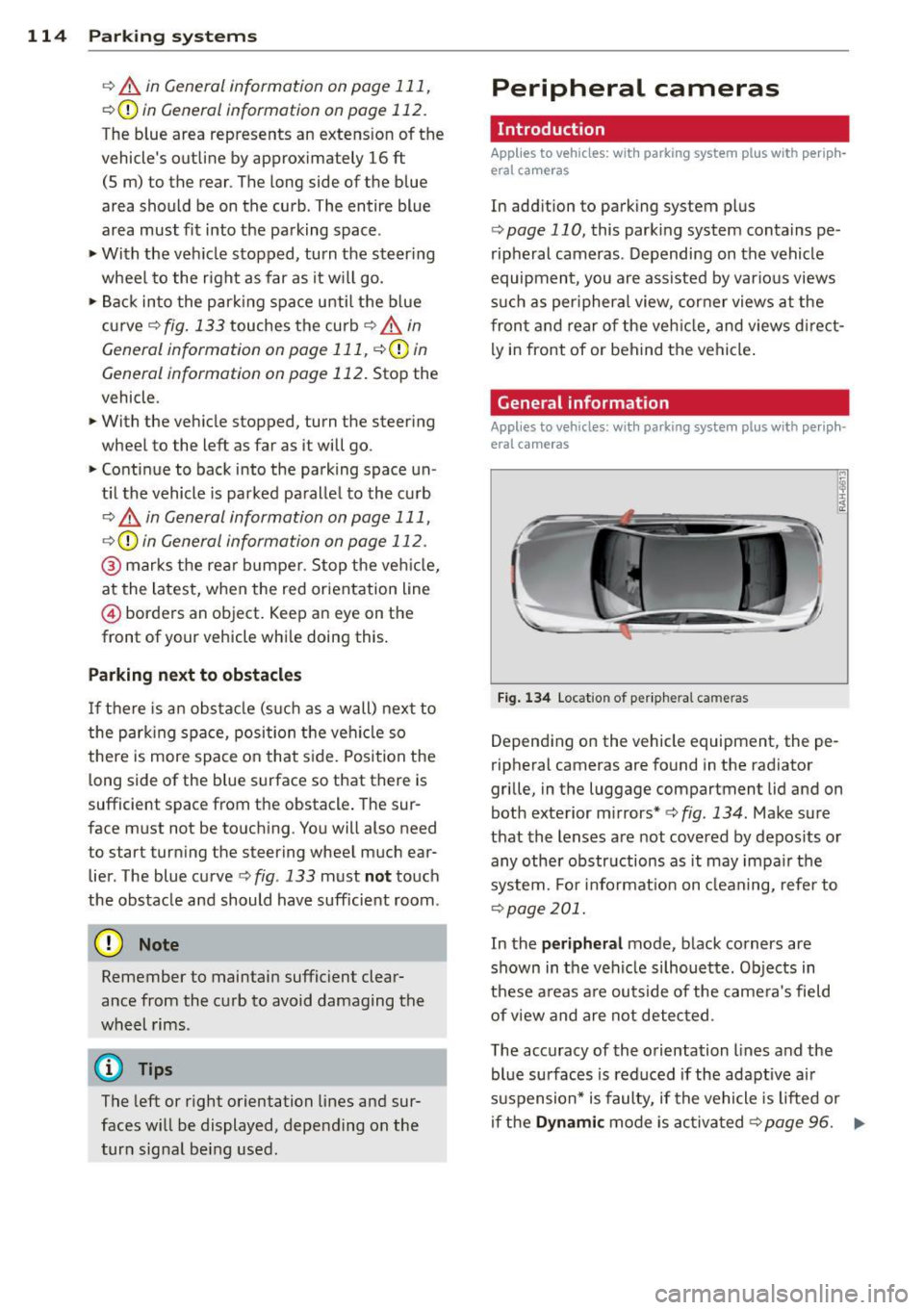
Fig. 132 Infotainment : blue surface aligned in the
parking space
Fig. 133 Infotainment: contact of the blue curved line
w ith the curb
Parking on the right is described here. It is
identical when parking on the left.
If there is an obstacle next to the parking
space (such as a wall), refer to information for
"Parking next to obstacles"¢
page 114.
• Activate the turn signal.
• Position your vehicle next to a parked vehi
cle in front of the desired parking space. The
distance to this vehicle should be approxi
mately 3 ft (lm).
• Turn the Infotainment on and shift into re
verse gear . The parking system is turned on
and the
cross parking indicator is displayed.
• Press the control button on the Infotain
ment unit(!)¢
fig. 132 . The parallel park
ing
indicator is displayed.
•Backup and align your vehicle so the blue
area @ borders on the rear end of the vehi-
cle behind you or on the parking space line ..,..
Page 116 of 302
114 Park in g s yste m s
c> A in General information on page 111,
r=.>(D in General information on page 112.
The blue area represents an extens ion of the
vehicle's outline by approximately 16 ft
(5 m) to the rear . The long side of the blue
area should be on the curb. The entire blue
area must fit into the parking space .
~ With the vehicle stopped, turn the steer ing
wheel to the r ight as far as it w ill go.
~ Back in to the par king spa ce until the b lue
curve
r=.> fig. 133 touches the curb c> A in
General information on page 111,
¢ (Din
General information on page 112 . Stop the
vehicle.
~ With the veh icle stopped, turn the steer ing
wheel to the left as far as it will go.
~ Continue to back into the parking space un
t il the vehicle is parked pa ralle l to the curb
r=.> A in General information on page 111,
r::> Q) in General information on page 112 .
@ marks the rear bumper . Stop the ve hicle,
at the latest, when the red orientation line
@ borders an object. Keep an eye on the
front of your vehicle whi le doing this .
Parking next to obstacles
If there is a n obsta cle (s uch as a wall) next to
the park ing space, position the ve hicle so
the re is more space o n that s ide. Position the
long side of the b lue surface so that there is
sufficient space from the obstacle . The sur
face m ust not be touch ing . You will also need
to start tur ning the steering wheel much ear
lier . The blue curve
r::> fig. 133 must not touch
the obstacle and should have sufficient room .
(D Note
Remember to maintain sufficient clear
ance from the curb to avoid damaging the
wheel rims .
(!) Tips
The left or right orientation lines and sur
faces will be displayed, depe nding on the
turn signal be ing used .
Peripheral cameras
Introduction
Applies to vehicles: wi th parking system pl us with per ip h
eral c ameras
In add ition to parking system p lus
r=.> page 110, this parking system conta ins pe
ripheral cameras . Depending on the vehicle
equipment, you are assisted by vario us views
s u ch as per iphera l view , corner views at the
fron t and rear of the veh icle, and views d irect
ly in front of or behind the vehicle .
General information
Applies to v ehicl es: wi th parking sys te m plus with pe riph
eral ca meras
F ig . 1 34 Location of per iphera l came ras
Depending on the vehicle equipment, the pe
ripheral cameras are found in the radiator
grille, in the luggage compartment lid and on
both exterior m irrors *
c> fig. 134. Make sure
that the lenses a re not covered by depos its or
any othe r obstructions as it may impa ir the
system. For informat ion on clean ing, refe r to
r::>page 201.
In the peripheral mode, black corners are
shown in the vehicle silhouette . Objects in
these areas a re ou ts ide of the came ra's field
of view and are not detected.
T he accuracy of the orientation lines and the
blue surfaces is reduced if the adaptive ai r
suspension* is faulty, if the vehicle is lifted or
i f th e
D ynamic mode is activa ted c> page 96. ..,.