steering wheel AUDI RS7 SPORTBACK 2016 User Guide
[x] Cancel search | Manufacturer: AUDI, Model Year: 2016, Model line: RS7 SPORTBACK, Model: AUDI RS7 SPORTBACK 2016Pages: 282, PDF Size: 70.78 MB
Page 74 of 282
Driving
There must be at least 10 inches (25 cm) be
tween your chest and the center of the steering
wheel. If you cannot sit more than 10 inches (25
cm) from the steer ing wheel, see if adaptive
equipment is available to help you reach the ped
als and increase the distance from the steering
wheel.
For detai led information on how to adjust the
driver's seat, see
¢ page 53.
In vehicles with the memory function*, the steer
ing column sett ings are stored together with the
seat position.
A WARNING
Improper use of steer ing whee l adjustment
and improper seating position can cause ser i
ous pe rsonal injury.
- Adjust the steering wheel column only when
the vehicle is not moving to prevent loss of
vehicle control.
- Adjust the driver's seat or steering wheel so
that there is a minimum of 10 inches (25
cm) between your chest and the steer ing
wheel
r::.> page 119, fig. 141. If you cannot
mainta in this min imum distance, the airbag
system cannot protect you properly.
- If phys ica l limitations prevent you from sit
t ing 10 inches (25 cm) or more from the
steering wheel , check with your authorized
Audi dealer to see if adaptive equ ipment is
available.
- If the steering wheel is aligned with your
face, the supp lemental driver's airbag can
not provide as m uch protection in an acci
dent. Always make sure that the steering
wheel is aligned w ith your chest.
- Always hold the steer ing whee l with your
hands at the 9 o'clock and 3 o'clock posi
tions to reduce the risk of personal injury if
the driver's airbag deploys .
- Never hold the steer ing wheel at the 12
o'clock posit ion or w ith your hands inside
the steering wheel rim or on the steering
wheel hub . Holding the steer ing whee l the
wrong way can cause ser ious injuries to the
hands, arms and head if the driver's airbag
deploys.
72
-
Easy seat entry
Applies to: vehicles with power steering wheel adjustment
Easy seat entry makes it easier to enter and exit
the vehicle by adjusting the steering column au
tomatically .
.,. In the Infotainment system, select the ICARI
function button > ( Car )* Systems control but
ton
> Vehicle settings > Seats > Driver's seat>
Easy seat entry > On .
When easy seat entry is switched on, the steer ing
column goes back up into the park position when
the ignit ion is switched off . After enter ing the ve
hicle, the steering col umn returns to t he sto red
pos ition once the ign it ion is swi tched on.
Starting and stopping
the engine
Starting the engine
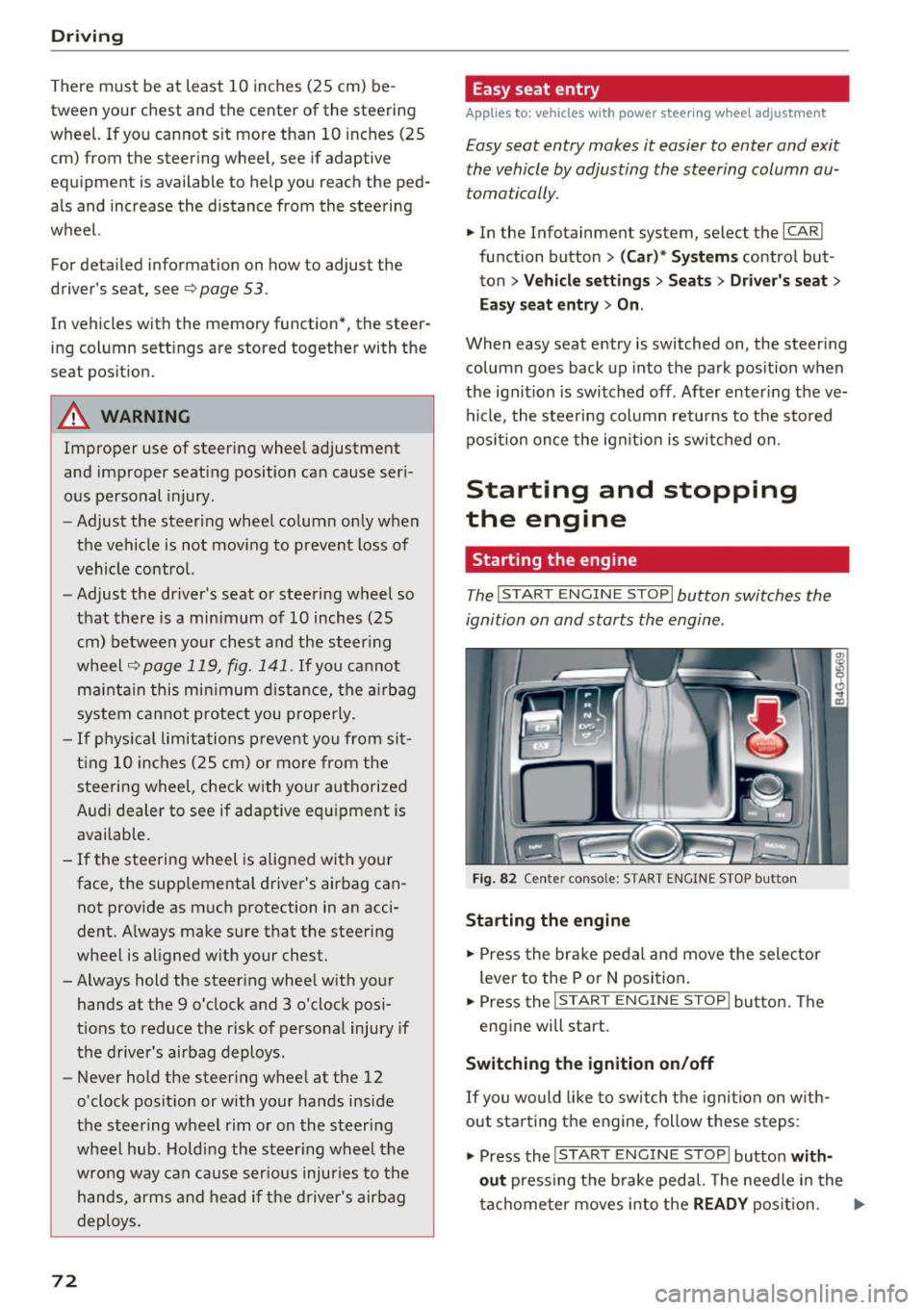
The I START ENGINE STOP I button switches the
ignition on and starts the engine .
Fig. 82 Cente r conso le: S TART ENGINE STOP b utt on
Starting the engine
.,. Press the brake pedal and move the selector
lever to the P or
N position.
... Press the
!STAR T ENGINE ST OP ! button. The
engine will start.
Switching the ignition on/off
If you would like to switch the ignition on w ith
out sta rting the engine, follow these steps:
.,. Press the
I START ENGINE STOP ! button with
out
pressing the brake pedal. The needle in the
tachometer moves into the
READY position. II>-
Page 77 of 282
Your vehicle is equipped with an electromechani
cal parking brake. The parking brake is designed
to prevent the vehicle from rolling unintentional
ly and replaces the hand brake.
I n addition to the norma l functions of a tradi
tional hand brake, the electromechanica l parking
brake provides various convenience and safety
functions.
When starting from rest
- The integ ral starting assist helps you w hen
driving by automatically releasing the parking
brake
r=:> page 75, Starting from o stop .
-When starting on inclines, the starting assist
prevents the vehicle from unintentiona lly roll
ing back . The braking force of the parking brake
is not released until sufficient driving force has
been built up at the wheels.
Emergency brake function
An emergency brake ensures that the vehicle can
be slowed down even if the
normal brakes fai l
r=:> page 76, Emergency broking function.
A WARNING
-
Do not press the accelerator pedal inadver
tently if the vehicle is stat ionary but the en
gine is running and a gear is selected. Other
w ise the vehicle will start to move immediate
ly and could result in a crash.
(D Tips
- If the parking brake is applied with the igni
tion switched off, the indicator lights in the
switch and -(USA models)/ . (Cana-
da models) in the instrument cluster will go
out after a certain period of time.
- Occasiona l noises when the park ing brake is
applied and released a re normal and are not
a cause for concern.
- When the vehicle is parked, the park ing
brake goes th rough a se lf-test cycle at regu
lar int ervals. Any associated noises are nor
mal.
Parking
• Press the brake pedal to stop the vehicle.
D riving
• Pull the switch~ to set the parking brake .
• Place the selector lever in P .
• Turn the engine off
r=:> .&, .
• Turn the steering wheel when parking on in
clines so that the wheels w ill roll into the curb
if the vehicle starts moving .
A WARNING
=
-Always take the vehicle key with you when
leaving the vehicle, even for a sho rt period
of time. This applies particularly when chil
d ren remain in the vehicle. Otherwise chil
dren cou ld start the engine, release the
parking brake or operate e lectrical equip
ment such as power windows, which in
creases the risk of an accident.
- No one should remain in the vehicle when it
is locked, especially chi ldren. Locked doors
make it more d ifficult for emergency work
ers to get into the vehicle, wh ich puts lives
at risk.
Starting from a stop
The start assist function ensures that the park
ing broke is released automatically upon start
ing.
Stopping and setting the parking brake
• Pull the switch~ to set the parking brake .
Starting and automatically releasing the
parking brake
• When you press the acce lerator peda l, the
parking brake is automatica lly re leased and
your veh icle begins to move .
T he parking brake can be set if you must stop the
vehicle at a stop light or in traffic. The vehicle does not have to be held with the brake pedal.
The parking brake elim inates the tendency to
creep when a selector lever posit ion is engaged.
The parking brake releases automatically and the
vehicle begins to move as soon as you press the
accelerator pedal as usual.
Starting on hills
When starting on incl ines, the hill start assist
prevents the vehicle from unintentionally rolling
Ill>
75
Page 84 of 282
Audi adaptive cruise control and braking guard
• You must also press the brake pedal when the
vehicle is stopped.
Switching adaptive cruise control off
• Push the lever away from you into position @
until it clicks into place. The message
ACC off
appears.
@ Indicator lights
• • Adaptive cruise control is switched on. No
vehicles are detected up ahead. The stored speed
is maintained .
• · A moving vehicle is detected up ahead. The
adaptive cruise control system regulates the
speed and distance to the moving vehicle ahead
and accelerates/brakes automatically.
r -.j · Adaptive cruise control is switched on . A
moving vehicle up ahead was detected. Your vehi
cle remains stopped.
• • When automatic braking is not able to keep
enough distance to a previously detected moving
vehicle up ahead, you must take control and brake
9 page 84, Prompt for driver interven
tion.
© Display
If adaptive cruise contro l is not shown in the dis
play, you can call it up with the multifunction
steering wheel buttons
9 page 22.
Based on the symbols in the display, you can de
termine if the system is maintaining a distance to
the vehicle ahead and what that distance is.
No vehicle· No vehicle ahead was detected.
White vehicle· A vehicle ahead was detected.
Red vehicle · Prompt for the driver to take action
9page84.
Both arrows on the scale© indicate the distance
to the vehicle ahead. No arrow appears when the
vehicle is on an open road and there is no object
ahead . If an object is detected ahead, the arrow
moves on the scale.
The green zone on the scale shows the stored dis·
tance. For information on changing the stored
distance, refer to
9 page 83. If the distance se·
82
lected is too close or may soon become too close,
the arrows move into the red zone on the scale.
A WARNING
Improper use of the adaptive cruise control
can cause collisions, other accidents and seri
ous personal injuries.
- Pressing the
ISETI button when driving at
speeds below 20 mph (30 km/h), will auto
matically accelerate the vehicle to 20 mph (30 km/h), which is the minimum speed
that can be set.
@ Tips
-If you switch the ignition or the adaptive
cruise control off, the set speed is erased
from the system memory.
- The electronic stabilization control (ESC)
and the anti-slip-regulation (ASR) are auto·
matically turned on when the adaptive
cruise control is turned on. Both systems
cannot be turned off if the adaptive cruise
control is turned on .
Changing the speed
Applies to: vehicles with Audi adapt ive cru ise control
0
f
JJ
0
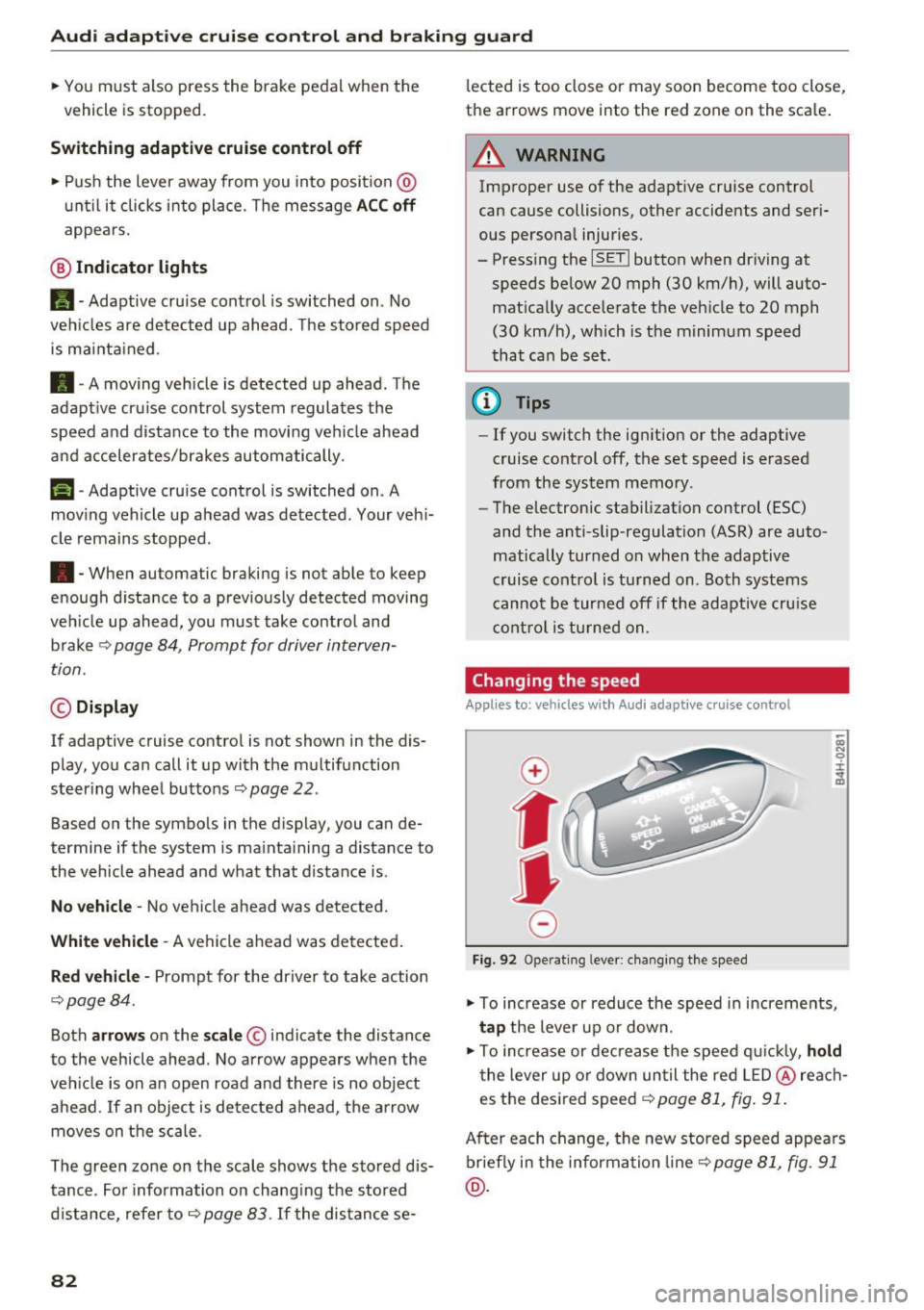
Fig. 92 Operating lever: changing the speed
;;; N 9 :c .., m
• To increase or reduce the speed in increments,
tap the lever up or down.
• To increase or decrease the speed quickly,
hold
the lever up or down until the red LED@reach
es the desired speed
9 page 81, fig. 91.
After each change, the new stored speed appears
briefly in the information line¢
page 81, fig. 91
@.
Page 90 of 282
Audi acti ve la n e ass is t
Audi active lane assist
Lane assist
Description
A pp lies to: ve hicles w ith Audi active lane assist
Active lane ass ist detects lane marker lines with
in the limits of the system us ing a camera in the
windshie ld. If you are approaching a detected
lane marker line and it appears likely that you
will leave the lane, the system will warn you with
corrective steering. You can override this steering
at any time. If you pass over a line, the steering
wheel will vibrate lightly. In order for this warn ing vibration to occur, it must first be switched
on in the Infotainment system. Act ive lane assist
is operable when the lane marker line is detected
on at least one side of the vehicle.
The system is designed for driving on freeways
and expanded highways and thus works only at
speeds of 40 mph (65 km/h) or more.
Applies to vehicles w ith side assist*: if you act i
vate a turn s ignal when active lane assist is ready
and it classif ies a lane change as critical because
of vehicles traveling alongside you or approach ing you, there w ill be not iceable correct ive steer
i n g short ly before you leave the lane. This will at
tempt to keep your vehicle in the lane.
Appl ies to veh icles w ithout s ide ass ist* : the sys
tem does not warn when it is ready if you activate
the t urn signa l before crossing the lane marker
line. In this case, it ass umes that you a re chang
ing lanes intentionally.
Applies to vehicles w ith adapt ive cr uise control*
or pa rk ing aid*: the co rrective steering is ta rget
ed based on the d riving situation. In addition to
the lane marker lines, the system can also take
into account other objects such as guard rails. If
they are detected in close proximity to the vehi
cle, active lane assist helps prevent the vehicle
from dr iv ing too close to them. There is a lso
passing assistance . The system does not provide
any corrective steer ing if it detects that you are
passing anothe r vehicle.
88
A WARNING
-
- The system warns the driver that the vehicle
is leaving the lane using correct ive steering.
The driver is always responsible for keeping
the vehicle within the lane.
- The system can help you keep the vehicle in the lane, but it does not drive by itse lf. Al
ways keep your hands on the steering
wheel.
- Cor rective steering may not occur in certain
situations, such as du ring heavy braking.
- There may be cases whe re the camera does
not recognize all lane marker lines. Correc
tive stee ring can only take place on the s ide
of the vehicle where lane marker lines are
detected.
- Othe r road stru ctures or objects could poss i
bly be identified un intent ionally as lane
marker lines . As a result, corrective steering
may be unexpected or may not occ ur.
- The camera view can be restricted, for ex
ample by vehicles driving ahead or by rain,
snow, heavy spray or lig ht shining into t he
camera. Th is can result in active lane ass ist
not detecting the lane marker lines or de
tect ing them incorrectly.
- Under certain cond it ions such as r uts in the
road, a banked roadway or crosswinds, the
corrective steer ing alone may not be enough
to keep the vehicle in the m iddle of the lane .
- For safety reasons, act ive lane assist must
not be used when there are poor road and/
or weather conditions such as slippery
roads, fog, gravel, heavy rain, snow and the po tential fo r hydrop laning. Using active lane
assist under these cond it ions may increase
the risk of a crash .
Page 91 of 282
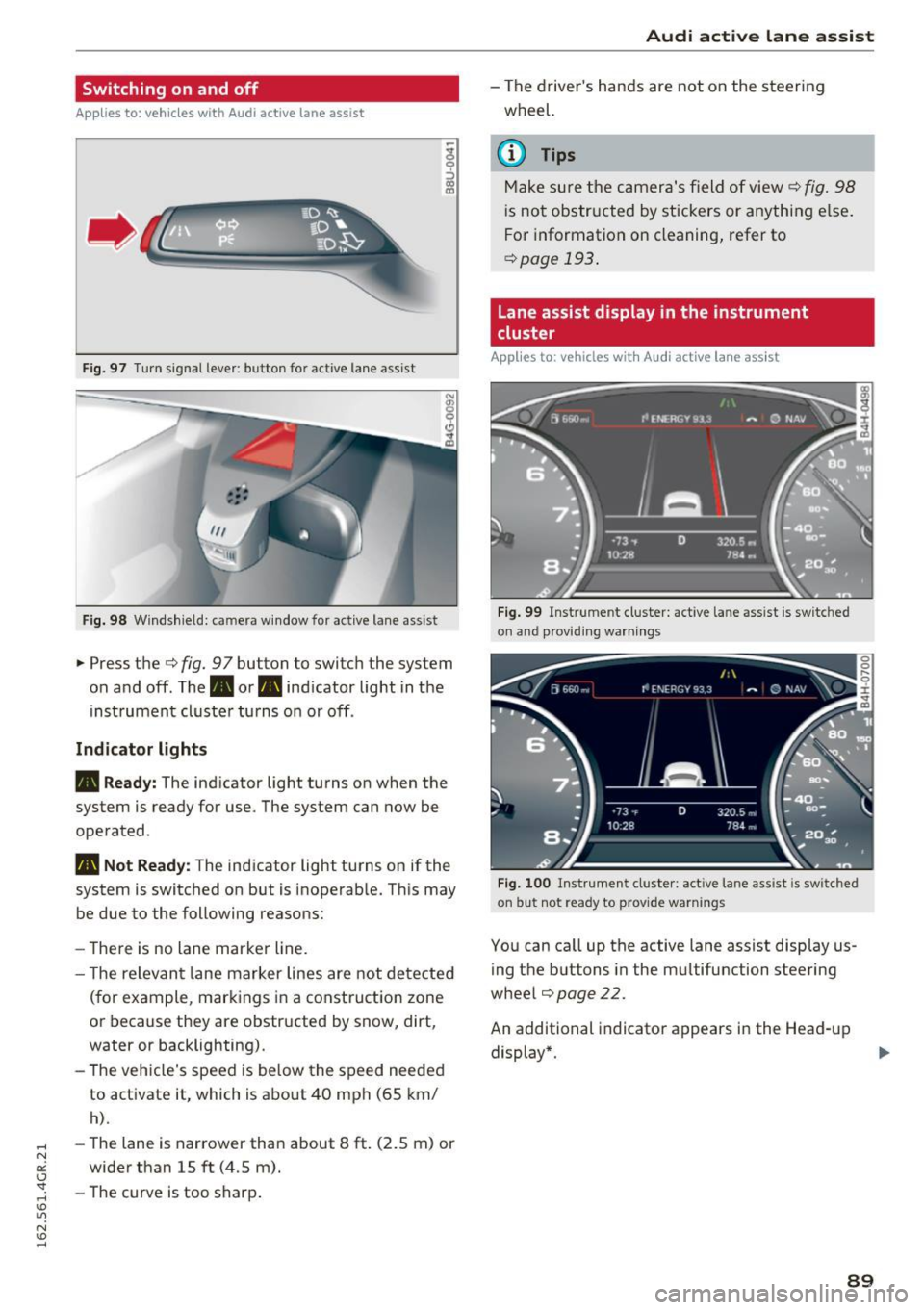
Switching on and off
App lies to: ve hicles with Audi active lane assist
Fig. 97 T urn signal lever: button for act ive lane assist
F ig. 98 W indsh ield: camera window for active lane assist
... Press the c:> fig. 9 7 button to switch the system
on and off. The. or
Pl1 indicator light in the
instrument cluster turns on or off.
Indic ator light s
• Rea dy : The indicator light turns on when the
system is ready for use. The system can now be
operated .
Pl1 Not Read y: The indicator light turns on if the
system is switched on but is inoperable. Th is may
be due to the following reasons:
- There is no lane marker line.
- T he relevant lane marker lines are not detected
(for example, markings in a construction zone
or because they are obstructed by snow, dirt,
water or backlighting).
- The vehicle's speed is below the speed needed
to activate it, which is about 40 mph (65 km/
h).
-The lane is narrower than about 8 ft. (2.5 m) or
wider than 15 ft (4.5 m).
- The curve is too sharp.
Audi act ive lane ass is t
- The driver 's hands are not on the steering
wheel.
(D Tips
Make sure the camera's field of view c:> fig. 98
is not obstructed by stickers or anything else.
For information on cleaning, refer to
c:> page
193 .
Lane assist display in the instrument
cluster
App lies to: vehicles wit h Audi active la ne ass ist
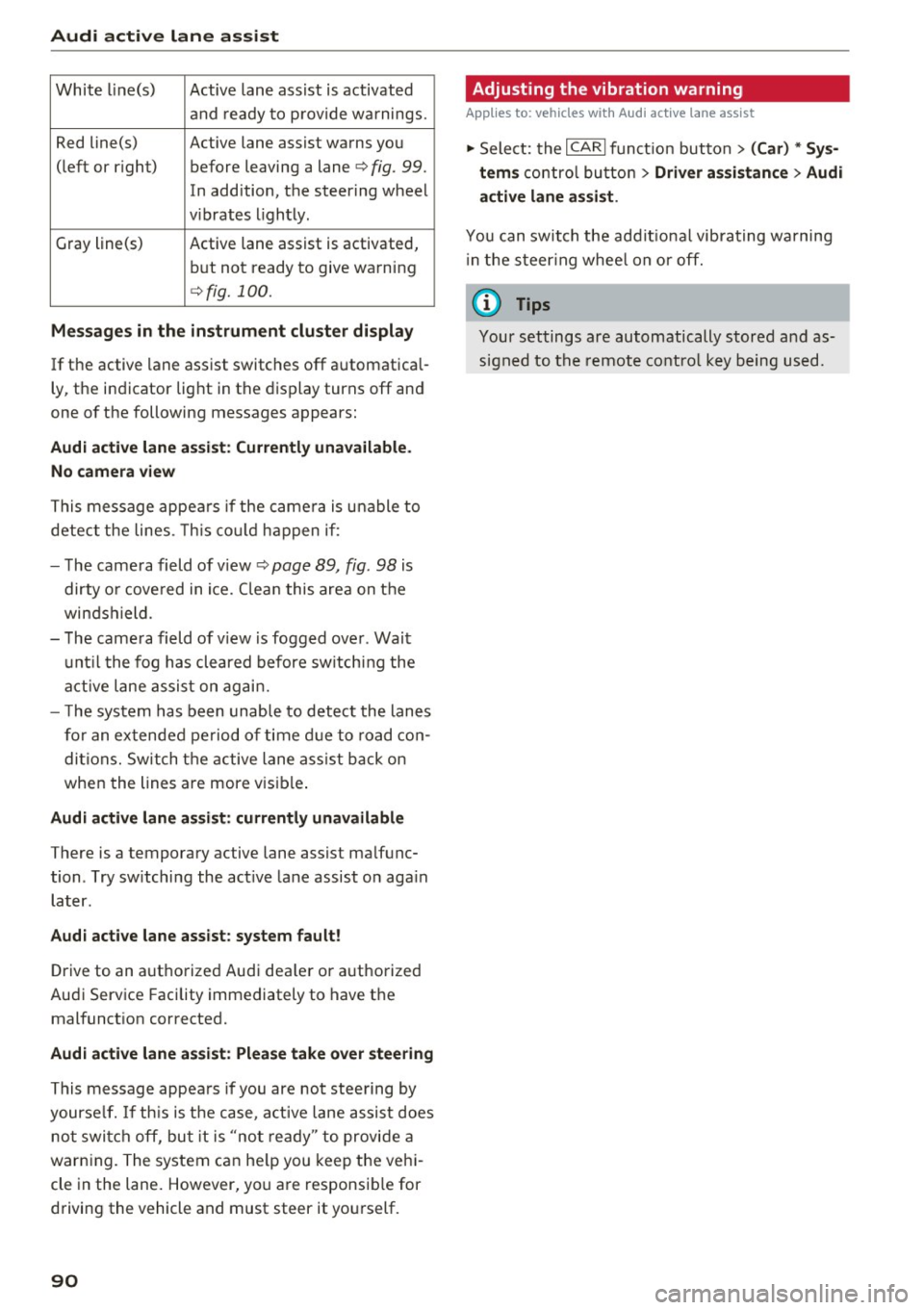
F ig . 99 Inst rum ent clus ter: active la n e assis t is switc hed
on and provid ing warn ing s
Fig. 100 Instrument cluster: act ive lane assist is sw itched
on but not ready to provide warnings
You can ca ll up the active lane assist display us
ing the buttons in the mu ltifunction steering
wheel
c:> page 22.
An additional indicato r appears in the Head-up
display*.
8 9
Page 92 of 282
Audi active lane assist
White line(s) Active lane assist is activated
and ready to provide warnings.
Red line(s) Active lane assist warns you
(left or r ig ht) before leaving a lane¢
fig. 99.
In addition, the steering wheel
v ib rates lightly.
Gray line(s)
Active lane assist is activated,
but not ready to give warning
¢fig. 100.
Messages in the instrument cluster display
If the active lane assist switches off automatical
ly, the indicator light in the display turns off and
one of the following messages appears:
Audi active lane a ssist: Currently unavailable.
No camera view
This message appears if the came ra is unable to
detect the lines. This could happen if:
- The camera field of view ¢
page 89, fig. 98 is
dirty o r covered in ice. Clean this area on the
windshield.
- The camera field of v iew is fogged over . Wait
until the fog has cleared before switching the
active lane assist on again.
- T he system has been unable to detect the lanes
for an extended period of time due to road con
ditions. Switch the active lane assist back on
when the lines are more vis ible.
Audi active lane assist: currently unavailable
There is a temporary active lane assist malfunc
tion . Try sw itching the act ive lane assist on aga in
later.
Audi active lane assist: system fault!
Drive to an authorized Aud i dea ler or authorized
Audi Service Facility immediately to have the
malfunct ion corrected.
Audi active lane assist: Please take over steering
This message appears if you are not steering by
yourse lf. If th is is the case, active lane assist does
not switch off, but it is "not ready" to provide a
warn ing. The system can he lp you keep the vehi
cle in the lane. However, you are responsib le for
driving the vehicle and must steer it yourself.
90
· Adjusting the vibration warning
Applies to: vehicles with Audi active lane assist
.,. Select: the I CARI function button > (Car) * Sys
tems
control button > Driver assistance > Audi
active lane assist .
You can switch the addit ional vibrating warning
i n the steer ing whee l on or off.
(D Tips
Your settings are automatically stored and as
signed to the remote control key being used.
Page 100 of 282
Night vision assist
Night vision assist
Night vision assist with
pedestrian and wild
animal highlighting
Description
A pp lies to: ve hicles w ith night v isio n ass ist
The night vision assist can detect, highlight and,
if necessary, warn about pedestrians and large
wild animals.
Night vision assistant with pedestrian and wild
animal detection assists you in darkness by using
an infrared camera to monitor the area in front of
your vehicle, within the limits of the system.
It
can display objects up to approximately 1000 feet (300 meters) away . The heat image
detected by the camera is shown in th e instru
ment cluster display . Warm areas appear lighter
and cold areas appear darker.
Highlighting detected pedestrians and wild
animals
Applies to: ve hicles w ith n ig ht v isio n ass ist
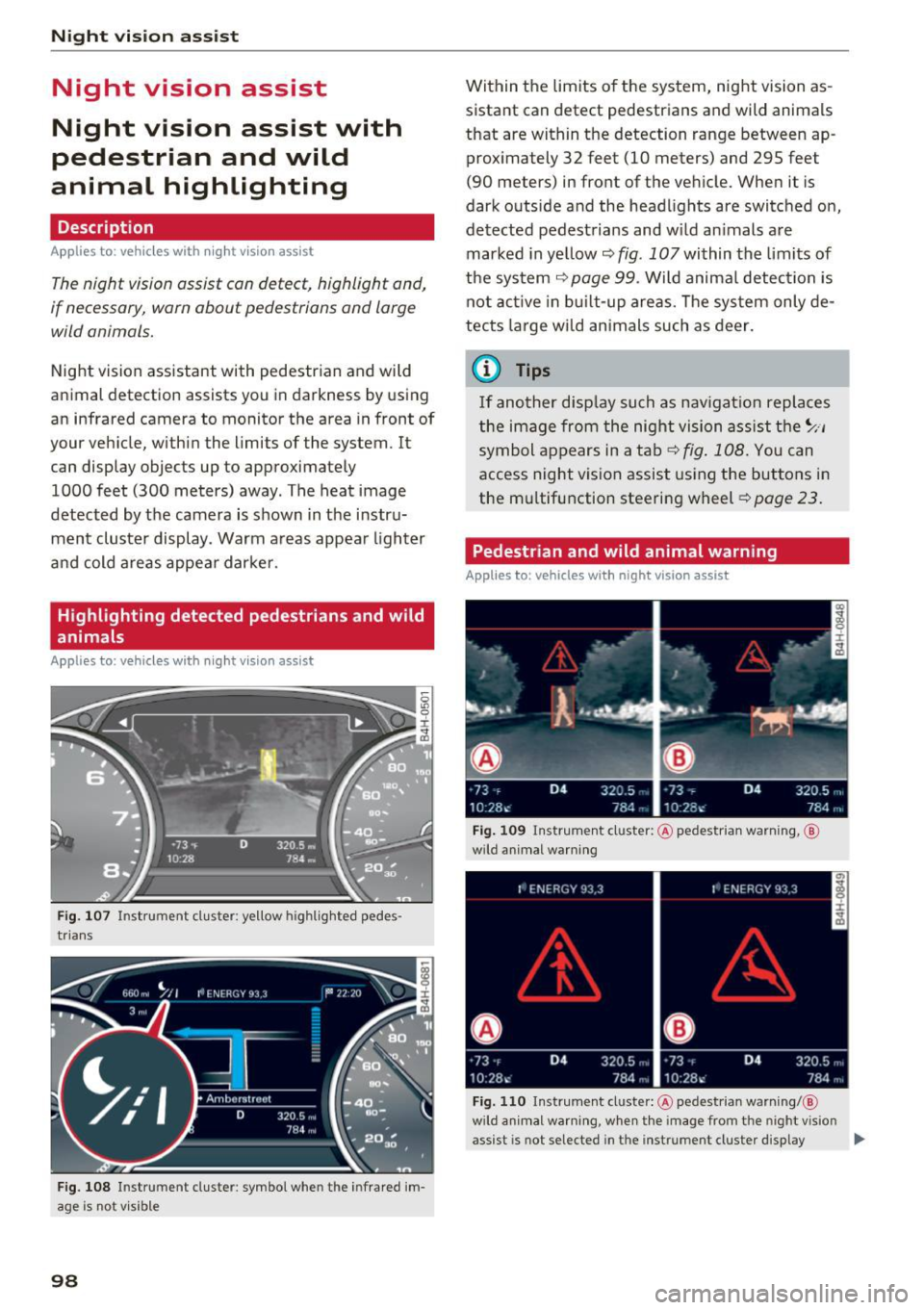
Fig . 107 Instrument cluster: ye llow h ighlig hted pedes
trians
Fig. 108 I n stru ment cluste r: symbol when the i nfrared im
age is not v isible
98
Within the limits of the system, night vision as
sistant can detect pedestrians and wild animals
that are within the detection range between ap
proximately 32 feet (10 meters) and 295 feet
(90 meters) in front of the vehicle. When it is
dark outside and the headlights are switched on,
detected pedestrians and w ild animals are
marked in ye llow
c::> fig. 107 within the limits of
the system
c::> page 99. Wild animal detection is
not active in built-up areas. The system only de
tects large wild animals such as deer.
@ Tips
If another display such as navigation replaces
the image from the night vision assist the~ .. ,
symbol appears in a tab
c::>fig . 108. You can
access night vision assist using the buttons in
the mu ltifunction steering wheel
c::> page 23.
Pedestrian and wild animal warning
Applies to: vehicles wit h night vision assist
Fig. 109 Instrument cl uster: @pedestrian warning, ®
w ild animal warning
Fig. 110 Instrument cluste r: @ pedes trian warning/ @
wild a nimal warning, w hen the image from the n ight v ision
assist is not selected in t he instrument cluster display ...
Page 101 of 282
Display in the instrument cluster/head-up
display*
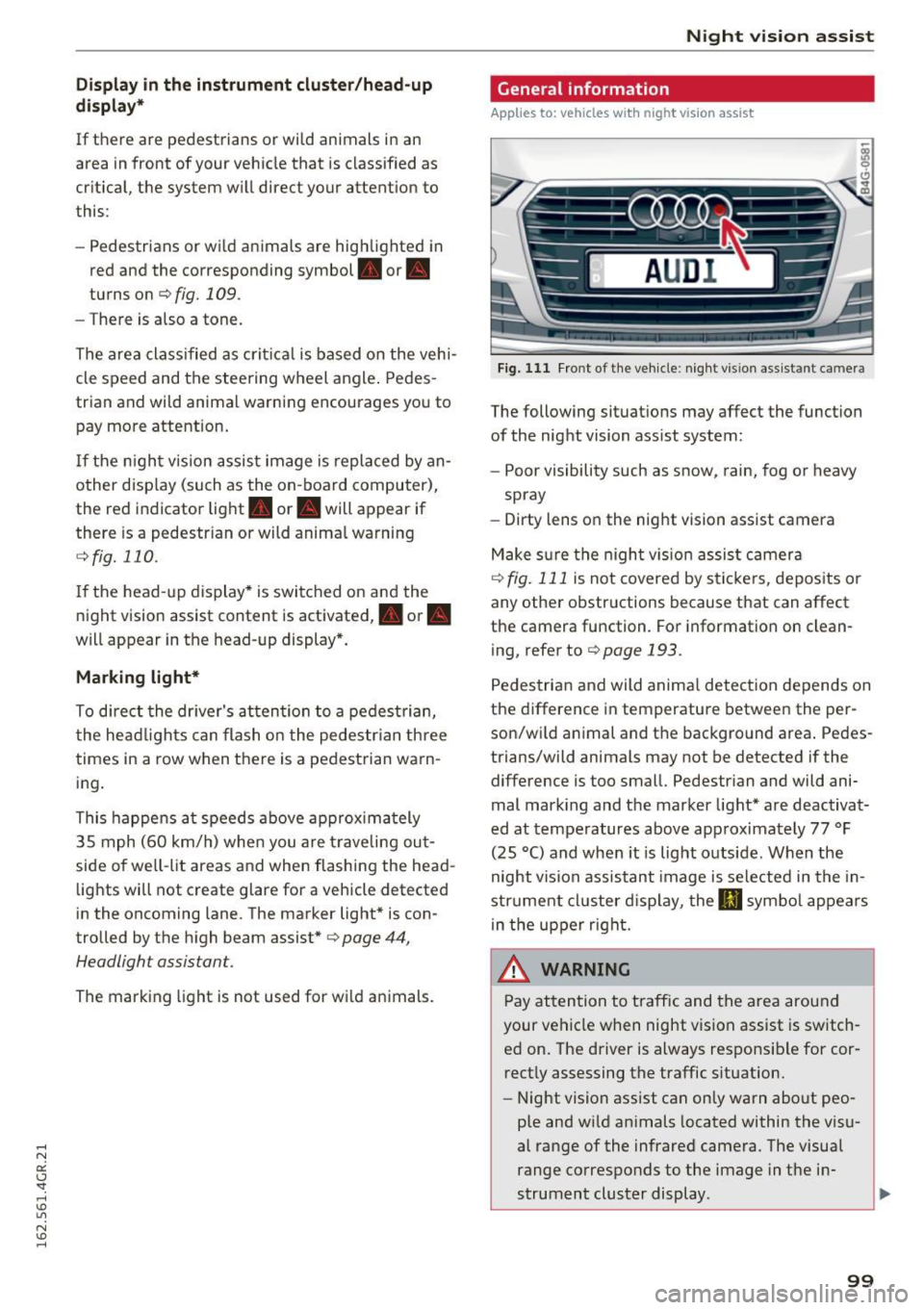
If there are pedestrians or wild animals in an
area in front of you r vehicle that is classified as
critical, the system will direct your attention to
this :
- Pedestrians or wild animals are highlighted in
red and the corresponding symbol. or.
turns on
¢fig. 109.
-There is also a tone.
The area classified as critical is based on the vehi
cle speed and the steering wheel angle. Pedes
trian and wild animal warning encourages you to
pay more attention.
If the night vision assist image is replaced by an
other display (such as the on-board computer),
the red indicator light . or. will appear if
there is a pedestrian or wild animal warning
¢ fig. 110 .
If the head-up display* is switched on and the
night vision assist content is activated, . or.
will appear in the head-up display*.
Marking light*
To direct the driver's attention to a pedestrian,
the headlights can flash on the pedestrian three
times in a row when there is a pedestrian warn
ing.
This happens at speeds above approximately
35 mph (60 km/h) when you are traveling out
side of well-lit areas and when flashing the head lights will not create glare for a vehicle detected
in the oncoming lane . The marker light* is con
trolled by the high beam assist*
c::;, page 44,
Headlight assistant .
The marking light is not used for wild animals.
Night vision assist
General information
Applies to : vehicles wit h night vision assist
Fig. 111 Front of the vehicle : night vis ion assist ant ca mera
The following situations may affect the function
of the night vision assist system:
- Poor visibility such as snow, rain, fog or heavy
spray
- Dirty lens on the night vision assist camera
Make sure the night vision assist camera
c::;, fig. 111 is not covered by stickers, deposits or
any other obstructions because that can affect
the camera function . For information on clean
ing, refer to
c::;, page 193.
Pedestrian and wild animal detection depends on
the difference in temperature between the per
son/wild animal and the background area. Pedes
trians/wild animals may not be detected if the difference is too small. Pedestrian and wild ani
mal marking and the marker light* are deactivat
ed at temperatures above approximately 77 °F
(25 °C) and when it is light outside . When the
night vision assistant image is selected in the in
strument cluster display, the
II symbol appears
in the upper right.
A WARNING
Pay attention to traffic and the area around
your vehicle when night vision assist is switch
ed on. The driver is always responsible for cor
rectly assessing the traffic situation.
- Night vision assist can only warn about peo
ple and wild animals located within the visu
al range of the infrared camera. The visual
range corresponds to the image in the in
strument cluster display .
-
99
Page 112 of 282
Parking systems
-The camera lens enlarges and distorts the
field of vision. The object appears both al
tered and inaccurate on the screen.
- In certain situations, people or objects in
the display appear closer or farther away:
- For objects that do not touch the ground,
such as the bumper of a parked vehicle, a
trailer hitch or the rear of a truck. Do not
use the help lines in this case.
- If driven from a level surface onto an in
cline, or a downward slope.
- If driven toward protruding objects.
- If the vehicle is carrying too much load in
the rear.
(D Note
- Always read and follow the applicable warn
ings r::!>(D
in General information on
page 107 .
-The orange colored orientation lines in the
Infotainment display show the vehicle path
depending on the steering wheel angle. The
front of the vehicle swings out more than
the rear of the vehicle. Maintain plenty of
distance so that your outside mirror or a
corner of your vehicle does not collide with
any obstacles.
Switching on/off
Applies to: vehicles with rearview camera
Switching on
.,. Shift into reverse, or
.,. Press the
P,,, A button in the center console
r:=> page 108, fig. 120. A short confirmation
tone sounds and the LED in the button turns
on.
Switching between the rearview camera and
optical display
.,. Press the Graphic control button ®
r:=> page 110, fig. 125 to see the optical display .
.,. Press the
Rear view control button to see the
. . rearv1ew camera image.
Switching off
.,. Drive forward faster than 10 km/h, or
.,. press the
P,1
1.A button, or
110
.,. Switch the ignition off.
@ Tips
- The visual display in the left part of the dis
play should help you detect the critical vehi
cle areas.
- You can change the volume and pitch of the
signals as well as the display
r:=> page 116.
Cross parking
Applies to: vehicles with rearview camera
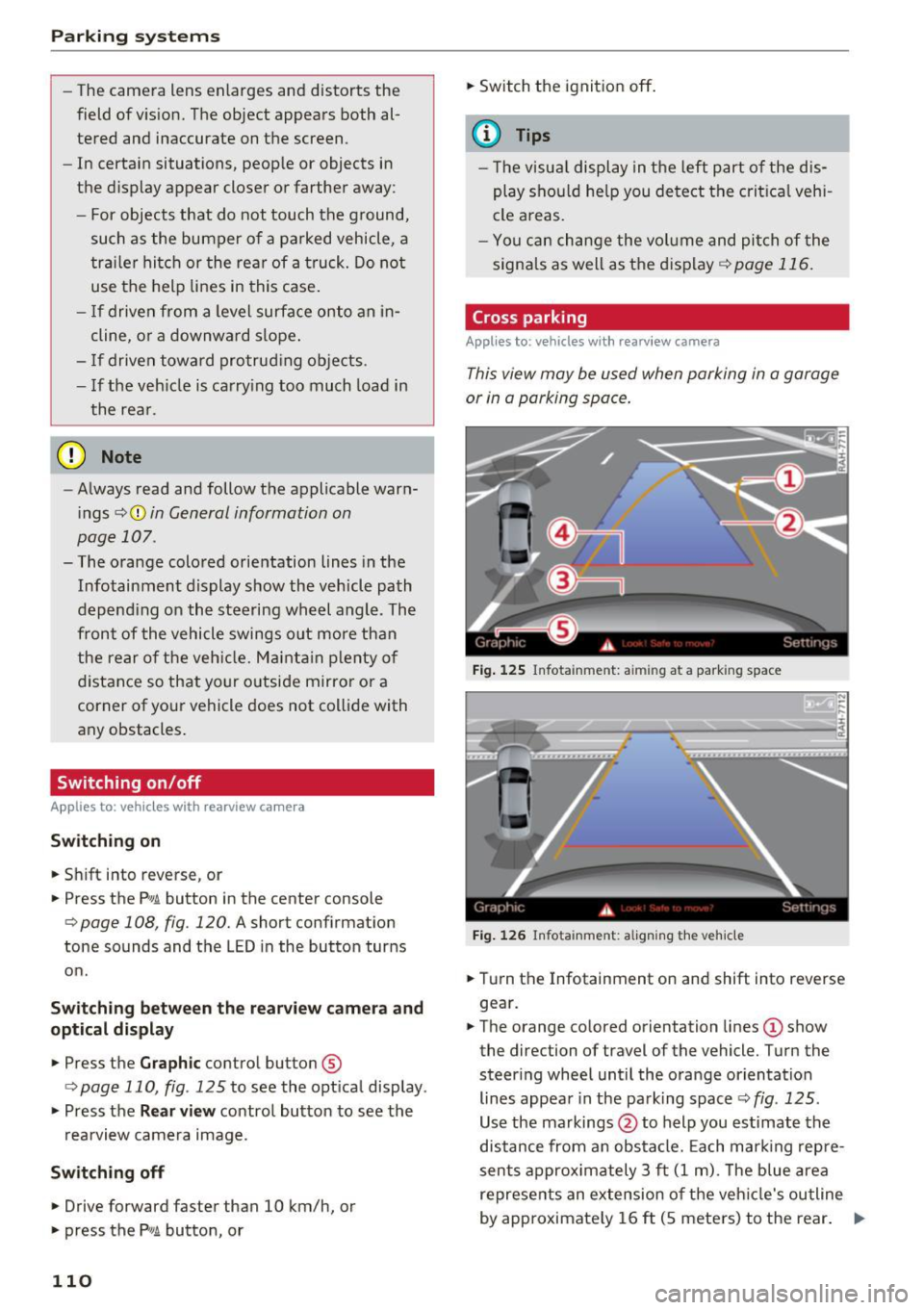
This view may be used when parking in a garage
or in a parking space.
Fig. 125 Infotainment: aiming at a parking space
Fig. 126 Infota inment: aligning the vehicle
.,. Turn the Infotainment on and shift into reverse
gear.
.,. The orange colored orientation lines
(D show
the direction of travel of the vehicle. Turn the
steer ing wheel until the orange orientation
lines appear in the parking space r::!>
fig. 125 .
Use the markings @to help you estimate the
distance from an obstacle. Each marking repre
sents approximately 3 ft
(1 m). The blue area
represents an extension of the vehicle's outline
by approximately
16 ft (5 meters) to the rear. ..,.
Page 113 of 282
.. While driving in reverse gear, adjust the steer
ing wheel ang le to fit the parkin g space with
the a id of the orange orientation lines
c::> A in
General information on page 109 ,
c:>(D in Gen
eral information on page 110. @
displays the
rear bumper . Stop the veh icle, at the latest,
when the red or ientat io n line @ borders an ob
ject.
Parallel parking
App lies to: veh icles wit h rearv iew camera
This view may be used when parallel parking
along the side of a street.
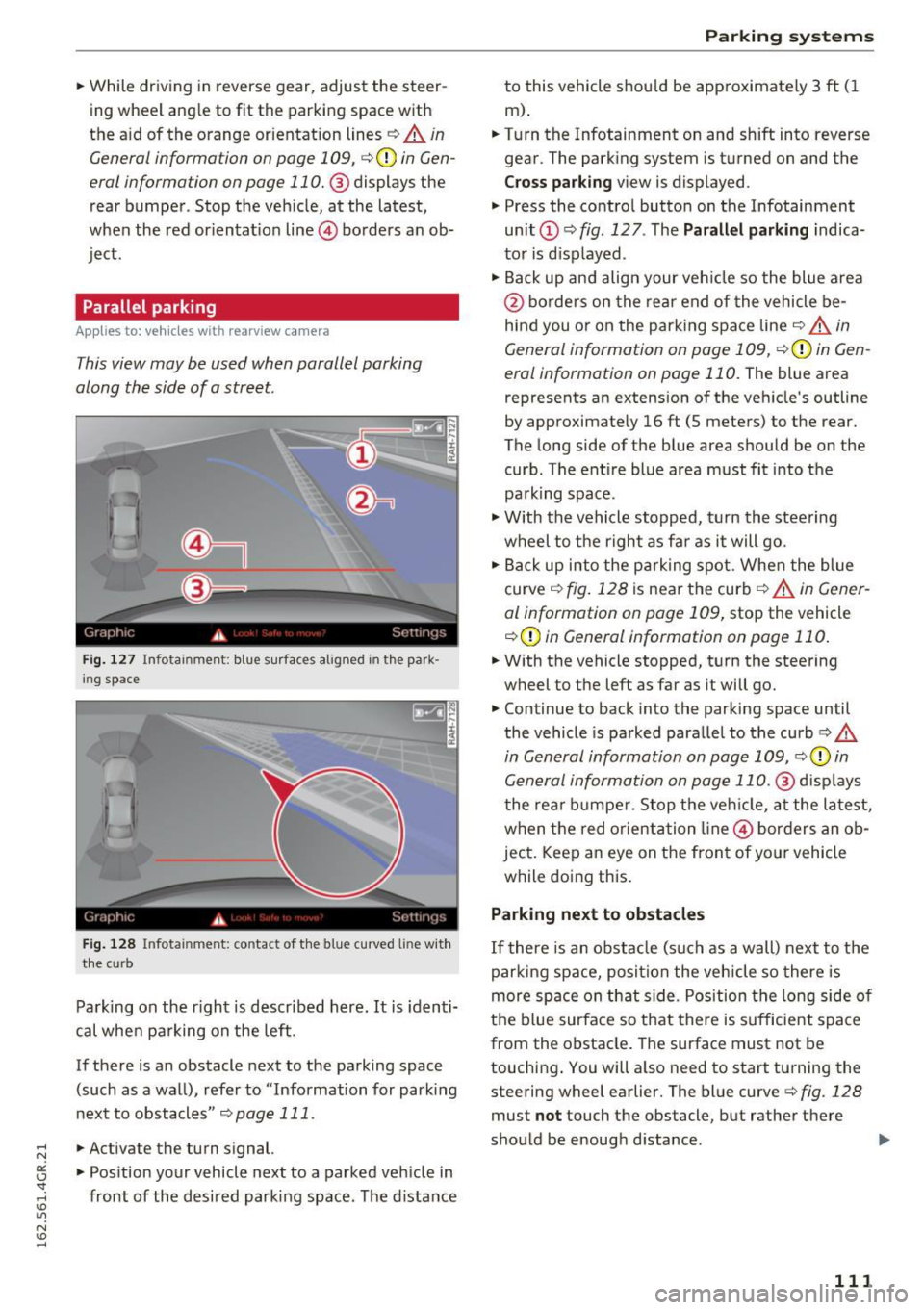
Fi g. 127 Infotai nmen t: b lue surface s alig n ed in t he park
i ng s pace
Fig . 12 8 In fota inmen t: co ntac t of t he blue curved li ne w it h
t he curb
Park ing on the r ight is descr ibed here. It is iden ti
cal whe n pa rking on the left .
If there is an obstacle next to the pa rking space
(such as a wall), refe r to "Information for park ing
nex t to obstacles"
c:> page 111 .
.. Activate the turn s ignal.
.. Pos ition your vehicle next to a parked veh icle in
front of the desired parking space. The d istance
Parking systems
to this vehicle shou ld be app roximately 3 ft ( 1
m).
.. Turn the Infotainment on and shift into reverse
gear . The park ing system is turned on and the
Cross pa rking v iew is displayed .
.,. Press the contro l button on the Infotainment
un it
(D c:> fig . 127 . The Parallel parking indica
to r is d isp layed .
.,. Back up and align your veh icle so the blue a rea
@ bo rde rs on the re a r end of the vehicle be
hind you o r on the park ing spa ce line
c::> A in
General information on page 109,
c::> (D in Gen
eral information on page 110.
The blue area
represents an extension of the veh icle's outline
by approximate ly 16 ft (5 meters) to the rear.
The long side of the b lue area should be on the
curb . The ent ire blue area must fit into the
pa rk ing space .
.,. With the vehicle s topped, t urn the stee ring
wheel to the r ight as far as it will go .
.,. Back up into the park ing spot. Whe n the blue
curve
c::> fig . 128 is near the curb c::> A in Gen er
al information on page 109,
stop the vehicle
c::> (D in General information on page 110 .
.. W ith the vehicle stopped, t urn the steering
wheel to the left as far as it will go .
.. Continue to back into the parking space until
the vehicle is parked para llel to the curb
c:> .&.
in General information on page 109, c::> (D in
Gen eral information on page 110 .@
d isp lays
t he rea r bu mpe r. Stop the ve hicle, at the la test,
when the red o rient ation line @ bor ders an ob
ject. Keep a n eye on the fron t of yo ur vehicle
while do ing this.
Parking next to obstacles
If there is an obstacle (such as a wall) next to t he
par king space, posi tion the vehicle so there is
more space on th at s ide . Pos ition the long side o f
the b lue surface so that there is s ufficient s pace
from the obstacle. The surface must not be
touching . You will a lso need to start turning the
steering wheel earlier. The blue curve
c:> fig. 128
must not touch the obstacle, but rathe r the re
sho uld be enough d istance .
111