audio AUDI S4 2017 User Guide
[x] Cancel search | Manufacturer: AUDI, Model Year: 2017, Model line: S4, Model: AUDI S4 2017Pages: 386, PDF Size: 96.32 MB
Page 127 of 386
Rear parking system
Description
Applies to: vehicles with rear parking system
The rear parking system is an audible parking
aid .
Descr iption
There is a sensor in the rear bumper cover. If
these detect an obstacle, audible signals warn
you .
Make sure the sensors are not covered by stick
ers, deposits or any other obstructions as it may
impair the function of the system . For informa
tion on cleaning, refer to
c:> page 337.
The range at which the sensors begin to measure
is approximately:
side 3 ft (0 .90 m)
rear
center 5.2
ft (1.60 m)
The closer you get to the obstacle, the shorter
the interval between the audible signals . A con
tinuous tone sounds when the obstacle is less
than approximately 1 foot (0.30 meters) away.
Do not continue backing up
c:::> &. in General infor
mation on page 124,
c:> Q) in General information
on page
124!
If the distance to an obstacle remains constant,
the volume of the distance warning lowers down
to mute after a few seconds (this does not apply
in the continuous tone range). If the obstacle
comes closer before the system mutes, the tone
sounds again. If the obstacle moves farther away
before the system mutes, a tone will not sound.
Pay attention to the vehicle's surround ings when
you start to drive.
Activating
The rear parking assist activates automatically
when the reverse gear is engaged. You will hear a
brief confirmation tone.
Parking systems
Parking system plus
Description
Applies to: veh icles w ith park ing system plus
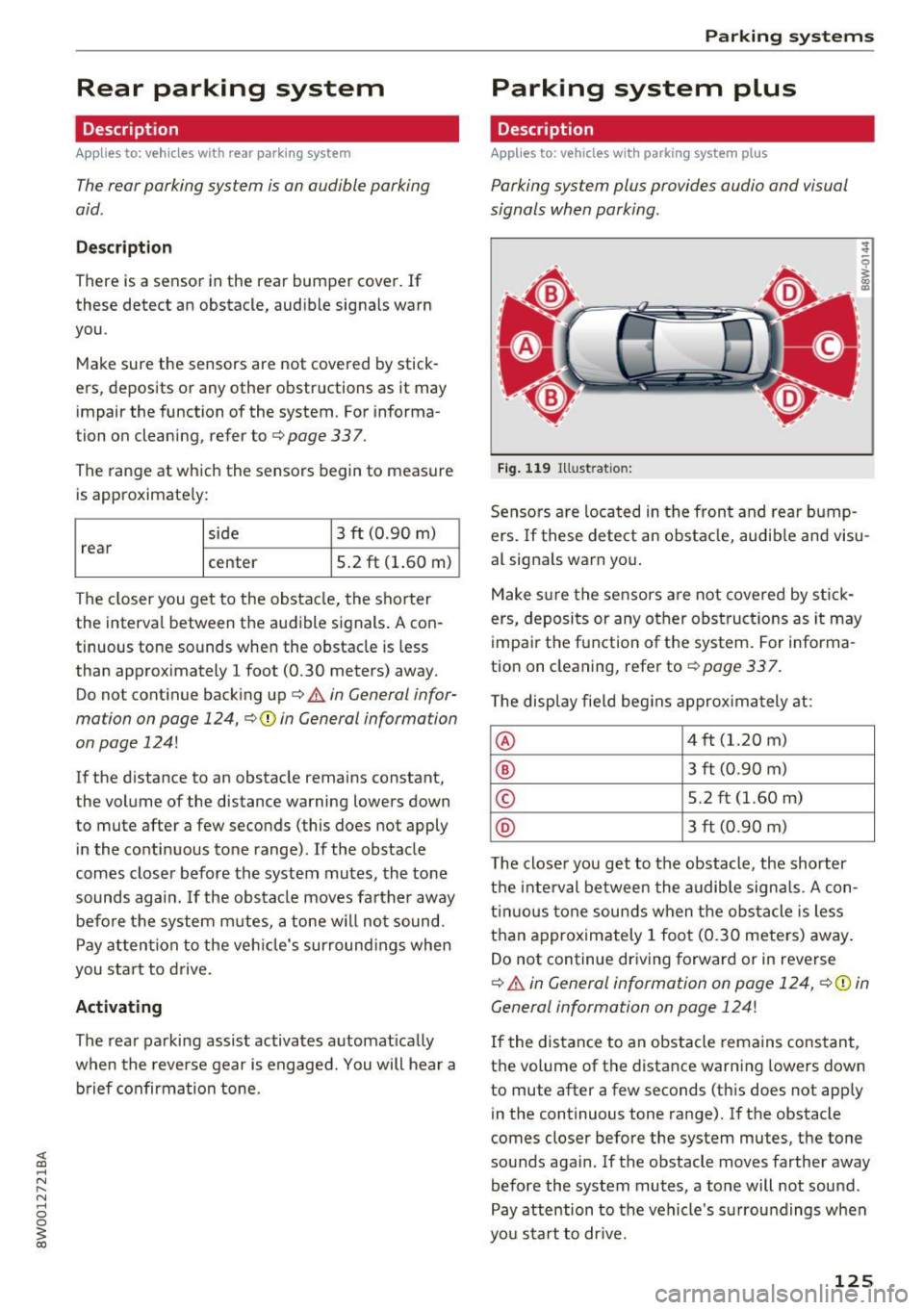
Parking system plus provides audio and visual
signals when parking.
Fig. 119 Illustration:
Sensors are located in the front and rear bump
ers. If these detect an obstacle, audib le and visu
al signals warn you.
Make sure the sensors are not covered by stick
ers, deposits or any other obstructions as it may
impair the function of the system. For informa
tion on cleaning, refer to
c:::>page 337.
The display field begins approximately at:
® 4 ft (1.20 m)
® 3 ft (0.90 m)
© 5.2 ft (1.60 m)
@ 3 ft (0.90 m)
T he close r you get to the obstacle, the shorter
the interval between the audible signals . A con
tinuous tone sounds when the obstacle is less
than approximately 1 foot (0.30 meters) away.
Do not continue driving forward or in reverse
c:::> &. in General information on page 124, c:>(i) in
General information on page 124!
If the distance to an obstacle remains constant,
the volume of the distance warning lowers down
to mute after a few seconds (this does not apply
in the continuous tone range).
If the obstacle
comes closer before the system mutes, the tone
sounds again .
If the obstacle moves farther away
before the system mutes, a tone will not sound.
Pay attention to the vehicle's surroundings when
you start to drive.
125
Page 133 of 386
This view is ideal for maneuvering. The vehicle
surroundings are shown using the camera im
ages . The vehicle image is shown by the system .
... Se lect the © symbol with the control knob and
press the control knob.
Rear
Appl ies to: ve hicles with perip heral ca meras
F ig. 135 Infotainment system : rea r mode
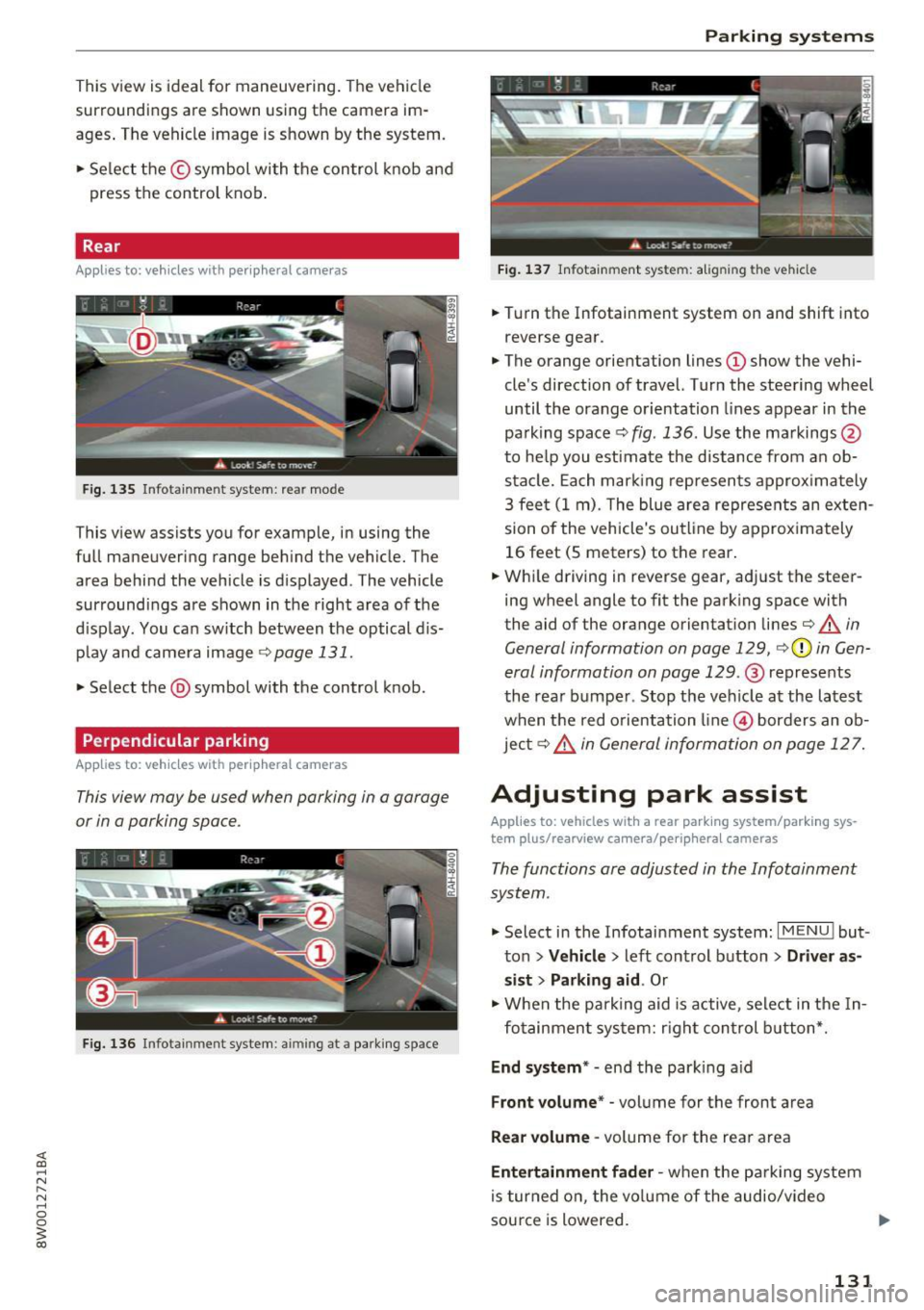
This view assists you for example, in using the
full maneuvering range behind the vehicle. The
area behind the vehicle is displayed. The vehicle
surroundings are shown in the right area of the
display. You can switch between t he optical dis
play and camera image
¢page 131.
... Select the @symbol with the control knob.
Perpendicular parking
Appl ies to: ve hicles with per ip heral came ras
This view may be used when parking in a garage
or in a parking space .
Fig. 136 Infotai nment system : aimin g at a park ing space
Parking systems
Fig. 137 Infotainme nt system: a lig n in g the vehicle
... Turn the Infotainment system on and shift into
reverse gear .
... The orange orientation lines
(D show the vehi
cle's direction of travel. Turn the steering wheel
until the orange orientation lines appear in the
pa rking space
c::> fig . 136. Use the markings @
to help you estimate the d istance from an ob
stacle. Each marking represen ts approximately
3 feet (1 m) . The blue area represents an exten
sion of the vehicle's outline by approximately
16 feet (5 meters) to the rear.
... Wh ile driving in reverse gear, adj ust the steer
ing wheel angle to
fit the park ing space with
the aid of the orange orientation lines
c::> &. in
General information on page 129,
c::> (D in Gen
eral information on page 129.@
represents
the rear bumper . Stop the vehicle at the latest
when the red orientation line@ borders an ob
jec t
c::> ,& in General information on page 12 7.
Adjusting park assist
Applies to : vehicles wit h a rear par kin g system/par king sys
t e m plus/ rea rview ca mera/ periph eral cameras
The functions are adjusted in the Infotainment
system .
... Select in the Infotain ment system: I MENU ! but
ton
> Vehicle > left control button > Driver as
sist
> Parking aid . Or
... When the parking aid is active, select in the In-
fo tainmen t system: right control button*.
End system* -end the parking aid
Front volume * -vol ume for the front area
Rear volume -volume for the rea r area
Entertainment fader -when the parking system
is turned on, the vo lume of the audio/video
sou rce is lowered.
131
Page 143 of 386
Multi Media Interface
Traffic safety information
Audi recommends performing certain Infotain
ment system functions, such as entering a desti
nation, only when the vehicle is stationary . Al
ways be prepared to stop operat ing the Infotain
ment system in the interest of your safety and
the safety of other road users.
A WARNING
Only use the Infotainment system when traf
fic conditions permit and always in a way that
allows you to maintain complete control over
your vehicle.
Introduction
The Multi Media Interface , or MMI for short ,
combines various systems for communication,
navigation* and entertainment in your Audi. You
can operate the MMI using the MMI control pan
el, the multifunction steering wheel or the voice
recognition system* .
Fig. 139 MMI control pane l - integra ted shortcut key s
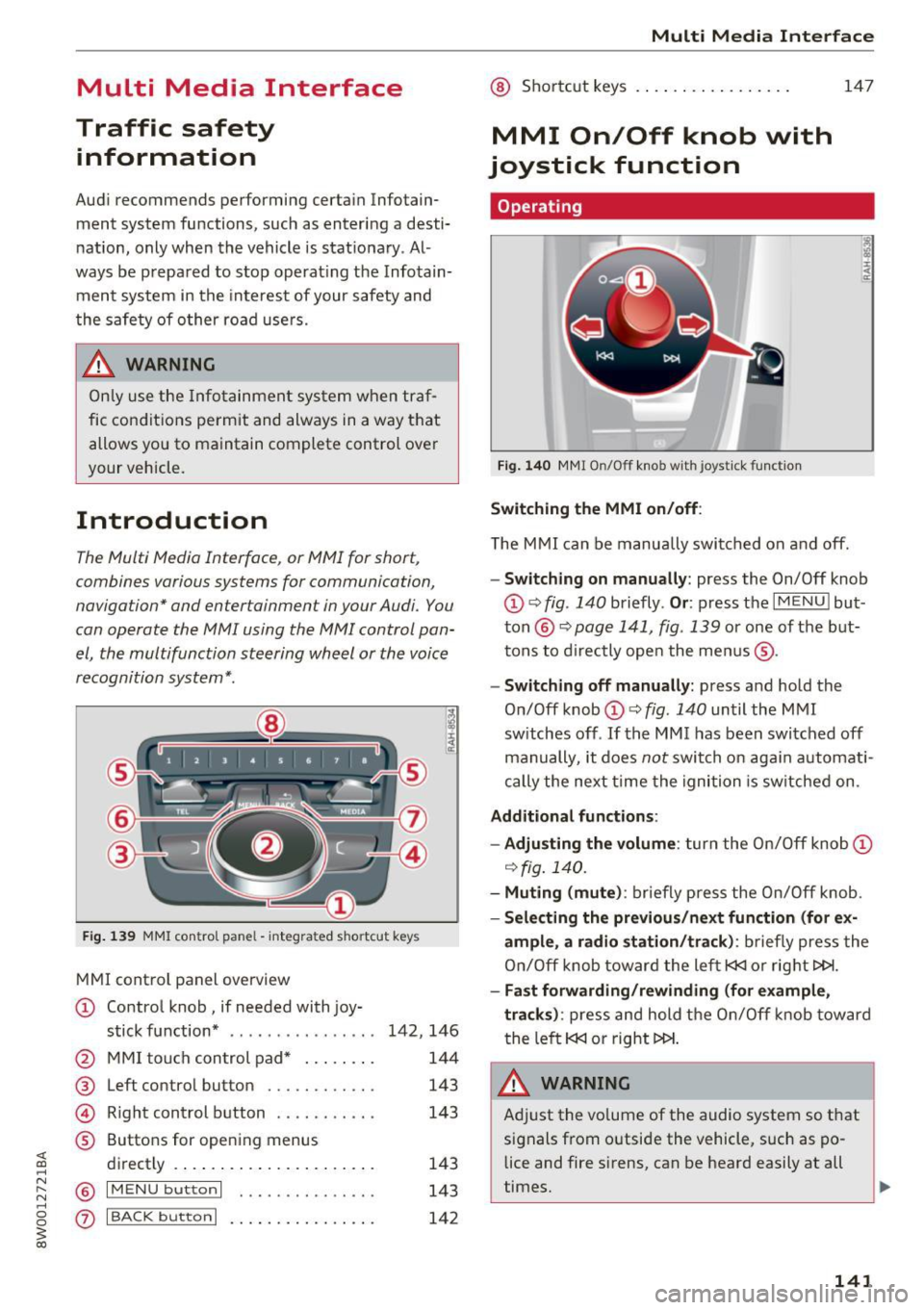
MMI control panel overview
CD Control knob, if needed with joy-
stick function* . . . . . . . . . . . . . . . . 142, 146
@ MMI touch control pad* . . . . . . . . 144
® Left control button . . . . . . . . . . . . 143
@ Righ t control button . . . . . . . . . . . 143
® Buttons for opening menus
directly . . . . . . . . . . . . . . . . . . . . . . 143
@ IM ENU button I . • . . . . . . . . . . . . . 143
(z) I BACK button I . . . . . . . . . . . . . . . . 142
Multi Media Interface
@ Shortcut keys . .. . ............ .
MMI On/Off knob with
joystick function
Operating
Fig. 140 MMI On/Off knob with joystick function
Switching the MMI on/off:
147
T he MMI can be manually switched on and off.
-Switching on manually: press the On/Off knob
CD ~ fig . 140 briefly . Or: press the I MENU I but
ton @~
page 141, fig . 139 or one of the but
tons to directly open the menus ®·
-Switching off manually: press and hold the
On/Off knob
CD ~ fig . 140 until the MMI
sw itches off .
If the M MI has been switched off
manually, it does
not switch on again automati
cally the next time the ignition is switched on.
Additional functions :
- Adjusting the volume :
turn the On/Off knob CD
~fig.140.
- Muting (mute): briefly press the On/Off knob.
-Selecting the previous/next function (for ex-
ample, a radio station/track):
briefly press the
On/Off knob toward the left
l«J or right t>!>I.
-Fast forwarding/rewinding (for example,
tracks) :
press and hold the On/Off knob toward
the left
l«J or right t>!>I.
A WARNING
Adjust the vo lume of the audio system so that
signals from outside the vehicle, such as po
lice and fire sirens, can be heard easily at all
times.
141
Page 146 of 386

Multi Media Interface
MMI touch
Entering letters, numbers and symbols
Applies to: ve hicles w ith MMI touch
The MMI touch allows you to enter data on the
MMI touch control pad using handwriting recog
nition.
F ig. 146 Display when MMI touch is active
Fig. 147 Entering navigation destination us ing MMI touch
The MMI touch control pad is located on the con
trol knob ¢
fig. 147 .
Requirement: it must be possible to enter text or
numbers and the symbol CD¢
fig. 146 must ap
pear in the Info tainment sys tem.
- Initial entry: write an individual upper case or
lower case letter or numbers/characters on the
MM I touch control pad using yo ur finger. A
character recognized by the system w ill appear
in the Infotainment system display @
144
¢ fig. 147 and it will confirm with an audio sig
nal, if necessary, and transfer the character to
the input field.
- Entering spaces: move your finger across the
MMI touch control pad from left to right.
-Deleting characters: move your finger across
the MMI touch contro l pad from right to left.
-Selecting the input suggestion: press the con
trol knob.
- Switching directly to the results list : turn the
control knob to the right
-Open speller: select the right control button>
Open speller. T ext or numbers are entered in
using the speller
¢page 148.
Moving the crosshairs
Applies to: vehicles wit h MMI touch
Sl-,guMoaSt
l
Fig. 148 Moving the crossha irs
Requirement: a map must be displayed
¢page 196.
-Showing/hiding the crosshairs: press the con
trol knob to show the crosshairs CD¢
fig. 148.
Press the I BACKI button (J) to hide the cross
hairs again
¢ page 141, fig. 139.
-Moving the crosshairs on a map: move the visi-
ble crosshairs in the desired direct ion using ..,.
Page 152 of 386

Multi Media Interface
down. Select and con firm an entry from the
list.
Menus and Symbols
F ig . 155 Menus and symbols diagram
Symbol/Description Description
CD S elected text Selected f unction
@ TMC Receiving
TMC/online traffic information <=> page 201
Displays informa tion on a cu rrent ly selected media so urce o r an
®
E nte rtainmen t slid ing event (s uch as an incomi ng call). Depending on vehicle eq uipment,
menu an operation is possib le using the open entertainment slid ing menu
(such as select ing a radio sta tion or accepting a call)
c!.> page 146
@
Ju kebox import ing proc-
Copy audio/video fi les to the Jukebox
c!.> page 211 ess*
® Repeat track T
he trac k cu rrent ly p laying is repeated. c!.> page 221
® Shuffle All fi
les on the p lay list a re played in a random order c!.> page 221,
Shuffle
(J) Arrow Access
information by pressing the control knob when the selected
text is active
®
T elephone sign al
Telephone s ignal strength
strength bars
®
E xclamat io n point on the
Indicates missed calls
t elephone
D ata co nnection signa l Signal strength
for the active data connection, or
@ PIN : enter the PIN (SIM)
s tr engt h ba rs *
PUK : enter the PUK
N etwork cove rage for the act ive data connec tion
c!.> page 178
@ 2G/3G/LTE* 2G : GSM ne twor k
3G: UMTS network
L TE* : L TE network
@ Mu te The audio source is muted c!.> page 233
150
Page 155 of 386

Voice recognition system Operating
A pp lies to: ve hicles with vo ice recognition system
You con operate many Infotainment functions
conveniently by speaking .
Fig . 157 Vo ice recognition system butto n on t he mult i·
function steering wheel
Requirements: the ignition and the MMI must be
switched on ¢
page 141, there must be no phone
call in progress and the parking system must not
be active .
.,. Switching on : briefly press the 12!] ¢ fig. 157
button on the multifunction steering wheel and
say the desired command after the
Beep .
.,. Switching off :
press and hold the 12!] button.
Or: press the [2] button.
.,. Pausing : say the comma nd Pau se . To res ume,
press the
1 0 .1 but ton .
.,. Correcting : say the command Correction .
Input assistance
The system guides you through the input with
visual and audio feedback .
-Vi sual input as sista nce : after switching on
vo ice recognit ion, a display with a selection of
poss ible commands appears . The comma nd
display can be sw itched on/off under
I MENU I >
Settings > left control bu tton > MMI settings >
Speech dialog system .
- Audio input a ssis tance :
to have the poss ible
commands read, turn the voice recognition sys
tem o n and say
Help .
For the system to understand you:
Speak clearly and distinct ly at a normal volume .
Speak louder w hen driv ing faster .
Voice re cogni tion system
Emphasize the words in the commands evenly
and do not leave long pauses.
Do no t spea k a command when the vo ice re cogni
tio n sys tem is making an announcemen t.
Close the doo rs , the w indows and the sun roof* to
r ed uce background no ise. Ma ke sure that passen
gers are not speaking w hen you are giv ing a voice
command.
Do not d irect the air vents toward the hands free
microp hone, which is on the roof headliner near
the fron t inte rior lights.
Only use the system from the dr iver's seat be
cause the hands free microphone is directed to
ward that seat.
Additional settings
Refer to¢ page 234.
A WARNING .
- Direct your full attention to dr iving . As the
d river, you have complete responsibility fo r
safety in t raff ic. Only use the functions in
s uch a way that you a lways m aintain com
p lete co ntro l over your vehicle in all tra ffi c
situa tions .
- Do not use t he voice recognition sys tem in
emergencies beca use your voice may ch ange
i n st ressfu l situations . It may take longe r to
d ia l the number o r the system may not be
ab le to dia l it at all. Dia l th e emergency
number manually.
@ Tips
- T he d ialog pauses w hen the re is an incom
ing phone call and will continue if yo u ig
nore the ca ll. The dia log ends if you answer
the ca ll.
- There are no Vo ice gu idance * prompts when
a dialog is active.
- You can select a n item in the list using ei
ther the voice recognit io n system or the
control knob .
153
Page 160 of 386

Voice recognition system Function
Setting voice guidance for active route guidance
Blocking a certain section on the
route
(D Tips Say:
Voice guidance on/ Voice guidance off/ Voice guidance short-
ened
/ Voice guidance complete/ Voice guidance traffic
Block route for (XV) meters/kilometers/yards/miles/ Block
next route / Avoid next section of route. you are located and which menu language
you have selected.
- Destinations may have to be spelled when
entered, depending on the country where -
Always read the chapter~
page 178, Audi
connect (Infotainment) information.
Radio
A ppl ies to: ve hicles w ith vo ice recogni tion sys te m
Requirement: the Radio must already be open.
You can say the following commands depending
on the selected frequency band:
Function Say:
Selecting the frequency band FM*/ SiriusXM* / FM / AM
Selecting a station from the station Channel (XV) / !Frequency (XV)
list
Selecting a station from favorites/
Radio presets > Line (XV)
presets
Setting the frequency
Frequency (XV) / Frequency (XV) HD 1
Correcting data input No I meant (XV)
Closing the full-screen command Close
list
Media
Appl ies to: ve hicles w ith vo ice recognition sys te m
Requirement: you must be in the Media menu. You can say the following commands depending
on the act ive media:
Function
Say:
Selecting a source directly Jukebox*/ CD/ DVD/ SD card 1 / SD card 2 / Audi music inter·
face* / iPhone* / USB* / Bluetooth* / Wi-Fi* / Media source
(XV),
for example "John's player"
Selecting audio/video files* in the
Media favorites/ Artists/ Albums/ Genres/ Tracks/ Playlists /
Jukebox* Videos
Selecting audio files on an iPod Artists I Album ,s / Genres / Tracks / Playlists /Composers /
(source: Audi music interface*) Podcasts / Audio books
Navigating within a folder struc-Folder up/ Line (XV)
tu re/list
Selecting shuffle
Shuffle on / Shuffle off
158
Page 179 of 386
<( a, .... N ,....
N .... 0 0
3 a,
License s ubs cript ion
The validity and expiration date of you r licenses
are displayed. When
W arnin g befor e licen se ex
pir es
is activat ed, a m essage will be display ed
warning you that your license is about to expire .
Refresh
The content of the selected Audi connect (Info
tainment) service o r the entire Audi connect list
is updated .
Wi-Fi hotspot
Appl ies to: ve hicles with Wi -Fi hotspot
You con us e the MMI as a Wi-Fi hotspot to con
n ect up to eight Wi-Fi d evic es to th e Intern et.
While driving , re stri cted use of unsecured, light,
s mall wirele ss device s is only po ssible from the
rear of the vehicle .
Requirement: the ignition must be switched on.
.. Se lect :
I MENU I button >Telep hon e> right con -
tro l button
> Wi-Fi opti ons.
The fo llow ing settings can be modified :
Wi-Fi mode
The MMI Wi-Fi hotspot is deactivated at the fac
tory . Switch the Wi-Fi hotspot to
H otspot before
establishing a connection between your vehicle
and your Wi- Fi dev ice.
- Hotspot : the MMI Wi- Fi hotspot is active and
v is ible to other devices. A connection can be es
tabl ished with new w ire less devices .
-Hot spot and clie nt1l: the MM I W i- F i hotspot is
active. An Internet connection to a personal
Wi-Fi hotspot (such as a smartphone) can be establ ished . Using
Netw ork search
~ page 177, you can sea rch fo r you r persona l
hotspot and connect to the MM I.
-Off : the MM I W i-Fi hotspot is deac tivated. An
Internet connection for Wi-Fi devices is not
possible .
1) Not avail able in al l veh icl es.
Audi c onn ect ( Inf ota inm ent )
Network search
A list of ava ilab le Wi- Fi netwo rks in your area is
displayed.
A WARNING ~
- As the driver, do not allow usage of the Wi-
Fi hotspot to distract you from driving, as
this cou ld increase the risk of an accident.
- It is only safe to use tablets, laptops, mo
b ile dev ices and other similar devices when
the vehicle is stationary because, like all loose objects, they could be thrown around
the inside of the vehicle in a crash and cause
serious injuries . Store these types of devices
securely while driving.
- Do not use any wireless devices on the front seats within range of the airbags while dr iv
i n g. Also read the warnings in the chapte r
~page 236.
(D Note
You are responsible for all precaut ions taken
fo r data p rotection, anti-v irus protect ion and
protection aga inst loss of data on mobi le de
v ices that a re used to access the Internet
th ro ugh the W i- Fi hotspot.
(D Tips
-In vehicles w ithout Audi connect* , the use
of the W i-F i hotspot is on ly possible for t he
Wi-Fi audio player*. A data connect ion to
the Internet cannot be established.
- A separate, paid mob ile subscr ipt ion may be
needed to use the Wi -Fi hotspot. You can
obtain more info rmation from your cell
phone serv ice provider .
- Depending on your cell phone plan, receiv
ing data packages through the Wi-Fi hot
spot may result in additional charges, par
ticu larly when in another country . The use
of a f lat rate data plan is highly recom
mended . You can obtain more information
from your cell phone service provider .
177
Page 211 of 386

<( a, .... N ,....
N .... 0 0
3 a,
Media
Introduction
There are various media drives and connections
avai lable in the MMI. For example, you can play
audio/video files* from the Jukebox* or connect
your mobile device to the Audi mus ic interface*
and operate it through the MMI.
Notes
General information
Media and format restrictions:
the MMI (includ
ing the SD card reader and the USB storage de
vice connection*) was tested with a variety of products and media on the market. However,
there may be cases where individual devices or media and audio/video files* may not be recog
nized, may play only w ith restrictions or may not
play at all.
Digital Rights Management: please note that
the audio/video files* are subject to copyright
protection .
The media drives do not play fi les that are pro
tected by ORM and that are ident ified with the
symbol
l'.D .
Data security: never store important data on SD
cards, the Jukebox*, CDs/DVDs or mobile devices .
Audi AG is not responsible for damaged or lost
files and media .
Loading times : the more files/fo lders/play lists
that are on a storage medium, the longer it will
take to load the audio/video files* . Audi recom
mends using storage media that only contain au
dio/video files*. To decrease the t i me it takes to
load audio/v ideo files*, create subfolders (for ex
ample, fo r the art ist or album). The loading time
will also increase when importing fi les.
Additional information : when playing, audio
files are automatically displayed w ith any add i
tional information that is stored (such as the ar
tist, track and album cover). If this information is
not available o n the storage medium, the MMI
will check the Grace note metadata database .
Media
However, in some cases, the additional informa
tion may not be displayed.
Restricted functionality : reset the Media set
tings
t o the factory default settings if functional
ity is restr icted ¢
page 230.
If functionality is restricted, reset the Jukebox*
to the factory default settings¢ page 230.
For information about the propert ies of support
ed media and fi le formats, refer to ¢
page 223.
(D Note
You are responsible for all precaut ions taken
for data protection, anti-virus protect ion and
protection against loss of data on mobile de
v ices that are used to acc ess the Internet
through the Wi-Fi hotspot.
CD/DVD operation
CD/DVD and format restrictions:
the functionali
ty of individual storage media may be limited due
to the variety of blank CDs/DVDs availab le and
the various capacities. Audio CDs or video DVDs
with copy protection, CDs/DVDs that do not con
form to the standard and mult isess ion CDs may
have limited playback or may not play at all . Audi
recommends finaliz ing t he recording process
whe n creat ing mult isess ion CDs. Mult isession is
not supported for DVDs .
Using CDs /DVDs, the CD drive or the DVD drive :
to ensure correct, high-quality playback and to
prevent damage to the drive or disc reading er
ro rs, always store CDs/DVDs in a protective
s leeve and do not expose them to direct sunlight.
Do
not use:
- Damaged, dirty or scratched CDs/DVDs
- Single CDs/DVDs (3 inch/8 cm diameter)
- CD/DVDs that are not round
- CDs/DVDs w ith labels
- Protective rings
- Cleaning CDs
Thermal protection switch: CD/DVD playback
may be temporarily unavailable if outside tem-
peratures are extremely hot or cold. A thermal
llo-
209
Page 212 of 386

Media
protection switch is installed to protect the CD/
DVD and the laser.
L aser dev ices: laser dev ices are d iv ided into safe
ty classes 1 to 4 in accordance with DIN IEC 76
(CO) 6/VDE 0837. The optica l readers that are in
stalled conform to safety class
1. Las ers in this
class are very weak and well shielded, so there is no danger if used co rrectly.
Media drives
SD card reader
Fig. 190 In serting the SD card
Depending on the vehicle equ ipment, there is ei
ther one or two SD card readers in the glove com
partment @¢
page 8, fig. 2.
-Inse rtin g t he S D ca rd : the angled corner of the
SD card must face toward the right front. Sl ide
the SD card into the card reader slot@
¢ fig. 190 until the SD card clicks into place .
-Automatic p la y back : playback starts automati
ca lly if the inserted SD card contains supported
audio/video fi les*
<:!) page 223.
-Remo vin g the SD ca rd : press briefly on the SD
card.
The SD card reader is accessed and operated through the MMI@ r:!)
page 217, fig. 196 .
(D Note
On ly use one-piece SD cards . If adapter cards
(SD cards with more than one piece) are used,
the card could fall out of the adapter when
driving because of v ibrations . Ind iv idual
pieces cou ld then become stuck in the drive
and impair the functionality.
210
@ Tips
A lways keep the SD card in a suitable case to
protect it from dirt, dust particles and other
damage.
DVD drive
Applies to: vehicles with a DVD drive
Fig . 191 CD driv e
The DVD drive is located in the g love compart
ment @¢
page 8, fig . 2.
-Lo adin g a CD /DVD : the CD/DVD is p ulled in au
tomatically . Slide the CD/DVD straight into the
DVD slot @ r:!)
fig. 191 with the labe l facing up.
- Aut om atic pla yb ac k: playback wi ll sta rt auto-
matically if the inse rted CD/DVD contains sup
ported aud io/video files *
r:!) pag e 223.
-Eje ct ing a CD /DVD : press the b utton (D
r:!) fig. 191.
The CD/DVD is pulled in again automat ically if it
i s not removed from the DVD slot w ith in approx i
mately ten seconds after ejecting it .
The DVD d rive is accessed a nd operated t hrough
the MMI @r:!)
page 217, fig. 196.
(D Note
-Never force a CD/DVD into the drive . The
CD/DVD is pulled in automatically.
- Do not insert CDs/DVDs with labels into the
dr ive . Labe ls can come loose from the CD/
DVD and damage the drive.
¢j) Tips
The CD/DVD playback is not ensured with au
d io fi les that have a high data rate .