individual AUDI S4 2017 User Guide
[x] Cancel search | Manufacturer: AUDI, Model Year: 2017, Model line: S4, Model: AUDI S4 2017Pages: 386, PDF Size: 96.32 MB
Page 157 of 386

<( a, .... N ,....
N .... 0 0
3 a,
Function
Call contact from directory
Selecting a specific contact numbe r
Selecting a phone number wit h an
address card open
C alling a contact from yo ur favor -
ites list
Displaying the ca ll list
Calling the last n umber dialed
Dialing a phone number
Correcting the phone number that
was entered
Showing con tact information
Liste ning to messages
Entering the PIN (SIM)
Corre cting the P IN entry
Correcting data input
Clos ing the full-sc reen command
list
(D Tips
Voice recognition system
Say :
Call (XV) ,
for example Call "John Smith "
Call (XV ) bu sine ss/ Private / Land lin e/ Cell phon e,
for example, Call "John Smith" privat e
Call / Call wo rk / Call private / Call land l ine / Call cell phone
work
Teleph one fa vo rites
> After being prompted, soy the desired
contact
> Dial
Call list
Redial
Enter number >
After being prompted, soy the telephone num-
ber in groups of individual numbers,
fo r example. 888 555
1212 > Dial
Correction / Delete number
Directory >
when prompted, soy the desired contact,
for example, "John Smith "
Call voice mail
Enter PIN
> · when prompted, soy the PIN in individual numbers
> Save
Correction / Delete PIN
No I meant ( XV)
Close
- Please note that commands can only be giv
en for the primary phone*¢
page 160.
-Con tacts in the directory can be sele cted us
i ng the f ull name ("first name las t name"
and "last name, first name") as well as with
on ly the first or last name . This applies to
cell phones that transmit names separated
i nto first and last names. -
For more informat io n on supported cell
phones, visit
www .audiusa .com /bluetooth
or contact you r authorized Audi dea le r or
au thorized Audi Service Fac ility.
Audi connect (Infotainment)
App lies to: vehicles with voice recognition system and Audi connect (Infotainment)
Requirement: the requirements for Audi connect
(Infotainment) must be met
¢ page 172.
Function Say:
Accessing Audi connect (Infotain-Audi connect > follow the system prompts
ment) serv ices
Audi connect (Infotainment) serv-
Weathe r/ Online news I Fuel price s/ Parking info rmation /
ices Travel infor mation / Twitte r/ Online t raffic info rmation / City
e v ents I Flight informat ion
155
Page 158 of 386

Voice recognition system Function Say:
Search areas for Aud i connect (Info- Near destination / Nea rby / In new city
ta inment) services
C orrecti ng data inp ut No I meant
(XV )
{l) Tips
Always read the chapter¢ page 178, Audi
c onnect (Infotainmen t) information.
Messages (Audi connect (Infotainment))
Applies to: vehicles with voice recognition system and Audi connect (Infotainment)
Requirement: a cell phone w ith an active MAP
(Message Access Profi le) must be connected to
the MMI
¢ page 165.
Function
T ext editing commands
Readi ng out a new message
Reading a message
Replying to the open tex t message
Forward ing the open text message
Co rrect ing data inp ut
(D Tips
Say:
Read out / Ad d / Delete / Reco rd e ver ything again / Replace
with (XV)/ Add recipient / Send
R ead out new text mes sag e/ Read out new e-mail
Read out te xt message / Read out e -mail
R eply
Forward
> Add recipient / Insert t emplat e/ Send
No I meant (XV)
or contact your a uthorized Aud i dea ler or
authori zed A udi Servi ce Fac ility.
- Fo r more inform ation on suppo rted ce ll
phones, v is it www .audiu sa .com /bluetooth -
Always read the chapter¢
page 178, Audi
connect (Infotainment) information.
Navigation
Applies to: vehicles with voice recognitio n system and navigation system
Req uiremen t: the Navigati on men u m ust be
open ¢
table on page 154 .
You can say the following commands for entering
a destination depending on the se lec ted men u
item:
Function Say:
Open ing the list of previous naviga -
La st destinations
t ion destinations
Access ing favorites Navigat ion favorites
Selecting the home address Home addre
ss or Drive home
Ente ring a n add ress with guidance Enter address
> follow the system prompts
from the system
Individual commands for entering a Enter country / Ente r city/ Ent er ZIP code / Enter street
I E n-
destination ter house n umber
156
Page 165 of 386

Dialing a telephone number
Appl ies to: ve hicles with tele phone
Fig. 161 Number speller
Fig. 162 Dialing a phone number fro m the call list
.,.. Select : I MENU I button> Telephone > left con-
trol button.
Call list
Requirement: the call list must contain a phone
number.
Turn the contro l knob to display the call list.
Select and confirm the desired telephone num
be r from the recent calls list.
Call list symbo ls
¢ fig . 162:
@ Missed calls
@ Dialed numbers
@ Accepted calls
Select:
a contact from the list> right contro l but
ton .
-Call : call the selected contact.
- Change primary and addit . phone *: switch the
Primary phone with the Additional phone .
- Send text message :
write a text message to
the selected contact.
- Delete call list : delete the entire call list.
~ -Store as favorite: store the selected contact as
;:::: a favorite .
" N ..... 0 0
~ co
Telephone
Favorites
Requirement: a phone number or contact must
be stored as a favorite
¢ page 165.
Select and confirm a favorite in the favor ites list.
Directory
Select and confirm a phone number from the di
rectory
¢ page 168.
Enter number
- Entering a phone number as a sequence of
numbers:
enter the number using the number
speller
¢ fig. 161 .
-Entering the phone number as a sequence of
letters :
select and confirm IABCI above the
number speller. Enter a sequence of letters us
ing the letter speller, for example
AUDISER
VICE .
-Dialing a phone number : select and confirm~
Or: push the control knob down . Se lect and
confirm
OK .
-Deleting individual characters: select and con
firm
the control knob with the character selection to
Clear input field .
Accepting/ending a call
Applies to : vehicles wit h telepho ne
-Accepting a call: select and confirm Answer .
- Ignoring a call :
select and conf irm Ignore.
- Muting the active call :
select and confirm
Mute .
- Ending a phone call/cancel dialing :
select and
confirm
End call .
Caller information :
the name, phone number or
Unknown appears in the Infotainment system
display depend ing on if the caller has been stored
in the directory and if the pho ne number has
been transmitted. A picture may also be dis
played, depending on whether you have assigned
a picture to a contact in your directory and if it
was transferred to your MMI. You can find out if
you r ce ll phone supports this function from your
ce ll phone network provider, your cell phone ..,..
163
Page 181 of 386

<( a, .... N ,....
N .... 0 0
3 a,
and rates. Additional information can be
found at
www. audiusa.co m /aud ic o nnect
- An initial registration/activation on the
myAudi platform at
m y.a udiusa.com is nec
essary to use individua l services. You can
contact an authorized Audi dealer or Audi
connect customer service at 877-505-AUDI
(2834) to receive information on options for
expanding your usage and any costs that may result .
- The Audi connect ( Infotainment) serv ices
are a Wi-Fi/Internet-based system.
If the
system does not function correctly even
though all of the requirements a re met,
please try again later or contact Audi con
nect customer serv ice at 877-505-AUDI
(2834) .
- Fo r detailed information on Audi connect
(Infotainment) and the Terms of Use, refer
to
ww w.audiu sa.com /audic onn ect .
Data protection
Applies to vehicles with Aud i connect (Infotainment)
{O) Tips
- Your privacy is important to us.
- AUDI AG collects , processes, shares and
transmits your personal information in ac
cordance with legal regulations in order to
ensure proper function and availability of
the individual Audi connect (Infota inment)
services . You can view the complete, current
and valid Audi connect data protection poli
cy in yo ur MMI. The myA udi website is av ail
able fo r to you to activate additional Audi
connect (Infotainment) services and to
transfer data w ith your vehicle, among oth
er services. A one-time registration is re
quired to establish a connection to your ve hicle. For this purpose, Audi AG collects,
processes, transmits and uses your required
personal information as required for you to
use the services provided by Audi AG . Your
Audi c onn ect ( Inf ota inm ent )
information is not distributed to third par
ties . Using your cell phone with the help of
your myAudi p latform, you can transfer in
formation for Audi connect (Infotainment) serv ices functions to your vehicle and a llow
specific information to be transmitted from
your vehicle.
- By activating special information services
that are part of your Aud i connect portfol io,
you can use these f unctions directly in your
vehicle by entering data to confirm yo ur
identity (to use social networks, fo r exam
ple) . To do this , the identification informa
tion you provided is forwarded with the re
quest to the respective service provider .
Then you can access your persona l content
using a secure connection. Th is content is
displayed in the vehicle for your use. Your
personal content is not stored w ith in Audi
AG . The necessary connection informat ion is
processed and used for prov iding serv ices
and the prope r funct ion of the se rvices in
ac co rdance w ith applicab le legal guide lines.
- You can find additional info rmation in your
MMI in the options menu for the sele cted
Audi connect (Info tainment) serv ice and al
so on line at
www.audiu sa.com /connect
- By p roviding Aud i connect (Infotainmen t)
serv ices, Audi o f America is authori zed to
co llec t, process, transmi t and trans fer infor
mation about you and your vehicle. Addi
t ional information can also be found in your
MMI in the options menu for the selected
Audi connect (Infotainment) serv ice.
- Informat ion on our data protection meas
ures in conjunct ion with the mob ile Audi
connect (Infotainment) app lication can be
found in the applicat ion's privacy policy . For
add itiona l information about the
m y. audiusa .com website or other applica
tions, websites or on line serv ices connected
t o Aud i, visi t
www.audiu sa .c om /privacy .
179
Page 182 of 386

Audi connect (Infotainment)
Troubleshooting
Applies to vehicles with Audi connect (Infotainment)
Problem Solution
Audi connect (Infotainment) se rv-
Some Audi conn,ect (Infotainment) serv ices must be activated/
ices : individual Aud i connect (Info- configured through your personal myAudi account before using
ta inment) serv ices are grayed out them for the first time. You can find deta iled informat ion on line
o r not avai lab le . at
my.audius a.com.
Wi-Fi hotspot:
it is not possib le to Delete all existing Wi -Fi connections on your mobi le device and
connect throug h W i-Fi. restart it .
180
Page 193 of 386

<( a, .... N ,....
N .... 0 0
3 a,
.,. Se lect: left control button > Online search . The
search area last set is displayed in the inp ut
field.
- Changing the search area: se lec t the r igh t con
tro l button
> Select search area.
- Sear ching for online de stination s in the se
lected search area :
enter a new city/sta te if
necessary. Enter the search term, such as hotel.
Press the control knob . Select an d confirm an
on line dest inat ion from the list .
-Searching fo r online destination s in a specific
category :
select and confirm Select category .
Select and confirm a category such as Restau
rants .
Find which search areas are available under
c::> page 190, Point of interest search.
You can search for on line dest inat ions using the
voice recognition system
c:::> table on page 156.
(D Tips
Always read t he ch apter c::>p age 178, Audi
connect (Infotainment) information .
Accessing destinations from myAudi
account
Applies to: veh icles with a navigation system and Audi con
nect (Infotainment)
I mport individual destina tions from your myAudi
account into the MMI.
Requirement:
The requ irements for Aud i connect (Infotain
ment) must be met
c::> page 172.
You must have a registered myAudi account at
my.audiusa.com . You must have a vehicle as
signed to your myAud i account and you must
h ave stored one o r more destinations .
.,. Press t he
I NAV /MAPI repeatedly unt il the Enter
destination
men u is displayed c:::> page 187,
fig. 169.
.,. Se lect : left cont rol button > myAudi contacts .
.,. If necessary, ente r you r myAud i user data o r
you r my Aud i PIN
c:::> page 173 . The contacts
stored in myAudi are d isp layed.
- Se lect and confirm a contact .
Navigation
-Sele ct an d confirm a private o r business dest i
nation.
- Sele ct and confirm
Start route guidance.
(D Tips
- Yo u on ly nee d to e nter the myAudi use r da ta
o ne tim e.
- Y ou ca n rece ive your myAudi PIN if yo u have
s e t up a myAu di account.
- Add itiona l information can b e foun d at
www.audiusa.com/audiconnect .
Entering a destination using geo
coordinates
Appl ies to: vehicles with navigation system
.,. Press the I NAV /MAP I repeated Ly until the Enter
destination
menu is disp layed c::> page 187,
fig . 169.
.,. Select: left control button > Geo coordinates .
-Select Latitude /Longitude .
-Press the co ntro l knob to set the individ ua l va l-
ues.
- Turn the control kno b to t he left/ right to
change the selected va lue .
- Sele ct and con firm
Start route guidance.
Adding a stopover
Applies to : vehicles with navigation system
You can en ter an additional destinati on when
route guidance is ac tive.
Fig. 172 Act ive ro u te gu idance w it h stopover
Requireme nt: a dest ina tion m us t alr eady be en
te red .
.,. Press th e
I NAV /MAP I repeated Ly until the Enter
destination
menu is disp layed c:::> page 187,
fig. 169 .
191
Page 211 of 386

<( a, .... N ,....
N .... 0 0
3 a,
Media
Introduction
There are various media drives and connections
avai lable in the MMI. For example, you can play
audio/video files* from the Jukebox* or connect
your mobile device to the Audi mus ic interface*
and operate it through the MMI.
Notes
General information
Media and format restrictions:
the MMI (includ
ing the SD card reader and the USB storage de
vice connection*) was tested with a variety of products and media on the market. However,
there may be cases where individual devices or media and audio/video files* may not be recog
nized, may play only w ith restrictions or may not
play at all.
Digital Rights Management: please note that
the audio/video files* are subject to copyright
protection .
The media drives do not play fi les that are pro
tected by ORM and that are ident ified with the
symbol
l'.D .
Data security: never store important data on SD
cards, the Jukebox*, CDs/DVDs or mobile devices .
Audi AG is not responsible for damaged or lost
files and media .
Loading times : the more files/fo lders/play lists
that are on a storage medium, the longer it will
take to load the audio/video files* . Audi recom
mends using storage media that only contain au
dio/video files*. To decrease the t i me it takes to
load audio/v ideo files*, create subfolders (for ex
ample, fo r the art ist or album). The loading time
will also increase when importing fi les.
Additional information : when playing, audio
files are automatically displayed w ith any add i
tional information that is stored (such as the ar
tist, track and album cover). If this information is
not available o n the storage medium, the MMI
will check the Grace note metadata database .
Media
However, in some cases, the additional informa
tion may not be displayed.
Restricted functionality : reset the Media set
tings
t o the factory default settings if functional
ity is restr icted ¢
page 230.
If functionality is restricted, reset the Jukebox*
to the factory default settings¢ page 230.
For information about the propert ies of support
ed media and fi le formats, refer to ¢
page 223.
(D Note
You are responsible for all precaut ions taken
for data protection, anti-virus protect ion and
protection against loss of data on mobile de
v ices that are used to acc ess the Internet
through the Wi-Fi hotspot.
CD/DVD operation
CD/DVD and format restrictions:
the functionali
ty of individual storage media may be limited due
to the variety of blank CDs/DVDs availab le and
the various capacities. Audio CDs or video DVDs
with copy protection, CDs/DVDs that do not con
form to the standard and mult isess ion CDs may
have limited playback or may not play at all . Audi
recommends finaliz ing t he recording process
whe n creat ing mult isess ion CDs. Mult isession is
not supported for DVDs .
Using CDs /DVDs, the CD drive or the DVD drive :
to ensure correct, high-quality playback and to
prevent damage to the drive or disc reading er
ro rs, always store CDs/DVDs in a protective
s leeve and do not expose them to direct sunlight.
Do
not use:
- Damaged, dirty or scratched CDs/DVDs
- Single CDs/DVDs (3 inch/8 cm diameter)
- CD/DVDs that are not round
- CDs/DVDs w ith labels
- Protective rings
- Cleaning CDs
Thermal protection switch: CD/DVD playback
may be temporarily unavailable if outside tem-
peratures are extremely hot or cold. A thermal
llo-
209
Page 232 of 386
System settings
Speech training (only when the vehicle is station
ary): you can adapt the voice recognition system
to your voice or pronunciation in order to improve
the system's ability to recogni ze your speech. In
dividual training is comprised of 20 speech en
tr ies that consist of commands and sequences of
numbers . You ca n delete the programmed voice
training with the
Reset individual speech train·
ing
function.
Display brightness
Display brightness:
you can adjust the bright
ness of the Infotainment system display by turn
ing the control knob .
Factory settings
The follow ing functions can be reset to the facto
ry default settings :
-Sound settings
- Radio
- Media settings
-Jukebox*
- Directory
- Telephone
- Bluetooth and Wi-Fi*
- Navigation settings *
- Navigation and online memory*
- Speech dialog system*
- Message settings*
- Shortcut keys
- Apps *
- Tool tips
- Audi connect*
- Audi smartphone interface*
You can select the des ired functions individually
or all at once with the option
Select all entries .
Select and confirm Restore factory settings.
@ Tips
-Make sure that not only the settings were
deleted but also the stored data, if applica
ble.
- If you reset the
Navigation and online
memory *, Apps * or Audi connect*
to the
factory default settings, the system auto
matically restarts after approximately 20
seconds . The Infotainment system display
230
will be black for several minutes when re
starting.
Connection manager
Introduction
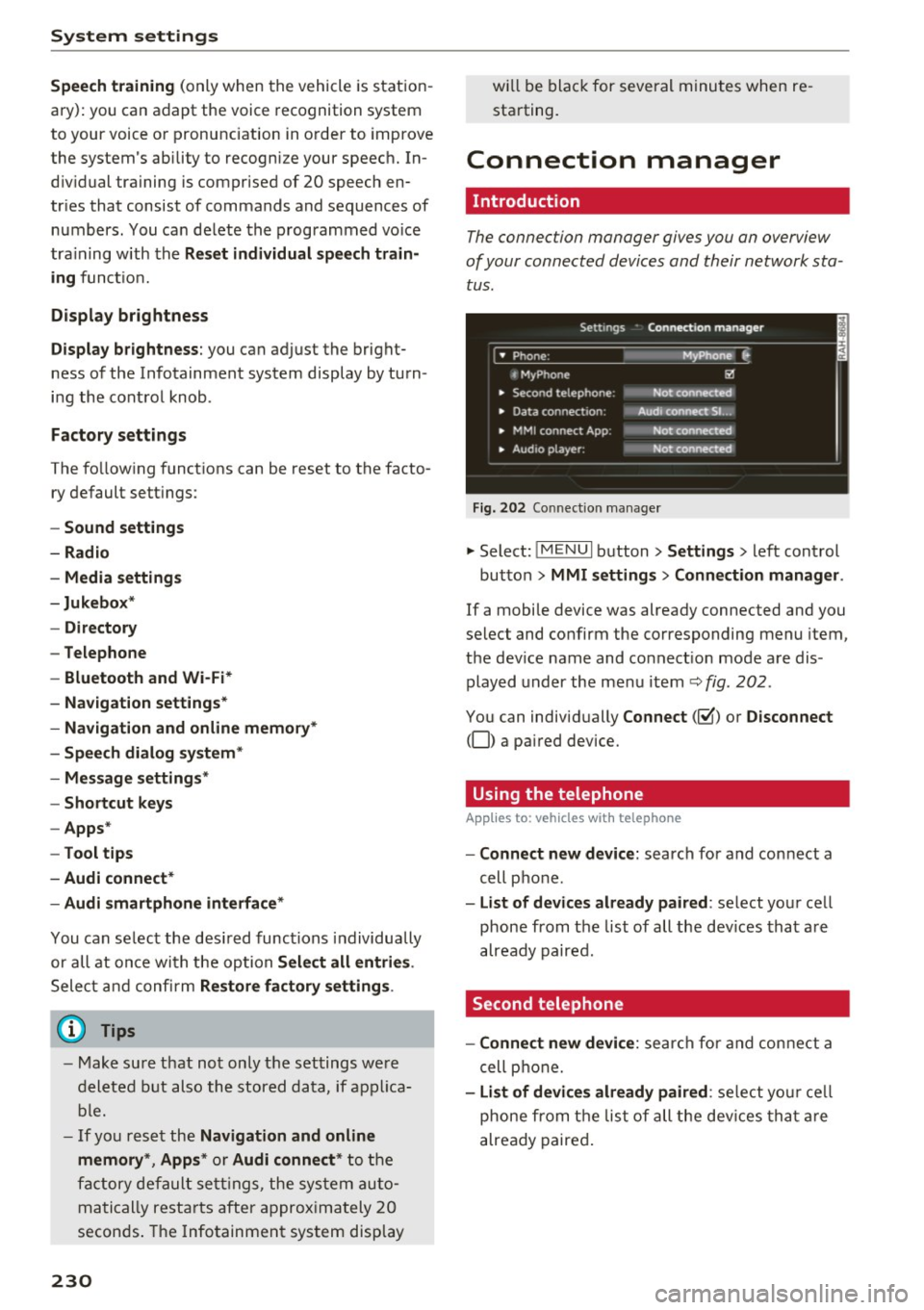
The connection manager gives you an overview
of your connected devices and their network sta tus .
Settings Conne-ction manager I
===---- · MyPhone (, • Phone :
t MyPhone
• Second telephone:
• Data conn ection :
• MM I connect App :
• Audio player: !ill
Not connectl!d
Audi connect SI.. .
Not connected
Not connected
Fig. 202 Co nnect ion manager
.,. Select: !MENUI button> Settings> left control
button>
MMI settings > Connection manager.
If a mobile device was already connected and you
select and confirm the corresponding menu item,
the dev ice name and connect ion mode are dis
played under the menu item
Q fig. 202.
You can individually Connect(~) or Disconnect
(0) a pa ired device.
Using the telephone
App lies to: vehicles wit h telepho ne
- Connect new device: search for and connect a
cell phone .
-List of devices already paired: select your cell
phone from the list of all the dev ices that are
already paired.
Second telephone
- Connect new device:
search for and connect a
cell phone.
-List of devices already paired : select your cell
phone from the list of all the devices that are
already paired.
Page 235 of 386
<( a, .... N ,....
N .... 0 0
3 a,
Sound settings
The sound distribution and volume of the MMI
can be adjusted individually. The settings depend
on vehicle equipment.
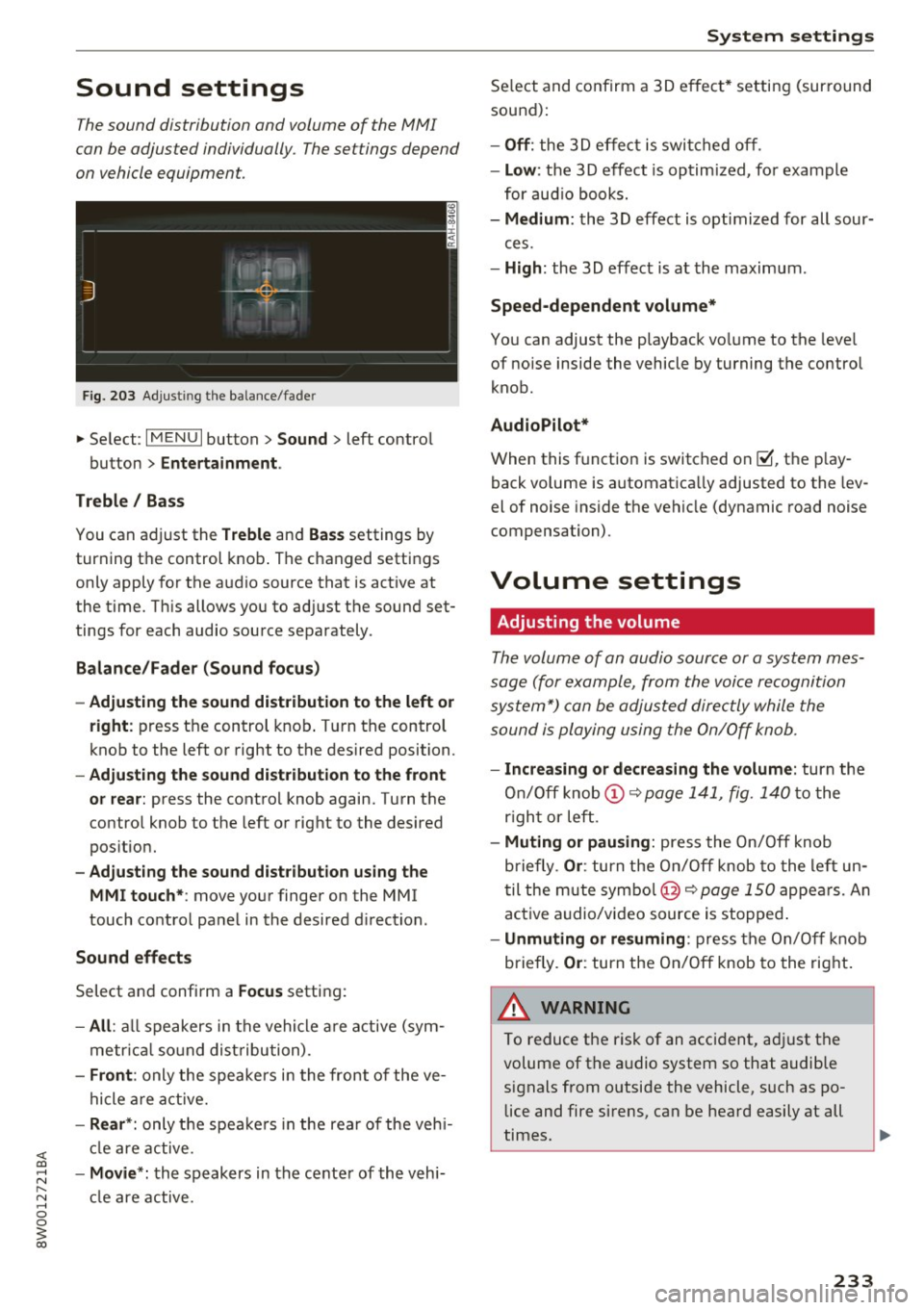
F ig . 203 Adjust ing the balance/fade r
... Se lect : I MENU I button> Sound > left contro l
button >
Entertainment .
Treble / Bass
You can adjust the Treble and Bas s settings by
turning the control knob . The changed settings
only apply for the a udio source that is act ive at
the t ime. T his allows you to ad just the sound set
tings for each audio source separately .
Balance/Fade r (Sound focus )
- Adjusting the sound dist ribution to the left or
right :
press t he control knob . T ur n the control
knob to the left or right to the desired position.
- Adjusting the sound d ist ribution to the front
or rea r:
press the contro l knob again. Turn t he
contro l knob to the left o r right to the desired
pos itio n.
- Adjusting the sound d istribution using the
MMI touch* :
move your finger on the MMI
touch co ntro l panel in the desired d irection .
Sound effects
Select and confirm a Focus setting:
-All : all speakers in the vehi cle a re active (sym
metr ic al sound dist ribu tion) .
-Front : only the speakers i n the front of the ve
hicle are active.
-Rear *: only t he spea ke rs in the rea r of the veh i
cl e are active.
- Movie *: th e speak ers in the cente r of the vehi
cl e are active.
System settings
Se lect and confirm a 3D e ffect * settin g (surround
sound):
- Off : the 3 D effect is swit ched off .
-Low : the 3D effect is optim ized, fo r example
for aud io books.
- Medium : the 3D effect is optimized for all sour-
ces.
- High : the 3D effect is at the maximum .
Speed-dependent volume*
You can adjust the playback vo lume to the leve l
of noise inside the vehicle by turning the control
knob.
AudioPilot *
When this function is switched on@', the p lay
back volume is automatica lly adjusted to the lev
el of noise inside the vehicle (dynamic road noise
compensation).
Volume settings
Adjusting the volume
The volume of an audio source or a system mes
sage (for e xample, from the voice recognition
s ys tem") can be adjusted directly while the
sound is playing using the On/Off knob.
- Increasing or decreasing the volume : turn the
On/Off knob
(D ~ page 1 41, fig. 1 40 to the
r igh t or left.
- Muting or pausing : press the On/Off knob
briefly .
Or: turn the O n/Off knob to the left un
t il the m ute symbo l@ ~
page 150 appe ars. An
ac tive a udio/v ideo source is stopped .
-Unmuting or re suming : press the On/O ff knob
briefly.
Or : turn the On/Off knob to the right .
A WARNING
-
To reduce the risk of an acci dent, a djust the
volume of the a udio system so that audible
signals from outside the vehicle, s uch as po
lice and fire sirens, can be heard easily at all
times.
233
Page 236 of 386
System settings
(D Tips
Volumes that are too h igh o r too low are a u
tomatically a djuste d to a set leve l w hen the
MM I is switched on .
Adjusting the system volume
.,. Se lect : I MENU I button > Sound > left contro l
button .
Telephone
Applies to: vehicles w ith telephone
Mute telephone: messages and ringtones are set
to mute.
Ringtone : refe r to ¢ page 170, Ringtone and
volume settings .
Ringtone volume :
you ca n adjust the volume of
the se le cte d r ing to ne by turning the con tro l
knob.
Me ssage volume : you ca n ad just t he volume of
the not ifi cat io n for an in comi ng tex t me ssage by
tur ning t he con trol kno b.
Microphone sensitivity: you ca n ad just the ca ll
volume du ring a phone ca ll by tu rning the co ntro l
knob.
Navigation
Applies to: vehicles with navigation system
Voice guidance: refer to ¢ page 196 .
Voice guidance during phone call: refer to
¢ page 196.
Voice guidance volume : you can ad just the vo ice
gu idance volume by tur ning the control knob .
Or:
you can ad just the vo ice gui dance volume during
active route g uidance by turning the On/Off
knob.
Enterta inment fader : the volume of au dio play
bac k can be tempo rarily lowe red w hen the pa rk
ing system or voice g uidance is active .
Voice recognition system
Applies to: vehicles with voice recognition system
Command display : the display o f poss ible co m
mands du ring voice input can be switc he d on or
off .
234
Short dialog : you can disp lay a sho rter form of
the p rompts.
Volume: you can adju st t he v olum e of the
prom pts by t urning the con trol knob .
Speech training (only w hen th e vehi cle is sta tion
a ry): yo u can adapt the vo ice recog nition sys tem
t o yo ur voic e or pro nunc iati on in o rd er t o i mpro ve
th e sys tem's ability to re co g ni ze yo ur s peech . In
dividua l train in g i s comprised of 20 speech en
tries that cons ist of commands and seque nces of
numbe rs. You can delete the programme d voice
training with the
Reset individual speech train
ing
function .
Parking system*
You can adjus t the vol ume o f the signa l tone by
turnin g the contro l knob.
- Adjusting th e Front volume : select and co n
fi rm
High , Medium or Low .
- Adjusting
th e Rear volume : sele ct and confirm
High , Medium or Low .
MMI touch*
You can adjus t the vol ume o f the prompts fo r the
MM I touch* by t urnin g the cont rol knob .
Restarting the MMI
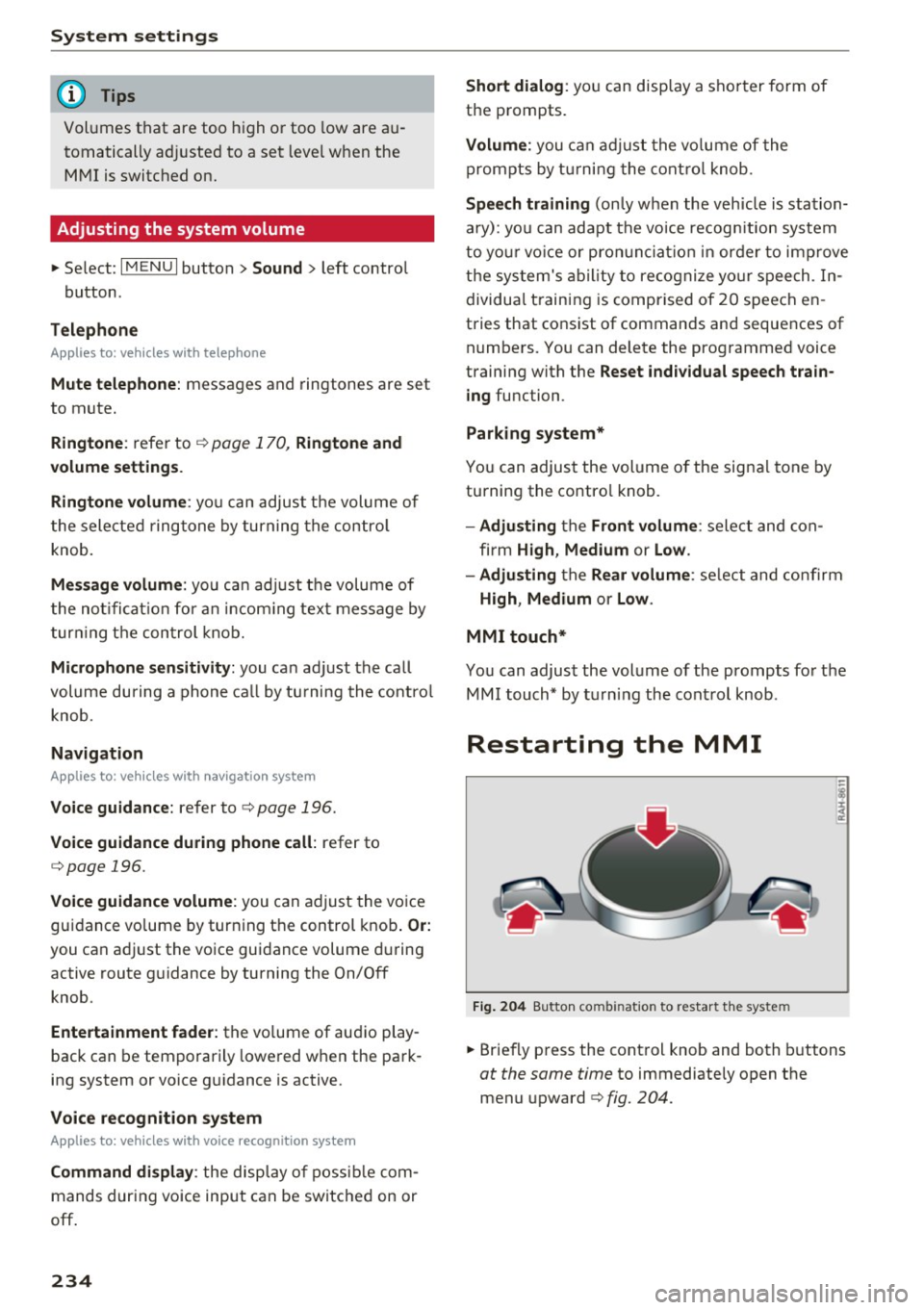
Fig. 204 Bu tton co mbin at io n to restart t he syste m
.,. Briefly p ress the cont rol knob and both buttons
at the same time to immediately open the
menu upward ¢
fig. 204.