phone AUDI S4 2017 Workshop Manual
[x] Cancel search | Manufacturer: AUDI, Model Year: 2017, Model line: S4, Model: AUDI S4 2017Pages: 386, PDF Size: 96.32 MB
Page 217 of 386

-Audi AG simply makes the access to online
media services possible through the MMI
and does not take any respons ibility for the
contents of the online media services.
- Always read the chapter
c;, page 178, Audi
connect (Infotainment ) information .
-Depending on the mobile device being used,
interruptions in media playback can occur.
To avoid interruptions when using a mobile
device, do not lock the screen on your mo
bile device and keep the
Audi MMI connect
app in the foreground .
- Contact your authorized Audi dealer or au
thorized Audi Service Facility for additional
information about online media .
Multimedia connections
USB adapter for Audi music interface
You con connect your mobile devices (such as o
smortphone or MP3 player) to the Audi music in
terface and charge them using o special
USB
adopt er.
Fig. 194 Audi USB adapt ers
CD USB adapter for devices with a micro USB con
nect ion
@ USB adapter for devices with an Apple Light
ning connection
@ USB adapter for devices with an Apple Dock
connector
You can purchase the USB adapter from an au
thor ized Audi dealer or at spec ialty stores .
Use the USB adapter for the
Audi music interface
,=;,page 215.
Media
(D Note
Handle the USB adapter carefully . Do not al
l ow it to be pinched .
Audi music interface
Connect your mobil e devices to the Audi music
interfac e in order to operate them through the
MMI and charge the battery.
Fig. 195 Conn ect ing mob ile device s
The Audi music interface is located under the
armrest in the center console @,=;,
page 8, fig. 2.
-Connecting a mobile device using a USB
adapter:
connect the applicable USB adapter @
c;, fig. 195 to the port on the Audi music inter
face @ and then connect the adapter to the
mobile device
CD (such as an iPod).
- Charging a mobile device using a USB adapter :
when you connect a mobile device to the Audi
mus ic interface @ using the applicable USB
adapter @,=;,
fig. 195 , the battery will auto
matically charge .
-Disconnecting a mobile device from the Audi
music interface :
remove the USB adapter@
c;, fig. 195 from the Aud i music interface .
-Disconnecting mobile devices with an Apple
Dock connector :
remove the Apple Dock con
nector from the Apple device with the release
tabs pressed in@ ¢poge
215 , fig. 194.
The media are started and operated through the
mobile device or the MMI, depending on the de
vice being used ¢
page 217.
Connecting two mobile devices : if two mobile
dev ices (for example iPod and smartphone) are
connected at the same time , then both devices
can be used as playback sources.
IJl.
215
Page 218 of 386

Media
You can connect mobile devices using the analog
AUX port .
-Connecting a mobile device to the AUX input:
connect the cable®<=> fig. 195 to the AUX in
put ® on the Audi music interface and then to
the mobile device@ (such as an MP3 player or
smartphone).
- Disconnecting a mobile device from the AUX
input :
remove the cable S@ <=> fig. 195 from
the AUX input@<=>fig.
195 .
-Operating: select and confirm the External au
dio player @source
<=> page 217, fig. 196. The
media are started and operated through the
mobile device@<=>fig.
195.
A WARNING
Driving requires your complete and undivided
attention. As the driver, you have complete
responsibility for safety in traffic. Never oper
ate mobile devices while driving, because this
increases the risk of an accident .
@ Note
-Remove the connector from the Audi music
interface carefully so it is not damaged.
- Use a USB extension cable to connect devi
ces that have an integrated USB connector
(such as a USB stick) to prevent damage to
your USB device and the Audi music inter
face.
- Extremely high or low temperatures that
can occur inside vehicles can damage mobile
devices and/or impair their performance .
Never leave mobile devices in the vehicle in
extremely high or low temperatures.
@ Tips
-Do not use an additional adapter or USB ex
tension cable to connect mobile devices to
the Audi music interface that already have a
cable or that must be connected with a USB
adapter( <=>
page 215). This may impair the
functionality.
1 > A pp lies only to MTP devic e s. Doe s no t a ppl y to A pple de vi
ces and U SB m ass s torage d evic es.
216
-You can purchase the AUX connector cable
from an authorized Audi dealer or at spe
cialty stores.
- Functionality is not guaranteed for mobile
devices that do not conform to the USB 2.0
specification .
- USB hubs are not supported.
- Some versions of the iPod such as the iPod
shuffle cannot be connected to the USB
adapter for devices with Apple Dock connec
tor. Connect these devices using a AUX con
nector cable.
- Changed content on a mobile device
ll that
is connected to the Audi music interface
may not be displayed in the media center.
In this case, reset the
Media settings back
to
Factory settings <=> page 230.
-Video playback through the Audi music in
terface is only supported if the connected
device is recognized as a USB storage device
(for example a USB stick). Apple devices and
MTP devices (such as smartphones) are not
recognized as USB storage devices.
- iPod/iPhone/iPad malfunctions also affect
the operation of the MMI. Reset your iPod/
iPhone/iPad if this happens.
- For important information on operating
your iPod/iPhone/iPad , refer to the user
guide for that device. Audi recommends up
dating the iPod/iPhone/iPad software to the
latest version.
- For more information about the Audi music
interface and supported devices, check the
Audi database for mobile devices at
www.audiusa.com/bluetooth or contact an
authorized Audi dealer or authorized Audi
Service Facility.
Page 223 of 386

<(
a,
.... N
Change playing position
T u rn the contro l knob to t he left o r to t he right.
Or: move your finger across t he MMI t ouch con
trol pad* from left to right.
Shuffle1
)
W it h the function switc he d on ~. all files in t he
p lay list a re played and sh ow n in rand om orde r.
Repeat track1l
When t he fu nction is switched on~ . the cur rent
track re pea ts.
Back to "Now playing "
The options men u is close d. The track cu rrently
p lay ing appears in the playlist.
Play similar music*
The t ra ck cur ren tly pla ying is q uickly analyzed
(such as a rtists, genres, mood, beat) and a smart
p lay list with s imilar tracks is shown .
Play more ...
A sm art pla ylis t is show n based on the t ra ck cur
ren tly p layin g. You can se le ct be twee n a p la yli st
with more t racks
by this artist , from this album
or of this genre .
Copy to jukebox*
R efer to ~ page 211, Adding files to the Jukebox.
Set as ringtone*2l
Requirement: a cell phone must be connected to
the MMI. The track cu rrently playing m ust be in
th e J uke box*
~page 211.
The se lected track will be used as the ringtone
for i ncom ing ca lls.
Gracenote online database*
Requ iremen t: the M MI must be connecte d to the
Internet .
~ l) The func tion automa tica lly sw itches off when the sou rce ....
g is changed.
~ 2> T hi s function is no t available for all cell phones.
Media
D epen ding on ava ilabi lity, v arious inform ation
will load about the track cu rrent ly playing when
t hi s function is switche d on ~-
Favorites
Refer to~ page 220.
Additional options
Requirement: t he vehicle must b e stationa ry and
a v ideo file* o r a DV D* must be playing.
Parental control*
Playback of video DVDs can be restr icted using
parenta l control.
Ente r the passwo rd for parental control. Pass
wor d set at t he factory:
1234. You have the fol
lowing opt ions :
-Protection level: select and co nfirm the protec
tion leve l (for examp le, Level 5). Eight different
protection leve ls can be set for pa rental con
trol. If yo u set the pa rental contro l level at Lev
el
5, all DV Ds from leve l 1-5 can be p layed. V id
eo DVDs w ith a hig he r level will not p lay . Select
No restriction to re m ove all of the restr ictions.
- Change password : edit the cur rent passwo rd.
Switch to full screen
T he video image is disp laye d. Tur n the contro l
k no b to disp lay the playlist .
Or: press the !BACKI
button.
Replay video1
)
W hen this f uncti on is swi tched on ~. th e cur re nt
video will rep lay.
Show DVD menu
The DVD main men u opens i n the I nfo tai nment
syste m dis pl ay.
- Selecting a menu item: select a nd confirm a
menu item.
Or : move your finger on the MMI
t o uch con trol pad* an d press the cont rol knob . ..,.
221
Page 227 of 386

<( a, .... N ,....
N .... 0 0
3 a,
Problem
Audi music interface :
the porta-
ble audio device is not recognized
as a source.
Audi music interface : the audio
playback through the iPod/
iPhone/iPad is malfunctioning.
Audi music interface : contents
that are changed on a mobile de-
vice connected to the Audi music
interface are not displayed in the
media center ..
AUX input: there is stat ic when
connecting and disconnecting the
AUX connection cable.
Bluetooth audio player* /Wi-Fi
audio player *:
aud io playback in-
terference.
Jukebox*: tracks on the imported
playlist are grayed out.
Jukebox*: i mported tracks cannot
be played or found.
Wi-Fi audio player *: multiple de-
vices are connected to the Wi-Fi
hotspot. A media player (such as a
smartphone) appears as the
source and cannot be changed.
Online media *: connection failed
between the MMI and the
Audi
MMI connect
app.
Wi-Fi audio player* /Online me-
dia *:
audio playback interference.
Media
Solution
For many ce ll phones or mobile devices, playback is not possible
when the battery level is too low (less than 5% of its capacity).
The mobile de-vice will only be recognized as a source in the MMI
after connecting if the battery charge is sufficient.
The
Bluetooth audio player f unction is switched on. Switch this
function off
c:> page 231 when you a re not using the Bluetooth
audio player.
Reset the Media settings to the facto ry defau lt settings
c:>page 230.
When connecting a nd disconnecting, the External audio player
source is already selected. Before connecting or disconnecting the
mobile device, either mute the device (refer to
c:> page 233) or
sw itch to a different audio source (for example
c:> page 204, Open-
ing the radio function).
Only one interface should be act ively used at a time to ensure
problem-free playback.
When importing playlists, a ll of the fi les themselves must be im-
ported.
If yo u cannot find impor ted tracks in the media center, they may
not be supported. Only copy supported files
c:> page 223 to the
Jukebox.
Close the
Audi MMI connect app on the connected dev ices (for ex-
ample, smartphones) that are not being used as the Wi-Fi audio
p laye r*. Likewise, close the UPnP server apps or the media pe rm is-
sions on the integrated UPnP/DLNA server. Connect the desired
device as a Wi-Fi audio pla yer*
c:> page 213.
To establish a connection to the MMI, the MMI connection switch
must be switched on in the
Audi MMI connect app status screen.
Malfunctions can occur during audio playback if the
Hotspot and
client a)
c:> page 177 Wi-Fi mode setting was selected. For p layback
without interference, Audi recommends the
Hotspot setting for
Wi-Fi mode.
225
Page 228 of 386

Media
Problem Solution
Audi music inte rface :
contents Reset the Media settings to the factory default settings
that are changed on a mobile de-
c:> page230 .
vice connected to the Audi music
interface are not displayed in the
med ia center ..
Bluetooth audio player *: interfer-
Playback interference can occur when using the Bluetooth audio
ence with track d isp lay and aud io player if a music player app from a third party provider is open .
playback. Audi recommends using the integrated media player on your Blue-
tooth device (such as a smartphone).
• > Not a vailab le in all vehicl es.
226
Page 229 of 386

<( a, .... N ,....
N .... 0 0
3 a,
Audi smartphone interface
Setup
App lies to: ve hicles with Audi smartpho ne interface
You can connect your smartphone to the MMI us
ing the Audi smartphone interface . Certain con
tent on your smartphone is adapted to the Info
tainment system display while driving and can
be operated through the MMI control panel.
Requir ement:
The vehicle must be stat ionary and the ignition
must be switched on .
iPhone generation 5 or higher with Lightning
connector and iOS 7.1.2 operating system or h igher
O r:
Smartphone with Android Auto app and Android
5 .0 Loll ipop operating system or higher
.,. Connect your smar tphone to the Audi music in
te rface
c;, page 215 using a USB adapter
¢page 215, fig. 194 .
.. Se lect and confirm A cti vate Apple CarPl ay or
Acti vate And roid Auto no w.
.. Follow the system instruct ions .
.,. Pay attention to any add itional system prompts
on your smartphone if applicable.
If you chose not to use Apple CarP lay or Andro id
Auto when connecting your smartphone for the
first time, you can start the Audi smartphone in
terface later on using the connection ma nager.
.. Se lect: I
MENU I button > Audi smartphone in-
terfa ce
> Change to conn ecti on manager .
.. Connect your smar tphone to the Audi music in
terface using a USB adapter
c;,page 215,
fig . 194.
Aud i smartphon e int erfac e
.. In the Connection manage r¢ page 230, you
can select your smartphone under
Aud i sm art
phone
in the list of devices already connected
c;,page 231 .
.. Follow the system instructions.
(D Tips
- The functions that can be used depend on
the operating system version and the soft
ware version of the app being used.
- If the connected smartphone has voice con trol, you can operate your smartphone using
the external voice recognition system
c;,page 159.
-The menu language shown in the MMI is
based on the settings in your smartphone.
- The time d isplayed in the MMI is based on
the settings in your smartphone.
- Severa l MMI functions are not availab le
w hen Apple CarPlay or Andro id Auto is ac
tive .
- When the Apple CarPlay connection is ac
tive,
Tag th is song for iTun es* is not ava ila
ble ,;;;) page 205 .
Operating
Opening a menu
Apple CarPl ay :
you can go back to the Apple Car
Play main menu regardless of the selected menu
item by pressing and holding the !BACKI button .
Android Auto : to go back to the Andro id Auto
menu bar, push the control knob down.
Opening a menu item
Se lect and confirm a menu item us ing the M MI
contro l pane l.
227
Page 230 of 386

Audi smartphone interface
Troubleshooting
Applies to: vehicles with Audi smartphone interface
Problem Solution
Audi smartphone interface
can-Check the charge level of your smartphone battery.
not be opened. Check the USB cable and use a different one if necessary.
Check if Android Auto or Apple CarPlay is available in your country.
Check if the Android Auto app is installed on your smartphone .
Connecting the smartphone to Check if you
are ursing the correct USB adapter and if the USB
the MMI failed. adapter is connected correctly to your smartphone and the Aud i
music interface
¢ page 215.
Check if Apple CarPlay is activated on your smartphone .
Check in the Android Auto app if Android Auto permits new
vehicles .
T he smartphone is not automati- Check if you are ursing the correct USB adapter and if the USB
cally detected. adapter is connected correctly to your smartphone and the Audi
music interface
¢ page 215.
Check if the requirements needed to connect a smartphone have
been met.
228
Page 232 of 386
System settings
Speech training (only when the vehicle is station
ary): you can adapt the voice recognition system
to your voice or pronunciation in order to improve
the system's ability to recogni ze your speech. In
dividual training is comprised of 20 speech en
tr ies that consist of commands and sequences of
numbers . You ca n delete the programmed voice
training with the
Reset individual speech train·
ing
function.
Display brightness
Display brightness:
you can adjust the bright
ness of the Infotainment system display by turn
ing the control knob .
Factory settings
The follow ing functions can be reset to the facto
ry default settings :
-Sound settings
- Radio
- Media settings
-Jukebox*
- Directory
- Telephone
- Bluetooth and Wi-Fi*
- Navigation settings *
- Navigation and online memory*
- Speech dialog system*
- Message settings*
- Shortcut keys
- Apps *
- Tool tips
- Audi connect*
- Audi smartphone interface*
You can select the des ired functions individually
or all at once with the option
Select all entries .
Select and confirm Restore factory settings.
@ Tips
-Make sure that not only the settings were
deleted but also the stored data, if applica
ble.
- If you reset the
Navigation and online
memory *, Apps * or Audi connect*
to the
factory default settings, the system auto
matically restarts after approximately 20
seconds . The Infotainment system display
230
will be black for several minutes when re
starting.
Connection manager
Introduction
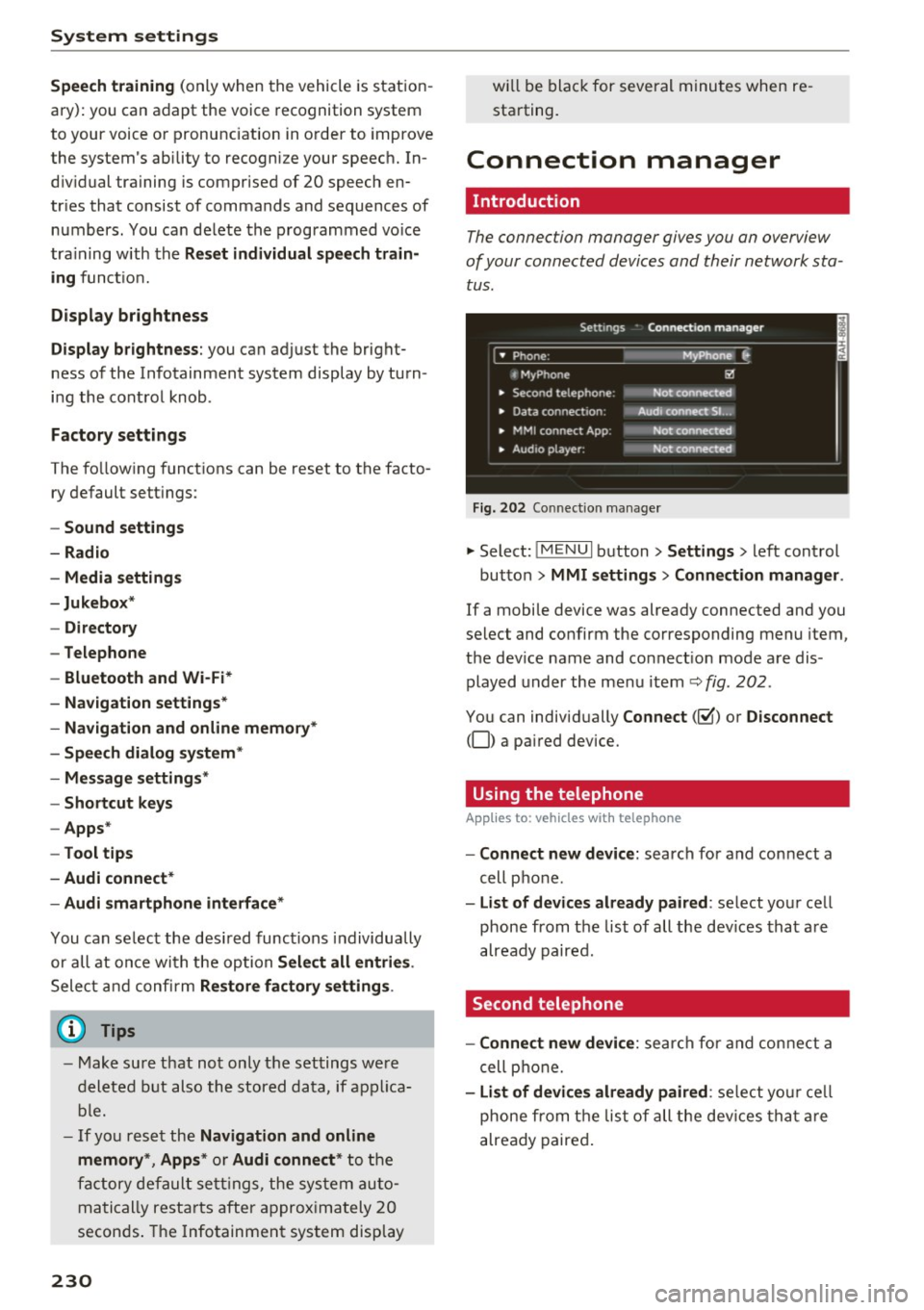
The connection manager gives you an overview
of your connected devices and their network sta tus .
Settings Conne-ction manager I
===---- · MyPhone (, • Phone :
t MyPhone
• Second telephone:
• Data conn ection :
• MM I connect App :
• Audio player: !ill
Not connectl!d
Audi connect SI.. .
Not connected
Not connected
Fig. 202 Co nnect ion manager
.,. Select: !MENUI button> Settings> left control
button>
MMI settings > Connection manager.
If a mobile device was already connected and you
select and confirm the corresponding menu item,
the dev ice name and connect ion mode are dis
played under the menu item
Q fig. 202.
You can individually Connect(~) or Disconnect
(0) a pa ired device.
Using the telephone
App lies to: vehicles wit h telepho ne
- Connect new device: search for and connect a
cell phone .
-List of devices already paired: select your cell
phone from the list of all the dev ices that are
already paired.
Second telephone
- Connect new device:
search for and connect a
cell phone.
-List of devices already paired : select your cell
phone from the list of all the devices that are
already paired.
Page 233 of 386
<( a, ..... N ,....
N ..... 0 0
3 a,
Data connection
Applies to vehicles w ith A ud i con nect (Infota inme nt)
The se rvices are prov ided t hrough a S IM ca rd in
s talled in the veh icle.
MMI connect app
App lies to vehicles w it h A udi connect (Infota inme nt)
R eq uiremen t: the Audi MMI connect app m ust
be installed and open on your mo bile device .
-Connect new device : search for and connec t a
mobile device (s uch as a smartp ho ne) .
- List of devices already paired : selec t your mo
bile devi ce from the l is t o f all the devi ces th at
are already paire d.
Music
A pplies to vehicles w it h B luetoot h or Wi -Fi aud io playe r
Audio player*
Requi reme nt: the Bl uetooth func tion and vis ib ili
ty mus t be sw itche d on in the MMI
¢ page 231
and on the ce ll phone.
- Connect new device : press the contro l knob.
Se le ct
Bluetooth audio player . Sea rch fo r and
connect a mobile device.
- List of devi ces already paired : selec t a Blue
too th devi ce from the list of a ll the devi ces th at
are already paire d.
Wi-Fi audio player*
R eq uireme nt: the W i-F i hots pot on the M MI
¢ page 1 77 and on you r ce ll phone mus t be
sw itche d on.
- Connect new device : press the contro l knob .
Sea rch for and connect a Wi -Fi capable device .
-Disconnect Wi-Fi audio player : deactivate the
Wi-Fi on your Wi-Fi capab le dev ice . T he dev ice
will be a utomat ically re m oved from the list.
System settings
Directory
App lies to : veh icles w it h te lep hone
Display contacts from a cell phone (or an addi
tional cell phone) .
Requirement: no cell phones can be connected to
t h e M MI using the
Handsfree profile.
- Connect new device: search fo r and connect a
new cell phone .
-List of devices alre ady paired : select yo ur ce ll
phone from t he list of all the cell phones that
are a lready paired .
Audi smartphone
Applies to : veh icles w it h Audi sm artph one interface
-Connect your ce ll phone to the Audi music in
terface ¢
page 215 using a USB adapter
¢page 215, fig. 194 .
-Select your cell pho ne from t he list of cell
pho nes tha t h ave a lready bee n connec ted .
Additional options
Depen ding on the selected function, yo u can use
t h e righ t control bu tton to ac ce ss the av ailab le
addi tion al op tion s in t he conne ction m anager.
Delete Bluetooth device*
The selec ted cell phone/mobile device is d iscon
nec ted from the MMI and is removed from the
li st of all devices that are a lready paired.
Show Bluetooth profiles*
You can indiv id ually Connect or Disconnect th e
Handsfree , Messages *, Directory /contacts and
Bluetooth audio player profi les .
Bluetooth settings*
- Bluetooth:
select an d confi rm a setting for the
Bluetooth connection visibility . Se lect
Visible
for the MMI to be vis ible to othe r devices. Se
lect
Invisible for the MMI to not be visible to
other dev ices. However, i t is st ill poss ible to es
t ablish a Blue tooth connect ion with pa ired de
vices whe n the visibility is sw itche d off. Sele ct
Off to t urn v is ibil ity off. Then a Blue too th con-
nec tion is no t possib le .
liJl,,
231
Page 234 of 386

System settings
-Bluetooth audio player : when this func tion is
switched on~, the Bluetooth audio player is
available as a so urce in t he
Media menu.
- Bluetooth name : the MMI B luetooth name (for
example ,,AUDI M MI 2015") is displayed and
can be changed.
Online settings*
- Data u sage counter :
the amoun t of d ata pac k
ets tha t are sent a nd received throug h the MM I
is d isp layed. You can reset the data usage infor
mation to zero using the
Reset data counter
option.
- Network status : the mobile netwo rk p rovider
fo r data se rvice as well as the netwo rk status
are disp laye d.
Wi-Fi options*
Refer to 9 page 1 77, Wi -Fi hotspo t.
Storing as a default telephone
Applies to: vehicles with telephone
Re qui remen t: a cell phone must be connec ted to
t he MMI
9page 160.
As soon as t he cell phone is i n range and the
Blue tooth func tion on the ce ll phone and in the
MM I is swi tched on, this ce ll phone is g iven pr ior
ity ove r th e other Blu et ooth devices and is con
ne cte d dire ct ly to the M MI. T he conn ecte d cell
p ho ne i s d ispl aye d first in the device list.
Network settings*
- Login :
you can chose an Automatic log in to
yo ur cell phone serv ic e prov ider's netwo rk, o r
yo u can c hoose a
Manual login from the lis t of
available networ ks.
- Network selection : networ ks avai lab le in t he
c ur rent lo ca ti on can be se le ct ed unde r ne twor k
sele ction. T his func tion is only av ailable for th e
Manual login se tting .
CarPlay sound settings/ Android Auto sound
settings
Applies to: vehicles with Audi smartphone interface
Refer to 9page 233.
232
About Apple CarPlay/ About Android Auto
Applies to: vehicles with Audi smartphone interface
Here you w ill find leg al inform ation reg arding
t h e use of Apple Car Play o r Andro id A uto and in
fo rmat ion about devi ce -specific data exc han ge.
Delete CarPlay device/Delete Android Auto
device
Applies to: vehicles with Audi smartphone interface
-Req uiremen t: your cell phone mu st not be con
nected to the A udi music inte rface with a USB
ada pte r.
- To remove you r ce ll p hone from the list o f all
cell phones that are a lrea dy paire d, select an d
confirm
Delete CarPlay device or Delete An
droid Auto device .
(D Tips
Some SIM card s do not a llow the SIM PIN
qu eries to be sw itche d
off.
System update
.,. Select : !ME NUI button> Settings > left control
button >
System maintenance.
- System update :
slide the sto ra g e device with
t he upda te da ta into the a pprop ria te drive
<=:> page 21 0. Se lect and confi rm the dr ive >
Start update . The length of the process de
pends on the size of the update.
- Reset driver installation: the selecte d media
driver package is reset to t he settings at the
tim e of delivery .
-Ve rsion information : information on the MMI
so ftware version and the navigation database*
software versi on is d is pl ayed. The
Software in
formation
function also prov ides i nformat io n
on the softwa re co nta ined in the M MI an d the
li censing agr eement .