Page 60 AUDI S4 2020 User Guide
[x] Cancel search | Manufacturer: AUDI, Model Year: 2020, Model line: S4, Model: AUDI S4 2020Pages: 296, PDF Size: 80.45 MB
Page 21 of 296

8W1012721BB
Touch display
SN aha
Ne etaan eU auc feet
RAX-0149)
Fig. 15 Center display: home screen
Menus and symbols
Label Description
@ Quick access bar Return to the home screen or open a menu quickly > page 19
Status bar @
Operate functions and apply quick settings > page 20, display of
available notifications @) > page 20, status indicator ©)
=> page 20, time
® Display area Select a menu, apply settings, display content > page 19
Description of common symbols
You can operate the default functions using the
symbols that follow. The symbols may be found
in any menu, depending on the context.
Description
Go back one level
Close the menu
Search for content
Open explanations for a menu
Open settings for the selected
menu
Open the submenu
Adjust the settings
Set as favorite
Switch functions on or off
Switch functions on or off
Switch functions on or off
Open additional actions
the selected menu
Open additional information for
With quick access, you can return to the home
screen and quickly switch between four menus
that can be individually configured.
Returning to the home screen or opening a
menu quickly
> Press (© or one of the four buttons.
Configuring quick access
>» Press and hold a button on the home screen
display area or in the quick access bar.
> To move a button to the quick access bar, pull it
from the display area to the quick access bar.
> To adjust the placement of the buttons in the
quick access bar, pull them to the desired posi-
tion in the bar.
> Press Done to complete the configuration.
@) Tips
The position of © cannot be adjusted.
Display area
You can freely change the location of the buttons
on the home screen display area.
19
>
Page 22 of 296
Touch display
Configuring the display area
> Press and hold a button on the home screen
display area.
> To adjust the placement of the buttons, pull
them to the desired locations.
> Press Done to complete the configuration.
Switching between menu pages
If a menu contains multiple menu pages, Es] is
displayed in the display area. The white bar
shows the location of the current menu page.
> To switch between menu pages, swipe your fin-
ger to the right or Left.
Of OB of
O88 of a
O88 OB of
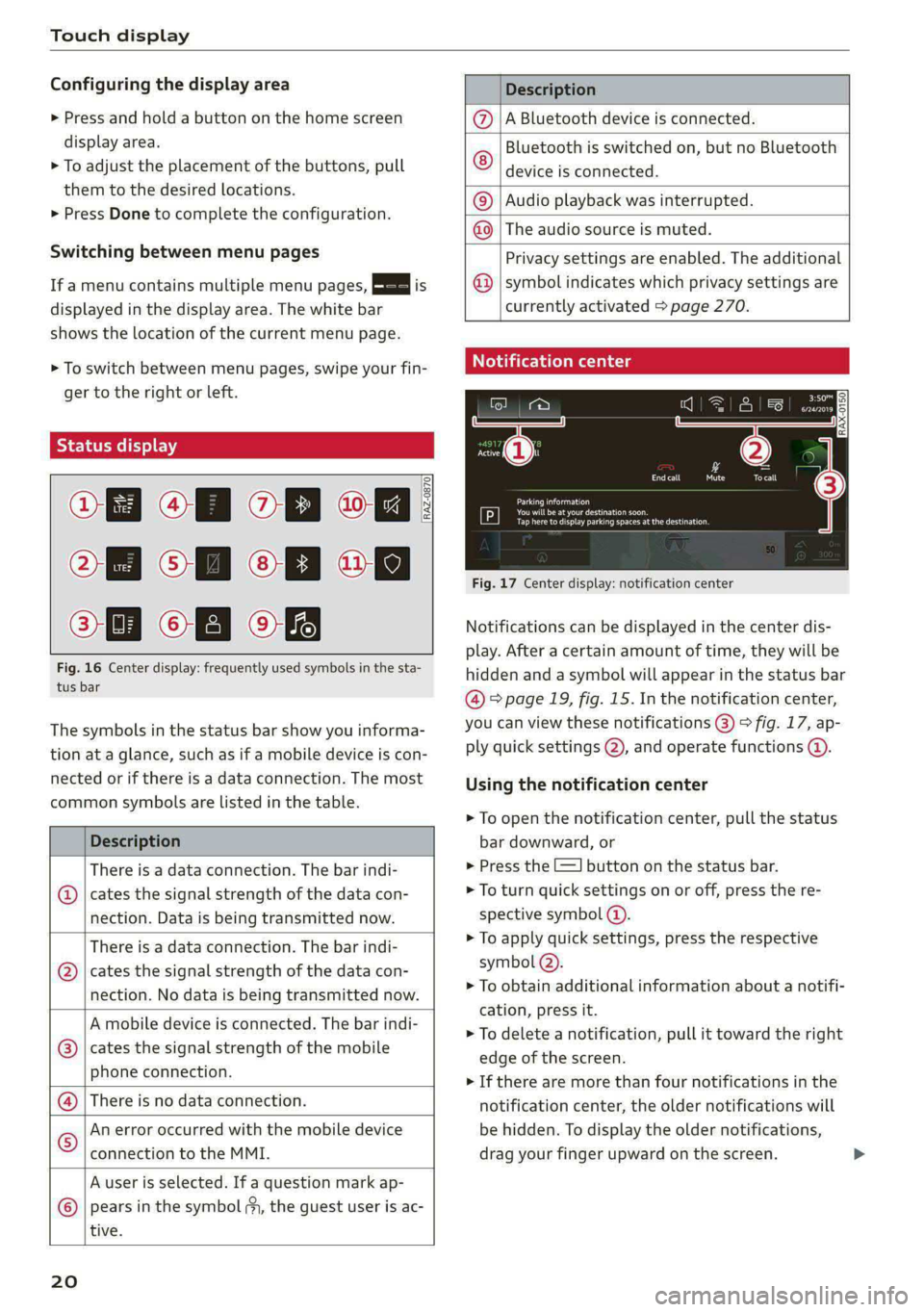
Fig. 16 Center display: frequently used symbols in the sta-
tus bar
RAZ-0870
The symbols in the status bar show you informa-
tion at a glance, such as if a mobile device is con-
nected or if there is a data connection. The most
common symbols are listed in the table.
Description
There is a data connection. The bar indi-
@ | cates the signal strength of the data con-
nection. Data is being transmitted now.
There is a data connection. The bar indi-
cates the signal strength of the data con-
nection. No data is being transmitted now.
®
A mobile device is connected. The bar indi-
cates the signal strength of the mobile
phone connection.
There is no data connection.
An error occurred with the mobile device
connection to the MMI.
A user is selected. If a question mark ap-
pears in the symbol ;y, the guest user is ac-
tive.
®©®
|%/e
©
20
Description
A Bluetooth device is connected.
Bluetooth is switched on, but no Bluetooth
device is connected. ©
|O
Audio playback was interrupted.
The audio source is muted. ©|©
Privacy settings are enabled. The additional
symbol indicates which privacy settings are
currently activated > page 270.
©
Notification center
=a Ee
id (on ome’
& = =
—
Corral nricy Tocall
Ce ay
eects
Tap here to display parking spaces atthe destination
Fig. 17 Center display: notification center
Notifications can be displayed in the center dis-
play. After a certain amount of time, they will be
hidden and a symbol will appear in the status bar
@ = page 19, fig. 15. In the notification center,
you can view these notifications @) > fig. 17, ap-
ply quick settings @), and operate functions @.
Using the notification center
> To open the notification center, pull the status
bar downward, or
> Press the -=] button on the status bar.
> To turn quick settings on or off, press the re-
spective symbol (2).
> To apply quick settings, press the respective
symbol @).
> To obtain additional information about a notifi-
cation, press it.
> To delete a notification, pull it toward the right
edge of the screen.
> If there are more than four notifications in the
notification center, the older notifications will
be hidden. To display the older notifications,
drag your finger upward on the screen.
Page 23 of 296

8W1012721BB
Touch display
Setting which content is displayed Overview
You can set whether some notifications should be In the input fields of various menus, you can en-
displayed. ter letters, numbers and characters, for example
> To set the displayed content, press &S, or torfifidiahiaddress ininavigation®.
> Applies to MMI: Select on the home screen: The text that is currently entered is displayed in
SETTINGS > Notifications. the center display @. Depending on the context,
> Select and confirm which notifications should word suggestions may be given based on the
be displayed. characters that have been entered (2) and results
may be shown @).
Possible functions
Opening text input
Symbol Description
P in the i fiel ;
Press: switches the center display mibresstiy’ Ene Input Tiel
on or off (this can also be done us- Switching input languages
ing the button in the center con-
sold) Requirement: multiple input languages must be
defined in the MMI & page 22.
Press and hold: switches the
screen clearing mode on or off > To switch between the defined input languages,
(can also be done using the but- press the button @).
ton in the center console) Switching the input methods
Opens the garage door opener
. » To switch between handwriting input or the on-
function
screen keyboard, press the button @).
Possible quick settings
Entering text
Symbol Description
> Applies to: the on-screen keyboard: To enter
Apply'solind settings text, press the buttons on the keyboard. De-
|Manage connected devices pending on the usage context, you may also be
Manage users able to swipe over the letters )).
= [Set displayed content in the noti- | __» Applies to: handwriting input: To enter text,
fication center simply write in the input area using one finger
©. You can write the separate characters next
to each other or one on top of the other with-
out having to move your finger over after writ-
ing a character. When you end the entry, the
writing is interpreted by the system.
> Applies to: the on-screen keyboard with an in-
put language that uses accented characters: To
enter accented characters (such as 4, ¢, fi, 6),
Ie press and hold a character that has accented
les, versions available and select the desired ac-
OWES Set date and time
[RAZ-0955]
Peal
Praca
Los Angeles, cented character.
Pee
> Applies to: handwriting input: To enter a space,
drag a line from left to right in the input sec-
tion ©.
Fig. 18 Center display: text input
2) Depending on the country or equipment
21
Page 25 of 296

8W1012721BB
Head-up display
Head-up display
Description
Applies to: vehicles with head-up display
Fig. 19 Instrument panel: knob for the head-up display
The head-up display projects certain warnings or
selected information from the assist systems on
the windshield. The display appears within the
driver's field of vision.
Switching on and off
> To switch the head-up display on, press the 67
knob @.
> To switch the head-up display off, press the S7
knob.
Adjusting the height
The height of the display can be adjusted to the
individual driver.
> Make sure you are seated correctly > page 59.
> Turn the knob S? to the right or Left.
Settings in the Infotainment system
> Applies to: MMI: Select on the home screen:
SETTINGS > Display & brightness > Head-up
display.
Possible settings:
— Picture rotation
— Brightness
— Display contents: you can set which informa-
tion should be displayed. The display of certain
information and some of the red indicator
lights cannot be hidden.
® Note
To reduce the risk of scratches on the glass
covering the head-up display, do not place any
objects in the projection opening.
iG) Tips
— Sunglasses with polarization filters and un-
favorable lighting conditions can impair visi-
bility of the display.
— An optimal display depends on the seat po-
sition and the height adjustment of the
head-up display.
—A special windshield is needed for the head-
up display function.
— For information on cleaning, see > table In-
terior cleaning on page 249.
23
Page 27 of 296
8W1012721BB
Voice recognition system
voice recognition. A supported menu language
must be selected. When there is an active Inter-
net connection, the spoken command is evaluat-
ed in the vehicle and online.
> When you switch on the voice recognition sys-
tem for the first time, a menu for the online
recognizer opens. Or:
> Applies to: MMI: Select on the home screen:
SETTINGS > General > Speech dialog system >
Consent to online speech recognizer.
> Read the licensing agreements and accept
them.
@) Note
Read the information about Audi connect, and
be sure to note the connectivity costs section
=@ in General information on page 169.
External voice operation
Applies to: vehicles with external speech dialog system
You can access and control the voice operation on
a connected mobile device through your vehicle.
Switching external voice operation on or off
Requirement: the ignition and the MMI must be
switched on. A mobile phone must be connected
to the MMI with the Handsfree profile
= page 158. The mobile device being connected
must have voice control that can be controlled
externally. There must be no phone calls in prog-
ress and the parking aid must not be active.
> To switch on the external voice operation, press
and hold the «€ button longer on the multifunc-
tion steering wheel.
> To switch off the external voice operation, press
and hold the w€ button longer on the multifunc-
tion steering wheel or press Cancel.
Using external voice operation
» Say the desired command after the signal tone.
> To reactivate voice recognition when it is
paused, press the w£ button briefly on the mul-
tifunction steering wheel or press Resume.
@) Tips
AUDI AG simply provides access to control
your mobile device with voice operation and
does not assume any responsibility for the
content and commands within the external
voice control.
25
Page 28 of 296

Global functions
Global functions
Additional function
buttons
Adjusting the volume
You can adjust the volume of an audio source or a
system message (for example, from the voice
recognition system) when the sound is playing.
> To increase or decrease the volume, turn the
right
thumbwheel @) © fig. 21 upward or
downward, or turn the On/Off knob & fig. 22 to
the right or left.
> To mute, push the right thumbwheel or the
On/Off knob.
Selecting the previous/next track or station
> Press the l
Fast forward/rewind
> Press and hold the
the desired playback position is reached.
26
Quick access steering wheel button
Depending on vehicle equipment, the button @)
may provide quick access to various functions.
> @ button, see > page 90.
You can program the >K button with various func-
tions.
> To bring up the function that is currently set,
press the button.
> To perform the function that is currently set,
press and hold the >K button, or:
» Applies to MMI: Select on the home screen: VE-
HICLE > Settings & Service > Steering wheel
button assignment.
> Select and confirm the desired function.
Switching voice operation on or off
«€ button @, see > page 24.
Using the telephone functions
button @, see > page 164.
Adjust the volume of the audio system so that
signals from outside the vehicle, such as po-
lice and fire sirens, can be heard easily at all
times.
Page 29 of 296
8W1012721BB
Personalization
Personalization
Users
(ee emul ela)
Applies to: vehicles with personalized user settings
Your vehicle can manage various users in the
MMI. Each user will be assigned the settings that
they last used.
Before you begin driving, you can select a user in
the MMI and load personalized Infotainment and
vehicle
settings.
Possible users in the MMI:
— myAudi user: as a myAudi user, you can use
Audi connect services that require a myAudi ac-
count. Certain settings are transferred online to
your myAudi account. If you log into your
myAudi account in another vehicle, you can
load your settings in the other vehicle.
— Local user: as a local user, you can only store
settings in the current vehicle. Your settings
cannot be transferred to other vehicles. Audi
connect services that can only be used with a
myAudi account will not be available.
— Guest: as a guest, you can store settings in the
vehicle without changing the settings for other
users. Audi recommends only using the guest
user temporarily, because settings can be over-
written by other users.
Depending on vehicle equipment, the following
options may be used to detect the active user so
that the user settings can be loaded automatical-
ly before you start driving.
— Vehicle key
Requirement: the driver's door has been opened.
The detected user must be shown in the MMI.
Confirm the user shown, select another user
= page 27, or add another user > page 27.
ZA WARNING
It may not be possible to load Infotainment
and vehicle settings, or they may only load
partially. The driver is always responsible for
the Infotainment and vehicle settings in order
to reduce the risk of an accident.
@) Tips
— Certain Infotainment and vehicle settings
(such as mirrors, last radio stations) may be
stored, depending on vehicle equipment.
You can find additional information in the
MMI. Select on the home screen: SETTINGS
> General > Legal notes > About Audi con-
nect.
— Applies to: myAudi users: The stored set-
tings can only be transferred to vehicles
that are capable of receiving the transmit-
ted information. There may be restrictions
that prevent this, particularly in other coun-
tries.
— Applies to: myAudi users: The settings can
only be transferred and loaded when there
is coverage from the applicable mobile
phone service provider.
— Applies to: myAudi users with PIN protec-
tion switched on: If the MMI displays a de-
tected user but you simply start driving or
wait without entering the 4-digit PIN, then
the guest user will be selected. Some set-
tings for the detected myAudi user will be
transferred to the guest user.
Teele (aal4
Opening user management
Applies to: MMI
> Press USER on the home screen.
Selecting a user
Applies to: MMI
> Press on the desired user.
> Enter the 4-digit myAudi PIN, if necessary.
Adding myAudi users
Applies to: MMI
Requirement: you must have successfully regis-
tered at my.audi.com and have created a 4-digit
myAudi PIN.
> Press Add user.
> Press Log in now to log in with your myAudi
credentials.
> Follow the system instructions.
27
Page 30 of 296

Personalization
To transfer existing destinations from the MMI to
your myAudi account one time, confirm the sys-
tem prompts with Yes.
Adding a local user
Applies to: MMI
> Press Add user.
> Press Initiate setup.
> Press Local user.
> Follow the system instructions.
Editing users
Applies to: MMI
Requirement: the user must be selected and that
user’s settings must be loaded.
> Press on the user.
Depending on the user type, available options
may include the following.
PIN protection: when this function is switched
on, the 4-digit myAudi PIN must be entered be-
fore any settings for this user can be loaded.
Remove the user from the vehicle: the user will
only be deleted in the vehicle from the list in the
MMI.
Change name: you can change the name of the
local user.
Removing users
Applies to: MMI
> Select on the home screen: Users > Z > one or
more entries > Delete. The user will only be de-
leted from the list in the MMI. The authoriza-
tions for the user in the vehicle (such as key
user) will not be removed.
@) Tips
— The guest user cannot be renamed.
— When changing users, the new user settings
are loaded in the vehicle.
— Ifa user has the & symbol, PIN protection is
active. To avoid having to enter the PIN, you
can edit your user and switch off PIN protec-
tion.
238
Applies to: vehicles with user management
Depending on vehicle equipment, the vehicle
owner must be set as the key user for certain
Audi connect vehicle control services and possibly
for functions on demand.
Setting the key user
Requirement: a key user must not be set yet.
> To set a key user for the vehicle, you will need a
myAudi account. Register at my.audi.com.
» Add your vehicle at my.audi.com and then veri-
fy your myAudi account using the verification
process that is provided.
> Applies to: MMI: Select on the home screen:
USER > © > Set key user.
> Follow the system instructions and enter the
10-digit vehicle code > page 34. The key user
is set. You have the rights to use the Audi con-
nect
vehicle control services > page 171 that
depend on vehicle equipment as well as the
ability to manage other vehicle functions and
any other users.
Managing additional users
Depending on the vehicle equipment, you can
grant authorization for additional users to use
Audi connect vehicle control services at my.audi.
com.
Removing the key user
If you remove the key user, all other users that
were stored by the key user at my.audi.com and
their authorizations will be deleted. It will no
longer be possible to use the Audi connect vehi-
cle control services, depending on the vehicle
equipment.
Requirement: a key user must be set.
> Applies to: MMI: Select on the home screen:
USER > 3 > Remove key user.
(i) Tips
— Depending on the country, you may be able
to use the myAudi app or my.audi.com.
— You do not need to log into the vehicle with
a myAudi user in order to use Audi connect >
Page 32 of 296
Opening and closing
Opening and closing
Central locking
erasure)
ZA WARNING
— If you leave the vehicle, switch the ignition
off and take the key with you. This applies
particularly when children remain in the ve-
hicle. Otherwise, children could start the ve-
hicle or operate electrical equipment (such
as power windows), which increases the risk
of an accident.
— Applies to: vehicles with anti-theft alarm
system: When the vehicle is locked from the
outside, no one - especially children - should
remain in the vehicle, because the windows
can no longer be opened from the inside
=> page 33, Anti-theft alarm system.
Locked doors make it more difficult for
emergency workers to enter the vehicle,
which puts lives at risk.
All doors and the luggage compartment lid can
be centrally unlocked and locked at once. You can
select in the MMI if the entire vehicle or only the
driver's door should unlock when unlocking the
vehicle > page 31. The turn signals flash twice
when you unlock the vehicle and flash once when
you lock the vehicle. If they do not flash when
locking, check if all doors and lids are closed.
Depending on the vehicle equipment, you may
have different options for centrally unlocking and
locking your vehicle.
— Vehicle key > page 35
— Sensors in the door handles > page 35
— Lock cylinder on the driver's door > page 32
— Central locking switch inside > page 32
Vehicle key
The term “vehicle key” refers to the remote con-
trol key or convenience key*. The convenience
key* is a remote control key with special func-
tions > page 35 and > page 92.
30
Automatic locking
If you unlock the vehicle but then do not open
any of the doors, the luggage compartment, or
the hood within a short period time, the vehicle
locks again automatically. This feature prevents
the vehicle from being accidentally left unlocked
for a long period of time.
Automatic locking (Auto Lock)
The Auto Lock function locks all doors and the
luggage compartment lid once the speed has ex-
ceeded approximately 9 mph (15 km/h). The ve-
hicle will unlock again if the unlock function in
the central locking switch is pressed, the “P” gear
is engaged, or the ignition is switched off.
You can open the doors individually from the in-
side by pulling the door handle one time. To open
the rear doors individually, you must pull the
door handle twice.
In the event of a crash with airbag deployment,
the doors will also automatically unlock to allow
access to the vehicle.
Unintentionally locking yourself out
Only lock your vehicle when all of the doors and
the luggage compartment lid are closed and
there is no key in the vehicle. This reduces the
risk of locking yourself out accidentally.
The
following features help to reduce the risk of
locking your vehicle key in the vehicle:
— If the driver's door is open, the vehicle cannot
be locked by pressing the & button on the re-
mote control key or by touching the locking
sensor* on a door.
— If the vehicle key that was used most recently is
inside the luggage compartment, the luggage
compartment lid will automatically open again
after it closes >@.
— If the vehicle key that was last used is detected
inside the vehicle, then the vehicle cannot be
locked from the outside > ©.
Z\ WARNING
Follow the safety precautions > page 30. >
Page 33 of 296

Opening and closing
8W1012721BB
@) Note Tati ma Reciee lela aate Rest)
The following applies when locking the vehi- You can adjust the central locking system to your
cle: preferences. The settings depend on the vehicle
— If the vehicle key that was last used is de- equipment.
tected inside the passenger compartment,
then the vehicle cannot be locked from the
outside using the sensor. Take the vehicle
key with you and lock the vehicle again. Oth-
erwise, the vehicle will not be protected Door unlocking
against unauthorized access.
— If you try to lock the vehicle using the but-
ton on the vehicle key while the front pas-
senger's or rear door is open, and you acci-
dentally place the key inside the passenger
compartment and close the door, the vehi-
cle will lock at first. But if the keyless sys-
tem detects a vehicle key inside the vehicle
after it locks, then the vehicle will unlock
again. The turn signals will flash several
times to indicate this. If you do not open
the vehicle to remove the vehicle key within
a brief period, then the vehicle will lock au- The entire vehicle will always be locked when you
tomatically. This prevents the vehicle from press the f@ button.
being left unlocked for long periods of time.
The key will then be locked inside the vehi-
> Applies to: MMI: Select on the home screen:
VEHICLE > Settings & Service > Central lock-
ing.
—If you select All, all doors and the luggage
compartment lid will be unlocked when unlock-
ing the vehicle.
— If you select Driver's door, only the driver's
door will be unlocked. To unlock all doors and
the luggage compartment lid, press the & but-
ton on the vehicle key twice. In vehicles with a
convenience key*, only the driver's door will un-
lock when you pull the driver's door handle. If
you pull another door handle, the entire vehicle
will be unlocked.
Long press to open windows
cle. You can select if all windows and the panoramic
— If the luggage compartment lid closes and glass roof* should open using the vehicle key
the system detects that the last vehicle key > page 42, Convenience opening and closing. If
that was used is inside the luggage com- you press and hold the & button on the vehicle
partment, then the luggage compartment key, all of the windows and the panoramic glass
lid will open again. The turn signals will roof* will close.
flash several times to indicate this. The
. . Disable rear lid handle
doors will lock. Always take the vehicle key
with you, or unauthorized persons may be You can select if the luggage compartment lid
able to enter the vehicle. can open with the handle. If you activate this
function, the luggage compartment lid can only
@ Tips be opened with the <3 or 4s button on the vehi-
cle key or in the driver's door. In vehicles with a
convenience key*, you can still open the luggage
compartment lid using the handle if an author-
ized convenience key is detected > page 36.
— Do not leave valuables unattended in the ve-
hicle. A locked vehicle is not a safe!
—The LED in the driver's door rail blinks when
you lock the vehicle. If the LED turns on for
approximately 30 seconds after locking, Fold mirrors
there is a malfunction in the central locking
system. Have the problem corrected by an
authorized Audi dealer or authorized Audi
Service Facility.
You can select if the exterior mirrors automatical-
ly fold in when locking. >
31