warning AUDI S4 2021 User Guide
[x] Cancel search | Manufacturer: AUDI, Model Year: 2021, Model line: S4, Model: AUDI S4 2021Pages: 304, PDF Size: 82.39 MB
Page 21 of 304
8W1012721BC
Touch display
> Press the General button.
> If the Date & time button is not displayed,
swipe upward or downward with one finger un-
tilit appears.
> Press the Date & time button.
(i) Tips
If a menu or symbol is in parentheses in the
path, for example, (General) or ({2), then it is
an optional menu item that does not need to
be used in every system.
> Applies to MMI: Select on the home screen:
SETTINGS > Display & Brightness > MMI.
Possible settings:
— Brightness
— Touchscreen feedback
Multi Media Interface
ce mle)
Audi recommends performing certain Infotain-
ment system functions, such as entering a desti-
nation, only when the vehicle is stationary. Al-
ways be prepared to stop operating the Infotain-
ment system in the interest of your safety and
the safety of other road users.
ZX WARNING
Only use the Infotainment system when road,
traffic, weather, and visibility conditions per-
mit and always in a way that allows you to
maintain complete control over your vehicle.
G) Tips
Certain functions are not available while driv-
ing.
Scale Romeo
Switching the MMI on or off
> To switch the MMI off, press and hold the
On/Off knob > page 29, fig. 22 until all Info-
tainment functions are switched off.
> To switch the MMI on, press the On/Off knob.
Restarting the MMI
> Press and hold the On/Off knob for at least 10
seconds.
Switching the center display on or off
> To switch the center display on or off, press the
fo] button in the center console above the se-
lector lever, or
> To switch the center display off, press [Jin the
notification center > page 22.
> To switch the center display on, touch the dis-
play or press {oJ again.
Introduction
You can display and operate Infotainment system
and vehicle functions using the touch display in
the Multi Media Interface, abbreviated MMI.
Configuration wizard
After starting for the first time, the configuration
wizard helps you to set up the vehicle, for exam-
ple to set the desired system language and con-
nect
a telephone.
> Follow the instructions in the center display.
>» Applies to: MMI: To access the configuration
wizard at a later time, select on the home
screen: HELP > Configuration wizard.
Tool tips
You can have tool tips displayed if necessary.
They introduce various MMI functions to you.
>» Applies to: MMI: To open the tool tips, select on
the home screen: HELP > Tool tips > Basic in-
formation or Expert information.
> Follow the instructions in the display.
19
Page 27 of 304
8W1012721BC
Head-up display
Head-up display
Description
Applies to: vehicles with head-up display
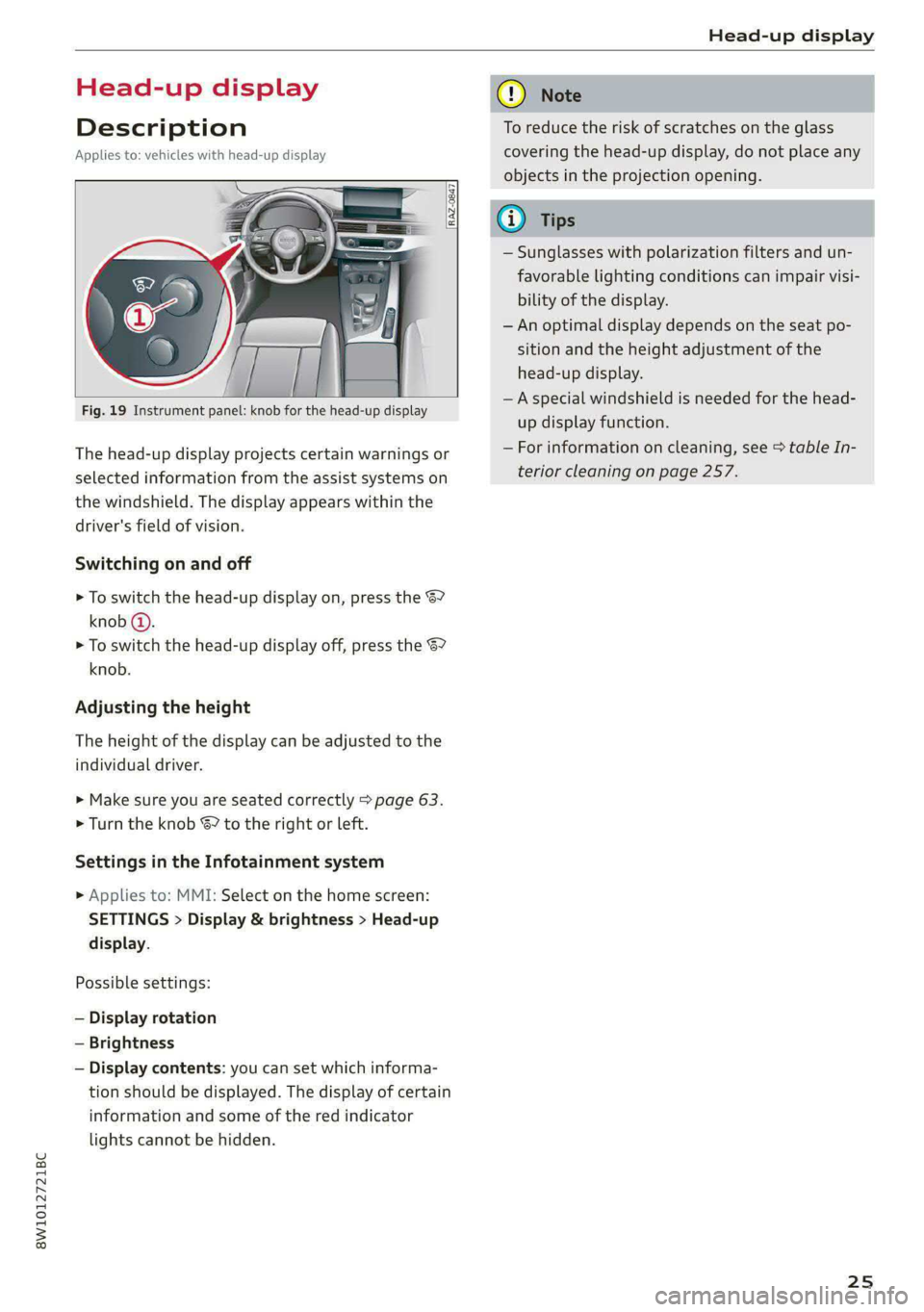
Fig. 19 Instrument panel: knob for the head-up display
The head-up display projects certain warnings or
selected information from the assist systems on
the windshield. The display appears within the
driver's field of vision.
Switching on and off
> To switch the head-up display on, press the 67
knob @.
> To switch the head-up display off, press the S7
knob.
Adjusting the height
The height of the display can be adjusted to the
individual driver.
> Make sure you are seated correctly > page 63.
> Turn the knob S? to the right or Left.
Settings in the Infotainment system
> Applies to: MMI: Select on the home screen:
SETTINGS > Display & brightness > Head-up
display.
Possible settings:
— Display rotation
— Brightness
— Display contents: you can set which informa-
tion should be displayed. The display of certain
information and some of the red indicator
lights cannot be hidden.
® Note
To reduce the risk of scratches on the glass
covering the head-up display, do not place any
objects in the projection opening.
iG) Tips
— Sunglasses with polarization filters and un-
favorable lighting conditions can impair visi-
bility of the display.
— An optimal display depends on the seat po-
sition and the height adjustment of the
head-up display.
—A special windshield is needed for the head-
up display function.
— For information on cleaning, see > table In-
terior cleaning on page 257.
25
Page 28 of 304
Voice recognition system
Voice recognition system
General information
Applies to: vehicles with voice recognition system
You can operate many functions in the vehicle
easily using voice commands.
Using the voice recognition system optimally
> Speak clearly and distinctly at a normal volume.
Speak louder when driving faster.
> Emphasize the words in the commands evenly
and do not leave long pauses.
> Close the doors, the windows, and the sunroof*
to reduce background noise. Make sure that
passengers are not speaking when you are giv-
ing a voice command.
> Do not direct the vents toward the hands-free
microphone, which is in the roof headliner near
the front interior lights.
> Only the driver should speak to the system, be-
cause the handsfree microphone is aimed to-
ward this seating position.
ZA\ WARNING
— Direct your full attention to driving. As the
driver, you have complete responsibility for
safety in traffic. Only use the functions in
such a way that you always maintain com-
plete control over your vehicle in all traffic
situations.
— Do not use the voice recognition system in
emergencies because your voice may change
in stressful situations. The system may take
longer to dial the number or may not be
able to dial it at all. Dial the emergency
number manually.
G) Tips
There are no voice guidance* prompts when a
dialog is active.
26
Description
Operating the voice recognition system
Applies to: vehicles with voice recognition system
iS] (2) ie
>| |
STEN
Daa) re
Neer) a
Connect 5
Pre)
oy c a
ey
Cesc >
coy
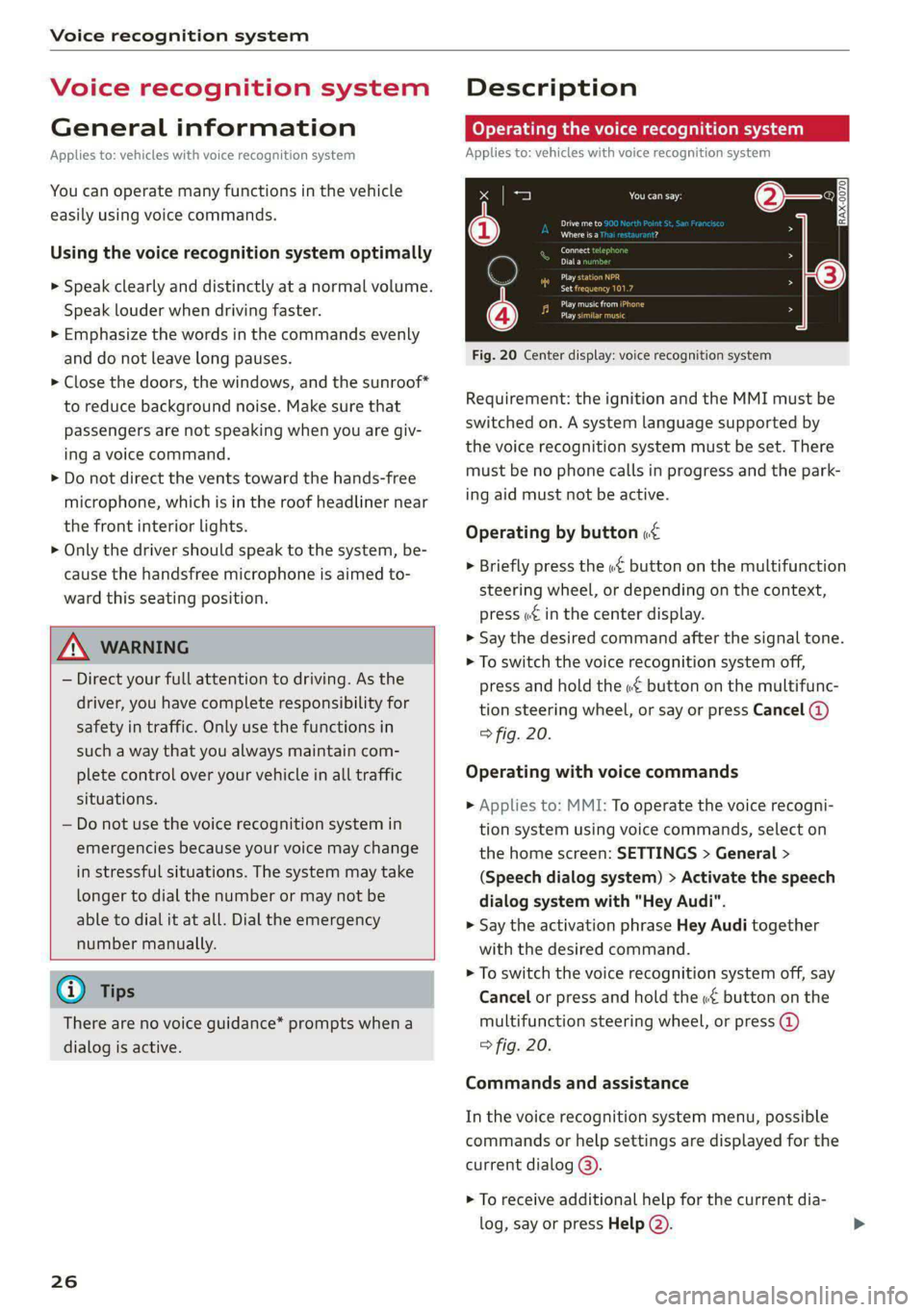
Fig. 20 Center display: voice recognition system
Requirement: the ignition and the MMI must be
switched on. A system language supported by
the voice recognition system must be set. There
must be no phone calls in progress and the park-
ing aid must not be active.
Operating by button «¢
> Briefly press the «€ button on the multifunction
steering wheel, or depending on the context,
press we in the center display.
> Say the desired command after the signal tone.
> To switch the voice recognition system off,
press and hold the «€ button on the multifunc-
tion steering wheel, or say or press Cancel (@)
> fig. 20.
Operating with voice commands
> Applies to: MMI: To operate the voice recogni-
tion system using voice commands, select on
the home screen: SETTINGS > General >
(Speech dialog system) > Activate the speech
dialog system with "Hey Audi".
> Say the activation phrase Hey Audi together
with the desired command.
> To switch the voice recognition system off, say
Cancel or press and hold the «£ button on the
multifunction steering wheel, or press @)
> fig. 20.
Commands and assistance
In the voice recognition system menu, possible
commands or help settings are displayed for the
current dialog @).
> To receive additional help for the current dia-
log, say or press Help (2).
Page 32 of 304
Personalization
Personalization
Users
(eT e e eeu)
Applies to: vehicles with personalized user settings
Depending on vehicle equipment and your coun-
try, your vehicle may be able to manage various
users in the MMI. Each user will be assigned the
settings that they last used.
Before you begin driving, you can select a user in
the MMI and load personalized Infotainment and
vehicle settings.
Possible users in the MMI:
— myAudi user: as a myAudi user, you can use
Audi connect services that require a myAudi ac-
count. Certain settings are transferred online to
your myAudi account. If you log into your
myAudi account in another vehicle, you can
load your settings in the other vehicle.
— Local user: as a local user, you can only store
settings in the current vehicle. Your settings
cannot be transferred to other vehicles. Audi
connect services that can only be used with a
myAudi account will not be available.
— Guest: as a guest, you can store settings in the
vehicle without changing the settings for other
users. Audi recommends only using the guest
user temporarily, because settings can be over-
written by other users.
Depending on vehicle equipment, the following
options may be used to detect the active user so
that the user settings can be loaded automatical-
ly before you start driving.
— Vehicle key
Requirement: the driver's door has been opened.
The detected user must be shown in the MMI.
Confirm the user shown, select another user
= page 30, or add another user > page 30.
ZA\ WARNING
It may not be possible to load Infotainment
and vehicle settings, or they may only load
partially. The driver is always responsible for
the Infotainment and vehicle settings in order
to reduce the risk of an accident.
30
G) Tips
— Certain Infotainment and vehicle settings
(such as mirrors, last radio stations) may be
stored, depending on vehicle equipment.
You can find additional information in the
MMI. Select on the home screen: SETTINGS
> General > Legal notes > About Audi con-
nect.
— Applies to: myAudi users: The stored set-
tings can only be transferred to vehicles
that are capable of receiving the transmit-
ted information. There may be restrictions
that prevent this, particularly in other coun-
tries.
— Applies to: myAudi users: The settings can
only be transferred and loaded when there
is coverage from the applicable mobile
phone service provider.
— Applies to: myAudi users with PIN protec-
tion switched on: If the MMI displays a de-
tected user but you simply start driving or
wait without entering the 4-digit PIN, then
the guest user will be selected. Some set-
tings for the detected myAudi user will be
transferred to the guest user.
OTe le le (a4
Applies to: vehicles with user management
Opening user management
Applies to: MMI
> Press USER on the home screen.
Selecting a user
Applies to: MMI
> Press on the desired user.
> Enter the 4-digit myAudi PIN, if necessary.
Adding myAudi users
Applies to MMI and Audi connect
Requirement: you must have successfully regis-
tered at my.audi.com and have created a 4-digit
myAudi PIN.
> Press Add user.
> Press Log in now to log in with your myAudi
credentials.
> Follow the system instructions.
Page 35 of 304
8W1012721BC
Opening and closing
Opening and closing
Central locking
General information
Z\ WARNING
— If you leave the vehicle, switch the ignition
off and take the key with you. This applies
particularly when children remain in the ve-
hicle. Otherwise, children could start the ve-
hicle or operate electrical equipment (such
as power windows), which increases the risk
of an accident.
— Applies to vehicles with anti-theft alarm sys-
tem: When the vehicle is locked from the
outside, no one - especially children - should
remain in the vehicle, because the windows
can no longer open from the inside
=> page 36, Anti-theft alarm system.
Locked doors make it more difficult for
emergency workers to enter the vehicle,
which puts lives at risk.
All doors and the luggage compartment lid can
be centrally unlocked and locked at once. You can
select in the MMI if the entire vehicle or only the
driver's door should unlock when unlocking the
vehicle > page 34. The turn signals flash twice
when you unlock the vehicle and flash once when
you lock the vehicle. If they do not flash when
locking, check if all doors and lids are closed.
Depending on the vehicle equipment, you may
have different options for centrally unlocking and
locking your vehicle.
— Vehicle key > page 38
— Sensors in the door handles > page 38
— Lock cylinder in the driver's door > page 36
— Interior central locking switch > page 35
Vehicle key
The term “vehicle key” refers to the remote con-
trol key or convenience key*. The convenience
key* is a remote control key with special func-
tions > page 38 and > page 95.
Automatic locking
If you unlock the vehicle but then do not open
any of the doors, the luggage compartment, or
the hood within a short period time, the vehicle
locks again automatically. This feature prevents
the vehicle from being accidentally left unlocked
for a long period of time.
Automatic locking (Auto Lock)
The Auto Lock function locks all doors and the
luggage compartment lid once the speed has ex-
ceeded approximately 9 mph (15 km/h). The ve-
hicle will unlock again if the unlock function in
the central locking switch is pressed, the “P” gear
is engaged, or the ignition is switched off.
You can open the doors individually from the in-
side by pulling the door handle one time. To open
the rear doors individually, you must pull the
door handle twice.
In the event of a crash with airbag deployment,
the doors will also automatically unlock to allow
access to the vehicle.
Unintentionally locking yourself out
Only lock your vehicle when all of the doors and
the luggage compartment lid are closed and
there is no key in the vehicle. This reduces the
risk of locking yourself out accidentally.
The following features help to reduce the risk of
locking your vehicle key in the vehicle:
— If the driver's door is open, the vehicle cannot
be locked by pressing the & button on the re-
mote control key or by touching the locking
sensor* on a door.
— If the vehicle key that was used most recently is
inside the luggage compartment, the luggage
compartment lid will automatically open again
after it closes > ©.
— If the vehicle key that was last used is detected
inside the vehicle, then the vehicle cannot be
locked from the outside > ©.
ZA\ WARNING
Observe the safety precautions > page 33. >
33
Page 37 of 304
8W1012721BC
Opening and closing
Tone when locking)
You can select if an audio signal sounds when
locking the vehicle.
Open with convenience key
Applies to: vehicles with convenience key
You can deactivate the feature for unlocking us-
ing the sensor > page 38.
(etiam cre dire ln]
8 3
=.
2 o a
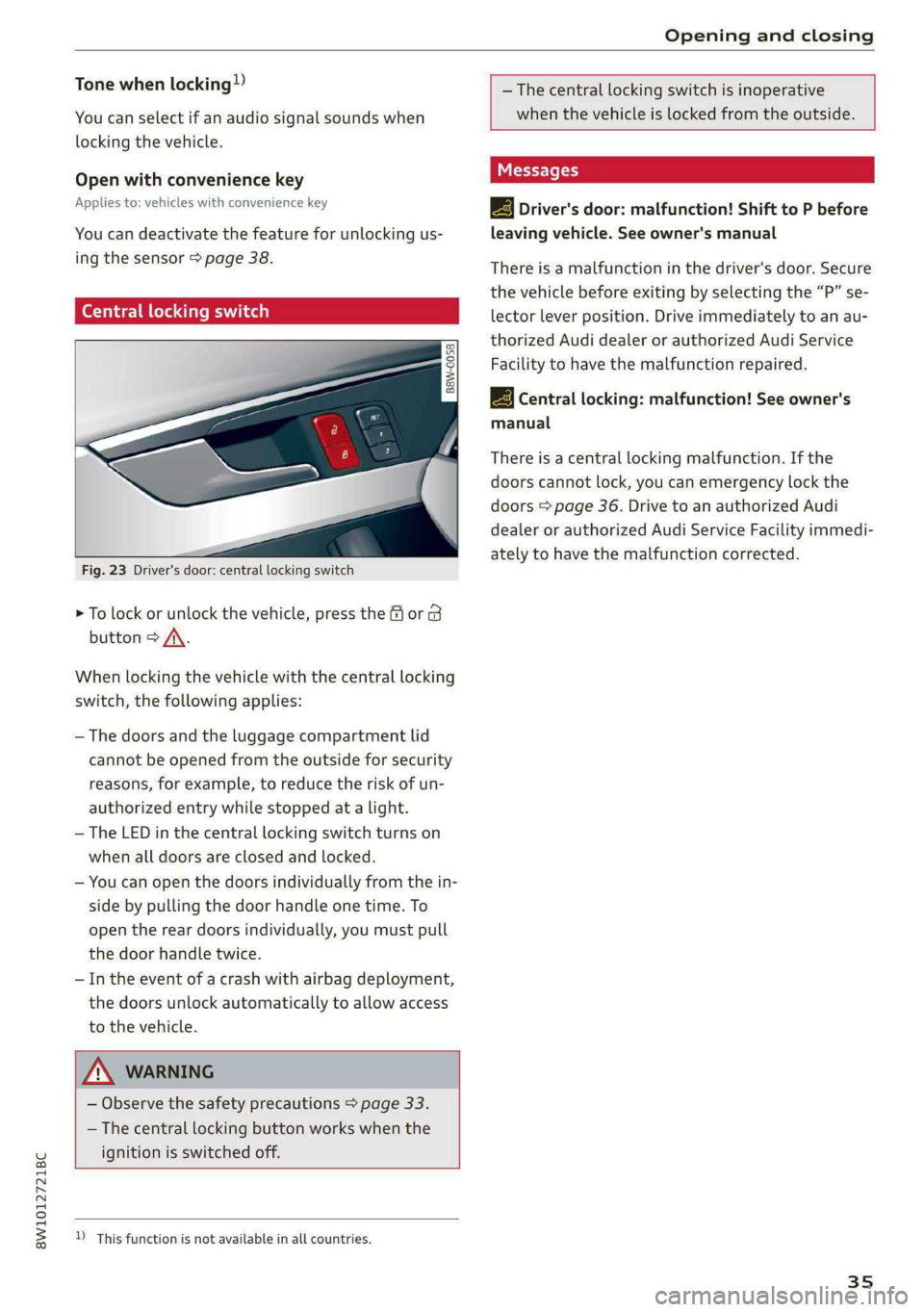
Fig. 23 Driver's door: central locking switch
> To lock or unlock the vehicle, press the f or B
button > /\.
When locking the vehicle with the central locking
switch,
the following applies:
— The doors and the luggage compartment lid
cannot be opened from the outside for security
reasons, for example, to reduce the risk of un-
authorized entry while stopped at a light.
— The LED in the central locking switch turns on
when all doors are closed and locked.
— You can open the doors individually from the in-
side by pulling the door handle one time. To
open the rear doors individually, you must pull
the door handle twice.
— In the event of a crash with airbag deployment,
the doors unlock automatically to allow access
to the vehicle.
Z\ WARNING
— Observe the safety precautions > page 33.
— The central locking button works when the
ignition is switched off.
)_ This function is not available in all countries.
— The central locking switch is inoperative
when the vehicle is locked from the outside.
|-3} Driver's door: malfunction! Shift to P before
leaving vehicle. See owner's manual
There is a malfunction in the driver's door. Secure
the vehicle before exiting by selecting the “P” se-
lector lever position. Drive immediately to an au-
thorized Audi dealer or authorized Audi Service
Facility to have the malfunction repaired.
3} Central locking: malfunction! See owner's
manual
There is a central locking malfunction. If the
doors cannot lock, you can emergency lock the
doors > page 36. Drive to an authorized Audi
dealer or authorized Audi Service Facility immedi-
ately to have the malfunction corrected.
35
Page 38 of 304
Opening and closing
Mechanically unlocking and locking the
doors
If the central locking fails, you must unlock or
lock the doors separately.
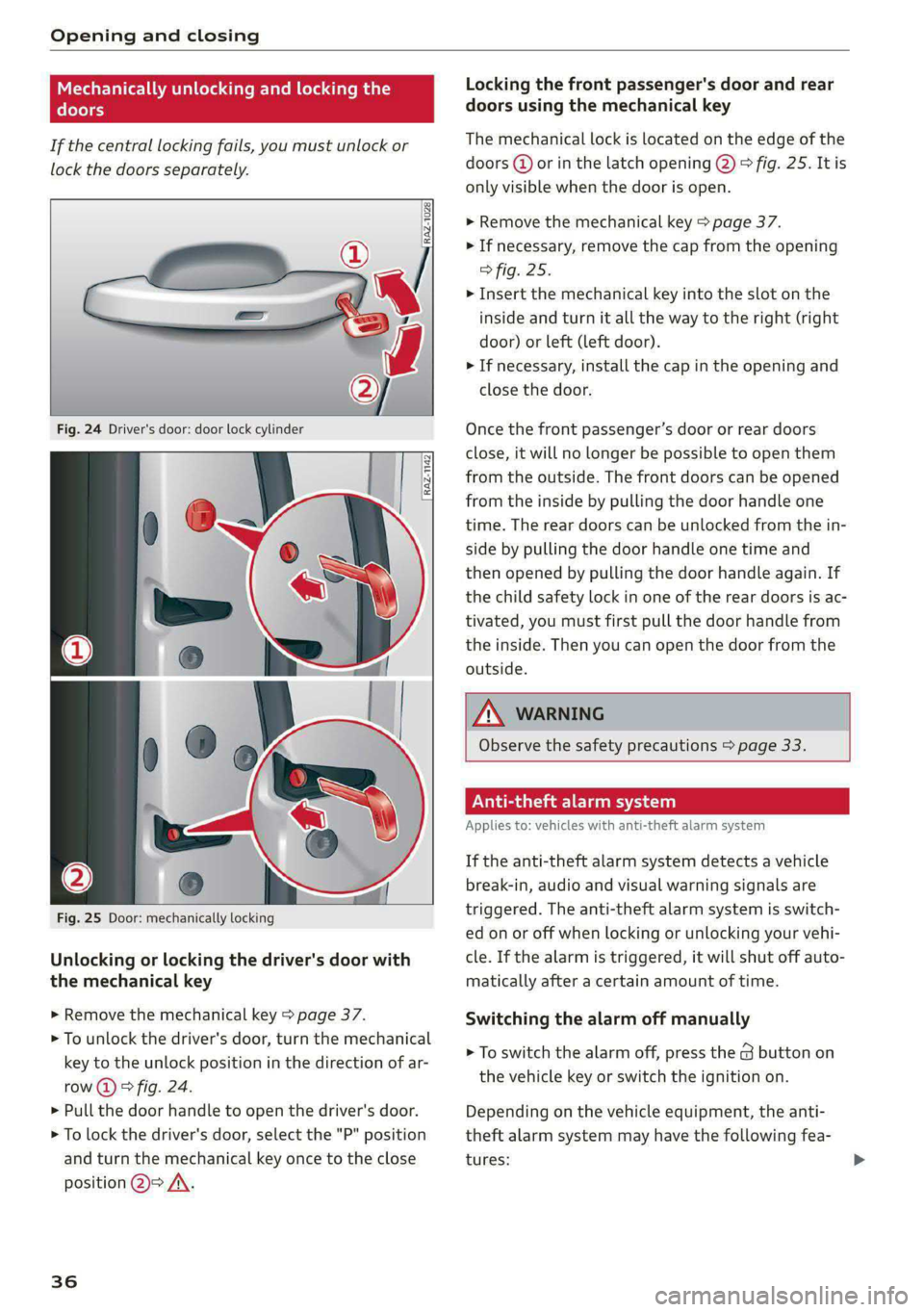
Fig. 24 Driver's door: door lock cylinder
[Raz-149|
Fig. 25 Door: mechanically locking
Unlocking or locking the driver's door with
the mechanical key
> Remove the mechanical key > page 37.
> To unlock the driver's door, turn the mechanical
key to the unlock position in the direction of ar-
row @) > fig. 24.
> Pull the door handle to open the driver's door.
> To lock the driver's door, select the "P" position
and turn the mechanical key once to the close
position @=> /\.
36
Locking the front passenger's door and rear
doors using the mechanical key
The mechanical lock is located on the edge of the
doors (@) or in the latch opening @) > fig. 25. It is
only visible when the door is open.
>» Remove the mechanical key > page 37.
> If necessary, remove the cap from the opening
> fig. 25.
> Insert the mechanical key into the slot on the
inside and turn it all the way to the right (right
door) or Left (left door).
> If necessary, install the cap in the opening and
close the door.
Once the front passenger’s door or rear doors
close, it will no longer be possible to open them
from the outside. The front doors can be opened
from the inside by pulling the door handle one
time. The rear doors can be unlocked from the in-
side by pulling the door handle one time and
then opened by pulling the door handle again. If
the child safety lock in one of the rear doors is ac-
tivated, you must first pull the door handle from
the inside. Then you can open the door from the
outside.
Z\ WARNING
Observe the safety precautions > page 33.
Peale Ce)
Applies to: vehicles with anti-theft alarm system
If the anti-theft alarm system detects a vehicle
break-in, audio and visual warning signals are
triggered. The anti-theft alarm system is switch-
ed on or off when locking or unlocking your vehi-
cle. If the alarm is triggered, it will shut off auto-
matically after a certain amount of time.
Switching the alarm off manually
> To switch the alarm off, press the G button on
the vehicle key or switch the ignition on.
Depending on the vehicle equipment, the anti-
theft alarm system may have the following fea-
tures:
Page 39 of 304
8W1012721BC
Opening and closing
Break-in security feature
The alarm will sound if there is a break-in at the
doors, hood, and/or luggage compartment lid.
Interior/towing protection monitor
The alarm will be triggered if there are move-
ments detected in the vehicle interior (for exam-
ple, by animals) or if there is a change in the vehi-
cle angle (for example, when the vehicle is being
towed).
You can prevent the alarm from being triggered
by deactivating the interior/towing protection
monitor.
Deactivating the interior/towing protection
monitor
There are the following options for deactivating
the interior/towing protection monitor:
> Press the & button on the vehicle key a second
time within two seconds. Or
> Applies to: vehicles with convenience key:
Touch the sensor on the door handle a second
time within two seconds. Or
> Turn the mechanical key in the door lock to the
close position a second time within two sec-
onds.
> Applies to: vehicles with MMI: Select on the
home screen: VEHICLE > Settings & Service >
Interior monitoring.
If you lock the vehicle, then the interior/towing
protection monitor will stay off until the next
time the vehicle is unlocked.
Z\ WARNING
No one, especially children, should stay in the
vehicle when it is locked from the outside, be-
cause the windows can no longer be opened
from the inside. Locked doors make it more
difficult for emergency workers to enter the
vehicle, which puts lives at risk.
@ Tips
The interior/towing protection monitoring on-
ly functions correctly when the windows and
the roof* are closed.
RAZ-0720,
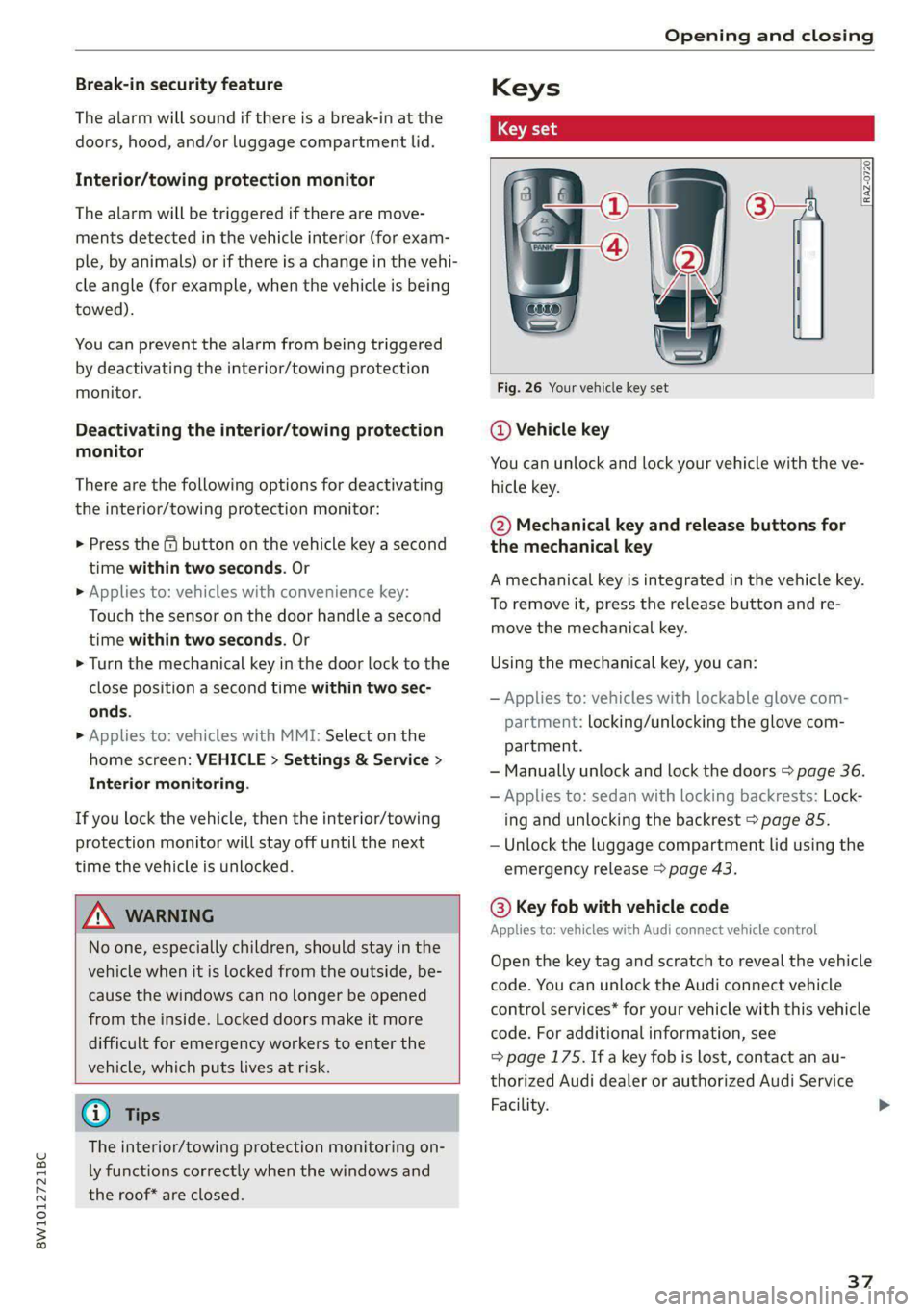
Fig. 26 Your vehicle key set
@ Vehicle key
You can unlock and lock your vehicle with the ve-
hicle key.
@ Mechanical key and release buttons for
the mechanical key
A mechanical key is integrated in the vehicle key.
To remove it, press the release button and re-
move the mechanical key.
Using the mechanical key, you can:
— Applies to: vehicles with lockable glove com-
partment: locking/unlocking the glove com-
partment.
— Manually unlock and lock the doors > page 36.
— Applies to: sedan with locking backrests: Lock-
ing and unlocking the backrest > page 85.
— Unlock the luggage compartment lid using the
emergency release > page 43.
@ Key fob with vehicle code
Applies to: vehicles with Audi connect vehicle control
Open the key tag and scratch to reveal the vehicle
code. You can unlock the Audi connect vehicle
control services* for your vehicle with this vehicle
code. For additional information, see
=> page 175. If a key fob is lost, contact an au-
thorized Audi dealer or authorized Audi Service
Facility.
37
Page 40 of 304
Opening and closing
@ PANIC button
In an emergency, you can press the PANIC button
to trigger the alarm for the anti-theft alarm sys-
tem. The vehicle horn and emergency flashers
will turn on if you trigger the alarm.
PANIC —To trigger the alarm, press the but-
ton @) © fig. 26.
—To turn the alarm off, press the
again.
PANIC button
Lost key/replacing a key
If a vehicle key is lost, contact an authorized Audi
dealer or authorized Audi Service Facility. Have
this vehicle key deactivated. It is important to
bring all keys with you.
If a key is lost, you should report it to your insur-
ance company.
Electronic immobilizer
The immobilizer prevents unauthorized use of
the vehicle.
In some cases, it may not be possible to start the
vehicle if there is a vehicle key from a different
vehicle manufacturer on the key chain.
Data in the vehicle key
When driving, service and maintenance-relevant
data is continuously stored in your vehicle key. An
authorized Audi dealer or authorized Audi Service
Facility can read out this data and tell you about
the work your vehicle needs.
ZA\ WARNING
Observe the safety precautions > page 33.
@) Note
Protect the key against high temperatures
and direct sunlight.
@ For the sake of the environment
XE Do not dispose of vehicle keys in household
trash. They contain materials that can be re-
cycled. Contact an authorized Audi dealer or
authorized Audi Service Facility for more in-
formation.
38
G) Tips
— The vehicle key function can be temporarily
disrupted by interference from transmitters
near the vehicle working in the same fre-
quency range (such as a mobile device or ra-
dio equipment). Always check if your vehicle
is locked.
— Applies to MMI: You can view the number of
keys programmed to the vehicle by selecting
on the home screen: VEHICLE > Settings &
Service > Vehicle information.
— The system complies with United States FCC
regulations and ISED regulations
=> page 284.
Unlocking and locking the vehicle
_—.
Seis
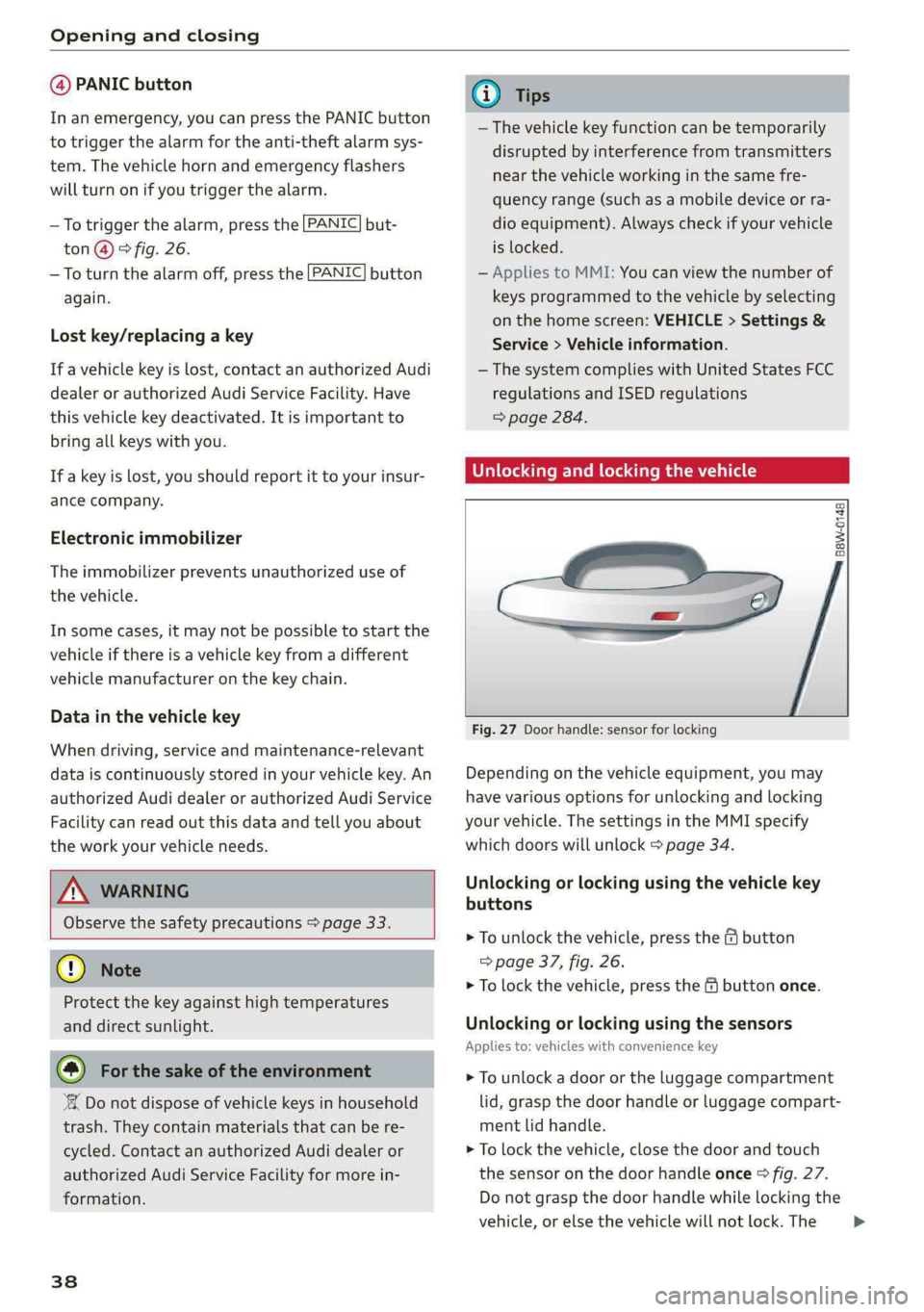
Fig. 27 Door handle: sensor for locking
Depending on the vehicle equipment, you may
have various options for unlocking and locking
your vehicle. The settings in the MMI specify
which doors will unlock > page 34.
Unlocking or locking using the vehicle key
buttons
> To unlock the vehicle, press the @ button
=> page 37, fig. 26.
> To lock the vehicle, press the & button once.
Unlocking or locking using the sensors
Applies
to: vehicles with convenience key
> To unlock a door or the luggage compartment
lid, grasp the door handle or luggage compart-
ment lid handle.
> To lock the vehicle, close the door and touch
the sensor on the door handle once > fig. 27.
Do not grasp the door handle while locking the
vehicle, or else the vehicle will not lock. The >
Page 41 of 304
8W1012721BC
Opening and closing
door cannot be opened for a brief period direct-
ly after locking it. This way you have the oppor-
tunity to check if the doors locked correctly.
Unlocking and locking with the Audi connect
vehicle control service!)
Applies to: vehicles with Audi connect vehicle control
Requirement: Audi connect vehicle control serv-
ices must be activated > page 175. The vehicle
must be parking and the ignition must be switch-
ed off.
ZA WARNING
Observe the safety precautions > page 33.
@) Tips
— Only use the vehicle key when you can see
the vehicle.
— The vehicle can only be locked when the "P”
selector lever position is engaged.
— Do not use the vehicle key to lock and un-
lock when you are inside the vehicle. Other-
wise, you could trigger the anti-theft
alarm*. If this happens, press the @ unlock
button.
@ Tips
Applies to: vehicles with convenience key
— When unlocking or locking the vehicle, the
convenience key cannot be more than ap-
proximately 4 feet (1.5 m) away from the
door handle or luggage compartment.
— Unlocking with the convenience key (keyless
access) can be deactivated in the MMI sys-
tem > page 34.
— To prevent the vehicle battery from dis-
charging, the energy management gradual-
ly switches off convenience functions that
are not needed. You then may no longer be
able to unlock your vehicle with the sensors.
D In certain countries
BS Tey ae-e am al a BC
RAZ-0722
BFV-0277
Fig. 29 Vehicle key (rear side): removing the battery holder
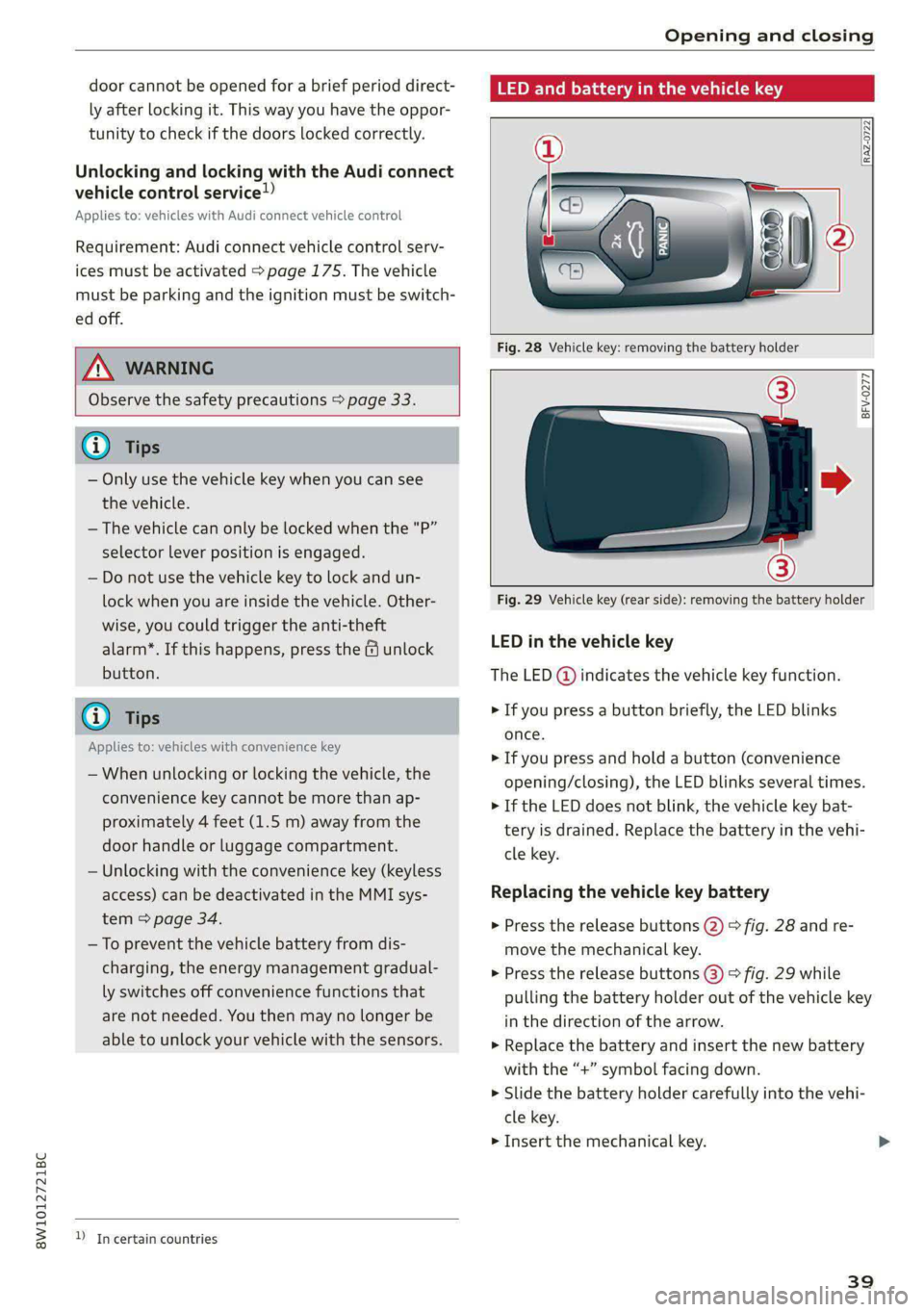
LED in the vehicle key
The LED @) indicates the vehicle key function.
> If you press a button briefly, the LED blinks
once.
> If you press and hold a button (convenience
opening/closing), the LED blinks several times.
> If the LED does not blink, the vehicle key bat-
tery is drained. Replace the battery in the vehi-
cle key.
Replacing the vehicle key battery
> Press the release buttons @) > fig. 28 and re-
move the mechanical key.
> Press the release buttons @) > fig. 29 while
pulling the battery holder out of the vehicle key
in the direction of the arrow.
> Replace the battery and insert the new battery
with the “+” symbol facing down.
> Slide the battery holder carefully into the vehi-
cle key.
> Insert the mechanical key.
39