Start stop system AUDI S4 2021 Owner's Manual
[x] Cancel search | Manufacturer: AUDI, Model Year: 2021, Model line: S4, Model: AUDI S4 2021Pages: 304, PDF Size: 82.39 MB
Page 186 of 304

Navigation
@) Tips
— Ifa contact is grayed out, there is no ad-
dress stored for that contact.
— Navigation to geographic coordinates for a
contact is not possible.
Loading received destinations and routes
Applies to: vehicles with a navigation system and Audi con-
nect Infotainment
You can search for destinations or routes in the
myAudi app and send to the vehicle.
Requirement: the MMI and the mobile device
must be connected to the Internet > page 173,
Audi connect. You must have the myAudi app in-
stalled on your mobile device.
> Send a destination or route in the myAudi app
to the vehicle.
» Applies to: MMI: Select on the home screen:
NAVIGATION > (5) > Received destns. &
routes.
> Make sure you are logged into the vehicle and
the myAudi app with the same myAudi account.
The received destination and routes will be
loaded automatically.
> Navigating to a destination: press on a desti-
nation.
> Deleting destinations: select: Z > one or more
entries or Select all > Delete > (Done).
Applies to: vehicles with navigation system
eee
ZeScu &
ene Orn rae
Fig. 141 Details
After you have selected a destination, the details
will be displayed. Route guidance is will not be
active yet.
The functions depend on the vehicle equipment
and the selected destination.
184
@ Map preview: to zoom in on the map pre-
view, press on the map.
@ Route criteria: see > page 192.
® More: additional functions.
@ Weather: Requirement: the MMI must be
connected to the Internet > page 173, Audi
connect. Also see > page 174.
© Applies to: MMI and telephone
Call: Requirement: a mobile device must be
connected to the MMI > page 162. You will
make a direct call to the phone number that
is stored for the destination.
© Start: starts navigation to the displayed des-
tination directly. The map will be displayed
=> page 186, Map operation.
@) Parking: press Parking to search for a park-
ing space at the destination. You can use the
parking space as the destination or stopover.
Details: Requirement: the MMI must be con-
nected to the Internet > page 173, Audi con-
nect.
©) Display of distance/driving time to the des-
tination
@® Weather at the destination: Requirement:
the MMI must be connected to the Internet
= page 173, Audi connect.
Selecting a destination from the map
Applies to: vehicles with navigation system
A point on the map can be used as the destina-
tion.
Opening the map
Applies to: MMI
> Press NAVIGATION on the home screen.
> If necessary, press A to display the map.
Adjusting the scale
> Select: 9/ > select a scale.
Marking the destination
> Press and hold a point on the map until a mark-
ing appears or the address for the selected des-
tination is shown.
Page 187 of 304

8W1012721BC
Navigation
Selecting map content (such as POIs) as the
destination
Requirement: map content must be displayed
=>page 191.
> Press on map content on the map (for example,
ii).
Selecting the destination
> Select: 4 > Start.
Route guidance will be activated and the map will
be displayed > page 185, fig. 142.
ST) ee mee EL
Applies to: vehicles with navigation system
You can enter additional destinations during ac-
tive route guidance.
Entering a stopover
Requirement: route guidance must be active.
> Enter a destination > page 182.
Displaying stopovers or the route plan
All destinations are listed in the route plan.
> Press on Pin the side menu on the map
=> page 185, fig. 142.
Editing stopovers
> Press on Pin the side menu on the map
=> page 185, fig. 142.
> Adding a stopover: Select: Add destination >
select a destination > Add to route.
> Moving a stopover: press Z. Touch the > sym-
bol and move the entry to the desired position.
Press Done.
> Deleting a stopover: Select: Z > one or more
entries or Select all > Delete > (Done).
Stopping route guidance
Applies to: vehicles with navigation system
Requirement: route guidance must be active and
the map must be displayed.
> Applies to: MMI: Press BX > page 185, fig. 142.
> Applies to: multifunction steering wheel: Select
in the instrument cluster: Navigation tab >
button > Cancel route guidance.
Map
Applies to: vehicles with navigation system
eee)
Pn ae
ie ie [Mena
Fig. 143 Marked map object
Opening the map
Applies to: MMI
> Press NAVIGATION on the home screen.
> If necessary, press /\ to display the map.
The following list gives an overview of the infor-
mation displayed on the map. Press on any func-
tion (for example, alternative routes) to show ad-
ditional options.
Select destination > page 183
Enter a destination using intelligent search
=> page 182
Cancel route guidance > page 185
Current route
Request spoken prompt
Alternative routes > page 187
COOH
OO
Display active destinations, stopovers, or
route plan > page 185. The distance to the
destination including the calculated arrival
time is displayed.
Online traffic information > page 190
Altitude ©®
185
Page 188 of 304

Navigation
@) Displays the maximum permitted speed):
within city limits, on expressways, and on
highways.
Current vehicle position
Route information > page 192
Name of the street on which you are current-
ly driving
®
O88
Start route guidance for a marked destina-
tion > page 184, Selecting a destination
from the map
Display details for the destination
=> page 184
Intelligent search nearby
Adjust the map orientation. See also
=> page 191
Navigation settings > page 191
©®
OO
©
Adjust the scale. Press the magnifying glass
to switch automatic zoom > page 191 on or
off directly on the map. The © symbol ap-
pears when this function is switched on.
Marked destination. See > page 184, Select-
ing a destination from the map
® © Map contents (points of interest, favorites).
When there are multiple map contents in the
immediate vicinity, the symbols are shown
stacked on the map. To display a list of indi-
vidual symbols, press a’: > fig. 143. Press on
a POT in the list.
Center the map to the current vehicle posi-
tion
Traffic incidents and display of estimated
losses of time on the route.
— Green: traffic is flowing freely.
— Orange: stop-and-go traffic
— Red: traffic jam or traffic obstructions.
Additional possible symbols on the map
Symbol Description
@ Home address > page 187, Favor-
ites
Business address = page 187, Fa-
vorites
2) Only applies to vehicles without camera-based speed limit
display.
186
Symbol Description
* Favorites > page 187
x Previous destinations display
Traffic information
— Colored warning symbols: traffic incidents
ahead that are on your route.
— Grayed out warning symbols: traffic incidents
that are not on your route.
— All traffic incidents will display in color when
route guidance is inactive.
— Warning symbols with arrow: traffic incident
that you have been routed around, for example
@.
Map operation
Applies to: vehicles with navigation system
You can operate the map > page 185, fig. 142
with the movements described in the following
information.
Moving the map
> Drag your finger across the map in the desired
direction.
Moving the map quickly
> Swipe your finger across the map in the desired
direction and lift your finger off the map.
Zooming in on the map
>» Place two fingers on the map and pull your fin-
gers apart, or
> Double-tap on the map with one finger.
Zooming out on the map
> Place two fingers on the map and pull your fin-
gers together, or
> Double-tap on the map with two fingers.
Rotating the map
> Rotate the map using two fingers.
Tilting
the map
> Drag upward or downward with two fingers. >
Page 189 of 304

8W1012721BC
Navigation
@) Tips
Certain gestures may not be available on all
touch displays or in every menu.
te guidance
Applies to: vehicles with navigation system and Audi virtual
cockpit
Fig. 144 Instrument cluster: default view: turning maneu-
ver when route guidance has started
Requirement: route guidance must be on
=> page 182.
The following information will be displayed in the
driver information system, if available:
@ Current vehicle position
@A bar graph appears when there is an upcom-
ing turn. The fewer the bars that are shown, the
shorter the distance is until the turn. If there is
no upcoming turn immediately ahead, the dis-
tance to the destination or stopover, the calculat-
ed arrival time, and a direction arrow for the up-
coming maneuver will be displayed in the right
speedometer. If there is no upcoming maneuver,
the distance to the next maneuver will be dis-
played.
@® Lane recommendation
Alternative routes
Applies to: vehicles with navigation system
3 S|
ny < &
Fig. 145 Display of alternative routes in the overview map
Opening alternative routes
Requirement: route guidance must be started
= page 182 and the map must be displayed
=> page 186.
> Press on (7 in the side menu on the map
=> page 185, fig. 142.
@ Current route
The distance to the destination and the calculat-
ed arrival time will be displayed for the current
route.
@ Alternative route
The difference in travel time compared to the se-
lected route will be displayed.
Displaying alternative routes in the
foreground
> Press @ in the corresponding information win-
dow, or
> Press and hold the information window for the
corresponding alternative route (for example,
@° fig. 145).
Select route
> Press on the information window for the corre-
sponding route (for example @) > fig. 145).
Additional functions
Favorites
Applies to: vehicles with navigation system
You can access frequent destinations in the favor-
ites. You can quickly and easily start route guid-
ance using the home address or business address
function.
187
Page 215 of 304
8W1012721BC
Additional settings
Bluetooth
> Applies to MMI: Select on the home screen:
SETTINGS > Connection settings > Bluetooth
Bluetooth
You can select a setting for visibility of the MMI
to other Bluetooth devices. To connect a new
Bluetooth device, the Visible setting must be se-
lected. If Invisible is selected, a Bluetooth con-
nection will only be possible with paired devices.
If Off is selected, no Bluetooth device can be con-
nected.
Bluetooth audio player
When this function is switched on, the profile
will load automatically when your Bluetooth au-
dio player is within range.
Bluetooth name
The MMI’s Bluetooth name is displayed and can
be changed.
Factory default settings
Requirement: the ignition must be switched on.
> Applies to MMI: Select on the home screen:
SETTINGS > System maintenance > Restore
factory settings.
> Follow the system instructions.
The settings will be reset. The system will re-
start. This may take some time.
@ Tips
Make sure that not only the settings were de-
leted but also the stored data, if necessary.
Software update
Introduction
Applies to: vehicles with software update
You can update your vehicle’s software.
The functions depend on the country and vehicle
equipment:
— Update through the online system update
=> page 213.
— Map material update for the navigation system
=> page 189.
— Have the software update performed by an au-
thorized Audi dealer or authorized Audi Service
Facility. This can result in additional costs.
ZA\ WARNING
— Perform the installation only when the vehi-
cle is stationary. Otherwise, this increases
the risk of an accident
— If the installation fails, contact an author-
ized Audi dealer or authorized Audi Service
Facility immediately to have the malfunction
corrected.
Online system update
Applies to: vehicles with online system update
With the online system update, you can update
the software directly in the vehicle.
Requirement: the MMI must be connected to the
Internet > page 173, Audi connect.
Downloading updates
Requirement: notification for an online system
update will appear in the center display.
> Press on the notification, or
> Open the notification in the notification center
on page 22 and press on the notification.
> Follow the system instructions.
You can also check manually if an update is avail-
able.
> Applies to: MMI: Select on the home screen:
SETTINGS > System maintenance > Software
update > Search for updates > desired update
> Continue.
> Follow the system instructions.
The
MMI will start the download. You can check
the status of the download process in the notifi-
cation center > page 22.
Installing updates
Requirement: an online system update must be
downloaded and a notification must be shown in
the center display.
> Stop the vehicle safely.
213
Page 222 of 304
Checking and Filling
@ Tips
The fuel filler door on your vehicle does not
lock if you lock the vehicle from the inside us-
ing
the central locking switch.
Fuel filler door emergency release
Applies to: vehicles with manual fuel filler door release
If the central locking system malfunctions, the
fuel filler door can be unlocked manually.
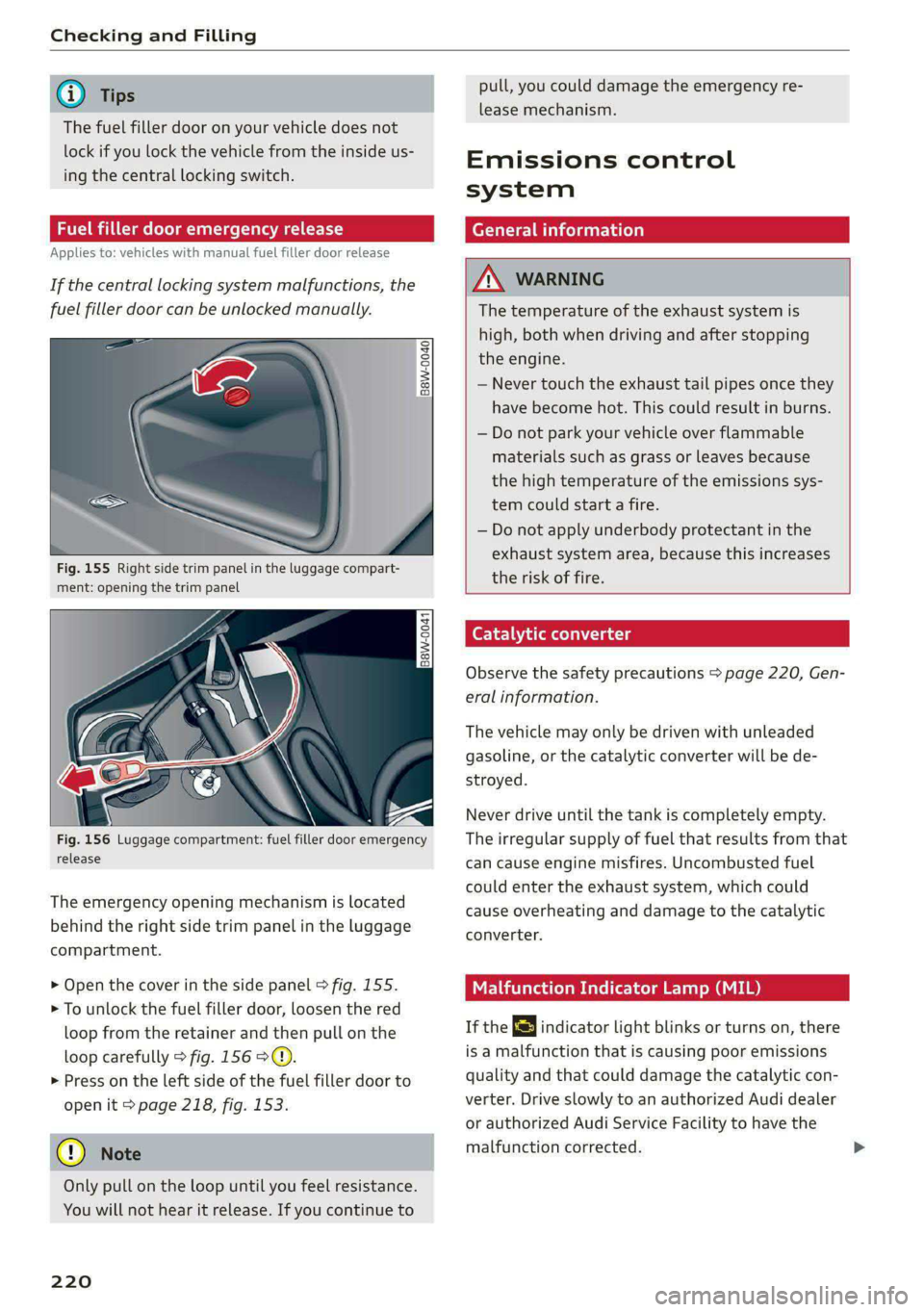
Fig. 155 Right side trim panel in the luggage compart-
ment: opening the trim panel
Fig. 156 Luggage compartment: fuel filler door emergency
release
The emergency opening mechanism is located
behind the right side trim panel in the luggage
compartment.
> Open the cover in the side panel > fig. 155.
> To unlock the fuel filler door, loosen the red
loop from the retainer and then pull on the
loop carefully > fig. 1569©.
> Press on the left side of the fuel filler door to
open it > page 218, fig. 153.
@) Note
Only pull on the loop until you feel resistance.
You will not hear it release. If you continue to
220
pull, you could damage the emergency re-
lease mechanism.
Emissions control
system
General information
Z\ WARNING
The temperature of the exhaust system is
high, both when driving and after stopping
the engine.
— Never touch the exhaust tail pipes once they
have
become hot. This could result in burns.
— Do not park your vehicle over flammable
materials such as grass or leaves because
the high temperature of the emissions sys-
tem could start a fire.
— Do not apply underbody protectant in the
exhaust system area, because this increases
the risk of fire.
(er) 1 id (Rel Uae lg
Observe the safety precautions > page 220, Gen-
eral information.
The vehicle may only be driven with unleaded
gasoline, or the catalytic converter will be de-
stroyed.
Never drive until the tank is completely empty.
The irregular supply of fuel that results from that
can cause engine misfires. Uncombusted fuel
could enter the exhaust system, which could
cause overheating and damage to the catalytic
converter.
Malfunction Indicator Lamp (MIL)
If the S indicator light blinks or turns on, there
is a malfunction that is causing poor emissions
quality and that could damage the catalytic con-
verter. Drive slowly to an authorized Audi dealer
or authorized Audi Service Facility to have the
malfunction corrected.
Page 228 of 304
Checking and Filling
> Unscrew the cap %~ for the engine oil filler
opening > fig. 160.
> Carefully add 0.5 quart (0.5 liter) of the correct
oil > page 224.
> Close the engine oil filler opening cap.
> Close the hood > page 222.
> Restart the ignition after two minutes and read
the current oil level in the MMI > page 225,
Checking the engine oil level.
> Applies to: using engine oil that meets the rec-
ommended specification: Add some more en-
gine oil again if necessary.
ZA\ WARNING
— When adding oil, do not let oil drip onto hot
engine components. This increases the risk
of a fire.
— You must close the cap on the oil filler open-
ing correctly so that oil does not leak out on-
to the hot engine and exhaust system when
the engine is running, because this is a fire
hazard.
— Always clean skin thoroughly if it comes into
contact with engine oil.
—
Engine oil is poisonous and must be kept out
of reach of children.
— Store the engine oil securely in the original
container.
@) Note
— The New Vehicle Limited Warranty does not
cover damage or malfunctions if the recom-
mended intended use of the vehicle and
maintenance measures listed in the Audi
Owner's Manual and the Warranty & Main-
tenance Booklet were not followed.
— Only use high-grade engine oil that explicit-
ly meets the Audi oil quality standard for
your vehicle. Using another oil may cause
severe vehicle damage.
— Do not mix any additives with the engine oil.
Additives may cause engine damage that is
not covered by your New Vehicle Limited
Warranty.
226
@) For the sake of the environment
— Oil should never enter the sewer system or
come into contact with the ground.
— Follow the legal regulations in the country
where you are located when disposing of
empty oil containers.
Changing engine oil
Audi recommends having the oil changed at an
authorized Audi dealer or authorized Audi Serv-
ice Facility.
Observe the safety precautions > page 221, Gen-
eral information.
The engine oil must be changed at the intervals
specified in the Warranty & Maintenance Book-
let. This is very important because the lubrication
function of the oil gradually declines during regu-
lar vehicle operation.
The engine oil should be changed more frequent-
ly under certain circumstances. Have the oil
changed more frequently if you often drive short
distances, your vehicle is predominantly in stop-
and-go traffic situations, is in very dusty environ-
ments, or is operated for long periods of time in
temperatures below zero.
Cleansing additives in the oil make fresh oil ap-
pear darker after the engine has run briefly. This
is normal and no reason to change the engine oil
more frequently than recommended.
Because correctly disposing of engine oil is diffi-
cult and special tools and technical knowledge
are needed for an oil change, Audi recommends
having your engine oil changed by an authorized
Audi dealer or authorized Audi Service Facility.
If you change the engine oil yourself, please note
the following important information:
Z\ WARNING
If you change the engine oil on the vehicle
yourself, the following precautions must be
followed:
— Wear protective eyewear.
— Due to the risk of scalding, allow the engine
to cool down sufficiently. >
Page 229 of 304
8W1012721BC
Checking and Filling
— Maintain enough distance when you are re-
moving the oil drain plug. While doing this,
keep your forearm parallel to the ground to
reduce the risk of hot oil dripping down your
arm.
— Drain the oil into a container designed for
this purpose that is large enough to hold the
full amount of oil in your engine.
— Engine oil is poisonous. Always store out of
reach of children.
— Prolonged contact of used engine oil with
the skin may cause skin damage. Always
wash oil off immediately with soap and wa-
ter to protect your skin.
@) Note
Do not mix any additives with the engine oil.
Additives may cause engine damage that is
not covered by your New Vehicle Limited War-
ranty.
() For the sake of the environment
— Before changing the engine oil, make sure
you can dispose of the used engine oil cor-
rectly.
— Engine oil must always be disposed of cor-
rectly. Do not dump it in the yard, in the for-
est, or in open water, river channels, or sew-
ers.
— Have your used engine oil recycled by bring-
ing it to a used oil collection site or contact
a gas station.
Cooling system
The engine cooling system is filled with a mixture
of purified water and coolant additive at the fac-
tory. This coolant must not be not changed.
The coolant level is monitored using the B indi-
cator light. However, occasionally checking the
coolant level is recommended.
Messages
/_E| Turn off engine and check coolant level. See
owner's manual
The coolant level is too low.
Stop driving and switch the engine off. Check the
coolant level > page 228.
— If the coolant level is too low, add coolant
=> page 228. Only continue driving once the in-
dicator light turns off.
& Coolant temperature: too high. Please let
engine run while vehicle is stationary
Let the engine run at idle for a few minutes to
cool off, until the indicator light turns off.
— If the indicator light does not turn off, do not
continue driving the vehicle. See an authorized
Audi dealer or authorized Audi Service Facility
for assistance.
| Coolant system: malfunction! Please turn
off engine
Do not continue driving, shut the engine off, and
switch the ignition off.
— See an authorized Audi dealer or authorized
Audi Service Facility for assistance.
Coolant additive
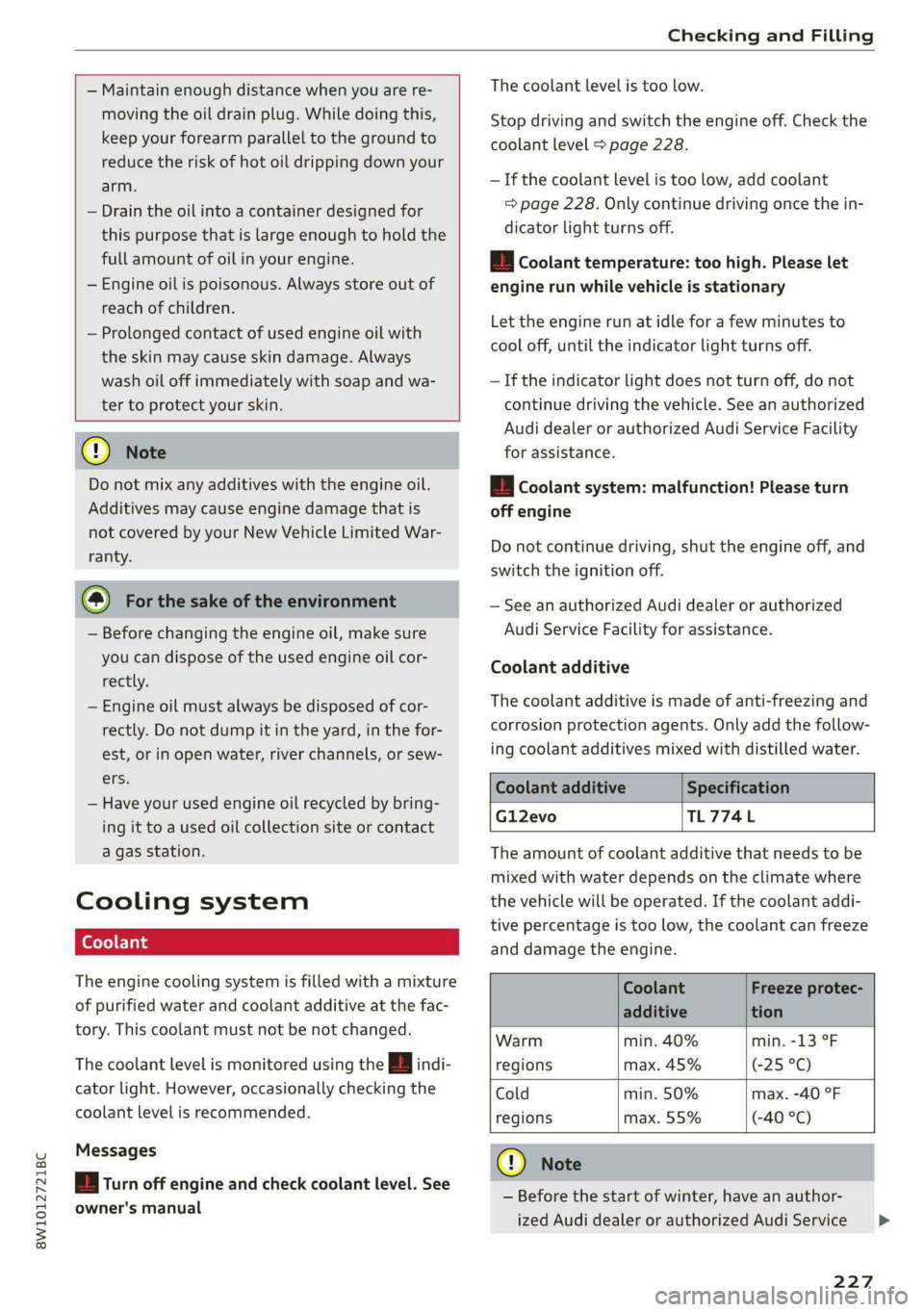
The coolant additive is made of anti-freezing and
corrosion protection agents. Only add the follow-
ing coolant additives mixed with distilled water.
Coolant additive Specification
Gl12evo TL774L
The amount of coolant additive that needs to be
mixed with water depends on the climate where
the vehicle will be operated. If the coolant addi-
tive percentage is too low, the coolant can freeze
and damage the engine.
Coolant Freeze protec-
additive tion
Warm min. 40% min. -13 °F
regions max. 45% 25 °C)
Cold min. 50% max. -40 °F
regions max. 55% (-40 °C)
@) Note
— Before the start of winter, have an author-
ized Audi dealer or authorized Audi Service
227
>
Page 232 of 304
Checking and Filling
accident. Do not continue driving. See an au-
thorized Audi dealer or authorized Audi
Service Facility for assistance.
— If the brake fluid is old, bubbles may form in
the brake system during heavy braking. This
could impair braking performance and driv-
ing safety, which increases the risk of an ac-
cident.
— The brake fluid in your vehicle must meet
the standard VW 501 14 and is available at
an authorized Audi dealer or authorized
Audi Service Facility. If this brake fluid is not
available, another high-grade brake fluid of
equivalent quality may be used, and it must
meet the U.S. Federal Motor Vehicle Stand-
ard (FMVSS) 116 DOT 4, Class 6.
Switch off all electrical equipment that is not
needed. If necessary, some equipment will be
switched off automatically. Vehicle functions or
driving stability may be limited. Drive to an au-
thorized Audi dealer or authorized Audi Service
Facility immediately.
z= Electrical system: low battery charge. Bat-
tery
will be charged while driving
The starting ability may be impaired.
If this message turns off after a little while, the
vehicle battery has charged enough while driving.
If this message does not turn off, drive immedi-
ately to an authorized Audi dealer or authorized
Audi Service Facility.
@) Note
— If the brake fluid level is above the MAX
marking, brake fluid may leak out over the
edge of the reservoir and result in damage
to the vehicle.
— Do not allow any brake fluid to come into
contact with the vehicle paint, because it
will corrode the paint.
Electrical system
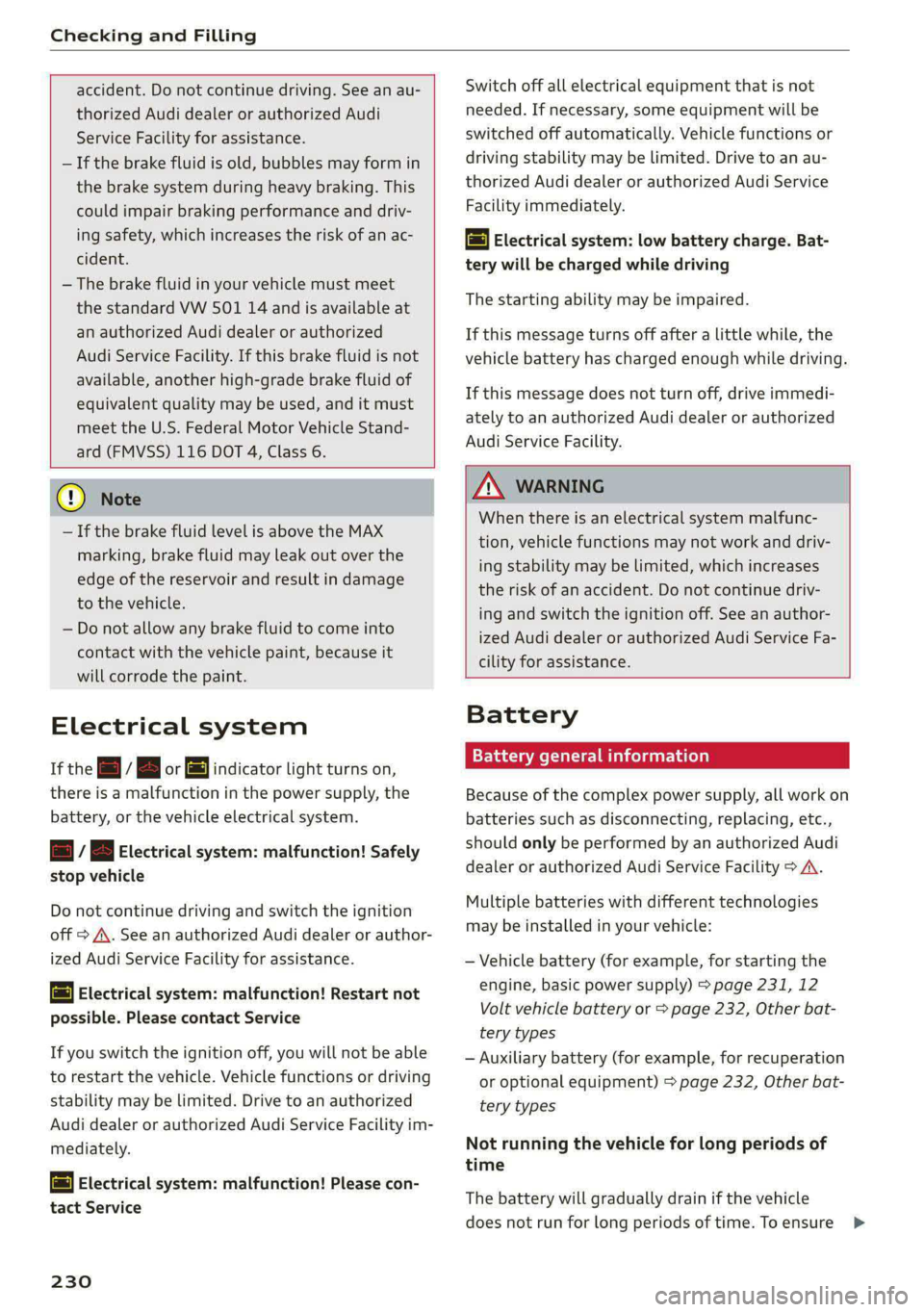
If the = / B or = indicator light turns on,
there is a malfunction in the power supply, the
battery, or the vehicle electrical system.
mz / B Electrical system: malfunction! Safely
stop vehicle
Do not continue driving and switch the ignition
off > A\. See an authorized Audi dealer or author-
ized Audi Service Facility for assistance.
= Electrical system: malfunction! Restart not
possible. Please contact Service
If you switch the ignition off, you will not be able
to restart the vehicle. Vehicle functions or driving
stability may be limited. Drive to an authorized
Audi dealer or authorized Audi Service Facility im-
mediately.
= Electrical system: malfunction! Please con-
tact Service
230
ZA\ WARNING
When there is an electrical system malfunc-
tion, vehicle functions may not work and driv-
ing stability may be limited, which increases
the risk of an accident. Do not continue driv-
ing and switch the ignition off. See an author-
ized Audi dealer or authorized Audi Service Fa-
cility for assistance.
Battery
ela lame (Tem eeecela)
Because of the complex power supply, all work on
batteries such as disconnecting, replacing, etc.,
should only be performed by an authorized Audi
dealer or authorized Audi Service Facility > A\.
Multiple batteries with different technologies
may be installed in your vehicle:
— Vehicle battery (for example, for starting the
engine, basic power supply) > page 231, 12
Volt vehicle battery or > page 232, Other bat-
tery types
— Auxiliary battery (for example, for recuperation
or optional equipment) > page 232, Other bat-
tery types
Not running the vehicle for long periods of
time
The battery will gradually drain if the vehicle
does not run for long periods of time. To ensure >
Page 255 of 304
8W1012721BC
Wheels
Your vehicle has also been equipped with a TPMS
malfunction indicator to indicate when the sys-
tem is not operating properly. The TPMS mal-
function indicator is combined with the low tire
pressure telltale. When the system detects a
malfunction, the telltale will flash for approxi-
mately one minute and then remain continuously
illuminated. This sequence will continue upon
subsequent vehicle start-ups as long as the mal-
function exists.
When the malfunction indicator is illuminated,
the system may not be able to detect or signal
low tire pressure as intended. TPMS malfunctions
may occur for a variety of reasons, including the
installation of replacement or alternate tires or
wheels on the vehicle that prevent the TPMS
from functioning properly. Always check the
TPMS malfunction telltale after replacing one or
more tires or wheels on your vehicle to ensure
that the replacement or alternate tires and
wheels allow the TPMS to continue to function
properly.
If the tire pressure monitoring indicator
appears
Applies to: vehicles with Tire Pressure Monitoring System in-
dicator
The tire pressure indicator in the instrument
cluster informs you if the tire pressure is too low
or if there is a system malfunction.
Using the ABS sensors, the tire pressure monitor-
ing system compares the tire tread circumference
and vibration characteristics of the individual
tires. If the pressure changes in one or more
tires, this is indicated in the instrument cluster
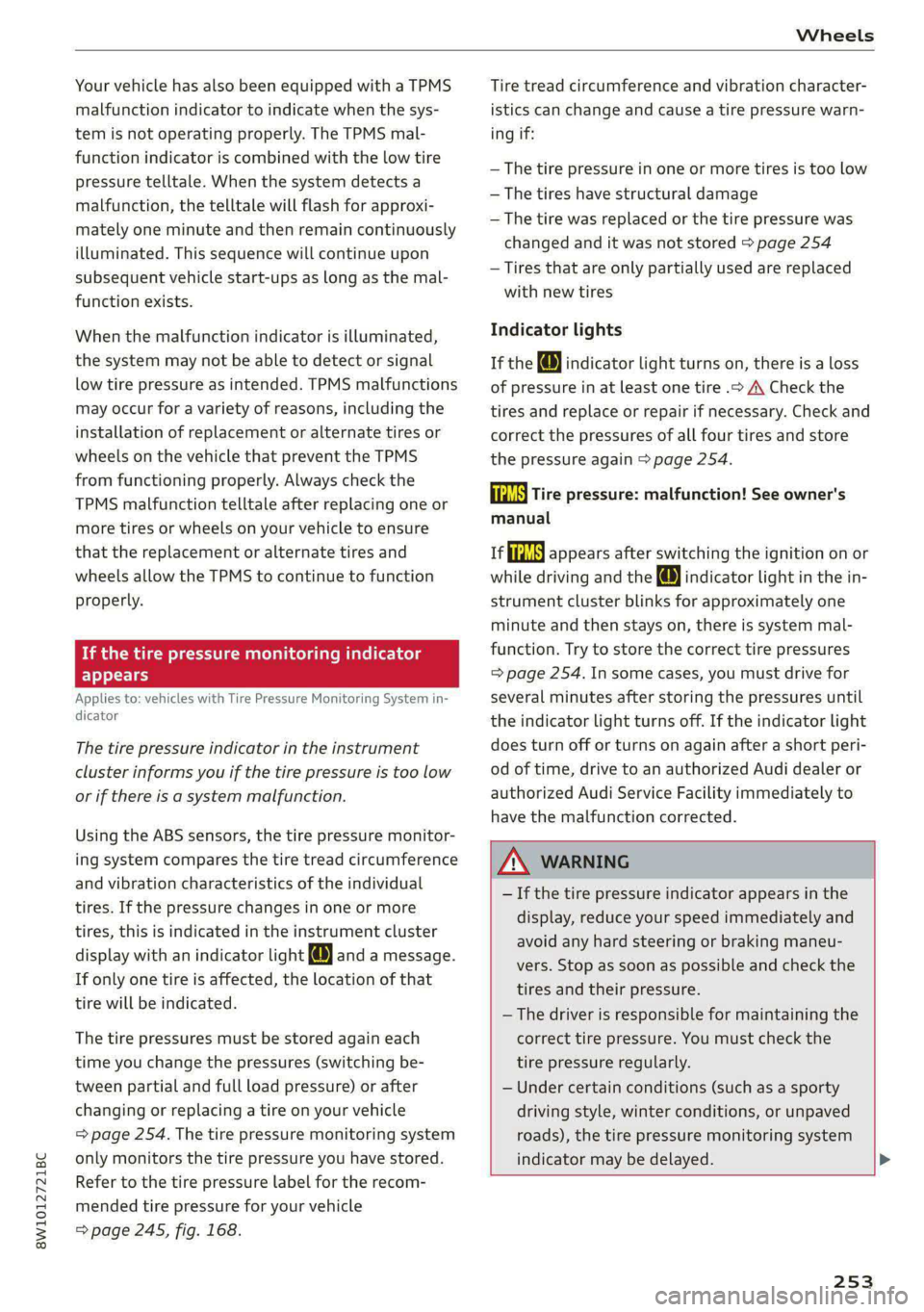
display with an indicator light @ and a message.
If only one tire is affected, the location of that
tire will be indicated.
The tire pressures must be stored again each
time you change the pressures (switching be-
tween partial and full load pressure) or after
changing or replacing a tire on your vehicle
=> page 254. The tire pressure monitoring system
only monitors the tire pressure you have stored.
Refer to the tire pressure label for the recom-
mended tire pressure for your vehicle
= page 245, fig. 168.
Tire tread circumference and vibration character-
istics can change and cause a tire pressure warn-
ing if:
— The tire pressure in one or more tires is too low
— The tires have structural damage
— The tire was replaced or the tire pressure was
changed and it was not stored > page 254
— Tires that are only partially used are replaced
with new tires
Indicator lights
If the @ indicator light turns on, there is a loss
of pressure in at least one tire .> A\ Check the
tires and replace or repair if necessary. Check and
correct the pressures of all four tires and store
the pressure again > page 254.
ia Tire pressure: malfunction! See owner's
manual
fi appears after switching the ignition on or
while driving and the @ indicator light in the in-
strument cluster blinks for approximately one
minute and then stays on, there is system mal-
function. Try to store the correct tire pressures
=> page 254. In some cases, you must drive for
several minutes after storing the pressures until
the indicator light turns off. If the indicator light
does turn off or turns on again after a short peri-
od of time, drive to an authorized Audi dealer or
authorized Audi Service Facility immediately to
have the malfunction corrected.
ZA WARNING
— If the tire pressure indicator appears in the
display, reduce your speed immediately and
avoid any hard steering or braking maneu-
vers. Stop as soon as possible and check the
tires and their pressure.
— The driver is responsible for maintaining the
correct tire pressure. You must check the
tire pressure regularly.
— Under certain conditions (such as a sporty
driving style, winter conditions, or unpaved
roads), the tire pressure monitoring system
indicator may be delayed.
253