steering wheel AUDI S8 2008 User Guide
[x] Cancel search | Manufacturer: AUDI, Model Year: 2008, Model line: S8, Model: AUDI S8 2008Pages: 404, PDF Size: 52.7 MB
Page 153 of 404
Audi lane assist -_____________________ __.
Audi lane assist
Lane assist
Applies to vehicles: with lane assist
Description
Lane assist helps you keep your vehicle in your lane.
Lane assist uses a camera to detect lane boundary lines. If the
system detects that your vehicle is about to leave a lane boundary
line, the steering wheel
vibrates to alert the driver. If lane assist
detects boundary lines on both sides of the vehicle's lane, the
system enters active standby mode, which is indicated by the green
indicator light/: on the instrument cluster.
If the system is in active standby mode and the turn signal is acti
vated before driving over the boundary line, the warning does not
occur since the system allows for intentional lane changes.
The system is designed for driving on freeways and expanded high
ways and thus works only at speeds of 40 mph (65 km/h) or more.
& WARNING
• Lane assist will not keep your vehicle in your lane. The system
only warns the driver when the vehicle is leaving the lane. The
driver is always responsible for keeping the vehicle in the lane.
• The camera is not able to detect all lane boundary lines and in
some cases might also detect lane structures or objects as
boundary lines. This can lead to incorrect warnings or warnings
that fail to go off at all.
• The camera's visibility can be impaired by vehicles ahead of
you, for instance, or by rain, snow, heavy spray or light shining into
the camera lens. This can cause lane assist to fail to detect
boundary lines. •
Contro ls a nd eq uip
ment
Applies to vehicles: with lane assist
Activating and deactivating
Fig. 168 Turn signal
lever : Lane assist
button
Fig . 169 Windshield:
Lane assist camera
viewing window
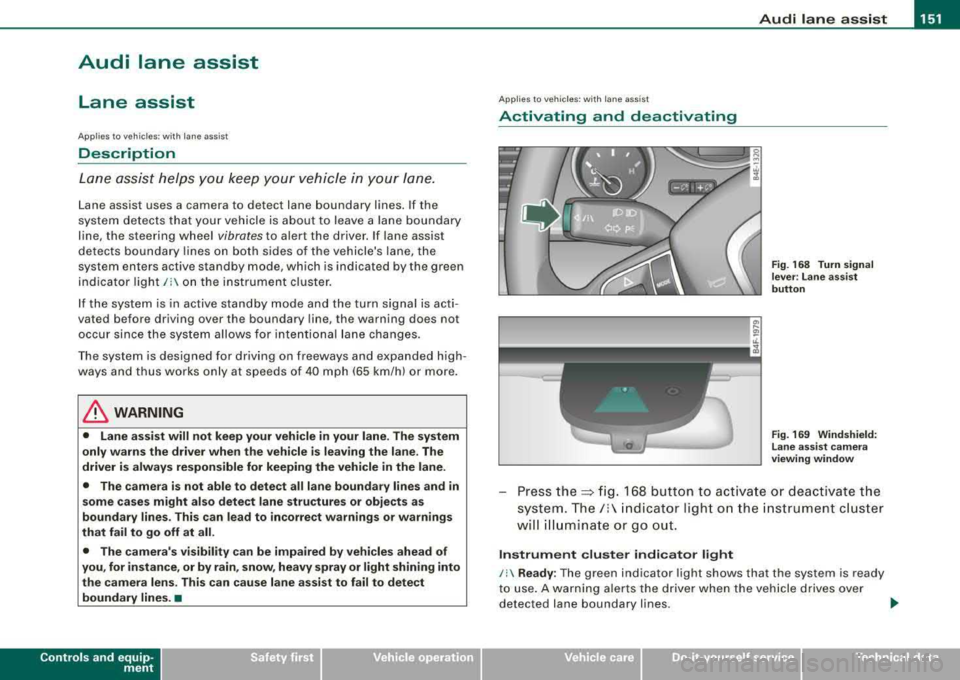
Press the:::> fig. 168 button to activate or deactivate the
system.
The/: indicator light on the instrument cluster
will illuminate or go out.
Instrument cluster indicator light
/: Ready : The green indicator light shows that the system is ready
to use. A warning alerts the driver when the vehicle drives over
detected lane boundary lines.
.,.
Vehicle care I I irechnical data
Page 154 of 404
-
Audi lane assist
----------------
I Not re ad y: The yellow ind icator light shows that the system is
t urned on but unab le to send a warning . This can be due to the
following:
• There are no boundary lines, or there is on ly one boundary line
present .
• The boundary lines are not detected (e.g. due to snow, dirt, wet
conditions or light shining into the camera lens) .
• More than two boundary lines (such as at construction sites) are
located in the vehicle's lane .
• The vehicle's speed is below the speed needed to activate it,
which is abou t 40 mph (65 km/h).
• The lane is narrower than about 8 ft . (2 .5 m), or wider than about
16
ft . (5 m).
• The curve is too sharp .
Notes on th e instr umen t clu ste r displa y
When the lane assist turns off automatically , the instrument cluster
indicator goes out and one of the following messages appears on
the display:
Audi lan e assist not available: C urre ntl y no se nsor vis ion
This message appears when the camera can no longer function
because it cannot detect the boundary lines. This may be due to the
following :
• The exterior s ide of the camera viewing
window => page 151,
fig. 169 is covered with dirt or ice. Clean this part of th e windshield.
• The camera v iew ing window is fogged up on the inside. In t his
case, wait until the fog disappears before turning lane assist on
aga in.
• The system was unable to detect boundary lines over an
extended period of time due to road conditions (such as snow
covered lanes). Do not turn lane assist on again unti l the lines can
be more easily detected .
Audi lane assist not ava ila bl e
A temporary malfunction is preventing lane assist from operating .
Try turning on lane assist again a t a la ter t ime.
Audi l ane ass is t: sys te m f ault
T he system should be checked by an authorized Audi dealer or other
qual ified workshop .
[ i ] Tips
• Make sure that the camera viewing window => page 151, fig. 169
is not covered by stickers or similar objects .
• Always keep the camera view ing w indow c lean . This can usual ly
b e don e by op erat ing the windshield wipers. •
App lies to vehicles: w it h l ane assist
MMI settings
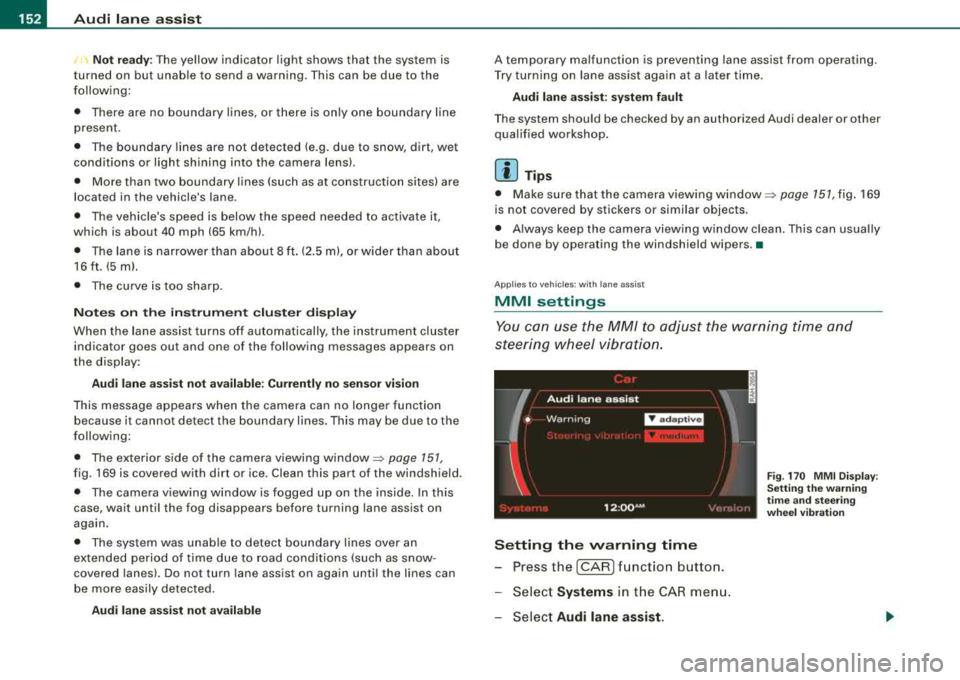
You can use the MM/ to adjust the warning time and
steering wheel vibration.
Setting the warning time
- Press the [CAR ] function button.
- Select
Systems in the CAR men u.
- Select
Audi l ane ass is t.
Fig . 17 0 M MI D isp lay :
Se ttin g th e w arning
t im e a nd stee ring
w hee l v ibr ati on
Page 155 of 404
![AUDI S8 2008 User Guide Audi lane a ssist -
----------------
-Sele ct Warning early , adaptive or late => page 152,
fig. 170 .
Sett ing th e st eering wh eel vibration
-Pressthe(CAR]function button.
-Selec t Syst](/img/6/57619/w960_57619-154.png "AUDI S8 2008 User Guide Audi lane a ssist -
----------------
-Sele ct Warning early , adaptive or late => page 152,
fig. 170 .
Sett ing th e st eering wh eel vibration
-Pressthe(CAR]function button.
-Selec t Syst")
Audi lane a ssist -
----------------
-Sele ct Warning early , adaptive or late => page 152,
fig. 170 .
Sett ing th e st eering wh eel vibration
-Pressthe(CAR]function button.
-Selec t Systems in the CAR menu .
-Select Audi lane a ssis t.
-Selec t Steering vibration weak, medium or strong.
Setting th e warning tim e
E a rl y:
This setting warns the driver before a wheel touches the
detected lane boundary line. The warning depends on the ve hicle's
angle as it approaches the boundary line . If you approach a
boundary l ine gradua lly, the warning will occur ear lier. If you
approach the boundary line at a very sharp angle, the warning wi ll
occur just before a whee l touches the l ine.
A dapti ve : In this setting, the warning time adjusts to the character
istics of the road and the vehic le speed. The warning occurs later for
curves and occurs ear lier for straight stretches of road . The warning
occurs later on narrow roads than on wide roads.
Late: Th is setting warns the driver when a whee l drives over the
detected lane boundary line.
Setting th e steering wheel vibrati on
When adjusting the steering whee l vibration, the steering wheel
v ibrates so that you can check the intensity you have set.
[ i ] Tips
• When making the adjustment, lane assist is not activated . The
steering whee l vibrates briefly only to assist you in changing the
se tting .
• Your settings are automatically stored and assigned to the
remote contro l key being used. •
Controls and equip
ment
Page 170 of 404
___ A_ u_ t_ o_ m_ a_ t_ i_c _ t_r _
a _n _ s_ m_ is_ s_ io_ n _______________________________________________ _
Applies to vehicles: with tipt ronic-steeri ng wheel
Steering wheel vvith tiptronic ®
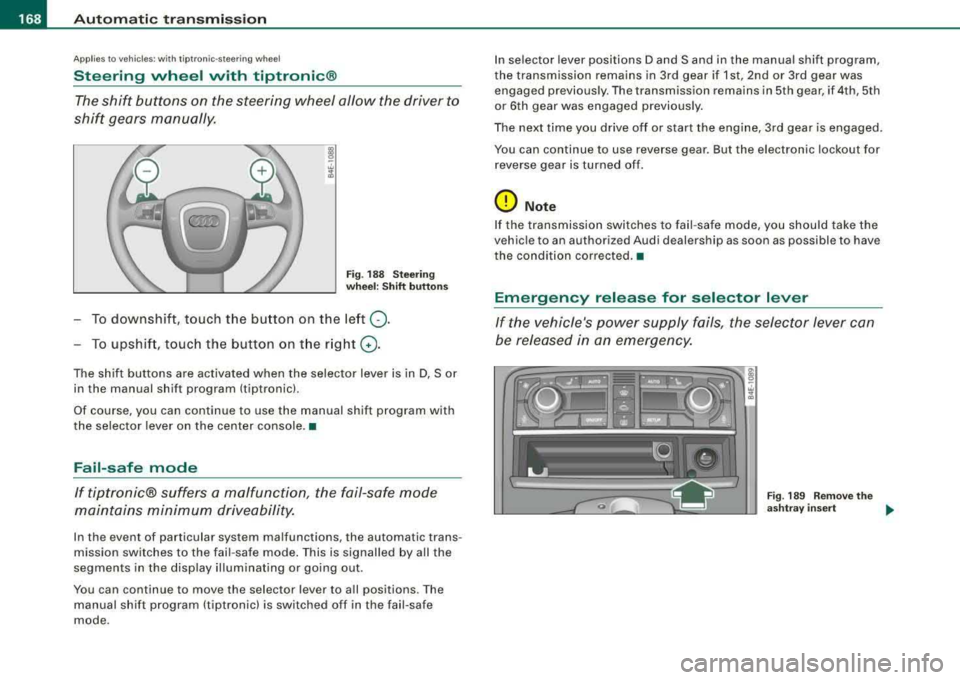
The shift buttons on the steering wheel allow the driver to
shif t gears manually .
Fig . 18 8 S te ering
w heel : Shift button s
To downshift, touch the button on the left 0-
To upshif t, touc h the button on t he r ight G) .
The shift buttons are activated when the selector lever is in D, Sor
in the manual shift program (tiptronic).
Of course, you can continue to use the manual shift program with
the selector lever on the center console. •
Fail-safe mode
If tiptronic® suffers a ma/function, the fail-safe mode
maint ains minimum driveability.
In the event of particular system malfunctions, the automatic trans
mission switches to the fail -safe mode . This is signalled by all the
segments in the disp lay il lum inating or going out .
You can continue to move the selector lever to a ll positions. The
manual shift program (tiptronic) is switched off in the fail-safe
mode . I
n selector lever positions D and Sand in the manual shift program,
the transmission remains in 3rd gear if 1st, 2nd or 3rd gear was engaged previous ly. The transmission rema ins in 5th gear, if 4th, 5th
or 6th gear was engaged previous ly .
The next time you drive o ff or start the engine, 3rd gear is engaged .
You can continue to use reverse gear . But the electronic lockout for
r everse gear is turne d of f.
0 Note
If the transmission switches to fail -safe mode, you should ta ke the
vehic le to an authori zed Audi dealership as soon as possible to have
the condition co rrected. •
Emergency release for selector lever
If the vehicle's power supply fails , the selector lever can
be released in an emergency.
Fig . 18 9 R emo ve the
a sh tray insert
..
Page 177 of 404
Advanced Parking System -
----------------=---=------'
The rear-view camera section appearing in the MMI Display is
approximately the same as the coverage area represented in
=> page 174, fig. 196 or CD in=> page 174, fig. 197. Objects located in
the rear -view camera's uncovered area
0 => page 174, fig. 197 or in
the close vicinity of the bumper are not recognized.
& WARNING
Please note that objects not touching the ground can appear to be
further away than they really are (for example, the bumper of a
parked vehicle, a trailer hitch, or the rear of a truck) . In this case,
you should not use the guide help lines to measure distance
-
danger of accident! •
Applies to vehic les: with Advanced Parking System with rear view camera
Parking mode 1
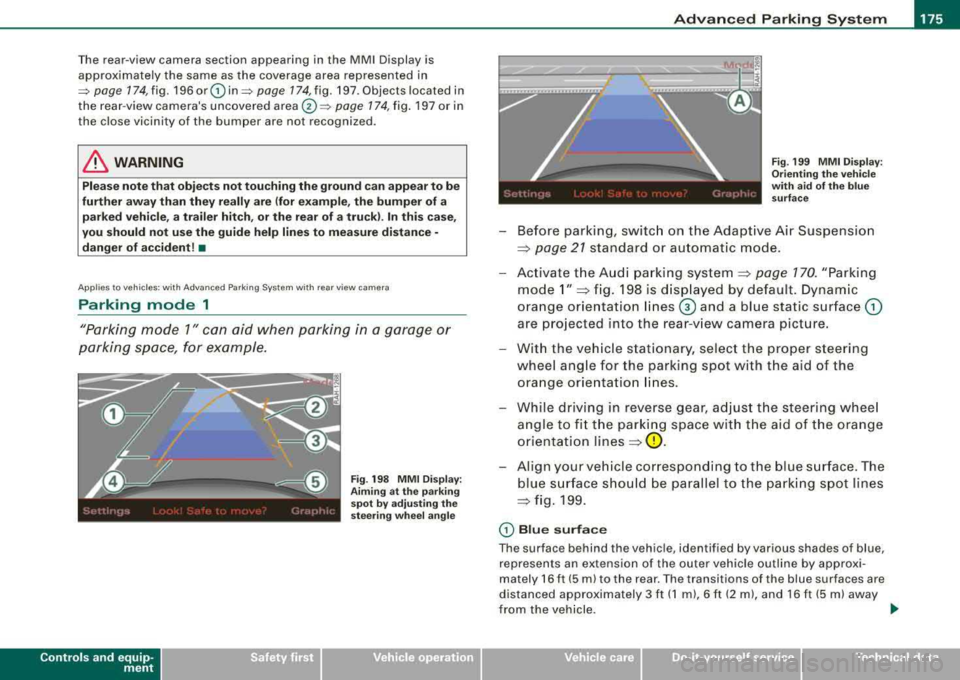
"Parking mode 1" can aid when parking in a garage or
parking space, for example.
Contro ls a nd eq uip
ment
Fig . 198 MMI Display:
Aiming at the parking
spot by adjusting the
steering wheel angle Fig
. 199 MMI Display:
Orienting the vehicle
with aid of the blue
surface
-Before parking, switch on the Adaptive Air Suspension
=> page 21 standard or automatic mode.
-Activate the Audi parking system=> page 170. "Parking
mode 1"
=> fig. 198 is displayed by default. Dynamic
orange orientation
lines @ and a blue static surface G)
are projected into the rear-view camera picture.
-With the vehicle stationary, select the proper steering
wheel angle for the parking spot with the aid of the orange orientation lines.
-While driving in reverse gear, adjust the steering wheel
angle to fit the parking space with the aid of the orange
orientation
lines=> 0 .
-Align your vehicle corresponding to the blue surface. The
blue surface should be parallel to the parking spot lines
=> fig. 199.
CD Blue surface
The surface behind the vehicle, identified by various shades of blue,
represents an extension of the outer vehicle outline by approxi
mately 16 ft (5 ml to the rear. The transitions of the blue surfaces are
distanced approximately 3 ft (1
ml, 6 ft (2 ml, and 16 ft (5 ml away
from the vehicle.
._
Vehicle care I I irechnical data
Page 178 of 404
___ A_ d_v _a_ n_ c_e _ d_ P_ a
_ r_k _in -= g'-- S-
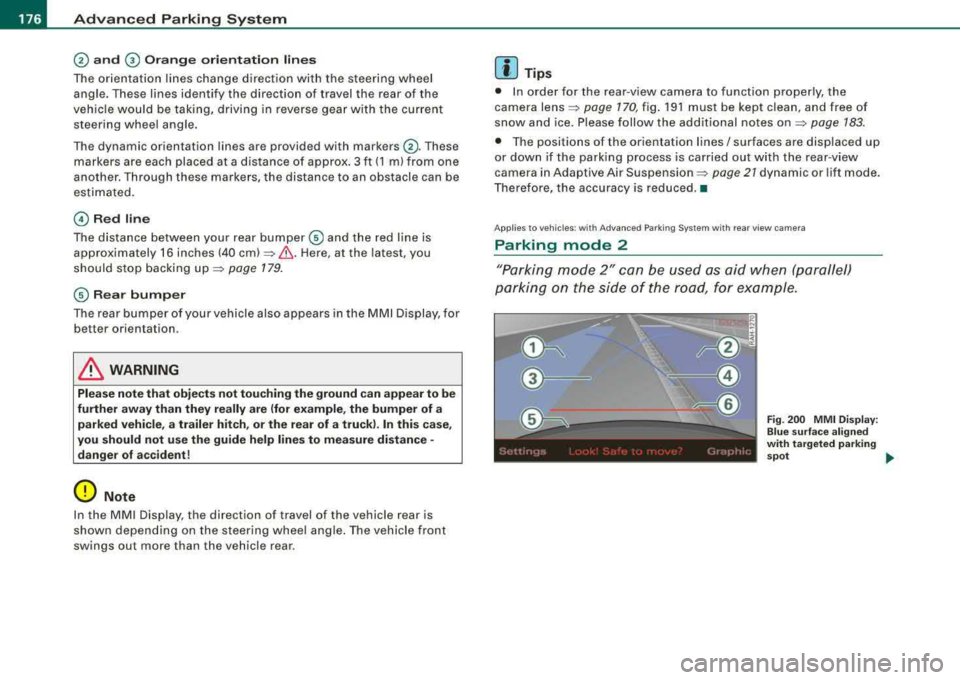
The orientation lines change direction with the steering wheel
angle. These lines identify the direction of travel the rear of the
vehic le would be taking, driving in reverse gear with the current
steering wheel angle.
The dynamic orientation lines are provided with markers
G). These
markers are each placed at a distance of approx. 3 ft (1 m) from one
another. Through these markers, the distance to an obstacle can be
estimated.
© Red line
The distance between your rear bumper © and the red l ine is
approximately 16 inches (40
cm)~&. Here, at the latest, you
should stop backing
up ~ page 179.
© Rea r bump er
The rear bumper of your vehicle also appears in the MMI D isplay, for
better orientation .
& WARNING
Please not e that obj ect s not t ouching the ground can app ear to be
further away th an they re ally are (for ex ample , th e bump er of a
parked vehicle , a tr ailer h itch , or the rear of a truc k). In t his ca se,
you sh o uld not use the guide h elp line s to m easure di stance
-
danger of accident!
0 Note
In the MM I Display, the direction of travel of the vehicle rear is
show n depending on the steering whee l ang le . The vehicle front
swings out more than the vehicle rear .
[ i] Tip s
• In order for the rear -v iew camera to function properly, the
camera
lens ~ page 170, fig. 191 must be kept clean, and free of
snow and ice. Please follow the additional notes
on~ page 183.
• The positions of the orientation lines/ surfaces are displaced up
or down if the parking process is carried out with the rear -v iew
camera in Adaptive Air
Suspension ~ page 21 dynamic or lift mode.
Therefore, the accuracy is reduced. •
Applies to vehicles : with Adva nce d Pa rking Sys tem with rear view came ra
Parking mode 2
"Parking mode 2" can be used as aid when (parallel)
parking on the side of the road, for example .
Fig. 200 MMI Di spl ay :
B lue surf ace ali gne d
w it h t arg ete d parking
s p ot _.,
Page 179 of 404
__________________________________________ A_ d_v _a_ n_ c_e _d _ P_a_ r_ k_ i_n -=g ;.._ S...:y'-- s_ t_ e_ m __ ......
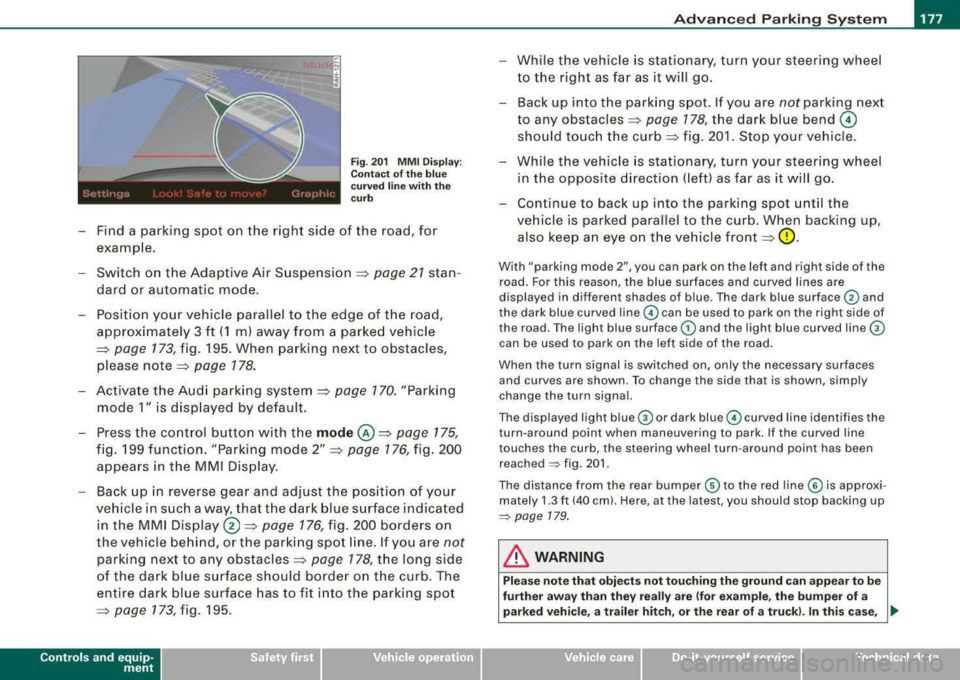
Fig . 201 MMI Display:
Contact of the blue
curved line with the
curb
- Find a parking spot on the right side of the road, for
example .
- Switch on the Adaptive Air Suspension =>
page 21 stan
dard or automatic mode.
- Position your vehicle parallel to the edge of the road,
approximately 3 ft (1 ml away from a parked vehicle
=> page 173 , fig. 195. When parking next to obstacles,
please
note => page 178.
- Activate the Audi parking system => page 170. "Parking
mode 1" is displayed by default.
- Press the control button with the
mode @=> page 175,
fig. 199 function. "Parking mode 2" => page 176, fig. 200
appears in the MMI Display.
- Back up in reverse gear and adjust the position of your
vehicle in such a way, that the dark blue surface indicated in the MMI
Display ®=> page 176, fig. 200 borders on
the vehicle behind, or the parking spot line. If you are
not
parking next to any obstacles => page 178, the long side
of the dark blue surface should border on the curb. The
entire dark blue surface has to fit into the parking spot
=> page 773,fig.195 .
Controls a nd eq uip
ment
While the vehicle is stationary, turn your steering wheel
to the right as far as it will go.
- Back up into the parking spot. If you are
not parking next
to any
obstacles => page 178, the dark blue bend ©
should touch the curb=> fig. 201. Stop your vehicle.
- While the vehicle is stationary, turn your steering wheel
in the opposite direction (left) as far as it will go.
- Continue to back up into the parking spot until the
vehicle is parked parallel to the curb. When backing up, also keep an eye on the vehicle
front => 0.
With "parking mode 2", you can park on the left and right side of the
road. For this reason, the blue surfaces and curved lines are
displayed in different shades of blue . The dark blue surface
G) and
the dark blue curved
line © can be used to park on the right side of
the road . The light blue surface
G) and the light blue curved line ©
can be used to park on the left side of the road.
When the turn signal is switched on, only the necessary surfaces
and curves are shown. To change the side that is shown, simply
change the turn signal.
The displayed light
blue © or dark blue© curved line identifies the
turn -around point when maneuvering to park. If the curved line
touches the curb, the steering wheel turn-around point has been reached
~ fig. 201 .
The distance from the rear bumper © to the red line© is approxi
mately
1.3 ft (40 cm). Here, at the latest, you should stop backing up
~ page 179.
in. WARNING
Please note that objects not touching the ground can appear to be
further away than they really are (for example, the bumper of a
parked vehicle, a trailer hitch, or the rear of a truck). In this case,
..,_
Vehicle care I I irechnical data
Page 180 of 404
___ A_ d
_ v_a _ n_ c_ e_d _ P_a _ r_ k _i_n ~g _ S_y _ s_ t_ e_ m _________________________________________ _
&, WARNING (continued)
you should not use the guide help lines to measure distance -
danger of accident!
0 Note
In the MMI Display, the direction of travel of the vehicle rear is repre
sented depending on the steering wheel angle . The vehicle front
swings out more than the vehicle rear.
[ i] Tips
• In order for the rear-view camera to function properly, the
camera
lens=> page 170, fig . 191 must be kept clean, and free of
snow and ice. Please follow the additional notes
on=> page 183.
• The positions of the orientation lines/ surfaces are displaced up
or down if the parking process is carried out with the rear -view
camera in Adaptive Air Suspension=> page 21 dynamic or lift mode.
Therefore, the accuracy is reduced.•
Special parking situations
Applies to vehicles : with Advance d Par king Sys tem wi th rear view came ra
Parking next to obstacles
When parking next to an obstacle, enough distance must
left on the side.
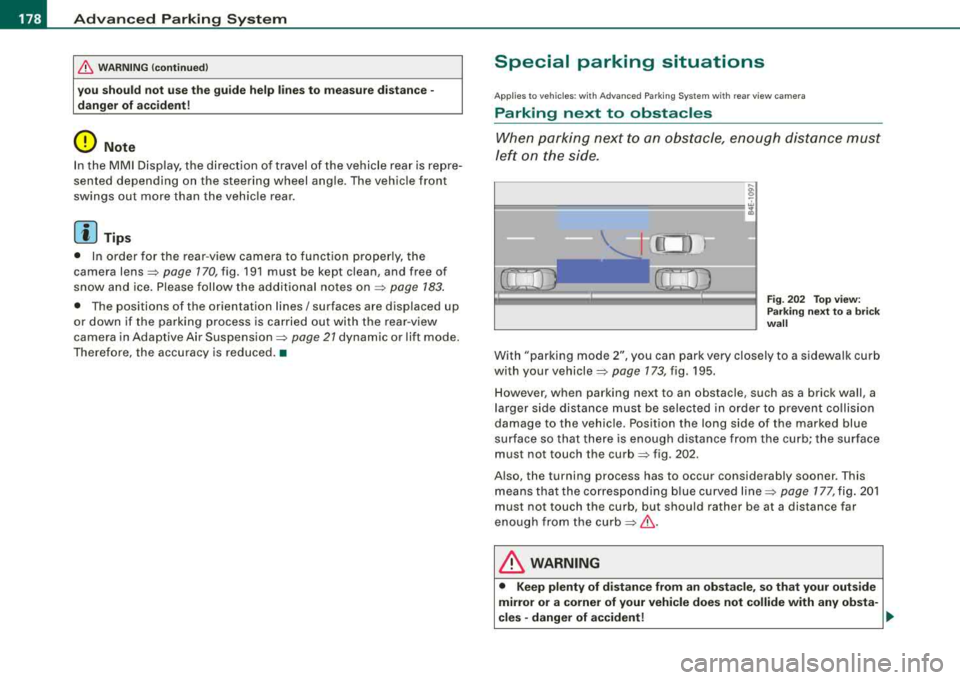
Fig. 202 Top view:
Parking next
to a brick
wall
With "parking mode 2", you can park very closely to a sidewalk curb
with your
vehicle=> page 173, fig. 195.
However, when parking next to an obstacle, such as a brick wall, a
larger side distance must be selected in order to prevent collision
damage to the vehicle. Position the long side of the marked blue
surface so that there is enough distance from the curb; the surface
must not touch the
curb=> fig . 202.
Also, the turning process has to occur considerably sooner. This
means that the corresponding blue curved
line=> page 177, fig. 201
must not touch the curb, but should rather be at a distance far
enough from the
curb=>&,.
& WARNING
• Keep plenty of distance from an obstacle, so that your outside
mirror or a corner of your vehicle does not collide with any obsta-
cles -danger of accident!
~
Page 202 of 404
___ D_ ri_v _i_n ..;::g:c..- S_ a_ f
_ e____, IY,__ ________________________________________________ _
Proper occupant seating positions
Proper seating position for the driver
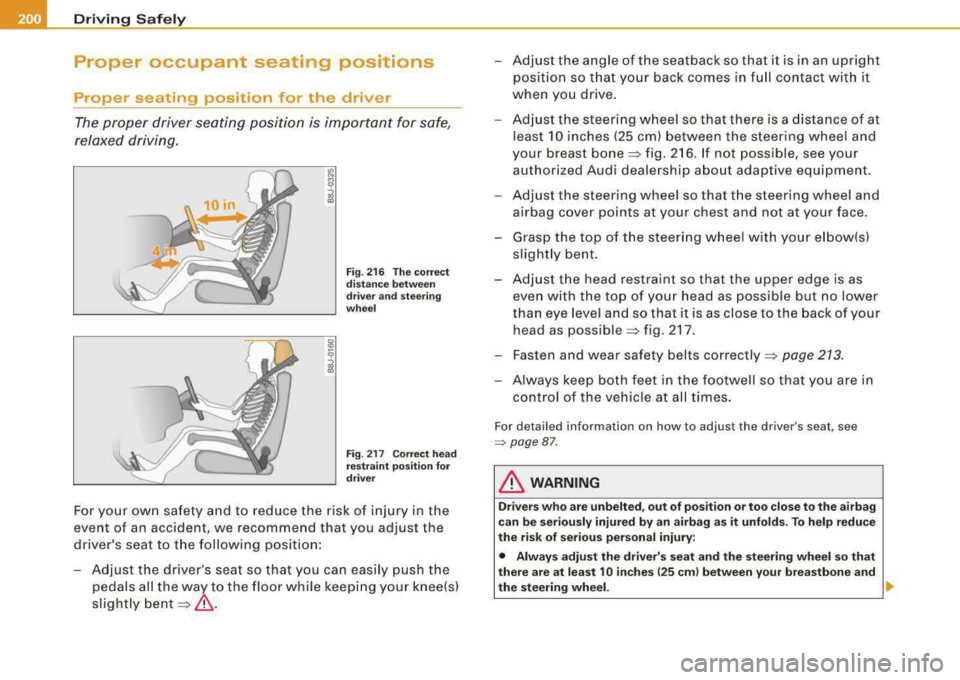
The proper driver seating position is important for safe ,
relaxed driving.
I.I> N
;
Fig. 216 The correct
distance between
driver and steering
wheel
Fig . 217 Correct head
restraint position for
driver
For your own safety and to reduce the risk of injury in the
event of an acc ident , we recommend that you adjust the
driver's seat to the following position:
- Adjust the driver's seat so that you can easily push the
pedals all the way to the floor while keeping your knee(s)
slightly
bent =:>& .
- Adjust the angle of the seatback so that it is in an upright
position so that your back comes in full contact with it
when you drive.
- Adjust the steering wheel so that there is a distance of at
least 10 inches (25 cm) between the steering wheel and
your breast
bone =:> fig. 216. If not possible, see your
authorized Audi dealership about adaptive equipment.
- Adjust the steering wheel so that the steering wheel and
airbag cover points at your chest and not at your face.
- Grasp the top of the steering wheel with your elbow(s)
slightly bent.
- Adjust the head restraint so that the upper edge is as even with the top of your head as poss ible but no lower
than eye level and so that it is as close to the back of your
head as
poss ible =:> fig. 217 .
- Fasten and wear safety belts
correctly =:> page 213.
- Always keep both feet in the footwell so that you are in
control of the vehicle at all times.
For detailed information on how to adjust the driver's seat, see
=> page 87 .
& WARNING
Drivers who are unbelted, out of position or too close to the airbag
can be seriously injured by an airbag as it unfolds. To help reduce
the risk of serious personal injury:
• Always adjust the driver's seat and the steering wheel so that
there are at least 10 inches
125 cm) between your breastbone and
the steering wheel. .,
Page 203 of 404
& WARNING (continued)
• Always adjust the driver's seat and the steering wheel so that
there are at least 4 inches (10 cm) between the knees and the
lower part of the instrument panel .
• Always hold the steering wheel on the outside of the steering
wheel rim with your hands at the 9 o'clock and 3 o'clock positions
to help reduce the risk of personal injury if the driver's airbag inflates .
• Never hold the steering wheel at the 12 o'clock position or with
your hands at other positions inside the steering wheel rim or on
the steering wheel hub. Holding the steering wheel the wrong way
can cause serious injuries to the hands, arms and head if the
driver's airbag inflates
• Pointing the steering wheel toward your face decreases the
ability of the supplemental driver's airbag to protect you in a colli
sion .
• Always sit in an upright position and never lean against or
place any part of your body too close to the area where the airbags
are located.
• Before driving, always adjust the front seats and head
restraints properly and make sure that all passengers are properly
restrained .
• Never adjust the seats while the vehicle is moving. Your seat
may move unexpectedly and you could lose control of the vehicle.
• Never drive with the backrest reclined or tilted far back! The
farther the backrests are tilted back, the greater the risk of injury due to incorrect positioning of the safety belt and improper
seating position.
• Children must always ride in child seats
=> page 243. Special
precautions apply when installing a child seat on the front
passenger seat
=> page 218 . •
Controls and equip
ment Safety first
Vehicle operation
Driving Safely
Proper seating position for the front
passenger
The proper front passenger seating position is important
for safe, relaxed driving.
For your own safety and to reduce the risk of injury in the
event of an accident, we recommend that you adjust the
seat for the front passenger to the follow ing position:
- Move the front passenger seat back as far as possible.
There must be a minimum of 10 inches (25 cm) between
the breastbone and the instrument
panel=> &.
-Adjust the angle of the seatback so that it is in an upright
position and your back comes in full contact with it
whenever the vehicle is moving.
- Adjust the head restraint so that the upper edge is as
even with the top of your head as possible but not lower
than eye level and so that it is as close to the back of your
head as
possible => page 203.
-Keep both feet flat on the floor in front of the front
passenger seat.
- Fasten and wear safety belts
correctly =:> page 213.
For detailed information on how to adjust the front passenger's
seat, see
=> page 86 .
& WARNING
Front seat passengers who are unbelted, out of position or too
close to the airbag can be seriously injured or killed by the airbag
as it unfolds. To help reduce the risk of serious personal injury : ..,_
Vehicle care Do-it-yourself service Technical data