wheel AUDI S8 2009 Owner's Manual
[x] Cancel search | Manufacturer: AUDI, Model Year: 2009, Model line: S8, Model: AUDI S8 2009Pages: 408, PDF Size: 91.63 MB
Page 137 of 408
On the road -
----------------
Parking
To prevent a parked vehicle from rolling away, there are a
few things you should do.
When you park your vehicle , do the following
- Stop the vehicle using the brake peda l.
- Pull the switch to app ly th e electromechanical park ing
brake .
- Move t he selector lever into the
P positio n ~ &-
- Switch off the engine and remove the ignitio n key f rom
the ignition loc k.
When you park your vehicle on hills , do the
following
- Stop the vehicle using the brake peda l.
- Pull the switch to app ly th e electromechanical par king
brake.
- If you are parkin g headed
downhill , turn t he fro nt whee ls
toward the curb.
- If you are parking headed
uphill , turn t he front w heels
awayfrom the curb.
- Move the se lector lever into the
P position.
- Sw itch off the engine and rem ove the ignitio n key f rom
the ign ition lock.
& WARNING
Thi s is how you can reduce the r isk of injury when l eav ing your
v ehicle.
Controls and equip
ment
& WARN ING (c ontinued )
• Neve r p ark the vehi cle wh ere it c an come in cont act with dry
gra ss, s pilled fuel or any oth er fl amm able m ater ials.
• Wh en p arking on hill s, always turn the w hee ls s o that the front
wheel s will fir st roll into the cu rb , if the veh icle should start to roll.
• Never allo w anyone -e spe ciall y small ch ildren -to r em ain in the
vehi cle when it i s lo cked . Lo cked doors make it more diffi cult fo r
r e s cuers to acce ss the pa ssenger compartment in the event of an
emergen cy. Danger t o life!
• Never le ave chi ldren un supervi sed in the vehicle . Children
c ould release the p arking brake or mo ve the gear shift le ve r o ut of
g ear. The vehicle could start to roll away and cau se an a ccident.
• No matt er w hat the se a son i s, the temper atu re in a pa rked
vehicle can rea ch d angerou s levels.
0 Note
• Please exe rcise care when you park your vehicle in pa rking areas
with parking barriers or curbs . Parking barriers and curbs vary in
height and cou ld damage your bumper and re lated components as
the front of your vehicle moves over a barrier or curb that is too high, as you park or as you back out of a parking spot . In order to be
sure that no such damage can occur , you may w ish to stop short of
having the front tires of your car touch the parking barrier or curb.
• Please also exercise exceptional care when you drive up or down
steep ramps or drive over curbs or other obstacles, for which the
vehicle is not designed, because components of the vehicle close to
the ground, such as bumper covers, spoilers and suspension and exhaust system components, may become damaged. •
I • •
Page 141 of 408
__________________________________________ ...;A~d~a~p~t~iv~e~C~ru~is~e~C:_:o~n~t!..ro~I _J __
Adaptive Cruise Control
Speed and distance control system
Applies to vehic les : with Adaptive C ruise Cont rol
Description
The Adaptive Cruise Control driver assistance program is
a combined speed and distance control system.
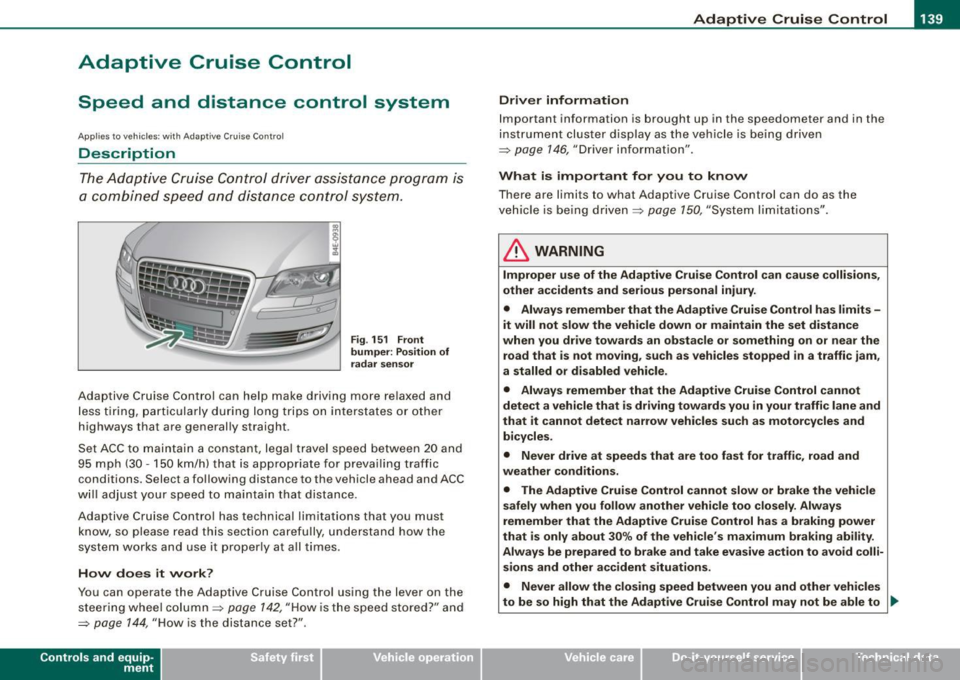
Fig. 151 Front
bumper: Position of
radar sensor
Adaptive Cruise Control can help make driving more relaxed and
less tiring, particularly during long trips on interstates or other
highways that are generally straight .
Set ACC to maintain a constant, legal travel speed between 20 and
95 mph (30 -150 km/h) that is appropriate for prevailing traffic
conditions. Select a following distance to the vehicle ahead and ACC
will adjust your speed to maintain that distance .
Adaptive Cruise Contro l has technical limitations that you must
know, so please read this section carefully, understand how the
system works and use it proper ly at all times .
How does it work?
You can operate the Adaptive Cruise Control using the lever on the
steering wheel column =>
page 142, "How is the speed stored?" and
=>
page 144, "How is the distance set?" .
Contro ls and eq uip
ment
Driver information
Important information is brought up in the speedometer and in the
instrument cluster display as the vehicle is being driven
=> page 146, "Driver information" .
What is important for you to know
There are limits to what Adaptive Cruise Control can do as the
vehicle is being driven =>
page 150, "System limitations" .
& WARNING
Improper use of the Adaptive Cruise Control can cause collisions,
other accidents and serious personal injury.
• Always remember that the Adaptive Cruise Control has limits -
it will not slow the vehicle down or maintain the set distance
when you drive towards an obstacle or something on or near the
road that is not moving, such as vehicles stopped in a traffic jam,
a stalled or disabled vehicle.
• Always remember that the Adaptive Cruise Control cannot
detect a vehicle that is driving towards you in your traffic lane and
that it cannot detect narrow vehicles such as motorcycles and
bicycles .
• Never drive at speeds that are too fast for traffic, road and
weather conditions .
• The Adaptive Cruise Control cannot slow or brake the vehicle
safely when you follow another vehicle too closely. Always
remember that the Adaptive Cruise Control has a braking power
that is only about 30% of the vehicle 's maximum braking ability.
Always be prepared to brake and take evasive action to avoid colli
sions and other accident situations.
• Never allow the closing speed between you and other vehicles
to be so high that the Adaptive Cruise Control may not be able to _,,,
Vehicle care I I irechnical data
Page 154 of 408
-Adaptive Crui
se Control
..___,___ _____________ _
Applies to vehicles : w it h Ad aptive Crui se Co nt rol
Vehicles that are difficult to detect
I
l===================-i
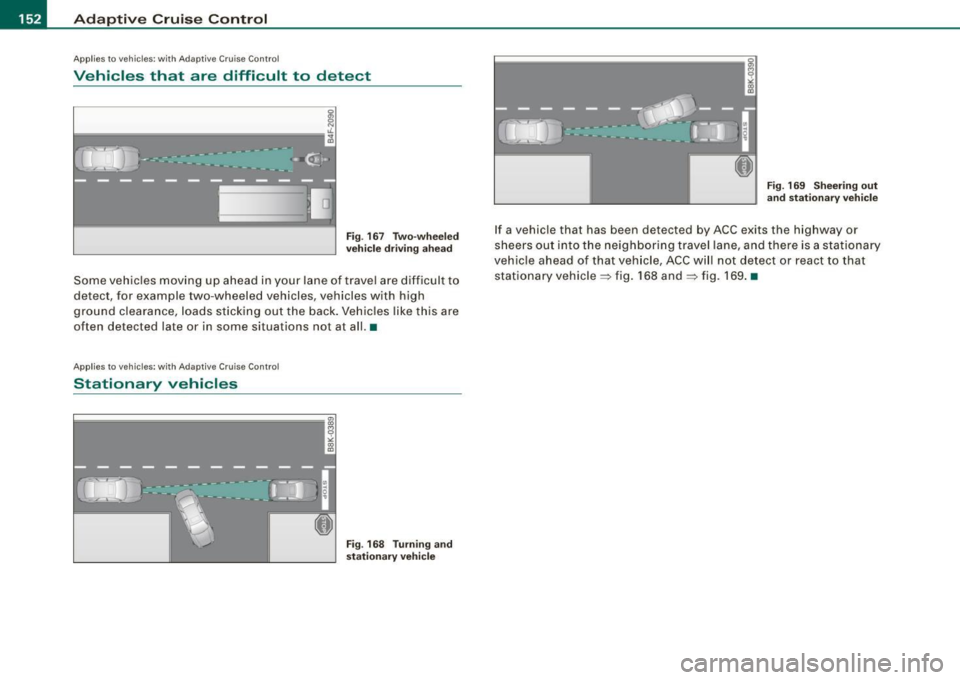
Fig . 16 7 Two- wheel ed
ve hicl e dr iving a head
Some vehic les moving up ahead in y our lane of trave l are difficul t to
detect, for example two-wheeled vehicles, vehicles with high
ground c learance, loads sticking out the back . Vehic les like this are
often detected late or in some situations not at all. •
Applies to vehi cles: with Ada ptive C rui se C ont rol
Stationary vehicles
P-================-~ 8 ,; co a:,
Fig . 16 8 Turning and
s tati ona ry vehicle F
ig . 169 Shee ring out
a nd s tation ary ve hic le
If a vehicle that has been detected by ACC exits the highway or
sheers out into the neighboring travel lane, and there is a stationary
vehic le ahead of that vehicle, ACC wi ll not detect or react to that
stat ionary vehicle ~ fig . 168 and => fig. 169 . •
Page 155 of 408
Audi lane ass is t -
-------------------------
Audi lane assist
Lane assist
Applies to veh icles : with lane assist
Description
Lane a ssist helps you keep y our vehicle in your lane .
Lane assist uses a camera to detect lane boundary lines. If the
system detects that your vehicle is about to leave a lane boundary
line, the steering wheel
vibrates to alert the driver. If lane assist
detects boundary lines on both sides of the vehicle's lane, the
system enters active standby mode, which is indicated by the green
indica tor light /: on the instrument cluster .
I f the system is in active standby mode and the turn signal is acti
vated before driving ov er the boundary line, the warning does not
occur since the sys tem allows for intenti onal lane changes.
The system is designed for driving on freeways and expanded high
ways and t hus works on ly at speeds of 40 mph (65 km/h) or mo re .
& WARNING
• Lane ass ist will not k eep your vehicle in your lane. The sy stem
only warns the d riv er w hen t he vehicle i s le av ing the lan e. The
driv er is alway s re spon sible for keeping the vehicle in the lane.
• The camera is not able to d ete ct all lane boundary lines and in
s o me cases might al so dete ct lane str ucture s or objects as
boundary lines . This c an le ad to in corre ct wa rning s or warnings
that fa il to go off at all .
• The camer a's visibili ty ca n be i mpaired by vehi cle s ahe ad of
you , for instan ce, or by rain , snow , h eavy spray or li ght shining into
th e cam era lens . Thi s can ca use lane as sis t to f ail to d ete ct
boundary line s. •
Con tro ls and eq uip
ment
Ap plies to vehi cles : wi th la ne assi st
Activating and deactivating
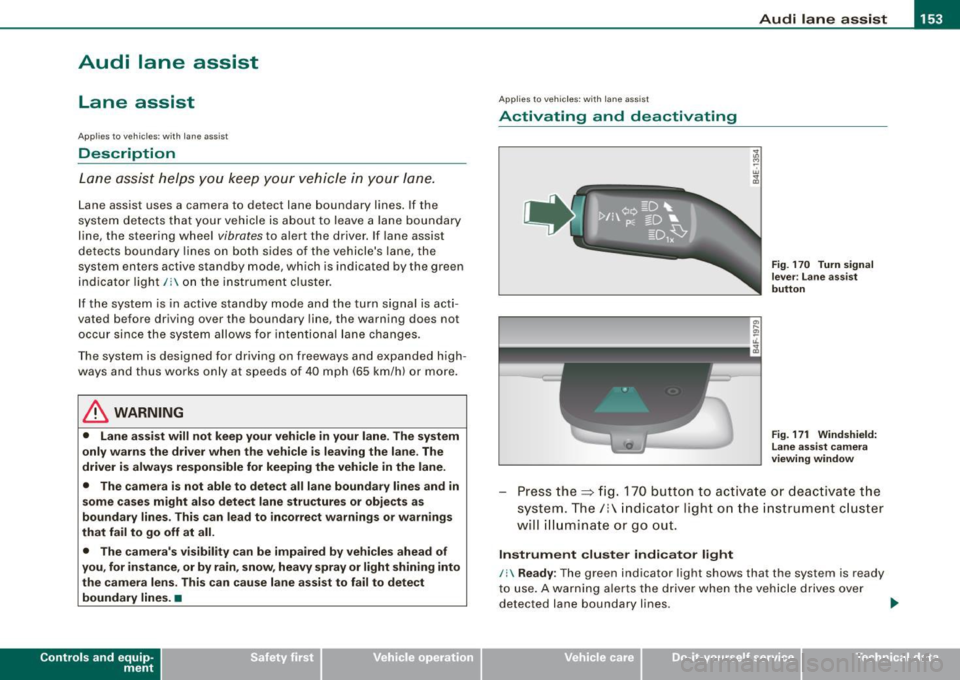
Fig . 1 70 Turn signal
l ev er: La ne assis t
butt on
F ig . 1 7 1 Win dshie ld:
L ane assist ca mera
v iewing win dow
Press the :::> fig. 170 button to activa te or deactivate the
syst em . T he/ : in dica tor ligh t on t he i nstrument c luster
will illuminate or go out.
Instrument c lu ster indi ca tor light
/: Ready:
The green indicator light shows that the system is ready
to use . A warning a lerts the drive r when the veh icle drives over
dete cted lane boundary l ines. .,.
Vehicle care I I irechnical data
Page 156 of 408
• .___A_ u_ d _ i_l_a _n _ e_ a_ s_s _is _ t _________________________________________________ _
I Not ready: The yellow indicator light shows that the system is
turned on but unable to send a warn ing. This can be due to the
following:
• There are no boundary lines, or there is on ly one boundary line
present .
• The boundary lines are not detected (e.g. due to snow, dirt, wet
conditions or light shining into the camera lens).
• More than two boundary lines (such as at construction sites) are
located in the vehicle's lane.
• The vehicle's speed is below the speed needed to activate it,
which is about 40 mph (65 km/h).
• The lane is narrower than about 8 ft . (2.5 ml, or wider than about
16 ft. (5 ml.
• The curve is too sharp.
Notes on the instrument cluster display
When the lane assist turns off automatically, the instrument cluster
indicator goes out and one of the following messages appears on
the display:
Audi lane assist not available: Currently no sensor vision
This message appears when the camera can no longer function
because it cannot detect the boundary lines. This may be due to the
following :
• The exterior s ide of the camera viewing window=>
page 153,
fig. 171 is covered with dirt or ice. Clean this part of the windshield.
• The camera v iewing window is fogged up on the inside. In this
case, wait until the fog disappears before turning lane assist on
again.
• The system was unable to detect boundary lines over an
extended period of time due to road conditions (such as snow
covered lanes). Do not turn lane assist on again until the lines can
be more easily detected.
Audi lane assist not available
A temporary malfunction is preventing lane assist from operating .
Try turning on lane assist again a t a later time.
Audi lane assist: system fault
The system should be checked by an authorized Audi dealer or other
qualified workshop .
[ i ] Tips
• Make sure that the camera viewing window:::> page 153, fig. 171
is not covered by stickers or similar objects .
• Always keep the camera viewing window clean. This can usually
be done by operating the windshield wipers. •
Applies to vehicles: with lane assist
MMI settings
You can use the MM/ to adjust the warning time and
steering wheel vibration.
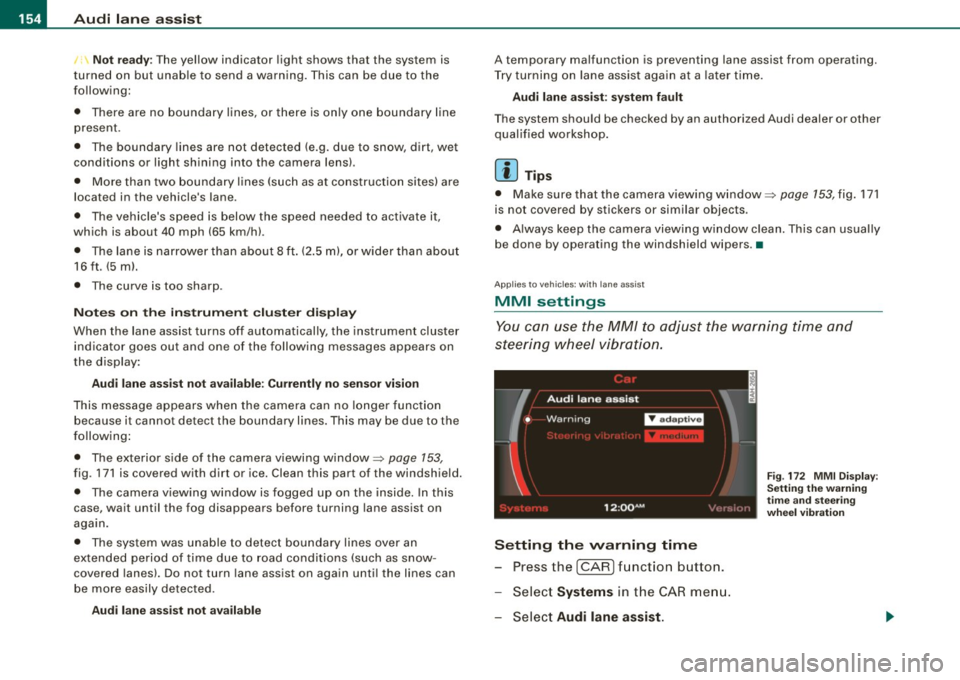
Setting the warning time
Press the I CAR] function button.
- Select
Systems in the CAR menu.
- Select
Audi lane assist.
Fig. 172 MMI Display :
Setting the warning
time and stee ring
wheel vibration
Page 157 of 408
Audi lane a ssist -
----------------
-Select Warning early , adaptive or late ~ page 154,
fig. 172.
Setting th e st eering wheel vibration
- Press the
I CAR I function button.
- Selec t
Systems in the CAR menu.
- Selec t
Audi lane a ssis t.
- Selec t Steering vibrat ion weak , medium or strong.
Sett ing th e war ning tim e
Earl y:
This setting warns the driver before a wheel touches the
detected lane boundary line. The warning depends on the vehicle's
angle as it approaches the boundary line . If you approach a
boundary l ine gradua lly, the warning will occur ear lier. If you
approach the boundary line at a very sharp angle, the warning wi ll
occur just before a whee l touches the line.
Adapti ve : In this setting, the warning time adjusts to the character
istics of the road and the vehicle speed. The warning occurs later for
curves and occurs earlier for straight stretches of road . The warning
occurs later on narrow roads than on wide roads.
Late: This setting warns the driver when a whee l drives over the
detected lane boundary line.
Se ttin g th e steering wheel vibration
When adjusting the steering wheel vibration, the steering wheel
vibrates so that you can check the intensity you have set.
[ i ] Tips
• When making the adjustment, lane assist is not activated . The
steering whee l vibrates briefly only to assist you in changing the
setting .
• Your settings are automatically stored and assigned to the
remote contro l key being used. •
Controls and equip
ment I • •
Page 169 of 408

_______________________________________________ A_ u_t _o _ m_ a_ t _i_ c_ t_r _a _n _ s_ m __ is_s_ i _o _ n __ !II
T he selector lever must be in Nor P. If one of the driving positions
is engaged a safety switch w ill preven t the eng ine from being
started. See also=>
page 130.
Before you move the selector lever from the P position, you must
a lways apply the brake pedal before and while depressing the
button in the hand le of the se lector lever .
_& WARNING
• Unintended v ehicle movement c an cause serious injury .
- When the selector lever i s in a driving po sition , the vehicle
may creep, even at idle speed . Therefore do not release the
parking brake or foot brake until you are ready to move ,
be cau se power is tran smitted to the wheel s as soon as a
driving po sition i s engaged.
- Do not accelerate while selecting a driving pos ition . At this
time the engine must be at idle speed so that undue stress is
not placed on the clut che s in the t ransmission .
-Remember : - even when stopped briefly with the automatic
transmi ssion in "D" or "R ", engine po wer is being tr ansmitted
to the wheels. Your vehicle could "creep " forward or ba ckward .
When stopped , keep the brake pedal fully depres sed and u se
the parking brake if ne ces sary to keep the vehicle from rolling.
• If the selecto r leve r is unintentionally mo ved into N whi le you
are dr iving, take your foot off the accelerator pedal and wait for
the eng ine to return to idle speed before sele cting a dr iving posi
tion .
• Never shift into "R " or "P " when the ve hicle is in motion .
• Never get out of the driver 's seat when the eng ine i s running .
• If you must get out of the vehicle , move the selector lever
s ecurely into the P po sition and apply the park ing brake firmly.
• If the engine must remain running , never have any driving po si
tion engaged when che cking under the hood . Make sure the
selector lever has securely engaged and is locked in "P" with the
p ark ing br ake firmly set =>
page 301 , "E n gine compart ment ".
Controls and equip
ment
& W ARNING (continued )
Otherwise , any in crease in engine speed may set the vehi cle in
motion , even with the parking brake applied. •
Selector lever positions
This section describes the selector lever positi ons and
drivi ng ra nges .
Fig . 18 6 D ispl ay in the
in strument cluste r:
s elec tor lev er in po si
tion D
The selector leve r posi tion engaged appears next to the selec tor
lever as wel l as in the instrument c luster display . A lso, the current
gear engaged is sh own in positi ons D and S .
P -Park
In this selector leve r pos it ion the transmission is mechanica lly
locked . Engage
P on ly when the vehicle is completely stopped=> &
in "Driving the automatic transm ission" on page 166 .
To shift in or out of position P, you must first press and hold the
brake peda l
and then press the re lease bu tton in t he se lecto r leve r
handle while moving the selector lever to or from
P . You can shift
out of this position only with the ignit ion on.
R -Re ver se
The transmission wi ll au tomatically select the lowest gear ratio
when you shift into reverse .
I • •
Page 173 of 408
Automatic transmi ssio n -
------------------'
Applies to vehi cles : wi th tip troni c-st eerin g wh eel
Steering wheel with tiptronic ®
The shift buttons on the steering wheel allow the driver to
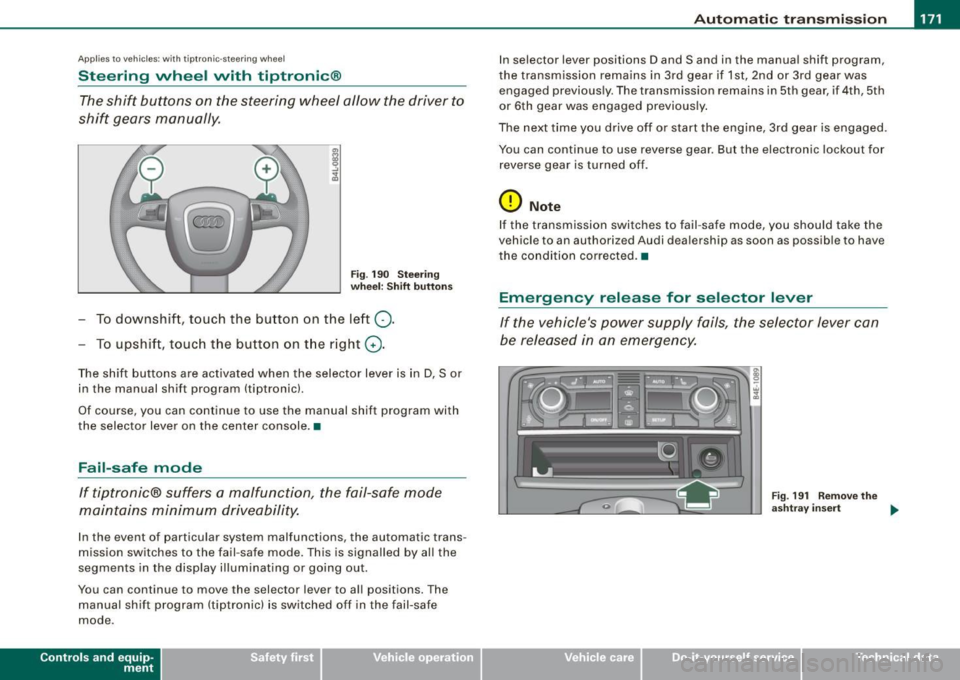
shift gears manually.
F ig . 190 Steering
whee l: S hift butt ons
- To downshift, touch the button on the left Q .
- To upshift , touch the button on t he right G) .
The shift buttons are activated when the selector lever is in D, Sor
in the manual shift program (tip tronic) .
Of course, you can continue to use the manual shift program with
the selector lever on the center console .•
Fail-safe mode
If tiptronic® suffers a malfunction, the fail-safe mode
maintains minimum driveability.
In the event of particular system malfunctions, the automatic trans
mission switches to the fail -safe mode. This is s ignalled by all the
segments in the display illuminating or going out .
You can continue to move the selector lever to all positions. The manual shift program (tiptronic) is switched off in the fail-safe
mode .
Contro ls and eq uip
ment
In selector lever positions D and Sand in the manual shift program ,
the transmission remains in 3rd gear if 1st, 2nd or 3rd gear was engaged previous ly. The transmission remains in 5th gear, if 4th, 5th
or 6th gear was engaged previously .
The next time you drive off or start the engine, 3rd gear is engaged .
You can continue to use reverse gear . But the electronic lockout for
reverse gear is turned off .
0 Note
If the transmission switches to fail -safe mode, you should take the
vehicle to an au thori zed Audi dea lership as soon as possib le to have
t he condition corrected .•
Emergency release for selector lever
If the vehicle's power supply fails, the selector lever can
be released in an emergency.
Fig . 19 1 Rem ove th e
as htray i nser t
~
Vehicle care I I Technical data
Page 180 of 408

• ..__A_ d_v _ a_ n_c _e _ d_ P_ a_r _k _in ---== g'-- S...:y _ s_ t_ e_ m ___________________________________________ _
The rear-view camera section appearing in the MMI Display is
approximately the same as the coverage area represented in
~ page 177, fig. 198 or G) in ~ page 177, fig. 199. Objects located in
the rear -view camera's uncovered area
0 ~ page 177, fig. 199 or in
the close vicinity of the bumper are not recognized .
& WARNING
Please note that objects not touching the ground can appear to be
further away than they really are (for example, the bumper of a
parked vehicle, a trailer hitch, or the rear of a truck) . In this case,
you should not use the guide help lines to measure distance -
danger of accident! •
Applies to vehicles : with Advanced Parking Sys tem w it h rear view c ame ra
Parking mod e 1
"Parking mode 1" can aid when parking in a garage or
parking space, for example.
Fig. 200 MMI Display:
Aiming at the parking
spot by adjusting the
steering wheel angle Fig
. 201 MMI Display:
Orienting the vehicle
with aid of the blue
surface
- Before parking, switch on the Adaptive Air Suspension
=>
page 21 standard or automatic mode.
- Activate the Audi parking system=>
page 173. "Parking
mode 1" => fig. 200 is displayed by default. Dynamic
orange orientation lines
0 and a blue static surface G)
are projected into the rear-view camera picture.
- With the vehicle stationary, select the proper steering
wheel angle for the parking spot with the aid of the
orange orientation lines.
- While driving in reverse gear, adjust the steering wheel
angle to fit the parking space with the aid of the orange
orientation lines=>
0.
-Align your vehicle corresponding to the blue surface. The
blue surface should be parallel to the parking spot lines
=:> fig. 201.
G) Blue surface
The surface behind the vehicle, identified by various shades of blue,
represents an extension of the outer vehicle outline by approxi
mately 16 ft (5 m) to the rear. The transitions of the blue surfaces are
distanced approximately 3 ft (1 m), 6
ft (2 ml, and 16 ft (5 ml away
from the vehicle. .,
Page 181 of 408
_________________________________________ ...:A...:.= d:..:v :..:a:..: n:...:..:: c.::e :.:d :....:.. P:..:a:..: r...: k:..: i.::n:.::g :!...::S:.Jy~ s:::. t:.: e::.: m:..:.:._..JIIIIII
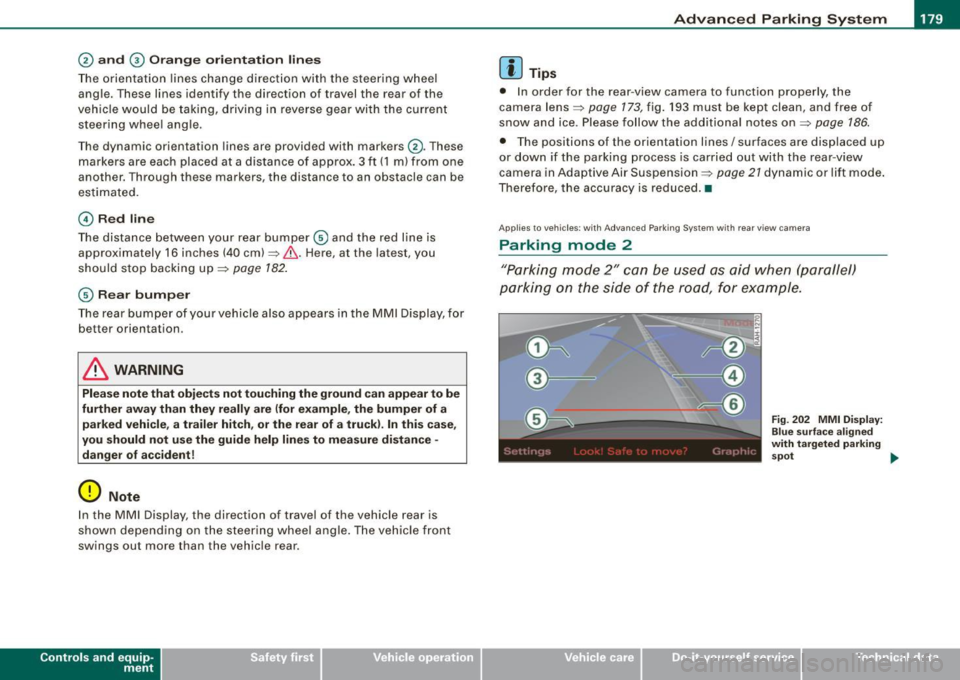
@ and 0 O ra ng e o rientati on line s
The orientation lines cha nge direction with the steering wheel
angle. These lines identify the direction of travel the rear of the
veh icle would be taking, d riving in reverse gear with t he current
steering whee l ang le.
T he dynamic orientation lines are provided with markers @. T hese
markers are each placed at a distance of app rox. 3 ft (1 ml from o ne
another. Through thes e markers, the distance to an obstacle can be
es timated .
©Redli ne
The distance between your rear bumper © and the red l ine is
approximately 16 inch es (40 cm)~& . Here, at the latest, you
should stop backing up~
page 182 .
© Rear bump er
The rear bumper of your vehicle also appears in the MMI Display, for
bett er orientation .
& WARNING
Please note that obje cts not touching the ground can appear to be
further away than they re ally are (for example , the bumper of a
parked vehicle , a trailer hitch , or the re ar of a truck ). In th is case ,
you should not use the guide help line s to mea sure distance -
danger of accident!
0 Note
I n the MMI Display, the direction of trav el of the vehicle rear is
shown depending on the steering wheel a ngle . The vehicle front
swings ou t more than the vehicle rear .
Contro ls and eq uip
ment
[ i ] Tips
• I n order for the rear -view camera to function properly, the
camera lens~
page 173, fig. 193 must be kept clean, and free of
snow and ice . Please follow the additional no tes on ~
page 186.
• The positions of the orientation lines / surfaces are disp laced up
or down if the parking process is car ried out with the rea r-view
camera in Adap tive Air Suspension ~
page 21 dynamic or lift mode .
Therefore , the accuracy is reduced. •
Applies to vehi cles : w ith Adva nce d Pa rki ng S yste m with rear view c amera
Parking mode 2
"P ar king m ode 2" ca n be u sed as aid when (pa rallel)
parki ng on the side of the r oad, for e xample.
Vehicle care I I
Fig . 2 02 MMI Di splay:
Blue surfa ce a ligned
with t argeted par king
s p ot ...
irechnical data