steering wheel AUDI S8 2014 User Guide
[x] Cancel search | Manufacturer: AUDI, Model Year: 2014, Model line: S8, Model: AUDI S8 2014Pages: 314, PDF Size: 78.47 MB
Page 68 of 314

66 Seats and storage
Seat memory
Description
Applies to vehicles: wit h memory fu nctio n
The memory function allows you to quickly
and eas ily store and recall personal seating
p rofiles for the dr iver, front passenger and
outer rear seats*. The memory function is op
erated through the master key and the memo ry buttons in the driver's/front passenger's
doors and the rear doors*.
The driver's seating profi le is stored and as
signed to the master key each time the vehicle
is locked . The seating profile is recalled auto
matically when the vehicle is unlocked. If two
Remote control
master key
Driver
Seat X
Head restraint X
Steering wheel* X
Safety belt* X
Both exterior rear-X
view mirrors*
There are two additional buttons in the rea r
doors* that can be used to recall two stored
seating profiles
r:=;,page 67.
Remote control key
Appl ies to vehicles: with memory function
To assign the driver's seat settings to the re
mote contro l key when locking the vehicle, the
function must be switched on .
.. Se lect :
I CAR I function button > Car systems
control button > Vehicle settings > Seats >
Driver seat > Remote control key> On.
@ Tips
If you do not want another driver's set
tings to be assigned to the remote control
key, switch off the memory function using
the MMI or the
! OF F! button r:=;, page 67. people
use one vehicle, it is recommended
that each person always uses "their own"
master key.
Two seating profiles can be stored in each of
the driver's/front passenger's doors and one
seat ing profile in each of the rear doors*.
Once stored, these seat ing profiles can be re
ca lled at any time.
T he following sett ings are stored:
Memory button
Driver Front passenger Outer rear seats*
X
X X
X X
X
X
X
X
Page 84 of 314
82 Warm and cold
(D Note
To avoid damage to the heating e lements
in the seats, do not kneel on the seats or
place heavy loads on a small area of the
seat .
Setup
The climate control system setup is accessed
through the MMI.
.. Se lect : ICAR !function button> C ar sys tems
control button > A/C.
Rear c abin settings *
When this function is selected, all se tt ings fo r
the rear ca n be adjusted through the climate
contro l system in the cockpit . The climate
control system settings cannot be adjusted in
the rear seat at the same time. This function
switches off after a certain period of time or
when one of the dials in the cockp it is press
ed .
Auto re ci rculati on* Solar roof*
Pa
rking ventilation is cont ro ll ed automatically
in the
auto setting .
When the ignition is off, solar-powered park
i ng ventilat io n may sw itch on, as long as
- there is sufficient sunlight,
- the outside temperature is not too low,
- the sunroof is closed or tilted and
- auto (MMI) is selected .
Ii!] Steering wheel heating
Applies to vehicles: wit h heated s tee rin g wheel
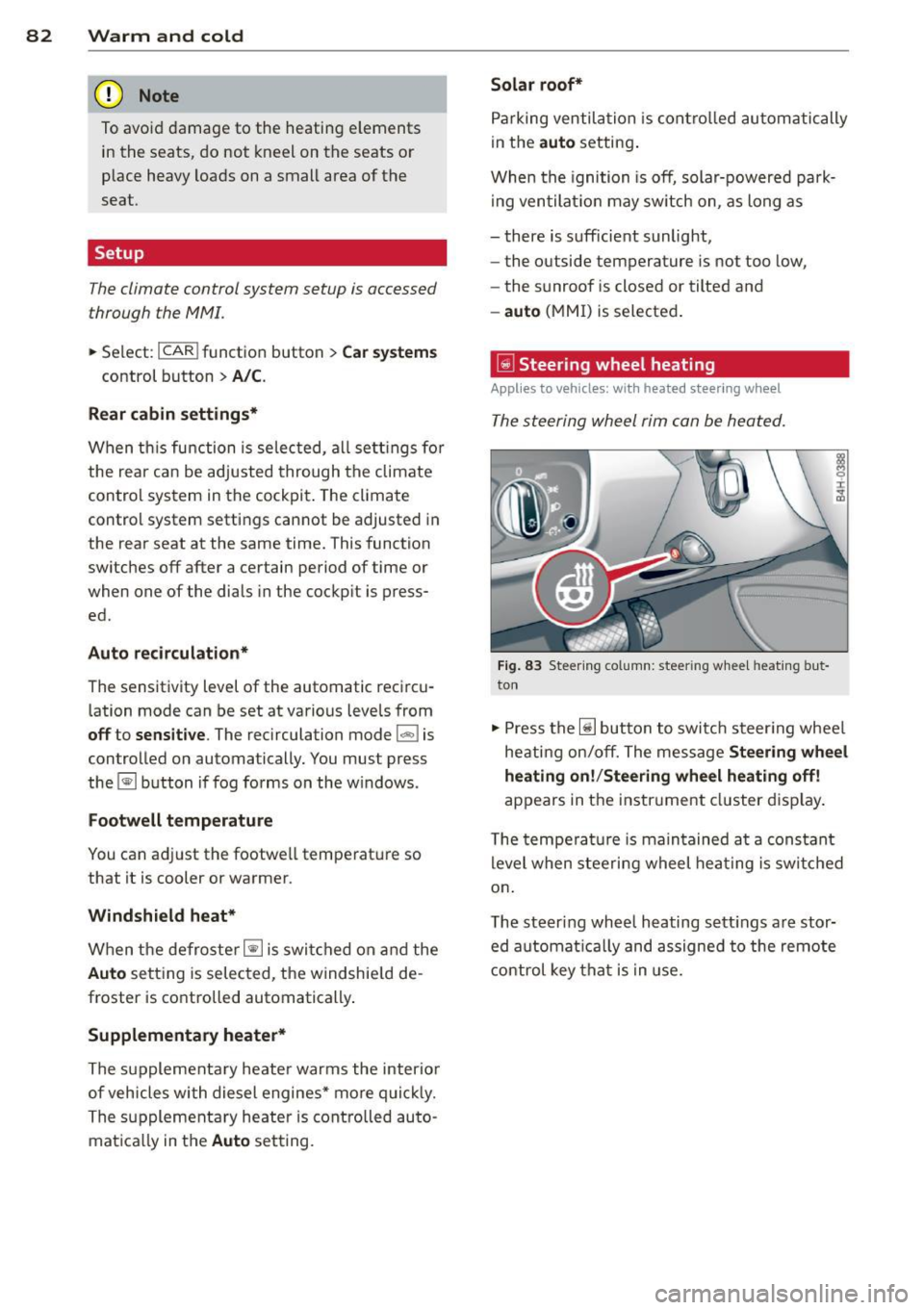
The steering wheel rim can be heated.
Fig. 83 Steer ing col umn: steering w heel h eat ing but-
The sensitivity level of the automatic reci rcu-to n
lation mode can be set at various leve ls from
off to sensiti ve . The recirculation mode I""' ! is
controlled on automatically. You must press
the ~ button if fog forms on the w indows.
Fo otwell temperature
You can a dju st the footwell temperat ure so
that it is cooler or warmer.
Windshield heat*
When the defroster~ is swi tched on an d the
Aut o sett ing is selected, the windshie ld de
froster is controlled automatically .
Supplementary heater*
The supplementary heater warms the interio r
of vehicles with diesel engines* mo re q uic kly.
The supplementa ry heater is contro lled auto
matica lly in the
Aut o setting. ..
Press the~ button to switch steer ing whee l
heati ng on/off. The message
Steerin g wheel
h eating on! /Steering wheel heating off!
appears in the instr ument cl uster display .
T he tempera ture is main tained a t a constant
level when stee ring wheel hea ting is switc hed
on .
The steer ing wheel heating sett ings a re stor
ed automat ica lly and assigned to the remote
c ontrol key that is in use.
Page 85 of 314
On the road
Steering
Adjusting steering wheel position
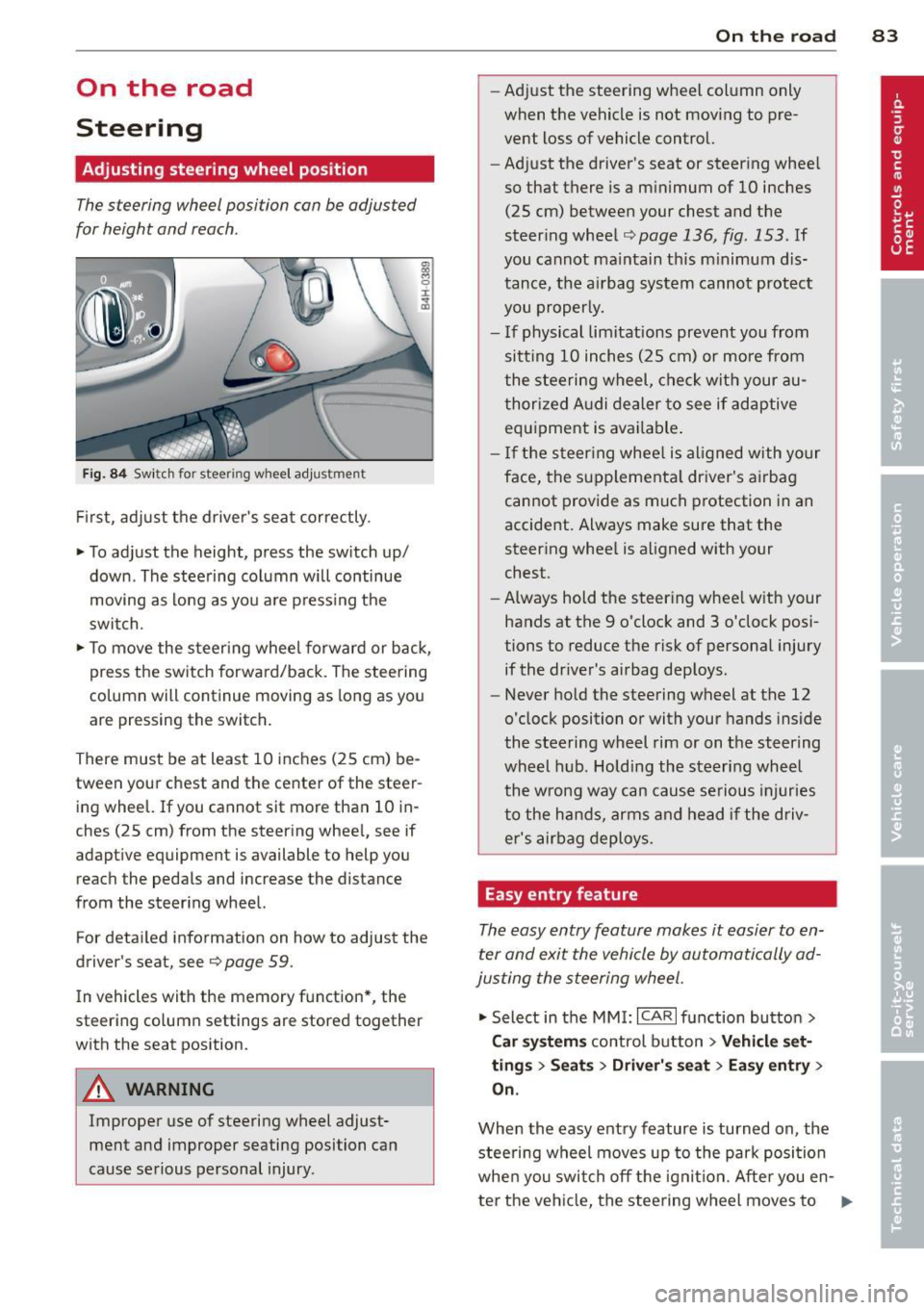
The steering wheel position can be adjusted
for height and reach .
Fig. 84 Switch for steer ing w heel adjustment
First, adjust the driver's seat correctly.
• To adjust the height, press the switch up/
down . The steering column will continue
moving as long as you are pressing the
switch.
• To move the steering wheel forward or back,
press the switch forward/back . The steering
column will continue moving as long as you
are pressing the switch.
There must be at least 10 inches (25 cm) be tween your chest and the center of the steer
ing wheel. If you cannot sit more than 10 in
ches (25 cm) from the steering wheel, see if
adaptive equipment is available to help you
reach the pedals and increase the distance
from the steering wheel.
For detailed information on how to adjust the
driver's sea t, see
Q page 59 .
In vehicles with the memory function*, the
steering column settings are stored together
with the seat position .
A WARNING
Improper use of steering wheel adjust
ment and improper seating position can
cause serious personal injury.
-
On the road 83
-Adjust the steering wheel column only
when the vehicle is not moving to pre
vent loss of vehicle control.
- Adjust the driver 's seat or steering wheel
so that there is a minimum of 10 inches (25 cm) between your chest and the
steering wheel
~ page 136, fig . 153 . If
you cannot maintain th is m inimum dis
tance, the airbag system cannot protect
you properly.
- If physical limitations prevent you from
sitt ing 10 inches (25 cm) or more from
the steering wheel, check with your au
thorized Audi dealer to see if adaptive
equipment is available .
- If the steering wheel is al igned with yo ur
face, the supplementa l driver's airbag
cannot provide as much protection in an
accident. Always make sure that the
steering whee l is aligned with your
chest.
- Always hold the steering whee l with your
hands at the 9 o'clock and 3 o'clock posi
tions to reduce the risk of personal injury
if the driver's airbag deploys.
- Never hold the steering wheel at the 12
o'clock position or with your hands inside
the steering wheel rim or on the steering
wheel hub. Holding the steering wheel
the wrong way can cause serious injuries
to the hands, arms and head if the driv
er's airbag deploys.
Easy entry feature
The easy entry feature makes it easier to en
ter and exit the vehicle by automatically ad
justing the steering wheel.
• Select in the MMI: ICARI function button >
Car systems control button > Vehicle set
tings > Seats > Driver' s seat > Easy entry>
On.
When the easy entry feature is turned on , the
stee ring wheel moves up to the park position
when you swit ch off the ignition. After you en -
ter the vehicle, the steering wheel moves to ..,..
Page 92 of 314
90 On the road
Engine will not swit ch off
Before each stop phase, the system checks i f
certain cond itions have been met. For exam
p le, the engine will
n ot be switched off in the
following situations:
- T he eng ine has not reached the minimum
required temperature for Start -Stop-mode .
- The inter io r temperature selec ted by the A/C
system has not been reached .
- T he outs ide temperature is extremely h igh/
low .
- T he w indshield is being defrosted
¢page 82.
-The parking system* is switched on.
- The battery charge level is too low .
- The steering wheel is sharply turned or
there is a steering movement.
- After engaging the reverse gear.
- On sharp inclines.
The
tiij indica to r light appears in the informa
tion line in the ins trument cluster disp lay
<=:>fig . 89 .
Engine automatically restarts
The stop phase is interrupted in the following
situations, for examp le. The engine restar ts
witho ut any act ion by the driver.
- T he interio r temperature varies from the
temperature selected in the A/C system .
- The w indshield is being defrosted
<=:> page 82.
- The brake pedal is pressed several times i n a
row .
- The battery charge level becomes too low .
- High power consumption.
Sw itching the ignition automatically
To prevent the battery from d raining, the igni
tion will switc h off
automat ically when a ll of
the following conditions have been met:
- T he veh icle has already been driven.
- T he eng ine has been tu rned off by the Star t-
Stop-System*.
- The driver's door is opened.
- The driver's seat belt is removed.
- The brake pedal is not pressed dow n. -
The vehicle is stationa ry .
In this case, the activated low beam will be re
placed by the side ma rke r lights. The s ide
marker lights w ill switch off after approxi
mately 30 minutes or when you lock the vehi
cle .
If the Star t-Stop System h as n ot turned off
the engine or if you have sw itched the Start
Stop system off man ua lly, the ignition will
not
be automatica lly switched off and the engine
will continue to ru n ¢ ,& .
A WARNING
=
Never allow the engine to run in confined
spaces -danger of asphyxiation.
(D Tips
If you shift into the D, Nor S posit ions af
ter sh ifting into reverse, the vehicle must
be driven faster tha n 6 mph (10 km/h) in
order for the engine to sw itch off again.
Switching the Start-Stop -System on/off
manually
App lies to vehicles: wi th Start-Stop -System
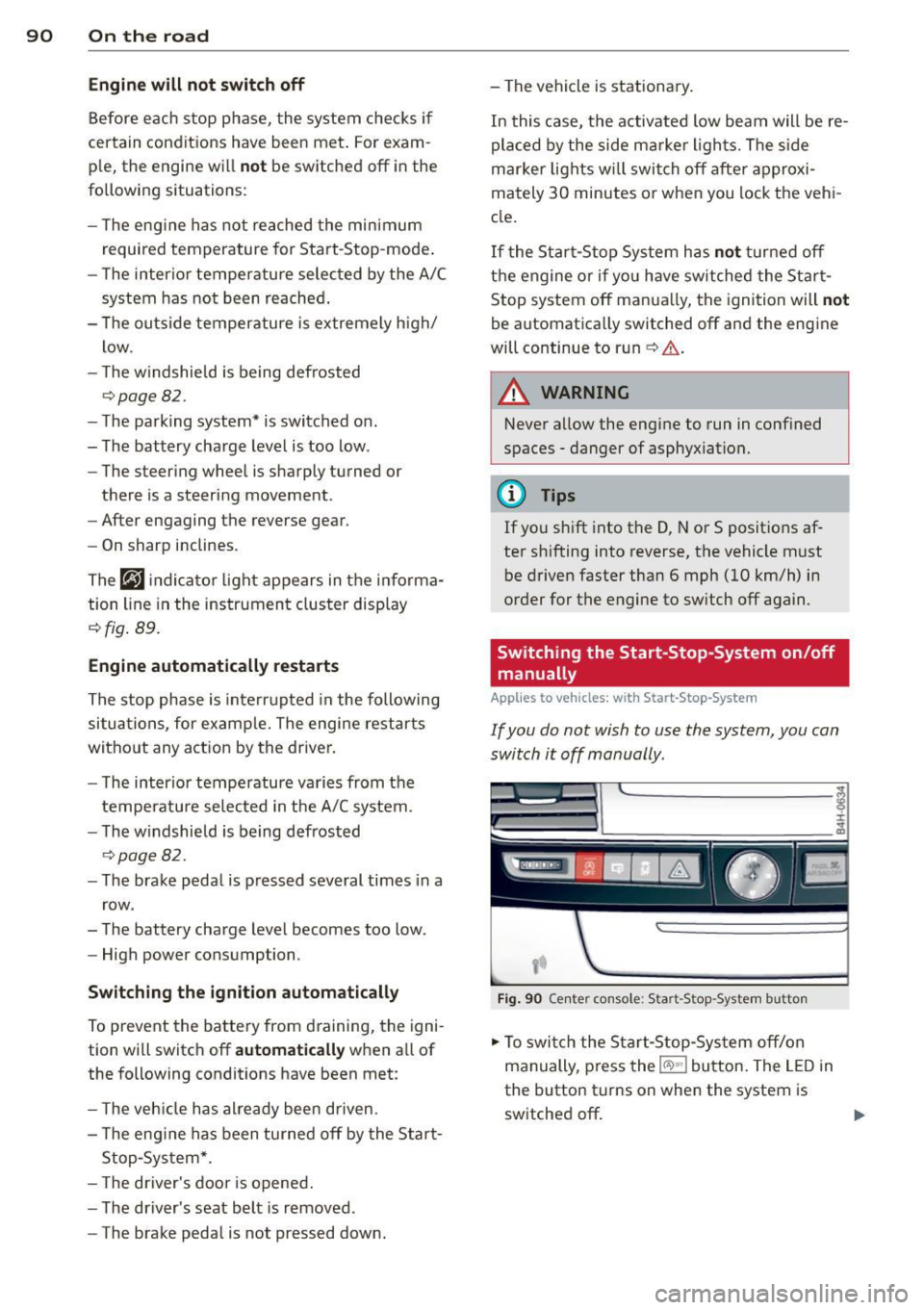
If you do not wish to use the system, you con
switch it off manually.
F ig . 90 Ce nter console: Start-Stop -System button
.,. To swi tch the Start-Stop-Sys tem off/on
manually, p ress the
l(A) ~·I button. The L ED in
the button turns on when the system is
switched off .
Page 99 of 314
Audi adaptive cruise control and braking guard 97
.. You must also press the b rake pedal when
the vehicle is stopped.
Switching adaptive cruise control off
.. Push the lever away from you into position
@ until it clicks into place. The message
ACC off appears.
@ Indicator lights
fl -Adaptive cruise control is switched on. No
vehicles are detected up ahead . The stored
speed is ma intained.
I -A moving vehicle is detected up ahead .
The adaptive cruise control system regulates
the speed and distance to the moving vehicle
ahead and acce lerates/brakes automatica lly.
f¥i -Adaptive cruise control is switched on. A
mov ing vehicle up ahead was detected . Your
veh icle remains stopped .
I· When automatic braking is not able to
keep enough distance to a previously detected
mov ing vehicle up ahead, you must take con
trol and brake
c:::> page 99, Prompt for driver
intervention.
© Display
If adaptive cruise control is not shown in the
d isplay, you can call it up with the multifunc
tion steering wheel buttons¢
page 24 .
Based on the symbols in the display, you can
determine if the system is maintaining a dis
tance to the vehicle ahead and what that dis
tance is.
No vehicle -No vehicle ahead was detected.
White vehicle -A vehicle ahead was detected.
Red vehicle -Prompt for the driver to take ac
tion
c:::> page 99.
Both
arrows o n the scale © indicate the dis
tance to the vehicle ahead . No arrow appears
when the vehicle is on an open road and there
is no object ahead.
If an object is detected
ahead, the arrow moves on the scale.
The green zone on the scale shows the stored
distance. For information on changing the stored distance, refer to
c:::> page 98
. If the
distance selected is too close or may soon be
come too close, the arrows move into the red
z one on the sca le .
A WARNING
Improper use of the adaptive cruise con
trol can cause collisions, other accidents
and serious personal injuries.
- Pressing the
!SET ! button when driv ing at
speeds below 20 mph (30 km/h), w ill au
tomatically accelerate the vehicle to 20
mph (30 km/h), which is the minimum
speed that can be set.
@ Tips
-If you switch the ignit ion or the adaptive
cruise control off, the set speed is erased
from the system memory.
- You cannot switch the Electronic Stabili
zation Control (ESC) to the SPORT mode
when adaptive cruise control is switched
on.
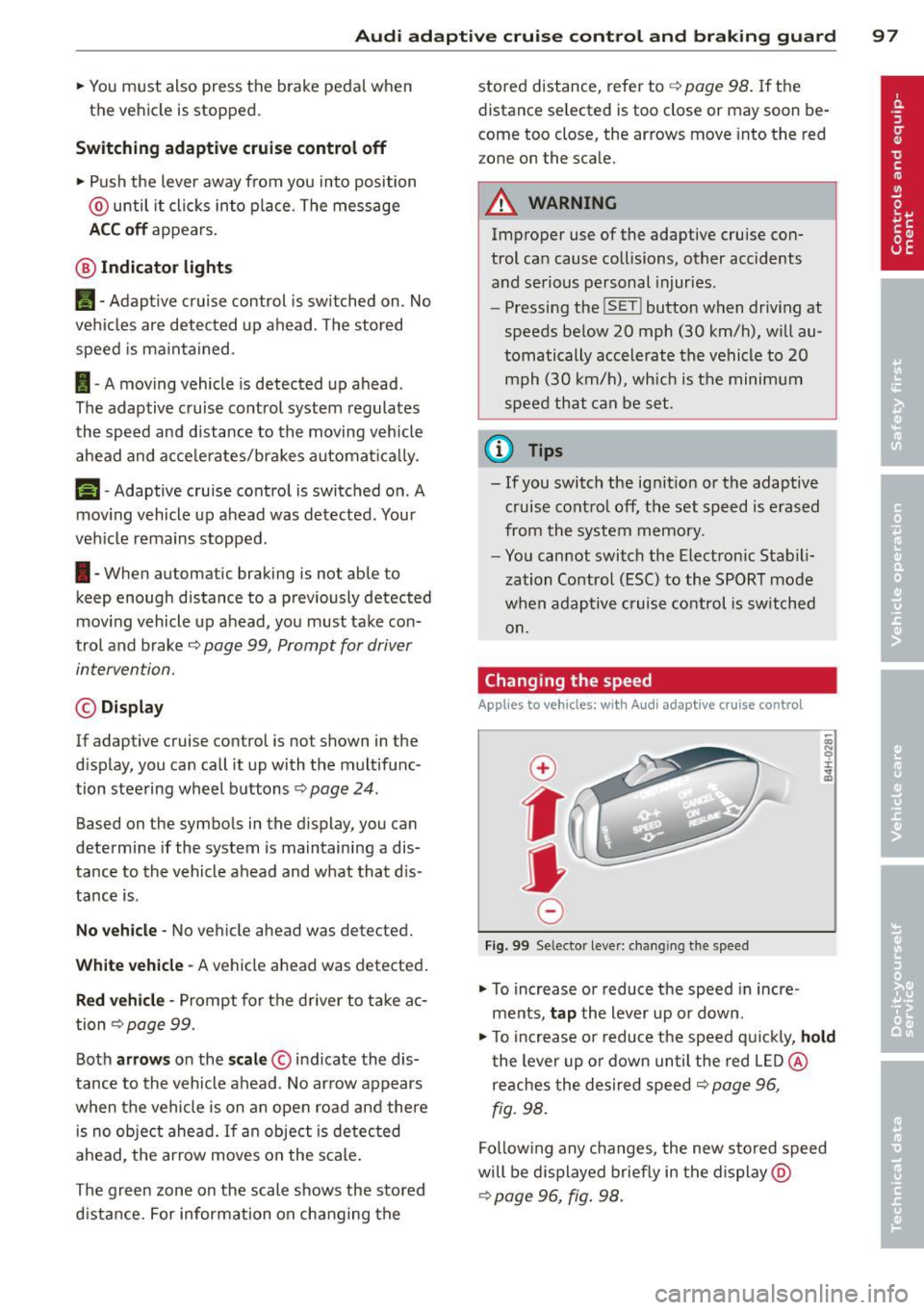
Changing the speed
App lies to veh icles: w it h A ud i ada ptive c ruise co ntrol
0
f
• 0
Fig. 99 Selector lever: changing the speed
.. To increase or reduce the speed in incre
ments,
tap the lever up or down.
.,. To increase or reduce the speed q uickly,
hold
the lever up or down until the red LED @
reaches the desired speed
c:::> page 96,
fig. 98.
Follow ing any changes, the new stored speed
will be displayed briefly in the display @
c:::> page 96, fig. 98.
Page 106 of 314
104 Audi la ne ass is t
- The curve is too sharp.
(1_) Tips
Make sure the camera's fie ld of view
c::> fig. 105 is not obstr ucted by st ickers,
deposits or anything else. For in formation
on cleaning, refer to
c::;, page 216.
Lane assist display in the instrument
cluster
Ap plies to vehicles: with la ne ass ist
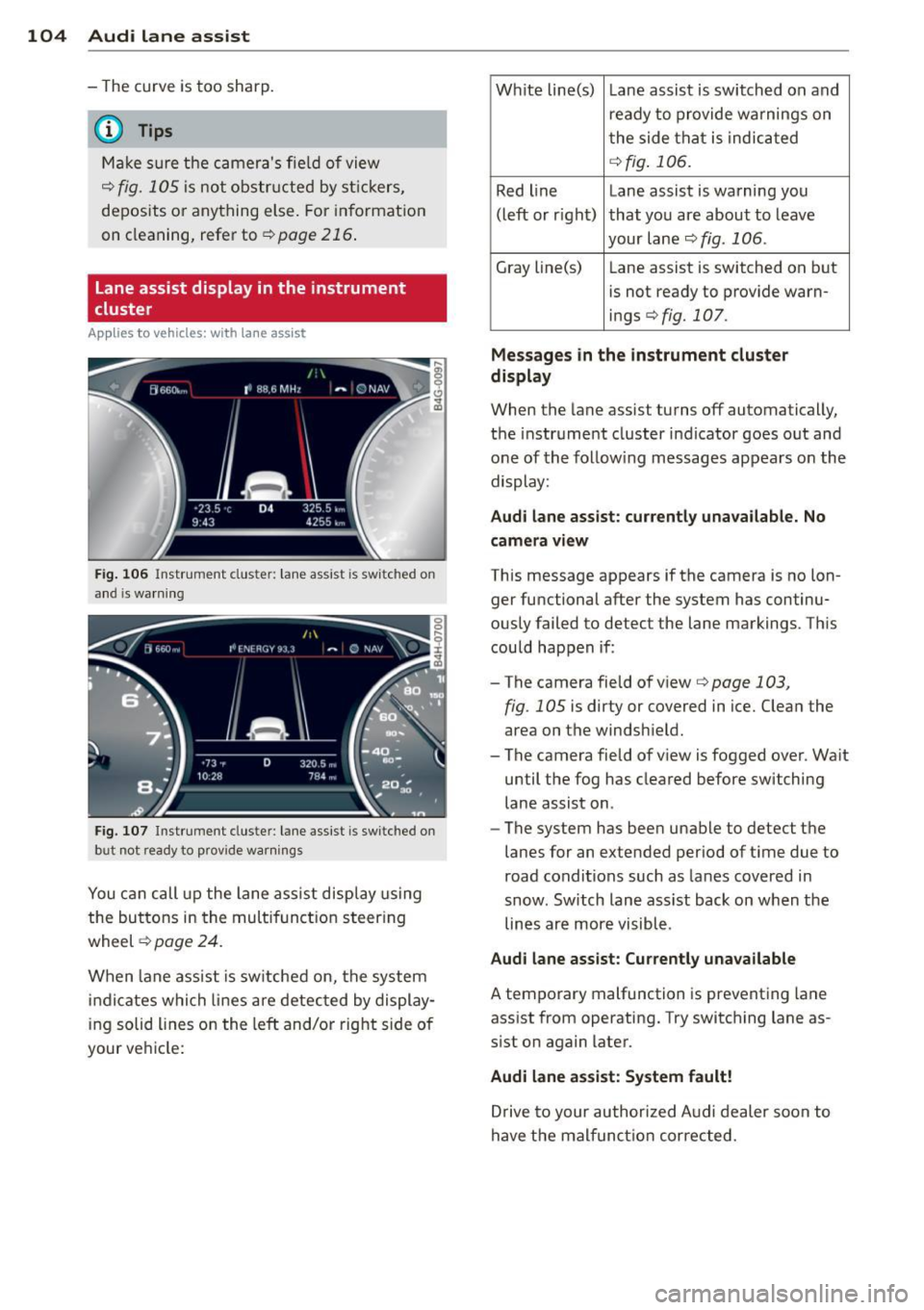
Fig . 106 Instrument clus te r: lane assist is switc hed on
a nd is wa rning
Fig. 107 Instrument cluste r: lane assist is switched on
but not ready to prov ide warnings
You can call up the lane assist display using
the buttons in the mult ifunction steering
wheel
c::> page 24.
When lane assist is sw itched on, the system
i ndicates which lines are detected by display
ing solid lines on the left and/or right side of
your ve hicle: Wh
ite line(s) Lane assist is switched on and
ready to provide warnings on
the side that is indicated
<=:> fig . 106.
Red line Lane assist is warning you
(left or rig ht) that you are about to leave
your lane
c::;, fig. 106 .
Gray line(s)
Lane assist is switched on but
is not ready to provide warn-
ings
c::;, fig. 107.
Mess ages i n the in strum ent clu ster
di spl ay
When the lane assist turns off automatically,
the instrument cluster indicator goes out and
one of the follow ing messages appears on the
display:
Aud i lane a ssis t: cu rrently un availa ble . No
cam era v iew
This message appears if the camera is no lon
ger functional after the system has continu
ously failed to detect the lane markings. This
could happen if :
-The camera field of view
c::;, page 103,
fig . 105 is dirty or covered in ice. Clean the
area on the windshield.
- The camera field of view is fogged over. Wa it
until the fog has cleared before switching
lane assist on.
- The system has been unable to detect the
lanes for an extended period of ti me due to
road conditions such as lanes covered in
snow. Sw itch lane assist back on when the
lines are more visible.
Audi lane assis t: Cu rren tly una vailabl e
A temporary malfunction is preventing lane
assist from operating. Try switching lane as
sist on again later.
Audi lane assis t: Sys te m f ault !
Drive to your author ized Audi dealer soon to
have the malfunct ion corrected.
Page 107 of 314

Setting the warning point and steering
wheel vibration
Appl ies to vehicles: with lane assist
You can adjust individual settings in the MMI.
.. Select : I CARI funct ion button > Car systems
control button > Driver assist> Audi lane
assist .
Setting the warning point Early :
With this setting, a warning is provided
before a wheel touches the detected lane
boundary line. The warning depends on the
angle in which the ve hicle is approaching the
line. The distance at which the warning is giv
e n increases as the angle becomes sharper. If
you dr ive toward a boundary line at a very
sha rp angle, the warning will come just before
a w heel touches the line.
Medium : With this sett ing, the warning point
i s adapted to the cou rse of the road, the lane
width and the speed . You wi ll st ill be warned
if you cross slightly over a dotted line when
driving on curves.
Late: This setting has the same properties as
medium. You will only be warned once a
wheel crosses a detected line.
Setting the steering wheel vibration
The steering wheel v ibration can be set to
Low , Medium or Strong . Selecting each of the
set tings will cause the steering wheel to vi
brate so you can ch eck the strength of the vi
bration in that setting.
@ Tips
Your settings are automatically stored and
assigned to the remote contro l key be ing
used.
Audi lane assist 105
Page 115 of 314

Night vision assistant
Description
Appl ies to vehicles: with night v isio n ass istant
Fig. 114 Display: night v ision assistan t
"Night vis ion assistant with pedestrian detec
tion" uses an infrared camera to mon itor the
area in front of your vehicle at night . Within
the limits of the system, it can display objects
up to about 1000 feet (300 mete rs) away. The
h eat image of a pedestrian detected by the
camera is shown in the instrument cluster dis
p lay
¢ fig. 114. Warm areas appear lighter
and cold areas appear darker.
Pedestrian detection
Applies to vehicles: with night v isio n ass istant
Fig. 115 D isplay: yellow pedestrian marking
Fig. 116 Display: symbol when in frared image is not
v is ibl e
Night vision assistant 113
Night vision assistant can detect pedestrians
that are between about 50 and 300 feet (15
and 90 meters) in front of the vehicle, under
ideal conditions . If a pedestrian is detected
when it is dark outside and the vehicle head
light s are switched on, the pedestrian is high
lighted in yellow
~ fig. 115, ¢page 114,
General information .
If another display such
as navigat ion replaces the image from the
night vis ion assistant , the symbo l~,, appears
in a tab
¢fig. 116.
(D Tips
If the night v is ion assistant image does
not appear when the system is switched
on, you can access it with the buttons on
the mu ltifunction steering wheel
¢ page 25.
Pedestrian warning
Applies to vehicles: wit h night vision assistan t
Fig.117 D isp lay: pedestr ian wa rning
Fig. 118 Disp lay : pedestrian warnin g wit h anot her dis
play
If a pedestr ian is detected in an area in front
of the vehicle that the system considers criti
cal, the pedestrian is highlighted in red
¢fig . 117 and a warning tone sounds. This
area is based on the vehicle speed and
Page 126 of 314
124 Parking systems
If the distance to an obstacle remains con
stant, the volume of the distance warning
gradually drops after about four seconds (this
does not apply in the continuous tone range).
Rear view camera
The rear view camera is located above the rear
license plate bracket. Make sure that the lens
for the parking system¢
fig. 131 is not cov
ered by deposits or any other obstructions be
cause this can affect the function of the park
ing system. For information on cleaning, refer
to
¢ page 216.
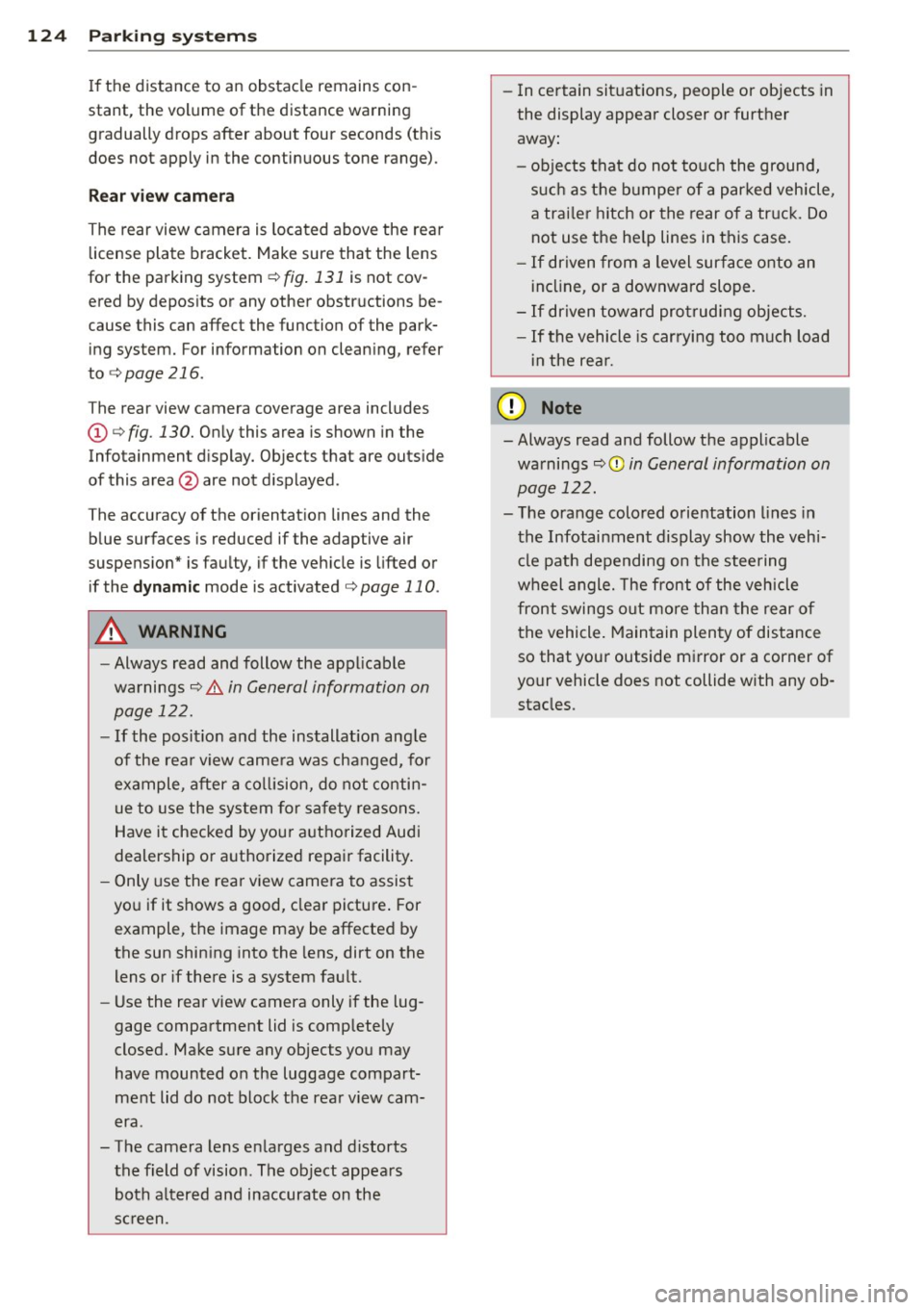
The rear view camera coverage area includes
(D ¢ fig. 130. Only this area is shown in the
Infotainment display. Objects that are outside
of this area@are not displayed.
The accuracy of the orientation lines and the blue surfaces is reduced if the adaptive air
suspension" is faulty, if the vehicle is lifted or
if the
dynamic mode is activated¢ page 110.
A WARNING
-Always read and follow the applicable
warnings¢ .&.
in General information on
page 122.
- If the position and the installation angle
of the rear view camera was changed, for
example, after a collision, do not contin
ue to use the system for safety reasons.
Have it checked by your authorized Audi
dealership or authorized repair facility.
- Only use the rear view camera to assist
you if it shows a good, clear picture. For
example, the image may be affected by
the sun shining into the lens, dirt on the
lens or if there is a system fault.
- Use the rear view camera only if the lug
gage compartment lid is completely
closed. Make sure any objects you may
have mounted on the luggage compart
ment lid do not block the rear view cam
era .
- The camera lens enlarges and distorts
the field of vision. The object appears both altered and inaccurate on the
screen. -
In certain situations, people or objects in
the display appear closer or further
away:
- objects that do not touch the ground,
such as the bumper of a parked vehicle,
a trailer hitch or the rear of a truck. Do
not use the help lines in this case.
- If driven from a level surface onto an
incline, or a downward slope.
- If driven toward protruding objects.
-If the vehicle is carrying too much load
in the rear.
{[) Note
-Always read and follow the applicable
warnings
c::> (D in General information on
page 122.
- The orange colored orientation lines in
the Infotainment display show the vehi
cle path depending on the steering
wheel angle. The front of the vehicle
front swings out more than the rear of
the vehicle. Maintain plenty of distance
so that your outside mirror or a corner of
your vehicle does not collide with any ob stacles.
Page 128 of 314
126 Parking systems
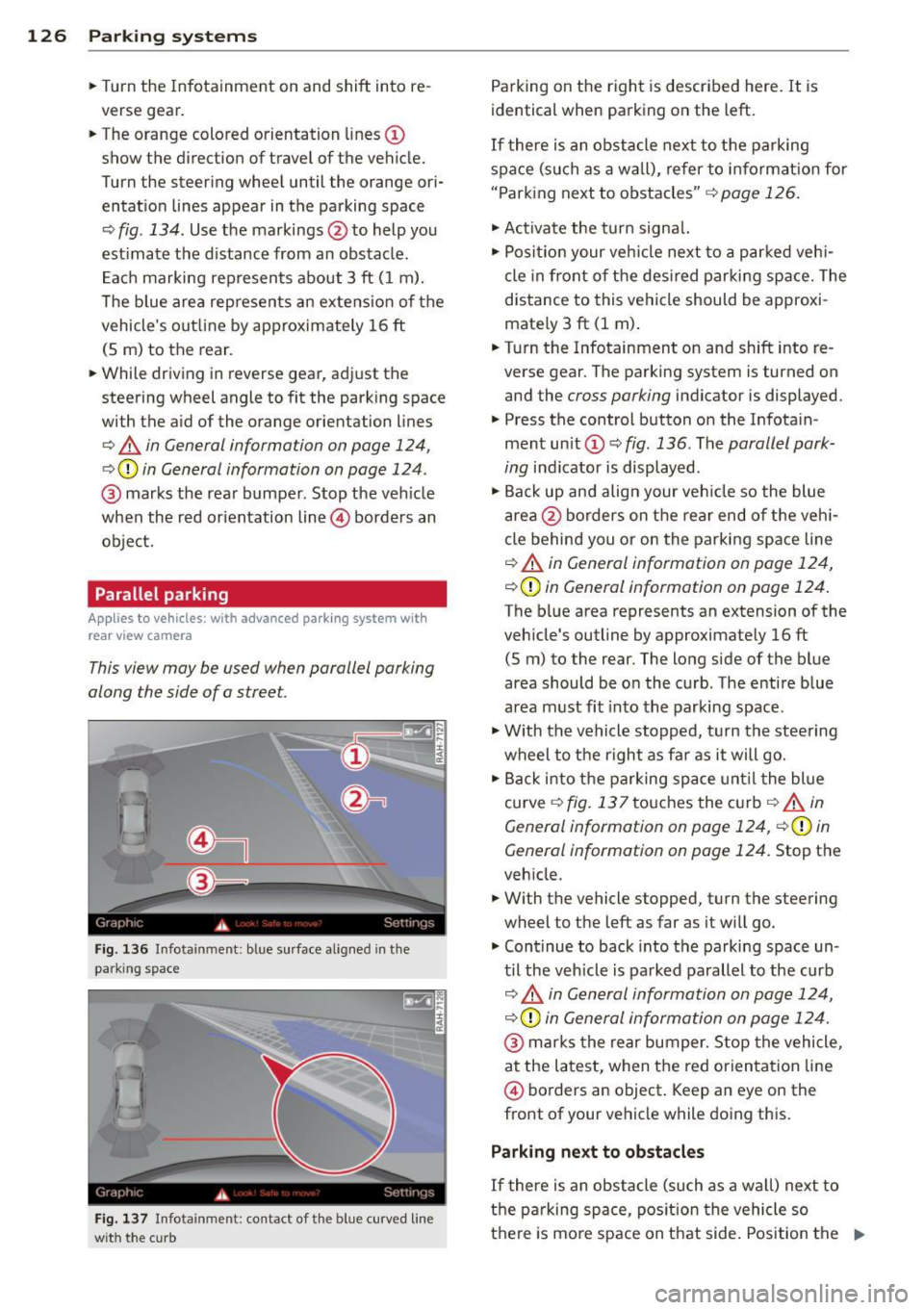
• Turn the Infotainment on and shift into re
verse gear.
• The orange colored orientation lines @
show the direction of travel of the vehicle.
Turn the steering wheel until the orange ori
entat io n lines appear in the parking space
Q fig . 134. Use t he markings @to help you
est ima te the d istance from an obstacle .
E ac h marking represents about 3 ft ( 1 m).
T he blue area rep resents an extension of the
vehicle 's outline by ap proximately 16 ft
(S m) to the rear.
• While driving in reverse gear, adj ust the
steering wheel angle to fit the park ing space
with the a id of the orange orientation lines
Q .&, in General information on page 124,
Q Q) in General information on page 124 .
@ marks the rear bumper. Stop the ve hicle
when the red orientation line@ borders an
obje ct.
Parallel parking
Applies to vehicles: with advanced park ing system with
rear view camera
This view may be used when parallel parking
along the side of a stree t.
Fig. 136 Infota inment: bl ue s urface aligne d in the
park ing sp ac e
Fig . 137 In fota inm ent: c on ta ct of t he blue curved line
wit h the c urb
Parking on the right is described here. It is
identical when parking on the left.
If there is an obstacle next to the parking
space (such as a wall), refer to i nformat ion for
" P ark ing next to obstacles"
Q page 126.
• Activa te the turn signa l.
• Posi tion your veh icle next to a parked veh i
cle in front of the des ired parki ng space. The
distance to this vehicle should be approxi
mate ly 3 ft (1 m) .
• Turn the Infotainment on and shift into re
verse gear . The parking system is tu rned on
and the
cross parking indicator is displayed .
• Press the control button o n the Infota in
ment unit @ c::,
fig. 136. The parallel park
ing
indicator is displayed .
• Ba ck up and align your veh icle so the blue
area @borders on the rear end o f th e veh i
cle behind you or on the parki ng space line
Q .&, in General information on page 124,
c::, Q) in General information on page 124 .
The blue area represents an extension of the
veh icle 's outline by approximate ly 16 ft
(S m) to the rear. The long side of the blue
area should be o n the curb . The entire blue
area m ust fit into the parking space .
• With the vehicle stopped, t urn the stee ring
wheel to t he right as fa r as it will go.
• Back i nto the p arking space unt il t he blue
curve
c::, fig. 137 touches the c urb c::, _&, in
General information on page 124,
c::, Q) in
General information on page 124.
Stop the
veh icle.
• With the vehicle stopped, turn the steering
wheel to the left as far as it w ill go.
• Cont inue to back into the parking space un
til the veh icle is parked parallel to the curb
i:::> .&, in G en eral information on pag e 124,
c::, Q) in General information on page 124.
@ marks the rear bumper. S top the vehicle,
at the latest, when the red orien tati on line
@ borders an object . Keep an eye on the
front of your vehicle while doing this.
Parking next to obstacles
If there is an obstacle (such as a w all) next to
the parking space, pos ition the vehicle so
there is mo re space on that side. Position the .,..