radio AUDI TT 2021 Owner´s Manual
[x] Cancel search | Manufacturer: AUDI, Model Year: 2021, Model line: TT, Model: AUDI TT 2021Pages: 280, PDF Size: 99.18 MB
Page 128 of 280
Voice recognition system
Requirement: you must be in the Navigation or
Map menu.
Depending on the vehicle equipment and the se-
lected menu item, you can say the following com-
mands for additional settings in navigation:
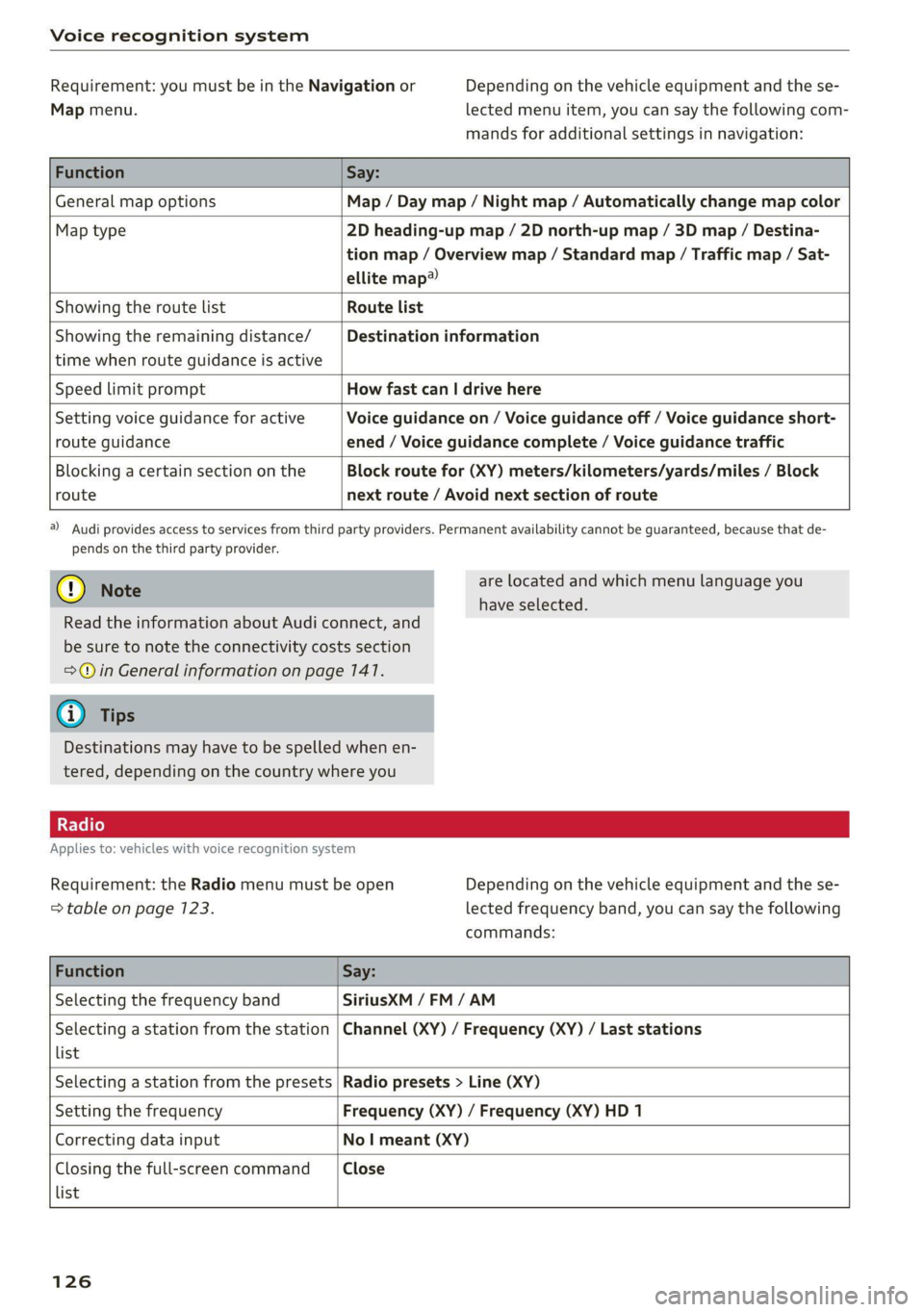
Function Say:
General map options Map / Day map / Night map / Automatically change map color
Map type 2D heading-up map / 2D north-up map / 3D map / Destina-
tion map / Overview map / Standard map / Traffic map / Sat-
ellite map®
Showing the route list Route list
Showing the remaining distance/
time when route guidance is active
Destination information
Speed limit prompt How fast can | drive here
Setting voice guidance for active
route guidance
Voice guidance on / Voice guidance off / Voice guidance short-
ened / Voice guidance complete / Voice guidance traffic
Blocking a certain section on the
route
Block route for (XY) meters/kilometers/yards/miles / Block
next route / Avoid next section of route
a) Audi provides access to services from third party providers. Permanent availability cannot be guaranteed, because that de-
pends on the third party provider.
@) Note
are located and which menu language you
have selected.
Read the information about Audi connect, and
be sure to note the connectivity costs section
=@ in General information on page 141.
G@) Tips
Destinations may have to be spelled when en-
tered, depending on the country where you
Applies to: vehicles with voice recognition system
Requirement: the Radio menu must be open
=> table on page 123.
Depending on the vehicle equipment and the se-
lected frequency band, you can say the following
commands:
Function Say:
Selecting the frequency band SiriusXM / FM/AM
Selecting a station from the station
list
Channel (XY) / Frequency (XY) / Last stations
Selecting a station from the presets Radio presets > Line (XY)
Setting the frequency Frequency (XY) / Frequency (XY) HD 1
Correcting data input No | meant (XY)
Closing the full-screen command
list
Close
126
Page 135 of 280
8S1012721BE
Telephone
— Bluetooth settings: see > page 7192.
— Online settings*: see > page 192.
— Wi-Fi settings”: see > page 146.
— Telephone settings: see > page 139.
Favorites
Requirement: a phone number or contact must
be stored as a favorite > page 134.
Select and confirm a favorite in the favorites list.
Directory
Requirement: you must have at least one contact
stored in your cell phone.
Select and confirm a phone number from the di-
rectory > page 137.
Enter number
— Entering a phone number as a sequence of
numbers: enter a phone number using the
number speller.
— Entering the phone number as a sequence of
letters: select and confirm ABC above the num-
ber speller. Enter a sequence of letters using
the letter speller, for example AUDISERVICE.
— Dialing a phone number: select and confirm &,
or push the control knob downward. Select and
confirm OK.
— Deleting individual characters: select and con-
firm &.
— Deleting all characters entered at once: turn
the control knob with the character selection to
l] and press and hold the control knob, or se-
lect: right control button > Clear input field.
Tone sequences (DTMF) can be entered directly
into the speller during a phone call.
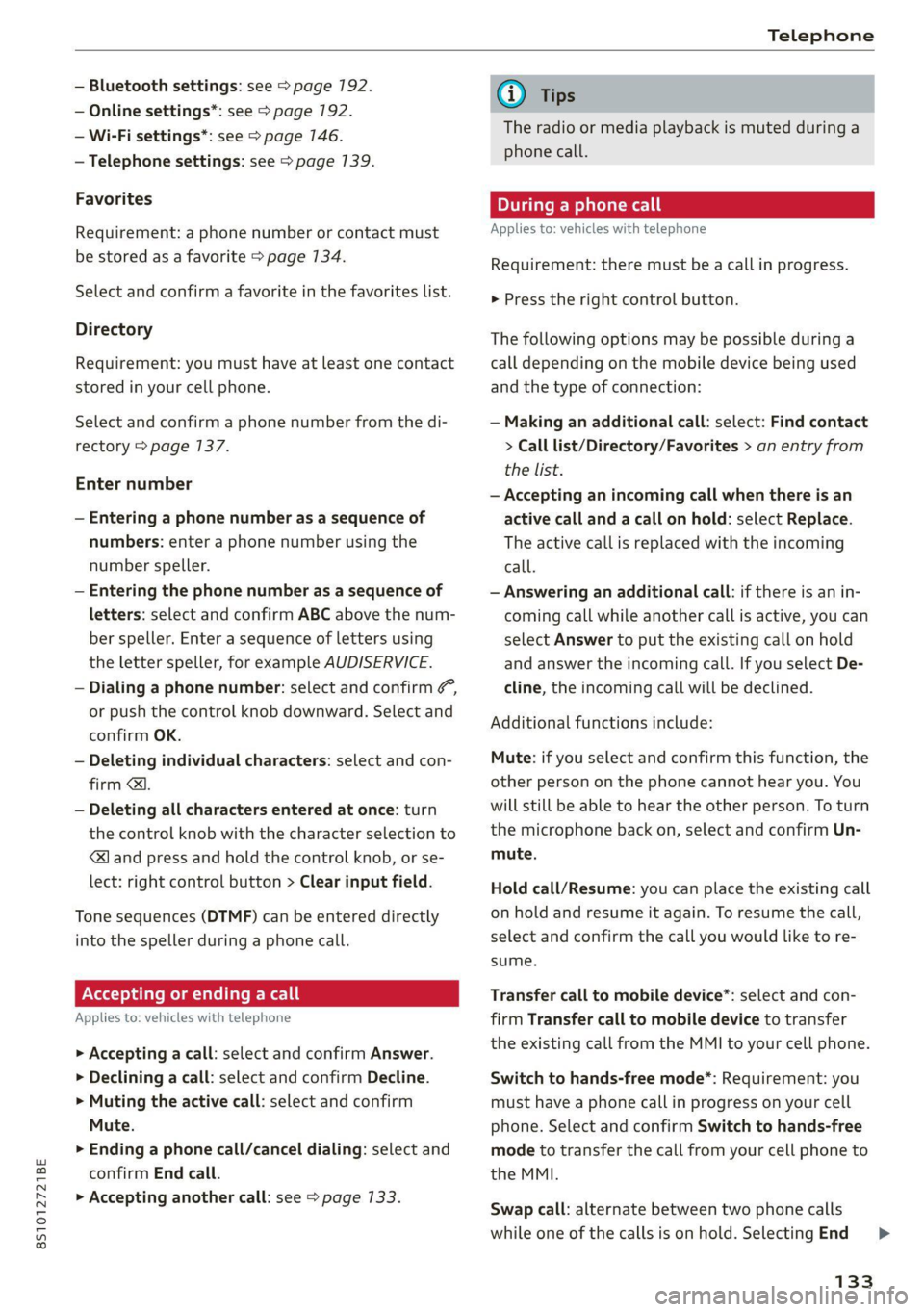
Accepting or ending a call
Applies to: vehicles with telephone
> Accepting a call: select and confirm Answer.
> Declining a call: select and confirm Decline.
> Muting the active call: select and confirm
Mute.
> Ending a phone call/cancel dialing: select and
confirm End call.
> Accepting another call: see > page 7133.
@) Tips
The radio or media playback is muted during a
phone call.
During a phone call
Applies to: vehicles with telephone
Requirement: there must be a call in progress.
> Press the right control button.
The following options may be possible during a
call depending on the mobile device being used
and the type of connection:
— Making an additional call: select: Find contact
> Call list/Directory/Favorites > an entry from
the list.
— Accepting an incoming call when there is an
active call and a call on hold: select Replace.
The active call is replaced with the incoming
call.
— Answering an additional call: if there is an in-
coming call while another call is active, you can
select Answer to put the existing call on hold
and answer the incoming call. If you select De-
cline, the incoming call will be declined.
Additional functions include:
Mute: if you select and confirm this function, the
other person on the phone cannot hear you. You
will still be able to hear the other person. To turn
the microphone back on, select and confirm Un-
mute.
Hold call/Resume: you can place the existing call
on hold and resume it again. To resume the call,
select and confirm the call you would like to re-
sume.
Transfer call to mobile device”: select and con-
firm Transfer call to mobile device to transfer
the existing call from the MMI to your cell phone.
Switch to hands-free mode*: Requirement: you
must have a phone call in progress on your cell
phone. Select and confirm Switch to hands-free
mode to transfer the call from your cell phone to
the MMI.
Swap call: alternate between two phone calls
while one of the calls is on hold. Selecting End
133
Page 136 of 280
Telephone
call will end the active phone call. A phone call
on hold can be resumed using the right control
button > Resume.
Add to conference: a party on hold and up to five
active parties (depending on the network) can be
added to a conference call. To make an additional
call, put all participants in the current conference
call on hold using the right control button > Hold
conference. Press the left control button. Select
and confirm Call list/Directory/Favorites > an
entry from the list. You can add called contacts
to the conference using the right control button
> Add to conference. Resume takes all parties off
hold.
Multi-party calling: select the right control but-
ton > Telephone settings > Call options. When
the function is switched on M, you can accept an
additional call using Answer or decline a call us-
ing Decline. When the function is switched off,
you can Replace or Decline a call.
Connection manager: see > page 190.
Telephone settings: see > page 139.
@ Tips
—To be notified of an incoming call during a
phone call, the call waiting function in your
mobile device must be switched on when
using the Handsfree profile.
— When leaving the vehicle, the Bluetooth
connection to the mobile device will auto-
matically disconnect. Depending on your
mobile device, phone calls in progress may
be automatically redirected from the MMI to
your mobile device so that you can continue
the call on your phone.
Making an emergency call
Applies to: vehicles with telephone
> Select: [MENU] button > Telephone > left con-
trol button > Dial number > Enter emergency
call number (for example, 911) > OK.
Z\ WARNING
— Because your phone works with radio sig-
nals, a connection cannot be guaranteed un-
134
der all circumstances. Do not rely on only
your phone when it comes to essential com-
munication (such as a medical emergency).
— Always follow the instructions given by the
emergency personnel during an emergency
call and only end the call when they instruct
you to do so.
(i) Tips
Emergency numbers are not the same every-
where. Find out which emergency number is
used in your current location.
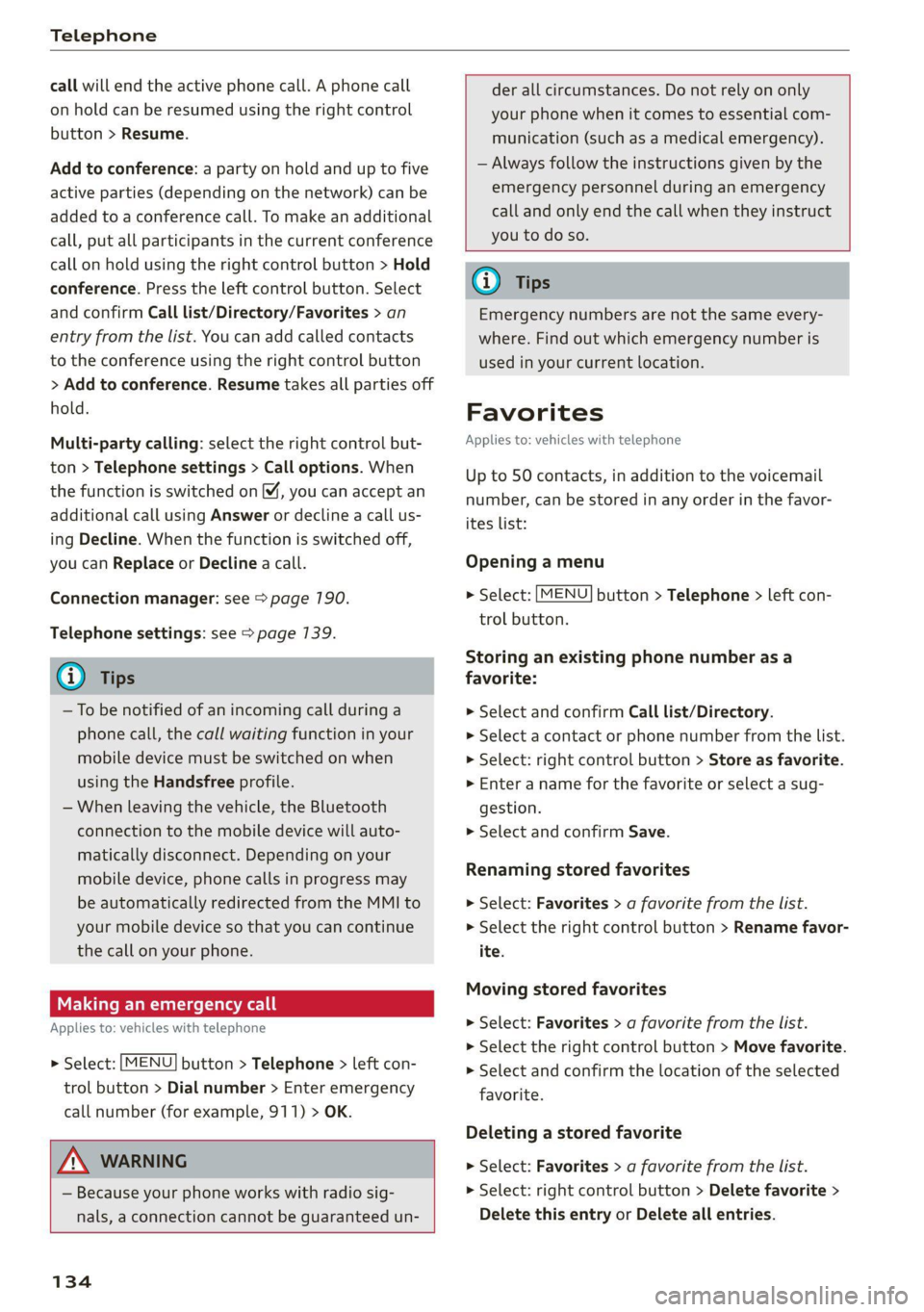
Favorites
Applies to: vehicles with telephone
Up to 50 contacts, in addition to the voicemail
number, can be stored in any order in the favor-
ites list:
Opening a menu
> Select: [MENU] button > Telephone > left con-
trol button.
Storing an existing phone number as a
favorite:
>» Select and confirm Call list/Directory.
> Select a contact or phone number from the list.
> Select: right control button > Store as favorite.
» Enter a name for the favorite or select a sug-
gestion.
> Select and confirm Save.
Renaming stored favorites
> Select: Favorites > a favorite from the list.
> Select the right control button > Rename favor-
ite.
Moving stored favorites
> Select: Favorites > a favorite from the list.
> Select the right control button > Move favorite.
> Select and confirm the location of the selected
favorite.
Deleting a stored favorite
>» Select: Favorites > a favorite from the list.
» Select: right control button > Delete favorite >
Delete this entry or Delete all entries.
Page 166 of 280
Radio
Radio
Opening the radio
@ =
CEUs AEP
89.9 _WIBI-FM HD4
WIBI-FM HD6
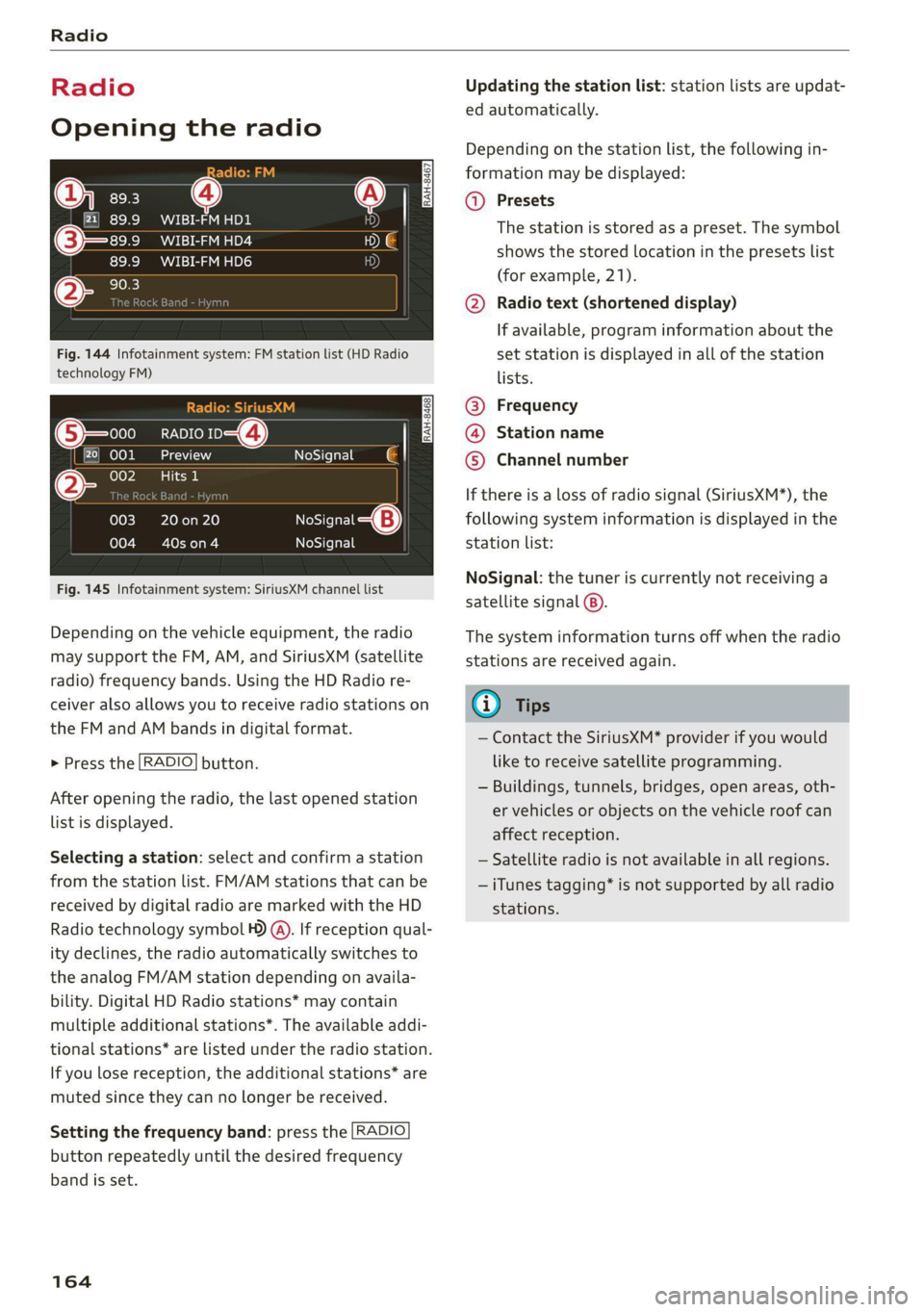
Fig. 144 Infotainment system: FM station list (HD Radio
technology FM)
RADIO ro 4)
kad
ieee
NoSignal é |
20 on 20
Cowon)
NoSigna
NoSignal
Fig. 145 Infotainment system: SiriusXM channel list
Depending on the vehicle equipment, the radio
may support the FM, AM, and SiriusXM (satellite
radio) frequency bands. Using the HD Radio re-
ceiver also allows you to receive radio stations on
the FM and AM bands in digital format.
> Press the [RADIO] button.
After opening the radio, the last opened station
list is displayed.
Selecting a station: select and confirm a station
from the station list. FM/AM stations that can be
received by digital radio are marked with the HD
Radio technology symbol ) (A). If reception qual-
ity declines, the radio automatically switches to
the analog FM/AM station depending on availa-
bility. Digital HD Radio stations* may contain
multiple additional stations*. The available addi-
tional stations* are listed under the radio station.
If you lose reception, the additional stations* are
muted since they can no longer be received.
Setting the frequency band: press the [RADIO
button repeatedly until the desired frequency
band is set.
164
Updating the station list: station lists are updat-
ed automatically.
Depending on the station list, the following in-
formation may be displayed:
@ Presets
The station is stored as a preset. The symbol
shows the stored location in the presets list
(for example, 21).
@ Radio text (shortened display)
If available, program information about the
set station is displayed in all of the station
lists.
@ Frequency
@® Station name
© Channel number
If there is a loss of radio signal (SiriusXM*), the
following system information is displayed in the
station list:
NoSignal: the tuner is currently not receiving a
satellite signal ®).
The system information turns off when the radio
stations are received again.
@) Tips
— Contact the SiriusXM* provider if you would
like to receive satellite programming.
— Buildings, tunnels, bridges, open areas, oth-
er vehicles or objects on the vehicle roof can
affect reception.
— Satellite radio is not available in all regions.
— iTunes tagging* is not supported by all radio
stations.
Page 167 of 280
8S1012721BE
Radio
Radio functions
ak eee)
Applies to: vehicles with free text search
MYT El DE
Wee a Be
WIBI-FM HD6
Fig. 146 Infotainment system: input field and results list
for free text search
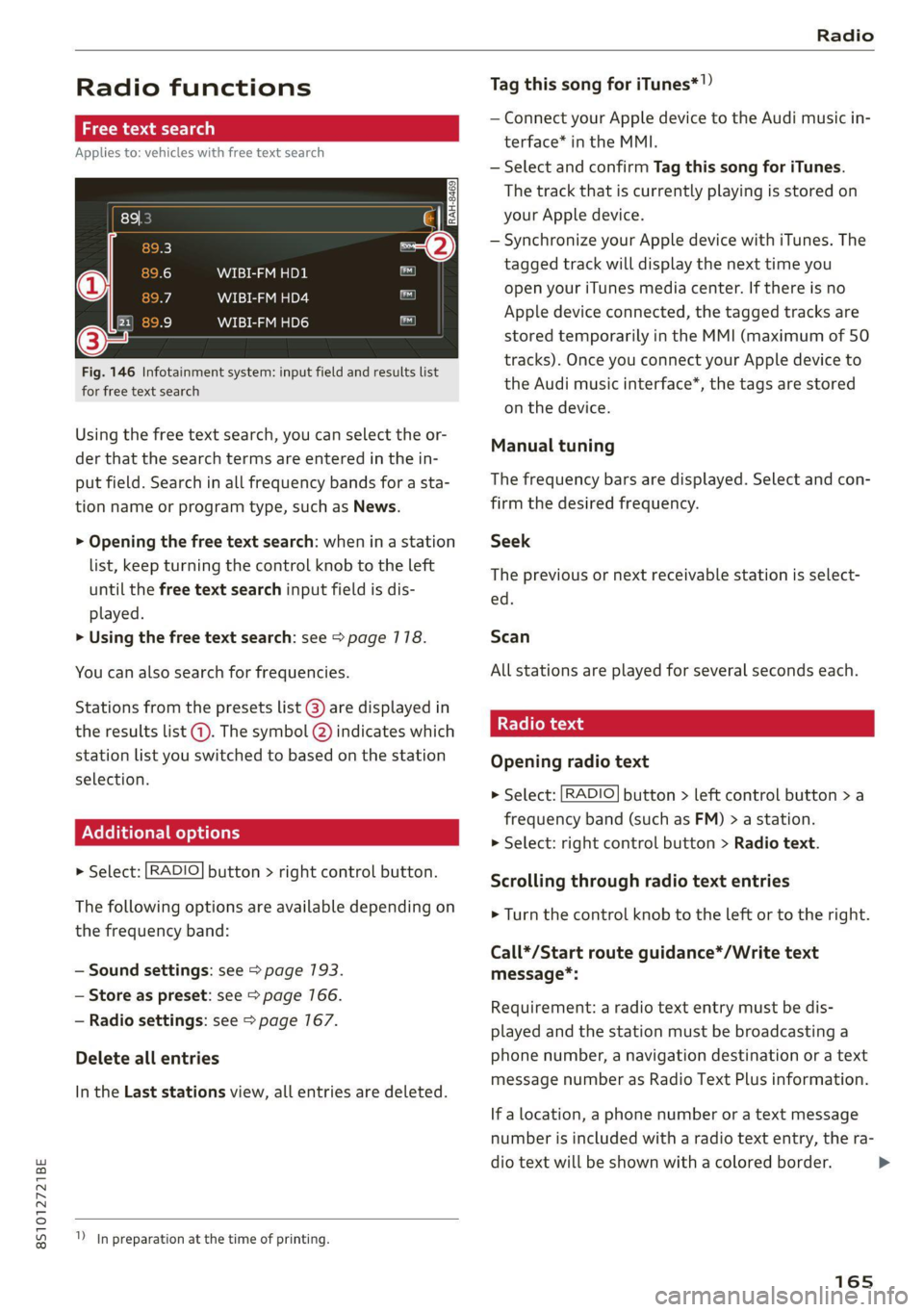
Using the free text search, you can select the or-
der that the search terms are entered in the in-
put field. Search in all frequency bands for a sta-
tion name or program type, such as News.
> Opening the free text search: when in a station
list, keep turning the control knob to the left
until the free text search input field is dis-
played.
> Using the free text search: see > page 178.
You can also search for frequencies.
Stations from the presets list @) are displayed in
the results list @. The symbol Q) indicates which
station list you switched to based on the station
selection.
Ad
nal options
> Select: [RADIO] button > right control button.
The following options are available depending on
the frequency band:
— Sound settings: see > page 193.
— Store as preset: see > page 166.
— Radio settings: see > page 167.
Delete all entries
In the Last stations view, all entries are deleted.
In preparation at the time of printing.
Tag this song for iTunes*!)
— Connect your Apple device to the Audi music in-
terface* in the MMI.
— Select and confirm Tag this song for iTunes.
The track that is currently playing is stored on
your Apple device.
— Synchronize your Apple device with iTunes. The
tagged track will display the next time you
open your iTunes media center. If there is no
Apple device connected, the tagged tracks are
stored temporarily in the MMI (maximum of 50
tracks).
Once you connect your Apple device to
the Audi music interface*, the tags are stored
on the device.
Manual tuning
The frequency bars are displayed. Select and con-
firm the desired frequency.
Seek
The previous or next receivable station is select-
ed.
Scan
All stations are played for several seconds each.
Radio text
Opening radio text
> Select: [RADIO] button > left control button >a
frequency band (such as FM) > a station.
> Select: right control button > Radio text.
Scrolling through radio text entries
> Turn the control knob to the left or to the right.
Call*/Start route guidance*/Write text
message*:
Requirement: a radio text entry must be dis-
played and the station must be broadcasting a
phone number, a navigation destination or a text
message number as Radio Text Plus information.
If a location, a phone number or a text message
number is included with a radio text entry, the ra-
dio text will be shown with a colored border. >
165
Page 168 of 280
![AUDI TT 2021 Owner´s Manual Radio
> Select a radio text entry with Radio Text Plus in-
formation and press the control knob.
> Select and confirm Call*/Start route guid-
ance*/Write text message”.
> press the [BACK] bu](/img/6/40287/w960_40287-167.png "AUDI TT 2021 Owner´s Manual Radio
> Select a radio text entry with Radio Text Plus in-
formation and press the control knob.
> Select and confirm Call*/Start route guid-
ance*/Write text message”.
> press the [BACK] bu")
Radio
> Select a radio text entry with Radio Text Plus in-
formation and press the control knob.
> Select and confirm Call*/Start route guid-
ance*/Write text message”.
> press the [BACK] button to cancel.
G) Tips
The availability of radio text and RadioText
Plus depends on the radio station.
View: additional station informat
Fig. 147 Infotainment system: "Now Playing" screen
Requirement: the Show "Now Playing" screen
option must be switched on = page 167.
Symbols in the "Now Playing" screen:
@ Radio text availability
Radio text is available for the selected sta-
tion > page 165.
@ iTunes Tagging
The Tag this song for iTunes option is availa-
ble for the set station > page 165, Addition-
al options.
@ FMHD Radio technology
The station is received through FM HD Radio
technology.
@ Screen view
Display Cover art or Station logo
=> page 168, Preferred picture view.
Displaying the station list
turn the control knob, or press the [BACK] button.
166
Radio menu
(ian Change to media
agi}
(3 ae FEET a a-ha (olay
(a Sate Au
al
Fig. 148 Infotainment system: Radio menu
Opening a menu
> Select: [RADIO] button > left control button.
Selecting the frequency band
>» Select and confirm the desired frequency band
in the radio menu, or
> Press the [RADIO] button repeatedly until the
desired frequency band is set. Displays the sta-
tion list.
@ Switch to media
The Media menu is displayed > page 177.
@ Presets
The presets list is displayed > page 166.
@® Last stations
The last stations listened to from all frequen-
cy bands are shown in the list. Select and
confirm a station for immediate playback.
@ Applies to: vehicles with SiriusXM
SiriusXM
The SiriusXM channel list is displayed.
© FM
The FM station list is displayed.
Additional frequency bands
Depending on the vehicle equipment, you can se-
lect additional frequency bands in the selection
menu > fig. 148.
Presets
You can store your favorite stations from every
frequency band in the presets list.
Page 169 of 280
![AUDI TT 2021 Owner´s Manual 8S1012721BE
Radio
Opening a menu
> Select: the [RADIO] button > left control button
> Presets.
Store as preset
Requirement: the presets list must be displayed.
> Select and confir](/img/6/40287/w960_40287-168.png "AUDI TT 2021 Owner´s Manual 8S1012721BE
Radio
Opening a menu
> Select: the [RADIO] button > left control button
> Presets.
Store as preset
Requirement: the presets list must be displayed.
> Select and confir")
8S1012721BE
Radio
Opening a menu
> Select: the [RADIO] button > left control button
> Presets.
Store as preset
Requirement: the presets list must be displayed.
> Select and confirm a free preset space. Follow
the system instructions.
> Select and confirm a station from the list if nec-
essary.
Store as preset
Requirement: a station list must be displayed.
> Select: a station from the list > right control
button > Store as preset.
> Press and hold the control knob for several sec-
onds.
Listening to a preset
Requirement: the presets list must be displayed.
> Select and confirm a preset from the list.
Moving a preset
Requirement: the presets list must be displayed.
> Select a preset from the list > right control but-
ton > Move preset, or
> Press and hold the control knob for several sec-
onds.
> Select and confirm the location of the selected
preset.
Deleting a preset
Requirement: the presets list must be displayed.
> Select a preset from the list > right control but-
ton > Delete preset > Delete this preset or De-
lete all presets.
Additional settings
> Select: [RADIO] button > right control button >
Radio settings.
The following settings can be selected, depend-
ing on the band that is selected:
Station names (FM)
Variable: scrolling text transmitted by the FM
stations is shown in the Infotainment system dis-
play.
Fixed: scrolling text transmitted by the FM sta-
tions is not shown in the Infotainment system
display. Only the current section of the scrolling
text is displayed.
FM HD Radio/AM HD Radio*
You can switch HD Radio reception on or off.
Channel sorting (SiriusXM*)
You can set the channel sorting for SiriusXM sta-
tion lists* by:
— Channel number: the channels are sorted in as-
cending order according to their channel num-
ber.
— Channel name: the channels are listed in alpha-
betical order.
— First category, then channel number: the
channels are sorted by their category and then
by their channel numbers.
— First category, then channel name: the sta-
tions are sorted by their category and then by
their channel names.
Category filter (SiriusXM*)
The stations shown in the station list can be fil-
tered by your personal preferences and by pro-
gram type. The program categories that you can
select depend on what is offered by your provid-
er. Select the All categories option to deactivate
all filter options and display all available stations
in the satellite station list.
Show “Now Playing" screen
When the function is switched on ¥ and the sta-
tions or presets list is open, the display will
switch to the Show "Now Playing" screen view
after approximately five seconds > page 166. De-
pending on availability, information about the
set station (such as station name, artist and sta-
tion logo) may be displayed in this view.
167
>
Page 170 of 280
Radio
Preferred picture view
You can set your preferred screen view for the
Show "Now Playing" screen > page 766.
— Station logo: the station logo is displayed, de-
pending on availability.
— Cover art: the album cover or genre cover is dis-
played, depending on availability.
Gracenote online database*
Requirement: the MMI must be connected to the
Internet. The Cover art option must be selected
=> page 168, Preferred picture view.
Troubleshooting
When the function is switched on M, the album
cover or genre cover for the song that is playing
is loaded from the Gracenote online database,
depending on availability.
Subscription status (SiriusXM)*
This option is available when your subscription is
about to expire or has already expired. The expi-
ration date for your license is displayed.
Call to SiriusXM*: the contact information for
your satellite radio provider is displayed. To call
your satellite radio provider using the MMI, press
Call to SiriusXM”*.
Problem Solution
A station with poor reception is no longer
displayed in the station list once you
switch to a different station.
Store the station as a preset in advance. Access the pre-
sets using the presets list > page 166.
168
Page 175 of 280
8S1012721BE
Media
device. The time allowed for entering the PIN is
limited to approximately 30 seconds.
The media is started and operated through the
mobile device or the MMI, depending on the de-
vice being used.
G) Tips
— Check for any connection requests on your
Bluetooth device.
— Multiple Bluetooth audio players can be
connected to the MMI, but only one mobile
device can be active.
— Bluetooth protocols AVRCP (1.0/1.3/1.4)
and A2DP are supported.
— Note the volume setting on your Bluetooth
device. Audi recommends setting your mo-
bile device to the maximum volume when
using it as a Bluetooth audio player.
— The supported media functions (such as
shuffle) depend on the Bluetooth device be-
ing used.
—Aselection of supported Bluetooth devices
can be found in the database for tested mo-
bile devices at www.audi.com/bluetooth.
Wi-Fi audio player
Applies to: vehicles with Wi-Fi audio player
Using the Wi-Fi audio player media source on the
MMI, you can connect and operate your Wi-Fi-ca-
pable media player (such as a smartphone) to
wirelessly play music from your media player Li-
brary. The media player is connected through the
vehicle's Wi-Fi hotspot. A UPnP Server app or an
integrated UPnP/DLNA server on your media
player is required to access your media player li-
brary.
Requirement: the Wi-Fi function on your media
player must be switched on. The myAudi app or a
UPnP server app is installed on your media player,
or your media player has an integrated UPnP/
DLNA server.
Connecting a media player
> Press the [MEDIA] button.
> Press the left control button until the sources
overview > page 177 is displayed.
> Select and confirm Wi-Fi audio player (7)
=> page 177, fig. 155.
> If necessary, select and confirm Wi-Fi turned
off > Turn on Wi-Fi to activate Wi-Fi in the
MMI.
> If necessary, select and confirm Wi-Fi settings.
> Select the same settings on the wireless media
player that are used for the Wi-Fi hotspot.
Starting the Wi-Fi audio player
> Start the myAudi app or an UPnP server app, or
allow media sharing on your device.
Operating a media player
The media player is operated through the MMI.
> Press the left control button repeatedly until
the Folders menu item appears.
> Select and confirm Folders.
Playing music from a media player
> Select and confirm Media center.
Internet radio: see > page 174.
ZA\ WARNING
—As the driver, do not allow usage of the Wi-
Fi hotspot to distract you from driving, as
this could increase the risk of an accident.
—To reduce the risk of an accident, only use
Audi connect services and the Wi-Fi hotspot
only if the traffic situation permits it. Read
and follow the guidelines provided in
=> page 710, Traffic safety information.
— It is only safe to use tablets, laptops, mobile
devices and other similar devices when the
vehicle is stationary because, like all loose
objects, they could be thrown around the in-
side of the vehicle in a crash and cause seri-
ous injuries. Store these types of devices se-
curely while driving. Also read the warnings
in the chapter > page 52.
@) Note
Always follow the information found in @ in
General information on page 141.
173
>
Page 176 of 280
— The Wi-Fi connection is reconfigured when
inserting or removing the mini SIM card in
the SIM card reader*. There may be a tem-
porary interruption in audio playback, de-
pending on the media player.
— Please note that a Wi-Fi connection does
not automatically make it possible to use
the Internet. For additional information, see
=> page 1417.
— To avoid interruptions during playback, de-
activate the power saving function on the
media player or connect it to a charger.
— The loading times for the audio data depend
on the media player used and the number of
files
that it contains.
—A maximum of 2,000 entries per directory
are displayed in the MMI.
— Songs downloaded for offline use using mu-
sic streaming services are stored on your
mobile device (such as a smartphone) and
may be DRM protected. The Wi-Fi audio
player will not play DRM protected files.
— Contact an authorized Audi dealer or au-
thorized Audi Service Facility for additional
information on the Wi-Fi audio player.
Online media and
Internet radio
Applies to: vehicles with Audi connect
You can playback and operate various online me-
dia services and Internet radio using the MMI.
> Press the [MEDIA] button.
> Press the left control button until the sources
overview > page 177, fig. 155 is displayed.
Applies to: using online media and Internet radio
Requirement
— The myAudi app must be installed and open on
your mobile device.
— You must be logged into your myAudi account
in the myAudi app and you must have selected
your vehicle.
— The Wi-Fi function on the mobile device and on
the MMI must be switched on.
174
—If necessary, check in the connection manager
=> page 190 if the mobile device you connected
is selected under the MMI connect app M.
—The MMI must be connected to the network.
— The symbol for the Online media source
=> page 177, fig. 155 is shown in the MMI.
Applies to: using online media
Additional requirement
— A supported online media service must be avail-
able in the country where the vehicle is being
operated.
— You must have an account with a supported on-
line media service.
— Depending on the online media service, you
may need to install and open an app on your
mobile device.
Starting Online media
— Press the [MEDIA] button.
— Press the left control button until the sources
overview > page 177 is displayed.
— Select and confirm an online media service.
Starting Internet radio
— Press the [MEDIA] button.
— Press the left control button until the sources
overview > page 177 is displayed.
— Select and confirm Internet radio. The Internet
radio browser or the last station that was play-
ing is shown.
— Selecting the station: if necessary, select and
confirm a category in the Internet radio Brows-
er > a station.
Online media and Internet radio:: additional op-
tions
— Press the right control button.
The following options may be available, depend-
ing on the information shown (such as the sta-
tion/track that is currently playing):
— Sound settings: see > page 193.
— Wi-Fi settings: see > page 146.
— Connection manager: see > page 190.
— Additional options may be available, depending
on the active online media service or Internet
radio.