audio AUDI TT 2021 Owner´s Manual
[x] Cancel search | Manufacturer: AUDI, Model Year: 2021, Model line: TT, Model: AUDI TT 2021Pages: 280, PDF Size: 99.18 MB
Page 184 of 280
Media
Switch to full screen
The video image is displayed. Turn the control
knob to display the playlist, or press the [BACK
button.
Replay video
When this function is switched on ¥, the current
video will replay.
Show DVD menu
Selecting a menu item: select and confirma
menu item, or move your finger on the MMI
touch control pad* and press the control knob.
Audio track”)
You can manually set the audio track (language
and audio format). The availability of the lan-
guage and audio format depend on the video
DVD.
Subtitles!)
You can manually select subtitles for playback.
The languages available depend on the DVD.
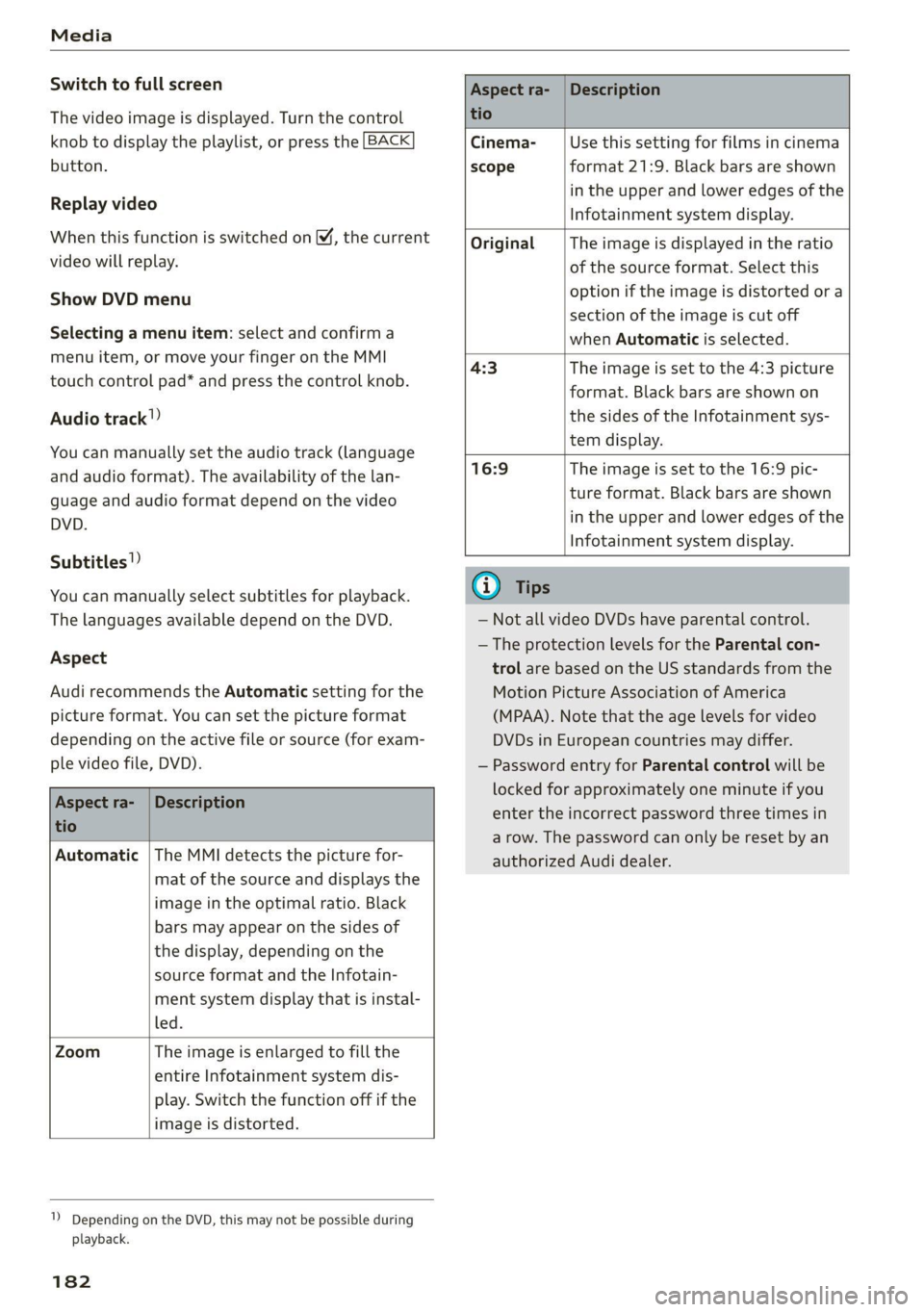
Aspect
Audi recommends the Automatic setting for the
picture format. You can set the picture format
depending on the active file or source (for exam-
ple video file, DVD).
Aspect ra-
tio
Description
Cinema-
scope
Use this setting for films in cinema
format 21:9. Black bars are shown
in the upper and lower edges of the
Infotainment system display.
Original The image is displayed in the ratio
of the source format. Select this
option if the image is distorted or a
section of the image is cut off
when Automatic is selected.
4:3 The image is set to the 4:3 picture
format. Black bars are shown on
the sides of the Infotainment sys-
tem display.
16:9 The image is set to the 16:9 pic-
ture format. Black bars are shown
in the upper and lower edges of the
Infotainment system display.
Aspect ra-
tio
Description
Automatic | The MMI detects the picture for-
mat of the source and displays the
image in the optimal ratio. Black
bars may appear on the sides of
the display, depending on the
source format and the Infotain-
ment system display that is instal-
led.
Zoom The image is enlarged to fill the
entire Infotainment system dis-
play. Switch the function off if the
image is distorted.
1) Depending on the DVD, this may not be possible during
playback.
182
G) Tips
— Not all video DVDs have parental control.
— The protection levels for the Parental con-
trol are based on the US standards from the
Motion Picture Association of America
(MPAA). Note that the age levels for video
DVDs in European countries may differ.
— Password entry for Parental control will be
locked for approximately one minute if you
enter the incorrect password three times in
a row. The password can only be reset by an
authorized Audi dealer.
Page 185 of 280
8S1012721BE
Media
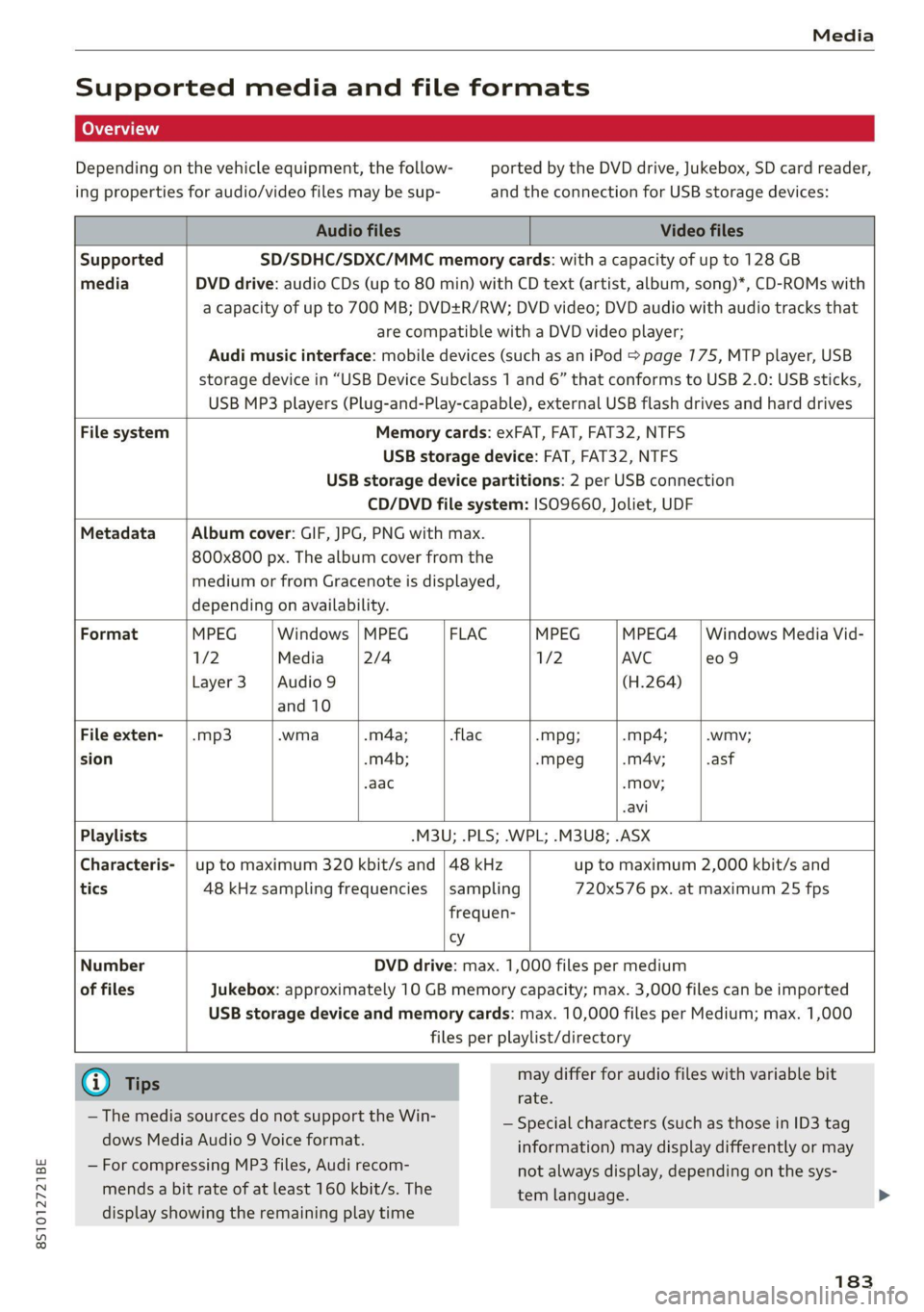
Supported media and file formats
Depending on the vehicle equipment, the follow- ported by the DVD drive, Jukebox, SD card reader,
ing properties for audio/video files may be sup- and the connection for USB storage devices:
Audio files Video files
Supported SD/SDHC/SDXC/MMC memory cards: with a capacity of up to 128 GB
media DVD drive: audio CDs (up to 80 min) with CD text (artist, album, song)*, CD-ROMs with
a capacity of up to 700 MB; DVD+R/RW; DVD video; DVD audio with audio tracks that
are compatible with a DVD video player;
Audi music interface: mobile devices (such as an iPod S page 775, MTP player, USB
storage device in “USB Device Subclass 1 and 6” that conforms to USB 2.0: USB sticks,
USB MP3 players (Plug-and-Play-capable), external USB flash drives and hard drives
File system Memory cards: exFAT, FAT, FAT32, NTFS
USB storage device: FAT, FAT32, NTFS
USB storage device partitions: 2 per USB connection
CD/DVD file system: ISO9660, Joliet, UDF
Metadata Album cover: GIF, JPG, PNG with max.
800x800 px. The album cover from the
medium or from Gracenote is displayed,
depending on availability.
Format MPEG Windows | MPEG FLAC MPEG MPEG4 | Windows Media Vid-
1/2 Media 2/4 1/2 AVC e09
Layer3 |Audio9 (H.264)
and 10
File exten- | .mp3 .wma .m4a; -flac -Mpg; -mp4; .wmv;
sion -m4b; -mpeg -mA4v; .asf
.aac -Mov;
-avi
Playlists -M3U; .PLS; .WPL; .M3U8; .ASX
Characteris- | up to maximum 320 kbit/s and | 48 kHz up to maximum 2,000 kbit/s and
tics 48 kHz sampling frequencies |sampling 720x576 px. at maximum 25 fps
frequen-
cy
Number DVD drive: max. 1,000 files per medium
of files Jukebox: approximately 10 GB memory capacity; max. 3,000 files can be imported
USB storage device and memory cards: max. 10,000 files per Medium; max. 1,000
files per playlist/directory
(i) Ti may differ for audio files with variable bit
| Tips
rate.
— Special characters (such as those in ID3 tag
information) may display differently or may
not always display, depending on the sys-
tem language.
— The media sources do not support the Win-
dows Media Audio 9 Voice format.
— For compressing MP3 files, Audi recom-
mends a bit rate of at least 160 kbit/s. The
display showing the remaining play time
183
Page 186 of 280
Media
— The manufacturer of the storage device can — Some MTP player functions are not support-
provide information about its “USB Device ed, such as rating music tracks and video
Subclass”. playback.
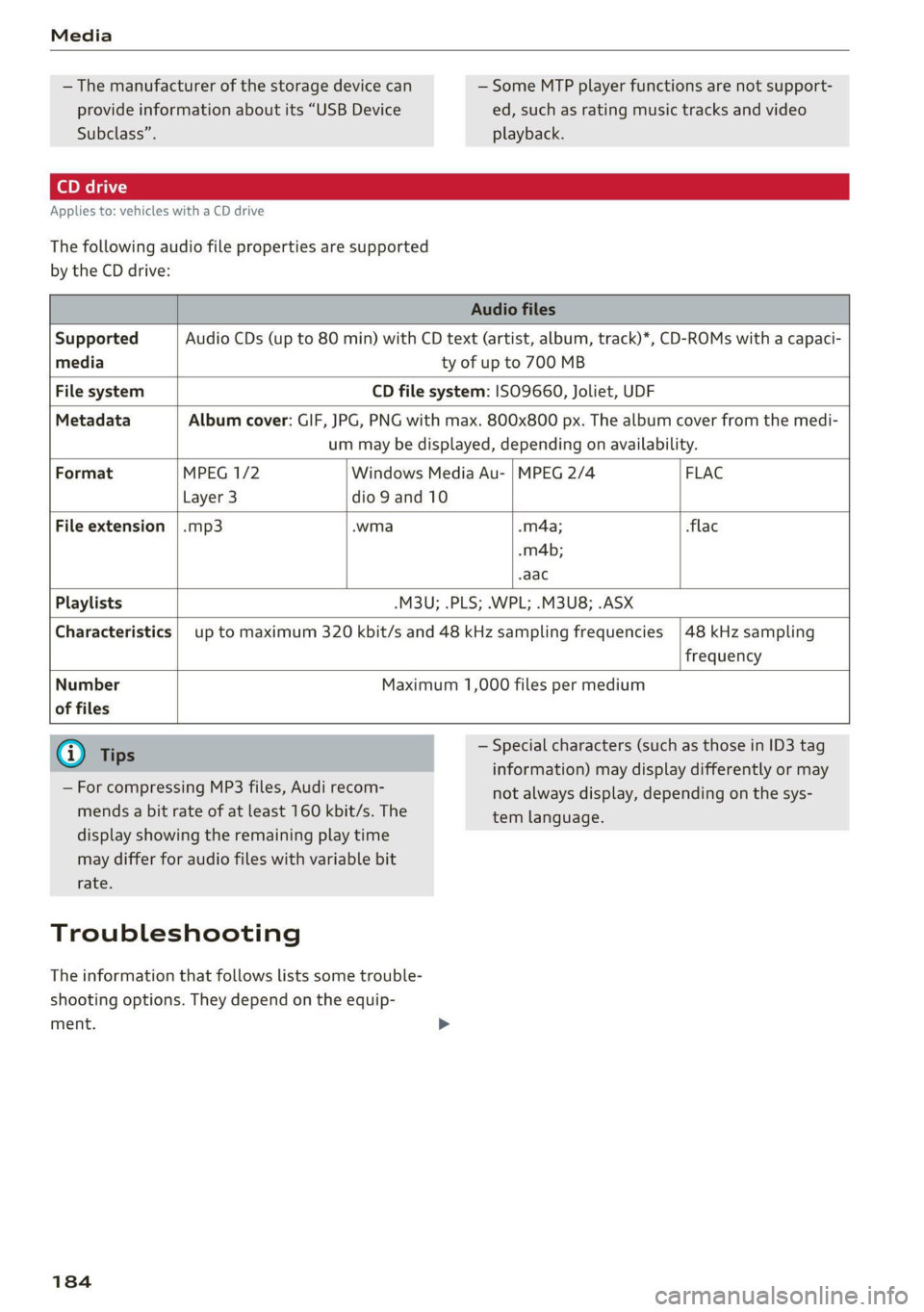
Applies to: vehicles with a CD drive
The following audio file properties are supported
by the CD drive:
Audio files
Supported Audio CDs (up to 80 min) with CD text (artist, album, track)*, CD-ROMs with a capaci-
media ty of up to 700 MB
File system CD file system: ISO9660, Joliet, UDF
Metadata Album cover: GIF, JPG, PNG with max. 800x800 px. The album cover from the medi-
um may be displayed, depending on availability.
Format MPEG 1/2 Windows Media Au- | MPEG 2/4 FLAC
Layer 3 dio 9 and 10
File
extension |.mp3 .wma .m4a; flac
-m4b;
-aac
Playlists -M3U; .PLS; .WPL; .M3U8; .ASX
Characteristics | up to maximum 320 kbit/s and 48 kHz sampling frequencies /48 kHz sampling
frequency
Number Maximum 1,000 files per medium
of files
@) Tips — Special characters (such as those in ID3 tag
information) may display differently or may
not always display, depending on the sys-
tem language.
— For compressing MP3 files, Audi recom-
mends a bit rate of at least 160 kbit/s. The
display showing the remaining play time
may differ for audio files with variable bit
rate.
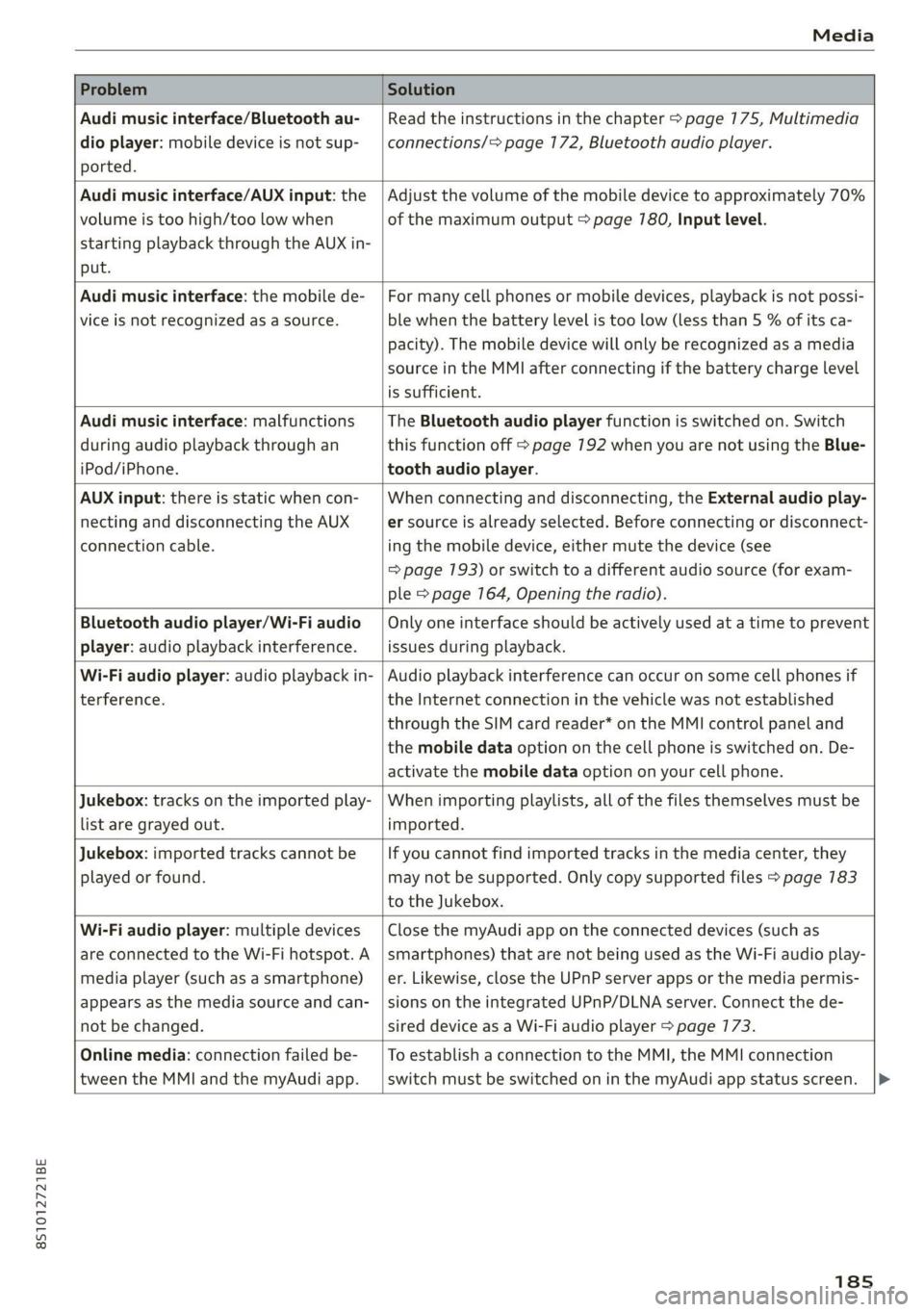
Troubleshooting
The information that follows lists some trouble-
shooting options. They depend on the equip-
ment. >
184
Page 187 of 280
8S1012721BE
Media
Problem Solution
Audi music interface/Bluetooth au-
dio
player: mobile device is not sup-
ported.
Read the instructions in the chapter > page 175, Multimedia
connections/=> page 172, Bluetooth audio player.
Audi music interface/AUX input: the
volume is too high/too low when
starting playback through the AUX in-
put.
Adjust the volume of the mobile device to approximately 70%
of the maximum output > page 780, Input level.
Audi music interface: the mobile de-
vice
is not recognized as a source.
For many cell phones or mobile devices, playback is not possi-
ble when the battery Level is too low (less than 5 % of its ca-
pacity). The mobile device will only be recognized as a media
source in the MMI after connecting if the battery charge level
is sufficient.
Audi music interface: malfunctions
during audio playback through an
iPod/iPhone.
The Bluetooth audio player function is switched on. Switch
this function off > page 7192 when you are not using the Blue-
tooth audio player.
AUX input: there is static when con-
necting and disconnecting the AUX
connection cable.
When connecting and disconnecting, the External audio play-
er source is already selected. Before connecting or disconnect-
ing the mobile device, either mute the device (see
=> page 193) or switch to a different audio source (for exam-
ple > page 164, Opening the radio).
Bluetooth audio player/Wi-Fi audio
player: audio playback interference.
Only one interface should be actively used at a time to prevent
issues during playback.
Wi-Fi audio player: audio playback in-
terference.
Audio playback interference can occur on some cell phones if
the Internet connection in the vehicle was not established
through the SIM card reader* on the MMI control panel and
the mobile data option on the cell phone is switched on. De-
activate the mobile data option on your cell phone.
Jukebox: tracks on the imported play-
list are grayed out.
When importing playlists, all of the files themselves must be
imported.
Jukebox: imported tracks cannot be
played or found.
If you cannot find imported tracks in the media center, they
may not be supported. Only copy supported files > page 783
to the Jukebox.
Wi-Fi audio player: multiple devices
are connected to the Wi-Fi hotspot. A
media player (such as a smartphone)
appears as the media source and can-
not be changed.
Close the myAudi app on the connected devices (such as
smartphones) that are not being used as the Wi-Fi audio play-
er. Likewise, close the UPnP server apps or the media permis-
sions on the integrated UPnP/DLNA server. Connect the de-
sired device as a Wi-Fi audio player > page 173.
Online media: connection failed be-
tween the MMI and the myAudi app.
To establish a connection to the MMI, the MMI connection
switch must be switched on in the myAudi app status screen.
185
Page 188 of 280
Media
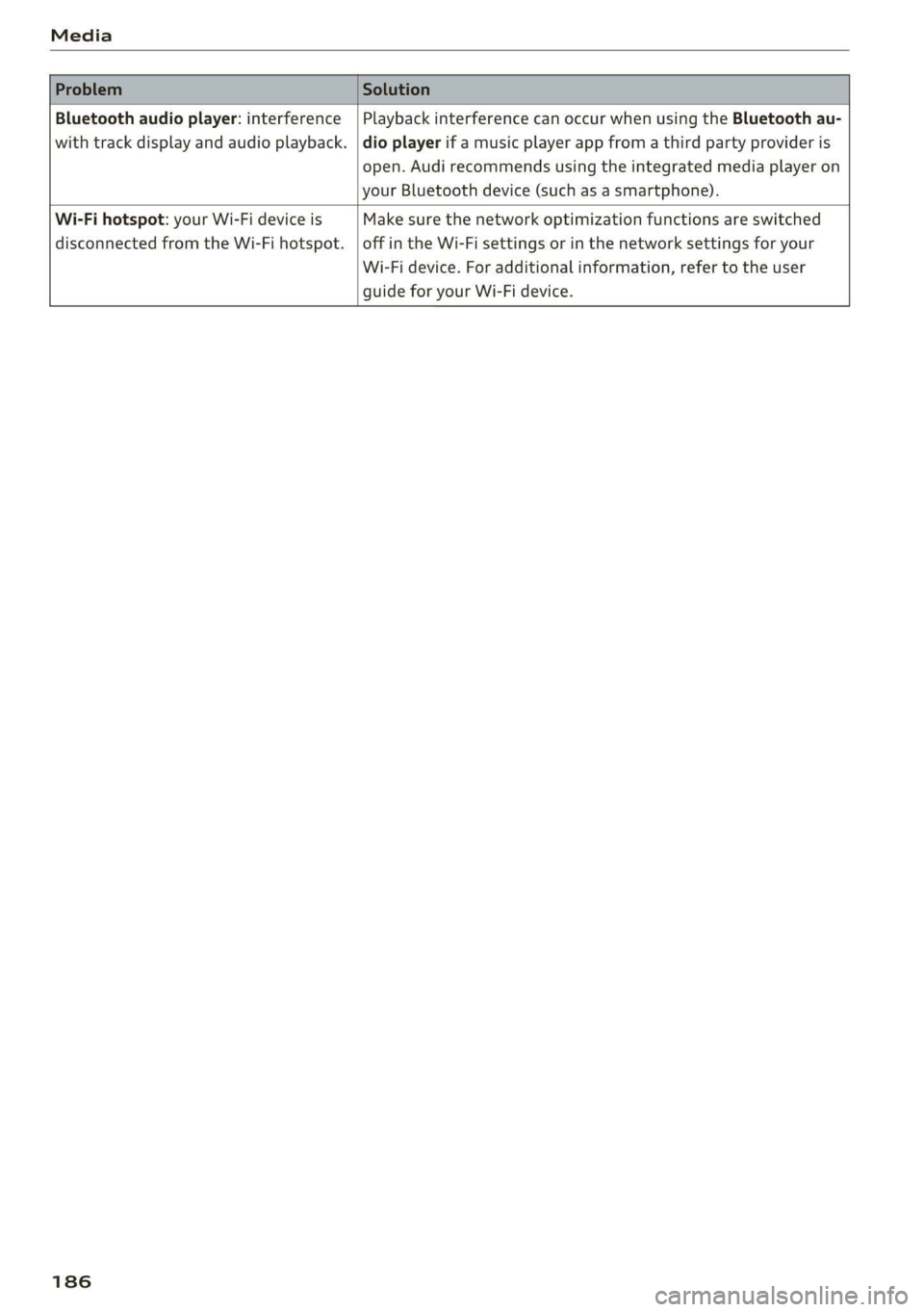
Bluetooth audio player: interference | Playback interference can occur when using the Bluetooth au-
with track display and audio playback. |dio player if a music player app from a third party provider is
open. Audi recommends using the integrated media player on
your Bluetooth device (such as a smartphone).
Wi-Fi hotspot: your Wi-Fi device is Make sure the network optimization functions are switched
disconnected from the Wi-Fi hotspot. | off in the Wi-Fi settings or in the network settings for your
Wi-Fi device. For additional information, refer to the user
guide for your Wi-Fi device.
186
Page 193 of 280

8S1012721BE
System settings
> List of devices already paired: select your cell
phone from the list of all the devices that are
already paired.
PELE Meola alta a lela)
Applies to: vehicles with Audi connect
> Connect new device: search for and connect a
mobile device (such as a smartphone).
> List of devices already paired: select your cell
phone from the list of all the devices that are
already paired, or
> Insert your mini SIM card into the SIM card
reader* > page 742.
@) Note
Always follow the information found in >@ in
General information on page 141.
myAudi app
Applies to: vehicles with Audi connect
Requirement: the myAudi app must be installed
and open on your mobile device.
> Connect new device: search for and connect a
mobile device (such as a smartphone).
> List of devices already paired: select your mo-
bile device from the list of all the devices that
are already paired.
Audio player
Applies to: vehicles with Bluetooth or Wi-Fi audio player
Bluetooth audio player
Requirement: the Bluetooth function and visibili-
ty must be switched on in the MMI > page 7192
and on the Bluetooth audio player.
> Connect new device: press the control knob.
> Select and confirm Bluetooth audio player.
> Search for and connect a mobile device.
> List of devices already paired: select a Blue-
tooth device from the list of all the devices that
are already paired.
Wi-Fi audio player
Requirement: the Wi-Fi hotspot on the MMI
= page 146 and on your Wi-Fi audio player must
be switched on.
> Connect new device: press the control knob.
Search for and connect a Wi-Fi capable device.
> Disconnect Wi-Fi audio player: deactivate the
Wi-Fi on your Wi-Fi capable device. The device
will be automatically removed from the list.
() Note
Always follow the information found in © in
General information on page 141.
Applies to: vehicles with telephone
Display contacts from a cell phone (or an addi-
tional cell phone).
Requirement: no cell phones can be connected to
the MMI using the Handsfree profile.
> Connect new device: search for and connect a
new cell phone.
> List of devices already paired: select your cell
phone from the list of all the cell phones that
are already paired.
Audi smartphone interface
Applies to: vehicles with Audi smartphone interface
> Connect your cell phone to the Audi music in-
terface > page 176 using a USB adapter
=> page 175, fig. 152.
>» Select your cell phone from the list of cell
phones that have already been connected.
Additional options
Depending on the vehicle equipment and the se-
lected function, you can use the right control but-
ton to access the available additional options in
the connection manager.
Delete Bluetooth device
The selected cell phone/mobile device is discon-
nected from the MMI and is removed from the
list of all devices that are already paired.
Show Bluetooth profiles
You can Connect or Disconnect the Handsfree,
Messages, Directory/contacts and Bluetooth au-
dio player profiles separately. >
191
Page 194 of 280
System settings
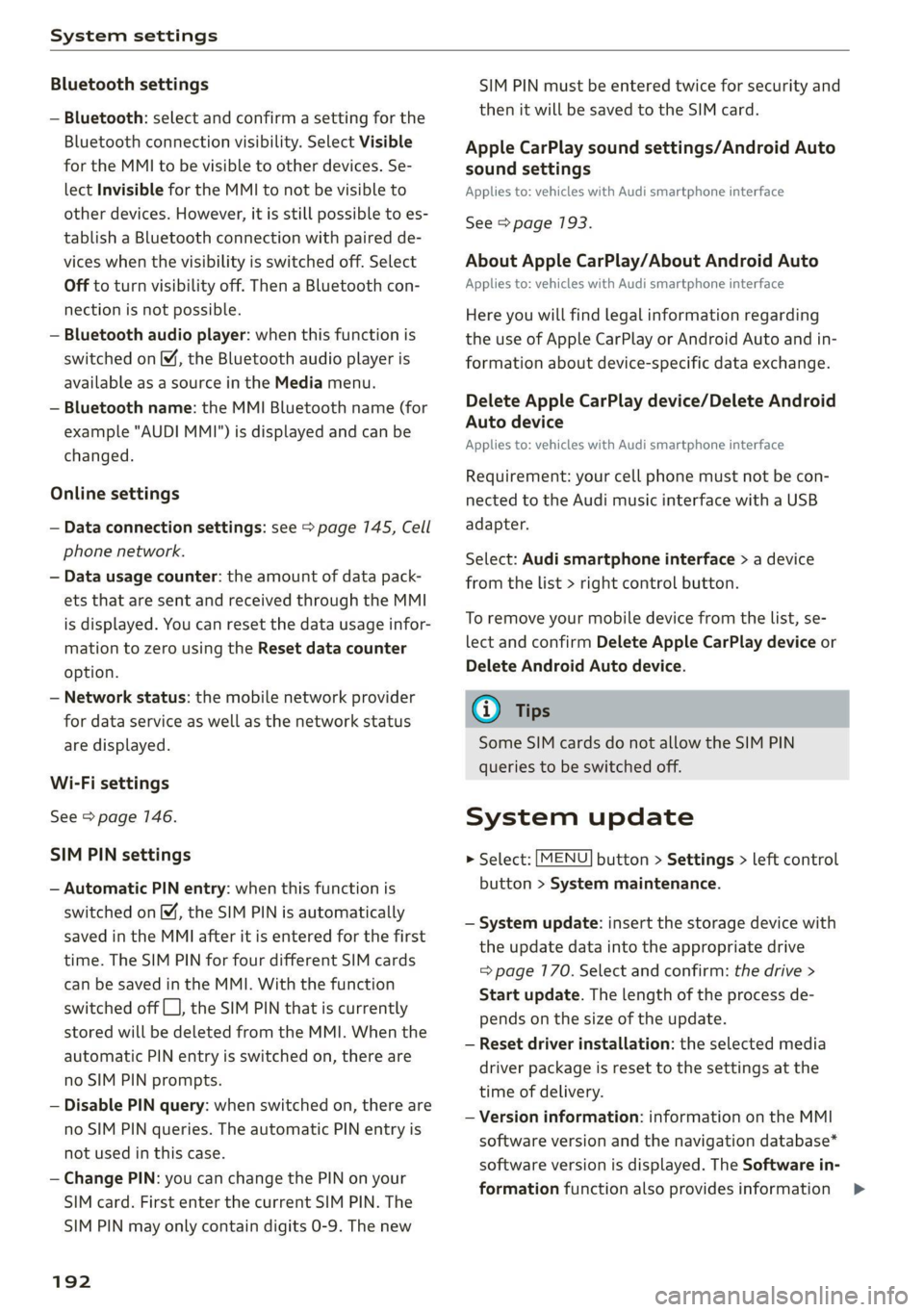
Bluetooth settings
— Bluetooth: select and confirm a setting for the
Bluetooth connection visibility. Select Visible
for the MMI to be visible to other devices. Se-
lect Invisible for the MMI to not be visible to
other devices. However, it is still possible to es-
tablish a Bluetooth connection with paired de-
vices when the visibility is switched off. Select
Off to turn visibility off. Then a Bluetooth con-
nection is not possible.
— Bluetooth audio player: when this function is
switched on [M, the Bluetooth audio player is
available as a source in the Media menu.
— Bluetooth name: the MMI Bluetooth name (for
example "AUDI MMI") is displayed and can be
changed.
Online settings
— Data connection settings: see > page 145, Cell
phone network.
— Data usage counter: the amount of data pack-
ets that are sent and received through the MMI
is displayed. You can reset the data usage infor-
mation to zero using the Reset data counter
option.
— Network status: the mobile network provider
for data service as well as the network status
are displayed.
Wi-Fi settings
See > page 146.
SIM PIN settings
— Automatic PIN entry: when this function is
switched on [M, the SIM PIN is automatically
saved in the MMI after it is entered for the first
time. The SIM PIN for four different SIM cards
can be saved in the MMI. With the function
switched off |_J, the SIM PIN that is currently
stored will be deleted from the MMI. When the
automatic PIN entry is switched on, there are
no SIM PIN prompts.
— Disable PIN query: when switched on, there are
no SIM PIN queries. The automatic PIN entry is
not used in this case.
— Change PIN: you can change the PIN on your
SIM card. First enter the current SIM PIN. The
SIM PIN may only contain digits 0-9. The new
192
SIM PIN must be entered twice for security and
then it will be saved to the SIM card.
Apple CarPlay sound settings/Android Auto
sound settings
Applies to: vehicles with Audi smartphone interface
See > page 193.
About Apple CarPlay/About Android Auto
Applies to: vehicles with Audi smartphone interface
Here you will find legal information regarding
the use of Apple CarPlay or Android Auto and in-
formation about device-specific data exchange.
Delete Apple CarPlay device/Delete Android
Auto device
Applies to: vehicles with Audi smartphone interface
Requirement: your cell phone must not be con-
nected to the Audi music interface with a USB
adapter.
Select: Audi smartphone interface > a device
from the list > right control button.
To remove your mobile device from the list, se-
lect and confirm Delete Apple CarPlay device or
Delete Android Auto device.
Gi) Tips
Some SIM cards do not allow the SIM PIN
queries to be switched off.
System update
> Select: [MENU] button > Settings > left control
button > System maintenance.
— System update: insert the storage device with
the update data into the appropriate drive
= page 170. Select and confirm: the drive >
Start update. The length of the process de-
pends on the size of the update.
— Reset driver installation: the selected media
driver package is reset to the settings at the
time of delivery.
— Version information: information on the MMI
software version and the navigation database*
software version is displayed. The Software in-
formation function also provides information >
Page 195 of 280
8S1012721BE
System settings
on the software contained in the MMI and the
licensing agreement.
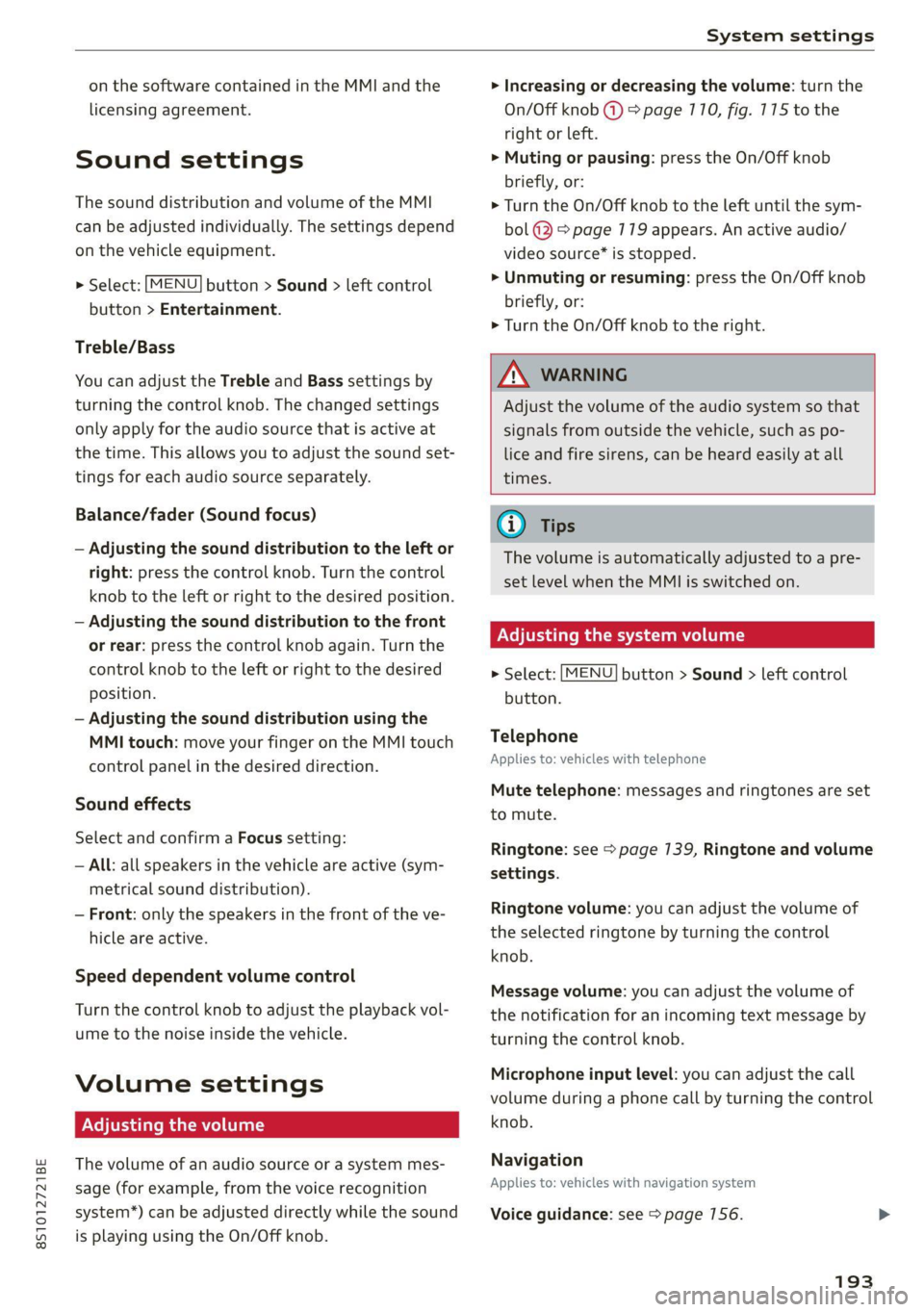
Sound settings
The sound distribution and volume of the MMI
can be adjusted individually. The settings depend
on the vehicle equipment.
> Select: [MENU] button > Sound > left control
button > Entertainment.
Treble/Bass
You can adjust the Treble and Bass settings by
turning the control knob. The changed settings
only apply for the audio source that is active at
the time. This allows you to adjust the sound set-
tings for each audio source separately.
Balance/fader (Sound focus)
— Adjusting the sound distribution to the left or
right: press the control knob. Turn the control
knob to the left or right to the desired position.
— Adjusting the sound distribution to the front
or rear: press the control knob again. Turn the
control knob to the left or right to the desired
position.
— Adjusting the sound distribution using the
MMI touch: move your finger on the MMI touch
control panel in the desired direction.
Sound effects
Select and confirm a Focus setting:
— All: all speakers in the vehicle are active (sym-
metrical sound distribution).
— Front: only the speakers in the front of the ve-
hicle are active.
Speed dependent volume control
Turn the control knob to adjust the playback vol-
ume to the noise inside the vehicle.
Volume settings
Adjusting the volume
The volume of an audio source or a system mes-
sage (for example, from the voice recognition
system*) can be adjusted directly while the sound
is playing using the On/Off knob.
> Increasing or decreasing the volume: turn the
On/Off knob (2) > page 170, fig. 175 to the
right or left.
> Muting or pausing: press the On/Off knob
briefly, or:
> Turn the On/Off knob to the left until the sym-
bol @ > page 779 appears. An active audio/
video source* is stopped.
> Unmuting or resuming: press the On/Off knob
briefly, or:
> Turn the On/Off knob to the right.
ZA\ WARNING
Adjust the volume of the audio system so that
signals from outside the vehicle, such as po-
lice and fire sirens, can be heard easily at all
times.
@ Tips
The volume is automatically adjusted to a pre-
set level when the MMI is switched on.
Adjusting the system volume
> Select: [MENU] button > Sound > left control
button.
Telephone
Applies to: vehicles with telephone
Mute telephone: messages and ringtones are set
to mute.
Ringtone: see > page 139, Ringtone and volume
settings.
Ringtone volume: you can adjust the volume of
the selected ringtone by turning the control
knob.
Message volume: you can adjust the volume of
the notification for an incoming text message by
turning the control knob.
Microphone input level: you can adjust the call
volume during a phone call by turning the control
knob.
Navigation
Applies to: vehicles with navigation system
Voice guidance: see > page 156.
193
Page 196 of 280
System settings
Voice guidance during phone call: see
=> page 156.
Voice guidance volume: you can adjust the voice
guidance volume by turning the control knob or
you can adjust it while route guidance is active by
turning the On/Off knob.
Entertainment fader: the volume of audio play-
back can be temporarily lowered when the park-
ing system or voice guidance is active.
Voice recognition system
Applies to: vehicles with voice recognition system
Short dialog: see > page 190.
Speech dialog system volume: see > page 190.
Parking aid*
You can adjust the volume of the signal tone by
turning the control knob.
— Adjusting the Front volume: select and con-
firm
High, Medium or Low.
— Adjusting the Rear volume: select and confirm
High, Medium or Low.
MMI touch*
Turn the control knob to adjust the volume of the
spoken prompts from the MMI touch*.
Audi Heartbeat
You can adjust the volume of Audi Heartbeat by
turning the control knob.
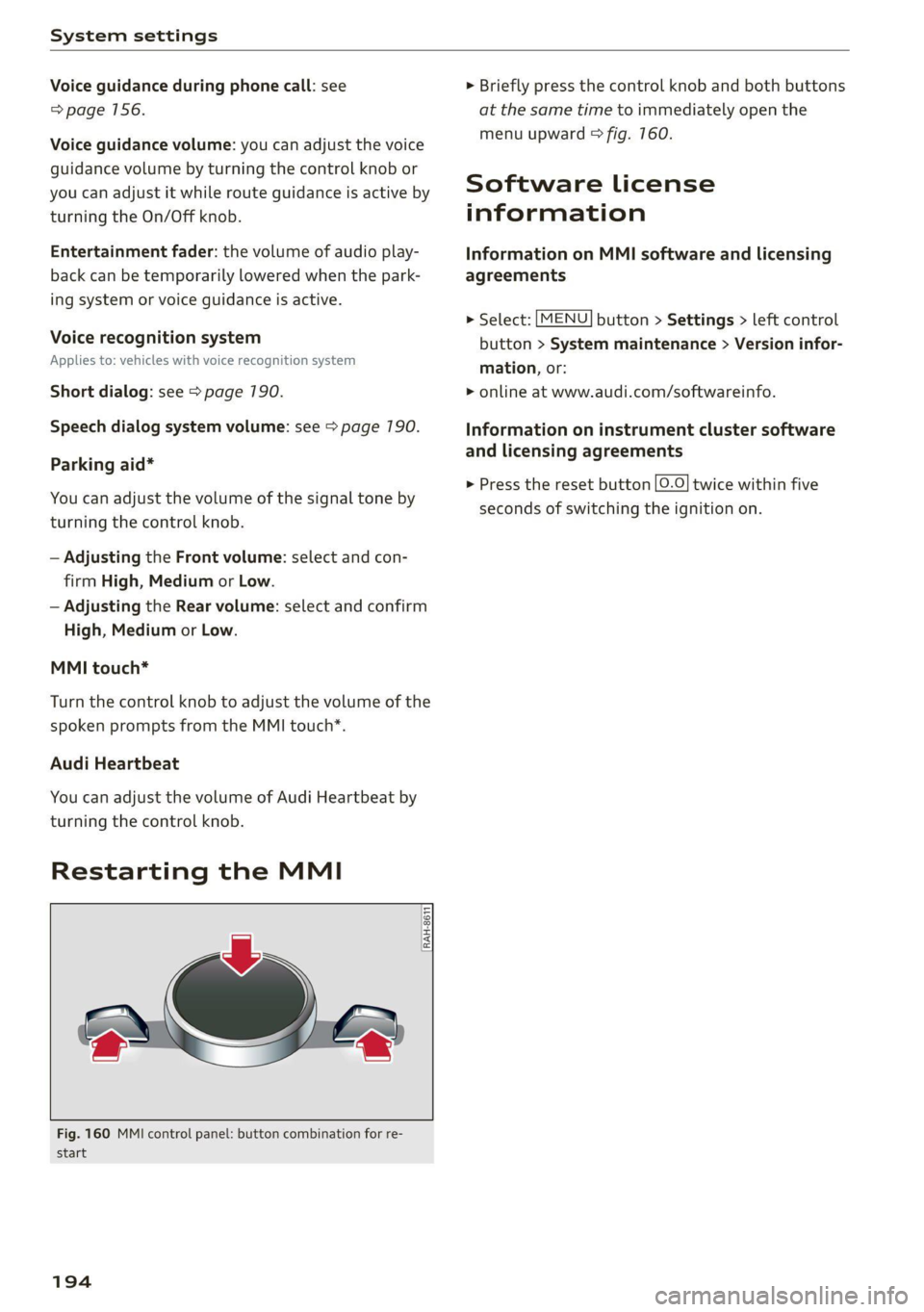
Restarting the MMI
RAH-8611
wv
= ‘=
Fig. 160 MMI control panel: button combination for re-
start
194
> Briefly press the control knob and both buttons
at the same time to immediately open the
menu upward > fig. 760.
Software License
information
Information on MMI software and licensing
agreements
> Select: [MENU] button > Settings > left control
button > System maintenance > Version infor-
mation, or:
> online at www.audi.com/softwareinfo.
Information on instrument cluster software
and licensing agreements
> Press the reset button |O.O} twice within five
seconds of switching the ignition on.
Page 267 of 280
8S1012721BE
Index
A
A/C cooling mode.........-...--00e ee eee 70
A/C system refrigerant oil............... 264
ACCESSORIES 6 crccei
Adjusting air distribution (automatic climate
control system) .........2.-00 eee eee ee 70
Adjusting the additional display........... 14
Adjusting the blower (automatic climate con-
50) Dc 70
Adjusting the center console lighting....... 39
Adjusting the sound ................0005 193
Adjusting the temperature (automatic climate
control systeM) . 1.6... ce eee eee eee ees 70
Adjusting the vents...............00 eee 71
Airbagisystem « sacs + wemenn + apzeas « ¥ nrauien Wo 6 52
Alarm system
refer to Anti-theft alarm system.......... 24
Alignment pin (tire change).............. 242
All-weather lights: s+ nse ss « soni i agua 5 36
AlUSCAaSOM IFES sxc 5 coscene «armen wo eerie © ¥ os 229
All wheel drive
refer to quattro... 2... eee eee 108
Alternative
routes wiies i 6 ese ss cone oo scene 155
Ambientilighting)s « s iss so sen «6 aesue + wane 39
AMI
refer to Audi music interface....... 175,176
Android Auto
refer to Audi smartphone interface...... 187
Anti-freeze
Windshield washer system...........-. 212
Anti-lock braking system (ABS)........... 104
Anti-Slip Regulation...............-.05 104
Anti-theft alarm system................0. 24
Anti-theft wheel bolts.................. 245
Apple CarPlay
refer to Audi smartphone interface...... 187
Armrest... 2.0... 0.0 eee eee eee 47
Aspect ratio (video) ............00220008 180
ASR
refer to Anti-Slip Regulation............ 104
Audi adaptive light.................0005. 36
Audi connect
refer toconnect..............00 eee eee 141
Audi connect Infotainment
Personal hotspot..............00000ee 142
SEMICES OVENVIEW sx = gaeu ss eee ae ROE a 144
Audi drive select
refer to Drive select............--000005 96
Audi magnetic ride
refer to Suspension control.............. 96
Audi music interface..............00005 175
Audi music stream
refer to Wi-Fi..............0000- 146, 173
AUGIOMLESiesius 6s arava 6 w anew «0 weivana wo annem a 177
Audio player
Bluetooth audio player................ 172
Wi-Fi audio player a. « s swas ss sees de vee 173
Audio track. ...... cece eee eee 180
Audi phone box.............-.000 2200s 130
Audi side assist
refer to Side assist..... 0.0.0... eee eae 93
Audi smartphone interface.......... 187,191
Audi virtual cockpit
refer to Instrument cluster.............. 10
AUTO
Automatic headlights.................. 36
Climate control system .......... cee eee 70
Auto Lock (central locking) .............. 18
Automatic post-collision braking system... 104
Automatic transmission............-...5- 81
Driving tips... 2.0... eee eee ee eee 83
Emergency mode..............002-000- 87
Hilldescenticontrolsses « saws 4 2 aque 9 2 once 85
KICREP OW Miiiacs wo awoswiee w « ceevivae oo amine sw avon © 86
Malfunction ....... 0.00. cece eee eee ee 83
Selector lever emergency release......... 88
Selector lever: lOCK eis s+ esesos we + enon 0 saver 83
Selector lever positions................. 81
Shifting Manually « wees + xaes s 2 new so gee 85
Steering wheel with shift paddles........ 85
tiptronic... 2... ee eee eee 85
Automatic wiper/washer system........... 41
Automatic zoom (navigation) ............ 159
AUX IMPUt wscuses w 6 sseeees vo ssrome ws seems ww sue 176
Average fuel consumption................ 15
Average speed... . cece cece este eee enes 15
B
BACK BUttON ¢ seas so exes 5 e een oe ee see 110