steering AUDI TT 2021 Owner´s Manual
[x] Cancel search | Manufacturer: AUDI, Model Year: 2021, Model line: TT, Model: AUDI TT 2021Pages: 280, PDF Size: 99.18 MB
Page 87 of 280

8S1012721BE
Driving
— If the engine must run while you are working
in the engine compartment with the hood
open, make sure a gear is not engaged. The
selector lever must be firmly in the P posi-
tion and locked in place and the parking
brake must be set > page 200. Otherwise,
the vehicle could begin moving when in-
creasing the engine speed, even with the
parking brake set.
() Note
— If you have to stop on an incline, always
press the brake pedal to hold the vehicle in
place to reduce the risk of the vehicle rolling
backward. Do not try to hold the vehicle in
place by pressing and holding the accelera-
tor pedal. The transmission can overheat,
which increases the risk of damage.
— Allowing the vehicle to roll when the engine
is stopped and the selector lever is in the N
position will damage the automatic trans-
mission because it is not lubricated under
those circumstances.
— The transmission can overheat and be dam-
aged under certain driving and traffic condi-
tions such as frequent starts, creeping fora
long time, or stop-and-go traffic. When the
i or os] indicator light turns on, stop the
vehicle at the next opportunity and let the
transmission cool > page 87.
— Allowing the vehicle to roll when the engine
is stopped will damage the S tronic trans-
mission because it is not lubricated
= page 250, Towing.
@® Tips
For safety reasons, the parking brake is re-
leased automatically only when the driver's
safety belt is fastened.
Hill descent control
The hill descent control system assists the driver
when driving down hills.
Hill descent control is activated when the selec-
tor lever is in the "D" or "S" position and you
press the brake pedal. The transmission auto-
matically selects a gear that is suitable for the
hill. Hill descent control tries to maintain the
speed that was selected at the time of braking,
within physical and technical limitations. If may
still be necessary to adjust the speed with the
brakes. Because hill descent control cannot shift
down farther than 3rd gear, it may be necessary
to shift into tiptronic mode in very steep areas. In
this case, shift manually into 1st or 2nd gear in
tiptronic mode to use the engine's braking force
to relieve the brakes.
Hill descent control switches off once the hill lev-
els
out or if you press the accelerator pedal.
On vehicles with a cruise control system*
= page 89, hill descent control is also activated
when the speed is set.
ZA\ WARNING
Hill descent control may not be able to main-
tain a constant speed under all conditions. Al-
ways be ready to apply the brakes.
Shifting manually (tiptronic mode)
The tiptronic mode allows the driver to shift the
gears manually.
| 8Fv-0114]
Fig. 90 Center console: shifting manually with the selector
lever
Fig. 91 Steering wheel: shift paddles*
8s
Page 88 of 280
Driving
You can shift the gears manually when in “D”
mode. The transmission must be in tiptronic
mode.
Shifting with the selector lever
You can shift into manual shifting mode while the
vehicle is stationary or while driving.
> To switch to manual shifting mode, tilt the se-
lector lever toward the front passenger's side
> fig. 90. “M” will be displayed in the instru-
ment cluster.
> Upshifting: push the selector lever forward G).
> Downshifting: push the selector lever toward
the rear ©).
> To switch back to automatic mode, tilt the se-
lector lever toward the driver's side.
Shifting with the shift paddles
Applies to: vehicles with shift paddles
> Upshifting: press the @) shift paddle © fig. 97.
> Downshifting: press the ©) shift paddle.
» Applies to: RS models: To select the lowest/
highest possible gear, press and hold the shift
paddle @)/@).
If the shift paddles are tapped while in the D/S
selector lever position, automatic mode switches
off briefly. To switch from manually shifting back
to automatic shifting immediately, tap the shift
paddle @) © fig. 97 for 1 second.
To keep shifting manually, tilt the selector lever
toward the front passenger's side.
@ Tips
— The transmission only allows manual shift-
ing when the engine speed is within the per-
mitted range.
— The transmission automatically shifts up or
down before critical engine speed is
reached.
— Applies to: RS models: When accelerating,
the transmission will not automatically shift
to the next gear shortly before the maxi-
mum permitted engine RPM is reached.
Shift to the next highest gear at the right
time.
86
Kick-down enables maximum acceleration.
When you press the accelerator pedal down be-
yond the resistance point, the automatic trans-
mission downshifts into a lower gear and the en-
gine utilizes its full power, if the vehicle speed
and engine RPM permit. It shifts up into the next
higher gear once the maximum permitted engine
RPM is reached.
ZA\ WARNING
Please note that the wheels could spin on
slick or slippery roads when kick-down is ac-
tive.
Launch Control
Applies to: vehicles with Launch Control
Launch Control provides the best possible accel-
eration when starting from a stop.
Requirements
— The engine must be at operating temperature.
— The steering wheel must not be turned.
— Start/Stop system* must be deactivated
=> page 79.
— ESC must be limited > page 105.
— Driving program “S” > page 82 or the Dynamic
Audi drive select* mode must be selected
=> page 96.
Using Launch Control
— Press the brake pedal with your left foot and
hold it all the way down for at least one second.
— With the brake pedal pressed, press the accel-
erator pedal all the way down with your right
foot at the same time.
— Once the engine reaches a constant speed, re-
move your foot from the brake pedal.
Once the vehicle has started moving, reactivate
the ESC so that it is fully functional.
ZA WARNING
Only use Launch Control when road and traffic
conditions allow it and other road users will
not be endangered or impacted by your >
Page 93 of 280
8S1012721BE
Assist systems
Seem ea
Applies to: vehicles with cruise control system
When you switch the system off, the cruise con-
trol speed will be erased.
Requirement: the system must be switched on.
> To switch the system off, press the lever toward
@ (locked into place) > page 90, fig. 94, or
> Switch the ignition off.
Applies to: vehicles with cruise control system
ICRUISE| / 3) Speed control system: currently un-
available. See owner's manual
If the indicator light turns on and this message
appears, the cruise control system has been de-
activated. There is a temporary malfunction, for
example the brakes are overheating. Switch the
cruise control system on again later.
Lap timer
Introduction
Applies to: vehicles with lap timer
You can measure and analyze lap times with the
lap timer in the display. The time is measured in
minutes, seconds and 1/10 seconds. With lap
times longer than 60 minutes, the hour is also
shown and the display of 1/10 seconds is re-
moved.
The time measurement on an individual lap ends
after 99 hours 59 minutes and 59 seconds. A new
lap starts automatically after that.
You can control the lap timer using the controls
on the multifunction steering wheel > page 72.
ZA WARNING
Your focus should always be on driving your
vehicle safely. As the driver, you have com-
plete responsibility for safety in traffic. To re-
duce the risk of an accident, only use the lap
timer functions in such a way that you always
maintain complete control over your vehicle in
all traffic situations.
@) Tips
You can retrieve information from the trip
computer while the lap timer stopwatch is
running.
Caer mi ra Opening the lap
Applies to: vehicles with lap timer
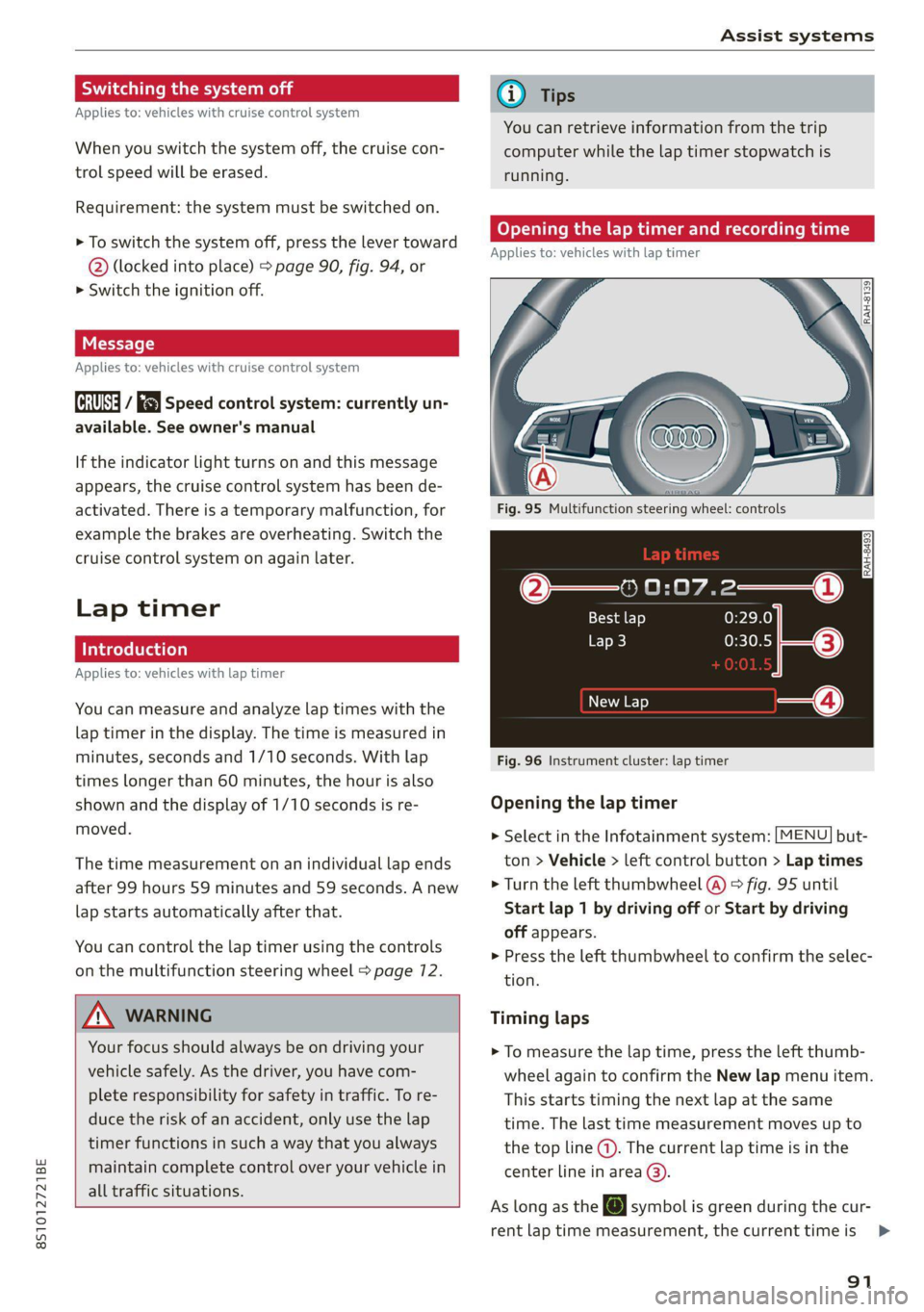
Fig. 95 Multifunction steering wheel: controls
[RAH-£493]
@—» 0:07.2——_@
Best lap 0:29.0
0:30.5 ETO)
New Lap
Fig. 96 Instrument cluster: lap timer
Opening the lap timer
> Select in the Infotainment system: [MENU] but-
ton > Vehicle > left control button > Lap times
> Turn the left thumbwheel @) © fig. 95 until
Start lap 1 by driving off or Start by driving
off appears.
> Press the left thumbwheel to confirm the selec-
tion.
Timing laps
> To measure the lap time, press the left thumb-
wheel again to confirm the New lap menu item.
This starts timing the next lap at the same
time. The last time measurement moves up to
the top line @). The current lap time is in the
center line in area @).
As long as the [@J symbol is green during the cur-
rent lap time measurement, the current timeis >
91
Page 94 of 280

Assist systems
faster than your best time to date. If the sym-
bol @ is red, the current time is slower (2).
Displaying split time and pausing timing
> To display a split time @, turn the left thumb-
wheel until Split time appears in line @). Press
the left thumbwheel to confirm the selection.
The split time appears for approximately
10 seconds in area @). The current lap timing
will continue running.
> To insert a pause oi immediately after the split
time, first press the left thumbwheel to con-
firm
the menu item Back to lap time.
> To insert a pause, turn the left thumbwheel un-
til Pause appears in line @). Press the left
thumbwheel to confirm the selection. The
pause symbol Oi appears in area @).
> To resume timing, press the left thumbwheel
again.
Meaning of the indicator in the Infotainment sys-
tem display > fig. 96:
@ __ | Display of last recorded time
@_ |Symbols:
- fo): start of time recording
fe @.: slowest recorded time
- @: fastest recorded time
F él: split time
- pause
Current time measurement
®©|© Menu:
- Start lap 1 by driving off
- Start by driving off
- New lap
- Split time
- Pause
- Cancel lap
Evaluating or resetting times
Applies to: vehicles with lap timer
= Ss
3
z
ss
Fig. 97 Instrument cluster: lap timer
You can evaluate the fastest, slowest and average
lap times.
After evaluating the lap times, you can continue
the current timing round or start over, meaning
start lap 1 again.
> Select in the Infotainment system: [MENU] but-
ton > Vehicle > left control button > Lap statis-
tics. The display shows the fastest lap fe), the
slowest lap ] and the average lap time @.
> Turn the thumbwheel down or up to display the
individual lap times.
> To resume the timing that was started, press
the left thumbwheel again.
> To reset the timing to zero, press the left con-
trol button on the multifunction steering
wheel. Turn the left thumbwheel and select the
desired setting by moving the cursor (red
frame). Press the left thumbwheel to confirm
the selection.
> Press the left thumbwheel to restart the lap
timer for a new lap timing, if needed.
> Press the [MENU] button to exit the lap timer.
Evaluation legend 9 fig. 97:
- Reset times
92
: total number of laps
@ |BL fastest lap time
@ |B slowest lap time
@ |f@ average lap time
Gi) Tips
—A maximum of 30 lap times can be meas-
ured.
Page 98 of 280

Assist systems
The system cannot guarantee that it will detect
vehicles correctly and it has switched off. The
sensors have been moved or are faulty. Have the
system checked by an authorized Audi dealer or
authorized Audi Service Facility soon.
Audi drive select (drive
settings)
Introduction
Applies to: vehicles with Audi drive select
Drive select makes it possible to experience dif-
ferent types of vehicle characteristics in one vehi-
cle. With different driving modes, the driver can
switch the setting, for example from sporty to
comfortable. In the Individual mode, the set-
tings can be adjusted to your personal preferen-
ces. This makes it possible to combine settings
such as a sporty drivetrain setting with comforta-
ble steering.
Using Audi drive select incorrectly can lead to
collisions, other accidents and serious inju-
ries.
Applies to: vehicles with Audi drive select
The vehicle setup in each mode depends on the
vehicle's features.
Engine and automatic transmission
Depending on the mode, the engine and auto-
matic transmission respond more quickly or ina
more balanced manner to accelerator pedal
movements.
Suspension control (Audi magnetic ride)*
The suspension control uses sensors to record in-
formation regarding steering movements, brak-
ing and acceleration operations by the driver, as
well as information about the road surface, driv-
ing speed, and load. With drive select, you can
adjust the suspension control to sporty (dynam-
ic), comfortable (comfort) or balanced (auto).
96
Steering
The power steering adapts. Indirect steering that
moves easily as in comfort mode is especially
suited to long drives on a highway. The dynamic
mode provides sporty, direct steering.
Engine sound*
The engine sound adapts to the current mode
and can be subtle to sporty.
— Certain vehicle settings will be reset when
the ignition is switched off.
— In some models, the maximum vehicle
speed can only be reached in the auto and
dynamic modes.
Selecting the driving mode
Applies to: vehicles with Audi drive select
You can choose between comfort, auto, dynamic
and individual.
BFV-0307
drive
select
Fig. 102 Center console: drive select button
BFV-0308
Applies to: TT RS
Fig. 103 Steering wheel: drive select button
> Press the ste button repeatedly until the de-
sired drive mode is displayed in the instrument
cluster/Infotainment system display. Or
Page 99 of 280
![AUDI TT 2021 Owner´s Manual 8S1012721BE
Assist systems
> Select in the Infotainment system: [MENU] but-
ton > Vehicle > left control button > Audi drive
select.
> Select and confirm the desired setting.
You c](/img/6/40287/w960_40287-98.png "AUDI TT 2021 Owner´s Manual 8S1012721BE
Assist systems
> Select in the Infotainment system: [MENU] but-
ton > Vehicle > left control button > Audi drive
select.
> Select and confirm the desired setting.
You c")
8S1012721BE
Assist systems
> Select in the Infotainment system: [MENU] but-
ton > Vehicle > left control button > Audi drive
select.
> Select and confirm the desired setting.
You can change the driving mode when the vehi-
cle is stationary or while driving. If traffic per-
mits, briefly remove your foot from the accelera-
tor pedal after changing modes so that the mode
you have selected will be activated for the en-
gine.
Comfort - Results in a comfort-oriented vehicle
calibration
Auto - Provides an overall comfortable yet dy-
namic driving feel and is suited for everyday use.
Dynamic - Gives the driver a sporty driving feel
and is suited to a sporty driving style.
Individual - > page 97.
Adjusting the Individual mode
Applies to: vehicles with Audi drive select
You can adjust the vehicle settings to your personal preferences.
> Press the sis@ button > Individual > right control
button, or
> Select in the Infotainment system: [MENU] but-
ton > Vehicle > left control button>Audi drive
select > Individual > right control button
After you have closed the settings, you will auto-
matically drive in the Individual* mode.
The equipment in your vehicle will determine
which settings you can adjust. The following ta-
ble gives an overview of the characteristics.
Systems Comfort Auto Dynamic
Engine/trans. comfortable balanced sporty
Steering comfortable balanced sporty
Suspension control* comfortable balanced sporty
Engine sound* subtle balanced sporty
quattro* balanced balanced sporty
Applies to: TT RS: quattro balanced neutral sporty
97
Page 102 of 280
Parking aid
Siedler lie Rela
Applies to: vehicles with parking aid plus
BFV-0209
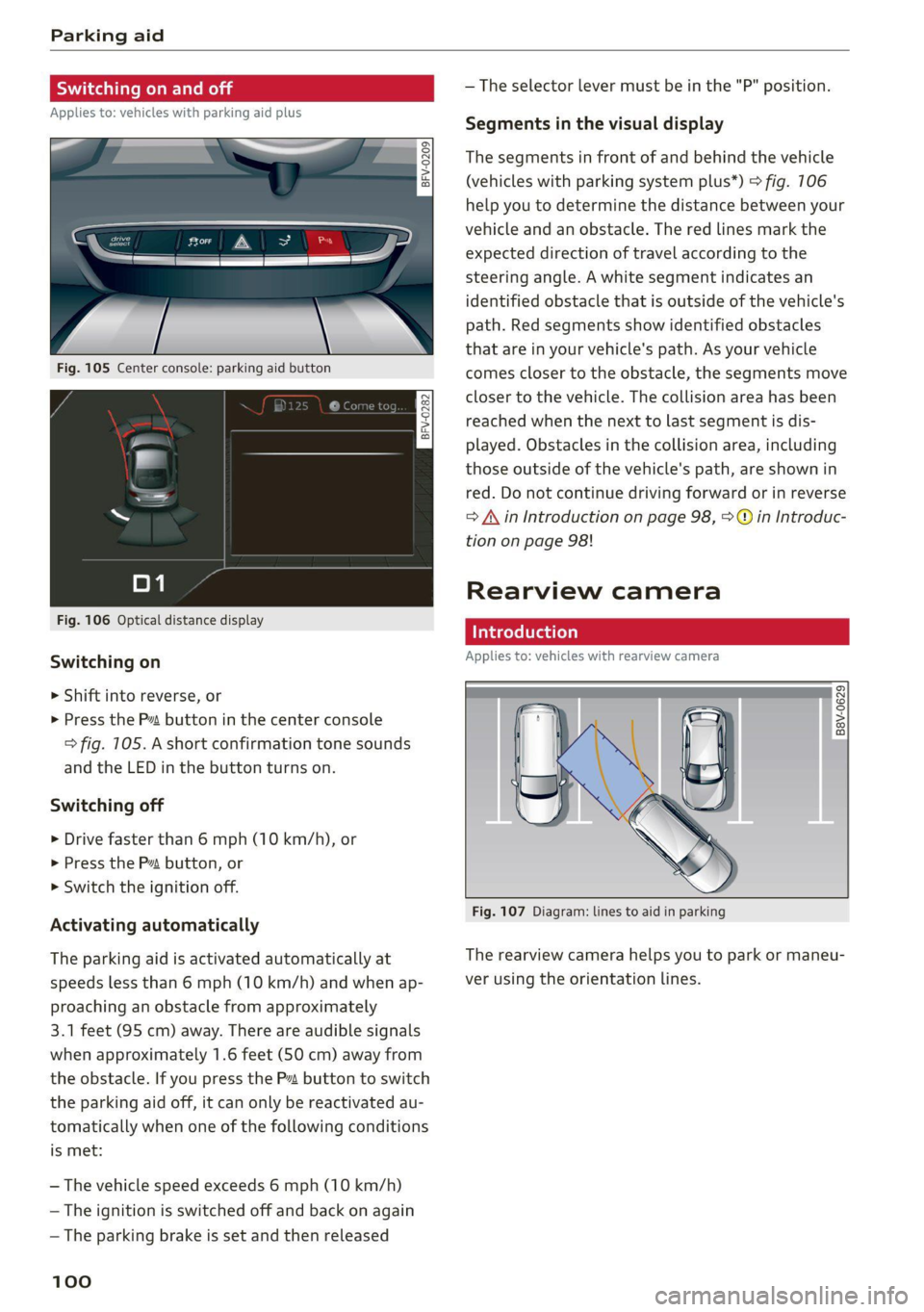
Fig. 105 Center console: parking aid button
Fig. 106 Optical distance display
Switching on
> Shift into reverse, or
> Press the P~ button in the center console
> fig. 105. A short confirmation tone sounds
and the LED in the button turns on.
Switching off
> Drive faster than 6 mph (10 km/h), or
> Press the P button, or
> Switch the ignition off.
Activating automatically
The parking aid is activated automatically at
speeds less than 6 mph (10 km/h) and when ap-
proaching an obstacle from approximately
3.1 feet (95 cm) away. There are audible signals
when approximately 1.6 feet (50 cm) away from
the obstacle. If you press the Pa button to switch
the parking aid off, it can only be reactivated au-
tomatically when one of the following conditions
is met:
— The vehicle speed exceeds 6 mph (10 km/h)
— The ignition is switched off and back on again
— The parking brake is set and then released
100
— The selector lever must be in the "P" position.
Segments in the visual display
The segments in front of and behind the vehicle
(vehicles with parking system plus*) > fig. 106
help you to determine the distance between your
vehicle and an obstacle. The red lines mark the
expected direction of travel according to the
steering angle. A white segment indicates an
identified obstacle that is outside of the vehicle's
path. Red segments show identified obstacles
that are in your vehicle's path. As your vehicle
comes closer to the obstacle, the segments move
closer to the vehicle. The collision area has been
reached when the next to last segment is dis-
played. Obstacles in the collision area, including
those outside of the vehicle's path, are shown in
red. Do not continue driving forward or in reverse
= A in Introduction on page 98, >@ in Introduc-
tion on page 98!
Rearview camera
Introduction
Applies to: vehicles with rearview camera
B8V-0629
Fig. 107 Diagram: lines to aid in parking
The rearview camera helps you to park or maneu-
ver using the orientation lines.
Page 103 of 280
8S1012721BE
Parking aid
General infor ion
Applies to: vehicles with rearview camera
© © 3 g
S £ 0
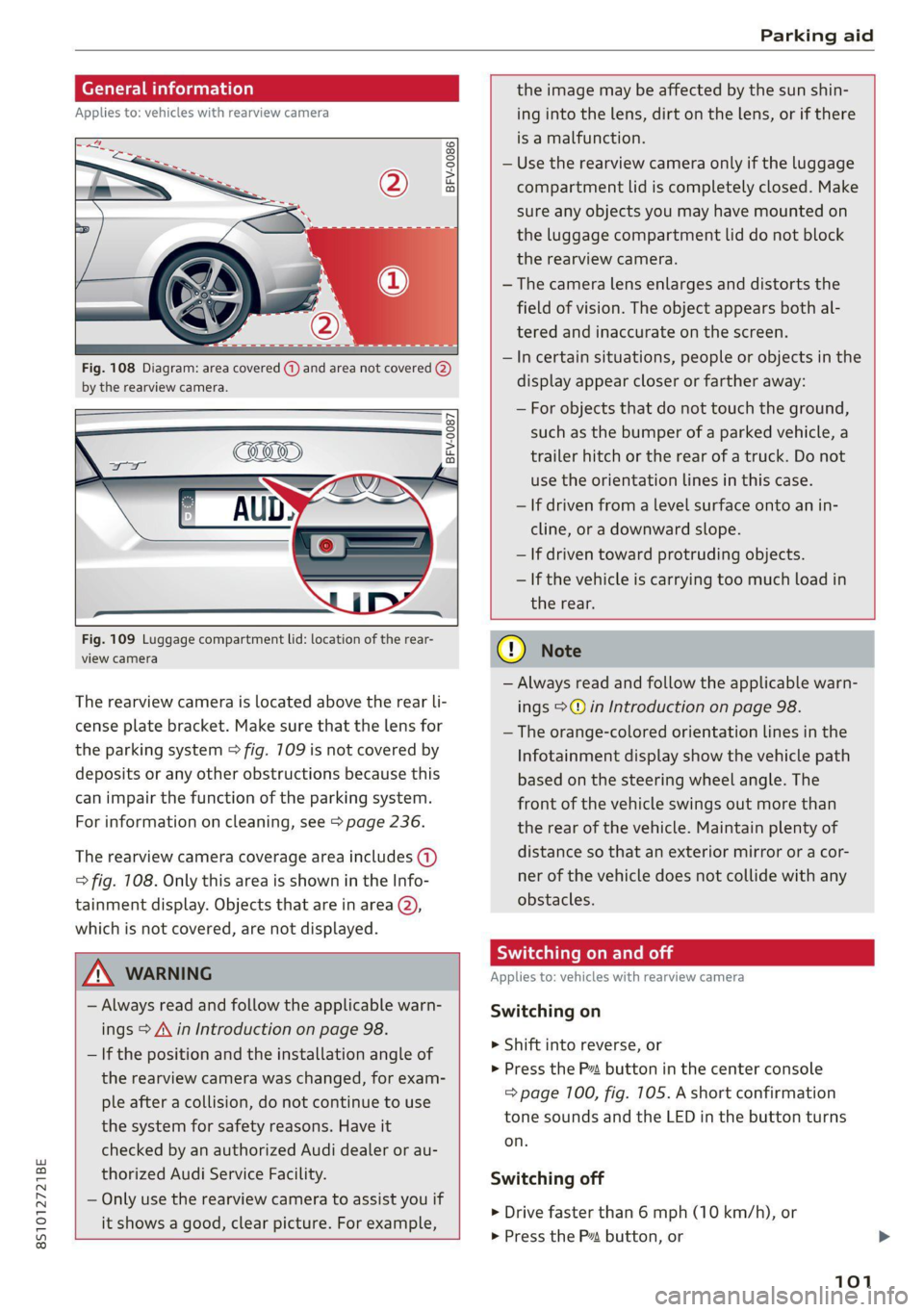
Fig. 108 Diagram: area covered (@) and area not covered @)
by the rearview camera.
Fig. 109 Luggage compartment lid: location of the rear-
view camera
The rearview camera is located above the rear li-
cense plate bracket. Make sure that the lens for
the parking system > fig. 709 is not covered by
deposits or any other obstructions because this
can impair the function of the parking system.
For information on cleaning, see > page 236.
The rearview camera coverage area includes (1)
=> fig. 108. Only this area is shown in the Info-
tainment display. Objects that are in area (2),
which is not covered, are not displayed.
ZA\ WARNING
— Always read and follow the applicable warn-
ings > A\ in Introduction on page 98.
— If the position and the installation angle of
the rearview camera was changed, for exam-
ple after a collision, do not continue to use
the system for safety reasons. Have it
checked by an authorized Audi dealer or au-
thorized Audi Service Facility.
— Only use the rearview camera to assist you if
it shows a good, clear picture. For example,
the image may be affected by the sun shin-
ing into the lens, dirt on the lens, or if there
is a malfunction.
— Use the rearview camera only if the luggage
compartment lid is completely closed. Make
sure any objects you may have mounted on
the luggage compartment lid do not block
the rearview camera.
— The camera lens enlarges and distorts the
field of vision. The object appears both al-
tered and inaccurate on the screen.
—Incertain situations, people or objects in the
display appear closer or farther away:
— For objects that do not touch the ground,
such as the bumper of a parked vehicle, a
trailer hitch or the rear of a truck. Do not
use
the orientation lines in this case.
— If driven from a level surface onto an in-
cline, or a downward slope.
— If driven toward protruding objects.
— If the vehicle is carrying too much load in
the rear.
CG) Note
— Always read and follow the applicable warn-
ings >@ in Introduction on page 98.
— The orange-colored orientation lines in the
Infotainment display show the vehicle path
based on the steering wheel angle. The
front
of the vehicle swings out more than
the rear of the vehicle. Maintain plenty of
distance so that an exterior mirror or a cor-
ner of the vehicle does not collide with any
obstacles.
Sica Re moll
Applies to: vehicles with rearview camera
Switching on
> Shift into reverse, or
> Press the P button in the center console
=> page 100, fig. 105. A short confirmation
tone sounds and the LED in the button turns
on.
Switching off
> Drive faster than 6 mph (10 km/h), or
> Press the P button, or
101
Page 104 of 280
Parking aid
> Switch the ignition off.
iG) Tips
— The visual display in the left part of the dis-
play should help you detect the critical vehi-
cle areas.
— You can change the volume of the signals
and the display > page 102.
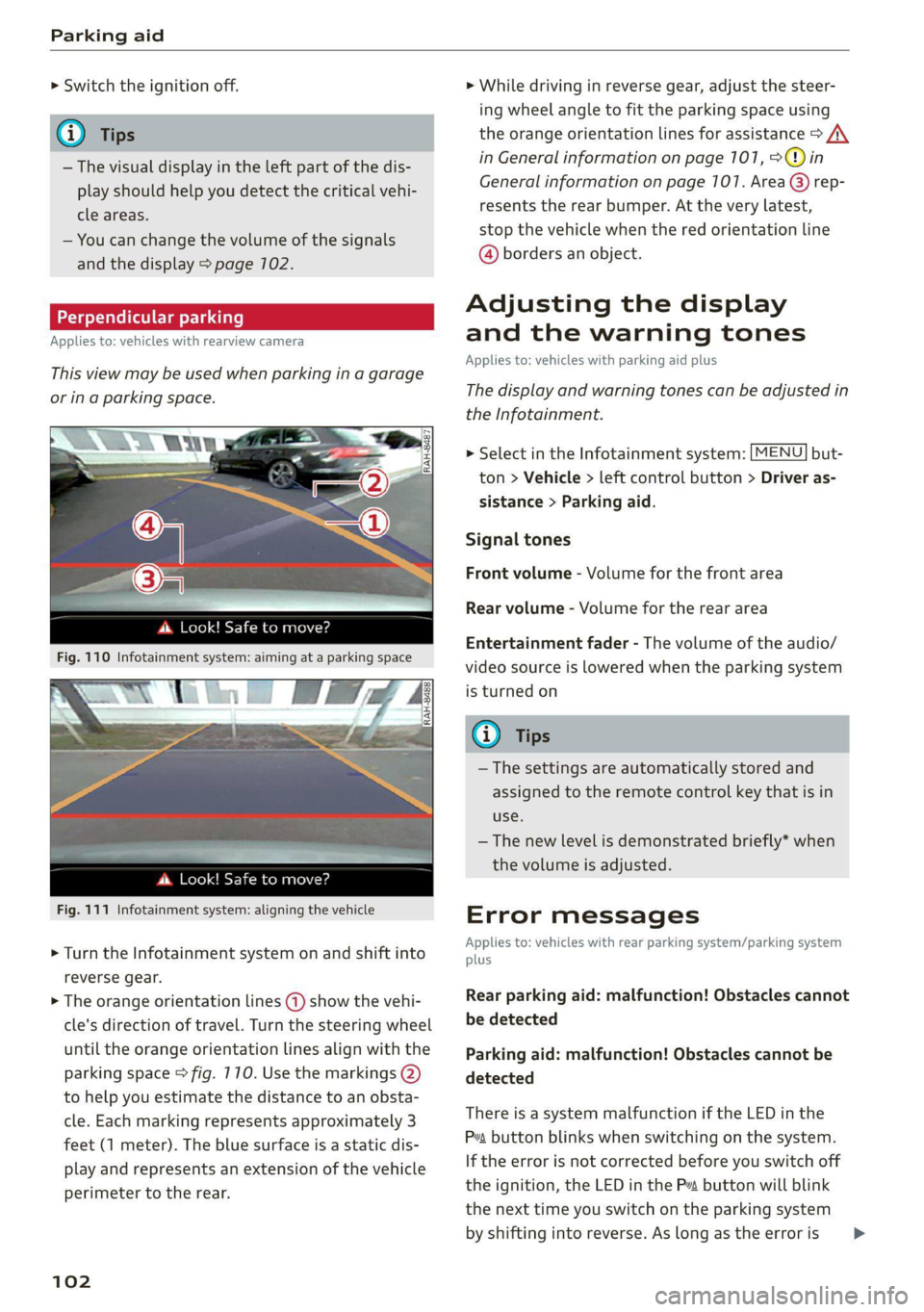
Perpendicular parking
Applies to: vehicles with rearview camera
This view may be used when parking in a garage
or ina parking space.
4. Look! Safe to move?
Fig. 110 Infotainment system: aiming at a parking space
ds. Look! Safe to move?
Fig. 111 Infotainment system: aligning the vehicle
> Turn the Infotainment system on and shift into
reverse gear.
> The orange orientation lines @) show the vehi-
cle's direction of travel. Turn the steering wheel
until the orange orientation lines align with the
parking space > fig. 710. Use the markings @)
to help you estimate the distance to an obsta-
cle. Each marking represents approximately 3
feet (1 meter). The blue surface is a static dis-
play and represents an extension of the vehicle
perimeter to the rear.
102
> While driving in reverse gear, adjust the steer-
ing wheel angle to fit the parking space using
the orange orientation lines for assistance > /\.
in General information on page 101, >@)in
General information on page 107. Area @) rep-
resents the rear bumper. At the very latest,
stop the vehicle when the red orientation line
@ borders an object.
Adjusting the display
and the warning tones
Applies to: vehicles with parking aid plus
The display and warning tones can be adjusted in
the Infotainment.
> Select in the Infotainment system: [MENU] but-
ton > Vehicle > left control button > Driver as-
sistance > Parking aid.
Signal tones
Front volume - Volume for the front area
Rear volume - Volume for the rear area
Entertainment fader - The volume of the audio/
video source is lowered when the parking system
is turned on
@ Tips
— The settings are automatically stored and
assigned to the remote control key that is in
use.
— The new level is demonstrated briefly* when
the volume is adjusted.
Error messages
Applies to: vehicles with rear parking system/parking system
plus
Rear parking aid: malfunction! Obstacles cannot
be detected
Parking aid: malfunction! Obstacles cannot be
detected
There is a system malfunction if the LED in the
Pva button blinks when switching on the system.
If the error is not corrected before you switch off
the ignition, the LED in the P button will blink
the
next time you switch on the parking system
by shifting into reverse. As long as the error is >
Page 106 of 280

Intelligent Technology
Intelligent Technology
Electronic Stabilization
Control (ESC)
Electronic Stabilization Control (ESC) supports
driver safety. It reduces the risk of slipping and
improves driving stability. ESC detects critical sit-
uations such as the vehicle oversteering and un-
dersteering or the wheels are spinning. The
brakes are applied or the motor torque is reduced
in order to stabilize the vehicle. When the ESC
engages, the B indicator light flashes in the in-
strument cluster.
The following systems are integrated in the ESC:
Anti-lock braking system (ABS)
ABS prevents the wheels from locking when brak-
ing. The vehicle can still be steered even during
hard braking. Apply steady pressure to the brake
pedal. Do not pump the pedal. A pulsing in the
brake pedal indicates that the system is acting to
stabilize the vehicle.
Brake assist
The brake assist system can decrease braking dis-
tance. It increases braking power when the driver
presses the brake pedal quickly in emergency sit-
uations. You must press and hold the brake pedal
until the dangerous situation is over.
Anti-Slip Regulation (ASR)
ASR reduces drive power when the wheels begin
spinning and adapts the power to the road condi-
tions. This will increase the driving stability.
Electronic Differential Lock (EDL)
The EDL applies the brakes to wheels that are
slipping and transfers the drive power to the oth-
er wheels. This function is not available at higher
speeds.
In extreme cases, EDL automatically switches off
to keep the brake on the braked wheel from over-
heating. The vehicle is still functioning correctly.
EDL will switch on again automatically when con-
ditions have returned to normal.
104
Power steering
The ESC can also support vehicle stability
through steering.
Selective wheel torque control
Selective wheel torque control is used when driv-
ing on curves. Braking is targeted toward the
wheels on the inside of the curve as needed. This
allows more precise driving in curves.
Automatic post-collision braking system
The automatic post-collision braking system can
help to reduce the risk of sliding and of addition-
al collisions after an accident. If the airbag con-
trol module detects a collision above a certain ve-
hicle speed, the vehicle is braked by the ESC.
The vehicle does not brake automatically if one of
the following occurs:
— The driver presses the accelerator pedal
—The braking force generated by the pressed
brake pedal is greater than the braking force
that would be initiated by the system
— The ESC, the brake system, or the vehicle elec-
trical system is not functioning
Z\ WARNING
— The ESC and its integrated systems cannot
overcome the limits imposed by natural
physical laws. This is especially important on
slippery or wet roads. If the systems begin
acting to stabilize your vehicle, you should
immediately alter your speed to match the
road and traffic conditions. Do not let the in-
creased safety provided tempt you into tak-
ing risks. This could increase your risk of a
collision.
— Please note the risk of a collision increases
when driving fast, especially through curves
and on slippery or wet roads, and when driv-
ing too close to objects ahead. There is still
a risk of accidents because the ESC and its
integrated systems cannot always prevent
collisions.
— Accelerate carefully when driving on
smooth, slippery surfaces such as ice and
snow. The drive wheels can spin even when
these control systems are installed and this