audio AUDI TT COUPE 2014 Owner's Manual
[x] Cancel search | Manufacturer: AUDI, Model Year: 2014, Model line: TT COUPE, Model: AUDI TT COUPE 2014Pages: 284, PDF Size: 34.42 MB
Page 182 of 284
Downloaded from www.Manualslib.com manuals search engine Media
- For safety reasons, the video picture is not
available while the vehicle is moving. While
you are driving, only the sound is played.
Media centre
Several categories for selecting audio/video*
files are available in the media centre.
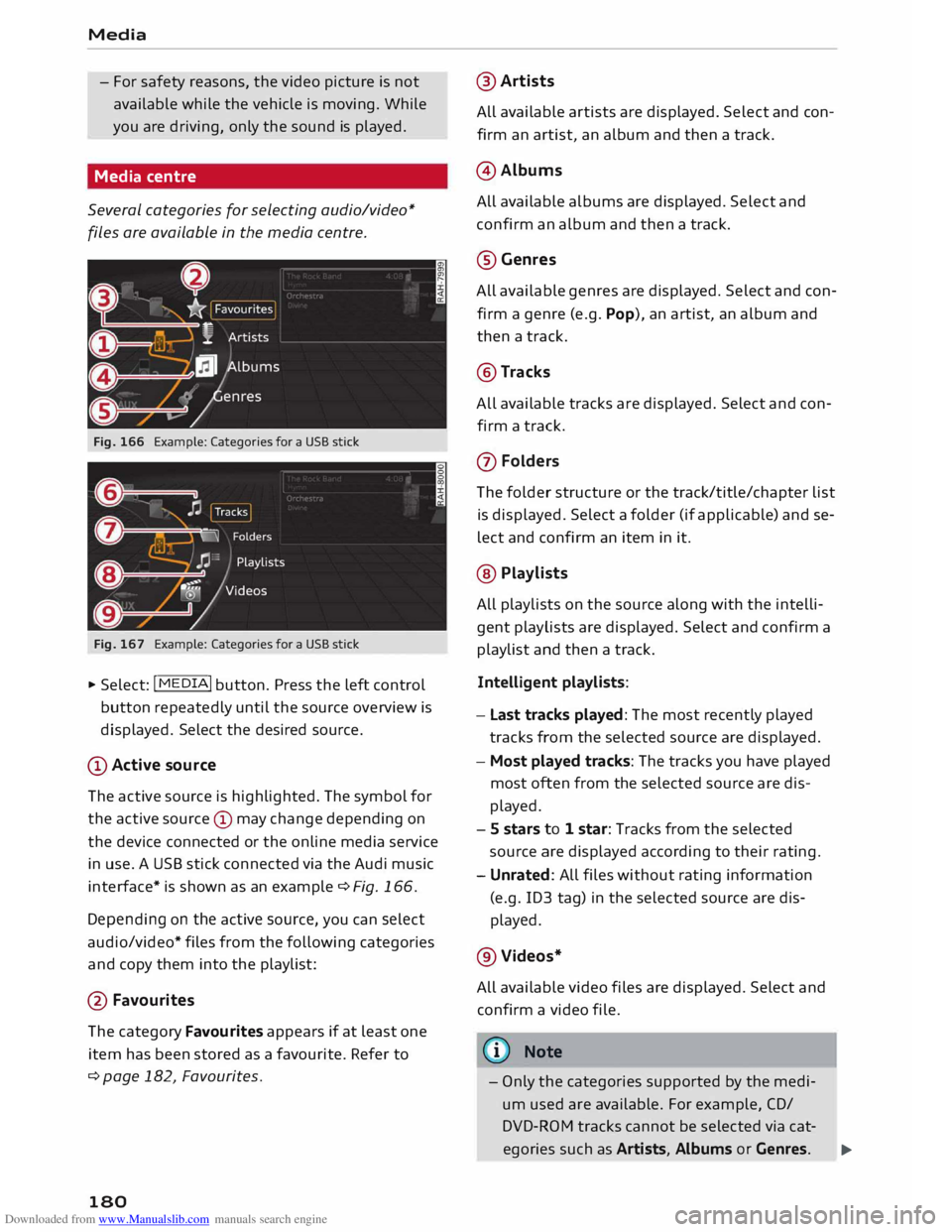
Fig. 166 Example: Categories for a USB stick
Fig. 167 Example: Categories for a USB stick
"' Select: I MEDIA! button. Press the left control
button repeatedly until the source overview is
displayed. Select the desired source.
(D Active source
The active source is highlighted. The symbol for
the active source © may change depending on
the device connected or the online media service
in use. A USB stick connected via the Audi music
interface* is shown as an example ¢Fig. 166.
Depending on the active source, you can select
audio/video* files from the following categories
and copy them into the playlist:
@ Favourites
The category Favourites appears if at least one
item has been stored as a favourite. Refer to
¢ page 182, Favourites.
180 @
Artists
All available artists are displayed. Select and con
firm an artist, an album and then a track.
@ Albums
All available albums are displayed. Select and
confirm an album and then a track.
@Genres
All available genres are displayed. Select and con
firm a genre (e.g. Pop), an artist, an album and
then a track.
@Tracks
All available tracks are displayed. Select and con
firm a track.
(J) Folders
The folder structure or the track/title/chapter list
is displayed. Select a folder (if applicable) and se
lect and confirm an item in it.
@ Playlists
All playlists on the source along with the intelli
gent playlists are displayed. Select and confirm a
playlist and then a track.
Intelligent playlists:
- Last tracks played: The most recently played
tracks from the selected source are displayed.
- Most played tracks: The tracks you have played
most often from the selected source are dis
played.
- S stars to 1 star: Tracks from the selected
source are displayed according to their rating.
- Unrated: All files without rating information
(e.g. ID3 tag) in the selected source are dis
played.
@Videos*
All available video files are displayed. Select and
confirm a video file.
@ Note
- Only the categories supported by the medi
um used are available. For example, CD/
DVD-ROM tracks cannot be selected via cat-
egories such as Artists, Albums or Genres. ...,
Page 183 of 284
Downloaded from www.Manualslib.com manuals search engine 0
N
co
....
\D Lfl
N
Lfl
.... The
categories Podcasts, Audiobooks and
Composers are available when you are using
an iPod (source: Audi music interface
¢page 174).
- For safety reasons, the video picture is not
available while the vehicle is moving. While
you are driving, only the sound is played.
- If you synchronise a portable player with
"cloud" services, the playlists may not be
displayed correctly on the MMI. Use the de
vice's local media library.
Further options
Further options may be available via the right
control button depending on the source selected
and the current view.
.,. Press the right control button.
Options
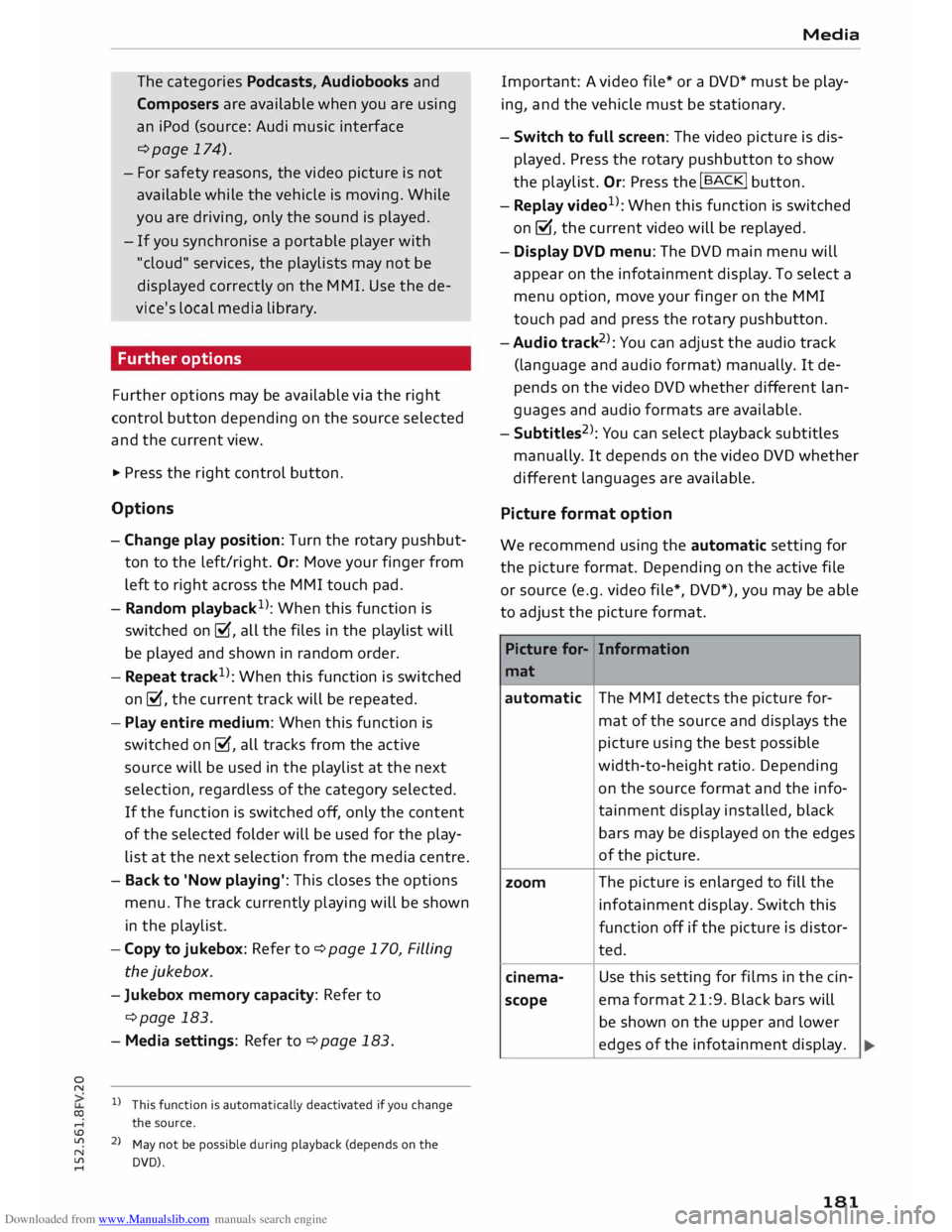
- Change play position: Turn the rotary pushbut
ton to the left/right. Or: Move your finger from
left to right across the MMI touch pad.
- Random playback 1
>: When this function is
switched on�. all the files in the playlist will
be played and shown in random order.
- Repeat track1
>: When this function is switched
on �, the current track will be repeated.
- Play entire medium: When this function is
switched on�. all tracks from the active
source will be used in the playlist at the next
selection, regardless of the category selected.
If the function is switched off, only the content
of the selected folder will be used for the play
list at the next selection from the media centre.
- Back to 'Now playing': This closes the options
menu. The track currently playing will be shown
in the playlist.
- Copy to jukebox: Refer to ¢ page 170, Filling
the jukebox.
- Jukebox memory capacity: Refer to
¢page 183.
- Media settings: Refer to ¢ page 183.
l) This function is automatically deactivated if you change
the source .
2 > May not be possible during playback (depends on the
DVD). Media
Important: A video file* or a DVD* must be play
ing, and the vehicle must be stationary.
- Switch to full screen: The video picture is dis
played. Press the rotary pushbutton to show
the playlist. Or: Press the I
BACK!
button.
- Replay video1
>: When this function is switched
on �. the current video will be replayed.
- Display DVD menu: The DVD main menu will
appear on the infotainment display. To select a
menu option, move your finger on the MMI
touch pad and press the rotary pushbutton.
- Audio track2
>: You can adjust the audio track
(language and audio format) manually. It de
pends on the video DVD whether different lan
guages and audio formats are available.
- Subtitles 2
l
: You can select playback subtitles
manually . It depends on the video DVD whether
different languages are available.
Picture format option
We recommend using the automatic setting for
the picture format. Depending on the active file
or source (e.g. video file*, DVD*), you may be able
to adjust the picture format.
Picture for-Information
mat
automatic The
MMI detects the picture for-
mat of the source and displays the
picture using the best possible
width-to-height ratio. Depending
on the source format and the info-
tainment display installed, black
bars may be displayed on the edges
of the picture.
zoom The
picture is enlarged to fill the
infotainment display. Switch this
function off if the picture is distor-
ted.
cinema- Use
this setting for films in the cin-
scope ema
format 21:9. Black bars will
be shown on the upper and lower
edges of the infotainment display.
181
Page 186 of 284
Downloaded from www.Manualslib.com manuals search engine Media
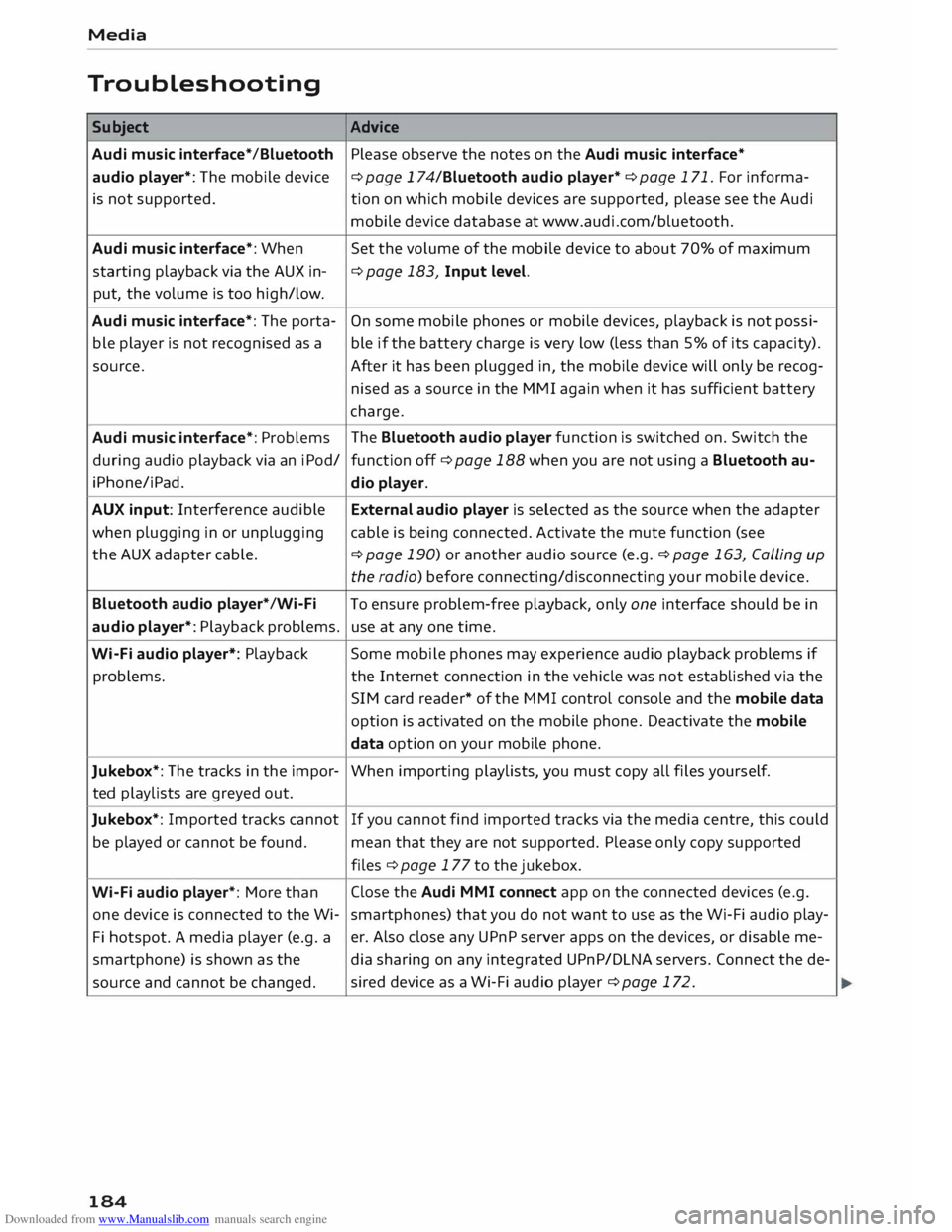
Troubleshooting Subject Advice
Audi music interface* /Bluetooth Please observe the notes on the Audi music interface*
audio player*: The mobile device
¢ page 174/Bluetooth audio player* ¢ page 171. For informa-
is not supported. tion on which mobile devices are supported, please see the Audi
mobile device database at www.audi.com/bluetooth.
Audi music interface*: When
Set the volume of the mobile device to about 70% of maximum
starting playback via the AUX in- ¢
page 183, Input level.
put, the volume is too high/low.
Audi music interface*: The porta- On
some mobile phones or mobile devices, playback is not possi-
ble player is not recognised as a ble if the battery charge is very low (less than 5% of its capacity).
source. After it has been plugged in, the mobile device will only be recog-
nised as a source in the MMI again when it has sufficient battery
charge.
Audi music interface*: Problems The
Bluetooth audio player function is switched on. Switch the
during audio playback via an iPod/
function off¢ page 188 when you are not using a Bluetooth au-
i Phone/i Pad.
dio player.
AUX input: Interference audible External audio player is selected as the source when the adapter
when plugging in or unplugging cable is being connected. Activate the mute function (see
the AUX adapter cable.
¢ page 190) or another audio source (e.g.¢ page 163, Calling up
the radio) before connecting/disconnecting your mobile device.
Bluetooth audio player*/Wi-Fi
To ensure problem-free playback, only one interface should be in
audio player*: Playback problems. use at any one time.
Wi-Fi audio player*: Playback Some
mobile phones may experience audio playback problems if
problems. the Internet connection in the vehicle was not established via the
SIM card reader* of the MMI control console and the mobile data
option is activated on the mobile phone. Deactivate the mobile
data option on your mobile phone.
Jukebox*: The tracks in the impor-
When importing playlists, you must copy all files yours elf.
ted playlists are greyed out.
Jukebox*: Imported tracks cannot If
you cannot find imported tracks via the media centre, this could
be played or cannot be found.
mean that they are not supported. Please only copy supported
files ¢ page 177 to the jukebox.
Wi-Fi audio player*: More than Close
the Audi MMI connect app on the connected devices (e.g.
one device is connected to the Wi- smartphones) that you do not want to use as the Wi-Fi audio play-
Fi hotspot. A media player (e.g. a er.
Also close any UPnP server apps on the devices, or disable me-
smartphone) is shown as the
dia sharing on any integrated UPnP/DLNA servers. Connect the de-
source and cannot be changed. sired
device as a Wi-Fi audio player ¢ page 172.
184
Page 187 of 284
Downloaded from www.Manualslib.com manuals search engine 0
N
co
....
\D L/'l
N
L/'l
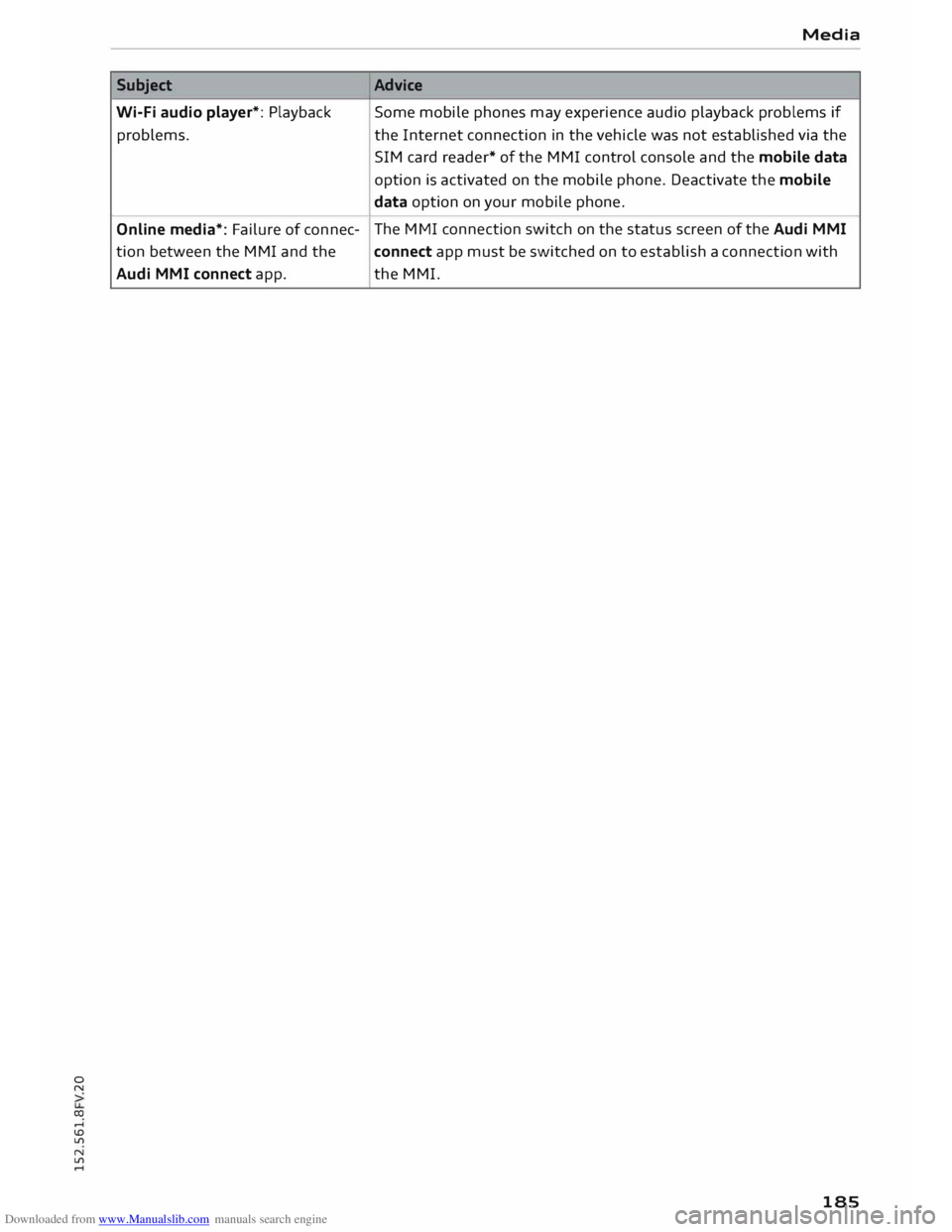
.... Subject
Wi-Fi audio player*: Playback
problems.
Online media*: Failure of connec-
tion between the MMI and the
Audi MMI connect app. Media
Advice Some mobile phones may experience audio playback problems if
the Internet connection in the vehicle was not established via the
SIM card reader* of the MMI control console and the mobile data
option is activated on the mobile phone. Deactivate the mobile
data option on your mobile phone.
The MMI connection switch on the status screen of the Audi MMI
connect app must be switched on to establish a connection with
the MMI.
185
Page 189 of 284
Downloaded from www.Manualslib.com manuals search engine 0
N
co
....
\D L/'l
N
L/'l
.... Factory
settings
You can reset the following functions to the fac
tory settings:
- Sound settings
-Radio
- Media settings
-Jukebox*
- Directory*
- Telephone*
- Bluetooth and Wi-Fi*
- Navigation settings*
- Navigation and online memory*
- Speech dialogue system*
- Message settings*
-Apps*
- Usage tips
- Audi connect*
You can select the desired options individually or
mark Select all entries. Select and confirm Re
store factory settings.
i Note
Please note that not only settings will be de
leted when you do this;
saved
data may also
be erased.
Connection manager
Introduction
The connection manager gives you an overview
of your connected devices and their connection
status.
.. Select: I MENU
I button
>Settings> left control
button > MMI settings > Connection manager.
If a mobile device has already been connected, its
name and connection mode is displayed under
the relevant menu item.
Telephone
- Connect new device: You can search for and
connect a mobile phone.
- List of devices already bonded: Select your mo
bile phone from the list of all devices which System
settings
have already been bonded. Or: Insert a SIM
card in the SIM card reader¢ page 126.
Data connection
Applies to vehicles: with Audi connect
- Connect new device: You can search for and
connect a mobile device (e.g. a smartphone).
- List of devices already bonded: Select your mo
bile phone from the list of all devices which
have already been bonded. Or: Insert a SIM
card in the SIM card reader¢ page 138.
MMI connect app
Applies to vehicles: with Audi connect
Important: The Audi MMI connect app must be
installed on your mobile device and have been
started.
- Connect new device: You can search for and
connect a mobile device (e.g. a smartphone).
- List of devices already bonded: Select your mo
bile device from the list of all devices which
have already been bonded.
Music
Applies to vehicles: with Bluetooth audio player or Wi-Fi au
dio player
Audio player*
Important: The Bluetooth function and the dis
coverability option of the MMI system
¢ page 188 and the mobile phone must be acti
vated.
- To connect a new device: Press the rotary push
button. Select Bluetooth audio player. Search
for and connect a new device.
- List of devices already bonded: Select a Blue
tooth device from the list of all devices which
have already been bonded.
Wi-Fi audio player*
Important: The Wi-Fi hotspot on the MMI system
¢ page 143 and your mobile phone must be acti
vated.
- To connect a new device: Press the rotary push
button. Search for and connect a Wi-Fi enabled
device. ...,.
187
Page 190 of 284
Downloaded from www.Manualslib.com manuals search engine System
settings
- To disconnect a Wi-Fi audio player: Deactivate
Wi-Fi on your Wi-Fi enabled device. The device
will be removed from the list automatically.
Directory
Important: No mobile phones are connected to
the MMI via the Bluetooth remote SIM Access
Profile or the Handsfree profile.
- Connect new device: You can search for and
connect a new mobile phone. Or: Insert a SIM
card in the SIM card reader ¢ page 126.
- List of devices already bonded: Select your mo
bile phone from the list of all mobile phones
which have already been bonded.
Further options
Further options may be available in the connec
tion manager via the right control button de
pending on the function selected.
Bluetooth settings
- Bluetooth: When this function is on �. the
Bluetooth symbol will appear on the infotain
ment display. The Bluetooth discoverability of
the MMI can be switched on/off using the set
tings visible/invisible. Devices which have al
ready been bonded can connect via Bluetooth
even when discoverability is deactivated. Once
you have connected your mobile phone, you
should switch Bluetooth to invisible to prevent
the MMI from being discovered by third parties.
You can switch the Bluetooth function off. It is
then not possible to establish a Bluetooth con
nection.
- Delete Bluetooth device: The selected mobile
phone/device is disconnected from the MMI.
- Display Bluetooth profiles: You can Connect or
Disconnect the Handsfree, Car phone and Di
rectory/contacts individually.
- Bluetooth audio player: Switch this function on
� to be able to use the Bluetooth audio player
as a source in the Media menu.
- Bluetooth name: The Bluetooth name of the
MMI system (e.g. "AUDI MMI 2613") is dis
played and can be changed.
188 Online
settings*
- Data conne ction settings: Refer to ¢ page 144,
Configuring the data connection
- Data usage meter: The number of the data
packets sent/received via the MMI system is
displayed. Select Reset data meter to reset the
usage statistics to zero.
- Connection status: The mobile network provid
er for data services and the network status are
displayed.
Wi-Fi settings*
Refer to¢ page 143, Wi-Fi hotspot.
SIM PIN settings*
- Automatic PIN entry: When this function is
switched on�, the SIM PIN is stored in the
MMI after it has been entered for the first time.
You can save the PIN codes of four different
SIM cards on the MMI. If this function is
switched off, the PIN currently stored in the
MMI will be deleted. If the automatic PIN entry
function is activated, the system does not ask
you to enter your SIM PIN explicitly.
- Deactivate PIN query: The system does not ask
for the SIM PIN when you switch it on. The au
tomatic PIN entry function is ignored in this
case.
- Change PIN: You can change the PIN code for
your SIM card. First enter the existing PIN code
for your SIM card. The SIM PIN code can only
consist of numbers from Oto 9. The new SIM
PIN code has to be entered twice, as a precau
tionary measure, and is stored on the SIM card.
Network settings*
- Registration: To dial into your service provider's
mobile network automatically or to select a
network manually from the list of available
networks.
- Network selection: You can use this function to
select the available networks for the current
position of the vehicle. This function is only
available when the manual setting is activated
for registration.
�
Page 192 of 284
Downloaded from www.Manualslib.com manuals search engine System
settings
Sound settings
You can adjust the sound and volume of the MMI
individually. The settings depend on the equip
ment fitted in your vehicle.
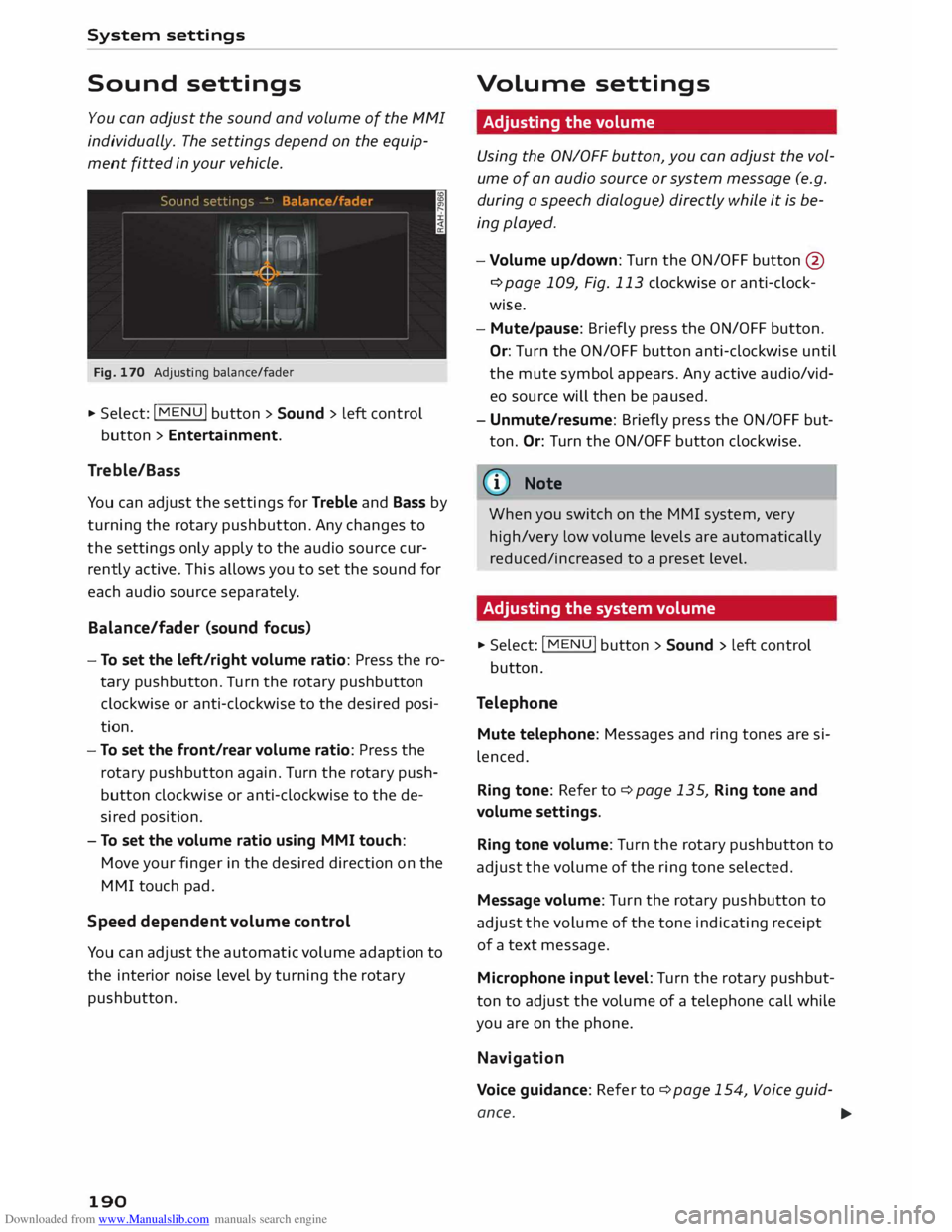
Fig. 170 Adjusting balance/fader
... Select: I MENU
I button
> Sound > Left control
button > Entertainment.
Treble/Bass
You can adjust the settings for Treble and Bass by
turning the rotary pushbutton. Any changes to
the settings only apply to the audio source cur
rently active. This allows you to set the sound for
each audio source separat ely.
Bal ance/fader (sound focus}
- To set the left/right volume ratio: Press the ro
tary pushbutton. Turn the rotary pushbutton
clockwise or anti-clockwise to the desired posi
tion.
- To set the front/rear volume ratio: Press the
rotary pushbutton again. Turn the rotary push
button clockwise or anti-clockwise to the de
sired position.
- To set the volume ratio using MMI touch:
Move your finger in the desired direction on the
MMI touch pad.
Speed dependent volume control
You can adjust the automatic volume adaption to
the interior noise level by turning the rotary
pushbutton.
190 Volume
settings
Adjusting the volume
Using the ON/OFF button, you can adjust the vol
ume of an audio source or system message (e.g.
during a speech dialogue) directly while it is be
ing played.
- Volume up/down: Turn the ON/OFF button@
¢page 109, Fig. 113 clockwise or anti-clock
wise.
- Mute/pause: Briefly press the ON/OFF button.
Or: Turn the ON/OFF button anti-clockwise until
the mute symbol appears. Any active audio/vid
eo source will then be paused .
- Unmute/resume: Briefly press the ON/OFF but
ton. Or: Turn the ON/OFF button clockwise.
� Note When you switch on the MMI system, very
high/very Low volume Levels are automatically
reduced/increased to a preset Level.
Adjusting the system volume
... Select: I MENU
! button > Sound > Left control
button.
Telephone Mute telephone: Messages and ring tones are si
lenced.
Ring tone: Refer to¢ page 135, Ring tone and
volume settings.
Ring tone volume: Turn the rotary pushbutton to
adjust the volume of the ring tone selected.
Message volume: Turn the rotary pushbutton to
adjust the volume of the tone indicating receipt
of a text message.
Microphone input level: Turn the rotary pushbut
ton to adjust the volume of a telephone call while
you are on the phone.
Navigation
Voice guidance: Refer to¢ page 154, Voice guid-
ance. ...,.
Page 193 of 284
Downloaded from www.Manualslib.com manuals search engine 0
N
co
....
\D U'l
N
U'l
.... Voice
guidance during calls: Refer to
¢ page 154, Voice guidance.
Volume of spoken cues: Turn the rotary pushbut
ton to adjust the volume of the spoken cues while
route guidance is active.
Entertainment fader: This option allows the vol
ume of the current audio source to be temporari
ly reduced when the parking aid is active or while
a navigation cue is being played.
Announcements
Traffic announcements: Refer to¢ page 164.
DAB announcements*: Refer to ¢ page 164.
Volume of announcements: You can adjust the
volume of a traffic announcement by turning the
rotary pushbutton.
Speech dialogue system
Short dialogue: This option can be switched on/
off. When it is activated, the spoken cues played
by the syste m are shortened.
Speech dialogue system volume: Turn the rotary
pushbutton to adjust the volume of the spoken
cues.
Parking aid
Turn the rotary pushbutton to adjust the volume
of the beeps.
MMI touch
Turn the rotary pushbutton to adjust the volume
of the MMI touch's spoken cues.
Audi heartbeat
Turn the rotary pushbutton to adjust the volume
of the Audi heartbeat. System
settings
Restarting the MMI
system (Reset)
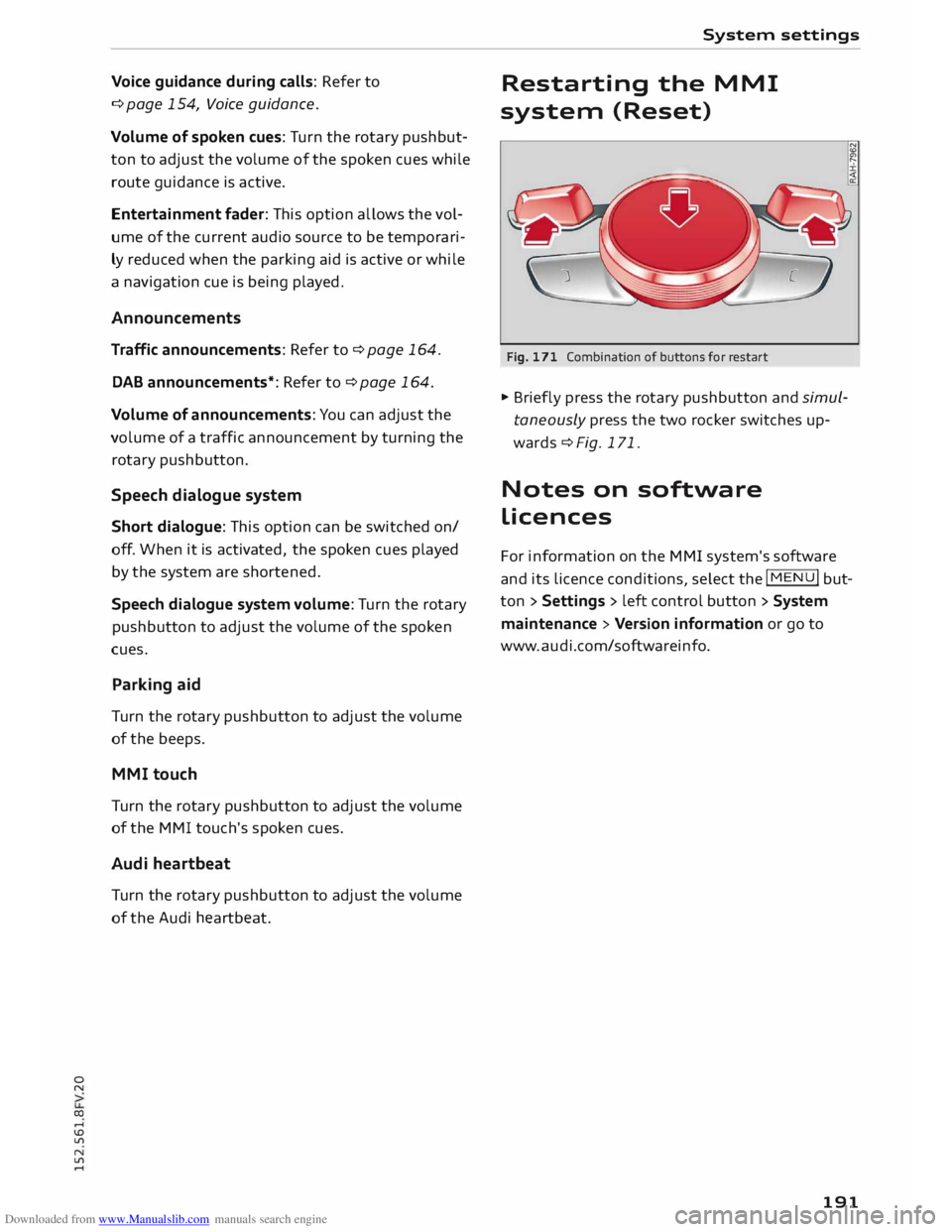
Fig. 171 Combination of buttons for restart
� Briefly press the rotary pushbutton and simul
taneously press the two rocker switches up
wards¢ Fig. 171.
Notes on software
licences
For information on the MMI system's software
and its Licence conditions, select the
I MENU
I but
ton > Settings > left control button > System
maintenance > Version information or go to
www.audi.com/softwareinfo.
191
Page 194 of 284
Downloaded from www.Manualslib.com manuals search engine Safe
driving
Safe driving
General notes
Safety is the first priority
Your safety is our first priority.
This chapter contains important information,
tips, suggestions and warnings that you should
read and observe for your own safety and the
safety of your passengers.
_&. WARNING
- The information in this chapter is important
for the driver of the vehicle and all passen
gers. The other chapters in this manual
(and, where applicable, in the other litera
ture supplied with the vehicle) contain fur
ther important notes which you should read
and observe for your own safety and that of
your passengers.
- Ensure that the complete vehicle wallet is
always in the vehicle. This is especially im
portant when you lend or sell the vehicle to
others.
Notes on traffic safety
You should only use certain infotainment system
functions, e.g. enter a navigation destination,
while the vehicle is stationary. Always be pre
pared to stop operating the infotainment system
in the interest of your own safety and that of oth
er road users.
_&. WARNING
- To day's driving conditions require your full
attention. As the driver, you have full re
sponsibility for the safety of the vehicle and
other road users. For this reason, only oper
ate the infotainment system when the traf
fic conditions allow you to do so safely and
when you can maintain proper control of
your vehicle - risk of accident!
- The volume of the audio sources (radio, CD
player, etc.) should only be set at a level
which enables you to hear distant police and
192 emergency
vehicles clearly-failure to do so
could result in an accident.
- Please observe the laws regulating the use
of telephones in vehicles.
Safety features
The safety features Listed here are part of the ve
hicle's occupant restraint system. They work to
gether to help reduce the risk of injury in a wide
variety of accident situations.
Your safety and the safety of your passengers
should not be left to chance. In the event of an
accident, the safety features incorporated in your
vehicle are capable of reducing the risk of injury.
These are just a few of the safety features in your
Audi:
- Seat belts for all seats
- Belt force limiters for all seats
- Belt tensioners for the front seats
- Front airbags
- Side airbags in the front seat backrests
- Head-protection airbags
- "ISO FIX" anchorages* for "ISO FIX" child seats
on the rear seats
-Adjustable steering column
These individual safety features are harmonised
to provide you and your passengers with the best
possible protection in accident situations. How
ever, they can only be effective if you and your
passengers sit in the correct position and adjust
and use the safety equipment properly.
For these reasons, this chapter explains why
these safety features are so important, how they
can protect you, what you need to remember
when using them, and how you and your passen
gers can gain the most benefit from them. There
are also a number of important safety warnings
which you and your passengers should always ob
serve in order to minimise the risk of injury.
Safety is everyone's responsibility!
Page 266 of 284
Downloaded from www.Manualslib.com manuals search engine Index
Google Earth
Google Street View
................. .
Import ing myAudi contacts .......... .
Logging into myAudi ................ . 159
159
133
140
myAudi destination . . . . . . . . . . . . . . . . . . 151
Navigation . . . . . . . . . . . . . . . . . . . . . 140, 151
Notes . . . . . . . . . . . . . . . . . . . . . . . . . . . . . 145
Online traffic information . . . . . . . . . . . . . 161
Options menu . . . . . . . . . . . . . . . . . . . . . . .
143
Personal hotspot . . . . . . . . . . . . . . . . . . . .
139
Preview . . . . . . . . . . . . . . . . . . . . . . . . . . . . 140
Requirements . . . . . . . . . . . . . . . . . . . . . . .
137
Search area . . . . . . . . . . . . . . . . . . . . . . . . .
140
Settings . . . . . . . . . . . . . . . . . . . . . . . . . . .
143
SIM card reader . . . . . . . . . . . . . . . . . . . . .
138
Troubleshooting . . . . . . . . . . . . . . . . . . . . .
146
Audi connect services
Media . . . . . . . . . . . . . . . . . . . . . . . . . . . . . 143
Navigation . . . . . . . . . . . . . . . . . . . . . . . . . 142
Options . . . . . . . . . . . . . . . . . . . . . . . . . . . .
143
Telephone . . . . . . . . . . . . . . . . . . . . . . . . . .
143
Audi connect services, using
MMI control console . . . . . . . . . . . . . . . . . 137
Speech dialogue system 118
Audi magnetic ride
see Suspension control . . . . . . . . . . . . . . . . 90
Audi music interface . . . . . . . . . . . . . . . . . . .
174
Cables . . . . . . . . . . . . . . . . . . . . . . . . . . . . .
174
USB adapters . . . . . . . . . . . . . . . . . . . . . . .
174
Audi music stream
see Wi-Fi audio player . . . . . . . . . . . . . . . .
172
Audio files . . . . . . . . . . . . . . . . . . . . . . . . . . .
179
Audio input
see AUX input ................... 175,
176
Audio player
Bluetooth audio player . . . . . . . . . . . . . . . 171
Wi-Fi audio player . . . . . . . . . . . . . . . . . . . 172
Audio track . . . . . . . . . . . . . . . . . . . . . . . . . . 181
Audi phone box . . . . . . . . . . . . . . . . . . . . . . . 125
Audi side assist
see Side assist . . . . . . . . . . . . . . . . . . . . . . .
87
AUTO Automatic air conditioner . . . . . . . . . . . . . . 55
Automatic headlights . . . . . . . . . . . . . . . . . 37
Auto Lock (central locking system) . . . . . . . .
25
Automatic air conditioner
see Air conditioner (automatic) . . . . . . . . . .
55
264 Automatic
gearbox . . . . . . . . . . . . . . . . . . . . . 70
Back-up programme . . . . . . . . . . . . . . . . . . 77
Downhill speed control . . . . . . . . . . . . . . . . 74
Driving tips . . . . . . . . . . . . . . . . . . . . . . . . . . 72
Kick-down . . . . . . . . . . . . . . . . . . . . . . . . . . . 75
Launch control programme . . . . . . . . . . . . . 76
Malfunction . . . . . . . . . . . . . . . . . . . . . . . . . 71
Manual gear selection . . . . . . . . . . . . . . . . . 75
Manual release of selector lever (left-hand
drive) . . . . . . . . . . . . . . . . . . . . . . . . . . . . . .
78
Manual release of selector lever (right-hand
drive) . . . . . . . . . . . . . . . . . . . . . . . . . . . . . .
79
Selector lever lock . . . . . . . . . . . . . . . . . . . . 71
Selector lever positions . . . . . . . . . . . . . . . . 70
Steering wheel with paddle levers . . . . . . . 75
tiptronic . . . . . . . . . . . . . . . . . . . . . . . . . . . .
75
Automatic zoom . . . . . . . . . . . . . . . . . . . . . . 158
AUX input ....................... 175,176
Average fuel consumption . . . . . . . . . . . . . . . 22
Average speed . . . . . . . . . . . . . . . . . . . . . . . . . 22
B
Background lighting . . . . . . . . . . . . . . . . . . . . 40
Balance (sound) . . . . . . . . . . . . . . . . . . . . . . 190
Bandages see First-aid kit . . . . . . . . . . . . . . . . . . . . . . 241
Bass (sound) . . . . . . . . . . . . . . . . . . . . . . . . . 190
Battery . . . . . . . . . . . . . . . . . . . . . . . . . . . . . 226
Charge . . . . . . . . . . . . . . . . . . . . . . . . . 13, 106
Charging . . . . . . . . . . . . . . . . . . . . . . . . . . . 228
Connecting/disconnecting . . . . . . . . . . . . . 226
Indicator lamp . . . . . . . . . . . . . . . . . . . . . . . 13
Long periods of non-use . . . . . . . . . . . . . .
226
Power management . . . . . . . . . . . . . . . . . .
106
Replacing . . . . . . . . . . . . . . . . . . . . . . . . . .
228
Winter conditions . . . . . . . . . . . . . . . . . . .
226
Battery, charging . . . . . . . . . . . . . . . . . . . . .
125
Belts see Seat belts . . . . . . . . . . . . . . . . . . . . . . .
204
Better route . . . . . . . . . . . . . . . . . . . . . . . . .
160
Biodiesel . . . . . . . . . . . . . . . . . . . . . . . . . . . . 217
Bioethanol (fuel) . . . . . . . . . . . . . . . . . . . . . 217
Blower Automatic air conditioner . . . . . . . . . . . . . .
55
Manual air conditioner. . . . . . . . . . . . . . . . .
53