turn signal AUDI TT COUPE 2017 User Guide
[x] Cancel search | Manufacturer: AUDI, Model Year: 2017, Model line: TT COUPE, Model: AUDI TT COUPE 2017Pages: 322, PDF Size: 79.73 MB
Page 78 of 322

Ass is t
Evaluating recorded times or resetting
Applies to: ve hicles w ith lap t imer
You con evaluate the fastest, slowest and over
age lop times .
Fig. 76 Instrument cluster: lap timer
After evaluating the lap times, you can continue
the current timing round or start over, meaning
start lap 1 again .
• Select in the Infotainment system:
I MENU I but
ton
>V ehicle > left control button > Lap s tatis
t ics.
The display shows the fastest lap" +", the
slowest lap"-" and the average lap time "0".
Turn the thumbwhee l@ downward or upward
to display the individua l lap times.
• Press the thumbwheel @to resume the pa used
lap timing.
• Press the left contro l button on the multifunc
tion steer ing wheel to reset the timer to zero .
Then turn the thumbwheel @and select the
desired setting by moving the cursor (red
frame) . Press the thumbwheel @to confirm
the selection .
• Press the thumbwheel @to restart the lap tim
er for a new lap t iming, if needed.
• Press the
I MENU ! button to exit the lap timer.
Evaluation legend
~ fig. 76:
© All laps
@
II : fastest lap time
® . : slowest lap time
@ $J: average lap t ime
(D Tips
- Saved lap times cannot be individually de
leted from the total res ults.
76
- The saved lap timer va lues wi ll remain after
switching the ignition off.
Audi side assist
Description
App lies to : vehicles wit h Audi side assist
Fig. 77 Senso r detection range
Fig. 78 D isp lay on the exterior mirror
O'I :; 0
> u. m
Side assist helps you monitor your blind spot and
traffic beh ind your vehicle . Within the limits of
the system, it warns you abo ut vehicles that are
coming closer or that are traveling with you with
i n sensor range (!)¢
fig. 77: if a la ne cha nge is
classified as critical, the disp lay @ in the exte rior
mirror¢
fig. 78 turns on.
The display in the left exterior mirror p rovides as
s istance when making a lane change to the left,
whi le the display in the right exte rior m irro r pro
vides ass istance w hen making a lane c hange to
the right.
Information stage
As long as you do not act ivate the turn signal,
s ide ass ist
informs yo u about vehicles that are
de te cted and classified as c rit ical. The display in
the mirro r turns on, but is dim. ..,.
Page 86 of 322
Parking systems
Switching on /off
Applies to: vehicles with parking system p lus
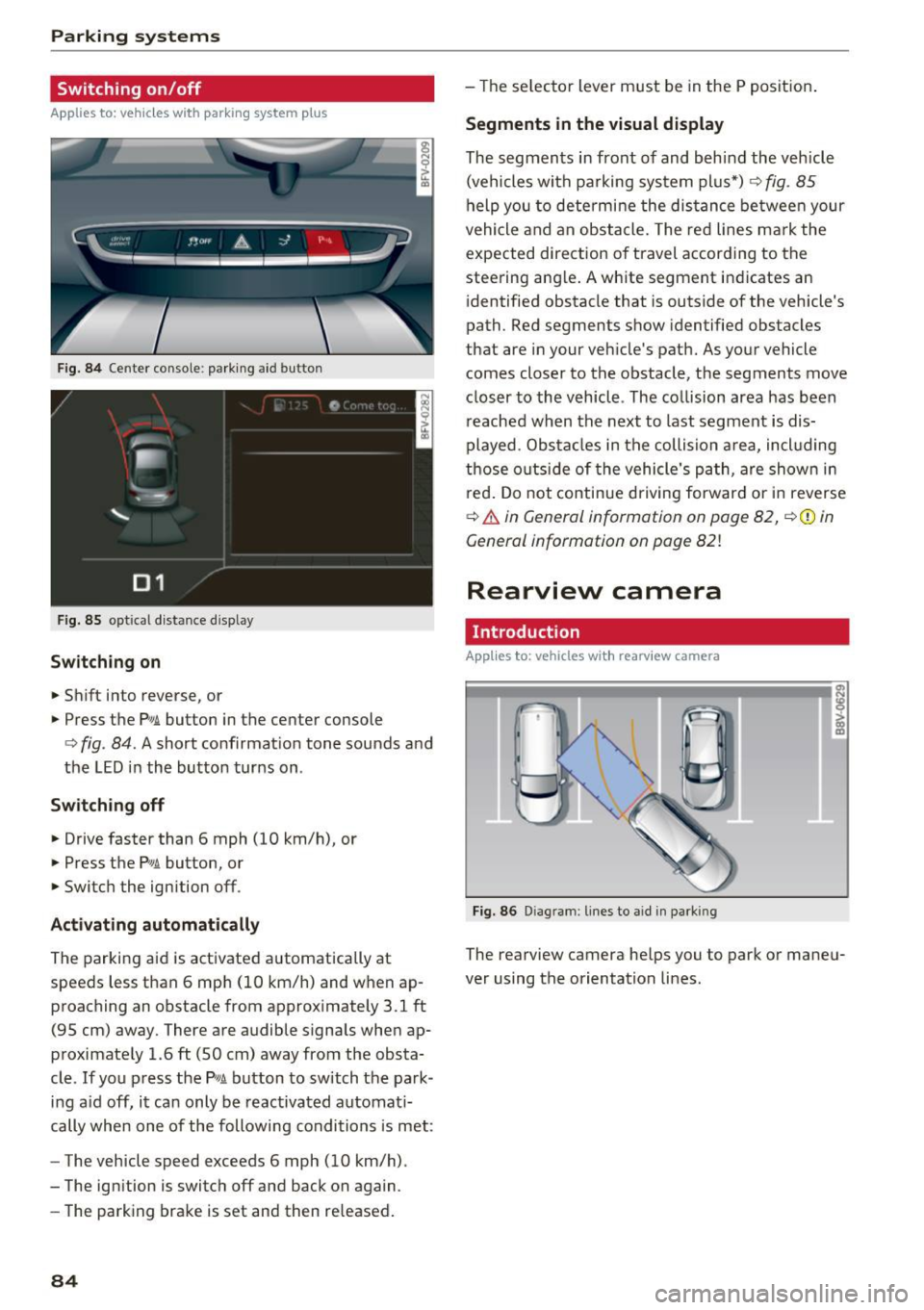
F ig. 84 Center console: park ing aid button
F ig.
85 optical d istance display
Switching on
.,. Shift into reverse, or
.,. Press the
Pw.A. button in the center console
c:> fig. 84. A short confirmat ion tone sounds and
the LED in the button turns on.
Switch ing off
.,. Drive faster than 6 mph (10 km/h), or
.,. Press the
p,,,A button, or
.,. Switch the ignition off .
Activating automatically
The parking aid is activated automatically at
speeds less than 6 mph (10 km/h) and when ap
proaching an obstacle from approximately 3.1 ft
(95 cm) away. There are audible signals when ap
proximately 1.6
ft (SO cm) away from the obsta
cle .
If you press the p,,1~ button to sw itch the park
ing a id off, it can only be reactivated automati
cally when one of the following conditions is met:
- The vehicle speed exceeds 6 mph (10 km/h).
- The ignition is switch off and back on again.
- The parking brake is set and then re leased .
84
-The selector lever must be in the P position .
Segments in the visual display
The segments in front of and behind the vehicle
(vehicles with parking system plus*)
9 fig. 85
help you to determine the distance between your
vehicle and an obstacle. The red lines mark the
expected direction of travel according to the
steering ang le. A white segment indicates an
identified obstacle that is outside of the vehicle's
path. Red segments show identified obstacles
that are in your veh icle's path. As your vehicle
comes closer to the obstacle, the segments
move
closer to the vehicle . The collision area has been
reached when the next to last segment is dis
played. Obstacles in the collision a rea, incl uding
those outside of the vehicle 's path, are show n in
r ed. Do not continue driving forward or in reverse
c:> & in General information on page 82, ¢(Di n
General information on poge
82!
Rearview camera
Introduct ion
Applies to: vehicles with rearview camera
Fig. 86 Dia gram : lines to aid in parking
The rearview camera helps you to park or maneu
ver using the orientation lines .
Page 98 of 322

Multi Media Interface
Multi Media Interface
Traffic safety information
Aud i recommends performing certa in Infotain
ment system functions, such as entering a desti
nation, only when the vehicle is stat ionary . Al
ways be p repared to stop opera ting the Info tain
ment system i n the interest of your safety and
t he safe ty of other ro ad u sers.
_& WARNING
O nly use the In fotain ment sys tem w hen tra f
fic con ditions permit and always in a way that
allows you to ma inta in complete control ove r
your vehicle.
@ Tips
Cer tain functi ons are no t avail ab le wh ile driv
ing .
Introduction
The Multi Media Interface , or MMI for short,
combines various systems for communication ,
navigation* and entertainment in your Audi . You
can operate the MMI using the MMI control pan
el, the multifunction steering wheel or the voice
recognition system* .
Fig. 93 MMI con trol p an el
MM I cont rol panel overview
CD Control knob with joystick f unction
@ M MI to uch con trol pad* ... .... .
® Left contro l button . ..... ... .. .
© R ight con trol b utton ....... ... .
96
97
9 9
98
98
® Buttons fo r opening men us
directly .... . .. .. .. .... .. .... .
@ IMENU I button
(J) I BACK I button . .. .. .... .. ... . .
MMI On/Off knob with
joystick function
Operating
Fig . 94 MMI O n/Off k nob w it h joys tick functio n
Switching the MMI on /off :
The M MI can be manua lly switched on and off .
97
97
97
- Switching on manually : press the On/O ff kno b
CD¢ fig. 94 briefly . Or: press the !MENU I button
@ ¢page 96, fig. 93 or one of the b uttons to
direct ly open the menus®¢
page 96, fig. 93 .
-Switching off manually : press and hold the
O n/Off knob
CD ¢ fig. 94 unt il t he M MI switches
off. If the MMI ha s been switched off manua lly,
it does
not switch on agai n automatically the
next time the ignition is switched on.
Additional function s:
- Adjusting the volume :
turn the On/Off knob CD
¢fig. 94 .
-Muting (mute) : briefly press the On/Off knob .
-Selecting the previous /next function (for ex-
ample , a radio station/track ):
brief ly press the
On/Off knob toward the left
l
-Fast forwarding/rewinding (fo r example ,
tracks) :
press the On/Off knob longer toward
the rig ht t>t>I or left
l
Adjust the vo lume of the audio system so that
signals from outside th e vehicle, such as
~
Page 101 of 322
CD
CD
.... N
" N ...... 0
0
Ill co
The MMI touch control pad @ q page 96, fig. 93
is located on the control knob (I)¢ page 96,
fig. 93.
Entering letters, numbers and symbols
Applies to: veh icles with MMI touch
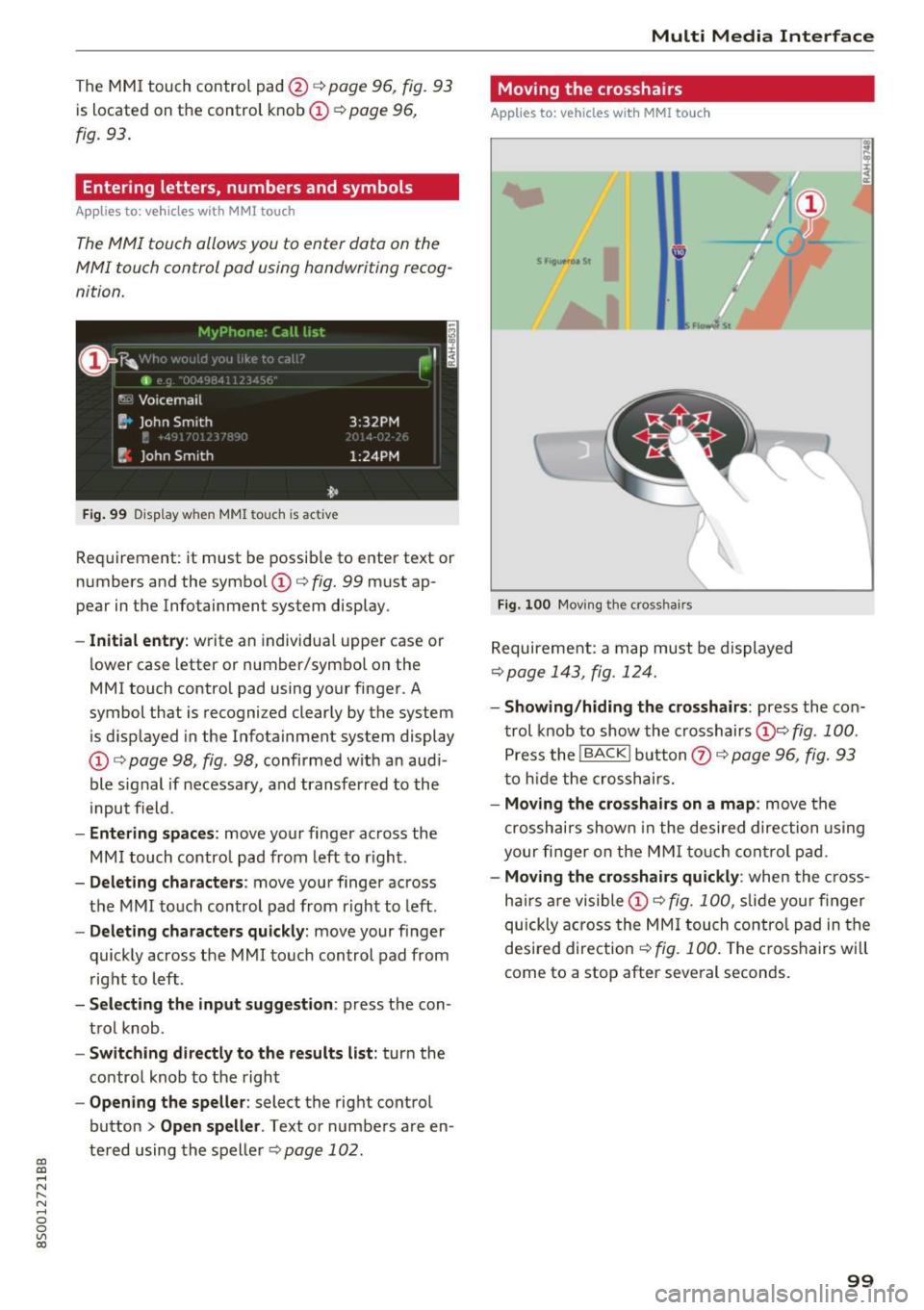
The MMI touch allows you to enter data on the
MMI touch control pad using handwriting recog
nition.
F ig. 99 Display w hen MMI touch is ac tive
Requirement : it must be possible to enter text or
numbers and the symbol
(I) q fig. 99 must ap
pear in the Infotainment system display.
- Initial entry : write an individual upper case or
lower case letter or number/symbol on the
MMI touch control pad using your finger . A
symbol that is recognized clearly by the system
is d isplayed in the Infotainment system display
(I) ¢ page 98 , fig . 98, confirmed with an aud i
ble signal if necessary, and transferred to the
input field .
-Entering spaces: move your finge r across the
MM I touch contro l pad from left to right.
- Deleting characters : move your finger across
t h e MMI touch control pad from right to left.
-Deleting characters quickly: move your finger
quickly across the MMI touch control pad from
right to left .
-Selecting the input suggestion : press the con
trol knob .
-Switching directly to the results list: turn the
control knob to the right
-Opening the speller: select the right control
button
> Open speller . Text or numbers are en
tered using the speller
q page 102.
Multi Media Interface
Moving the crosshairs
Applies to: vehicles with MMI touch
Fig. 100 Moving the cross hairs
Requirement: a map must be displayed
¢ page 143, fig. 124.
- Showing/hiding the crosshairs: press the con
trol knob to show the crosshairs
(!)¢ fig . 100 .
Press the I BACK I button Q) ¢ page 96, fig. 93
to hid e the crosshairs.
- Moving the cros shairs on a map : move the
crosshai rs shown in the desired direction using
your fi nger on the MMI touch control pad.
-Moving the crosshairs quickly : when the cross
ha irs are visible
(I)¢ fig. 100 , slide your finger
quickly across the MMI touch control pad in the
desired direction
¢ fig. 100. The crosshairs w ill
come to a stop after several seconds.
99
Page 107 of 322
CD
CD
.... N
" N ...... 0
0
Ill co
Multi Media Interface
Menus and Symbols
I~ :c
' ~
@
14
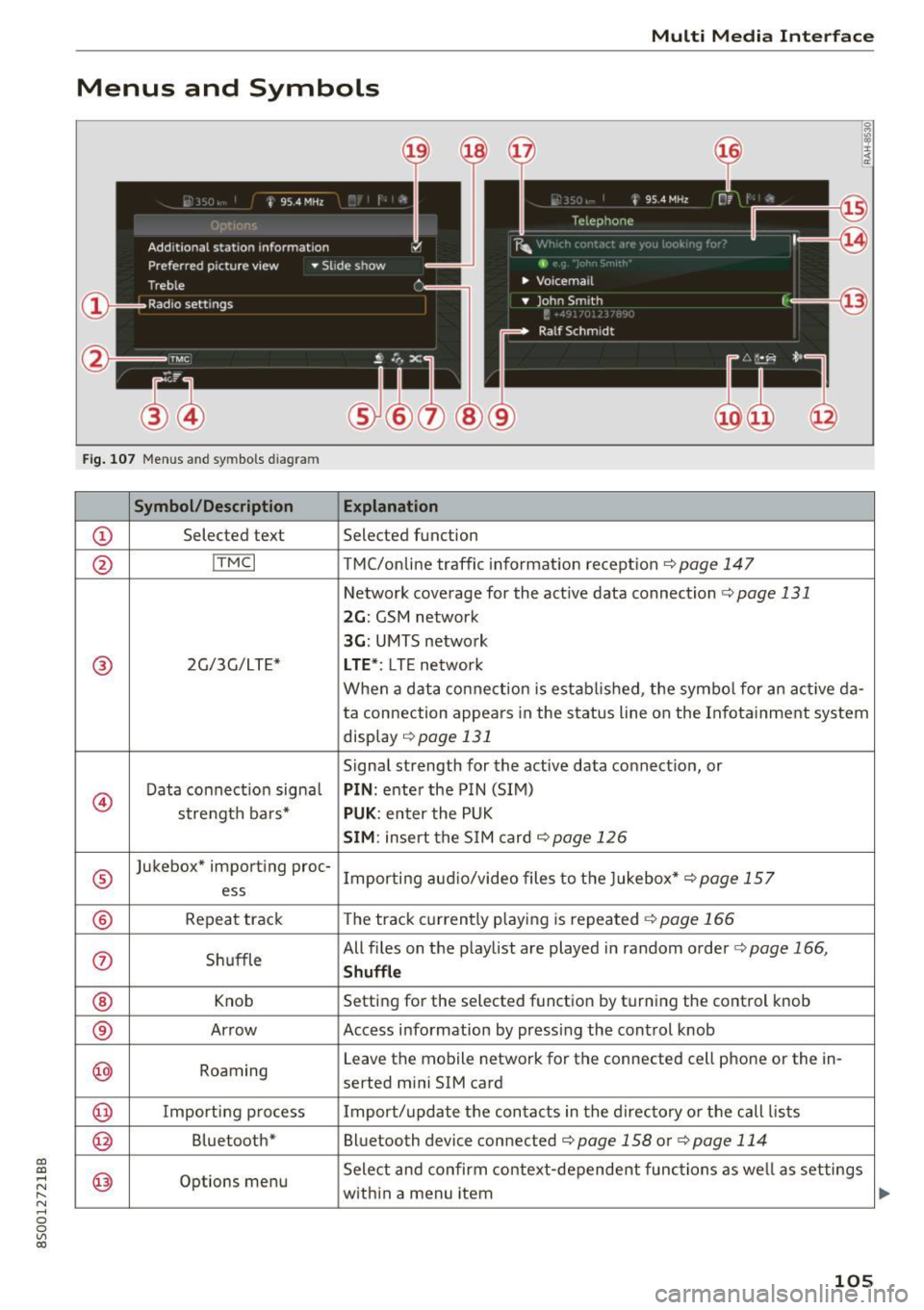
Fig. 107 Menus and symbols diagram
Symbol/Description Explanation
CD Selected text Selected function
@ I
TMC I TMC/online traffic informat ion recept ion c::>page 147
Network coverage for the active data connection c::> page 131
2G: GSM network
3G : UMTS network
® 2G/3G/LTE* LTE *: LTE network
When a data connection is establ ished, the symbol for an act ive da-
ta connection appea rs in the status line on the Infota inment system
display
c::> page 131
Signal strength for the active data connect ion, or
@
Data connect ion signa l PIN: enter the PIN (SIM)
strength bars*
PUK : enter the PUK
SIM: insert the SIM card c::>page 126
®
Jukebox* importing proc-
Importing audio/video files to the Jukebox*
c::> page 157
ess
® Repeat track The track currently playing is repeated c::>page 166
0 Shuffle All files on the playlist are played in random o
rder
c::> page 166,
Shuffle
® Knob Setting for the selected function by turning the control knob
® Arrow Access information by pressing the control
knob
@ Roaming Leave the mobile network for the connected cell phone or the in-
serted mini SIM card
@ Importing process Import/update the contacts in the directory or the call lists
@ Bluetooth* Bluetooth device connected c::> page 158 or c::> page 114
@ Options menu Select
and confirm context-dependent functions as we ll as settings
within a menu item
105
Page 152 of 322
Radio
Radio
Opening the radio
The radio supports the FM, AM and SiriusXM*
(satellite radio) bands. Using the HD Radio re
ceiver also allows you to receive radio stations
on the FM and AM bands in digital format.
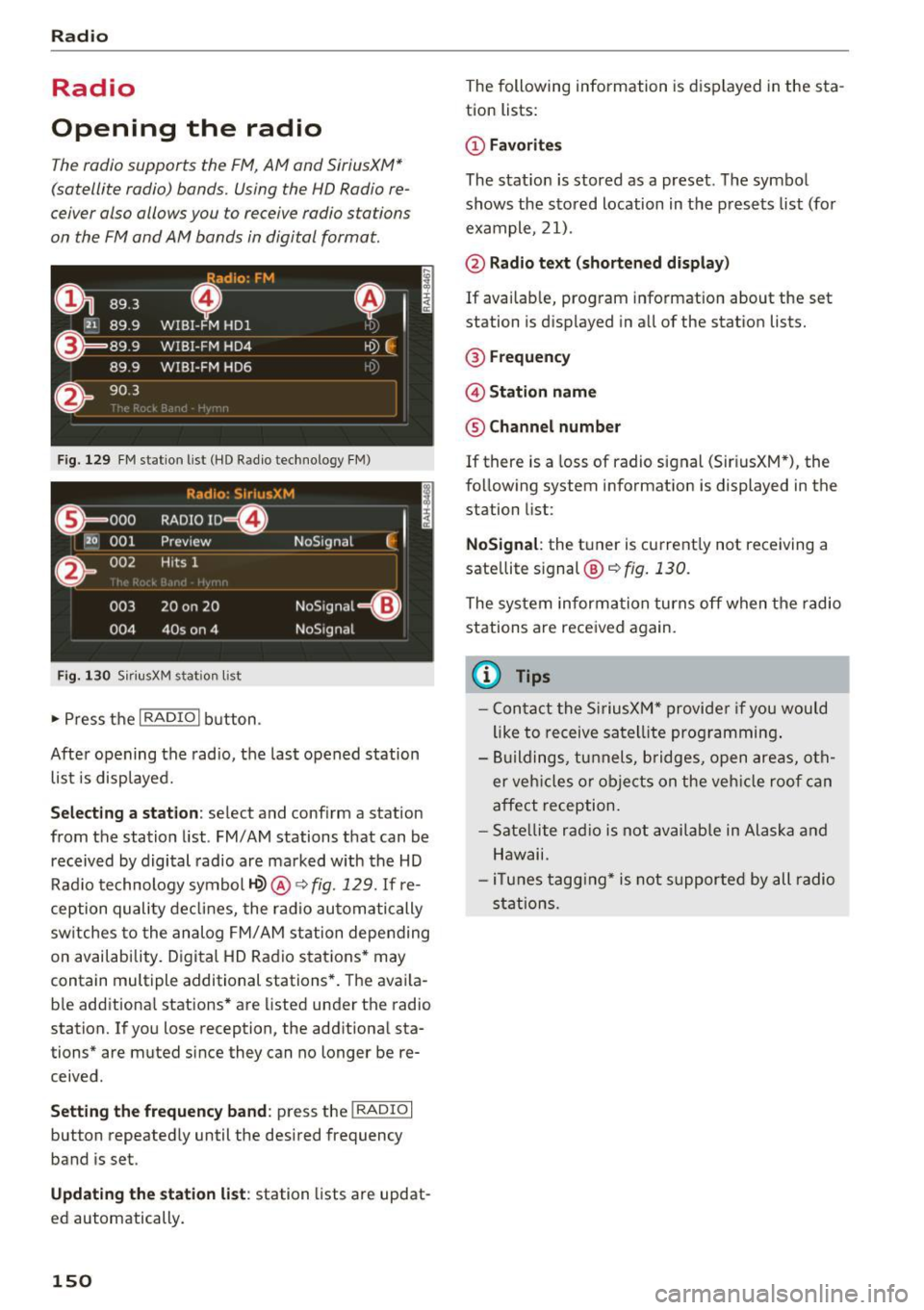
Fig . 129 FM station list (HO Radio technology FM)
Radio: S ir iusXM
E l
0 . 000 RADIO ID m
120 001
Preview NoSignal
&
002 Hits 1
''' .I
003 20 on 20 NoSignal
=Gl
004 40s on 4 NoSignal
Fig. 130 S
iriusXM stat ion list
~ Press the I RADIO I button .
After opening the radio, the last opened station
list is displayed.
.
I
Selecting a station: select and conf irm a station
from the station list. FM/ AM stations that can be
received by digital radio are marked with the HD
Radio technology symbol
1-Q) @ ~ fig. 129. If re
ception quality declines, the radio automatically
sw itches to the analog FM/AM station depending
on availability. Digital HD Radio stations* may
contain multiple additional stations*. The avai la
b le additional stations* are listed under the radio
station. If you lose reception, the additional sta
tions* are muted since they can no longer be re
ceived .
Setting the frequency band : press the I RADIO I
button repeatedly until the desired frequency
band is set.
Updating the station list: station lists are updat
ed automatically .
150
The following information is displayed in the sta
tion lists:
@ Favorites
The stat ion is stored as a preset. The symbol
shows the stored location in the presets list (for
example, 21).
@ Radio text (shortened display)
If available, program information about the set
station is displayed in all of the stat ion lists.
@ Frequency
@ Station name
® Channel number
If there is a Loss of radio signal (Sir i usXM*), the
following system information is displayed in the
station list:
NoSignal : the tuner is current ly not receiving a
sate llite s ignal ®
c::> fig. 130.
The system informa tion turns off when the radio
stations are received again.
@ Tips
- Contact the SiriusXM" provider if you would
like to receive satellite programming.
- Buildings, tunnels, bridges, open areas, oth
er vehicles or objects on the vehicle roof can
affect reception.
- Satellite radio is not available in Alaska and
Hawaii.
- iT unes tagging* is not support ed by all radio
stations.
Page 181 of 322
co
co
.... N
" N .... 0
0
Vl c:o
Voice guidance during phone call: see
¢ page 142, Voice guidance.
Voice guidance volume: yo u ca n ad just the v oice
g uid ance vo lume during ac tive rou te gu idance by
turning the control kno b.
Entertainment fader: the vo lume of au dio play
bac k can be tem pora rily lowe re d w hen the p ark
i n g sys tem or voi ce gui dance is ac tive .
Voice recognition system
App lies to: vehicles with voice recognition system
Short dialog : prom pts in a s horte r format can be
switched on o r off .
Speech dialog system volume : you can adj ust
the vol ume of the prompts by tur ning t he control
knob .
Parking aid*
You can adjust th e signal tone vol ume by tu rnin g
the contro l knob .
-Adjusting the Front volume : select and con
firm
High , Medium or Low.
-Adjusting
the Rear volume : select and confirm
High , Medium or Low .
MMI touch volume*
You can a djust the vo lume of the prom pts for the
M MI to uch* by tu rning the con trol kn ob .
Audi Heartbeat
You can ad just the vo lume of Aud i Heartbeat by
turn ing t he control knob.
Restarting the MMI
(Reset)
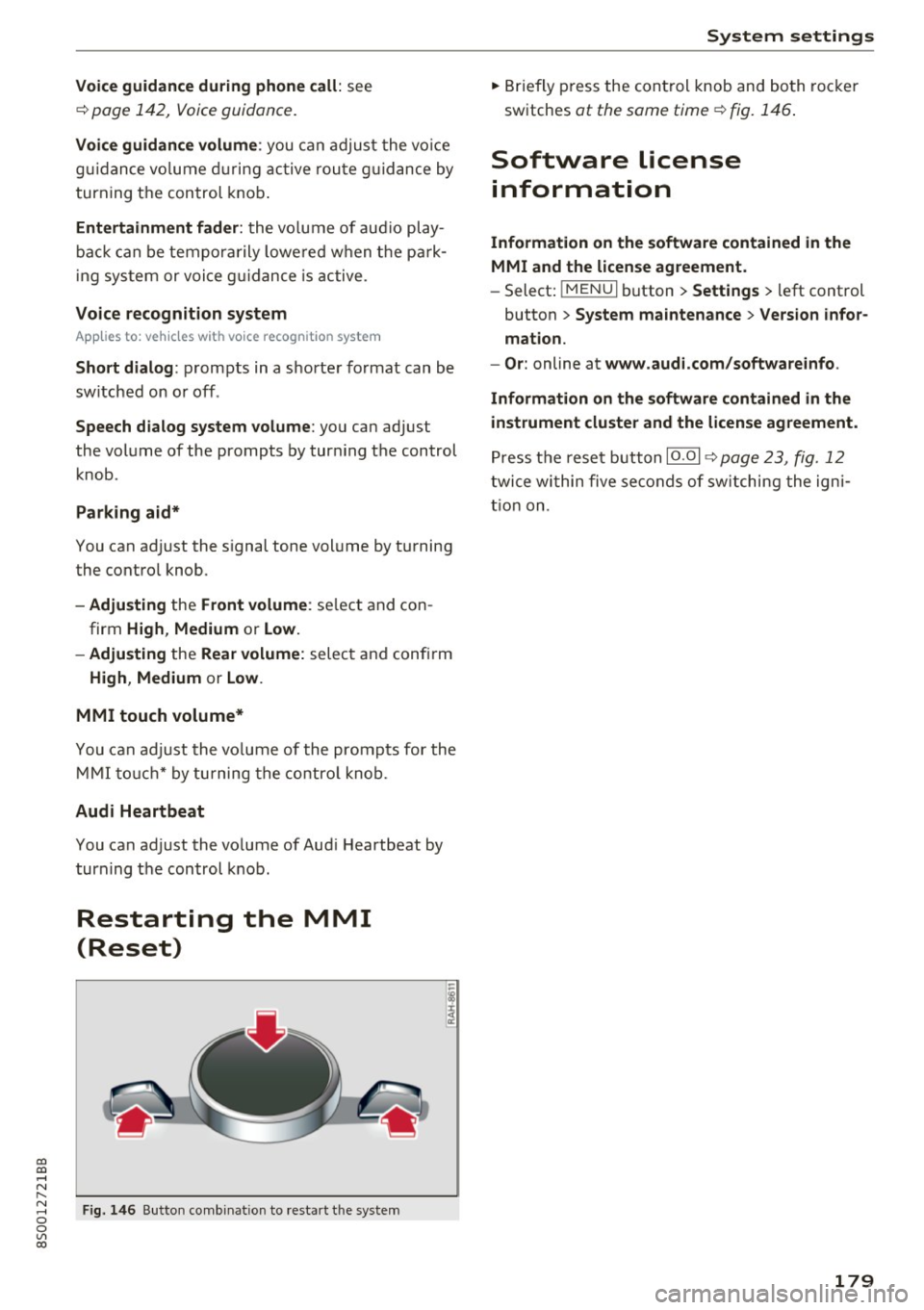
Fig. 146 B ut to n co mbin at io n t o res tar t t he sys te m
-
I
System settings
.. Brie fly press the con trol knob and bo th roc ke r
sw itches
at the same time ¢ fig. 1 46.
Software license
information
Information on the software contained in the
MMI and the license agreement.
- Select: !ME NUI button> Settings > le ft control
button >
System maintenance > Version infor
mation.
- Or :
online at www.audi.com/softwareinfo .
Information on the software contained in the
instrument cluster and the license agreement.
Pr ess t he rese t button 10 .01 ¢ page 23, fig . 12
twi ce wi thin five se conds of sw itching the ig ni
t io n on .
179
Page 203 of 322
-Always carefully follow the manufacturer's
instructions provided w ith the child seat or
carrier.
- Always make sure that there is nothing on
the front passenger seat that will cause the
capacitive passenger detection system in
the seat to signal to the Airbag System that
the seat is occupied by a person when it is
not, or to signa l that it is occ upied by some
one who is heavier than the pe rson actua lly
s itting on the seat. The p resence of addi
tional objects could cause the passenger
fro nt airbag to be turned on when it shou ld
be off, or could cause the airbag to work in a
way that is different from the way it would
have worked without the object on the seat .
Front airbags
Description of front airbags
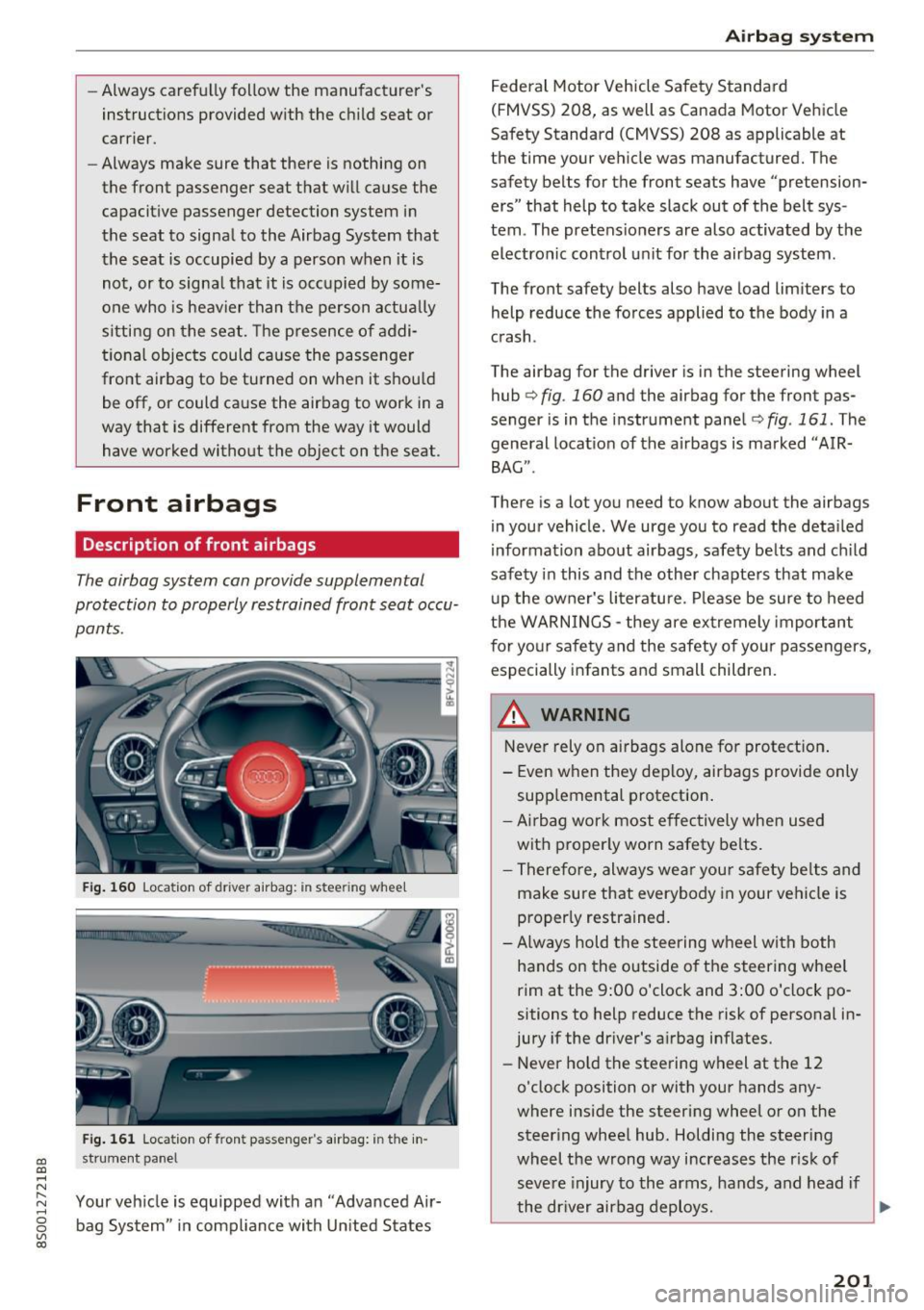
The airbag system can provide supplemental
protection to properly restrained front seat occu
pants.
F ig . 160 Locat ion of driver a irbag: in stee ring wheel
Fig . 1 61 Locat ion of front passenger's airbag: i n the in -
CD st rume nt panel CD ,-t N
" ~ Your veh icle is equipped with a n "Adva nced Air-
~ bag System" in compl iance wi th Un ited States
co
Airb ag sys tem
Federal Motor Vehicle Safety Standa rd
(FMVSS) 208, as well as Canada Motor Vehicle
Safety Standard (CMVSS) 208 as applicable at
the time your ve hicle was manufactured. The
safety belts for the front seats have "pretension
ers" that help to take slack out of the belt sys
tem . The pretens ioners are also activated by the
electronic control unit for the airbag system.
The front safety belts also have load limiters to
help reduce the fo rces applied to the body in a
crash.
The airbag for the driver is in the steering wheel
hub ¢
fig. 160 and the airbag for the front pas
senger is in the instrument panel¢
fig . 161. The
general locat io n of the a irbags is marked "AIR
BAG" .
There is a lot you need to know about the airbags
in you r vehicle. We urge you to read the deta iled
information about airbags, safety be lts and c hild
safety in this and the other chapte rs that make
u p the ow ner's literature. Please be sure to heed
the WARNINGS - they are ex tremely important
for yo ur safety and the safety of your passengers,
especially infants and small children.
A WARNING
-
Never rely on airbags alone fo r protect ion .
- Even when they deploy, airbags provide only
supp lemental protection .
- Ai rbag work most effectively when used
with proper ly worn safety be lts.
- T herefo re, always we ar you r safe ty be lts and
make sure that everybody in your vehicle is
proper ly restrained.
- Always hold the stee ring w heel with both
hands on the outside o f the steering wheel
rim at the 9 :00 o'clock and 3:00 o'clock po
sitions to help reduce the risk of personal in
jury if the driver's a irbag inflates.
- Never ho ld the steering wheel at the 12
o'clock position or with your hands any
where inside the steering wheel o r on the
steer ing whee l hub. Holding the steering
wheel the wrong way increases the r is k of
seve re injury to the arms, hands, and head if
the dr iver airbag deploys.
~
201
Page 206 of 322

Airbag syste m
& WARNING
A child in a rearward-facing chi ld seat instal
led on the front passenger seat will be ser i
ously injured and can be k illed if the front air
bag inflates -even with an Advanced Airbag
System.
- Although the Advanced A irbag System in
you r vehicle is designed to tu rn off the front
airbag when a rea rwa rd-facing child re
straint has been insta lled on the fron t pas
senger seat, nobody can absolutely g uaran
tee that deployment is impossible in a ll con
ceivable situations that may happen during
the useful life of your vehicle.
- The inflating airbag w ill hit the child seat or
infant carrier w ith great force and will
smash the ch ild seat and child against the
backrest, center armrest, door, or roof.
- Always install rearward-facing ch ild re
straints on the rear seat.
- If you must install a rearward fac ing ch ild
seat on the front passenger seat because of
exceptional c ircumstances and the
PASSEN
G ER A IR BAG OFF,;; light does not come
on and stay on, immediately install the rear
facing child seat in a rea r seating pos ition
and have the a irbag system inspected by
yo ur Audi dealer.
& WARNING
If, i n ex cept ional circumstances, you must i n
sta ll a forward-facing chi ld restraint on the
front passenger's seat:
- Always make sure the forward-facing se at
has been designed and ce rtified by its man
ufacturer for use on a f ront seat with a pas
senger front and side a irbag .
- Never put the forward -facing child restraint
u p against or very near the instrument pan
el.
- Always move the front passenger seat to
the highest position in the up and down ad
justment range and move it back to the
rearmost position in the seat's fore and aft
adjustment range, as fa r away from the air
bag as possib le, before insta lling the for
ward-facing child restra int.
204
-
- lways make sure that t he safety belt upper
anchorage is behind the ch ild restraint and
not next to or in front of the child restraint
so that the safety be lt will be p roperly posi
tioned.
- Always make sure that there is noth ing o n
the front passenge r seat that will cause the
capacitive passenge r detection system in
the seat to signal to the Airbag System tha t
the sea t is occup ied by a perso n when it is
not, or to s ignal th at it is occupie d by some
one who is heavier than the person ac tually
sitting on the seat . The presence of addi
tional objects cou ld cause the passenger
front airbag to be turned on when it should
be off, or could cause the airbag to work in a
way that is d if f erent from the way it wou ld
have worked without the object on the seat.
- Make sure that the
PASSENGER AIR BAG
OFF "1; light comes on and stays on all the
time wheneve r the ig nitio n is swi tched on.
Advanced Airbag System components
The fro nt passenge r seat in your veh icle has a lot
of ve ry important parts of the Advanced A irbag
Syste m in it. These parts incl ude the capacitive
passenger detection system, wir ing, b racke ts,
and more . The con trol uni t monitors the system
on the front passenger seat when the ignition is
switched on and turns the airbag indicator light
on when a malfunction in the one of the system
components is detected<=>
page 209. Because
the front passenger seat contains important
parts of the Adva nced A irbag System, you must
take care to p revent it from being damaged.
Damage to the seat may prevent the Advanced
A irbag Sys tem for the front passenge r seat from
do ing its job in a crash .
The front Advanced Airbag System consists
of the following:
-Crash sensors in the front of the veh icle tha t
meas ure vehicle acce le ra tion/dece le ra tion to
prov ide in formation to the Advanced A irbag
System about the sever ity of the crash .
- An elect ronic contro l unit, with integ rated
crash sensors for front and side impacts. The
Page 210 of 322

Airbag syste m
-Always install rear -facing child seats on the
rear seat.
- If you must install a rearward facing chi ld
seat on the front passenger seat because of
exceptional c ircumstances and the
PA SSEN
G ER AIR BAG OFF ~;
light does not come
on and stay on, immediately install the rear
facing child seat in a rear seating position and have the airbag system inspected by
you r Audi dealer.
_& WARNING
Objects between you and the a irbag w ill in
crease the risk of in jury in a crash by interfer
ing with the way the airbag unfo lds or by be
ing pushed into yo u as the airbag inflates.
-
- Never hold th ings in your hands or on your
lap when the vehicle is in use.
- Never transport items on or in the area of
the front passenger seat . Objects could
move into the area of the front airbags du r
ing brak ing or other sudden maneuver and
become dangerous projectiles that can
cause serious personal injury if the a irbags
inflate.
- Never place or attach accessor ies or other
objects (such as cup holders, te lephone
brackets, large, heavy or bulky objects) on
the doors, over or near the area marked "AIRBAG" on the steering wheel, instru
ment pane l, seat backrests or between
those areas and yourself. These objects could cause injury in a crash, espe cially
when the airbags inflate.
- Never recline the front passenge r's seat to
t ransport objects . Items can also move into
the area of the side airbag or the front air bag during braking or in a sudden maneu
ver. Objects near the airbags can become projectiles and cause injury, particularly
when the seat is reclined .
- Never place or transport objects on the
front passenger seat. Objects on the front passenge r seat could cause the capac itive
sensor in t he seat to signal to airbag system
that the seat is occupied by a person when it in fact is not, or that the person on the seat
208
is heavier than he or she actually is. The
change in electric capacitance because of
such objects can cause the passenger front
airbag to be t urned on when it should be
off, or can cause the airbag to work in a way
that is different from the way it would have
wo rked without objects on the seat.
- Always make sure that there is noth ing o n
the front passenge r seat that will cause the
capacitive passenge r de tection system in
the sea t to signal to the Airbag System tha t
the seat is occup ied by a person when it is
not , or to signal that it is occupied by some
one who is heavier than the person act ually
sitt ing on the seat. The presence of an ob
ject could cause the passenger front airbag
to be turned on when it should be off , or
could cause the airbag to work in a way that is diffe rent from the way it would have
wo rked without the object on the seat.
- Never til t the front passenger seat backrest
forward when the vehicle is mov ing . An in
flating airbag wi ll force t he bac krest back
ward and can injure rear seat occup ants .
_& WARNING
The fine dus t created when airbags deploy can
cause breathing prob lems for people with a
h istory of asthma or other breathing condi
tions.
- To reduce the r isk of breathing problems,
those with asthma o r other respiratory con
ditions sho uld get fresh ai r right away by
getting out of the vehicle or opening win
dows or doors.
- If you are in a co llision in which airbags de
ploy, wash your hands and face with m ild
soap and water before eating.
- Be carefu l not to get the dust into your eyes,
or into any cuts or scratches .
-If the residue shou ld get into your eyes,
flush them w ith water .