steering AUDI TT COUPE 2017 Owner's Manual
[x] Cancel search | Manufacturer: AUDI, Model Year: 2017, Model line: TT COUPE, Model: AUDI TT COUPE 2017Pages: 322, PDF Size: 79.73 MB
Page 86 of 322
Parking systems
Switching on /off
Applies to: vehicles with parking system p lus
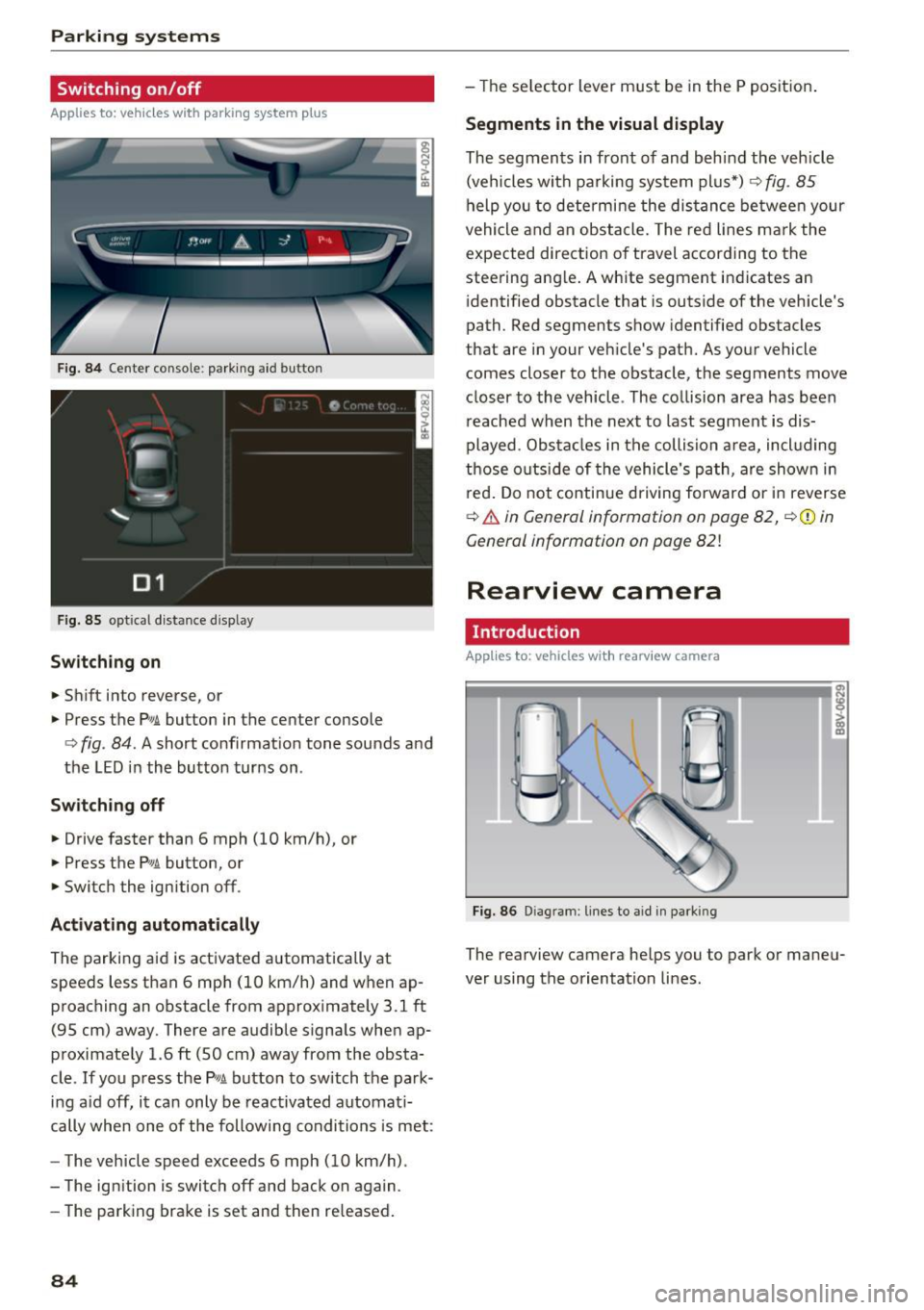
F ig. 84 Center console: park ing aid button
F ig.
85 optical d istance display
Switching on
.,. Shift into reverse, or
.,. Press the
Pw.A. button in the center console
c:> fig. 84. A short confirmat ion tone sounds and
the LED in the button turns on.
Switch ing off
.,. Drive faster than 6 mph (10 km/h), or
.,. Press the
p,,,A button, or
.,. Switch the ignition off .
Activating automatically
The parking aid is activated automatically at
speeds less than 6 mph (10 km/h) and when ap
proaching an obstacle from approximately 3.1 ft
(95 cm) away. There are audible signals when ap
proximately 1.6
ft (SO cm) away from the obsta
cle .
If you press the p,,1~ button to sw itch the park
ing a id off, it can only be reactivated automati
cally when one of the following conditions is met:
- The vehicle speed exceeds 6 mph (10 km/h).
- The ignition is switch off and back on again.
- The parking brake is set and then re leased .
84
-The selector lever must be in the P position .
Segments in the visual display
The segments in front of and behind the vehicle
(vehicles with parking system plus*)
9 fig. 85
help you to determine the distance between your
vehicle and an obstacle. The red lines mark the
expected direction of travel according to the
steering ang le. A white segment indicates an
identified obstacle that is outside of the vehicle's
path. Red segments show identified obstacles
that are in your veh icle's path. As your vehicle
comes closer to the obstacle, the segments
move
closer to the vehicle . The collision area has been
reached when the next to last segment is dis
played. Obstacles in the collision a rea, incl uding
those outside of the vehicle 's path, are show n in
r ed. Do not continue driving forward or in reverse
c:> & in General information on page 82, ¢(Di n
General information on poge
82!
Rearview camera
Introduct ion
Applies to: vehicles with rearview camera
Fig. 86 Dia gram : lines to aid in parking
The rearview camera helps you to park or maneu
ver using the orientation lines .
Page 87 of 322
CD
CD
.... N
" N .... 0
0
Ill co
General information
Applies to: vehicles with rearview camera
~ --
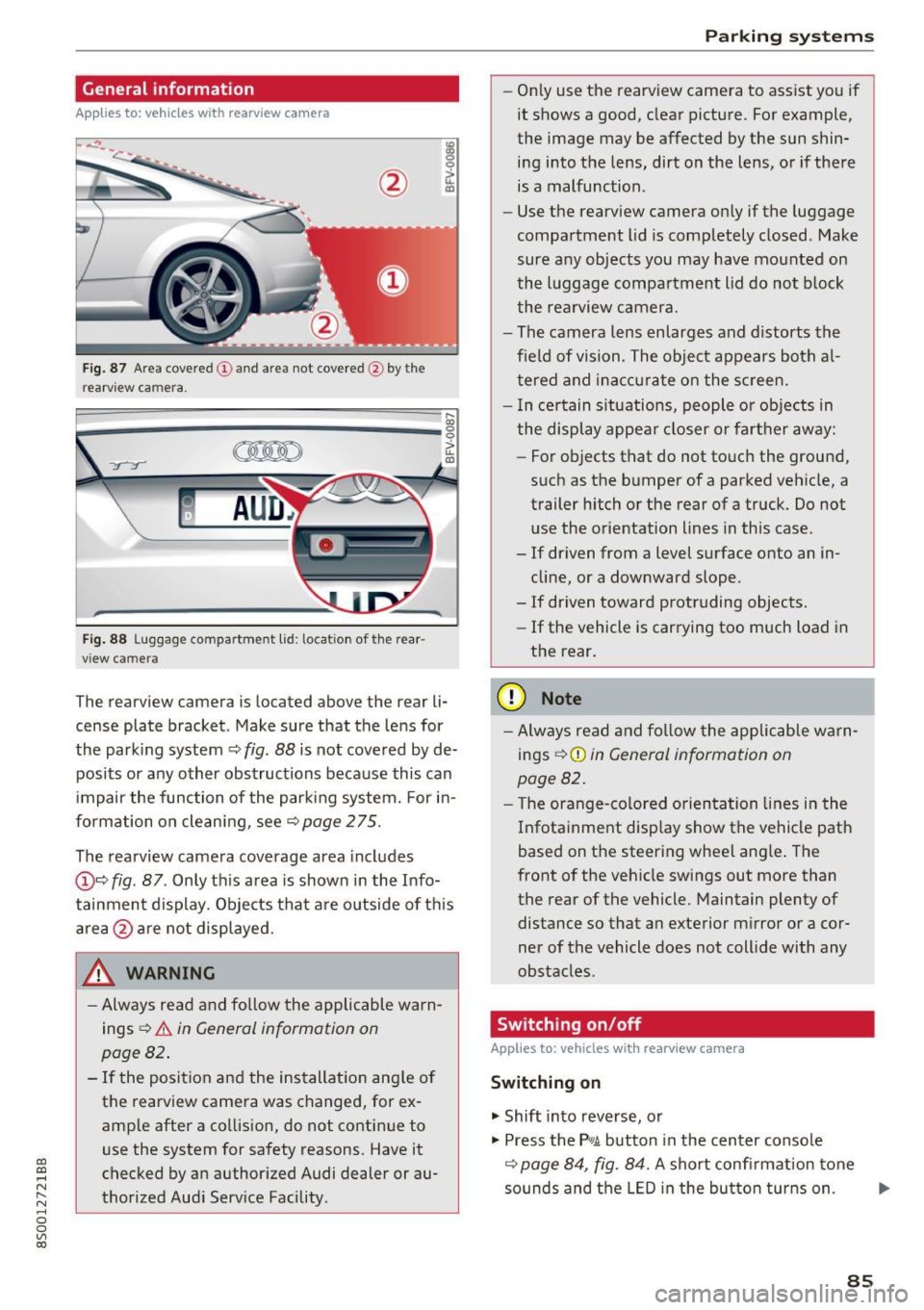
Fig. 87 A re a co vered (!) and a rea not cove red @ by the
r earv iew ca mera.
~
~ ;..------ ::.·~- ,.,.~ _.,- ,,,_-------- g
(Jo00oD ~
Fig. 88 Luggage compartme nt lid: locat io n of t he rear
view c amera
The re arview camera is located above the rear li
cense plate bracket. Make sure that the lens for
the park ing system ~
fig. 88 is not covered by de
posits or any other obstructions because this can
i mpair the function of the par king system. For in
formation on clean ing, see ~
page 275 .
The rearview camera coverage area includes
@ ~ fig . 87 . Only th is area is shown in the Info
tainment display. Objects that a re outside of th is
area @are not displayed.
A WARNING
-Always read and fo llow the applicable warn
ings
~ A in General information on
page 82 .
- If the position and the installation ang le of
the rearview camera was changed, for ex
amp le after a collision , do not continue to
use the system for safety reasons. Have it
checked by an authorized Audi dealer or au
thorized Aud i Serv ice Facility .
Parking systems
-On ly use the rearv iew camera to ass ist you if
it shows a good, clear pictu re. For example,
the image may be affected by the sun shin
ing i nto the lens, dirt on the lens, or if there
is a malfunction .
- Use the rearv iew camera on ly if the luggage
compa rtment lid is completely closed . Make
sure any objects you may have mounted on
the l uggage compa rtment lid do not b lock
the rea rview camera.
- The camera lens enlarges and d istorts the
field of vision . The object appears both a l
t ered and ina ccur ate on the s creen.
- I n ce rtain s itu ations, people or objects in
the display appea r closer or fa rther away:
- For objects t hat do not touc h the grou nd,
such as the bumper of a parked vehicle, a
trailer hitch or the rear of a truck . Do not
u se the orie ntation lines in this case .
- If driven from a level s urface onto an in
cline, or a downward slope .
- If driven toward protruding objects.
- If the vehicle is carrying too much load in
the rear.
(D Note
-Alw ays read and fo llow the applicable w arn
ings
¢ (D in General information on
page 82.
- T he orange-co lored orientation lines in the
Infotainment display show the vehicle path
based on the steering wheel ang le . The
front o f the vehicle swings out more than
the rear of the vehicle. Maintain plenty of distance so that a n exterior m irror or a cor
ner of the vehicle does not coll ide with any
obstacles.
Switching on/off
Applies to: vehicles with rearview camera
Switching on
.. Shift into reverse, or
.. Press the
P,qA button in the center console
~ page 84, fig. 84. A short confi rmation tone
sounds and the LED in the bu tton tur ns on . ...
85
Page 88 of 322
Parking systems
Switching off
.. Drive faster than 6 mph (10 km/h), or
.. Press the
P"1A button, or
.. Switch the ignition
off.
(D) Tips
- The visual display in the left part of the dis
play should help you detect the critical vehi
cle areas .
- You can change the volume of the sig nals
and the display
¢page 86.
Perpendicular parking
Appl ies to: ve hicles with rea rview ca mera
This view may be used when parking in a garage
or in a parking space.
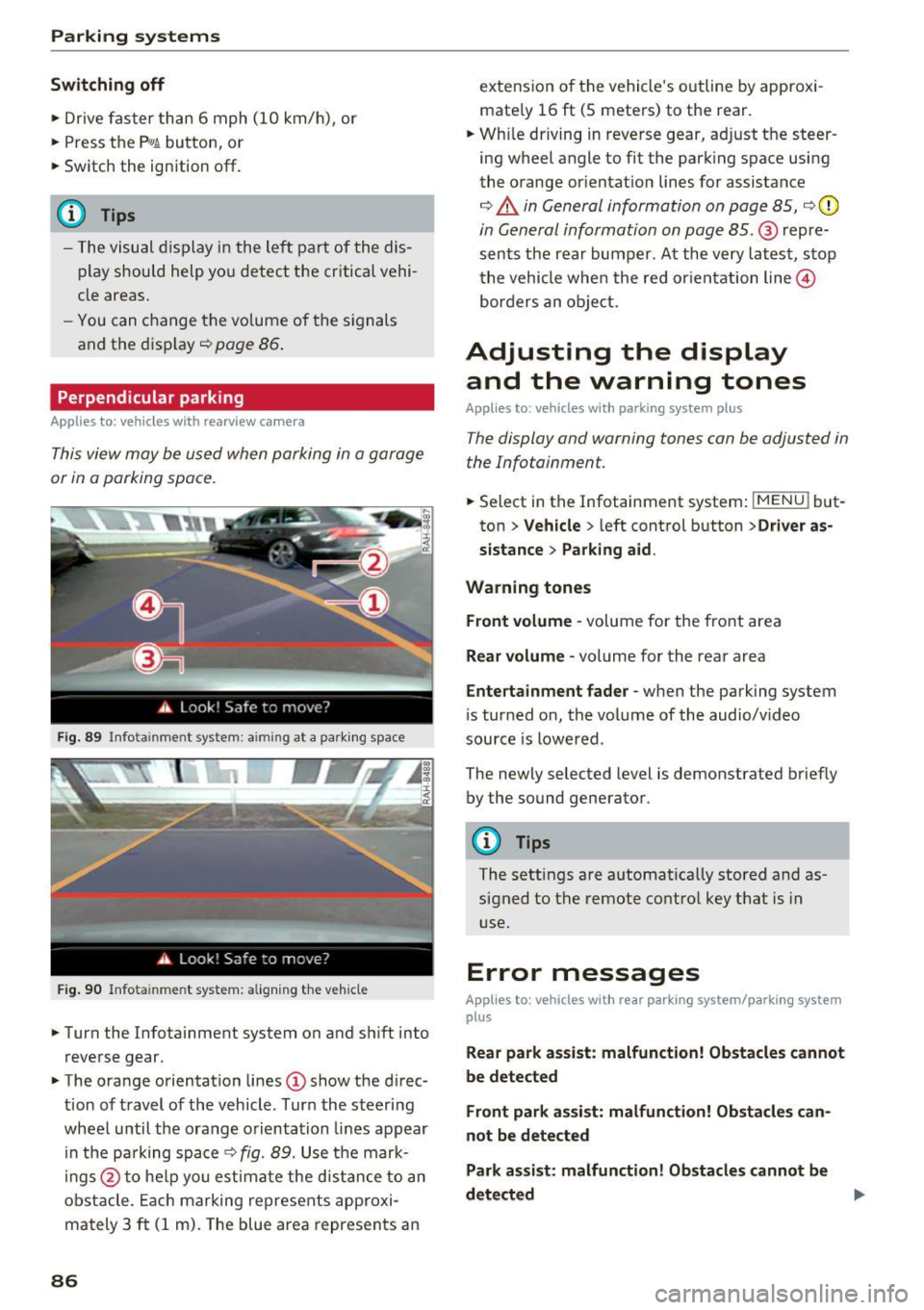
Fig. 89 Info ta inment syste m: aim ing at a pa rking space
Fig. 90 Infota inme nt sys tem: aligning the vehicle
.. Turn the Infotainment system on and shift into
reverse gear.
.. The orange orientation lines
(I) show the direc
tion of travel of the vehicle . Turn the steering
wheel until the orange orientation lines appear
in the pa rking space
c:!;> fig. 89. Use the mark
ings @to help you estimate the d istance to an
obstacle. Each marking represents approxi
mately 3
ft (1 m). The blue area represents an
86
extension of the vehicle 's outline by approxi
mate ly 16
ft (5 meters) to the rear .
.. Wh ile driving in reverse gear, adjust the steer
ing wheel angle to fit the parking space using
the orange orientation lines for assistance
¢ &. in General information on page 85, ¢(D
in General information on page 85. @ repre
sents the rear bumper. At the very latest, stop
the vehicle when the red or ientation line@
borders an object.
Adjusting the display
and the warning tones
Applies to: vehicles with parkin g sys tem plus
The display and warning tones can be adjusted in
the Infotainment.
.. Select in the Infotainment system : IMENUj but
ton
> Vehicle > left control button >Driver as
sistance> Parking aid .
Warning tones Front volume -
volume for the front area
Rear volume -volume for the rear area
Entertainment fader -when the parking system
is turned on, the volume of the audio/video
source is lowered .
The newly selected level is demonstrated briefly by the sound generator.
{!) Tips
The settings are automat ically stored and as
signed to the remote control key that is in
use.
Error messages
App lies to : vehicles wit h rear parking system/parking system
plus
Rear park assist: malfunction! Obstacles cannot
be detected
Front park assist: malfunction! Obstacles can
not be detected
Park assist: malfunction! Obstacles cannot be
detected ..,._
Page 90 of 322
Intelligent Technology
Intelligent Technology
Electronic stabilization
control (ESC)
Description
Electronic Stabilization Control (ESC) supports
driver safety.
It reduces the risk of slipping and
improves driving stability. ESC detects critical sit
uations such as the vehicle oversteering and un
dersteering or the wheels are spinning. The vehi
cle is stabilized by applying the brakes or reduc
ing engine torque. When ESC engages, the
G1 in
dicator light blinks in the instrument cluster.
The following systems are integrated in the ESC:
Anti-lock braking system (ABS)
ABS prevents the wheels from locking when brak
ing. The vehicle can still be steered even during
hard braking. Apply steady pressure to the brake
pedal. Do not pump the pedal. A pulsing in the
brake pedal indicates that the system is acting to
stabilize the vehicle .
Brake assist system
The brake assist system can decrease braking dis
tance. It increases braking power when the driver
presses the brake pedal quickly in emergency sit
uations . You must press and hold the brake pedal
until the dangerous situation is over .
Anti-slip regulation (ASR)
ASR reduces engine power when the drive wheels
begin spinning and adapts the force to the road
conditions. This makes it easier to start, acceler
ate and drive up hills .
Electronic differential lock (EDL)
EDL applies the brakes to a wheel that starts
spinning and transfers the drive power to the
other driving wheels. This function is not availa
ble at higher speeds.
In extreme cases, EDL automatically switches
off
to keep the brake on the braked wheel from over heating. The vehicle is still working correctly. EDL
will switch on again automatically when condi
tions have returned to normal.
88 Steering
recommendation
The ESC helps to stabilize the vehicle by changing
the steering torque.
Selective wheel torque control
Selective wheel torque control is used when driv
ing on curves. The front whee l on the inside of
the curve or both wheels on the inside of the
cu rve are braked selectively as needed. This al
lows more precise driving in curves. The applica
ble system may not activate when driving in wet
or snowy conditions.
A WARNING
- The ESC and its integrated systems cannot
overcome the limits imposed by natural physical laws. This is especially important
on slippery or wet roads. If the systems be
gin acting to stabilize your vehicle, you
should immediately alter your speed to
match the road and traffic conditions. Do
not let the increased safety provided tempt
you into taking risks. This could increase
your risk of a collision .
- Please note the risk of a collision increases
when driving fast, especially through curves
and on slippery or wet roads, and when driv ing too close to objects ahead. The ESC and
its integrated systems cannot always pre
vent collisions -there is still a risk of acci
dents!
- Press the accelerator pedal carefully when
accelerating on even, slippery surfaces such
as ice and snow. The drive wheels can spin
even when these control systems are instal
led and this can affect driving stability and
increase the risk of a collision.
(j) Tips
-The ABS and ASR only function correctly
when all four wheels have a similar wear
condition. Different tire sizes can lead to a
reduction in engine power.
- You may hear noises when the systems de
scribed are working.
Page 93 of 322
co
co
.... N
" N .... 0
0
Vl c:o
brake rotors and pads by caref ull y applying
the brakes several t imes .
-If the front spoiler is damaged or you install
another spoiler, make sure the front wheel
brakes are vent ilated properly. Otherwise,
the brake system could overheat, wh ich re
duces the ir effectiveness .
- Failure of a brake circuit impairs b raking
performance , which increases brak ing dis
tance. Avoid driving the vehicle and have it
towed it to the nearest author ized Audi
dealer or author ized A udi Se rvice Facility.
- Never let the vehicle roll while t he engine is
stopped because this increases the risk of a n
acc iden t.
- If the bra ke booste r is not working, you will
have to press m uch ha rder on the bra ke
ped al to compensate for the lac k of th e
booster.
- Never let the brakes "rub " by pressing the
pedal light ly when bra king is no t actually
ne cessary . T his cause s the brakes to over
hea t and i ncre ases br aking di stance and
ca uses wear.
- B efo re driv ing downh ill a long dis tance on a
steep h ill, decrease your speed and se lec t a
l ower gear . This makes use of the engine
braking effect and relieves the brakes . If
you need to b rake additionally, brake in in
tervals and not continuously.
@ Tips
- If the brake booste r is not working, you
must press the brake pedal with much more
fo rce than normal.
- If you retrofit yo ur vehicle with a front spoil
er, whee l
covers or similar items, make sure
that the air flow to the front whee ls is not
i nterr upted . Otherw ise the brake system
ca n become too hot .
Intelligent Technology
Electromechanical
steering
The electromechanical steering supports the
driver 's steering movements .
Power steering adap ts elec tronically based on
the ve hicle speed.
Indicator light s and message s
• Steering: malfun ction! Please stop vehicle
If this indica to r li ght tur ns on and st ays on and
t hi s message appea rs, the powe r steering may
have failed.
Stop t he vehi cle in a safe location as soon as pos
s ible. Do
not cont inue drivi ng. See an autho riz ed
Audi dealer or authorized A udi Service Fac ility for
assistance .
l;r- ij S teering : malfun ction! You may continue
driving
If the indicator light turns on, the steering wheel
may be more d ifficult to
move or more sensit ive
t h an usua l. Th e steer ing whee l may a lso be at an
angle when d riving s trai ght.
D rive slowly to an a uthorized Audi dea ler or au
t h orized Audi Serv ice Facility to have the mal
funct ion corre cted.
(D Tips
If the . or l;r, ij ind icator light only s tays on
fo r a short time, you may continue d riving.
All wheel drive (quattro)
In all wheel drive, all four wheels are powered.
General information
In all whee l dr ive, the dr iv ing power is divided be
tween all four wheels . This happens automatical
ly depending on you r dr iv ing behav ior as we ll as
t h e cur rent road condi tions. A lso see ~
page 88,
Elec tronic stabilization con trol ( ESC).
T he all whee l dr ive concept is des igned for high
engine power . You r vehicle is except ionally pow
erfu l and has excellent driv ing cha racteristics
bot h unde r normal d rivi ng conditions and o n
91
Page 98 of 322

Multi Media Interface
Multi Media Interface
Traffic safety information
Aud i recommends performing certa in Infotain
ment system functions, such as entering a desti
nation, only when the vehicle is stat ionary . Al
ways be p repared to stop opera ting the Info tain
ment system i n the interest of your safety and
t he safe ty of other ro ad u sers.
_& WARNING
O nly use the In fotain ment sys tem w hen tra f
fic con ditions permit and always in a way that
allows you to ma inta in complete control ove r
your vehicle.
@ Tips
Cer tain functi ons are no t avail ab le wh ile driv
ing .
Introduction
The Multi Media Interface , or MMI for short,
combines various systems for communication ,
navigation* and entertainment in your Audi . You
can operate the MMI using the MMI control pan
el, the multifunction steering wheel or the voice
recognition system* .
Fig. 93 MMI con trol p an el
MM I cont rol panel overview
CD Control knob with joystick f unction
@ M MI to uch con trol pad* ... .... .
® Left contro l button . ..... ... .. .
© R ight con trol b utton ....... ... .
96
97
9 9
98
98
® Buttons fo r opening men us
directly .... . .. .. .. .... .. .... .
@ IMENU I button
(J) I BACK I button . .. .. .... .. ... . .
MMI On/Off knob with
joystick function
Operating
Fig . 94 MMI O n/Off k nob w it h joys tick functio n
Switching the MMI on /off :
The M MI can be manua lly switched on and off .
97
97
97
- Switching on manually : press the On/O ff kno b
CD¢ fig. 94 briefly . Or: press the !MENU I button
@ ¢page 96, fig. 93 or one of the b uttons to
direct ly open the menus®¢
page 96, fig. 93 .
-Switching off manually : press and hold the
O n/Off knob
CD ¢ fig. 94 unt il t he M MI switches
off. If the MMI ha s been switched off manua lly,
it does
not switch on agai n automatically the
next time the ignition is switched on.
Additional function s:
- Adjusting the volume :
turn the On/Off knob CD
¢fig. 94 .
-Muting (mute) : briefly press the On/Off knob .
-Selecting the previous /next function (for ex-
ample , a radio station/track ):
brief ly press the
On/Off knob toward the left
l
-Fast forwarding/rewinding (fo r example ,
tracks) :
press the On/Off knob longer toward
the rig ht t>t>I or left
l
Adjust the vo lume of the audio system so that
signals from outside th e vehicle, such as
~
Page 110 of 322

Voice recognition system
Voice recognition system Operating
Applies to: vehicles with vo ice recognition system
You con operate many Infotainment functions
conveniently by speaking.
Req uirement: the ignition and the MM I must be
sw itched on, there m ust be no p hone call in p rog
ress and the park ing system must not be active .
... Switching on : briefly press the~ but ton @
¢page 21, fig. 10 on the mu ltifunction stee r
ing whee l an d say the desired command after
the
Beep .
... Switching off :
press and hold the l2!J button.
Or: say the command C ancel.
.., Pause :
say the command Pause . To resume,
press the
l2!I button .
... Corre cting : press the ~ button one t ime
@ ¢
page 20, fig. 8. Or: say the command Cor
r ec tion .
Input assistance
The system gu ides you through the input with
visual and audio feedback .
-Visual input assistance : after switching on
vo ice recognit ion, a display with a se lection of
poss ible commands appea rs. The command
display can be sw itched on/off under
I M ENU !>
Setting s> left control bu tton > MMI setting s>
Speech dialog sy stem .
-Audio input as sistance :
to have the poss ible
comma nds read, press the
10, I button on the
mul tifunction steering wheel briefly and say
Help .
For the syst em to understand you:
Speak clearly and dist inctly at a normal volume .
Speak louder when d riving faster .
Emphasize the words in the commands evenly
and do not leave long pauses .
Do not speak a command when the voice recogni
tion system is making an announcement .
Close the doors, the windows and the sunroof* to reduce bac kground noise. Make sure t hat passen-
108
gers are not speaking when you are giv ing a voice
command .
Only use the system from the dr ive r's seat be
c au se the hands free microphone is direc ted to
ward that seat .
Additional settings
See¢ page 179, Voice recognition system .
&_ WARNING
-Dire ct yo ur full attention to dr iv ing. As the
d river, you have complete responsibili ty fo r
safety in traff ic. Only use the functions in
such a way that you a lways maintain com
p lete contro l over your vehicle in all traffic
situations .
- Do not use the voice recognition system i n
emergencies beca use your voice may change
in stressful s ituations. It may take longer to
dia l the number or the system may not be
ab le to dia l it at all. Dial the emergency
number manually.
(D Tips
- The d ia log pauses when there is an incom
ing phone call and will continue if you ig
nore the call. The dia log ends if you answer
the ca ll.
- There are no navigation prompts* when a di
alog is act ive .
- You can select an item in the list using ei
ther the vo ice recognit ion system or the
cont rol knob .
Command overview
information
Applies to: vehicles with voice recognition system
The following overv iews des cribe the commands
t h at can be used to operate t he M MI using the
vo ice recognit ion system.
Alternative commands are separated using a"/",
fo r example say:
Telephone / (or) Navigation /
(or) Radio.
Sequences of commands used to perform an ac
tion are ident ified w ith a
"> ", fo r example say:
Enter addre ss > (then) Enter country /state . II>
Page 146 of 322
Navig ation
"' Press the I NAV/MAPI button repeated ly until
the map is disp layed
¢ fig. 125 .
Zo oming in /out on the m ap
- T urn the control knob to the left or to the right .
As an alternat ive, you can a lso zoom in/out on
the map using the MMI touc h
¢page 100. Or:
turn the left thumbwheel on the mu ltifunction
steering wheel*¢
page 20 .
Turning th e cros shair s on /off
- Sw itching the crosshai rs on :
press the control
knob in the map view .
-Sw itching the crossh air s o ff : press the I BACKI
button.
When the crosshairs are switched on ¢ fig. 124:
(D Orientation : the map is eithe r displayed as a
2D n orth up m ap or a 2D hea ding up map.
@ Scale: turn the control knob to the left or
right to decrease or increase the scale .
@ Zoom: when the Automa tic zo om func tion is
sw itched on, an "A" for "Automatic" is dis
p layed in the magnifying g lass.
© Crosshairs: move the crossha irs in the de
sired direction using the MM I touch control
pad and set a po int on the map as the desti
nation or have information about the focal
point displayed.
® Map content (points of interest, favorites) : if
there are mu ltiple POis in the immediate vi
cinity, they will be shown stacked on the
map .
@ Addit io nal info rmation on the crosshairs po
sition : if you move the c rosshairs to a loca
tion on the map, avai lab le information for
the current crossha irs position is displayed.
Press the control knob to open destination
deta ils or to start route guidance. When the
crossha irs are turned off, the road being cur
rently driven on is shown .
0 Display of an upcoming ma neuver. If the re is
n o upcoming maneuver, the distance and cal
culated arrival time to the destination/stop
over is disp layed in this location.
l ) O nly app lies to veh icl es withou t camer a-b as ed speed limi t
dis play .
144
@ Display of a better route. For additional in for
mation, see
¢ page 149.
When the cro ssha ir s are swit ched off ¢ fig. 125:
® If a turn arrow is d isplayed, a bar graph turns
on. The fewe r bars are shown , the shorter the
distance is until the turn.
@ Speed limit display1>: d isp lay of the max i
mum permitted speed on the expressways
and highways.
@ Road current ly being driven on . When t he ve
hicle is stat iona ry, "off road " is displayed
here.
@ Vehicle location (@)
@ Display of active traffic information
dO NLIN EI* or I TM Cb
@ Altitude disp lay (.d\)
@ Route information : various information will
be displayed dur ing active route guidance
(for example, the upcom ing maneuver in
cl ud ing ca lculated distance and street
names). The d isplay a lso provides traff ic in
format ion or points of interest on the current
route.
Map functions
Appl ies to: vehicles wit h navigat ion syste m
"'Press the I NAV/MAP I button repeatedly until
the map is displayed
¢ page 143, fig. 125.
"'Select: left control button > desired function.
Switch to de stination input
The Ente r de stination menu is disp layed
¢ page 135, fig. 118 .
Traffic messages
Cu rrent traffic informa tion is displayed in the In
fot ainment system display. See
¢ page 147.
Route list
The route list can only be displayed when route
guidance is active and conta ins informat ion re
gard ing the ro ute, the names of the streets and
t h e lengt h of t he ro ute sections. When traveling
jll,-
Page 182 of 322
Safe dri ving
Safe driving
Basics
Safe driving habits
Please remember -safe ty first!
This chapter contains important information,
tips, instructions and warnings that you need to
read and observe for your own safety, the safety
of your passengers and others. We have summar ized here what you need to know about safety
be lts, a irbags, child restra ints as well as child
safety. Your safety is for us
priority number 1 . Al
ways observe the info rmation and wa rn ings in
this section - for your own safety as well as that
of your passengers.
The information i n this section applies to all
model versions of yo ur vehicle . Some of the fea
tures descr ibed in t his sections may be s tanda rd
equipment on some models, or may be optional
equipment on others . If you are not sure, ask
your authorized Audi dealer.
A WARNING
- Always make sure that you follow the in
structions and heed the WARNINGS in th is
Manual.
It is in your interest and in the in
te rest of your passengers .
- Always keep the comp lete Owner's Litera
ture in your A udi when you lend or sell your
vehicle so that this important information
will always be available to the d river and
passenge rs.
- Always keep the Owner 's literature handy so
that you can find it easily if you have ques
t ions.
Safety equipment
The safety features are part of the occupant re
straint system and work together to help reduce
the risk of injury in a wide variety of occident si t
uations.
Your safety and the safety of your passenge rs
should not be left to chance. Advan ces i n tech
nology have made a var iety of features avai lab le
to help reduce the risk of injury in an accident .
180
The following is a list of just a few of the safety
features in your Audi :
- sophis tica ted safety be lts fo r drive r and all pas-
senge r seat ing pos itions,
- safety belt p retensioners,
- safety belt force lim ite rs fo r th e front seats,
- front airbags,
- knee airbags fo r the front seats*
- side airbags in the front seats,
- side curtain airbags with eject ion m itigat ion
features,
- special LATCH anchorages for child restraints,
- adj ustab le steering col umn.
These ind iv idual safety features, can work to
gether as a system to he lp protect you and your
passengers i n a wide range of acc idents. These
fea tures canno t wo rk as a sys tem if they a re not
a lways correc tly adjusted and correct ly used.
Safety is everybody' s responsibilit y!
Important things to do before driving
Safety is everybody's job! Vehicle and occupant
safety always depends on the informed and care
ful driver .
For your safety and the safety of your passen
gers,
before driving alway s:
.. Make sure that all lights and signals are operat
ing correctly .
.. Make sure that the tire pressure is correct .
.. Make sure that all windows are clean and afford
good visibility to the outs ide .
.,. Sec ure all luggage and othe r items ca refully
Q page 185, ~page 47.
.,. Make sure that noth ing can inter fere wi th the
peda ls .
.. Ad just front seat and mirrors cor rectly for your
height.
.. Make sure to use the right child restraint cor
rectly to protect children
Q page 221, Child
safety .
.. Sit p roperly in your seat and make sure t hat
your passenge rs do the same
Q page 44, Seats
and storage.
ll-
Page 183 of 322
CD
CD
.... N
" N .... 0
0
Ill co
.. Fasten your safety be lt and wear it properly. Al
so instruct your passengers to fasten their
safety belts properly ¢
page 189.
What impairs driving safety?
Safe driving is directly related to the condition of
the vehicle, the driver as well as the driver's abili
ty to concentrate on the road without being dis
tracted.
The driver is responsible for the safety of the ve
hicle and all of its occupants . If your ability to
drive is impaired, safety risks for everybody in the
veh icle increase and you also become a hazard to
everyone else on the road ¢,&. .Therefore:
.. Do not let yourself be distracted by passengers
or by using a cellular te lephone .
.. NEVER drive when your driv ing ability is im
paired (by medications, alcohol, drugs, etc.).
.. Observe a ll traffic laws, rules of the road and
speed limits and plain common sense.
.. ALWAYS adjust your speed to road, traffic and
weather cond itions.
.. Ta ke frequent breaks on long trips. Do not drive
for more than two hours at a stretch .
.. Do NOT drive when you are tired, under pres
sure or when you are stressed.
A WARNING
Impaired driving safety increases the risk of
ser ious personal injury and death whenever a
vehicle is being used.
Safe d riving
Correct passenger
seating positions
Proper seating position for the driver
The proper driver seating position is important
for safe, relaxed driving.
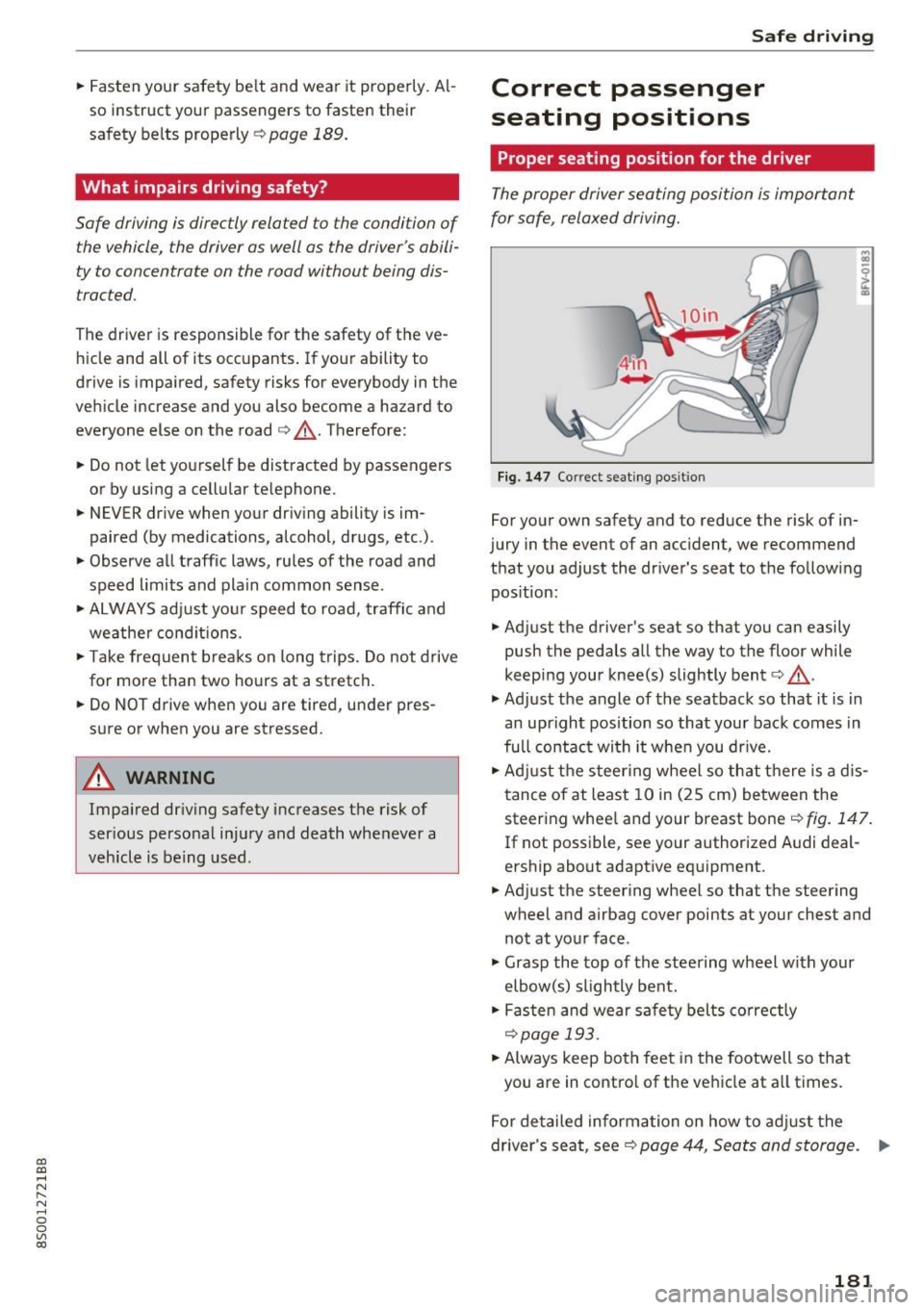
Fig. 147 Correct seating position
For your own safety and to reduce the risk of in
jury in the event of an accident, we recommend
that you adjust the driver's seat to the following position:
.. Adjust the driver's seat so that you can easily
push the pedals all the way to the floor while
keep ing your knee(s) slightly bent¢,&. .
.,. Adjust the angle of the seatback so that it is in
an upright position so that your back comes in
full contact wi th it when you dr ive.
.. Adjust the steering wheel so that there is a dis
tance of at least 10 in (25 cm) between the
steering whee l and your breast bone¢
fig. 147.
If not possible, see your author ized A udi deal
ership about adaptive equipment .
.. Adjust the steering wheel so that the steering
wheel and airbag cover points at your chest and
not at your face .
.,. Grasp the top of the steering wheel with your
elbow(s) slightly bent .
.. Fasten and wear safety belts correctly
¢page 193 .
.. Always keep both feet in the footwell so that
you are in contro l of the vehicle at all times.
For detailed information on how to adjust the
driver's seat, see¢
page 44, Seats and storage. ..,..
181