battery AUDI TT COUPE 2020 User Guide
[x] Cancel search | Manufacturer: AUDI, Model Year: 2020, Model line: TT COUPE, Model: AUDI TT COUPE 2020Pages: 280, PDF Size: 98.79 MB
Page 74 of 280
Warm and cold
of injury, these individuals should not use seat
heating.
@) Note
To reduce the risk of damage to the seat heat-
ing elements, do not kneel on the seats or
place heavy pressure on one area of the seat.
@) Tips
— The setting for the seat heating on the driv-
er's side is assigned to the key that is in use.
— If the front passenger's seat heating is
turned on, it will not turn on again automat-
ically if more than 10 minutes have passed
between switching the ignition off and
switching it on again.
re aati}
Applies to: vehicles with neck heating
BFV-0177
BFV-0178
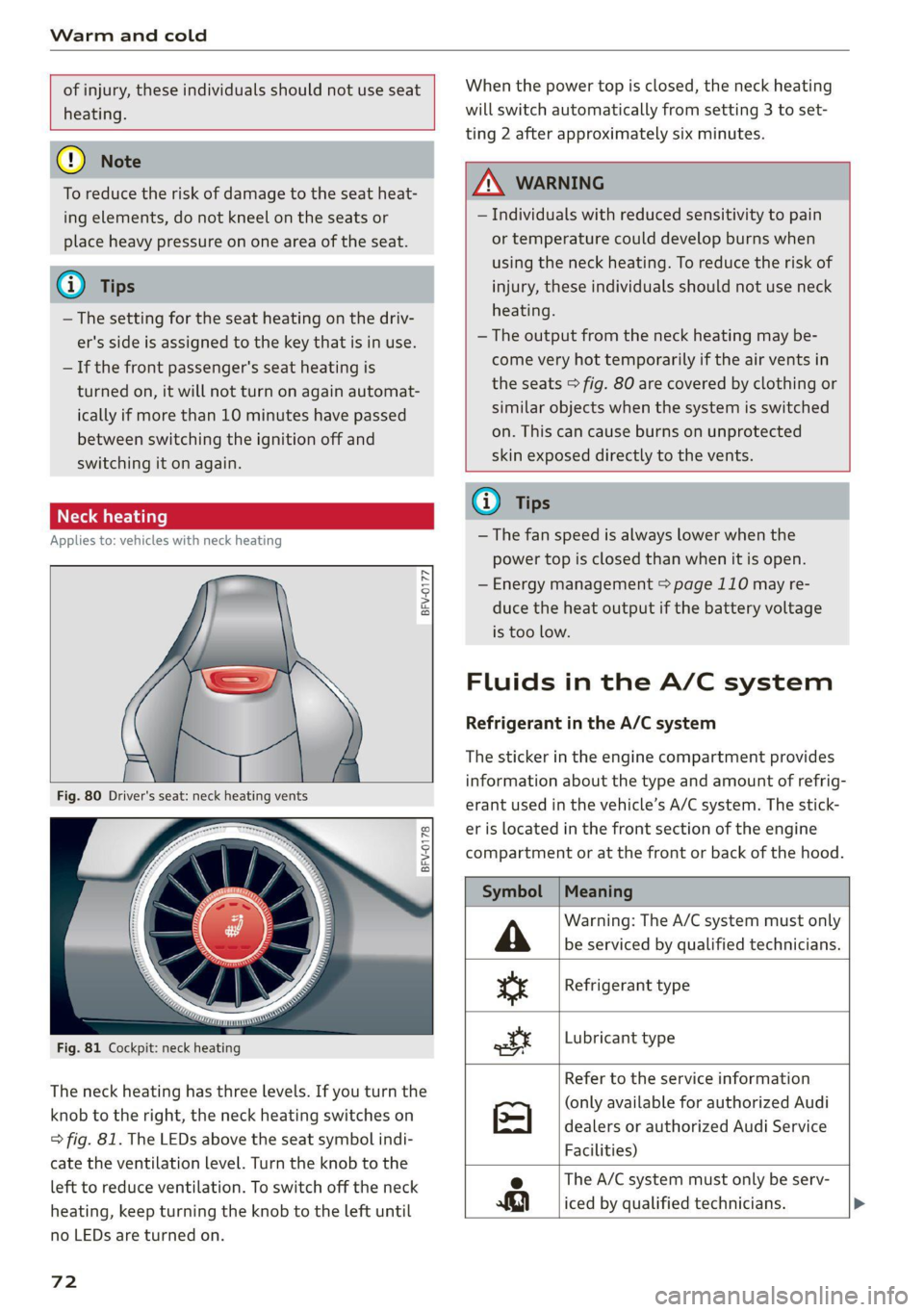
Fig. 81 Cockpit: neck heating
The neck heating has three levels. If you turn the
knob to the right, the neck heating switches on
=> fig. 81. The LEDs above the seat symbol indi-
cate the ventilation level. Turn the knob to the
left to reduce ventilation. To switch off the neck
heating, keep turning the knob to the left until
no LEDs are turned on.
72
When the power top is closed, the neck heating
will switch automatically from setting 3 to set-
ting 2 after approximately six minutes.
ZA WARNING
— Individuals with reduced sensitivity to pain
or temperature could develop burns when
using the neck heating. To reduce the risk of
injury, these individuals should not use neck
heating.
— The output from the neck heating may be-
come very hot temporarily if the air vents in
the seats > fig. 80 are covered by clothing or
similar objects when the system is switched
on. This can cause burns on unprotected
skin exposed directly to the vents.
@ Tips
— The fan speed is always lower when the
power top is closed than when it is open.
— Energy management > page 110 may re-
duce the heat output if the battery voltage
is too low.
Fluids in the A/C system
Refrigerant in the A/C system
The sticker in the engine compartment provides
information about the type and amount of refrig-
erant used in the vehicle’s A/C system. The stick-
er is located in the front section of the engine
compartment or at the front or back of the hood.
Symbol
A
ss
ott
Meaning
Warning: The A/C system must only
be serviced by qualified technicians.
Refrigerant type
Lubricant type
Refer to the service information
(only available for authorized Audi
dealers or authorized Audi Service
Facilities)
e The A/C system must only be serv-
iced by qualified technicians. >
Page 78 of 280
![AUDI TT COUPE 2020 User Guide Driving
Stopping the engine
> Bring the vehicle to a full stop.
> Press the [START ENGINE STOP] button.
Emergency off function*
If it is absolutely necessary, the engine can also
be](/img/6/57658/w960_57658-77.png "AUDI TT COUPE 2020 User Guide Driving
Stopping the engine
> Bring the vehicle to a full stop.
> Press the [START ENGINE STOP] button.
Emergency off function*
If it is absolutely necessary, the engine can also
be")
Driving
Stopping the engine
> Bring the vehicle to a full stop.
> Press the [START ENGINE STOP] button.
Emergency off function*
If it is absolutely necessary, the engine can also
be turned off while driving at speeds starting at
4 mph (7 km/h). To stop the engine, press the
START ENGINE STOP] button twice in a row or
press and hold it one time.
Z\ WARNING
— Never turn off the engine before the vehicle
has come to a complete stop. Switching it
off before the vehicle has stopped may im-
pair the function of the brake booster and
power steering. You may need to use more
force when braking or steering. Because you
cannot brake and steer as you usually would,
this could lead to accidents and serious inju-
ries.
— If you leave the vehicle, switch the ignition
off and take the vehicle key with you. If you
do not do this, the engine could be started
and electrical equipment such as the power
windows could be activated. This can lead to
serious injuries.
— For safety reasons, always park the vehicle
with the selector lever in the P position.
Otherwise, there is the risk that the vehicle
could roll unintentionally.
@) Note
If the engine has been under heavy load for
an extended period of time, heat builds up in
the engine compartment after the engine is
switched off and there is a risk of damaging
the engine. For this reason, let the engine run
at idle for approximately two minutes before
shutting it off.
@) Tips
For up to 10 minutes after stopping the en-
gine, the radiator fan may turn on again auto-
matically or it may continue to run, even if the
ignition is switched off.
76
Messages
Pressing the start/stop button again will switch
off the engine
This message appears when you press the
START ENGINE STOP] button while driving.
Engine start system: malfunction! Please con-
tact Service
The engine automatic start system has a mal-
function. Drive immediately to an authorized
Audi dealer or authorized Audi Service Facility to
have the malfunction repaired. To start the en-
gine, press and hold the |START ENGINE STOP
button.
Remote control key: hold back of key
against the designated area. See owner's man-
ual
This message appears if there is no convenience
key inside the vehicle or if the system does not
recognize the key. The convenience key may not
be recognized, for example, if it is covered by an
object that disrupts the signal (such as a brief-
case), or if the key battery is weak. Electronic de-
vices such as cell phones can also interfere with
the signal.
To still be able to start or stop the engine, see
= page 77, Starting the engine when there is a
malfunction.
B Remote control key: key not detected. Is the
key
still in the vehicle?
The B indicator light turns on and this message
appears if the convenience key was removed from
the vehicle when the engine was running. If the
convenience key is no longer in the vehicle, you
cannot switch the ignition on or start the engine
once you stop it. You also cannot lock the vehicle
from the outside.
Please press the brake pedal
This message appears if you do not press the
brake pedal when starting the engine.
Please select N or P
Page 98 of 280
Assist systems
The display brightness adjusts automatically to
the brightness of the surroundings, both in the
information and in the warning stage. In very
dark or very bright surroundings, the automatic
adjustment will set the display to the minimum
or maximum level. In such cases, you may notice
no change when adjusting the brightness, or the
change may only be noticeable once the sur-
roundings change.
Adjust the brightness to a level where the display
in the information stage will not disrupt your
view ahead. If you change the brightness, the dis-
play in the exterior mirror will briefly show the
brightness level in the information stage. The
brightness of the warning stage is linked to the
brightness in the information stage and is adjust-
ed along with the information stage.
@) Tips
— Side assist is not active while you are mak-
ing the adjustment.
— Your settings are automatically stored and
assigned to the remote control key being
used.
Messages
Applies to: vehicles with Audi side assist
If the side assist switches off automatically, a
message appears in the Infotainment system dis-
play.
Audi side assist: currently unavailable.
Sensor vision restricted due to surroundings.
See owner's manual
The radar sensor vision is impaired. Do not cover
the area in front of the sensors with bike wheels,
stickers, dirt or other objects. Clean the area cov-
ering the sensors, if necessary > page 94,
fig. 102.
Audi side assist: currently unavailable.
See owner's manual
Side assist cannot be switched on at this time be-
cause there is a malfunction (for example, the
battery charge level may be too low).
96
Audi side assist: malfunction! Please
contact Service
The system cannot guarantee that it will detect
vehicles correctly and it has switched off. The
sensors have been moved or are faulty. Have the
system checked by an authorized Audi dealer or
authorized Audi Service Facility soon.
Audi drive select (drive
settings)
Introduction
Applies to: vehicles with Audi drive select
Drive select makes it possible to experience dif-
ferent types of vehicle characteristics in one vehi-
cle. With different driving modes, the driver can
switch the setting, for example from sporty to
comfortable. In the Individual mode, the set-
tings can be adjusted to your personal preferen-
ces. This makes it possible to combine settings
such as a sporty drivetrain setting with comforta-
ble steering.
Z\ WARNING
Using Audi drive select incorrectly can lead to
collisions, other accidents and serious inju-
ries.
Applies to: vehicles with Audi drive select
The vehicle setup in each mode depends on the
vehicle's features.
Engine and automatic transmission
Depending on the mode, the engine and auto-
matic transmission respond more quickly or ina
more balanced manner to accelerator pedal
movements.
Suspension control (Audi magnetic ride)*
The suspension control uses sensors to record in-
formation regarding steering movements, brak-
ing and acceleration operations by the driver, as
well as information about the road surface, driv-
ing speed, and load. With drive select, you can
adjust the suspension control to sporty (dynam-
ic), comfortable (comfort) or balanced (auto). >
Page 112 of 280
Intelligent Technology
> Extending: press > briefly.
> Retracting: press and hold 3% when driving at
speeds up to approximately 10 mph (20 km/h).
At speeds from approximately 10 mph (20
km/h) to 75 mph (120 km/h), press > briefly.
Messages
If the | or turns on and a corresponding
message appears, the rear spoiler may not be
able to extend due to a malfunction. This could
change the vehicle's driving characteristics at
high speeds. Do not drive faster than 85 mph
(140 km/h).
The rear spoiler may be blocked. Clean the rear
spoiler compartment > page 236, close all vehi-
cle doors and lids, and wait several minutes until
the vehicle has completely turned off. If the indi-
cator light turns on again the next time the en-
gine starts, drive immediately to an authorized
Audi dealer or authorized Audi Service Facility to
have the malfunction repaired. The color of the
indicator light depends on the vehicle speed.
Z\ WARNING
— Make sure that the rear spoiler is extended
at speeds above 85 mph (140 km/h). Other-
wise, the reduced driving stability will in-
crease the risk of an accident.
— When extending and retracting the rear
spoiler, make sure there are no persons or
objects within the spoiler range to reduce
the risk of injury.
@ Note
—To reduce the risk of damage, do not press
on the rear spoiler if pushing the vehicle.
— To reduce the risk of damage, never lean
against the rear spoiler or place heavy pres-
sure on it.
— To reduce the risk of damage when extend-
ing or retracting the rear spoiler, make sure
the luggage compartment lid is closed and
there is nothing in the way of the rear spoil-
er,
110
Energy management
Your vehicle is equipped with an intelligent ener-
gy management system for distributing electrici-
ty. This significantly improves the starting ability
and increases the vehicle battery life.
G) Tips
— If you drive short distances frequently, the
vehicle battery may not charge enough
while driving. As a result, convenience func-
tions for electrical equipment may be tem-
porarily unavailable.
— The vehicle battery will gradually drain if
the vehicle is not driven for long periods of
time, or if electrical equipment is used
when the engine is not running. To ensure
that the vehicle can still be started, the
electrical equipment will be limited or
switched off.
Page 114 of 280
Multi Media Interface
outside of the vehicle, such as police and fire
sirens, can be heard easily at all times.
@® Tips
The MMI switches off automatically if the en-
gine is not running and the vehicle battery is
low.
MMI operation
Selecting and confirming a function
RAH-8500
aan Cra
Pa
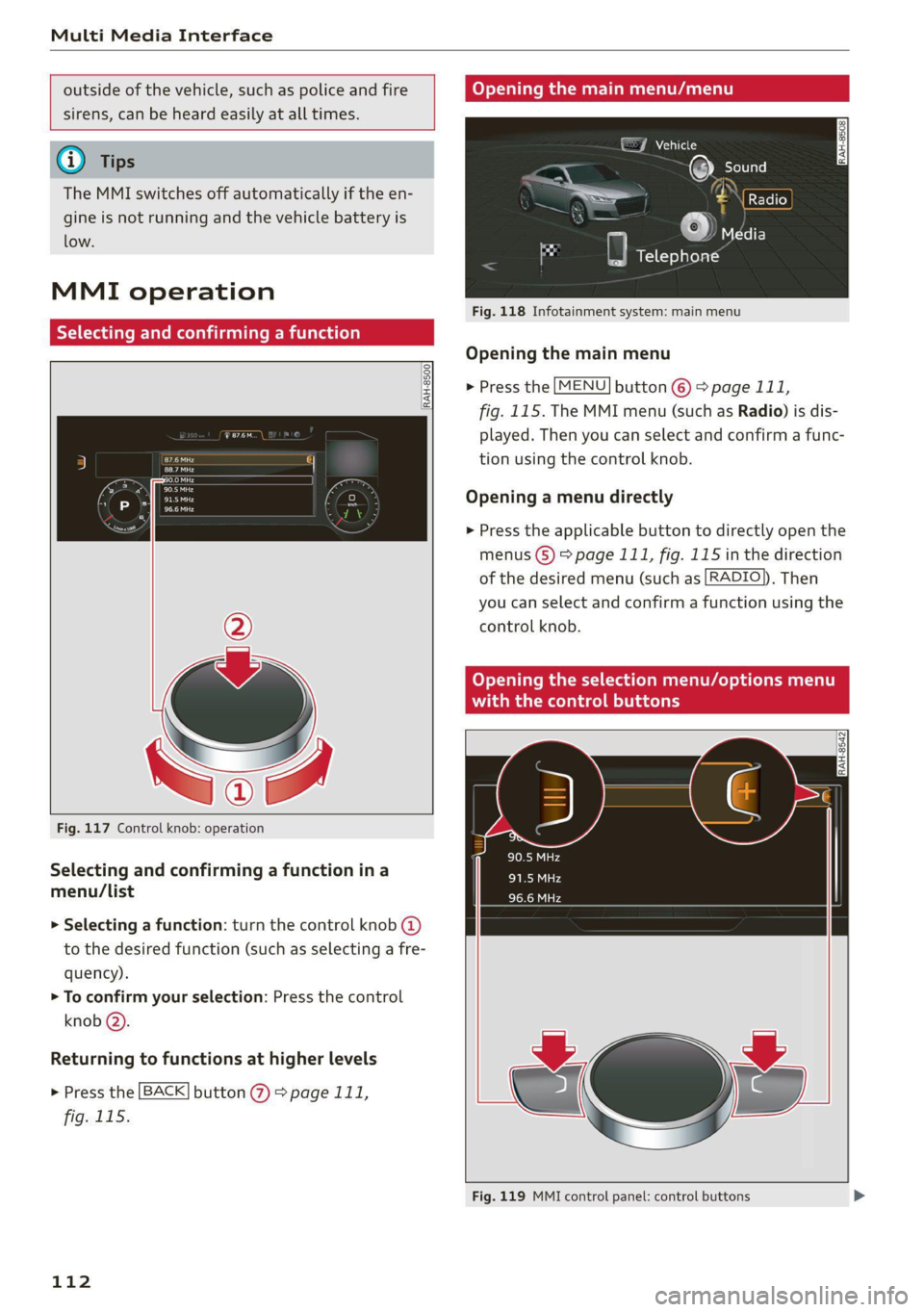
Fig. 117 Control knob: operation
Selecting and confirming a function in a
menu/list
> Selecting a function: turn the control knob @)
to the desired function (such as selecting a fre-
quency).
> To confirm your selection: Press the control
knob @).
Returning to functions at higher levels
> Press the [BACK] button @ > page 111,
fig. 115.
112
Opening the main menu/menu
GJ Vehicle
Fig. 118 Infotainment system: main menu
Opening the main menu
> Press the [MENU] button © > page 111,
fig. 115. The MMI menu (such as Radio) is dis-
played. Then you can select and confirm a func-
tion using the control knob.
Opening a menu directly
> Press the applicable button to directly open the
menus (8) > page 111, fig. 115 in the direction
of the desired menu (such as [RADIO)), Then
you can select and confirm a function using the
control knob.
Opening the selection menu/options menu
da) Datars
Fig. 119 MMI control panel: control buttons
Page 133 of 280
8S1012721BB
Telephone
secondary phone, since the directory from the
primary phone is always displayed.
Switching the primary and secondary phone
Requirement: a primary phone and a secondary
phone must be connected.
> Select: [MENU] button > Telephone > right con-
trol button > Switch primary and second.
phone.
@) Tips
— You can see if a cell phone is connected as
the primary phone or secondary phone in
the Connection manager > page 190.
— You can also make your connected cell
phone the default phone by selecting Set as
default telephone in the Connection man-
ager > page 192.
— The device name of the connected primary
phone is shown in the Telephone menu
(such as myPhone).
— If the primary phone does not connect auto-
matically to the MMI when the ignition is
switched on, for example because it is out
of the vehicle range or the Bluetooth func-
tion is switched off, then a previously paired
secondary phone is automatically connected
as the primary phone.
— You can send and receive messages on your
primary phone as well as on your secondary
phone > page 133, fig. 132. You do not
need to switch your primary phone and sec-
ondary phone for this.
D_ The Qi standard makes it possible to charge your mobile
device wirelessly.
Using the Audi phone
box
Applies to: vehicles with Audi phone box
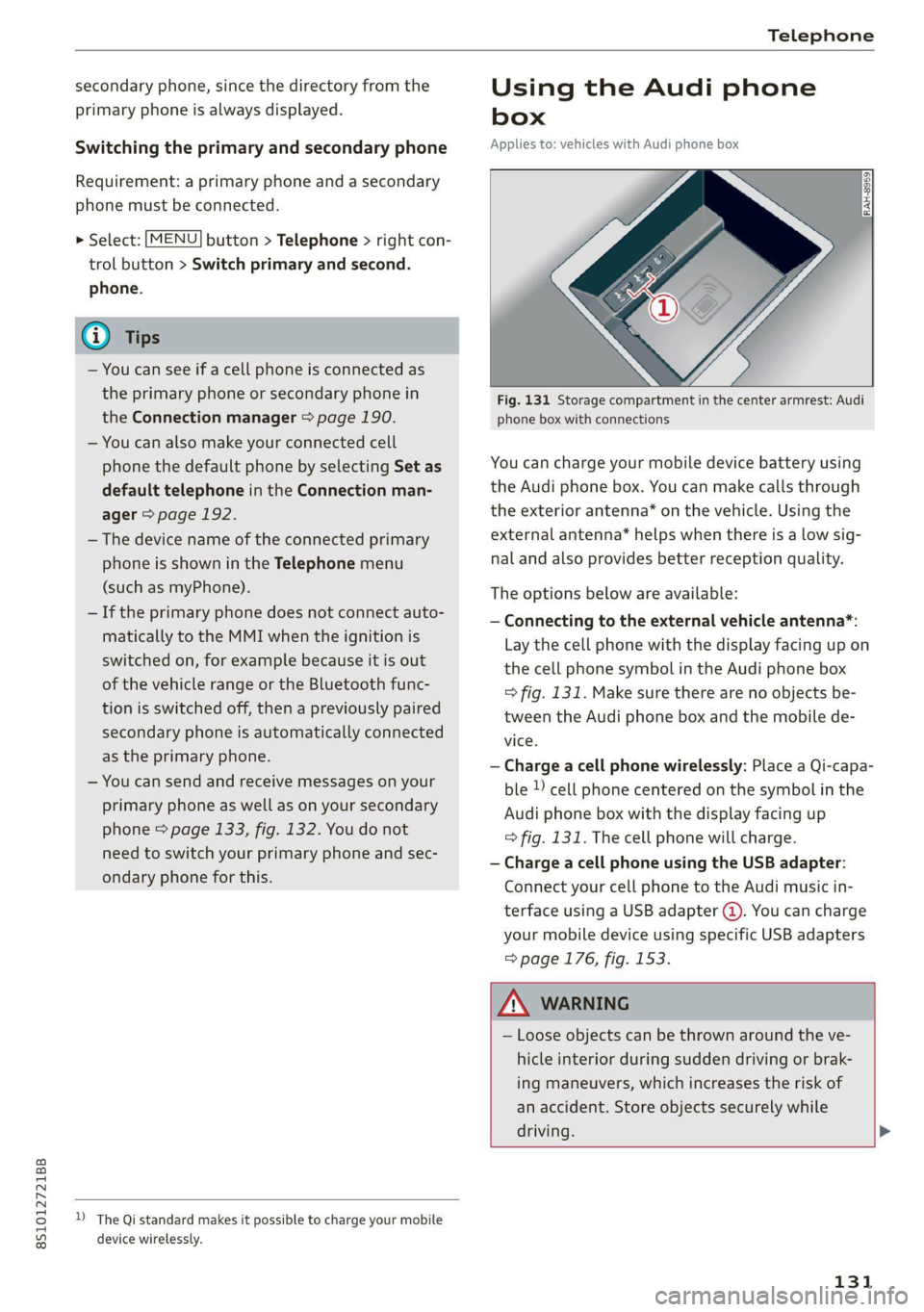
Fig. 131 Storage compartment in the center armrest: Audi
phone box with connections
You can charge your mobile device battery using
the Audi phone box. You can make calls through
the exterior antenna* on the vehicle. Using the
external antenna* helps when there is a low sig-
nal and also provides better reception quality.
The options below are available:
— Connecting to the external vehicle antenna*:
Lay the cell phone with the display facing up on
the cell phone symbol in the Audi phone box
=> fig. 131. Make sure there are no objects be-
tween the Audi phone box and the mobile de-
vice.
— Charge a cell phone wirelessly: Place a Qi-capa-
ble » cell phone centered on the symbol in the
Audi phone box with the display facing up
=> fig. 131. The cell phone will charge.
— Charge a cell phone using the USB adapter:
Connect your cell phone to the Audi music in-
terface using a USB adapter @). You can charge
your mobile device using specific USB adapters
=> page 176, fig. 153.
ZA\ WARNING
— Loose objects can be thrown around the ve-
hicle interior during sudden driving or brak-
ing maneuvers, which increases the risk of
an accident. Store objects securely while
driving. >
131
Page 175 of 280

8S1012721BB
Media
Playing the Jukebox
Requirement: the Jukebox must contain audio/
video files > page 172, Adding files to the
Jukebox.
The Jukebox is accessed and operated through
the MMI @) > page 178, fig. 155.
Displaying Jukebox memory capacity
Select: right control button > Jukebox memory
capacity. Information about the Jukebox memory
capacity and the number of stored tracks is dis-
played.
Deleting tracks from the Jukebox)
Requirement: the Jukebox must contain audio/
video files.
— Deleting an entry: select an entry from the
Jukebox media center. Select: right control but-
ton > Delete from jukebox > This entry or En-
tire list.
— The status of the deleting process is shown in
the MMI. Jukebox playback stops during the de-
leting process and starts again automatically
once the deletion is complete.
@) Note
Do not import audio/video files when the en-
gine is turned off because this will drain the
vehicle battery.
@) Tips
— Tracks from audio CDs cannot be imported
to the Jukebox for legal reasons.
— Files that have already been imported are
automatically recognized and cannot be
copied to the Jukebox again.
— It is not possible to play audio/video files
in the CD/DVD* drive while importing them.
— The Jukebox does not provide an export
function due to legal reasons.
— Files or tracks without additional stored in-
formation are listed as Unknown. Audi rec-
ommends adding additional information
(such as ID3 tags) to audio files.
)) Not in the Playback view.
— Reset the Jukebox to the factory default set-
tings when selling your vehicle > page 190.
Bluetooth audio player
Applies to: vehicles with Bluetooth audio player
With the Bluetooth audio player, you can play
music wirelessly from your Bluetooth-capable de-
vice (such as a cell phone) through the MMI.
Requirement: the vehicle must be stationary and
the ignition must be switched on. The Bluetooth
settings will open on your mobile device during
the connection setup. The Bluetooth function and
visibility of the MMI = page 192 and mobile de-
vice must be switched on. The Bluetooth audio
player > page 192 must be switched on in the
MMI.
— Connecting a Bluetooth player: press the
MEDIA] button. Press the left control button
until the sources overview is displayed. Select
and confirm Bluetooth audio player ©)
=> page 178, fig. 156.
—If necessary, select and confirm, Not connected
> Connect Bluetooth audio player. The Blue-
tooth device search starts. Follow the instruc-
tions in the MMI.
— Select and confirm the desired Bluetooth device
from the list. The MMI generates a PIN for the
connection.
— Select and confirm Yes.
— Enter the PIN for connecting on your Bluetooth
device, or if the PIN is already displayed on your
Bluetooth device, confirm it on the Bluetooth
device. The time allowed for entering the PIN is
limited to approximately 30 seconds.
The media is started and operated through the
mobile device or the MMI, depending on the de-
vice being used.
@® Tips
— Check for any connection requests on your
Bluetooth device.
— Multiple Bluetooth audio players can be
connected to the MMI, but only one mobile
device can be active.
173
Page 178 of 280
Always follow the information found in >@ in
General information on page 142.
@ Tips
— Depending on the Internet connection and
network traffic, the connection may discon-
nected when online media sources are play-
ing.
— Online media and Internet radio usage de-
pends on the service availability of the third
party provider.
— Audi AG simply makes the access to online
media services possible through the MMI
and does not take any responsibility for the
contents of the online media services.
— Always read the chapter > page 142, Audi
connect.
— Depending on the mobile device being used,
there may be interruptions during media
playback and when using the myAudi app.
To prevent interruptions when using a mo-
bile device, do not lock the screen on your
mobile device and keep the myAudi app in
the foreground.
— Contact an authorized Audi dealer or au-
thorized Audi Service Facility for additional
information about online media.
Multimedia connections
USB adapter for Audi music interface or
USB charging port
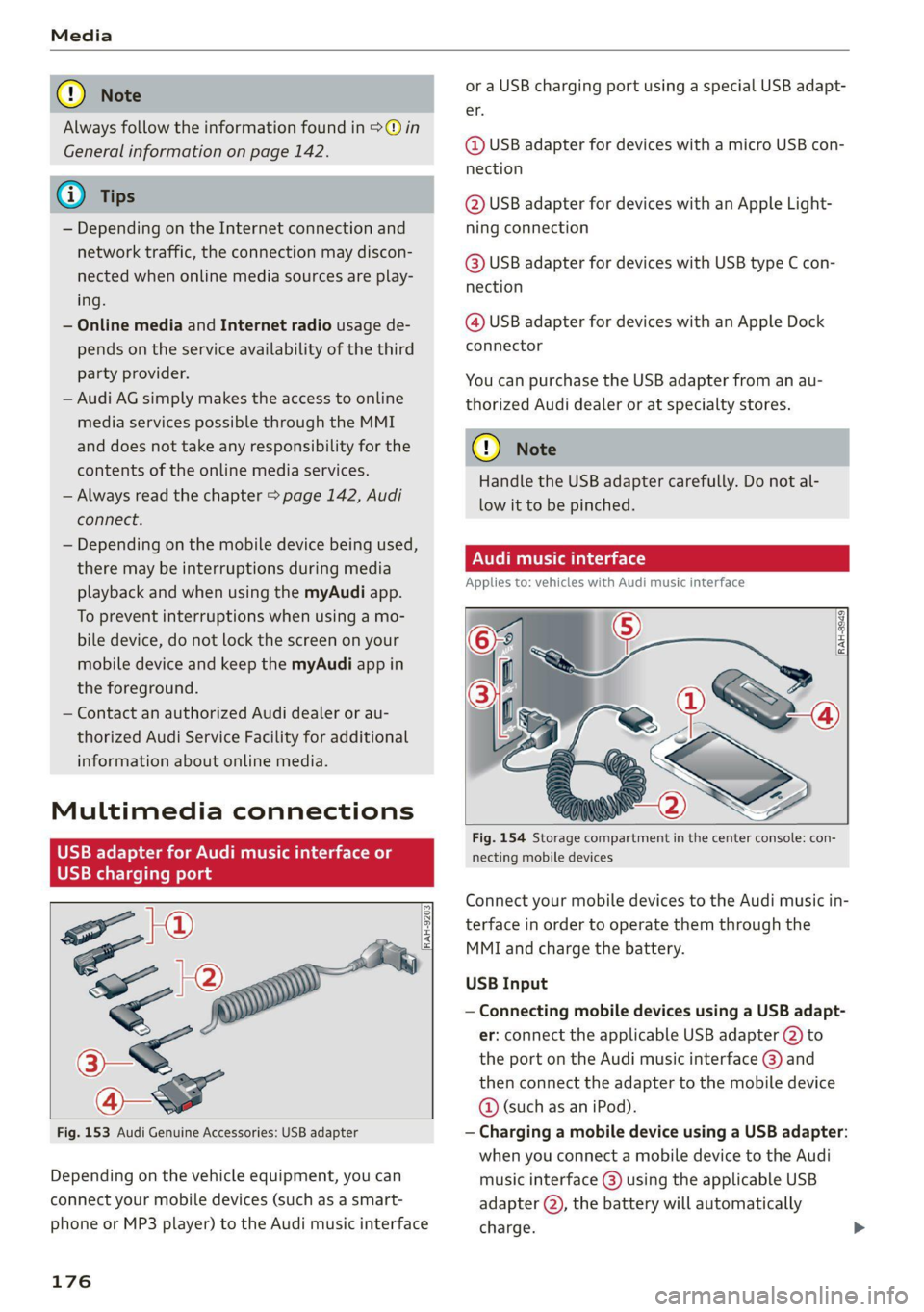
Fig. 153 Audi Genuine Accessories: USB adapter
{RAH-9203}
Depending on the vehicle equipment, you can
connect your mobile devices (such as a smart-
phone or MP3 player) to the Audi music interface
176
or a USB charging port using a special USB adapt-
er.
@ USB adapter for devices with a micro USB con-
nection
@ USB adapter for devices with an Apple Light-
ning connection
@ USB adapter for devices with USB type C con-
nection
@ USB adapter for devices with an Apple Dock
connector
You can purchase the USB adapter from an au-
thorized Audi dealer or at specialty stores.
@) Note
Handle the USB adapter carefully. Do not al-
low it to be pinched.
ONT ee la
Applies to: vehicles with Audi music interface
Copan >
(! 7
a
Fig. 154 Storage compartment in the center console: con-
necting mobile devices
Connect your mobile devices to the Audi music in-
terface in order to operate them through the
MMI and charge the battery.
USB Input
— Connecting mobile devices using a USB adapt-
er: connect the applicable USB adapter @) to
the port on the Audi music interface @) and
then connect the adapter to the mobile device
@ (such as an iPod).
— Charging a mobile device using a USB adapter:
when you connect a mobile device to the Audi
music interface @) using the applicable USB
adapter (2), the battery will automatically
charge.
Page 187 of 280

8S1012721BB
Media
not always display, depending on the sys-
tem language.
Troubleshooting
Problem Solution
Audi music interface*/Bluetooth au-
dio player*: mobile device is not sup-
ported.
Read the instructions in the chapter > page 176, Multimedia
connections/=> page 173, Bluetooth audio player.
Audi music interface*/AUX input: the
volume is too high/too low when
starting playback through the AUX in-
put.
Adjust the volume of the mobile device to approximately 70%
of the maximum output > page 181, Input level.
Audi music interface*: the portable
device is not recognized as a source.
For many cell phones or mobile devices, playback is not possi-
ble when the battery level is too low (less than 5% of its ca-
pacity). The mobile device will only be recognized as a media
source in the MMI after connecting if the battery charge level
is sufficient.
Audi music interface*: malfunctions
during audio playback through an
iPod/iPhone.
The Bluetooth audio player function is switched on. Switch
this function off > page 192 when you are not using the Blue-
tooth audio player.
AUX input: there is static when con-
necting and disconnecting the AUX
connection cable.
When connecting and disconnecting, the External audio play-
er source is already selected. Before connecting or disconnect-
ing the mobile device, either mute the device (see
=> page 193) or switch to a different audio source (for exam-
ple > page 165, Opening the radio).
Bluetooth audio player*/Wi-Fi audio
player*: audio playback interference.
Only one interface should be actively used at a time to ensure
problem-free playback.
Wi-Fi audio player*: audio playback
interference.
Audio playback interference can occur on some cell phones if
the Internet connection in the vehicle was not established
through the SIM card reader* on the MMI control panel and
the mobile data option on the cell phone is switched on. De-
activate the mobile data option on your cell phone.
Jukebox”: tracks on the imported
playlist are grayed out.
When importing playlists, all of the files themselves must be
imported.
Jukebox*: imported tracks cannot be
played or found.
If you cannot find imported tracks in the media center, they
may not be supported. Only copy supported files > page 183
to the Jukebox.
Wi-Fi audio player*: multiple devices
are connected to the Wi-Fi hotspot. A
media player (such as a smartphone)
appears as the media source and can-
not be changed.
Close the myAudi app on the connected devices (such as
smartphones) that are not being used as the Wi-Fi audio play-
er*. Likewise, close the UPnP server apps or the media permis-
sions on the integrated UPnP/DLNA server. Connect the de-
sired device as a Wi-Fi audio player* > page 174.
Online media*: connection failed be-
tween the MMI and the myAudi app.
To establish a connection to the MMI, the MMI connection
switch must be switched on in the myAudi app status screen.
185
Page 190 of 280

Audi smartphone interface
— When the Apple CarPlay connection is ac- Android Auto: to go back to the Android Auto
tive, Tag this song for iTunes*» js not avail- menu bar, push the control knob down.
able > page 166.
Operating
Opening a menu item
Select and confirm a menu item using the MMI
Applies to: vehicles with Audi smartphone interface control panel.
Opening a menu
Apple CarPlay: you can go back to the Apple Car-
Play main menu regardless of the selected menu
item by pressing and holding the [BACK] button.
Troubleshooting
Applies to: vehicles with Audi smartphone interface
Problem Solution
Audi smartphone
interface cannot be
opened.
Check the battery charge level on your smartphone.
Check the USB cable and use a different one if necessary.
Check if Android Auto or Apple CarPlay is available in the country where the vehi-
cle is being operated.
Android Auto: check if the Android Auto app is installed on your smartphone.
Connecting the
smartphone to the
MMI failed.
Make sure that you are using the correct USB adapter and check if the USB
adapter is connected correctly to your smartphone and the Audi music interface
=> page 176.
Apple CarPlay: check if Apple CarPlay is activated on your smartphone.
Android Auto: check in the Android Auto app if Android Auto permits new
vehicles.
The smartphone is
not automatically
detected.
Make sure that you are using the correct USB adapter and check if the USB
adapter
is connected correctly to your smartphone and the Audi music interface
=> page 176.
Check if the requirements needed to connect a smartphone have been met.
D_ In preparation at the time of printing.
188